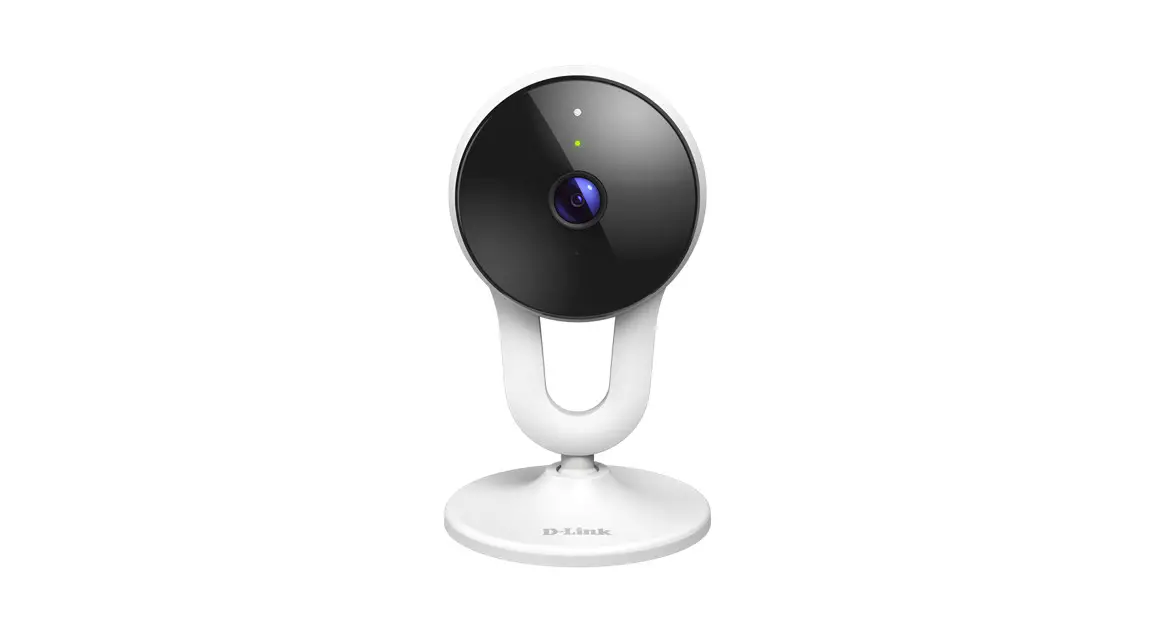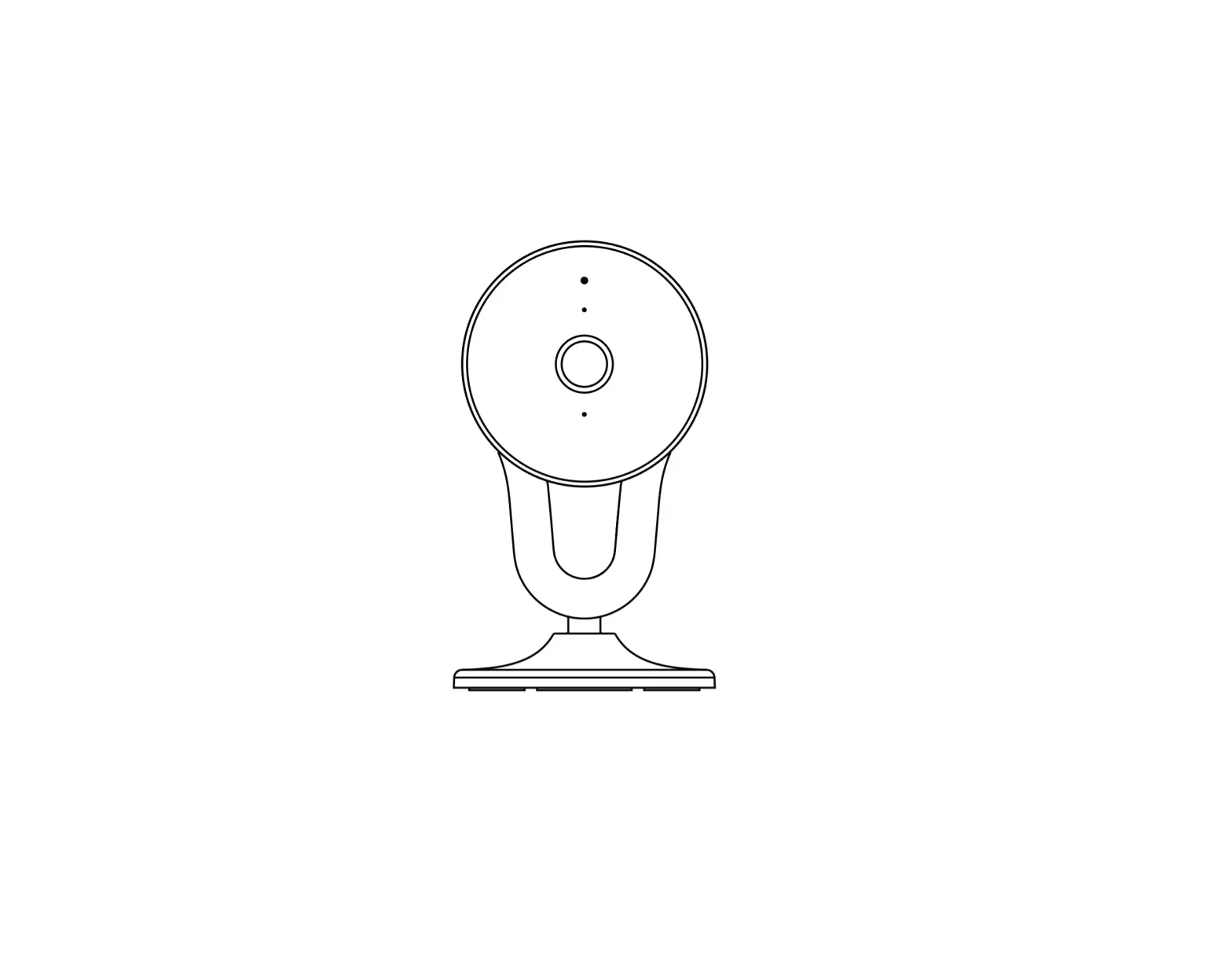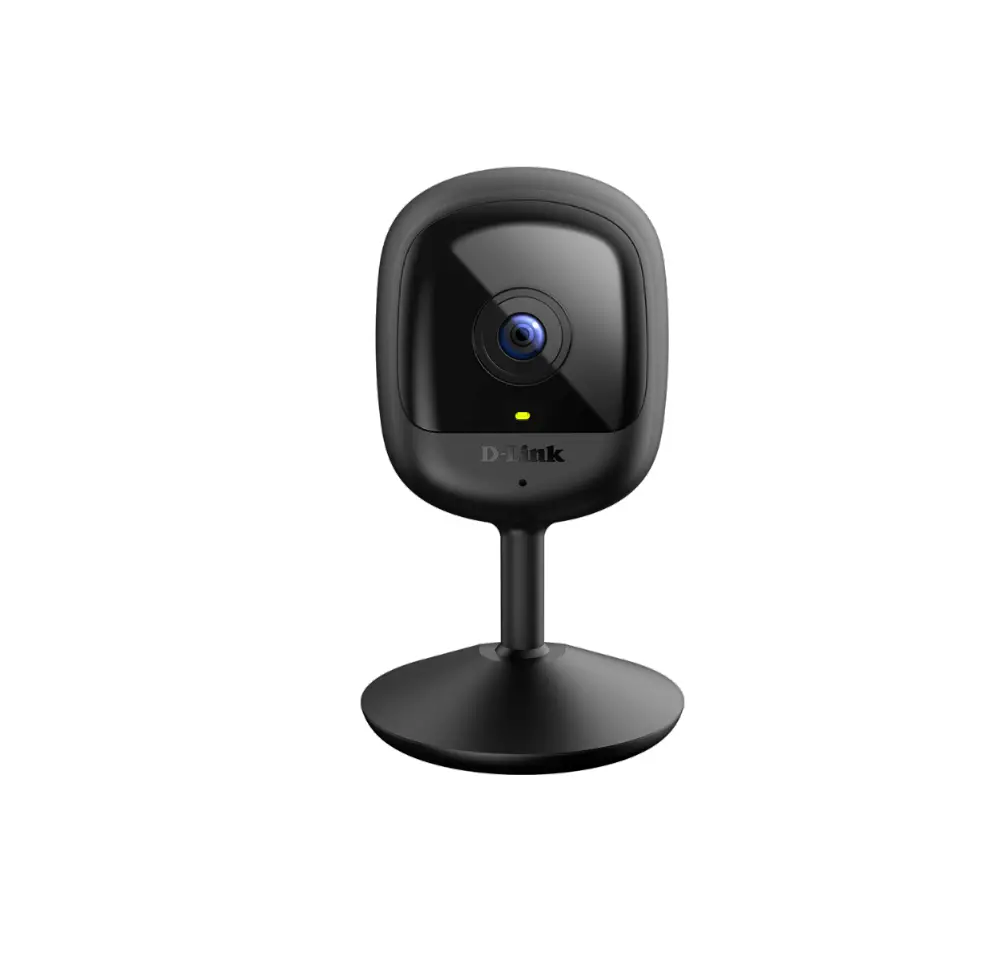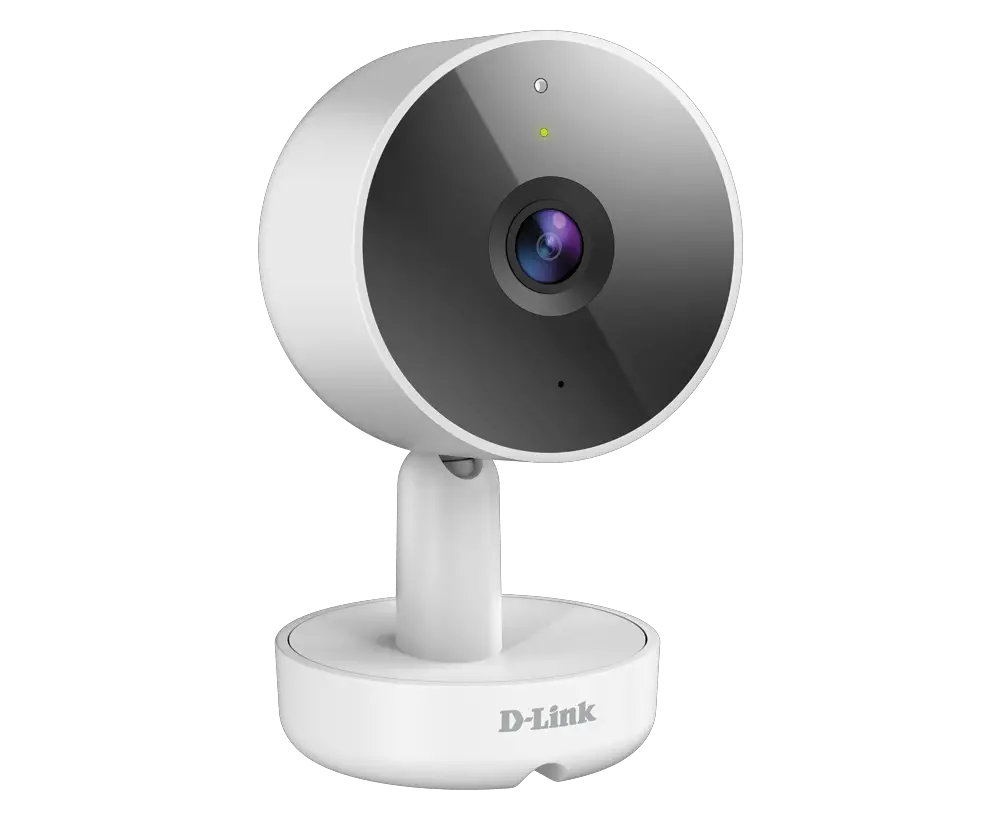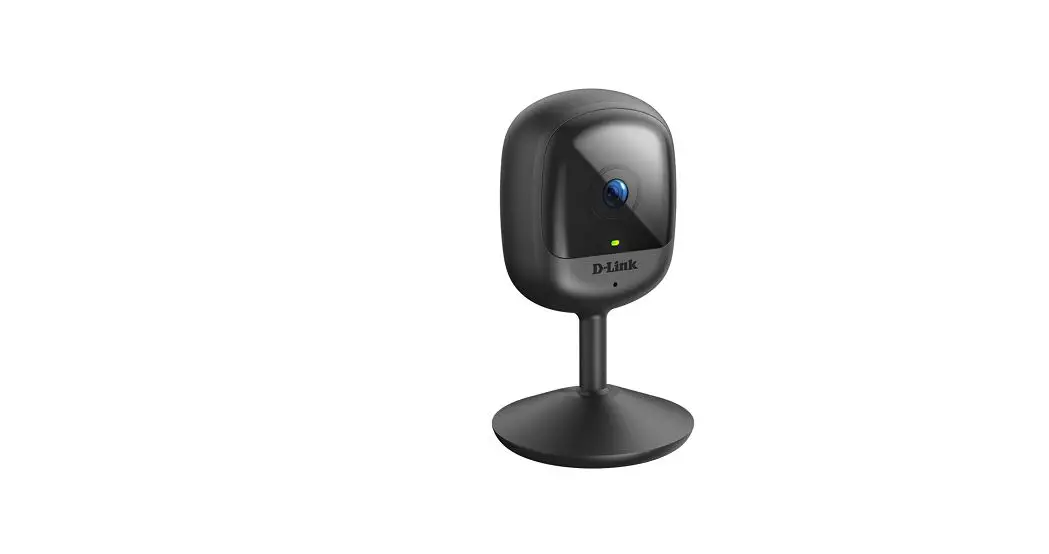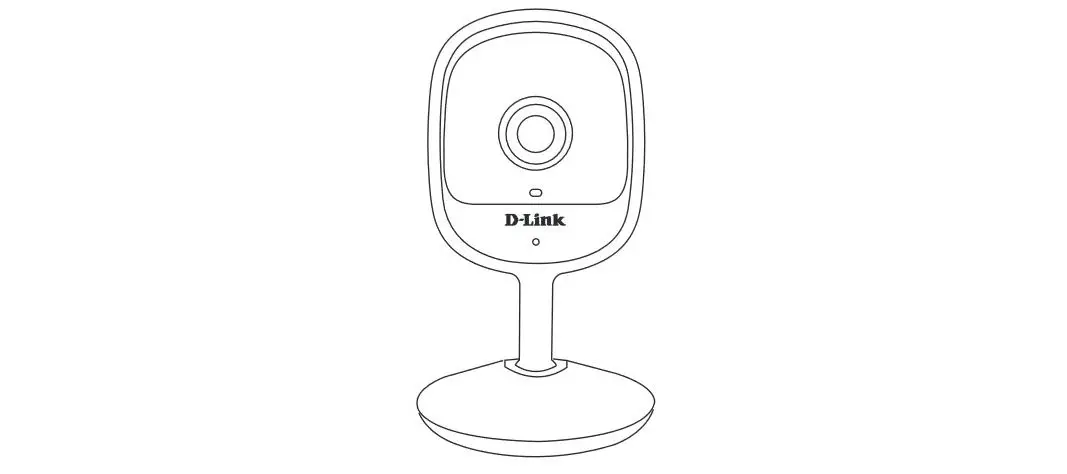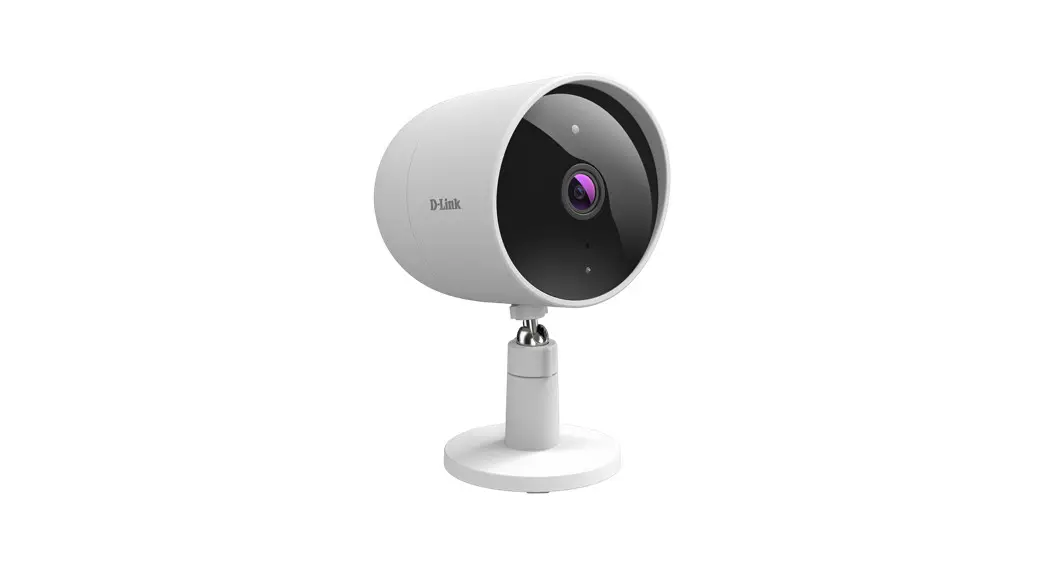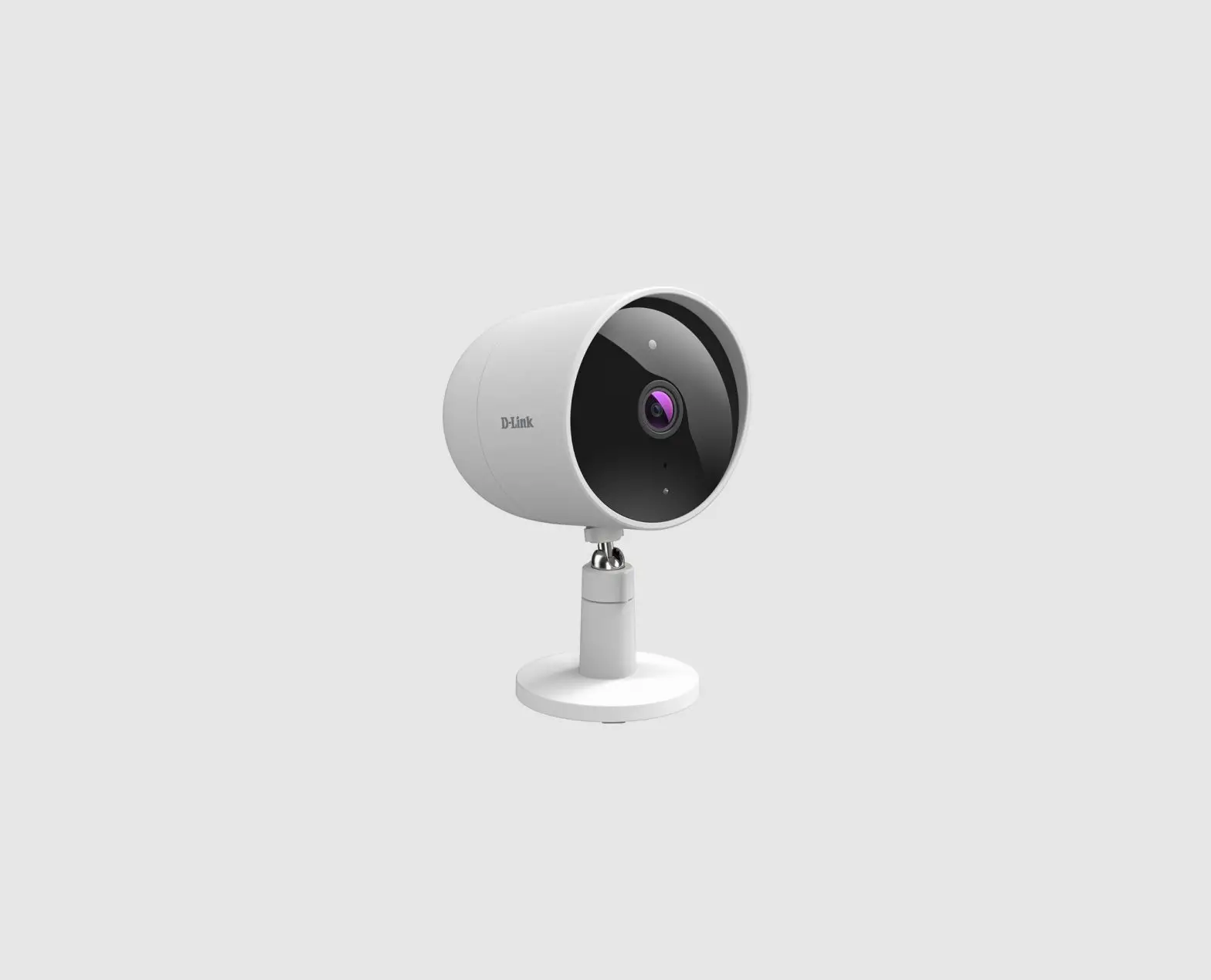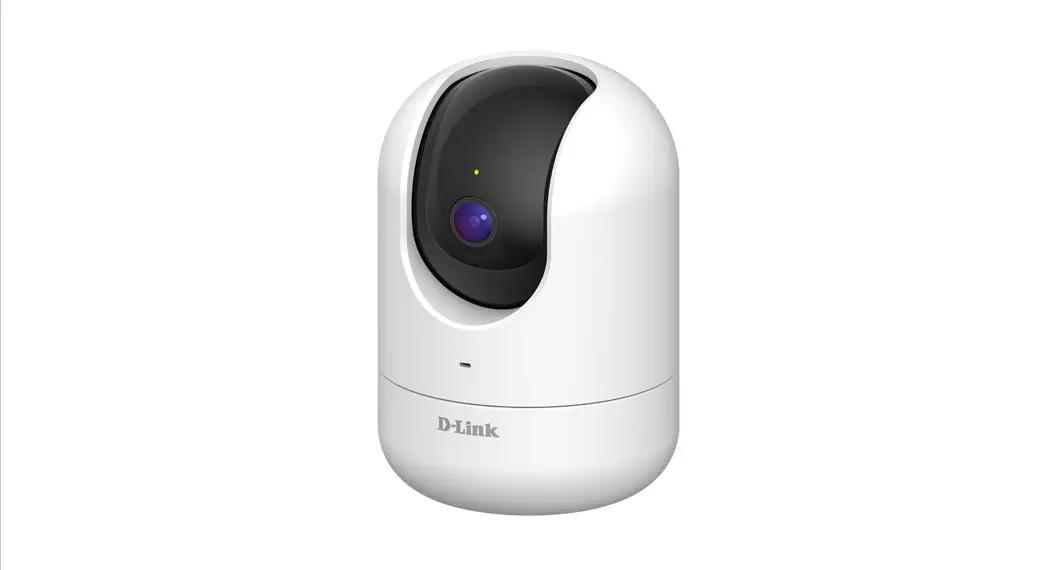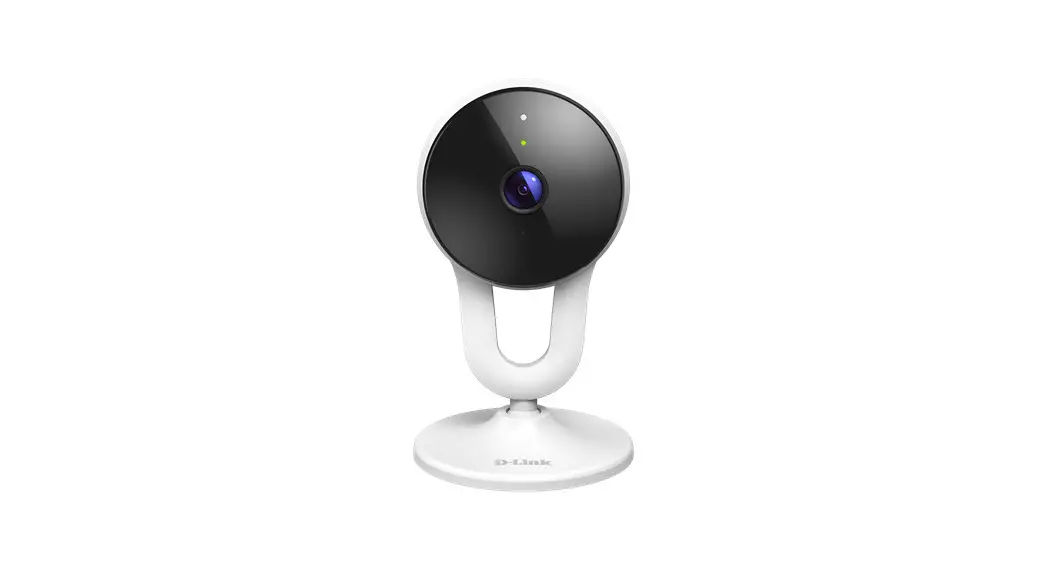
 DCS-8300LHV2
Full HD Wi-Fi Camera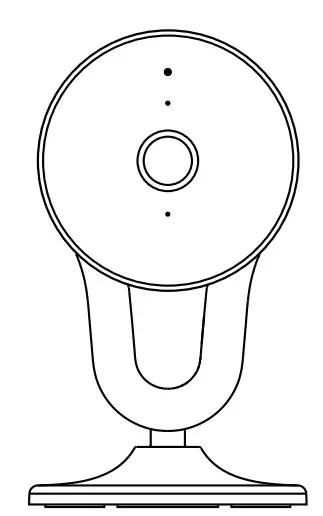 Quick Installation Guide
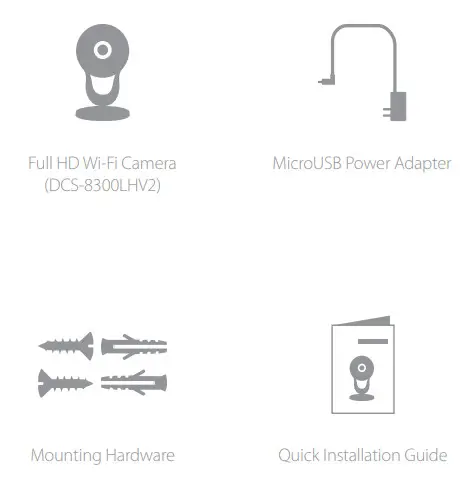
What’s in the Box
Simple Setup
Note: Please set up your device before mounting it.
- Get the mydlink app on the App Store or on Google Play. Launch the app, then Sign In or Create a New Account.

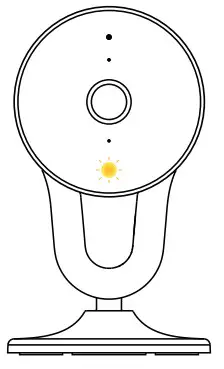
- Power on the device and wait for the Status LED to flash orange.
Note: Make sure that your mobile device’s Bluetooth is on.
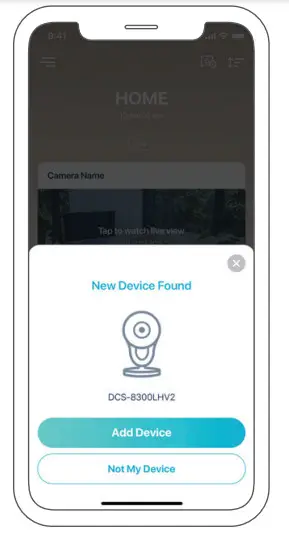
- Place your device next to your mobile device. A prompt will appear
– tap Add Device, then follow the app instructions.
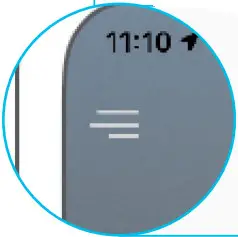 Note: If not automatically prompted within 30 seconds, tap
  then tap Add Device.
LED Behavior
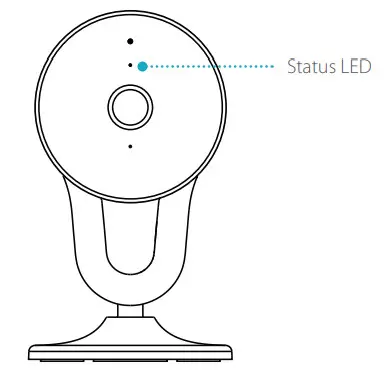
 | Connected to network and mydlink |
 | Booting up |
 | Ready for setup |
 | Firmware being updated – do not power off |
Setup Code
 This is a backup of your device’s Setup Code. Please keep it as a future reference for your device.
Placement
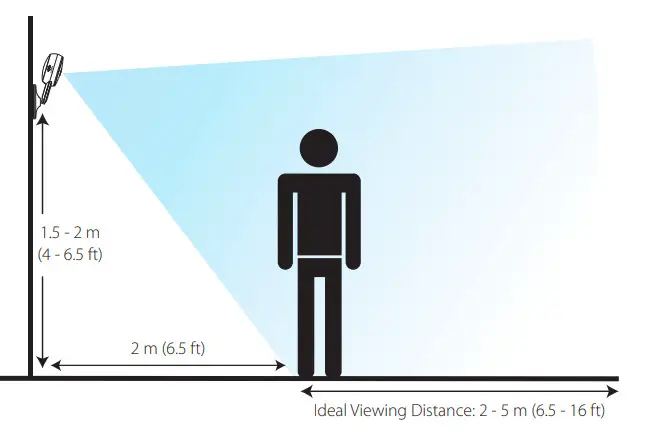
To get the most out of your camera’s view and features, please take the following placement guidelines into consideration.
Height: Place the camera 1.5 – 2 meters (4 to 6.5 feet) from the ground.
Person Detection: Person Detection works best when the subject is between 2 to 5 meters (6.5 – 16 feet) away from the camera.
Mounting
The device can be mounted on a wall or on the ceiling.
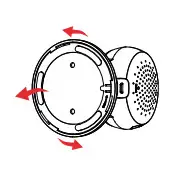 | Turn the mounting bracket anticlockwise to release it from the device. |
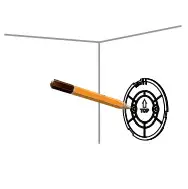 | Align the mounting bracket so that the arrow is pointing up. Use a pencil to make marks in the two holes. |
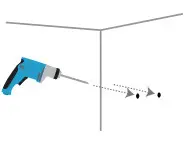 | Use a 6 mm drill bit to drill two 26 mm deep holes over the pencil marks. |
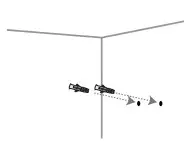 | Hammer in the plastic anchors to support the screws. |
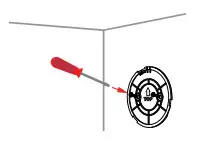 | Align the mounting bracket’s holes over the plastic anchors. Drive the screws into the anchors to secure the mounting bracket. |
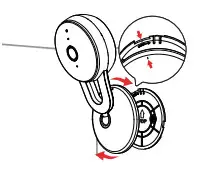 | Align the camera using the grey dots then twist the camera clockwise onto the mounting bracket until it securely locks into place. |
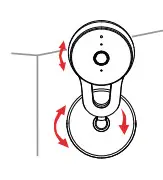 | Adjust your camera via its tilt and rotation options until you’re satisfied with the viewpoint. |
FAQ
What do I do if my device is not working properly?
Reset and reinstall your device. Use a paper clip to press the recessed Reset button and the LED will turn solid red.
During installation, ensure that:
- Your router is connected to the Internet and Wi-Fi is enabled
- Your mobile device is connected to your router’s Wi-Fi and Bluetooth is enabled
- Your mydlink device is in range of your Wi-Fi network
How can I use voice commands to control my device?
The device will work with both Amazon Alexa and Google Assistant. For setup instructions on these services, visit the following websites:
| Amazon Alexa | The Google Assistant: |
| dlink.com/en/alexa | dlink.com/en/google-assistant |
Why is my microSD card not working/not supported?
The microSD card must be formatted into the correct file system (FAT32) before it can be used with this product. This can be done in the mydlink app by selecting the Format function in the storage menu under the device settings.
What is my username and password for setting up my device with an ONVIF system?
To connect your device to an ONVIF system, key in “admin” as the username and use the PIN code of your mydlink device as the password. You can find the PIN-code on your device’s label.
Need Help?
Having trouble installing your new product? D-Link’s website contains the latest user documentation and software updates for D-Link products. Customers can contact D-Link Technical Support through our website by choosing the relevant region.
United States
Website: http://support.dlink.com
Telephone: (877) 453-5465
 Amazon Alexa | D-Link
 D-Link Support