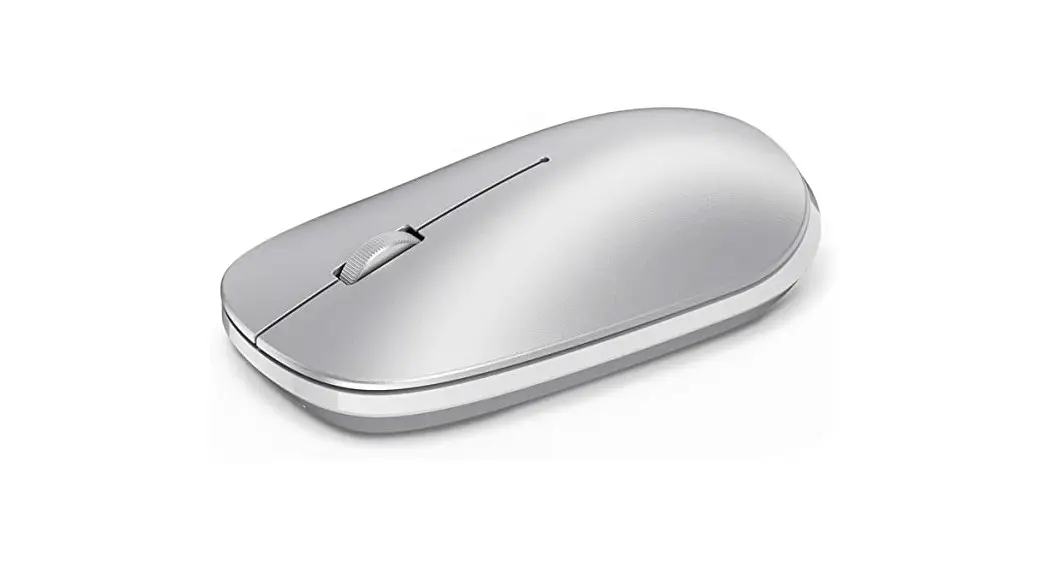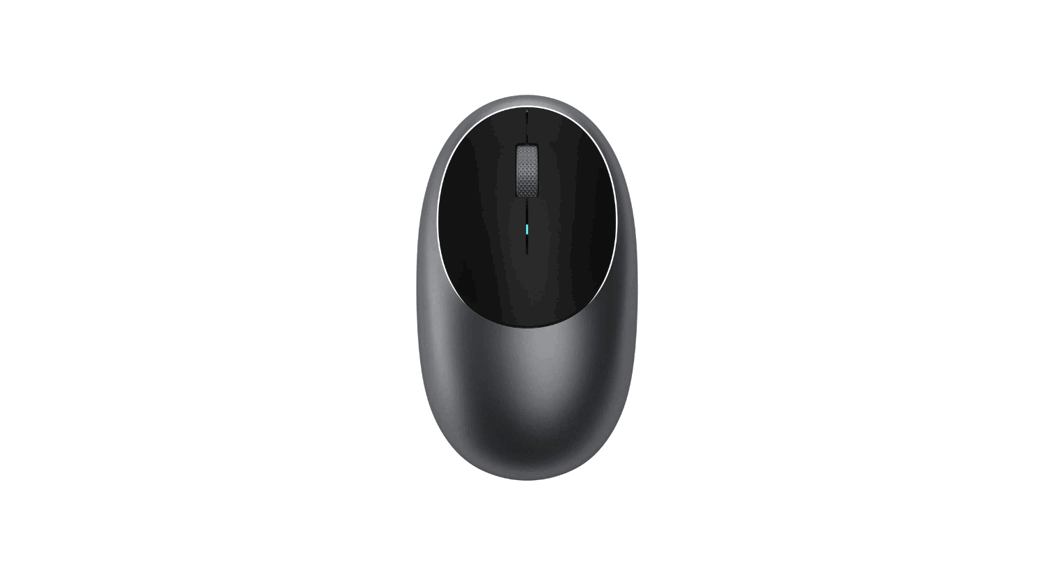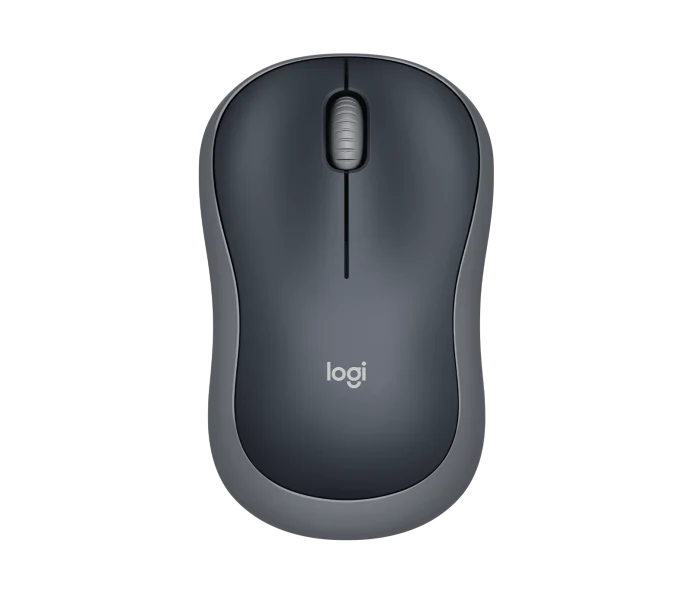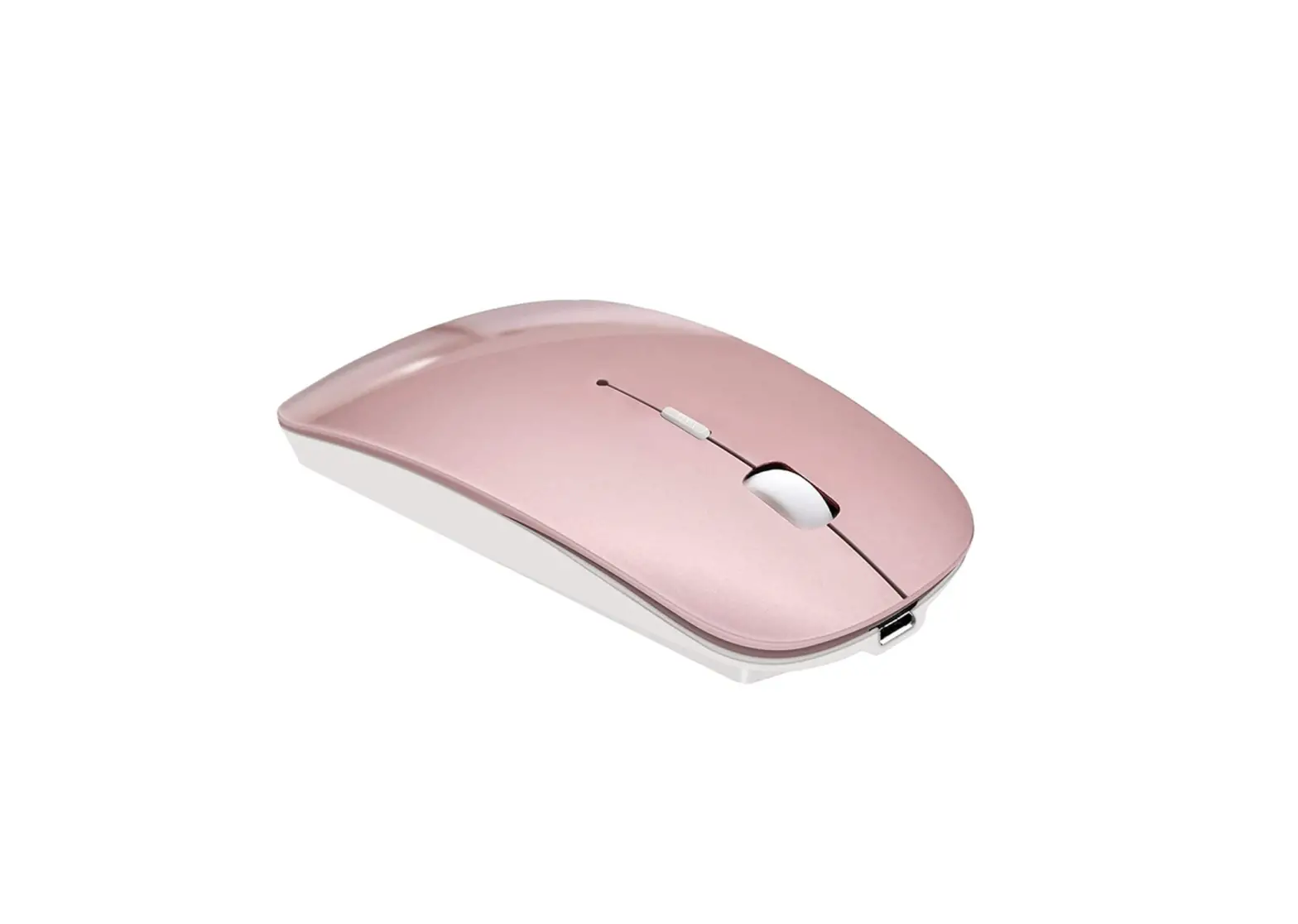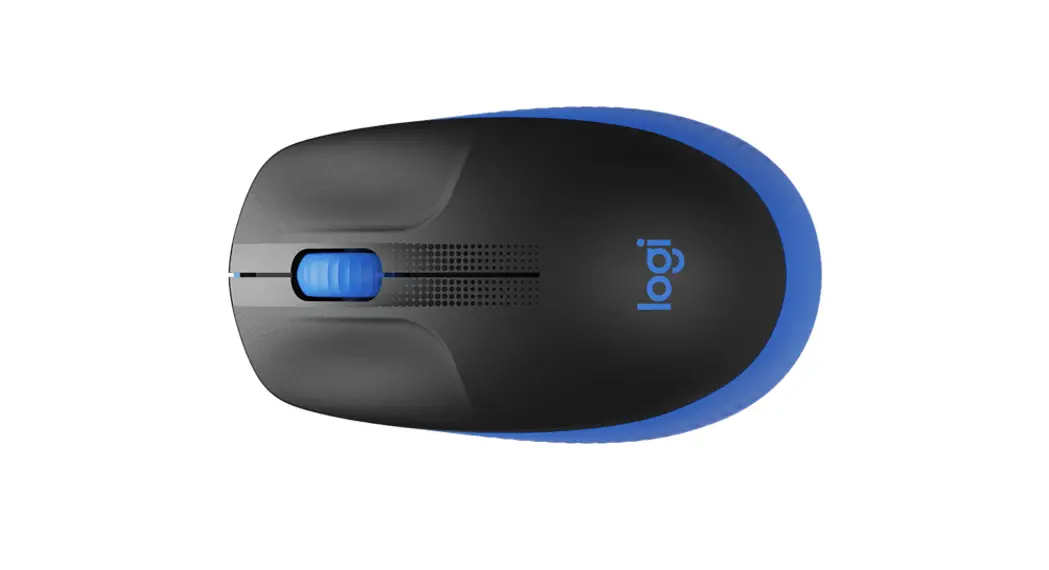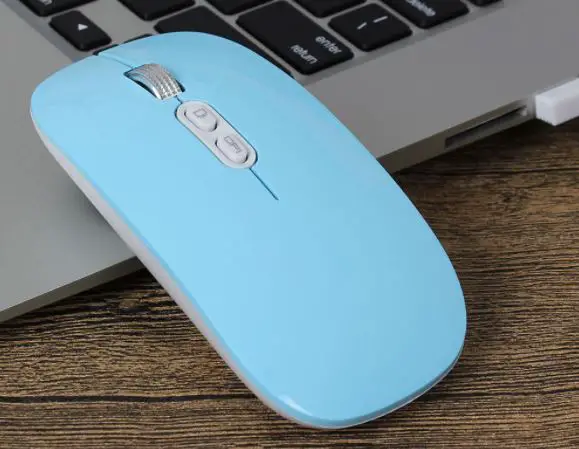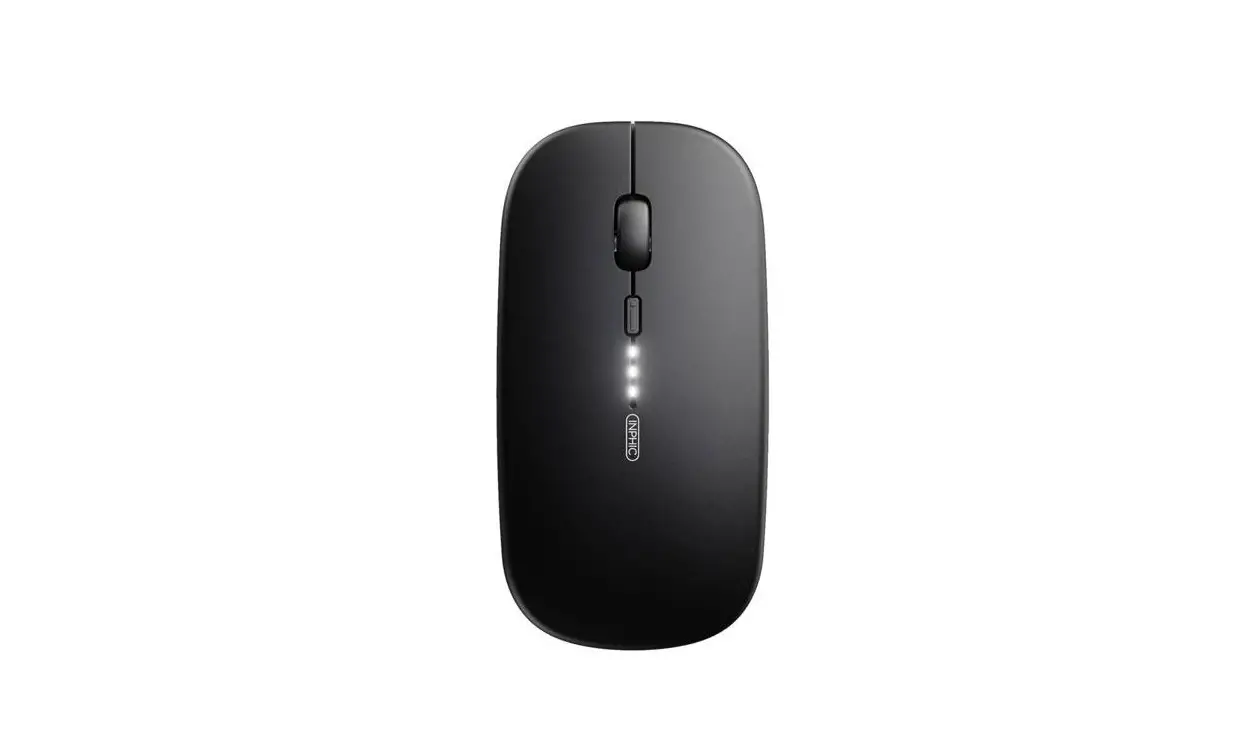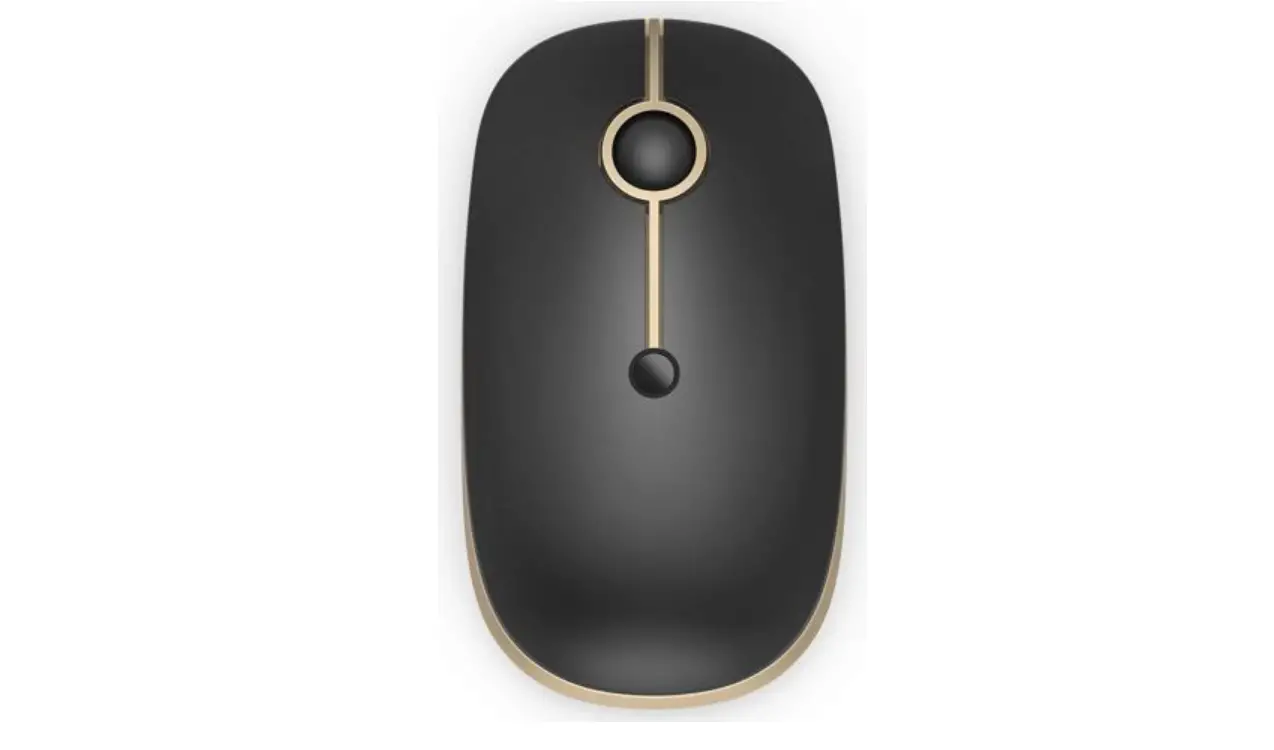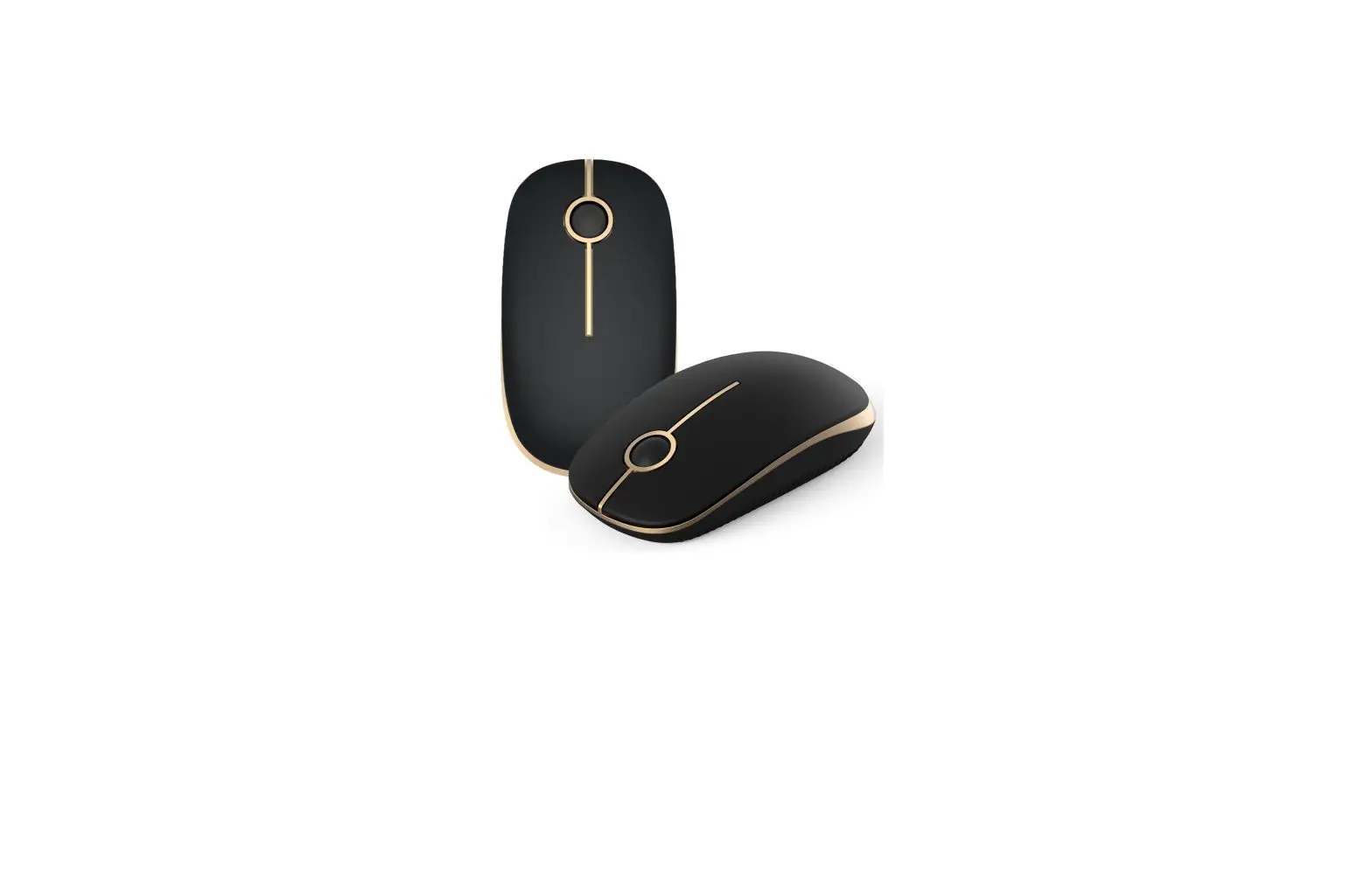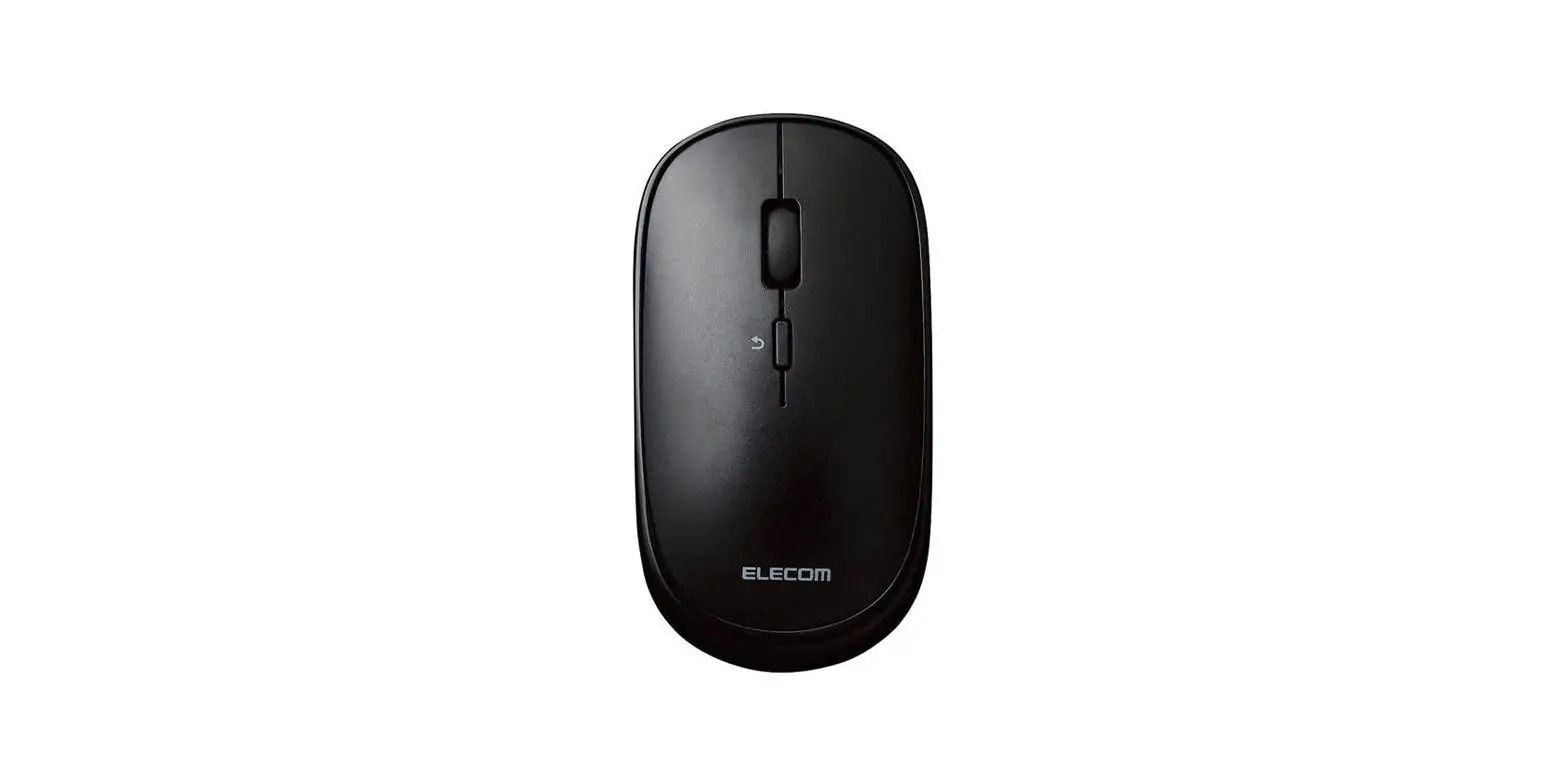
 M1 Bluetooth Wireless Mouse
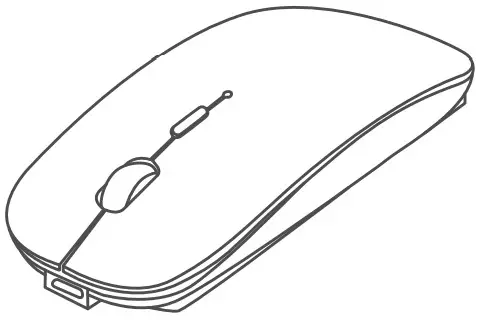
Thanks for choosing this product. Please read this [user manual) carefully before use and keep this instruction for future reference. Any problem about this product, please feel free to contact us at: [email protected].
At a Glance
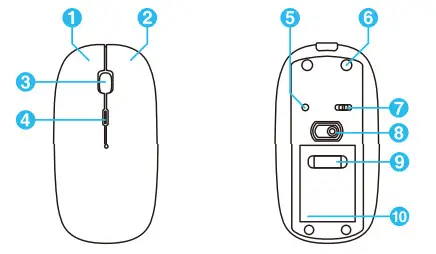
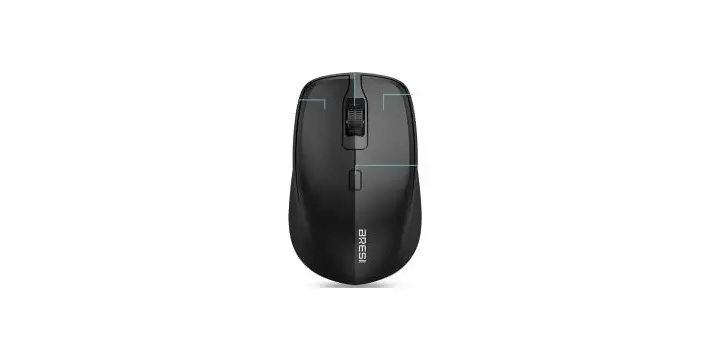
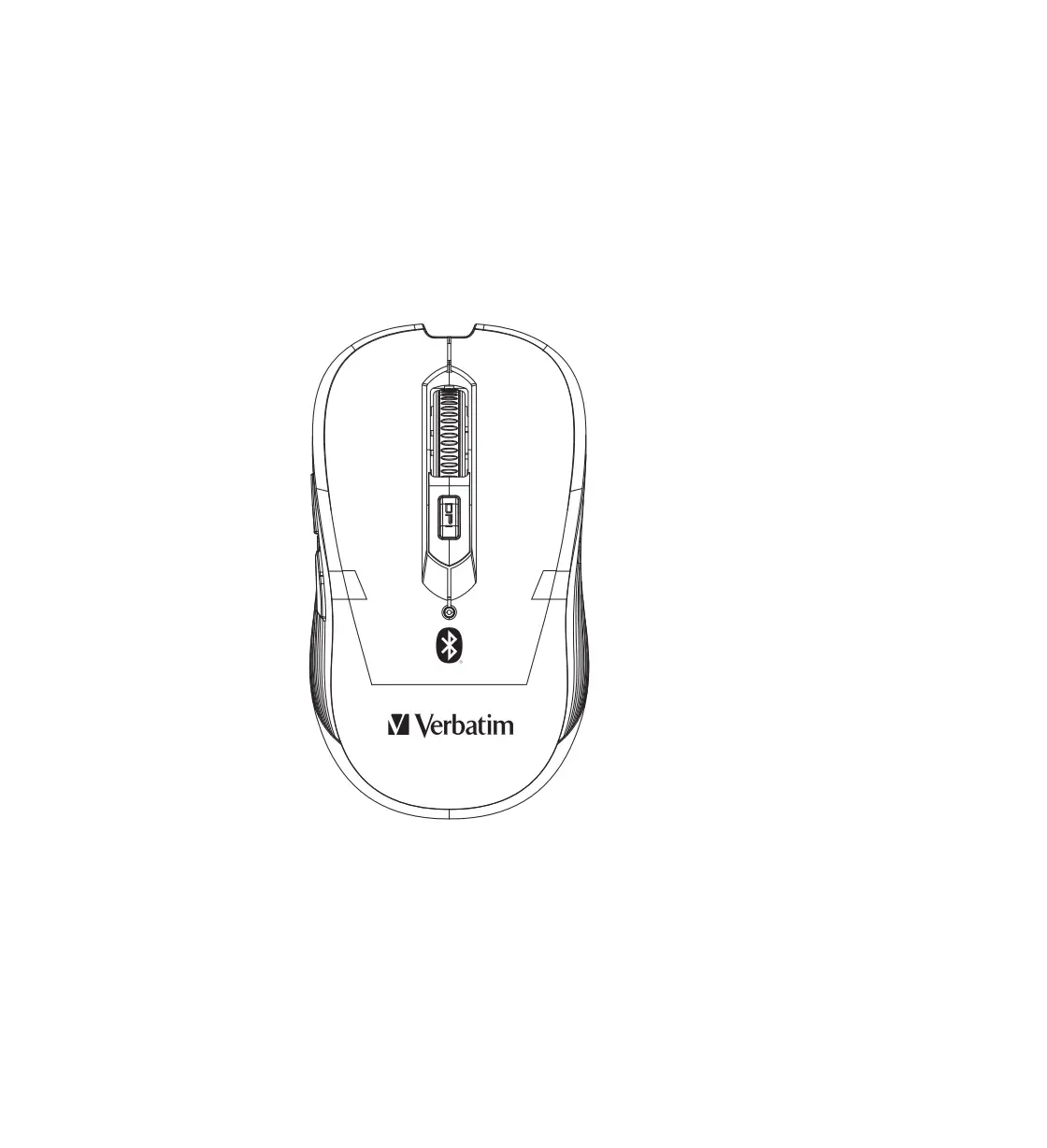
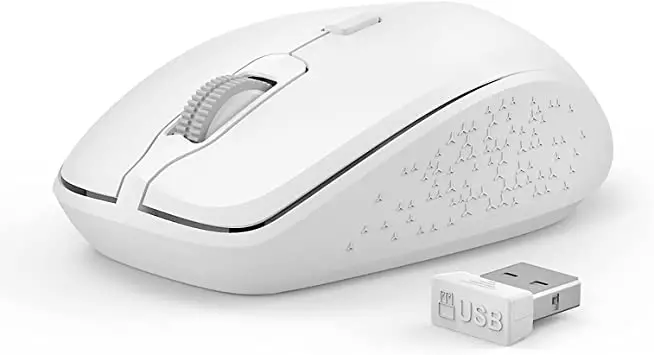
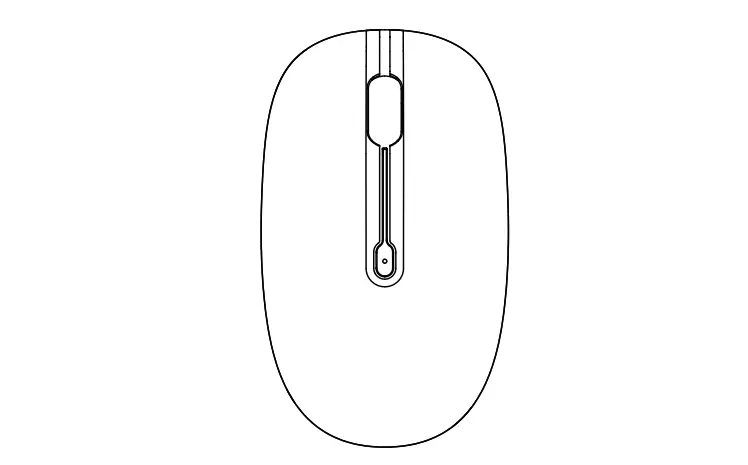
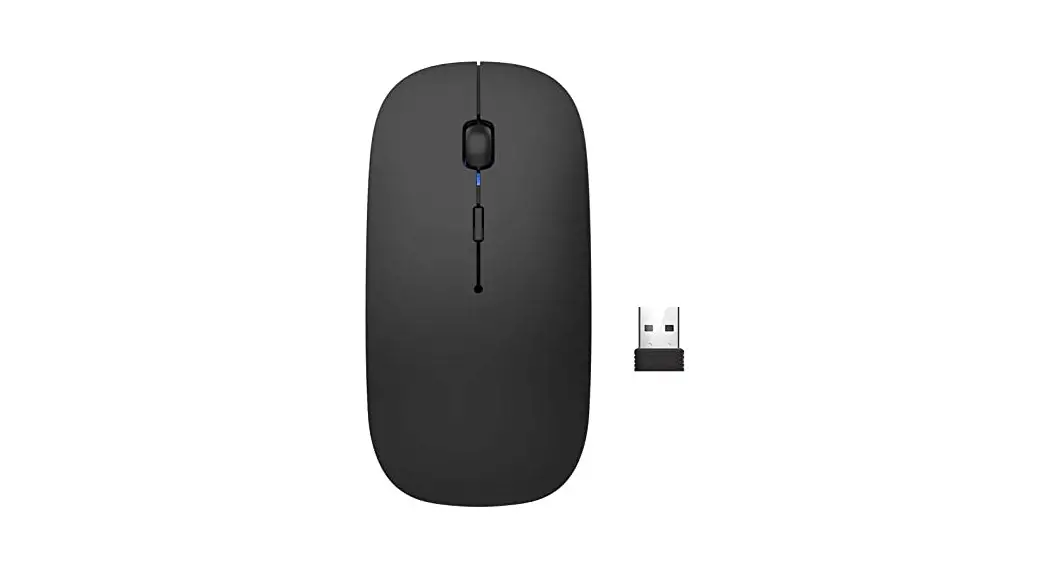
| 1. Right Button 2. Left Button 3. Scroll Wheel 4. DPI Switch Button 5. BT Connection Button | 6. Non-Sip Ma 7. Power/Mode Button 8. Optical Sensor 9. Nano Receiver 10. Battery Compartment |
Note: In Bluetooth mode, hold down the Bluetooth connection button for 3s to pair.
Instructions
- For first use, please connect one end of the provided charging cable to the Micro-USB port on the mouse and the other end to a USB power source (computer or a 5V/ 500mA charger with USB 2.0/ 3.0 port). It takes only 1.5 hrs to charge fully.
- Move the power button on the back of the mouse to (Left ON) Bluetooth 4.0 mode or (Right ON) 2.4GHz wireless mode, and then start to use the mouse after a successful pairing.
A. Bluetooth 4.0 Mode
- Move the power button to Bluetooth 4.0 mode, and then the indicator turns solid blue.
- Press and hold the Bluetooth connection button for 3s until the indicator flashes blue. At this point, the mouse is in pairing mode.
- Turn on the Bluetooth function on the computer and click Add a Bluetooth device.
- The detected devices appear on the screen. Select Hommie-M1 and click Pair for the accomplishment of connection of the device. After successfully connecting, the blue indicator turns off, so the mouse can be used for the designated purposes in the Bluetooth mode.
B. 2.4GHz Wireless Mode
- Remove the nano receiver and plug the receiver into the computer’s USB port.
- Move the power button to 2.4GHz wireless mode. By this stage, the indicator turns solid green and then off, which means the pairing is complete and you can start to use the mouse normally.
Note:
- The mouse can simultaneously connect two computers in different modes and freely switch between different modes by moving the power button.
- In the Bluetooth mode, please turn off the mouse to reconnect if the mouse fails to connect.
DPI Adjustment
Press the DPI switch button to shift to the desired DPI level.
| Indicator Status | DPI Level |
| Flashing once | 800 |
| Flashing twice | 1200 (Default) |
| Flashing third | 1600 |
| Flashing four times | 2000 |
| Flashing five times | 2400 |
- In 2.4 GHz wireless mode, the indicator flashes green; In Bluetooth mode, it flashes blue.
- When you use the mouse normally, if the green/ blue indicator flashes, indicating the low battery.
- When charging the mouse, the light on the charging port turns red; If it turns yellow, the battery is fully charged.
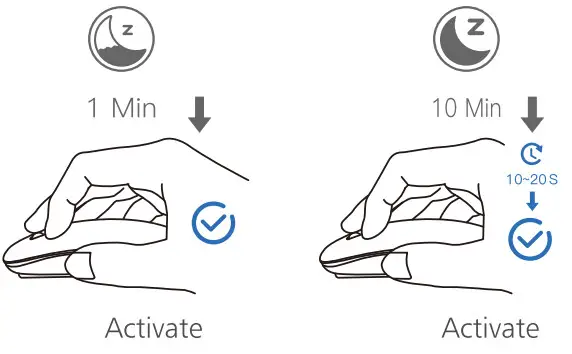
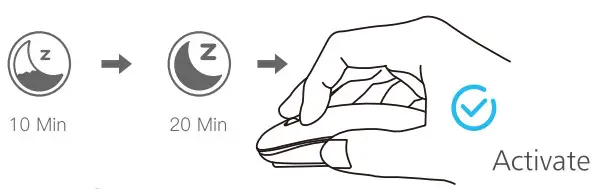
Sleep Mode
 Bluetooth Mode
 2.4GHz Wireless Mode
Attentions
 When the mouse is not used for a long time, please charge it once a month.
 Do does not use the mouse near a heat source or open flame.
 Don’t expose to liquids.
Specifications
| Bluetooth name | Hommie-M1 |
| Working mode | Optical |
| DPI | 800/1200/1600/2000/2400 |
| Button | 4 Buttons |
| Link mode | BT4.0/RF2.4GHz |
| Effective range | 10m |
| Current | Working: 13mA; Standby: 2mA; Sleep: 45mA |
| Sleep time | 10 mins |
| Supported System | BT mode: Android, Win8 & Mac OS X10.10 or above 2.4GHz mode: XP, Win7 & Mac OS X 10.10 or above |