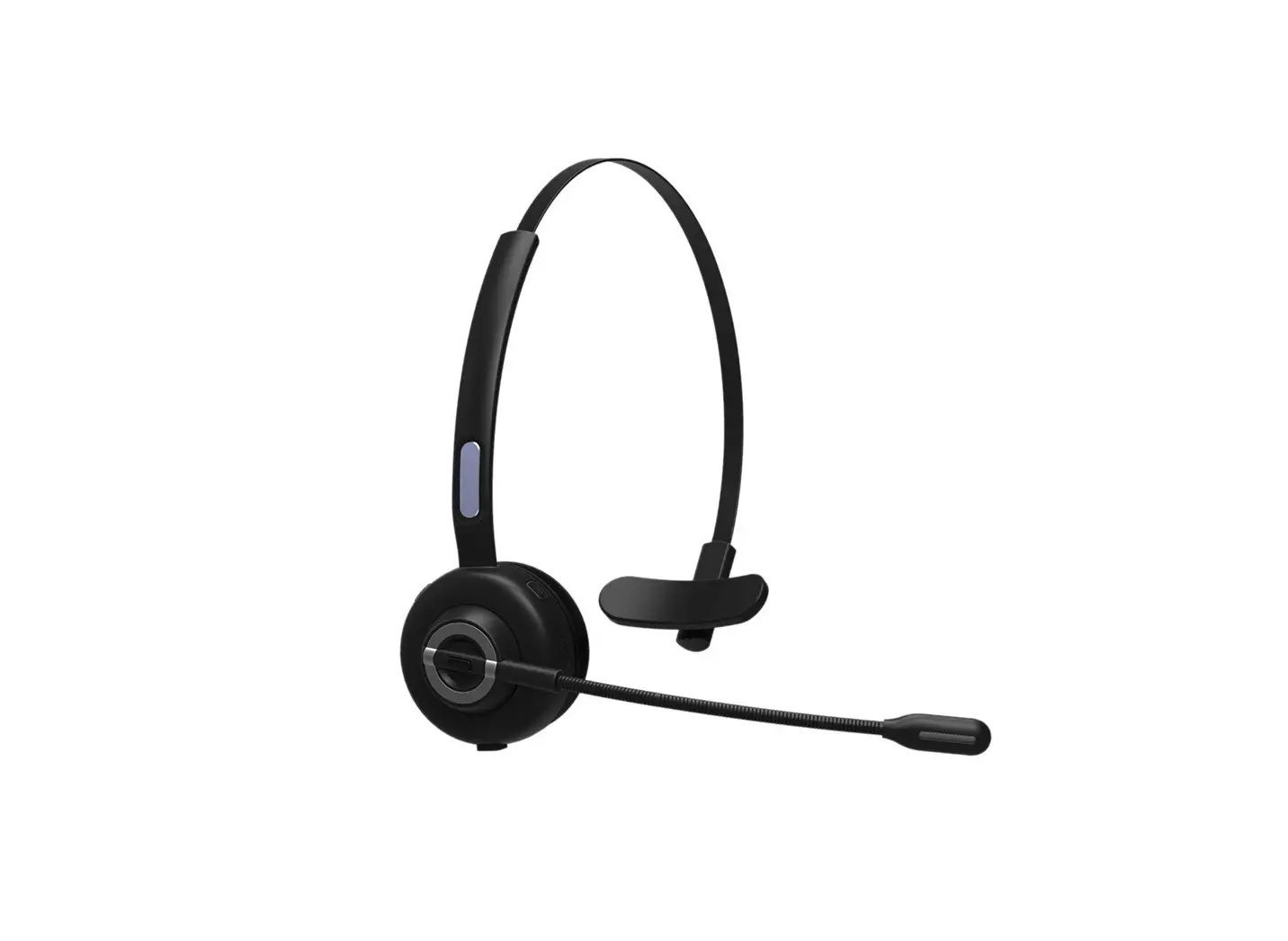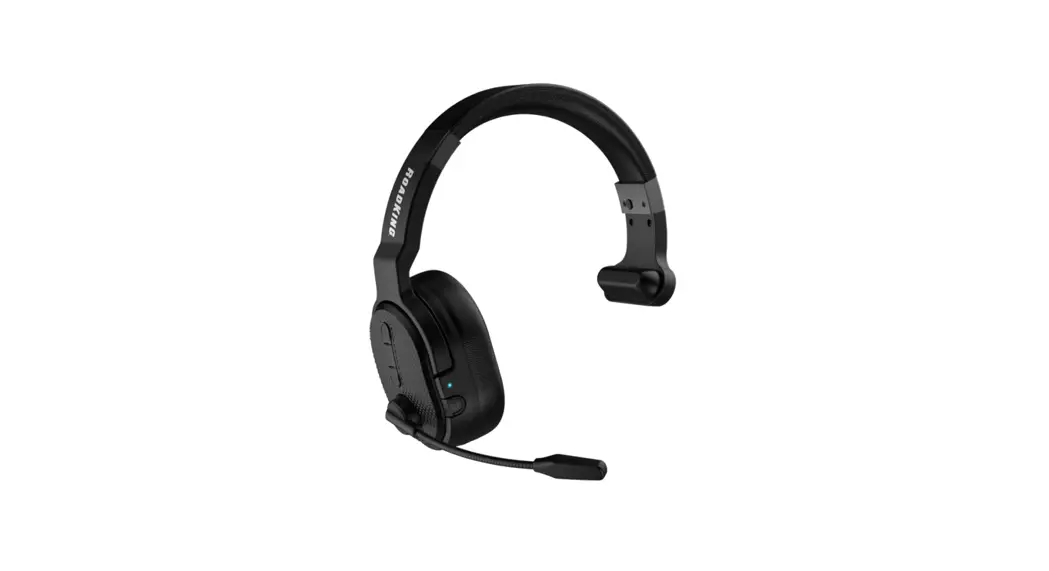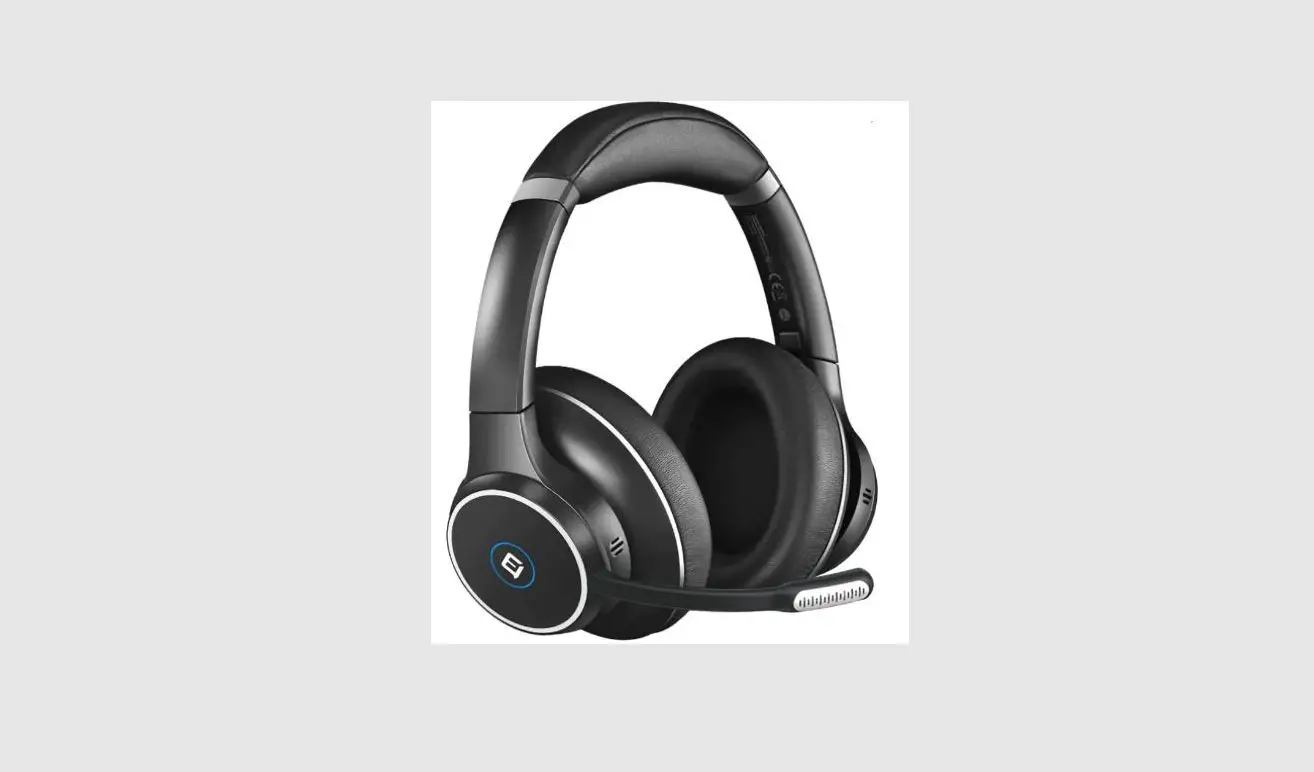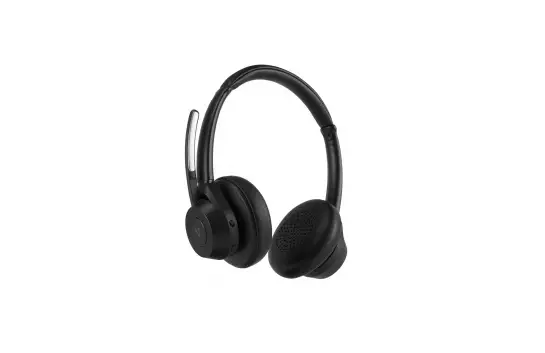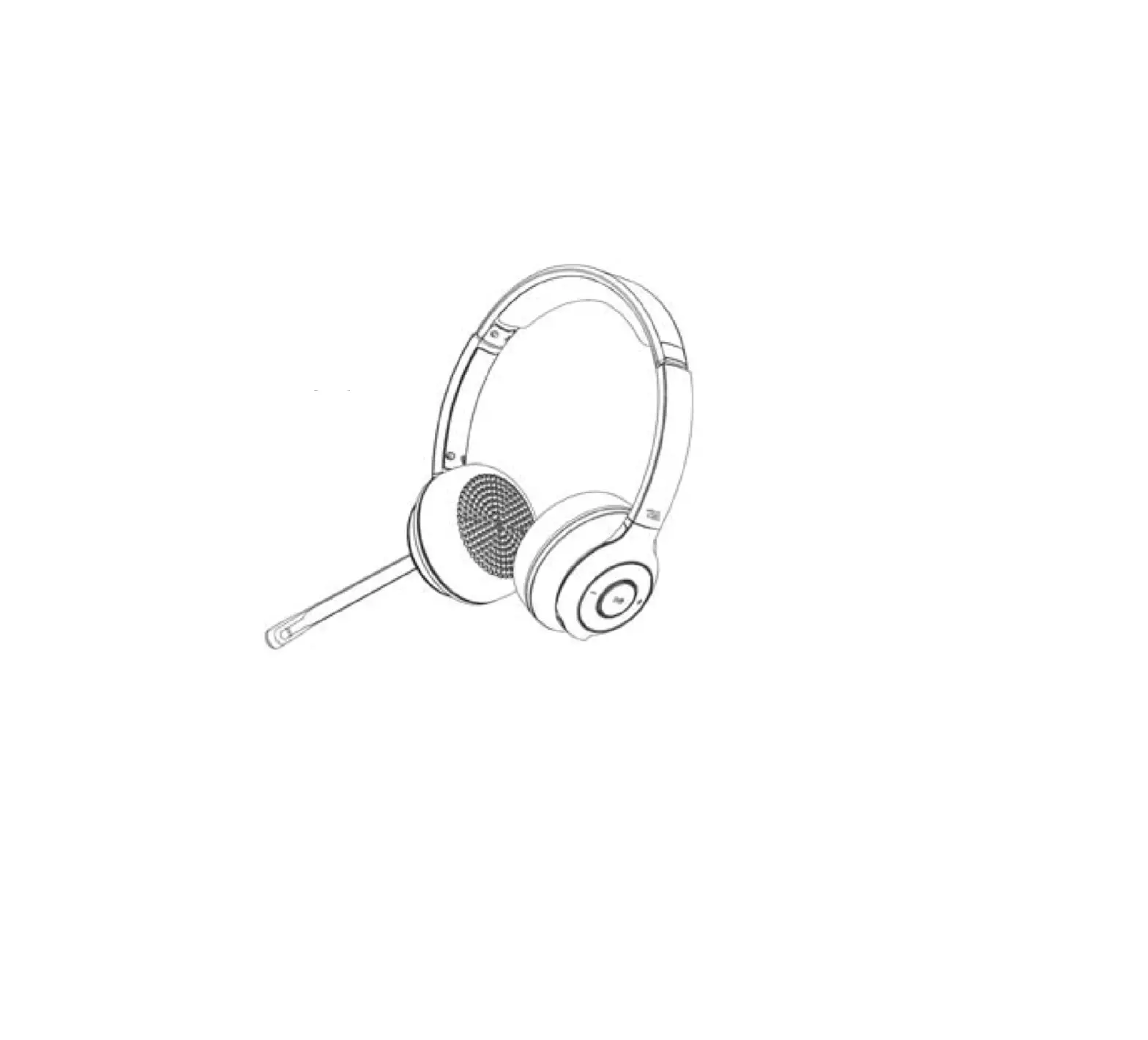
Cyber Acoustics HS-1500BT Bluetooth Headset
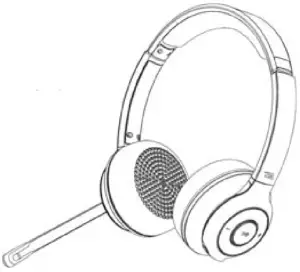
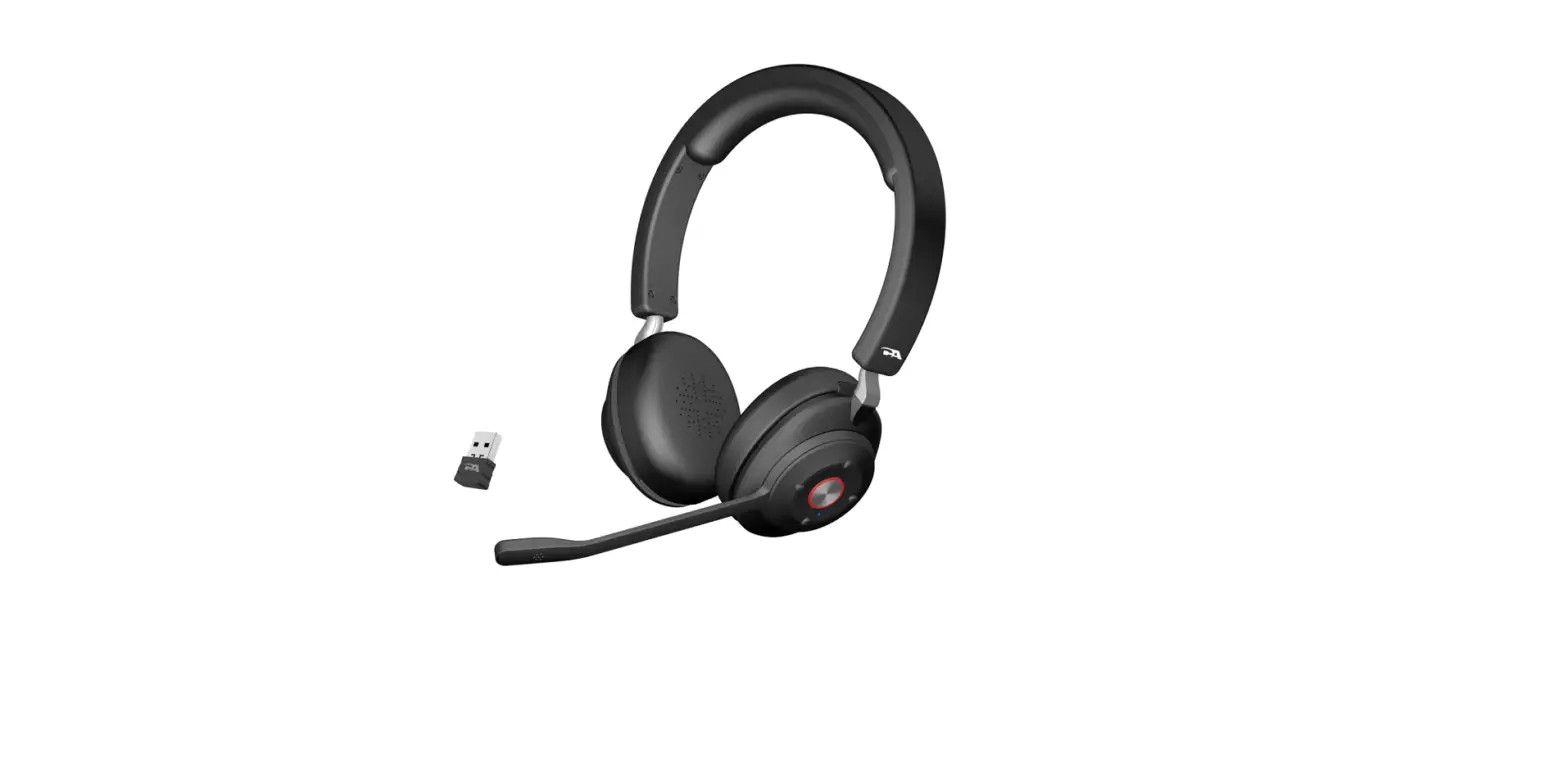
In the Package
|
|
|
|
 Quick Start Guide
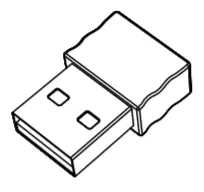 USB Bluetooth Adapter
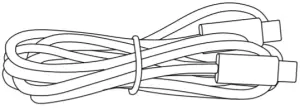 USB Type C to C Charging Cable
Note: The USB Bluetooth Adapter is packed along with the QSG, USB Type C to C Charging Cable are packed in the inner tray inside the box
Using the Headset
Best for Use In
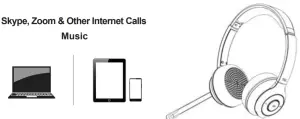
Getting Started
Step 1
Preparing the CA Essential Bluetooth Headset to connect to your Bluetooth enabled device. Before you start, please fully charge the CA Essential Bluetooth Headset. (See Page 6)
– Turn on the CA Essential Bluetooth Headset by pressing the Multi-Function button for 3 seconds.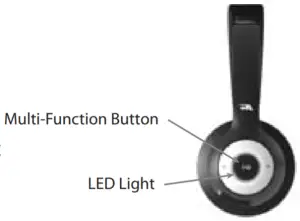
LED Light alternately flashing Red and Blue
– The CA Essential Bluetooth Headset is ready to pair and connect
LED Light flashes Blue once every 10 seconds
– Your device has connected to the CA Essential Bluetooth Headset and is ready to use.
– The CA Essential Bluetooth Headset allows the last device it was connected with to automatically reconnect with the headset each time the headset is turned on and that device is within range.*
The CA Essential Bluetooth Headset can be connected to one device at a time.
– To pair and connect to a different device, you need to first disconnect the currently paired
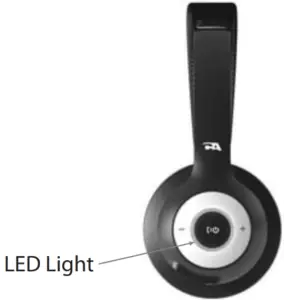
– To disconnect the current device, Press and hold the + and – buttons at the same time for more than 1 second.
– The Light will begin flashing Red and Blue alternately and the CA Essential Bluetooth Headset is ready for the next device to pair and connect
* Your device needs to be within 10 unobstructed feet of the CA Essential Bluetooth Headset to pair and connect. If there is an issue when connecting, please move your device closer to the headset, then pair and connect. When the charge is too low indicated by the LED Light flashing Red on the headset, your device will not be able to connect with the headset.
Step 2
With your Apple Mac or Windows 10 Laptop/Computer – Use the provided USB Bluetooth Adapter
– Plug the USB Bluetooth Adapter in a USB port on your computer.
– The CA Essential Headset will automatically pair with the USB Bluetooth Adapter.
– The LED Light on the ear cup will turn Blue and flash once every 10 seconds – The CA Essential Bluetooth Headset is ready to use.
Note: The quality of the microphone recording is poor when connecting directly to the built in Bluetooth of your computer. For the best performance it is recommended to only use the USB Bluetooth Adapter.
With your iPhone, Tablet, Smartphone
– Go to Settings > Bluetooth, check Bluetooth is on
– Select `CA Essential HS-1500BT’ when it appears under `Devices’
– Your device will connect in a few seconds
– The LED Light will turn Blue and flash once every 10 seconds
– The CA Essential Bluetooth Headset is ready to use.
Note: Your Smartphone or Tablet instructions may vary
Switching the connection between the USB Bluetooth Adapter and your iPhone, Tablet, Smartphone
– Connected to the USB Bluetooth Dongle
– Unplug the USB Bluetooth Dongle from your computer
– The CA Essential Bluetooth Headset will disconnect and is ready to pair with your iPhone, Tablet, Smartphone
– See connection instructions above `With your iPhone, Tablet, Smartphone’
– Connected to iPhone, Tablet, Smartphone
– At the same time press and hold for 1 second the + and – buttons on the headset or manually disconnect on your iPhone, Tablet, Smartphone}
– The CA Essential Bluetooth Headset will disconnect and is ready to pair
– To connect with the USB Bluetooth Adapter, plug the adapter into your computer and the headset will automatically pair with the USB Bluetooth adapter.
LED Light
Headset Powered On
| Bluetooth Pairing | LED Light alternately flashes Red and Blue* |
| Bluetooth Connected | LED Light flashes Blue every 10 seconds* |
| Incoming call | LED Light flashed Red once a second |
| Call in progress | LED Light is lit solid Purple |
| Busy Light Enabled | LED Light is lit solid Purple |
| Headset is Powered Off | LED Light is lit Red for 1 second |
Battery Status
| Charging | LED Light is lit solid Red |
| Fully charged | LED Light is lit solid Blue |
| Low battery | LED Light flashed Red 2 times every 2 minutes – A voice prompt will indicate a low battery with approximately 15 minutes of battery power remaining. |
Controls
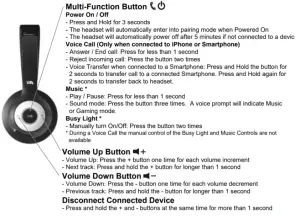
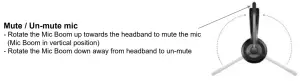
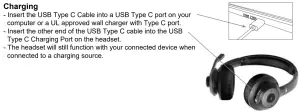
Technical Specification
| Specifications | |
| Sensitivity: |
|
| Frequency response |
|
| Impedance |
|
| Recommended system requirements | |
| Supported operating system | Windows 10, Mac OS X 10.4.11 or higher |
| Operating temperature | Product working at ambient temperature for 0~35°C |
Frequently Asked Questions
| Frequently Asked Questions | Possible Solutions |
| Bluetooth connection Cannot connect with your iPhone, Tablet, or Smartphone |
|
| Bluetooth connection Cannot connect with the last connected device when returning | Last Connected Device was your iPhone, Tablet, Smartphone
|
Customer Support
If you have a question about your CA Essential Bluetooth Headset, our Customer Service Team wants to assist you.
Contact us at: www.cyberacoustics.com/support/contact
Safety and Precautions
- Read and follow all instructions – All operating and use instructions should be followed.
- Protect the Headset from being pinched. Power off during lightning storms or when unused for long periods of time.
- Do not place near any heat sources such as radiators, heat registers, stoves, or other apparatus (including ampli¿ers) that produce heat.
- Do not make alterations to the Headset.
- Do not place near nakedÀame sources, such as lighted candles.
- Do not expose to excessive heat (e.g. from storage in direct sunlight, fire or the like).
2021 Cyber Acoustics or its subsidiaries. All rights reserved. Cyber Acoustics and other trademarks are trademarks of Cyber Acoustics or its subsidiaries. Other trademarks may be trademarks of their respective owners.
Supplier’s Declaration of Conformity 47 CFR § 2.1077 Compliance Information
Unique Identifier: (HS-1500BT) Responsible Party – Cyber Acoustics LLC
3109 NE 109th Ave., Vancouver, WA 98682 cyberacoustics.com
Compliance Information Statement

FCC Part 15 This device complies with Part 15 of the FCC Rules. Operation is subject to the following two conditions:
- This device may not cause harmful interference, and
- This device must accept any interference received, including interference that may cause undesired operation.
This equipment has been tested and found to comply with the limits for a Class B digital device, pursuant to Part 15 of the FCC Rules. These limits are designed to provide reasonable protection against harmful interference in a residential installation. This equipment generates, uses and can radiate radio frequency energy and, if not installed and used in accordance with the instructions, may cause harmful interference to radio communications. However, there is no guarantee that interference will not occur in a particular installation. If this equipment does cause harmful interference to radio or television reception, which can be determined by turning the equipment off and on, the user is encouraged to try to correct the interference by one or more of the following measures:
- Reorient or relocate the receiving antenna
- Increase the separation between the equipment and receiving device
- Connect the equipment into an outlet on different circuit from the receiving device
- Consult the dealer or an experienced radio/TV technician for help
- Changes or modifications not expressly approved by the party responsible for compliance could void the user’s authority to operate the equipment
IC WARNING
This device contains licence-exempt transmitter(s) that comply with Innovation, Science and Economic Development Canada’s licence-exempt RSS (s). Operation is subject to the following two conditions:
- This device may not cause interference.
- This device must accept any interference, including interference that may cause undesired operation of the device.
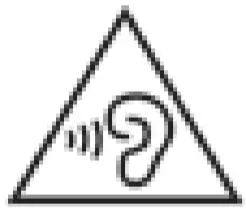 High sound pressure Hearing damage risk Do not listen at high volume levels for long periods.