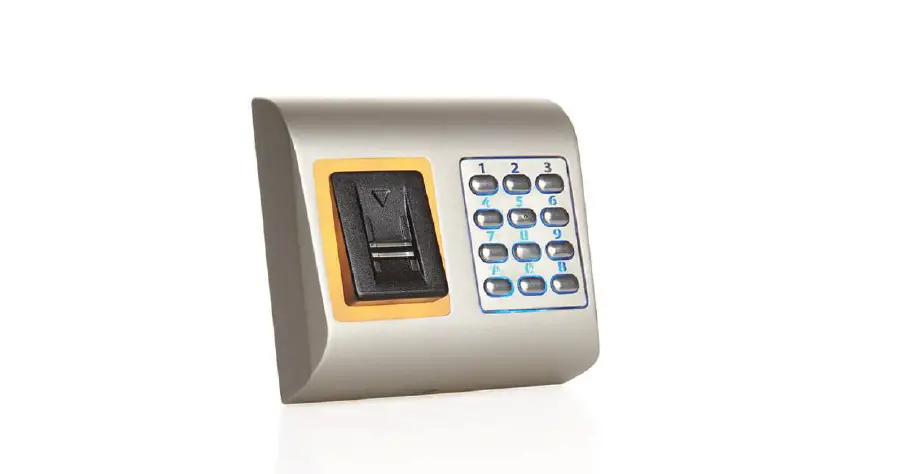
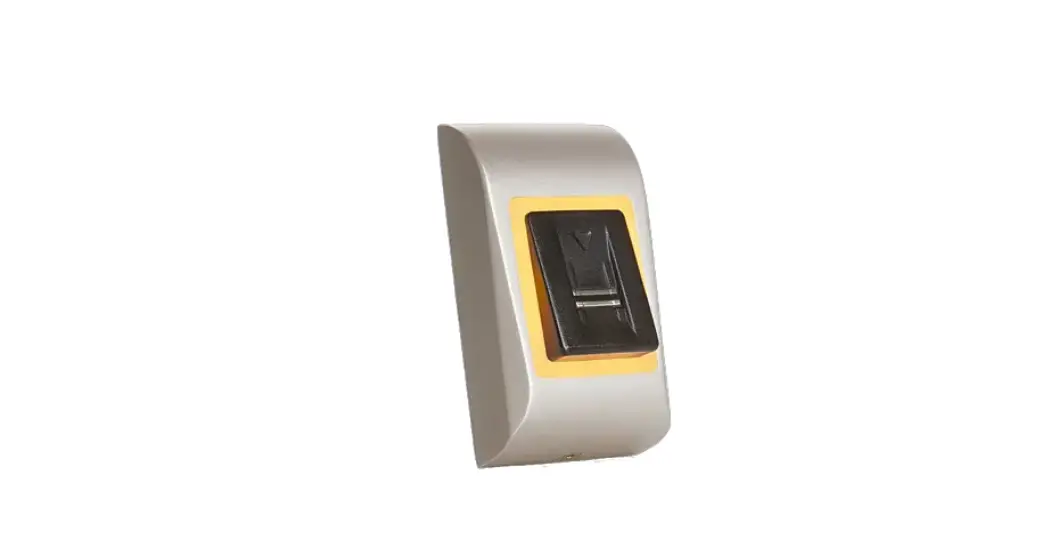
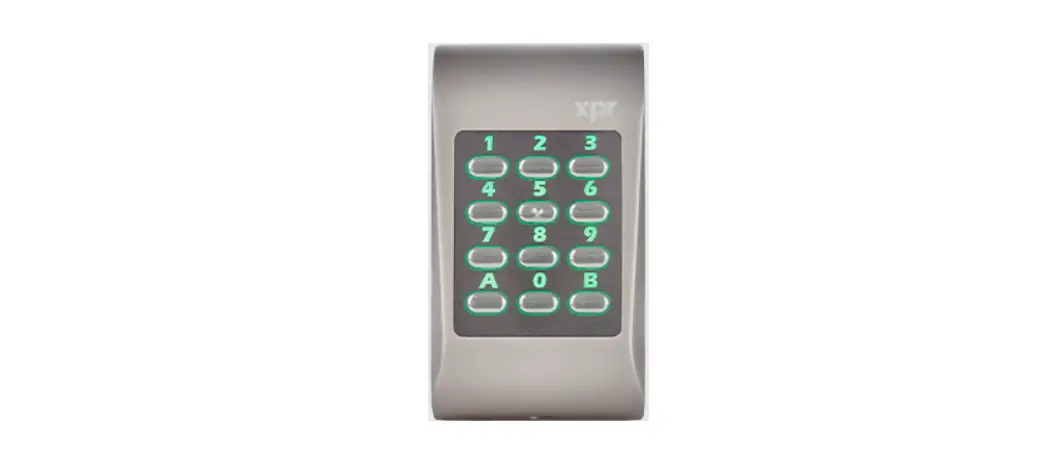
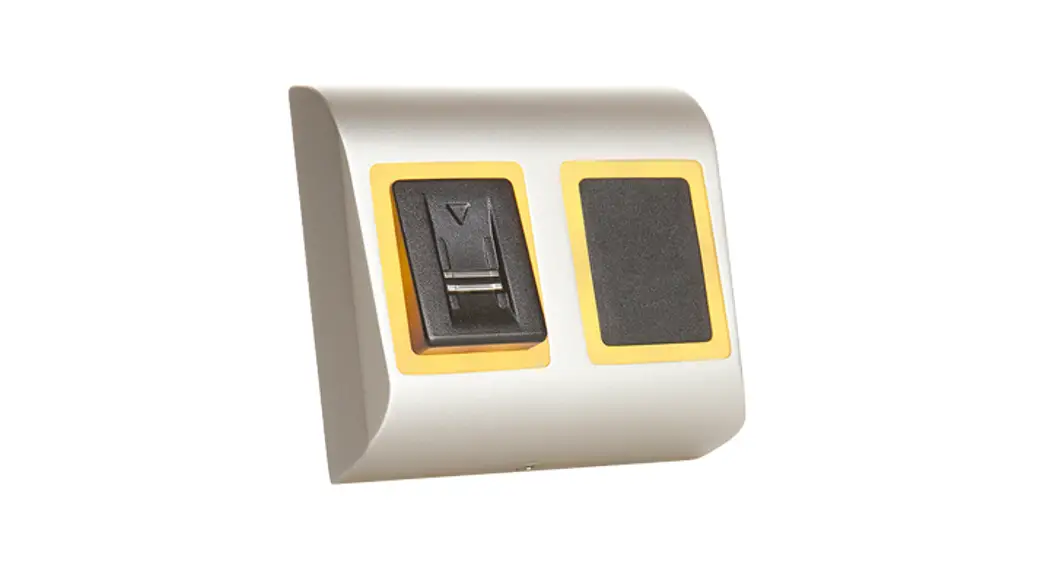
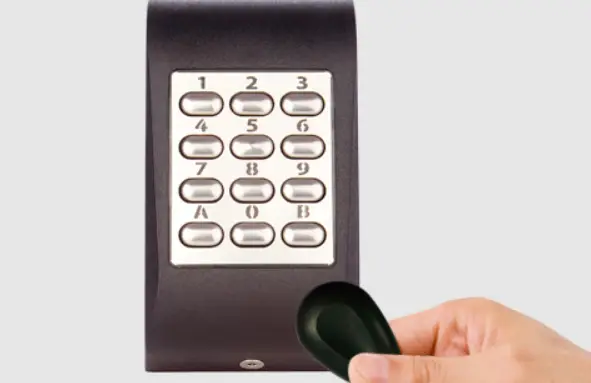
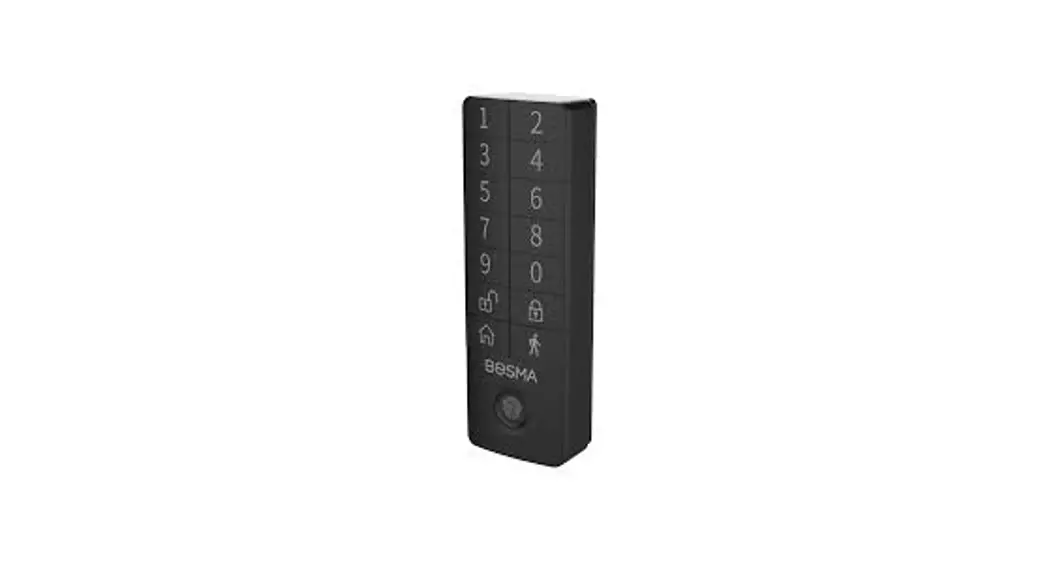
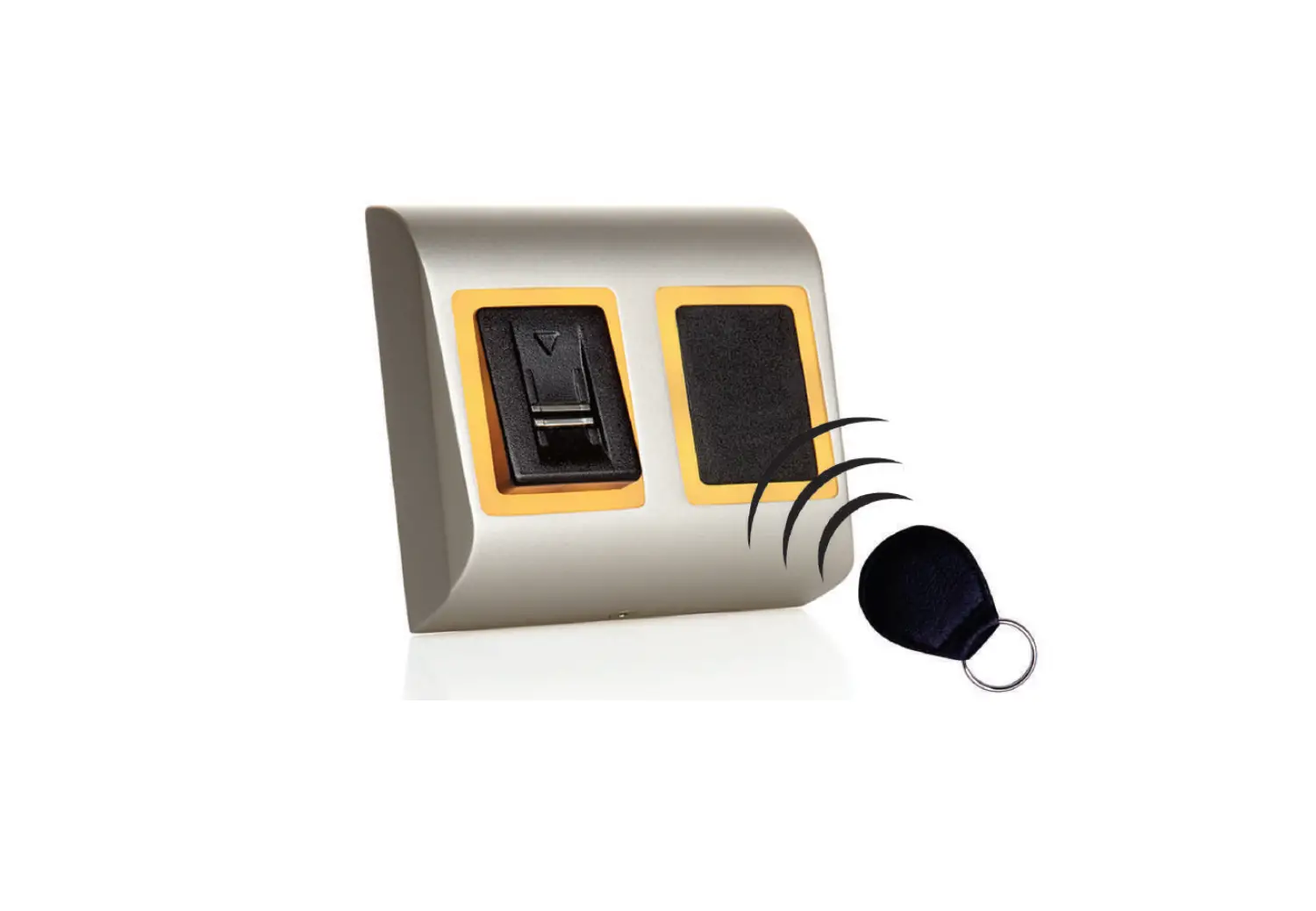
B100PAD-M Biometric Keypad Reader
B100PAD-M Biometric Keypad Reader
The B100PAD-M Biometric Keypad Reader is a device designed to
provide secure access control to buildings and premises. It uses
biometric technology to authenticate individuals by their
fingerprints, and it can also be used in conjunction with a PIN
code for added security. The device can store up to 1000
fingerprints, making it suitable for use in small to medium-sized
businesses.
Specifications
- Fingerprint capacity: 1000
- Technology: Biometric
- Authentication: Fingerprint, PIN code
- Fingerprints per user: 1
- PIN Code Length: Adjustable
- Interface: RS-485, Wiegand
- Protocol programming: Self-defined Wiegand or standard Wiegand
26bit - Cable distance: Up to 150m.
- Fingerprint Sensor Type: Optical
- 1:1000 identification time: <1s
- Fingerprint enrolment: PC Software
- Panel Connection: 4 (3 x 30mm), 1 (M3 x 6mm)
- Green and Red LED, Orange LED, Buzzer ON/OFF, Backlight ON/OFF,
Tamper ON/OFF - Consumption: <200mA
- IP Factor: IP65
- Power supply: DC 9-14V
- Operating Temperature: -20°C to +60°C
- Dimensions (mm): 120 x 80 x 25
- Housing: Zinc alloy
- Operating humidity: 20%-80%
Mounting
The B100PAD-M Biometric Keypad Reader should be mounted on a
flat surface using the screws provided. The mounting surface should
be clean and dry. The device should be mounted at a height of
approximately 1.5m from the ground.
Wiring
The device can be connected to a controller using RS-485 or
Wiegand interface. The wiring diagram for both interfaces is
provided in the manual. The device must be powered from the
controller, and if a separate power supply is used, the GND from
both devices must be connected to ensure correct transfer of the
wiegand signal. The shield of the input cable must be reliably
connected to earth.
Connecting Biometric Readers to EWS Controller
The biometric readers can be connected to any controller that
conforms to Wiegand format standards. The lines D0 and D1 are the
Wiegand lines, and the Wiegand number is sent through them. The
RS-485 line (A, B) is used for fingerprint transfer and reader
settings. When the reader is connected and powered on, the LED
should flash in orange light + 2 beeps, indicating that it is ready
for use. Fingerprint enrollment is done from the PC software, and
connection between the biometric readers and the PC must be
established.
Safety Precautions
Incorrect wiring and use of power supply out of the specified
range may cause improper behavior or permanent damage to the
device. The shield of the input cable must be reliably connected to
earth.
B100PAD- M
EN
Biometric Keypad Reader
INSTALLER MANUAL
www.xprgroup.com
1 Rev. 1.01 – 01.04.2022
CONTENTS
1. DESCRIPTION
3
2. SPECIFICATIONS
3
3. MOUNTING
4
4. WIRING
4
5. CONNECTING BIOMETRIC READERS TO EWS CONTROLLER
5
5.1 CONNECTING BIOMETRIC READERS IN SAME RS-485 LINE WITH THE EWS CONTROLLERS
5
5.2 CONNECTING BIOMETRIC READERS WHEN ALL THE CONTROLLERS HAVE TCP/IP COMMUNICATION
6
5.3 RS-485 TUNING
6
6. CONNECTING BIOMETRIC READERS TO 3RD PARTY CONTROLLER
7
6.1 CONVERTERS PIN DESCRIPTION
7
7. ENROLLMENT
7
8. CONFIGURING THE BIOMETRIC READERS IN PROS SOFTWARE
8
8.1 ADDING BIOMETRIC READER
8
8.2 ENROLLING FINGERPRINTS FROM A READER
9
8.3 ENROLLING FINGERPRINTS FROM DESKTOP READER
10
8.4 DELETING FINGERPRINTS
11
8.5 UPLOADING THE FINGERPRINTS TO THE BIOMETRIC READERS
11
8.6 FIRMWARE UPDATE
12
8.7 SEND CONFIGURATION
12
8.8 ADVANCED SETTINGS
12
8.9 ENTRY MODE
13
8.9.1 Access Code or Finger
13
8.9.2 Access Code and Finger
13
8.9.3 Finger Only
13
9. CONFIGURING THE BIOMETRIC READERS IN BIOMANAGER
14
9.1 ADD PORTAL
14
9.2 ADD READER
14
9.3 EDIT READER
15
9.4 DELETE READER
15
9.5 ADD USER
16
9.6 DELETING FINGERPRINTS
17
9.7 UPLOADING THE FINGERPRINTS TO THE BIOMETRIC READERS
17
9.8 CUSTOM WIEGAND
18
10. WIEGAND PROTOCOL DESCRIPTION
19
11. SAFETY PRECAUTIONS
20
www.xprgroup.com
2
1. DESCRIPTION
B100PAD-M is a Wiegand biometric reader for indoors access control applications. It offers storage up to 100 fingerprints, programmable Wiegand Output (8 to 128 bits) and selectable PIN Code length. Configuration of the readers and fingerprint enrollment is done through PC Software. Connection between the biometric readers is RS-485 and it is used for fingerprint transfer and configuration. When used with third party controllers, the connection between the Biometric readers and the PC is done through a converter (CNV200-RS-485 to USB or CNV1000-RS-485 to TCP/IP). Only one converter is needed per system (one converter for 1, 2, 3…30, 31 Biometric readers) The tamper switch output can trigger the alarm system, if an attempt is made to open or remove the unit from the wall. The sensor incorporates dedicated sensing hardware to facilitate the detection of “spoofing” attacks based on fake fingers. This data is embedded into the image data stream, and is processed on the processor. The system is capable of detecting and defeating well-known fake finger mechanisms, such as molded “gummy” fingers. The coating on the surface of the TouchChip sensor provides protection from scratching and abrasion due to normal contact with fingertips and any incidental contact with fingernails.
2. SPECIFICATIONS
Fingerprint capacity Technology Use Authentication Fingerprints per user PIN Code Length Interface Protocol programming Cable distance Fingerprint Sensor Type 1:1000 identification time Fingerprint enrolment Panel Connection Green and Red LED Orange LED Buzzer ON/OFF Backlight ON/OFF Tamper Consumption IP Factor: Power supply Operating Temperature Dimensions (mm) Housing Operating humidity
Up to 100 fingerprints Biometry and Keypad Indoors Finger, PIN Code, Finger or/and PIN Code 1-10 fingerprints 1- 8 Digits Wiegand 8 to 128 bits; Default: Wiegand 26bit By PROS CS software (EWS system) and BIOMANAGER (all access control systems) 150m Swipe Capacitive 970 msec, including feature extraction time On the reader or from the USB desktop reader Cable, 0.5 m Externally Controlled Idle mode Yes Yes, by software settings Yes Max. 150mA IP54 (internal use only) 9-14V DC 0ºC to 50ºC 100 x 94 x 30 Moulded Aluminium 5% to 95% RH without condensation
www.xprgroup.com
3
3. MOUNTING
5mm
4 (3 x 30mm)
1 (M3 x 6mm)
The operating temperature of the product is between 0ºC – + 50ºC. XPRTM cannot guarantee the functionality of the product if measures and advice before are not followed.
4. WIRING
TricolorLED (Red, Green, Orange)
Red Black Pink Violet Orange Green White Yellow Gray Blue
RS-485
LED Red LED Green –
WIEGAND
12V DC GND A B LRLGD1 D0 Tamper Tamper
www.xprgroup.com
9-14V DC ground RS-485 A RS-485 B Red LED Green LED Data 1 Data 0 Tamper Switch(NO) Tamper Switch(NO)
4
5. CONNECTING BIOMETRIC READERS TO EWS CONTROLLER
– The Biometric readers can be connected to virtually any controller that conforms to Wiegand format standards (standard Wiegand 26bit or self-defined Wiegand).
– The lines D0 and D1 are the Wiegand lines and the Wiegand Number is sent through them. – The RS-485 line (A, B) is used for fingerprint transfer and reader settings. – The Biometric readers must be powered from the controller. – If you use different power supply for the biometric reader, connect the GND from the both devices to ensure correct transfer of
the wiegand signal – When you have connected the reader and powered on, the LED should flash in orange light + 2 beeps. This lets you know it’s on
and ready for use. – Fingerprint enrollment is done from the PC Software. Connection between the Biometric readers and the PC must be established.
150m. max
Note: The lead shall not be spliced to a conductor larger than 18 AWG (0.82 mm2). Note: The shield of the input cable must be reliably connected to earth.
Warning: Incorrect wiring and use of power supply out of the specified range may cause improper behavior or permanent damage to the device!
5.1 CONNECTING BIOMETRIC READERS IN SAME RS-485 LINE WITH THE EWS CONTROLLERS
Jumper for RS-485 termination
Jumper for RS-485 termination
TCP/IP 50 ohm
gnd
Stub max. 5m
1 km max / 32 Units (EWS + Biometric Readers)
gnd
RS-485
50 ohm
· The Biometric readers are connected through RS-485 bus. The same RS-485 bus that the EWS controllers are connected to. · Maximum units in one network (EWS + Biometric readers) is 32. · If there are more than 32 units in one network, please utilize RS-485 HUB to connect. · The RS-485 Line should be configured in the form of a daisy chain, NOT in a form of a star. If star must be used in some points, keep the stubs from the RS-485 backbone as short as possible. Maximum length of the stub is dependant of the installation (total number of devices in RS-485 line (total cable length, termination, cable type…) so recommendation is to keep stubs shorter than 5 meters, keeping in mind that this can be possible reason for errors in communication with PC software · The cable must be twisted and shielded with a min. 0.2 mm2 cross section. · Connect the ground (0V) of each unit in the RS-485 Line using a third wire in the same cable. · The shield of the communication cable between two devices must be connected to the EARTH from ONE side of the RS-485 Line. Use the side that has earth connection to the building’s grounding network.
www.xprgroup.com
5
5.2 CONNECTING BIOMETRIC READERS WHEN ALL THE CONTROLLERS HAVE TCP/IP COMMUNICATION
TCP/IP
Switch
150m max.
150m max.
150m max.
·When all the controllers are connected via TCP/IP, then the RS-485 network becomes local (from Reader 1 to the Controller then to the Reader 2). ·Connect the readers directly to the RS-485 terminals in each controller. ·If the distance Reader-Controller is high (50meters) and if the communication with the reader can not be established, then terminate the RS-485 network by closing the jumper in the EWS Controller or as described in chapter 4.
NOTE: This is recommended configuration when you have multiple biometric readers in the same network. In this configuration, NO TERMINATION resistors are required. When all the controllers have TCP/IP communication the biometric readers are easily wired. When the controllers have RS-485 communication, it is difficult to maintain the daisy chain of the RS-485 network. Wiring the biometric readers in that formation is a challenge. See the schematic diagram below.
5.3 RS-485 TUNING
RS-485
RS-485
Jumper for RS-485 termination
TCP/IP
gnd
1 km max / 32 Units (EWS + Biometric Readers) gnd
50 ohm
Stub max. 5m
RS-485
50 ohm
RS-485 Termination resistors: – Terminate both ends of the line with 120 Ohm resistor. If end of line is EWS, use built in resistor (120 ohm) by closing
the jumper. – If the communication is not established and stable, use the external resistors provided in the hardware kit.
When using CAT 5 compatible cable, in most of the cases, termination made with 50 Ohm external resistor or combination of 50 Ohm external and termination resistor from the EWS (120 Ohm) should be the solution.
www.xprgroup.com
6
6. CONNECTING BIOMETRIC READERS TO THIRD PARTY CONTROLLERS
3rd party controller -+DO D1 -+DO D1
3rd party controller
-+DO D1
-+DO D1
RS-485 A RS-485 B
A
CNV200
B
B100PROX-USB Desktop Reader
CNV1000
BIOMANAGER Software
optional
· Connect the lines D0, D1, Gnd and +12V to the third party controller. · Connect the RS-485 Line (A, B) to the converter. Connect the converter in the PC. · Fingerprint enrollment is done from the PC Software. Connection between the Biometric readers and the PC must be established. · The Biometric readers communicate with each other with a RS-485 and with the PC Software through a Converter. · The RS-485 Line should be configured in the form of a daisy chain, NOT in a form of a star. Keep the stubs from the RS-485 backbone
as short as possible (not more than 5 meters) · Only one converter per installation is needed, not per reader.
6.1 CONVERTERS PIN DESCRIPTION
CNV200 Converter RS-485 to USB Requires installation as USB serial device (refer to CNV200 Manual).
CNV1000 Converter RS-485 to TCP/IP Does not require installation. IP address set through Internet Browser
Biometric Reader RS-485 A RS-485 B
Converter PIN 1 (RS-485 +) PIN 2 (RS-485 -)
7. ENROLLMENT
Follow the below instructions for correct finger swiping Starting from the first finger joint, place the selected finger on the swipe sensor and move it evenly towards oneself in one steady movement. Result: For a valid swipe: Tricolour Status LED turns green + OK Beep(short + long beep) For an invalid or misread swipe: Tricolour Status LED turns red + Error Beep ( 3 short beeps)
www.xprgroup.com
7
8. CONFIGURING THE BIOMETRIC READERS IN PROS CS SOFTWARE
8.1 ADDING BIOMETRIC READER
1. Expand the Door item to view the readers 2. Right click on the reader and select properties (8.1) 3. In the Basic tab, for “Type” of the Reader select “B100PAD”. (8.2) 4. After selecting the type, a third tab will appear “Biometric”. Go to that tab and put the serial number of the Biometric
Reader. (8.3)
Important Note: The serial number of the reader can be found on a sticker inside the reader, on the packaging box and it can be search from the software (right click on the portal/search devices/readers). (8.4 & 8.5) To check if the reader is On Line, right click on the reader and select “Check version”. In the Event Window a message should appear “Device ON Line, Type: B100PAD” (8.6)
www.xprgroup.com
8
8.2 ENROLLING FINGERPRINTS FROM A READER
1. Open the Users Window and create a new user. Click on “New User”, put a name and ID(card number) and PIN Code. (8.7)
2. Go to the “Biometric” Tab 3. Select the reader(with left click) from which the enrollment will be done. (8.8) 4. Right click on the fingertip and select enroll. (8.9) 5. In the next 25 sec. swipe the finger on the selected reader min. 5 times and the finger tip will turn red. (8.10)
In these 25 sec. the reader will continuously blink in orange. 6. Repeat point 4&5 for each finger that should be enrolled. 7. Click on “Save New” and the fingerprint will be sent automatically to all Biometric Readers where that user has access, i.e. to
all the readers according to the Access Level assign to that user.
Example: If the user has “Unlimited” Access level then the fingerprints will be sent to all readers, if the user has Access level only for Reader1 and Reader 3 then the fingerprints will be sent only to those two readers. Note: To check if all the fingerprints are sent to the reader, right click on the reader and select “Memory Status”. (8.11) In the event window a line will appear indicating the number of fingerprints stored in the reader. (8.12) Note: If more fingerprints are added for one user, all fingerprints will send the same Wiegand Code to the controller, the one written in the field User ID(card Number).
www.xprgroup.com
9
8.3 ENROLLING FINGERPRINTS FROM DESKTOP READER
Plug the Swipe Desktop Reader in the PC. If the device is not installed automatically use the drivers located on the web site. It is installed in the same way as a USB Device. When the desktop reader has been installed it will automatically appear in the Software. (8.13) 1. Open the Users Window and create a new user.
Click on “New User”, put a name and ID(card number). (8.7) 2. Go to the “Biometric” Tab 3. Select the USB Swipe desktop Reader (with left click).(8.8) 4. Right click on the fingertip and select enroll. (8.9) 5. In the next 25 sec. swipe the finger on the selected reader min. 5 times and the finger tip will turn red. (8.10)
In these 25 sec. the reader will continuously blink in orange. 6. Repeat point 4&5 for each finger that should be enrolled. 7. Click on “Save New” and the fingerprint will be sent automatically to all Biometric Readers where that user has access, i.e. to
all the readers according to the Access Level assign to that user.
Example: If the user has “Unlimited” Access level then the fingerprints will be sent to all readers, if the user has Access level only for Reader1 and Reader 3 then the fingerprints will be sent only to those two readers. Note: To check if all the fingerprints are sent to the reader, right click on the reader and select “Memory Status”. (8.11) In the event window a line will appear indicating the number of fingerprints stored in the reader. (8.12) Note: If more fingerprints are added for one user, all fingerprints will send the same Wiegand Code to the controller, the one written in the field User ID(card Number).).
www.xprgroup.com
10
8.4 DELETING FINGERPRINTS
In General, the fingerprints are stored in the Biometric reader and in the Software. Deleting can be done only in the readers or from both places.
Deleting one user from the biometric reader Select the User Click on “Delete User”. The User together with its fingerprints will be deleted from both the software and the fingerprint readers. (8.14)
Deleting all users from the biometric reader Right click on the reader and select “Delete all users from reader” (8.15)
Delete one or more fingerprints Select the User and open the “Biometric” tab Go to the fingertip that needs to be deleted, right click and select “Delete” for one finger or “Delete All” for all fingers of the User. Click “Save Changes”.
With this procedure the User’s fingerprints are deleted from the software and from the reader. (8.16)
8.5 UPLOADING THE FINGERPRINTS TO THE BIOMETRIC READERS
Right click on the biometric reader Select “Upload all users to reader” While receiving the fingerprints the reader will blink in orange.
Note: Use this feature when you change or add a reader, if pending tasks are deleted in the software or if there are doubts that fingerprints in the reader memory are not synchronized with the software database. In normal usage, the fingerprints are sent automatically and this feature is not used.
www.xprgroup.com
11
8.6 FIRMWARE UPDATE
Right-click on the reader and select Firmware update menu (8.18) On the Firmware update window, click on the Browse button (8.19). The default location of the firmware files installed with PROS CS is in the folder “Firmware”. Select the firmware file with a “xhc” extension. Click on the Upload button Important: Wait for the update end message. Do not turn off the reader, the software or any communication device in between during the entire process.
8.7 SEND CONFIGURATION
· Right-click on the reader and select the Send configuration menu · See the events panel to check the configuration flow
Note: The biometric reader gets its settings automatically. This function is used if the reader was off line while making the changes.
8.8 ADVANCED SETTINGS
Send This ID for: Unknown Finger sends the desired Wiegand when an unknown finger is applied.
Backlight: Backlight of the device (ON or OFF) Buzzer: Buzzer of the device (ON or OFF) Finger Acceptance Flexibility: Accepted tolerance. The recommended value is “Automatic Secure”. Sensitivity: Bio-sensor sensitivity, the recommended value is 7, most sensitive.
www.xprgroup.com
12
8.9 ENTRY MODE
8.9.1 Access Code or Finger
Right click on the biometric reader Select “Properties” and go to the “Biometric” tab For Entry Mode select “Access Code or Finger” (8.20) Note: All the fingers and the Access Code will send the same wiegand number (8.23)
8.9.2 Access Code and Finger Right click on the biometric reader Select “Properties” and go to the “Biometric” tab For Entry Mode select “Access Code and Finger” (8.21) Use of the double security mode: Type the PIN Code (ex. 2279), in the next 8 sec. the reader will blink in orange waiting for the finger. Swipe the finger.
8.9.3 Finger Only Right click on the biometric reader Select “Properties” and go to the “Biometric” tab For Entry Mode select “Finger” (8.22) Note: In this mode the keypad will become inactive.
www.xprgroup.com
13
9. CONFIGURING THE BIOMETRIC READERS IN BIOMANAGER
BIOMANAGER CS is software for fingerprint management of XPR Biometric readers, when used with third party access controllers.
Main functions:
– Fingerprint Enrollment It can be done by ANY Biometric reader in the network or by Desktop (USB) Biometric reader.
– Fingerprint Transfer Finger templates can be sent to any Reader in the Network. Different Users can be sent to different Biometric readers. – PIN Codes management and transfer PIN Code length configuration (1 to 8 digits) and PIN Code transfer. – Wiegand Output Configuration The Wiegand output of the Biometric reader can be customized bitwise.
9.1 ADD PORTAL
Right-click on “Portal” and select “Add Portal”. If the converter used for the Biometric Readers is RS-485 to TCP/IP converter, then create Portal by adding the IP Address of the converter.(9.1) If the converter used for the Biometric Readers is RS-485 to USB converter, then create Portal by adding the COM port of the converter.(9.2)
9.2 ADD READER
Right-click on the portal connected to the reader and select Add reader
Click on Save and the reader icon appears under the selected portal
Fill the Reader form
Right-click on reader and select Check Version
www.xprgroup.com
14
If reader is online, new line is added on top of the event table If reader is not online, following line is added on top of the event table If reader is online, right click on reader and select Upload configuration
Check at event table if configuration was successful
9.3 EDIT READER Right-click on the reader and select Properties
Check at event table if configuration was successful
Edit reader properties and click Save button 9.4 DELETE READER Right-click on the reader and select Delete reader
www.xprgroup.com
15
9.5 ADD USER
1. Open the Users Window and create a new user. Click on “New User”, put a name and ID(card number) and Access Code. (8.7)
2. Select the reader(with left click) from which the enrollment will be done. (8.8) 3. Right click on the fingertip and select enroll. (8.9) 4. In the next 25 sec. swipe the finger on the selected reader min. 5 times and the finger tip will turn red. (8.10)
In these 25 sec. the reader will continuously blink in orange. 5. Repeat point 4&5 for each finger that should be enrolled. 6. Click on “Save New” and the fingerprint will be sent automatically to all Biometric Readers where that user has access, i.e. to
all the readers according to the Access Level assign to that user.
Example: If the user has “Unlimited” Access level then the fingerprints will be sent to all readers, if the user has Access level only for Reader1 and Reader 3 then the fingerprints will be sent only to those two readers. Note: To check if all the fingerprints are sent to the reader, right click on the reader and select “Memory Status”. (8.11) In the event window a line will appear indicating the number of fingerprints stored in the reader. (8.12) Note: If more fingerprints are added for one user, all fingerprints will send the same Wiegand Code to the controller, the one written in the field User ID(card Number).
www.xprgroup.com
16
9.6 DELETING FINGERPRINTS
In General, the fingerprints are stored in the Biometric reader and in the Software. Deleting can be done only in the readers or from both places.
Deleting one user from the biometric reader Select the User Click on “Delete User”. The User together with its fingerprints will be deleted from both the software and the fingerprint readers. (8.14)
Deleting all users from the biometric reader Right click on the reader and select “Delete all users from reader” (8.15)
Delete one or more fingerprints Select the User and open the “Biometric” tab Go to the fingertip that needs to be deleted, right click and select “Delete” for one finger or “Delete All” for all fingers of the User. Click “Save Changes”.
With this procedure the User’s fingerprints are deleted from the software and from the reader. (8.16)
9.7 UPLOADING THE FINGERPRINTS TO THE BIOMETRIC READERS
Right click on the biometric reader Select “Upload all users to reader” While receiving the fingerprints the reader will blink in orange.
Note: Use this feature when you change or add a reader, if pending tasks are deleted in the software or if there are doubts that fingerprints in the reader memory are not synchronized with the software database. In normal usage, the fingerprints are sent automatically and this feature is not used. 8.17
www.xprgroup.com
17
9.8 CUSTOM WIEGAND
BIOMANAGER CS has defined Wiegand 26, 30, 34, 40 bit as standard options and other 3 Wiegand settings as user definable. To setup custom Wiegand format Select Wiegand menu from Settings
Set Wiegand parameter
At Wiegand setup window select one from customs Wiegand
Click on Save button
Note: Wiegand settings are out of scope for common end user. Please ask your installer to set the parameters and do not change it later.
For more information please refer to BIOMANAGER CS User Manual
www.xprgroup.com
18
10. WIEGAND PROTOCOL DESCRIPTION
The data is sent over the lines DATA 0 for the logic “0” and DATA 1 for the logic “1”. Both lines use inverted logic, meaning that a pulse low on DATA 0 indicates a “0” and a pulse low on DATA 1 indicates a “1”.When the lines are high, no data is being sent. Only 1 of the 2 lines ( DATA 0 / DATA 1 ) can pulse at the same time. Example: data 0010….
5V
0V 100 us
1 ms
5V
0V
Data bit 0 = approximately 100 us (microseconds) Data bit 1 = approximately 100 us (microseconds)
Time between two data bits: approximately 1 ms (millisecond). Both data lines (D0 and D1) are high.
Description for the 26 bits Wiegand format
Each data block consists of a first parity bit P1, a fixed 8 bits header, 16 bits of user code and a 2nd parity bit P2. Such a data block is shown below:
Parity bit (bit 1) + 8 bits header + 16 bits user code = 2 bytes + Parity bit (bit 26)
P1
XXXXXXXX
XXXXYYYY YYYYYYYY
P2
Example:
170
31527
1
10101010 0111101100100111
0
Note: Parity bits are calculated as follows:
P1 = even parity calculated over the bits 2 to 13 (X) P2 = odd parity calculated over the bits 14 to 25 (Y)
Even Parity
Bit
Site Code
Site Code
Even Parity
Bit
www.xprgroup.com
19
11. SAFETY PRECAUTIONS
Do not install the device in a place subject to direct sun light without protective cover. Do not install the device and cabling close to a source of strong electro-magnetic fields like radio-transmitting antenna. Do not place the device near or above heating equipments. If cleaning, do not spray or splash water or other cleaning liquids but wipe it out with smooth cloth or towel. Do not let children touch the device without supervision. Note that if the sensor is cleaned by detergent, benzene or thinner, the surface will be damaged and the fingerprint can’t be entered.
This product herewith complies with requirements of EMC directive 2014/30/EU. In addition it complies with RoHS2 directive EN50581:2012 and RoHS3 Directive 2015/863/EU.
www.xprgroup.com
20
 XPR Group - Safe access systems provider