Konftel 70 Speaker Phone
Product Information
The Konftel 70 is a conference phone that is compliant with all
the essential requirements and relevant provisions of Radio
Equipment Directive 2014/53/EU (RED). It is designed to deliver
high-quality audio and provides various connectivity options,
including Bluetooth and USB. The device features touch buttons, LED
status indicators, and LED battery state indicators. The battery
pack is rechargeable via a power adapter or USB cable.
Product Usage Instructions
Safety Guidelines
Do not expose the Konftel 70 to water or moisture. Do not open
the casing of the Konftel 70.
Connectivity
Connection Priority
The Konftel 70 has connection priority, which means that it will
automatically switch to the last connected device when it comes
within range.
Connection to a Computer
To connect the Konftel 70 to a computer, use the supplied USB
cable.
Bluetooth Connection
To connect the Konftel 70 via Bluetooth, follow the pairing and
connection instructions below.
Pairing and Connecting with NFC
To pair and connect the Konftel 70 with NFC, hold an NFC-enabled
device close to the NFC area on the Konftel 70 until the device is
paired.
Pairing without NFC
To pair the Konftel 70 without NFC, hold down the Bluetooth
button for five seconds until the LED flashes blue. Then, search
for Bluetooth devices on your mobile device or computer and select
“Konftel 70” from the list of available devices.
Reconnecting Already Paired Devices
To reconnect a device that has already been paired with the
Konftel 70, turn on the device’s Bluetooth and wait for it to
connect automatically.
Speakerphone Operations
Answering Incoming Calls
To answer an incoming call, press the green touch button.
Adjusting the Volume
To adjust the volume during a call, use the volume buttons
located on the top of the Konftel 70.
Muting the Microphone During a Call
To mute the microphone during a call, press the red touch
button. To unmute, press the button again.
Transferring a Bluetooth Call in Progress
To transfer a Bluetooth call in progress to the Konftel 70,
press the Bluetooth button on the Konftel 70. To transfer the call
back to your mobile device or computer, press the Bluetooth button
again.
Putting a Call on Hold
To put a call on hold, press the touch button with two vertical
lines. To resume the call, press the same button again.
Ending Calls
To end a call, press the red touch button.
Power Supply Characteristics
Power Modes
The Konftel 70 has three power modes: active, idle, and
hibernate. The device will automatically enter idle mode after 10
minutes of inactivity and hibernate mode after 30 minutes of
inactivity.
Power Supply Priority
The Konftel 70 can be powered by either the battery pack or the
power adapter. If both are connected, the device will prioritize
the power adapter.
Battery Pack
The battery pack is rechargeable and can be charged using the
supplied power adapter or USB cable. The battery state is indicated
by the LED battery state indicators.
Shut Off State
The Konftel 70 can be shut off completely by pressing and
holding the red touch button for five seconds.
Maintenance
Firmware Upgrade
To upgrade the firmware on the Konftel 70, download and install
the Konftel Upgrade Utility from the Konftel website. Then, follow
the instructions provided to upgrade the firmware.
Hardware Reset
To perform a hardware reset on the Konftel 70, press and hold
down the Bluetooth and red touch buttons simultaneously for five
seconds.
KONFTEL.COM
User Guide Konftel 70
ENGLISH
Konftel AB hereby declares that this conference phone is in conformity with all the essential requirements and other relevant provisions of Radio Equipment Directive 2014/53/EU (RED). Please visit www.konftel.com to view the complete declaration of conformity.
Warning!
Do not expose the Konftel 70 to water or moisture.
Warning!
Do not open the casing of the Konftel 70.
Table of contents
Introduction
4
Purpose…………………………………………………. 4
Overview
5
Konftel 70 overview…………………………………. 5
Physical layout…………………………………………6
Connection layout……………………………………. 8
Dimensions and weight……………………………..9
Touch buttons…………………………………………. 9
LED status indicators………………………………10
LED battery state indicators……………………..11
Specifications………………………………………… 11
Safety guidelines…………………………………… 12
Connectivity
14
Connection priority………………………………….14
Connection to a computer………………………..14
Connecting to a computer………………………..15
Cable retention……………………………………… 15
Bluetooth connection……………………………… 15
Bluetooth pairing and connection…………….. 15
Pairing and connecting with NFC…………….. 16
Pairing without NFC………………………………..16
Reconnecting already paired devices………..16
Speakerphone operations
18
Answering incoming calls……………………….. 18
Adjusting the volume……………………………… 18
Muting the microphone during a call………….18
Transferring a Bluetooth call in progress…… 18
Putting a call on hold……………………………… 19
Ending calls………………………………………….. 19
Power supply characteristics
20
Power modes…………………………………………20
Entering the idle power mode from the
hibernate mode……………………………….. 20
Entering the standby power mode from
the idle mode…………………………………… 20
Power supply priority……………………………… 21
Battery pack…………………………………………..21
Charging the battery through the power
adapter…………………………………………… 22
Charging the battery using USB cable……….22
Shut off state………………………………………….22
Maintenance
23
Firmware upgrade…………………………………..23
Installing Konftel Upgrade Utility……………….23
Upgrading firmware……………………………….. 23
Hardware reset……………………………………… 24
Index
25
INTRODUCTION
PURPOSE
This document describes the procedures for using Konftel 70 and is primarily intended for the end users.
4
OVERVIEW
KONFTEL 70 OVERVIEW
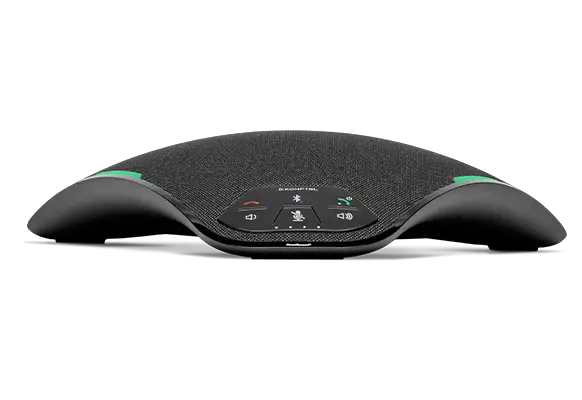
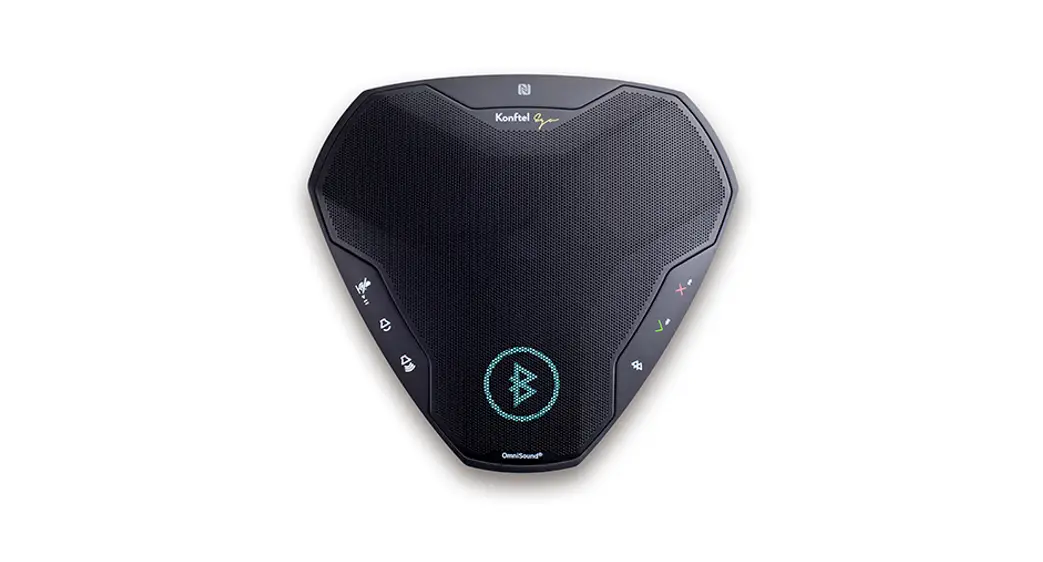
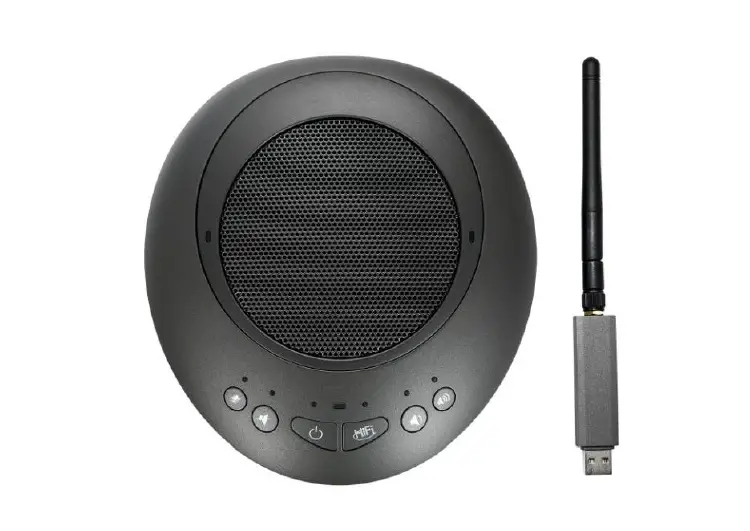
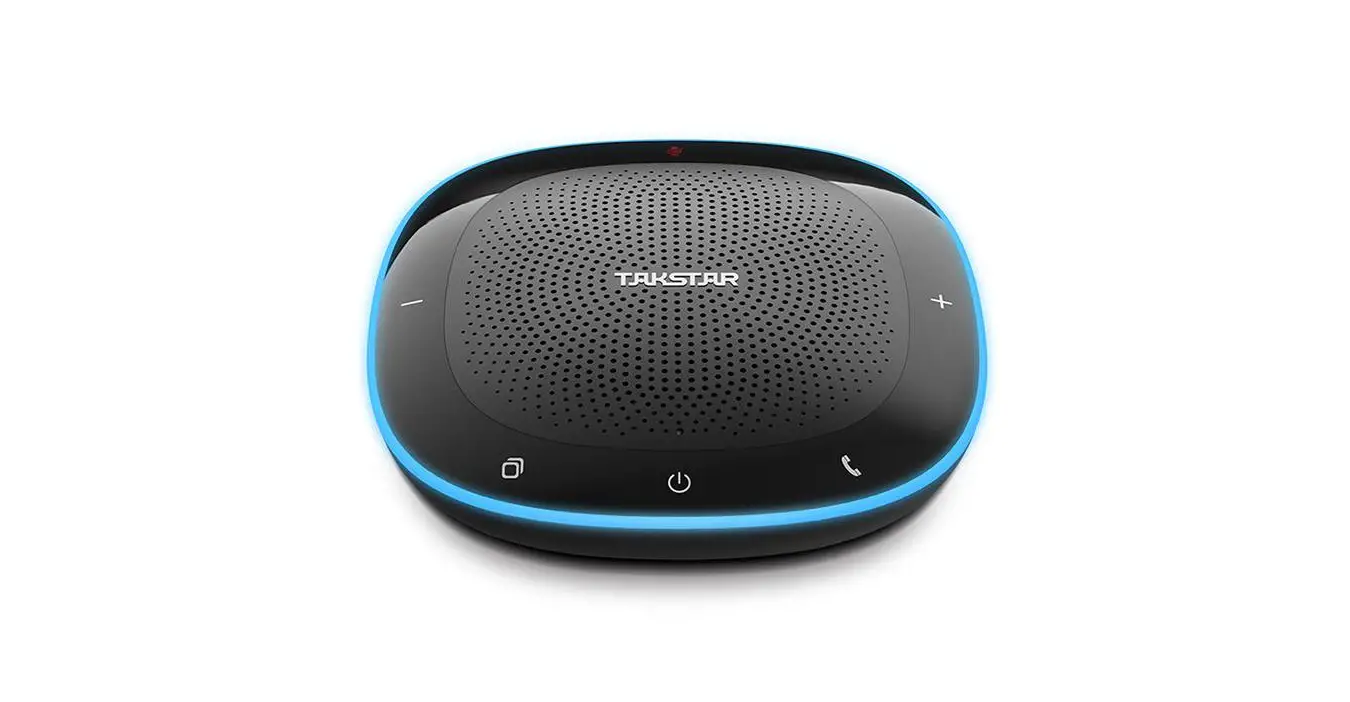
Konftel 70 is a speakerphone that you can use to conduct virtual meetings and listen to music with excellent quality with OmniSound® audio optimization technology. It provides an improved user experience with full-duplex and echo cancellation functionality. You can connect Konftel 70 to your mobile phone, tablet, or computer and get support for various communication applications, such as Teams and Zoom. Konftel 70 also supports simplified Bluetooth® pairing and connection using the near-field communications (NFC) technology to ease the device usage.
5
OVERVIEW
PHYSICAL LAYOUT
9
8
9
9
12
1
7
2
4
3 10
11
5
6
Figure 1: Front view of Konftel 70. The following table lists the touch buttons and the other elements of Konftel 70.
Callout number 1
Description Bluetooth® touch button
2
On hook touch button
3
Off hook touch button
4
Volume down touch button
6
OVERVIEW
Callout number 5 6 7
8 9 10 11 12
Description Volume up touch button Mute touch button Power touch button (shares the same touch area with the Off hook button) NFC tag for Bluetooth® connectivity LED Indicator for call status LED indicator for power mode LED indicator for battery status LED indicator for Bluetooth® in the Bluetooth® logo
7
OVERVIEW CONNECTION LAYOUT
2
1
3
Figure 2: Connection layout of Konftel 70
The following table lists the sockets and ports available on Konftel 70 for connection.
Callout number 1 2 3
Description Power cable socket USB Type micro B Kensington® security lock port
8
OVERVIEW
DIMENSIONS AND WEIGHT
The following table shows the dimensions of Konftel 70.
Parameter
Dimension
Width
278 mm
Length
250 mm
Height
59 mm
Konftel 70 net weight is 700 grams. The weight of the complete package is 1300 grams.
TOUCH BUTTONS
Touch buttons of Konftel 70
Icon Name
Description
Power
To switch the speakerphone on and off.
Mute
To mute and unmute the speakerphone.
Volume Up To increase the speakerphone volume level.
Volume Down To decrease the speakerphone volume level.
Off Hook or Answer
On Hook or Hang Up
To indicate the speakerphone off-hook status, answer an incoming call, and put an active call on hold.
To indicate the speakerphone on-hook status, end a call, and reject an incoming call.
9
OVERVIEW
Icon Name Bluetooth
Description
To indicate an active Bluetooth® connection and manage Bluetooth® pairing and connections.
LED STATUS INDICATORS
The LEDs on the speakerphone indicate the call status, the power connection, the battery state, the Bluetooth® connection, and the music mode. The LEDs emit bright red, green, white and blue colors that are visible over a distance to draw your attention to the speakerphone status as required.
The following table lists the LED status indicators:
LED color
Indication
Steady red
Microphones are on mute.
Flashing red
A call is on hold.
Steady green
A call is in progress.
Flashing green
An incoming call is ringing.
Steady blue
Call transfer to mobile phone or the music mode.
LEDs off
The speakerphone is inactive.
The LED indicator for Bluetooth® in Bluetooth® logo on the front part of the speakerphone emits steady blue color. It indicates Bluetooth® standby, pairing and music modes, and manual reconnect.
The LED indicator for power mode near the Off Hook touch button is white. It shows that the power is on in the idle and standby modes and during the active usage. When the white power LED indicator is off, the speaker phone is in the hibernate mode.
10
OVERVIEW
LED BATTERY STATE INDICATORS
Four step battery state indicators at the bottom of the touch keypad of Konftel 70 show the battery charge state.
If the phone has a USB or power connection and is fully charged, all four LED indicators are off. In case of full charge and no cable connection, all four LED indicators emit steady bright white.
When the battery is low, the speakerphone shows all four step LED indicators in a rolling sequence. When Konftel 70 is charging, it shows up to four step LEDs depending on the charge available.
The following table lists the LED battery state indicators:
LEDs
Description
Indicators do not emit light
The current state is one of the following:
· The speakerphone has a completely discharged battery, and the power is off.
· The battery is charging, the charge is 96% to 100%. · The speakerphone is running on USB or DC power
when the battery is fully charged.
Four blinking white indicators
The battery is charging, the charge is 0% to 25%.
One steady white indicator, three other LEDs are blinking
The battery is charging, the charge is 26% to 50%.
Two steady white indicators, two other LEDs are blinking
The battery is charging, the charge is 51% to 75%.
Three steady white indicators, one other LED is blinking
The battery is charging, the charge is 76% to 95%.
SPECIFICATIONS
The following table lists the specifications that Konftel 70 supports:
11
OVERVIEW
Name Power Connectivity Audio codecs Music Mode
USB Bluetooth® Profiles User interface Interoperability
Description
· USB 2.0 · Power adapter in DC barrel jack · Battery
· USB 2.0 type B · Built-in NFC · Bluetooth® Classic v.5.1
· Low-complexity sub-band codec (SBC) for A2DP · Modified SBC Codec (mSBC) for HFP Wide band
speech
· 44.1kHz · 48kHz · 32kHz · 16Khz
Micro USB 2.0 device Type B
· HFP v.1.7.2 · HSP v.1.2 · A2DP v.1.3.2
· Functional touch keypad · LED indicators for call and battery status, power and
Bluetooth® connection
· Windows 10 · MacOS · iOS · Android
SAFETY GUIDELINES
Ensure that you are familiar with the following safety guidelines before using, installing, configuring, and administering Konftel 70.
12
OVERVIEW
This speakerphone is not designed for making emergency telephone calls when the power fails. Make alternative arrangements for access to emergency services.
· Read, understand, and follow all the instructions. · Do not place this device on an unstable cart, stand, or table. If it falls, serious
damages can be caused to the speakerphone. · Do not drop, knock, or shake the device. Rough handling can break internal
circuit boards. · Ensure that the power cord or plug is not damaged. · Do not overload wall outlets and extension cords as this can result in the risk
of fire or electric shock. · Avoid wetting the device to prevent fire or electrical shock hazard. · Unplug the device from the wall outlet before cleaning. Do not use liquid or
aerosol cleaners, harsh chemicals, cleaning solvents, or strong detergents to clean the device. Use a damp cloth for cleaning. · Avoid exposing the device to high temperatures above 40°C (104°F), low temperatures below 0°C (32°F), or high humidity. · Do not block or cover slots and openings of the device. These openings are provided for ventilation, to protect the phone from overheating. · Never push objects of any kind into this device through cabinet slots as they might touch dangerous voltage points or short out parts that could result in a risk of fire or electric shock. · Do not disassemble this product to reduce the risk of electric shock. Opening or removing covers may expose you to dangerous voltages or other risks. Incorrect reassembly can cause electric shock during subsequent use. · Do not use the device to report a gas leak in the vicinity of the leak. · Do not use the device near intensive care medical equipment or close to persons with pacemakers. · Do not place the device too close to electrical equipment such as answering machines, TV sets, radios, computers, and microwave ovens to avoid interference.
In case Konftel 70 and the corresponding accessories are damaged, the device does not operate normally or exhibits a distinct change in performance, refer for servicing to the qualified service personnel.
13
CONNECTIVITY
CONNECTION PRIORITY
Konftel 70 supports personal computer or Bluetooth® host connection to enhance the sound quality. OmniSound® provides automatic echo cancellation and eliminates distracting background noise. To make a Voice over IP (VoIP) call, you can use an applicable VoIP software or listen to music from your personal computer or a Bluetooth® host. The computer normally activates the speaker in Konftel 70, if no other software that can use the microphone is running. Here, Konftel 70 functions as a powerful speaker to play music. When you make or take a call, the music mode automatically turns off, and Konftel 70 enables the microphone and acts as a conference unit. For several activities, Konftel 70 handles the connections in line with its predefined connection priorities. The connection priorities are the following:
Bluetooth® calls USB calls Bluetooth® audio streaming USB audio streaming
CONNECTION TO A COMPUTER
Konftel 70 performs as a high-quality conferencing equipment with OmniSound®, when you connect it to your computer. Unlike standard computer speakers and microphones, Konftel 70 provides full-duplex (two-way audio), efficient echo cancellation, and noise reduction. The computer identifies Konftel 70 as an Echo Cancelling Speakerphone. The communication software usually leaves the audio processing to Konftel 70, resulting in better sound quality. If you play music or other one-way audio streams, Konftel 70 switches automatically to the music mode.
OmniSound® performs over the full audio bandwidth (the microphone: 100-7000 Hz, the loudspeaker: 100-20000 Hz). However, some factors can limit the sound quality, depending on the equipment in the network and the equipment used by other call participants.
14
CONNECTIVITY
Connecting to a computer Connect Konftel 70 to a computer to use the speakerphone as a high-quality conferencing equipment. The computer operating system automatically selects Konftel 70 as a speaker and microphone. If your computer does not automatically select Konftel 70 as an audio device, manually select Konftel 70 in your computer settings. Connect Konftel 70 to the computer using a suitable USB cable.
Cable retention The Konftel 70 device has a retention mechanism for connection of the USB and power cables. When pulling, the cable retention mechanism prevents disconnection of the USB and power cables. The cable retention feature ensures that data communication between Konftel 70, the computer, and the device battery charging does not abruptly end.
BLUETOOTH CONNECTION
Konftel 70 supports connection to a Bluetooth® host. You can connect the speakerphone to a mobile phone, tablet, and computer over Bluetooth®. For that, you must enable Bluetooth® in the Bluetooth® host settings. The device can transmit audio over Bluetooth® in the following ways: · Two-way transmission optimized for speech · One-way transmission (A2DP) with higher audio bandwidth, optimized for
music Konftel 70 supports both options.
OmniSound® performs over the full audio bandwidth (the microphone: 100-7000 Hz, the loudspeaker: 100-20000 Hz). However, limitations in the telecommunications networks and Bluetooth® technology reduce the bandwidth partially, that it compresses the sound and affects the sound quality.
Bluetooth pairing and connection You must pair two devices before they can communicate over Bluetooth®. You can do it in different ways depending on whether your Bluetooth® host supports the simplified pairing using NFC. NFC reading distance between devices is around two centimeters.
15
CONNECTIVITY
You can pair a maximum of eight devices with Konftel 70. To pair a new host that already has eight other paired devices in the list, Konftel 70 deletes the oldest pairing information.
Pairing and connecting with NFC You can pair Konftel 70 with your Bluetooth® host using the NFC feature. Enable NFC on your Bluetooth® host.
Unlock the screen of your Bluetooth® host. Hold the Bluetooth® host next to the NFC tag on Konftel 70. The Bluetooth® LED on Konftel 70 flashes blue. You might need to bring the Bluetooth® host closer to Konftel 70 to make contact over NFC. The connection range is about two centimeters. The Bluetooth® host and Konftel 70 are paired and connected. After establishing the pairing, the Bluetooth® LED becomes steady blue.
Pairing without NFC If your Bluetooth® host does not support the NFC feature, you can still connect it to Konftel 70 over Bluetooth®. Turn on Bluetooth® on your Bluetooth® host.
On Konftel 70, press and hold the Bluetooth button for two seconds. Konftel 70 becomes discoverable for other Bluetooth® hosts. The Bluetooth® LED on Konftel 70 flashes blue. In the list of devices on your Bluetooth® host, select Konftel 70 and confirm the pairing. The devices pair and automatically connect. On your Bluetooth® host, you get the connection confirmation. The Bluetooth® LED on Konftel 70 turns steady blue. After 60 seconds in the pairing mode with no pairing established, Konftel 70 returns to its regular operation mode. In this case, repeat the pairing procedure.
Reconnecting already paired devices After successful pairing, you do not need to repeat pairing on subsequent connections.
16
CONNECTIVITY
The connection breaks up in the following cases: · The devices are far apart. Konftel 70 Bluetooth® range is about 20 meters. · You turn off Bluetooth® on your Bluetooth® host. Konftel 70 and your Bluetooth® host are ready to connect the next time when they are within the connection range. Turn on Bluetooth® on your Bluetooth® host.
On Konftel 70, press the Bluetooth button when your Bluetooth® host is within the connection range. Optional: Proceed with a call in progress that your Bluetooth® host transferred to Konftel 70.
17
SPEAKERPHONE OPERATIONS
ANSWERING INCOMING CALLS
When there is an incoming call on your computer soft client or a Bluetooth® host, use Konftel 70 to answer it. · Connect your Konftel 70 to a personal computer or a Bluetooth® host. · Make sure there is an incoming call.
On Konftel 70, press the Answer button. The call status LEDs on Konftel 70 show a steady green light. Optional: To reject the incoming call, press Hang Up.
ADJUSTING THE VOLUME
Use this procedure to adjust the volume while listening to music or during calls on your Konftel 70. Connect your Konftel 70 to a personal computer or a Bluetooth® host.
To decrease the volume, press the Volume Down button. To increase the volume, press the Volume Up button.
MUTING THE MICROPHONE DURING A CALL
Use this procedure to mute the microphone on your Konftel 70 during a call. Make sure you have an active call.
To mute the microphone during a call, press the Mute button. The LEDs on Konftel 70 show a steady red light. Optional: To unmute the microphone, press the Mute button again. The LEDs turn green.
TRANSFERRING A BLUETOOTH CALL IN PROGRESS
Use this procedure to transfer a call between your Bluetooth® host and Konftel 70.
18
SPEAKERPHONE OPERATIONS
Establish the Bluetooth® connection between your Bluetooth® host and Konftel 70. On Konftel 70, press the Bluetooth button. Optional: Press the Bluetooth button again to transfer the call back to your Bluetooth® host.
PUTTING A CALL ON HOLD
Use this procedure to put an ongoing call on hold. Transfer an ongoing call from your Bluetooth® host to Konftel 70.
To put the call on hold, press the Answer button. The LEDs on Konftel 70 start flashing red. To continue the call, press the Answer button again.
ENDING CALLS
Use this procedure to end an active call from your Konftel 70. Make sure you have an active call.
On Konftel 70, press the Hang Up button. The green LEDs on the Konftel 70 turn off. Optional: End the call from your computer or Bluetooth® host.
19
POWER SUPPLY CHARACTERISTICS
POWER MODES
Konftel 70 supports different power modes to save power. The following power modes are available: · Hibernate mode. The speakerphone consumes negligible power. Konftel 70
waits for its activation. The white power LED indicator is off. · Idle mode. Konftel 70 works on battery, USB power or DC power. In this case
the speakerphone is in operation but it has no Bluetooth® or USB connections. · Standby mode. Konftel 70 receives power from the battery, USB power or DC
power connections. It has Bluetooth® or USB connection but is not active. · Active operation mode. Konftel 70 works on battery, USB power or DC power
connection. There is an active call or music playing on the speakerphone.
Entering the idle power mode from the hibernate mode Use this procedure to enter the idle power mode from the hibernate mode on your Konftel 70. Make sure that the speakerphone is switched on and it is in the hibernate mode. Note that the white power LED indicator is off in the hibernate mode. · To enter the idle mode, do one of the following:
· Press the Off Hook button for 2 seconds. · Connect the USB cable. · Connect the power adapter cable. The phone enters the idle mode, and the power mode LED becomes white. · To return the speakerphone to the hibernate mode, do one of the following: · Press the Off Hook button for 2 seconds. · Have 30 minutes of inactivity with only battery power consumption. The phone enters the hibernate mode, and the power mode LED turns off.
Entering the standby power mode from the idle mode Use this procedure to enter the standby power mode from the idle mode on your Konftel 70. Make sure that your Konftel 70 is in the idle mode.
20
POWER SUPPLY CHARACTERISTICS
· To enter the standby mode, do one of the following:
· Connect the Bluetooth® host device. · Connect the USB host device. · To return the speakerphone to the idle mode, do one of the following:
· Disconnect the Bluetooth® host device. · Disconnect the USB host device.
POWER SUPPLY PRIORITY
Konftel 70 supports operation with power supply from different sources. In case of several power supply sources available the speakerphone handles its power supply in line with its predefined priorities. The power supply priorities are the following:
Battery Power adapter USB power
If the battery is discharged, you need to attach a DC power cable or a USB cable to the device. The device starts up even if the battery is discharged.
BATTERY PACK
Konftel 70 has an integrated battery pack. It ensures the speakerphone continuous operation in case there is no USB connection or DC power connection. You cannot replace the battery pack.
Charge the battery in Konftel 70 either through the power adapter or using the USB Type A cable. If the battery is empty, it charges to the full over the following time:
· Using the power adapter: approximately 3.5 hours · Using the USB Type A cable: approximately 15 hours
The following table shows the battery power lasting for the power modes:
Mode
Battery power
Active operation mode The battery power lasts up to 9 hours. Table continued…
21
POWER SUPPLY CHARACTERISTICS
Mode
Battery power
Standby / Bluetooth® The battery power lasts up to 17 hours. connected
Hibernate mode
Konftel 70 works for over 1.5 years.
Charging the battery through the power adapter Charge the battery in your Konftel 70 through the power adapter.
Connect the power adapter cable to the power cable socket on the back of your Konftel 70 device. Plug the other end of the power adapter into the wall outlet. The speaker phone shows four consequently flashing white indicators.
Charging the battery using USB cable Charge the battery in your Konftel 70 using the USB Type A cable.
Plug the USB cable into the USB port on the back of your Konftel 70 device. Connect the other end of the USB cable to a computer or a wall charger. The speaker phone shows four consequently flashing white indicators.
SHUT OFF STATE
Konftel 70 shuts off when the battery pack is completely discharged. In this case, the device enters the Power Off mode from the following power modes:
· Active operation · Standby · Idle · Hibernate
Konftel 70 warns about discharge with a single audio alarm. The discharge alarm actuates at 25% and 10% charge levels.
22
MAINTENANCE
FIRMWARE UPGRADE
You can upgrade your Konftel 70 using the Konftel Upgrade Utility firmware file through a USB-connected PC with Microsoft® Windows® or MacOS®. For more information about the Konftel Upgrade Utility, see https:// www.konftel.com/en/support.
Installing Konftel Upgrade Utility Go to https://www.konftel.com/en/support. Download the latest version of the Konftel Upgrade Utility firmware file. Install Konftel Upgrade Utility on your computer. During the installation follow the instructions given by the installation program.
Upgrading firmware Use this procedure to upgrade the firmware on your Konftel 70 using Konftel Upgrade Utility. The procedure takes three to five minutes depending on your Internet connection. Do not disconnect the USB cable or the device until the end of the upgrade procedure. Ensure that: · Konftel 70 power is on. · The speakerphone is in the Idle mode with no audio process active. · You have an Internet connection on the computer. · In case you are not sure if the battery is well charged, connect the power
adapter cable to the wall outlet. Connect Konftel 70 to the computer using a suitable USB cable. Start Konftel Upgrade Utility on your computer. Select Konftel 70 and click Next. Fulfill the connection requirements and click Next Select the option Upgrade to the latest firmware using automatic download from Konftel (internet connection needed) and click Next. You can see the current firmware version at the bottom of the window. The download starts.
23
MAINTENANCE
Click Install. The installation process starts. Do not switch off your computer or Konftel 70 during the installation. The call status LED indicators start flashing red. When the installation process ends, the speakerphone reboots. Click Finish.
HARDWARE RESET
If you need to reset your Konftel 70, you can do it by pressing the Power touch button for more than 8 seconds.
In this case all the speakerphone’s settings return to the default ones.
24
Index
A answering incoming calls 18 audio optimization technology 5
B battery 21 battery charging 21 battery pack 21 Bluetooth connection 14, 15 buttons 6
C cable retention 15 charging battery
power adapter 22 USB 22 computer speaker 14 conference unit 14 connection layout 8 connection to a computer 14 Connection to a computer 14 connection to Bluetooth devices 15
D dimensions 6, 9
E ending calls 19
F firmware
upgrading 23 firmware upgrade 23
H hardware reset 24 hibernate mode 20
I icons 6 idle mode 20 intended audience 4
M muting the microphone during a call 18
P physical layout 6 power adapter 21 power modes
active operation 20 hibernate mode 20 idle mode 20 power off 20 standby mode 20 power supply priority 21 purpose 4 putting on hold unholding 19
S safety guidelines 12 safety instructions 12 shut off state 22 speakerphone 5 specifications 11 standby mode 20
T touch buttons 9 transferring a Bluetooth call 18
U Upgrade Utility
installing 23
W weight 9 work with Bluetooth devices
pairing and connecting with NFC 16 pairing and connection 15 pairing without NFC 16 reconnecting paired devices 16 work with computer adjusting the volume 18 connecting to a computer 15
25
KONFTEL.COM
Konftel is a leading company within collaboration endpoint solutions. Since 1988, our mission has been to help people in businesses around the world to have meetings
regardless of distance. We know that remote collaboration is an effective way to save time, money and contribute to a more sustainable world. We are Climate Neutral Certified, offering customers an option to purchase video conferencing equipment while
keeping a clear climate conscience. Crystal clear audio and a sharp video image are essential for efficient meetings; this is why we only focus on cutting-edge technology in our Collaboration Solutions. Our audio technology OmniSound® is built into all Konftel Conference phones and devices. The products are sold globally under the Konftel brand
and our headquarters are based in Sweden. Read more about the company and our products at konftel.com.
Konftel AB, Box 268, SE-901 06 Umeå, Sweden Tel: +46 90 70 64 89 E-mail: [email protected]
Rev 1A 2021-06-18
 Climate Neutral Audio and Video Conferencing Products - Konftel
 Climate Neutral Audio and Video Conferencing Products - Konftel