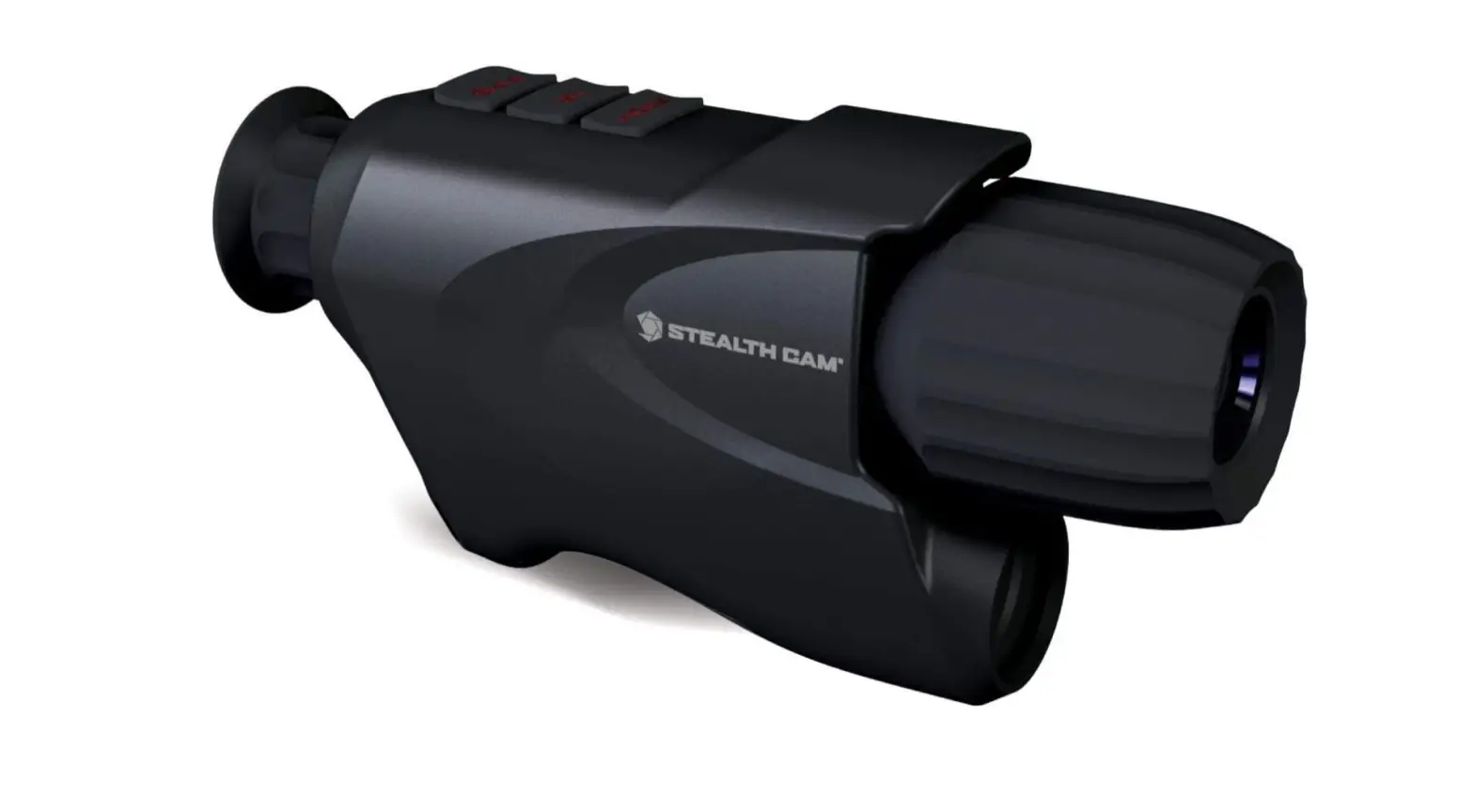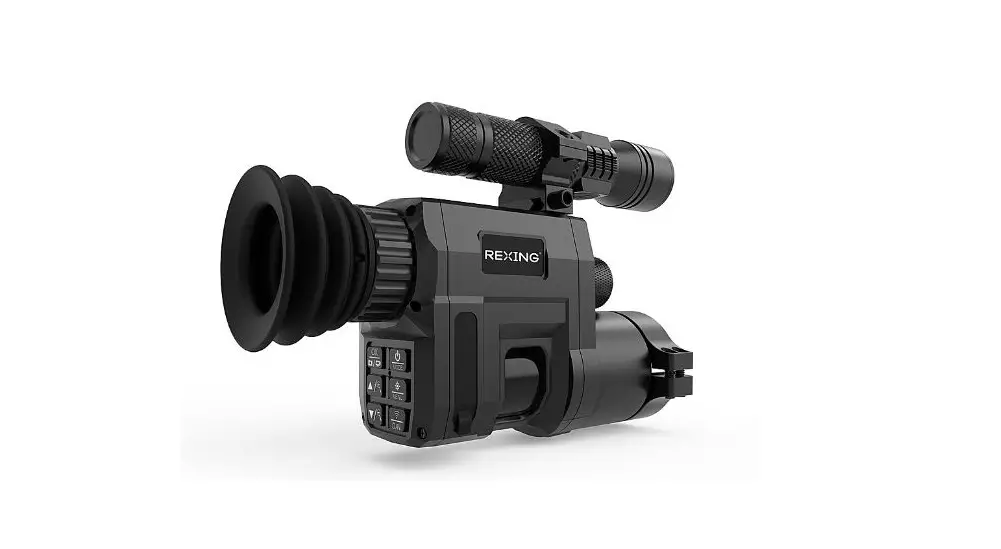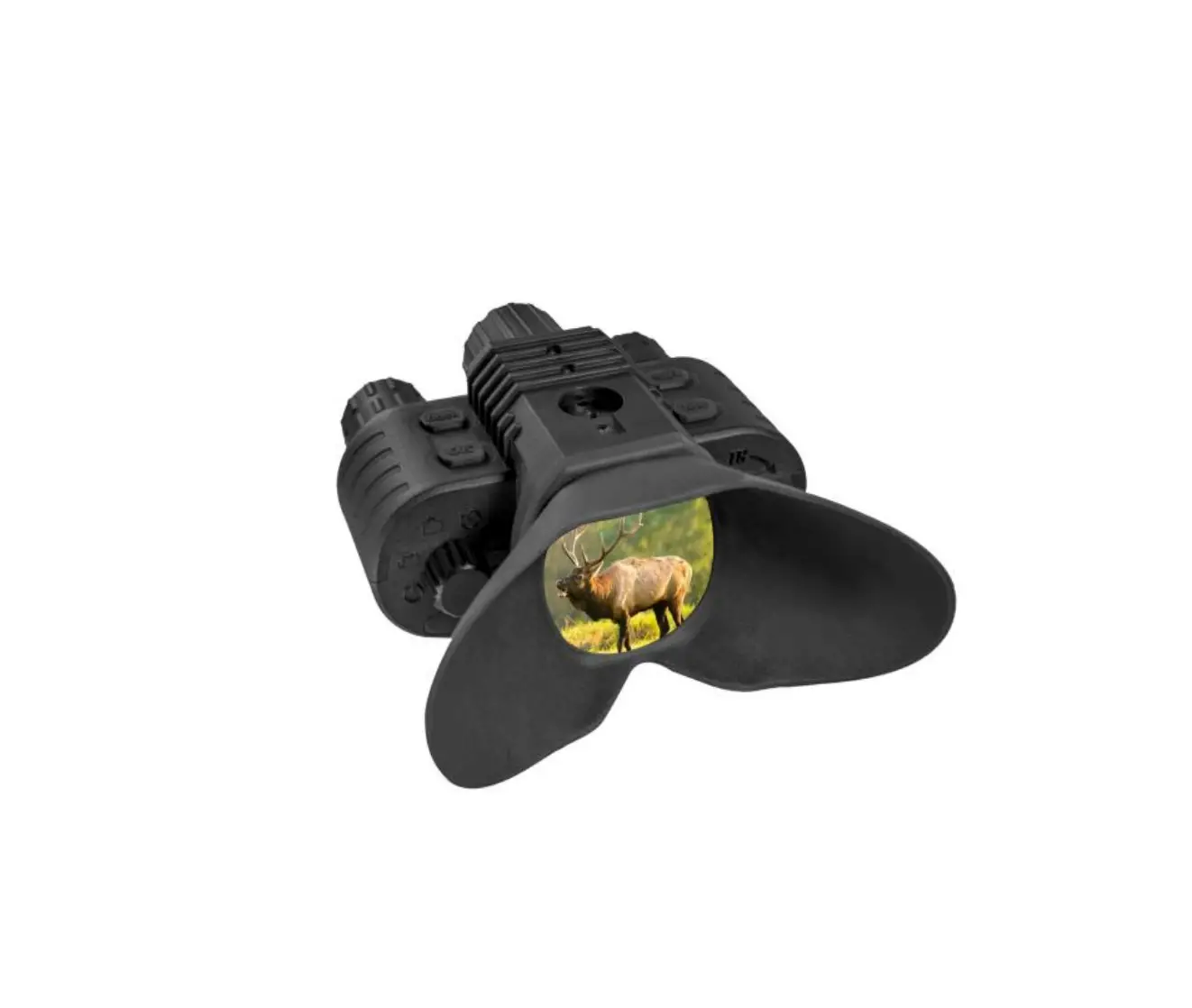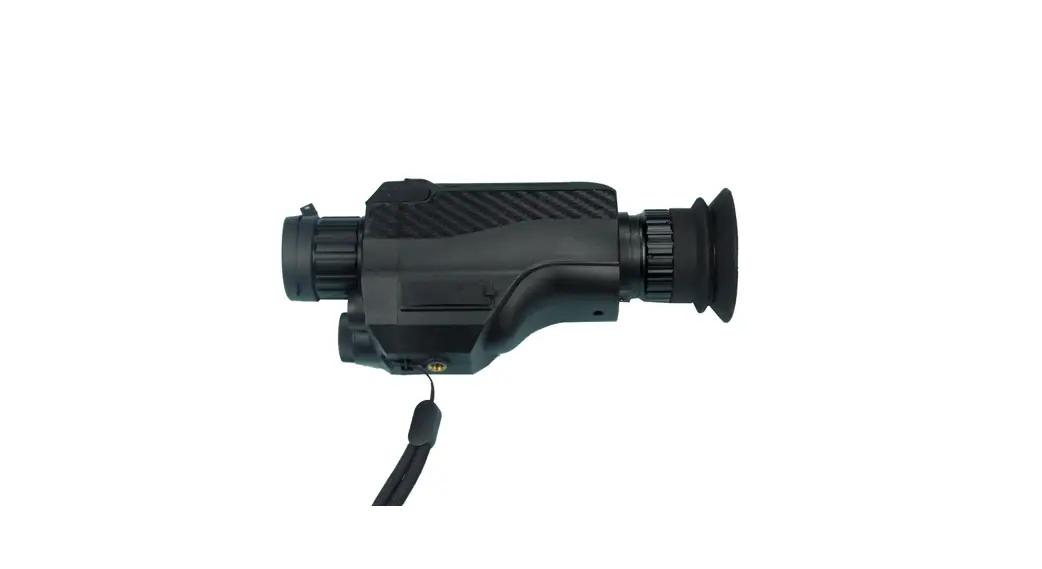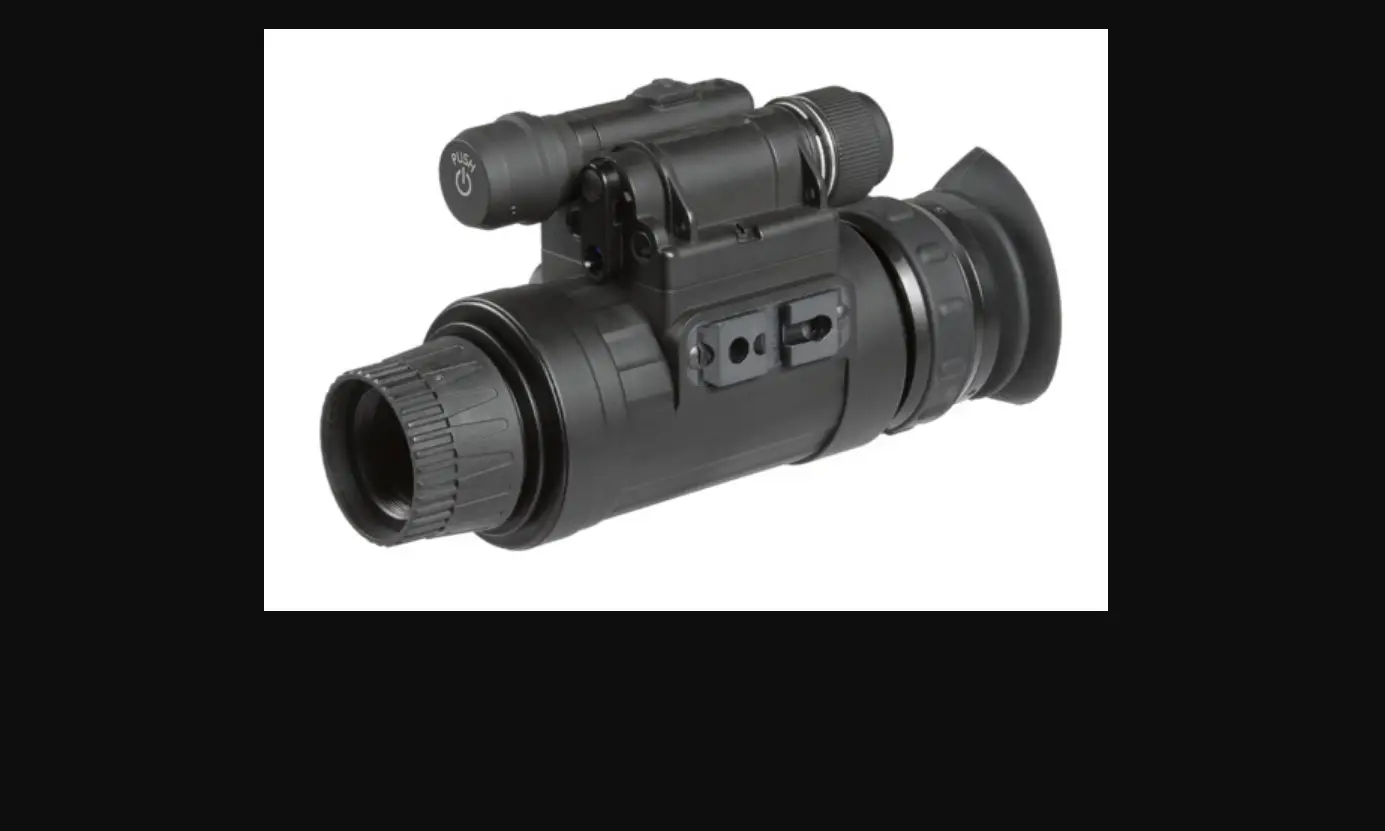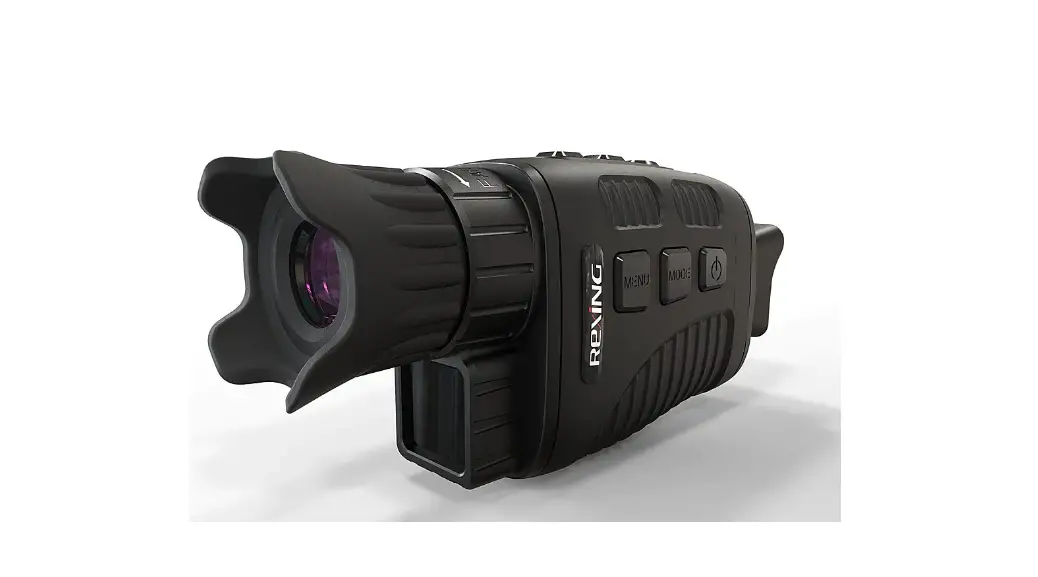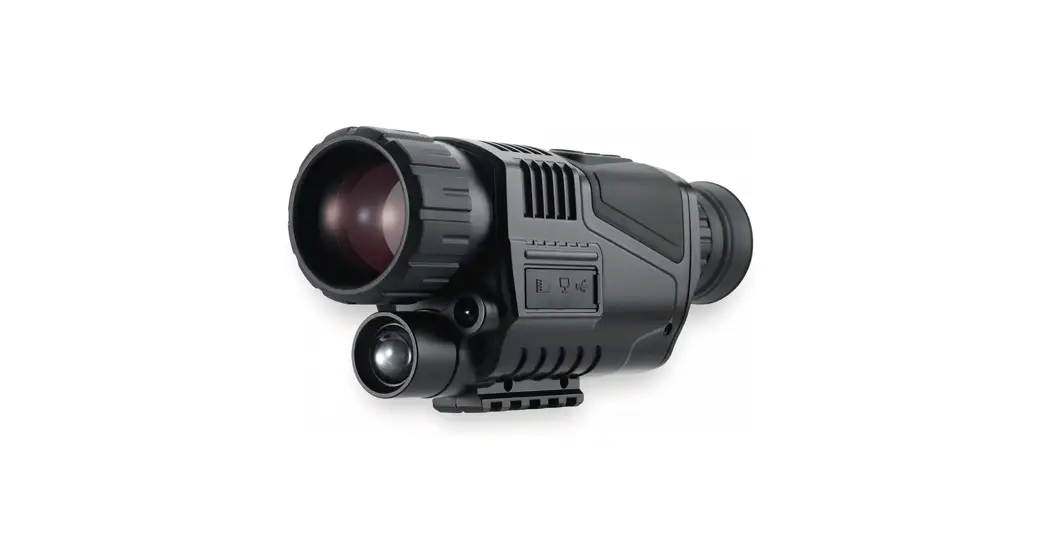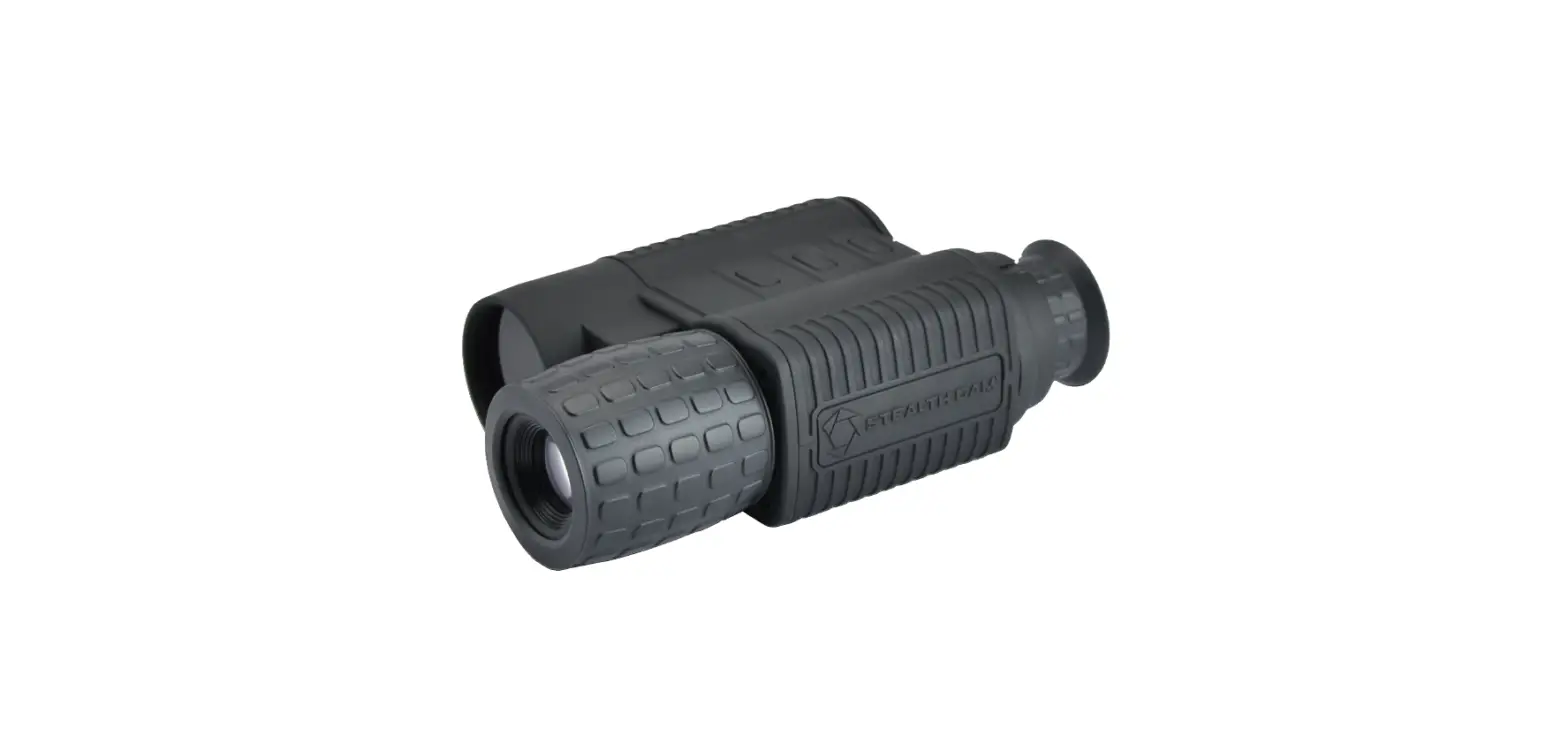

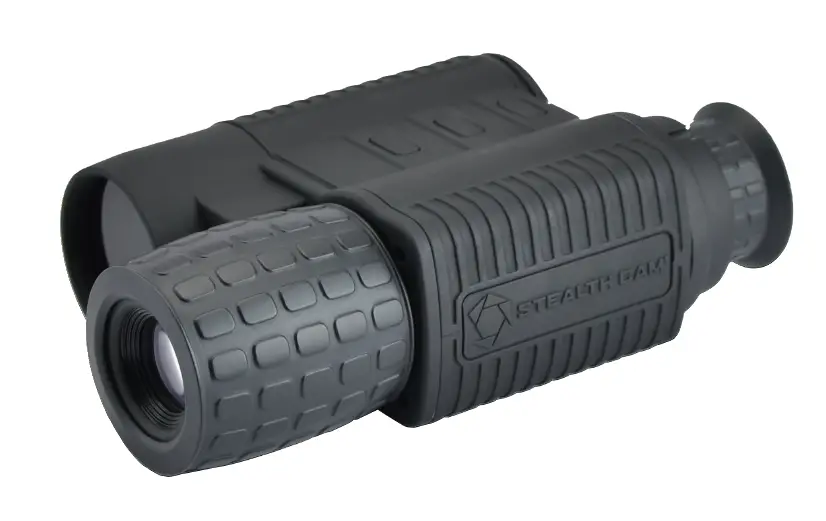
Stealth Cam STC-NVM Night Vision Monocular
OVERVIEW
IMPORTANT NOTE
We appreciate your business and want to prove to you we are committed to providing you the best product and support in the field.
By giving our customers a new state of the art web interface, which provides you with video tutorials and instruction on how to use the product in the most effective way.
TECHNICAL SUPPORT
EMAIL: [email protected] Please allow 48hrs for response.
Stealth Cam, LLC
P.O. Box 539504
Grand Prairie, TX 75053-‐9504
CUSTOMER SERVICE CONTACT & HOURS
Toll Free: 1-‐877-‐269-‐8490
Call Center Hours:
Mon -‐ Fri / 8 AM – 6 PM (CST) www.stealthcam.com
Stealth Cam Limited Warranty
Your Stealth Cam unit is covered by a Year Limited Warranty on parts and labor from the date of original purchase, and purchases must be made through an authorized dealer. The warranty covers defects in workmanship and materials. The warranty does not apply to units, which have been damaged or abused intentionally or unintentionally. Purchase from individuals or unauthorized Internet sites such as eBay voids the warranty.
Tampering with or altering the unit will void the warranty. Any unauthorized service will void the warranty. A copy of your original sales receipt must be produced for any warranty service and a Return Authorization (RA) number must be obtained from customer service at 877-‐269-‐8490 PRIOR to returning the product.
FUNCTIONS / FEATURES
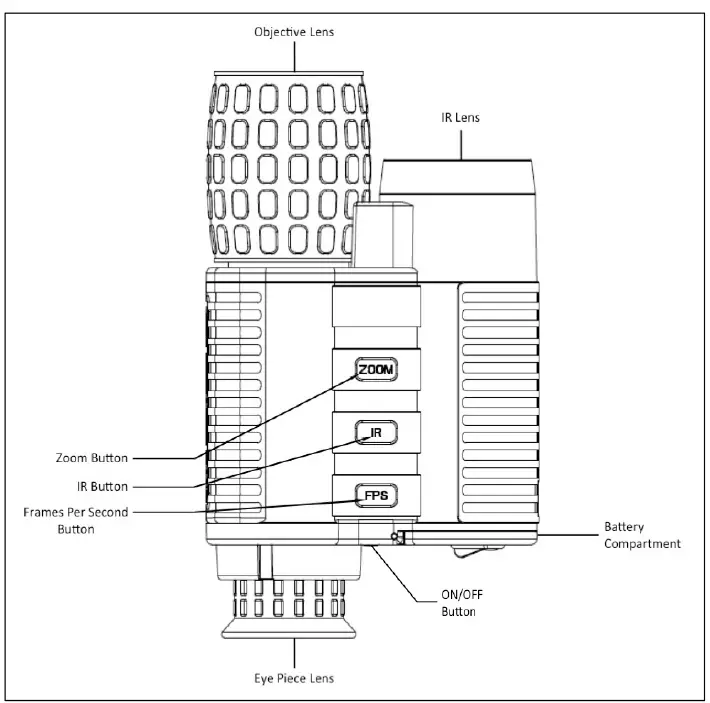
ON/OFF Button
This button will be used to turn the power ON and OFF on the unit.
- If the unit is OFF, pressing and holding the ON/OFF button for 1.5 second will turn the unit ON
- If the unit is ON, pressing and holding the ON/OFF button for 1.5 second will turn the unit OFF
Startup Sequence
When the unit is turned ON, the startup sequence will begin;
- For 2 seconds the Stealth Cam logo will be displayed on the LCD screen
- After 2 seconds the unit will enter view mode
Zoom Button (Default – 1X)
This button will allow the user to toggle through 3 different levels of DIGITAL zoom.
- The three different levels will be 1X, 2X, and 3X
- Pressing the button will increment the zoom level by 1 until the last level is reached, if the zoom button is pressed on the last level of zoom, the first level of zoom will be accessed again
IR Button (Default – Night Mode (High)
This button will allow the user to cycle through three different modes.
- Day Mode
- Night Mode (High)
- Night Mode (Low)
- While in Night Mode (Low), the power to the LED will be approx. 75% of the full brightness of the LED
- While in Night Mode (High), the power to the LED will be full brightness of the LED
FPS Button (Default – 30FPS)
This button will allow the user to cycle through different frame rates. Decreasing the frame rate will allow the sensor to gather more light per frame and produce a brighter image. Additionally, the decreased frame rate will cause movement in the image to become choppier.
- There will be four different modes;
- Ø 30FPS / 25FPS / 15FPS / 8FPS
- Pressing the button will increment the frame rate level by 1 until the last level is reached. If the fps button is pressed on the last level of frame rate, the first level of frame rate will be accessed again
- When the unit is in Night Mode, the default setting is 25fps. The unit can only cycle through 25fps, 15fps, and 8fps. There is no 30fps option available.
When the unit is in Day Mode, the default is 30fps. The user cannot change the fps in daytime mode.
View Mode
During view mode, the LCD screen will display a live image of the camera sensor as well as display the digital zoom level in the bottom left corner of the LCD screen.
- The digital zoom mode will be written in green letters on the LCD screen
- The digital zoom mode will be displayed as 1X, 2X, or 3X
- (See Digital Zoom Button for additional details)
In nighttime view mode; the LCD screen will display a small flashlight in the top right corner of the screen.
- This icon will represent if the IR LEDs are High, Low, or OFF
- This icon will be a flashlight that will either have a solid fill with small lines, solid fill with large lines, or no fill
- This icon will be green
- If the IR LEDs are OFF, the flashlight will be displayed with no fill
- If the IR LEDs are set to Low, the flashlight will have a solid fill with small lines
- If the IR LEDs are set to High, the flashlight will have a solid fill with long lines
- The battery life will be displayed as a battery symbol with 0 to 4 bars.
- The color of the battery symbol is green. Except when the battery symbol shows 0 bars, then the battery symbol will be yellow
Night Mode vs Day Mode
This button will cycle through day and night modes.
- While in Day Mode; the live image on the LCD screen will be in color
- The zoom button will function in Day Mode
- The IR button will function in Day Mode
- The FPS button will NOT function in Day Mode
- While in Night Mode; the live image on the LCD screen will be in black and white
- The zoom button will function in Night Mode
- The IR button will function in Night Mode
- The FPS button will function in Night Mode
Text Overlay on Screen (Default – Constant)
The user has the option to turn on/off the text that shows on the screen.
- There are two different modes for the text: Constant and Auto
- By pressing and holding the IR Button for 3sec, it will switch between the two different modes.
- Constant function:
- The text will constantly be shown on the screen at all times and never turn off.
- Auto function:
- When this mode is entered, the text will immediately turn off
- By pressing any button, the text will turn on for 5sec. There will be no change in setting from the button. The user will have to press the button for a second time for the setting to change.
- The text will stay on for 5sec from the last button pressed.
Auto Power Off
- If no button is pressed for 10 minutes, the LCD screen brightness will drop to 50%brightness
- If no button is pressed for an additional minute after the screen drops to 50%brightness, the LCD screen will turn OFF “but” the unit will remain ON.
- If no button is pressed for an additional minute after the LCD screen turns OFF, the unit will power OFF.
- Pressing any button quickly at any time before the unit turns OFF will turn the LCD screen ON at 100% brightness without changing the settings.
FCC COMPLIANCE
This equipment has been tested and found to comply with the limits for Class B digital device, pursuant to part 15 of the FCC Rules. These limits are designed to provide reasonable protection against harmful interference in a residential installation. This equipment generates uses and can radiate radio frequency energy and, if not installed and used in accordance with the instructions, may cause harmful interference to radio or television receptions, which can be determined by turning the equipment off and on, the user is encouraged to try to correct the interference by one or more of the following measure:
- Reorient or relocate the receiving antenna.
- Increase the separation between the equipment and the receiver.
- Connect the equipment into an outlet on a circuit different from that to which the receiver is connected.
- Consult the dealer or an experienced radio/TV technician for help.
This device complies with part 15 of the FCC Rules. Operation is subject to the following two conditions: (1) This device may not cause harmful interference, and (2) this device must accept any interference received, including interference that may cause undesired operation.
www.stealthcam.com
Toll-Free 877-‐269-‐8490