
NTG100H/NTG100P
User Guide
Thank you for choosing our NTG Rifle Borescope. Please read the user manual before operating the device and maintain it properly for further references.
Product Description
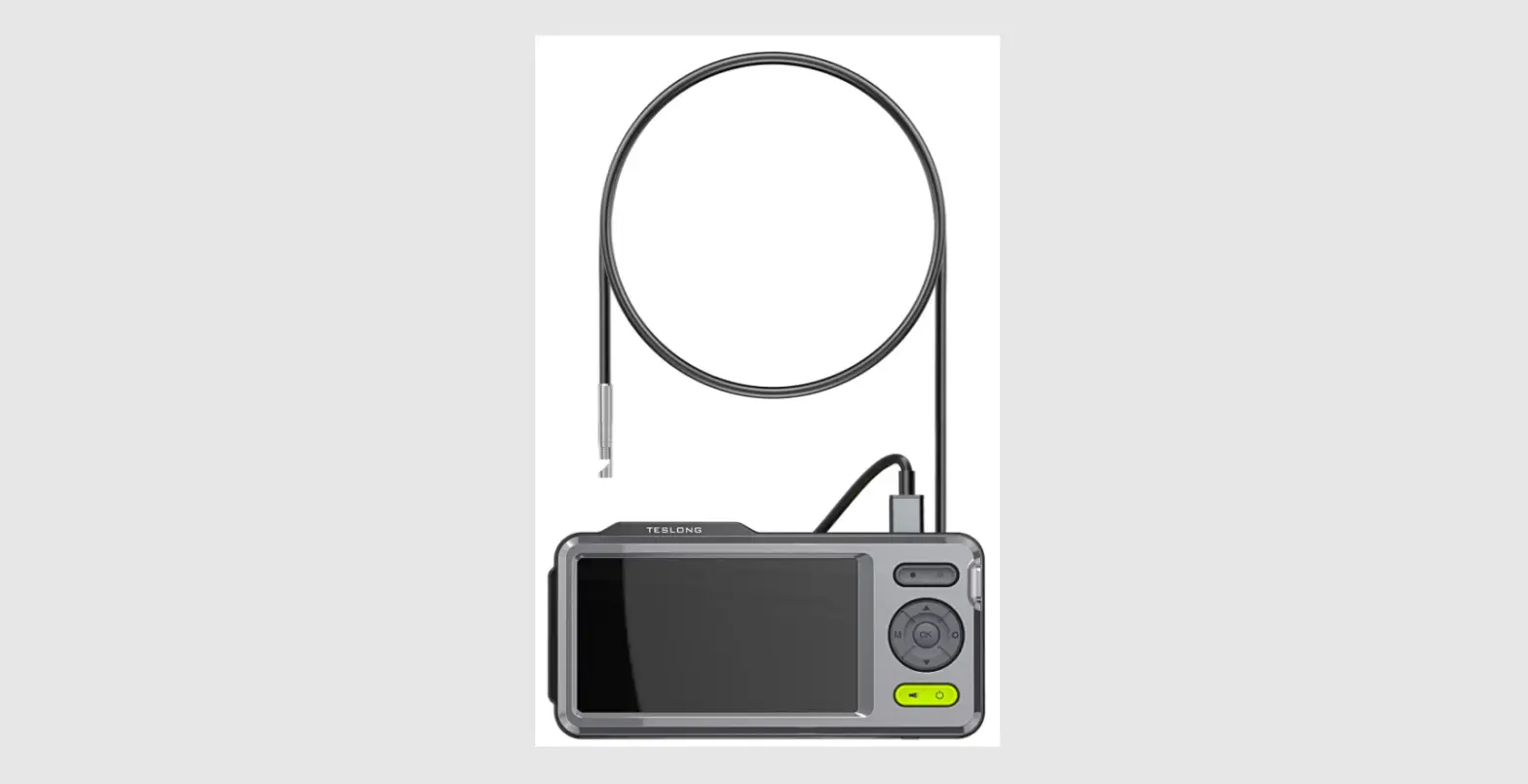
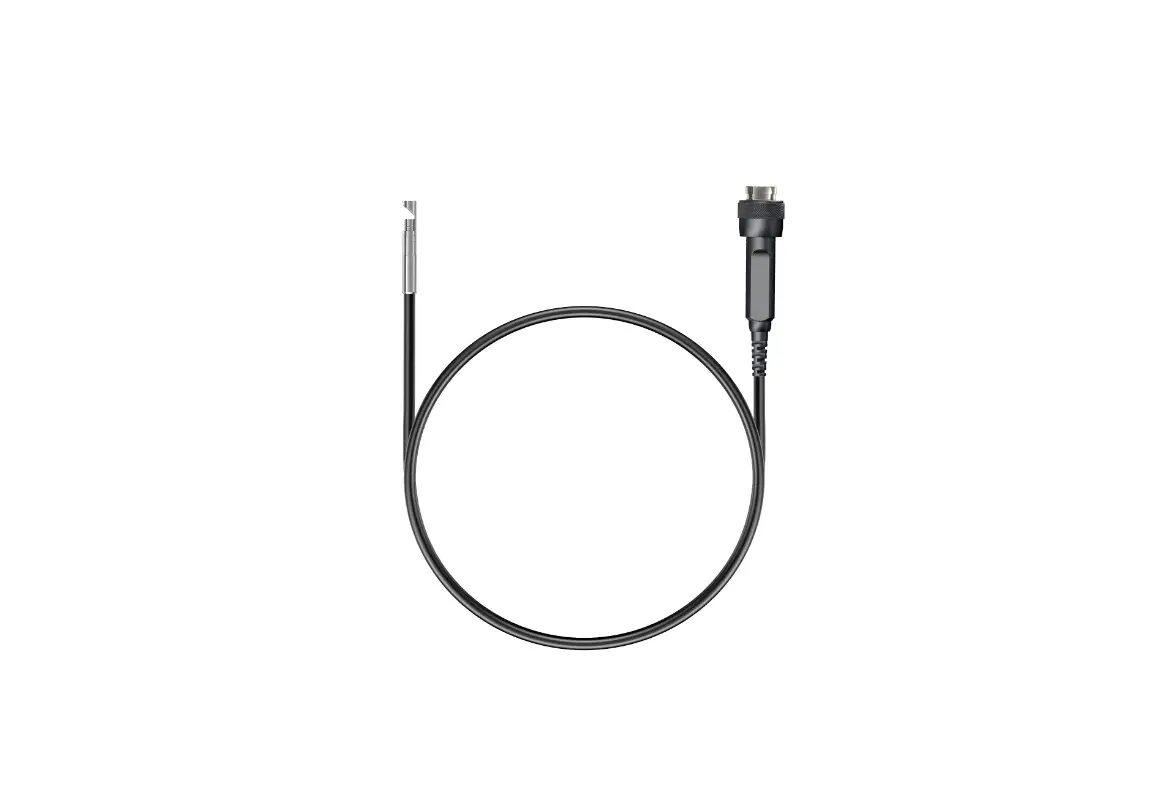
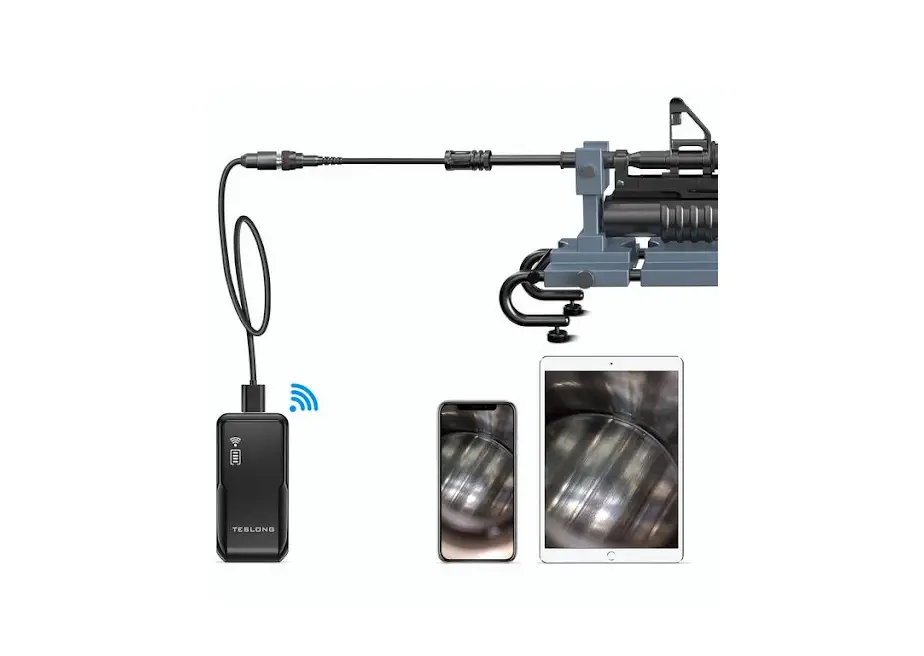
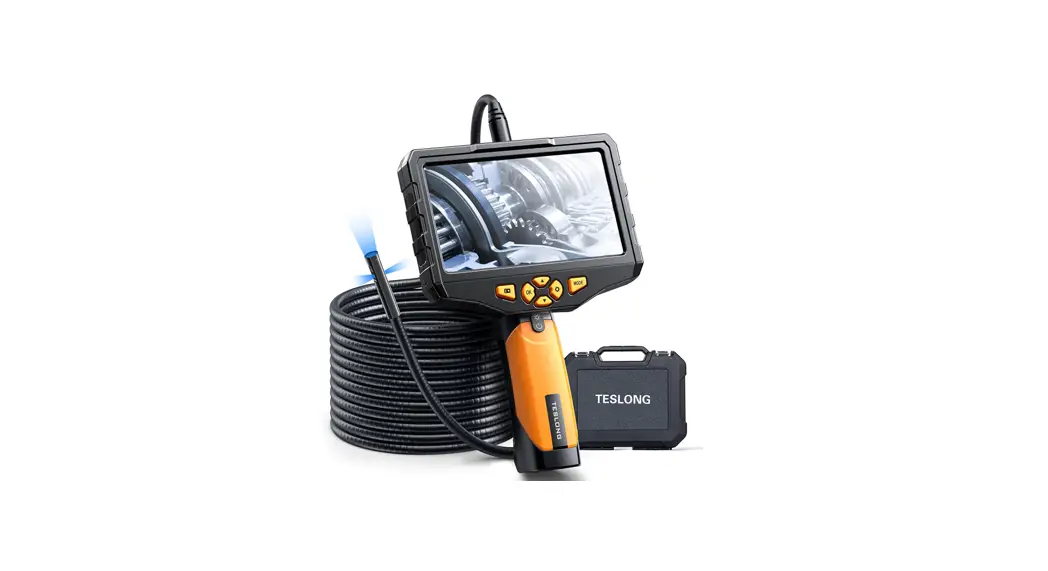
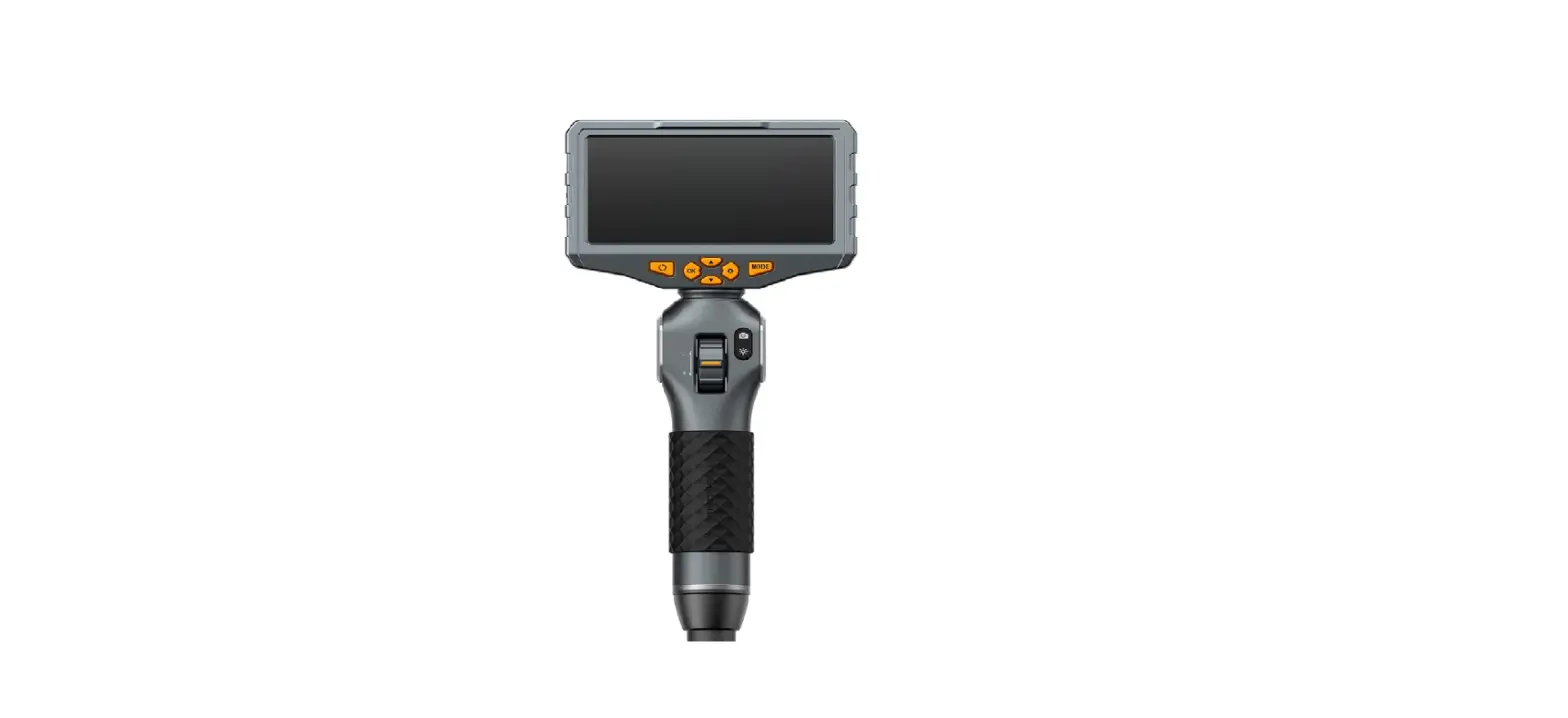
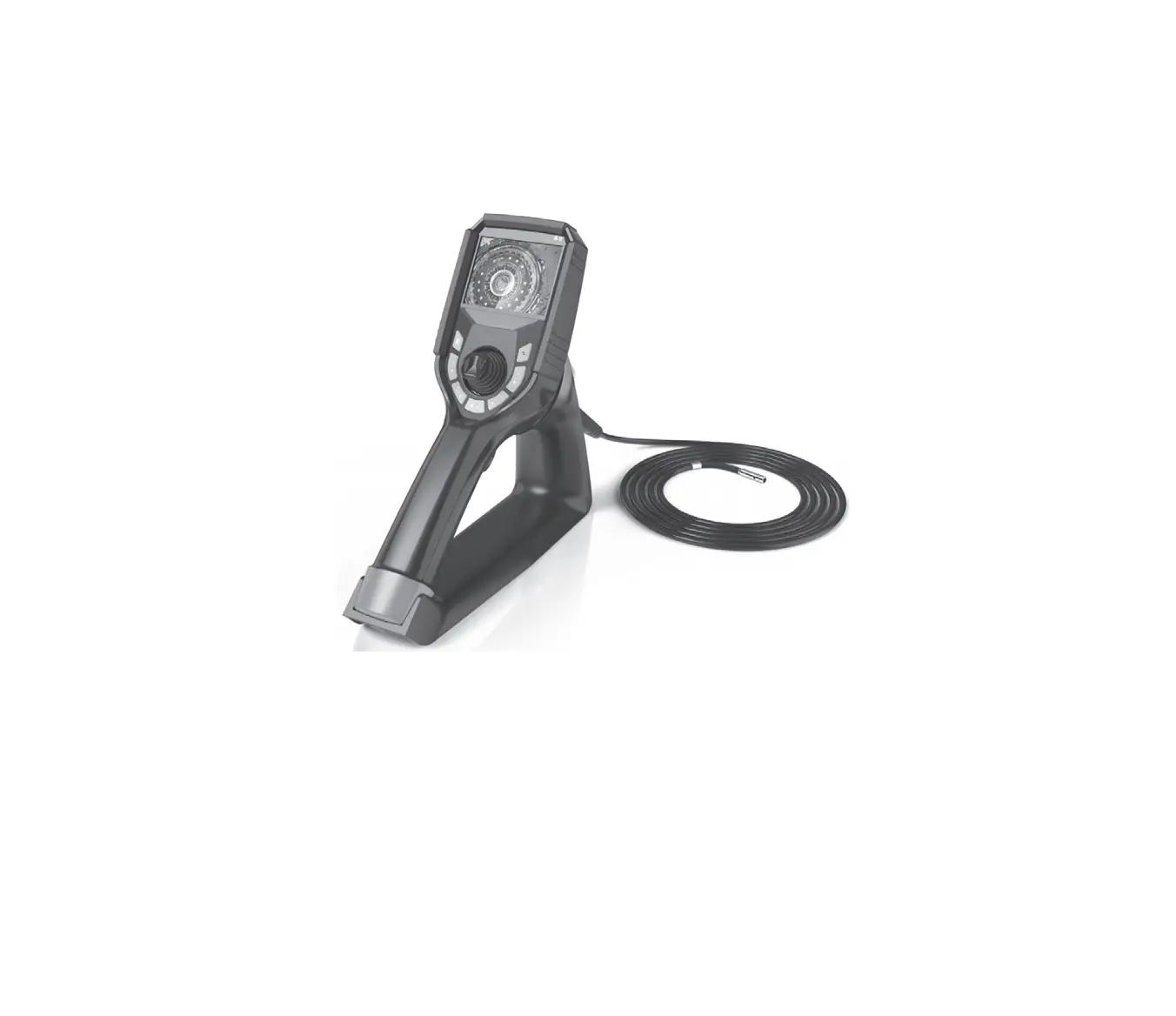
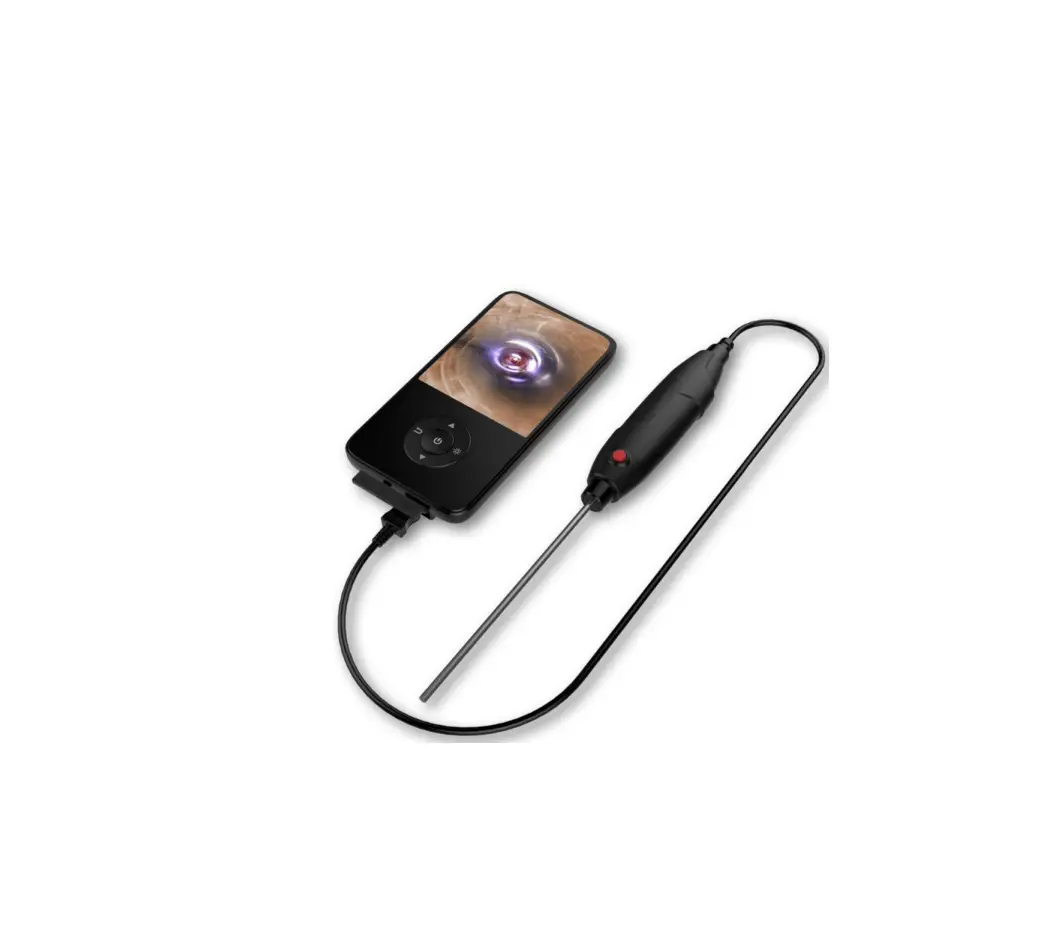
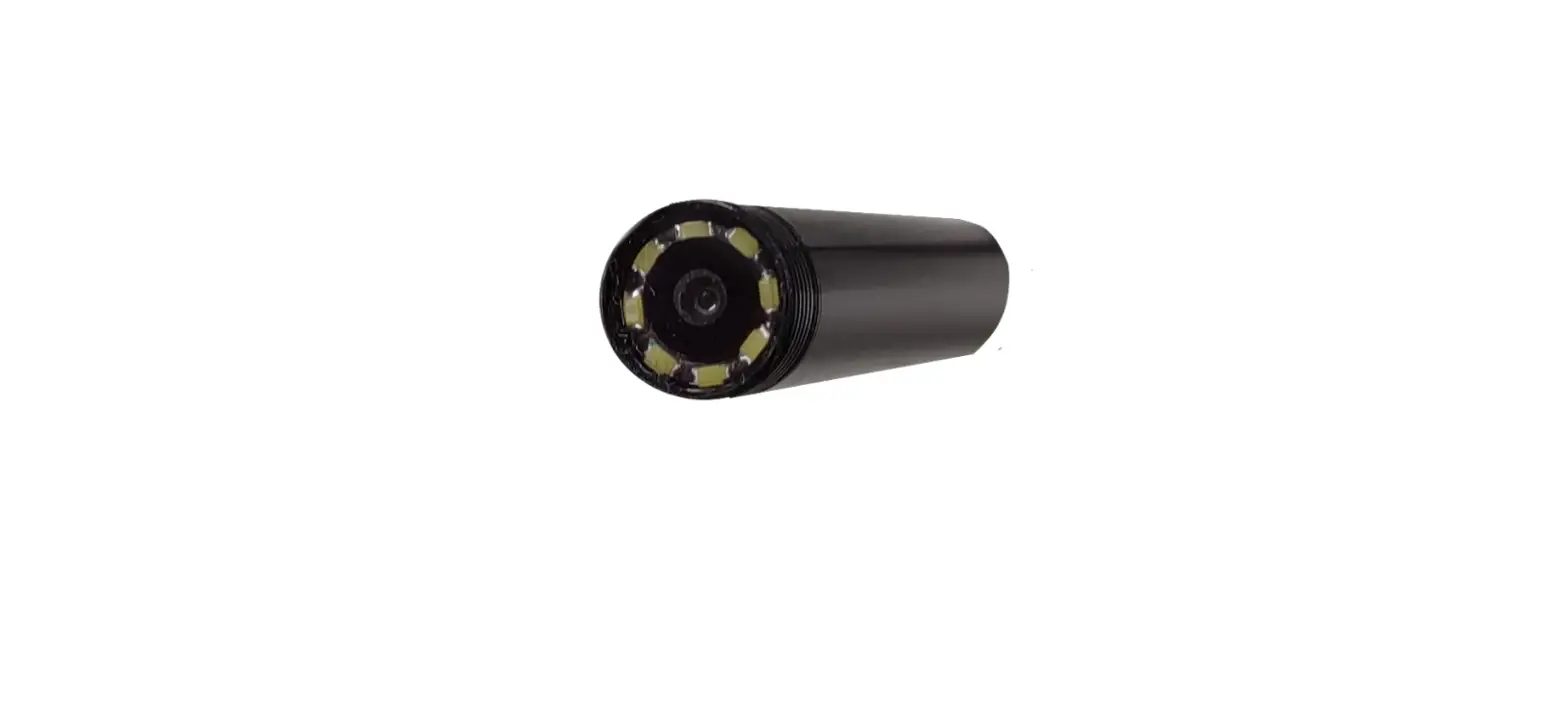
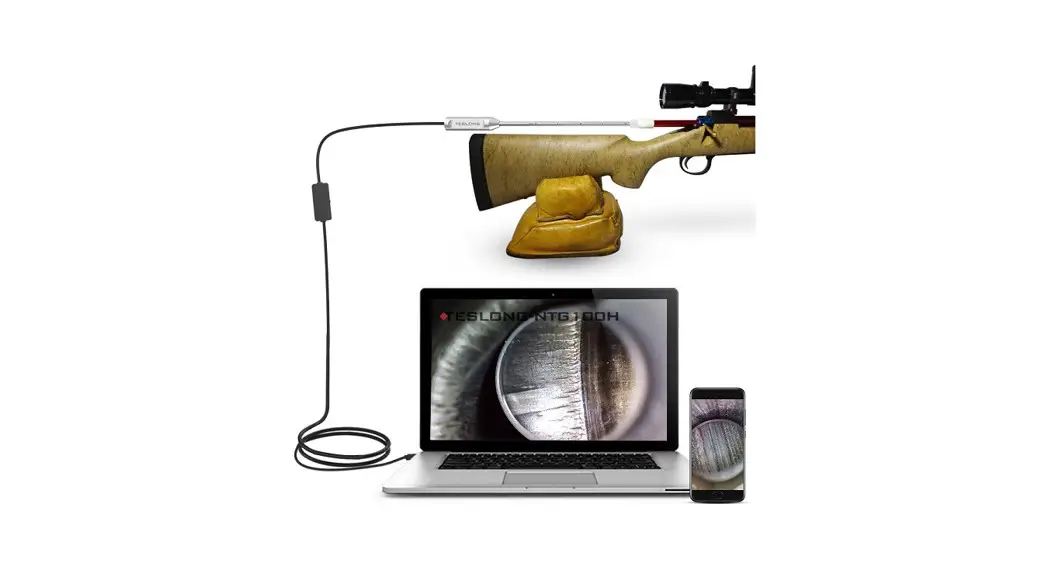
NTG100H is a USB rifle borescope with a rigid probe that provides better handling than the semi-rigid probe. The 0.2inch diameter camera makes It easy to access any. 22 or larger caliber barrel. With the detachable side view mirror, users can check the barrel wall, or remove it to check the firing point.
The NTG100P, a shorter version of the NITG100H, has a 10 inches probe. It is designed for pistol piping inspection.
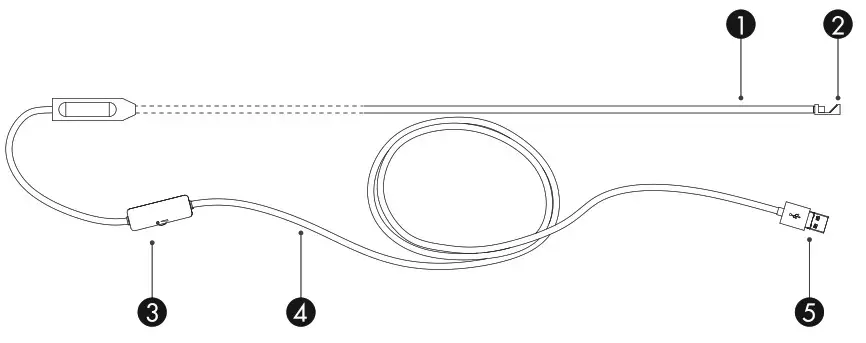
| 1. Rigid Probe 2. LED Dimmer 3. 2-in-1 Micro USB / USB Plug | 4. Side Viewing Mirror 5. Cable |
How to Focus
Screw Mirror in or out depend on your caliber diameter to get the best focal distance and using “lock ring” to hold it in position.
For Example
a. For rifle barrel with .223 caliber
b. For rifle barrel with larger caliber
 b. For rifle barrel with larger caliber
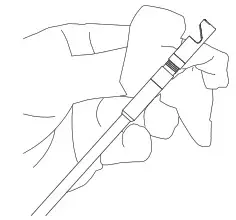
Tips: Please use a wiping cloth to clean the lens and the side view mirror to get clear image.
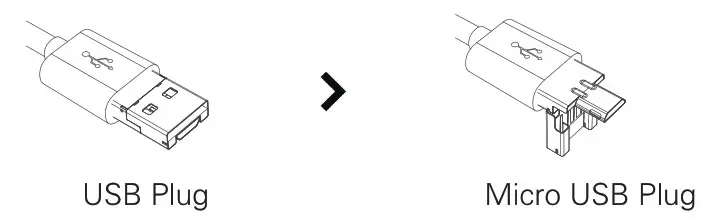
How to Switch form USB Plug to Micro-USB Plug
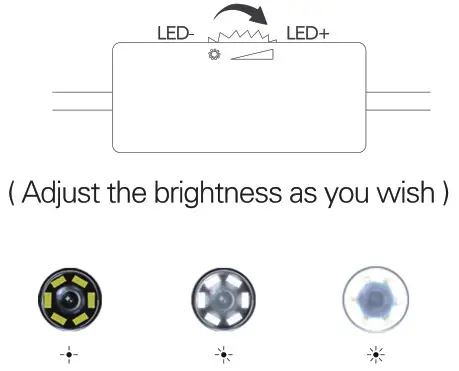
How to Adjust LED Lights Intensity
Attention
- Insert or pull out the borescope slowly and carefully to avoid damage of camera lens or barrel.
- This device is NOT for medical use or human examination.
- If you have any Issues such as no picture, flickering, freezing, glare, etc., please contact our support team: [email protected]
For Windows 10 Users
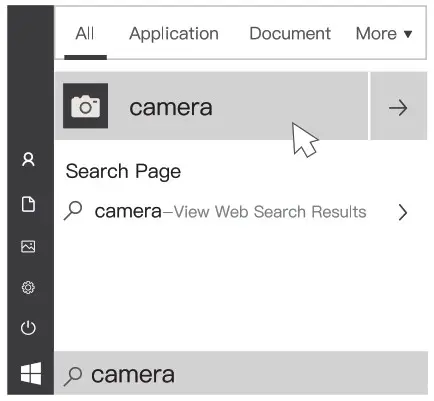
 Plug the borescope cable into your computer/laptop’s USB port. You may hear a chiming sound indicating that the laptop has recognized and connected to your borescope. Click on the
  icon at lower left corner of the screen and search for [ Camera ] then run it.
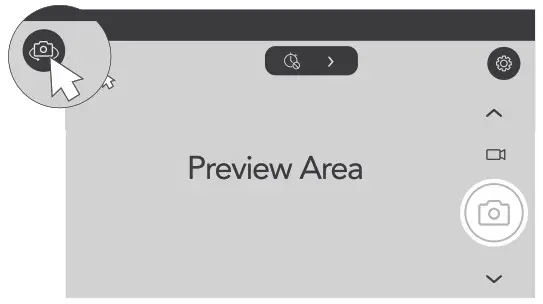
In the new window, click on the word “EJ Camera’ in the alphabetized vertical column now found at the left side of your computer screen. In this next new window, click on the camera icon [ ] found at either the upper left or upper right corner of the screen. Click on this icon to switch your laptop screen to the borescope camera’s view. You will see different icons found vertically along the right side of your screen. You can take photos and save them as a record of your rifle barrel’s condition.
For Windows XP, Vista, Win7 Users
Goto the link: http://gto.so/nte.zip and download the software named “Endoscope Camera”.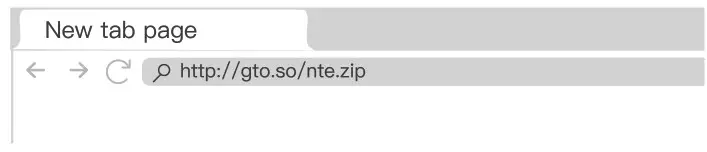 Connect the borescope to the computer. Open the software, and select “Teslong Camera” or “USB 2.0 PC Camera’ in the settings menu.
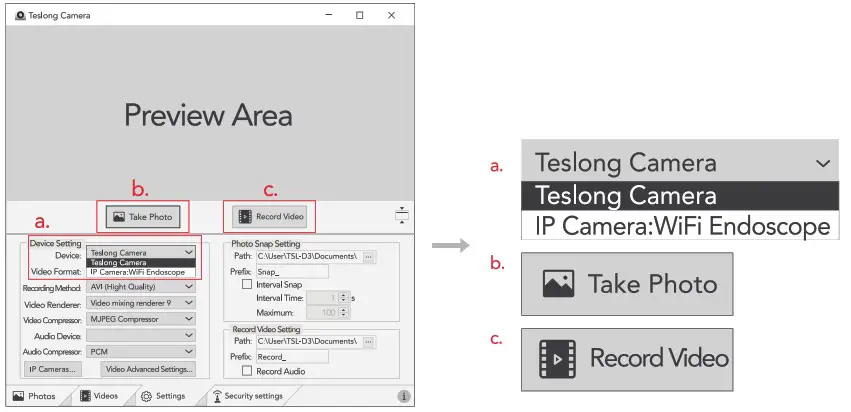
 When you see a pop-up to “trust this software ?” when downloading, you can select “trust” with confidence. Our software is 100% safe and clean with no adware, spyware, or virus.
You can also use the software called “Amcap” which has good compatibility and stability.
Need help? please email us at [email protected]
For Mac Users
Insert the USB port into the device. Open “Photo Booth” on your Mac. Click “View” on the upper left corner, select “Teslong Camera’ or “USB 2.0 PC Camera’ to activate the borescope.
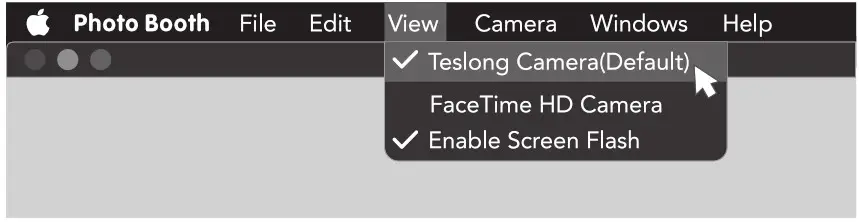
For Android Users
Make sure the OTG function on your Android device is enabled before using!
Software: Endoscope Camera
Please download the app [ Endoscope Camera ] or [ Endoscope HD Camera ] from the Google Play Store.
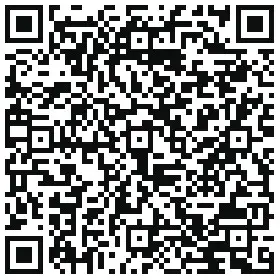 |  |
| Endoscope HD Camera Link: “http://gto.so/echd.apk” | Endoscope Camera Link: “http://gto.so/ec.apk” |
Connect the borescope to your Android phone, open the app, select the device type “USB Endoscope”, then you can see the video stream in the “Preview Area”.
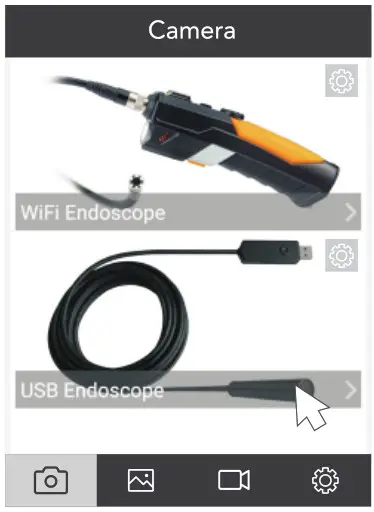
In order for this software to be able to take photos and save photos, make sure you grant access to your phone’s camera when installing the app.
You also can download the software [USBcamera] from Google Play Store if “Endoscope Camera” app is not compatible with your phone.

Specifications
| Model | NTG100H | NTG100P |
| Probe Length | 26inch | 10inch |
| Sensor | 1.0 Megapixel | |
| Resolution | 1280×720 Pixels | |
| Depth of Field | 0.4 — 0.6 inch | |
| Light | 6 Brightness Adjustable LEDs | |
| Probe Diameter | 0.2inch | |
| Operation System | Android 4.4 or later; Windows XP, 7, 8, 10; Mac OS X; Chromebook | |

Customer Service
Please contact us if you have any questions, We love to hear from you. www.teslong.com
 877-899-8809
 [email protected]

©Teslong NTG100H/NTG100P 202006 V1.0
MADE IN CHINA