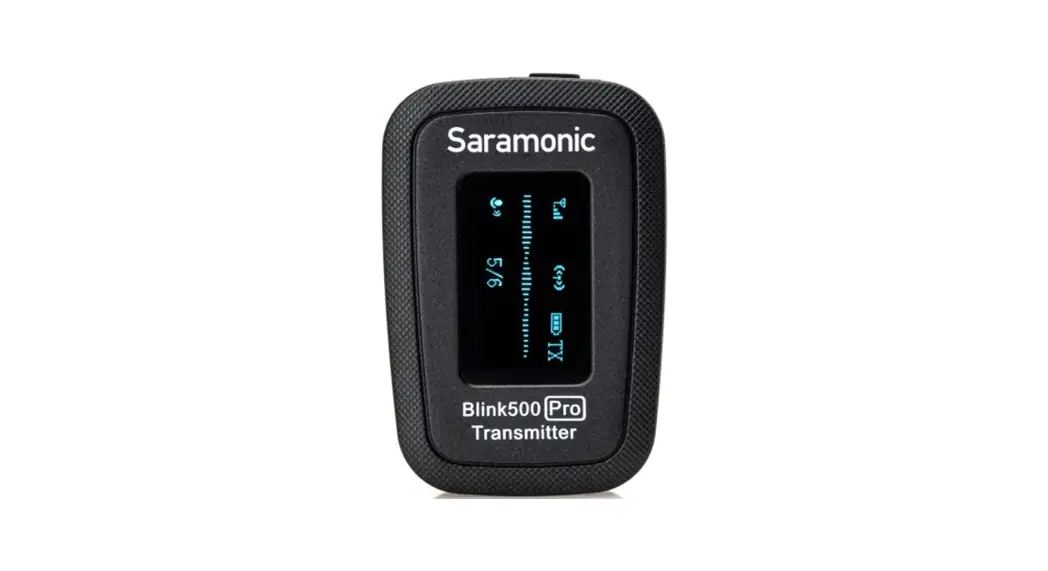
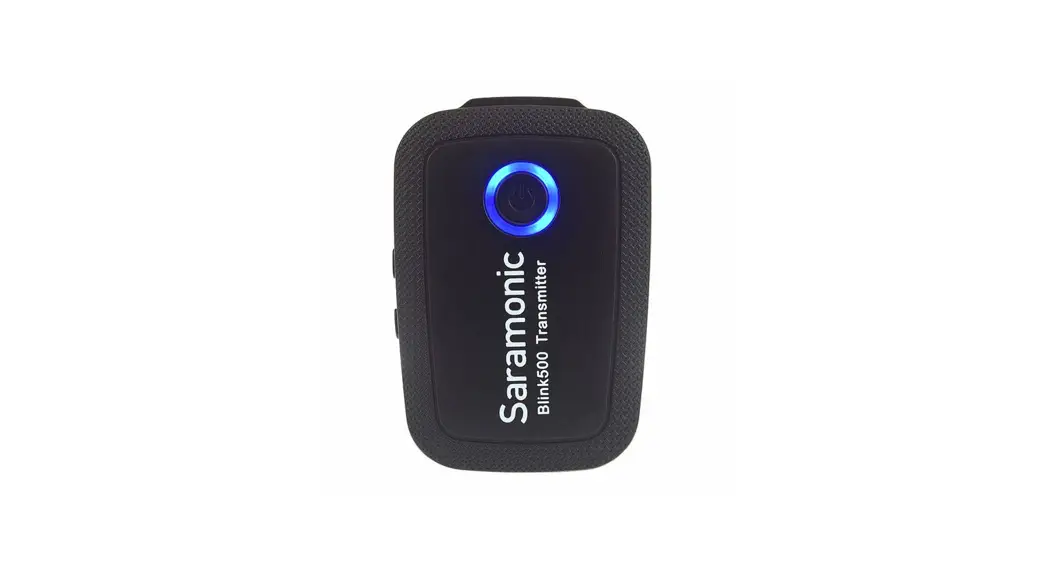
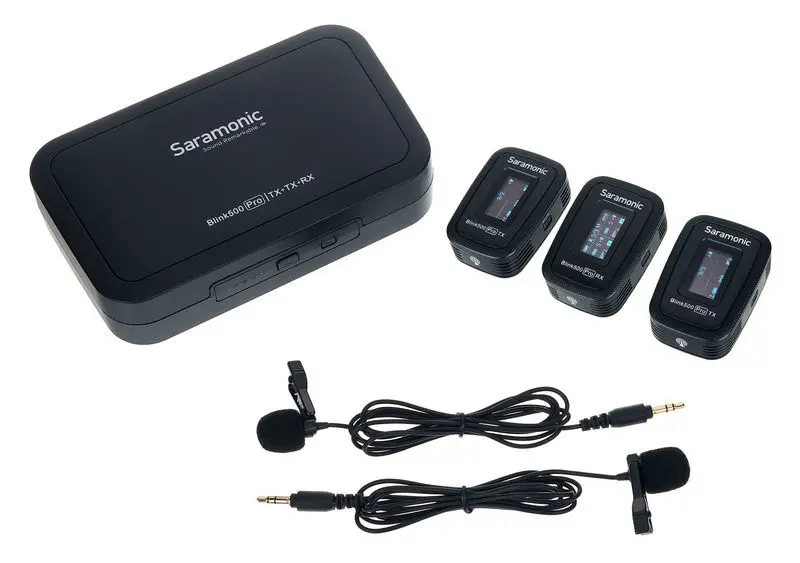
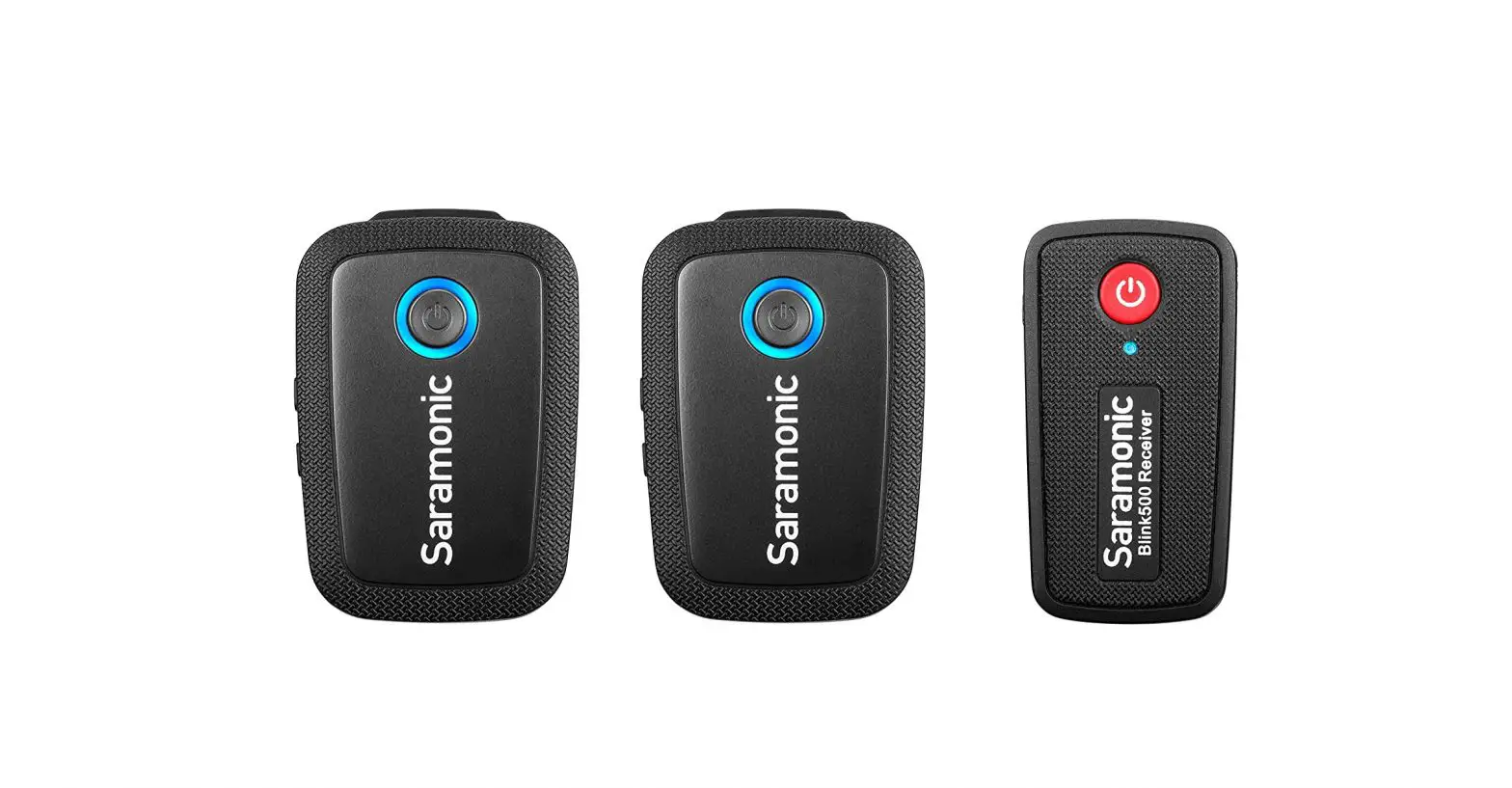
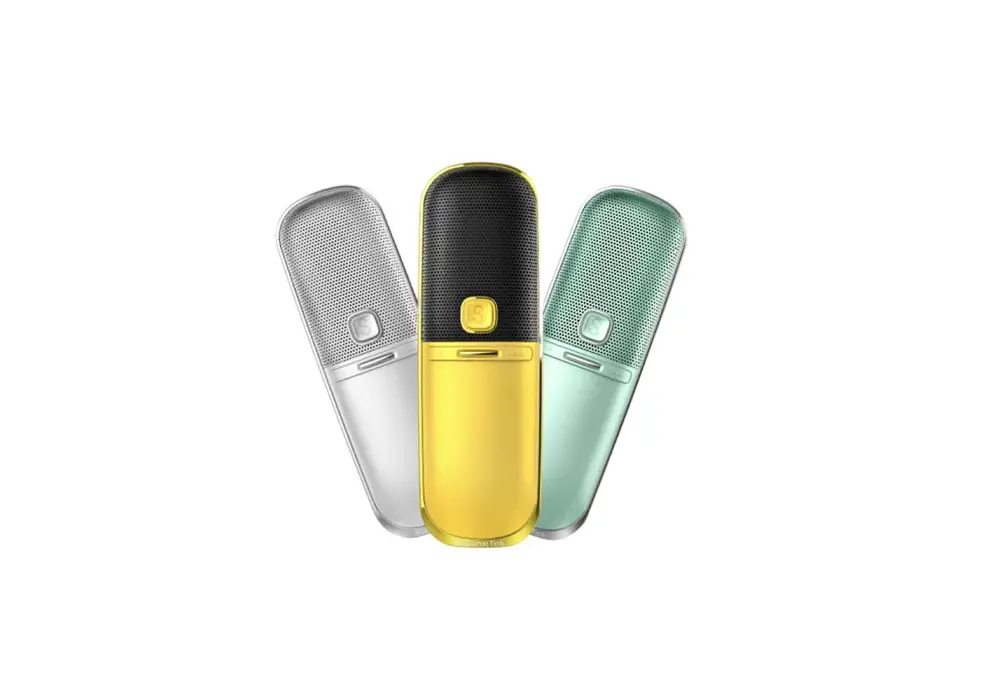
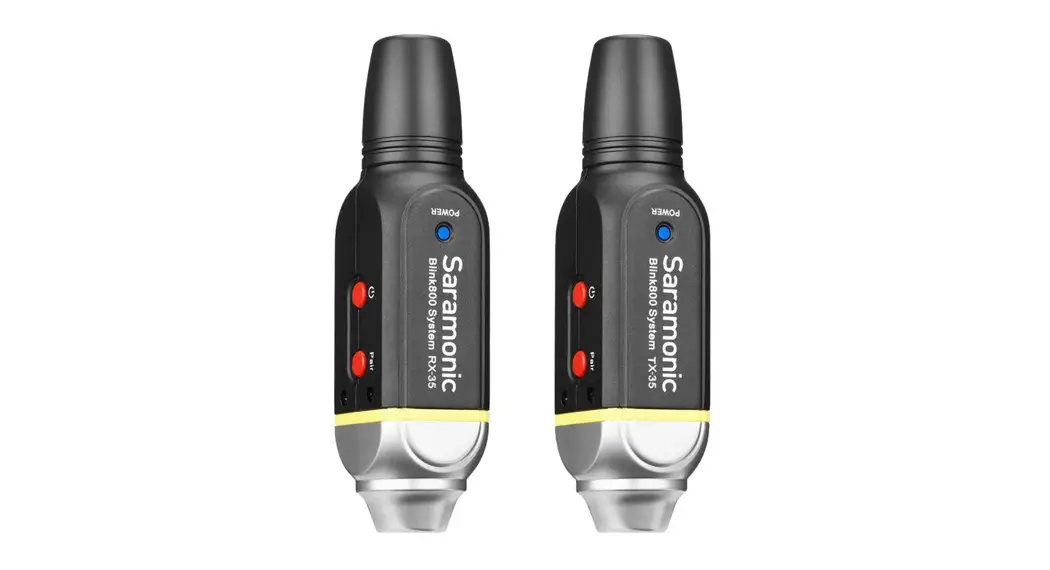
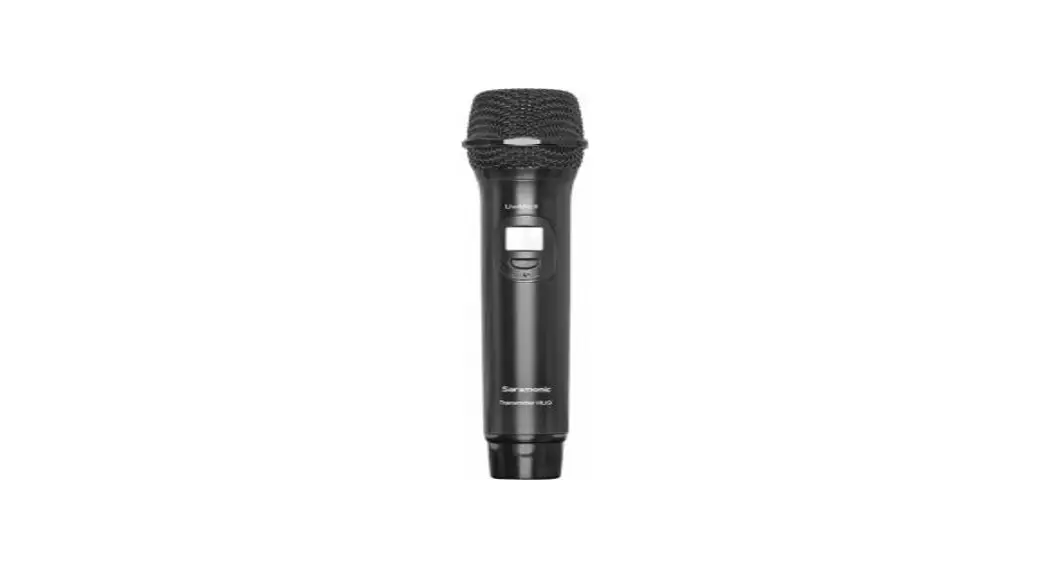
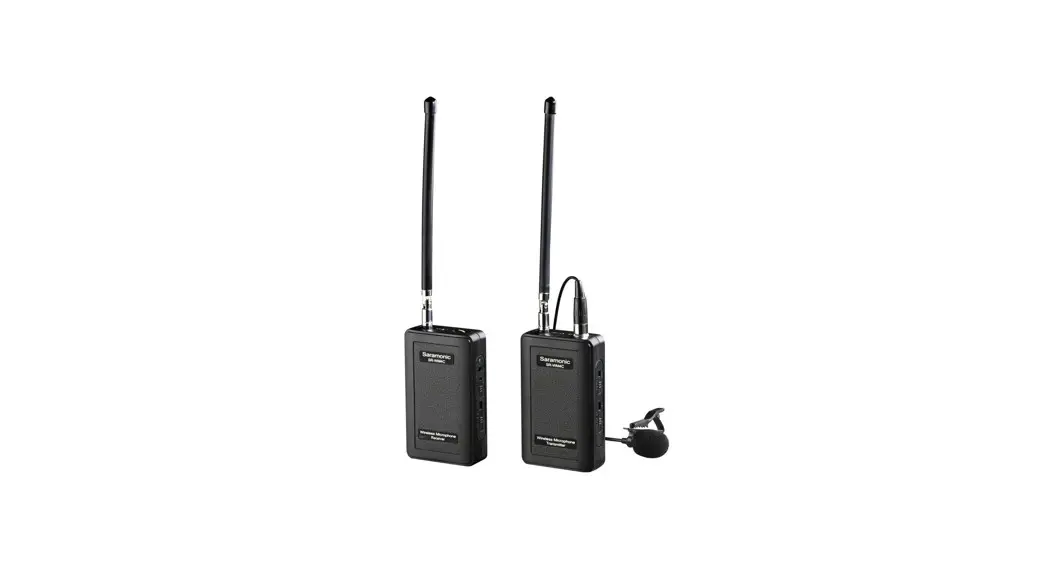
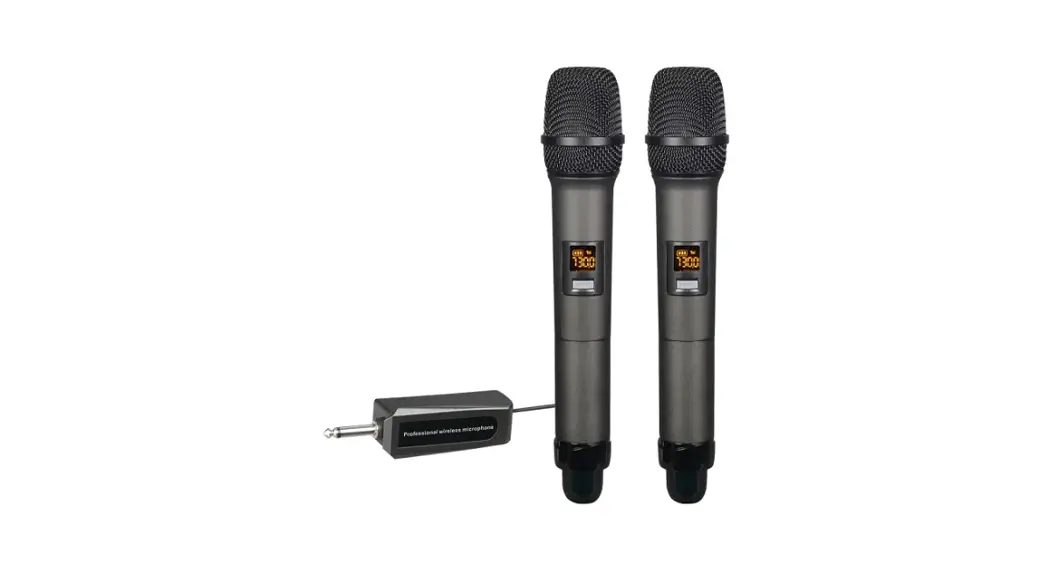
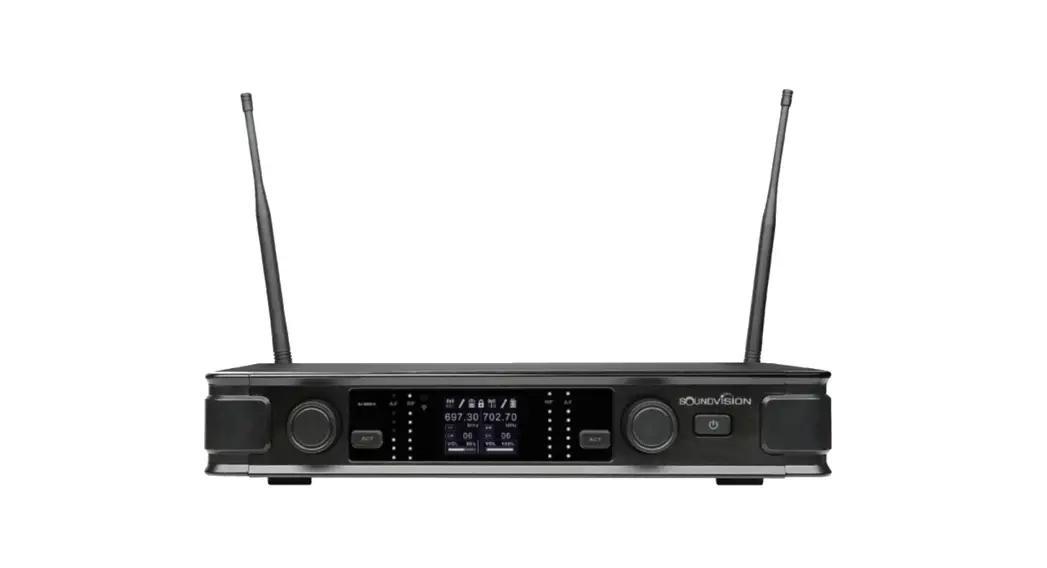
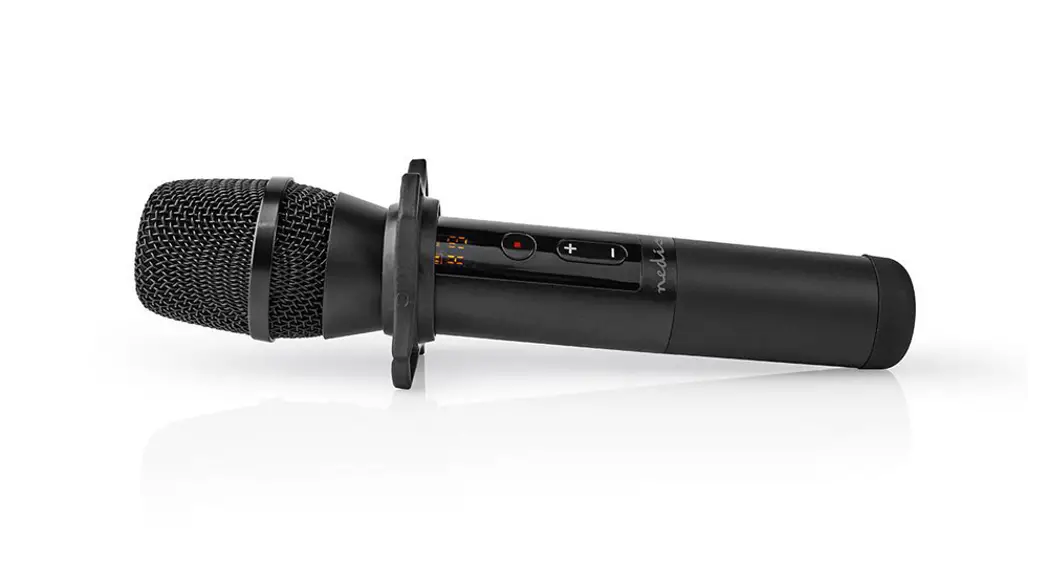
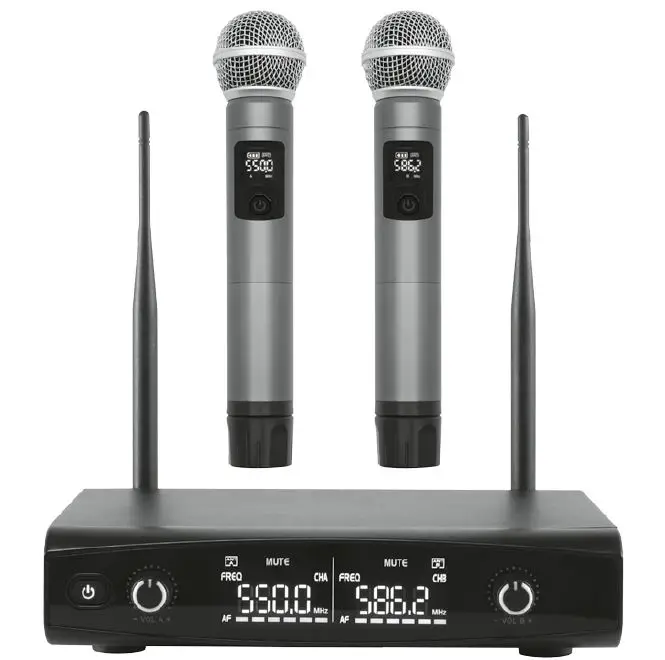
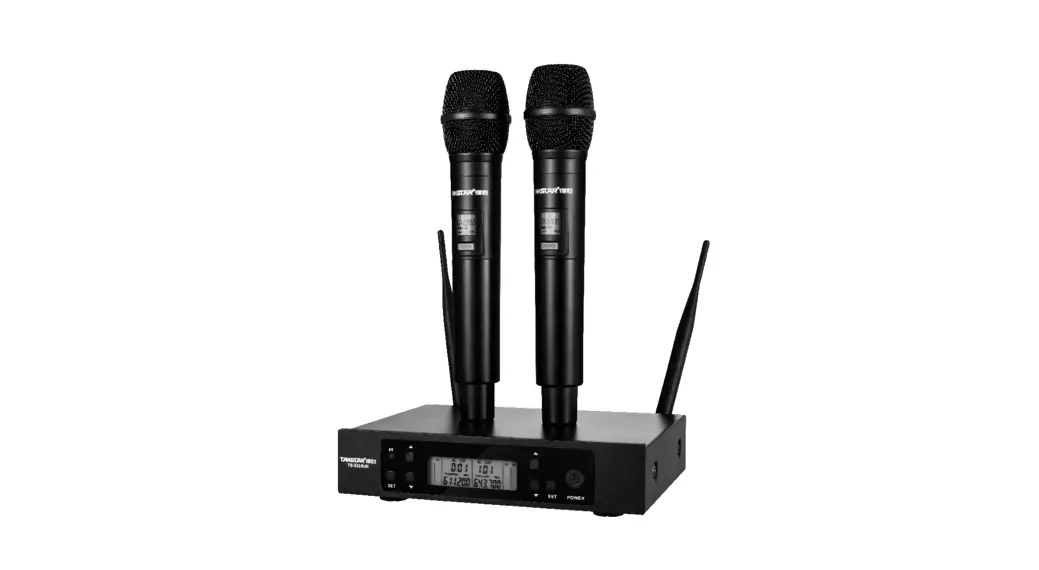
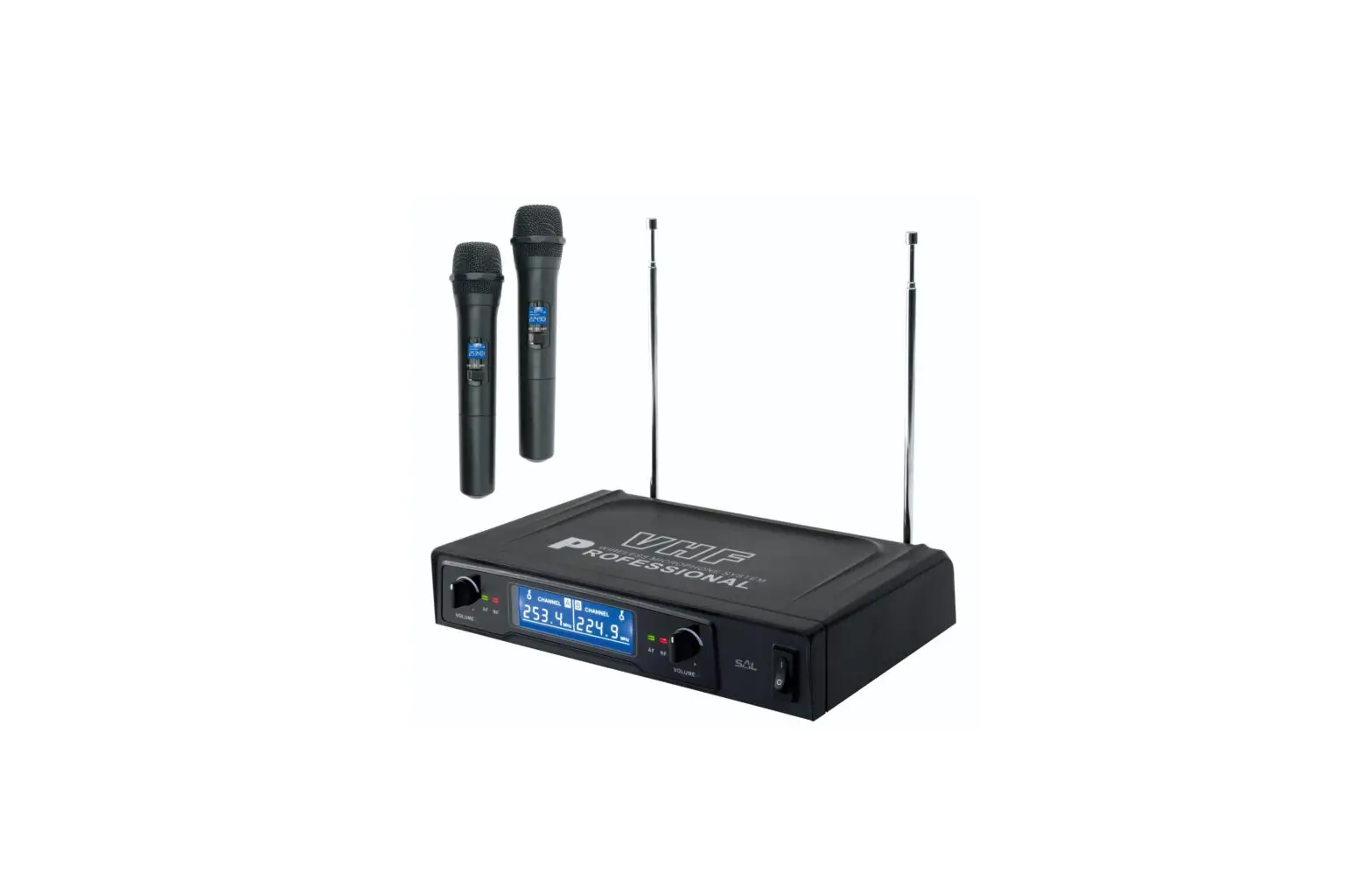
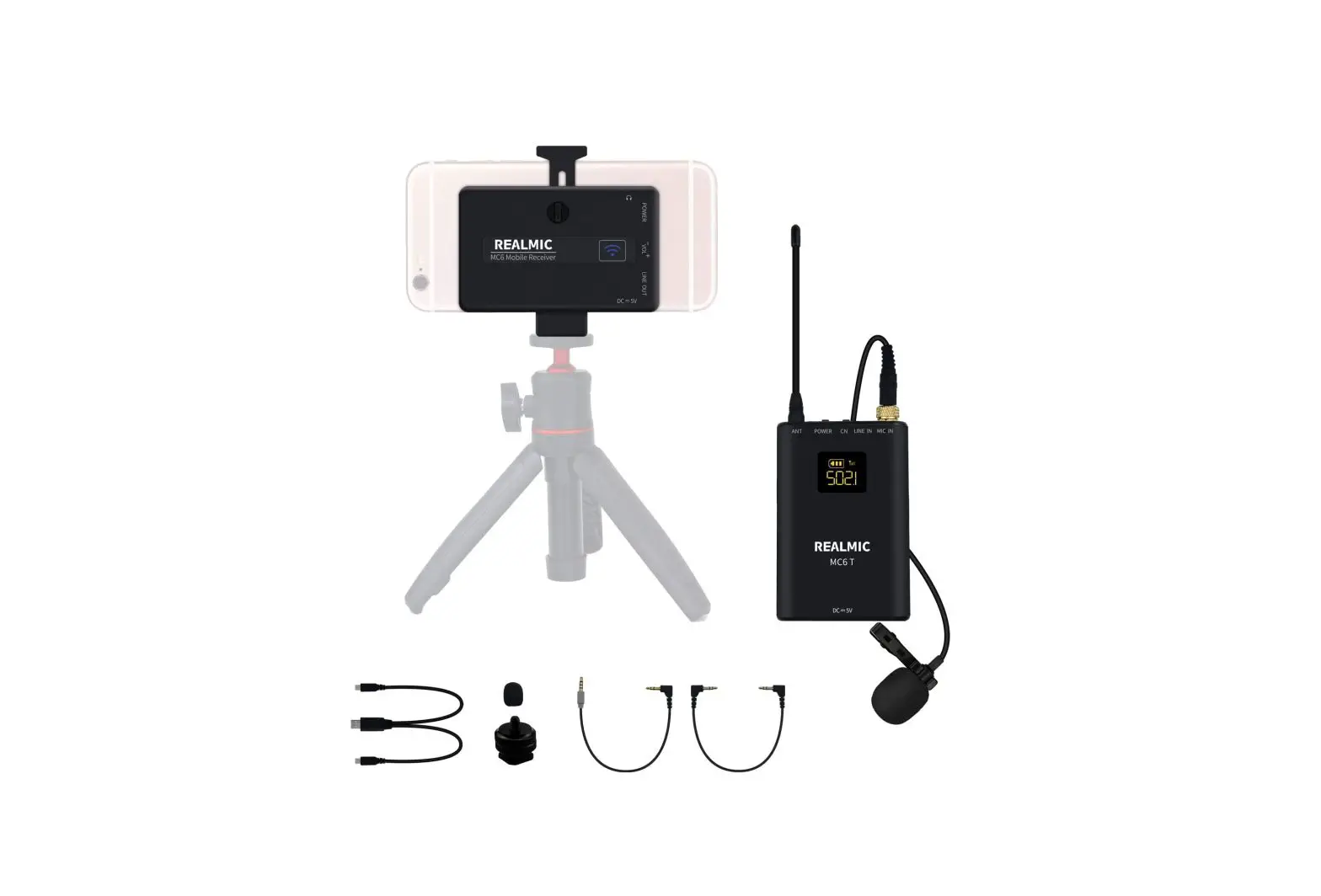
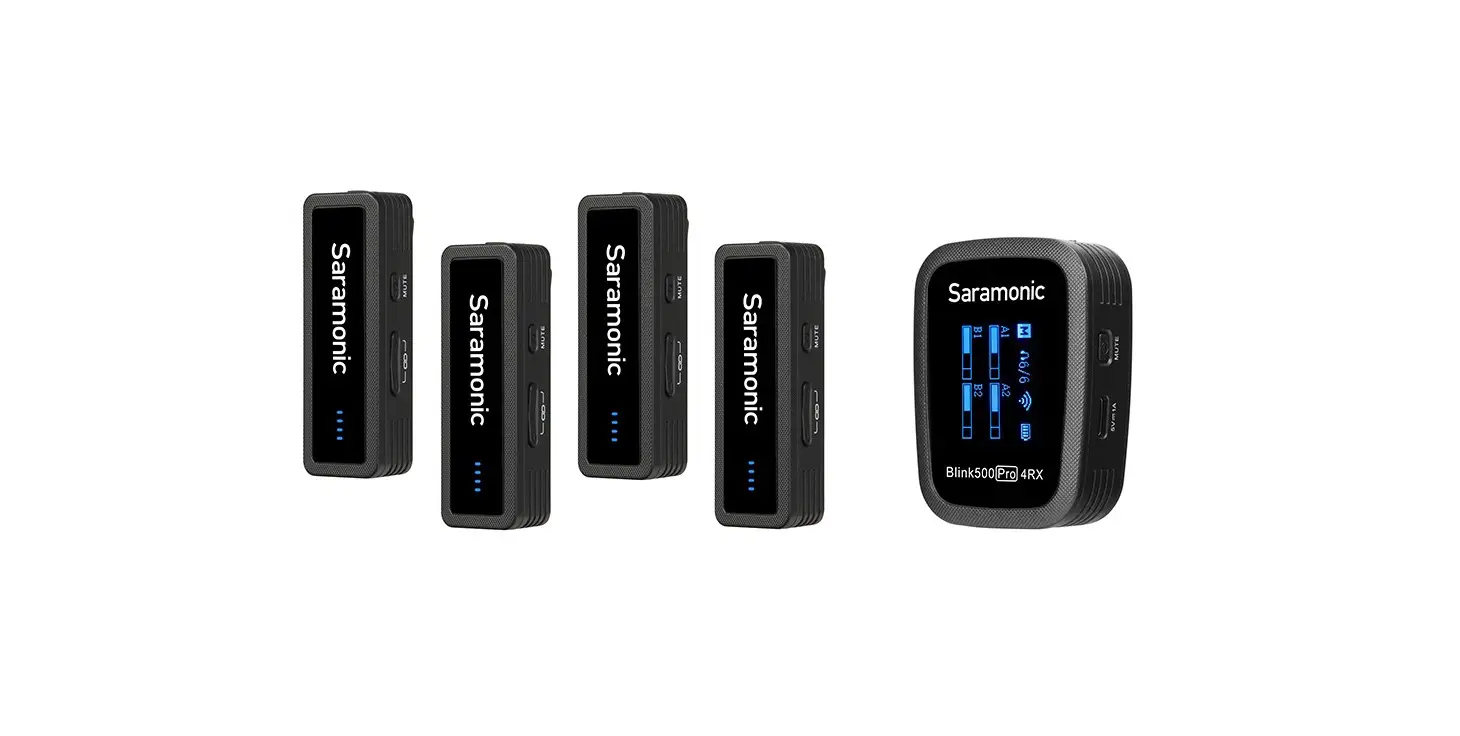
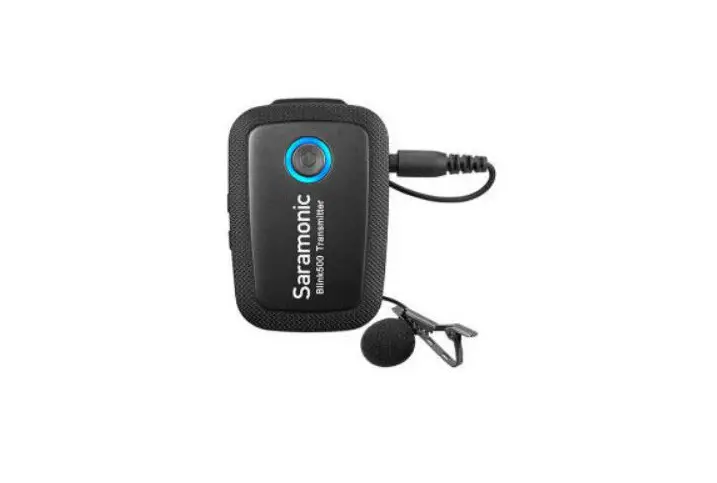
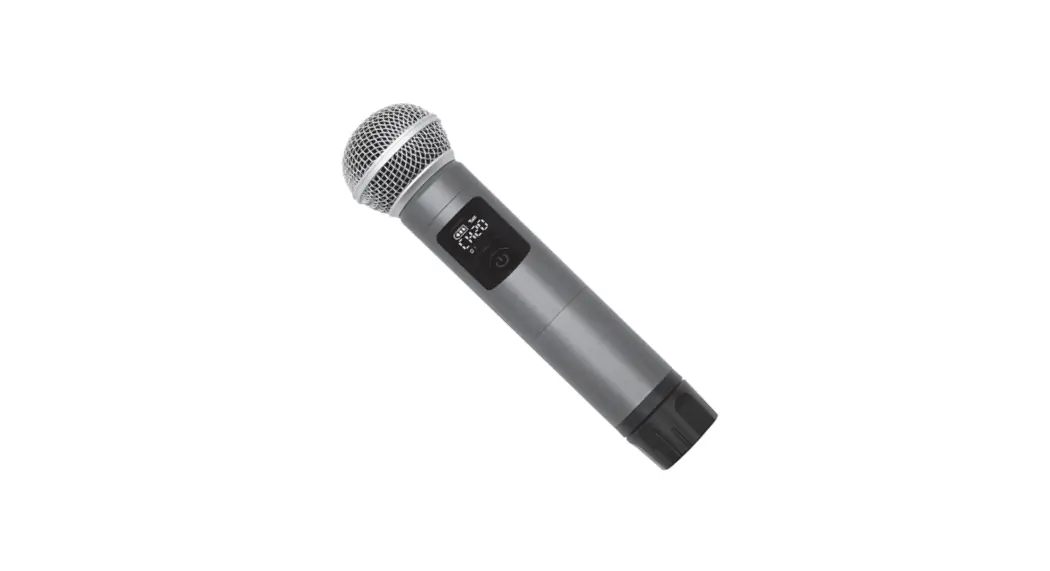
TX-500 Wireless Microphone
Product Information:
The TX Series Wireless Microphones are a versatile and reliable
choice for wireless audio transmission. With a range of features
and easy-to-use controls, these microphones offer exceptional
performance for various applications.
TX-500 Wireless Microphone
The TX-500 Wireless Microphone is a high-quality wireless
microphone that provides clear and crisp sound reproduction. It is
designed for professional use and offers excellent audio
performance.
Product Usage Instructions:
- Switching Operation: To power on the
microphone, insert two 1.5V AA batteries, ensuring correct
polarity. Short press the power button to turn on the microphone
and long press to power it off. - Frequency Switching Operation: This feature
allows you to switch between different frequencies for optimal
audio transmission. Please refer to the user manual for detailed
instructions on how to change the frequency. - ID Lock Code/Pair Code Operation: To pair the
microphone with the desired audio device, follow the instructions
provided in the user manual. This step is necessary when replacing
a broken microphone or when initially setting up the wireless
microphone. - Microphone Reset Factory Settings Operation:
If you need to restore the microphone’s settings to their factory
state, remove the batteries and press the code key firmly. Then,
reinsert the batteries and release the code key. After resetting,
you will need to pair the audio code to regain sound output. - Battery Usage: When the power indicator box on
the display flashes, it indicates that the battery is running low.
Replace the battery when the light dims and becomes long or when
the entire display flashes. The microphone can be used continuously
for approximately ten hours with a tested market brand
battery. - Notes:
- (a) Keep microphones away from children to prevent
accidents. - (b) Remove batteries when the microphone is not in use to
prevent battery drain. - (c) Do not press the setting key during normal use to avoid
unintended changes to the microphone’s settings. - (d) If the microphone automatically turns off, it is an
indication of low battery power. Replace the battery to continue
using the microphone.
- (a) Keep microphones away from children to prevent
Important Notices:
- This device complies with Part 15 of the FCC Rules. It should
not cause harmful interference and must accept any interference
received, including interference that may cause undesired
operation. - Warning: Any changes or modifications not approved by the
responsible party may void the user’s authority to operate the
equipment. - The device has been evaluated to meet general RF exposure
requirements and can be used in portable exposure conditions
without restriction.
Thank you for choosing TX Series Wireless Microphones. Please read the operating instructions carefully for future use.
TX-500 Wireless Microphone
1. Switching Operation
To power on: insert two 1.5V 5 batteries, short press to power on,long press to power off. (Please note that the positive and negative poles of the battery should not be installed backwards)
2. Frequency Switching Operation
If there is noise during use or a short communication distance, interference from other wireless audio microphone signals may have disturbed the frequency. You can avoid this by switching the frequency. Operating method: In the power state, use the FM key to select the desired frequency (total 16 channels). The periodic FM audio receiver will automatically synchronize. If you need more channels, you can repeat the above operation. (If the switching frequency does not solve the interference problem, refer to the 3-step operation method)
3. ID Lock Code/Pair Code Operation
First, turn off the audio and microphone. Press and hold the code key on the wireless microphone, then press and hold the power switch key without releasing it until the display screen flashes for about 2 seconds. Release both keys and turn on the audio power switch. Wait about 3 seconds, then press the wireless microphone key to complete the operation. The audio wireless microphone indicator light will remain on, indicating a successful lock code to code pairing. Interesting fact: A pair of microphones can be paired with multiple audio devices. Once paired, multiple audio devices will receive the signal from the microphone pair. When there is no need to bind, just code the
microphone and pair it with the audio you want to bind. If your microphone is broken, follow this step when exchanging it for a new wireless microphone from the manufacturer.
4. Microphone Reset Factory Settings Operation
With no battery inserted, press the “code key” firmly, then insert the battery and release the “code key.” The settings will be restored to their factory state. (After resetting, you will need to pair the audio code to have sound)
5. Battery Usage
When the power indicator box on the display flashes, it reminds you to prepare a new battery. When the light dims and becomes long, or when the entire display flashes, the microphone’s battery power has been depleted, or it may not be enough for the microphone to function properly. Please replace the battery. We have tested the battery life of a market brand, and it can be used continuously for about ten hours.
6. Notes
(a) Keep microphones away from children. (b) Remove batteries when not in use. (c) Do not press the setting key during normal use. (d) If the microphone automatically turns off, replace the battery. Thank you for reading.
This device complies with Part 15 of the FCC Rules. Operation is subject to the following two conditions: (1) this device may not cause harmful interference, and (2) this device must accept any interference received, including interference that may cause undesired operation
NOTE: This equipment has been tested and found to comply with the limits for a Class B digital device, pursuant to Part 15 of the FCC Rules. These limits are designed to provide reasonable protection against harmful interference in a residential installation. This equipment generates, uses and can radiate radio frequency energy and, if not installed and used in accordance with the instructions, may cause harmful interference to radio communications. However, there is no guarantee that interference will not occur in a particular installation. If this equipment does cause harmful interference to radio or television reception, which can be determined by turning the equipment off and on, the user is encouraged to try to correct the interference by one or more of the following measures: — Reorient or relocate the receiving antenna. — Increase the separation between the equipment and receiver. — Connect the equipment into an outlet on a circuit different from that to which the receiver is connected. — Consult the dealer or an experienced radio/TV technician for help.
Warning: changes or modifications not expressly approved by the party responsible for compliance could void the user’s authority to operate the equipment
The devices has been evaluated to meet general RF exposure requirement the device can be used in portable exposure condition without restriction