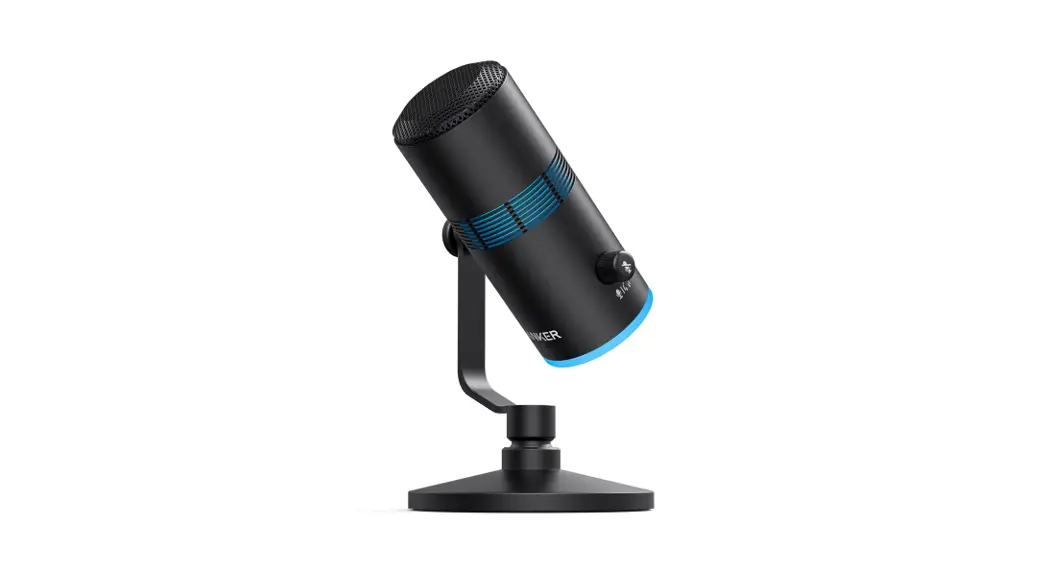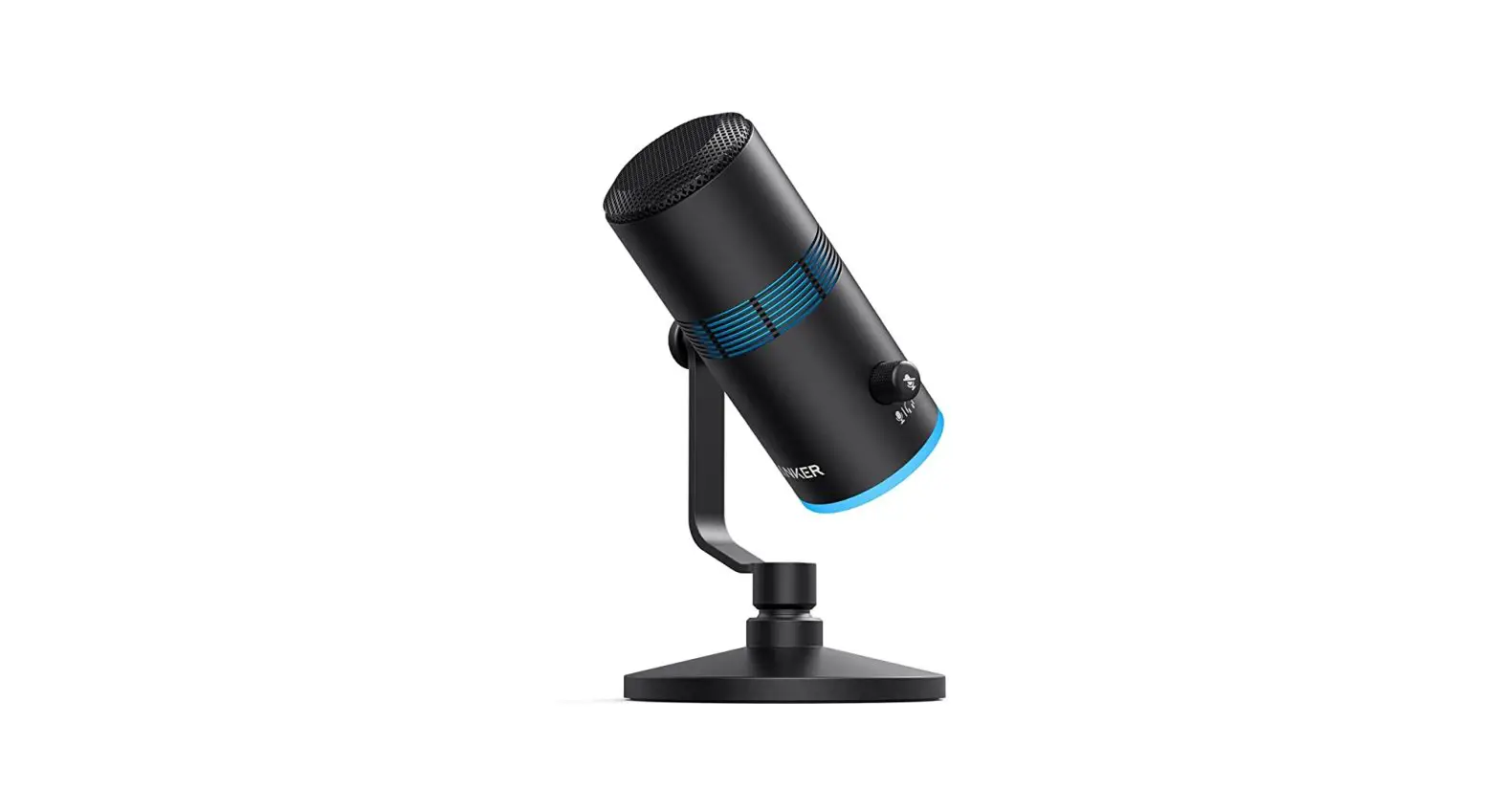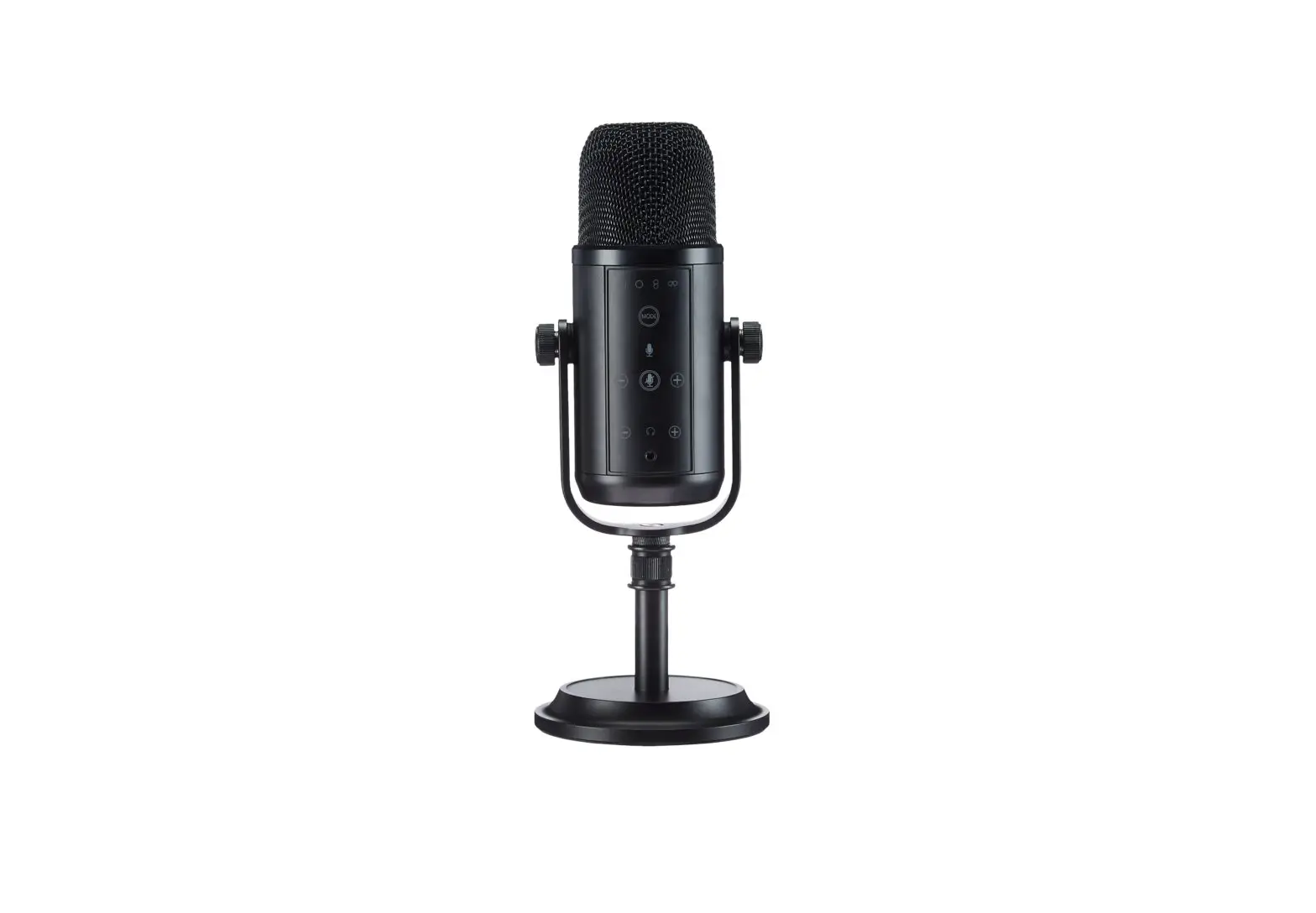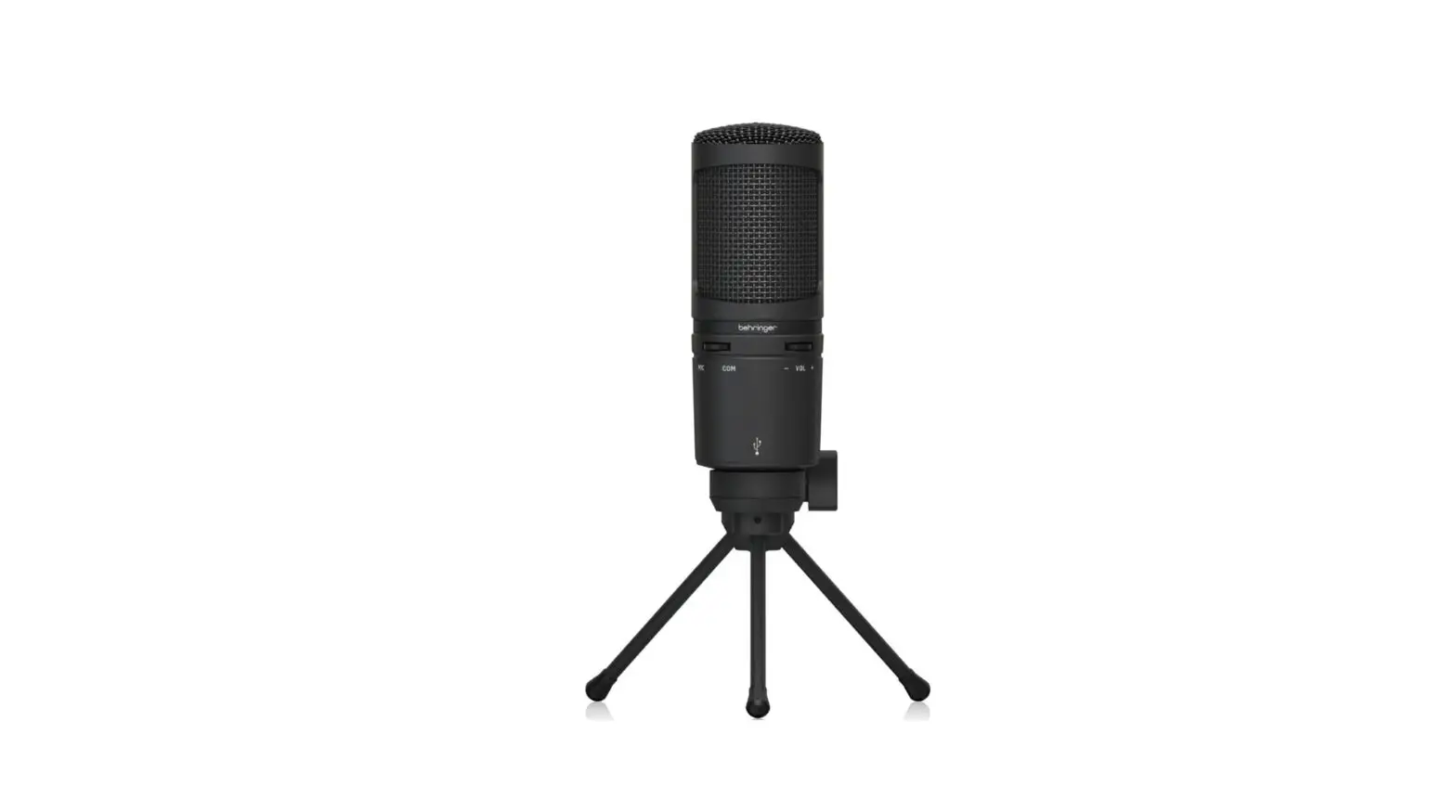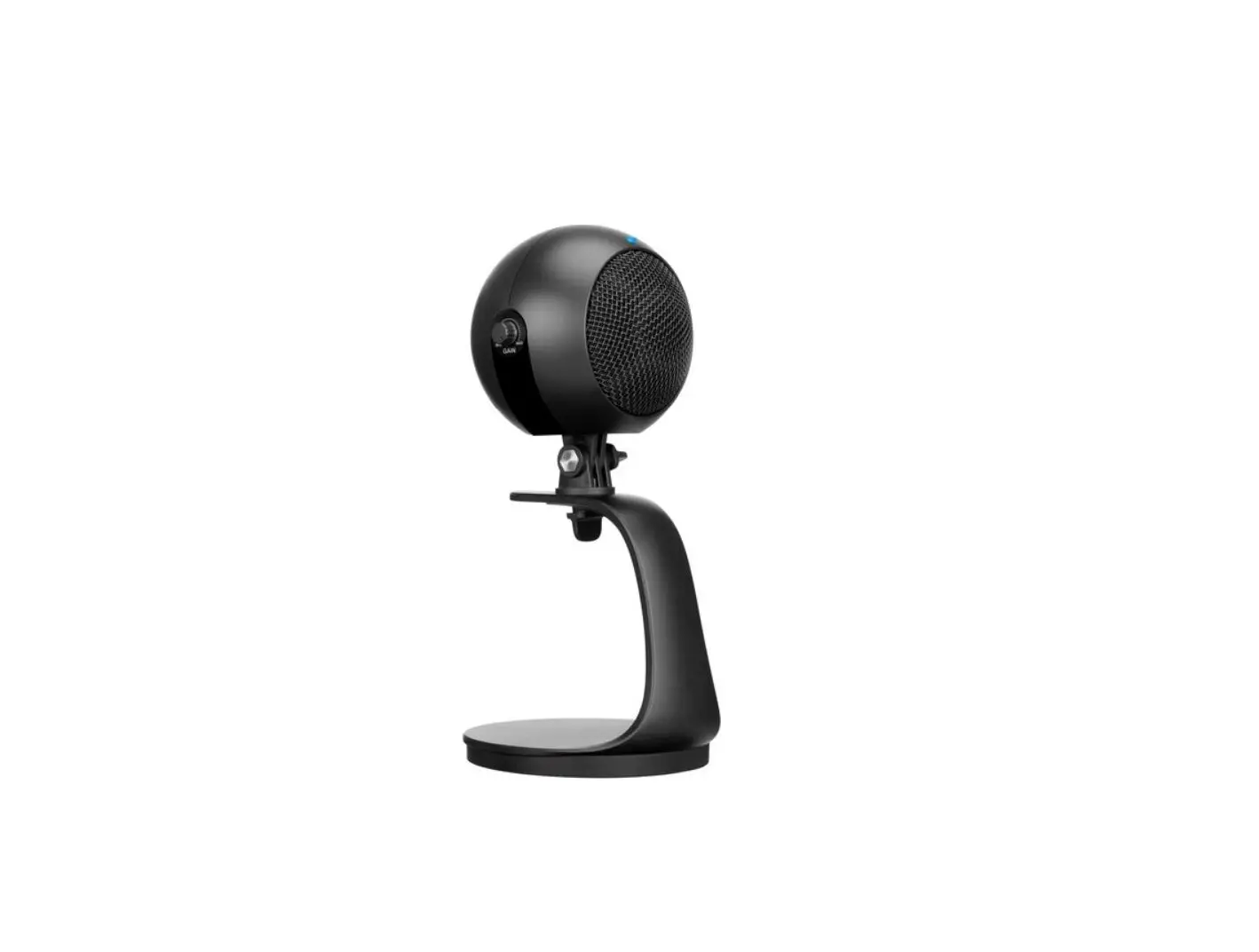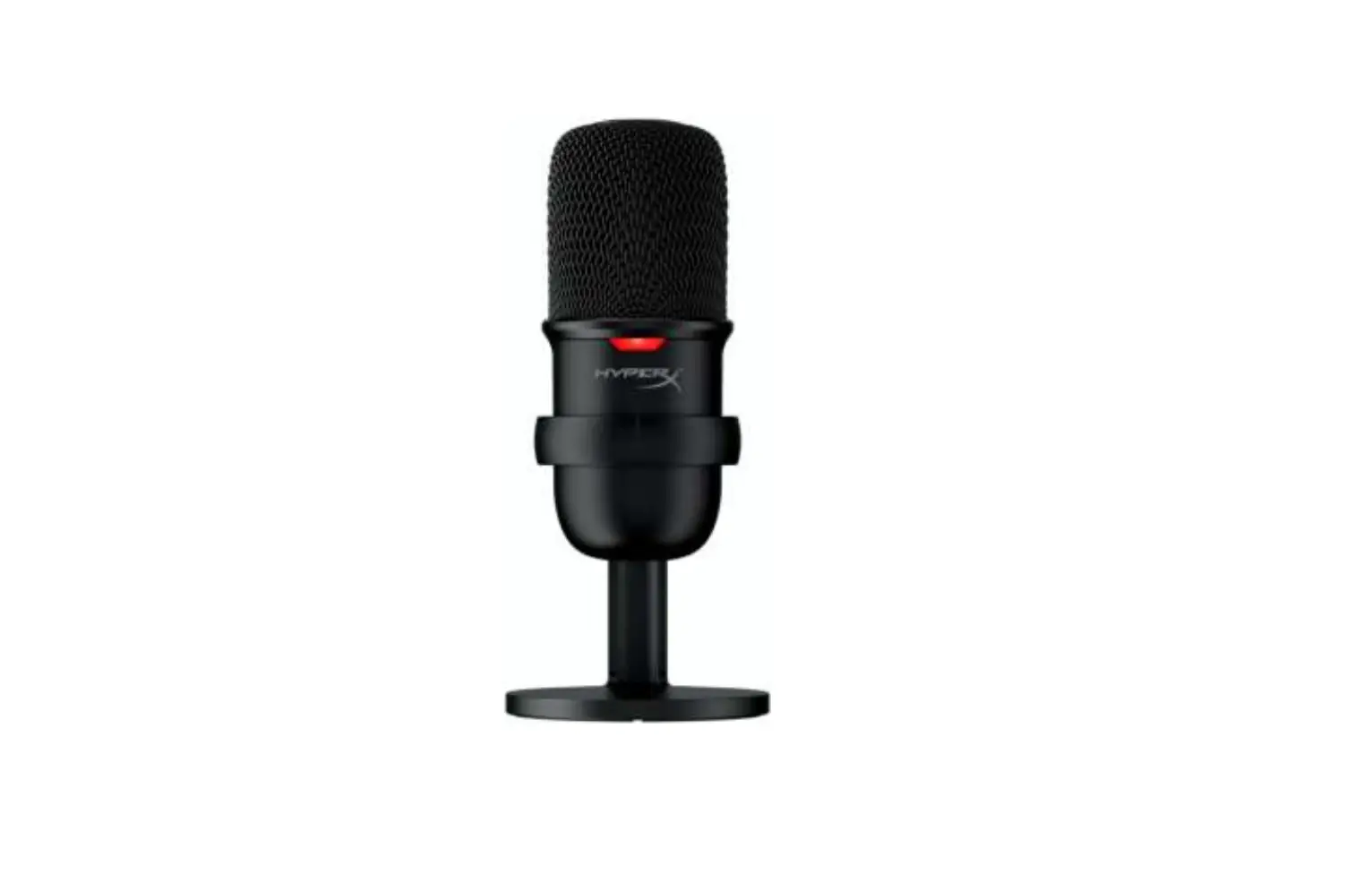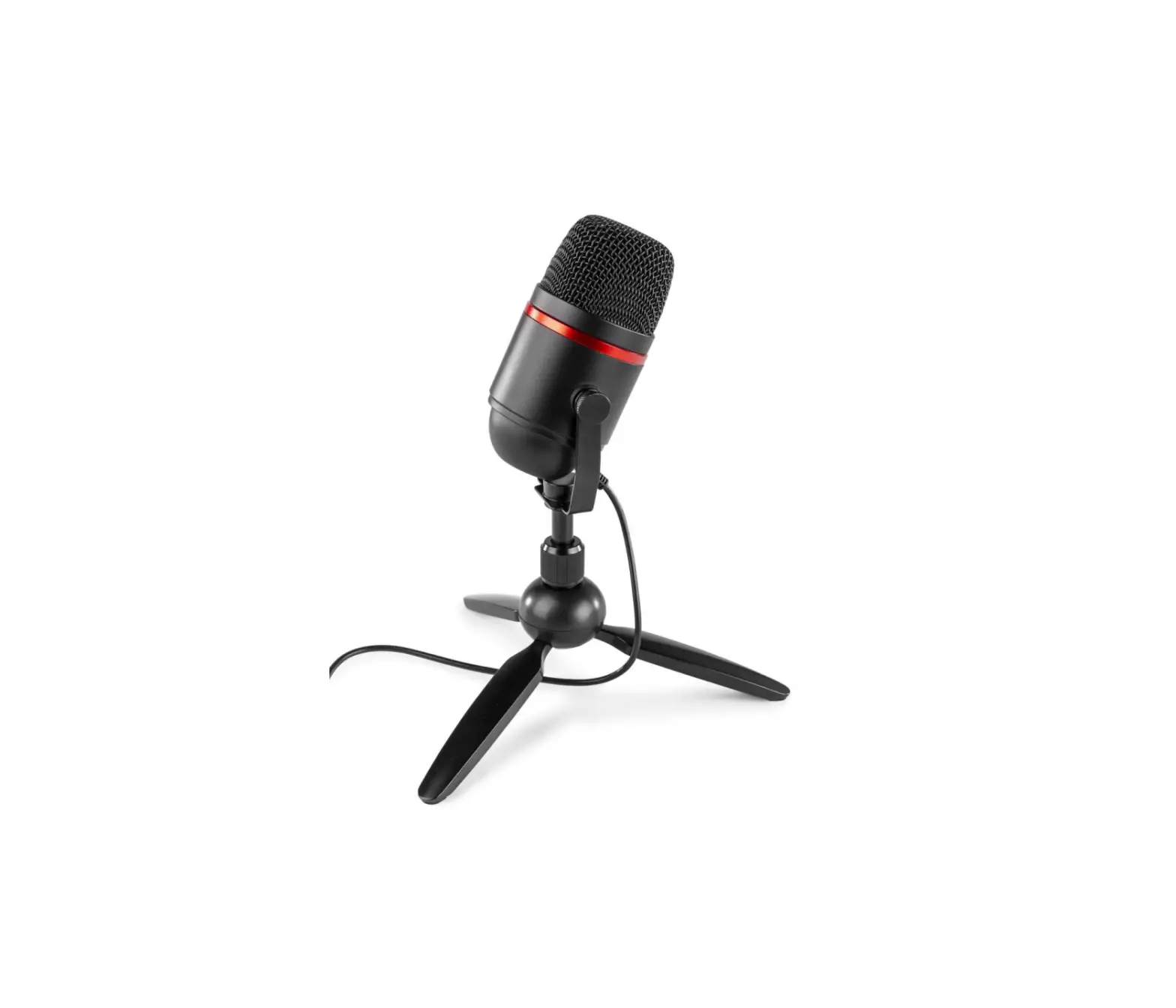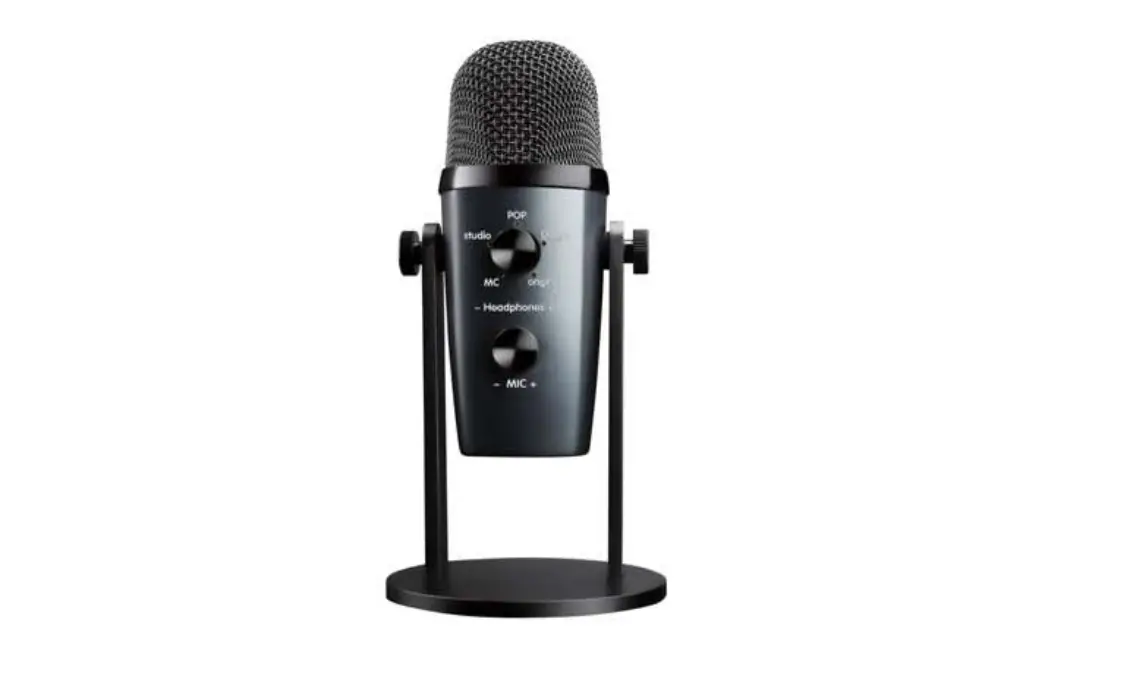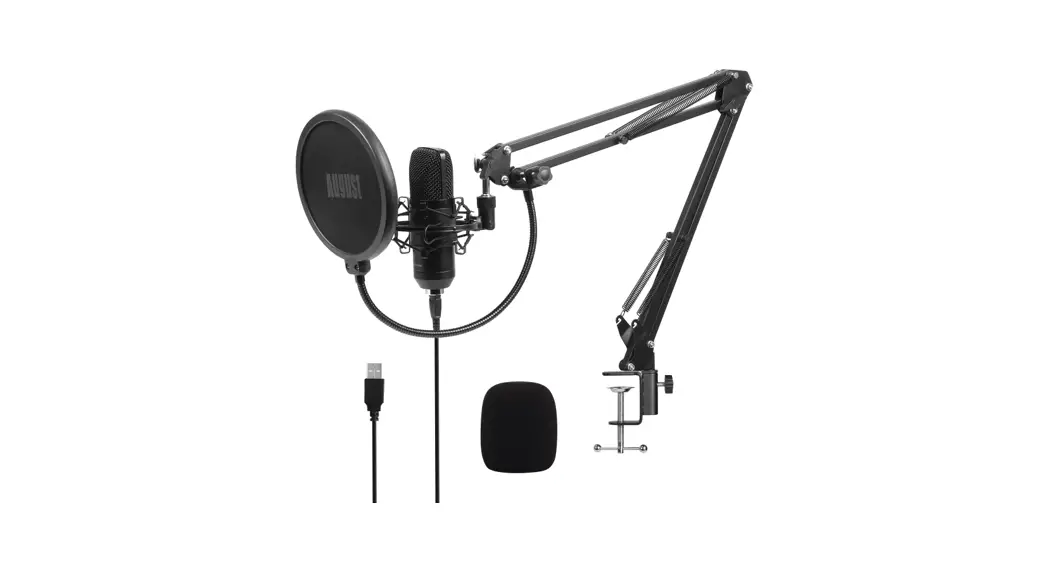
 PowerCast M300 Desktop USB Condenser Microphone
User Manual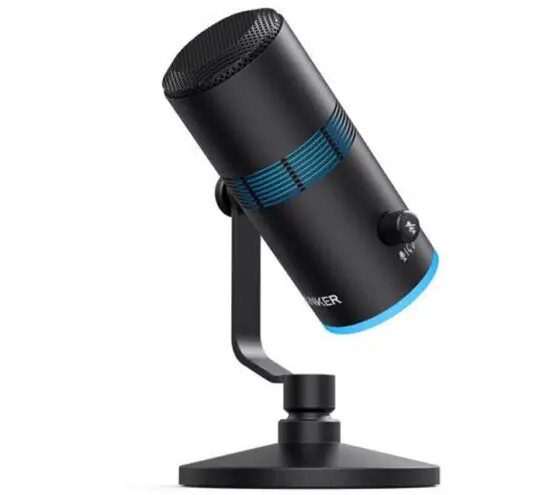
Assembly
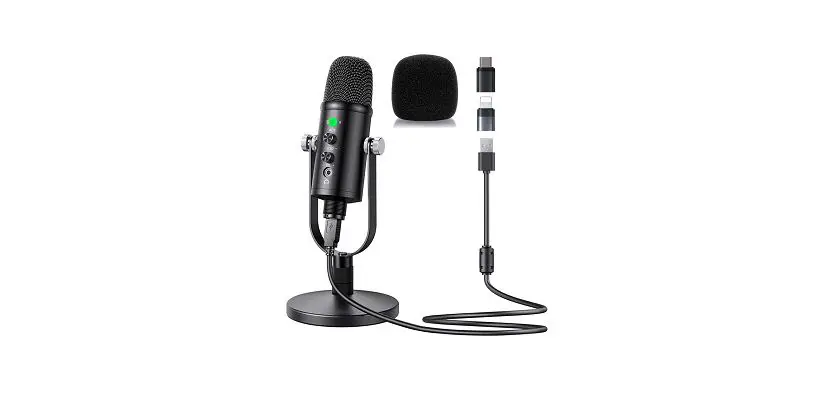
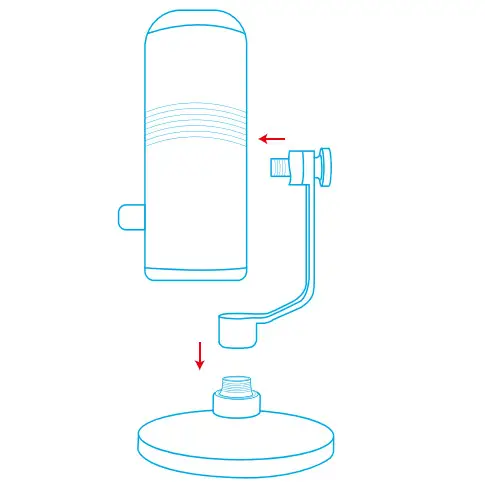
- Securely tighten the base to the thread mount of your microphone.
- Adjust the angle of the microphone by swiveling the microphone up and down, then tighten the screw.

Connecting
- Connect the microphone to your PC via the provided USB-C to USB-C cable or USB-C to USB-A cable.
- Connect to your headphones via a 3.5mm audio cable.

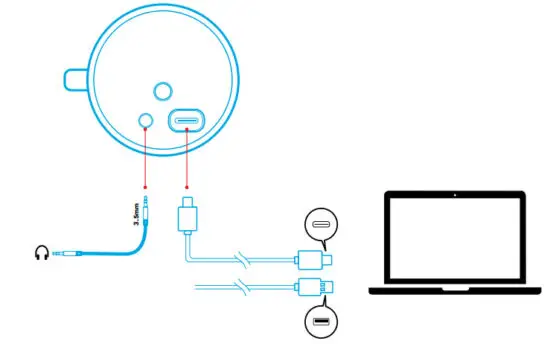
You might need to manually select PowerCast M300 for your PC system.
macOS
System Preferences > Sound > Input
Windows
Right-click on the sound icon > Open Sound settings > Choose your input device
Light Show
Press the RGB button on the bottom of the microphone to switch light effects. To turn off the light effects, press and hold the RGB button for 2 seconds.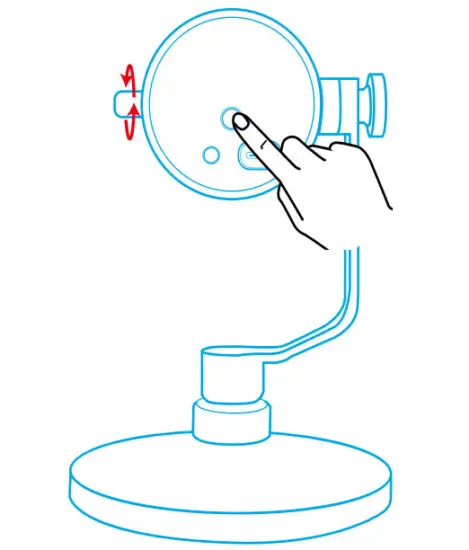
Controls
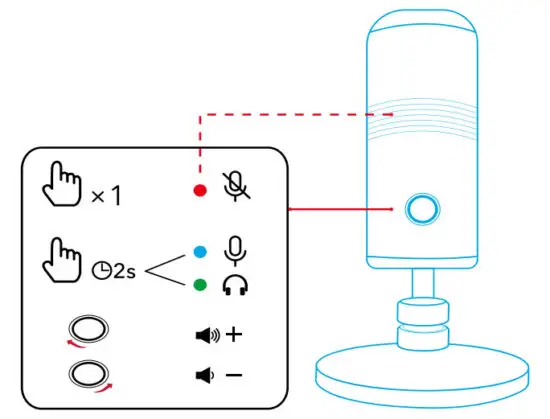

| Microphone on | Press once | Solid blue |
| Microphone off | Press once | Solid red |
| Switch to microphone control status | Press and hold for 2 seconds | Solid blue |
| Microphone volume up / down | Rotate in microphone control status | Solid blue; brightness varying with volume |

| Switch to headphone control status | Press and hold for 2 seconds Solid green | Solid green |
| Headphone volume up / down | headphone Rotate in headp control status | Solid green |
Specifications
| Input | 5V 0.2A (Max) 0.2A (Max) |
| Microphone | 16mm condenser capsule |
| Polar pattern | Cardioid |
| Bit depth | 24 bit / 96 kHz |
| Frequency response | 20 Hz – 20 kHz |
| Compatibility | Windows® 7 or later, macOSO 10.11 or later |