
NMC-SNMP Card
User Guide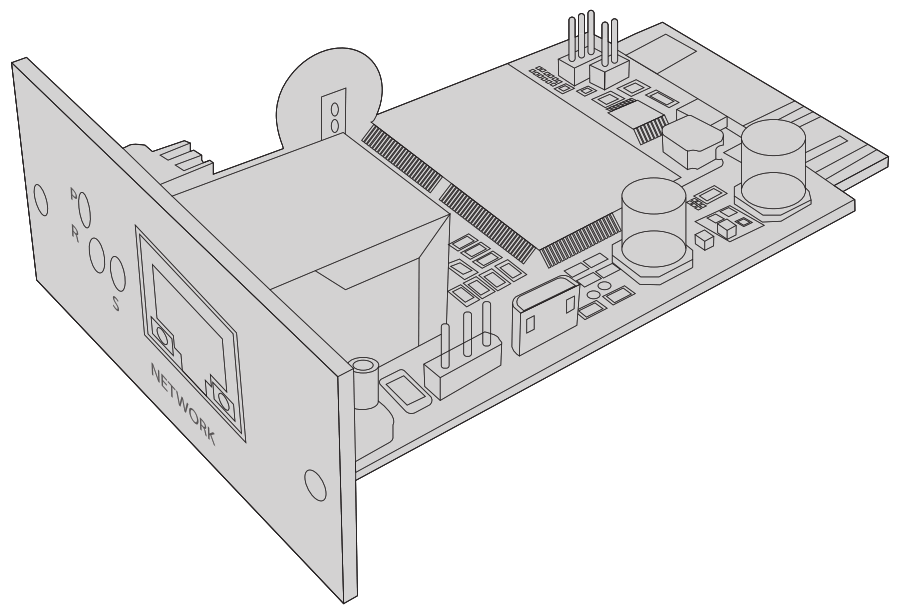
NMC-SNMP CARD
NMC-SNMP-Karte
CARTE NMC-SNMP
Quick Start Guide V1.0
Quick Start Anleiung
Introduction
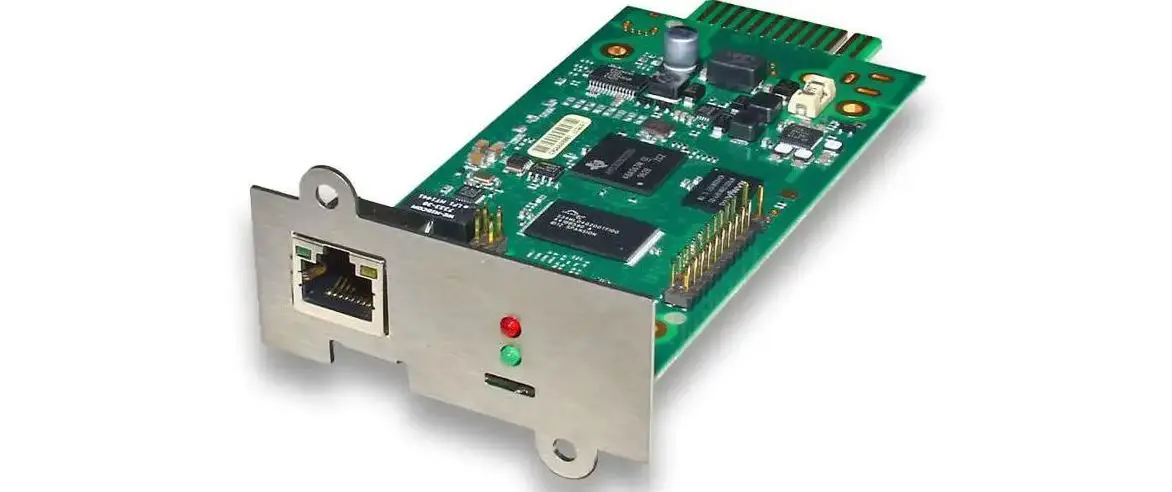
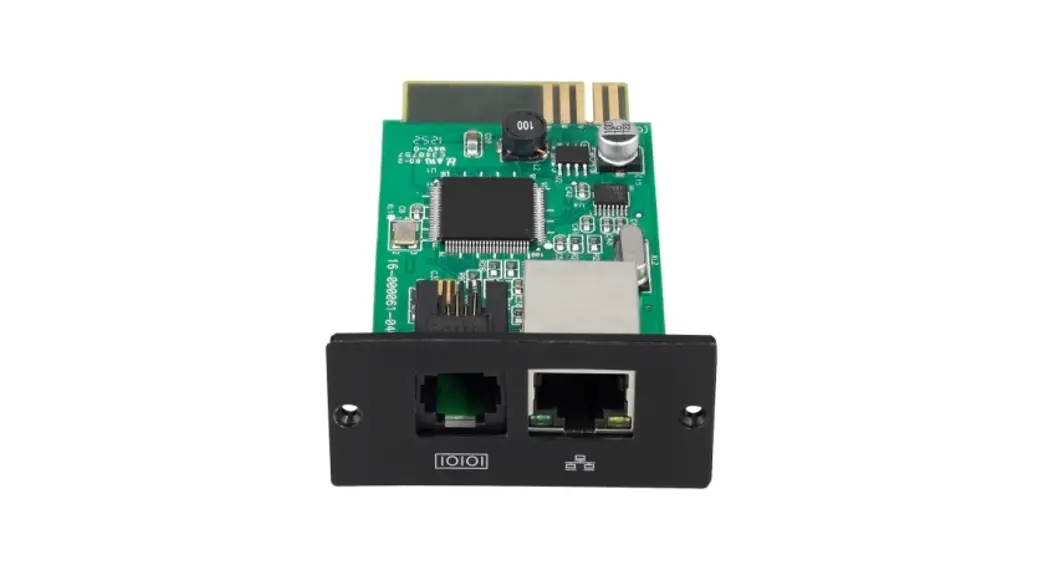
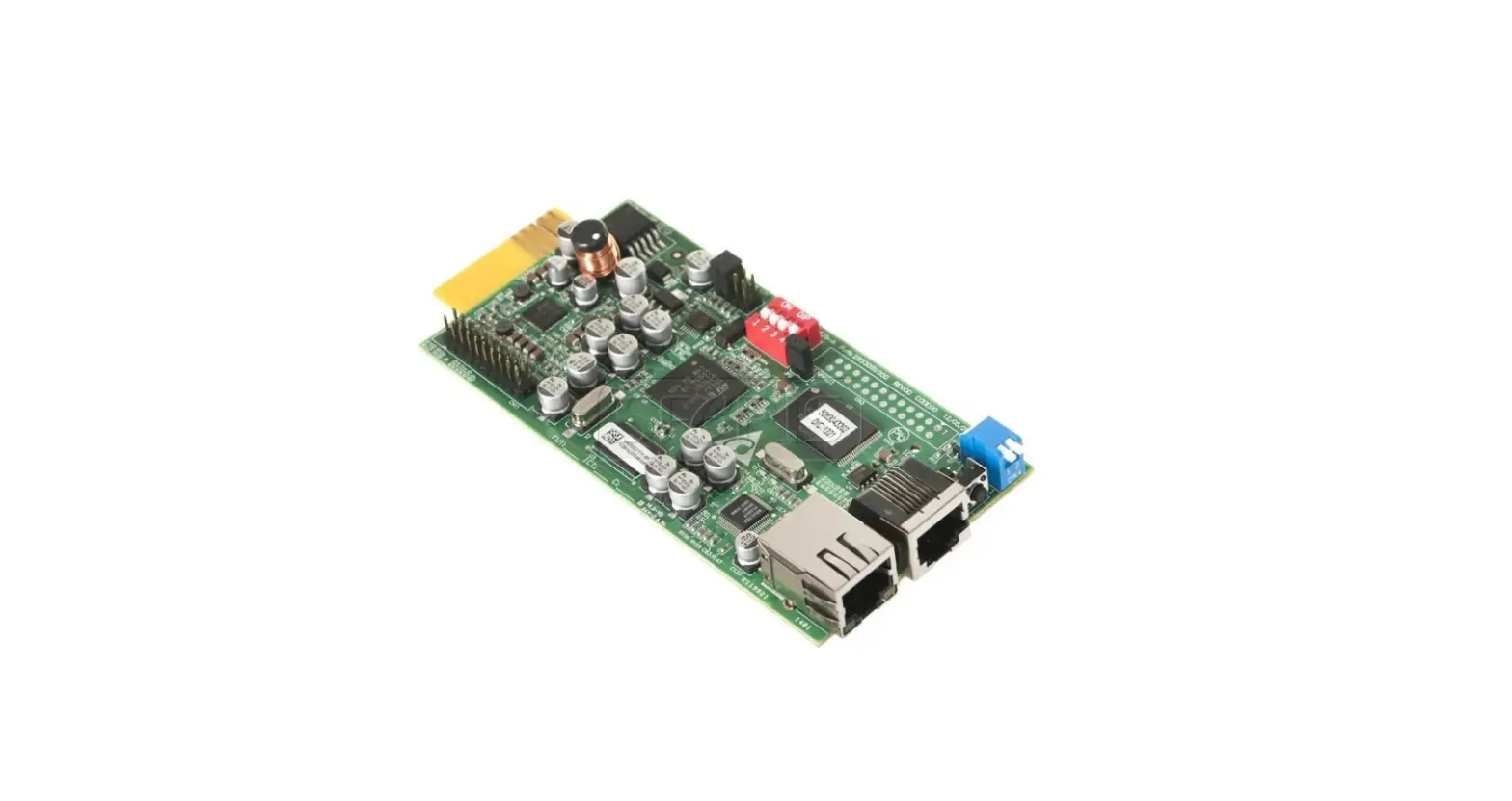
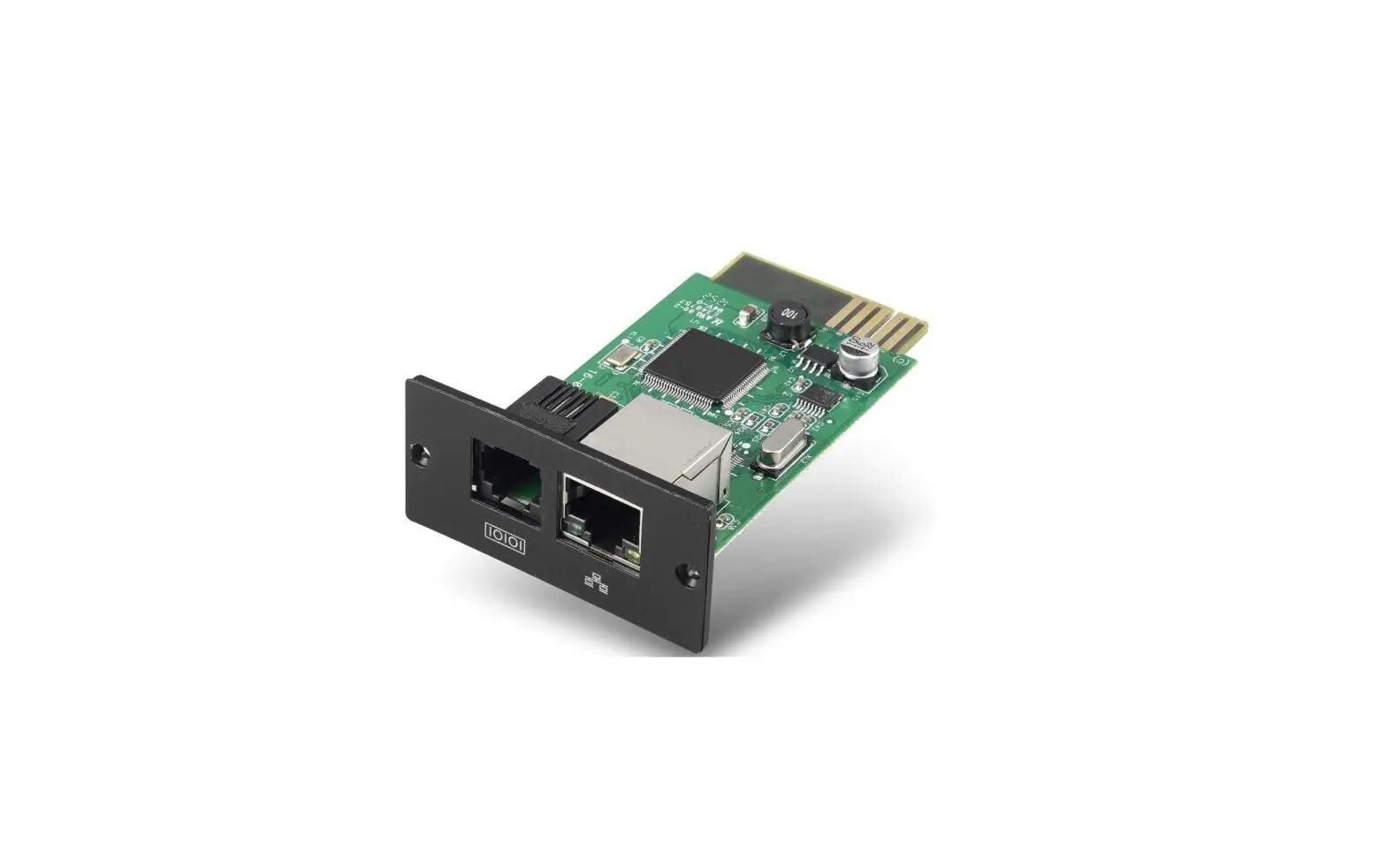
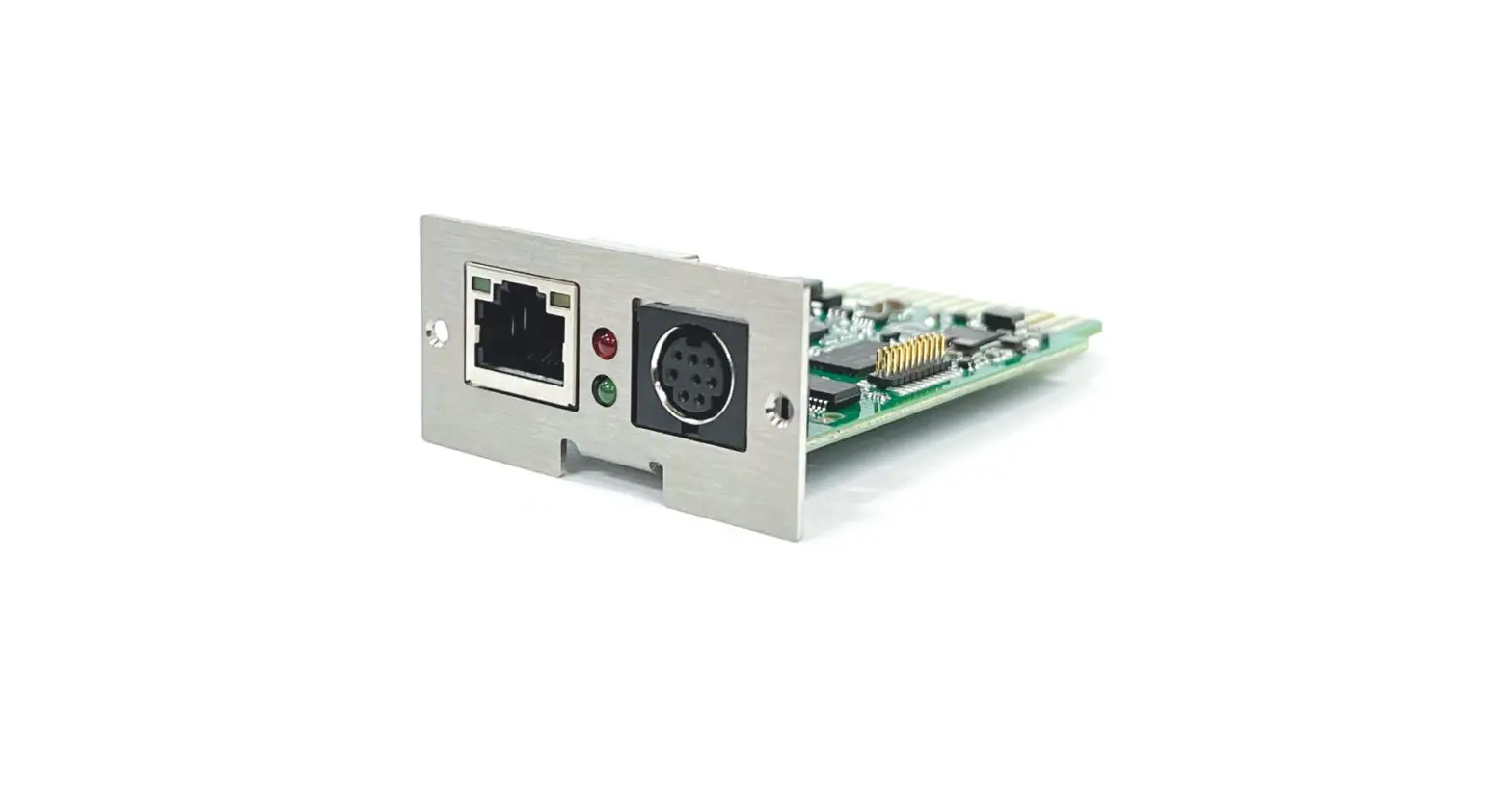
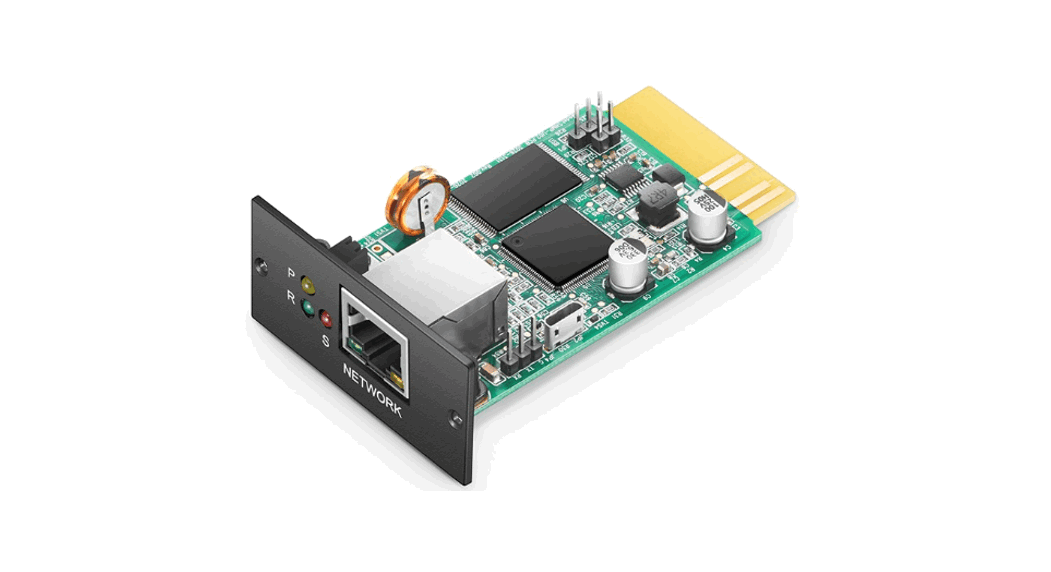
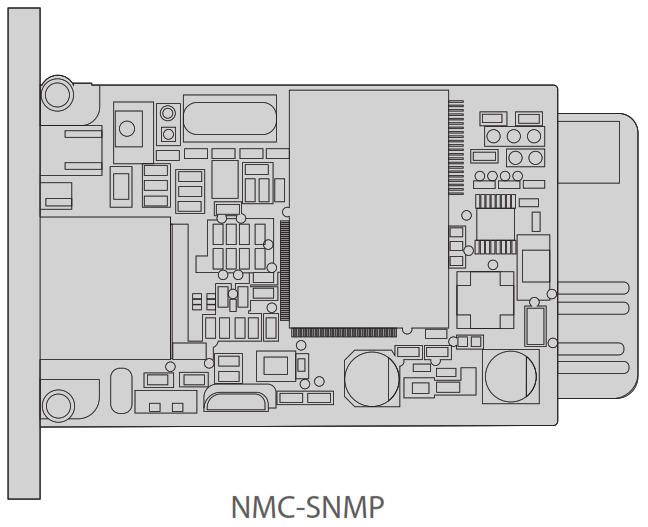
NMC-SNMP is a built-in network SNMP card that supports SNMP v1/v2/ and v3 protocols and provides the email alarm function, storage of hostorical events and data.The product appearance is as follow:
Hardware Overview
Network Interface
10/100M RJ45 Ethernet interface for connecting to a switch or computer.
LEDs
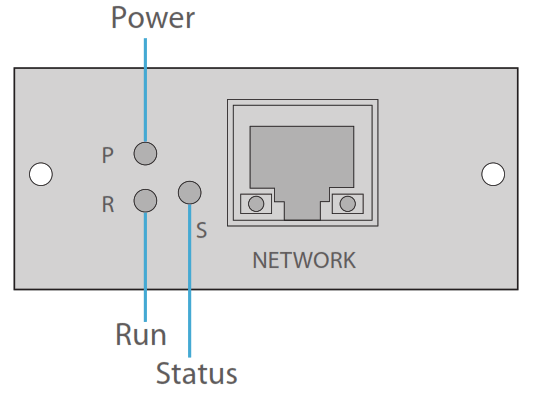
| LEDs | State | Description |
| Power | Solid Yellow | The device is powered on |
| Off | The device is not powered on | |
| Status | Solid Red | The device is fail |
| Off | The device is normal | |
| Run | Flash Green | The device is running properly |
| Off | The device is not running |
Installing
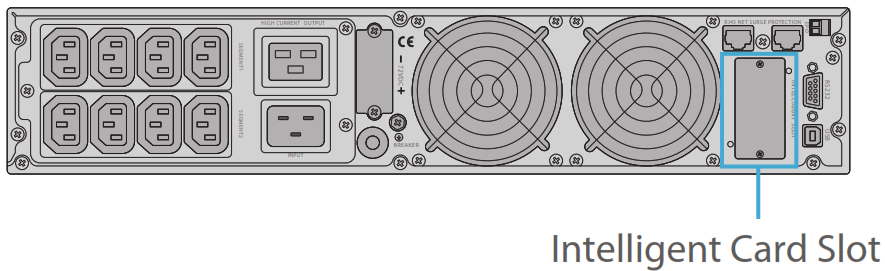
Step 1: Remove the cover of the intelligent card slot from the UPS back panel by using a screwdriver, and save the screws.
Step 2: Insert the NMC-SNMP card into the intelligent card slot of the UPS.
Step 3: Secure the NMC-SNMP card with the removed screws.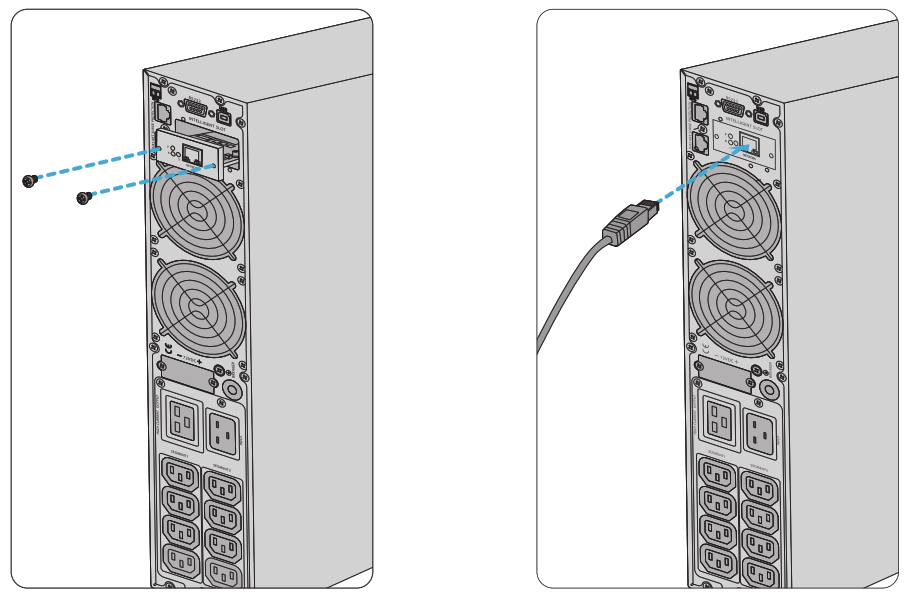
Step 4: Connect one end of the Ethernet cable to the network interface of the SNMP card.
Step 5: Connect the other end of the Ethernet cable to a computer host or a switch.
NOTE:
- The ID of the shown UPS is #96676.
- This NMC-SNMP card is compitable with any UPS on fs.com platform.
Configuring the NMC-SNMP Card
Configuring the NMC-SNMP Card via Web User Interface
Web Login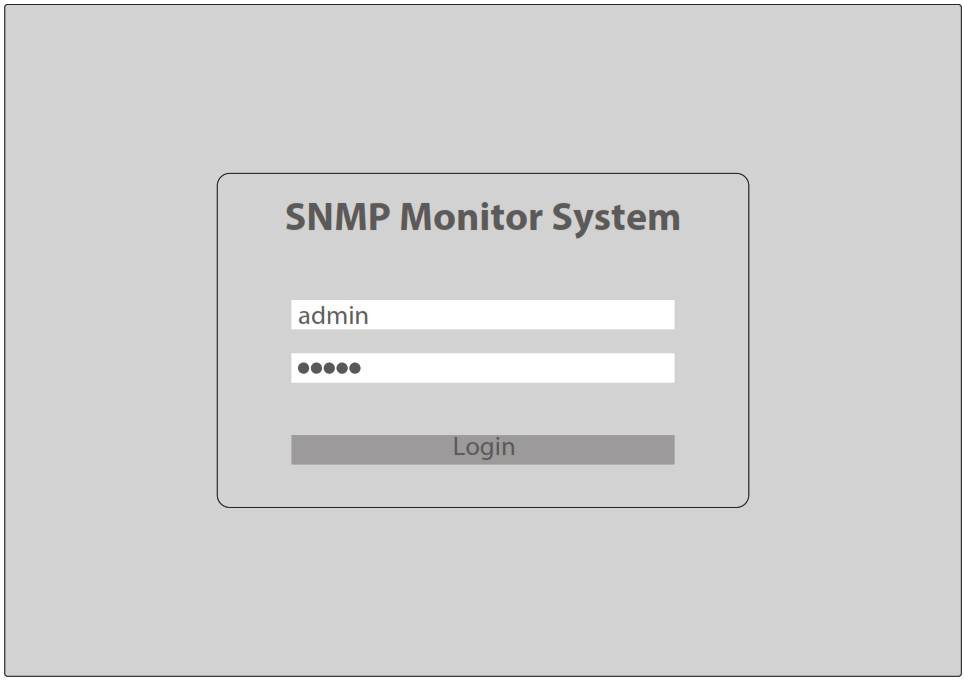
Step 1: Connect a computer to the NMC-SNMP card with an Ethernet cable.
Step 2: Set the computer IP address to the same network segment as the default IP address of NMC-SNMP(For example, set the PC IP address to “192.168.137.101”).
Step 3: Confirm the normal network communication between computer and the NMC-SNMP card (verify by means of ping packets).
Step 4: Open a browser (Google Chrome or IE is recommended), enter the default IP address “192.168.137.100” of the NMC-SNMP card, and enter the user name and password (both are “admin” by default) to log in to the NMC-SNMP monitor system.
Upgrading the System Version via Web Page
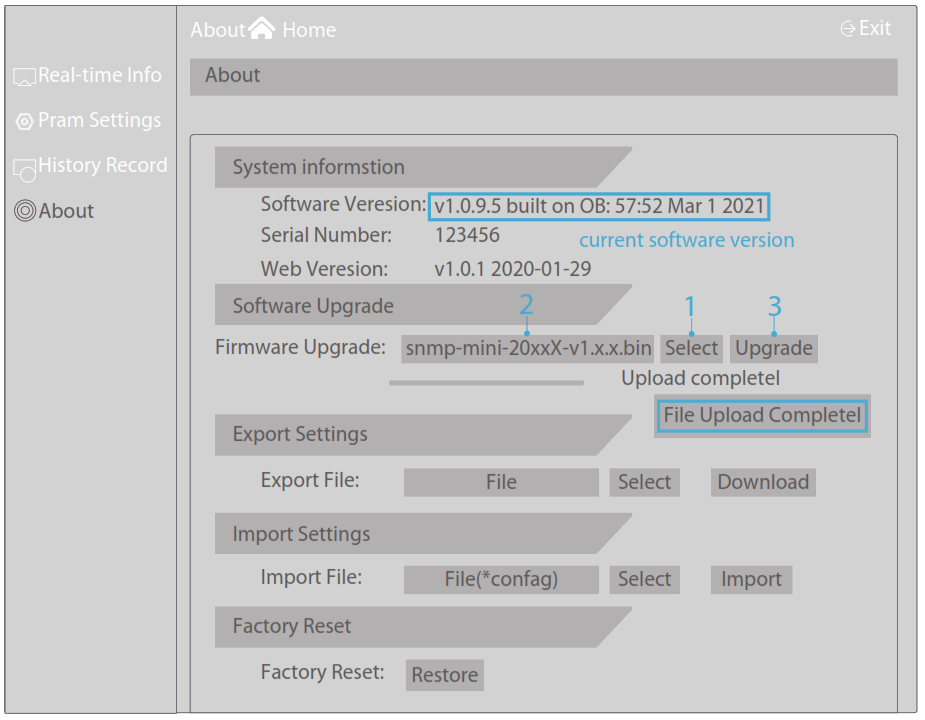
Click “About” on the home page to view the current software version in the “System Information” column. If the software version needs to be updated:
Step 1: Click “Select”.
Step 2: Select the upgrade file named “snmp-mini-20xxX-v1.x.x.bin”.
Step 3: Click “Upgrade”.
Step 4: After the file is uploaded, a dialog box is displayed. Click “OK” and wait for the upgrade and restart of the NMC-SNMP card to be complete.
Troubleshooting
LEDs working Abnormally
- If the Power LED is off, please check whether the UPS power is connected normally.
- If the Status LED is solid red, please check whether the NMC-SNMP card is damaged.
- If the Run LED is off, please check whether the connection between the network interface and the network cable is normal.
Online Resources
Download https://www.fs.com/products_support.html
Help Center https://www.fs.com/service/fs_support.html
Contact Us https://www.fs.com/contact_us.html
Product Warranty
 Warranty: NMC-SNMP card enjoys 1 year limited warranty against defect in materials or workmanship. For more details about warranty, please check at https://www.fs.com/policies/day_return_policy.html
 Return: If you want to return item(s), information on how to return can be found at https://www.fs.com/policies/day_return_policy.html
Compliance Information
FCC
Note: This equipment has been tested and found to comply with the limits for a Class B digital device, pursuant to part 15 of the FCC Rules. These limits are designed to provide reasonable protection against harmful interference in a residential installation. This equipment generates, uses and can radiate radio frequency energy and, if not installed and used in accordance with the instructions, may cause harmful interference to radio communications. However, there is no guarantee that interference will not occur in a particular installation.
If this equipment does cause harmful interference to radio or television reception, which can be determined by turning the equipment off and on, the user is encouraged to try to correct the interference by one or more of the following measures:
- Reorient or relocate the receiving antenna.
- Increase the separation between the equipment and receiver.
- Connect the equipment into an outlet on a circuit different from that to which the receiver is connected.
- Consult the dealer or an experienced radio/TV technician for help.
This device complies with part 15 of the FCC Rules. Operation is subject to the following two conditions: (1) This device may not cause harmful interference, and (2) this device must accept any interference received, including interference that may cause undesired operation.
CAUTION:
Any changes or modifications not expressly approved by the grantee of this device could void the user’s authority to operate the equipment.
Responsible party (only for FCC matter)
FS.COM Inc.
380 Centerpoint Blvd, New Castle, DE 19720, United States https://www.fs.com
CE
FS.COM GmbH hereby declares that this device is in compliance with the Directive 2014/30/EU. A copy of the EU Declaration of Conformity is available at www.fs.com/company/quality_control.html
FS.COM LIMITED
24F, Infore Center, No.19, Haitian 2nd Rd, Binhai Community, Yuehai Street,Nanshan District, Shenzhen City
FS.COM GmbH
NOVA Gewerbepark Building 7, Am
Gfild 7, 85375 Neufahrn bei Munich, Germany
IC
CANICES-3(B)/NMB-(B)
Q.C. PASSED
Copyright © 2022 FS.COM All Rights Reserved.
References
 FS.com - Data Center, Enterprise, Telecom
-
Quality Certification - FS.com
-
Ein weltweit führender Anbieter von Hochgeschwindigkeits-Konnektivitätsgeräten und -lösungen. - FS.com Deutschland
-
Fournisseur leader de solutions et matériels de connectivité à haut débit - FS France
-
FS.com - Data Center, Enterprise, Telecom
-
Contact Us - FS.com
-
Kontakt - FS.com Deutschland
-
Rückgaberecht - FS.com Deutschland
-
Ein weltweit führender Anbieter von Hochgeschwindigkeits-Konnektivitätsgeräten und -lösungen. - FS.com Deutschland
-
Technische Dokumente - FS.com Deutschland
-
Hilfezentrum - FS.com Deutschland
-
Comment Nous Contacter - FS.com France
-
Documents techniques - FS.com France
-
Politique de retour - FS.com France
-
Centre d'aide - FS.com France
-
Return Policy - FS.com
-
Technical Documents - FS.com
-
Help Center - FS.com
 FS.com - Data Center, Enterprise, Telecom
 Quality Certification - FS.com