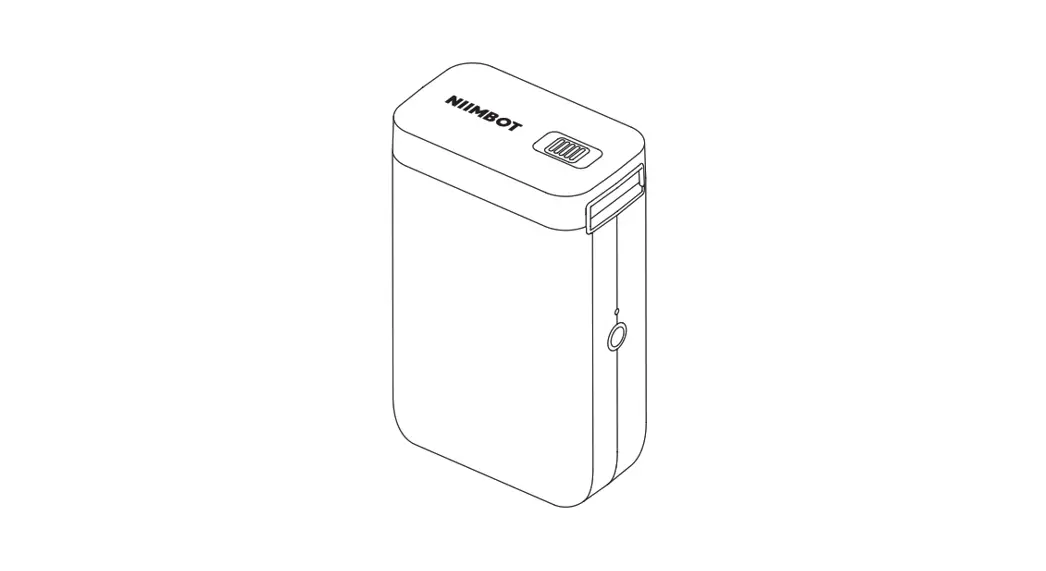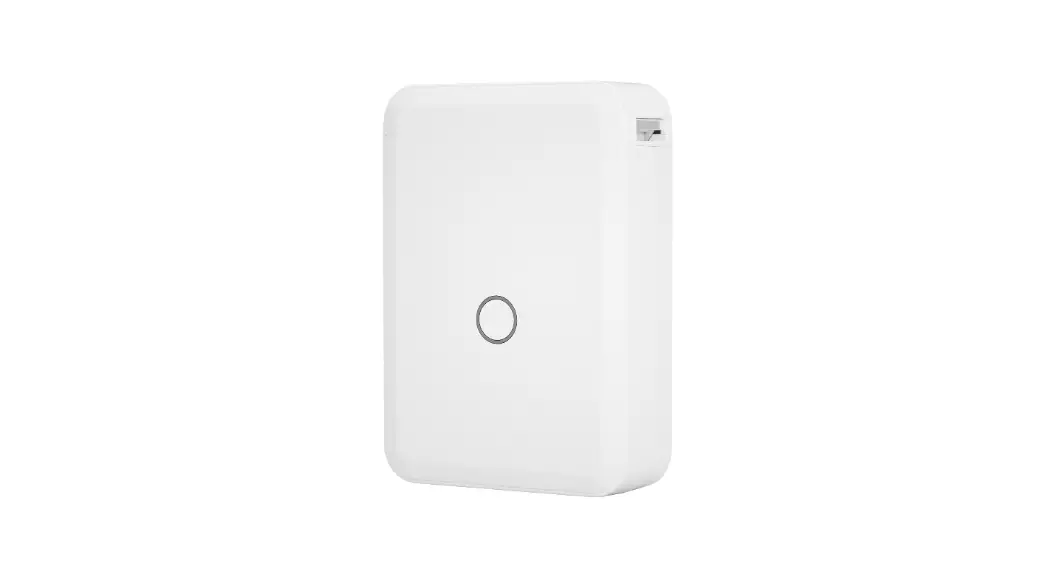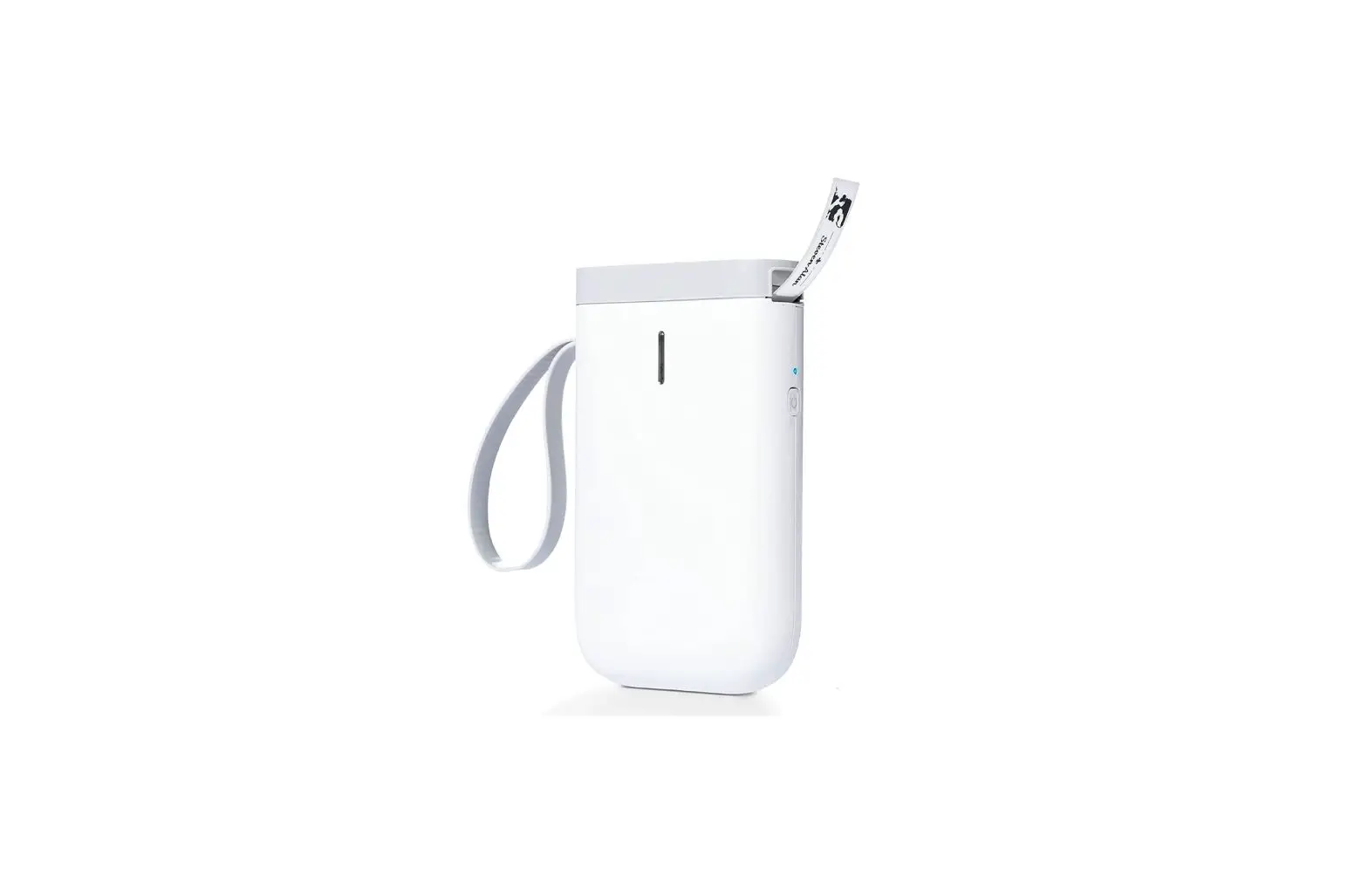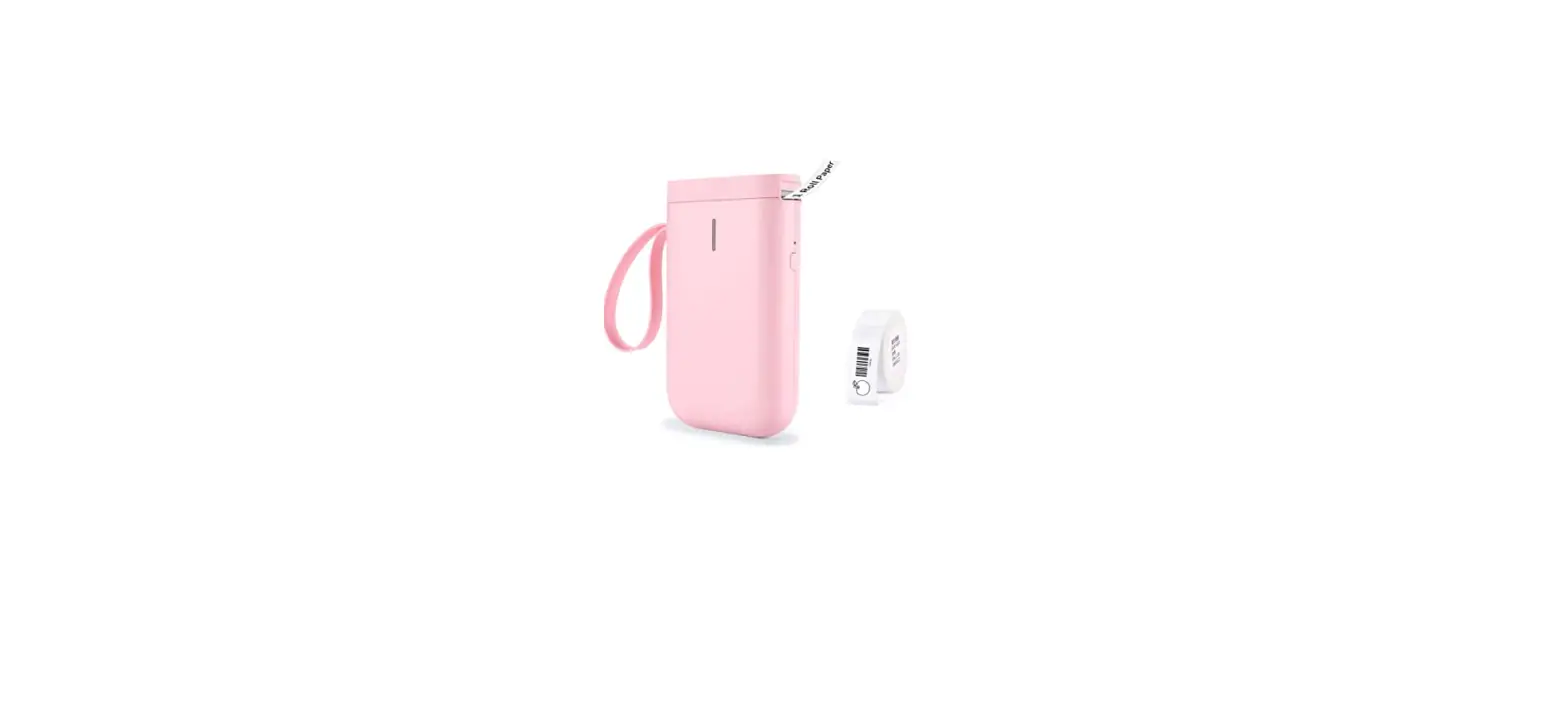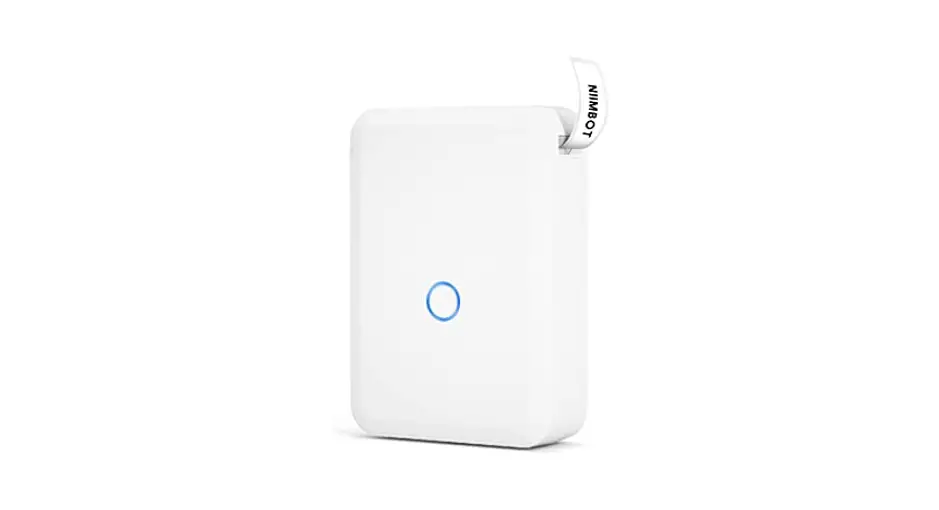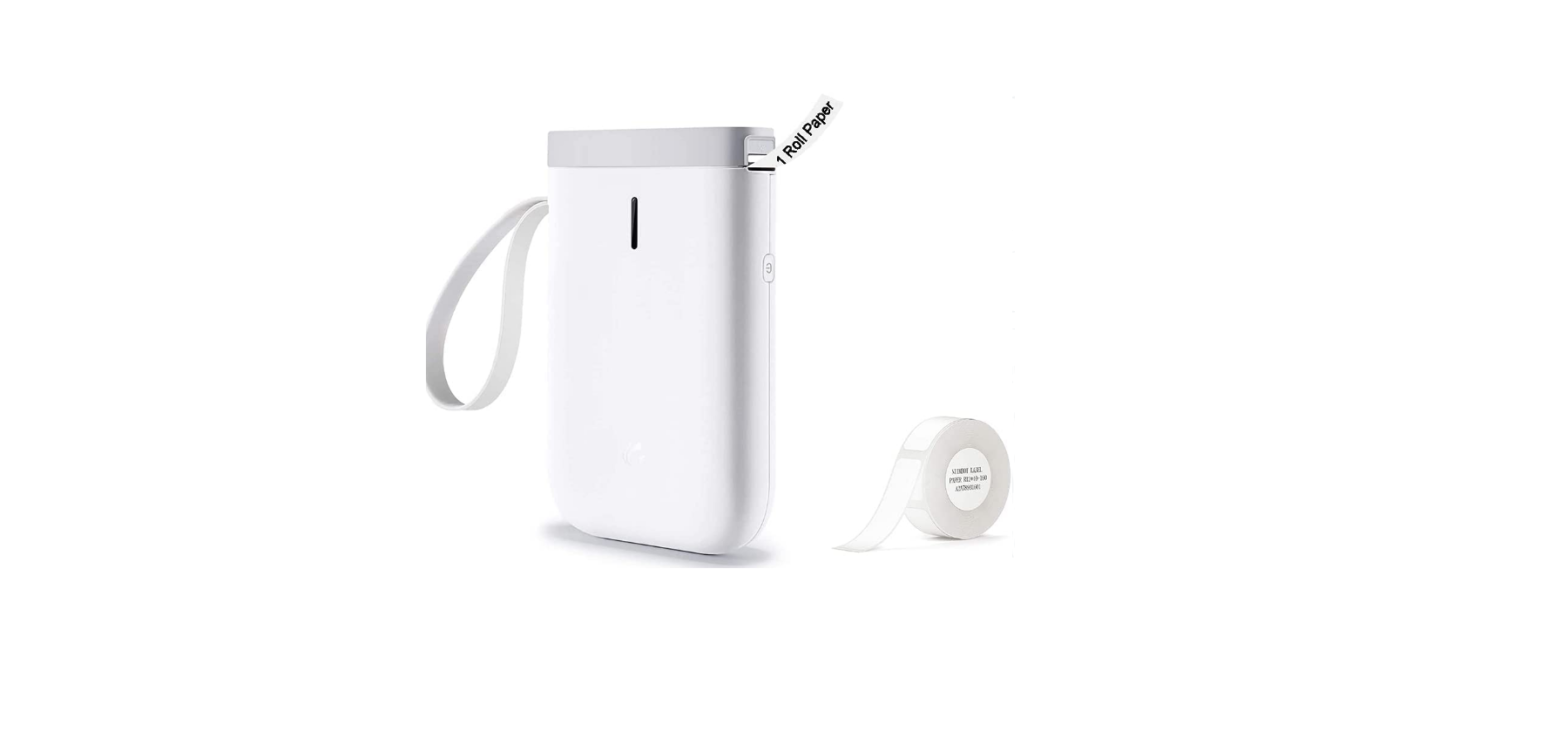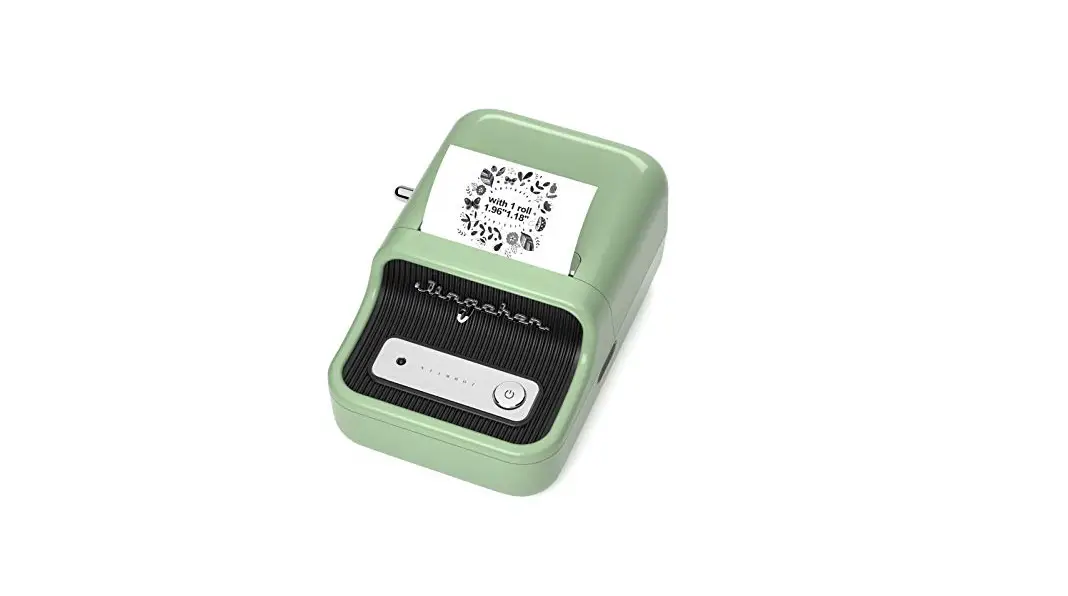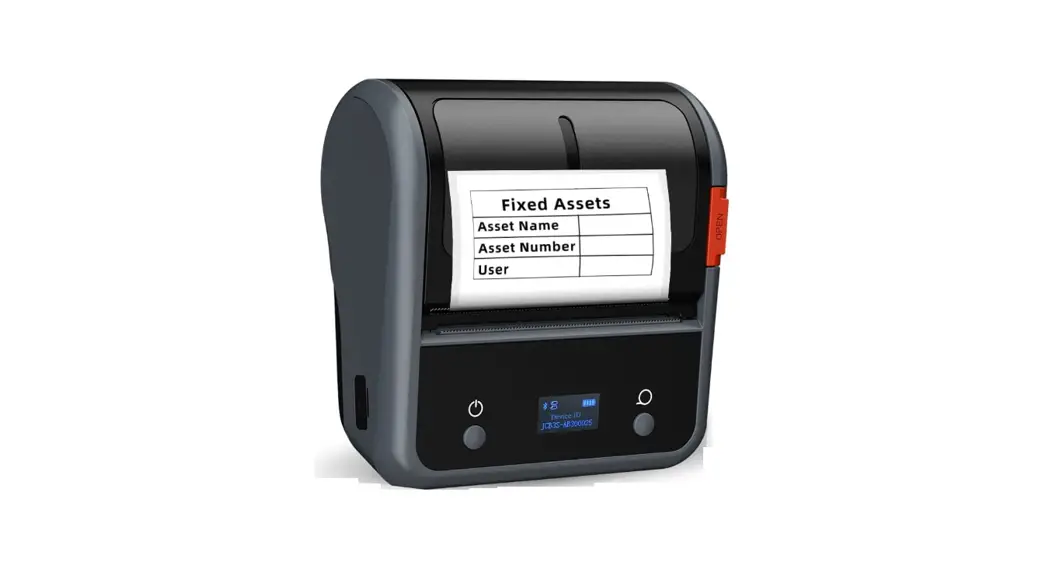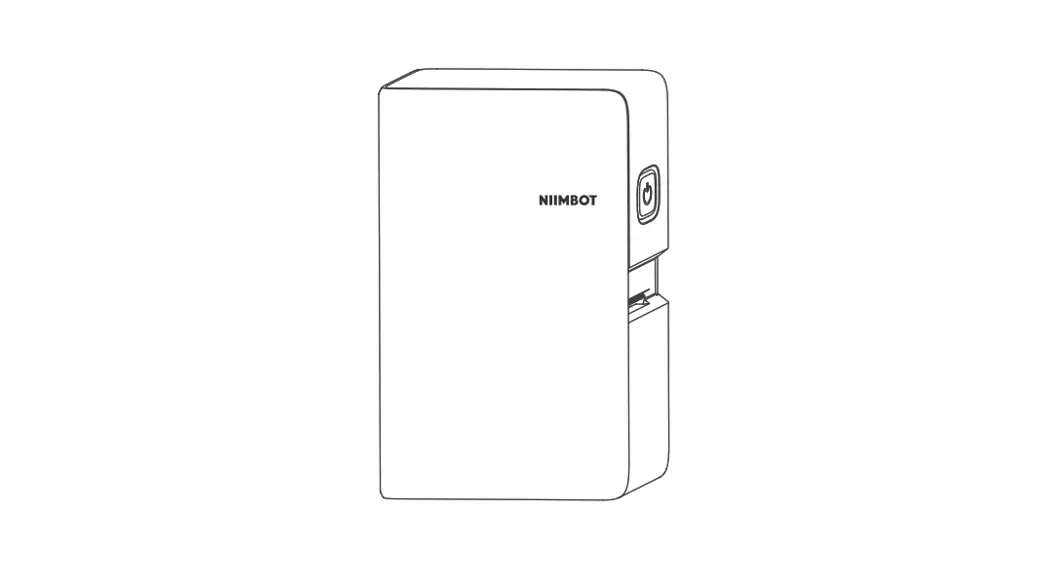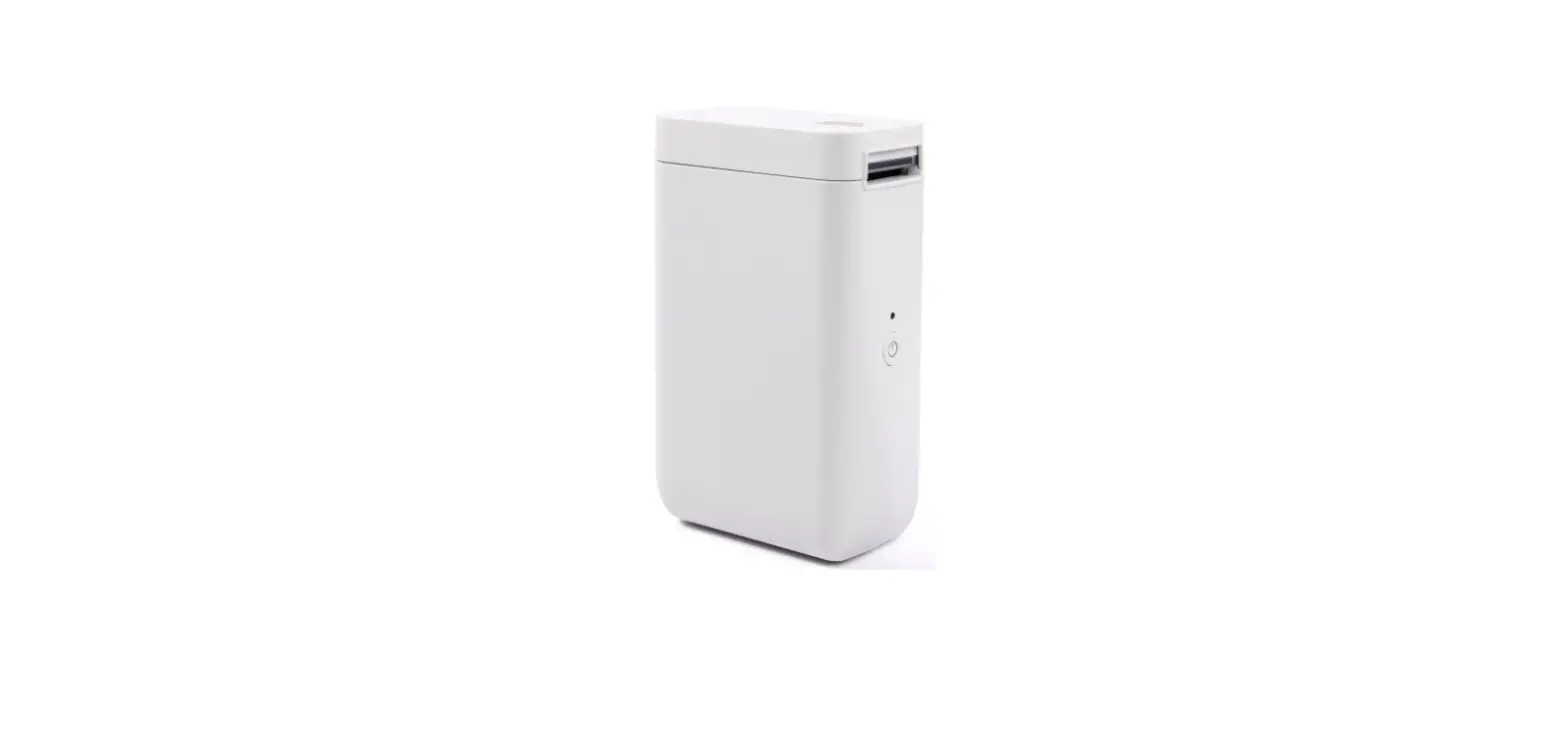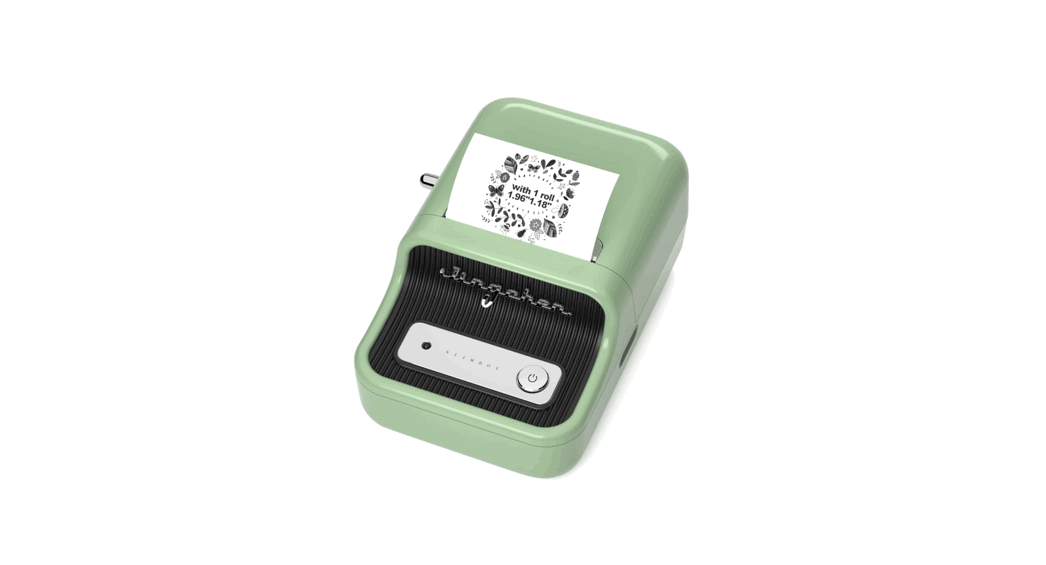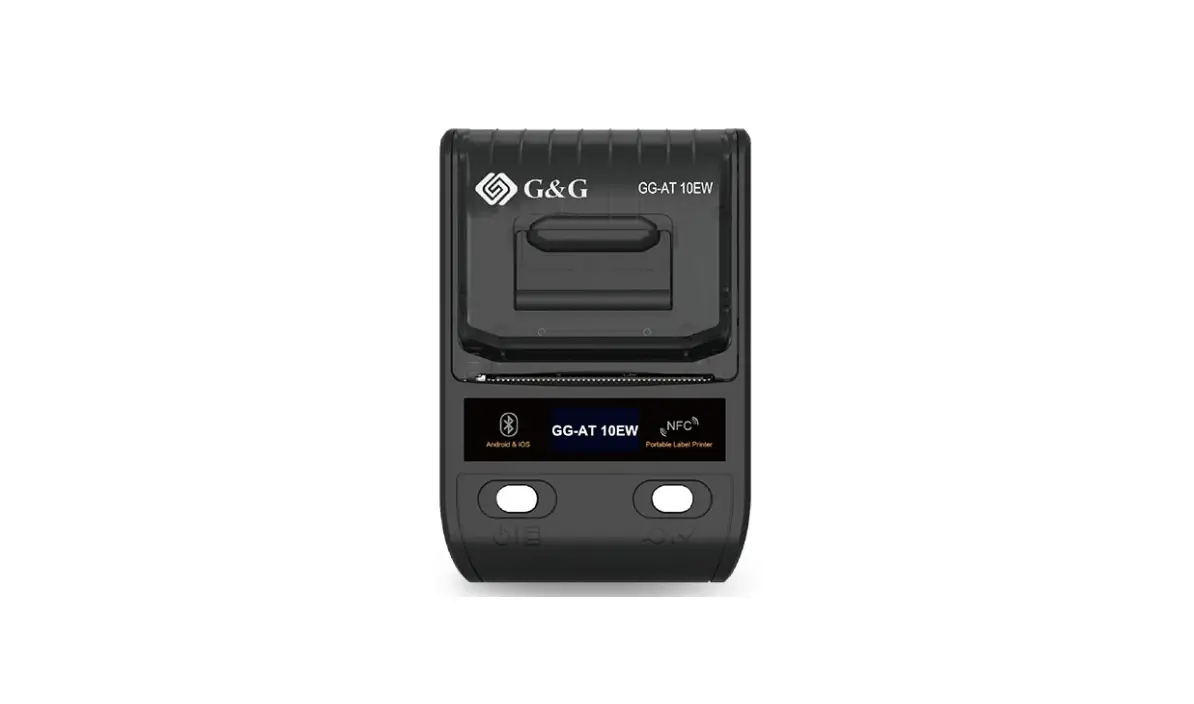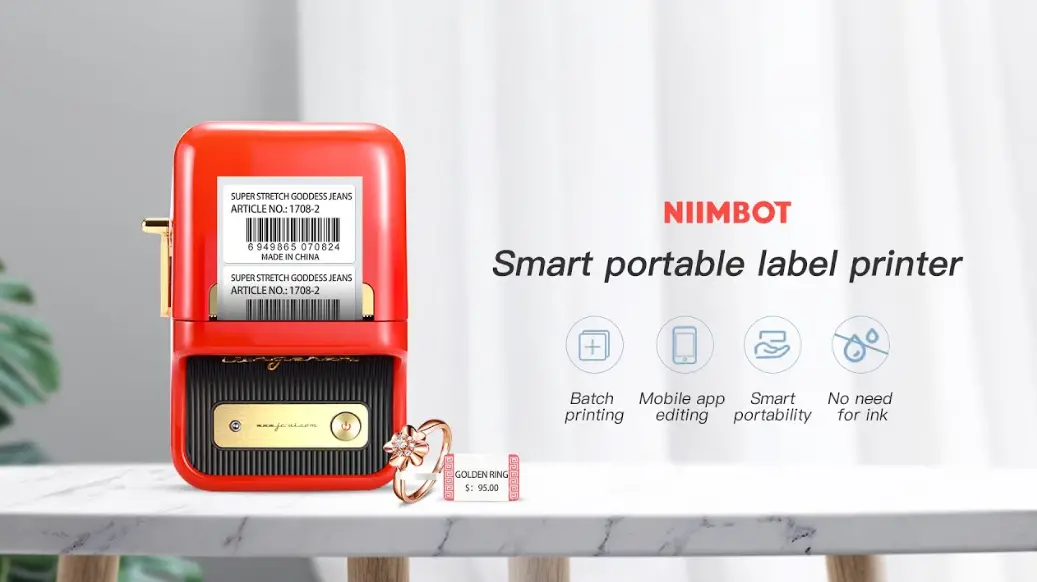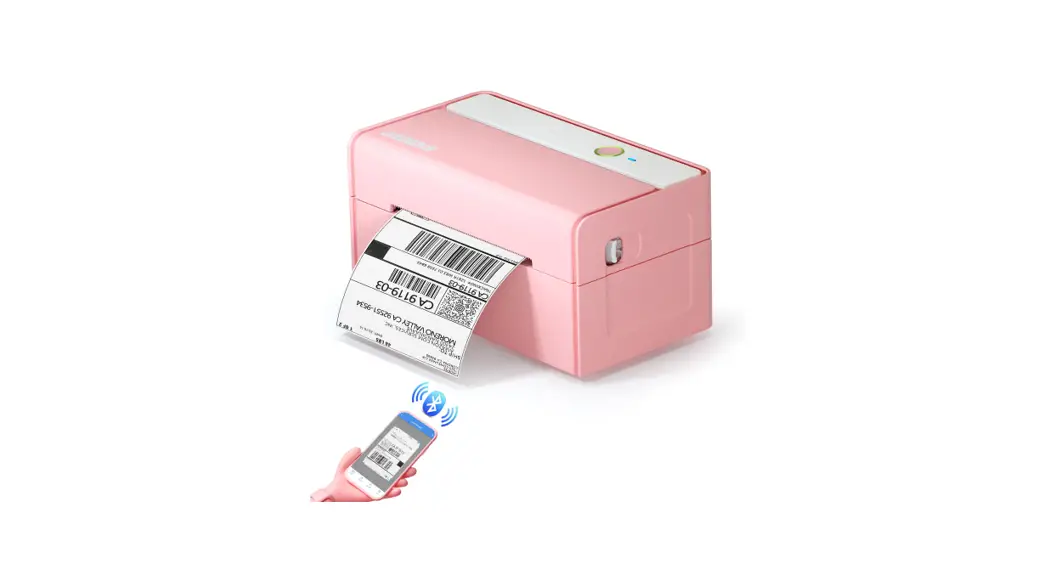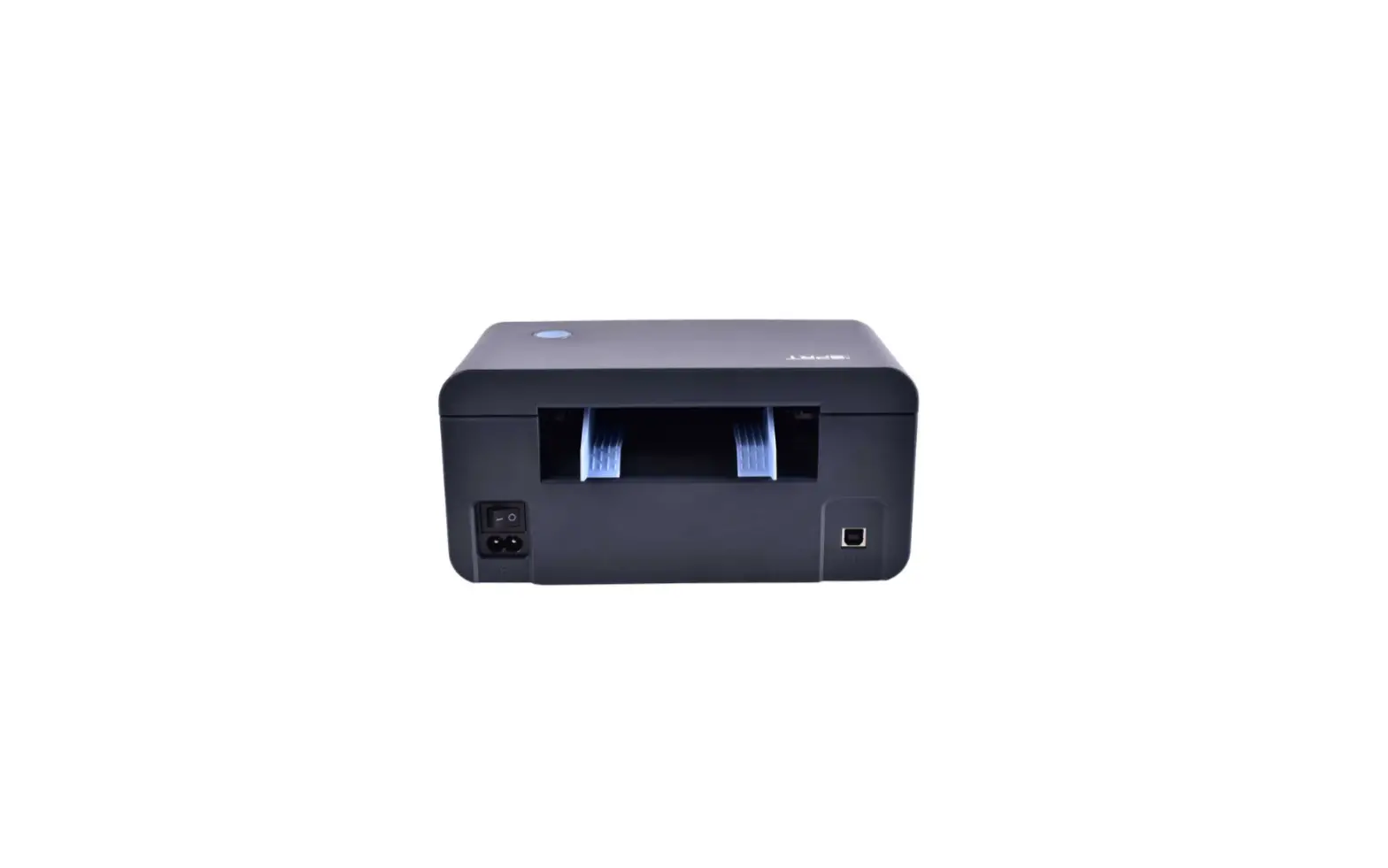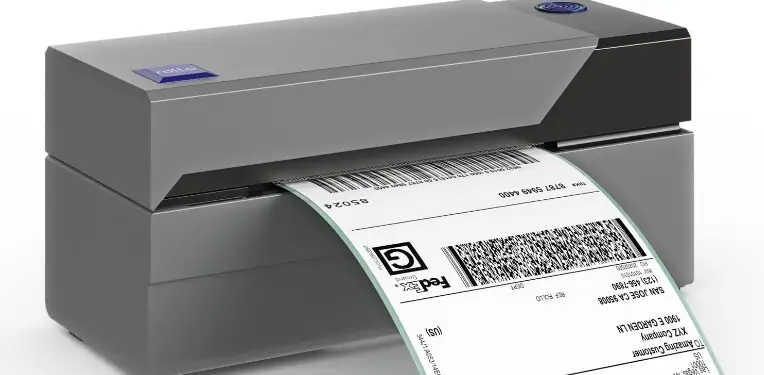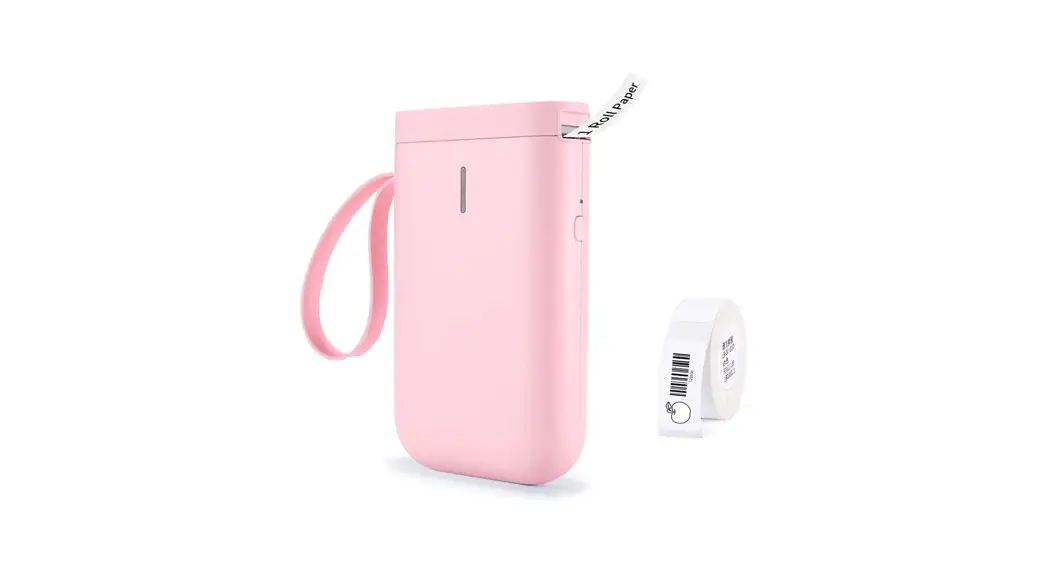

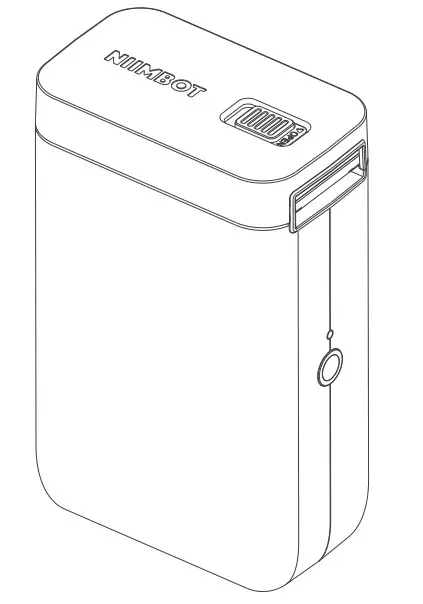
D101 D11 Plus Thermal Label Sticker Printer
User Manual
Basic Parameters
| Model | D101 |
| Color | White |
| Material | ABS |
| Printing method | Thermal printing |
| Printing resolution | 203dpi |
| Printing speed | 30mm/s~60mm/s |
| Label width | 10~25mm |
| Effective printing width | 24mm |
| Applicable paper types | Adding machine paper and transparent paper |
| Accompanying supplies | One warranty card, one type-C data cable |
| Connection mode | Bluetooth |
| Barcode printing | Supports barcodes and QR codes |
| Printing content | Text/patterns/designs |
| Battery type and capacity | 1200mAh lithium battery |
| Charging duration | 3~4 hours |
| Charging interface | Type-c |
| Voltage of incoming current | 5V-1A |
| Battery life | 4 hours of continuous printing |
Basic Usage
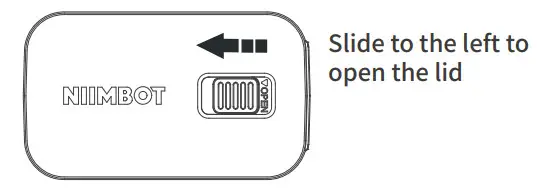
- Slide to the left to open the lid

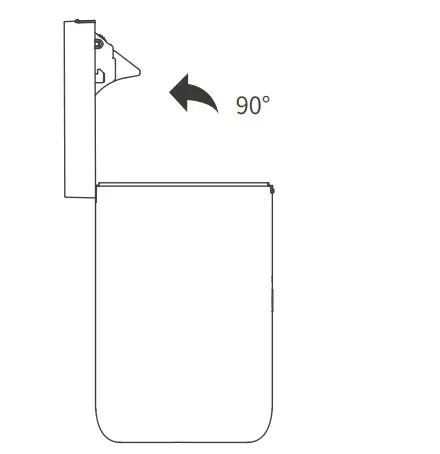
- Opening angle

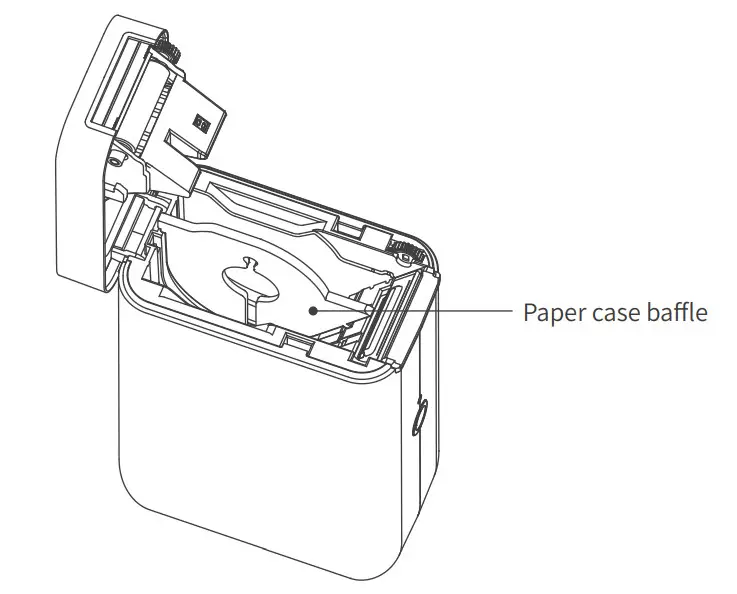
- Requirements for installation of paper case baffle (the baffle has been installed before delivery, and can be used directly for mm backing paper labels, but should be removed for mm backing paper labels).

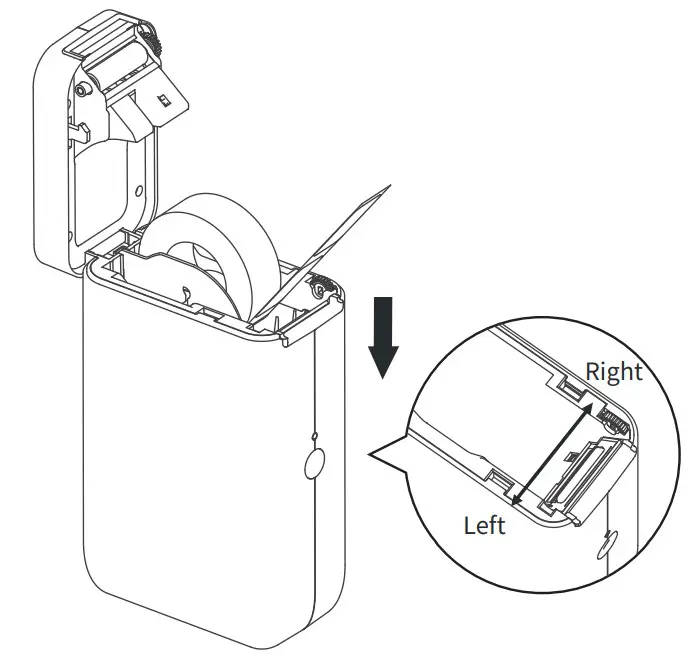
- Installation of consumables: Insert the roll of paper on the right, with the printing surface facing the switch.

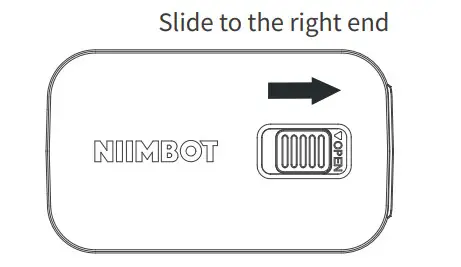
- Close the lid, and slide to the right end

About the new machine:
AIMBOT label printer is generally charged before the delivery for the startup. If you cannot start up your new printer, one possible reason is the low battery level. The printer can be started up after being charged for 20 minutes.
Indicator Light Descriptions
| Indicator light color | Light status | Description |
| Blue | Slow flash | Bluetooth not connected |
| Blue | Quick flash | Printing or charging |
| Blue | Not flashing | Bluetooth connected, the battery fully charged |
| Red | Slow flash | Bluetooth is not connected and their low battery level |
| Red | Quick flash | Printing, or charging and low battery level |
| Red | Not flashing | Bluetooth connected, low battery level |
Guide to App Usage
It only takes two steps to start a new marking experience
- Download the “NiiMbot” application from the App Store or Google Play.
- APP Open the lid and place the consumables


Bluetooth connection mode
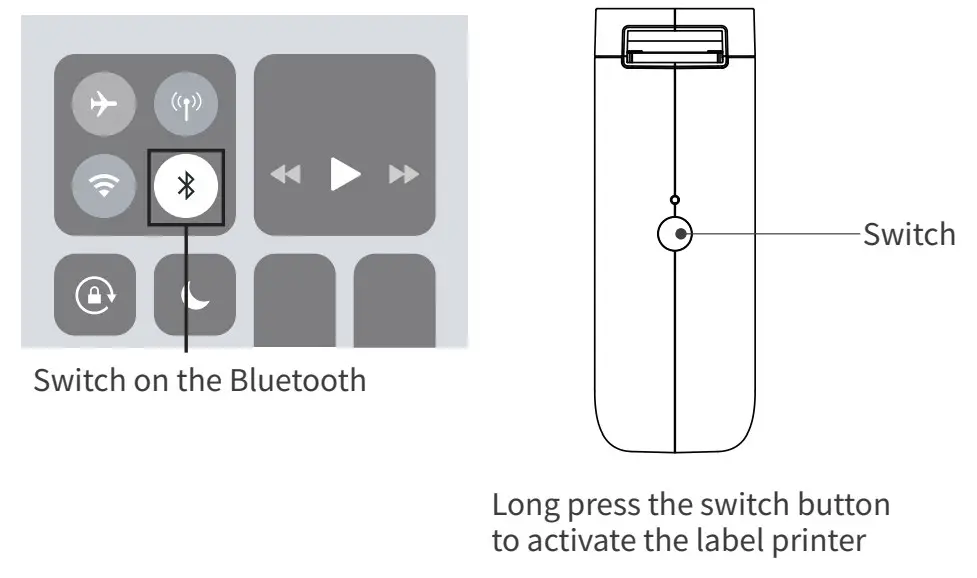
- On your phone or device, turn Bluetooth on. Then start up the printer, and open the app.

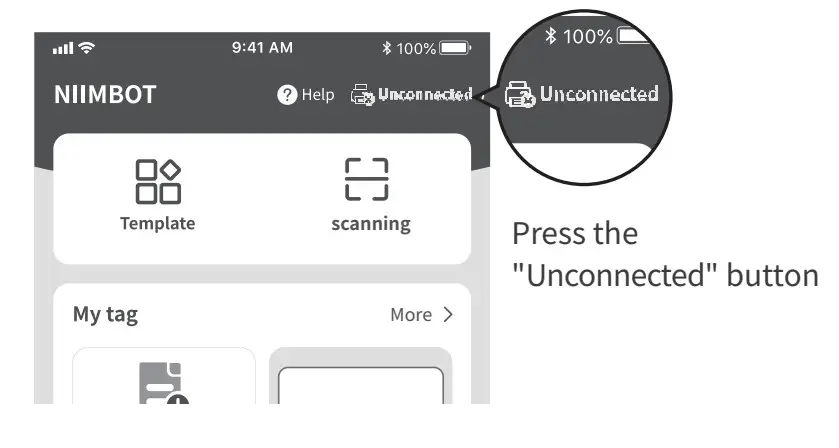
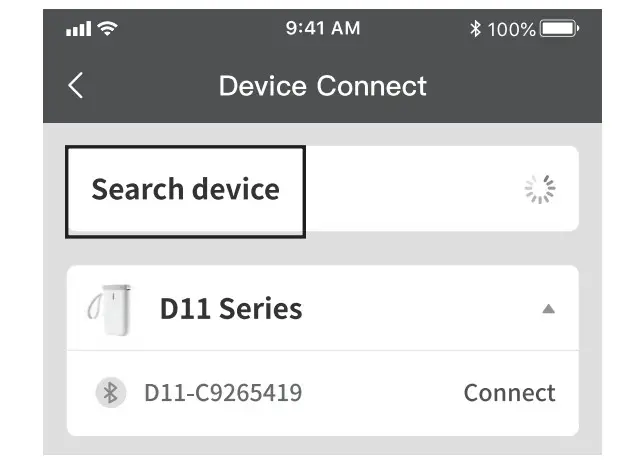
- Press the [Unconnected] button on the right corner of the app, and then click [Search Device].


- Press the blue [Connect] button to the right of the correct printer model, and Bluetooth will connect.

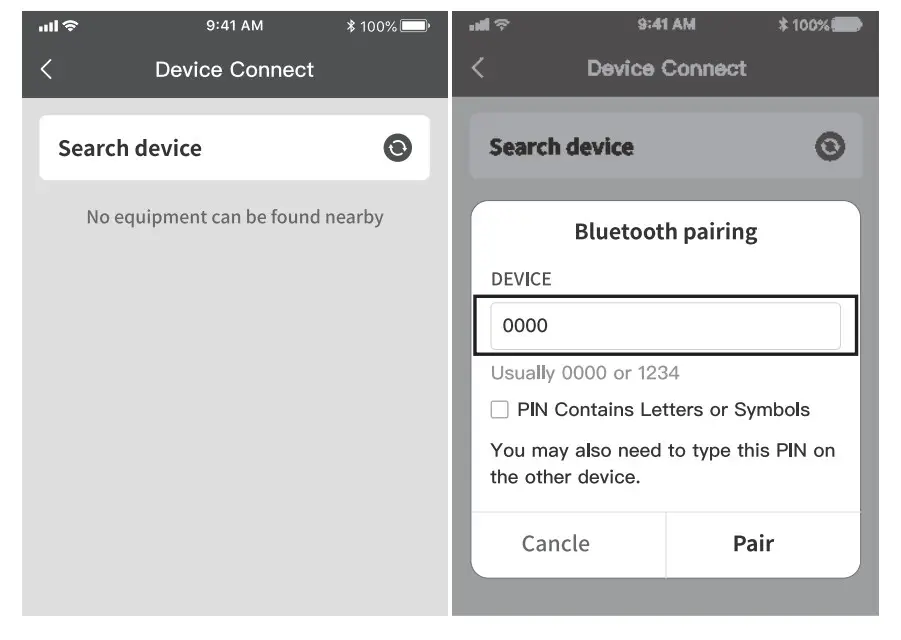
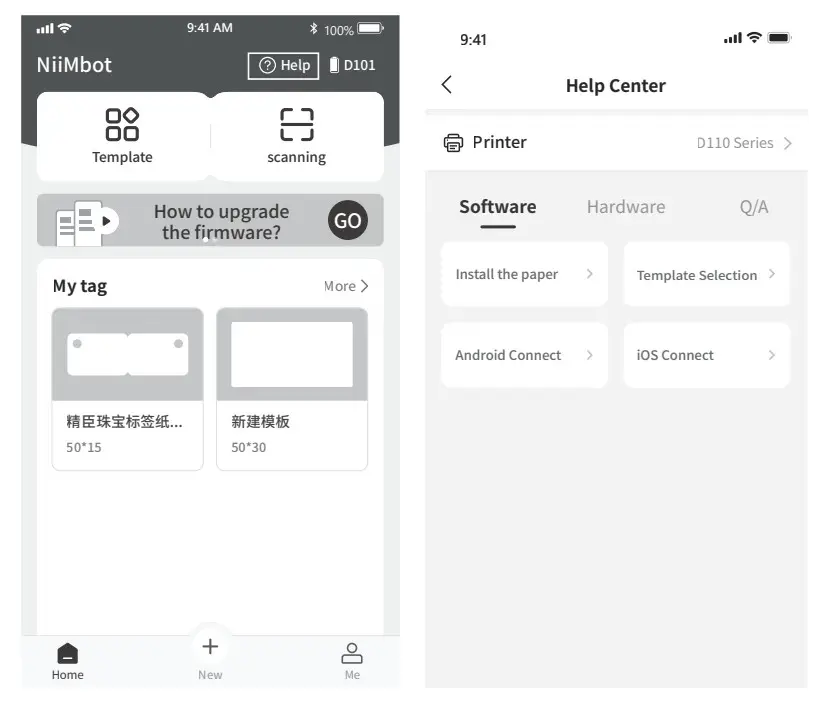
Uagse & Operation
Press the [Help] button on the right corner of the app to choose from the demo videos that can be played in the list of [Software – Hardware].
FAQ
A:
– The laptop’s USB port does not have a sufficient and stable enough voltage to ensure stable charging conditions. Please charge the label printer using a normal power socket.
A:
– The label printer can be used even if you do not register an account. But registering an account will enable you to save label templates and retrieve any lost labels.
A:
– This may be because the device has not yet been recognized by the app. You can enter 16 zeros continuously, and press OK to refresh.
– After refreshing, enter 0000 or 1234 again to enter the app.
A:
– The label printer will shut down automatically after Bluetooth has been disconnected or the app logged out for 15 minutes, to save power and protect battery life.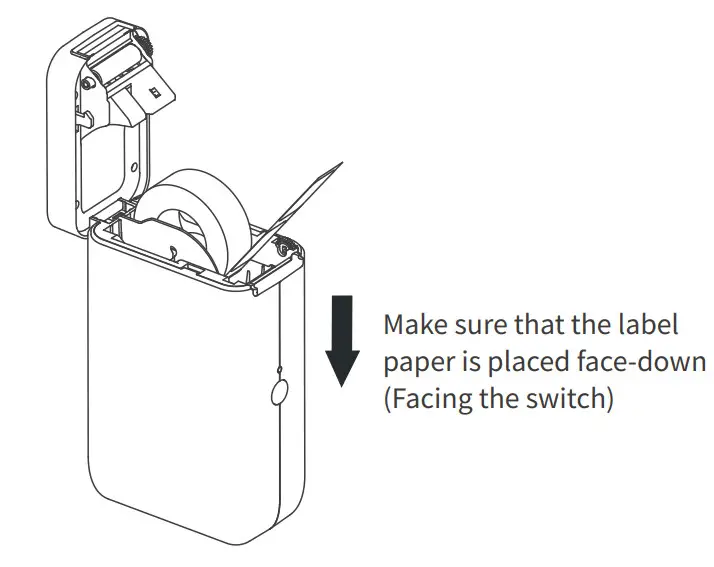
A:
– It is possible that the label paper has been placed in the wrong direction. Please keep the label’s sticker face down (facing the power button).
A:
– There may be label paper on the upper cover detector, leading to a failure to detect the paper.
– There may be label paper on the print head, leading to a failure to detect the paper.
– The size set by the template may not be consistent with the actual size of the label paper.
– The set paper type of the template may be wrong.
– The paper case baffle may not be installed or the paper case baffle may not be installed in the correct place.
– Detector failure may be leading to continuous paper delivery.
A;
– The label paper is not NIIMBOT paper and may be chipless.
– The actual printed quantity exceeds the quantity required by the chip, and the self-check page can be viewed.
– Chip fault.
– Machine fault.
A;
– The D101 label printer currently is only applicable to the special label papers in the D101 series. Using the label papers of other brands will lead to failure.
– There may be a foreign object in the paper case covering the sensing port, leading to failure to identify the paper, so you may only need to remove the foreign object from the paper case.
– It is possible that the label chip has not been identified temporarily, you can contact customer service and send the corresponding label number, and the technical department will fix the problem for you within 10 minutes.
A:
– This suggests a clash of the mobile phone’s Bluetooth system, which can simply be restored by restarting the mobile phone and Bluetooth in the phone settings.
A:
– If the machine is charging, and the mobile phone fails to find the label printer using Bluetooth, simply unplug the power cord.
– If Bluetooth response is slow, restart the software or restart the printer and try to connect again.
– If it is caused by a software version issue, uninstall and reinstall or contact technical personnel.
A:
– D101 supports continuous printing and batch printing.
– The app can currently print up to 999 labels at a time, but the actual number of label paper sheets per roll should be taken into account, with a maximum of 300 sheets of label paper per roll.
A:
– It is most likely one of the following possibilities:
– The cover of the label printer has not been closed properly, so needs to be opened and closed several times.
– The printer has suffered lumps during transportation or loosening of cables inside the machine, which are considered machine damage. You can contact the seller for a replacement.
A:
– It is most likely one of the following possibilities:
– No paper is placed in the machine
– The paper case baffle is not installed or the paper case baffle is not installed in its proper place for 15mm backing paper labels.
– Machine fault.
A:
– The paper head may not be exposed during the process of placing label papers, leading to failure of paper delivery. It can be solved by simply exposing the label paper head by 0.5cm.
– The paper may have run out, in which case please replace it with new printing paper.
A:
– To ensure the safety of the label printer, we have set up multiple protections. If problems such as “shortage of paper”, “opening of the paper case”, “data error”, “too high ambient temperature”, or “low battery” occur, the equipment shall terminate printing. Please determine for yourself which of these cases may be the cause.
A:
– The size or template set through the software may be inconsistent with the size of the actual label paper.
– The printer may not detect the label paper due to detector failure.
– The paper may have gotten stuck. Please check whether there is any foreign matter or glue at the outlet and whether the label paper has curled.
Cleaning Steps
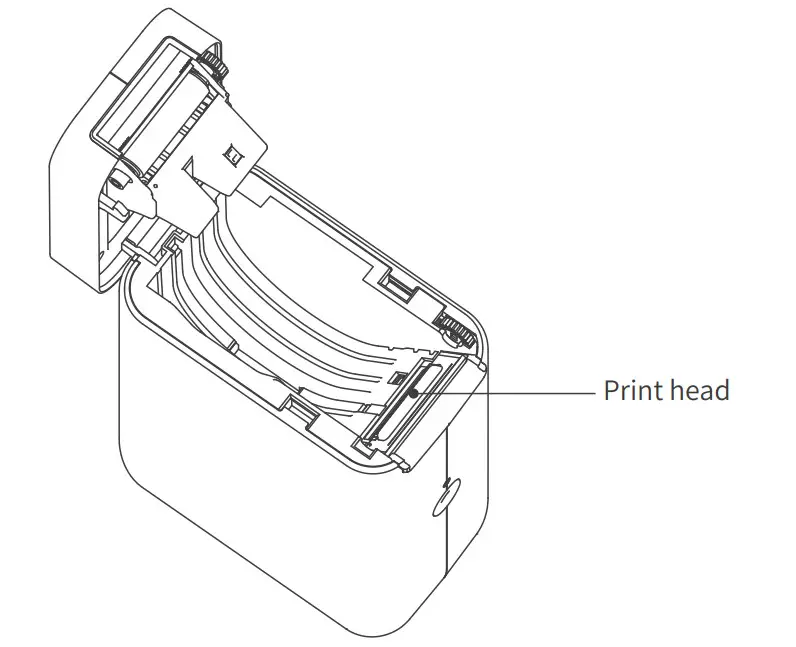
In order to clean the platen, follow these steps:
- Shut down the printer;
- Open the paper case cover and find the print head (as shown in the figure). In case of printing having just finished, wait for the print head to cool completely; While rotating the roller, wipe off the dust and stains on the surface of the roller with an alcohol cotton ball (which should be wrung out);
- Wipe off the dust and stains on the surface of the roller with an alcohol cotton ball (which should be wrung out) or cleaning pen of the print head;
- Wait for 5 – 10 minutes and close the paper case cover until the alcohol has completely volatilized.
Notes:
Ensure the printer is powered off during daily maintenance;
Do not touch the surface of the print head with your hands or with metal objects, and do not scratch the surface of the print head, roller, or sensor with tweezers;
Do not wipe the print head and roller with gasoline, propanol or other organic solvents;
After the alcohol has evaporated completely, turn on the power and continue printing.
Precautions
- Please keep the product and its accessories in a safe place that is out of the reach of children to keep them out of harm’s way.
- Please do not open the paper case cover when the printer is printing.
- Please ensure that the paper case is clean before using the printer. Any foreign matter in the paper case may damage the print head during printing.
- In case of any foreign matter being present, please use a special cleaning device or alcohol to clean the paper case and print head. Do not use solvents, corrosive chemicals, and cleaners, such as benzene and diluents.
- In case of printer failure, please turn off the power immediately.
- Please do not disassemble the printer without authorization. When the printer is disassembled, return and exchange will not be accepted.
- Do not use the power adapter when the power cord is damaged, otherwise, it may result in electric shocks, fire and power adapter damage.
- After continuous printing for a long time, the print head may be still hot. Do not touch the print head to avoid being burned.
- Please use our original printing paper. Failure to do so may result in poor print quality or even damage to the print head.
- For printing documents that need to be kept for a long time, please use long-acting thermo-sensitive printing paper.
- Please charge the battery in a cool and ventilated room. Do not expose the printer and power adapter to high temperature or high humidity, or put them in water, so as to avoid short circuiting, which may cause heat, smoke, or deformation damage, or even the explosion of the battery. If the power adapter comes into contact with water or other liquids, disconnect the power immediately. If you discover smoke or an unpleasant odor coming from the printer or power adapter, please immediately unplug the power adapter and pay attention to avoid burns.
- While unplugging the printer, please grab the power adapter. Do not pull the power cord, which may damage it.
- Do not use the printer near places with flammable goods such as gas stations and fuel warehouses.
- If you encounter any problem with your use of the machine, please contact the dealer or our customer service staff. AIMBOT provides the very highest level of after-sales service for customers all over the world!
Warranties
- From the date of purchase, the warranty period of the print head of the product is 3 months or the time when the printing distance reaches 30km (whichever comes first), and that of other parts is 12 months.
- Carry-in service is adopted as the warranty method and users need to bring the product to the sales service center.
- If a product beyond its warranty period needs to be repaired, please contact the after-sales service center and ask for paid parts for repair.
- During the warranty period, in case of the following conditions, you may not enjoy the warranty service:
• Any damage caused by unauthorized disassembly and repair or modification.
• Print omissions caused by scratches on the print head.
• Inconsistency of purchase record with the serial number of the machine under warranty.
• Any damage due to human factors or other force majeure.
Wuhan Jingchen Intelligent ldentificationTechnology Co., Ltd.
Address: Creative Workshop No. 5, Creative World,
Yezhihu West Road, Hongshan District, Wuhan
Email: [email protected]
Website: www.niimbot.net
 NIIMBOT-The simpler,The better-Label printer