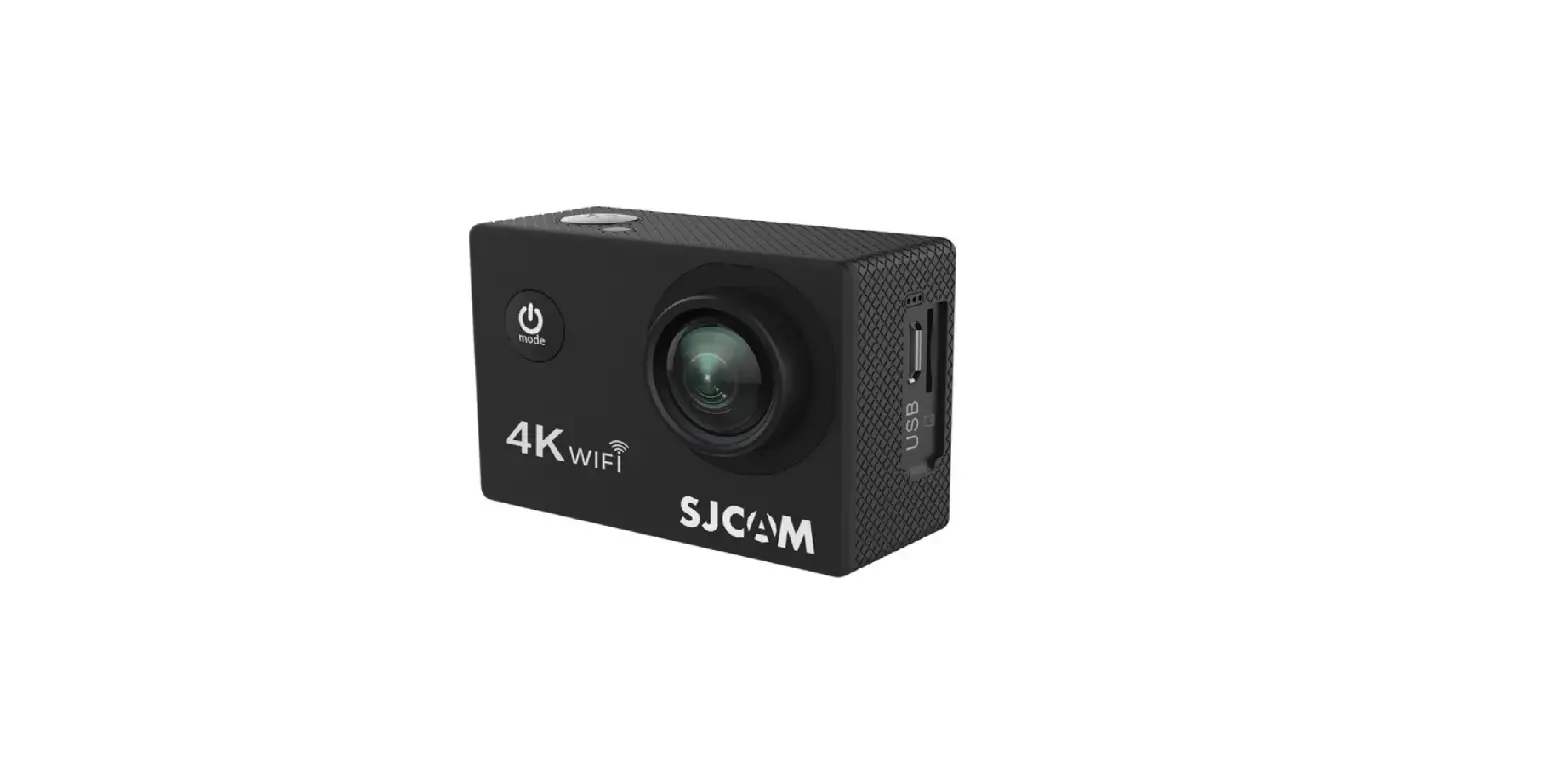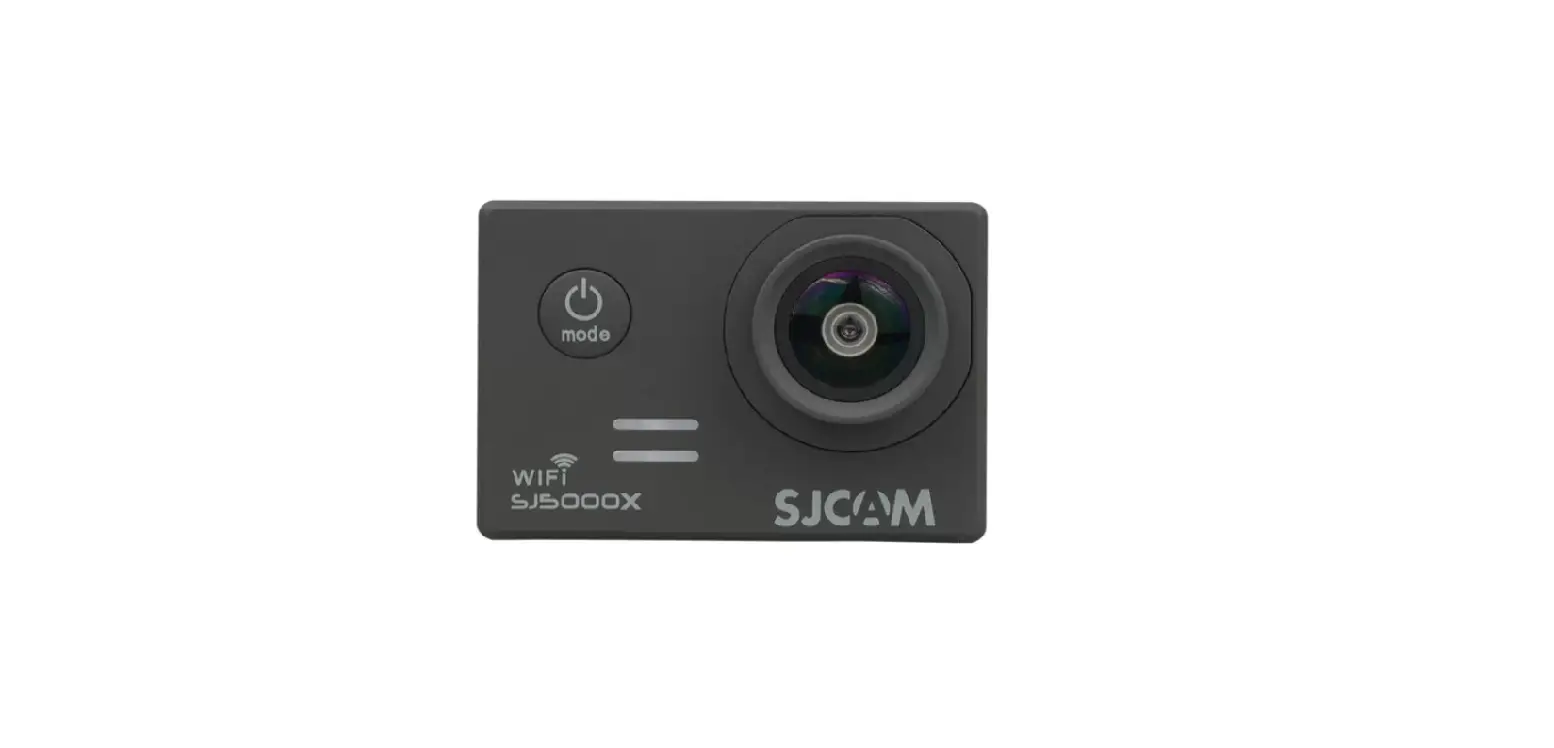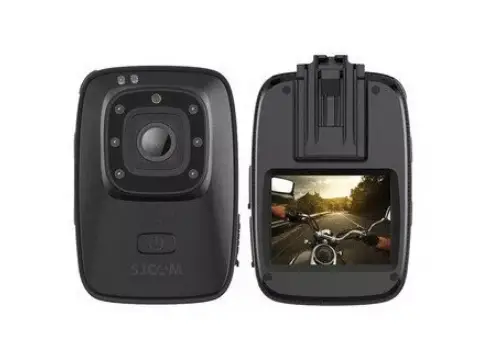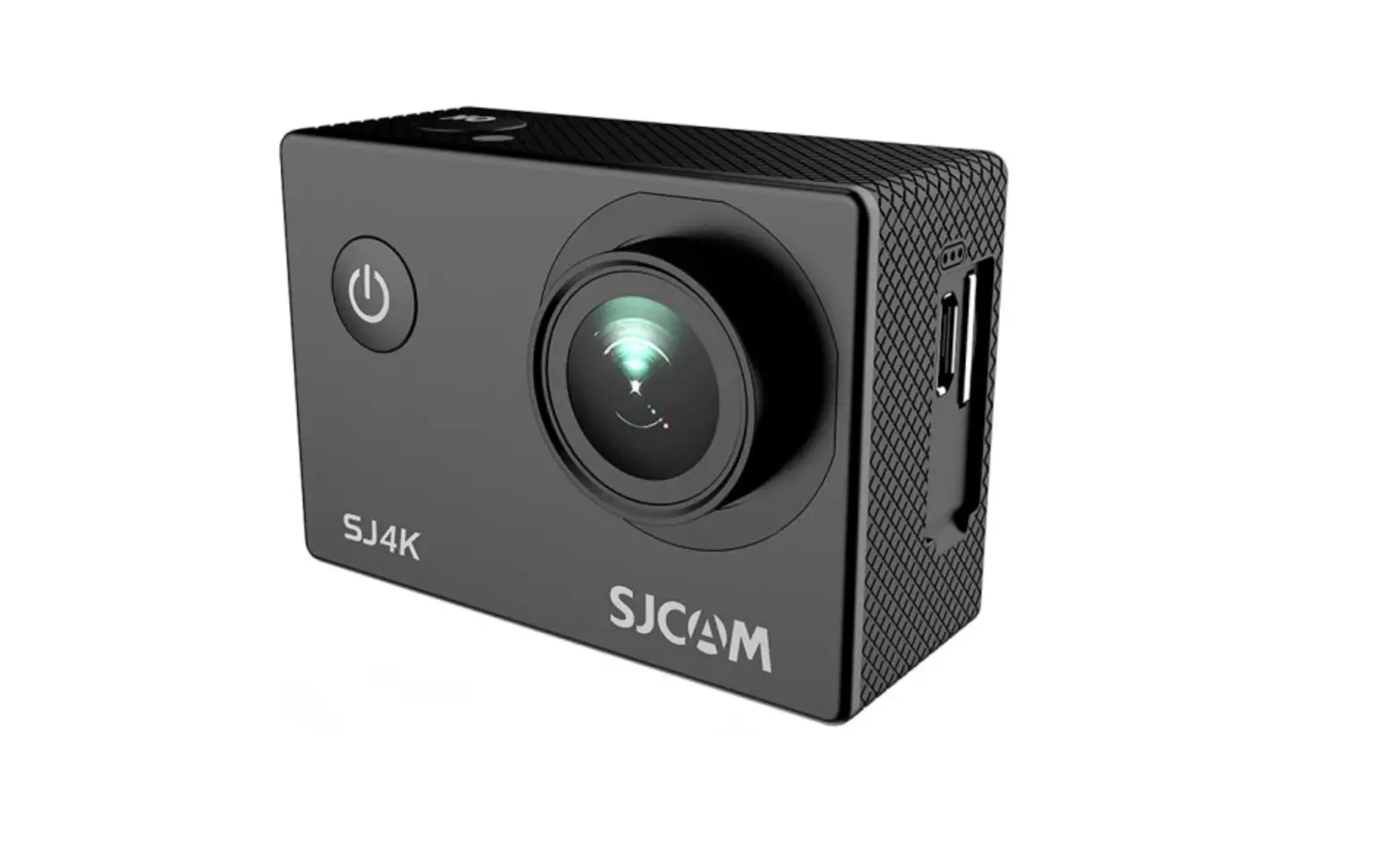
 SJ10 Pro 4K Action Camera
User Manual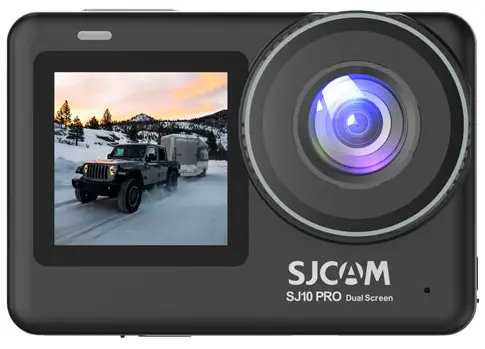
Silos PRO Dual Screen Action Camera
SJ10 Pro 4K Action Camera
USER MANUAL
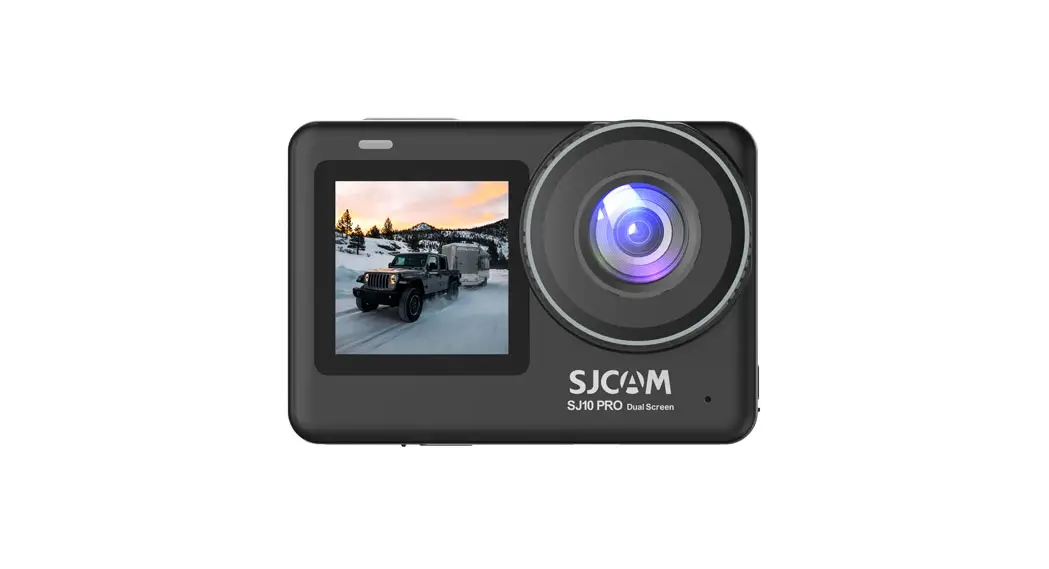
SJCAM SJ10PRO Dual Screen Action camera is designed for market demand and trends, with a wide variety of features, including HD digital video shooting, audio recording, photo shooting, and WIFI wireless remote control. Detachable battery, waterproof case and all other accessories enable the SJ10PRO dual-screen camera to be perfectly applied to a variety of outdoor sports, motorcycle cycling or driving records. Please read the user manual carefully before using the camera for the first time.
Operating Safety Guide
- Do not approach the product to objects with strong magnetic field, such as magnet or motor. Avoid bringing the product close to objects that can emit strong radio waves to avoid product failure or damage to the image / audio caused by strong magnetic field and radio waves.
- Use the micro SD card of regular brands. (SD card of U3 and above standard is recommended, 32GB, 64GB and 128GB is supported)
- Waterproof instructions: 5 meters waterproof without case and 30 meters with waterproof case is supported.
- Do not close the micro SD card to objects with strong magnetic field to avoid the loss of data stored in the card.
- Pull out the charging device immediately and stop charging to avoid fire if the product is heating, smoking or smelling during the charging.
- Put the product out of the reach of the children when charging to avoid potential accident.
- Put the product in a cool, dry and dusty place. Wipe the lens with a soft cloth. Please recycle this product or its battery to official recycling sites, and do not abandon it in the waste.
- This is a high-precision product, do not drop or collide. Do not expose the product to high temperature or direct sunlight.
 Do not disassemble the product without authorization. Please consult customer service for any product fault or other questions.
Product Description
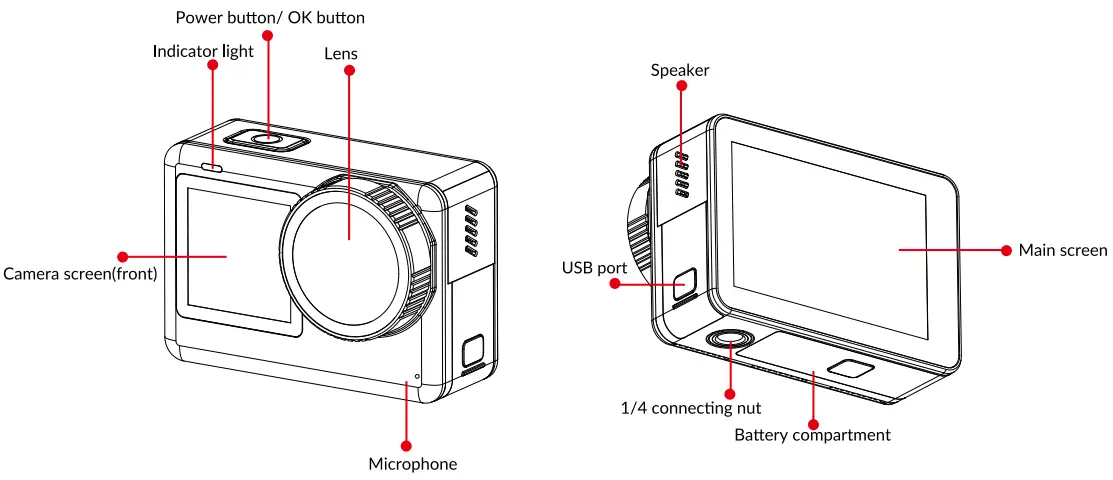
Power button/ OK button: long press of 3 seconds for camera turning on/ off; short press for photo taking, video shooting or confirming.
Front screen: 1.3-inch LCD front screen
Charging interface: Type-C
Back/ Main screen: 2.33-inch LCD touch screen
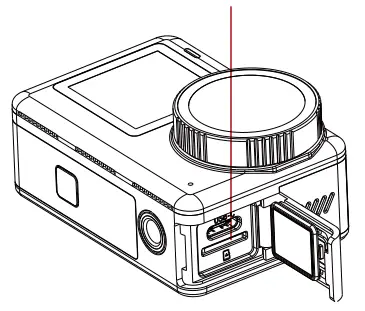
Memory card slot: Memory card is required for camera use (the memory card slot is in USB compartment)
Troubleshooting of memory card failure to read:
Be sure to format the micro SD card before using for the first time. Format the memory card regularly to keep it intact.
Format the memory card: enter the setting interface, find the formatting option and confirm.
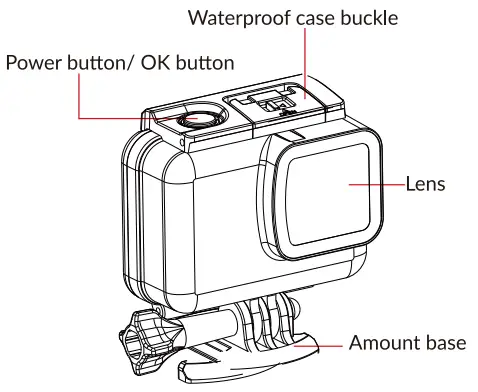
Waterproof Housing Operating Instructions
Open the waterproof housing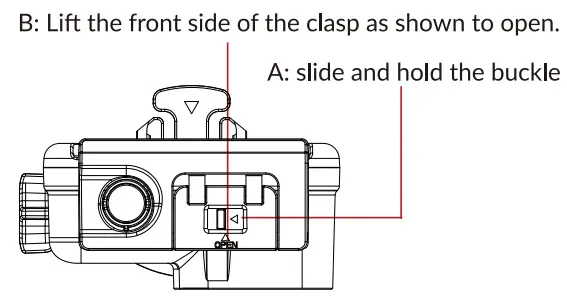
- Waterproof: 5 meters waterproof without case and 30 meters with waterproof case is supported.
- Follow the graphic tutorial to avoid damage when opening the waterproof case for the first time(refer to the instructions above).
- Take the camera out and put a paper in the waterproof case to test in the water.

- Check that the leakproofness of waterproof case every time before putting in water.
- Wipe the beads outside the waterproof case to avoid water intake before opening.
- Do not expose the waterproof case to the sun. Wipe the water beads or dry naturally after using.
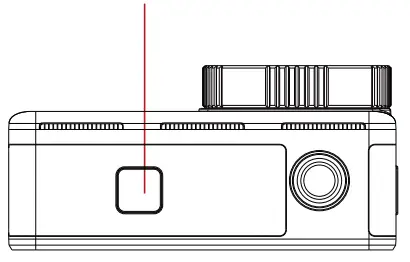
Battery Compartment/Memory Card
Operating Instructions
- Open the battery compartment
Open the battery cover by pressing the button and sliding to the side.
- Insert a micro SD card
Here is the memory card slot, high-quality micro SD card of big brands is recommended
Specification
| Master chip | Ambarella H22 585 | |
| Image sensor | SONY IMX377 | |
| Aperture | F2.8 | |
| Focal length | 3.3mm | |
| Screen(dual) | 2.33″ LCD Touch screen I 1.3″ LCD display screen (front screen) | |
| Video resolution | 4K(3840*2160)24/25/30/S0/60fps 4K Ultra(3840*2160)24/30fps 2.7K(27201520)24/25/30/50/60fps 1440(25601440)24/25/30/50/60fps 1080P(1920*1080)24/25/30/S0/ 60/120fps 1080 Ultra(1920*1080)30/60fps 720(1280*720)240fps | |
| Audio | Microphone and speaker Single microphone and stereophonic speaker | |
| External microphone | Supported | |
| Video format | MP4 | |
| Video encoding format | H.264/H.265 | |
| Photo resolution | 20M(54723648 3:2) 12M(40003000 4:3) 8M(38402160 16:9) 5M(2592*1944 4:3) 2M(1920*1080 16:9) | 16M (46083408 3:2) 10M(36482736 4:3) 8M(32642448 4:3) 3M(2048*1536 4:3) |
| Photo format | JPG | |
| WIFI | 2.4G/5G | |
| Frequency | 50Hz/60Hz | |
| battery ca pa city | 1300mAh Removable | |
| USB interface | TYPE-C | |
| Storage | Micro SD card, support 32GB, 64GB, 128GB | |
| Power | 5V2A | |
| Video output | AV | |
| Battery life | 80 minutes for 4K/30fps | |
| Charging time | about 3 hours | |
| Size | 64.45X44.5X30.6mm | |
| Weight | 112.Sg | |
| Operation system | Windows7.8X/OS X ® version 10.8 or advanced | |
| Language support | English / Simplified Chinese/ Traditional Chinese/ French / German / Spanish / Italian / Portuguese/ Japanese/ Russian / Polish / Czech /Slovene/ Hungarian / Danish/ Dutch / Turkish / Finnish / Roman | |
Front and Baek Screen Switching Instructions
- Press the power button twice to switch between the front and back screen;
- Double-click the touch screen screen to switch to the small screen.
Operation Guide Drop Down Screen
Quick settings: WIFI connection, remote control, FPV, screen lock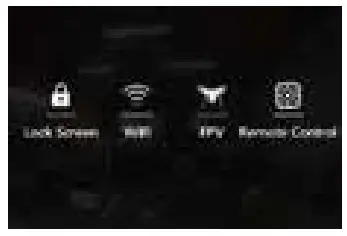
Pull up screen
Quick settings: video mode, photo mode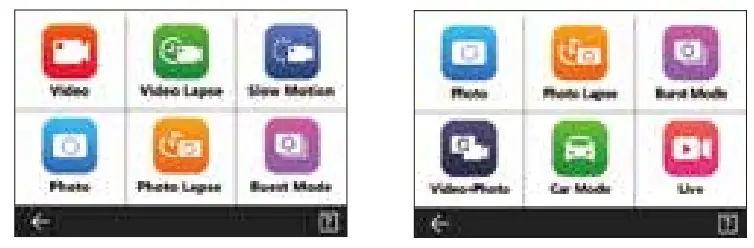
Video recording
Turn on the camera to enter video mode, press on OK button to start video recording. Or swipe up the screen to enter mode menu, click the video icon to enter the video mode, and press the OK button to start video recording.
Note: The camera will remember the mode set before turning off.
Photo taking
Turn on to enter standby state, slide the screen left / right to switch to photo mode. Or swipe up the screen to enter the mode menu, click the photo icon  to enter the photo mode, and press the OK button to take a picture.
Playback
When the camera is on standby state, click the playback icon in the lower left corner of the screen to view videos or photos that have been taken.
Media Settings menu / System Settings menu:
Media Settings menu: When the camera is on standby state, click the icon below the screen to enter the current mode Media Settings menu interface to set the relevant parameters.
System Settings menu: click the setting icon in the lower right corner to enter the camera system Settings menu.
Remote controller
When the camera is on standby state, slide down the screen, click the remote control icon in the menu and agree to match, as the camera is in matching state, press the photo and video buttons on the remote controller at the same time, the camera screen will show if successfully matched.
Note: The remote controller is not a standard accessory and needs to be purchased separately
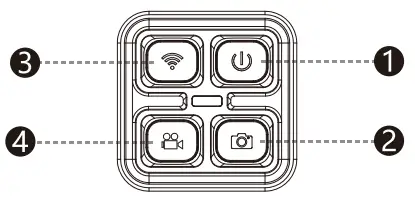
- Shutdown button: Turn off the camera
- Photo button: Take a photo
- WIFI button: turn on/ off wife
- Video button: Start / stop video recording
Note: The remote controller is not a standard accessory and needs to be purchased separately
WiFi Connection
This product can be connected to smartphone or tablet (Android or 105), please operate as the following steps.
- install the software “SJCAM Zone” on the smartphone or tablet (Android or 105). Scan the corresponding QR code on this manual or visit the official website WWW.SJCAM.COM to download.
- Turn on the camera and slide down the screen, click the WIFI icon to turn on the WIFI.
- Turn on the WIFI function on the smartphone or tablet, search for the camera WIFI name and connect.
WIFI name: SJ10Pro DualScreen_XXXXXXXX
Initial password: 12345678 - Enter the APP for operation if successfully connected.
App Download
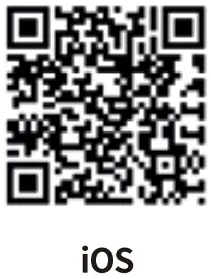 | 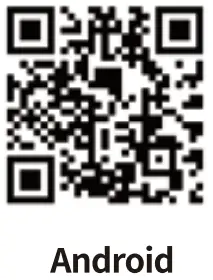 |
| https://itunes.apple.com/us/app/sjcam-zone/id991679682?mt=8 | http://android.sjcam.com |
Scan the code and download the APP
This product can be connected to smart phones and tablets (Android or IOS system).
Packing List
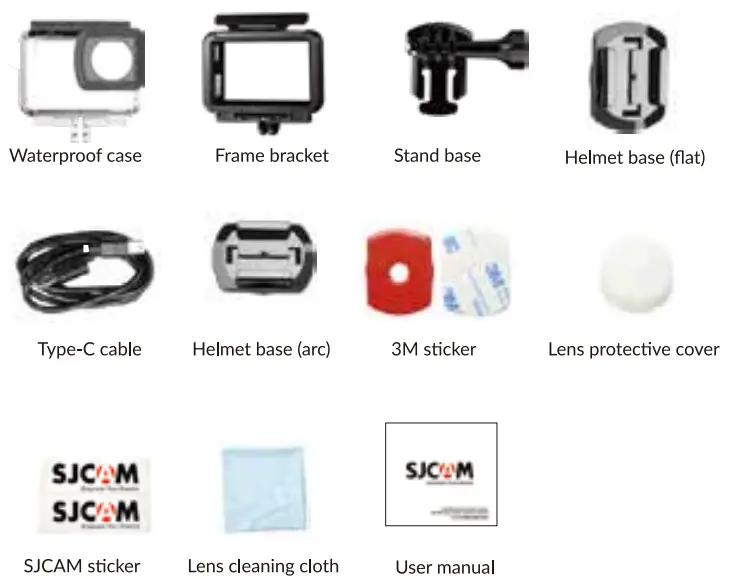
Accessories Introduction
3M sticker: spare sticker for helmet base installation. It can also be used to reinforce in the gap when the curve of helmet position is too large.
Wiper clean the camera lens, camera body, etc.
Lens protector. Cover the lens without using the camera to prevent it from accidentally scraping.
Data/ Charging cable: for charging the camera or connecting to the computer to transfer data.
Accessories Installation Tutorial
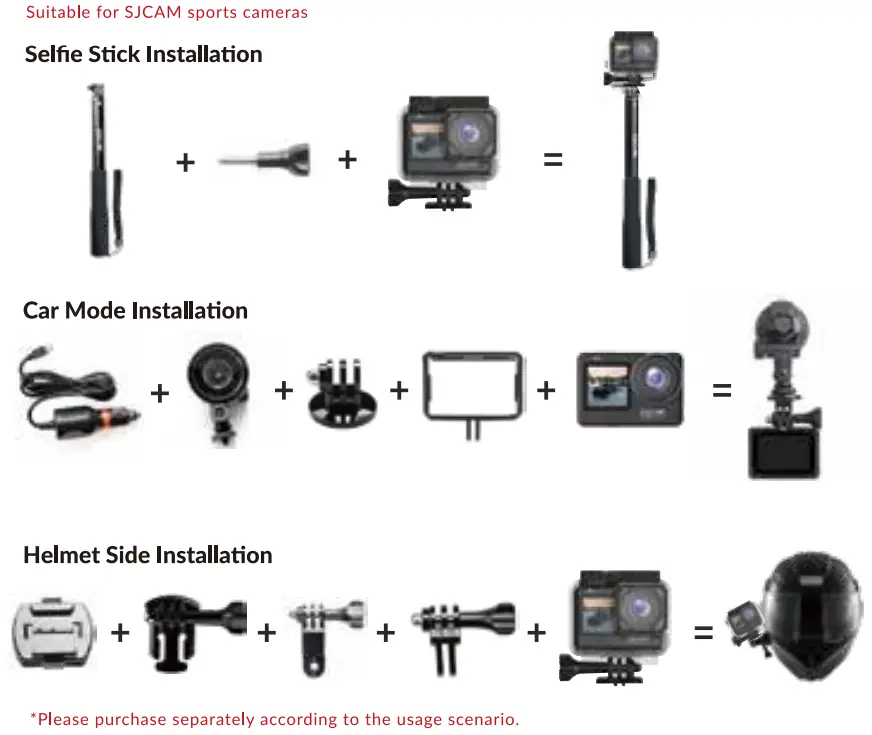
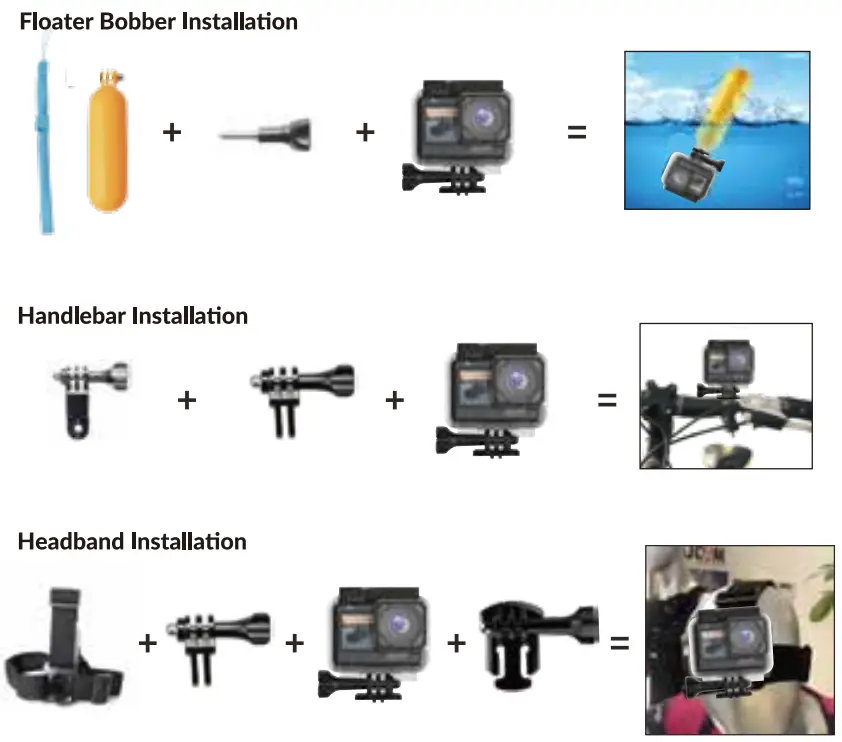
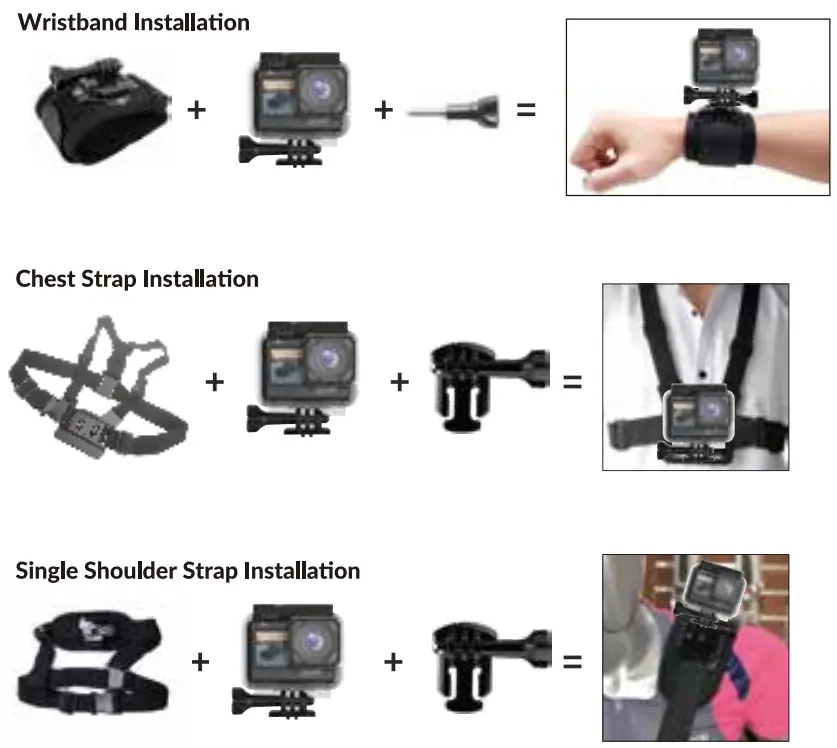 Product features may change with product upgrades or updates, please refer to the actual product specifications.
For additional support requests or technical questions, please contact SJCAM customer service.
Welcome to visit the official website of SJCAM www.sjcam.com or call the service hotline: +086-18118714563
Made by Shenzhen Zhen Cheng Technology Co.,Ltd.
3/F Building C, NO.2 Road 1, Shangxue lndustrialArea
Bantian, Longing District, Shenzhen, China
Technical Support Email :[email protected]
Official website : sjcam.com
Made in China