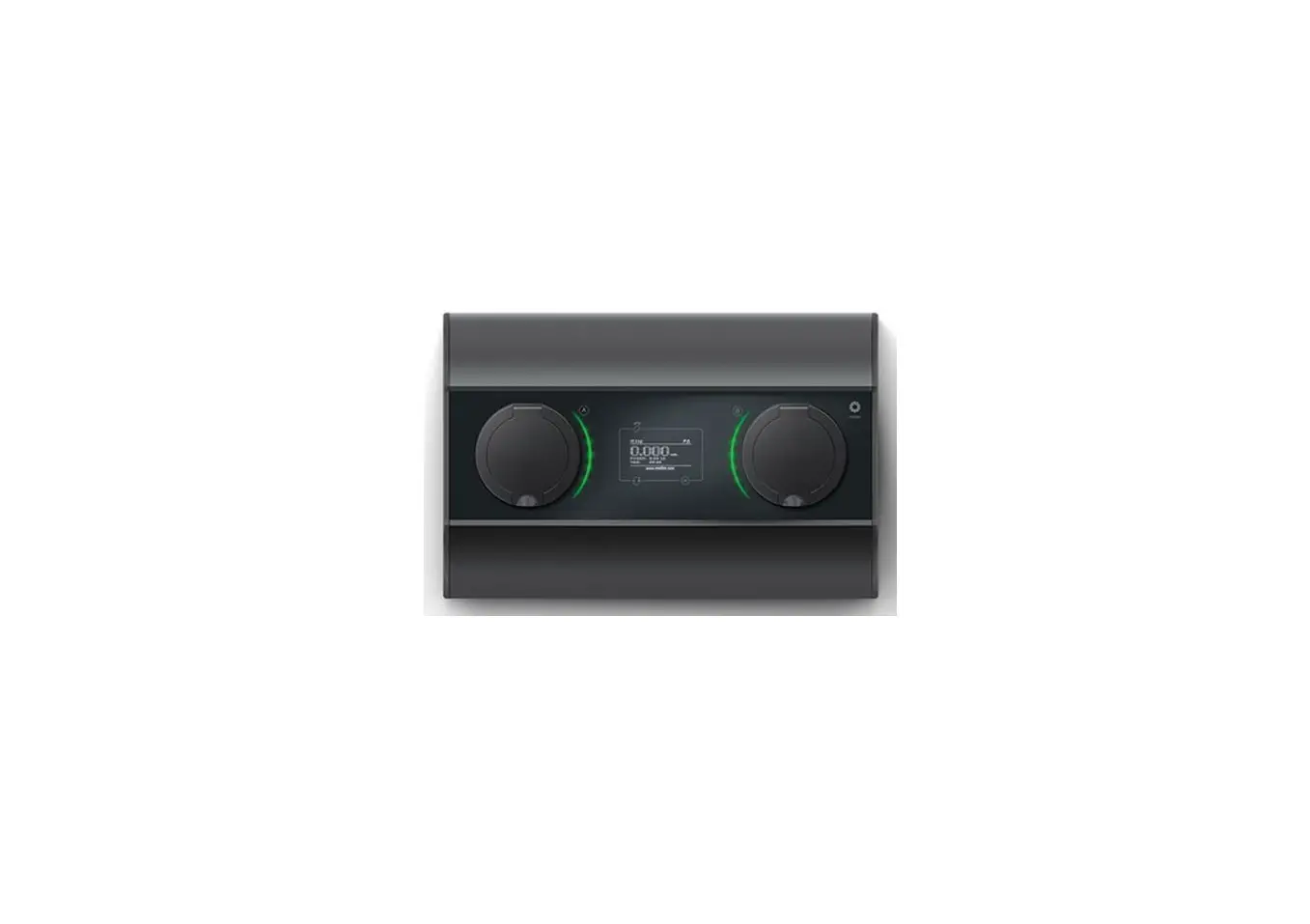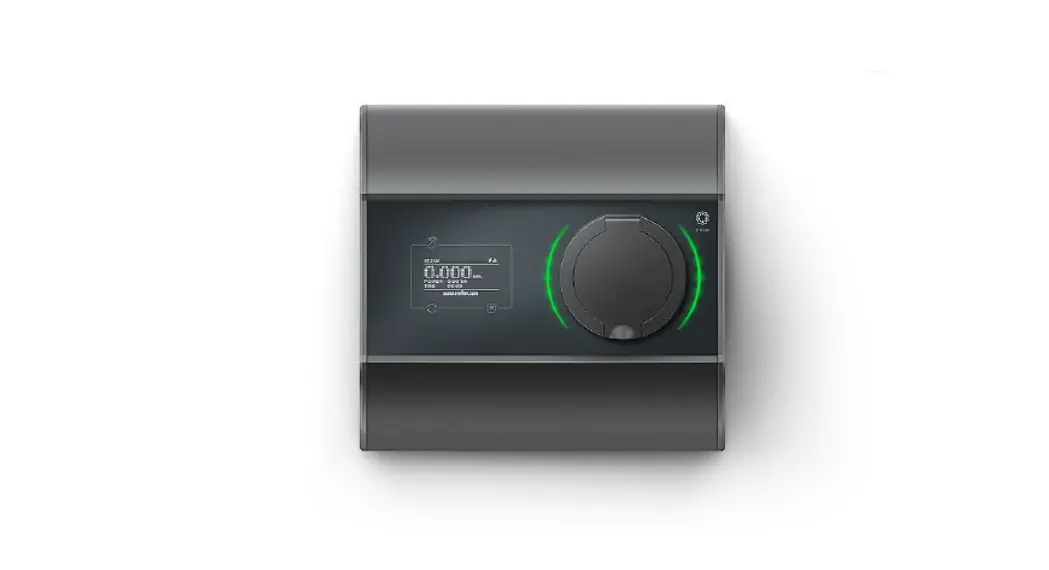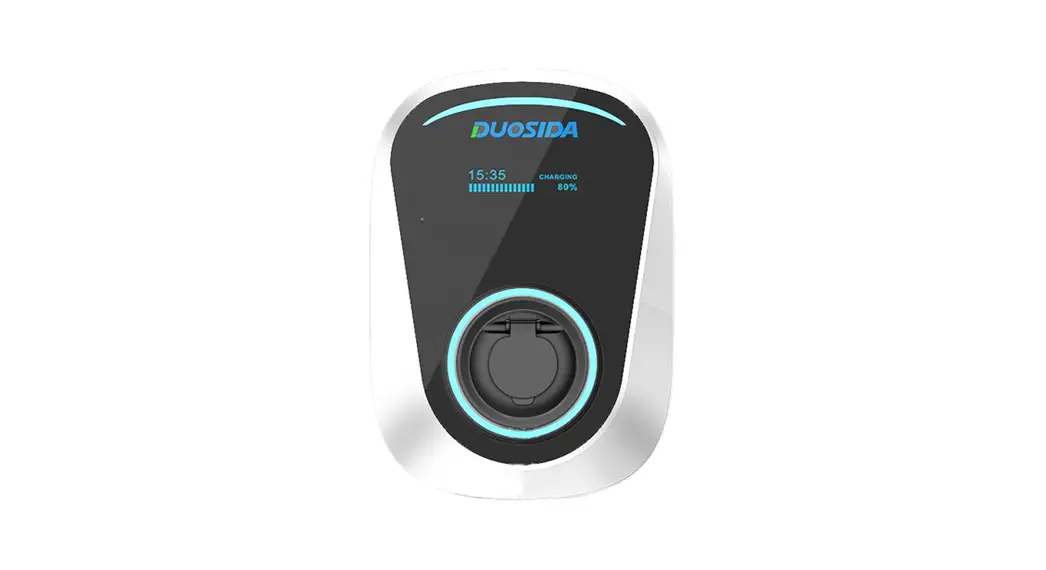

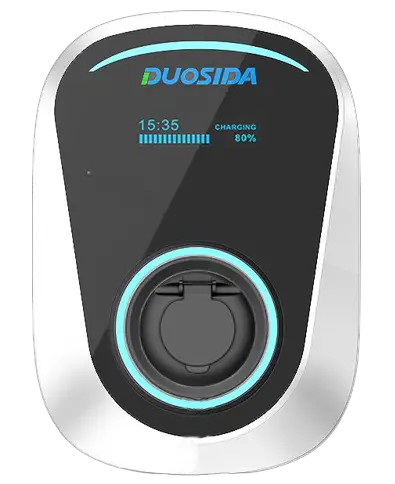
Wall Box APP Function Manual
V1.0
Download and install
Android phone users can search and install “DS charge” through Google play. Iphone users can search and install “DS charge” through the APP store.
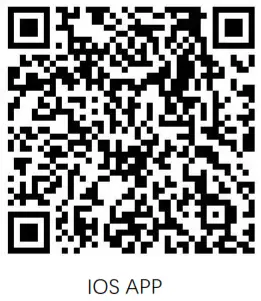 | 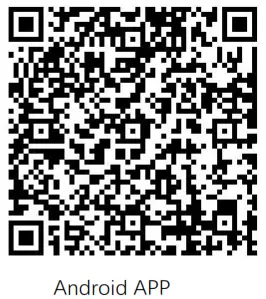 |
| https://apps.apple.com/cn/app/ds-charge/id1539881275 | https://play.google.com/store/apps/details?id=cn.com.x_cheng.x_smartcharge |
Note: All APP functions require charge station to be connected to the router and connected to the Internet.
Register
When the user first visits, the user registration is performed by the following steps.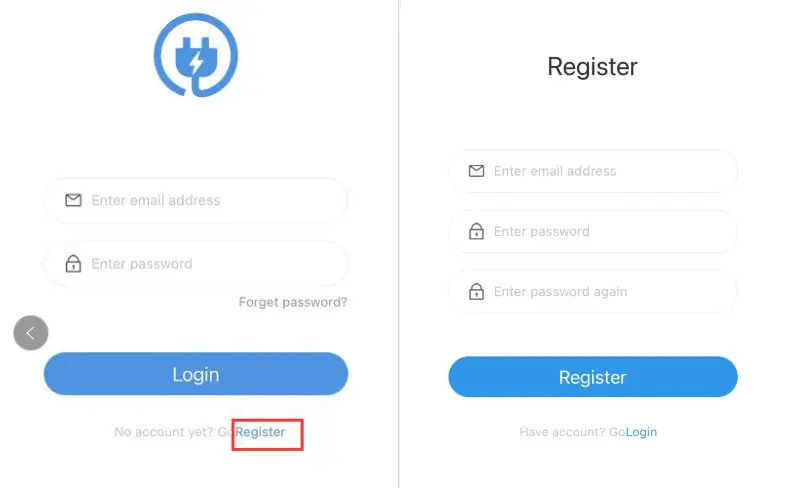
Users will then receive an email to activate their account.
Login APP
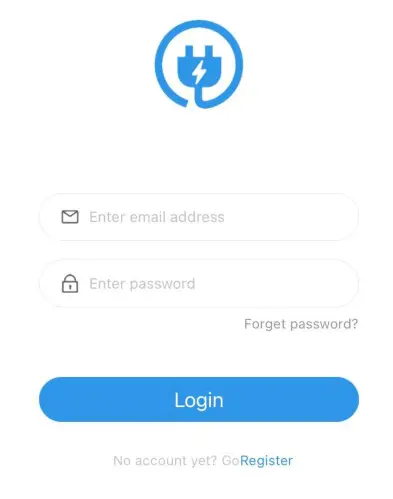
Please use account and password to log in.
Forget password
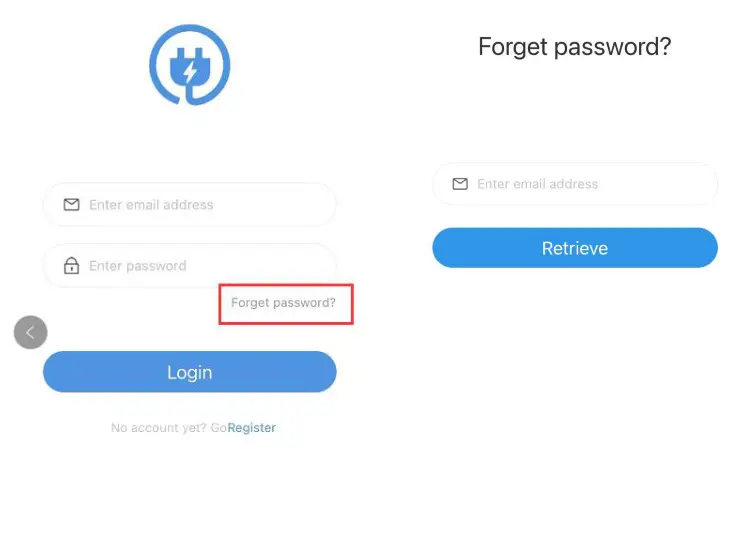
Press “Forget password”, and then you will receive a email to change your password.
Add charge station
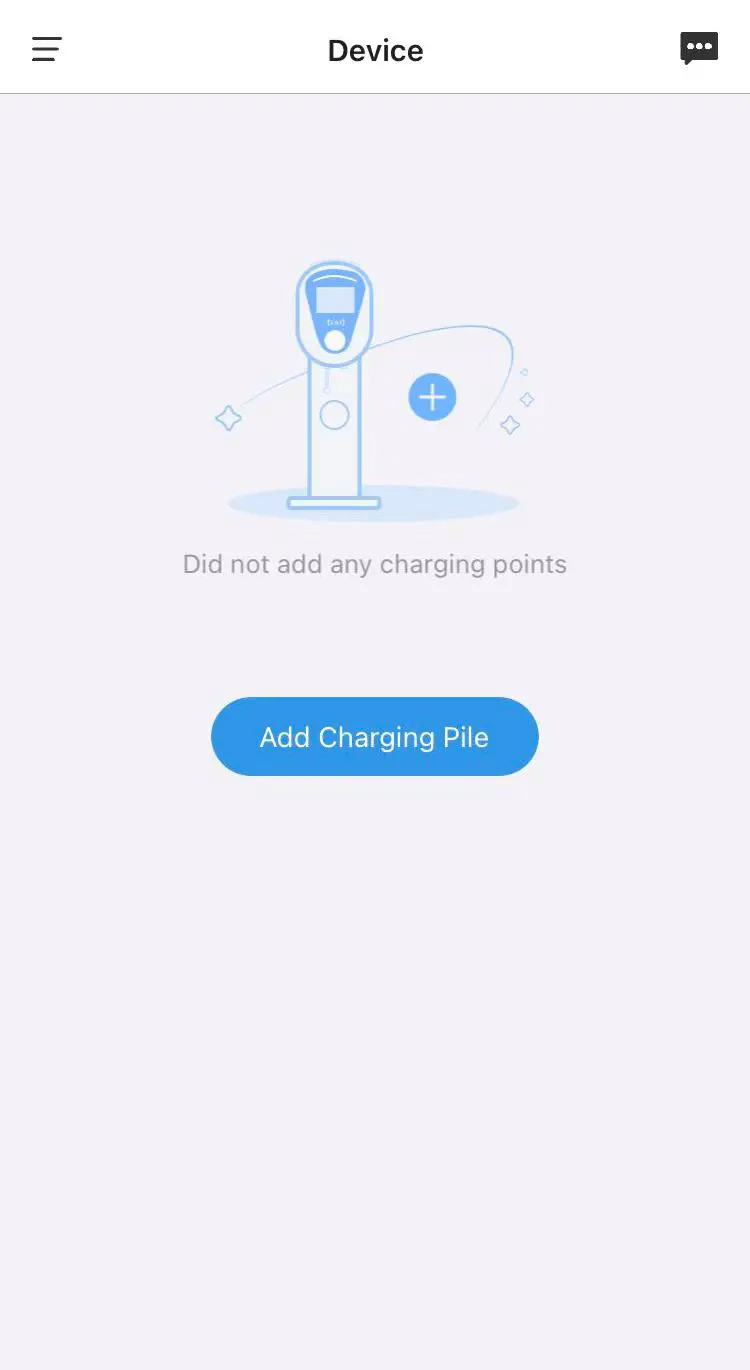
Press “Add charge station” icon
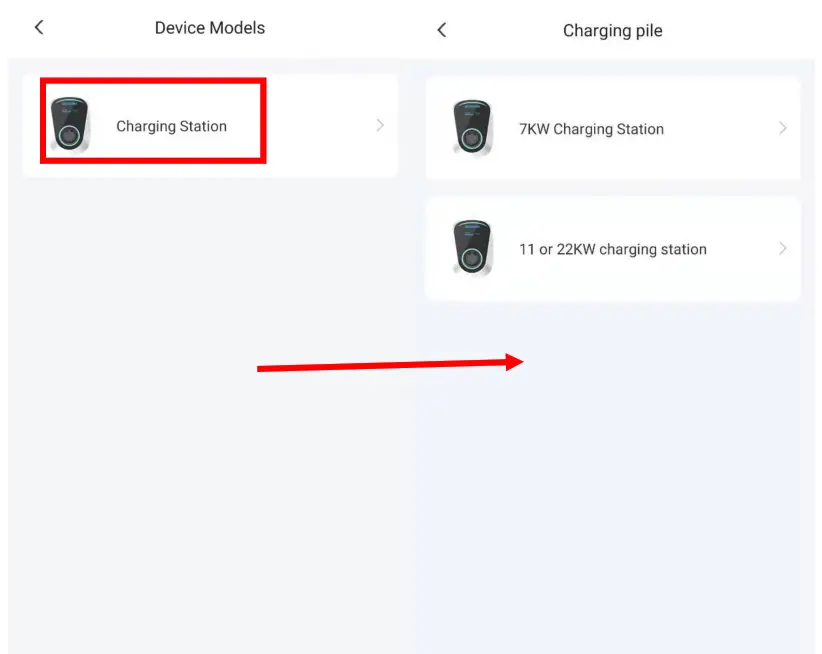
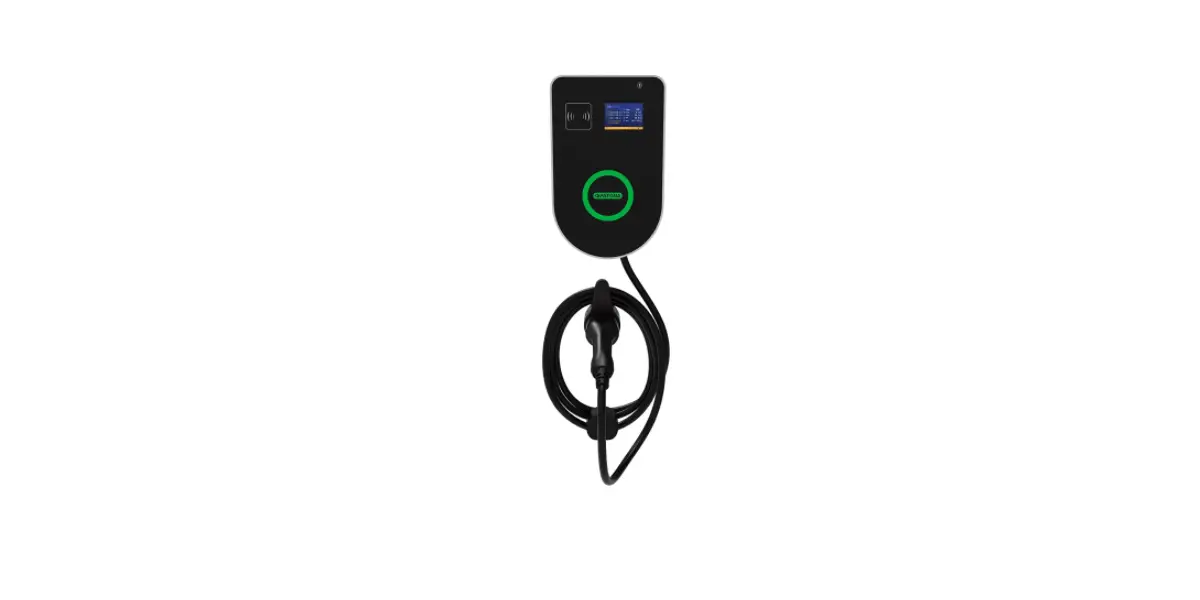
Select charge station, then select single phase charge station(7KW) or three phase charge station(11 or 22KW)
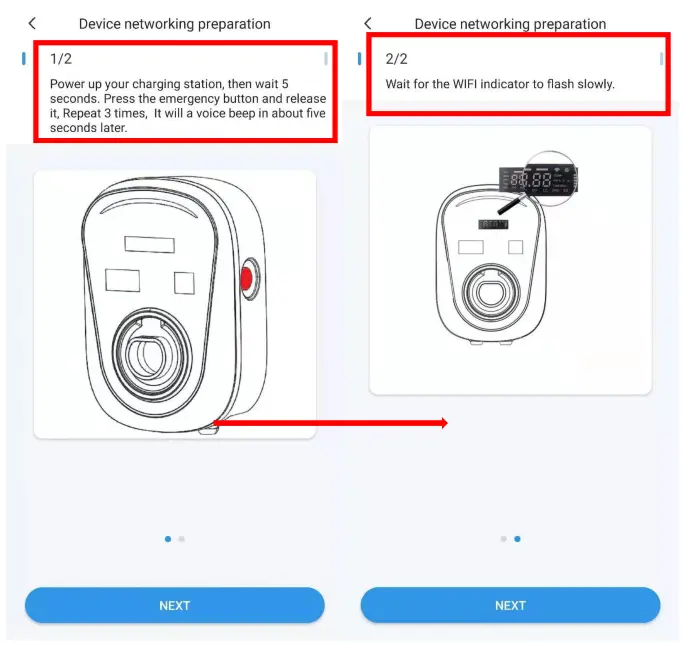
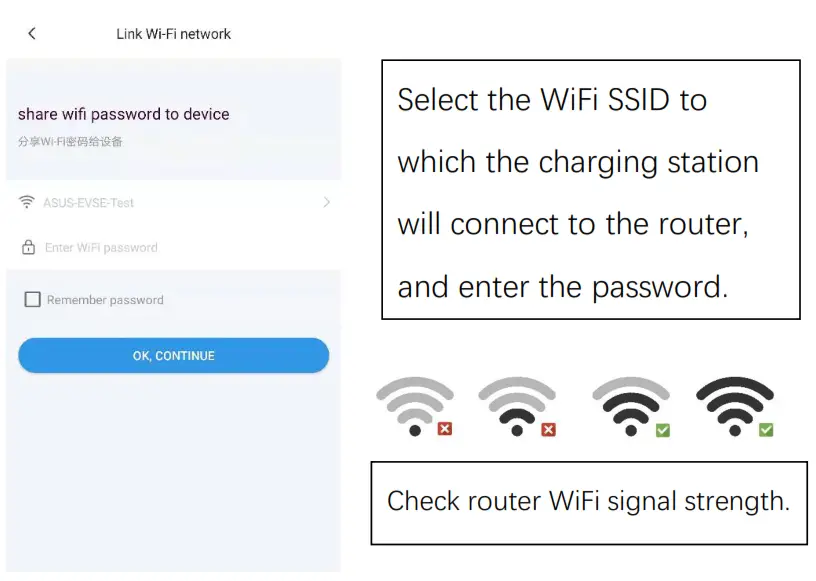
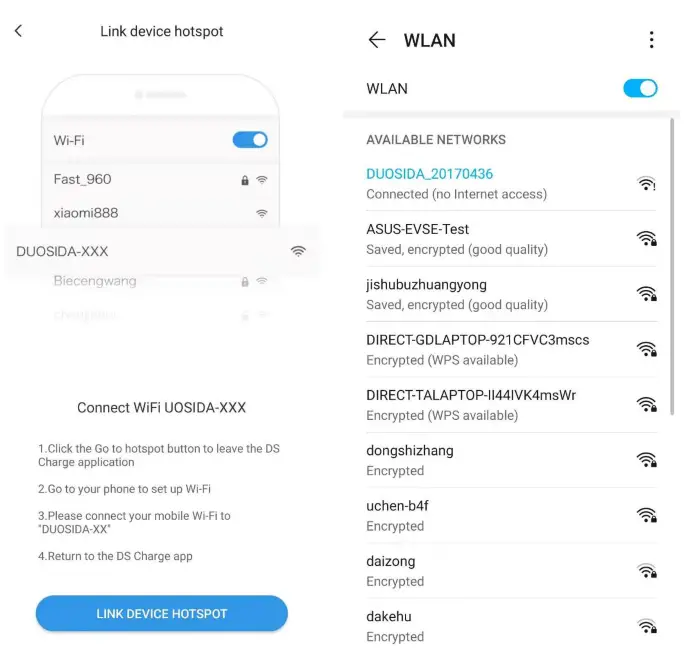
Connect to charging station WiFi.
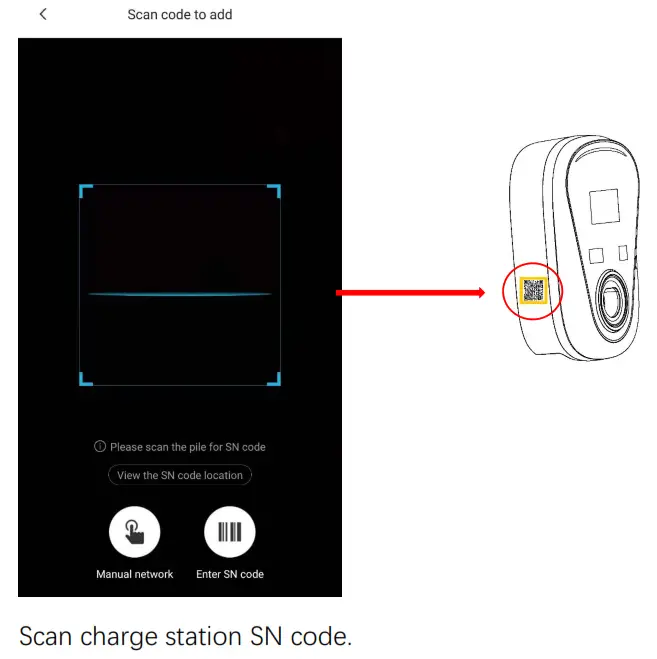
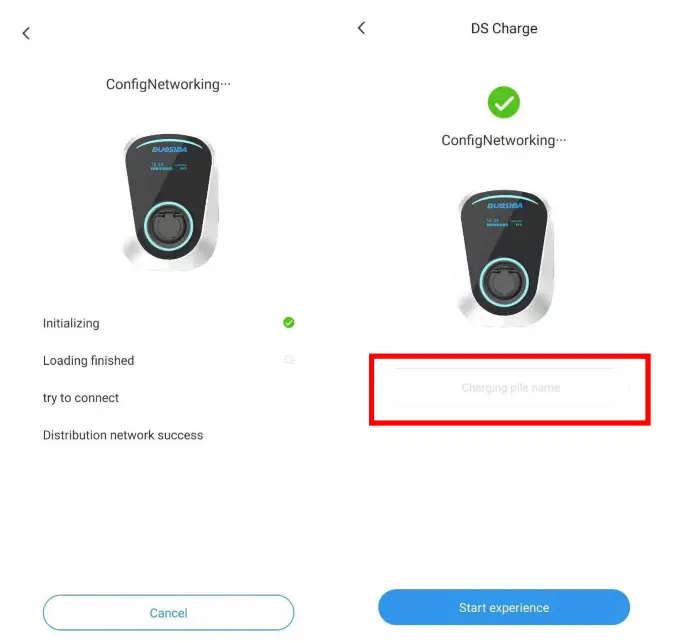
It will take about 2 minutes to configure the network. After success, name the charge station.
List of charge station
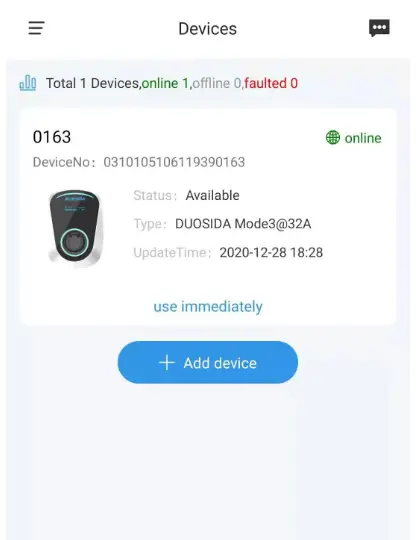
Successful charge station will appear in this area.
Start and stop charging
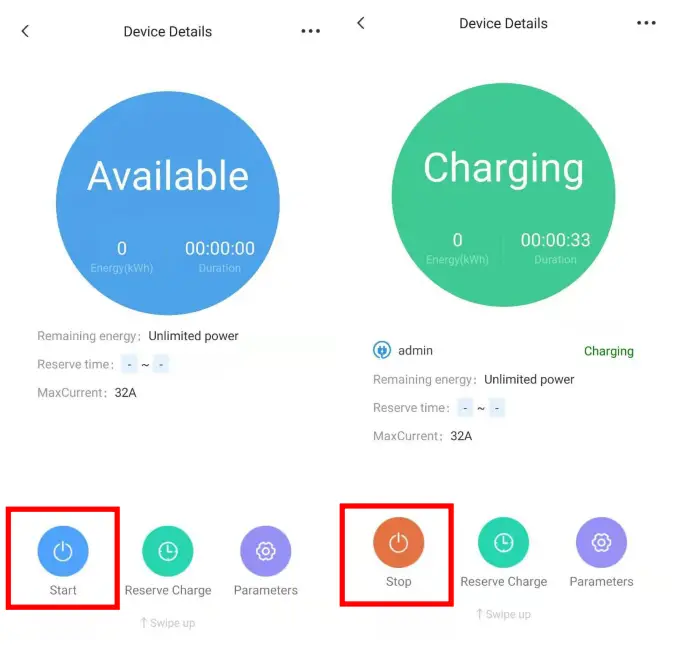
Users can use the APP to start and stop charging remotely.
Reserve charge
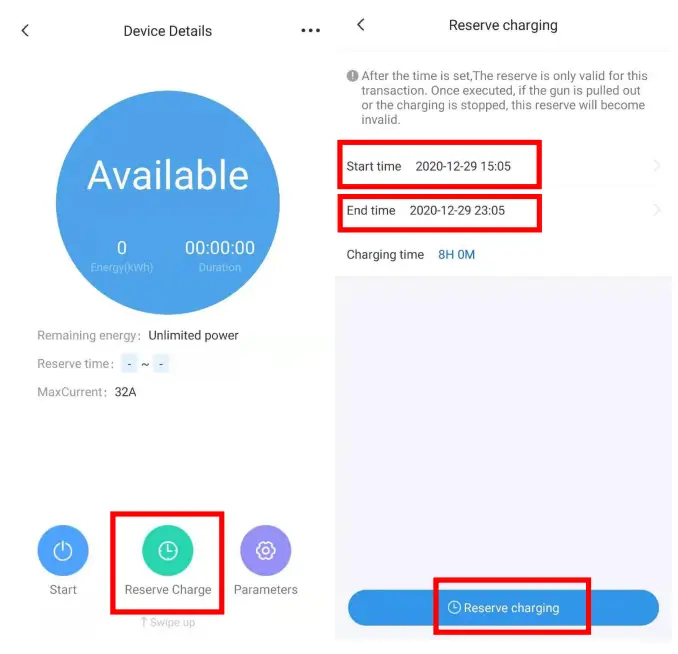
Press “Reserve Charge” into setting page, then select the start time and end time, Press “Reserve charging” to confirm.
Device details
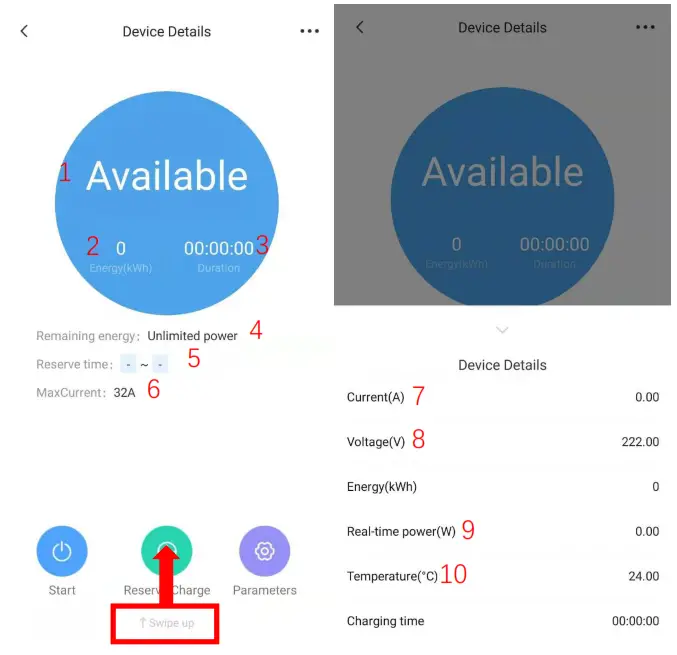
- State of charge station.
- Energy of charging.
- Time spent on the current charging plan.
- Remaining available power(kWh) of user.
- Display start and end time of reserve charge.
- Max charging current.
- Current of charging.
- The voltage of charge station.
- Current charging power.
- Internal temperature of charge station.
Parameter setting
Working current: Sets the maximum allowable charge current. Plug then charge mode: Users can charge directly after plug the charging connector in vehicle.
Function setting
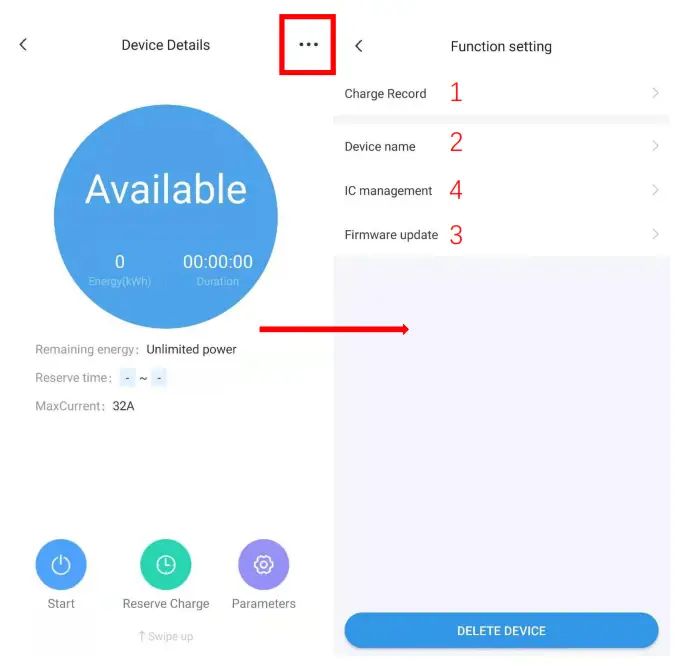
- User can see the charging history.
- User can rename the charge station.
- User can check the charge station firmware update.
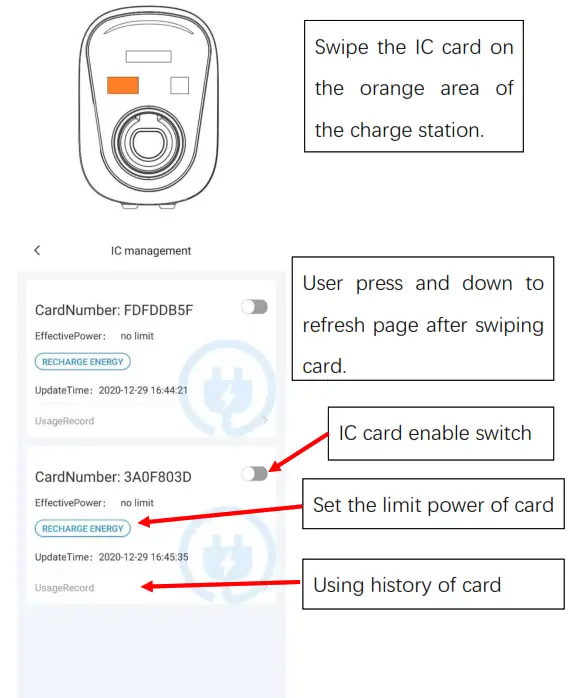
- IC management

Load balancing
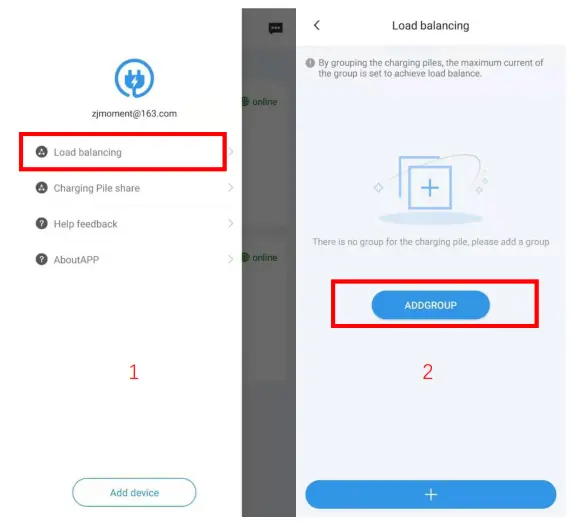
Step 1: Select the Load balancing in APP menu.
Step 2: Press the ADD GROUP.
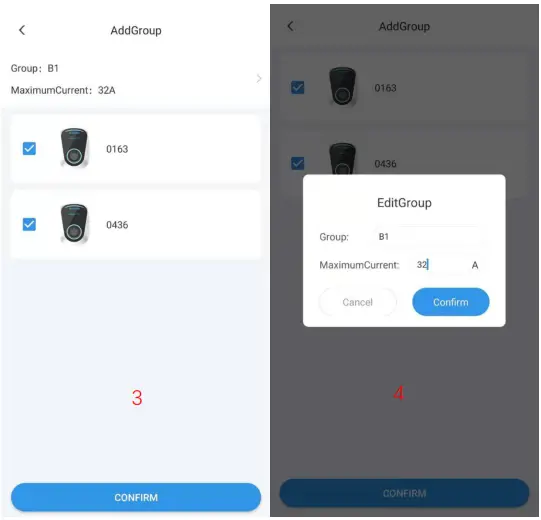
Step 3: Select the required load balanced charging stations.
Step 4: Set Group name and Group Max current.
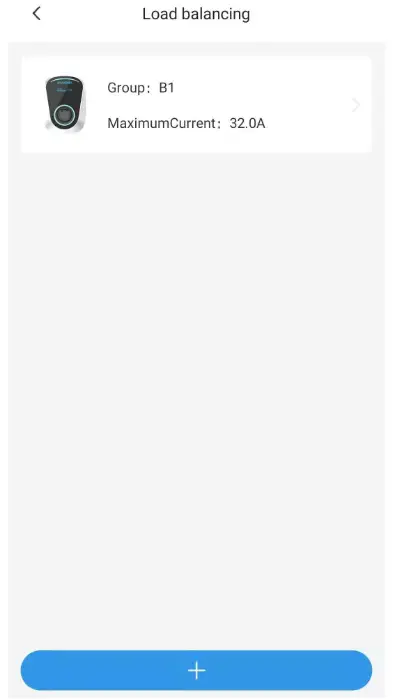
When multiple charging stations in the group are charged at the same time, The charging stations will distribute the current equally, if total current of the charging stations reaches the group limit max current.
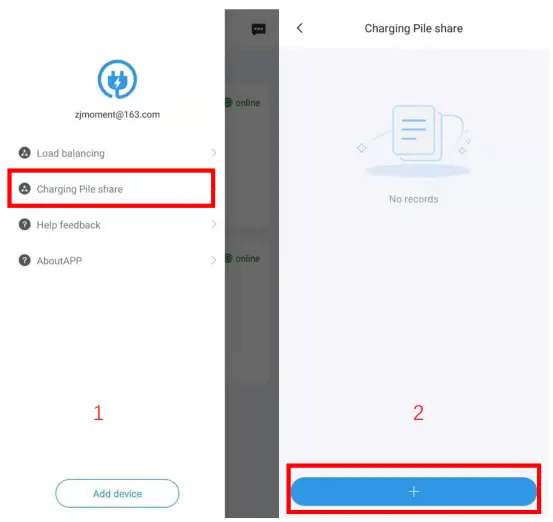
Step 1: Press charging station share in APP menu.
Step 2: Press symbol +.
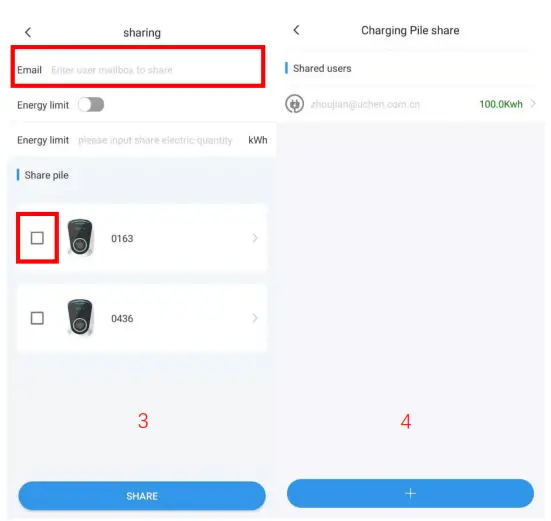
Step 3: Fill in the sharing user’s e-mail, Select charger station to share. And it can limit the amount of energy users can charge.
Step 4: Completed sharing.
Personal information
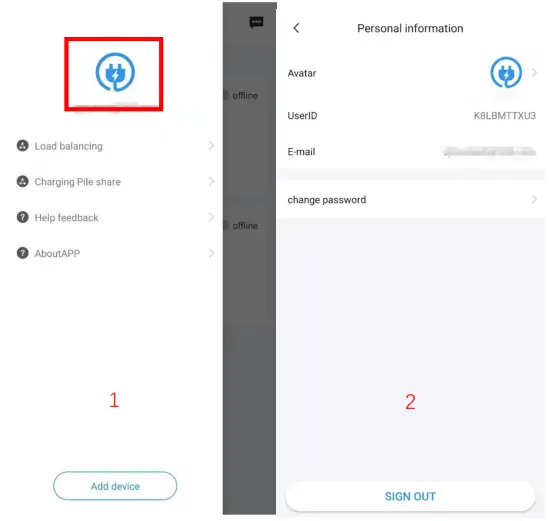
Step 1: Press the icon from the menu to enter personal setting.
Step 2: User can change the Avatar and password in this page.
Message center
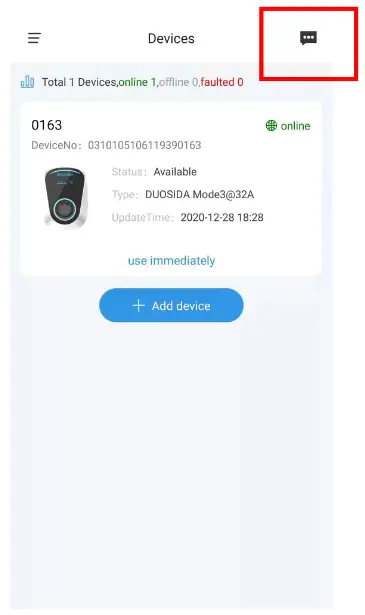
The message center contains system messages and feedback.
Help &feedback
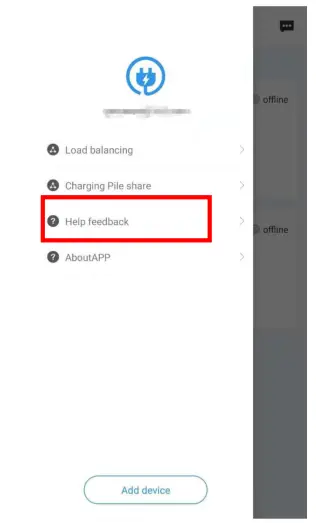
The FAQ and user’s manual can be found here, and user can feedback questions.
About APP
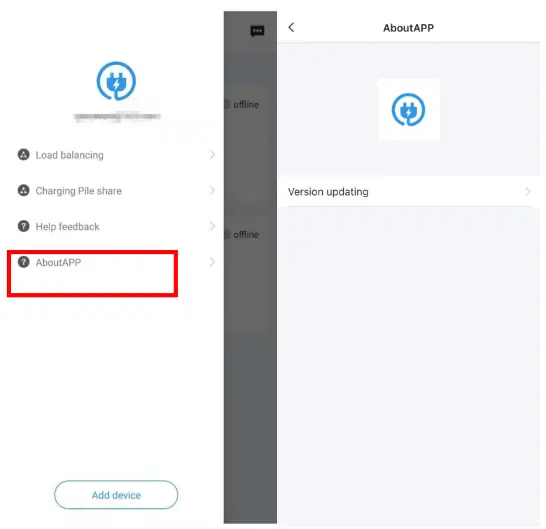
User can check software updating information in this page.