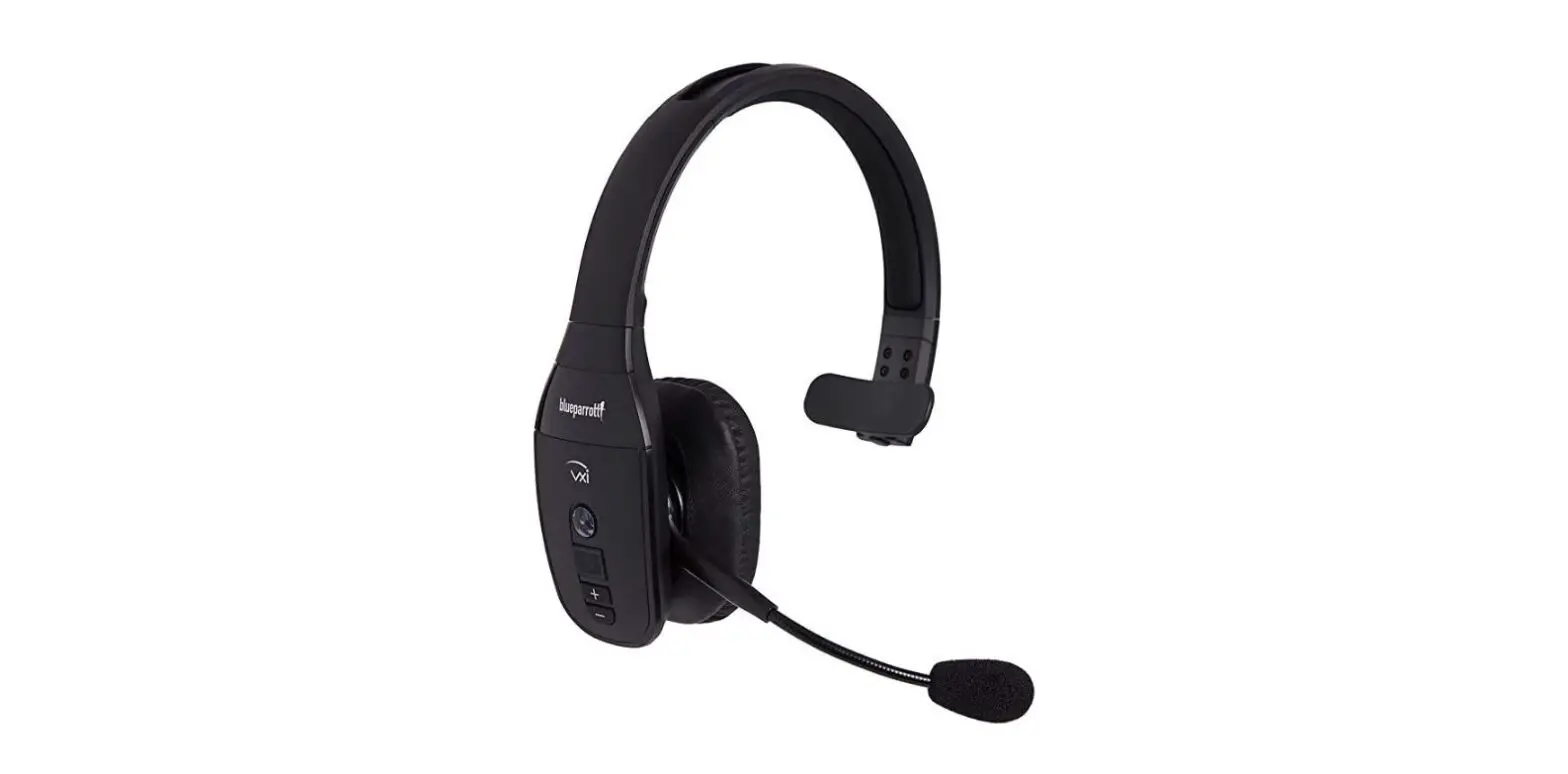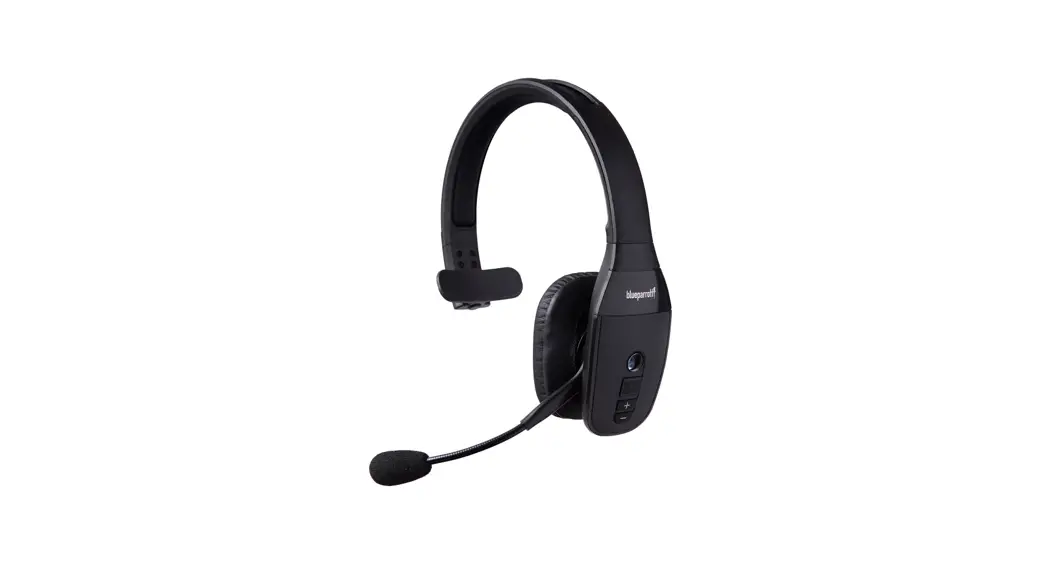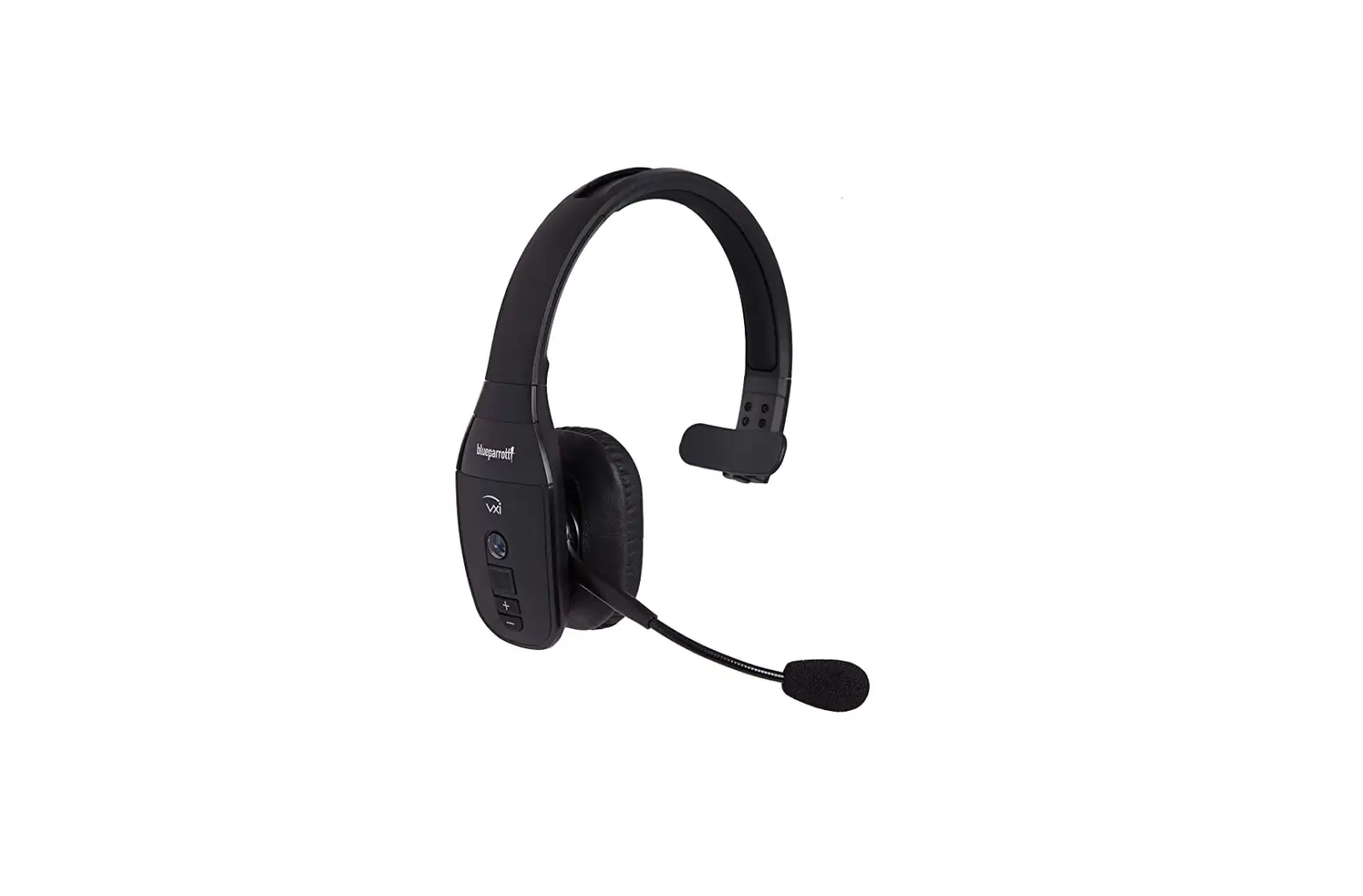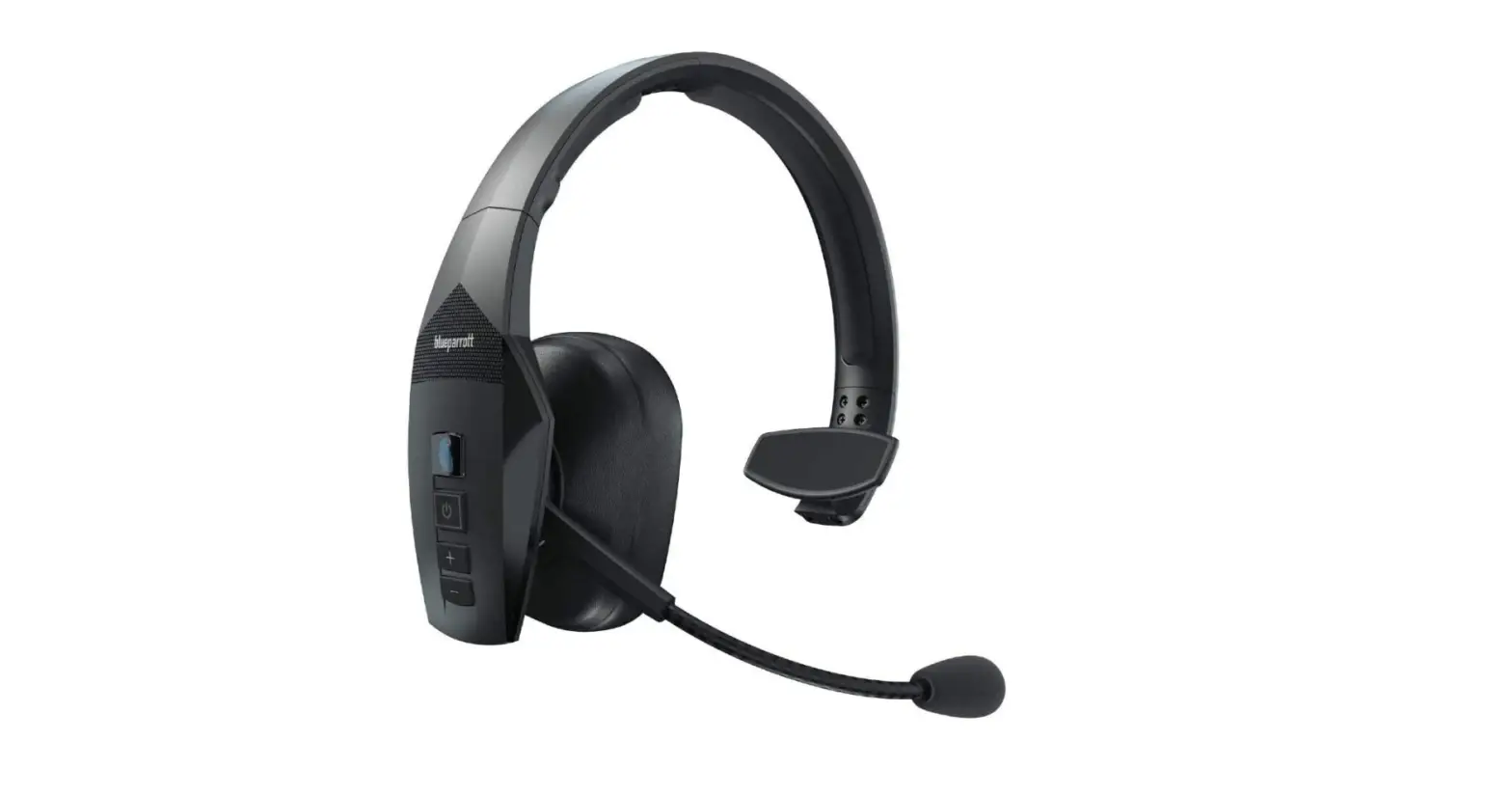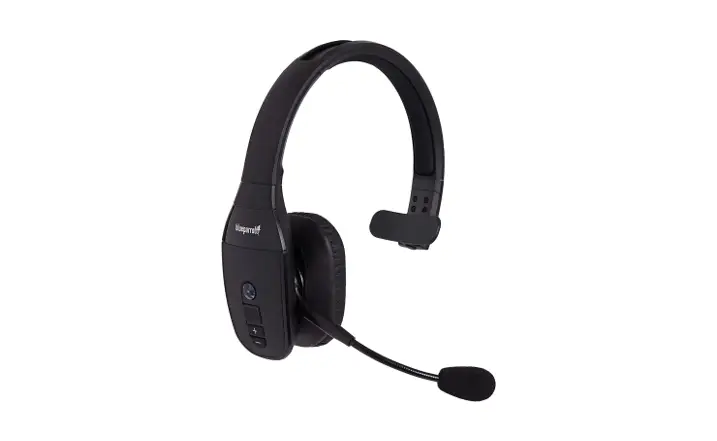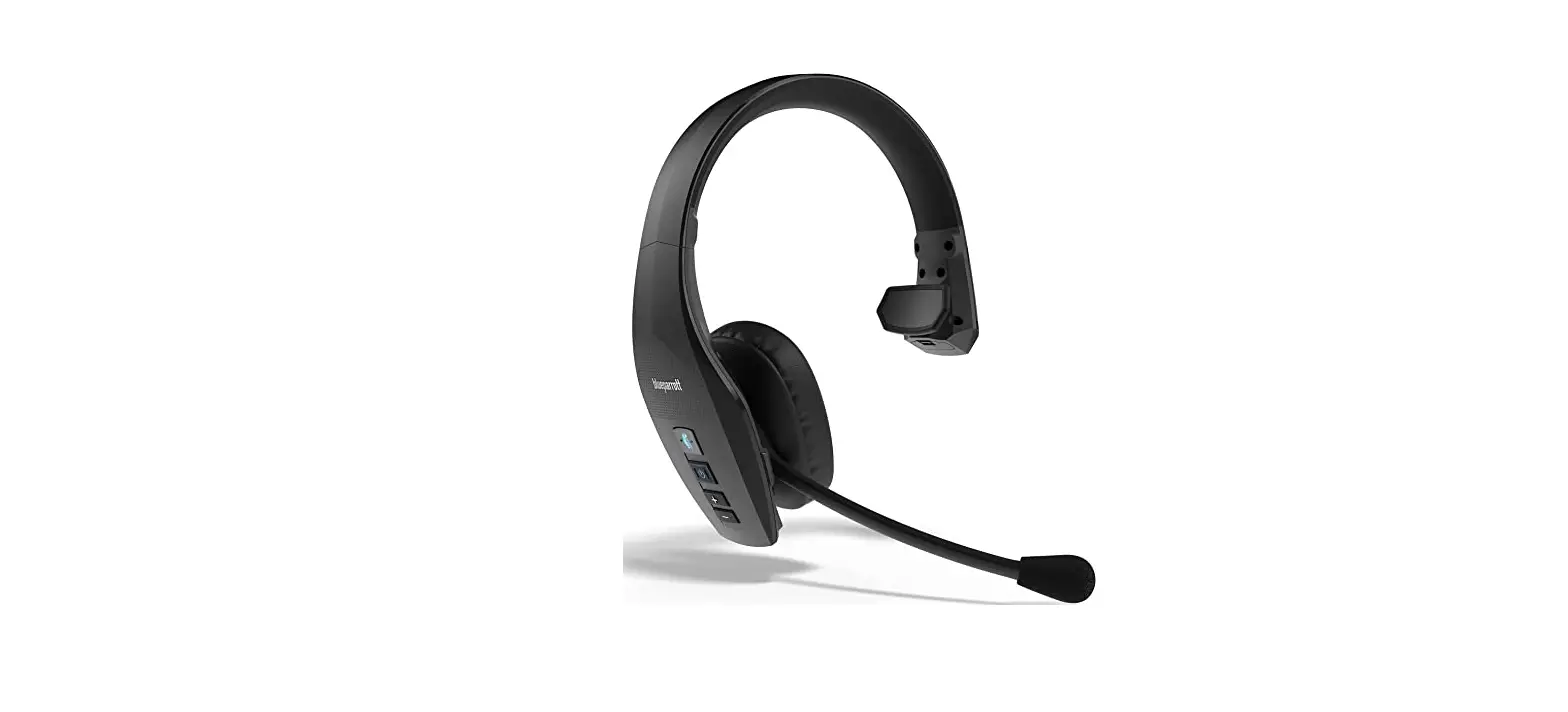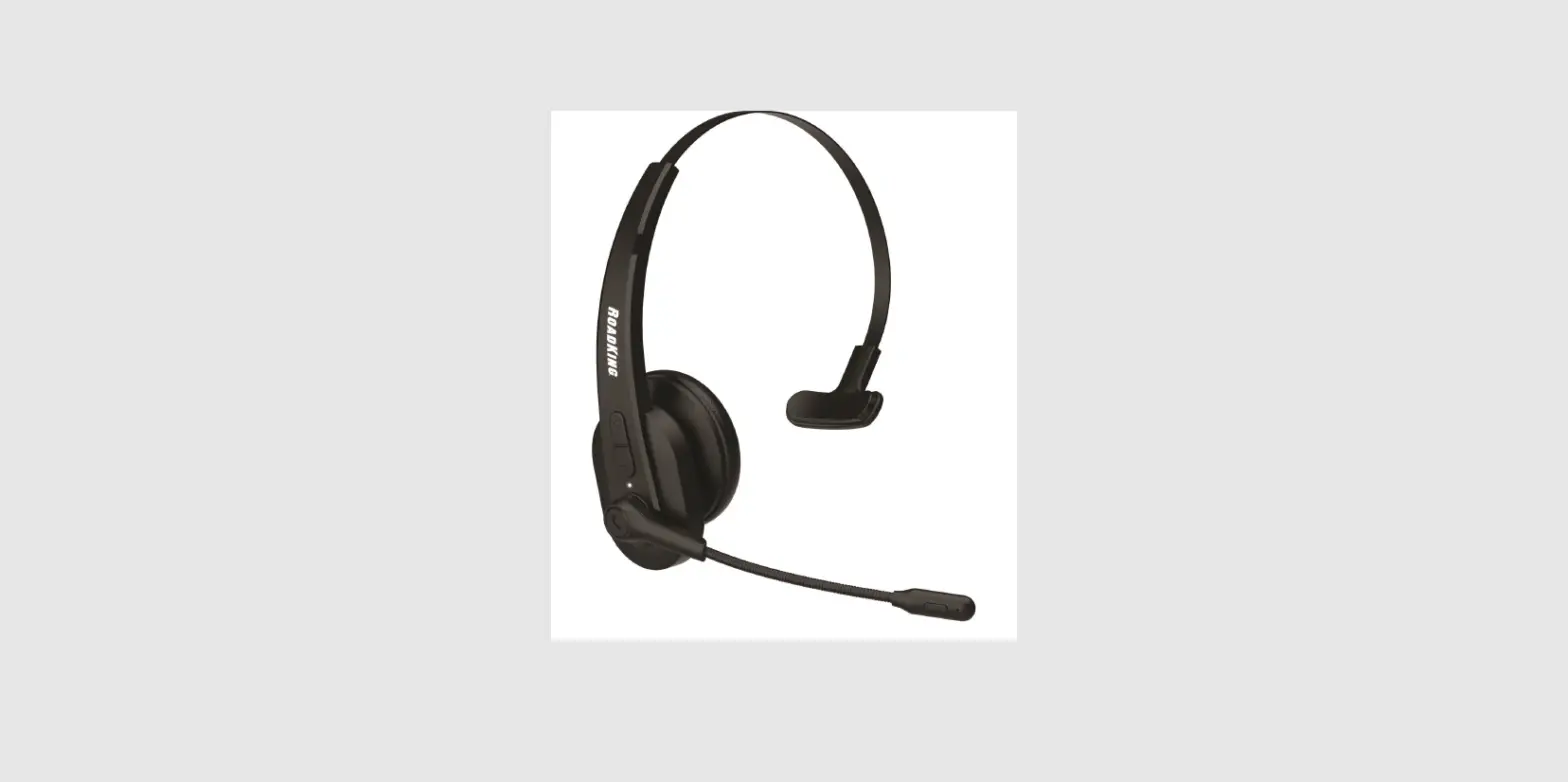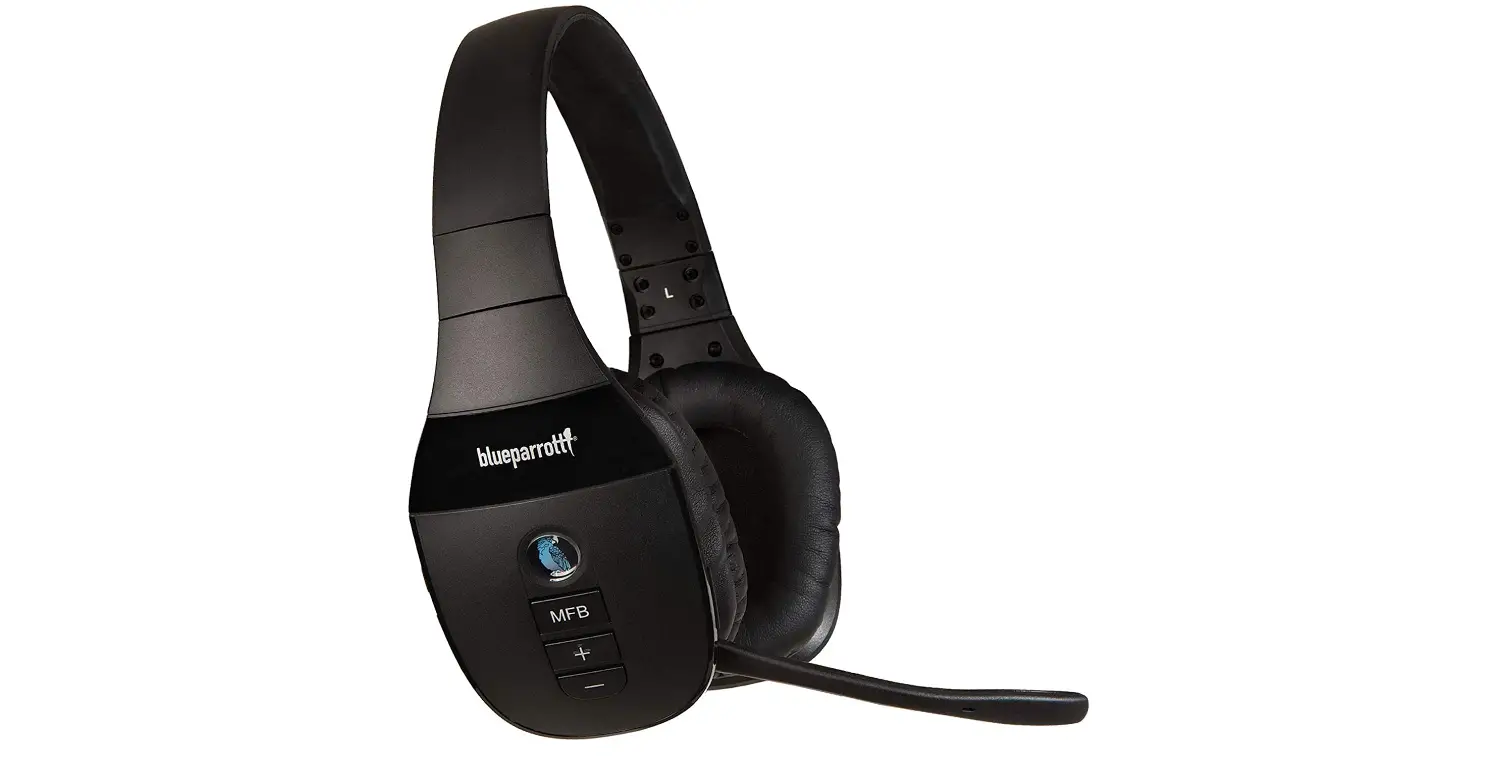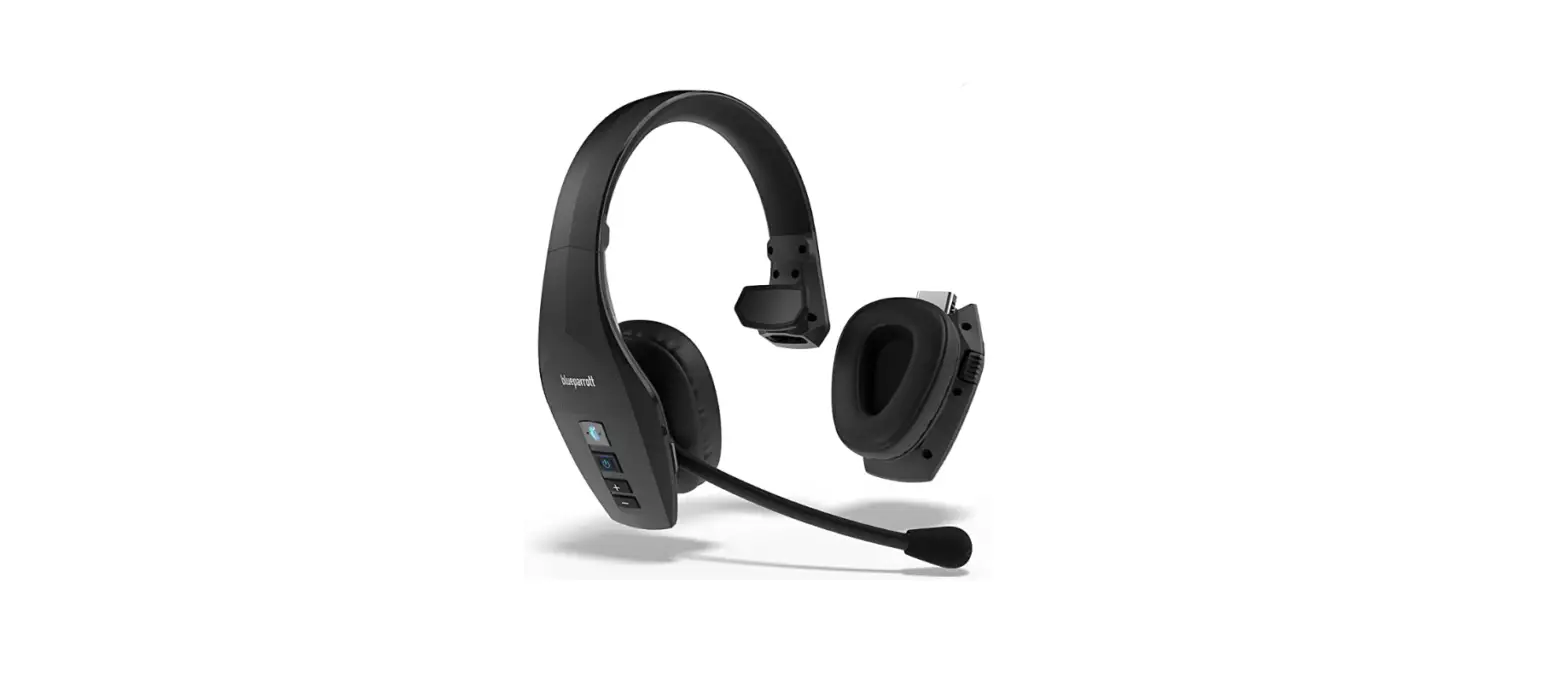

BlueParrott S650-XT Noise Cancelling Bluetooth Headset
Welcome
Thank you for using the BlueParrott B650-XT or S650-XT. We hope you will enjoy it!
BlueParrott B650-XT/S650-XT features
- Crystal-clear calls anywhere. Ultra-noise-canceling mic removes 96% of background noise.*
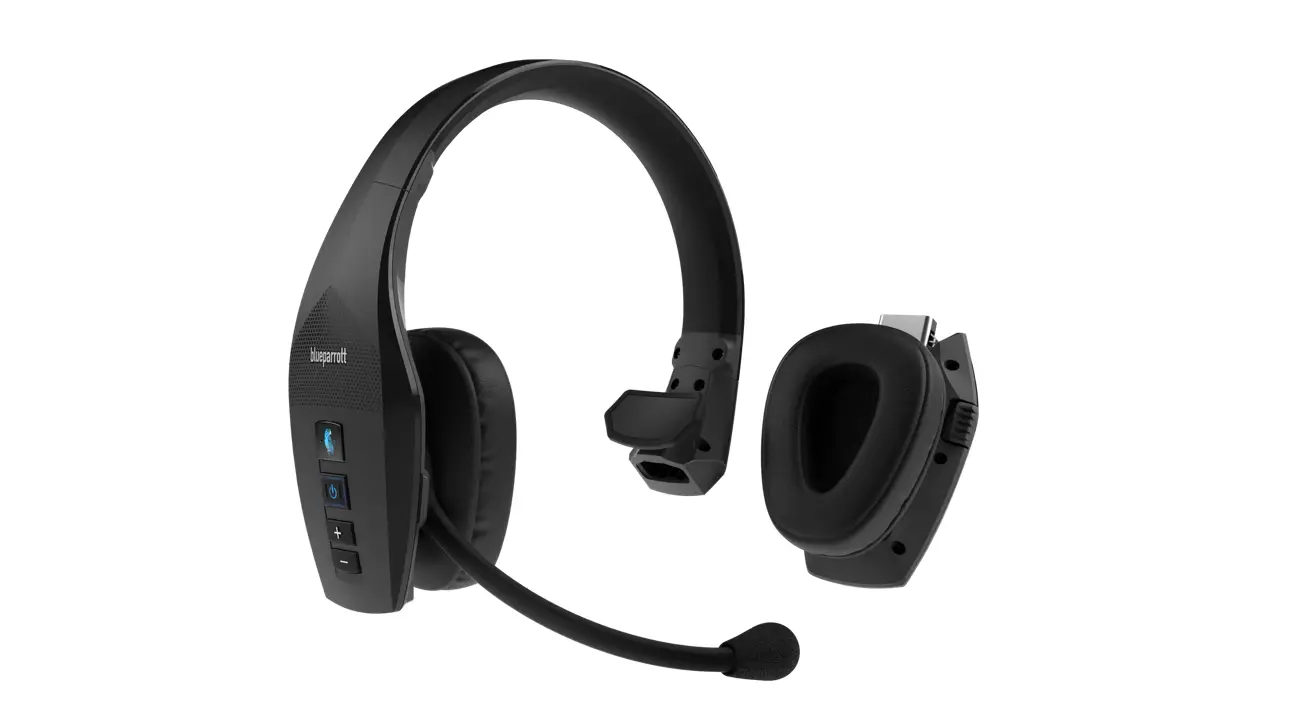
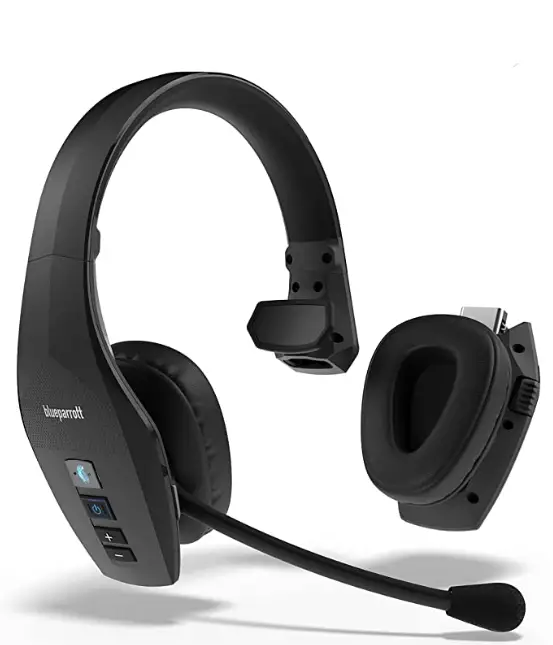
- The best of both worlds. Converts easily from stereo to mono sound with a removable second earcup.**
- Silence the road. Powerful Active Noise Cancellation (ANC) helps you focus on what you’re listening to.
- A battery that runs and runs. Get up to 36 hours of talk time on a single charge.
- Built for life on the road. With IP54-rated protection against dust and water, the S650-XT is truly roadworthy.
- Personalize your experience. Speed dial, mute, or Push-to-Talk, with the customizable BlueParrott Button™.
- Hands on the wheel. Eyes on the road. 100%hands-free voice control lets you direct the headset with just your voice.
* Verified by independent labs
** Available for S650-XT out of the box. Convert B650-XT to the stereo with the second earcup, which is available as an accessory.
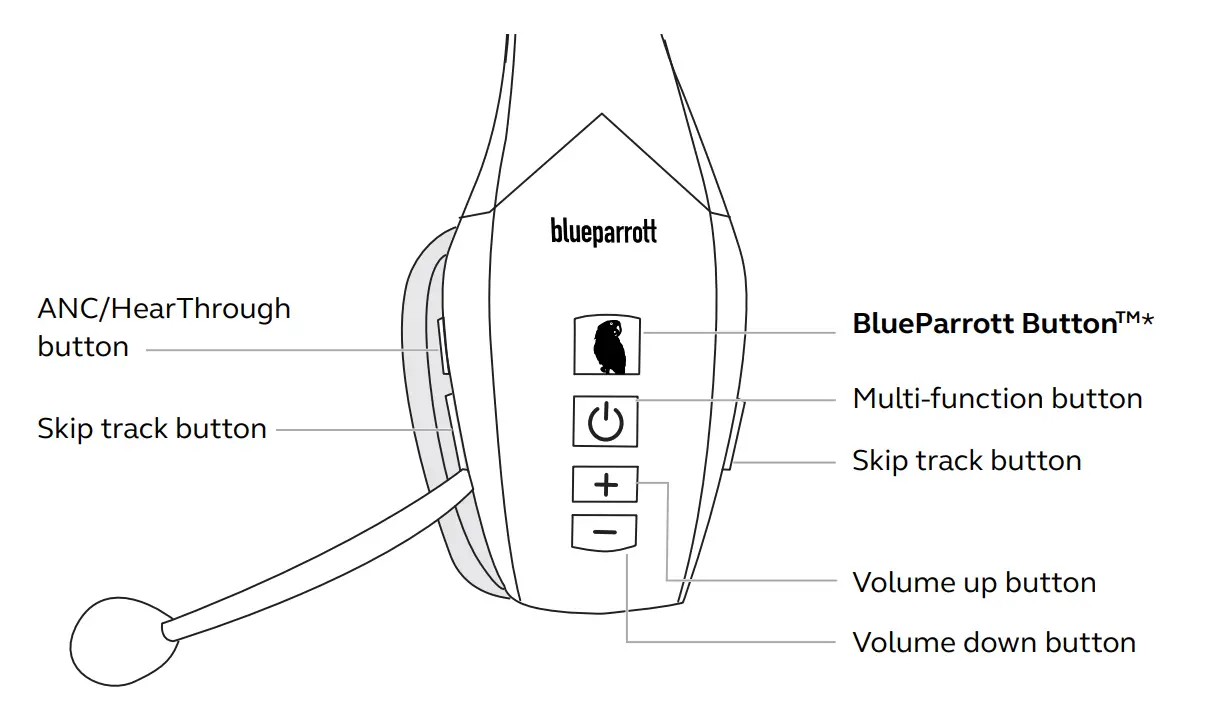
Headset Overview
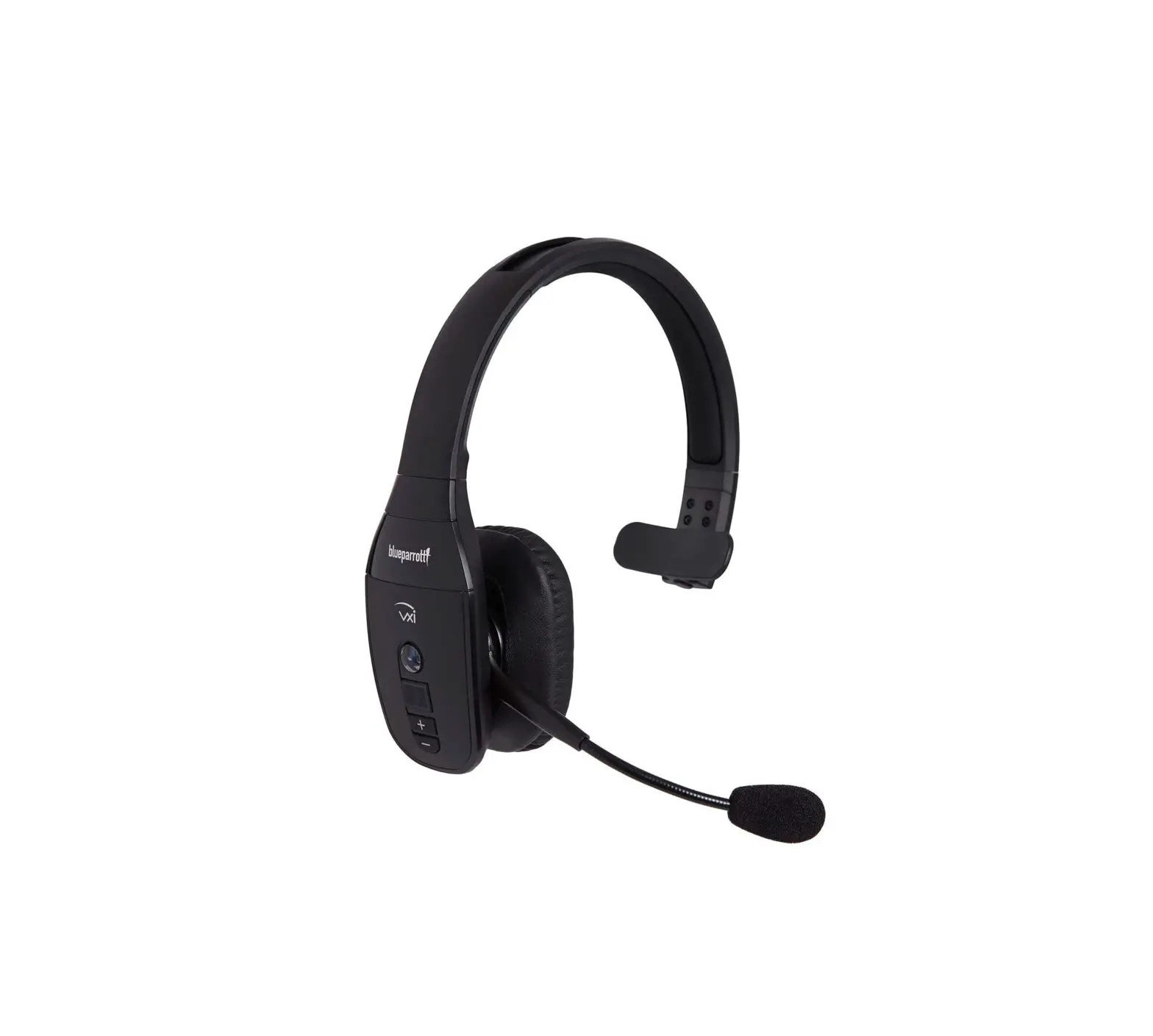
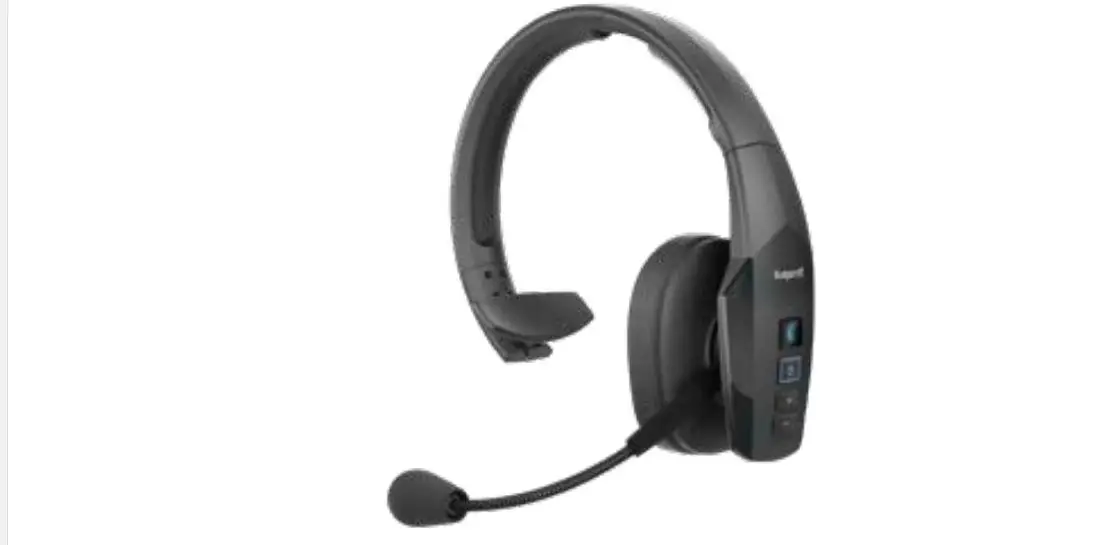
BlueParrott B650-XT  BlueParrott S650-XT
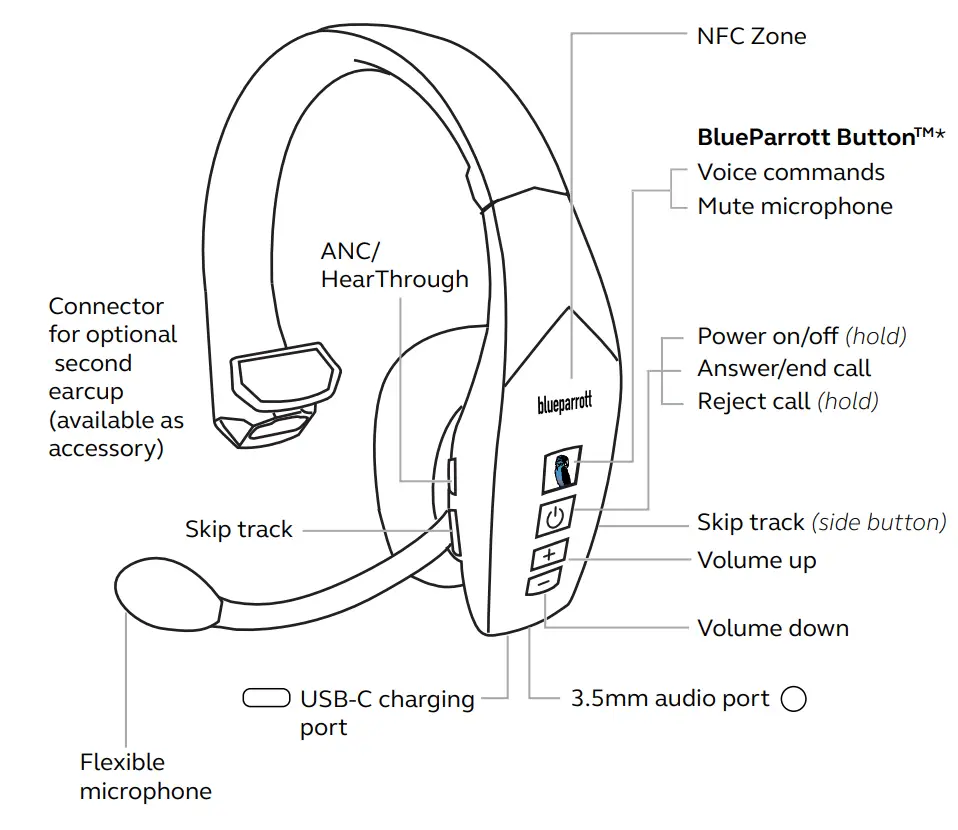 BlueParrott S650-XT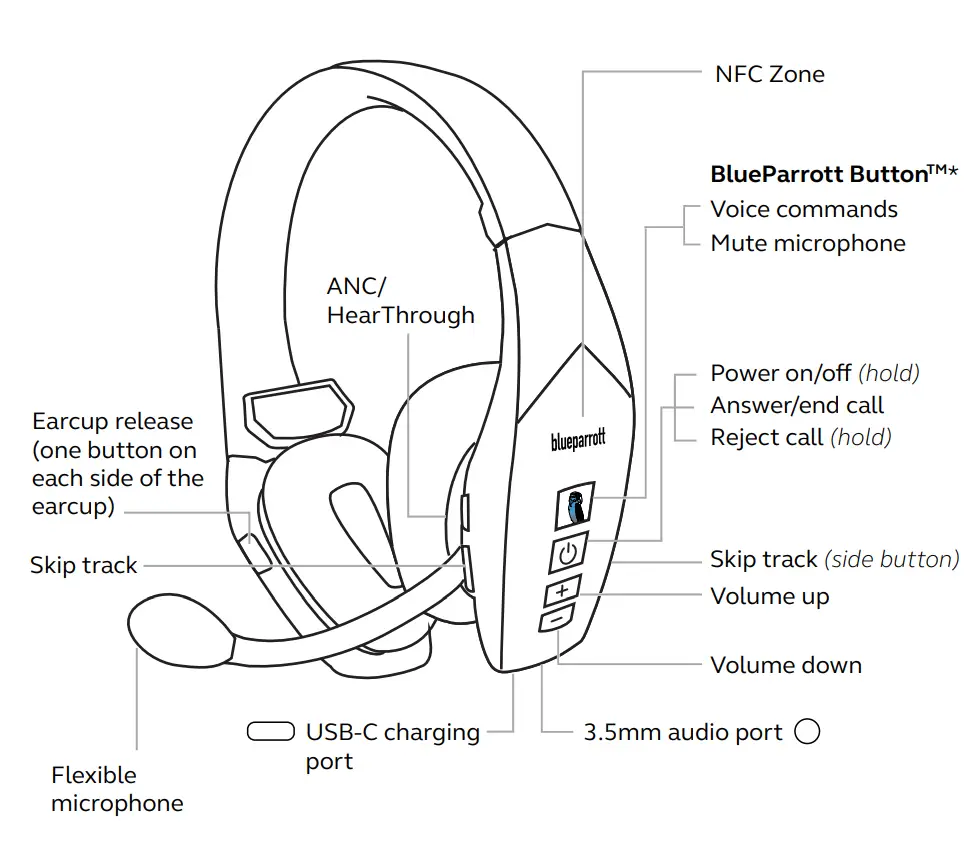
*The BlueParrott ButtonTM is customizable using the BlueParrott app
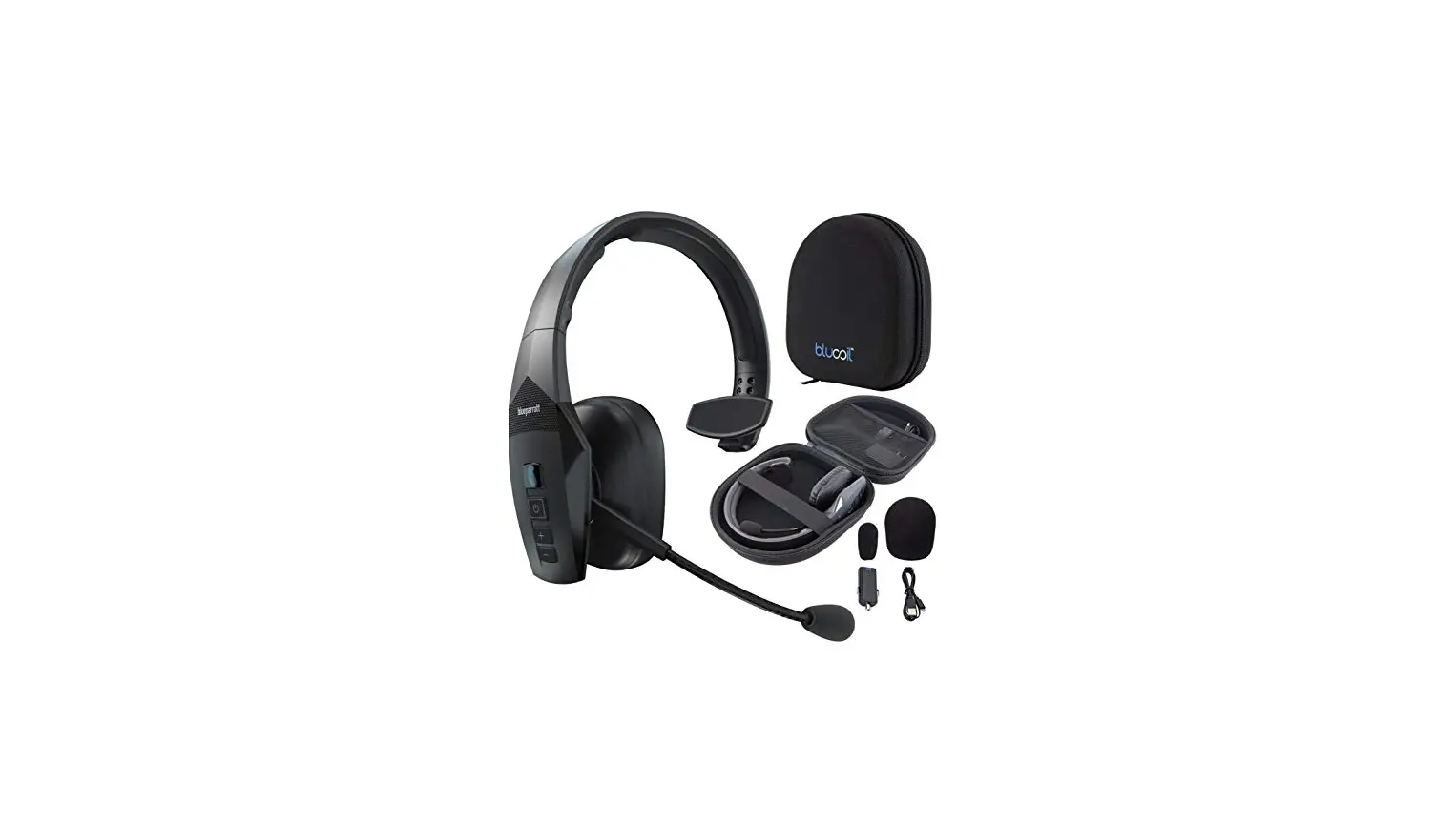
Included accessories
- USB-C cable

- 3.5mm jack cable (included with S650-XT)

- Microphone windscreens

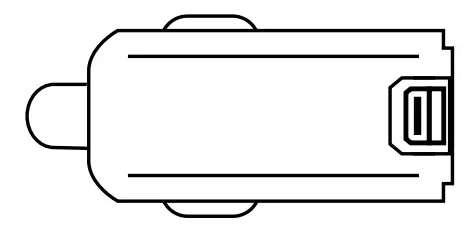
- Car charger (included with B650-XT)

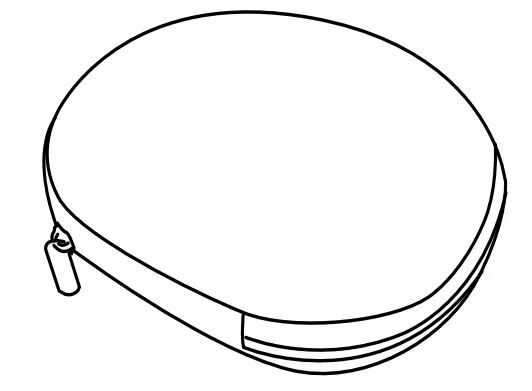
- Carry case (included with S650-XT)

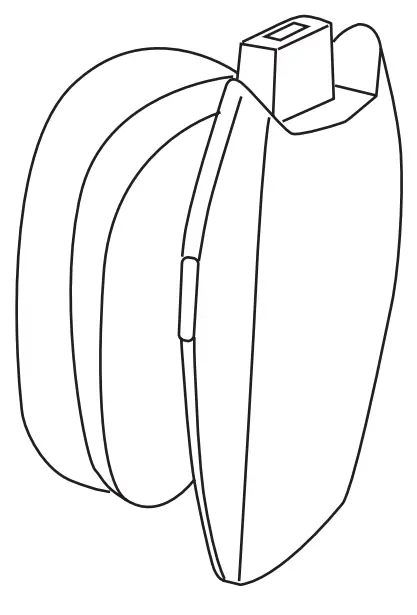
- Second earcup for stereo sound (included with S650-XT)

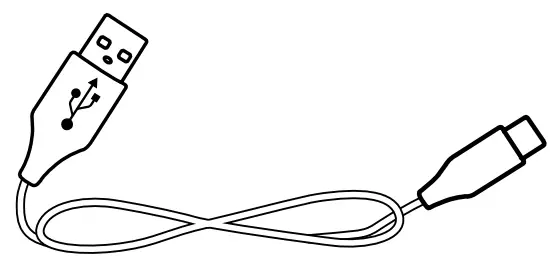
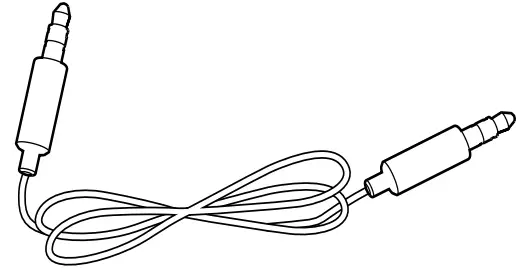
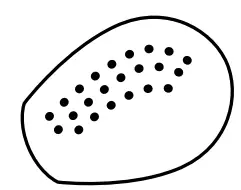
How to wear
The headset can be worn with the microphone on the left or right side. Adjust the headband for best fit, and position the flexible microphone one finger width from the corner of your mouth. Do not wear the headset without the ear cushions.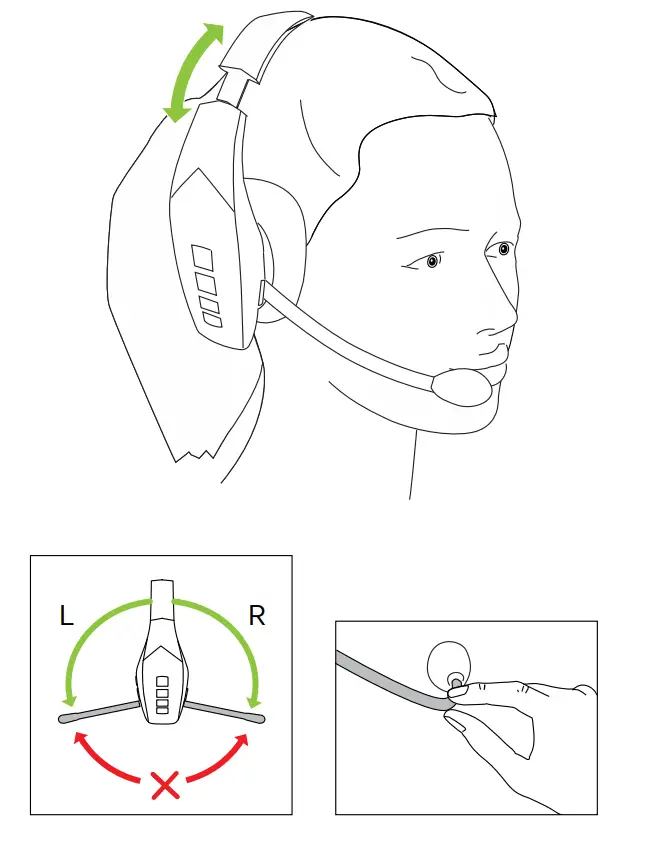
Adjusting the headband tension
If the headband feels too tight or too loose, it is possible to adjust the tension of the headband for a more comfortable fit.
To adjust the tension of the headband, grip and flex it ONLY as shown in the diagrams below. Flex inward to increase tension. Flex outward to reduce the tension.
Use mild to moderate force when flexing the headband. Repeat the process until desired tension comfort level is attained.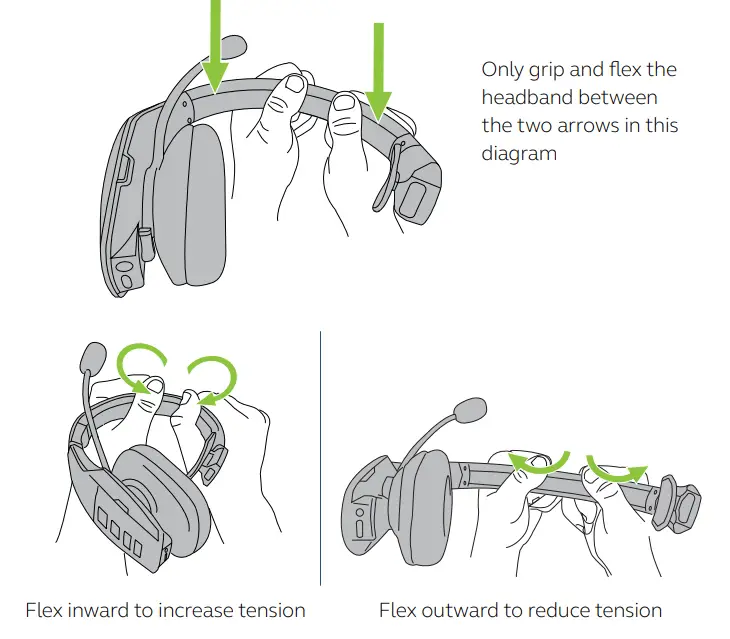
Switch from stereo to mono sound
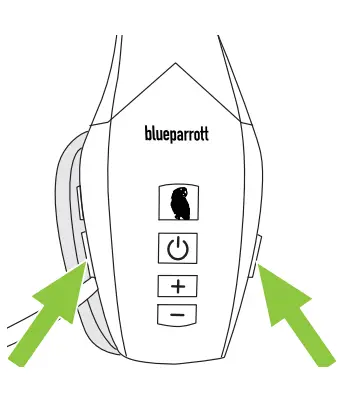
Press both release buttons on the earcup and firmly pull the earcup down to remove it from the headset. After removing the second earcup, the headset is ready to be worn.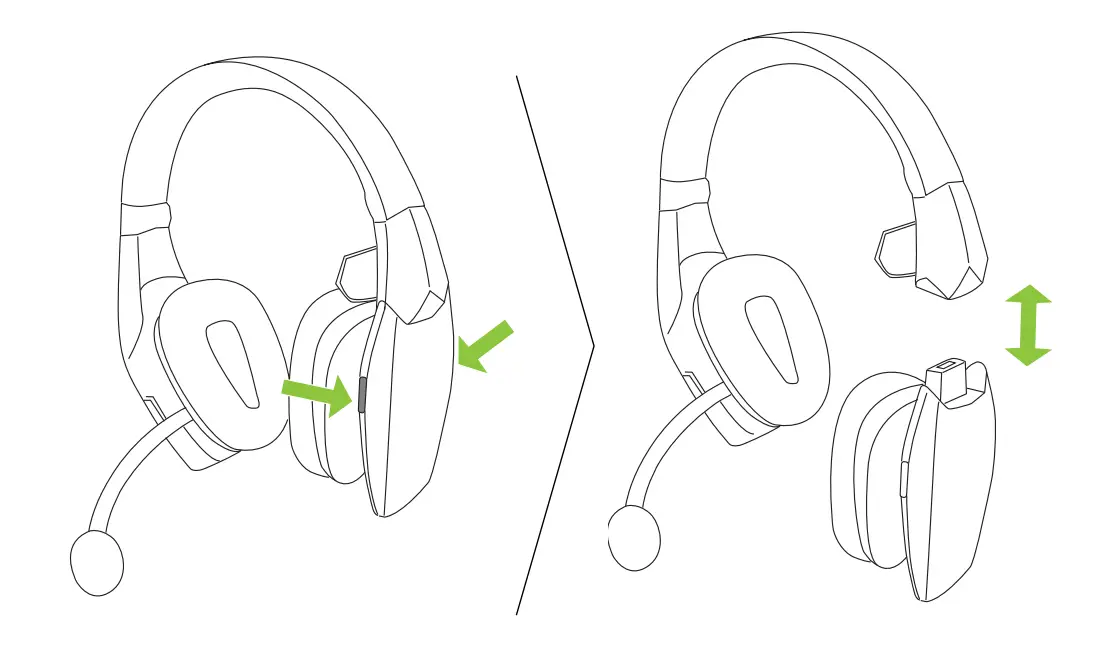
For the B650-XT headset, a stereo earcup can be purchased at blueparrott.com/accessories
How to charge
To charge the headset, connect the USB-C charging cable to the headset’s charging port. It is recommended to charge the headset using the supplied charging cable.
It takes up to 192 minutes to fully charge the battery.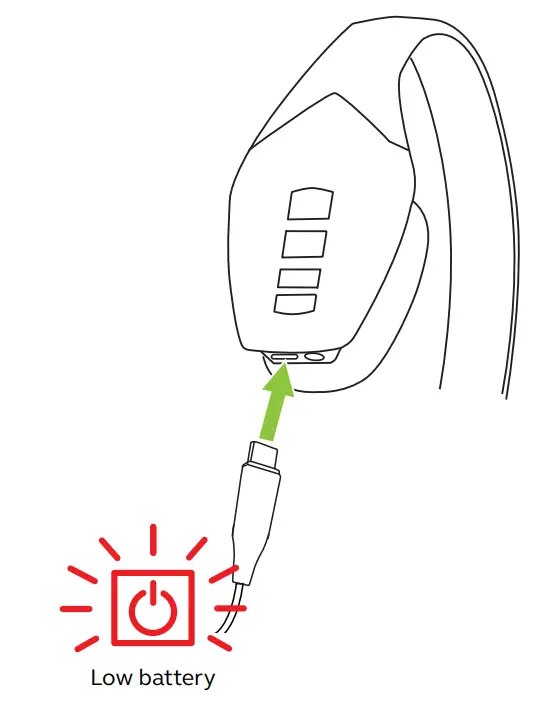
While charging, the LED indicator shows the charging status. Red indicates the headset is charging. Blue indicates the headset is fully charged.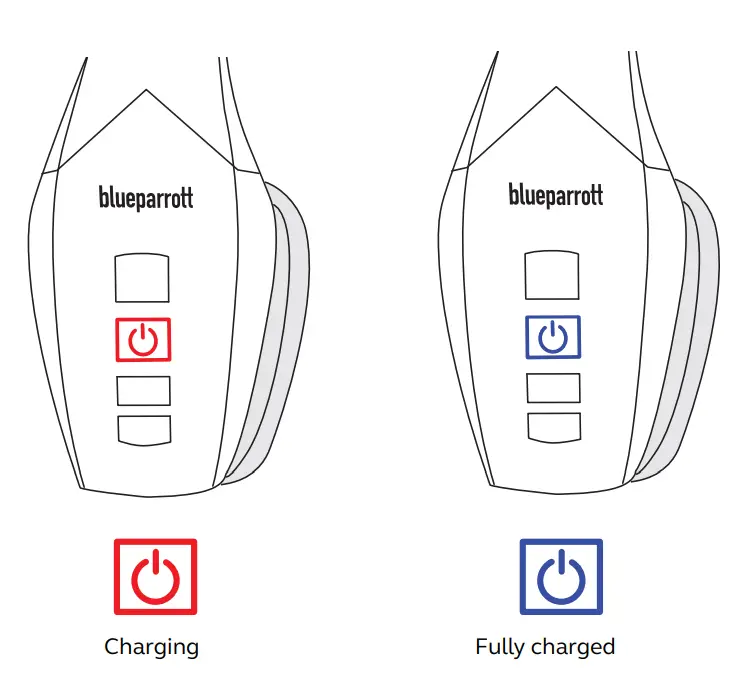
How to connect
Power on
Press and hold the Multi-function button for 1 second until the LED flashes blue and you hear “Power on”.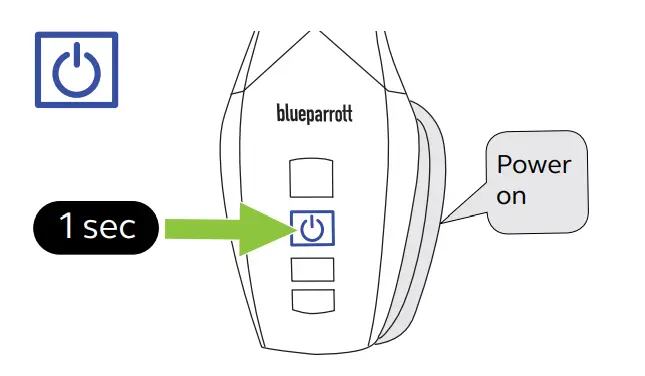
Power off
Press and hold the Multi-function button for 3 seconds until the LED flashes red and you hear “Power off”.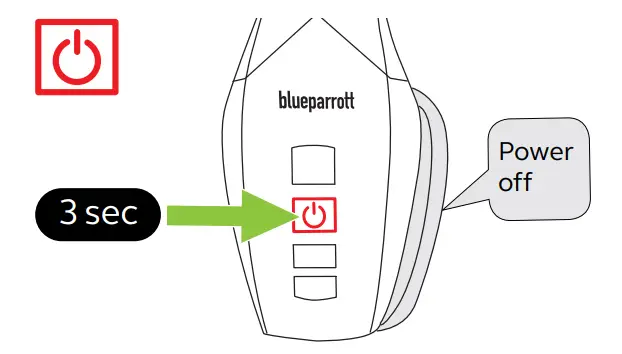
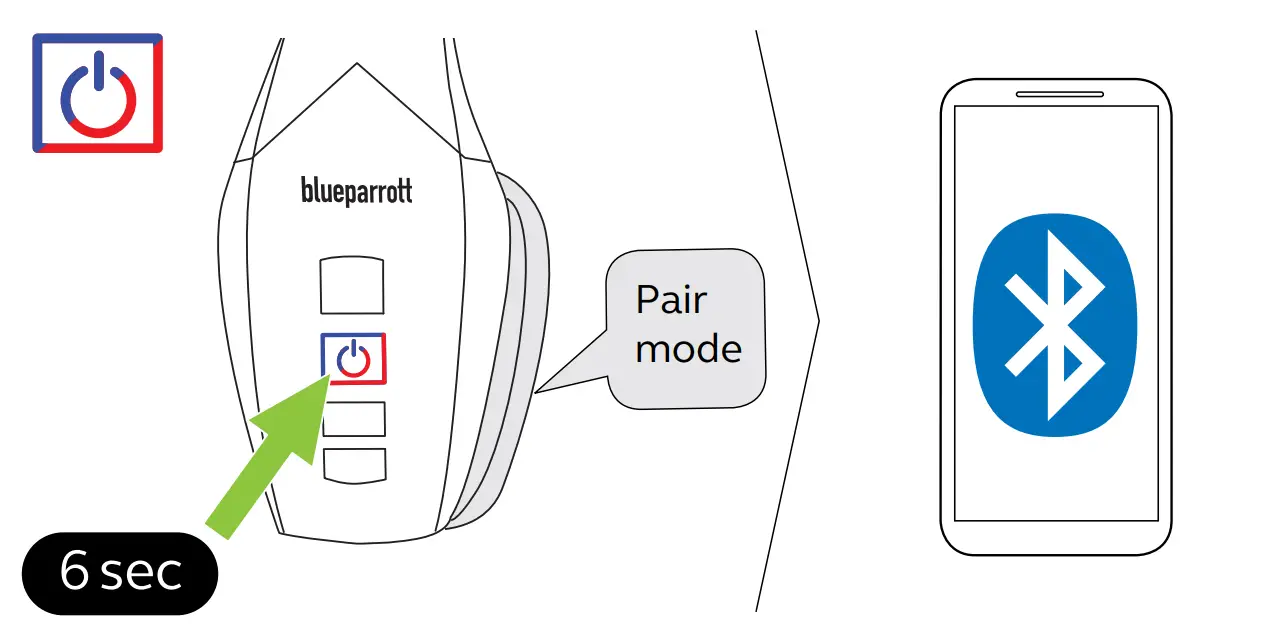
Pair using Bluetooth
- Ensure the headset is powered off.
- Press and hold the Multi-function button for approx. 6 seconds until you hear “Pair mode” and the LED flashes red and blue. The headset is now ready to pair.
- Go to the Bluetooth menu on your smartphone and select B650-XT or S650-XT from the list of available devices.

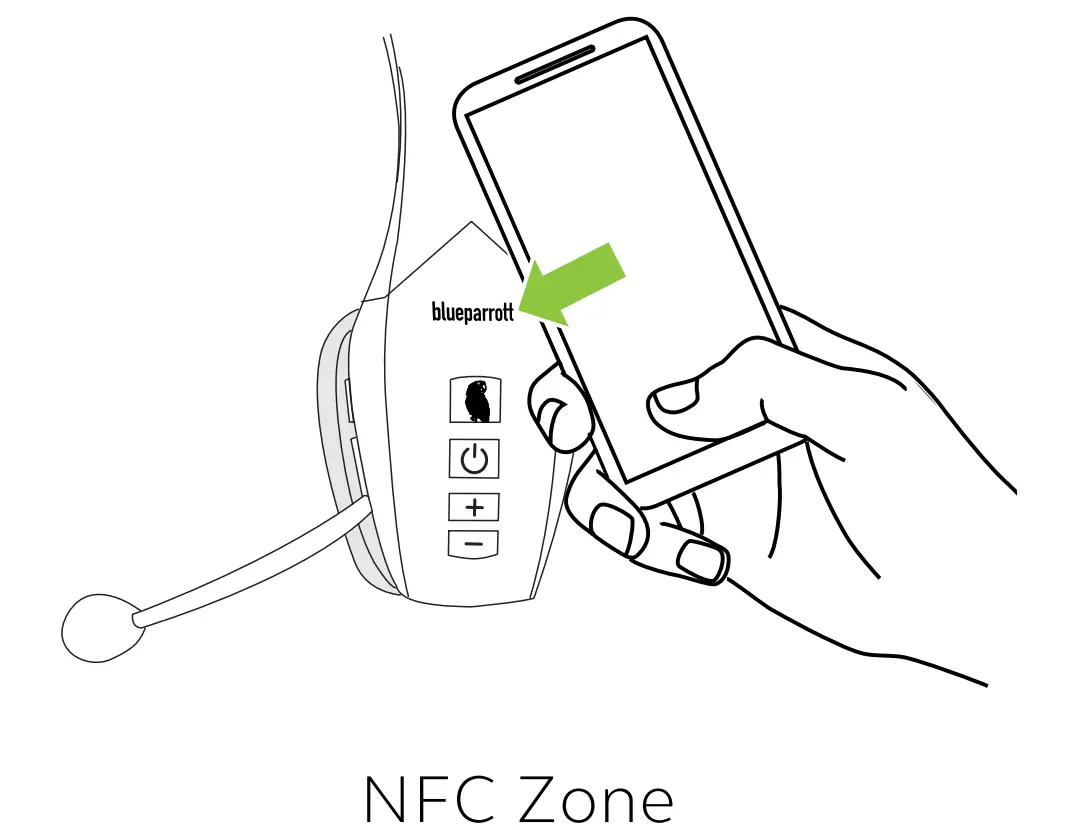
Pair using NFC
- Ensure your headset is powered on and that NFC is enabled on your smartphone.
- Place the NFC zone of your smartphone against the NFC zone of the headset until your smartphone confirms the connection.
Please note that not all phones support NFC pairing.
How to use
Calls
What the buttons do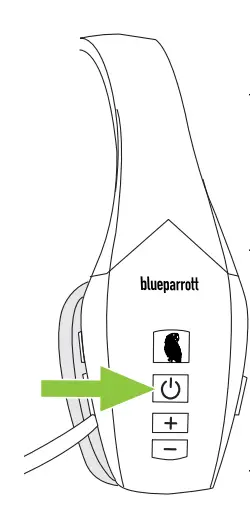
- Answer call Press the Multi-function button
- End call Press the Multi-function button
- Reject call Press and hold (2 sec) the Multi-function button
- Activate Voice
Assistant (i.e. Siri, Google Assistant)
Press the Multi-function button when not on a call. - Skip track forward or back

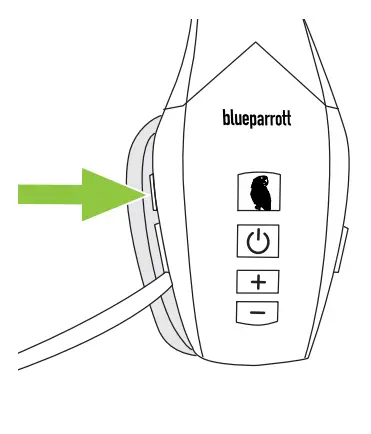
Press the Skip track button. - Cycle between ANC, HearThrough and Off

Press the ANC/ HearThrough button - Adjust volume

Press the Volume up or Volume down button, when listening to music or on a call. - Transfer audio from headset to smartphone

While on a call, press and hold (2 sec) the Volume down button to transfer to the call audio to your paired smartphone. Repeat to transfer the call audio back to your headset. This featue is phone dependant. - Redial last number
Press and hold (1 sec) the Volume down button until you hear a beep. - Mute/un-mute microphone
Press the BlueParrott Button when on a call. Alternatively, press and hold (2 sec) the Volume up button.
- Voice control
Press the BlueParrott Button when not on a call and say “What can I say?” for a list of voice commands.
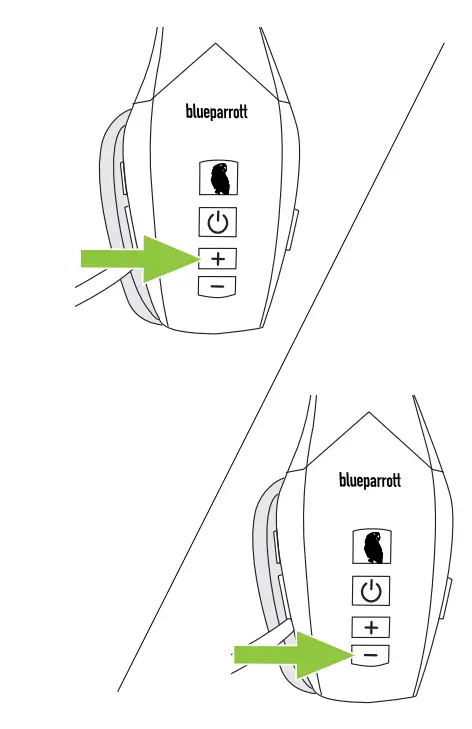
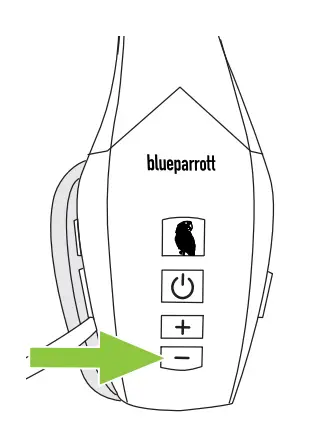
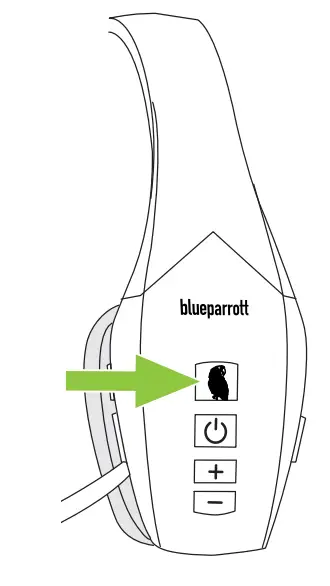
By default, the BlueParrott Button mutes the microphone. However, the button can be configured for other functions, such as speed dial, push-to-talk, accessing a second paired mobile devices, or to check the battery level.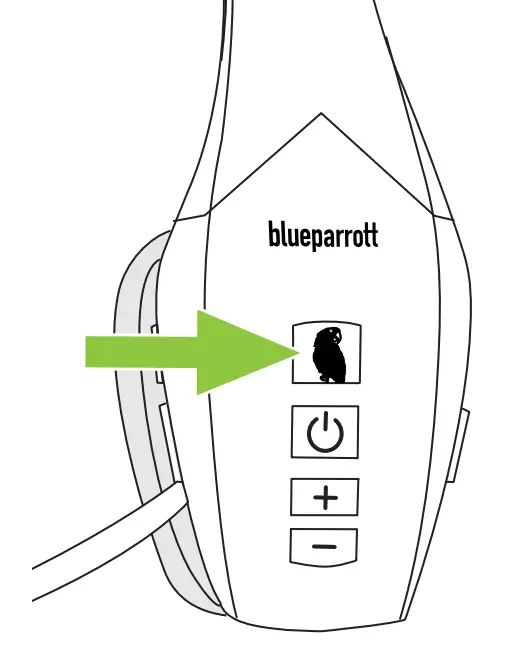
To change the BlueParrott Button functionality, use the BlueParrott app for Android or iOS.
Voice control
The headset can be controlled by giving it voice commands, such as “Answer” to answer an incoming call, or “Ignore” to reject an incoming call
To use more voice controls, tap the BlueParrott Button and say “Hello BlueParrott”. You can then issue one of the commands below.
- Pair Mode
- Phone Command
- Am I Connected?
- Check Battery
- Redial
- Call Back
- Play Music
- Cancel
- What can I say?
Active Noise Cancellation
Active Noise Cancellation (ANC) counters noise by detecting and analyzing the pattern of incoming sound and then generating an anti-noise signal to cancel it out. As a result, you experience a drastically reduced level of surrounding noise.
Activate ANC
Cycle between ANC, HearThrough and Off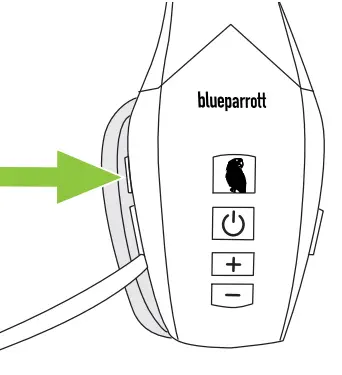
Press the ANC/ HearThrough button
HearThrough
HearThrough enables you to pay attention to your surroundings and engage in conversation, when not on a call, without needing to remove the headset. The microphones pick up surrounding sounds and transmit them to the speakers.
Activate HearThrough
Cycle between ANC, HearThrough, and Off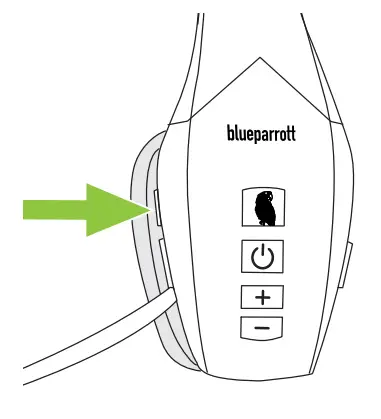
Press the ANC/ HearThrough button
Multiple call handling
The headset can accept and handle multiple calls at the same time.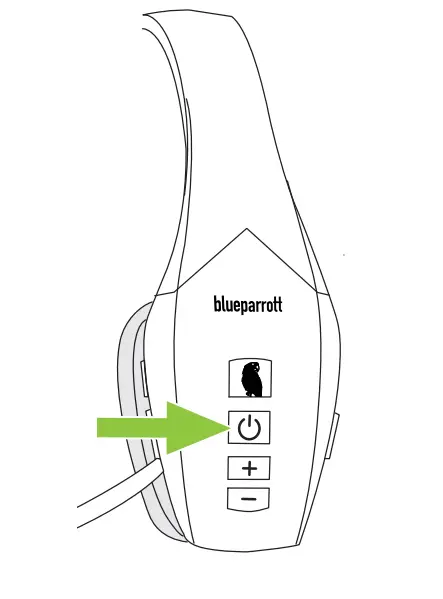
- End current call and answer an incoming call
Press the Multi-function button to end the current call. Then press the Multi-function button to answer the incoming call - Put the current call on hold and answer an incoming call
Quickly press the Multifunction button twice - Reject incoming call when on a call
Press and hold (2 sec) the Multi-function button
Multipoint mode
The headset can pair to 7 mobile devices and connect to two at once (Multipoint mode).
To connect to two mobile devices, use the normal pairing process separately for each device (refer to section 5.3).
The headset will monitor both mobile devices and enable you to answer a call on either one using the headset.
If you are on a call and the other mobile device receives a call, you will hear a notification in the headset.
How to reset
Resetting the headset clears the list of paired devices.
- Ensure the headset is powered on.
- Press and hold (10 sec) both the Volume up and Volume down buttons until you hear ‘Pair mode’ and the LEDs flash red and blue.
- Re-pair the headset to your smartphone using the normal process (see page 14).
BlueParrott app
BlueParrott app
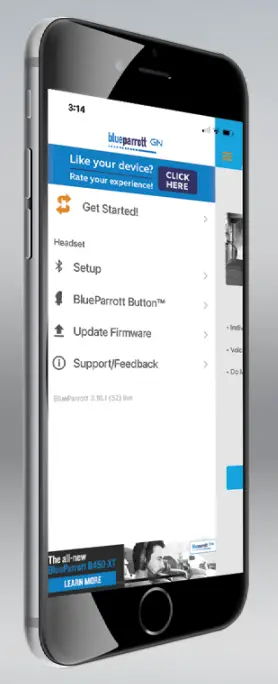
Program your BlueParrott ButtonTM anywhere, anytime.
Push to talk to your contacts on Dial2Do’s MyWay network.
Get the most out of your headset with firmware updates via the app.
Support
FAQ
View the FAQs at:
FAQS
Headphones alone, no. It will work if connected to a smartphone that has voice command capability.
yes
To turn off/on the Answer/Ignore voice command for incoming calls on your headset, do the following. When not on a call, quickly double-press one of these buttons: Volume Up/Volume Down/BlueParrott Button™.
Note:
When you have turned off the voice command, there will be a ring signal, but no caller ID voice…
Both work on an iPhone. Not sure on other phones.
It’s says one year in the description.
The continuous beep, means the headset is muted. If you tap quickly the MSD button, (the power button) it should stop. Holding the power button, to power off the headset works as well. If you can’t get it to stop beeping.
BlueParrott B450-XT MS is the new Microsoft Teams variant of B450-XT. BlueParrott B450-XT and B450-XT MS have the same features. The difference is that B450-XT MS Parrott Button is not customizable, as the Parrott Button comes pre-programmed with Microsoft Teams Walkie Talkie.
seems like these are hit or miss. Mine worked great for a while then all of the sound canceling seemed to disappear. The sound in my ear also is quiet.
It comes with a USB cord that you can plug into the wall. It charges quickly too.
Yes, it is wireless! It works very well!
The B550-XT connected just find, it just won’t stay connected while talking. Tried on 3 different phones and got the same results.
That depends on where you bought it and how long you have had it.
Yes
No, the BlueParrott C400-XT does not support the text-message readout functionality. We apologize if this creates an inconvenience.
It comes with a single side earpiece included
No Land lines. Cell phones, Tablets etc yes. It works on the Bluetooth method.
The Blue Parrott B550-XT does not support aptX. The Blue Parrott B550-XT supports SBC, CVSD, and mSBC. Thank you for your question.
The difference is that B350-XT is lighter than B450-ST. It weighs 98 grams (3.5 oz) as its headband is slimmer while B450-XT weighs 161 grams (5.67 oz). Also, B450-XT is now available in the Microsoft Team variant. Both BlueParrott B450-XT and B350-XT block out 96% of background noise, with up to 24 hours of talk time, can connect to 2 mobile devices at the same time, and have up to 100 meters (300 feet) connectivity range.
The cable that you need to charge it with is included.
There is no need for mic monitoring because this headset is noise-canceling.