2N PICard Commander
Card Commander
Product Overview
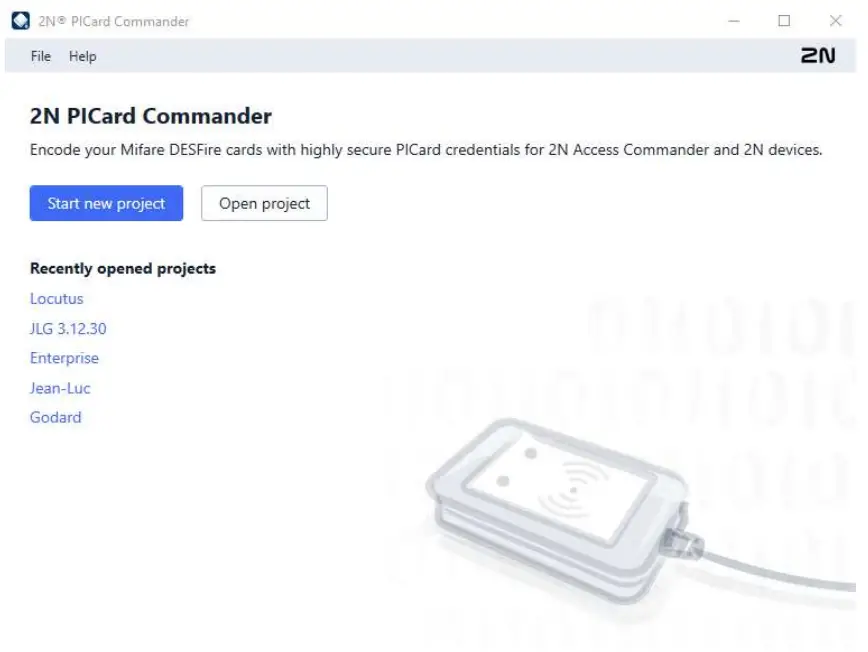
2N® PICard Commander is a software application used for the encryption of login data on access cards. The application creates projects that generate a set of encryption and reading keys. The reading keys can be imported to 2N devices or 2N®Access Commander for distribution to the connected 2N devices.
The technology 2N® PICard is designed for the encryption of MIFARE® DESFire® EV2 and MIFARE® DESFire® EV3 cards.
You can delete the uploaded access card data using 2N® PICard Commander.
The 2N® PICard Commander function is licensed.
Associated Products
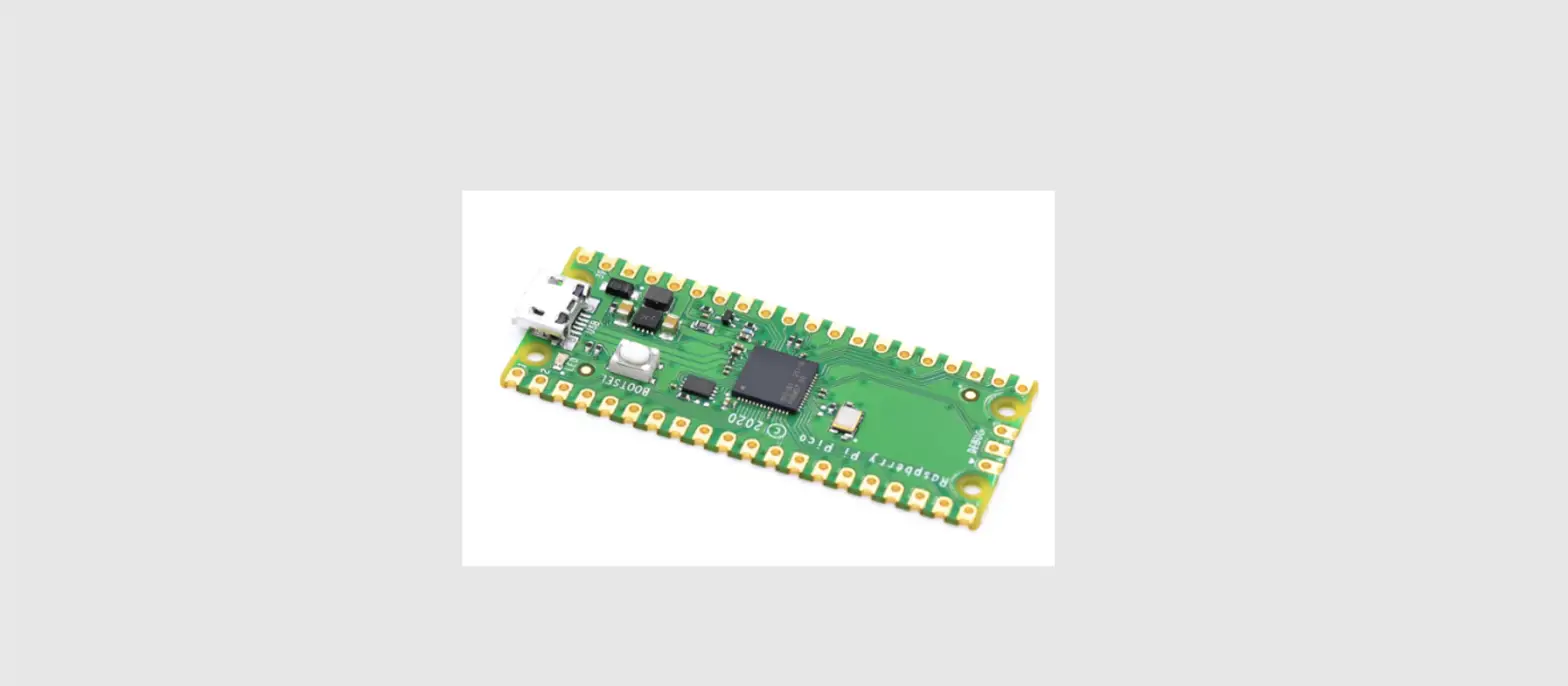
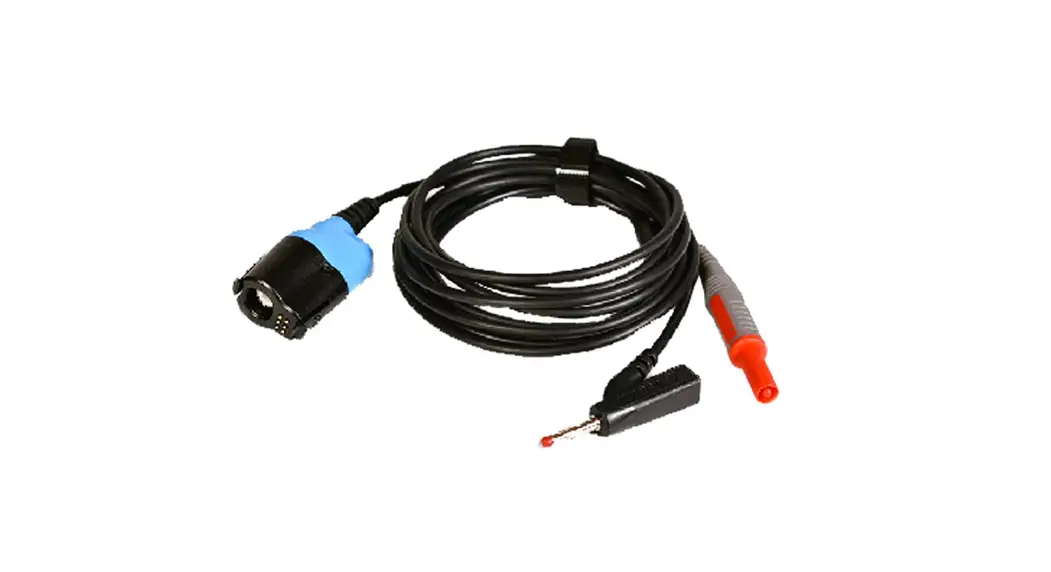
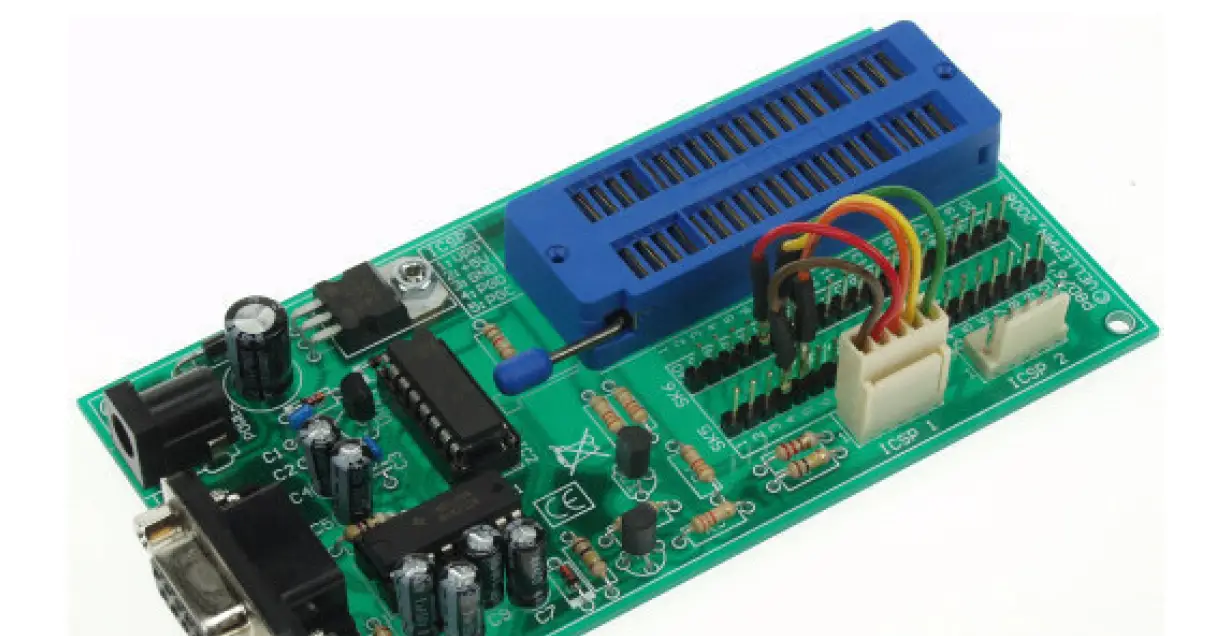
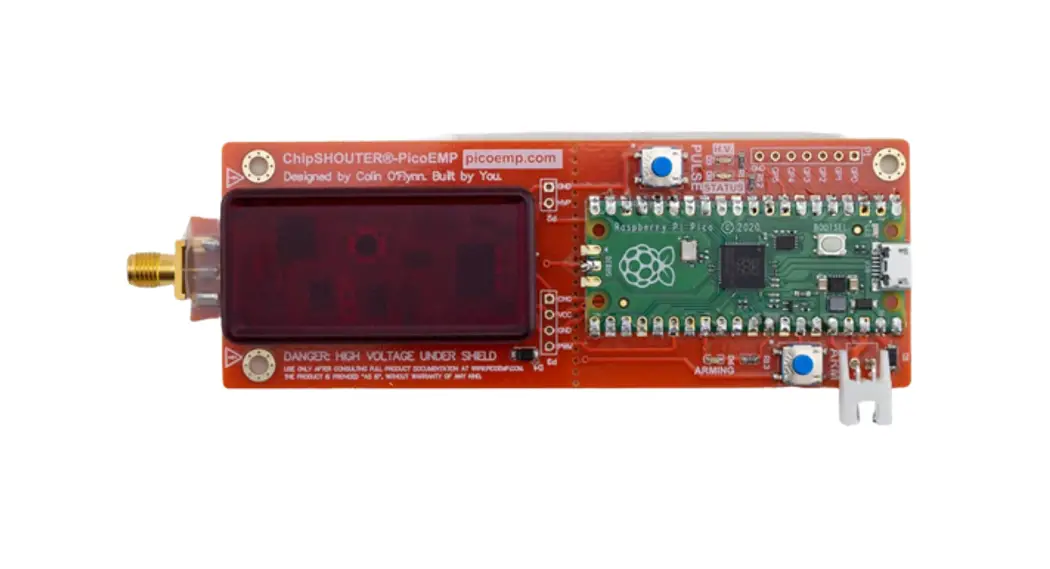
Part No. 91379601 Axis Part No. 02722-001 | 2N® PICard Commander License The license is always issued for a specific USB card reader based on the reader Device key. Refer to 2N® PICard Commander for the reader Device key before uploading the license. See below for the supported USB card readers. |
Part No. 9137421E Axis Part No. 01400-001 |
|
Part No. 9137424E |
|
Part No. 11202601 |
|
Part No. 11202602 |
|




1 The 2N® PICard technology is designed for the encryption of MIFARE DESFire EV2 and
MIFARE DESFire EV3 cards.
Compatible devices
PICard credentials can be read by following 2N devices:
| 2N® IP Style | ||
| 2N Part No. 9157101 | Axis Part No. 02407-001 | 2N® IP Style main unit |
| 2N Part No. 9157101-S | Axis Part No. 02407-001 | 2N® IP Style main unit, secured |
| 2N® IP Verso | ||
| 2N Part No. 9155086 (9155042) | Axis Part No. 01712-001 (01264-001) | 2N® IP Verso – 13.56MHz secured card reader, NFC, reads UID + PACS ID |
| 2N Part No. 91550945 | Axis Part No. 02778-001 | 2N® IP Verso Bluetooth & RFID reader 125kHz, 13.56MHz, NFC |
| 2N Part No. 91550945-S | Axis Part No. 02444-001 | 2N® IP Verso Bluetooth & RFID reader 125kHz, secured 13.56MHz, NFC |
| 2N Part No. 91550946 | Axis Part No. 02779-001 | 2N® IP Verso Touch keypad & RFID reader 125kHz, 13.56MHz, NFC |
| 2N Part No. 91550946-S | Axis Part No. 02443-001 | 2N® IP Verso Touch keypad & RFID reader 125kHz, secured 13.56MHz, NFC |
| 2N® Access Unit | ||
| 2N Part No. 9160342 | Axis Part No. 02143-001 | 2N® Access Unit 2.0 13.56 MHz, NFC |
| 2N Part No. 9160342-S | Axis Part No. 02142-001 | 2N® Access Unit 2.0 secured 13.56 MHz, NFC |
| 2N Part No. 9160344 | Axis Part No. 02138-001 | 2N® Access Unit 2.0 125kHz, 13.56MHz, NFC |
| 2N Part No. 9160344-S | Axis Part No. 02146-001 | 2N® Access Unit 2.0 125kHz, secured 13.56MHz, NFC |
| 2N Part No. 9160345 | Axis Part No. 02772-001 | 2N® Access Unit 2.0 Bluetooth & RFID – 125kHz, 13.56MHz, NFC |
| 2N Part No. 9160345-S | Axis Part No. 02773-001 | 2N® Access Unit 2.0 Bluetooth & RFID – 125kHz, secured 13.56MHz, NFC |
| 2N Part No. 9160346 | Axis Part No. 02774-001 | 2N® Access Unit 2.0 Touch keypad & RFID – 125kHz, 13.56MHz, NFC |
| 2N Part No. 9160346-S | Axis Part No. 02775-001 | 2N® Access Unit 2.0 Touch keypad & RFID – 125kHz, secured 13.56MHz, NFC |
| 2N® Access unit M | ||
| 2N Part No. 916112 | Axis Part No. 02393-001 | 2N® Access Unit M 13.56 MHz, NFC ready |
| 2N Part No. 916114 | Axis Part No. 02394-001 | 2N® Access Unit M RFID – 125kHz, 13.56MHz, NFC |
| 2N Part No. 916115 | Axis Part No. 02395-001 | 2N® Access Unit M Bluetooth & RFID – 125kHz, 13.56MHz, NFC |
| 2N Part No. 916116 | Axis Part No. 02396-001 | 2N® Access Unit M Touch keypad & RFID – 125kHz, 13.56MHz, NFC |
| 2N® IP Force | ||
| 2N Part No. 9151031 | Axis Part No. 02522-001 | 2N® IP Force 13.56MHz card reader, NFC ready, reads UID |
| 2N Part No. 9151031S | Axis Part No. 01730-001 | 2N® IP Force 13.56MHz card reader, NFC ready, reads UID + PACS ID |
Installation and License Reading
Install b Commander in a standard way using the installer.
License Adding
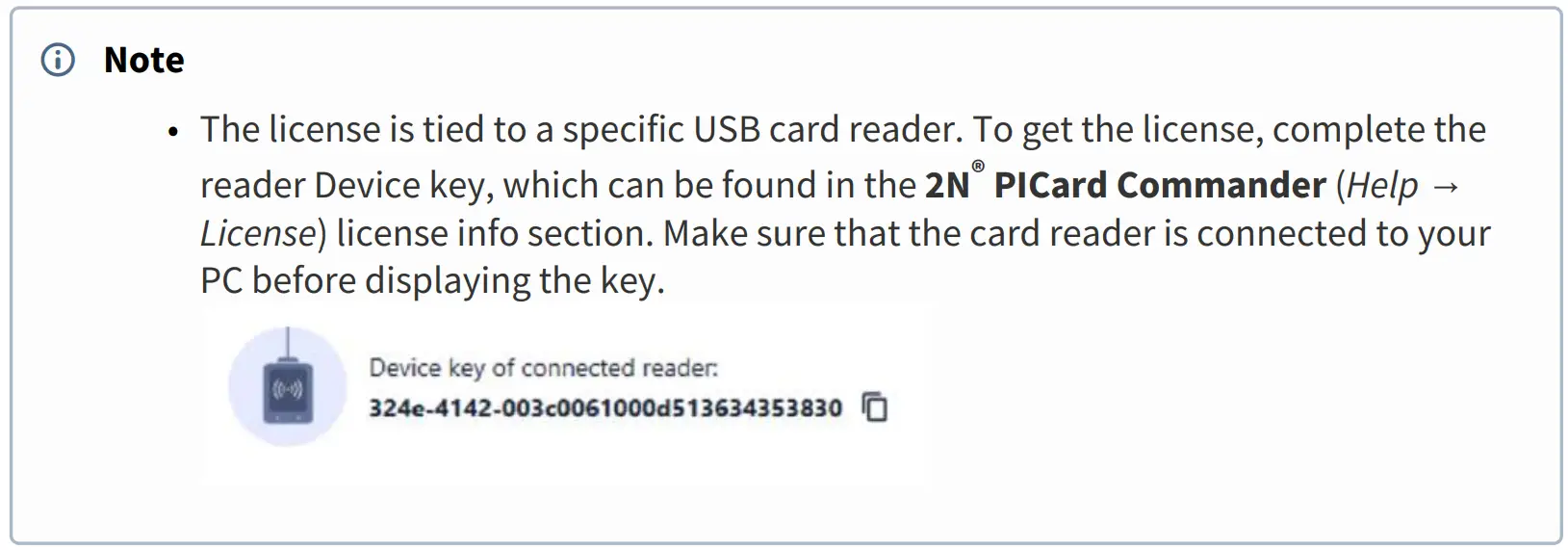
Once the application is launched, click Load License on the orange bar (or in Help → License) to upload the license. Now read the license file from the disk. Make sure that the card reader is connected to your PC to make the license upload successful.
Connection of Another Reader
If you connect a card reader other than the one paired with the license, 2N® PICard Commander will notify you of this upon the launch. You can upload a new license in the Help → License box.
Project
Starting projects makes it possible to encrypt groups of access cards in variable modes. You can set every project for a specific card purpose. The project generates a set of encryption and reading keys. You can load the reading keys of just one project into a device or 2N® Access Commander.
Starting New Project
Once the application is open, press Start new project to create a new project.
Alternative path: File → New project.
After the project setting wizard opens, follow the instructions mentioned in 3.1 Project Settings.
Opening Project
Click Open project in the application introductory interface and select a disk file to open the project.
Alternative path: File → Open project.
The last opened projects are shown in the bottom section of the application introductory interface.
Project Settings
Set the required parameters while creating the project.
You can change the settings later in Project configuration in the application introductory interface (alternative path: Project → Change configuration).
- Basic Settings
- Main Encryption Key (MEK)
- Card Mode
- Disk Storage
Set the basic project information:
- Project name – set the project name.
- Project description – add notes to the project.
Main Encryption Key
Create a unique and sufficiently secure main encryption key (MEK) for 2N® PICard Commander to generate a set of card access data encryption keys. As the key set is based on the main encryption key, projects with the same main encryption keys generate the same sets of keys. If a project gets lost, a new project can be created with the same main encryption key for further card encryption. The reading keys of the lost project already uploaded into the 2N device will be valid for newly encrypted cards too.
 Warning Warning
|
 Tip Tip
|
Card Mode
Select a card encryption mode:
- Card may be used for other applications later on (best compatibility) – the cards will be used primarily by the 2N systems. The card data will be encrypted, but the UIDs will be readable by third party applications. The cards can be reformatted to the original state.
- Card will be used only for access control with 2N devices (best privacy) – the cards will be used exclusively in the 2N systems. The card parameters will be reset permanently. The Random ID function is activated on the card upon encryption.
- Card is already used for other applications (advanced settings) – third party applications are loaded to the cards. In the next step, set the selected parameters of the MIFARE DESFire cards whose access data are to be encrypted by 2N® PICard in the project.
 Caution Caution
|
Now complete the following:
- Application ID (AID) – 2N® PICard code on the card. AID is preset to 53324E.
- PICC master key type – PICC master key type for the cards to be encrypted by 2N® PICard.
- PICC master key – PICC master key value for the cards to be encrypted by 2N® PICard.
- Enable randomization of readable card ID – make sure that the card UID changes randomly upon every reading. Thus, an unauthorized person cannot misuse the card for user identification.
- Encrypt cards in factory default state (change default PICC master key) – upload the set PICC master key on other empty cards while encryption in the project. If this option is unselected, 2N® PICard refuses to encrypt an empty card.
Warning
|
Save Project
The project file is saved onto a disk as Projectname.picprj.
Select Protect project file with password to set a protective password for project opening.
Change the password later if necessary in Project → Change protection password.
Warning
|
Card Encryption and Reading
Here is what you can find in this section:
Card Encryption
The card encryption process in 2N® PICard Commander assigns a unique 128-bit identifier to every card, which is subsequently encrypted using the project encryption keys. It is possible to read a card to find its identifier or additional information and learn whether it is possible to encrypt the card in the project.
- Encryption Process
- Card Information Reading
Encryption Process
Click Add card in Card encryption in the application introductory interface.
Alternative path: Project → Encrypt New Card.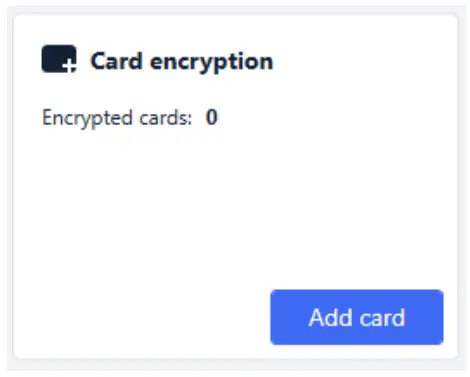
- Credential ID for new card – new card identifier.
Tap the card on the card reader. Press Encrypt to assign encrypted access data to the card.
Tip
|
The application informs you of a successful card encryption.
If the encryption failed, the application provides the causes:
- Card cannot be encrypted – 2N® PICard Commander has no access to the card PICC master key. To encrypt a card with a preset PICC master key, select the appropriate card mode in Subs. 3.1 Project Settings.
- Not enough free space on card – there is not enough space on the card for the 2N® PICard upload. The required minimum memory is 512 B.
- Unsupported card – the application does not support this card type. The 2N® PICard technology is designed for the encryption of the MIFARE DESFire EV2 and EV3 cards.
- Only Mifare DESFire EV2 or EV3 are supported – the application does not support this card type. The used card is MIFARE DESFire EV1.
- Communication failure with card – the reader failed to read the card. Tap the card on the reader and do not remove it before the encryption process is completed.
Tip
|
Card Information Reading
Display the assigned card ID and other info and encryption options in Project → Read card. Tap
the card on the reader to read the information.
This card can be encrypted in the application.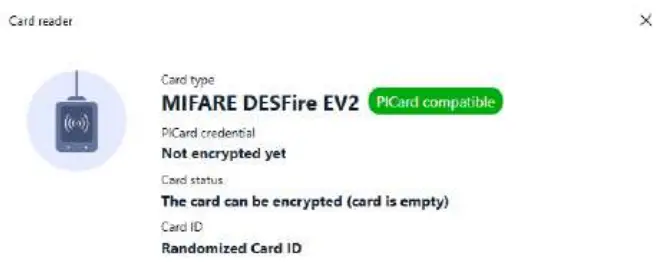
This card cannot be encrypted in the application.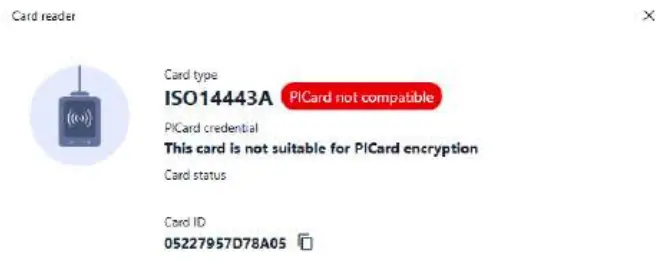
PICard credential reads the card credential assigned during encryption. If the card has no credential, the following options are displayed:
- Not encrypt able – the card type is compatible with the 2N® PICard technology, but the project has no access to its PICC master key.
- This card is not suitable for PICard encryption – the application does not support this card type. The 2N®PICard technology is designed for the encryption of the MIFAR DES Fire EV2 and EV3 cards.
- Not encrypted yet – the card can be encrypted.
- Unknown – the card is encrypted in another project under a different main encryption key. The card may be also be corrupted.
Card Status displays the card state or encryption options.
- Valid PICard credential – the card is encrypted in this project.
- The card can be encrypted (card is empty) – the card is not encrypted. The card has factory default settings.
The card can be encrypted – the card is not encrypted. A project compatible PICC master key is set on the card. - Different PICC Master Key detected. Card’s current PICC Master Key required for encryption – the card cannot be encrypted in this project. The set PICC master key is different.
- PICard application created in a different project, so cannot be read in this project – the card has been encrypted in a different project.
- Only Mifare DESFire EV2 or EV3 are supported – the card cannot be encrypted. The application does not support this card type. The used card is MIFARE DESFire EV1
- INVALID CREDENTIAL (there’s a problem with the digital signature) – the encrypted access data cannot be displayed. The authenticity confirmation has failed. The digital signature is invalid.
Card ID displays the card UUID and informs that the Random ID function is enabled.
Reading Key Export
To access the data on encrypted cards, the 2N devices need to know the reading keys of the selected project. It is possible to export the reading keys from 2N®PICard Commander to a 2N device or 2N®
Access Commander for distribution to all of the connected 2N devices. Once the reading keys are uploaded, the devices will also be able to read the cards that are encrypted in the selected project after the reading key export.
Click Export in Reader keys export in the application introductory interface.
Alternative path: Project → Export reader keys.
There two project reading key exporting options:
- Export keys to file
- Upload keys to 2N Access Commander
 Note Note
|
Export keys to file
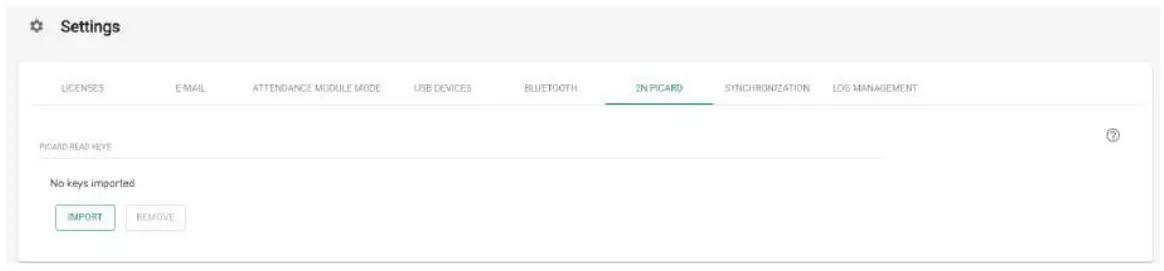
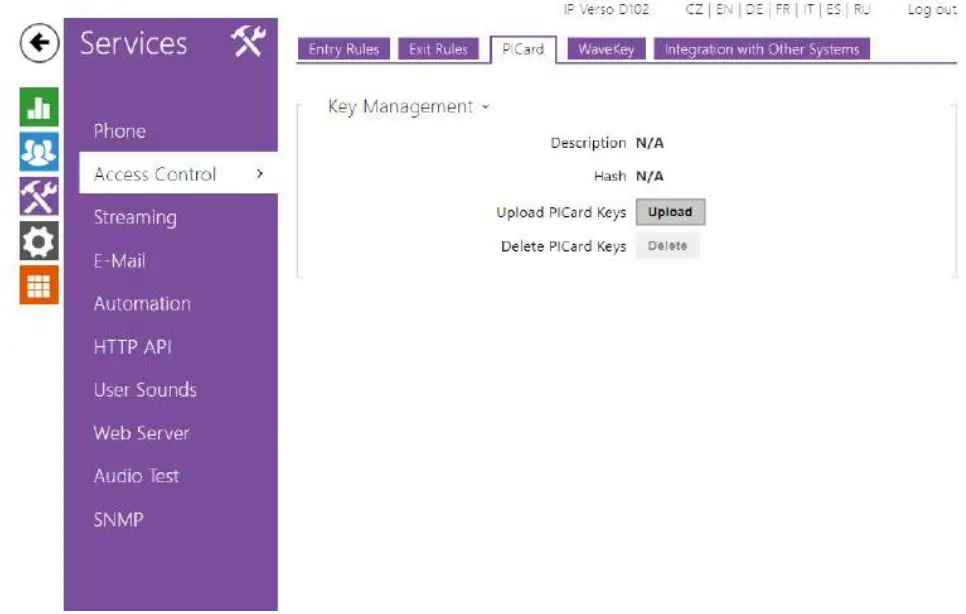
The application generates a key file and saves in onto the disk. Import the file into the 2N device settings or 2N® Access Commanderu via the respective web interfaces. Now you can set the file protecting password.
- Import to 2N® Access Commander via web interface: System settings → 2N® PICARD → IMPORT
- Import to 2N device via web interface: Services → Access control → PICard → Upload
Upload keys to 2N® Access Commander
2N®PICard Commander uploads the reading keys directly into 2N® Access Commander for subsequent distribution to the connected 2N devices. In the next step, enter the administrator login data to the 2N® Access Commander license.
- Address – HTTP address of the 2N® Access Commander web interface.
- Login name – login name of the administrator account in 2N® Access Commander.
- Password – login password to the account in 2N® Access Commander.
Card Data Deletion
The2N®PICard Commander application helps you format cards or delete their access data. The cards can only be deleted and formatted in the project in which they were encrypted.
Card Formatting
Open Project → Format card. Tap the card on the reader. Press Format card to format the card.
Warning
|
Note
|
Access Data Deletion

Open Project → Format card. Select Only delete PICard application. Tap the card on the reader. Press Delete PICard to delete the encrypted card access data
Supplementary Information
Here is what you can find in this section:
Third Party Licenses
Third Party Licenses
Refer to Help → About for a long list of the third party library licenses used.
 2N - a Global Leader in IP Intercoms and Access Control - 2N
 2N® PICard Commander - 2N® PICard Commander