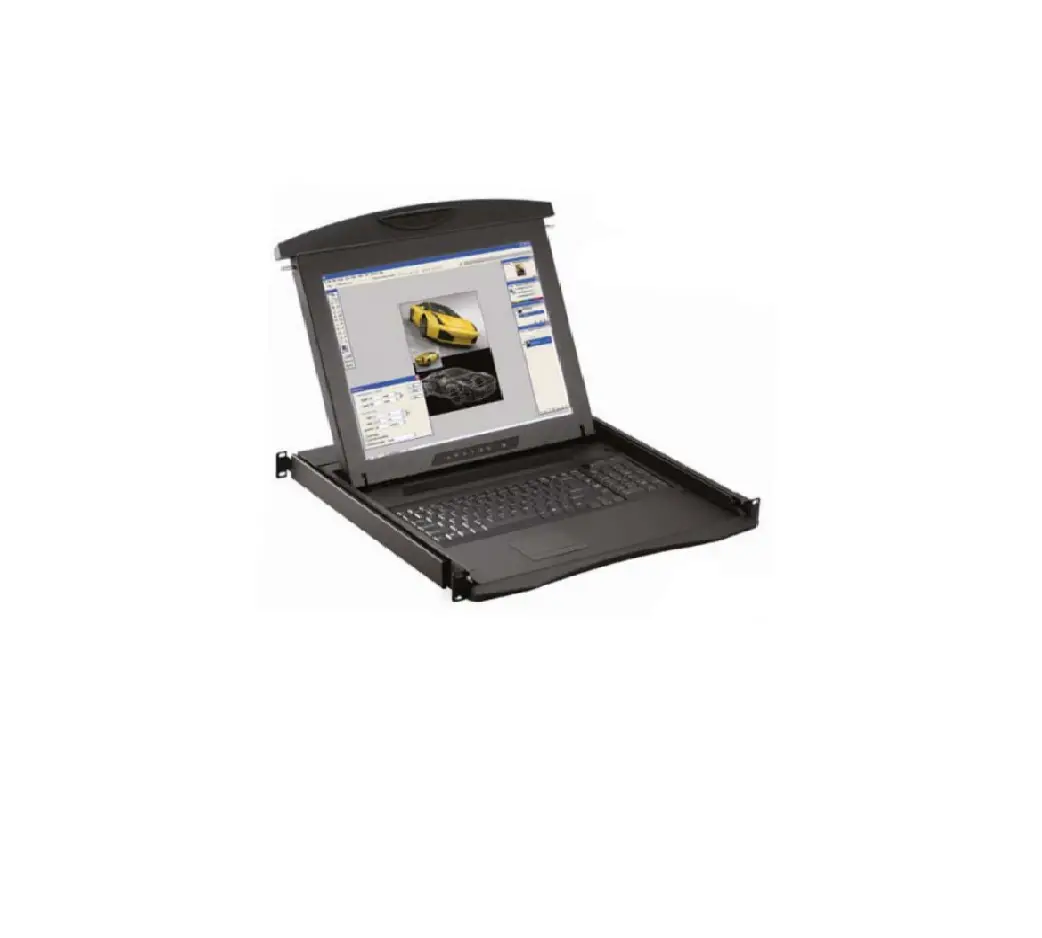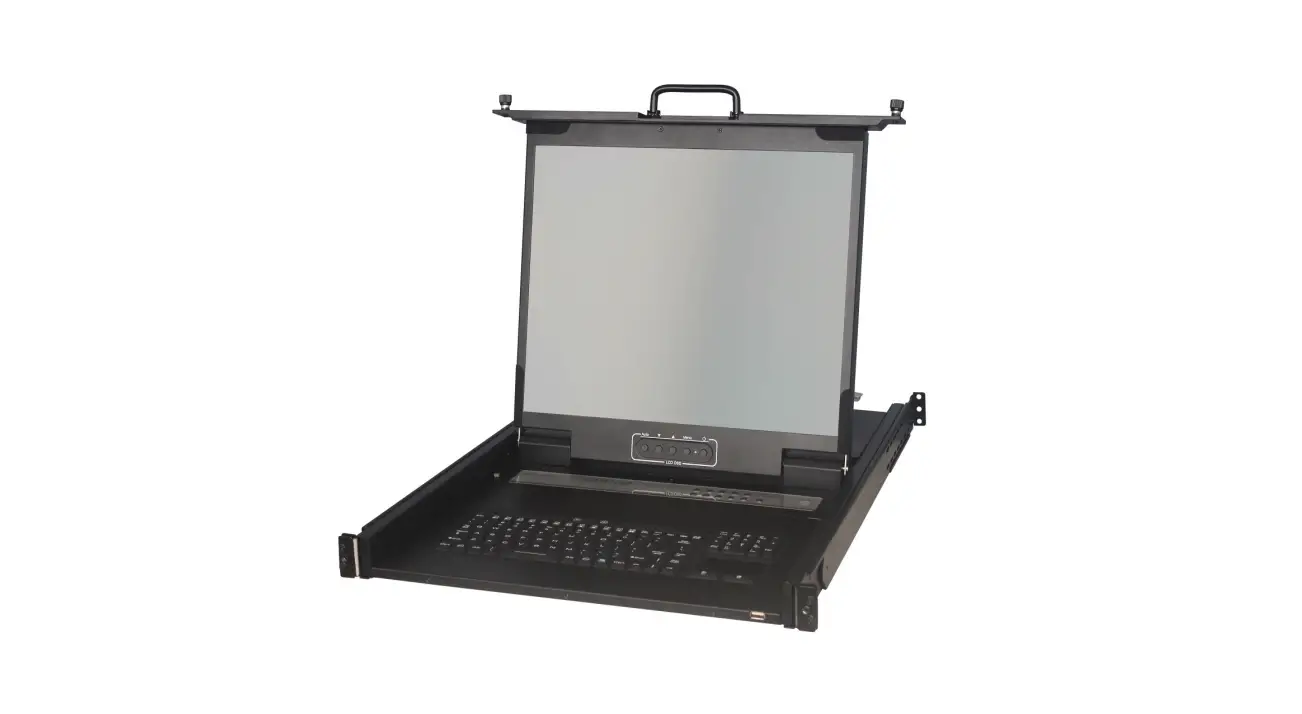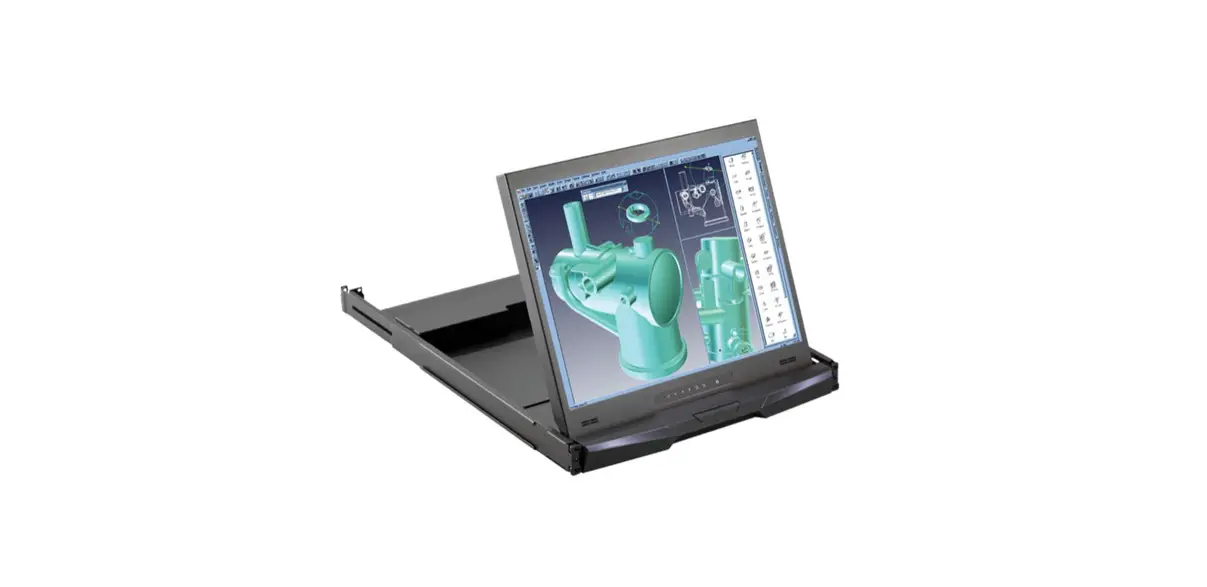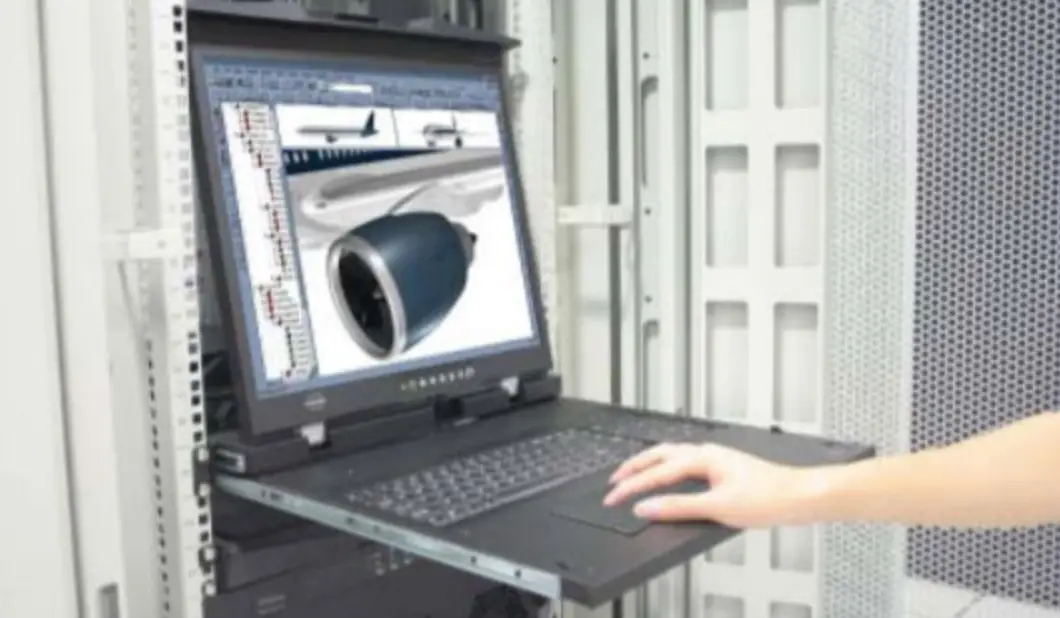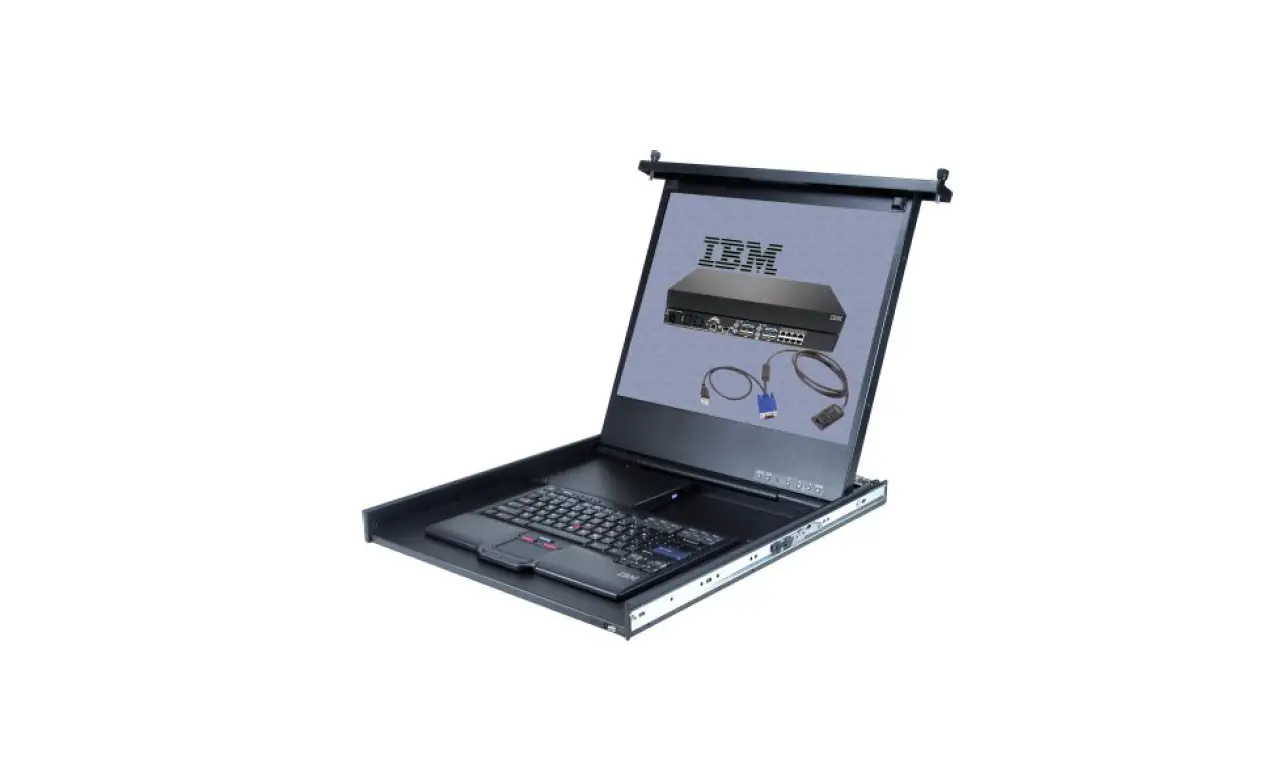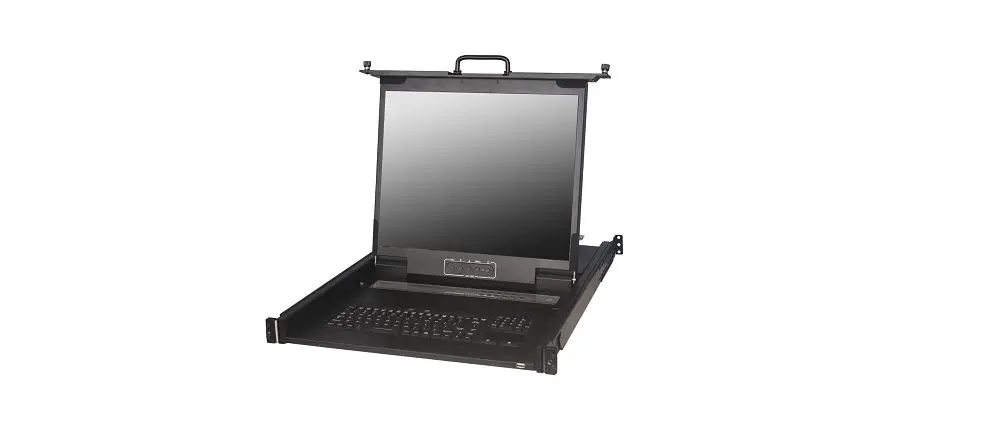

i-TECH AMil-W1730e-AC 17.3 Inch Multi Input LCD Console Drawer
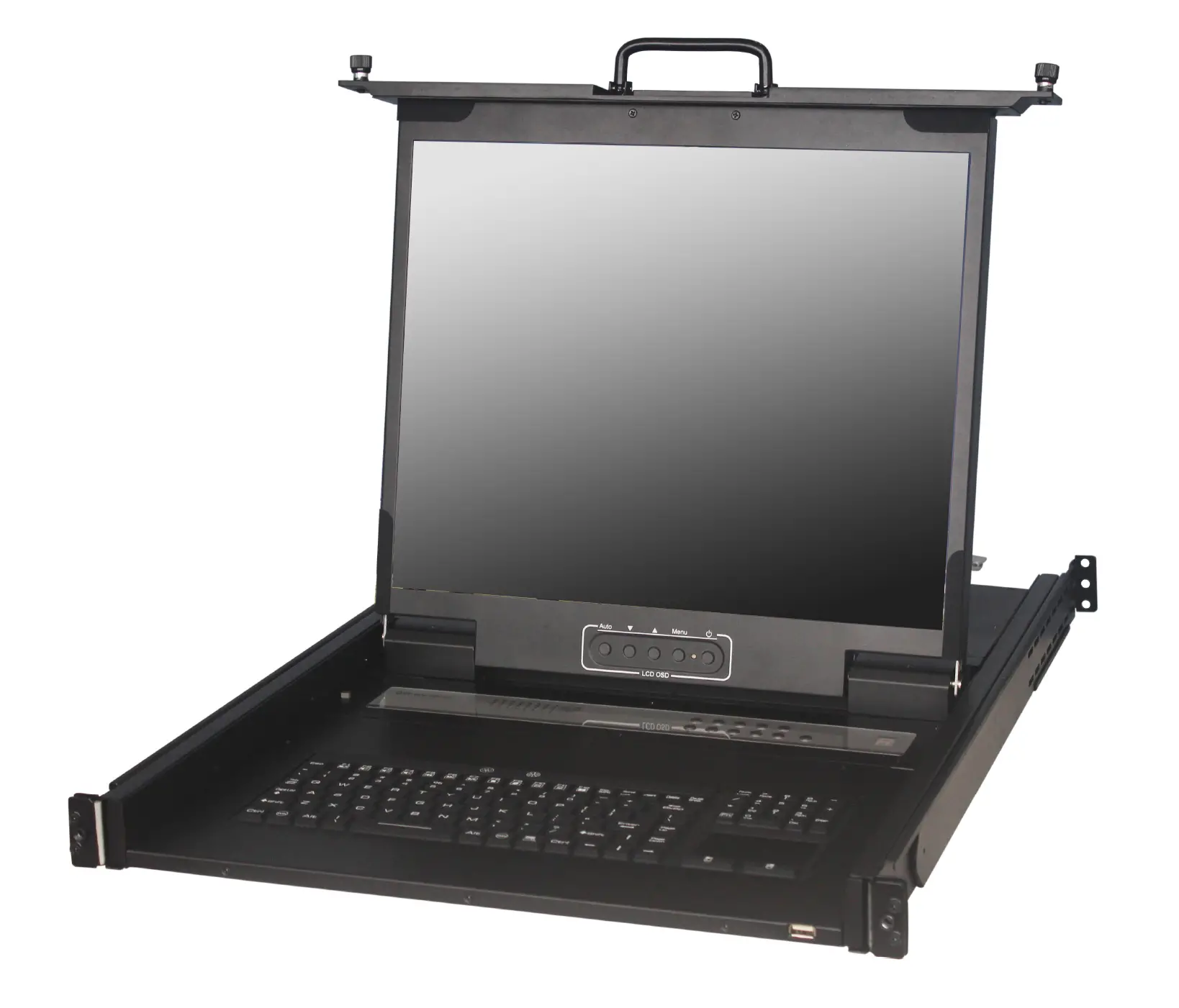
This manual, covering various aspects of the equipment such as installation, setup and cascade, will help you make full use of this LCD KVM Drawer. Please read this manual carefully and install and operate the equipment according to the manual to avoid damage to this product its accessories.
Product package includes following items:
- 1 *17.3″ inch LCD KVM Drawer;
- 1 * AC Power Cord with lock connector
- 1 * Rack installation bracket ( one pair )
- 1 * USER’S manual (CD)
- 1 * 1.8 Meter VGA cable
- 1 * 1.8 Meter DVI cable
- 1 * 1.8 Meter USB A Type cable
Please check items above. If any item is missing or damaged, please contact your dealer promptly.
Introduction
Overview
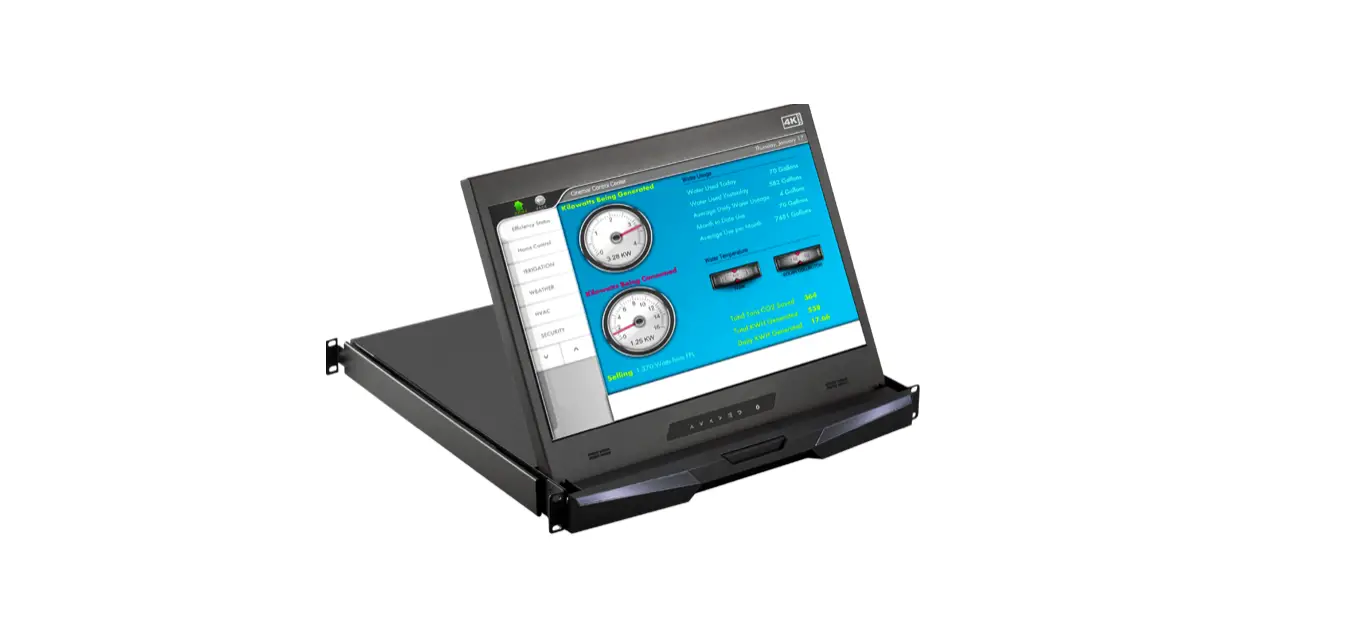
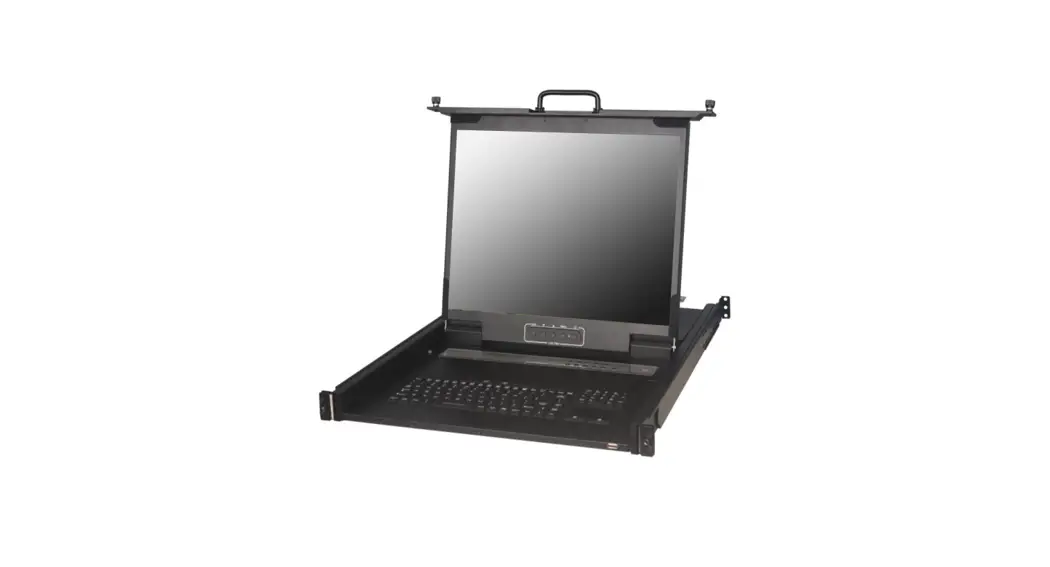
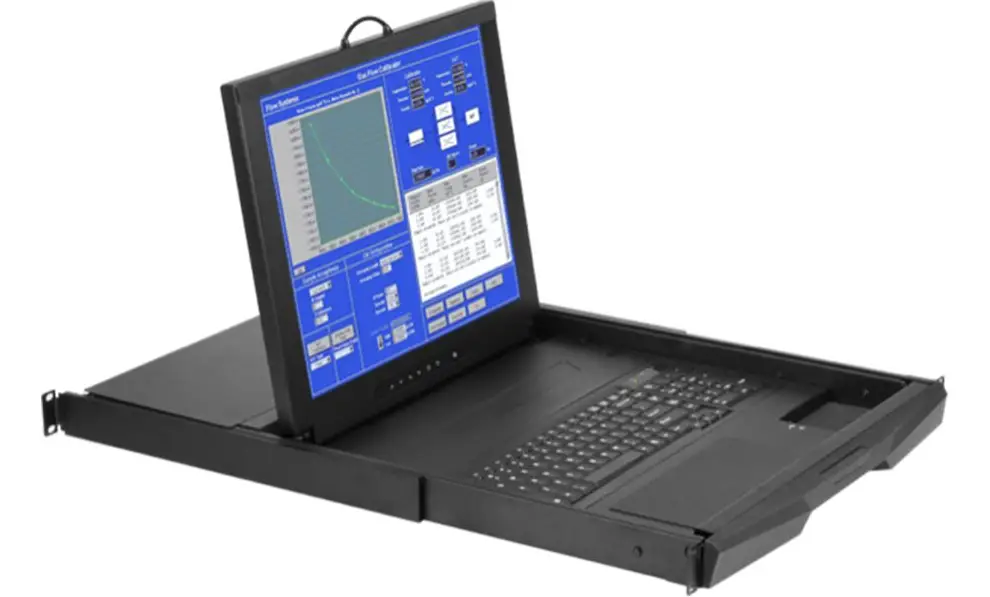
The 17.3″ LCD KVM integrates keyboard, LCD display and touchpad in a drawer-type worktable and provides a convenient space-saving operation mode for KVM switch technology. The cover is an LCD display, while the base is keyboard and touchpad.
KVM console is a control device integrating 17.3″ LCD, 104 keys keyboard and touchpad mouse. You can access multiple hosts using the LCD console while saving money and efforts.
LCD KVM console is the best choice to save time and efforts. Since all hosts can be controlled from a single main control terminal, using the LCD KVM Console:(1)avoids the cost of keyboard, mouse and monitor of each host; (2) saves workspace; (3) saves power; (4) saves the trouble of moving from one computer to another.
* For Mac and Sun hosts, USB cable must be used for the connection.
Function & Features
The display is integrated to a drawer type worktable of 1U height to facilitate rack installation. It meets the 1U height of rack specifications and can be installed into19 inch rack cabinet . No need to install additional software or hardware.
Hardware Requirement
Hosts Requirement:
- DVI, VGA graphic card
Note:
the max. resolution of the integrated LCD display is 1920×1200 (17.3″)
Make sure the resolution of any connected computer does note exceed this resolution. - USB port for keyboard and mouse.
- USB 2.0 Hub for peripheral USB device
Cables
- DB-15 VGA cable male to male
- USB A Type Cable
- DVI-D Cable male to male
- AC Power Cord with lock connector
Product Specifications
| Model | 17.3″ LCD-Console | |
| Brightness | 400cd/m2 | |
| Contrast | 1000:1 | |
| Angle of visibility | 170°(H),176°(V) | |
| Color display | 16.7M | |
| Keyboard | 104 keys | |
| Mouse | touch pad mouse | |
| Local Control Terminal | Keyboard/Mouse | USB 2.0 |
| DVI-D | 24 pin DVI-D female connector | |
| VGA | HD-15 female connector | |
| USB 2.0 | For USB peripheral device | |
| Video resolution | 1920 x 1080 (17.3″) | |
| Power supply | 100-240V AC 50/60Hz via IEC Type power cord | |
| Housing | Metal housing | |
| Weight | 14Kg | |
| Dimension(W x H x D) | 482 x 42 x 660 (mm) | |
Front View
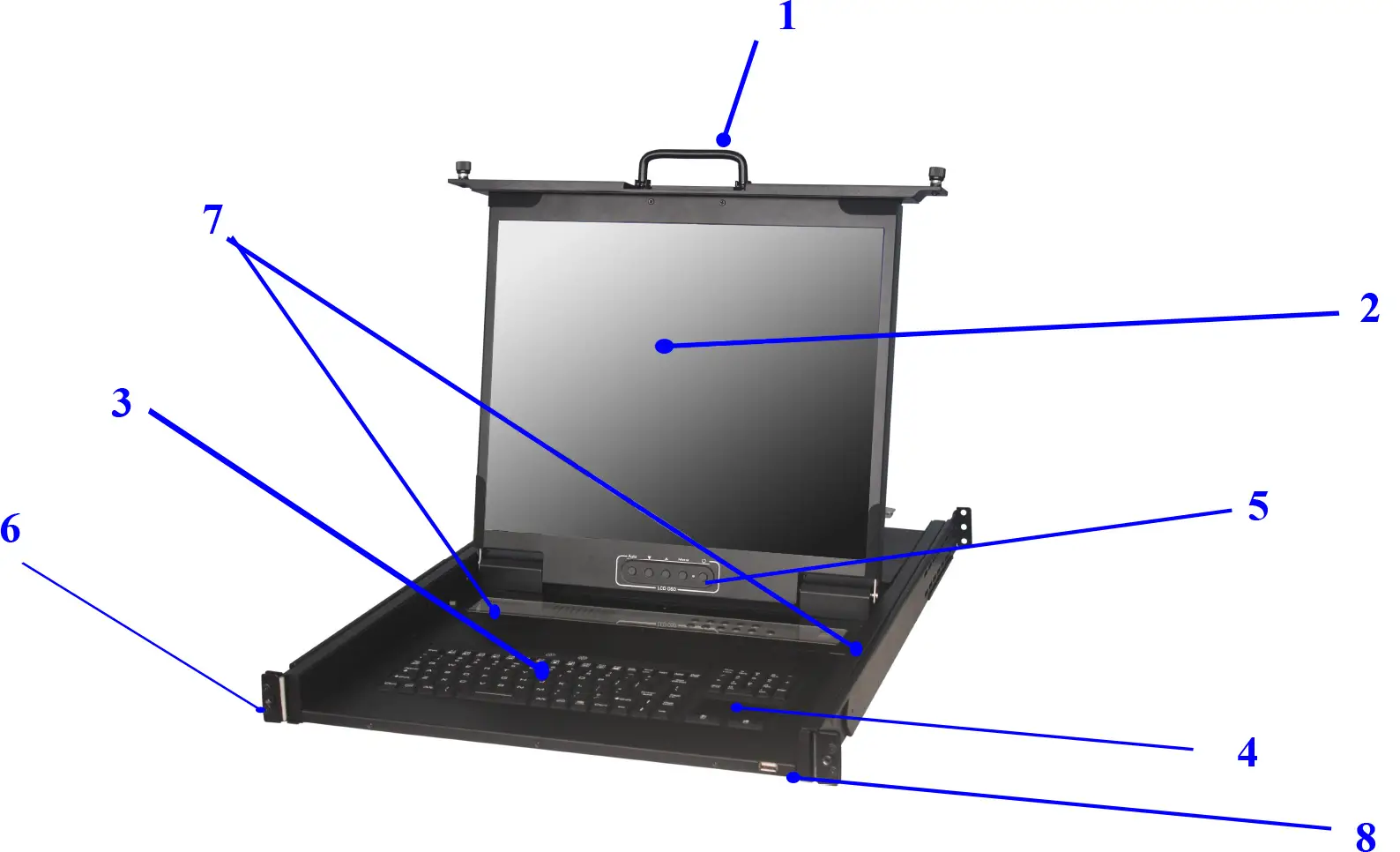
| NO | Part | Function Description |
| 1 | Handle to adjust screen opsition | |
| 2 | LCD display | |
| 3 | Waterproof-Keyboard | |
| 4 | Waterproof-Touchpad | |
| 5 | LCD OSD button | LCD button to control Screen Display position and image setting. |
| 6 | Mounting bracket | Install into rack cabinet |
| 7 | Lock button | Auto lock/release when lcd pull up and down |
| 8 | USB2.0 HUB port | |
Rear View
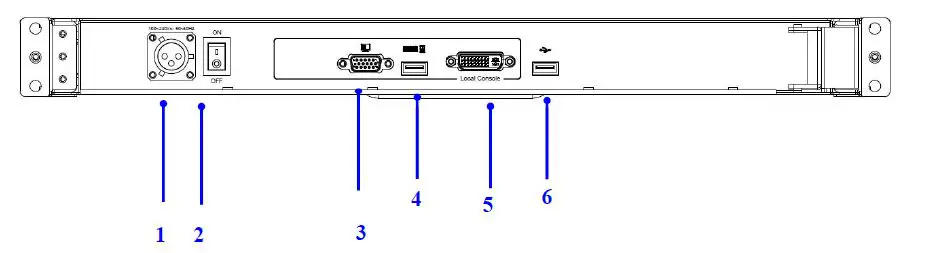
| No | Component | Function Description |
| 1 | AC Power port | MIL lock connector |
| 2 | Power Switch | Rock switch, turn on/off equipment main power. |
| 3 | VGA port | Connect to server or KVM. |
| 4 | USB port | Connect to server or KVM. |
| 5 | DVI port | Connect to server or KVM. |
| 6 | USB 2.0 | For USB peripheral device |
Installation
Rack Installation
Step 1
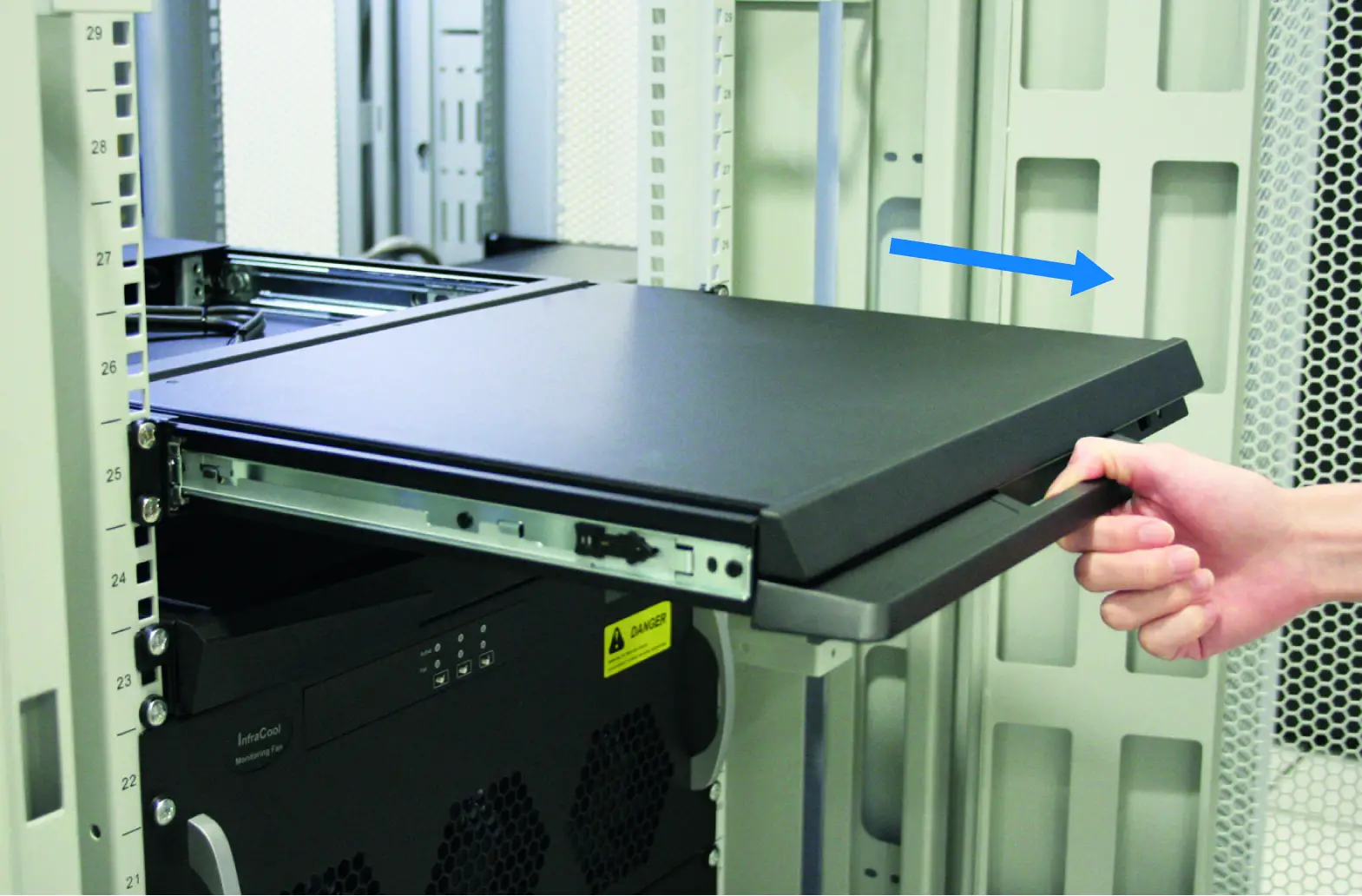
Loosen screw A on both sides to slide out and remove the two rear slide rails.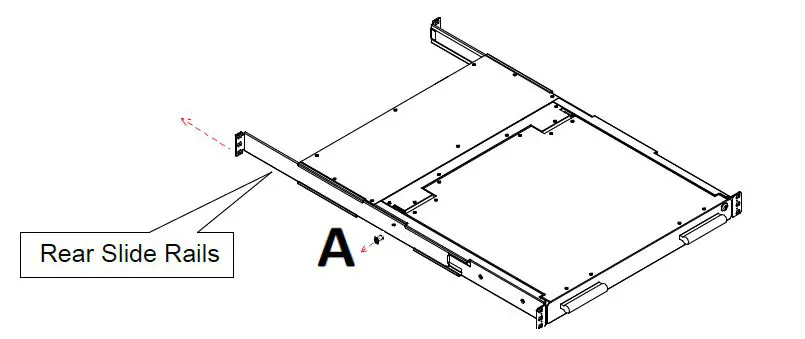 Step 2
Attach the two rear slide rails to the rear vertical mounting rails of the rack cabinet using standard M6 cage nuts and screws.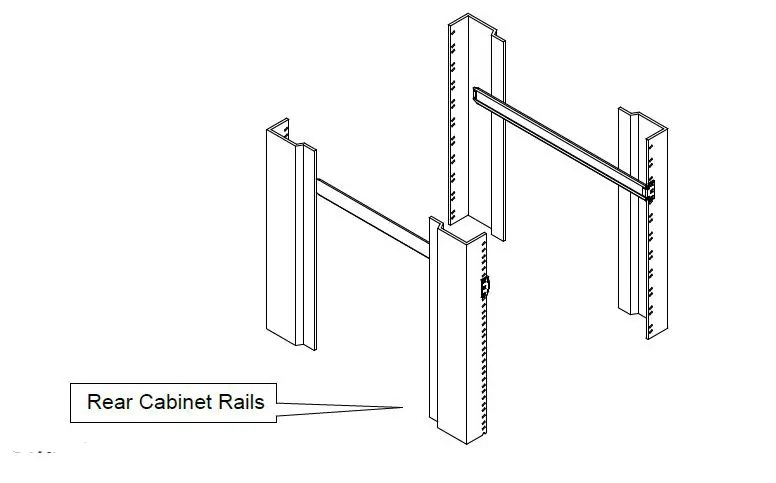 Step 3
Position the LCD console drawer so the two rear slide rails will slide into the main body of the LCD console drawer. Attach the mounting ears of the LCD console drawer to the front vertical mounting rails of the rack cabinet using standard M6 cage nuts and screws.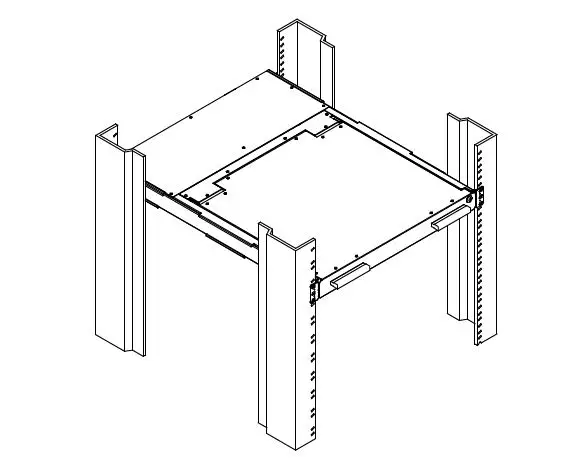
Standard Installation
Please follow the installation drawing and instructions below for standard installation:
- Please Shutdown the Power of Equipment Needs to be Connected
- Please Pay Attention to Earthing of Equipment
The standard installation is completed, and LCD KVM console can be powered on. Then power on connected hosts. 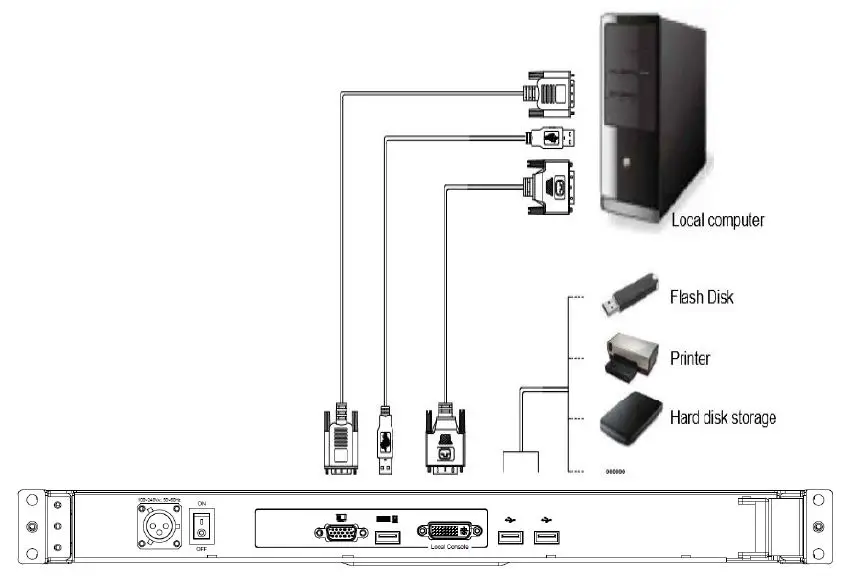
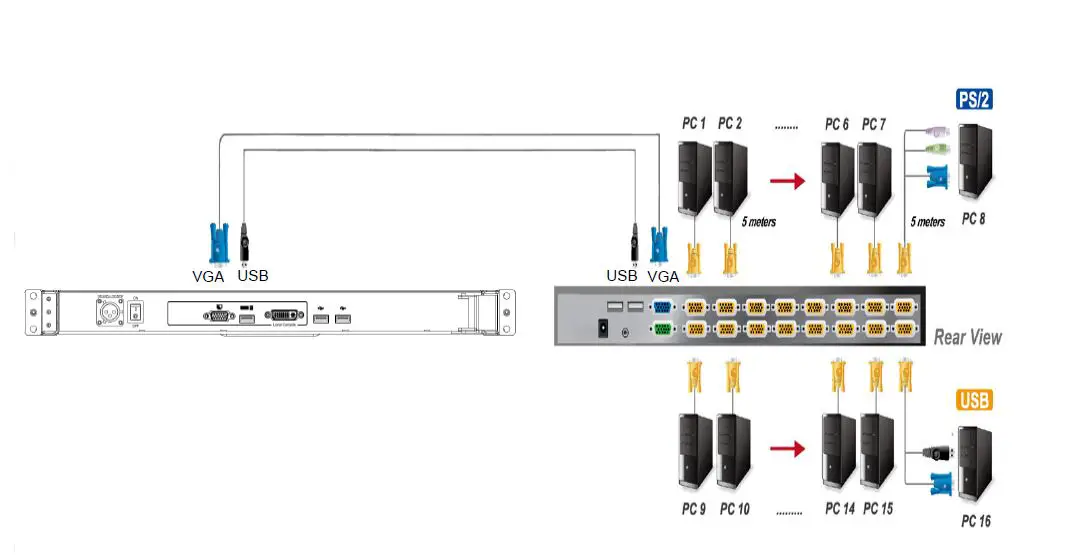
LCD KVM Console and KVM Cascade Installation
LCD KVM console port can be directly connector to another KVM Switch as cascade to Perform unified management all connected hosts. Please follow the installation drawing and instructions for standard installation:
- Make sure to power off all equipment to be connected and existing equipment.
- Switching slide switch on USB position
- Use an USB / VGA cable to connected the LCD and KVM switch console port.
- Turn on the KVM and LCD console power first and then power on hosts to prevent loss of any keyboard or mouse.
Cascade connection drawing
LCD OSD Menu Setup
OSD Control buttons
LCD OSD can establish and setup LCD display. Setup instructions of four buttons are as
| Button | Functions |
| POWER | Turn on or off the LCD Display |
| MENU | Activate OSD menu, select a menu and press MENU key to confirm the selection and enter the submenu. |
| ▲ | Press this key to increase setting or scroll up the menu bar |
| ▼ | Press this key to Decrease setting or scroll down the menu bar |
| Auto/Source | press to seletion video input |
OSD Control Operation
Main Menu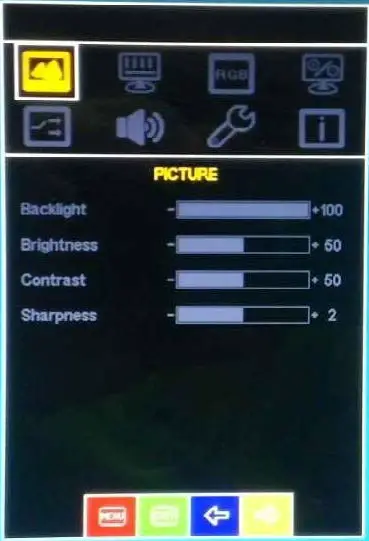
Certificates
FCC
This product has been tested and is proved to meet requirements of Grade B electronic devices and specifications of Section 15 of FCC certification. Please observe following two conditions in operation that:
- The equipment will not generate any harmful interruption.
- If the equipment is interrupted, it may cause unnecessary operations.
CE
This equipment complies with regulations of EN55022:CLASS B.
RoHS
The whole package including products, packaging materials and documents meet RoHS equipments.