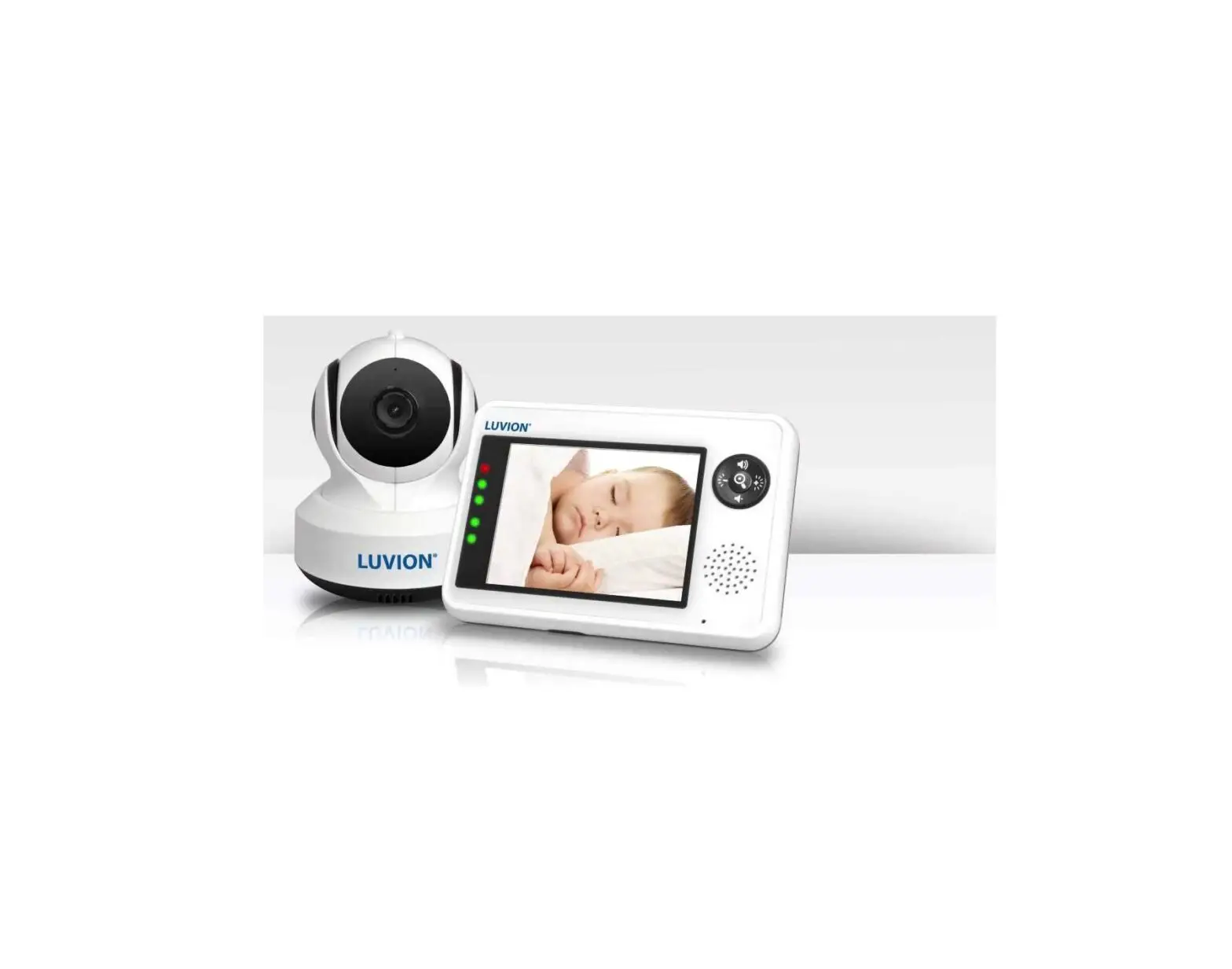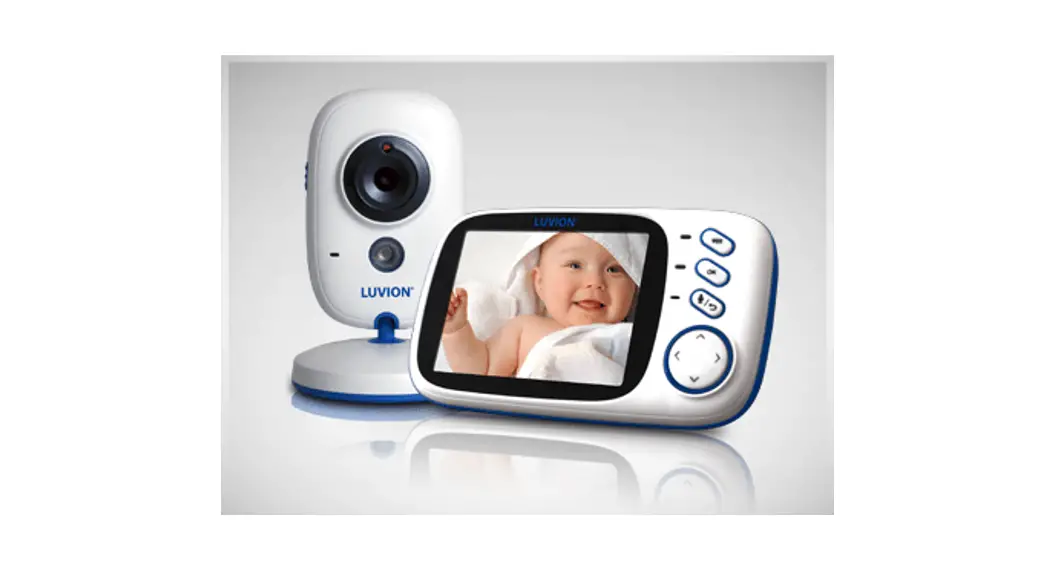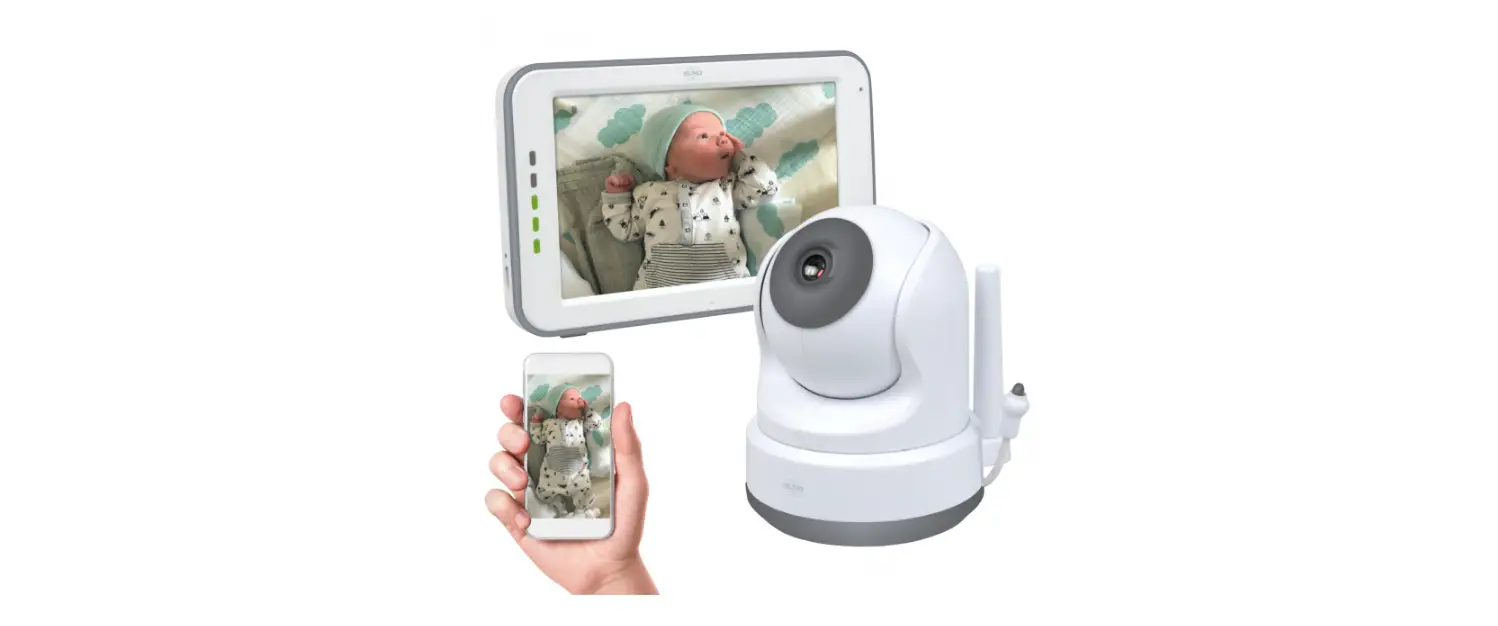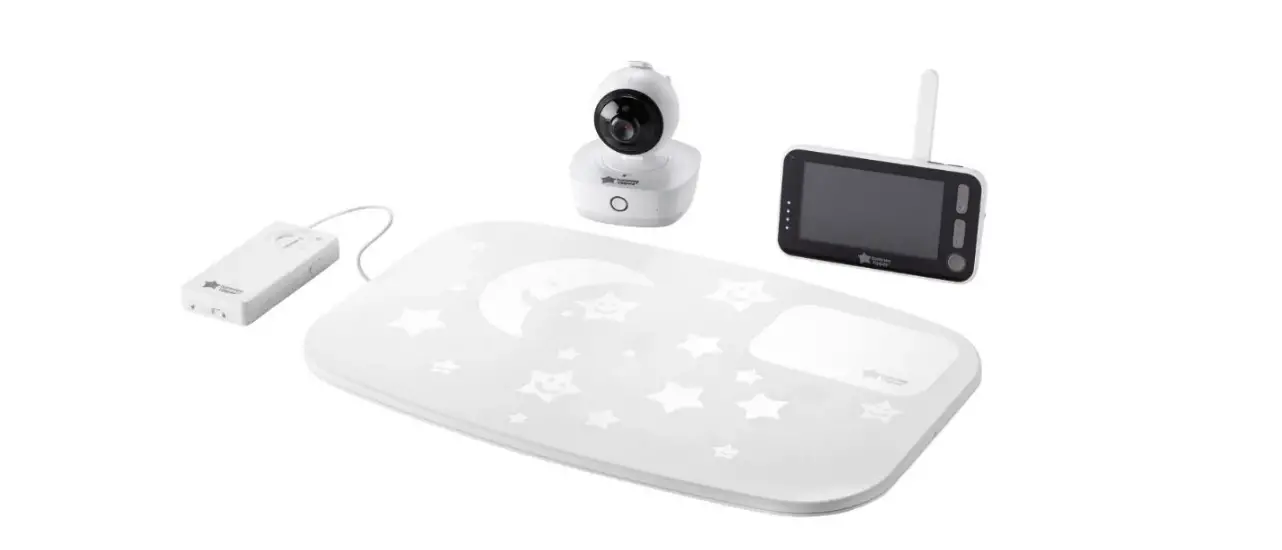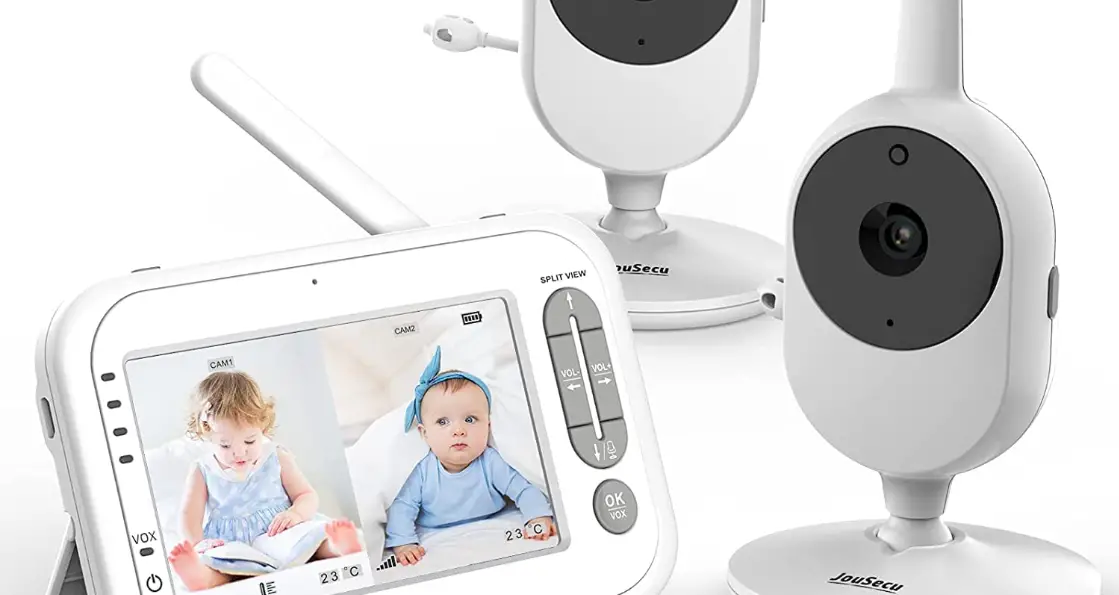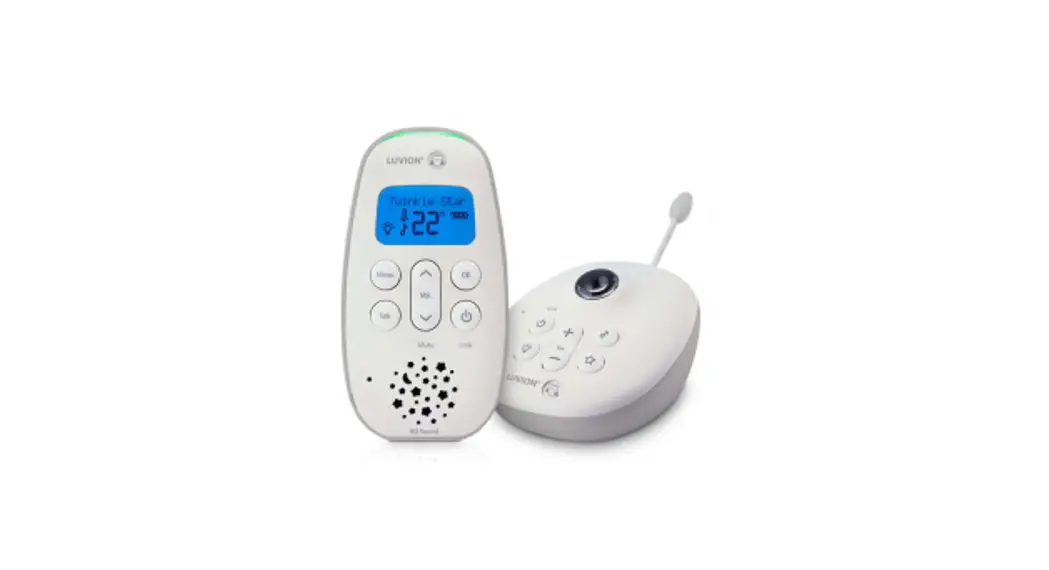
 ICON CLEAR 75 PRO
INSTRUCTION MANUAL
LUVION Premium Baby products
PRODUCTOVERZICHT
SETTING UP
BABY UNIT
PACKAGE CONTENTS:
- 1 Baby unit
- 1 Parent unit
- 2 AA NiMH 1300mAh rechargeable batteries for Parent unit (pre-installed)
- 2 adapters
- This user manual
PRODUCT OVERVIEW
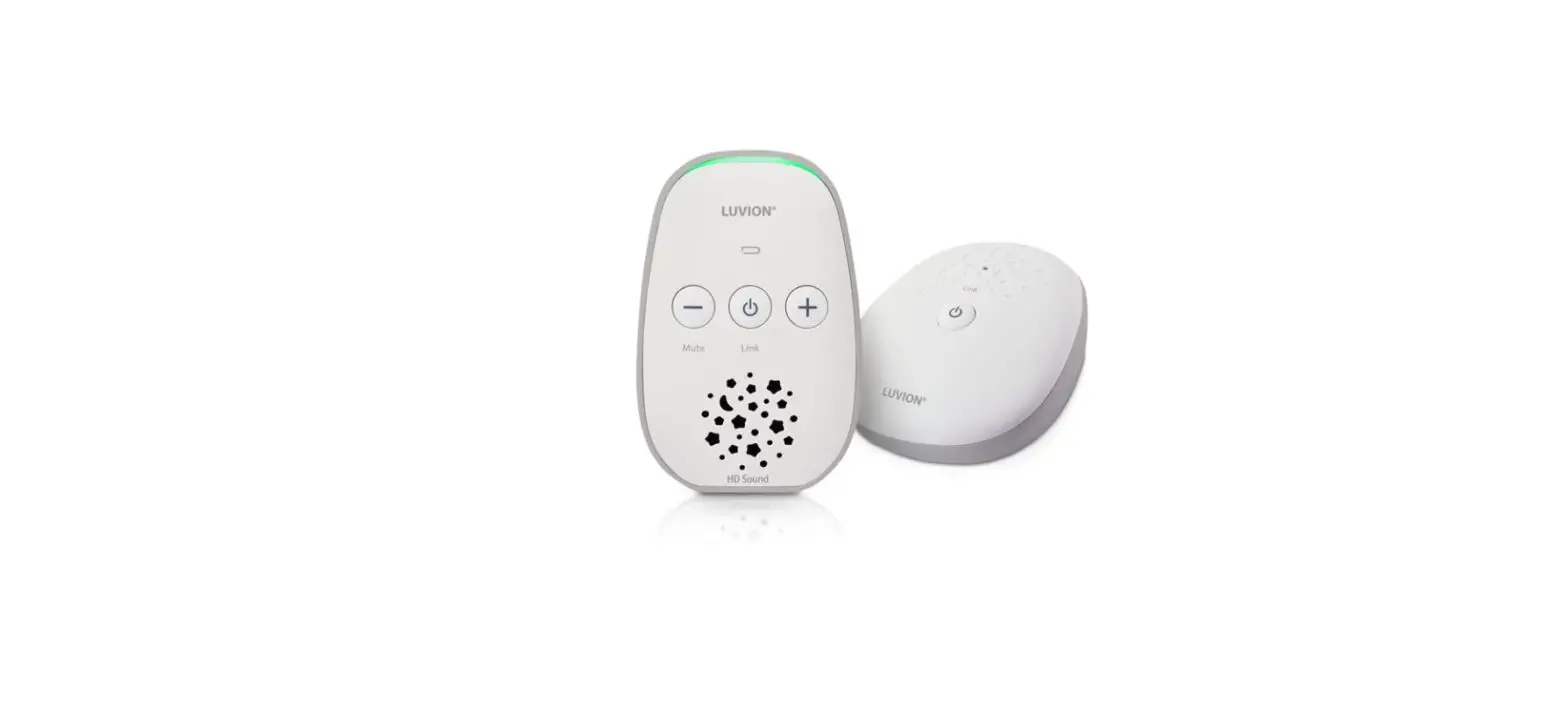
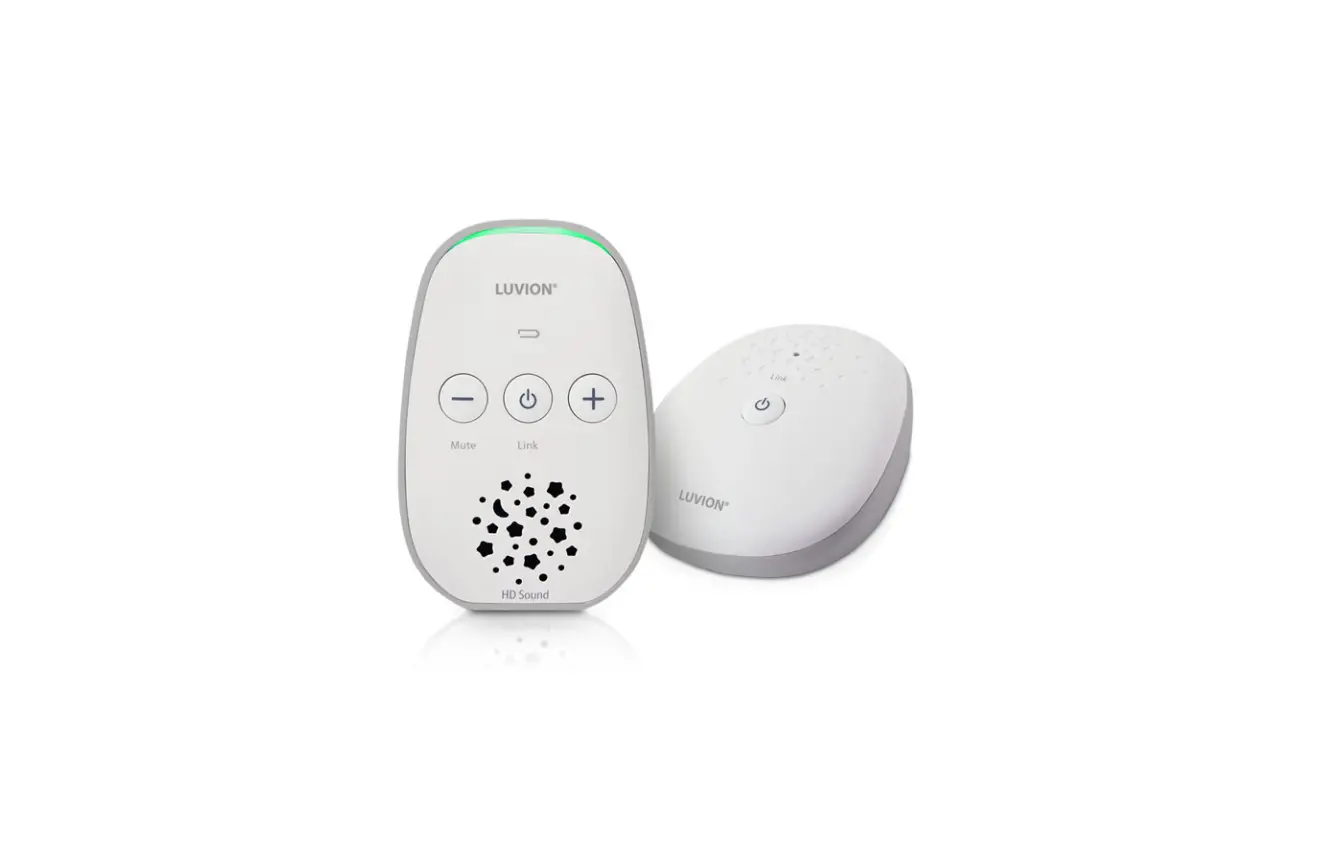
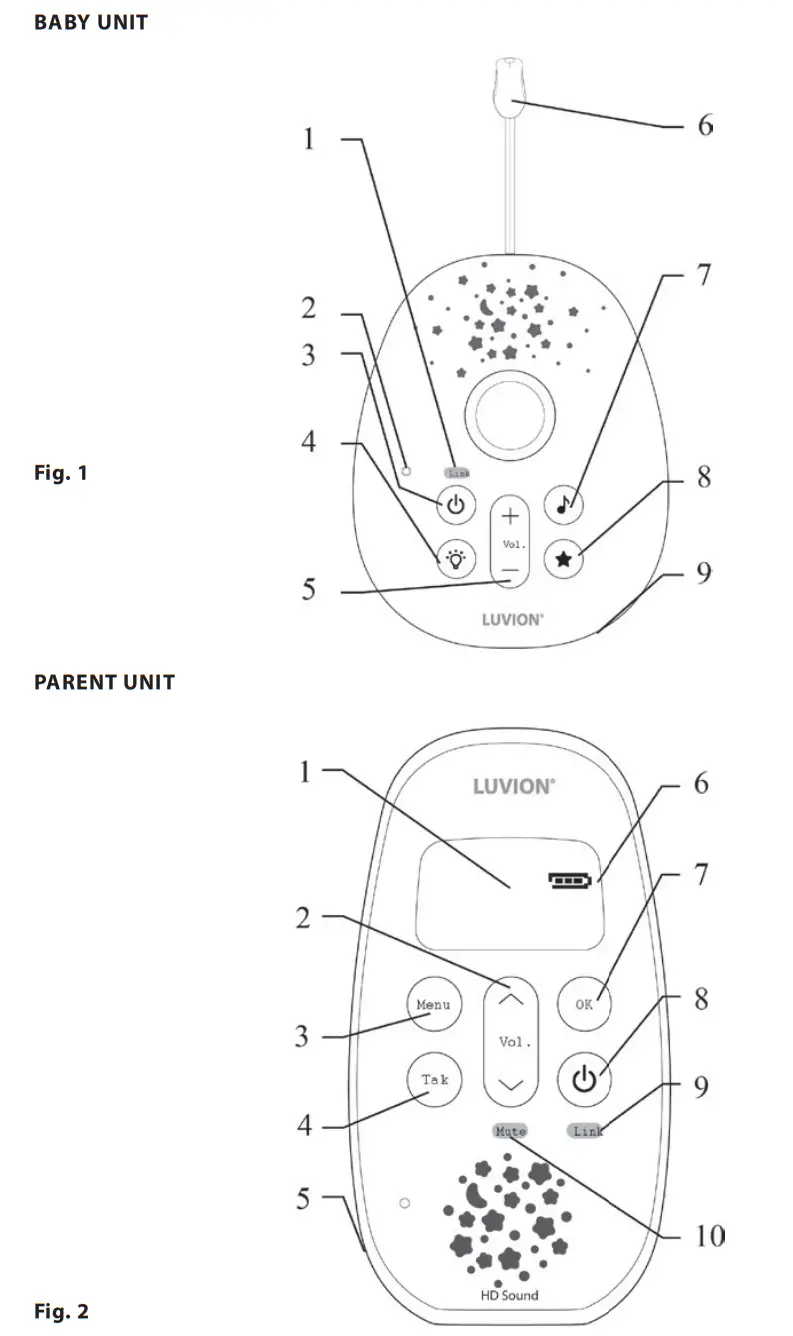
Baby unit (Fig. 1)
- Link indicator, Flashes orange when your monitor is trying to find a link. Remains solid when the Parent and Baby units are linked to each other.
- Microphone.
- Power on/off, Press and hold to switch the power on or off.
- Nightlight, Illuminate around the base. Press to switch the nightlight on. Press and hold for two seconds to switch it off.
- Volume +/–, Turns the loudspeaker volume up or down when playing music or using talkback.
- Temperature sensor, Make sure the sensor has space around it and isn’t in contact with any surfaces to make sure it’s working at its best.
- Music, Switches the music on at the Baby unit. (It’ll be the same music and will play for the same duration that you last set on the Parent unit.) Press the button again to switch the music off.
- Lightshow, Press to switch the Lightshow on or off.
- Power socket (on the back), For connecting to the mains power socket using the power adapter cable supplied.
Parent unit (Fig. 2)
- LCD display and backlight, The screen backlight comes on whenever you press a button. It switches off again after 15 seconds.
- Volume up/down, Turns the speaker volume up or down and lets you scroll through the main menu.
- Menu, Opens the main menu. Press again to close the main menu.
- Talk, Press, and hold down to talk to your baby.
- Power socket (on the back), for connecting to the mains power socket using the power adapter cable supplied.
- Battery icon on an LCD screen, Tells you how much battery life your unit has left.
- OK, Press to confirm rm when you’re scrolling through the main menu.
- Power, Press, and hold to turn the unit on or off.
- Link light, Flashes when your monitor is trying to find a link. Remains solid when the Parent and Baby units are linked to each other.
- Mute light remains on when your Parent unit is on mute.
INTRODUCTION
Thank you for purchasing the Luvion Icon Clear 75 Pro baby monitor. From now on you can always hear your baby. Make sure you always keep your original proof of purchase. For warranty cases, you will always be asked to show a copy of your proof of purchase. For warranty claims, you can contact the Luvion dealer or the local Luvion representative. More information can be found at www.luvion.com. This manual contains all the information you need, to be able to use this Luvion Icon Clear 75 Pro baby monitor safely and with pleasure. Before using the baby monitor, we recommend that you read this manual carefully. We ask for your extra attention to the safety instructions.
SAFETY INSTRUCTIONS
- WARNING: CHOKING HAZARD – Keep the adapter cables out of the reach of children! NEVER place the baby monitor or adapters within 1.5 meters of the crib/bed or a playground.
- Never use extension cables in combination with the adapters to prevent entanglement.
- Use only the originally supplied adapters. Use only on standard (100 ~ 240 volts AC) power points.
- If you travel abroad, check the voltage on your unit’s plugs match the local power output.
- This product is not a toy. Don’t let children play with it.
- The baby monitor is not suitable for use as a medical surveillance monitor.
- The baby monitor is not a substitute for parental supervision.
- Do not use the baby monitor in a damp environment or near water, such as in the bathroom, kitchen, laundry room, wet basement, etc.
- This product is only suitable for indoor use.
- It is important to first check the range and condition of the baby monitor before first use and then on a regular basis.
- Test the connection well when the baby monitor is moved.
- Use the baby monitor at a temperature between 10 °C and 40 °C, do not place the baby monitor in direct sunlight or at other heat sources such as radiators, candles, gas cooker, ensure there is suffi client ventilation space around the baby monitor.
- Never dismantle the parent or baby unit yourself, this invalidates the warranty. This must be done by certified personnel, contact the seller of the local distributor for this.
- Only replace the batteries with original Luvion batteries of the same type. Using the wrong batteries may damage your baby monitor.
- Make sure that the parent unit is fully charged on first use. This guarantees an optimum battery life.
- Dispose of used batteries in accordance with local environmental regulations.
SETUP & USE
1. PARENT UNIT SETUP
1.1 Setting up
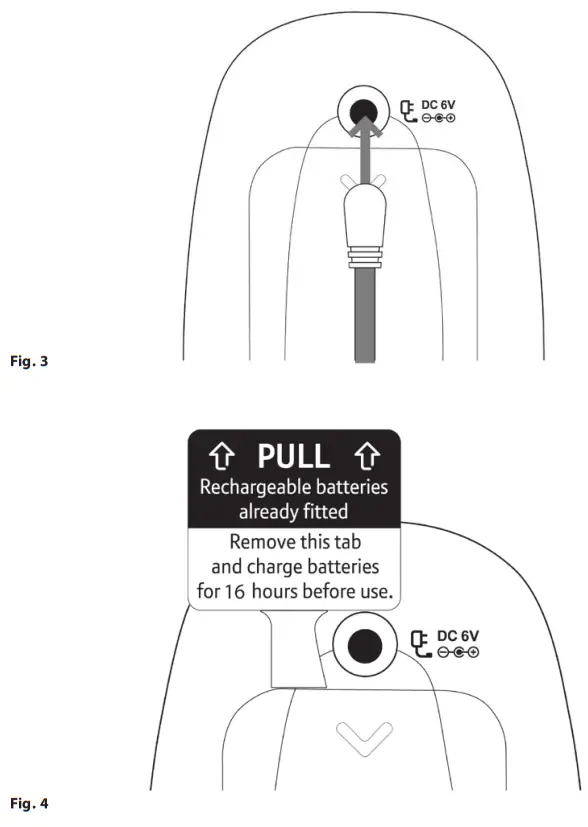
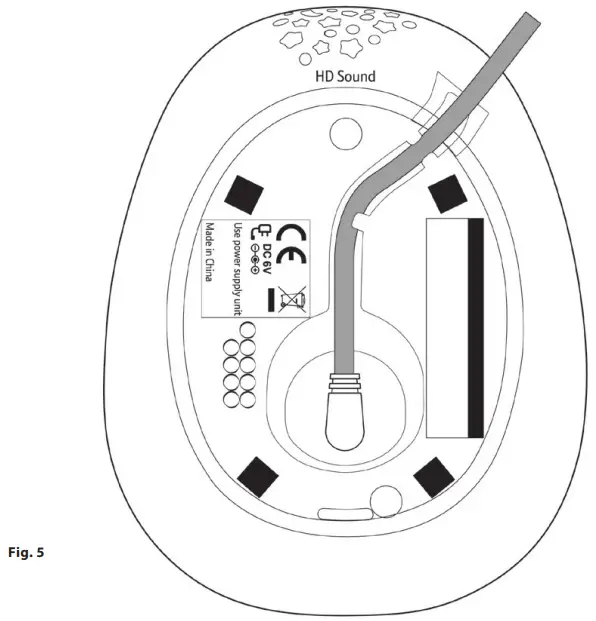
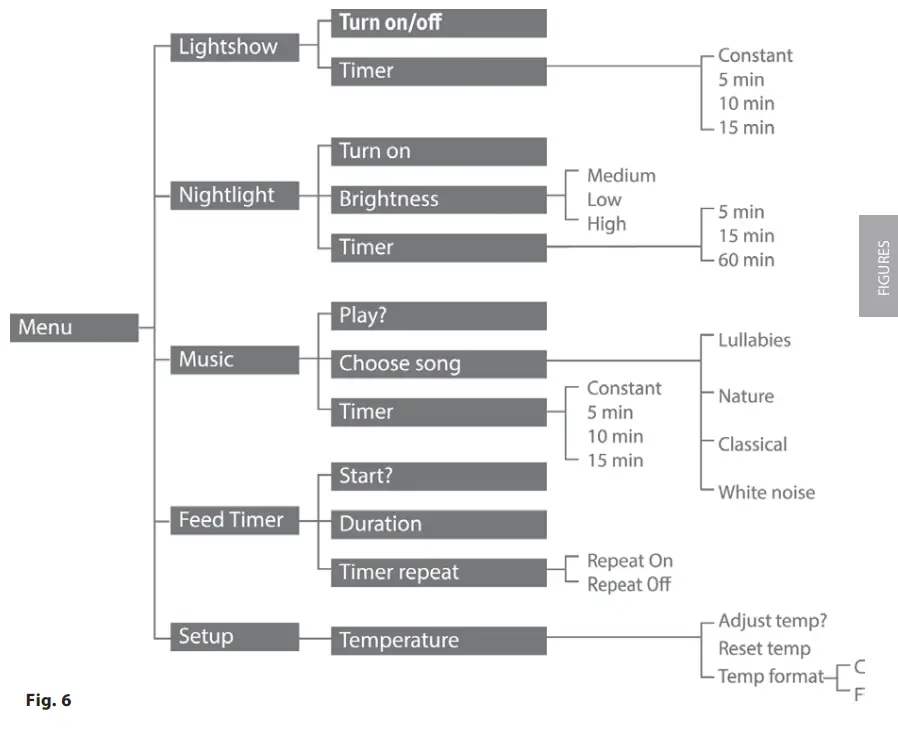
- Plug one of the power cables into the socket on the back of the Parent unit. (fig. 3)
- Plug the other end of the cable into your mains wall socket and switch it on.
- Activate the batteries by pulling the plastic tab away from the back of the Parent unit. (fig. 4)
- Leave the batteries to charge for 16 hours to reach maximum charge. When they are fully charged the battery icon on the display will show full charge.
Warning: Only use the power adapters supplied. Using incorrect power adapters may permanently damage your product.
1.2 Battery low alert on Parent unit
When the batteries on your Parent unit are running out, an alert will sound and the battery icon on your display screen will flash. When this happens, you’ll need to charge the batteries. If you ever need to remove the batteries, slide open the battery compartment cover and use the ribbon to push them out.
Warning: Always use rechargeable batteries in the Parent unit. Only use the type we’ve recommended – 2 x AA NiMH 1300mAh batteries. Charge the batteries as instructed in
this user guide. The Parent unit can still be used when it’s charging.
2. BABY UNIT SETUP
2.1 Setting up
- Plug the remaining power cable into the socket on the back of the Baby unit.
- Plug the other end of the cable into your mains wall socket and switch it on. (fig. 4)
2.2 Switching on and linking the Parent and Baby units
Before switching on, make sure the Parent and Baby unit are at least one meter from each other. Any closer and you might get audio feedback sounds.
- Press and hold the
 button on the Baby unit until the orange Link indicator flashes.
 - Press and hold the button on the Parent unit until all the LEDs on the unit briefly light up. The orange Link indicator will flash and the display will show “I’m Linking…” When the units are linked, the orange Link indicator lights on the Parent and Baby units will stop flashing. When the lights stay steady, your monitor is ready to use.
 button on the Baby unit until the orange Link indicator flashes.
2.3 Deciding where to put your units
The Baby unit should ideally be within 1 to 2 meters of your baby. Make sure both the Baby unit and main power cable are connected securely and they’re out of the baby’s reach. If the Parent and Baby units are too close together, you’ll hear a high-pitched noise. That’s because the units are designed to be put at a distance from one another, such as in separate rooms.
Important: The two units will need to be linked before you can start using them. If the link between the units is broken, the Link indicator lights will flash while they try to look for each other and The Parent unit will show “I’m Linking…”. After 30 seconds, if the link is still broken, the Link indicator lights will flash red and the Parent unit display will show “Not Linked”. If the link is broken, check that:
- the mains power is plugged in and switched on at the Baby unit
- both units are switched on
- the batteries are charged in the Parent unit
- the Parent and Baby units are within range of each other (in ideal conditions, that’s up to 330 meters outdoors and 50 meters indoors).
3. USING YOUR LUVION ICON CLEAR 75 PRO AUDIO BABY MONITOR
3.1 Switching the Baby unit on
- 1. Press and hold the button, the orange Link light flashes. When it’s finished linking, it’ll stop flashing and remain steady.
- To switch off, press and hold the button again.
3.2 Switching the Parent unit on
- Press and hold the button on your Parent Unit. The LED screen will come on and the green light at the top will flash. The orange Link light will also flicker on and off
while the units are linking. “I’m Linking…” will show on the screen. When the units have found each other, your Parent unit will go back to its idle screen. - To switch off, press and hold the button again. The screen will go blank and all the lights will switch off.
3.3 Changing your Baby unit settings using the Parent unit menu
You can use the  button on the Parent unit to change settings on the Baby unit without having to disturb your baby.
- Press
 and then
  scroll through the menu options. Press
 when the option you want appears on the screen.
 - You’ll be taken to the submenu (fi g. 6). Press scroll through the options. Press when the option you want shows on the screen.
- You can then press briefly to step back one menu level at a time, or press and hold to go back to the idle screen. If you don’t press any buttons for ten seconds, your
The parent unit will go back to the idle screen automatically.
 when the option you want appears on the screen.
3.4 Checking or changing the loudspeaker volume on your Parent unit
You can change the volume on either of the units using the buttons. When you press the
  volume button, the current volume will be shown on your display screen. If you’ve muted the sound “Volume off ” will show on the display screen.
3.5 Changing the loudspeaker volume on your Baby unit
There are two diff erent ways to change the volume on the Baby unit.
- When music is playing or you’re using talkback, you can press the buttons to adjust the volume.
- If no music is playing and you’re not using talkback, pressing the buttons will change the volume.
Note: The unit has five volume levels plus Off (Mute). If you try to set the volume higher or lower than those, you’ll hear a beep.
3.6 Switch light show on/off using the Baby unit
The Baby unit has a light show that projects a starry image onto the ceiling of your baby’s room. Using the Parent unit menu, you can set when you want the light show to start.
- To switch on, press the
 button. The light show will slowly fade in.
 - 2. To switch off, press again. The light show will fade out.
 button. The light show will slowly fade in.
3.7 Switch light show on/off on the Parent unit
- Press. “Lightshow” will show on the screen. Press.
- Press, to get to either, “Turn On?” or “Turn Off ?” and press.
3.8 Setting the light show timer
- Press. “Lightshow” will show on the screen. Press.
- Turn On/Off ? will appear on the screen. Press
 until Timer is displayed and press.
 - Press to choose 5 min, 10 min, 15 min, or “Constant”. When you’ve got to the option you want, press.
- “Saved” will show on your screen and you’ll hear the confirmation tone.
 until Timer is displayed and press
Note: The Baby unit must be switched on for the light show to work but doesn’t need to be linked to the Parent unit. It’s default setting is Constant.
3.9 Talkback
Your Parent unit comes with one-way talkback, which lets you comfort and reassures your baby. When you speak into the Parent unit, your voice will come through on the Baby unit.
- Press and hold down the
 button on the Parent unit to speak to your baby. While you’re pressing the button, “Talk” will show on the display screen of the Parent unit.
Note: When you’re using talkback, you won’t be able to hear your baby through the Parent unit until you release the button. Don’t press the button when the Baby unit and The parent units are in the same room. You’ll hear a high-pitched noise if you press the button when the units are within three meters of each other. When using talkback, hold the Parent unit about 30 centimeters in front of your mouth.
3.10 Switching nightlight on/off using the Baby unit
You can set a comforting nightlight on the Baby unit. There are three brightness levels to choose from: low, medium, and high. And you can set when you want the light to
shine.
- To turn on or off, press the
 button until you get to the setting you want.
Note: The Baby unit must be switched on for the nightlight to work but doesn’t need to be linked to the Parent unit.
 button until you get to the setting you want.
3.11 Switching nightlight on/off using the Parent unit
- Press and then until you get to Nightlight. Press.
- Press display either “Turn On” or “Turn Off ”, and press when you’ve got to the option you want.
3.12 Selecting the nightlight brightness level through the Parent unit
- Press and then until you see Nightlight. Press.
- “Turn On/Off ?” will show on the screen. Press the arrow buttons to scroll through to “Brightness” and then press.
- Use the arrow buttons again to choose “Low”, “Medium” or “High”. When you’ve got to the option you want, press. “Saved” will show on your screen.
3.13 Setting the nightlight timer
- Press and then until you see Nightlight. Press.
- Press the arrow buttons to scroll through to Timer, then press again.
- Press choose “5 min”, “15 min”, “60 min”, or “Constant”. When you’ve got to the option you want, press. “Saved” will show on your screen.
3.14 Turning music on/off using the Baby unit
The Baby unit has 18 songs that can be played to gently soothe your baby, organized into four categories: Lullabies, Nature, Classical and White Noise. You can select one song to play repeatedly or select the Play All option for a medley of the songs from your selected category. The songs can be set to play in a loop for 5, 10, or 15 minutes or
you can leave them playing constantly.
- To turn the music on, press
 . The most recently chosen song will start playing at the time you last set on the Parent unit.
 - To turn the music back off, press the button again.
 . The most recently chosen song will start playing at the time you last set on the Parent unit.
Note: The default music setting is to Play All of the lullaby songs constantly. When you switch the Baby unit on, there might be a small delay before it’s ready to play music. Adjust the volume of the music using the buttons on the Baby unit.
3.15 Turning music on/off using the Parent unit
- Press and then use the arrow buttons to get to “Music”. Press.
- When “Play?” or “Stop?” is displayed, press to select the one you want.
3.16 Choosing a song to play using the Parent unit
- Press and then use the arrow buttons until you see Music. Press.
- Press again until you see “Choose song”. Press.
- Use the arrow buttons to choose between the diff erent song categories: “Lullabies”, “Nature”, “Classical” or “White Noise”. Press to select the one you want.
- Use the arrow buttons to scroll through the song titles and press when you get to the option you want. Or you can select “Play All” to play all of the songs from your chosen category.
3.17 Changing a song currently playing using the Baby unit
- Press and hold down the button until the song changes. You’ll need to turn the music on before choosing a song. Setting a playtime for music
3.18 Setting a playtime for music
- Press and then scroll through to Music. Press.
- Use the arrow buttons again to get to Timer. Press.
- Press
 choose how long you want the music to play. You can choose “5 min”, “10 min”, “15 min” or “Constant”.
 - Press when the option you want shows on the screen.
3.19 Starting the feed timer countdown
Your new baby monitor can give you handy reminders of when to feed your baby, using the feed timer. You can set a time through the Parent unit of the monitor.
- Press and use the arrow buttons to scroll through to “Feed Timer”.
- Press. If your Feed Timer is already switched on, you’ll see “Stop?” If it isn’t you’ll see “Start?” You’ll then have two options.
a. To restart the timer if it’s already switched on, press when you see “Stop?” And then again when “Start?” appears on the display screen.
b. To start the timer if it’s currently switched off, just presswhen you see “Start?” on the screen. - You’ll be sent back to the idle screen, which will switch between showing Timer on and the length of time you have before you get your next feed alert.
3.20 Setting how often you want to get feed timer alerts
- Press and scroll through to “Feed Timer”, using the arrow buttons. Press.
- Use the arrow buttons again to scroll through to “Duration” and press.
- Your display screen will show what the timer is currently set at, with the default being 01hr:59m. Use the arrow buttons to change each digit to match the time you want to get reminders and press. When you return to the idle screen, the feed timer icon
 will show on the display. You can set your timer from every one minute to every 99 hours and 59 minutes. If your Parent unit is switched off, the alert will be canceled. It’ll start playing the alert again when you turn the unit back on.
 will show on the display. You can set your timer from every one minute to every 99 hours and 59 minutes. If your Parent unit is switched off, the alert will be canceled. It’ll start playing the alert again when you turn the unit back on.
3.21 Cancelling the feed timer countdown
- Open the menu and then use the arrow buttons to get to “Feed Timer”. Press.
- “Stop?” will show on the display screen. Press. “Timer Off ” will show on the screen and the timer will disappear from the idle screen.
3.22 Switching the timer repeat option on or off
You can set your monitor to repeat feed time alerts for your chosen amount of time.
- Press and then use the arrow buttons to get to “Feed Timer”. Press.
- Use the arrow buttons to get to “Repeat Timer”. Press.
- Use the arrow buttons to choose “Repeat On” or “Repeat Off ” and press.
Note: When you set “Repeat On”, the feed timer countdown will start again once the alert has sounded (if the alert isn’t switched off ). The default setting is for the timer to repeat.
3.23 Temperature monitor
Your new monitor comes with a sensor on the Baby unit, which lets you keep an eye on the temperature of your baby’s room. If it gets too hot or too cold, the unit will tell you
by sounding an alert tone and showing the temperature on the display screen. You can display the temperature in °C or °F.
| TEMPERATURE | ON THE PARENT UNIT |
| Below 16°C | Display shows the temperature and Too Cold |
| 16 – 20°C | Display shows the temperature |
| 21 – 24°C | Display shows the temperature and Too Hot |
| Over 24°C | Display shows the temperature and Too Hot |
Important: Use the temperature sensor only as a rough guide to the temperature of your baby’s bedroom. What’s displayed might depend on where you put the Baby unit in the
room. It shouldn’t be used in place of medical devices, which may be more accurate. Please note that your own temperature reference e.g. your central heating thermostat may
not be as accurate, possibly due to tolerances and positioning of the thermostat in relation to your baby monitor. Healthcare professionals advise that the ideal temperature for your Baby’s room is between 16°C and 20°C.
3.24 Changing the temperature format
- To switch between °C or °F, press on the Parent unit and then use the arrow buttons to scroll through to “Setup”. Press.
- When you see “Temperature”, press again.
- Use the arrow buttons to navigate to “Temp Format” and press.
- Press to choose °C or °F and press.
3.25 Adjusting the monitor’s temperature
If you find the temperature displayed on the Parent unit is slightly diff event on another thermometer or thermostat in your house, you can adjust the one on your monitor to
match.
- On your Parent unit, press, then use the arrow buttons to get to “Setup”. Press
- When you see “Temperature”, press.
- Press until “Adjust temp?” shows on the screen and press.
- Then use the arrow buttons to add the temperature you want to change to and press to save.
Pre-set temperature alert range: The Baby unit comes with pre-set maximum and minimum temperatures. If the temperature falls below or goes above the set range, an alert will sound on the Parent unit and the display will show Too Cold or Too Hot.
3.26 Resetting the temperature on your monitor
If you’ve adjusted the temperature on your monitor, you can reset it through the Parent unit.
- Go into the main menu and press until you get to “Setup”. Then press.
- When you see “Temperature”, press.
- Use the arrow buttons again to scroll through to “Reset Temp”. Press.
- When it shows the temperature you want, press. “Saved” will be displayed and you’ll hear a confirmation beep.
3.27 Backlight
You can select whether the backlight comes on when you get an alert on your Parent Unit. The default setting is On and the screen will remain lit up for 15 seconds.
- Press and then use the arrow buttons to scroll through to “Setup”. Press.
- Press to get to “Backlight” and press.
- Use the buttons to choose between “On w alerts” or “Off w alerts”, then press to save your choice.
3.28 List of tones
Your baby monitor can produce various tones. They have the following meaning:
| TONE | MEANING |
| Single-tone | Confi rmation (for example, saving a setting). |
| Fast double tone | Error (for example, trying to change the volume but already reached maximum). |
| Slow double tone | User alert (for example, time to feed your baby. |
| Fast triple tone | System alert (for example, link lost or battery low). |
You can turn off user alert tones by pressing any button on the Parent Unit.
To switch off system alerts for five minutes, press any button on the Parent Unit.
3.29 Resetting the units
Resetting either unit means they’ll return to the settings they came with.
- Make sure the unit you’re resetting is switched off.
- Switch it back on again by pressing and holding the button down.
- Within four seconds of turning the power back on, press and hold the button for at least a second. If you’re resetting the Parent unit, Reset should show on your display screen. You should only reset if you’re having problems with your baby monitor.
TROUBLESHOOTING
| Troubleshooting | |
| Why is the Parent unit beeping? | Take a look at 3.28 for a list of the tones the Parent unit makes. It could be beeping for a few different reasons.
|
| Why isn’t the Link light coming on? |
|
| Why aren’t the units linking? |
|
| What do I do if the battery is showing as low on the Parent unit? |
|
| Why is my Parent unit very quiet? |
|
| Why is there a high-pitched noise coming out of one of the units? |
|
| Why isn’t talkback working |
|
CARE & MAINTENANCE
- Use a soft, non-static, or slightly damp cloth to clean the baby monitor.
- Never use the baby unit or parent unit in a wet or damp environment.
- Do not use or store in dusty or dirty areas.
- Do not store in warm places. High temperatures can adversely aff ect the life of the electronics and aff etc the plastic parts.
- Do not store in very cold places. This can cause moisture to damage the electronics.
- Leave the housing of the products closed. Opening the housing may damage the product and void the warranty.
- Do not drop the product and avoid violent shocks.
DISPOSAL OF PRODUCT & BATTERY
- Your baby monitor is classed as electrical or electronic equipment, so DO NOT put it in your normal rubbish bin. It’s all part of the Waste Electrical and Electronic Equipment (WEEE) Directive to recycle products in the best way
- Take these products to the collection points designated by the local authorities for the correct collection and processing of these products.
EU DECLARATION OF CONFORMITY
Luvion declares that the radio equipment type Luvion Icon Clear 75 Pro is in compliance with Directive 2014/53/EU. The full text of the EU declaration of conformity is available at:luvion.com/doc/icon-clear-75-pro
Work Frequency
Transmitt Frequency (MHz): 1881.792-1897.344 MHz
Receive Frequency (MHz): 1881.792-1897.344 MHz
 This device is for indoor use only
Luvion Premium Babyproducts
Visit us at:
www.Luvion.com