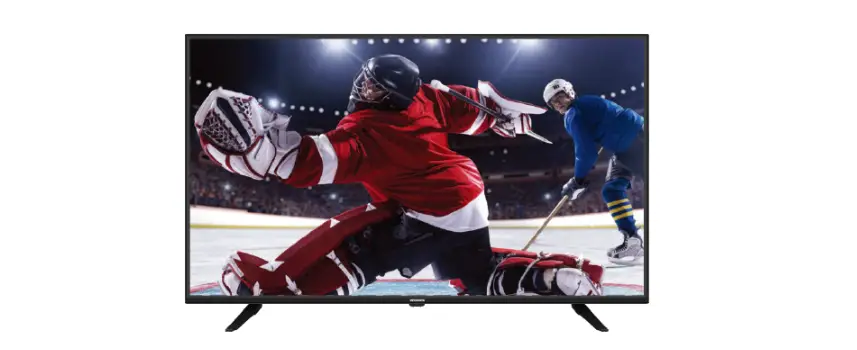
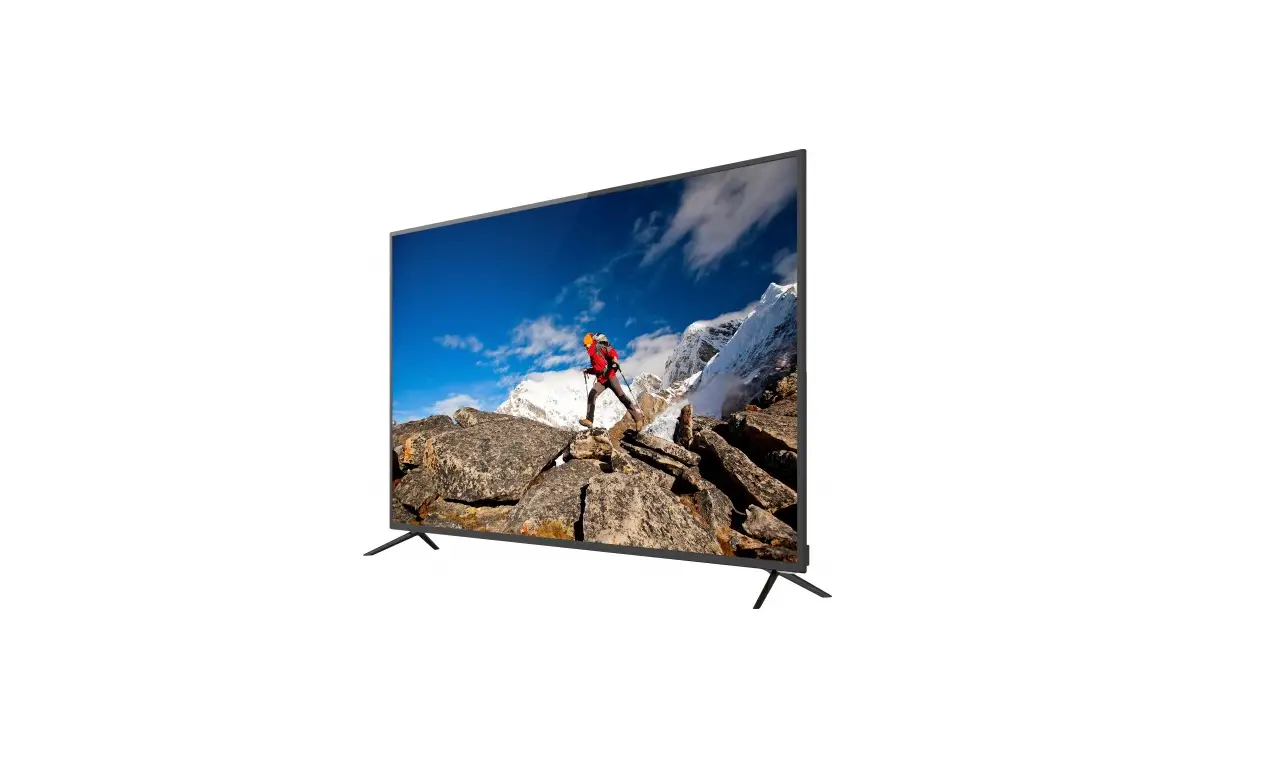
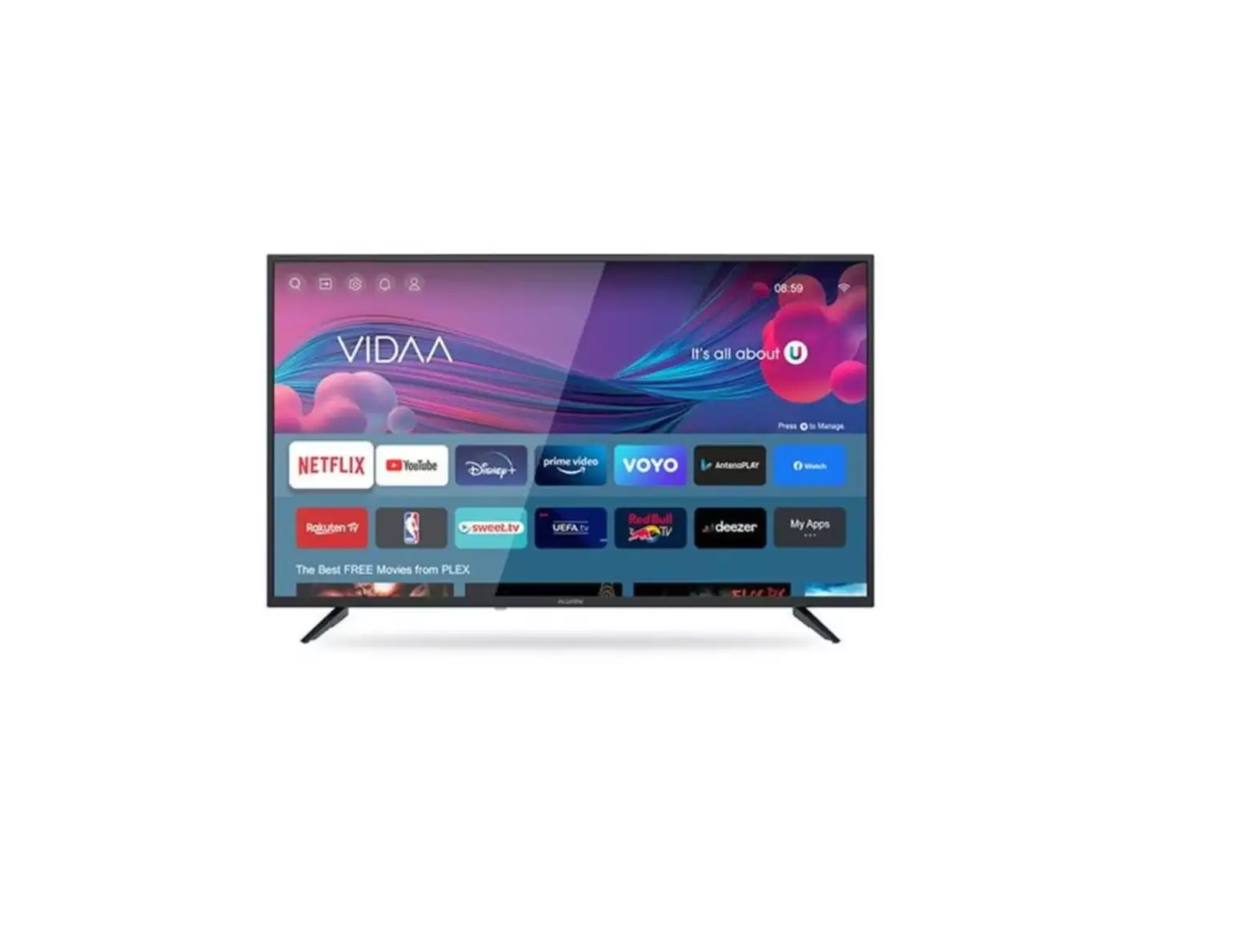
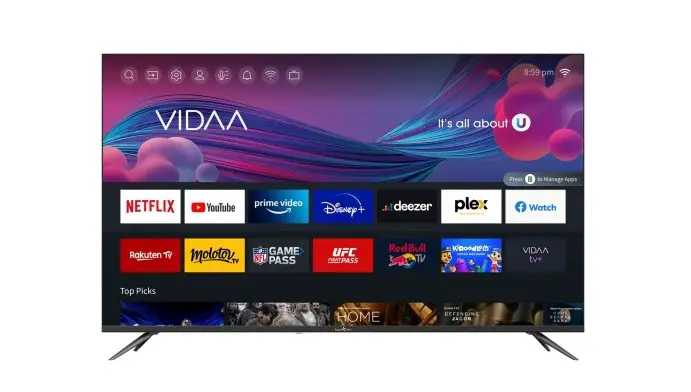
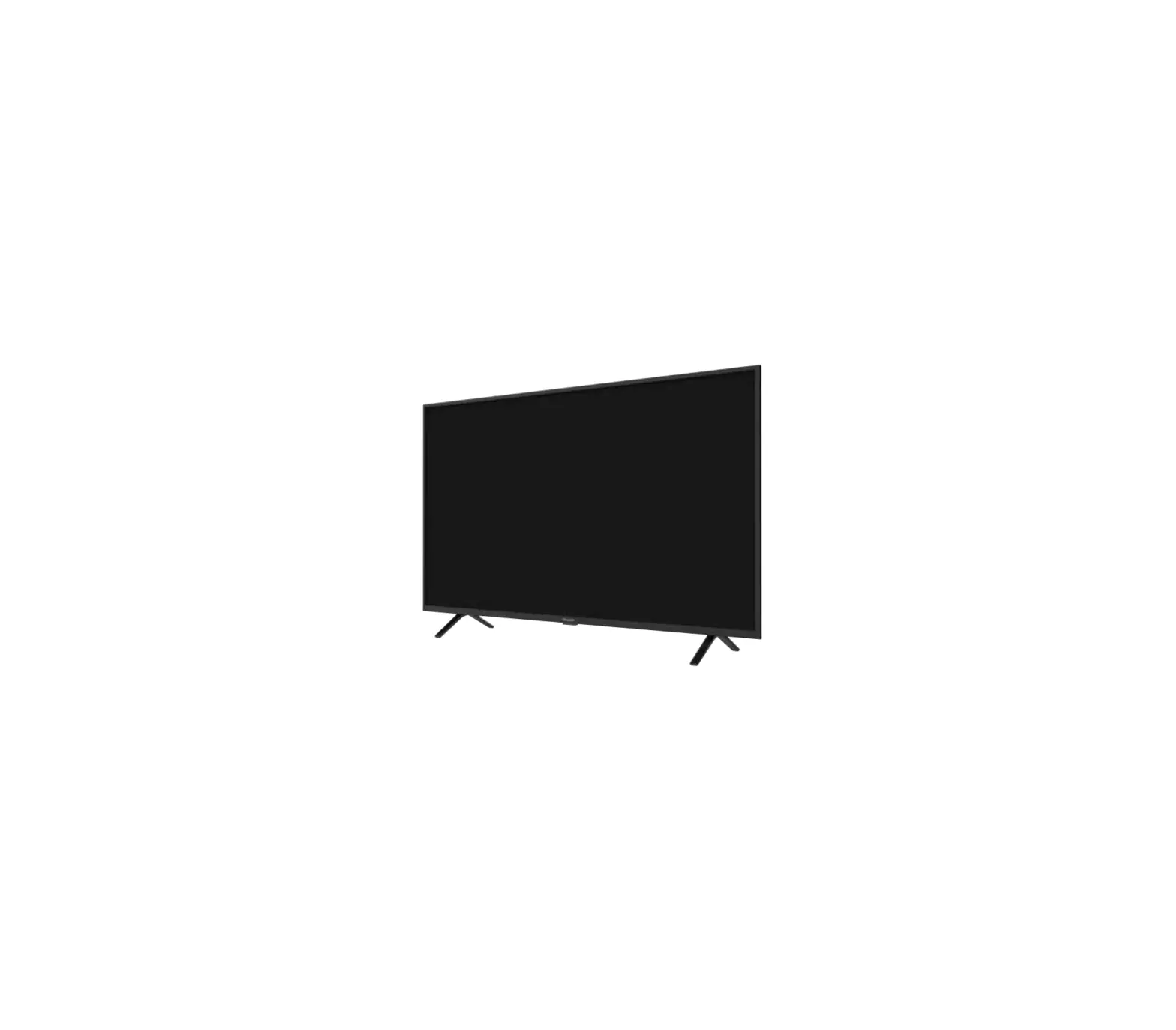
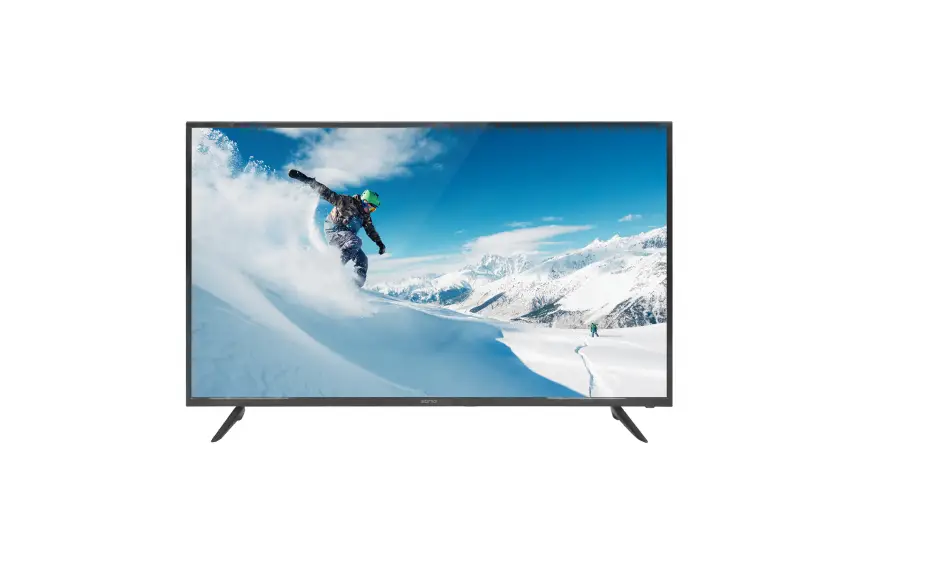
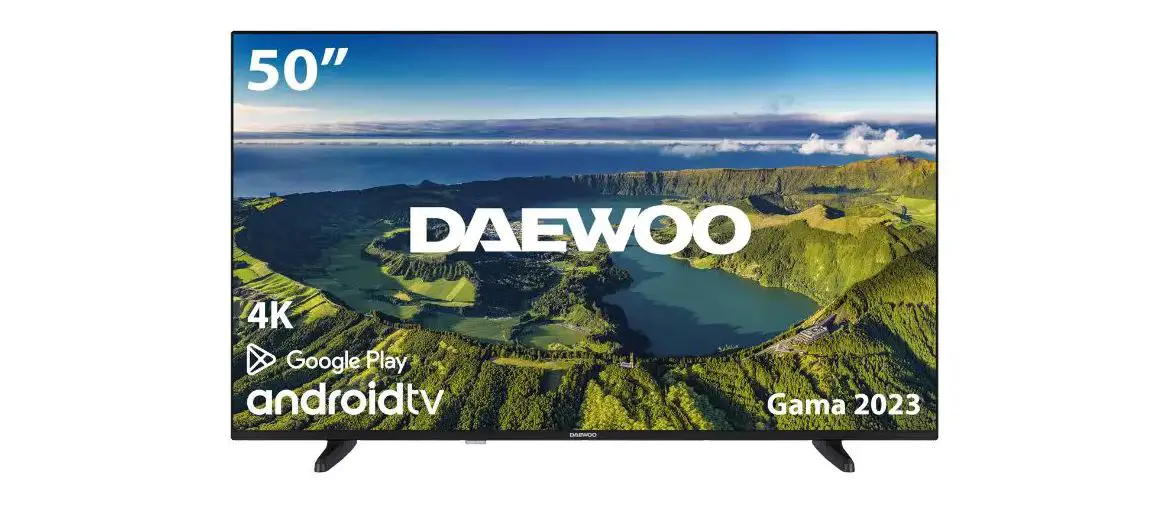
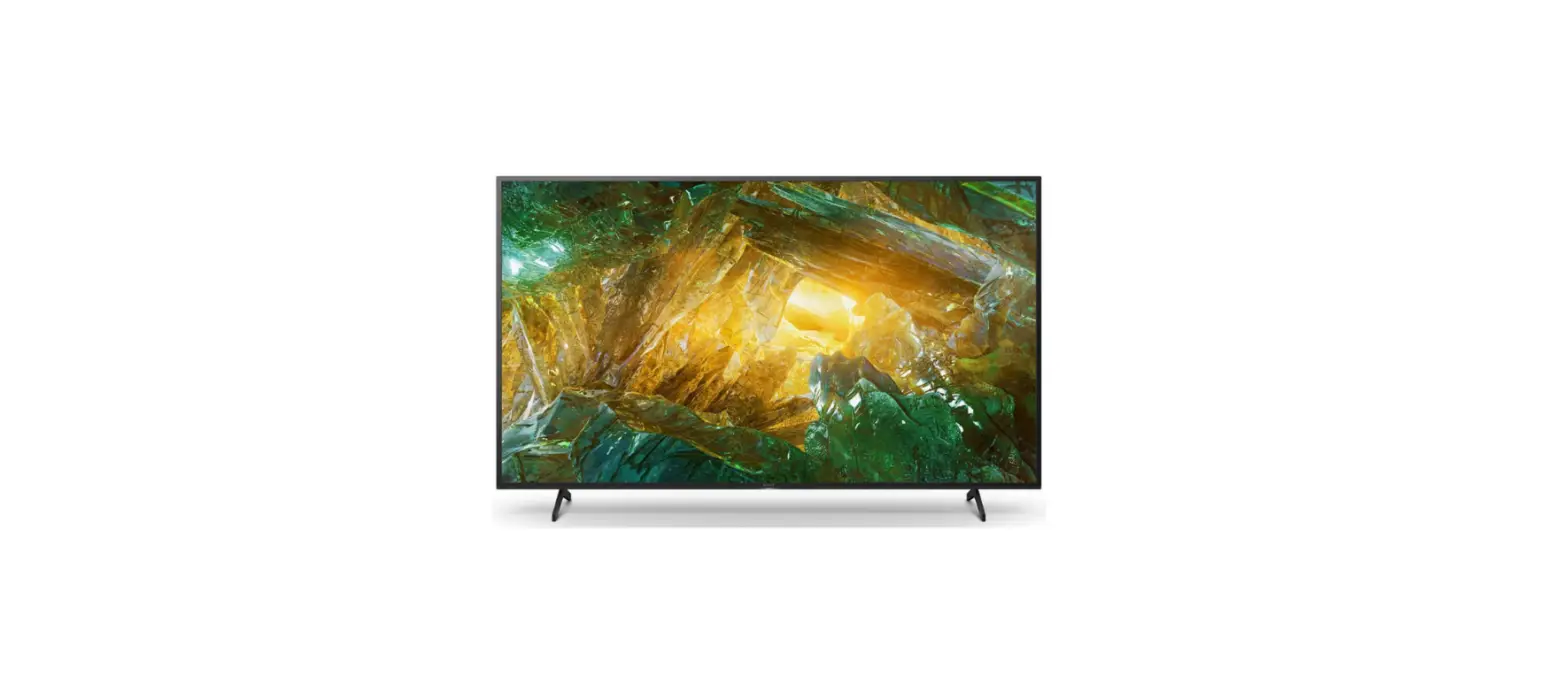
VIDAA 43XFV3300 TV
Product Information:
The product models available are:
- 32XHV3300
- 43XFV3300
- 50XUV3300
The TV has various features and settings including:
- First Time Installation
- Initial Setup
- System
- Media
- One key
- Seven keys
- USB operation mode
- CI card slot (only for certain models)
- Picture settings (Picture Mode, Aspect Ratio, Game Mode)
- Sound settings (Speakers, Audio Output)
- Network settings (Network Configuration, Internet Connection,
Bluetooth, Wake on Wireless Network, Wake on LAN) - Channel settings
- Accessibility settings
- Application Settings
Please note the following warnings:
- Do not touch or be close to the HDMI, USB terminals to prevent
electrostatic discharge while in USB operation mode. - If the model has a CI card slot, use the silicone plug provided
to cover the slot when the CI card is not in use.
Product Usage Instructions:
First Time Installation:
- Follow the Text Tip to perform the First Time Setup.
- Press the / button to select the desired language.
Initial Setup:
- Make sure the device is connected.
- Press the /// button to select the primary input source.
Picture Settings:
- Press the MENU button to enter the main menu.
- Press the / button to select the Picture menu.
- Use the / button to navigate and select the desired
options. - Press the Enter button to adjust the selected option.
- After making adjustments, press the Enter button to save and
return to the previous menu.
Sound Settings:
- Press the MENU button to enter the main menu.
- Press the / button to select SOUND in the main menu.
- Use the / button to navigate and select the desired
options. - Press the Enter button to adjust the selected option.
- After making adjustments, press the Enter button to save and
return to the previous menu.
Network Settings:
- Press the MENU button to enter the main menu.
- Press the / button to select Network in the main menu.
- Use the / button to navigate and select the desired options
(Network Configuration, Internet Connection, Bluetooth, Wake on
Wireless Network, Wake on LAN).
Channel Settings:
- Press the MENU button to enter the main menu.
- Press the / button to select Channel in the main menu.
- Use the / button to navigate and select the desired
options. - Press the Enter button to adjust the selected option.
- After making adjustments, press the Enter button to save and
return to the previous menu.
Accessibility Settings:
- Press the MENU button to enter the main menu.
- Press the / button to select Accessibility in the main
menu.
System Settings:
- Press the MENU button to enter the main menu.
- Press the / button to select System in the main menu.
- Use the / button to navigate and select the desired
options. - Press the Enter button to adjust the selected option.
- After making adjustments, press the Enter button to save and
return to the previous menu.
Application Settings:
- Press the / button to select Application Settings.
models:
32XHV3300 43XFV3300 50XUV3300
First Time Installation
HOME
5
INPUT
5
Initial Setup
6
System
9
Media
11
One key:
Seven keys:
/ /
USB
*Do not touch or be close to the HDMI, USB terminals, and prevent electrostatic discharge to disturb these terminals while in USB operation mode, or it will cause the TV to stop working or abnormal status.
USB
Note: If the model has a CI card slot on its top, a silicone plug for the CI card slot can be found in the accessory bag (fo r models without CI card slot, there is no such silicone plug), please insert the silicone plug into the slot when the CI card is not in use.
PH00 PH0 PH1 PH2
X
X
X
First Time Installation First Time Installation
Please according to the Text Tip to First Time Setup. Press / button to select Language.
Please make sure the device has connected, then press ///button to select the primary input source
HOME HOME
Press button,you can enter HOME screen.
·You can always view the current time at the top of the Home screen. ·If your TV is connected to the Internet through a wireless connection or an Ethernet cable,then the icon / will be displayed at the top corner of the screen. ·Manage apps ·Select the item you want to move,then press the button to manage.
INPUT Input
Press /button to select Inputs menu. Press ///button to select. Press ENTER to select input.
Initial Setup
Picture PressMENUto enter the main menupress / to select picture menu. 1.Press/button to select the option that you want to adjust in the PICTURE menu. 2.Press Enter button to adjust. 3.After finishing your adjustment, Press Enter button to save and return to the previous menu
Picture Mode Press / button to select Picture Mode, then press /&Enter button to select. (Optional: Standard/Cinema day/Cinema night/Dynamic/Sports). Aspect Ratio Adjust the Aspect Ratio to stretch or zoom in on your picture. Press / button to select Aspect Ratio. Press / button to select Automatic/16:9/4:3/Panoramic/Movie Zoom/Direct. Game Mode Press /to select,and press/ to select On/Off. Picture Mode Settings Press /to select,and press & ENTER to enter.
Initial Setup
Sound Press MENU button to display the main menu.Press / button to select SOUND in the main menu,
1.Press / button to select the option that you want to adjust in the SOUND menu. 2.Press Enter button to adjust. 3.After finishing your adjustment, Press Enter button to save and return to the previous menu. Speakers Press / button to select Speakers. Press ENTER/button to enter sub-menu
Audio Output Press / button to select Speakers and enter, then press /button to select BT Sound Bar/ARC/TV Speaker/SPDIF Only Network Press MENU button to display the main menu.Press/ button to select Network in the main menu
Initial Setup
Press/button to select :Network Configuration/Internet Connection/Bluetooth/ Wake on Wireless Network/Wake on LAN. Channel Press MENU button to display the main menu. Press/ button to select Channel.
1.Press / button to select the option that you want to adjust in the Channel menu 2.Press Enter button to adjust. 3.After finishing your adjustment, Press Enter button to save and return to the previous menu. Accessibility Press MENU button to display the main menu. Press/button to select Accessibility in the main menu.
System
System Press MENU button to display the main menu. Press/button to select System in the main menu
1.Press / button to select the option that you want to adjust in the System menu. 2.Press Enter button to adjust. 3.Afterfinishing your adjustment, Press Enter button to save and return to the previous menu. Application Settings Press / button to select Application Settings
System
HDMI/CEC Funtion Press / button to select CEC Funtion,then press Enter button to enter sub-menu to select.
Press / button to select CEC Control/Device Auto Power On/Device Auto Power Off/ TV Auto Power On/CEC Device Lists. Note: All the Options are available only when the CEC Control select On. Advanced Settings Press / button to select Advanced Settings,then press ENTER / button to enter
Support Press / button to select Support,then press ENTER/ button to enter
System
Restore To Factory Default Press / button to select Restore To Factory Default, then press ENTER/button to enter sub-menu and select.
Media
Media Press / / / button to select Media on the Home page or press MEDIA button on the remote,and press OK button to enter enter the Media Center.
Media
Video Press / button to select Video or All,and press / / / button to select Movies.Press Menu button to display the setting options on the left side.
Audio Press / button to select Audio or All,and press / / / button to select Music.
Image Press / button to select Image or All,and press / / / button to select Picture.
HDMI
Screen Size 24″
power Consumption 30W/36W
Main accessories
32″
40W/56W
39″
60W/70W
40″
60W/70W/90W
42″
65W/70W/90W
User’s manual x1
43″
70W/80W/90W
Remote controller x1 Power cord x1
50″
100W/108W/120W
AAA Batteries x2 (Optional)
55″
110W/118W/135W
58″
120W/135W/160W
65″
160W/165W/190W
75″
230W/250W/260W/270W
LIFE TIME : 60,000 Hrs
Manufactured under license from Dolby Laboratories.
Dolby,Dolby Audio, and the double-D symbol are trademarks of Dolby Laboratories Licensing Corporation.
WARNING
Never place a television set in an unstable location. A television set may fall, causing serious personal injury or death. Many injuries, particularly to children, can be avoided by taking simpleprecautions such as: 1.Using cabinets or stands recommended by the manufacturer of the television set. 2.Only using furniture that can safely support the television set. 3.Ensuring the television set is not overhanging the edge of the supporting furniture. 4.Not placing the television set on tall furniture (for example, cupboards or bookcases).without anchoring both the
furniture and the television set to a suitable support. 5.Not placing the television set on cloth or other materials that may be located between the television set and
supporting furniture, 6.Educating children about the dangers of climbing on furniture to reach the television set or its controls.
If your existing television set is being retained and relocated, the same considerations as above should be applied.
Wall-mounted screw:22-24inch M4, 28-70inch M6, 75inch M8 Note:don’t hang at an angle to avoid the risk of falling off.
This user manual for reference only
POWER:Switches the TV between on and standby mode.
No effect.
MUTE:Mute or restore your TV sound. 0-9:Figures “0-9” are used to directly input channel number. FREE:Connects to FREE.
deezer:Connects to deezer. Inputs:Display/Select signal source options.
VOL+/-:Press to increase / decrease the sound level. CH+/-:Press to scan through channels.
++
-VOL
INFO
-CH
INFO:Displays the present channel information such as the current time and channel name.
BROWSER:Connects to BROWSER.
MEDIA:Connects to MEDIA Navigation buttons:Cursor UP/LEFT/RIGHT/DOWN.
BACK:Press to move back through menus.
EXIT:Exit the OSD menu.
OK
HOME:Displays the home screen. NETFLIX:
Connects to NETFLIX for viewing online TV shows
BACK
EXIT
and films (internet connection required).
YouTube:
Connects to YouTube (internet connection required).
Prime video
Connects to Prime video (internet connection required). 20
20 PLEX:Connects to PLEX.
21
22
SUBT TEXT
EPG
23
21 COLOR BUTTONS:There are related functions under EPG.
26
24
22 SUBTSUBT.
27
CH.LIST
25
23 EPGEPG menu.
28
24 Media control:Play / Pause
25 CH.LIST:Channel list
26 TXT: Press to enter Teletext when play the program.
27 App customization:App customization (long press under the home page)
28 Menu:Displays the OSD (On Screen Display) menu.