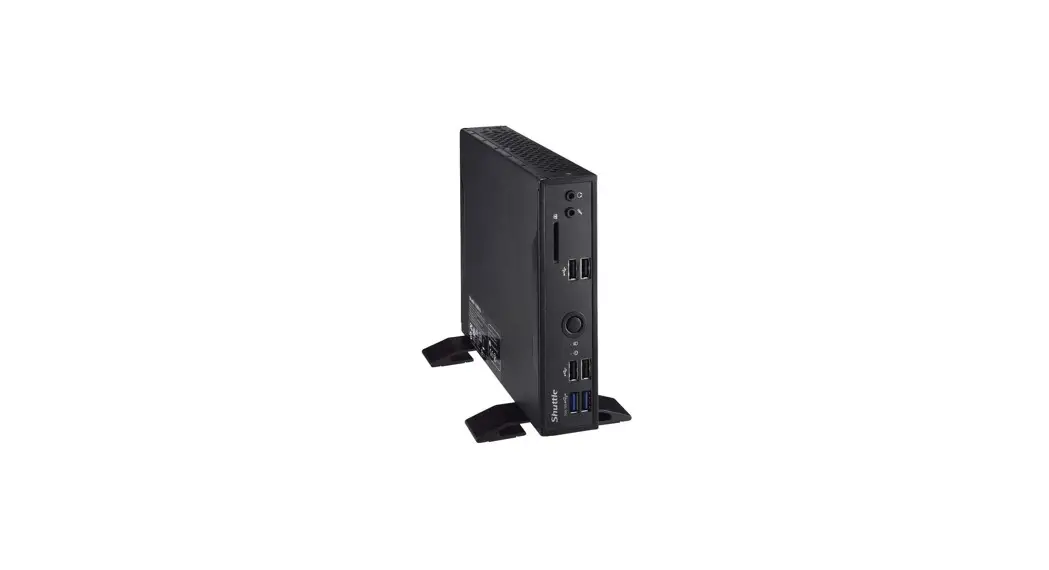
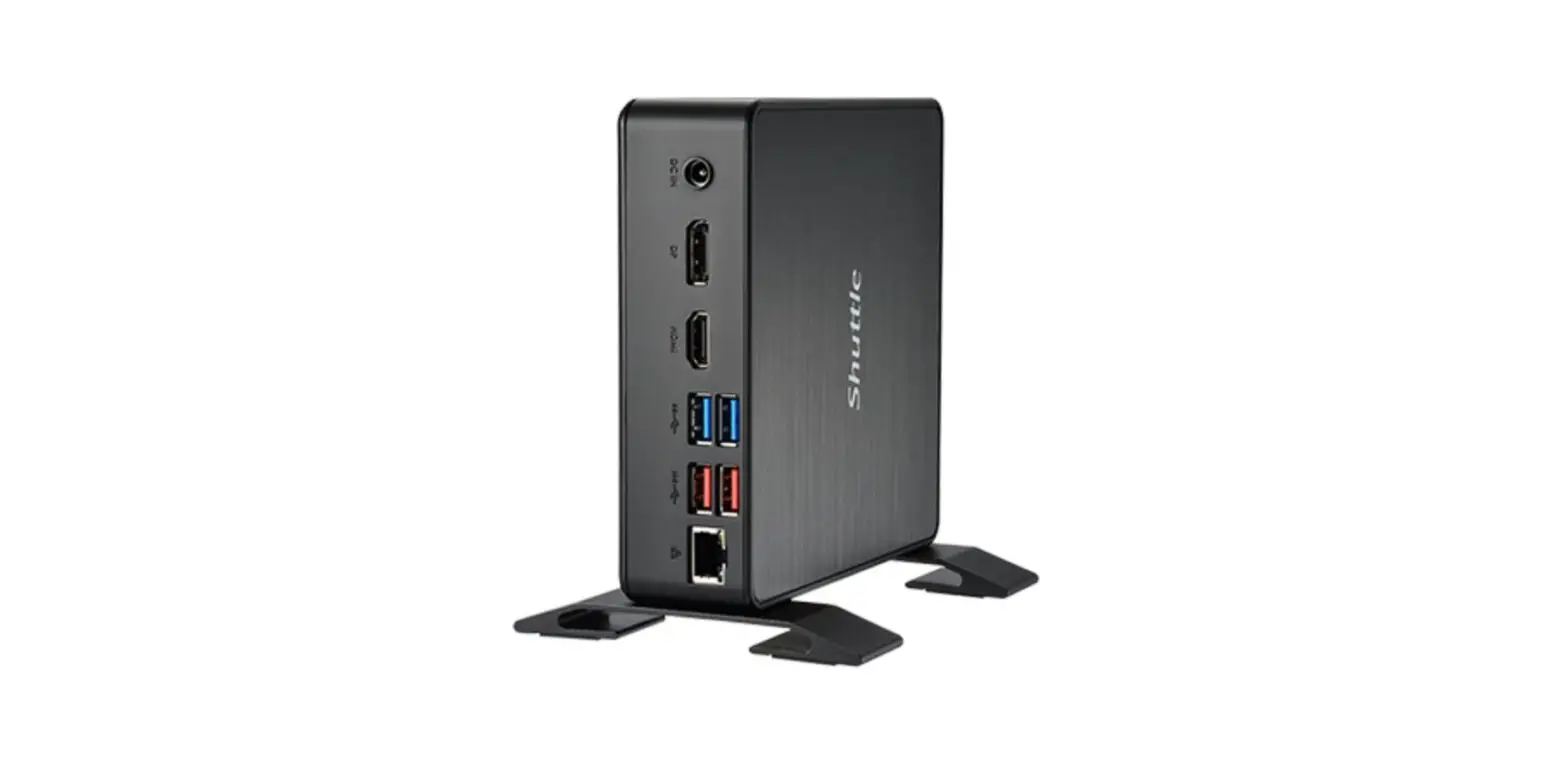
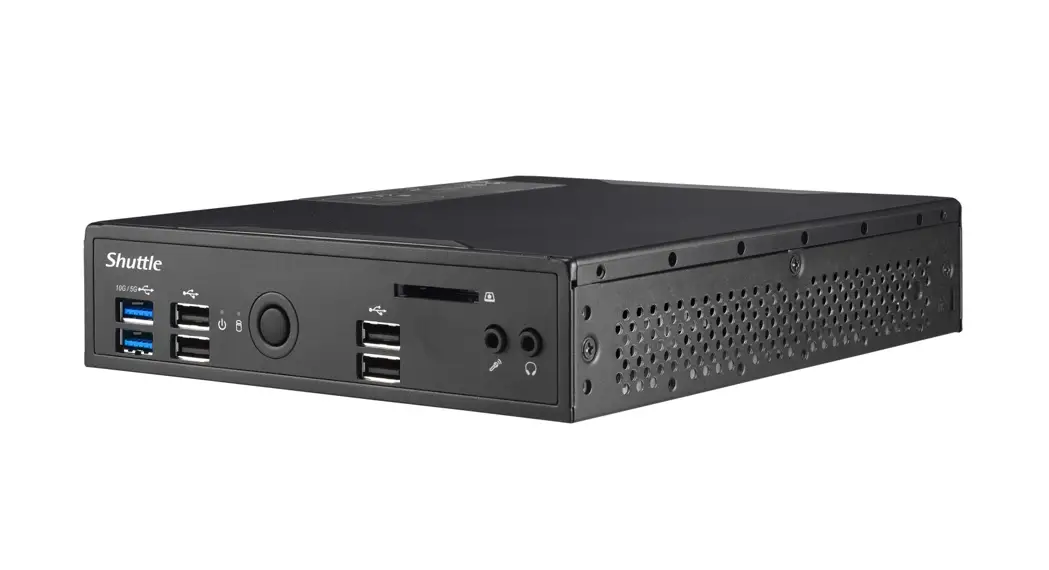
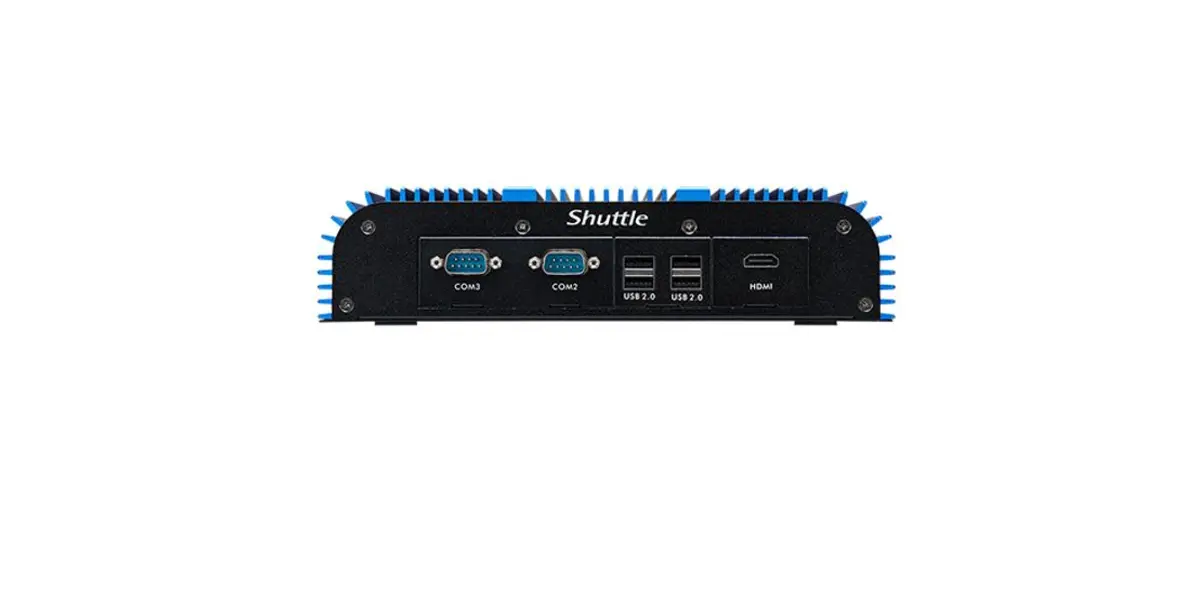
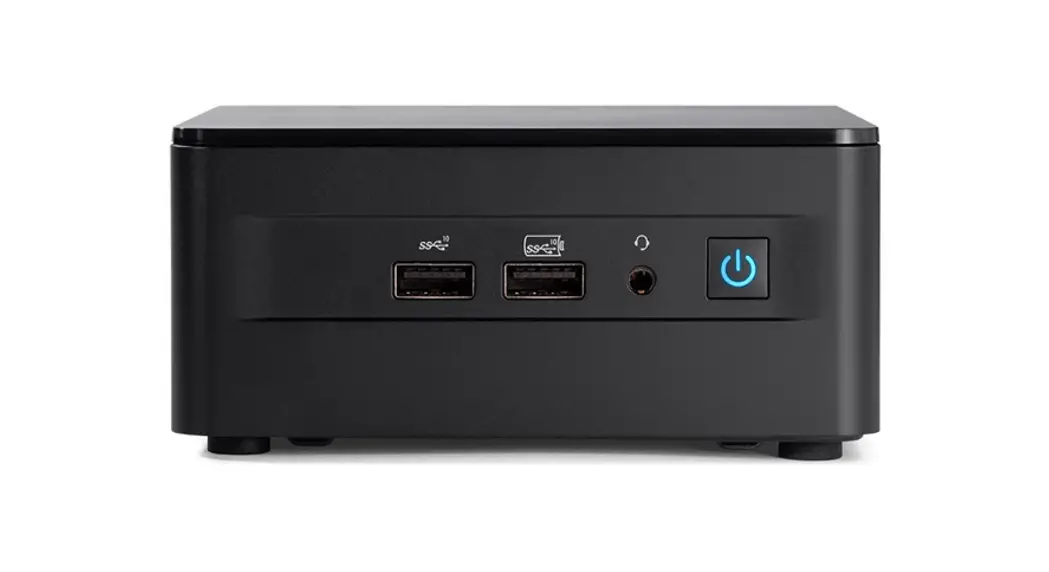
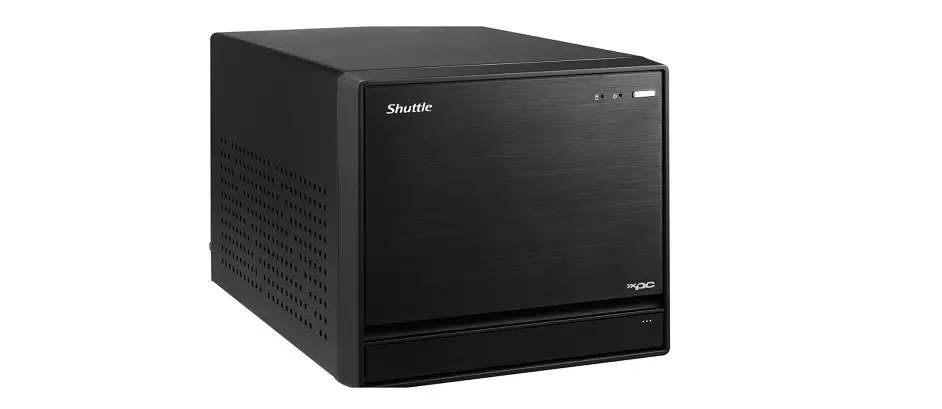
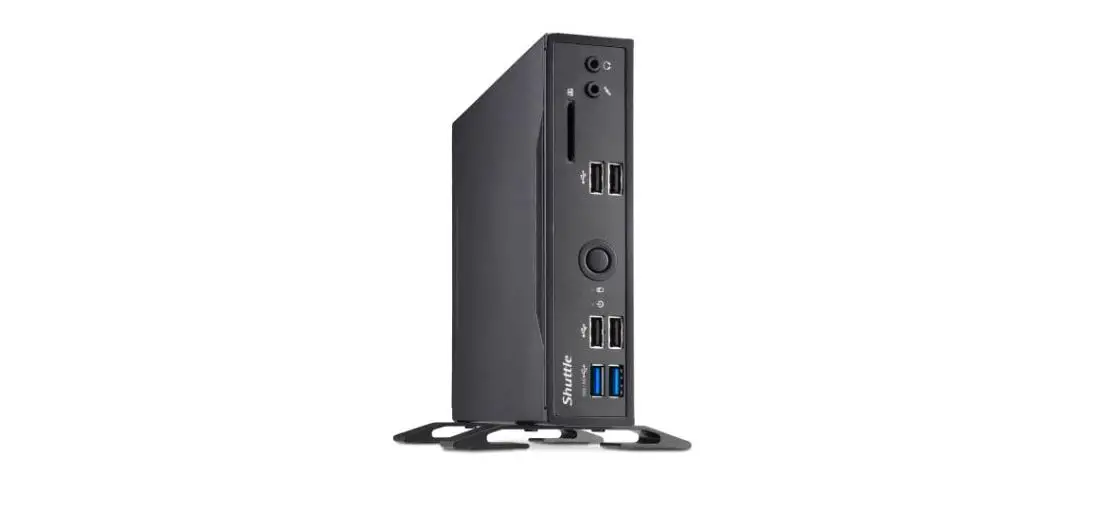
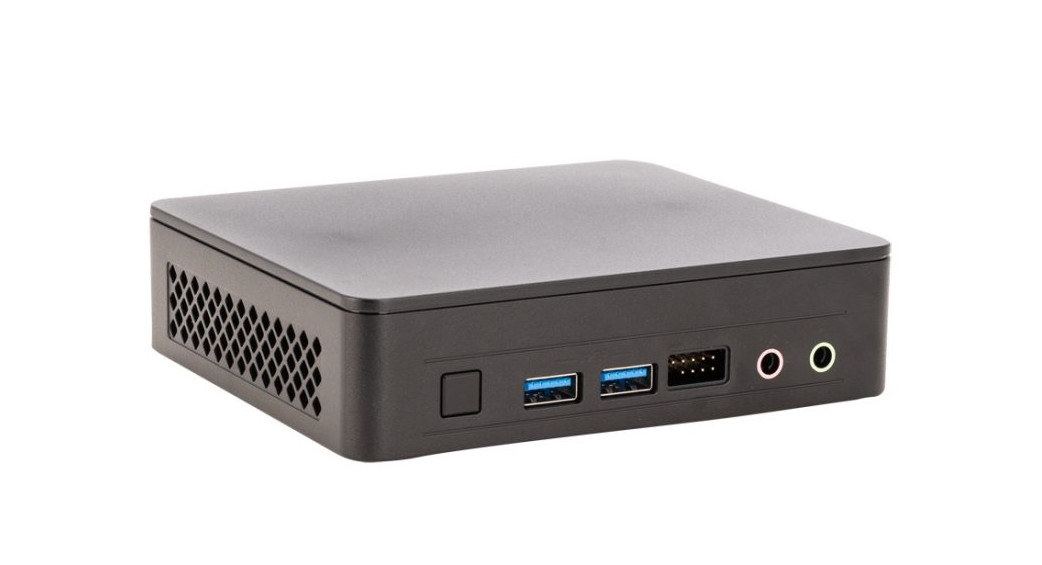
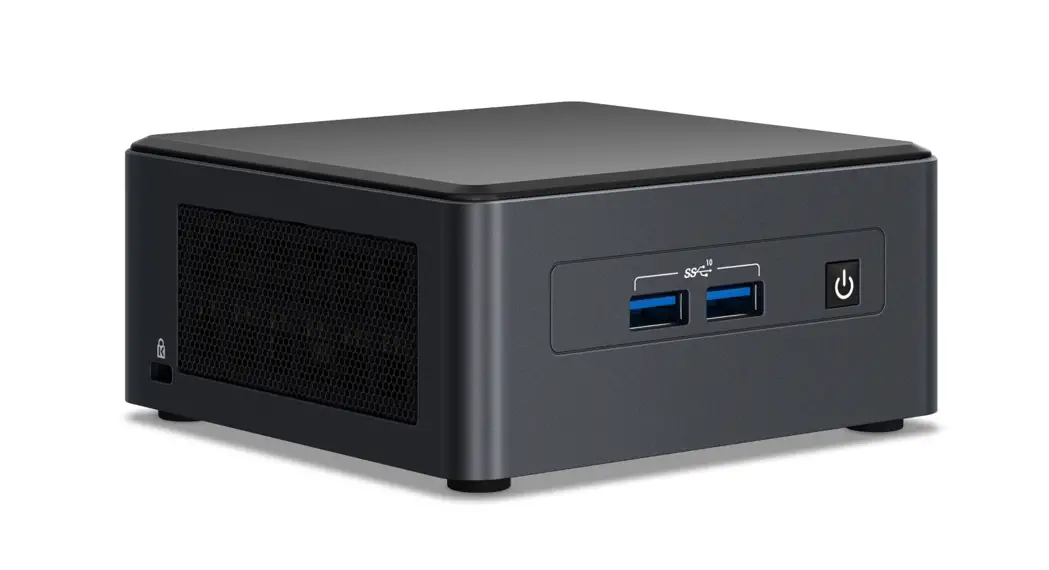
DL20N Series Mini PC Intel Celeron
Product Information:
The DL20N Series is a compact computer system designed for
various applications. It features a range of ports and slots for
easy connectivity and expansion. The product includes the following
components:
- MIC-in
- Headphones
- Power LED
- Hard Disk Drive LED
- Power Button
- SD Card Reader
- USB 3.2 Gen 2 Ports
- USB 2.0 Ports
- DisplayPort
- COM 1 Port (RS232/RS422/RS485)
- COM 2 Port (RS232 only)
- Clear CMOS & Power Button & +5V
- USB 3.2 Gen 1 Ports
- HDMI Port
- D-Sub (VGA) Port
- LAN Port
Product Usage Instructions:
C. M.2 Device Installation
- Locate the M.2 key slots on the motherboard.
- Install the M.2 device into the M.2 slot and secure it with the
screw.
D. HDD or SSD Installation
- Ensure that the power cord is disconnected before opening the
case. - Unscrew the two screws of the chassis cover and slide the cover
backwards and upwards. - Place an HDD or SSD in the rack and secure it with the four
screws from the sides. - Slide the rack back into the chassis and refasten the
screws. - Connect the Serial ATA cable to the HDD or SSD.
- Replace and affix the case cover with two screws, then connect
the power cord.
B. Memory Module Installation
- Ensure that the power cord is disconnected before opening the
case. - Locate the SO-DIMM slots on the motherboard.
- Align the notch of the memory module with the one of the
relevant memory slot. - Gently insert the module into the slot at a 45-degree
angle. - Carefully push down the memory module until it snaps into the
locking mechanism. - Repeat the above steps to install an additional memory module,
if required.
Please note that for entering BIOS and loading optimized BIOS
settings, you need to press the Del key while booting.
Safety Information:
Incorrectly replacing the battery may damage this computer.
Replace only with the same or equivalent as recommended by Shuttle.
Dispose of used batteries according to the manufacturer’s
instructions.
All bundled parts, including the power cord, should not be used
without this product.
This device complies with Part 15 of the FCC Rules. Operation is
subject to the following two conditions: (1) this device may not
cause harmful interference, and (2) this device must accept any
interference received, including interference that may cause
undesired operation.
DL20N Series Quick Guide
53R-DL20N3-2001
Kurzanleitung Guide rapideGuía rápidaK
More information on this product can be found at: http://bit.ly/DL20N , http://bit.ly/DL20N Weitere Informationen zu diesem Produkt finden Sie unter: http://bit.ly/DL20N Pour plus d’informations sur ce produit, visitez: http://bit.ly/DL20N
Puede encontrar más información sobre este producto en: http://bit.ly/DL20N
URLhttp://bit.ly/DL20N : http://bit.ly/DL20N , http://bit.ly/DL20N
Product Overview
Produktübersicht Présentation du produit Resumen del producto
123
4
5
18
8
9
10
12
13
14
15
1. MIC-in
2. Headphones
3. Power LED
4. Hard Disk Drive LED
5. Power Button
6. SD Card Reader
7. USB 3.2 Gen 2 Ports
6
7
8. USB 2.0 Ports
9. DisplayPort
10. COM 1 Port (RS232/RS422/RS485)
11
18
11. COM 2 Port (RS232 only)
12. Clear CMOS & Power Button & +5V
13. USB 3.2 Gen 1 Ports
14. HDMI Port
15. D-Sub (VGA) Port
16. LAN Port
16
17
17. Power Jack (DC IN) 18. Kensington® Lock Hole
C. M.2 Device Installation
1. Locate the M.2 key slots on the motherboard. 2. Install the M.2 device into the M.2 slot and secure with the screw.
M.2 2242/2260/2280 M key slot
M.2 2230 E Key slot
b a
Slope angle
a b
Slope angle
c c
D. HDD or SSD Installation
Hardware Installation Hardware Installation Installation du matériel Instalación de hardware
A. Begin Installation
1. Place an HDD or SSD in the rack and secure with the four screws from the sides.
2. Slide the rack back into the chassis and refasten the screws. Connect the Serial ATA cable to the HDD or SSD.
! For safety reasons, please ensure that the power cord is disconnected before opening the case.
1. Unscrew the two screws of the chassis cover.
Slide the cover backwards and upwards.
c b
b
a a
a b
c Serial ATA cable
LThe product’s colour and specifications may vary from the actually shipping product.
2. Unfasten the rack mount screw and remove the rack.
E. Complete
a
1. Please replace and affix the case cover with two screws, then connect the power cord. 2. Complete.
b
a
c b
DC-IN
f
d
B. Memory Module Installation
! This motherboard does only support 1.2 V DDR4 SO-DIMM memory modules.
1. Locate the SO-DIMM slots on the motherboard.
2. Align the notch of the memory module with the one of the relevant memory slot.
SO-DIMM slot
Notch
3. Gently insert the module into the slot in a 45-degree angle.
4. Carefully push down the memory module until it snaps into the locking mechanism.
a
Cutout
b
45-degree angle
5. Repeat the above steps to install an additional memory module, if required.
Latch
Latch
e
! Please press the “Del” key while booting to enter BIOS. Here, please load the optimised BIOS settings.
Safety Information
Sicherheitshinweise Informations de sécurité Información de seguridad
!
Incorrectly replacing the battery may damage this computer. Replace only with the same or equivalent as recommended by Shuttle. Dispose of used batteries according to the manufacturer’s instructions.
Shuttle,
Das unkorrekte Austauschen der Batterie kann diesen Computer beschädigen. Ersetzen Sie die Batterie nur
durch den von Shuttle empfohlenen Typ oder ein gleichwertiges Modell. Entsorgen Sie gebrauchte Batterien gemäß den Herstellerangaben.
Ne pas replacer correctement la pile peut endommager l’ordinateur. Remplacez-la uniquement par un modèle
identique ou un équivalent comme recommandé par Shuttle. Débarrassez-vous des piles usagées d’après les instructions du constructeur.
La sustitución incorrecta de la batería puede dañar este equipo. Sustituya la batería únicamente por una igual o equivalente recomendada por Shuttle. Deseche las baterías usadas según las instrucciones del fabricante.
aShuttle
. Shuttle . .
Shuttle ,
: , ,
: 2000m
,
2000m ,
2000m
: 40
All bundled parts, power cord included, shall not be used without this product.
This device complies with Part 15 of the FCC Rules. Operation is subject to the following two conditions: (1) this device may not cause harmful interference, and (2) this device must accept any interference received, including interference that may cause undesired operation.
This device meets the requirements for the EU conformity in accordance to the currently valid EU directives. Dieses Produkt erfüllt die Anforderungen für die EU-Konformität entsprechend der aktuell geltenden EU-Richtlinien. Ce produit répond aux exigences de la conformité UE suivant les directives européennes actuellement en vigueur.
Product Overview
Produktübersicht Présentation du produit Resumen del producto
1. MIC-in
Mikrofon-Eingang
Prise micro
Micrófono
8. USB 2.0 ports
USB 2.0 USB 2.0-Anschlüsse
Prises USB 2.0
Puertos USB 2.0
USB 2.0 USB 2.0 USB 2.0
9. DisplayPort DisplayPort DisplayPort Prises DisplayPort Puerto DisplayPort (DisplayPort) DisplayPort Displayport
2. Headphones
Kopfhörer-Ausgang
Prise casque
Auriculares
10. COM 1 Port (RS232/RS422/RS485)
COM 1 (RS232/RS422/RS485) COM 1-Anschluss (RS232/RS422/RS485)
Prise COM 1 (RS232/RS422/RS485)
Puerto COM1 (RS232/RS422/RS485)
COM 1 (RS232/RS422/RS485) COM 1 (RS232/RS422/RS485) COM 1 (RS232/RS422/RS485)
3. Power LED
Betriebsanzeige-LED
Indicateur alimentation
LED de encendido
LED LED-
11. COM 2 Port (RS232 only)
COM 2 (RS232) COM 2-Anschluss (Nur für RS232)
Prise COM 2 (uniquement en RS232)
Puerto COM2 (solo RS232)
COM 2 (RS232 ) COM 2 ( RS232) COM 2 (RS232)
4. Hard Disk Drive LED Festplatten-LED Indicateur disque dur Diodo LED del disco duro LED LED-
12. Clear CMOS & Power Button & +5V
COMS & & +5V Clear CMOS & Einschalt-Button & +5V
Reset CMOS & Bouton d’alimentation & +5V
Clear CMOS & Botón de encendido & +5V CMOS & & +5V CMOS, , +5 CMOS & & +5V
5. Power Button
Ein-/Aus-Button
Bouton d’alimentation
Botón de encendido
13. USB 3.2 Gen 1 Ports
USB 3.2 Gen 1 USB 3.2 Gen 1-Anschlüsse
Prises USB 3.2 Gen 1
Puertos USB 3.2 Gen 1
USB 3.2 Gen 1 USB 3.2 Gen 1 USB 3.2 Gen 1
16. LAN Port
Netzwerk-Anschluss
Prise LAN
Puerto LAN
LAN LAN- LAN
6. SD Card Reader SD SD Cardreader Lecteur de carte mémoire SD Lector de tarjetas sd SD SD- SD
7. USB 3.2 Gen 2 Ports USB 3.2 Gen 2 USB 3.2 Gen 2-Anschlüsse Prises USB 3.2 Gen 2 Puertos USB 3.2 Gen 2 USB 3.2 Gen 2 USB 3.2 Gen 2 USB 3.2 Gen 2
14. HDMI port HDMI HDMI-Anschluss Prise HDMI Puerto HDMI HDMI HDMI HDMI
15. D-Sub (VGA) port D-Sub (VGA) D-Sub (VGA)-Anschluss Prise D-Sub (VGA) Puerto D-Sub (VGA) D-Sub (VGA) D-Sub (VGA) D-Sub (VGA)
17. Power Jack (DC IN) DC DC-Stromanschluss Prise alimentation DC Conexión de la fuente de alimentación (CC) DC (DC IN) ()
18. Kensington® Lock Hole Kensington® Kensington® Lock Öffnung Encoche de sécurité Kensington® Conector de seguridad Kensington® Kensington® Kensington®
Hardware Installation Hardware Installation Installation du matériel Instalación de hardware
A. Begin Installation Beginn der Installation Commencer l’installation Iniciar la instalación
! For safety reasons, please ensure that the power cord is disconnected before opening the case. , , Achten Sie aus Sicherheitsgründen darauf, dass das Gerät vor dem Öffnen vom Stromnetz getrennt wird.
Pour des raisons de sécurité, veuillez vous assurer que le cordon d’alimentation est débranché avant d’ouvrir le boîtier.
Por razones de seguridad, no olvide desconectar el cable de alimentación antes de abrir la carcasa. : , , , . , ,
1. Unscrew the two screws of the chassis cover. Slide the cover backwards and upwards.
, , Lösen Sie die beiden Schrauben der Gehäuseabdeckung. Schieben Sie die Abdeckung nach hinten und nach oben.
Desserrez et retirez les deux vis du boîtier. Glissez le couvercle vers l’arrière et le haut.
Afloje y retire primero los dos tornillos de la cubierta de la carcasa. Desplace la carcasa hacia atrás y hacia arriba. 2 . . , ,
2. Unfasten the rack mount screw and remove the rack. , Lösen Sie die Schraube des Laufwerkshalters und entfernen Sie diesen. Desserrez les vis de montage sur rack et retirez le rack.
Afloje el tornillo del bastidor de la unidad y retire éste. . ,
B. Memory Module Installation Installation der Speichermodule Installation de la mémoire vive Instalar el módulo de memoria
! This motherboard does only support 1.2 V DDR4 SO-DIMM memory modules. 1.2 V DDR4 Dieses Mainboard unterstützt nur 1,2 V DDR4 SO-DIMM Speichermodule.
Carte mère compatible uniquement avec des modules mémoire de type 1,2 V DDR4 SO-DIMM. Esta placa base sólo soporta módulos de memoria 1,2 V DDR4 SO-DIMM. 1.2 VDDR4 1,2 V DDR4 SO-DIMM. 1.2 V DDR4
1. Locate the SO-DIMM slots on the motherboard.
SO-DIMM Lokalisieren Sie die SO-DIMM-Steckplätze auf dem
Mainboard.
Localisez le slot mémoire SO-DIMM sur la carte mère. Localice el zócalo SO-DIMM en la placaa base. SO-DIMM SO-DIMM . SO-DIMM
2. Align the notch of the memory module with the one of the relevant memory slot.
SO-DIMM , ,
Richten Sie die Kerbe des Speichermoduls nach der Nase im Speichersockel aus.
Alignez l’encoche du module mémoire sur celle du slot DIMM.
The product’s colour and specifications may vary from the actually shipping product.
, Die tatsächliche Farbe des gelieferten Produktes kann von diesen Abbildungen abweichen.
Le coloris du produit livré peut varier de ces illustrations.
Color y la especificación del producto dependerá del transporte de mercancía corriente. . ,
Alinee la muesca del módulo de memoria con la del zócalo de memoria.
Appuyez sur le module vers le bas jusqu’à enclenchement dans le mécanisme d’attache.
. SO-DIMM , ,
3. Gently insert the module into the slot in a 45-degree angle.
Presione el módulo de memoria hacia abajo hasta que encaje.
, .
45 Drücken Sie das Speichermodul behutsam
5. Repeat the above steps to install an additional memory module, if required.
im 45-Grad-Winkel in den Steckplatz.
, SO-DIMM
Insérez le module mémoire délicatement dans l’encoche avec un angle de 45 degrés.
Wiederholen Sie diese Schritte, um ggf. ein zusätzliches Speichermodul zu installieren.
Presione con cuidado el módulo de memoria en el zócalo con un ángulo de 45 grados.
Répétez pour installer des modules mémoire supplémentaires si désiré.
45° 45 . 45
4. Carefully push down the memory module until it snaps into the locking mechanism.
Repita estos pasos para instalar módulos DDR adicionales si así lo desea. DDR . , SO-DIMM
Drücken Sie das Speichermodul herunter bis es einrastet.
C. M.2 Device Installation M.2 Installation der M.2-Karten Installation des cartes M.2 Instalación de las tarjetas M.2 M.2 M.2
1. Locate the M.2 key slots on the motherboard. M.2 Bitte lokalisieren Sie die M.2 Slots auf dem Mainboard. Veuillez repérer les emplacements destinés aux cartes M.2 sur la carte mère. Localice la ubicación de las ranuras M.2 en la placa base. M.2 M.2 . M.2
2. Install the M.2 device into the M.2 slot and secure with the screw. M.2 M.2 , Installieren Sie die M.2-Karte in den jeweiligen M.2-Steckplatz und sichern Sie diese mit einer Schraube. Installez la carte M.2 dans son emplacement et sécurisez-la avec une vis. Instale la tarjeta M.2 en la ranura M.2 y asegúrela con un tornillo. M.2 M.2 M.2- M.2 . M.2 M.2 ,
D. HDD or SSD Installation Installation der Festplatte oder der SSD Installation du disque dur ou SSD Instalación del disco duro o la SSD HDD/SSD HDD SSD
1. Place an HDD or SSD in the rack and secure with the four screws from the sides. HDD SSD , Setzen Sie eine Festplatte oder SSD in die Halterung ein und schrauben Sie sie seitlich fest.
Placez le disque dur ou SSD dans le rack et fixez-le avec les quatre vis du côté. Coloque el disco duro o la SSD en el soporte y atorníllelos firmemente por los laterales. HDDSSD4 HDD SSD 4 . HDD SSD , 2. Slide the rack back into the chassis and refasten the screws. Connect the Serial ATA cable to the HDD or SSD. , SATA Legen Sie die Halterung in das Gehäuse und ziehen Sie die Schraube wieder fest an. Verbinden Sie das SATA-Kabel mit der Festplatte oder der SSD. Posez le rack sur le châssis et fixez le avec ses vis. Connectez le câble SATA avec le disque dur ou SSD. Coloque el bastidor en el chasis y vuelva a fijarlo. Conecte el cable de SATA con el disco duro o la SSD. HDD/SSD ATA HDD/SSD HDD/SSD . Serial ATA HDD SSD. , SATA
E. Complete Abschluss der Installation Fin de l’installation Completado
1. Please replace and affix the case cover with two screws, then connect the power cord. , Befestigen Sie die Abdeckung wieder mit zwei Schrauben und schließen Sie das Stromkabel an. Remettez en place le couvercle et resserrez les vis, puis branchez le câble d’alimentation. Vuelva a colocar la carcasa y fíjela con los tornillos y conecte el cable de alimentación. , . ,
2. Connecting to power. Anschließen des Stromkabels. Branchement au secteur. Conectar a la alimentación. .
! Please press the “Del” key while booting to enter BIOS. Here, please load the optimised BIOS settings. “Del”, BIOS , BIOS Drücken Sie beim Starten bitte die “Entf”-Taste und laden Sie im BIOS die “optimalen” Einstellungen. Appuyez sur la touche “Suppr” lors du démarrage pour entrer dans le BIOS. Chargez les paramètres optimisés du BIOS. Cuando arranque el sistema, pulse la tecla “Supr” y cargue los ajustes “óptimos” en el programa de configuración de la BIOS. BIOSBIOS “Del”BIOS , “Del” BIOS. BIOS. “Del”, BIOS , BIOS
Motherboard Illustration
Mainboard-Abbildung Illustration de la carte mère Ilustración de la placa base .
01
02
J1 03 04
05
06
01. USB 3.2 Gen 2 Ports USB 3.2 Gen 2
USB 3.2 Gen 2-Anschlüsse
07
Prises USB 3.2 Gen 2 Puertos USB 3.2 Gen 2
USB 3.2 Gen 2
USB 3.2 Gen 2
USB 3.2 Gen 2
J2
08
02. SD Card Reader SD
SD Cardreader
Lecteur de carte mémoire SD
J4
Lector de tarjetas sd
SD
J3
J5
SD- SD
09
J6
03. Power Button
Ein-/Aus-Button
Bouton d’alimentation
Botón de encendido
10
11
04. Hard Disk Drive LED
Festplatten-LED
Indicateur disque dur
Diodo LED del disco duro
LED
LED-
05. Power LED
12
Betriebsanzeige-LED
Indicateur alimentation
LED de encendido
LED
LED-
J7
J8
13 14 15 16
17
18
19
06. Headphones Kopfhörer-Anschluss Prise casque Conector para auriculares
07. MIC-in Mikrofon-Anschluss Entrée Micro Entrada del micrófono
08. SATA Connector SATA SATA-Anschluss Connecteur SATA Base de conexiones SATA SATA SATA SATA
09. M.2 2242/2260/2280 M key slot M.2 2242/2260/2280 M key M.2-2242/2260/2280 (M) Steckplatz Emplacement M.2 2242/2260/2280 M Ranura M.2 2242/2260/2280 M M.2 2242/2260/2280 M M.2 2242/2260/2280 M M.2 2242/2260/2280 M key
10. DDR4 SO-DIMM Slot DDR4 SO-DIMM DDR4 SO-DIMM Steckplätze Slot mémoire DDR4 SO-DIMM Zócalo de DDR4 SO-DIMM DDR4 SO-DIMM DDR4 SO-DIMM DDR4 SO-DIMM
11. Intel® Celeron® / Pentium processor Intel® Celeron® / Pentium Intel® Celeron® / Pentium Prozessor Processeur Intel® Celeron® / Pentium Procesador Intel® Celeron® / Pentium Intel® Celeron® / Pentium Intel® Celeron® / Pentium Intel® Celeron® / Pentium
12. M.2 2230 E key slot M.2 2230 E key M.2-2230 (E) Steckplatz Emplacement M.2 2230 E Ranura M.2 2230 E M.2 2230 E M.2 2230 E M.2 2230 E key
13. USB 2.0 Ports USB 2.0 USB 2.0-Anschlüsse Prises USB 2.0 Puertos USB 2.0 USB 2.0 USB 2.0 USB 2.0
14. USB 3.2 Gen 1 Ports USB 3.2 Gen 1 USB 3.2 Gen 1-Anschlüsse Prises USB 3.2 Gen 1 Puertos USB 3.2 Gen 1 USB 3.2 Gen 1 USB 3.2 Gen 1 USB 3.2 Gen 1
15. HDMI Port HDMI HDMI-Anschluss Prise HDMI Puerto HDMI HDMI HDMI HDMI
16. DisplayPort DisplayPort DisplayPort Prise DisplayPort Puerto DisplayPort (DisplayPort) DisplayPort Displayport
17. D-Sub (VGA) port D-Sub (VGA) D-Sub (VGA)-Anschluss Prise D-Sub (VGA) Puerto D-Sub (VGA) D-Sub (VGA) D-Sub (VGA) D-Sub (VGA)
18. LAN Port Netzwerk-Anschluss Prise LAN Puerto LAN LAN LAN- LAN
19. Power Jack (DC IN) DC DC-Stromanschluss Prise alimentation DC Conexión de la fuente de alimentación (CC) DC (DC IN) ( )
Jumper Settings
Jumper Jumper-Einstellungen Réglages cavaliers Configuración de los puentes Jumper
J1
Debug Connector Debug
Debug-Anschluss
Connecteur Debug
Conexión Debug
Debug
2 4 6 8 10 12 1 3 5 7 9 11
DBG1
Pin Signal Name Pin Signal Name
1 ESCK
2 EIO1
3 PCIE_RST_N 4 EIO0
5 ECS_N
6 +3.3VS
7 EIO3
8 GND
9 EIO2
10
11 ALERT_N
12 ERST_N
J2
AC Back Auto Power ON
Automatisches Einschalten bei Spannungsversorgung
Démarrage automatique à la mise sous tension
Encendido automático con suministro de corriente
AC
AC
JP1 Pin Signal Name 1 Disable_N 2 GND
2 1
Default Short (disabled)
Open (enabled)
J5
COM Port COM COM-Ausgang Port COM
Puerto COM COM
J6 COM- COM
COM2
Pin Signal Name Pin Signal Name
1 DCD-
2 RXD
3 TXD
4 DTR-
5 GND
6 DSR-
7 RTS-
8 CTS-
9 RI-
2 4 6 8 10 1 3 5 7 9
COM1
Signal Name
Signal Name
Pin
Pin
RS232 RS422 RS485
RS232 RS422 RS485
1 DCD- TXD- DATA- 2 RXD
TXD+ DATA+
3 TXD
RXD+
4 DTR- RXD-
5 GND GND GND 6 DSR-
7 RTS-
8 CTS-
9 RI-
J7
USB2.0 connector USB2.0
USB2.0-Anschluss
Connecteur USB2.0
Conector del USB2.0
USB2.0
USB2.0
USB2.0
4
3
CN6
2
Pin Signal Name
1
1 GND
2 USB_D+
3 USB_D-
4 USB_5V
J3
Battery Connector
Batterie-Anschluss
Connecteur de pile
Conector de batería
CN9
2 1
Pin Signal Name
1 +VRTC_BAT
2 GND
J4
COM 1 & COM 2 power switch COM 1 & COM 2
Konfiguration von COM 1 & COM 2
Gestion de l’alimentation des COM 1 & COM 2
COM 1 & COM 2 Enchufe Interruptor
COM 1 & COM 2
COM 1 & COM 2
COM 1 & COM 2
COM PORT Pin 9 “Ring Indicator” (RI) configuration:
Configure COM 1 with the first jumper:
– Short Pin 1-2: Pin 9 = RI (default) – Short Pin 5-7: Pin 9 = +5V – Short Pin 7-9: Pin 9 = +12V
Configure COM 2 with the second jumper:
– Short Pin 3-4: Pin 9 = RI (default) – Short Pin 6-8: Pin 9 = +5V – Short Pin 8-10: Pin 9 = +12V
J8
Clear CMOS & power button & +5V CMOS & & +5V
Clear CMOS & Einschalt-Button & +5V
Reset CMOS & Bouton d’alimentation & +5V
Clear CMOS & Botón de encendido & +5V
CMOS & & +5V
CMOS, , +5
CMOS & & +5V
SW1 Pin Signal Name 1 RTCRST2 +5V 3 GND 4 PWRSW-
2
4
1
3
2 4 6 8 10
1 3 5 7 9
JP2
Pin Signal Name Pin Signal Name
1 RI1-
2 COM_RI1-
3 RI2-
4 COM_RI2-
5 +5V
6 +5V
7 RI1_PWR
8 RI2_PWR
9 +12V
10 +12V
 Shuttle Global - DL20N SERIES