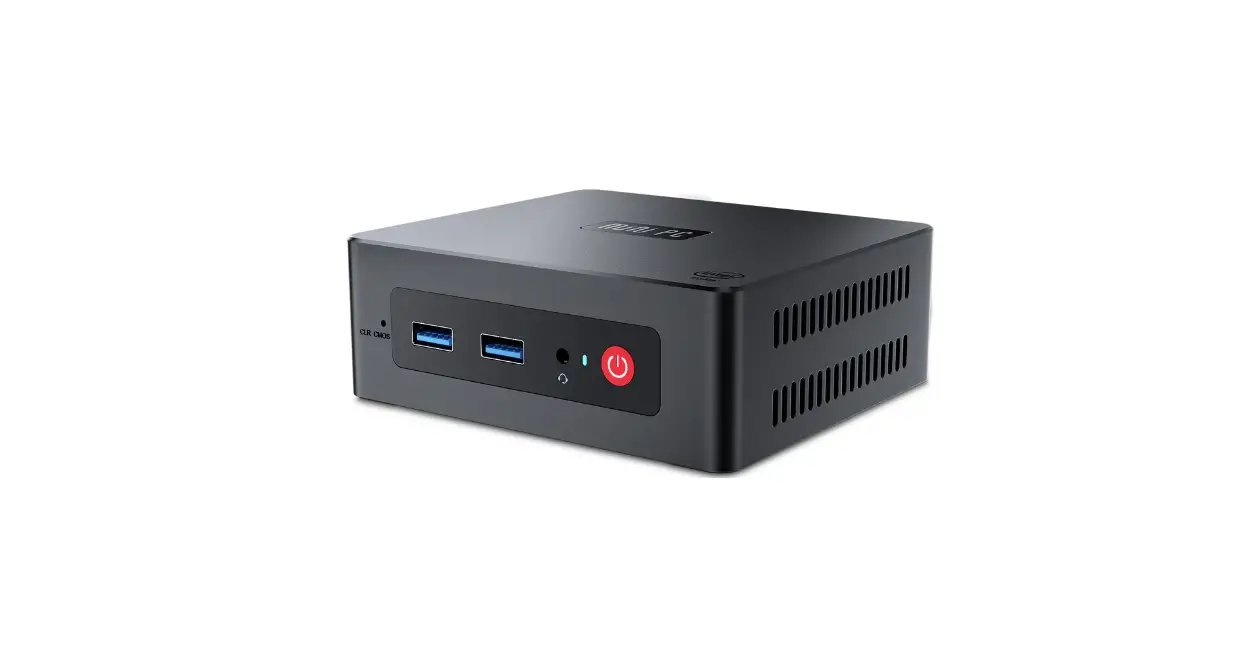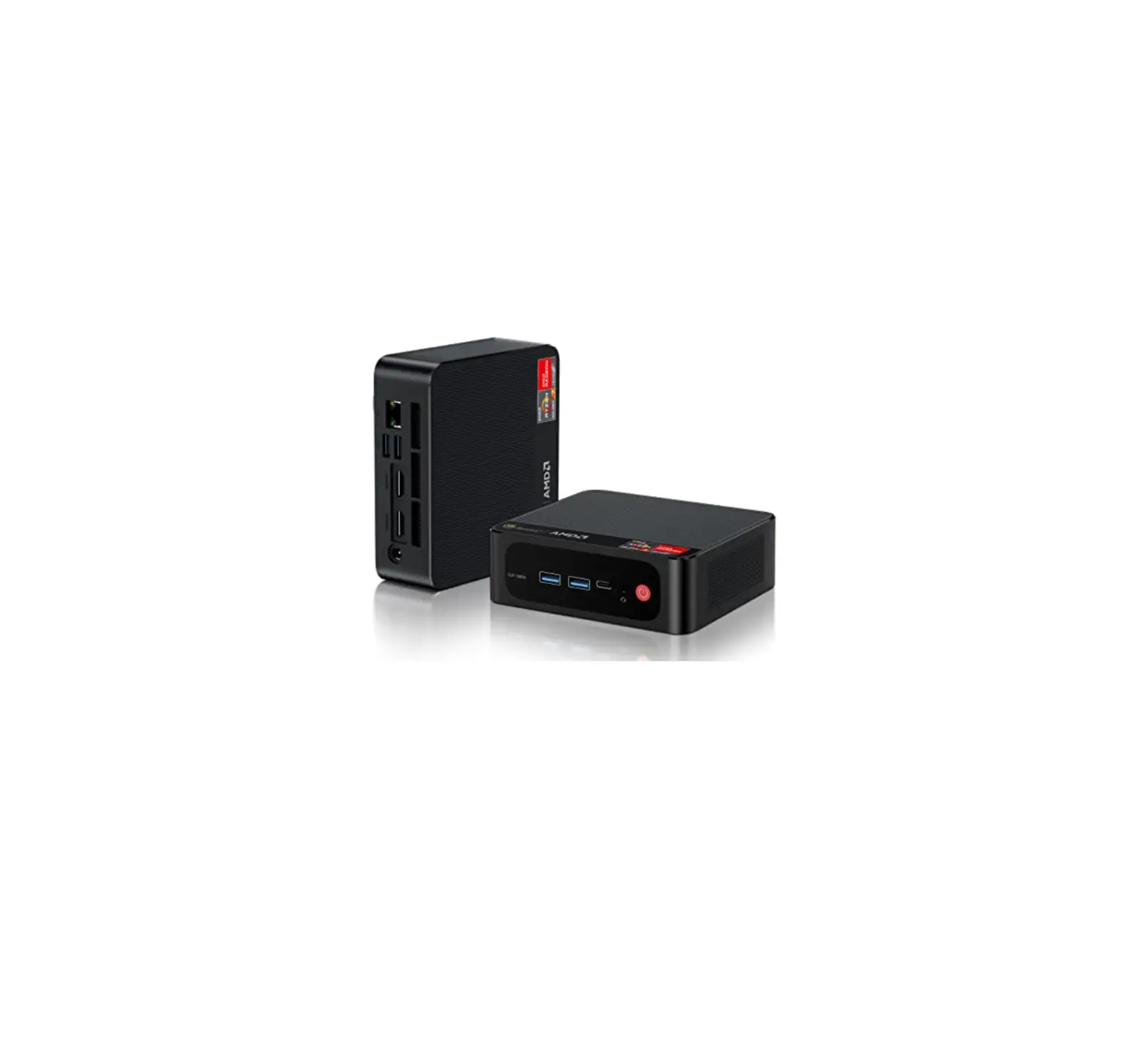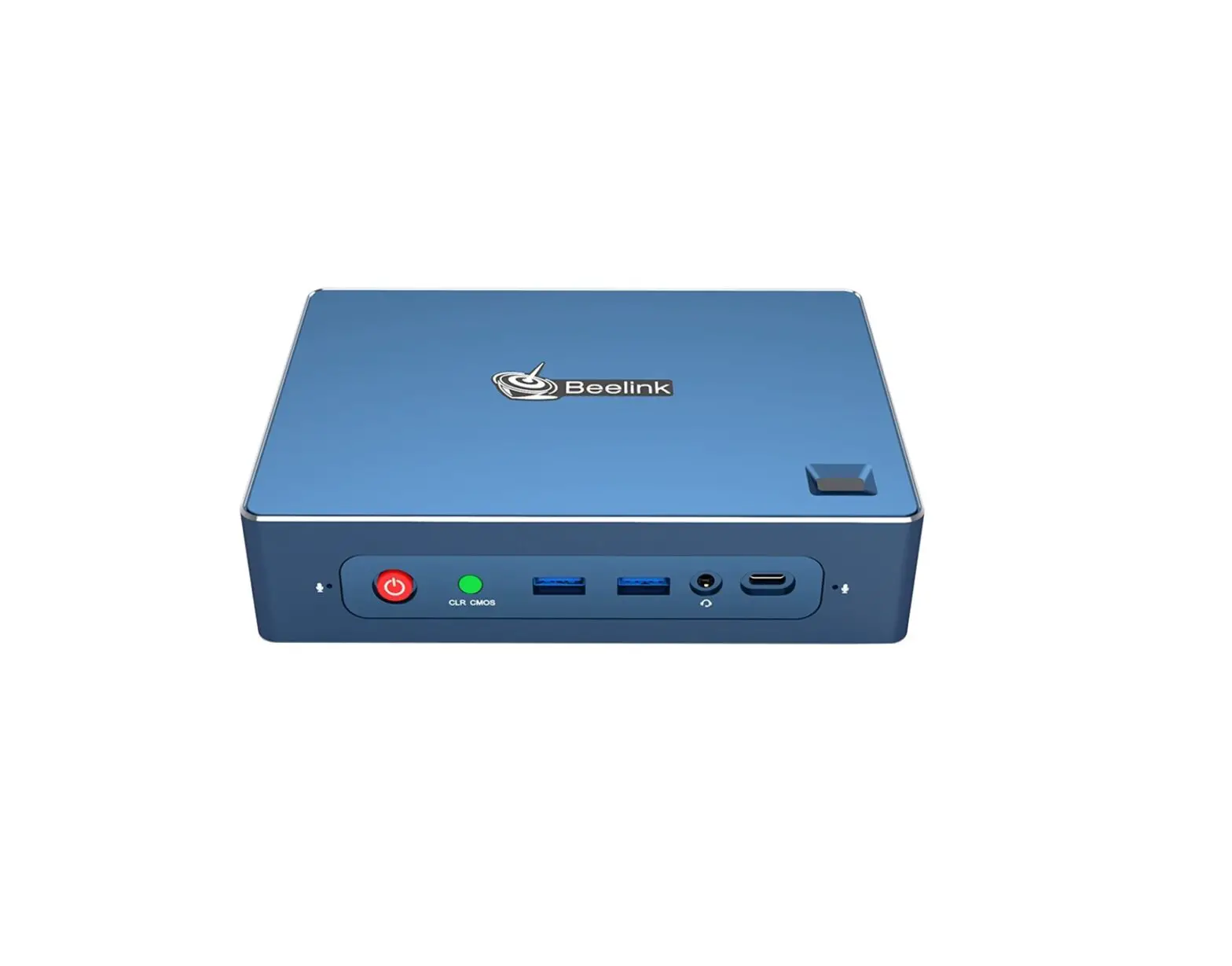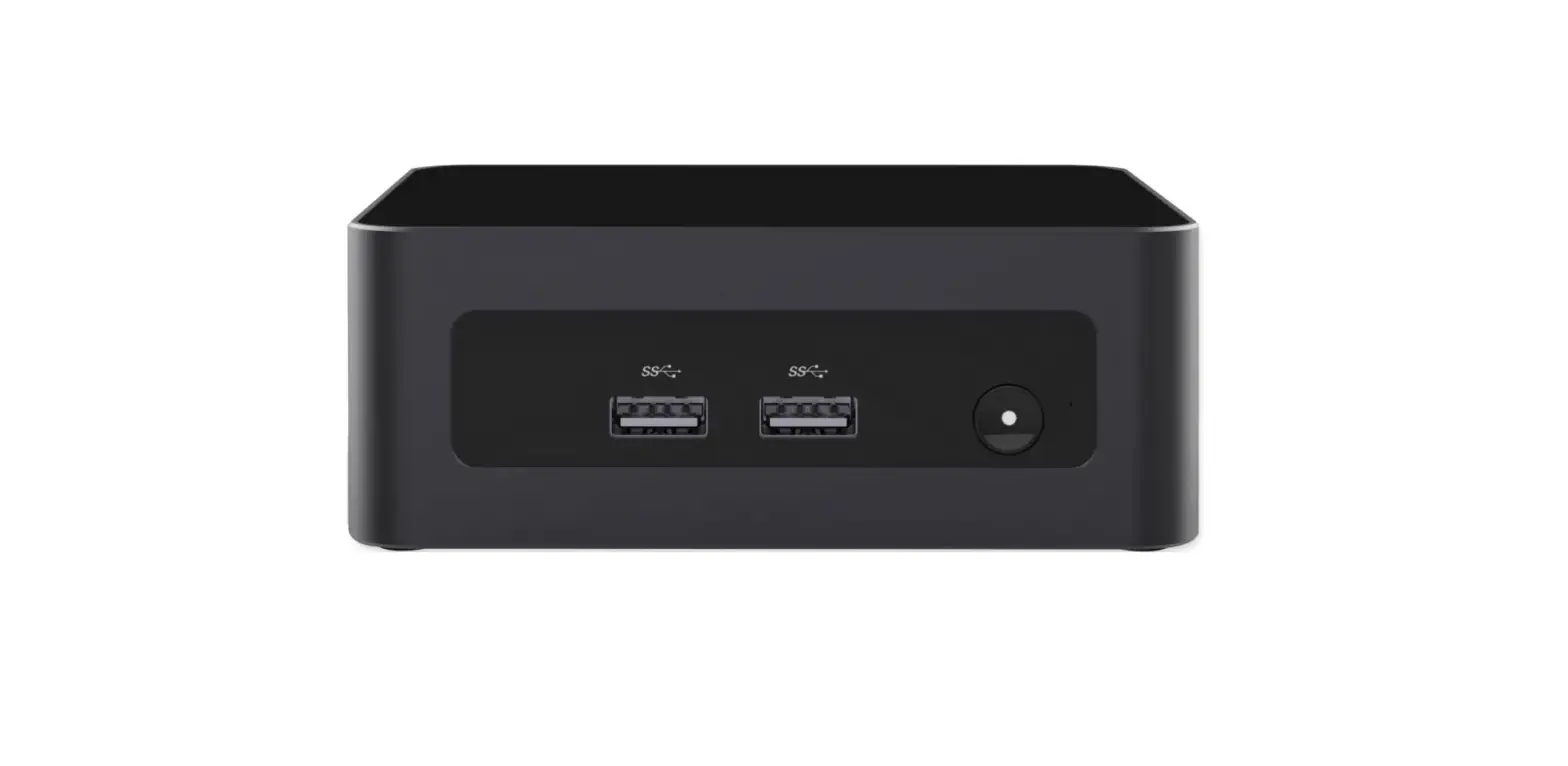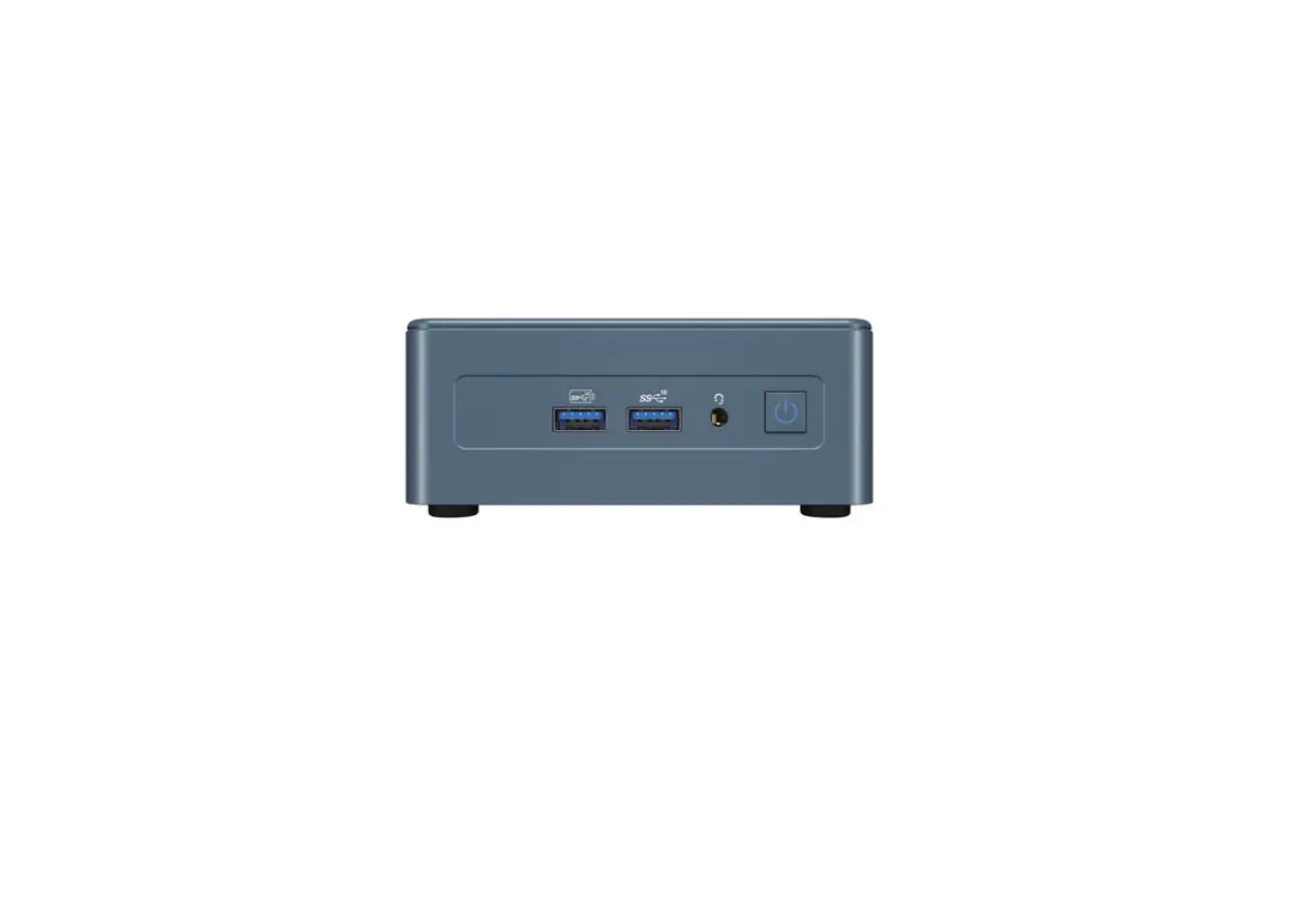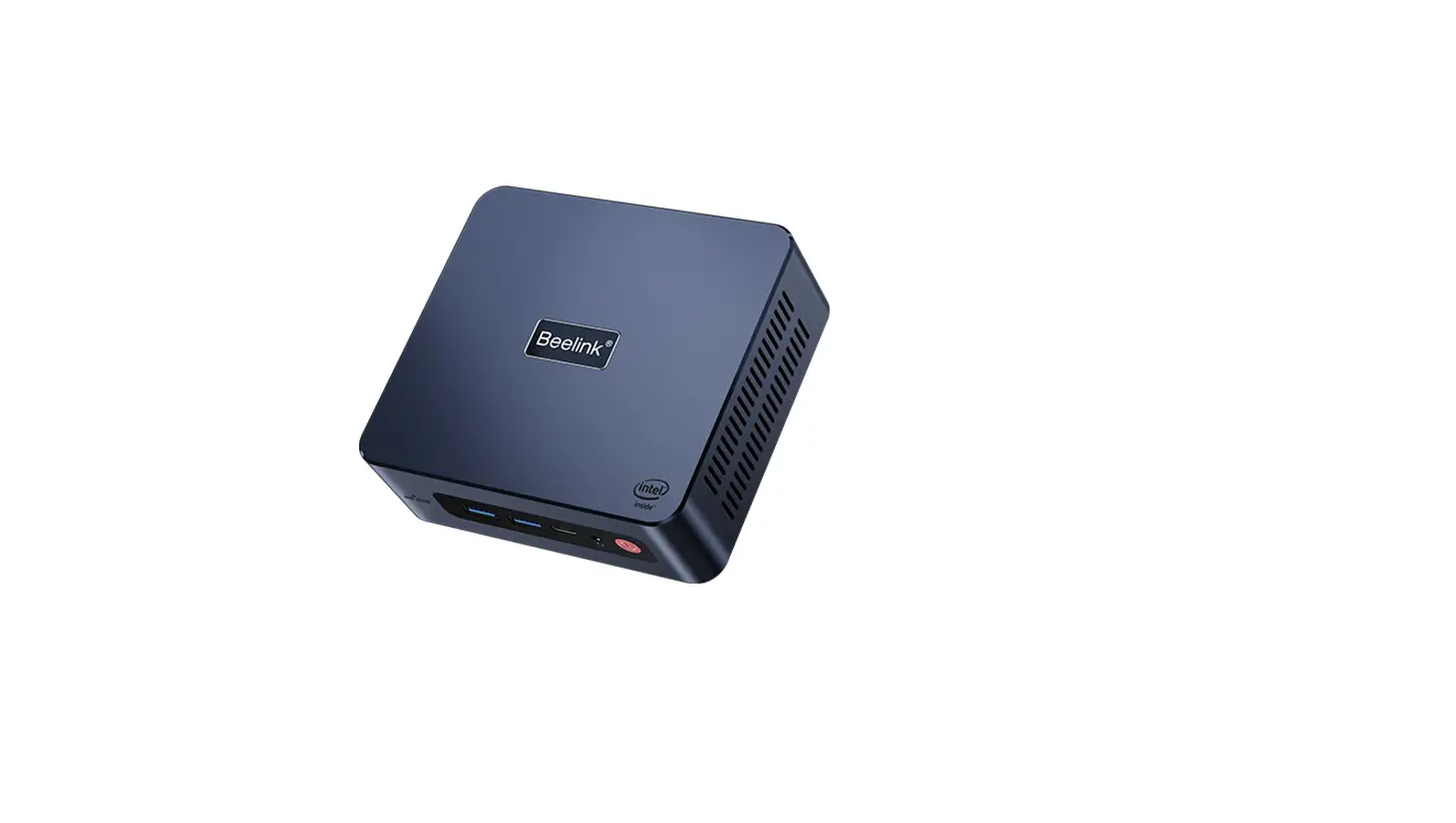

Beelink U59 Pro Mini PC Intel Celeron
How to install Windows system?
- Prepare a U disk(USB driver) with a storage capacity of at least 16 GB
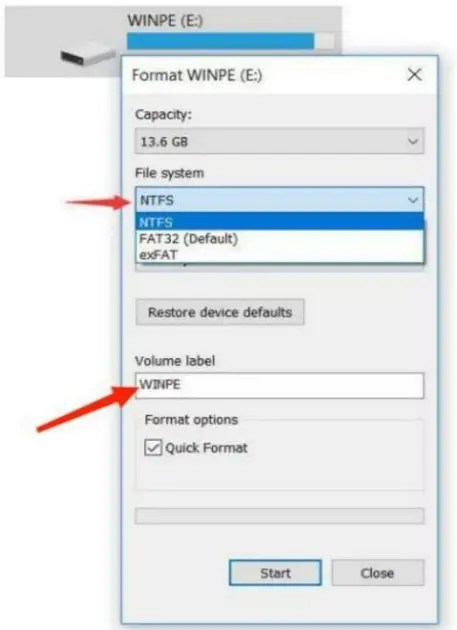
- Right click and select format… Format U disk to NTFS format,and change the Volume label to WINPE ,click start to finish formatting(Under the computer start options>click the right mouse button,>select Disk Management>select your USB flash drive)

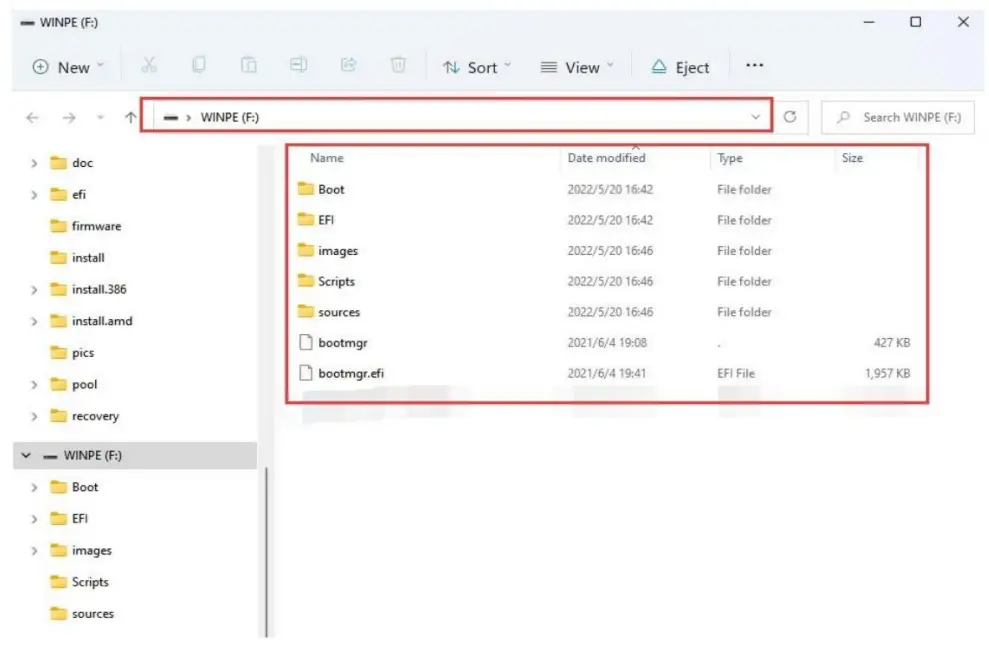
- Copy your system files to U disk, and it must be in the root directory of U disk.

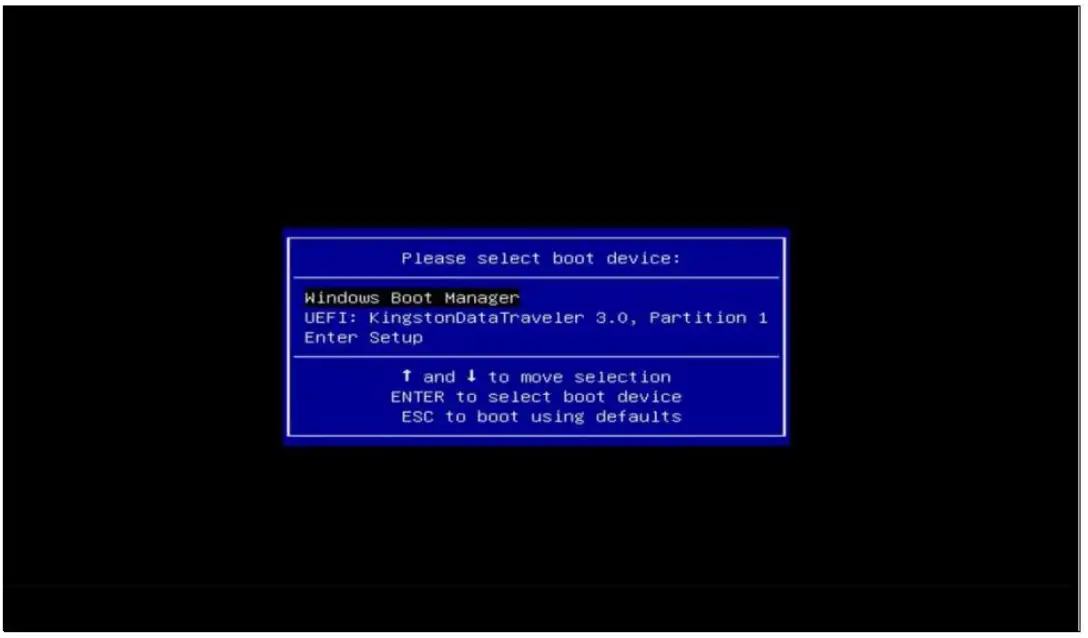
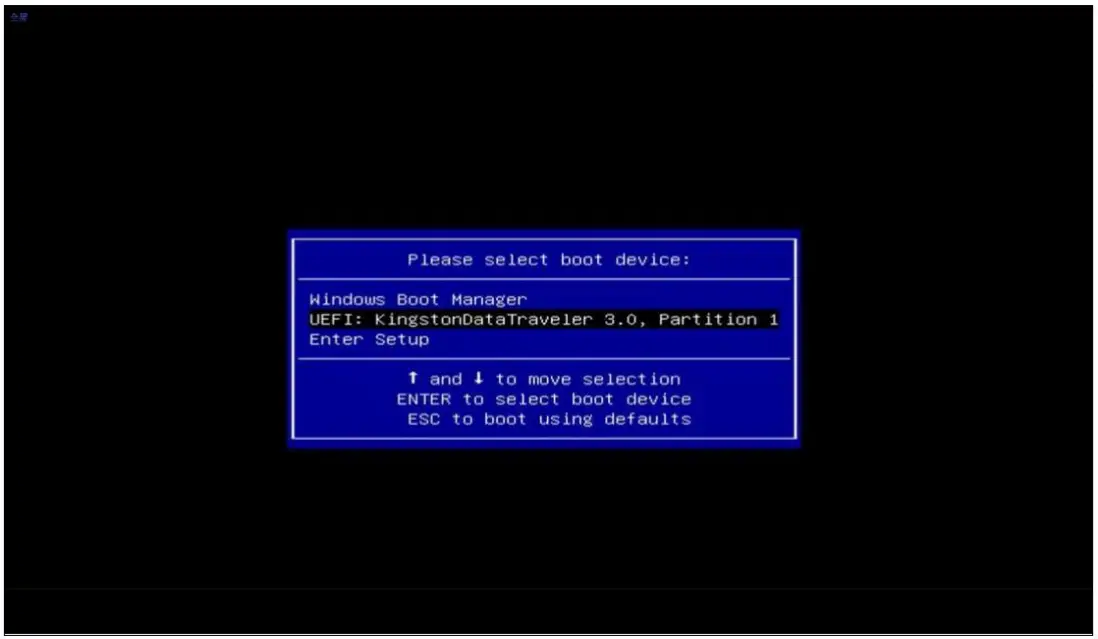
- Insert the U disk, boot your mini pc and immediately press F7 repeatedly to enter the boot device menu interface.

- Select UEFI and press Enter to enter。

- Enter the loading system interface, just wait for automatic loading.

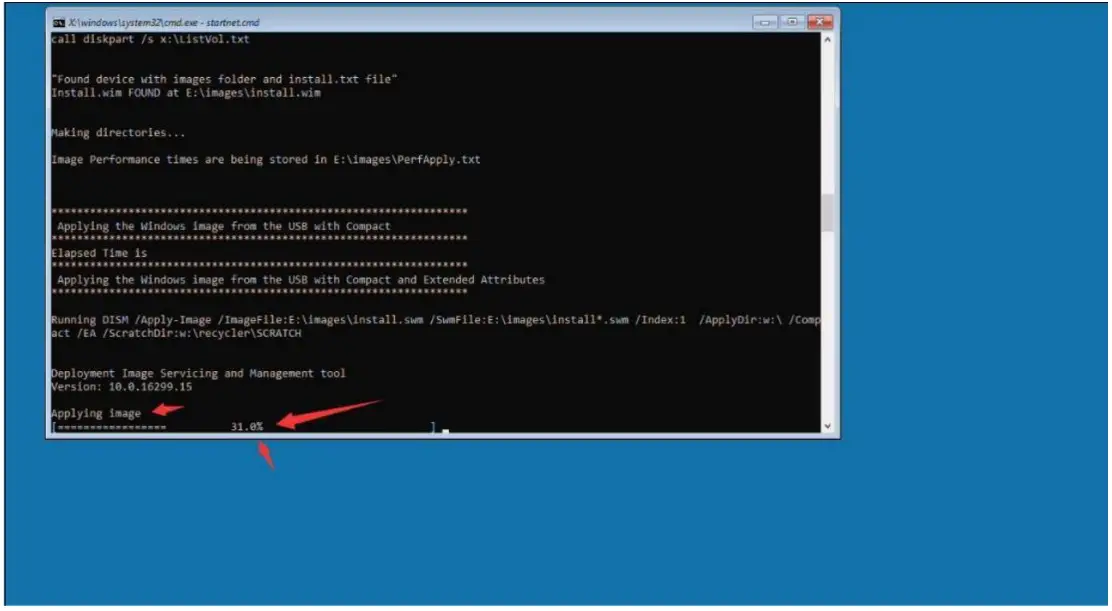
- Enter the following loading interface, wait for the installation (During the automatic installation process, do not power off and other operations),until 100% is completed, it will automatically restart into the system (also remove the U disk)

- Wait for the machine to automatically turn on and complete the installation.