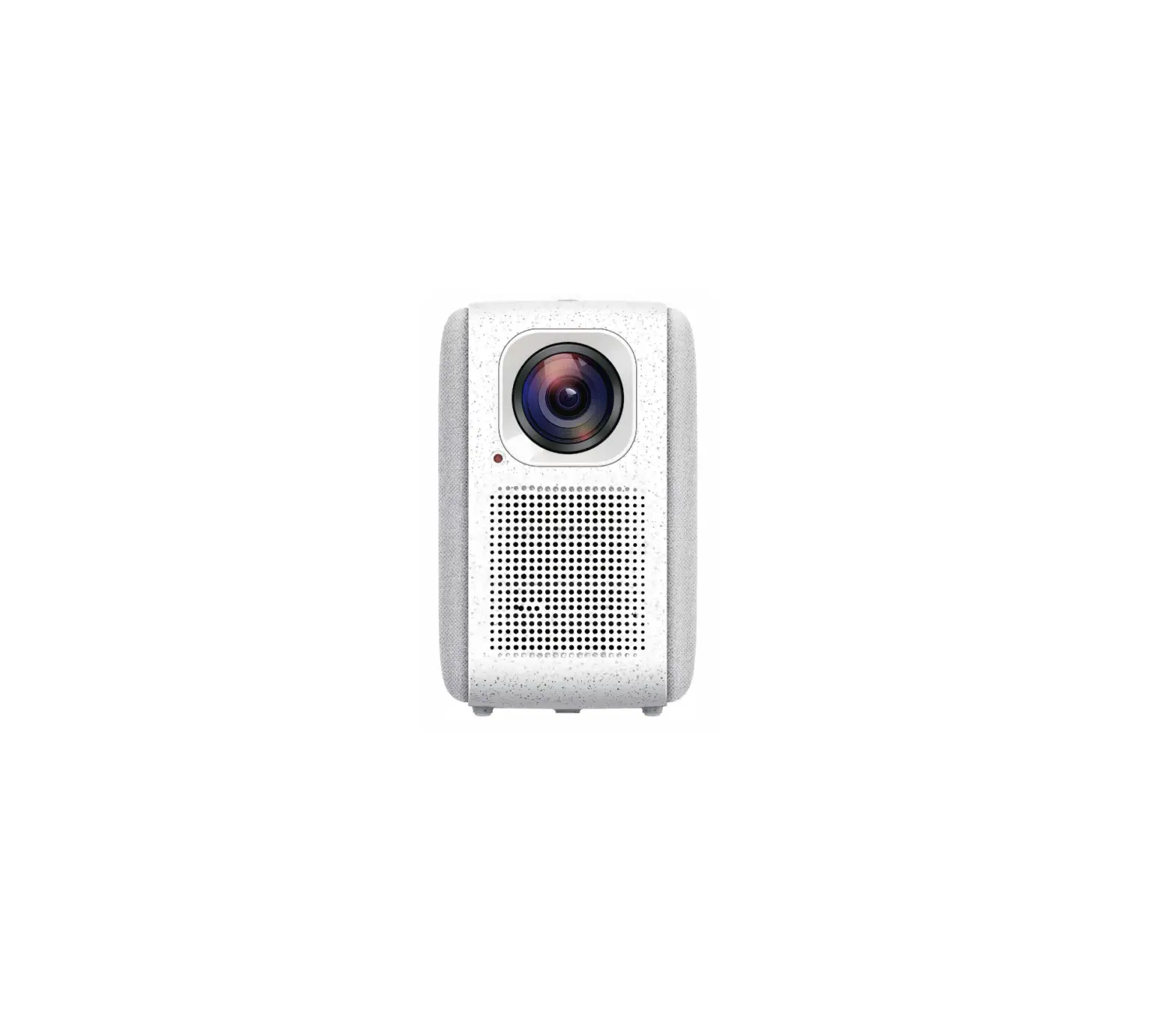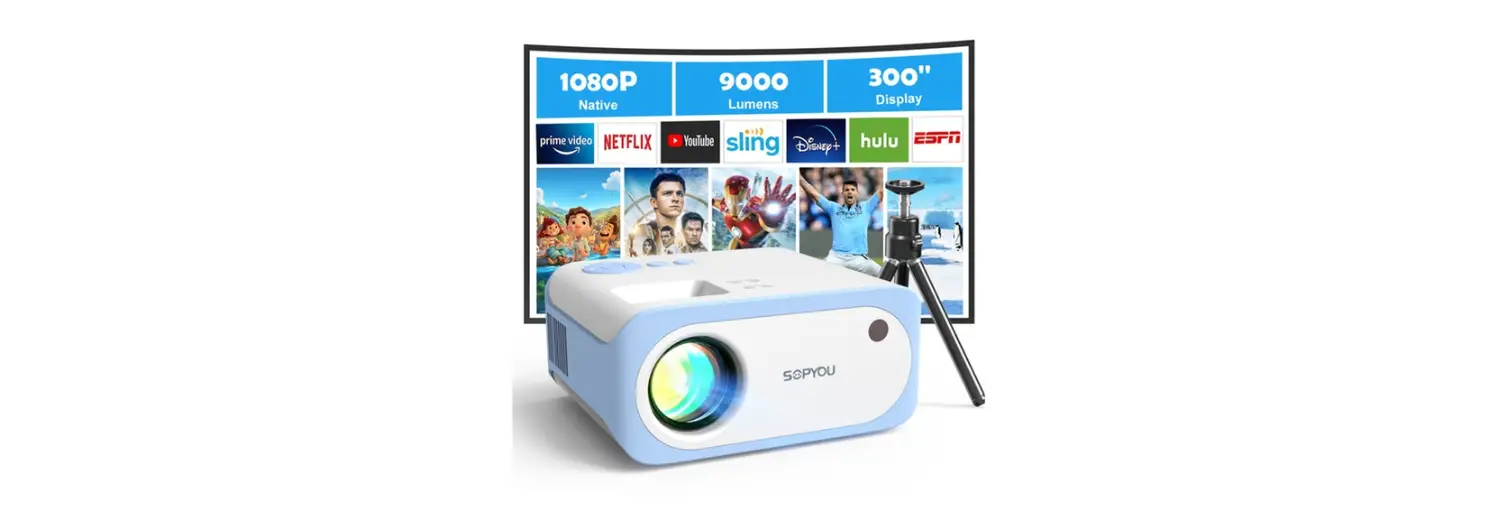

LCD VIDEO PROJECTOR
USER MANUAL
V1.03
CUSTOMER SERVICE & WARRANTY
Thank you for choosing SOPYOU PROJECTOR and becoming our valued customer. At SOPYOU, we are committed to providing you with products that improve your daily life. Happy customers’ experiences make us proud and we hope this product will bring you convenience and enjoyment.
SOPYOU offers a 1-year warranty + 30 days return/exchange policy + lifetime support for this product.
(*To extend the warranty for 1 more year, please contact us.)
If you don’t like it,
If you have a user manual problem,
If you have missing accessories,
If your package got damaged,
If the product can’t be used,
Please contact our customer support team at 1-833-633-9255 or
[email protected]
www.sopyouhome.com
In order to help you solve the problem efficiently, please send us the following information when you contact us.
- Amazon order number
- A brief description of the problem: problem + the efforts you tried + photos/ video
ATTENTIONS
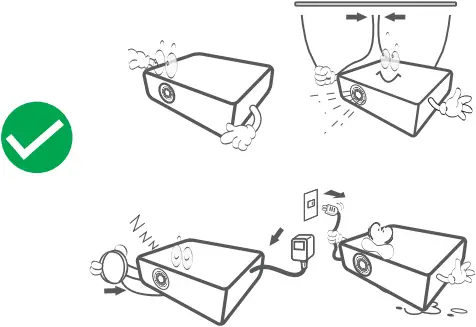
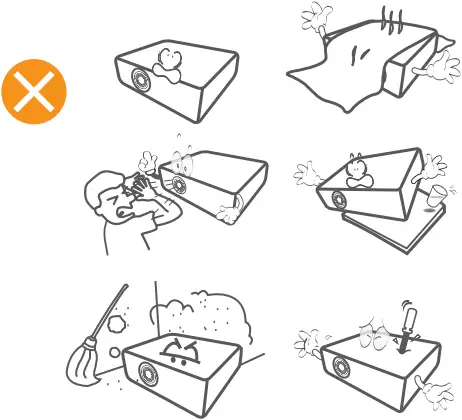
- Please DO NOT look straight into the projector lens while it is working to avoid burning your eyes.
- Do not place the machine in a hot or humid place to avoid leading to internal components breaking down.
- When cleaning up the lens, please use a lens cleaner or special lens wipe paper.
- Please ensure that the projector is well ventilated when using it. Do not touch carpets and woolen knitwear.
- Do not disassemble this machine. We will offer you professional warranty services.
TIPS
Recommended
Video, Movie
NOT Recommended
 PowerPoint, Excel, Word
PACKING LIST
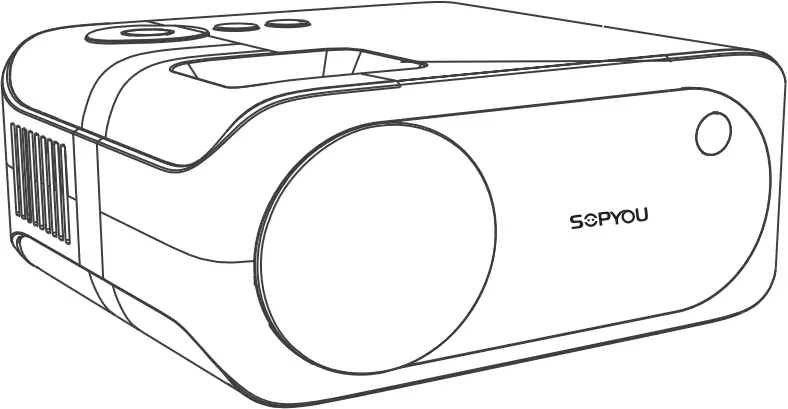 P2 | ||
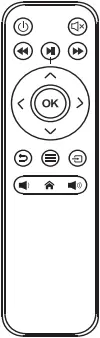 Remote | 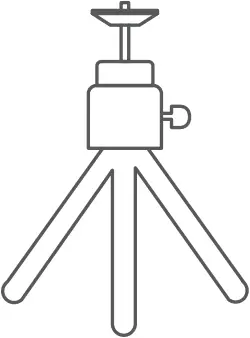 Mini Tripod |
User Manual |
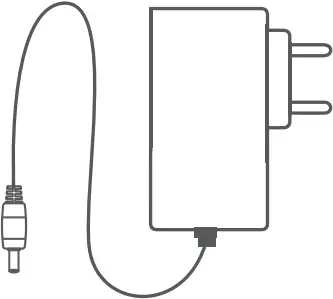 DC Power Cable | 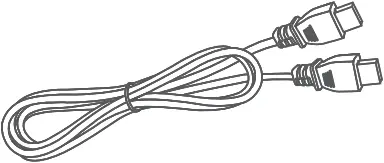 HDMI Cable |
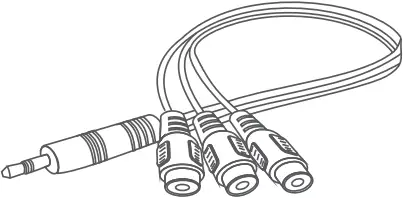
AV Cable |
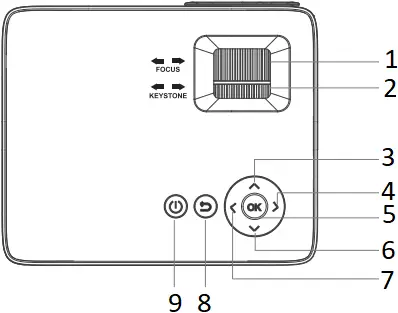
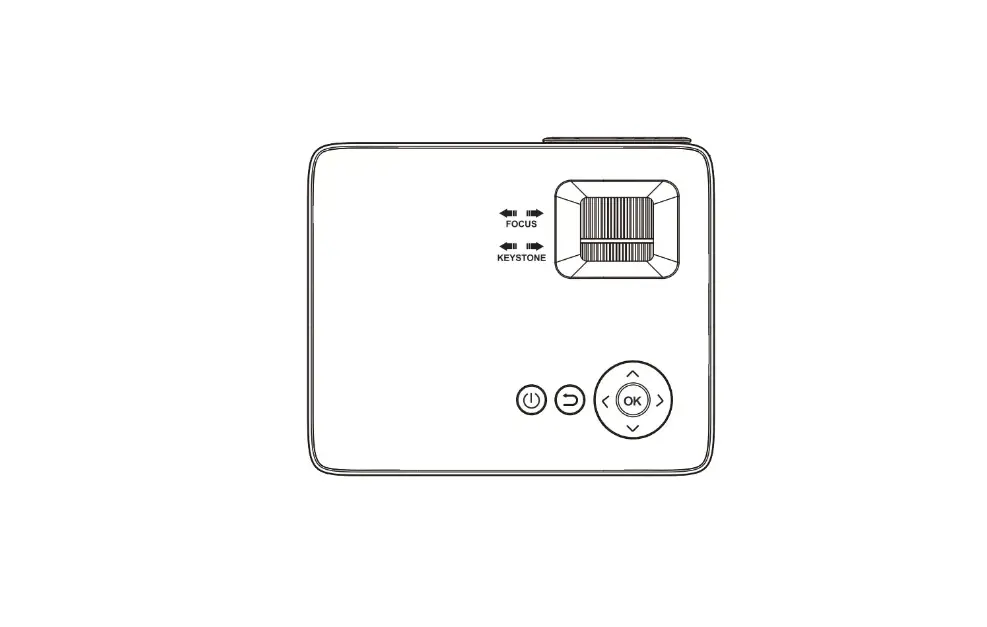
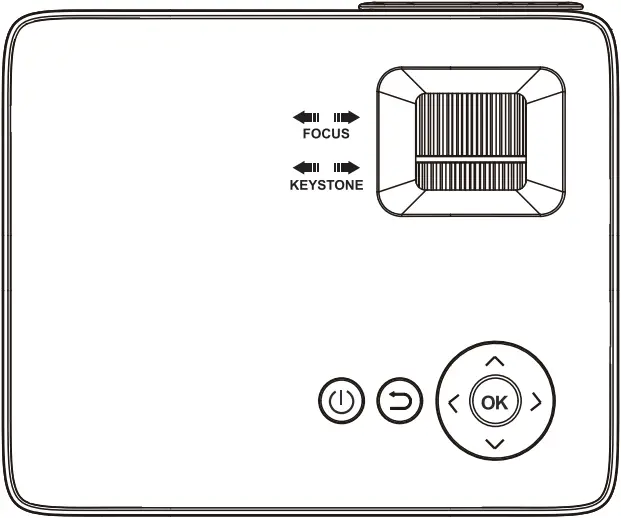
- Focus
- Keystone
- Up
- Right
- OK
- Down
- Left
- Return
- Power
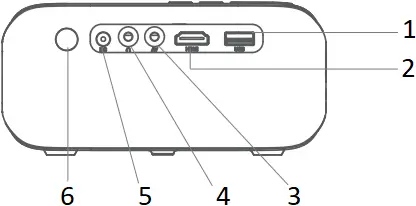
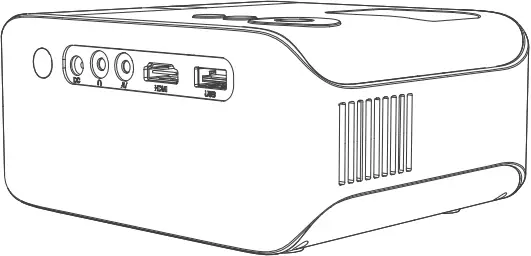
- USB
- HDMI
- AV
- Audio
- DC
- Infrared
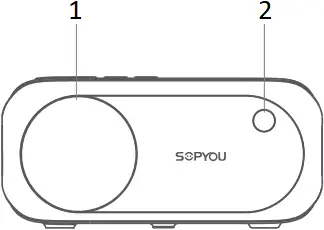
- Lens
- Infrared
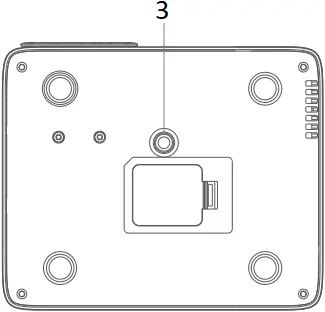
- 0.25in Mounting Screw Hole
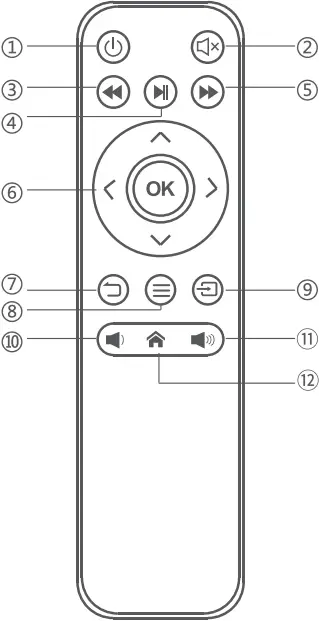
(1) Power On/Off
(2)Mute
(3) Rewind
(4) Play / Pause
(5) Fast Forward
(6) Left/Right/Up/Down
(7) Back
(8) Menu
(9) Source
(10) Volume-
(11) Volume +
(12) Home
QUICKSTART
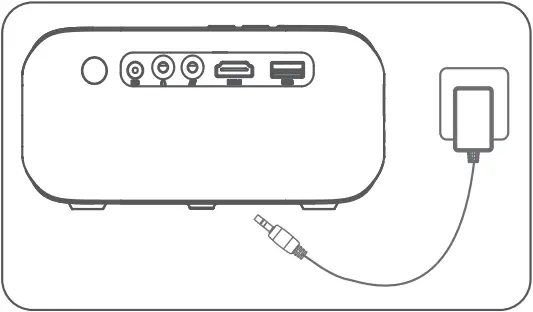
(1) Plug the power cord into an outlet.
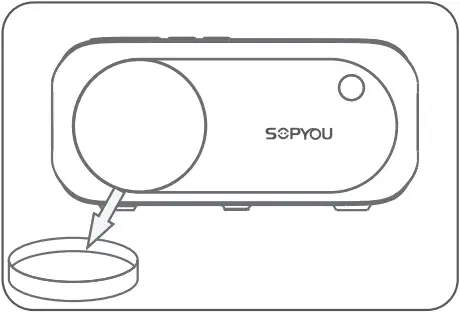
(2) Take off the lens cover.
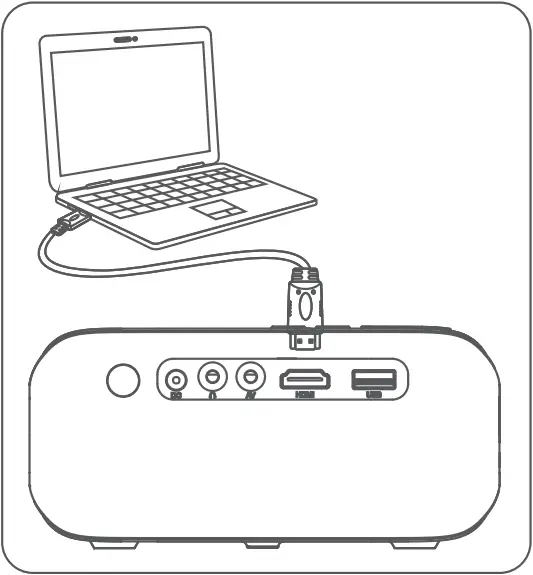
(3) Connect your device to the projector with the correct cables.
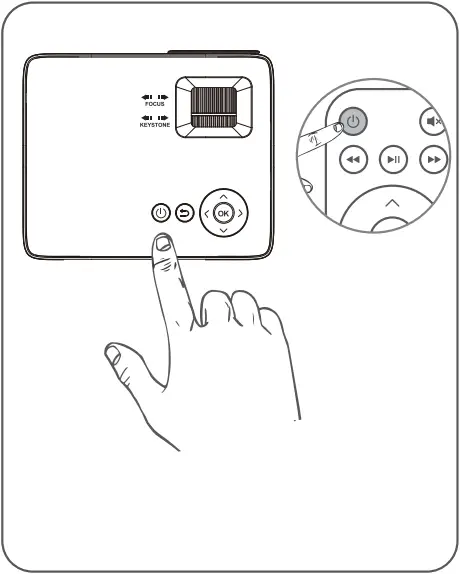
(4) Press the power button to turn on the projector
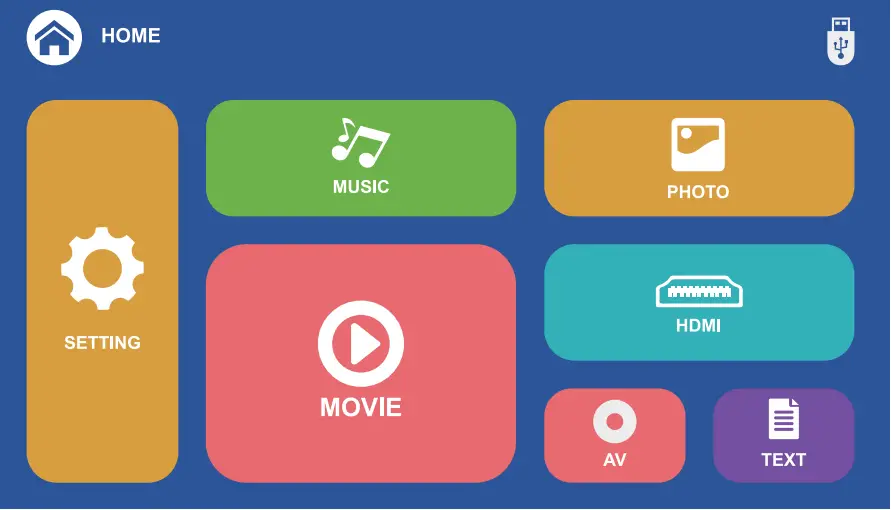
(5) Select the correct input source on the projector or remote to project your device.
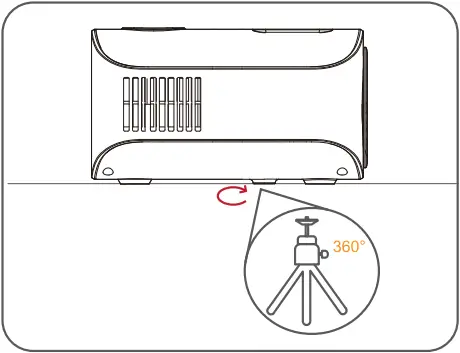
(6) Mount the 360° mini tripod as needed.
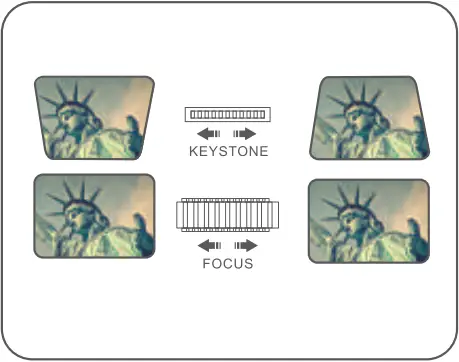
(7) Adjust the keystone to make the projection screen rectangular first, then adjust the focus wheel slowly to make the center clear.(Please use it in a dark environment.)
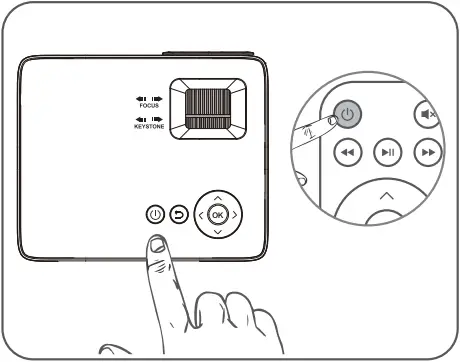
(8) Press the power button to turn off the projector
CONNECTIONS INSTRUCTIONS
The P2 projector can be connected to a variety of devices. Before connecting please prepare corresponding adapters for different devices.
HDMI Connection
Use the HDMI slot to connect computers and HDMI-compatible devices. Once connected, select the HDMI signal source.
Connect to a Laptop
1. Windows Laptop
To connect Windows laptop, please use the HDMI cable (included). Most Windows laptops support HDMI connection.
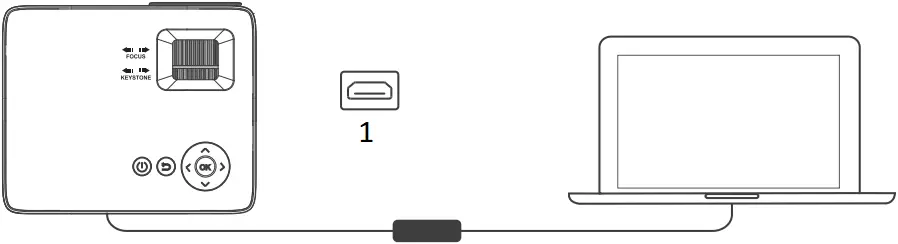
- HDMI
2. MacBook
To connect the MacBook, You can use an Apple MFi-certified USB C to HDMI adapter or an Apple MR-certified Thunderbolt to HDMI adapter.
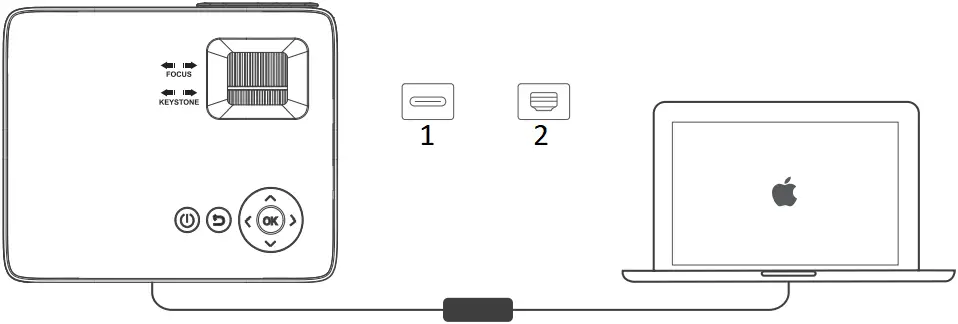
- USB-C
- Thunderbolt
Connect to iOS Devices
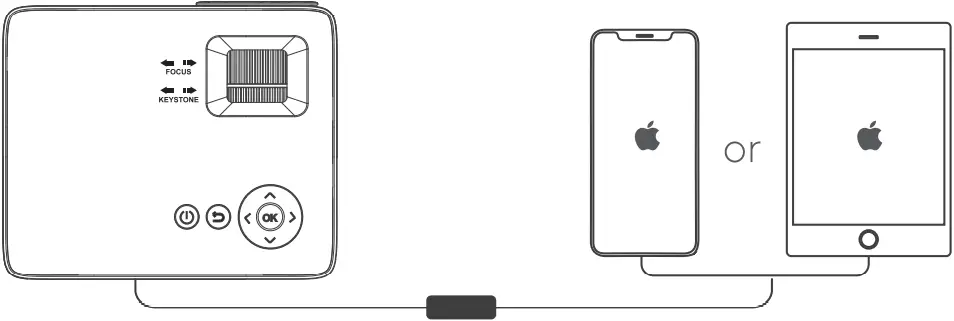
To connect iPhone/iPad, there are two ways as following.
1.With Apple Lightning Digital AV Adapter
Please use an official HDMI to Apple Lightning Digital AV Adapter from the Apple store (not included).
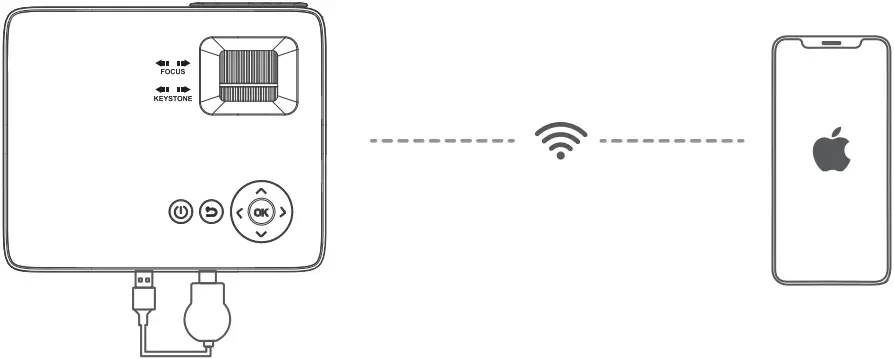
2. With a Miracast/Dongle
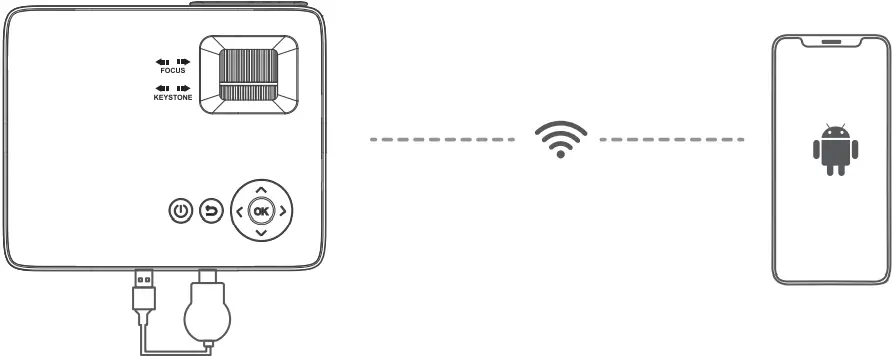
Miracast is designed for mirroring a smartphone, tablet, or PC’s screen to a bigger screen. You can use a Miracast/Dongle to realize the wireless connection.
Connect to Android Devices
Please use a Miracast/Dongle to connect the projector to your Android phone. For Samsung phones, you can try a Samsung DeX USB-C to HDMI Cable.
Note: Please make sure your phone has the Screen Mirroring function.
USB Connection
Step1.
Insert the USB flash into the USB slot.
Step2.
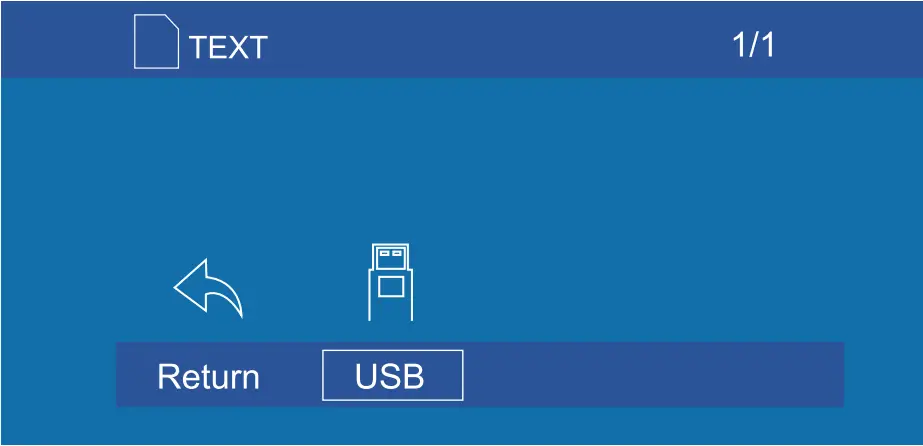
Choose the source which you need to display (PHOTO, MUSIC, MOVIE, TEXT).
Step3.
Choose the file you want to display.
*Multimedia Format Supported
Multimedia | Audio File | MP3,WMA, OGG, AAC, MA4, FLAC, APE, WAV |
Picture File | JPEG, BMP, PNG | |
Video File | MPEG1, MPEG2, FLV, MPEG6, RM, AVI, RMVB, MOV, MKV, DIVX, FVOB, M-JPEG (only unsupported 640*480) | |
Text File | TXT |
AV Connection
Use a 3-in-1 AV cable to connect to the projector as shown below. Once connected, select the AV signal source.
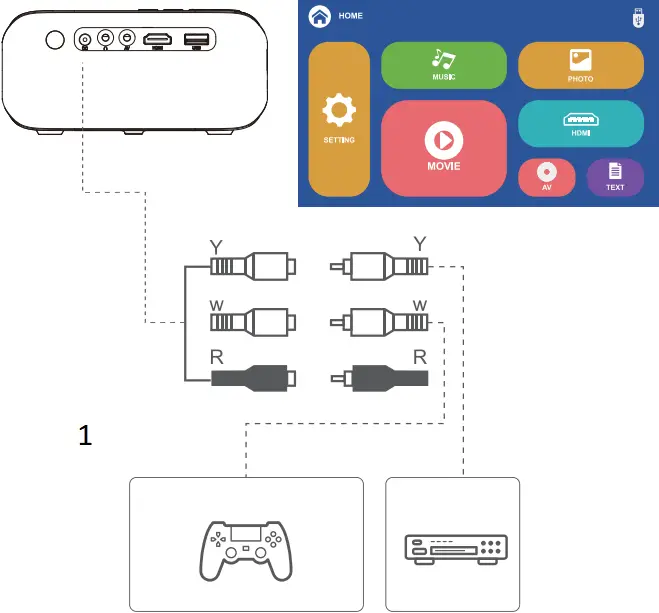
- Suports NTSC/PAL.
SPECIFICATION
| Imaging Technology | LCD |
| Light Source | LED |
| Supported Video Resolution | 1080P, 1080i, 720P, 576i, 480P, 480i |
| Lens Life | >50000 Hours |
| Lumen | 100 ANSI Lumen |
| Contrast Ratio | 3000:1 |
| Focus | Manual |
| Keystone | Vertical ±15° |
| Video Format Supported | AVI/TS/TP/MOV/DAT/MPG/MPEG/ MKV/3GP/MP4/VOB/M2TS/XVID/ 3GP2/MPEG1 /MPEG2/MPEG3/MPEG4/ H263/H264/H265/VP8/RV30/RV40 |
| Input | USB*1, HDMI*1, AV*1 |
| Output | 3.5mm Audio Port |
| Input Voltage (V) | DC21V2.28A, 50/60Hz |
| Built-in Speaker | 4Ω3W |
| Power Consumption(W) | Operating 43W |
| Projector Size | 148mm* 123mm* 72mm |
| Projector Color | White |
| Projector Weight | 0.5kg |
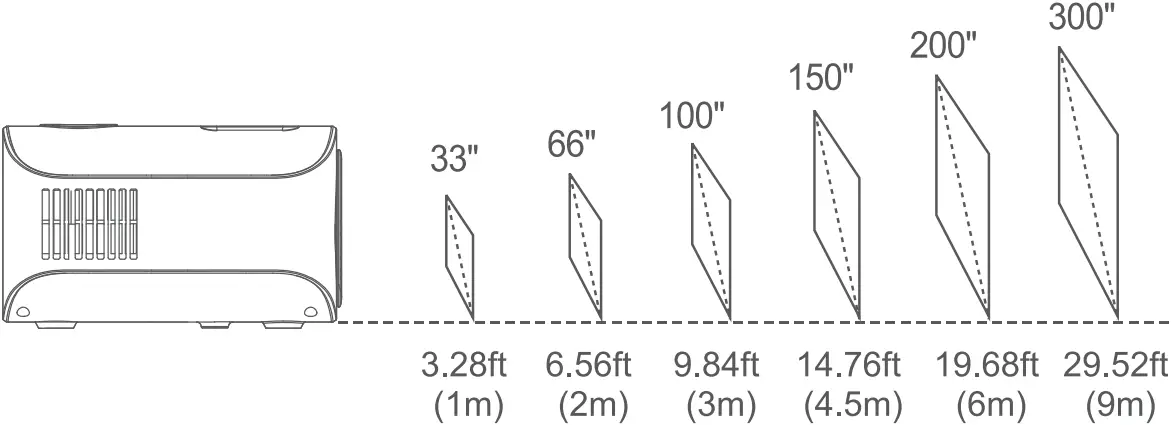
Projection Distance & Size (1.5m-3m recommended)
TROUBLESHOOTING
Q: There is no sound when playing Netflix videos?
A: Due to copyright reasons, some videos or streaming software (e.g Netflix, Disney+, Hulu, etc.) themselves do not support Screen Mirroring This is a common phenomenon in the market.
*HDMI connections help SOPYOU P2 projector on this issue:
(1) For (Phone, you can use an Apple Lightning Digital AV Adapter. Most streaming software works well via this adapter.
(2) For fire stick, Roku, and Chromecast, streaming software will also work well.
(3) Connect the PC or laptop via the HDMI cable.
Q: How to upside down the picture?
A: Please go to Menu > Setting > Rotate to flip the projection picture as your needs.
Q: Why the projector is not bright enough?
A: Please use all home projectors in a dark environment.
Q: Why the image is so blurry?
A: Please move the projector to get suitable screen size and keep the optimum projection distance is 1.5m-3m. Adjust the keystone image rectangular then adjust the focus wheel slowly to make the center area clear. (For all home projectors, the projection edge is not as clear as the center.
Learn more about SOPYOU,please visit us at
 [email protected]
 1-833-633-9255
 www.sopyouhome.com