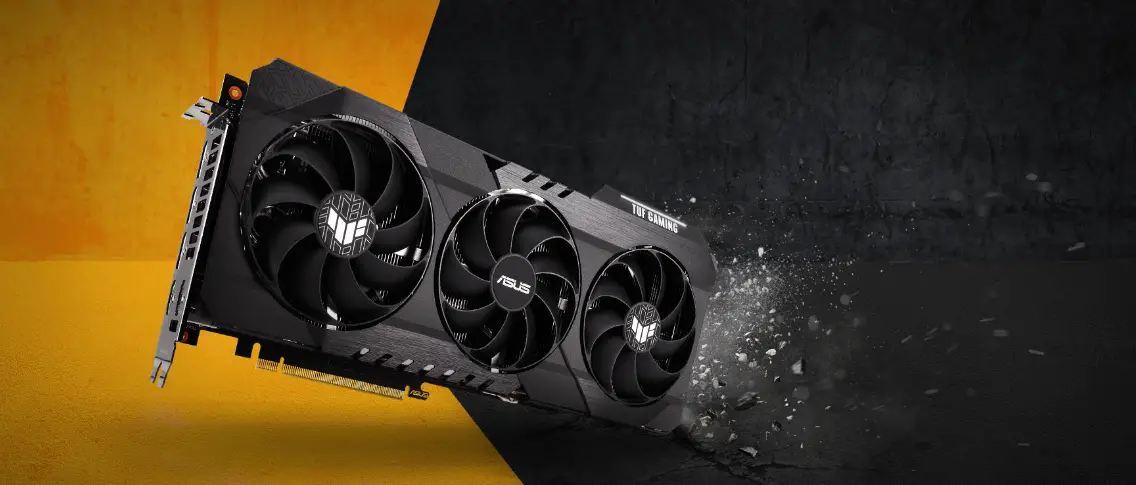
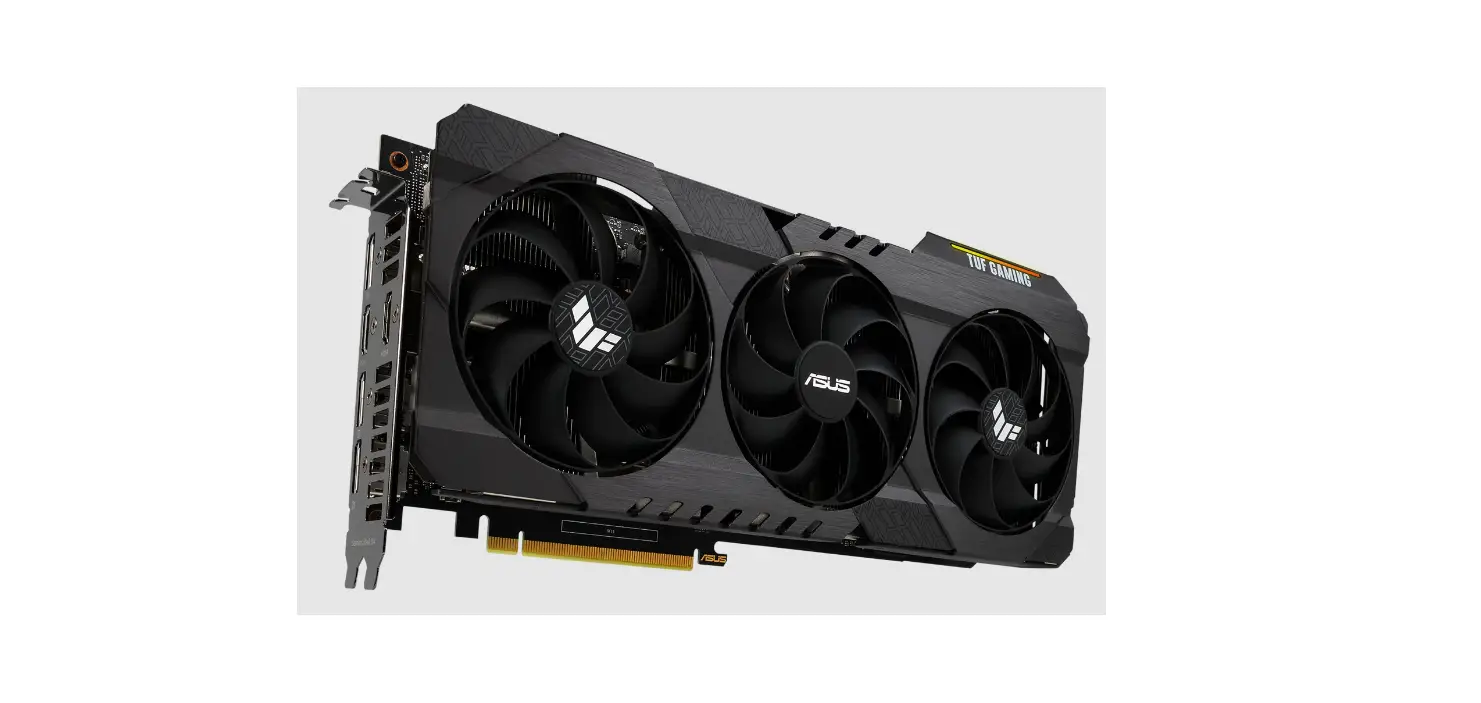
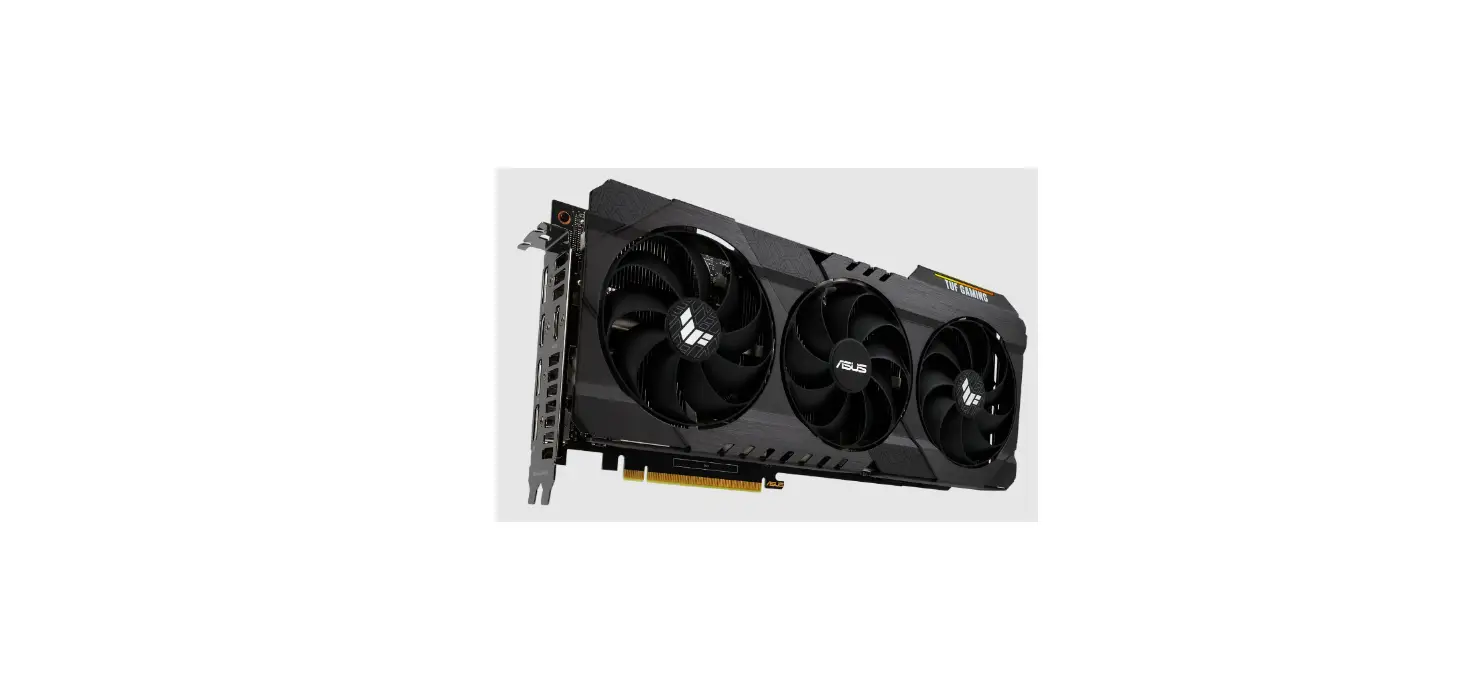
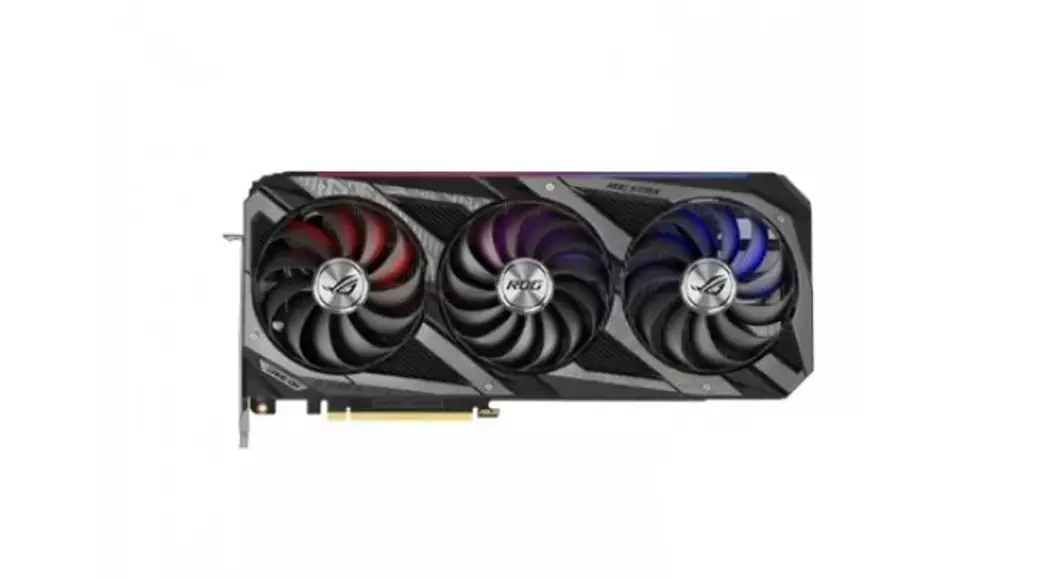
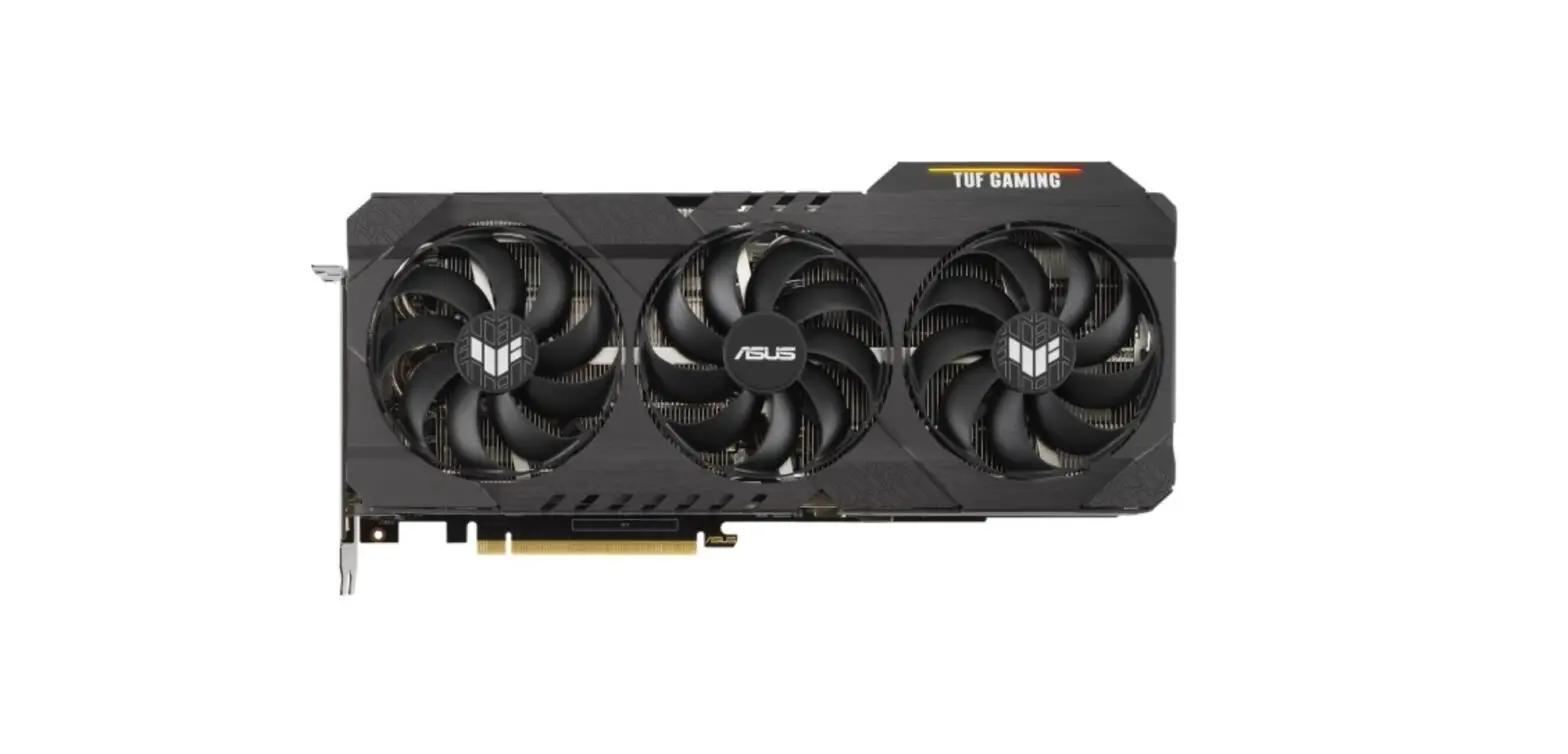
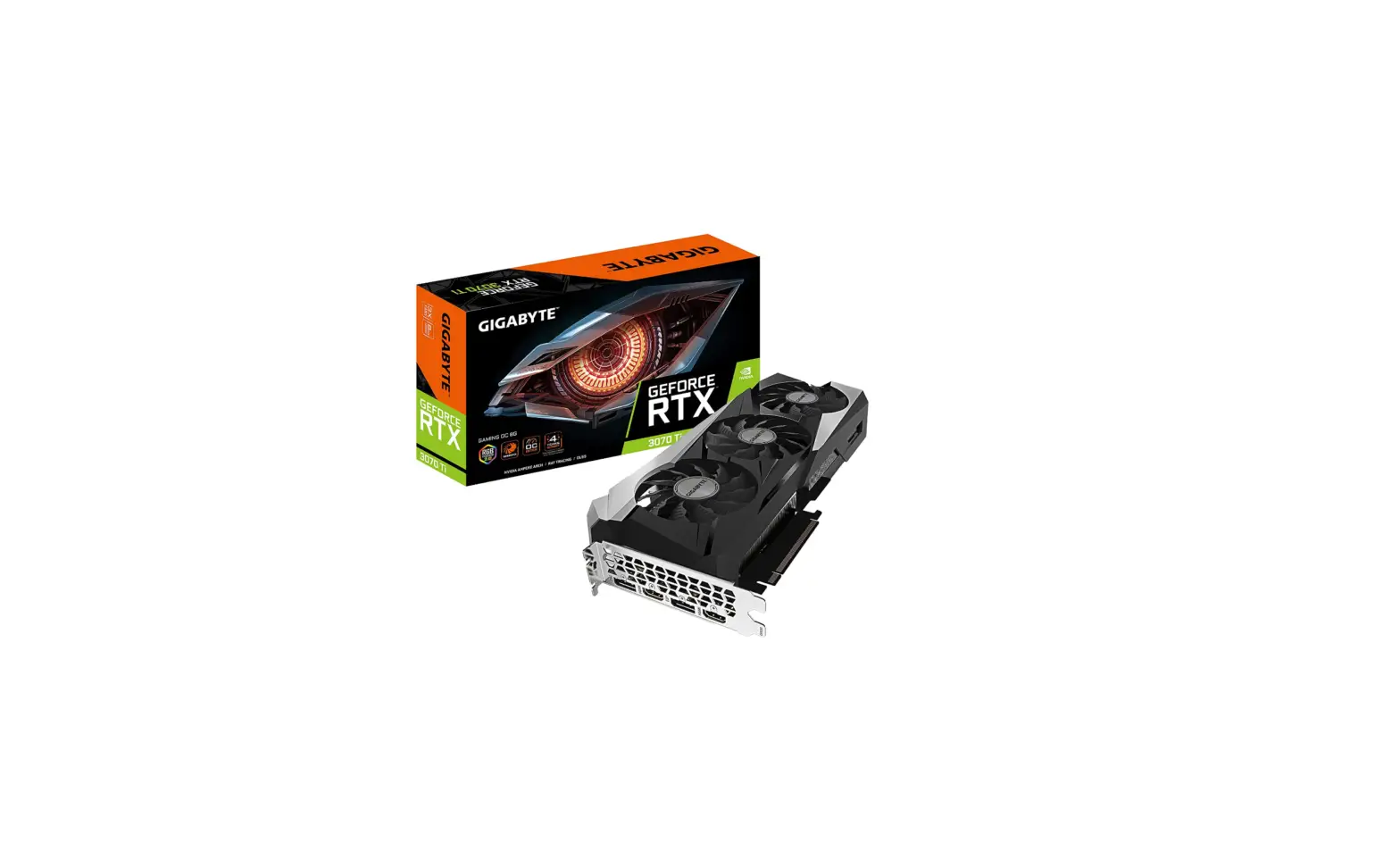
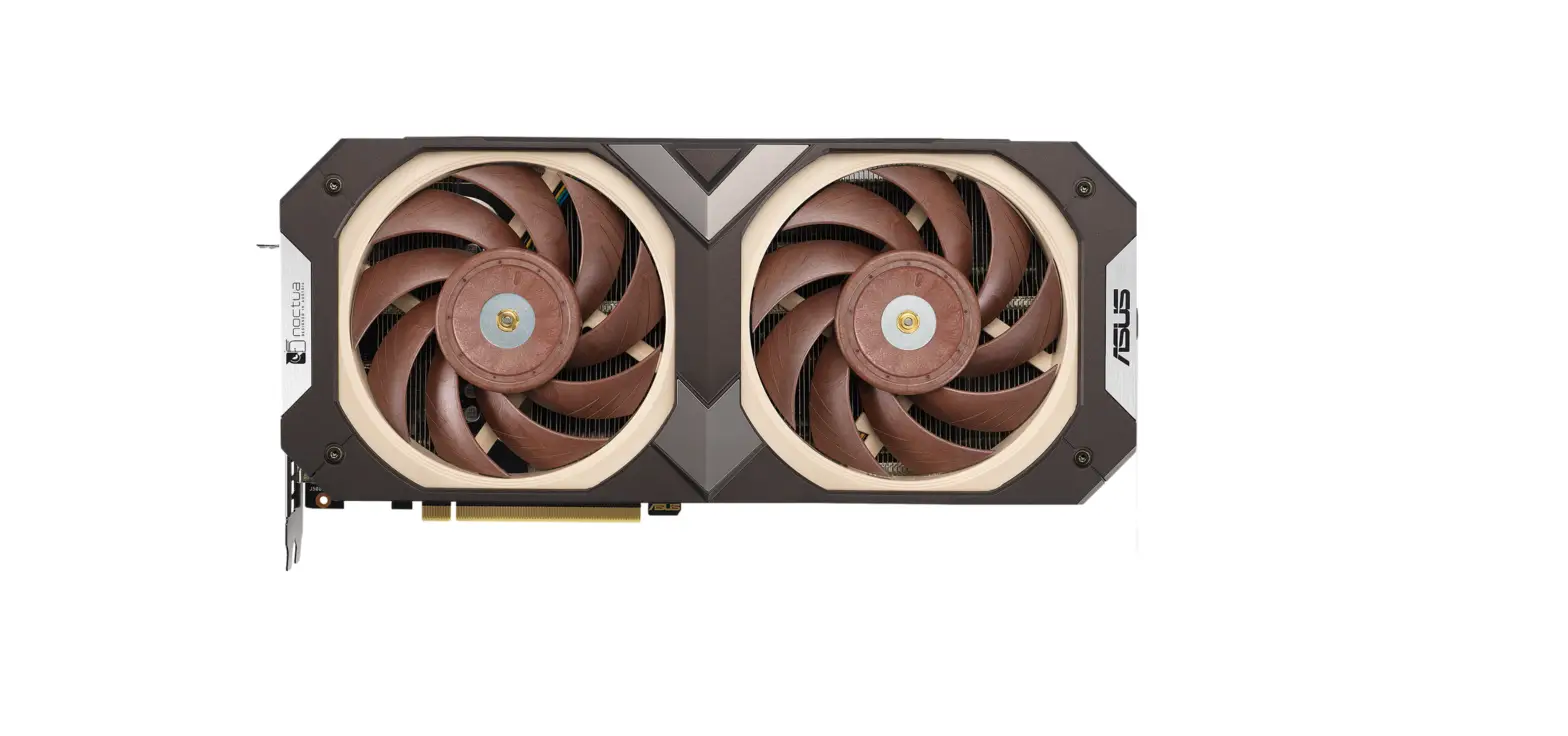
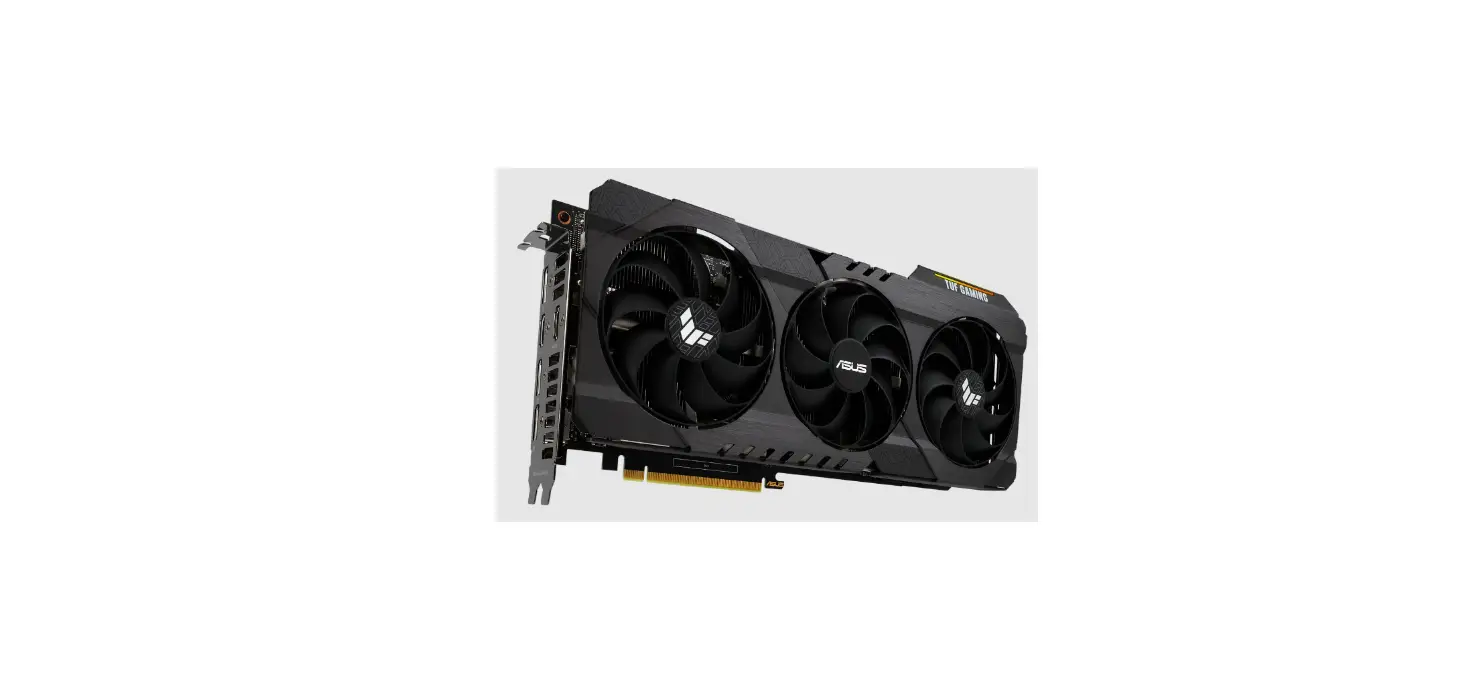
TUF Gaming NVIDIA GeForce RTX 3070 Ti OC Edition Graphics Card
Product Information
The product is a graphics card.
Product Usage Instructions
A. Card installation
- Power off your computer and unplug the power cables.
- Remove the chassis cover and locate the PCI Express slot.
- Remove the expansion slot cover of the appropriate slot for
your graphics card. - Insert the card into the slot until it is firmly in place.
- Secure the card into the slot with a screw.
- Replace the chassis cover and connect the monitor cable.
- Reconnect all power cables.
- If your graphics card has an auxiliary power connector, connect
the appropriate power plug from the system power supply to the
graphics card’s auxiliary power connector.
B. Connecting display devices
Connect the monitor signal cable to the corresponding port on
the graphics card. Refer below for the VGA standard connectors and
their corresponding ports:
- D-Sub
- DVI D-Sub
- DVI Display Port
- DVI HDMI
- HDMI
- VR Type-C
C. Driver installation
- Visit the ASUS support site at: https://www.asus.com/support/
- Click on Graphics Cards, then select your product series and
product model. - Click on Driver & Utility, choose the operating system,
then download and install the latest driver.
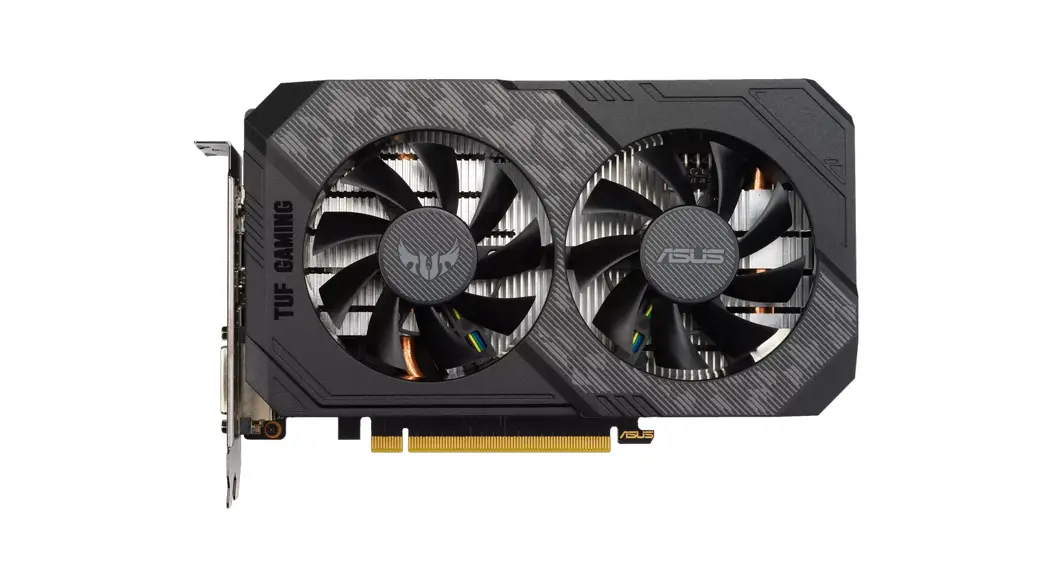
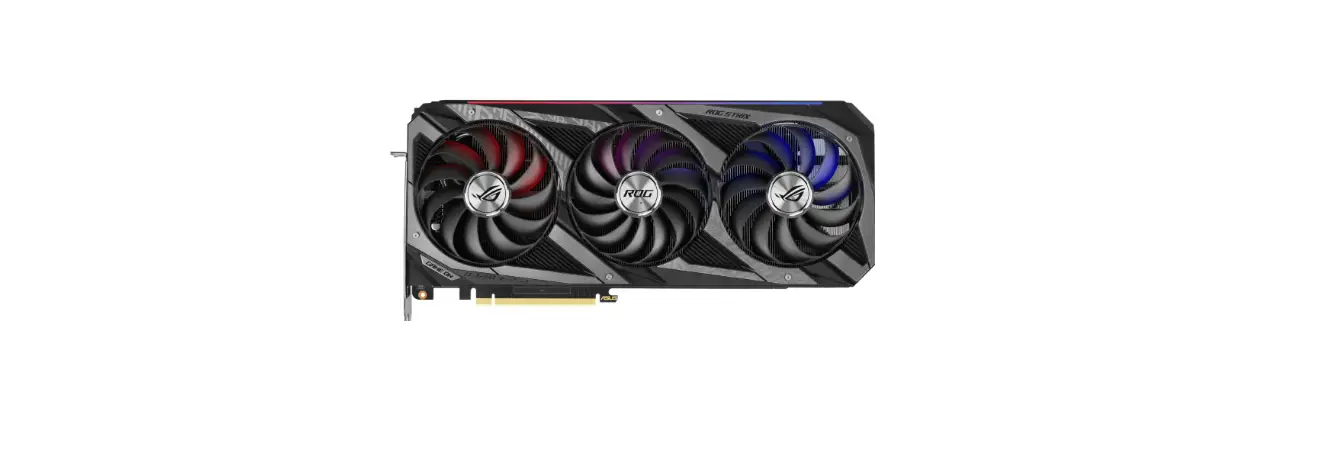
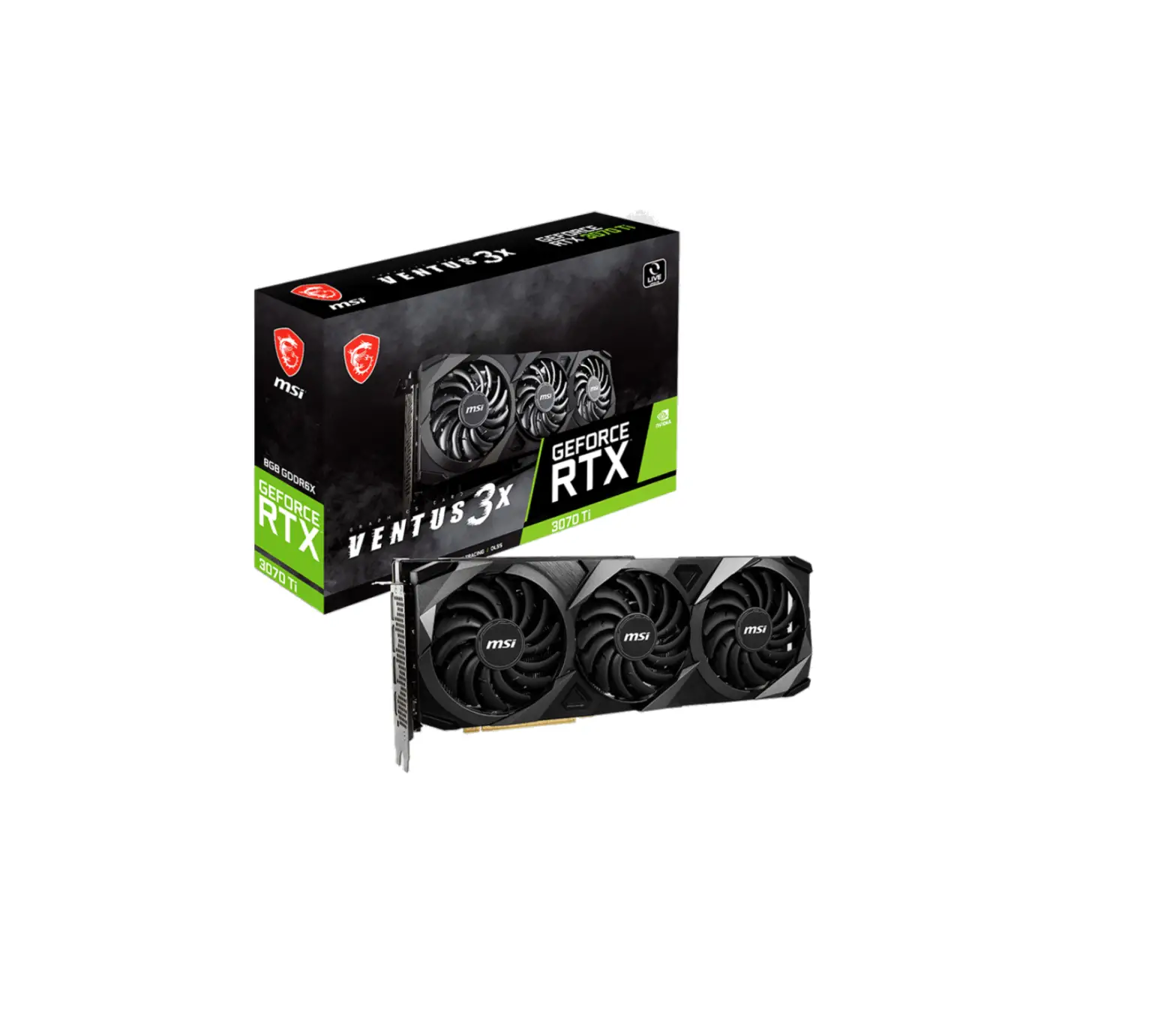
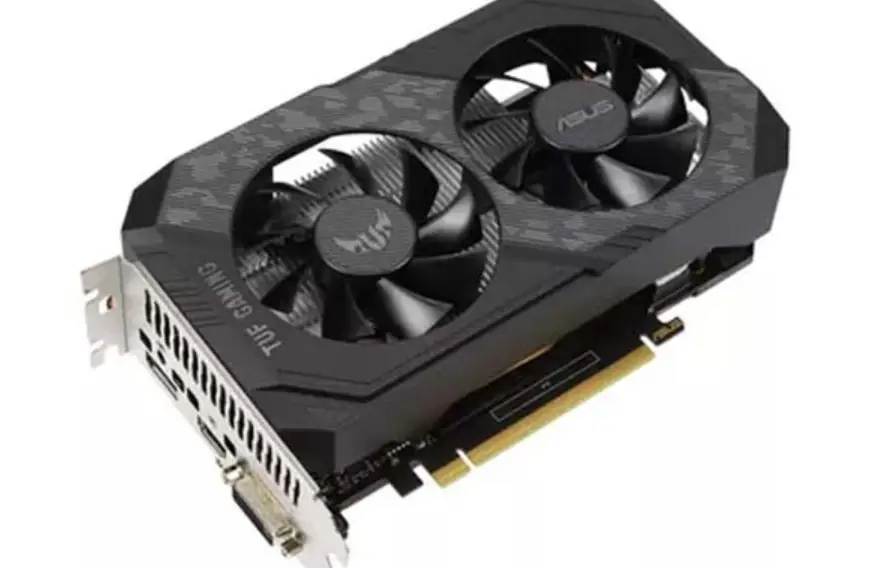
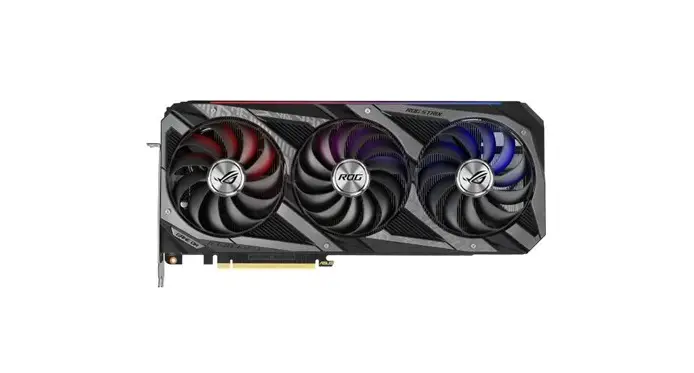
Note: The graphics card photos in this document are for your
reference only, they may not be of the same model as the one you
purchased.
Graphics Card
ASUS Graphics Card SpeedSetup · Card Installation · Display Devices · Driver Installation
Contents
English ———————————— 2 ———————————- 4 ——————————— 6 Italiano ———————————— 8 ———————————— 10 ———————————— 12 Deutsch ———————————— 14 Français ———————————— 16 Nederlands ——————————– 18 Español ———————————— 20 Svenska ———————————— 22 Srpski ———————————— 24 Hrvatski ———————————— 26
Cestina ———————————— 28 Magyar ———————————— 30 Român———————————— 32 ———————————– 34 Português———————————- 36 Polski ———————————— 38 Türkçe ———————————— 40
Arabic ———————————— 42
Bahasa Indonesia———————– 44 ———————————— 46 Slovenscina——————————- 48 Safety information ———————- 50 Australia statement notice ———— 54
Q16530a Revised Edition v10
December 2020
English
A. Card installation
1. Power off your computer and unplug the power cables. 2. Remove the chassis cover and locate the PCI Express slot. 3. Remove the expansion slot cover of the appropriate slot for
your graphics card. 4. Insert the card into the slot until it is firmly in place. 5. Secure the card into the slot with a screw. 6. Replace the chassis cover and connect the monitor cable. 7. Reconnect all power cables.
Note If your graphics card has an auxiliary power connector, connect the appropriate power plug from the system power supply to the graphics card’s auxiliary power connector.
2
English
B. Connecting display devices
Connect the monitor signal cable to the corresponding port on the graphics card. Refer below for the VGA standard connectors and their corresponding ports.
D-Sub
DVI D-Sub
DVI Display Port
DVI HDMI
HDMI
VR Type-C
C. Driver installation
1. Visit the ASUS support site at: https://www.asus.com/support/. 2. Click on Graphics Cards, then select your product series and product model. 3. Click on Driver & Utility, choose the operating system, then download and install the latest driver.
Note · Refer to the graphics card manual for detailed instructions.
·
The graphics card photos in this document are for your reference only, they may not be of the same model as the one you purchased.
3
A.
1. 2. PCI Express 3. 4. 5. 6. 7.
4
B.
1. VGA
D-Sub
DVI D-Sub
DVI Display Port
DVI HDMI
HDMI
VR Type-C
C.
1. ASUS Support https://www.asus.com/tw/support/. 2. 3.
· ·
5
A.
1. 2. PCI Express 3. 4. 5. 6. 7.
6
B.
1. VGA
D-Sub
DVI D-Sub
DVI Display Port
DVI HDMI
HDMI
VR Type-C
C.
1. ASUS Support https://www.asus.com.cn/support/. 2. 3.
· · 7
Italiano
A. Installazione della scheda grafica
1. Spegnete il computer e scollegate i cavi di alimentazione. 2. Rimuovete la cover dello chassis e cercate lo slot PCI Express. 3. Rimuovete la cover dello slot di espansione che protegge lo slot
per la scheda grafica. 4. Inserite la scheda nello slot assicurandovi che sia installata
correttamente. 5. Fissate la scheda allo slot con una vite. 6. Installate la cover dello chassis e collegate il cavo del monitor. 7. Collegate tutti i cavi di alimentazione.
Nota Se la scheda grafica è dotata di un connettore di alimentazione ausiliario collegate il cavo di alimentazione appropriato dall’alimentatore al connettore di alimentazione ausiliario della scheda grafica.
8
Italiano
B. Collegamento dei monitor
Collegate il cavo di segnale del monitor alla porta corrispondente sulla scheda grafica. Per ulteriori informazioni sui connettori video standard fate riferimento alla sezione seguente.
D-Sub
DVI D-Sub
DVI Display Port
DVI HDMI
HDMI
VR Type-C
C. Installazione dei driver
1. Visitate il sito di supporto ASUS all’indirizzo: http://www.asus.com/it/support. 2. Cliccate su Prodotti > Schede Grafiche quindi selezionate la serie e il modello della vostra scheda grafica. 3. Cliccate su SUPPORTO > Driver & Utilità, selezionate il sistema operativo quindi scaricate e installate i driver
aggiornati.
Nota · Per ulteriori informazioni fate riferimento al manuale della scheda grafica. · Le immagini in questo documento hanno puro scopo illustrativo, il vostro modello potrebbe apparire diverso. 9
A.
1.
2. PCI Express
3.
4.
5.
6.
7.
:
B
10
VCCI-B
B.
1.
D-Sub
DVI D-Sub
DVI Display Port
DVI HDMI
HDMI
VR Type-C
C.
1. ASUS https://www.asus.com/jp/support/ 2. 3. OS
:
· ·
11
A.
1. . 2. PCI Express. 3. ,
. 4. , ,
. 5. . 6.
. 7. .
, .
12
B.
. VGA .
D-Sub
DVI D-Sub
DVI Display Port
DVI HDMI
HDMI
VR Type-C
C.
1. ASUS: https://www.asus.com/support/.
2. Graphics Cards .
3. Driver & Utility , .
· .
·
, , .
13
Deutsch
A. Installation der Karte
1. Schalten Sie Ihren Computer aus und trennen Sie die Stromkabel. 2. Entfernen Sie die Gehäuseabdeckung und finden Sie den PCI Express
Steckplatz. 3. Entfernen Sie die Abdeckung des zugehörigen Erweiterungs-
steckplatzes für Ihre Grafikkarte. 4. Setzen Sie die Karte in den Steckplatz ein, bis sie fest sitzt. 5. Befestigen Sie die Karte mit der Schraube im Steckplatz. 6. Setzen Sie die Gehäuseabdeckung wieder ein und schließen Sie das
Displaykabel an. 7. Schließen Sie alle Stromkabel wieder an.
Hinweis Verbinden Sie den zugehörigen Stromstecker von der Systemstromversorgung mit dem Hilfsstromanschluss an Ihrer Grafikkarte, falls die Karte über einen solchen Anschluss verfügt.
14
Deutsch
B. Anschließen von Displays
Verbinden Sie das Displaysignalkabel mit dem zugehörigen Anschluss an der Grafikkarte. Unten finden Sie die Standard-VGA-Stecker und ihre zugehörigen Anschlüsse.
D-Sub
DVI D-Sub
DVI Display Port
DVI HDMI
HDMI
VR Type-C
C. Treiber-Installation
1. Besuchen Sie die ASUS Support-Seite unter: https://www.asus.com/support/. 2. Klicken Sie auf Grafikkarten und wählen Sie dann Ihre Produktserie und Ihr Produktmodell aus. 3. Klicken Sie auf Treiber & Dienstprogramm, wählen Sie das Betriebssystem aus und laden Sie dann den neuesten
Treiber herunter und installieren ihn.
Hinweis
· Finden Sie im Handbuch für die Grafikkarte eine ausführliche Anleitung.
· Die Abbildungen der Grafikkarte in diesem Dokument dienen nur der Veranschaulichung. Sie stellen
15
möglicherweise nicht das gleiche Modell dar, das Sie gekauft haben.
Français
A. Installation de la carte
1. Éteignez votre ordinateur et débranchez les câbles d’alimentation.
2. Retirez le panneau latéral du châssis et localisez le slot PCI Express.
3. Retirez le support de protection métallique du slot sur lequel vous souhaitez installer la carte graphique.
4. Insérez la carte dans le slot jusqu’à ce qu’elle soit bien place. 5. Sécurisez la carte au slot à l’aide d’une vis. 6. Replacez le panneau latéral du châssis et connectez le câble
du moniteur. 7. Reconnectez tous les câbles d’alimentation.
Remarque Si votre carte graphique possède un connecteur d’alimentation auxiliaire, connectez l’une des prises du bloc d’alimentation sur ce connecteur.
16
Français
B. Connecter des périphériques d’affichage
1. Connectez le câble vidéo du moniteur au port correspondant sur la carte graphique. Référez-vous aux illustrations ci-dessous pour les différents types de connecteurs vidéo et leurs ports respectifs.
D-Sub
DVI D-Sub
DVI Display Port
DVI HDMI
HDMI
VR Type-C
C. Installation du pilote
1. Visitez le site d’assistance ASUS à l’adresse : https://www.asus.com/support/.
2. Cliquez sur Cartes graphiques, puis sélectionnez votre gamme de produit ainsi que le modèle.
3. Cliquez sur Pilote et Utilitaire, choisissez le système d’exploitation, puis téléchargez et installez le pilote le plus récent.
Remarque
· Référez-vous au manuel d’utilisation de votre carte graphique pour plus de détails.
· Les images de ce document illustrant une carte graphique sont données à titre indicatif uniquement, et
peuvent ne pas correspondre au modèle de carte graphique dont vous avez fait l’achat.
17
Español
A. Instalación de la tarjeta
1. Apague su equipo y desconecte los cables de alimentación. 2. Retire la cubierta del chasis y localice la ranura PCI Express. 3. Retire la cubierta de la ranura de expansión en la que desee
instalar su tarjeta gráfica. 4. Inserte la tarjeta en la ranura hasta que quede bien
encajada. 5. Fije la tarjeta en la ranura con un tornillo. 6. Vuelva a colocar la cubierta del chasis y conecte el cable del
monitor. 7. Vuelva a conectar todos los cables de alimentación.
Nota Si su tarjeta gráfica dispone de un conector de alimentación auxiliar, conecte el conector de alimentación adecuado de la fuente de alimentación del sistema al conector de alimentación auxiliar de la tarjeta gráfica.
18
Español
B. Conectar dispositivos de pantalla
1. Conecte el cable de señal del monitor al puerto correspondiente de la tarjeta gráfica. Consulte a continuación los conectores VGA estándar y sus puertos correspondientes.
D-Sub
DVI D-Sub
DVI Display Port
DVI HDMI
HDMI
VR Type-C
C. Instalación del controlador
1. Visite el sitio de soporte técnico de ASUS en https://www.asus.com/support/. 2. Haga clic en Graphics Cards (Tarjetas gráficas) y, a continuación, seleccione la serie y el modelo del
producto. 3. Haga clic en Driver & Utility (Controlador y utilidad), elija el sistema operativo y, a continuación,
descargue e instale el controlador más reciente.
Nota
· Consulte el manual de su tarjeta gráfica para más información detallada.
· Las fotografías de la tarjeta gráfica que aparecen en este documento deben utilizarse únicamente como
referencia. El modelo que usted ha adquirido podría ser diferente.
19
Nederlands
A. Kaartinstallatie
1. Schakel uw computer uit en koppel de voedingskabels los. 2. Verwijder het deksel van de behuizing en zoek de PCI
Express-sleuf. 3. Verwijder het klepje van de uitbreidingssleuf die voor uw
grafische kaart geschikt is. 4. Stop de kaart in de sleuf tot deze stevig op zijn plaats zit. 5. Maak de kaart vast in de sleuf met behulp van een schroef. 6. Plaats het deksel van de behuizing terug en sluit de
monitorkabel aan. 7. Sluit alle voedingskabels opnieuw aan.
Opmerking Als uw grafische kaart een hulpvoedingsaansluiting heeft, sluit u de geschikte stekker van de systeemvoeding aan hulpvoedingsaansluiting van de grafische kaart.
20
Nederlands
B. Weergaveapparaten verbinden
1. Sluit de monitorsignaalkabel aan op de overeenkomende poort van de grafische kaart. Raadpleeg de onderstaande lijst voor de standaard VGA-aansluitingen en hun overeenkomende poorten.
D-Sub
DVI D-Sub
DVI Display Port
DVI HDMI
HDMI
VR Type-C
C. Installatie stuurprogramma
1. Bezoek de ondersteuningssite van ASUS op: https://www.asus.com/support/.
2. Klik op Graphics Cards (Grafische kaarten) en selecteer dan uw productserie en -model.
3. Klik op Driver & Utility (Stuurprogramma en hulpprogramma), kies het besturingssysteem en download en installeer vervolgens het nieuwste stuurprogramma.
Opmerking
· Raadpleeg de handleiding van de grafische kaart voor gedetailleerde instructies.
· De foto’s van de grafische kaart in dit document zijn uitsluitend informatief bedoeld en zijn mogelijk
verschillend van het model dat u hebt aangeschaft.
21
Svenska
A. Kortinstallation
1. Stäng av datorn och dra ut strömsladdarna. 2. Ta bort chassihöljet och leta reda på PCI Express-platsen. 3. Ta bort expansionsplatsskyddet för lämplig kortplats för ditt
grafikkort. 4. För in kortet i platsen tills det sitter ordentligt på plats. 5. Fäst kortet i platsen med en skruv. 6. Sätt tillbaka chassihöljet och anslut bildskärmssladden. 7. Återanslut alla strömsladdar.
OBS Om ditt grafikkort har en extra strömanslutning, anslut lämplig strömkontakt från systemströmförsörjningen till grafikkortets extra strömanslutning.
22
Svenska
B. Ansluta visningsenheter
Anslut bildskärmens signalsladd till motsvarande port på grafikkortet. Se nedan angående VGA standardanslutningar och deras motsvarande portar.
D-Sub
DVI D-Sub
DVI Display Port
DVI HDMI
HDMI
VR Type-C
C. Drivrutinsinstallation
1. Besök ASUS supportwebbplats på: https://www.asus.com/support/. 2. Klicka på Graphics Cards (Grafikkort), och välj din produktserie och produktmodell. 3. Klicka på Driver & Utility (Drivrutin och verktyg), välj operativsystem, och hämta och installera
den senaste drivrutinen.
OBS
· Se bruksanvisningen till grafikkortet för utförliga instruktioner.
· Fotona på grafikkort i detta dokument är endast avsedda som referens, och kan visa en annan modell än den
du köpte
23
Srpski
A. Instalacija kartice
1. Iskljucite kompjuter i izvucite kablove za napajanje. 2. Uklonite poklopac kuista i pronaite ekspresni PCI prorez. 3. Uklonite poklopac odgovarajueg ekspanzionog proreza za
instalaciju vase graficke kartice. 4. Ubacite karticu u prorez tako da cvrsto legne. 5. Pricvrstite karticu u prorezu zavrtnjem. 6. Zamenite poklopac kuista i povezite kabl za monitor. 7. Ponovo povezite sve kablove za napajanje.
Paznja Ukoliko vasa graficka kartica poseduje konektor za pomono napajanje, povezite odgovarajui prikljucak za napajanje sistema za konektor za pomono napajanje na grafickoj kartici.
24
Srpski
B. Povezivanje ureaja za prikazivanje
Povezite signalni kabl monitora za odgovarajui port na grafickoj kartici. Pogledajte ispod standardne VGA konektore i njihove odgovarajue portove.
D-Sub
DVI D-Sub
DVI Display Port
DVI HDMI
HDMI
VR Type-C
C. Instalacija drajvera
1. Posetite internet prezentaciju za podrsku kompanije ASUS na adresi: https://www.asus.com/support/. 2. Kliknite na Graphics Cards (Graficke kartice), a potom odaberite seriju svog proizvoda i broj modela. 3. Kliknite na Driver & Utility (Upravljacki i pomoni programi), odaberite operativni sistem i preuzmite
i instalirajte najnoviji upravljacki program.
Paznja
· Procitajte uputstvo za graficku karticu za detaljna uputstva.
· Slike graficke kartice u ovom dokumentu su date samo radi vaseg uvida, model mozda nee biti isti kao
model koji ste vi kupili.
25
Hrvatski
A. Ugradnja kartice
1. Iskljucite racunalo i iskopcajte kabele za napajanje. 2. Skinite poklopac kuista i naite utor za PCI Express karticu. 3. Skinite poklopac s odgovarajueg utora za prosirenje za
graficku karticu. 4. Stavite karticu u utor tako da sjedne cvrsto na svoje mjesto. 5. Karticu pricvrstite u utoru vijkom. 6. Vratite poklopac kuista i spojite kabel za monitor. 7. Ponovno spojite sve kabele napajanja.
Napomena Ako graficka kratica ima prikljucak za pomono napajanje, spojite odgovarajui utikac elektricnog napajanja sustava na prikljucak za pomono napajanje na grafickoj kartici.
26
Hrvatski
B. Spajanje ureaja za prikaz
Spojite signalni kabel monitora na odgovarajui prikljucak na grafickoj kartici. Pogledajte u nastavku standardne VGA prikljucke i njihove odgovarajue ulaze.
D-Sub
DVI D-Sub
DVI Display Port
DVI HDMI
HDMI
VR Type-C
C. Instalacija upravljackih programa
1. Posjetite stranicu za ASUS podrsku na: https://www.asus.com/support/. 2. Kliknite Graphic Cards (Graficke kartice) i zatim odaberite seriju i model proizvoda. 3. Kliknite Driver & utility (Upravljacki i usluzni programi), odaberite operacijski sustav i zatim
preuzmite i instalirajte najnoviji upravljacki program.
Napomena
· Detaljnije upute potrazite u prirucniku za graficku karticu.
· Fotografije graficke kartice u ovom prirucniku su samo informativne, to mozda nee biti fotografije modela
graficke kartice koji ste kupili.
27
Cestina
A. Instalace karty
1. Vypnte pocítac a odpojte napájecí kabely z elektrické zásuvky.
2. Sejmte kryt skín pocítace a vyhledejte slot PCI Express. 3. Odmontujte píslusnou záslepku rozsiovacího slotu
grafické karty. 4. Zasute kartu do slotu tak, aby byla pevn usazena. 5. Zajistte kartu ve slotu sroubkem. 6. Nasate kryt skín pocítace a pipojte kabel monitoru. 7. Znovu pipojte vsechny napájecí kabely.
Poznámka Pokud je grafická karta vybavena konektorem pomocného napájení, pipojte píslusnou napájecí zástrcku ze zdroje napájení systému ke konektoru pomocného napájení grafické karty.
28
Cestina
B. Pipojení zobrazovacích zaízení
Pipojte kabel signálu monitoru k píslusnému portu na grafické kart. Pehled konektor standardu VGA a píslusných port viz níze.
D-Sub
DVI D-Sub
DVI Display Port
DVI HDMI
HDMI
VR Type-C
C. Instalace ovladace
1. Navstivte web podpory ASUS na adrese: https://www.asus.com/support/.
2. Kliknte na polozku Graphics Cards (Grafické karty) a potom vyberte svoji produktovou adu a model produktu.
3. Kliknte na polozku Driver & Utility (Ovladac a nástroj), zvolte operacní systém a potom stáhnte nejnovjsí ovladac.
Poznámka
· Podrobné pokyny viz pírucka ke grafické kart.
· Fotografie grafické karty v tomto dokumentu jsou pouze ilustrativní a nemusí zobrazovat zakoupený
model.
29
Magyar
A. A kártya telepítése
1. Kapcsolja ki a számítógépet, és húzza ki a hálózati kábeleket.
2. Távolítsa el a készülékház fedelét, és keresse meg az PCI Express kártya nyílását.
3. Távolítsa el a megfelel nyílás bvítnyílásának fedelét a grafikus kártyához.
4. Helyezze be a kártyát a nyílásba oly módon, hogy a kártya szorosan illeszkedjen.
5. Rögzítse a kártyát a nyílásban egy csavarhúzó segítségével. 6. Helyezze vissza a készülékház fedelét, és csatlakoztassa a
monitorkábelt. 7. Csatlakoztassa ismét a hálózati kábeleket.
Megjegyzés Ha a grafikus kártya egy küls hálózati csatlakozóval van ellátva, csatlakoztassa a megfelel hálózati csatlakozót a rendszer tápellátásából a grafikus kártya küls csatlakozójába.
30
Magyar
B. Megjelenít eszközök csatlakoztatása
Csatlakoztassa a monitor jelkábelét a grafikus kártyához tartozó portba. Lásd: VGA szabványos csatlakozók és a kapcsolódó portok lent.
D-Sub
DVI D-Sub
DVI Display Port
DVI HDMI
HDMI
VR Type-C
C. A meghajtó telepítése
1. Látogasson el az ASUS támogatási oldalra a https://www.asus.com/support/ címen.
2. Kattintson a Grafikus kártyák ponton, majd válassza ki a termék sorozatát és a termék modellét.
3. Kattintson az Illesztprogramok és segédprogramok ponton, válassza ki az operációs rendszert és telepítse az utolsó illesztprogramot.
Megjegyzés
· Részletes utasításokért tekintse meg a grafikus kártyához kapott útmutatót.
· A grafikus kártyákat bemutató fényképek kizárólag szemléltetési célokat szolgálnak, és elképzelhet,
hogy az Ön által megvásárolt típussal nem egyeznek.
31
Român
A. Instalarea cardului
1. Închidei calculatorul i deconectai cablurile de alimentare. 2. Scoatei carcasa saiului i localizai fanta PCI Express. 3. Scoatei carcasa fantei de extindere pentru fanta
corespunztoare plcii dvs. grafice. 4. Introducei cardul în fant pân când acesta se fixeaz. 5. Fixai cardul în fant cu un urub. 6. Aezai carcasa saiului la loc i conectai cablul monitorului. 7. Reconectai toate cablurile de alimentare.
Not Dac placa dvs. grafic dispune de un conector auxiliar pentru alimentare, conectai fia corespunztoare din sistemul de alimentare la conectorul auxiliar pentru alimentare al plcii grafice.
32
Român
B. Conectarea dispozitivelor de afiare
Conectai cablul de semnal al monitorului la portul corespunztor al plcii grafice. Consultai seciunea urmtoare pentru conectorii VGA standard i porturile corespunztoare.
D-Sub
DVI D-Sub
DVI Display Port
DVI HDMI
HDMI
VR Type-C
C. Instalarea driverului
1. Vizitai site-ul de asisten ASUS la: https://www.asus.com/support/. 2. Facei clic pe Graphics Cards (Plci grafice), apoi selectai seria i modelul produsului. 3. Facei clic pe Driver & Utility (Driver i utilitar), alegei sistemul de operare, apoi descrcai i
instalai cel mai recent driver.
Not
· Pentru instruciuni detaliate, consultai manualul plcii grafice.
· Imaginile pentru placa grafic prezentate în acest manual au rol informativ; este posibil s nu fie imagini
ale modelului pe care l-ai achiziionat.
33
A.
1. .
2. PCI Express.
3. .
4. .
5. . 6.
. 7. .
, .
34
B.
. VGA .
D-Sub
DVI D-Sub
DVI Display Port
DVI HDMI
HDMI
VR Type-C
.
1. ASUS : https://www.asus.com/support/.
2. Graphics Cards ( ) , , .
3. Driver & Utility ( ) .
· .
· ,
.
35
Português
A. Instalação da Placa
1. Desligue o seu computador e os cabos eléctricos. 2. Retire a tampa do chassis e localize o a ranhura PCI Express. 3. Retire a cobertura da ranhura de expansão da ranhura
adequada à sua placa gráfica. 4. Introduza o cartão na ranhura até que esteja bem fixo. 5. Fixe a placa à ranhura com um parafuso. 6. Substitua a cobertura do chassis e ligue o cabo do monitor. 7. Ligue novamente todos os cabos eléctricos.
Nota Se a sua placa gráfica tem um conector eléctrico auxiliar, ligue a ficha eléctrica adequada, a partir da alimentação eléctrica do sistema ao conector eléctrico auxiliar da placa gráfica.
36
Português
B. Ligar dispositivos ópticos
Ligue o cabo de sinal do monitor à porta correspondente na placa gráfica. Para mais detalhes sobre os conectores VGA standard e as suas portas correspondentes, veja abaixo.
D-Sub
DVI D-Sub
DVI Display Port
DVI HDMI
HDMI
VR Type-C
C. Instalação do Controlador
1. Visite o site de suporte da ASUS em: https://www.asus.com/support/. 2. Clique em Placas gráficas e, em seguida, selecione a série e o modelo do seu produto. 3. Clique em Controlador e utilitário, escolha o sistema operativo e, em seguida, transfira e instale o
controlador mais recente.
Nota
· Para instruções mais detalhadas, consulte o manual da placa gráfica. · As imagens da placa gráfica presentes neste documento servem apenas como referência e podem não ser do
mesmo modelo da que comprou.
37
Polski
A. Instalacja karty
1. Wylcz zasilanie komputera i odlcz kable zasilajce. 2. Zdejmij pokryw obudowy i odszukaj gniazdo PCI Express. 3. Zdejmij pokryw odpowiedniego gniazda rozszerzenia dla
posiadanej karty graficznej. 4. Wló kart do gniazda, a do jej pewnego osadzenia. 5. Zamocuj kart w gniedzie rub. 6. Zaló ponownie pokryw obudowy i podlcz kabel
monitora. 7. Podlcz ponownie wszystkie kable zasilajce.
Uwaga Jeli karta graficzna ma dodatkowe zlcze zasilania, podlcz do niego odpowiedni wtyk zasilania z zasilacza systemowego.
38
Polski
B. Podlczenie urzdze wywietlania
Podlcz kabel sygnalowy monitora do odpowiedniego portu karty graficznej. Sprawd poniej standardowe zlcza VGA i odpowiadajce im porty.
D-Sub
DVI D-Sub
DVI Display Port
DVI HDMI
HDMI
VR Type-C
C. Instalacja sterownika
1. Przejd do witryny pomocy technicznej firmy ASUS: https://www.asus.com/support/.
2. Kliknij pozycj Graphics Cards (Karty graficzne), a nastpnie wybierz seri produktu i model.
3. Kliknij pozycj Driver & Utility (Sterowniki i programy narzdziowe), wybierz system operacyjny, a nastpnie pobierz i zainstaluj najnowszy sterownik.
Uwaga
· W celu uzyskania szczególowych instrukcji, sprawd podrcznik karty graficznej. · Znajdujce si w tym dokumencie zdjcia karty graficznej, slu wylcznie jako odniesienie, mog one
nie by zgodne z zakupionym modelem.
39
Türkçe
A. Karti takma
1. Bilgisayarinizi kapatin ve elektrik kablolarini çikarin. 2. Kasanin kapaini çikarin ve PCI Express yuvasini bulun. 3. Grafik kartiniz için ilgili yuvanin geniletme yuvasi kapaini
çikarin. 4. Karti yerine oturana kadar yuvaya takin. 5. Karti bir vidayla yuvaya sabitleyin. 6. Kasanin kapaini yerine takin ve monitör kablosunu
balayin. 7. Tüm elektrik kablolarini yeniden balayin.
Not Grafik kartinda ikinci bir güç konektörü varsa, sistem güç kaynaindan gelen ilgili elektrik fiini grafik kartinin ikinci güç konektörüne balayin.
40
Türkçe
B. Ekran aygitlarini balama
Monitörün sinyal kablosunu grafik kartindaki ilgili balanti noktasina balayin. VGA standart konektörleri ve ilgili balanti noktalari için aaiya bakiniz.
D-Sub
DVI D-Sub
DVI Display Port
DVI HDMI
HDMI
VR Type-C
C. Sürücü yükleme
1. https://www.asus.com/support/ adresinden ASUS destek web sitesini ziyaret edin.
2. Ekran Kartlari’na tiklayin, ardindan ürün serinizi ve ürün modelinizi seçin.
3. Sürücü ve Yardimci Programlar’a tiklayin, iletim sisteminizi seçin, ardindan en son sürücüyü indirin ve yükleyin.
Not
· Ayrintili talimatlar için grafik karti kilavuzuna bakin.
· Bu dokümandaki grafik karti fotoraflar yalnizca bilgi içindir, satin aldiiniz modelle ayni model
olmayabilir.
41
1 42
D-Sub
DVI
Display Port
HDMI VR
Type-C
DVI D-Sub DVI HDMI
./https://www.asus.com/support : ASUS .1 . ,) ( Graphics Cards .2
. , ,) ( Driver & Utility .3
·
43
Bahasa Indonesia
A. Pemasangan kartu
1. Matikan komputer, kemudian lepaskan kabel daya. 2. Lepaskan penutup chassis, kemudian cari slot PCI Express. 3. Lepaskan penutup slot ekspansi pada slot yang sesuai
untuk kartu grafis. 4. Masukkan kartu hingga terpasang dengan benar pada
tempatnya. 5. Kencangkan kartu pada slot dengan sekrup. 6. Pasang kembali penutup chassis, kemudian sambungkan
kabel monitor. 7. Sambungkan kembali semua kabel daya.
Catatan Jika kartu grafis dilengkapi soket daya tambahan, sambungkan konektor daya yang sesuai dari catu daya sistem ke soket daya tambahan pada kartu grafis tersebut.
44
Bahasa Indonesia
B. Menyambungkan perangkat layar
1. Sambungkan kabel sinyal monitor ke port yang sesuai pada kartu grafis. Lihat di bawah ini untuk soket standar VGA dan port yang sesuai
D-Sub
DVI D-Sub
DVI Display Port
DVI HDMI
HDMI
VR Type-C
C. Penginstalan driver
1. Kunjungi situs dukungan ASUS di: https://www.asus.com/support/.
2. Klik Kartu Grafis, lalu pilih seri produk dan model produk Anda.
3. Klik Driver & Utilitas, pilih sistem operasi, lalu download dan pasang driver terkini.
Catatan
· Untuk petunjuk rinci, lihat panduan pengguna kartu grafis.
· Kartu grafis pada foto dalam dokumen ini hanya untuk referensi dan modelnya mungkin tidak sama seperti
yang Anda beli.
45
A.
1. , .
2. , PCI Express .
3. .
4. . 5. . 6. , . 7. .
, .
46
B.
1. . VGA .
D-Sub
DVI D-Sub
DVI Display Port
DVI HDMI
HDMI
VR Type-C
C.
1. ASUS https://www.asus.com/support/ .
2. Graphics Cards( ) .
3. Driver & Utility( ) .
· .
· ,
.
· .
47
Slovenscina
A. Namestitev kartice
1. Izklopite racunalnik in izklopite napajalne kable. 2. Odstranite pokrov ohisja in poiscite rezo za kartico PCI Express. 3. Odstranite pokrov razsiritvene reze na primerni rezi za graficno
kartico. 4. Vstavite kartico v rezo tako, da se zaskoci na mestu. 5. Pritrdite kartico v rezo z vijakom. 6. Znova namestite pokrov ohisja in prikljucite kabel monitorja. 7. Znova prikljucite vse napajalne kable.
Opomba Ce je vasa graficna kartica opremljena s pomoznim napajalnim prikljuckom, prikljucite ustrezen napajalni prikljucek iz napajalnika sistema na pomozni napajalni prikljucek graficne kartice.
48
Slovenscina
B. Prikljucitev prikazovalnih naprav
Prikljucite signalni kabel na ustrezen prikljucek na graficni kartici. Oglejte si spodnje informacije o konektorjih standarda VGA in njihovih ustreznih prikljuckih.
D-Sub
DVI D-Sub
DVI Display Port
DVI HDMI
HDMI
VR Type-C
C. Namestitev gonilnika
1. Obiscite spletno mesto s podporo druzbe ASUS na naslovu: https://www.asus.com/support/.
2. Kliknite Graphics Cards (Graficne kartice) ter izberite serijo in model izdelka.
3. Kliknite Driver & Utility (Gonilnik in pripomocek), izberite operacijski sistem ter prenesite in namestite najnovejsi gonilnik.
Opomba
· Podrobna navodila najdete v prirocniku za graficno kartico.
· Fotografije graficne kartice v tem dokumentu so zgolj informativne in morda niso istega modela kot tisti, ki ste
ga kupili.
49
Safety information
Electrical safety
· When adding or removing devices to or from the system, ensure that the power cables for the devices are unplugged before the signal cables are connected. If possible, disconnect all power cables from the existing system before you add a device.
· Make sure that your power supply is set to the correct voltage in your area. If you are not sure about the voltage of the electrical outlet you are using, contact your local power company.
· If the power supply is broken, do not try to fix it by yourself. Contact a qualified service technician or your retailer.
Operation safety
· Before installing devices on your motherboard, carefully read all the manuals that came with the package.
· Before using the product, make sure all cables are correctly connected and the power cables are not damaged. If you detect any damage, contact your dealer immediately.
· To avoid short circuits, keep paper clips, screws, and staples away from connectors, slots, sockets and circuitry.
· Avoid dust, humidity, and extreme temperature. Do not place the product in any area where it may be exposed to moisture.
· Place the product on a stable surface. · If you encounter technical problems with the product, contact a qualified service technician or your
retailer.
50
Informations sur la sécurité
Sécurité électrique
· Lorsque vous ajoutez ou retirez des périphériques, assurez-vous que les câbles d’alimentation de ces périphériques sont bien débranchés avant de connecter les câbles des signaux. Si possible, déconnectez tous les câbles d’alimentation du système avant d’ajouter un élément.
· Assurez-vous que la tension de votre alimentation est réglée sur une valeur qui corresponde à celle de votre zone géographique. Si vous n’êtes pas sûr de la tension des prises électriques que vous allez utiliser, contactez la société d’électricité du lieu où vous vous trouvez.
· Si l’alimentation ne fonctionne plus, n’essayez pas de la réparer vous-même. Contactez un service technique compétent ou votre revendeur.
Pour un fonctionnement en toute sécurité
· Avant d’installer la carte mère et de connecter des périphériques, lisez attentivement tous les manuels livrés avec votre pack.
· Avant d’utiliser le produit, assurez-vous que tous les câbles sont connectés correctement et que les câbles d’alimentation ne sont pas défectueux. Si vous détectez un problème, contactez votre revendeur immédiatement.
· Pour éviter les courts-circuits, éloignez les trombones, les vis, et les agrafes des connecteurs, des slots, des sockets et des circuits imprimés.
· Evitez la poussière, l’humidité, et les températures extrêmes. Ne placez pas le produit dans un endroit où il pourrait être mouillé.
· Placez le produit sur une surface stable. · Si vous rencontrez des problèmes techniques avec ce produit, contactez un service technique
qualifié ou votre revendeur.
51
Sicherheitsinformationen
Elektrische Sicherheit
· Beim Anschließen oder Trennen von Geräten an das oder vom System müssen die Netzleitungen der Geräte ausgesteckt sein, bevor die Signalkabel angeschlossen werden. Ziehen Sie ggf. alle Netzleitungen vom aufgebauten System, bevor Sie ein Gerät anschließen.
· Prüfen Sie, ob die Stromversorgung auf die Spannung Ihrer Region richtig eingestellt ist. Sind Sie sich über die Spannung der von Ihnen benutzten Steckdose nicht sicher, erkundigen Sie sich bei Ihrem Energieversorgungsunternehmen vor Ort.
· Ist die Stromversorgung defekt, versuchen Sie nicht, sie zu reparieren. Wenden Sie sich an den qualifizierten Kundendienst oder Ihre Verkaufsstelle.
Betriebssicherheit
· Vor Installation eines Gerätes auf dem Motherboard müssen Sie alle mitgelieferten Handbücher lesen.
· Vor Inbetriebnahme des Produkts müssen alle Kabel richtig angeschlossen sein und die Netzleitungen dürfen nicht beschädigt sein. Bemerken Sie eine Beschädigung, kontaktieren Sie sofort Ihren Händler.
· Halten Sie zur Vermeidung von Kurzschlüssel Büroklammern, Schrauben und Heftklammern von Anschlüssen, Steckplätzen, Sockeln und Schaltkreisen fern.
· Um Kurzschlüsse zu vermeiden, halten Sie Büroklammern, Schrauben und Heftklammern fern von Anschlüssen, Steckplätzen, Sockeln und Stromkreisen.
· Stellen Sie das Produkt auf eine stabile Fläche. · Sollten technische Probleme mit dem Produkt auftreten, kontaktieren Sie den qualifizierten
Kundendienst oder Ihre Verkaufsstelle.
52
Informazioni in materia di Sicurezza
Sicurezza Elettrica
· Durante l’aggiunta o la rimozione di periferiche dal sistema, assicurarsi che i cavi di alimentazione dei dispositivi siano scollegati, prima di effettuare la connessione dei cavi segnale. Se possibile, prima dell’aggiunta di una periferica, disinserire tutti i cavi di alimentazione dal sistema.
· Assicurarsi che l’alimentazione sia impostata sulla tensione corretta, utilizzata nella propria zona. In caso di incertezza sulla tensione della presa elettrica, rivolgersi all’ente fornitore di energia elettrica in loco.
· In caso di guasto al cavo di alimentazione, non tentare di ripararlo da sè. Contattare un tecnico qualificato o il proprio rivenditore.
Sicurezza Operativa
· Prima di installare periferiche sulla scheda madre, leggere con attenzione il manuale fornito nella confezione.
· Prima di utilizzare il prodotto, assicurarsi che tutti i cavi siano collegati correttamente e che i cavi di alimentazione non siano danneggiati. In caso contrario, contattare immediatamente il rivenditore.
· Per evitare corto circuiti, tenere graffette, viti e chiodi lontani da connettori, slot, prese e circuiti. · Evitare polvere, umidità e temperature estreme. Non riporre il prodotto in aree dove potrebbe venire
a contatto con acqua. · Collocare il prodotto su una superficie stabile. · In caso di problemi tecnici con il prodotto, contattare personale tecnico qualificato o il rivenditore.
53
Australia statement notice
From 1 January 2012updated warranties apply to all ASUS products, consistent with the Australian Consumer Law. For the latest product warranty details please visit http://support.asus.com. Our goods come with guarantees that cannot be excluded under the Australian Consumer Law. You are entitled to a replacement or refund for a major failure and compensation for any other reasonably foreseeable loss or damage. You are also entitled to have the goods repaired or replaced if the goods fail to be of acceptable quality and the failure does not amount to a major failure. If you require assistance please call ASUS Customer Service 1300 2787 88 or visit us at http://support.asus.com
This product complies with the “India E-Waste (Management) Rules, 2016″ and prohibits use of lead, mercury, hexavalent chromium, polybrominated biphenyls (PBBs) and polybrominated diphenyl ethers (PBDEs) in concentrations exceeding 0.1% by weight in homogenous materials and 0.01 % by weight in homogenous materials for cadmium, except for the exemptions listed in Schedule II of the Rule.
NOTE: AsusTek Inc. hereby declares that this device is in compliance with the essential requirements and other relevant provisions of CE Directives. Please see the CE Declaration of Conformity for more details. Please download the CE reports through the link: http://www.asus.com/event/GraphicsCards/CEDeclarationforASUSGraphicsCards/
NOTE: Complying with the REACH (Registration, Evaluation, Authorisation, and Restriction of Chemicals) regulatory
framework, we published the chemical substances in our products at ASUS REACH website at
http://green.asus.com/english/REACH.htm
Calfornia Reproductive 65
WARNING
Cancer and Reproductive Harmwww.P65Warnings.ca.gov
(Pb) Hg Cd Cr+6 PBB)
PBDE)
—
—
—
—
1.””
54
2.”–”
55
References
 Legal Compliance | Green Products | Circular Economy | ASUS ESG website, ASUS ESG goal
 CE Declaration for ASUS Graphics Cards
-
Supporto ufficiale | ASUS Italia
 P65Warnings.ca.gov
-
å®˜æ–¹æ”¯æŒ | ASUS ä¸å›½
-
サãƒãƒ¼ãƒˆ å…¬å¼ | ASUS 日本
-
Official Support | ASUS Global
-
Official Support | ASUS Global
-
å®˜æ–¹æ”¯æ´ | ASUS å°ç£
 Legal Compliance | Green Products | Circular Economy | ASUS ESG website, ASUS ESG goal
 CE Declaration for ASUS Graphics Cards
 P65Warnings.ca.gov
 å®˜æ–¹æ”¯æŒ | ASUS ä¸å›½