
solis S3 Wi-Fi Stick Installation
Install the datalogger
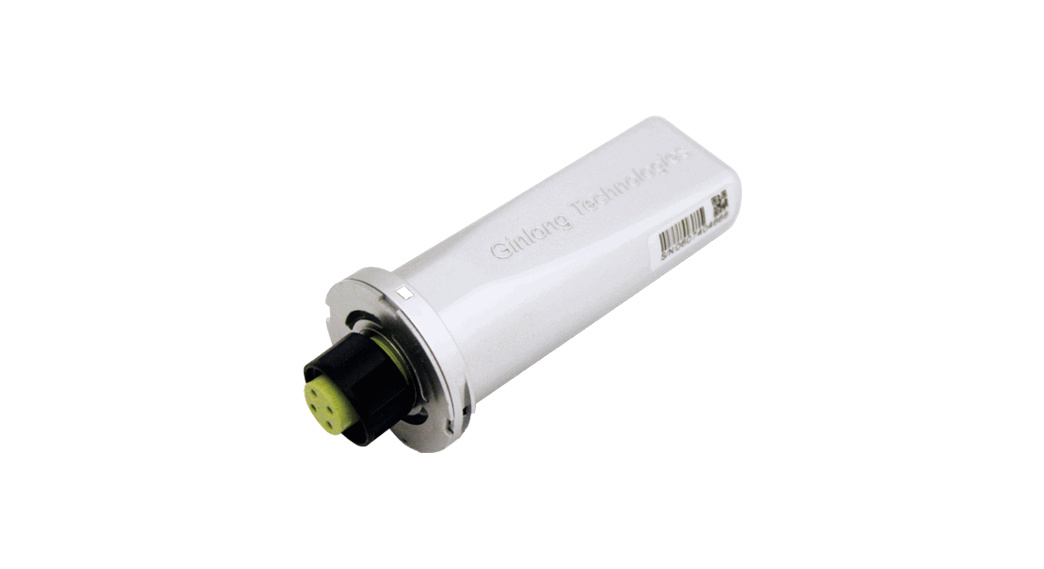
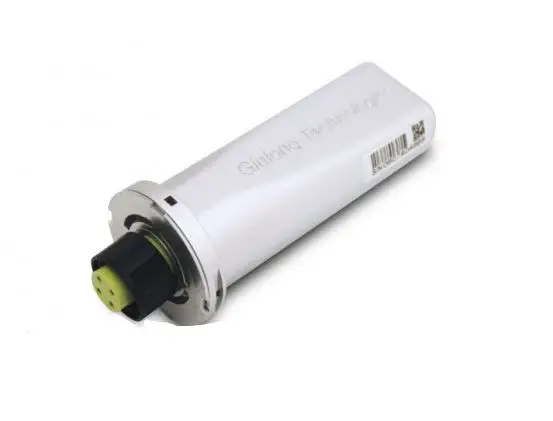
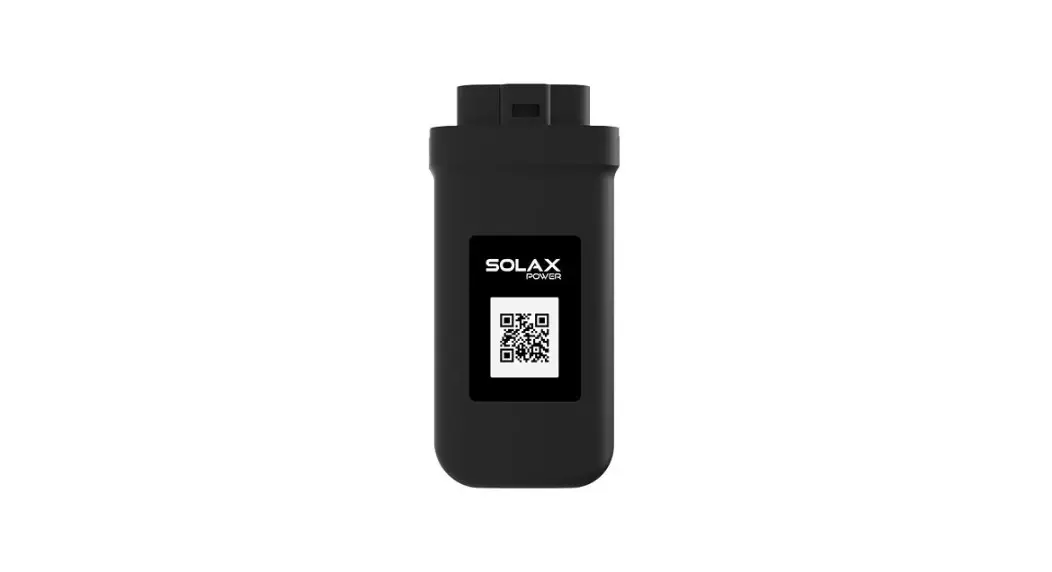
- Connect the datalogger to the corresponding 4-pin
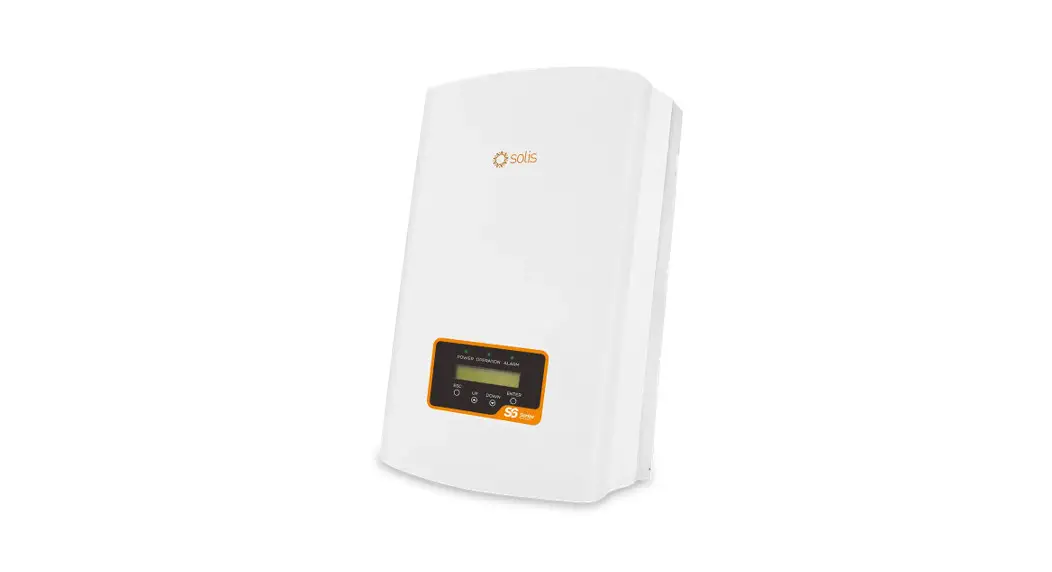
- COM port of the inverter. A Solis 5K inverter is used here as an example.
- Please follow the instructions below:

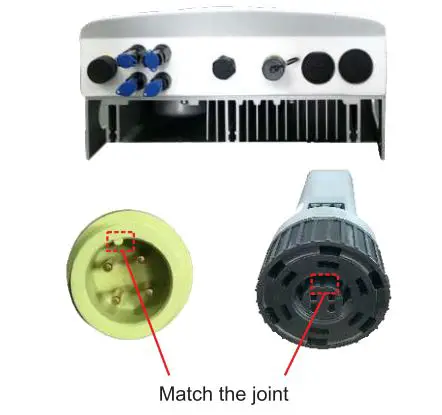
Install the datalogger
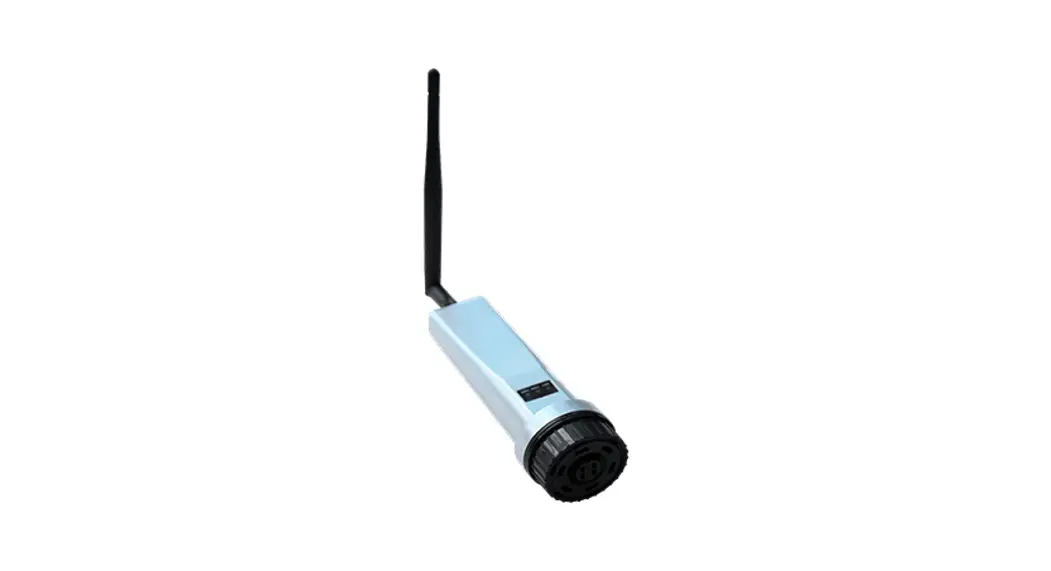
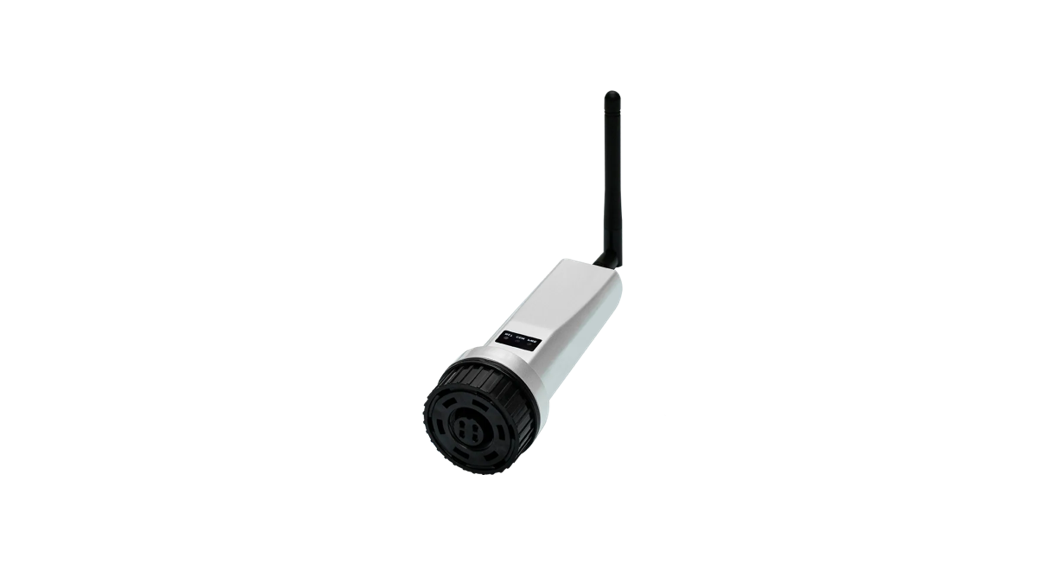
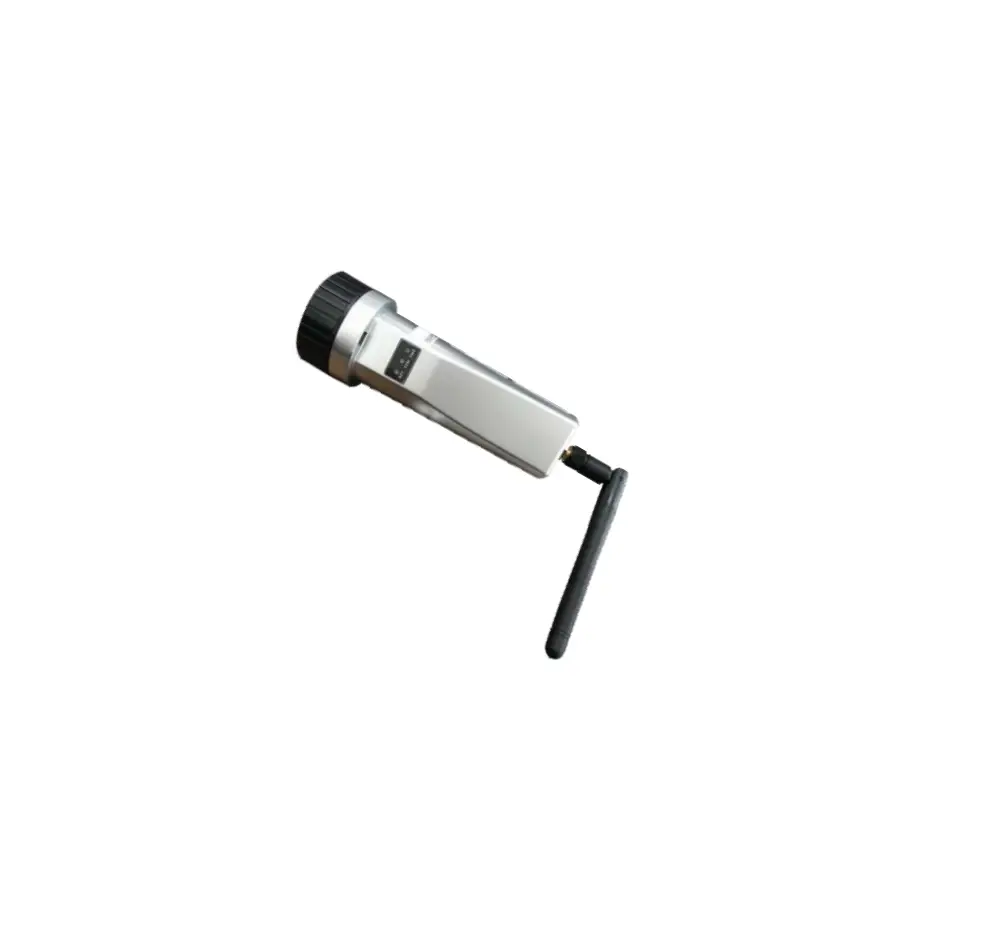
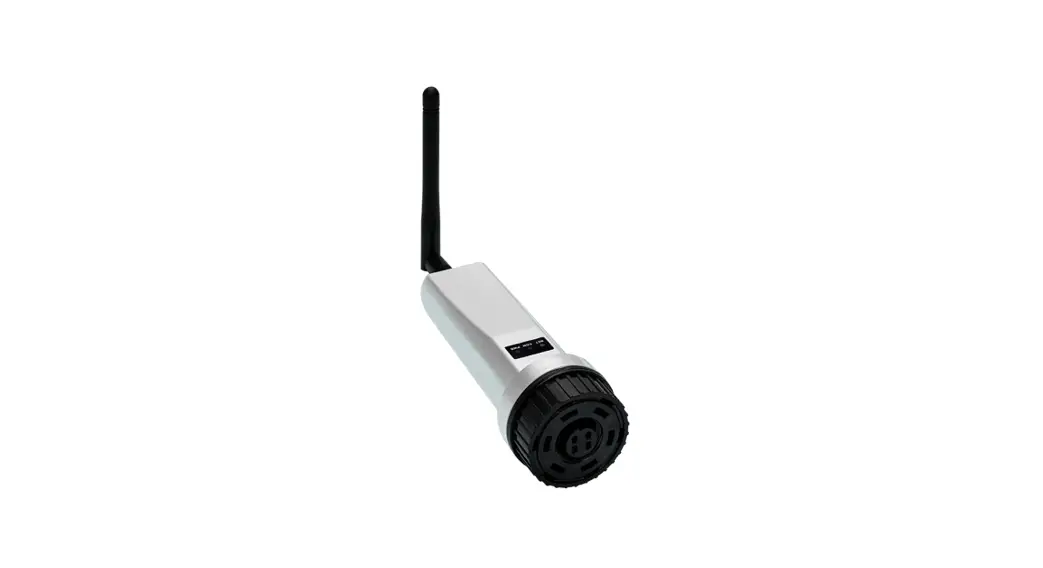
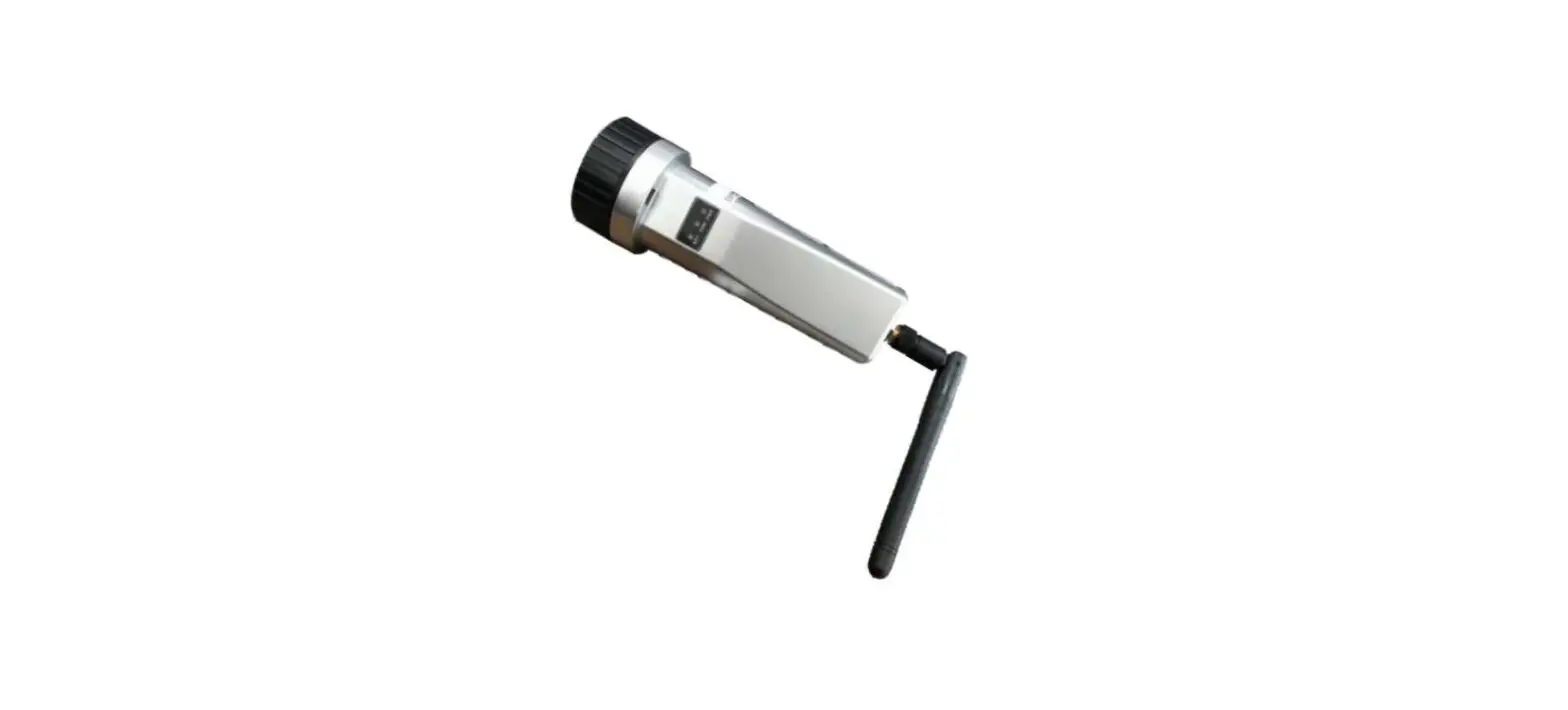
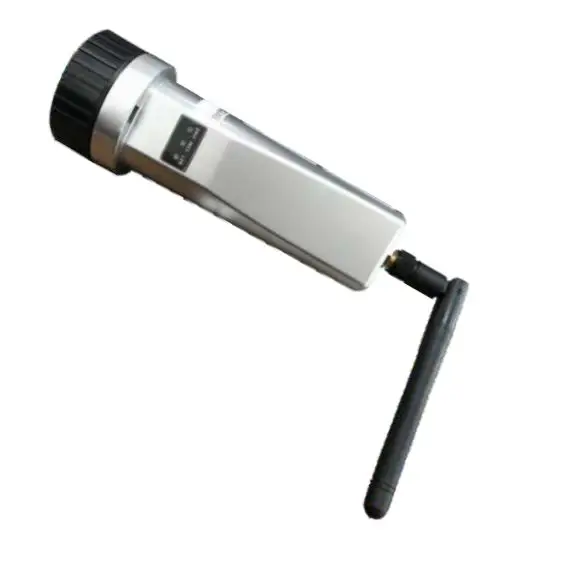
- Install the antenna to the datalogger.
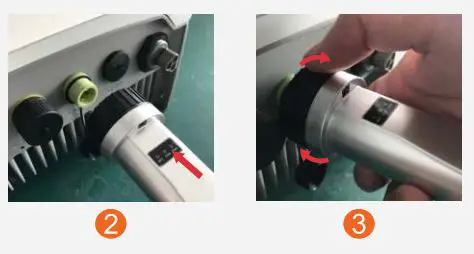
- Insert the datalogger to the inverter COM port.
- Rotate the black circle clockwise.

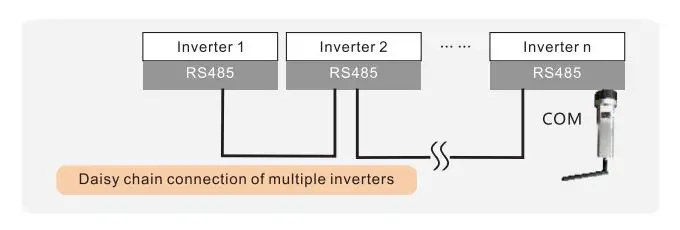
- If you need to collect data from multiple inverters, please follow the inverter user manual to establish a communication connection with the inverter using the R$485 communication cable in a “daisy chain” manner.

- After the data logger is installed on the inverter, if the inverter is powered on, you need to set the inverter slave address, the first inverter is “01”, the second inverter is “02”, And so on.
NOTE
Only rotate the black circle, not the sliver cover.
NOTE
- The device must be installed away from the strong magnetic field produced by large electrical appliances such as microwave ovens, refrigerators, telephones, metal walls, etc. Otherwise, the communication quality may be affected. It may also be affected by lighting storms.
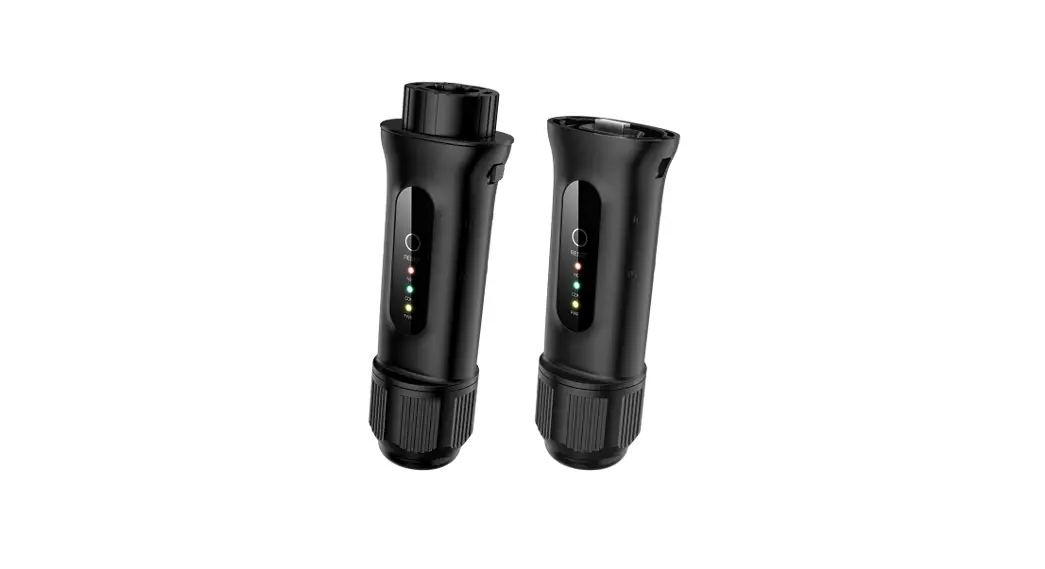
- The [RESET] button on the back is used for connection. A short press will send the data immediately.
- A long press for 5 seconds will enter into config mode for the connection router.
- A long press for 10 seconds will reset the connection.
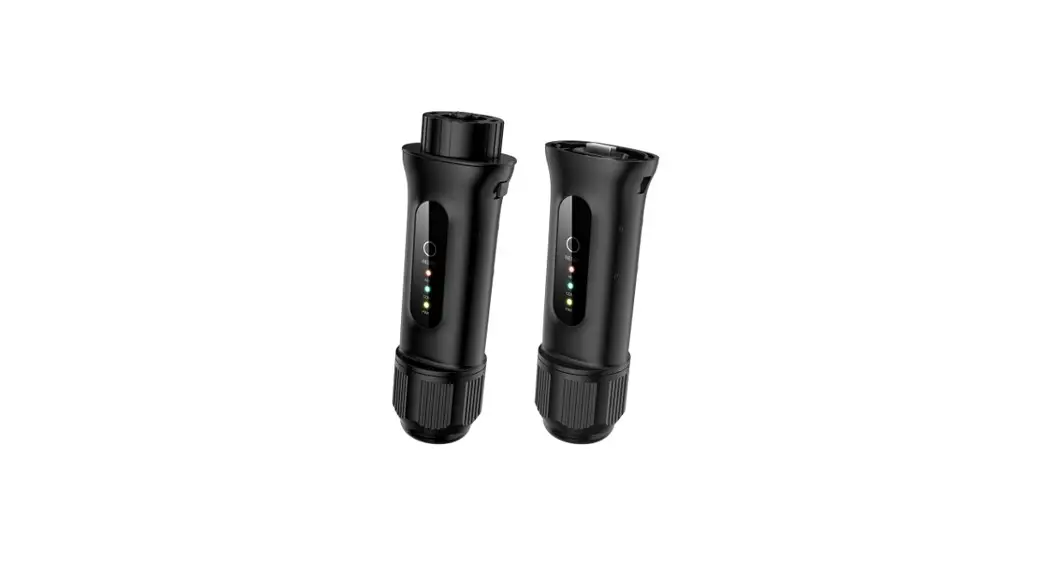
- The three constantly ON LED lights indicate the datalogger is working normally.
LED Lights Status
WiFi Configuration
Use you phone to scan the QR code to download and register the Solis Cloud APP. Or directly download from APP Store or Google Play Store by searching “Solis Cloud”.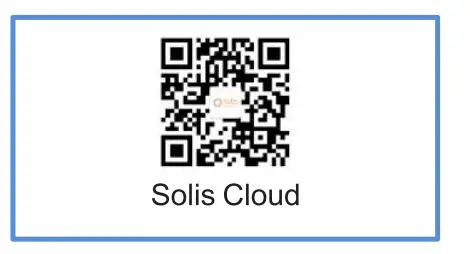
If it is a new data logger, please configure it first, then click the “WiFi configre”.
- Unlogged account, click on “More Tools” and select “WiFi Configuration”

- If you have logged in, please click “Tool” to enter “WiFi Configuration

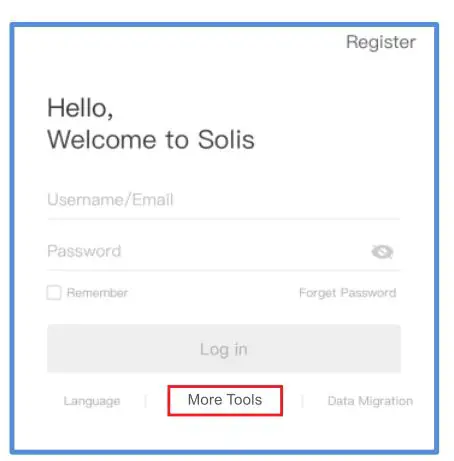
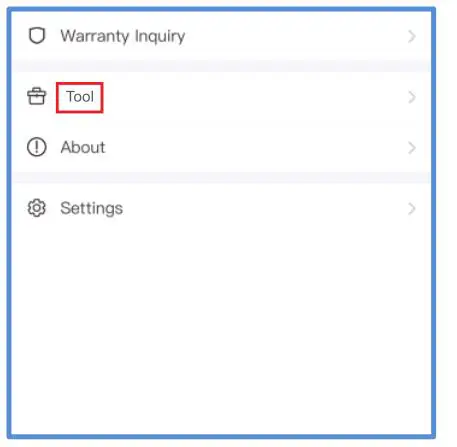
Manually input datalogger SN or Scan the SN on the datalogger.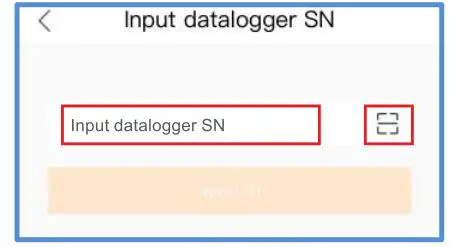
Click “”, make sure the phone is connected to router WiIFi and switch back to the page to fill in the WiFi password, then move to next step.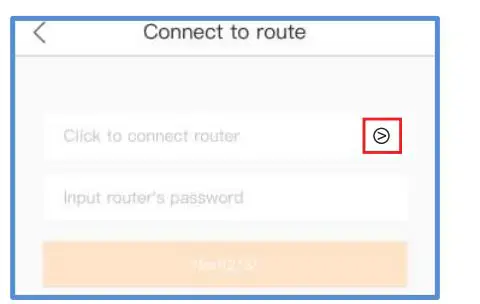
Long press the “Reset” button for 5 seconds until the yellow and green LEDs are quickly flashing. Then click the “It’s flashing”.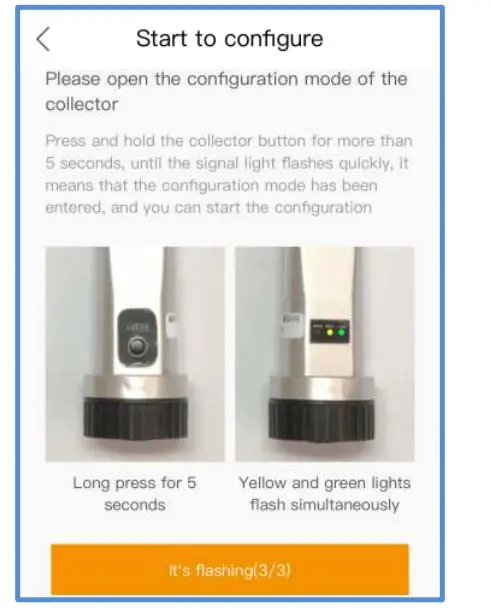
Wait for around 10 seconds. After the configuration is completed, click “OK” and back to the main page, then skip to 3. If multiple re-do the configuration still fail, please perform web configuration.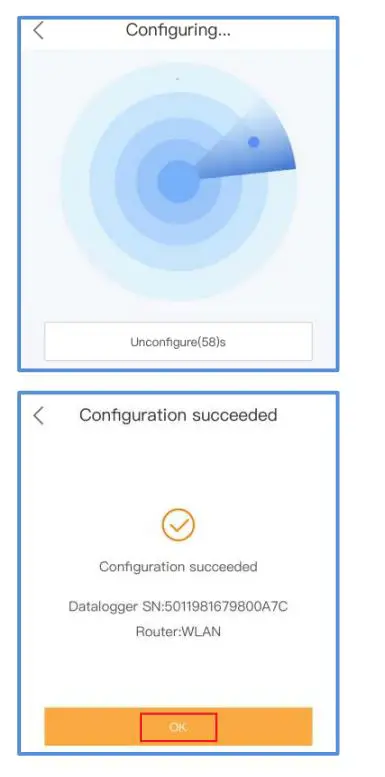
The wireless device (mobile phone or laptop) connects to the datalogger hotspot (Solis_serial number). The Password is 123456789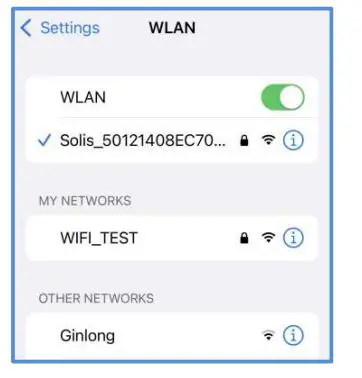
Open a web browser, enter 10.10.100.254, fill in the Username and Password, click Log In. Username: admin Password: 123456789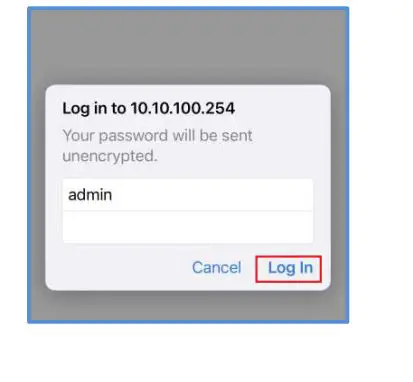
Select Quick Set, search the router WIFI, and enter the password. Click Save, and appears the setting success interface. If failed, please re-do the configuration process or contact the after-sale engineers.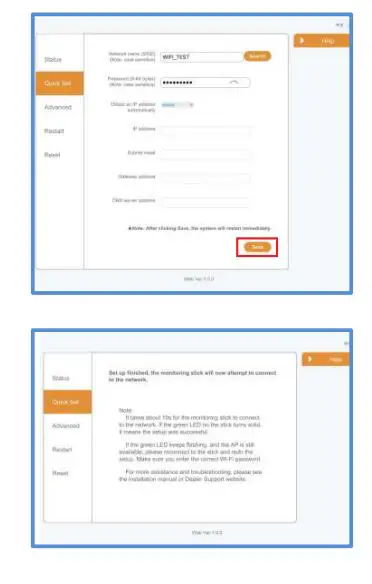
Create the Solis Cloud Account
Click the “Register”.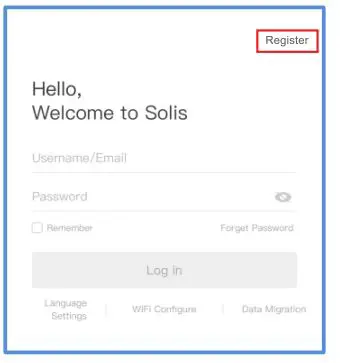
Select Owner or Organization for email address registration.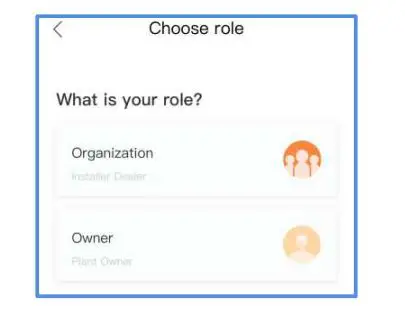
Enter the email to get the verification code, than enter your account and password, last click the “Register”.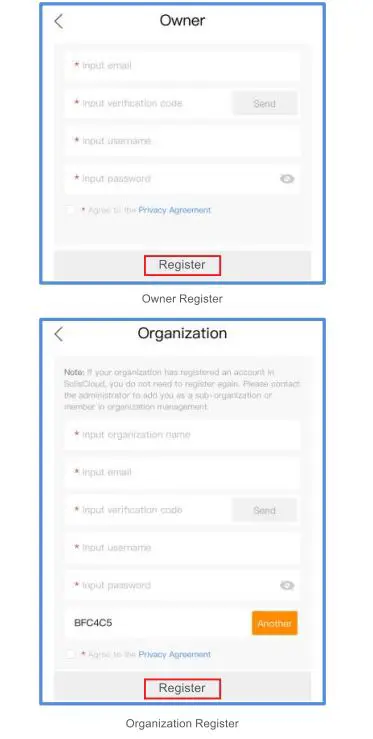
Create Plant
Enter the main page of the Solis Cloud APP, click “at the top right corner, and select “Add plant”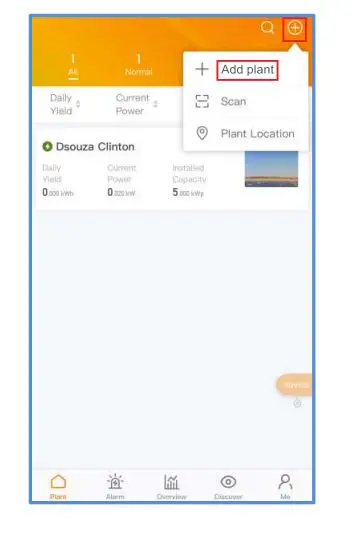
Input the information of the plant as required. Then click “Done”.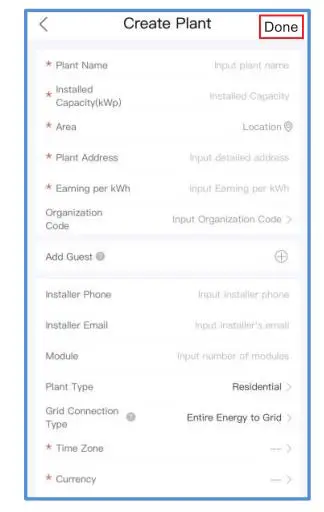
Confirm the plant information. Click “Create plant”.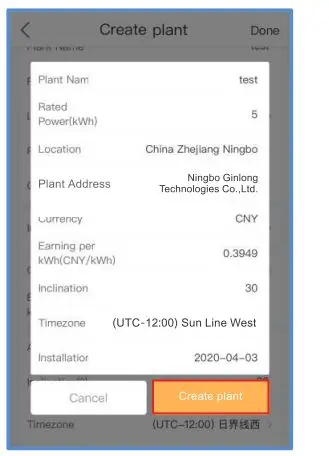
Click “View plant” to enter the plant homepage, then add the datalogger.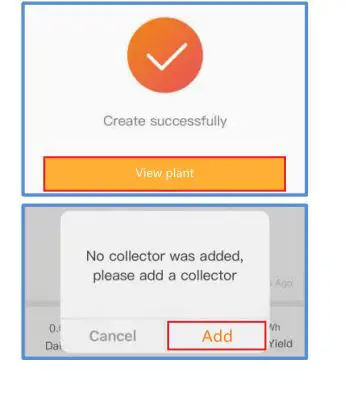
Scan the datalogger SN QR code or manually input it.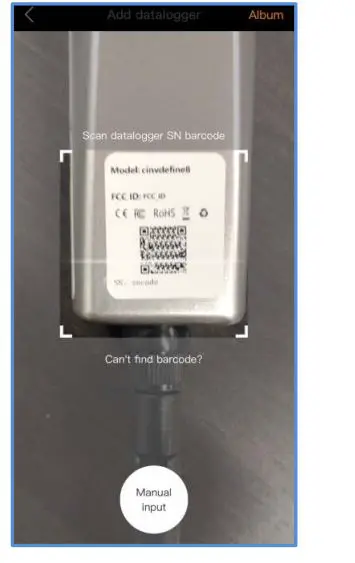
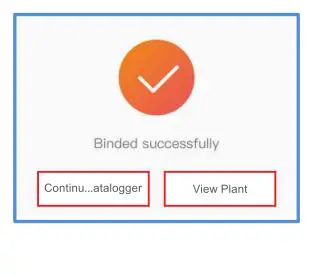
Plant creation succeeds. Click “Continue datalogger” to check the monitoring data. If the plant has multiple dataloggers, please click “View Plant”.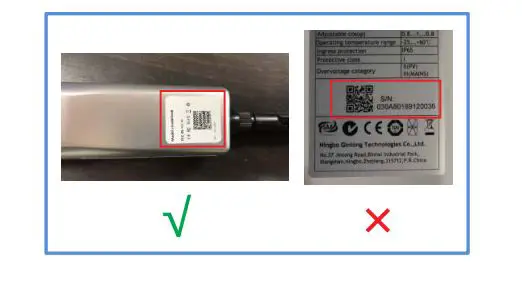
Contact
Please contact us if you have any technical problems in terms of the product. Please provide the following information as well:
- Inverter SN
- Datalogger SN
Problem Description
Ginlong Technologies Co., Ltd. No. 57 Jintong Road, Binhai industrial Park, Xiangshan, Ningbo, Zhejiang, 315712, P.R.China.
- Tel: +86 (0)574 6578 1806
- Fax: +86 (0)574 6578 1606
- Email: [email protected]
- Web www.ginlong.com