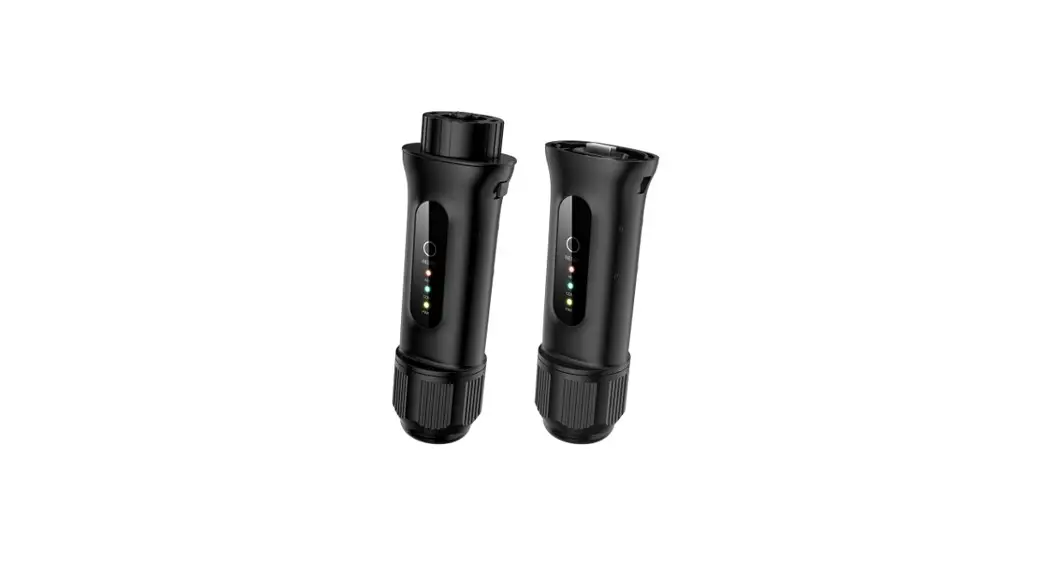
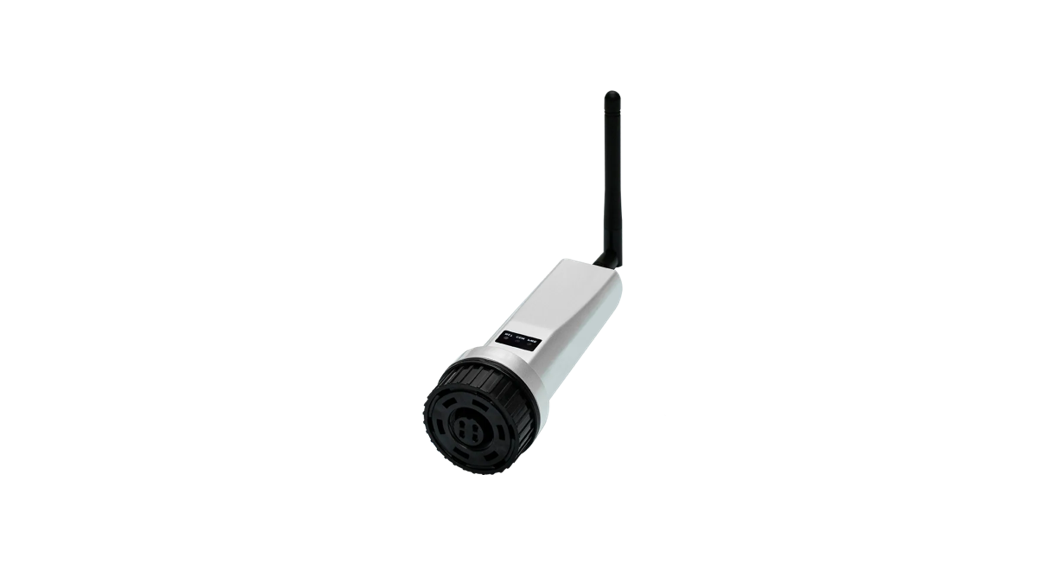
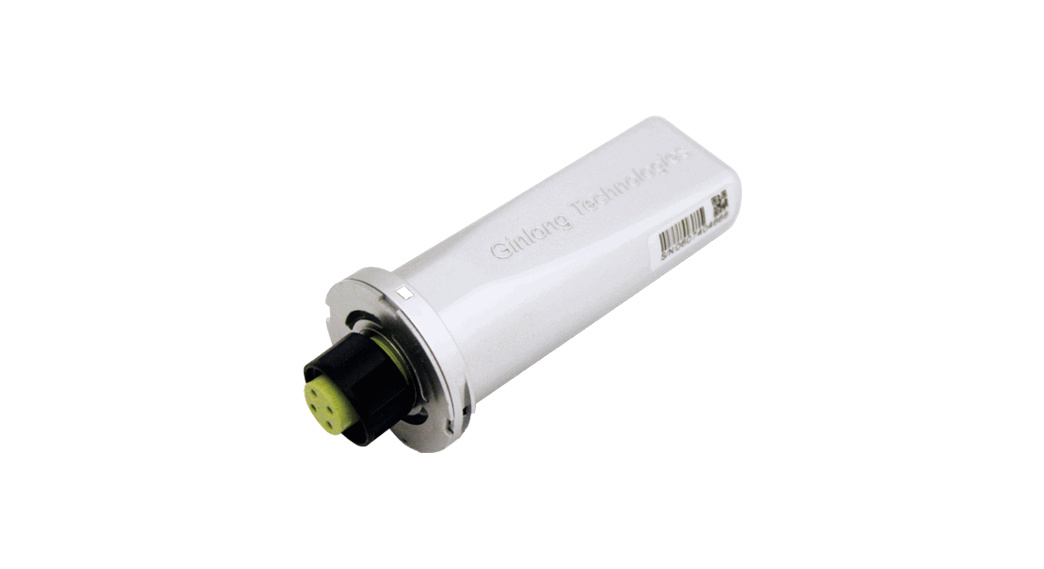
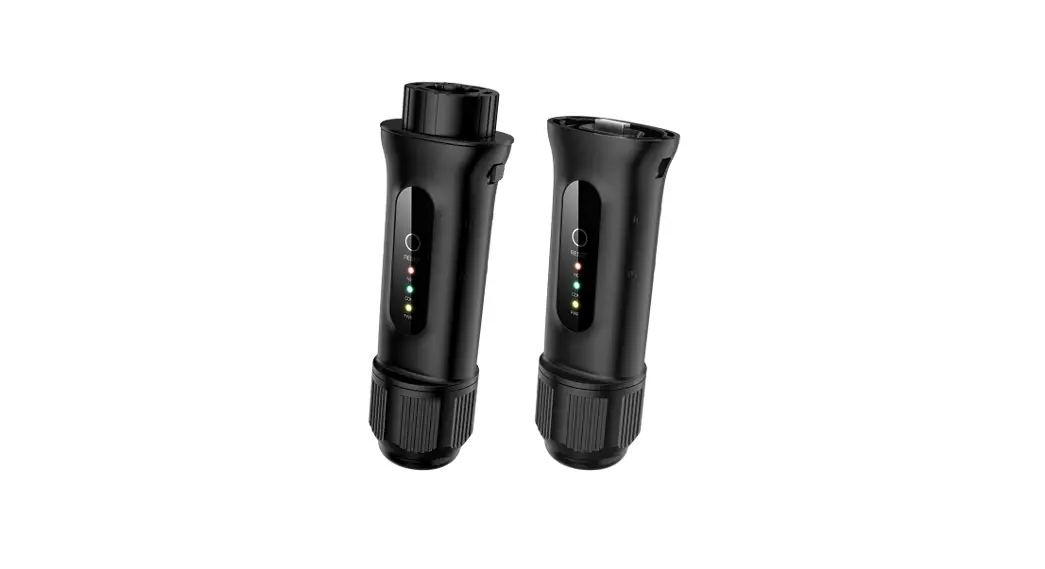
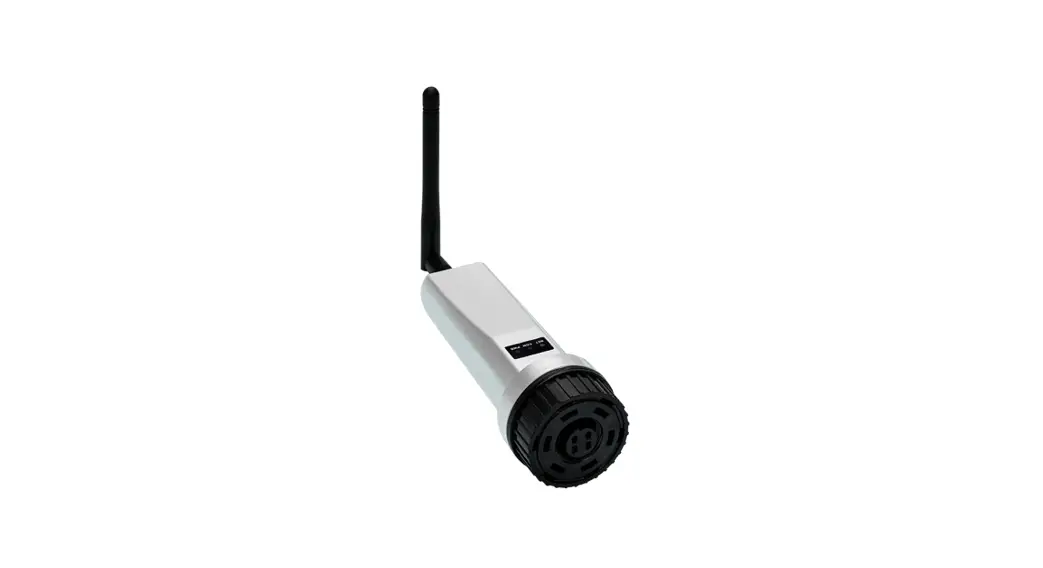
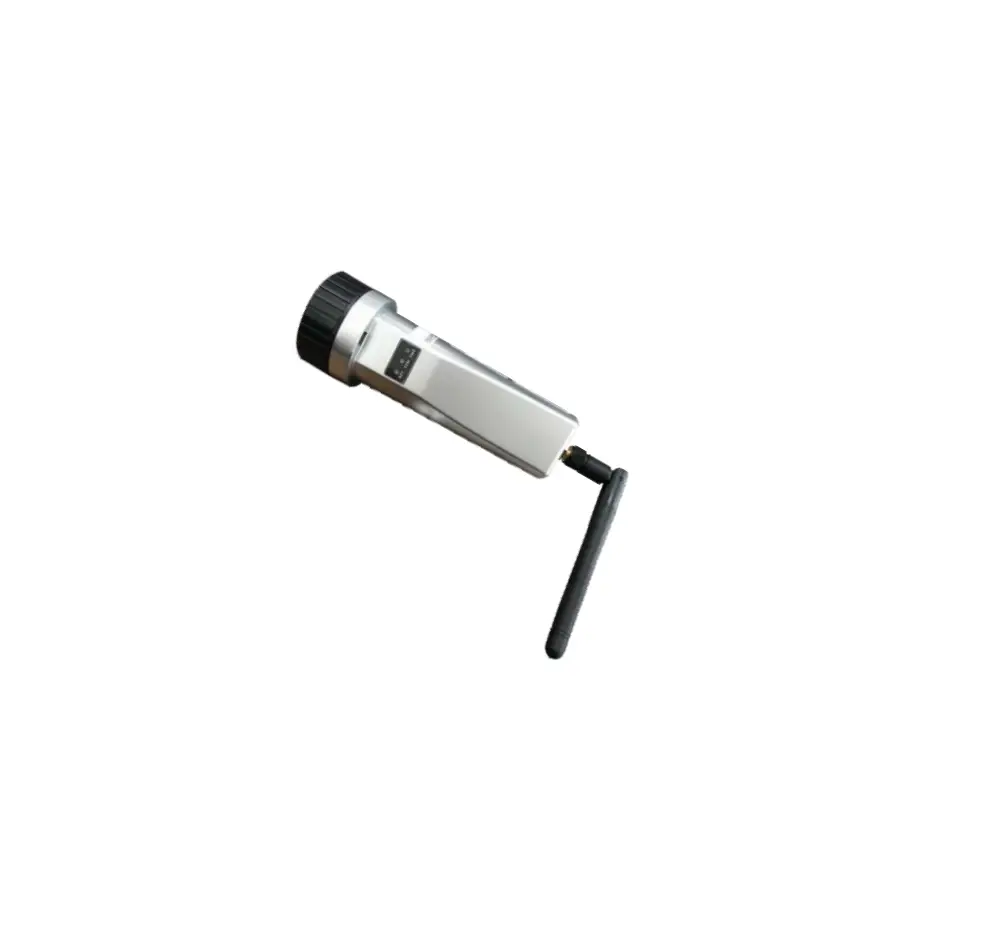
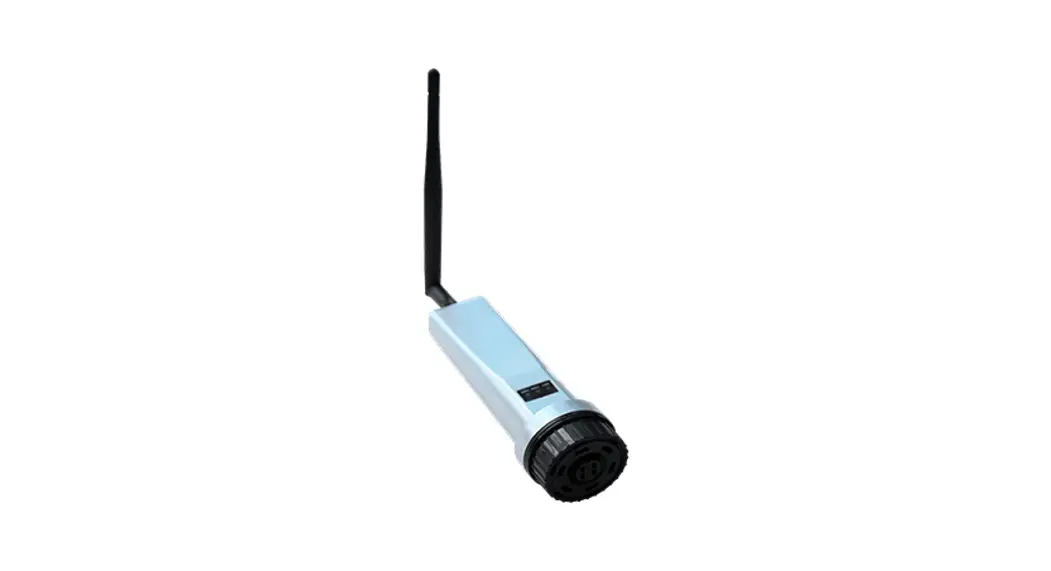
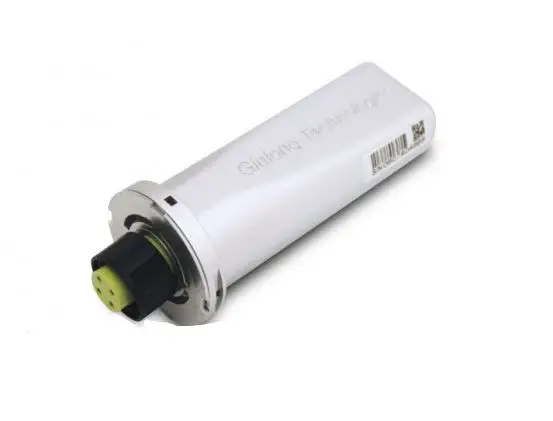
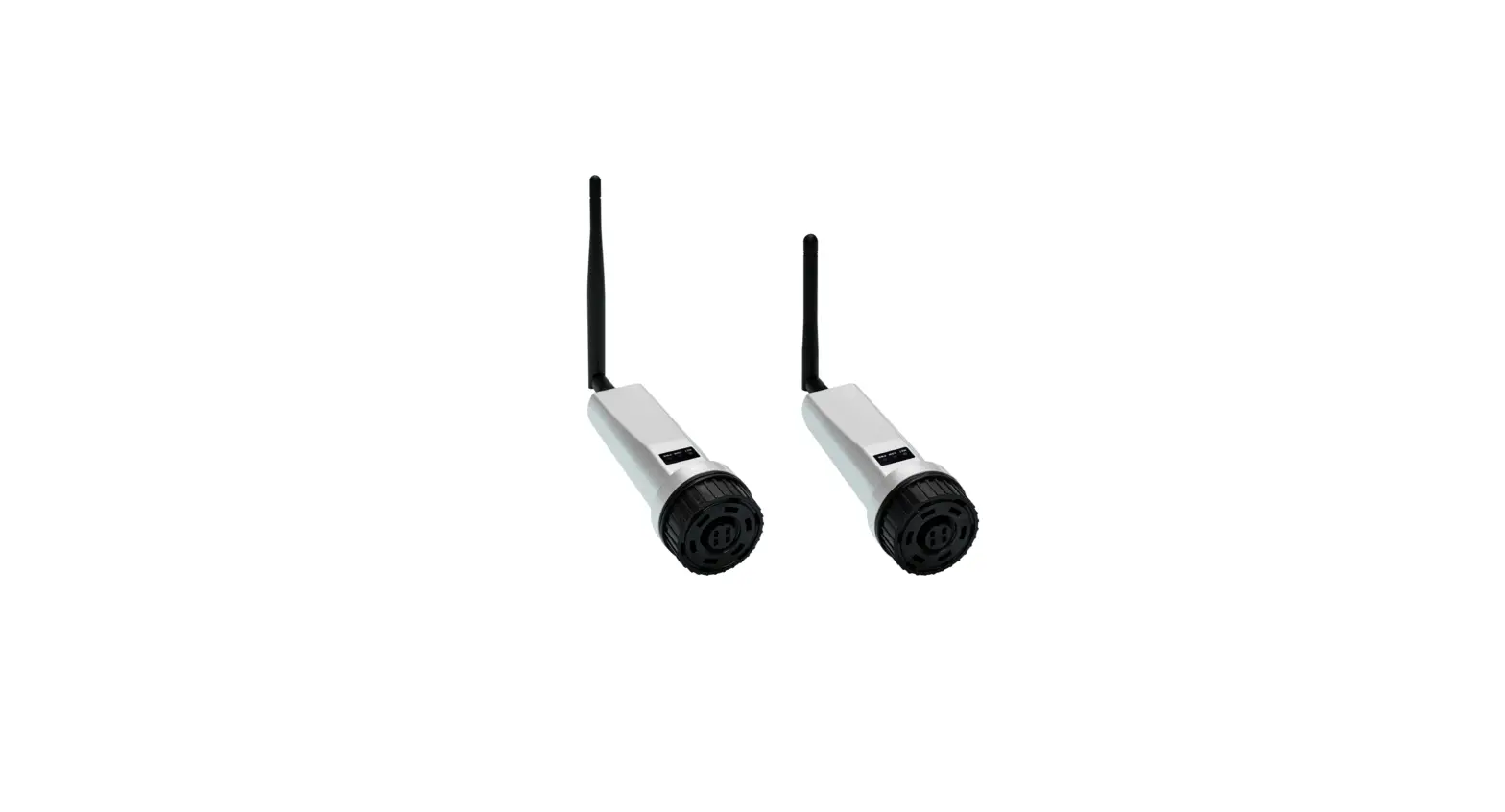
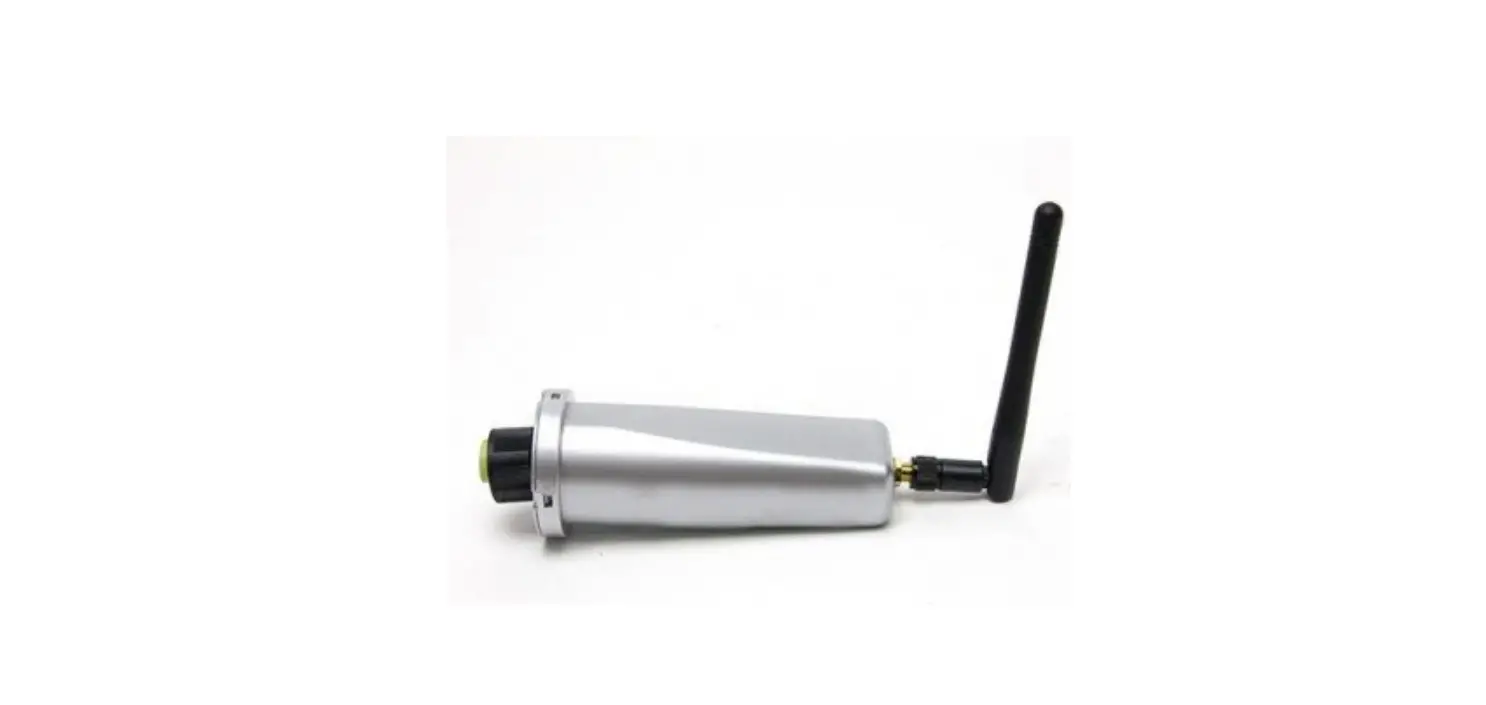
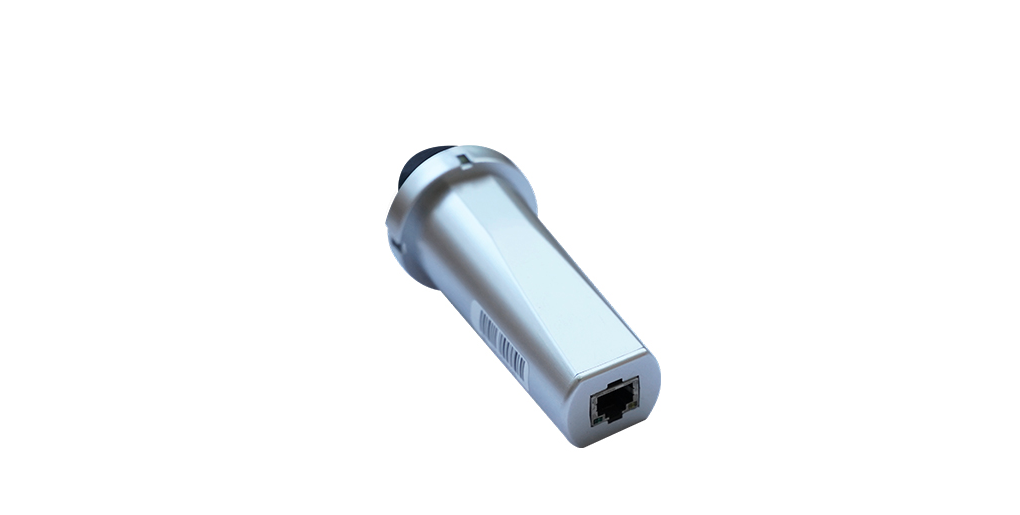
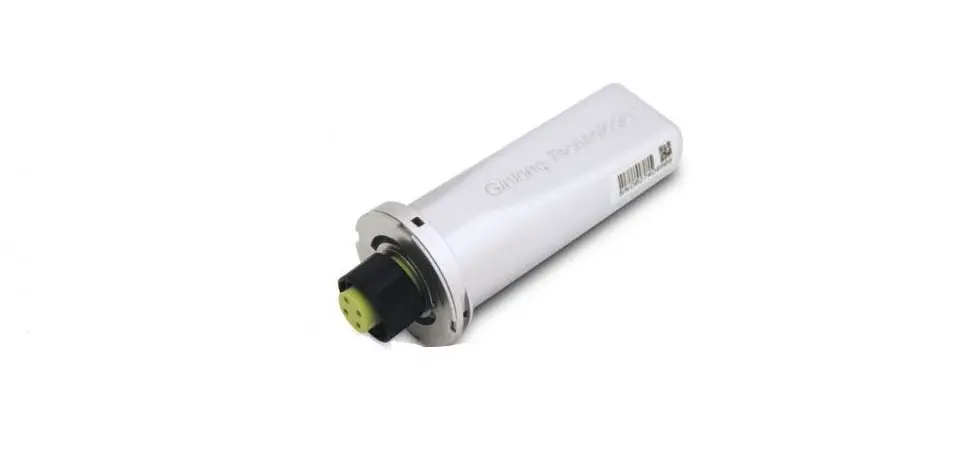
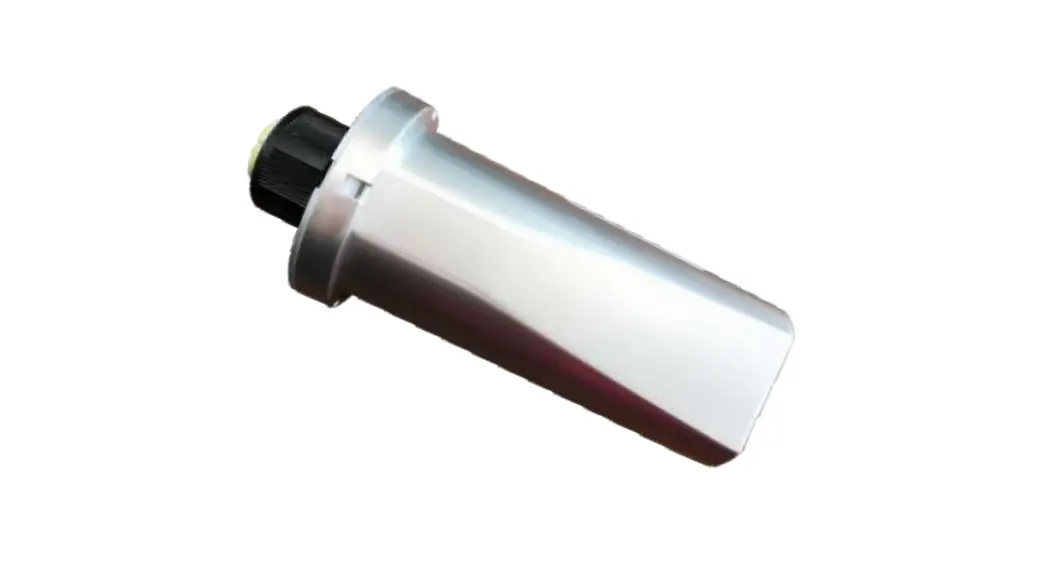
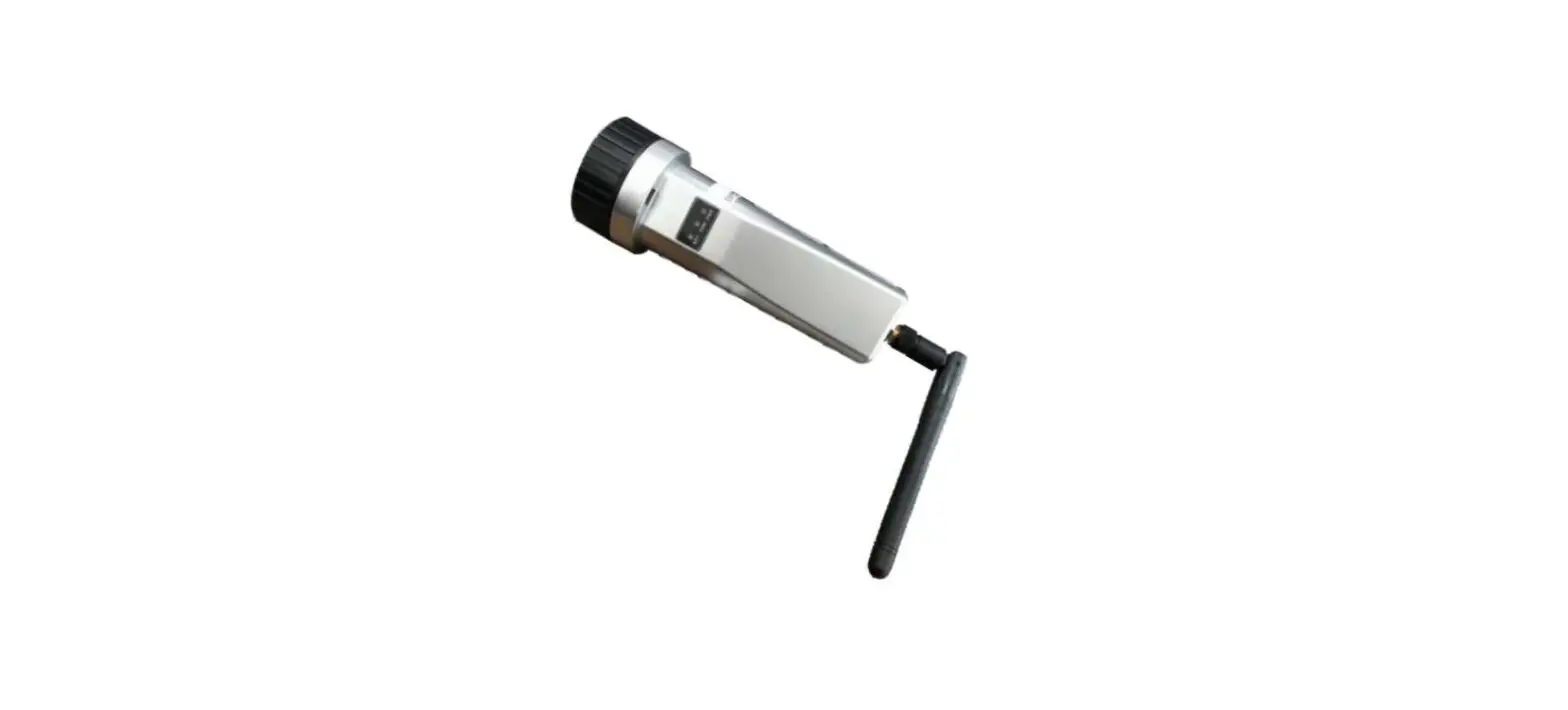
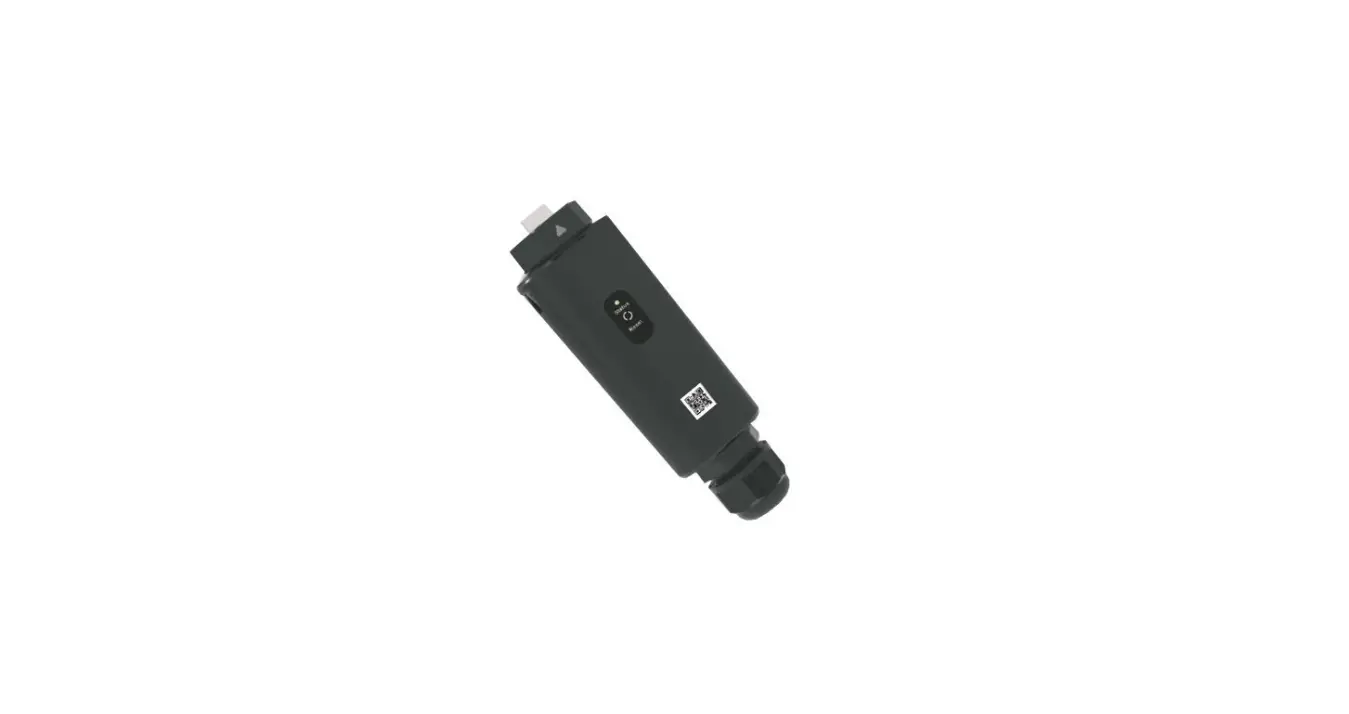
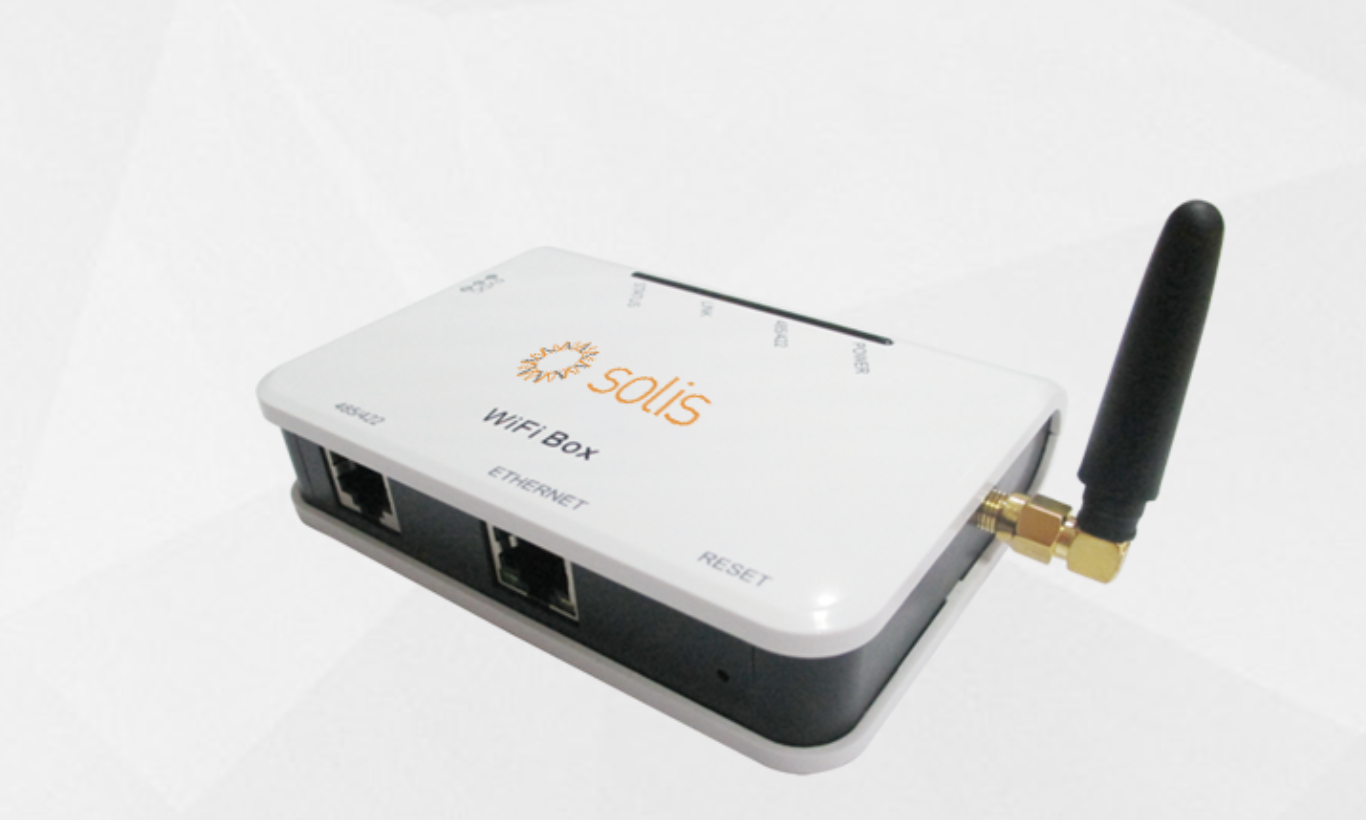
W4G Stick Datalogger
Product Information:
Product Name: W4G Stick Datalogger
Version: 1.0
Delivery Content: 1 W4G stick, 1 Quick Installation Manual
Product Usage Instructions:
1. Install the datalogger:
1.1 Install the datalogger:
- Connect the datalogger to the corresponding 4-pin COM port of
the inverter. For example, a Solis 5K inverter is used here. - Follow these steps to install the datalogger:
- Step 1: Match the joint and insert the datalogger into the
inverter COM port. - Step 2: Rotate the black ring clockwise at the connection
end.
Note: Only rotate the black ring at the connection end, not the
main body.
1.2 Install with multiple inverters:
If you need to collect data from multiple inverters, follow the
inverter user manual to establish a communication connection with
the inverter using the RS485 communication cable in a daisy chain
manner.
Daisy chain connection of multiple inverters:
Inverter 1 RS485
Inverter 2 RS485
...
Inverter n RS485
COM
After installing the datalogger on the inverter, if the inverter
is powered on, you need to set the inverter slave address. The
default slave address of the inverter is 01, and each inverter on
the communication circuit needs to be assigned a different slave
address (e.g., 01, 02, 03, 04…).
Note: The device must be installed away from strong magnetic
fields produced by large electrical appliances such as microwave
ovens, refrigerators, telephones, metal walls, etc. Otherwise, the
communication quality may be affected. It may also be affected by
lightning storms.
LED Lights Status:
| LED Indicators | Description | LED Status | Meanings |
|---|---|---|---|
| Internet Indicators (NET) | Shows the connection status between the datalogger and the server. | Flashing ON OFF | Trying to connect with server Successfully connected Abnormal connection |
| Inverter COM Indicators (COM) | Shows the connection status between the datalogger and the inverter. | Flashing ON OFF | Trying to connect with inverter Successfully connected Abnormal connection |
| Power Indicator (PWR) | Shows the power supply status of the datalogger. | ON OFF | Datalogger is powered up normally Datalogger is powered up abnormally |
Button Instruction:
To be continued…
W4G Stick Datalogger Quick Installation Manual
Version: 1.0
Delivery Content 1 W4G stick 1 Quick Installation Manual
1 Install the datalogger
1.1Install the datalogger
Connect the datalogger to the corresponding 4-pin COM port of the inverter. A Solis 5K inverter is used here as an example. Please follow the instructions below:
Match the joint
Install the datalogger:
Step 1: Match the joint, and then insert the datalogger to the inverter COM port. Step 2:Rotate the black ring in clockwise.
1
2
NOTE
Only rotate the black ring at the connection end, not rotate the main body.
1.2Install with multiple inverters
If you need to collect data from multiple inverters, please follow the inverter user manual to establish a communication connection with the inverter using the RS485 communication cable in a “daisy chain” manner.
Inverter 1 RS485
Inverter 2 RS485
… …
Inverter n RS485
Daisy chain connection of multiple inverters
COM
After the datalogger is installed on the inverter, if the inverter is powered on, you need to set the inverter slave address, the default slave address of the inverter is 01, and each inverter on the communication circuit needs to be assigned with different slave address(like 01,02,03,04…).
NOTE
The device must be installed away from the strong magnetic field produced by large electrical appliances such as microwave oven, refrigerator, telephone, metal walls, etc. Otherwise, the communication quality may be affected. It may also be affected by lighting storm.
2 LED and Button
LED Lights Status:
LED indicators
Description
LED Status
Internet Indicators
(NET)
Shows the connection status between the datalogger and the server.
Flashing ON OFF
Inverter COM Shows the Indicators connection (COM) status between datalogger and the inverter.
Flashing ON OFF
Power Indicator
(PWR)
Shows the power supply status of the datalogger.
ON OFF
Meanings
Trying to connect with server
Successfully connected
Abnormal connection
Trying to connect with inverter
Successfully connected
Abnormal connection
Datalogger is powered up normally
Datalogger is powered up abnormally
Button Instruction:
The [RESET] button on the back is used for connection. ·Short press will send the data immediately. ·Long press for 5 seconds will enter into config mode for connection router. ·Long press for 10 seconds will reset the connection. Internet Indicators color: green means wifi mode,blue means 4G mode. The three constantly ON LED lights indicate the datalogger is working normally.
3 Select Mode
If you only want to use 4G, please refer to the 4G operation steps. If you only want to use WiFi, please refer to the WIFI operation steps. If you want to use 4G+ WiFi, please perform the 4G operation steps first, and then perform the WiFi connection operation steps. (Priority is given to WIFI. When there is no WIFI or weak WIFI signal, the 4G communication will be automatically switched (if the 4G signal is weak, it will be reduced to 2G for communication). When the WIFI network is restored, the WiFi communication will be automatically switched back.)
3.14G Configuration
1. SIM card provided by Ginlong, SIM card has been built in, No other settings are required. SIM card not provided by Ginlong, The SIM card needs to be installed manually, Some SIM cards will automatically recognize APN, if cannot be connected normally, please follow the following steps to set the APN.
2. Log in to SolisCloud, Click Me then click Tool.
3. Click Local Operation. 4. Click Connect With Bluetooth. 5. Select the Device.
6. Choose “Set current APN”.
7.EntertheAPN, User Name and Password (If APN is no User Name and Password, unnecessary to fill in).
8. If the prompt is OK, Configuration Complete.
NOTE Please check APN, User Name andPassword carefully. The wrong APN, User Name and Password will also prompt OK. 3.2WiFi Configuration Step 1: Use you phone to scan the QR code to download and register the Solis Cloud APP. Or directly download from APP Store or Google Play Store by searching “Solis Cloud”.
Solis Cloud 2. Log in to SolisCloud, Click Me then click Tool.
3. Click Local Operation. 4. Click Connect With Bluetooth. 5. Select the Device.
6. Choose “Set the username and password of the currently connected WiFi”.
7. Enter the WiFi name and WiFi password.
8. If the prompt is OK, Configuration Complete.
NOTE Please check WiFi name and WiFi password carefully. The wrong name and password will also prompt OK.
4 Create the Solis Cloud Account
Step 1: Click the “Register”.
Register
Step2: Select Owner or Organization for email address registration.
Step3: Enter the email to get the verification code, than enter your account and password, last click the “Register”.
Register Owner Register
Organization Register
5 Create Plant
Step1: Enter the main page of Solis Cloud APP, click “+”at the top right corner and select “Add plant” .
Add plant
Step 2: Input the information of the plant as required. Then click “Done”.
Done
Step 3: Confirm the plant information. Click “Create plant”.
Step 4: Click “View plant” to enter the plant homepage , then add the datalogger.
View plant
Add
Step 5: Scan the SN number of the datalogger or manually input it.
Note: Scan the datalogger SN, NOT the inverter SN.
×
Step 6: Plant creation succeeds. Click “Continue to bind” to check the monitoring data. If the plant has multiple dataloggers, please click “View Plant”.
Continue to bind
View Plant
6 FCC Certification
This device complies with part 15 of the FCC Rules. Operation is subject to the following two conditions: (1) This device may not cause harmful interference, and (2) this device must accept any interference received, including interference that may cause undesired operation.
FCC warning: Any Changes or modifications not expressly approved by the party responsible for compliance could void the user’s authority to operate the equipment.
Note: This equipment has been tested and found to comply with the limits for a Class B digital device, pursuant to part 15 of the FCC Rules. These limits are designed to provide reasonable protection against harmful interference in a residential installation. This equipment generates uses and can radiate radio frequency energy and, if not installed and used in accordance with the instructions, may cause harmful interference to radio communications. However, there is no guarantee that interference will not occur in a particular installation. If this equipment does cause harmful interference to radio or television reception, which can be determined by turning the equipment off and on, the user is encouraged to try to correct the interference by one or more of the following measures: -Reorient or relocate the receiving antenna. -Increase the separation between the equipment and receiver. -Connect the equipment into an outlet on a circuit different from that to which the receiver is connected. -Consult the dealer or an experienced radio/TV technician for help.
This equipment complies with FCC radiation exposure limits set forth for an uncontrolled environment. This equipment should be installed and operated with minimum distance 20cm between the radiator & your body.
Contact Please contact us if you have any technical problems in terms of the product. Please provide the following information as well:
Inverter SN Datalogger SN Problem Description
Ginlong Technologies Co., Ltd. No. 57 Jintong Road, Binhai Industrial Park, Xiangshan, Ningbo, Zhejiang, 315712, P.R.China.
Tel: +86 (0)574 6578 1806
Fax: +86 (0)574 6578 1606
[email protected]
Webwww.ginlong.com
 Solis PV Inverters-Ginlong Technologies