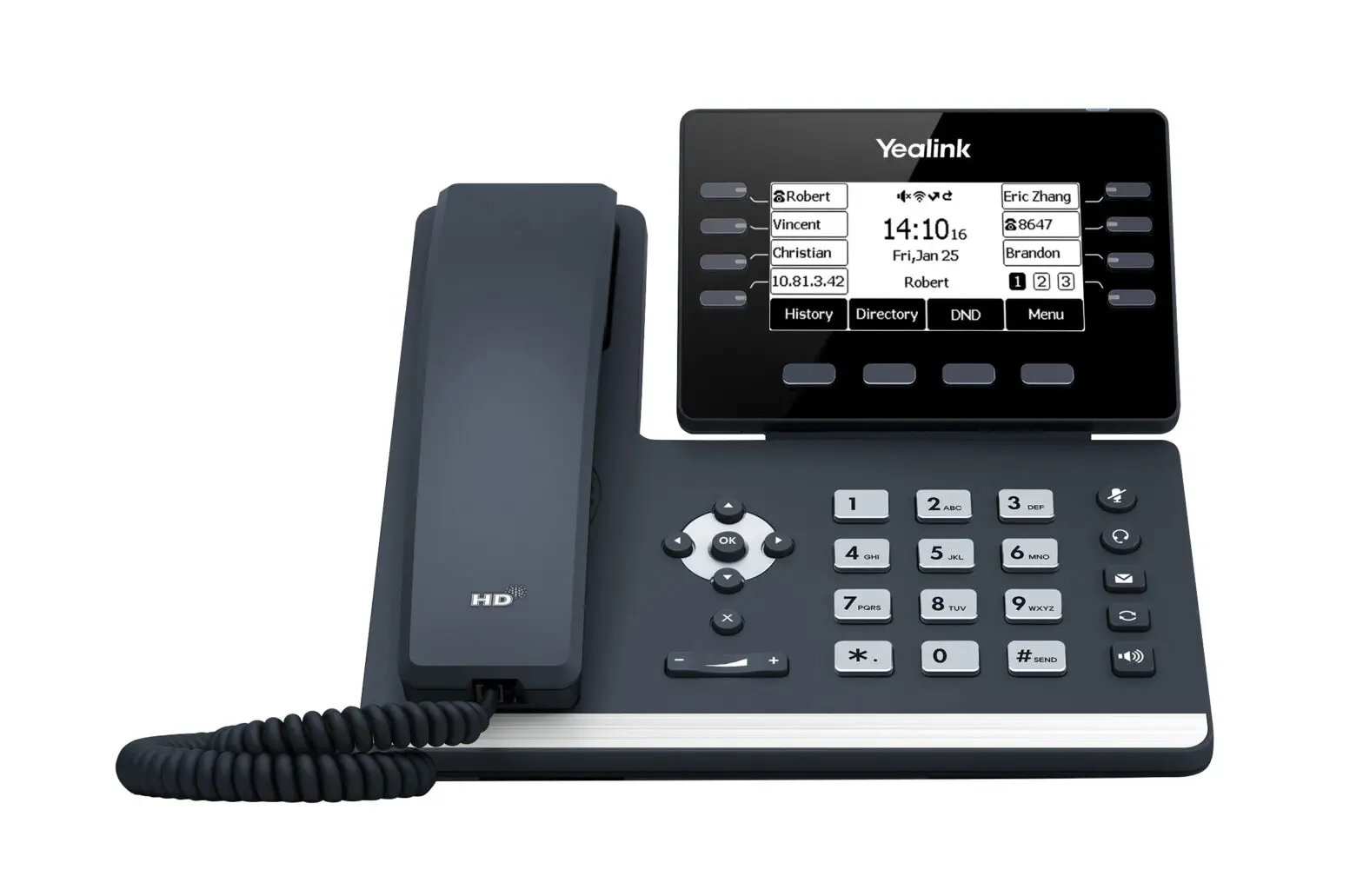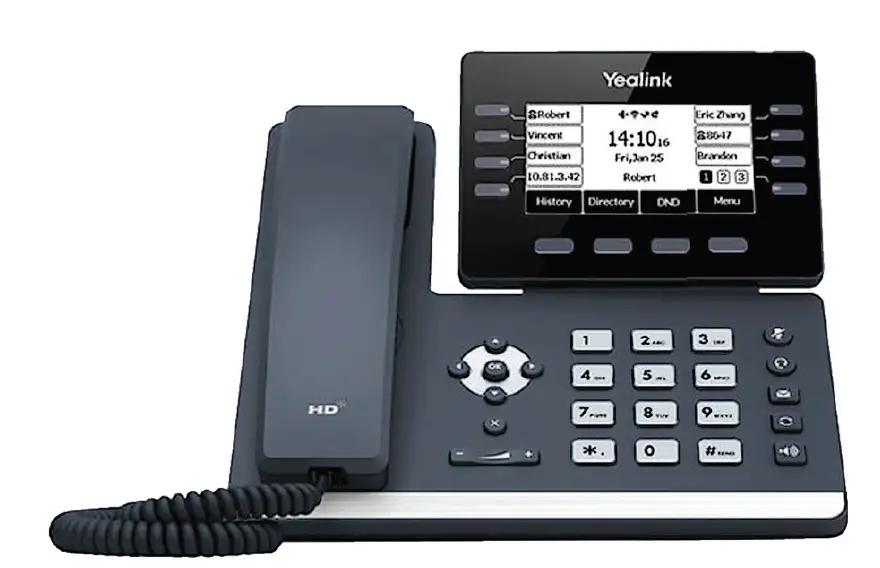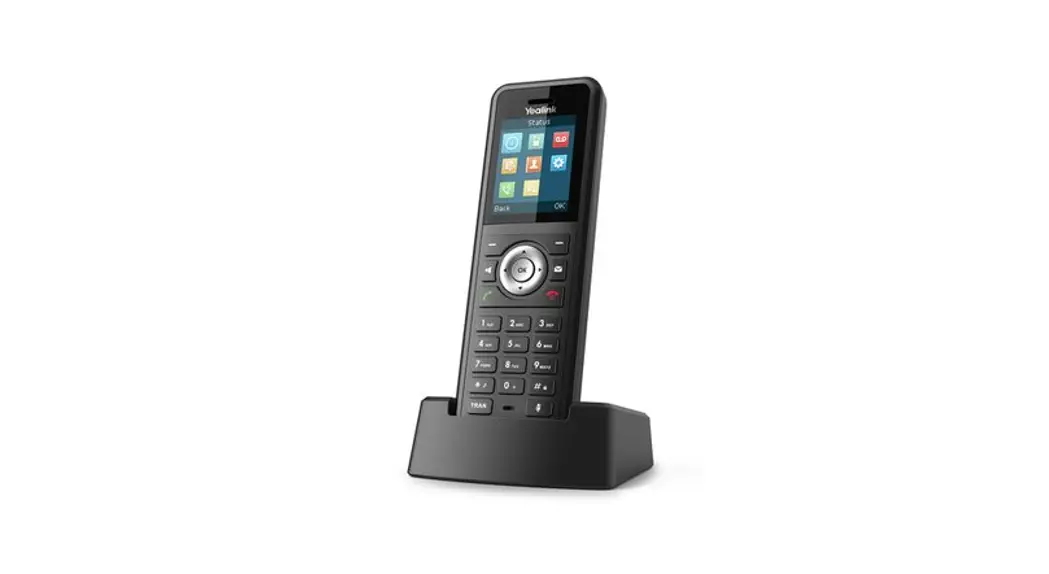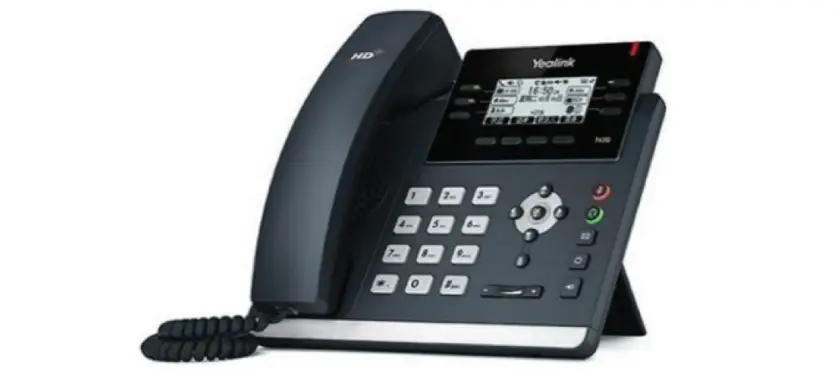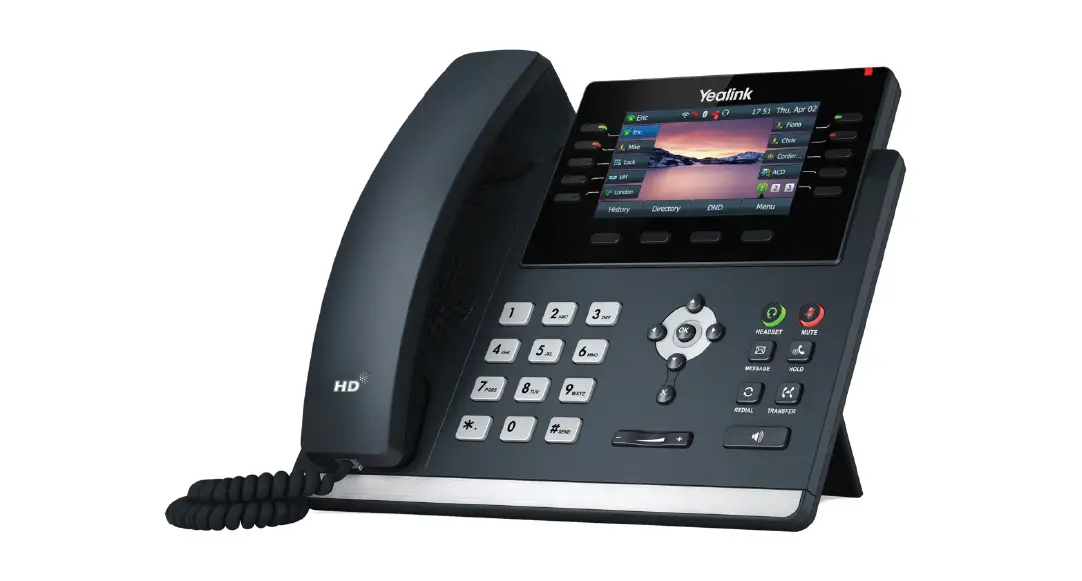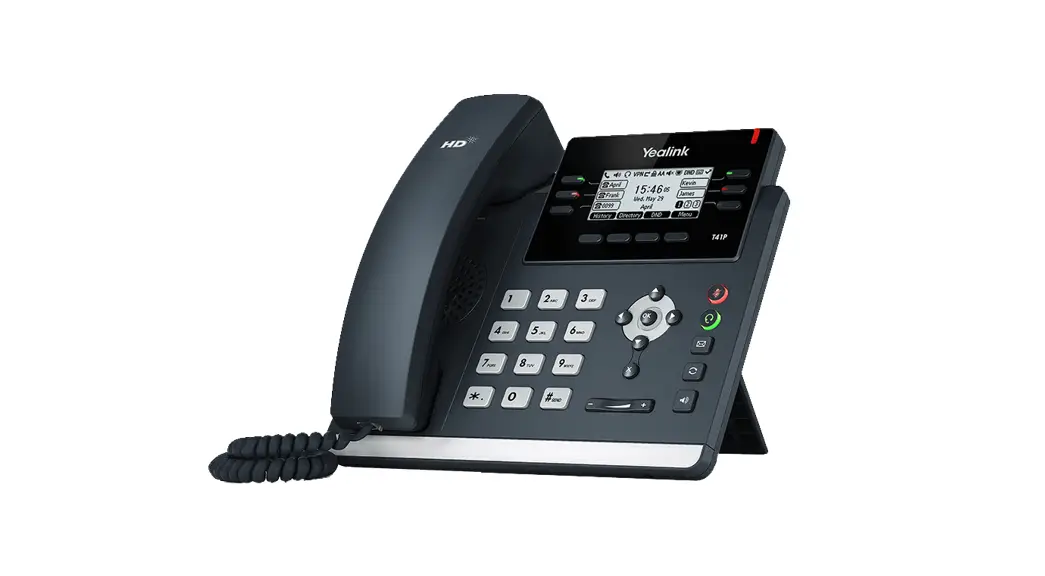


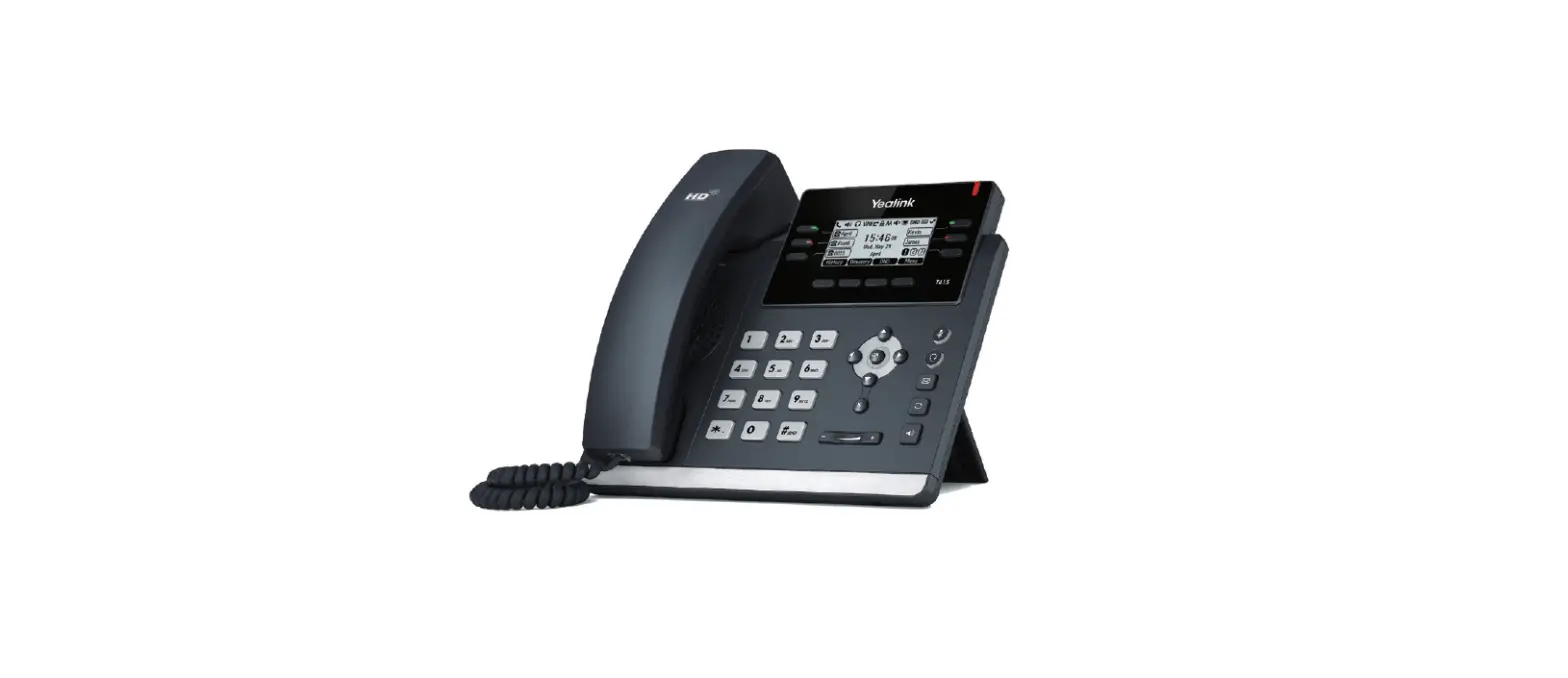
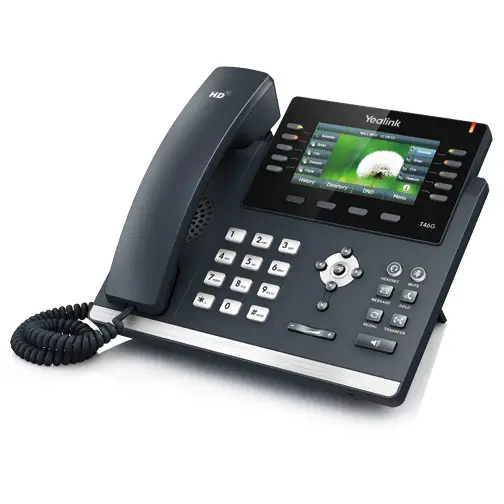
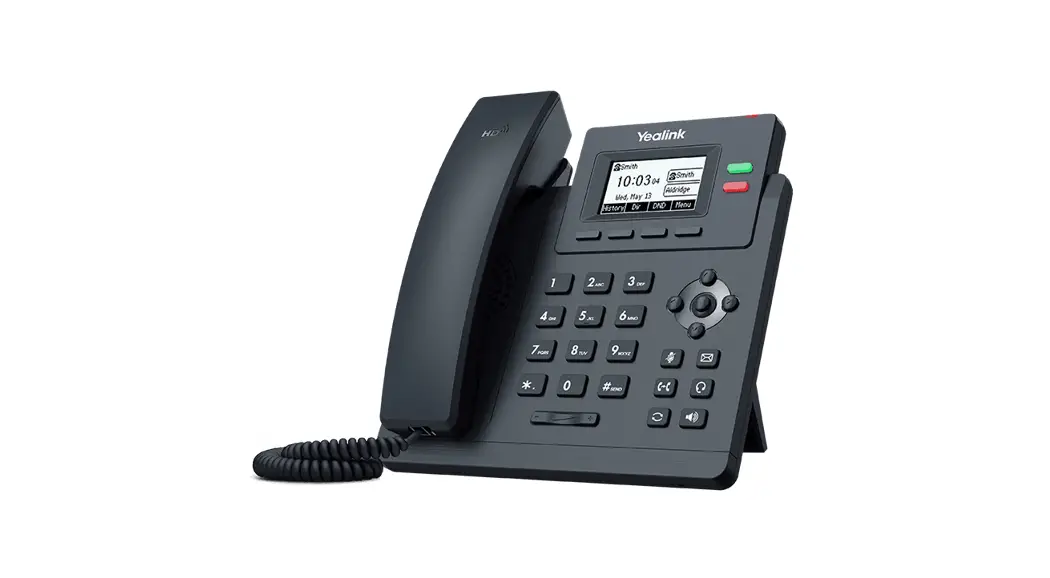
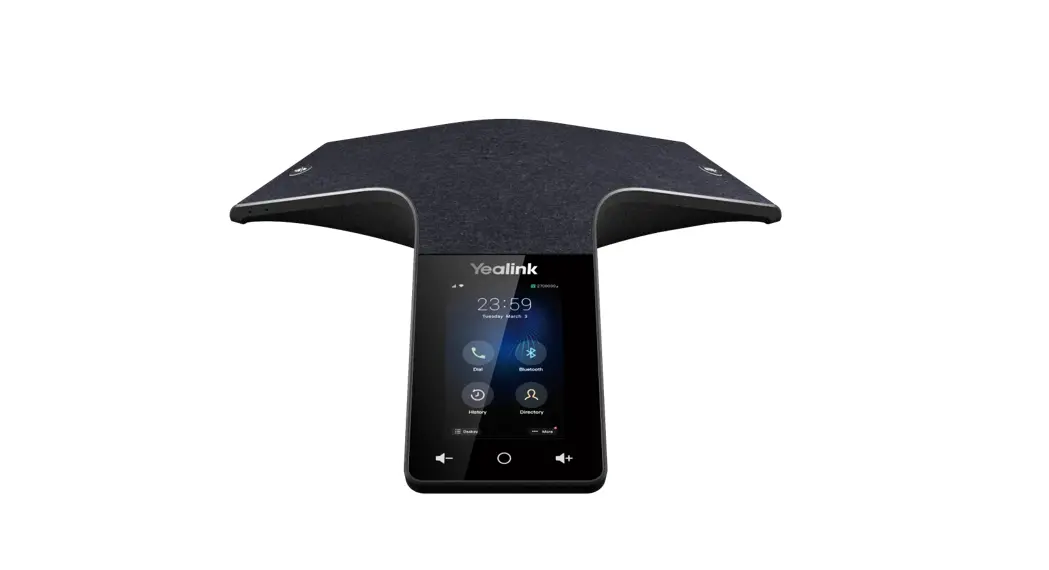
T41 Multi-Function Paperless IP Phone
Instructions
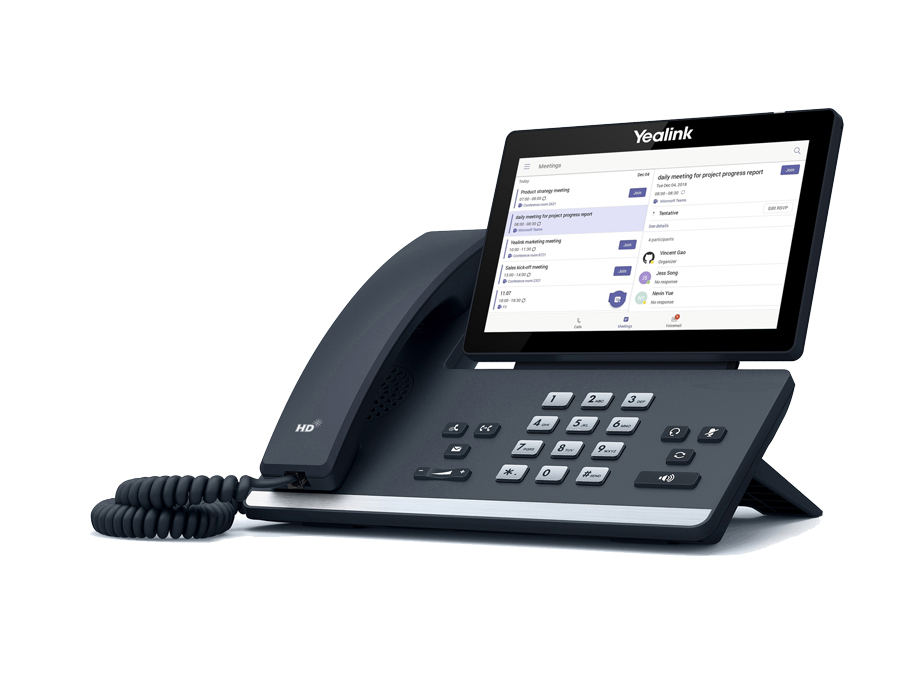
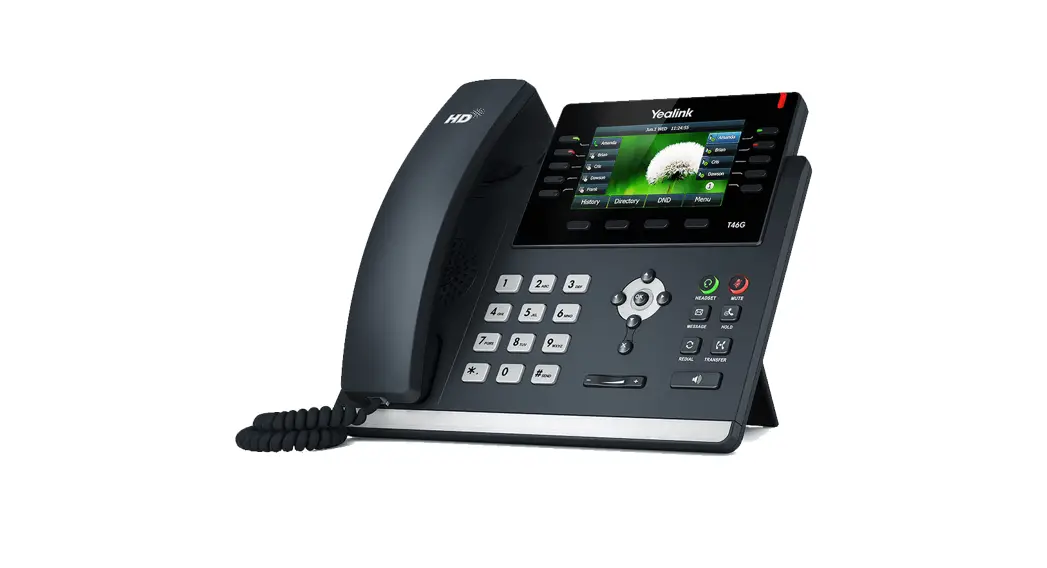
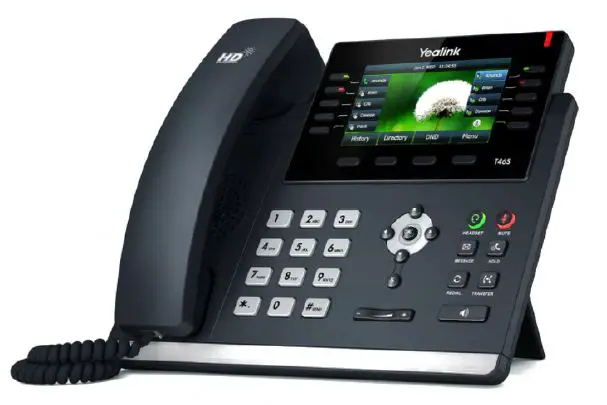
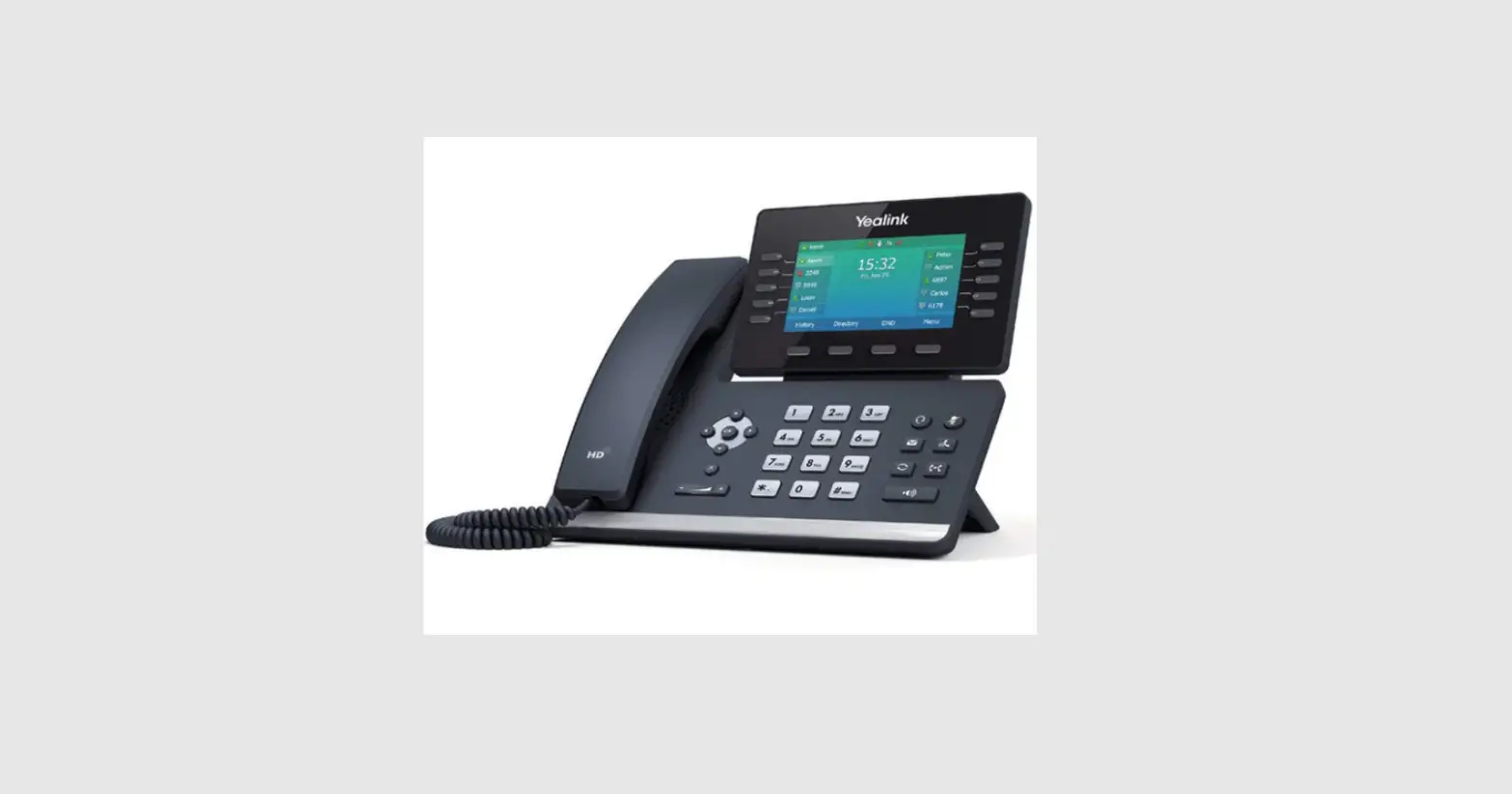
Yealink T41/T42/T43/T46 Instructions
1. Making Calls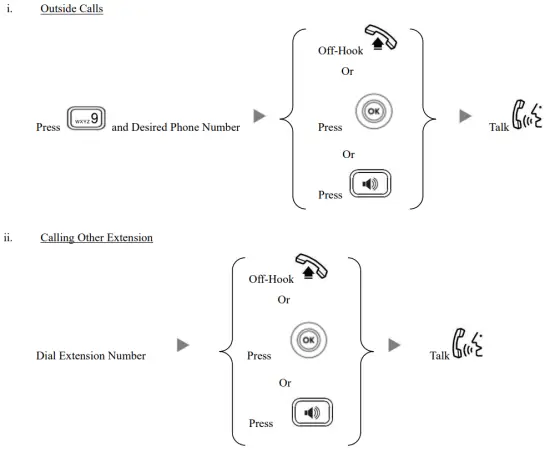
2. Answering Calls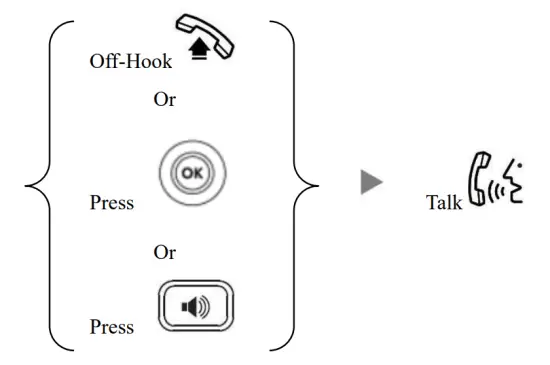
3. Transferring a Call / Call Transfer
i. Blind / Unattended Transfer
During a conservation Press
Press  Dial Extension Number and Press
ii. Supervised / Attended Transfer
During a conservation Press Dial Extension Number and Press
inform the 3 rd party about the call you are transferring Press
Press
4. Holding a Call
i. To Hold
During a conservation Press Hold
ii. To Retrieve a call (Call Hold retrieve)
Press Flashing Line Key Line 1 or Resume
5. Making a conference (Conference Call)
i. To Establish a Conference
During a conservation Press Conf Dial to 3 rd Party Press Press Conf
ii. To Leave a conference and talk to the original person
During a conference Press Split Press to select the party to drop
Press END Call Press Resume
iii. To Leave a conference
During a conference
During a conference On-Hook
6. Checking Voice Mail 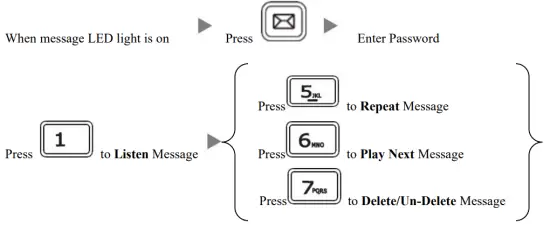
7. Voice Mail Setup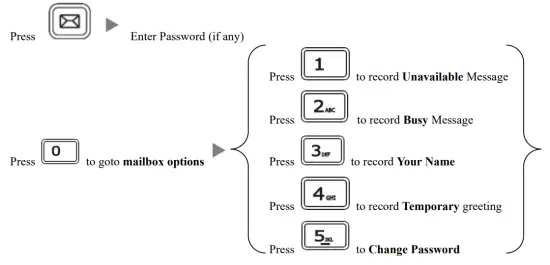
8. Checking Call History
I. Press , Dialed calls will be listed.
II. The LCD screen displays the call list.
III. Press  to switch between Dialed Calls, Received Calls, Missed Calls and Forwarded Calls.
Icons on top:
 Represents Dialed calls
Represents Received calls
Represents Missed calls
Represents Forwarded Calls
IV. Press to select the desired entry and press to dial out.
9. Forward Call
i. To set up Time Limited / No Answer Mode
Press Press
Press  (or choose “Features”)
Press (or choose “Forward”) Press
 (or choose “No Answer”)
Press to select the “Forward to “option and input the target extension Number (e.g. 108)
Press to select “After Ring Time “and select the Time Limit (e.g. 18s)
Press two times and select Enable from the “No answer” Field Press
To set up Busy Mode
Press Press (or choose “Features”)
Press (or choose “Forward”) Press (or choose “Busy”)
Press to select the “Forward to “option and input the target extension Number (e.g. 108)
Press and select Enable from the “Busy” Field Press
To set up the Always mode
Press Press (or choose “Features”)
Press (or choose “Forward”) Press (or choose “Always”)
Press to select the “Forward to “option and input the target extension Number (e.g. 108)
Press and select Enable from the “Always” Field Press
To Cancel Calls Forwarding
Press Press (or choose “Features”)
Press (or choose “Forward”) select “Disable” in the respective forward mode to cancel the call forward

![Yealink Cordless Ip Phone Setup Manual [w60b, W56h]](https://static-data1.manualsee.com/1/img/27/19935/2020/12/00-115.jpg "Yealink Cordless Ip Phone Setup Manual [w60b, W56h]")