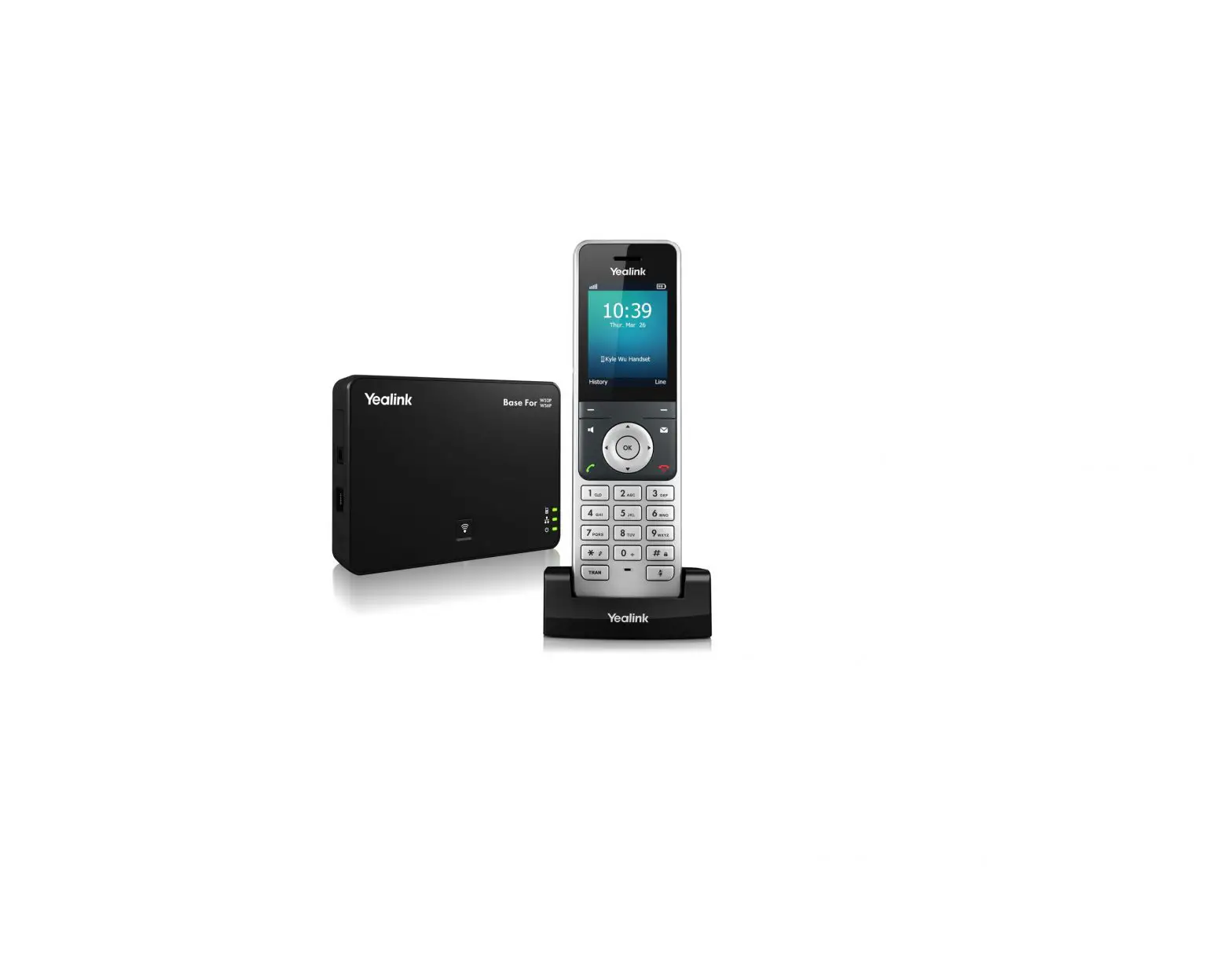
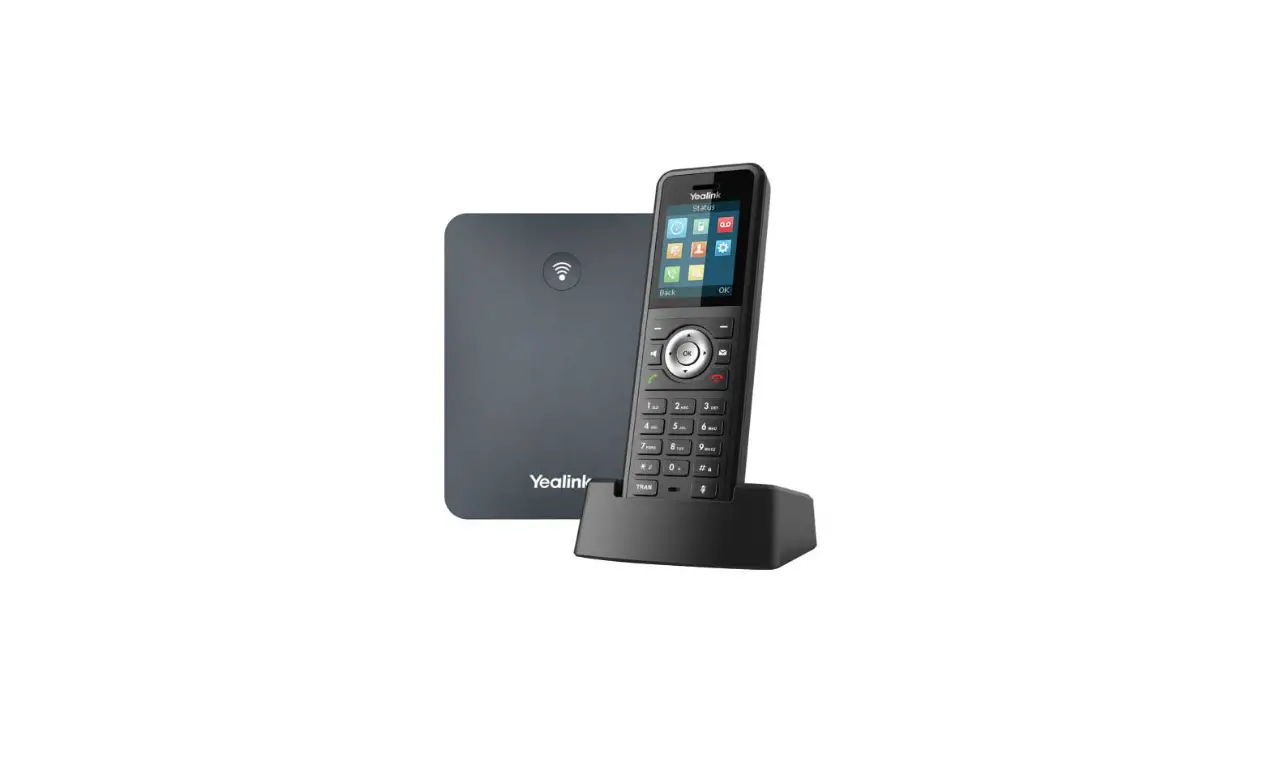
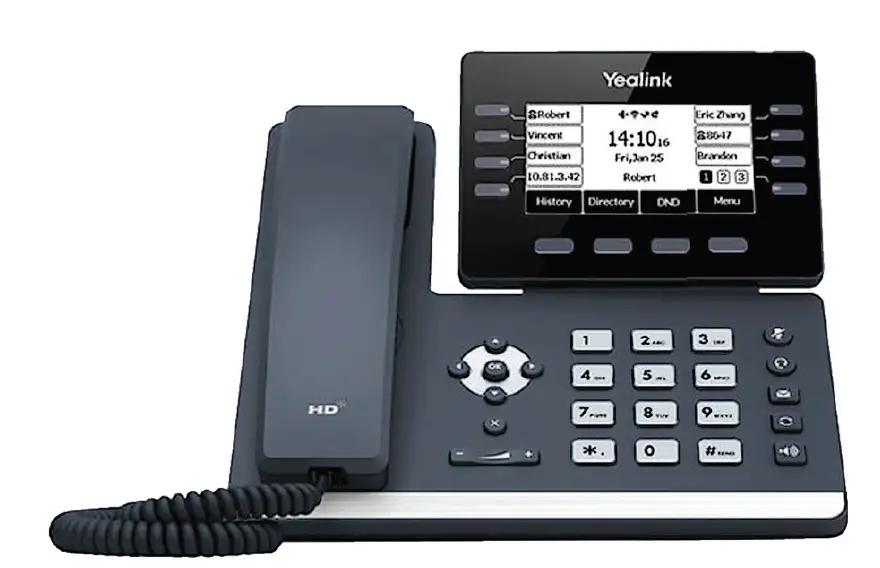
W60 Dect IP Phone
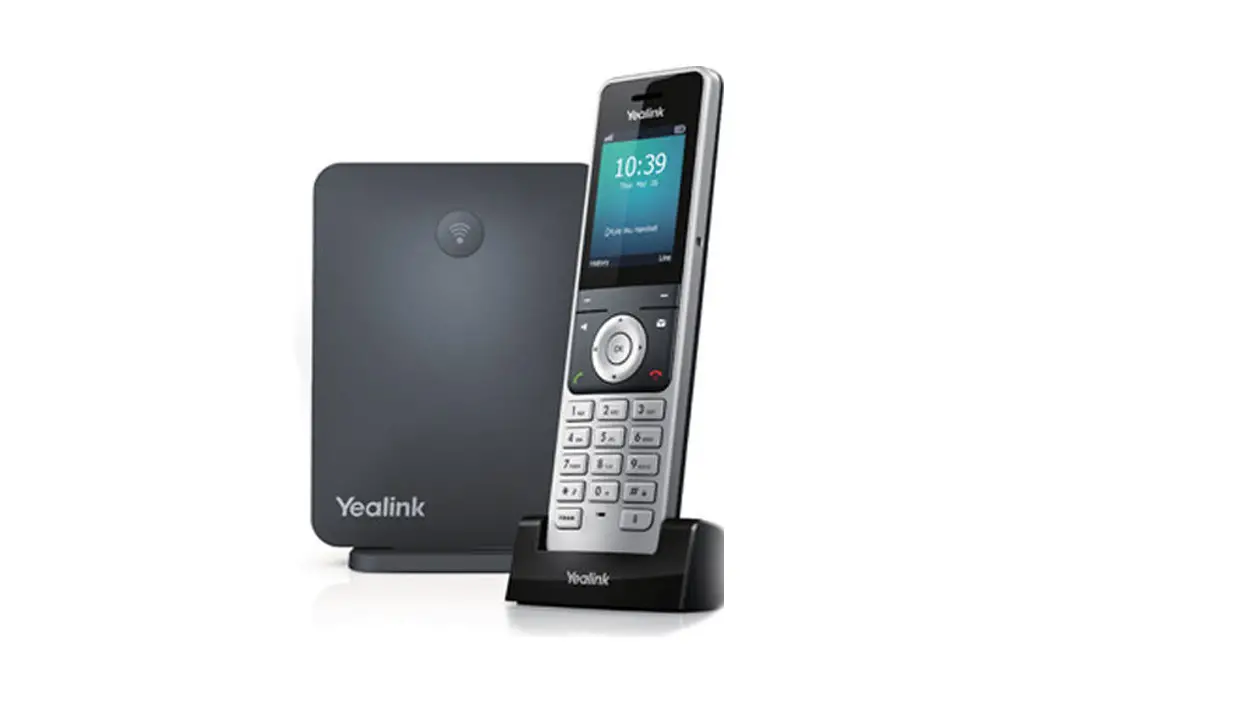
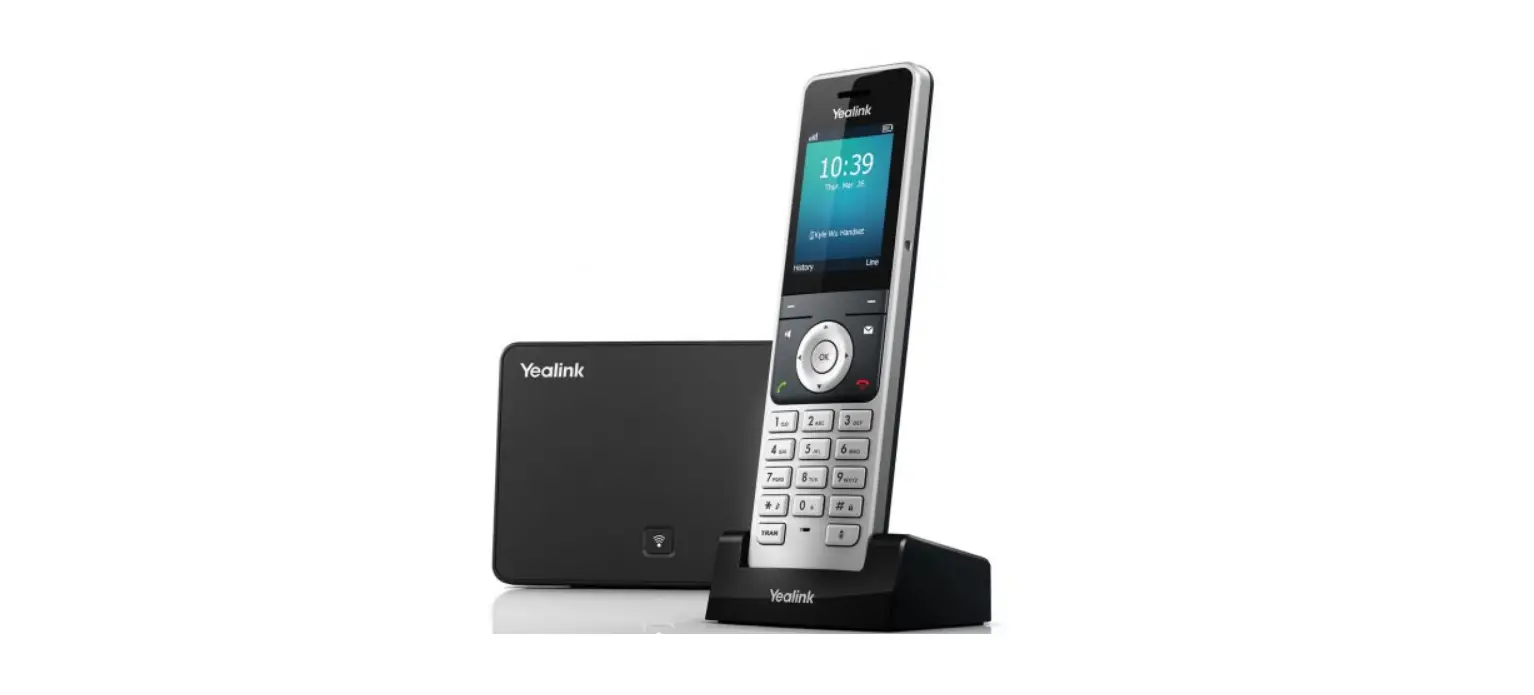
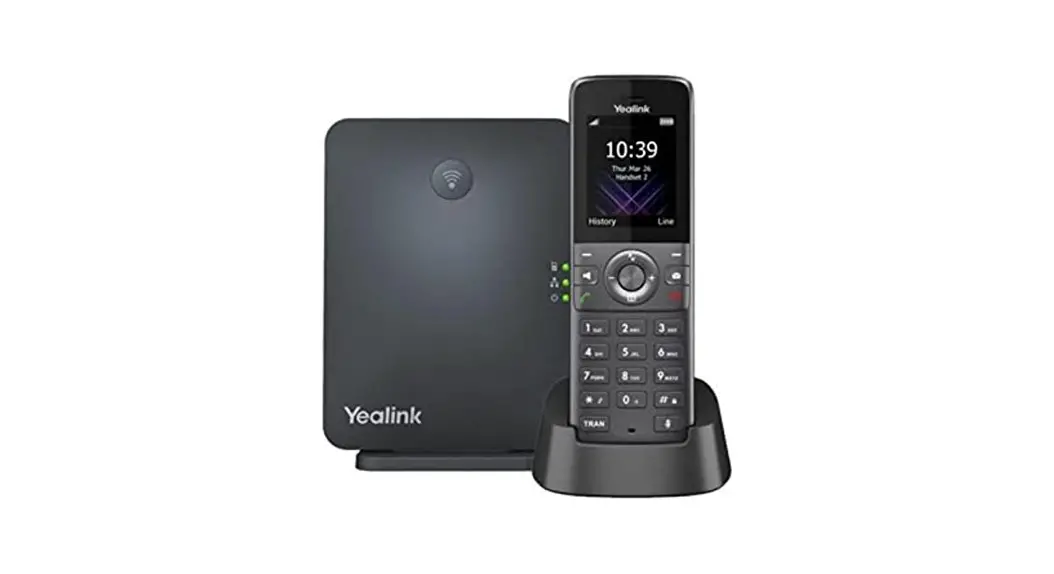
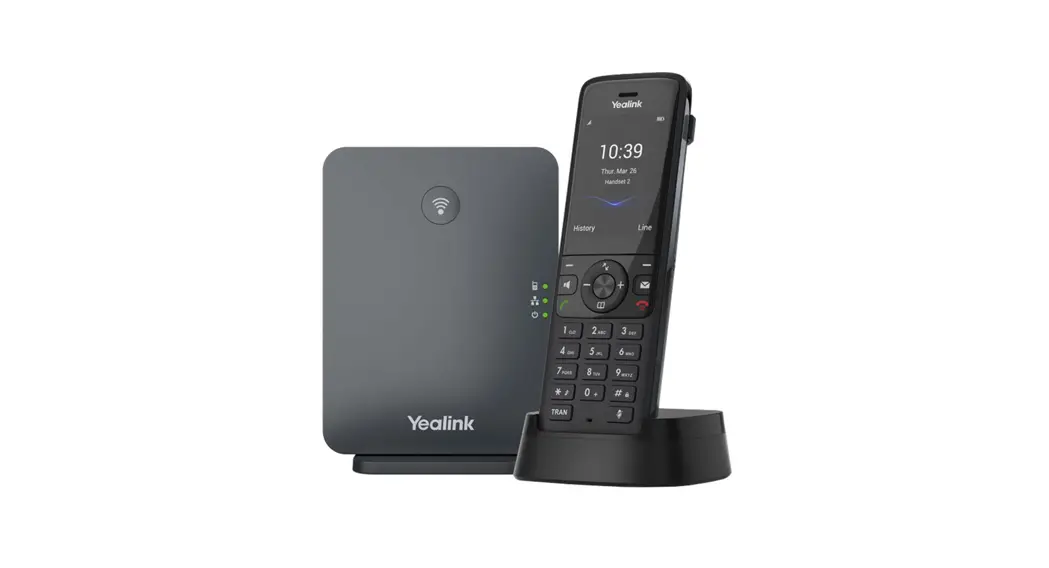
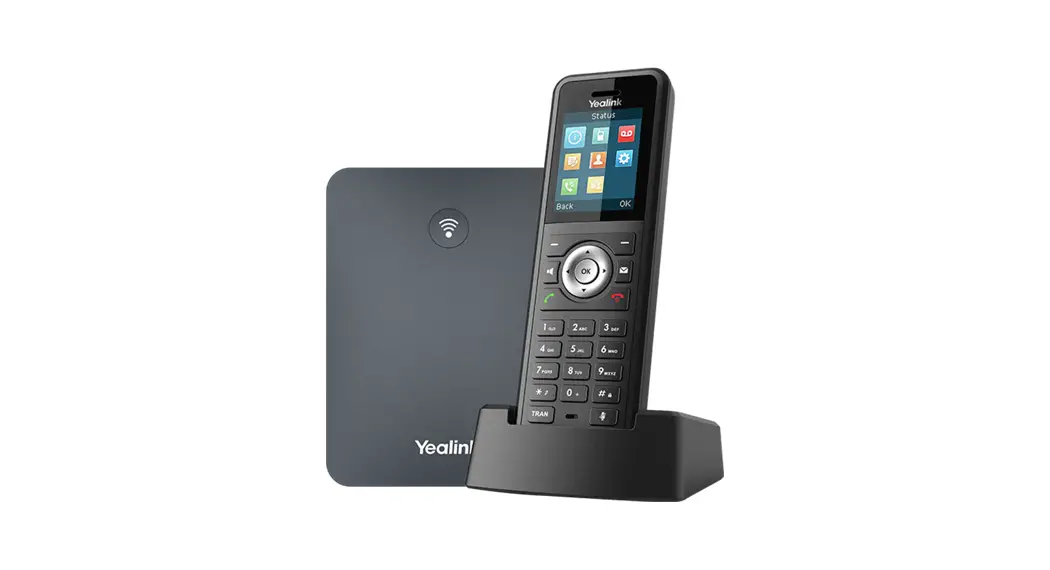
Product Information: Yealink W60P
The Yealink W60P is a cordless IP phone system that allows for
up to 8 handsets to be connected to a single base station. It has a
range of up to 50 meters indoors and 300 meters outdoors, and
supports HD voice quality and a variety of call handling
features.
Product Usage Instructions:
- Assemble the handset(s) and base by following the Yealink Quick
Start Guide included in the W60P box until you reach the Getting
Started section. Make sure all LED lights on the base are solid
green before proceeding. - Retrieve the device username and password from the self-service
portal by following these steps:- Go to the self-service portal: vodafone.xport.co.nz/mydevice or
scan the QR code. - Log into the self-service portal using the login details from
your Vodafone One Business Online Portal Login email. - Note down the device username and password, which will be
required in step 5.
- Go to the self-service portal: vodafone.xport.co.nz/mydevice or
- Ensure the device is ready to provision by checking that the
setup screen is displayed. If not, press the OK button. - Register the device by following these steps:
- Press OK, then navigate to Settings (6) and System Settings
(8). - Once the screen loads, navigate to Auto Provision (6), enter
the PIN (0000), and select Done. - Enter the device username and password when prompted. Select
Yes to begin the provisioning process. - This process may take up to 3 minutes to complete.
- Press OK, then navigate to Settings (6) and System Settings
- When the provisioning process is complete, you will see a
screen indicating that the device has been provisioned
successfully. Check that your username and menu options are
displayed on the screen by pressing the menu button. - Your phone is now ready to use. Congratulations!
For more information, guides, and FAQs, visit
https://one.nz/one-business-with-webex/help or scan the QR
code.
Yealink DECT IP Phone (W60) Set-up Instructions
1 Assemble handset(s) and base.
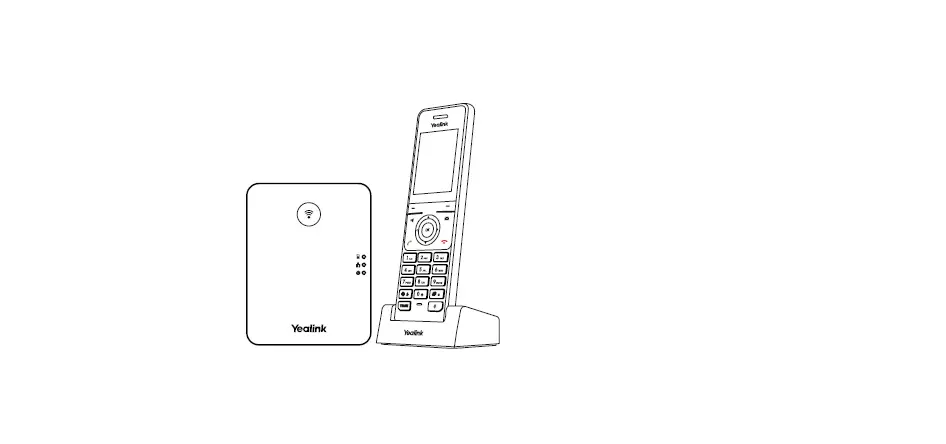
Assemble your base & all handset(s) by following the `Yealink Quick Start Guide’ included in the W60P box until you reach the Getting Started section.
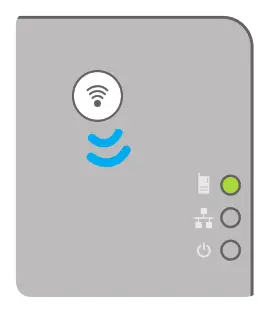
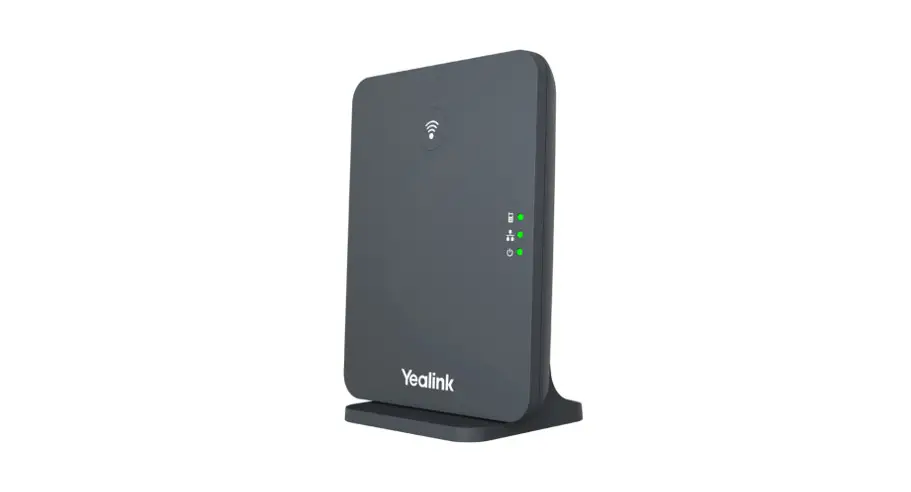
You are ready for the next step when all the LED lights on the base are solid green.
2 Retrieve device username and password from the self-service portal.
a. Go to the self-service portal: vodafone.xport.co.nz/mydevice or scan the QR code. b. Log into the self-service portal using the login details from your `Vodafone One Business Online Portal Login’ email. c. The device username and password is required for step 5.
Example format: Device Username: 12000000_0001 Device Password: 123456
Note: Administrators may need to select the relevant User’s device from the Desk phone column ( ).
3 Ready to provision.
The device is ready to provision when you see the following information displayed. If the Setup screen is not displayed, press .
5 Enter device username and password into the phone.
Have your device username and password ready (from step 2). Press # to change to number input (123) instead of (ABC). a. Type in the digits prior to the underscore. b. To enter the underscore `_’, press * on the keypad and the right arrow once. Type in the remainder of the digits and select the OK soft key. c. At the password prompt, overwrite the default ****’s by entering in the device password. Select the OK soft key when completed. If everything is entered in correctly, you will be prompted to `Update Now?’.
Auto Provision Password: ****
Update Now?
Updating…
4 Register device.*
Press OK (menu icons will appear), then press 6 (Settings), then 8 (System Setting). Pause until the screen loads, then press 6 (Auto provision), enter this PIN: 0000, and select the Done soft key. This will bring you to the Auto Provision menu:
*Note: You only need to register one handset as the additional handsets will automatically be provisioned. If you need to delete a mistake while typing, press the Del soft key.
Auto Provision Username:
123
Cancel
OK
123
Cancel
OK No
Yes
Select the Yes soft key. This process may take up to 3 minutes to complete.
6 Provisioning successful.
a. The following screen indicates that the device has been provisioned successfully.* b. You will know provisioning has been successful if you can see your username and menu options displayed on the screen by pressing .
Provision Successful
*Note: If you receive an error, the phone may still be provisioning wait 2 minutes. If successful, the phone will reboot, indicated by the Network and Phone LEDs on the base turning off. If you enter your details incorrectly, you will be prompted to re-enter your details.
7 Ready to use
Congratulations, your phone is now ready to use.
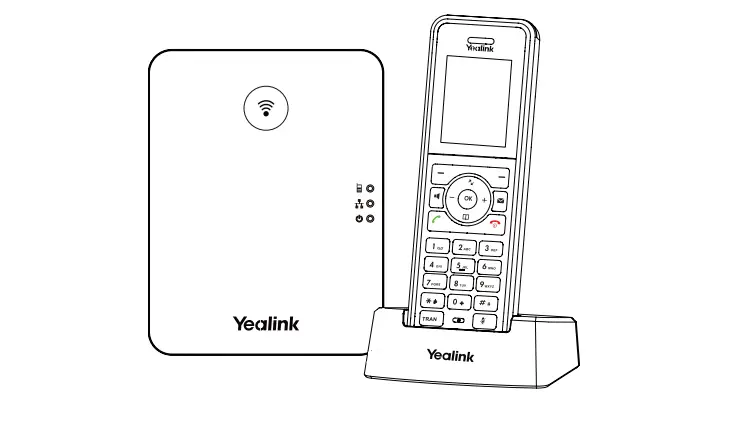
Base Phone LED Network LED Power LED
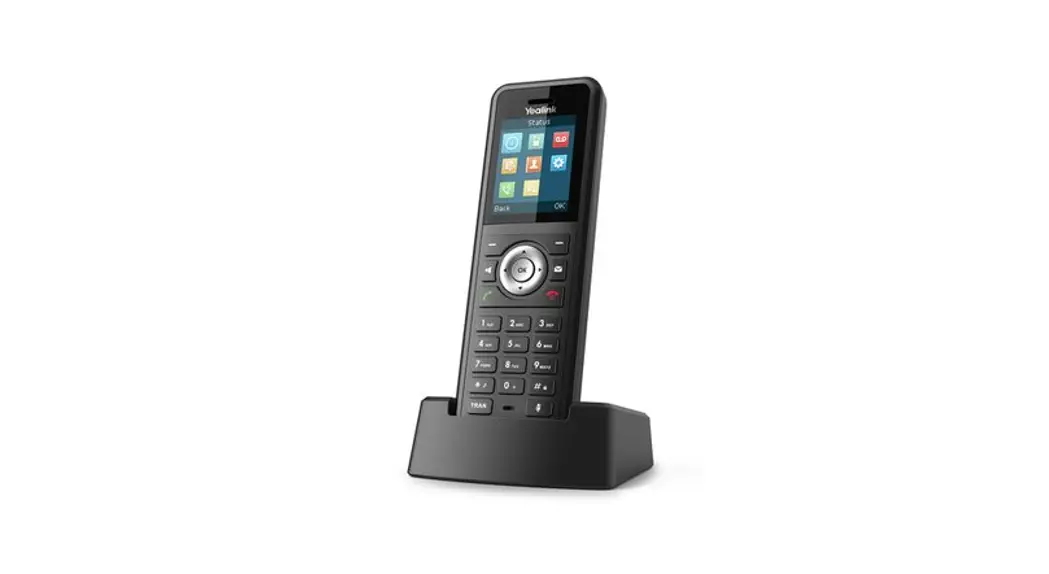
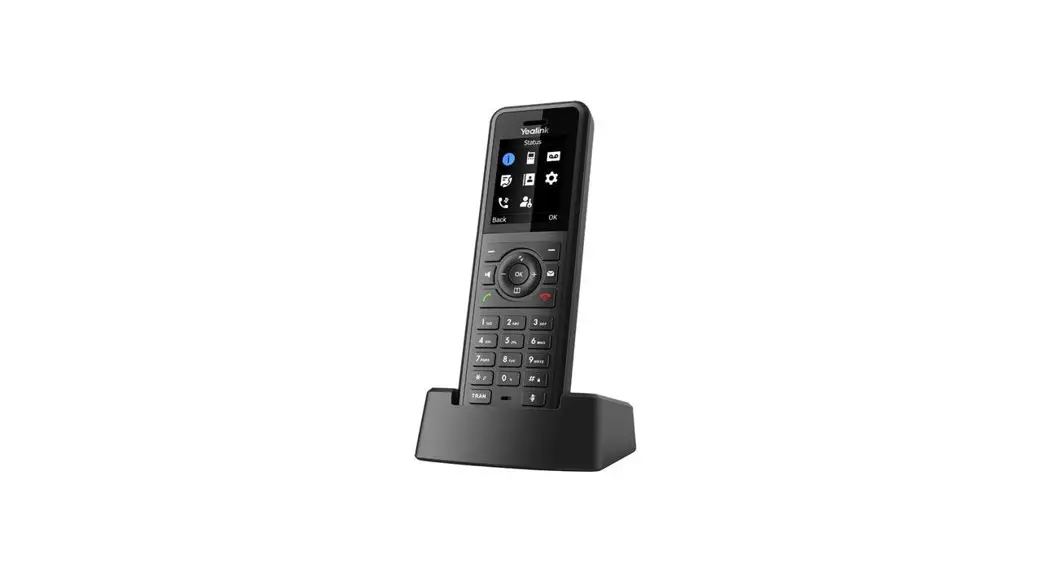
Handset Username Menu Options Soft Keys
Navigation Cluster Red End Call Key
Keypad
For more info, guides & FAQs visit https://one.nz/one-business-with-webex/help
or scan the QR code
 Xport Identity • One NZ
 One Business with Webex - Help Centre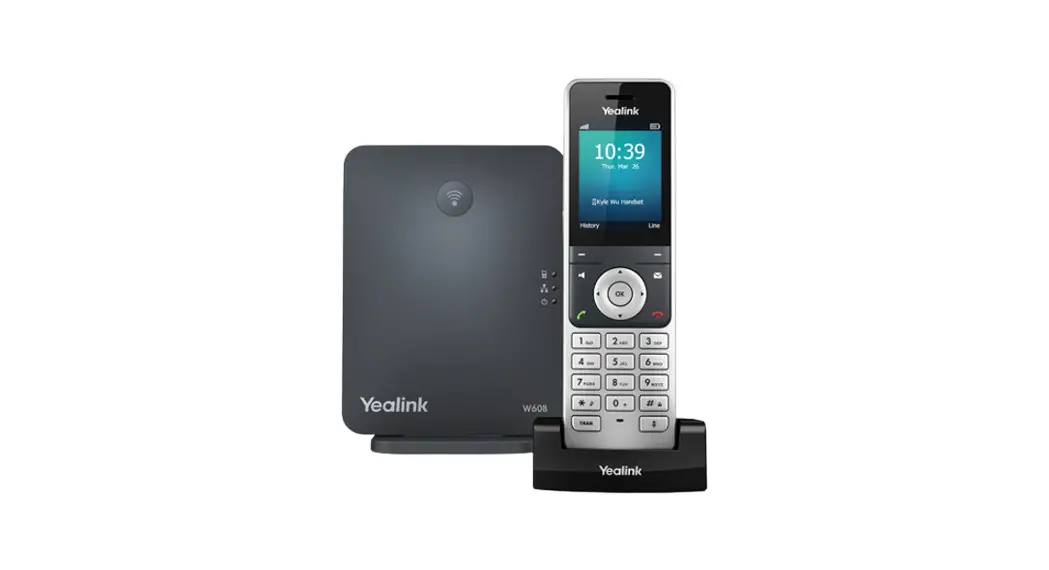
![Yealink Cordless Ip Phone Setup Manual [w60b, W56h]](https://static-data1.manualsee.com/1/img/27/19935/2020/12/00-115.jpg "Yealink Cordless Ip Phone Setup Manual [w60b, W56h]")