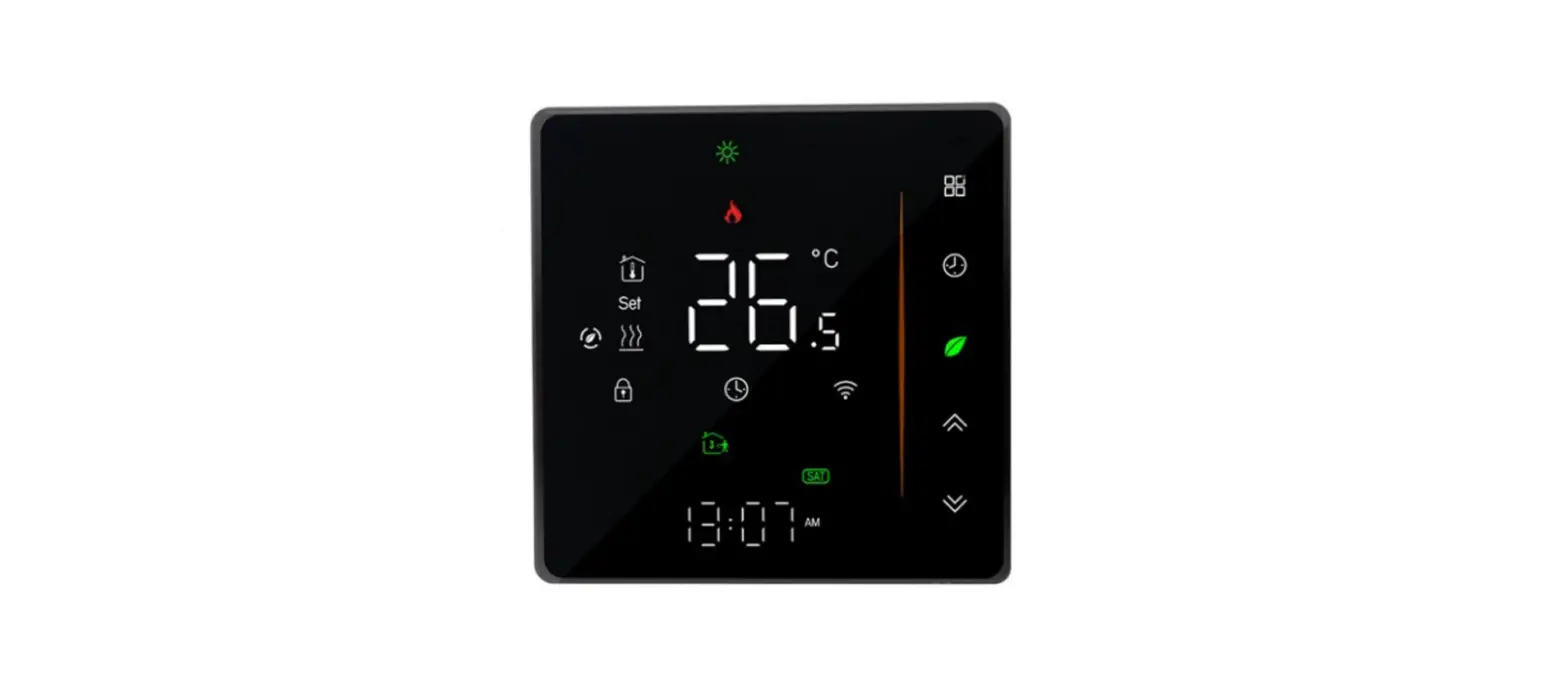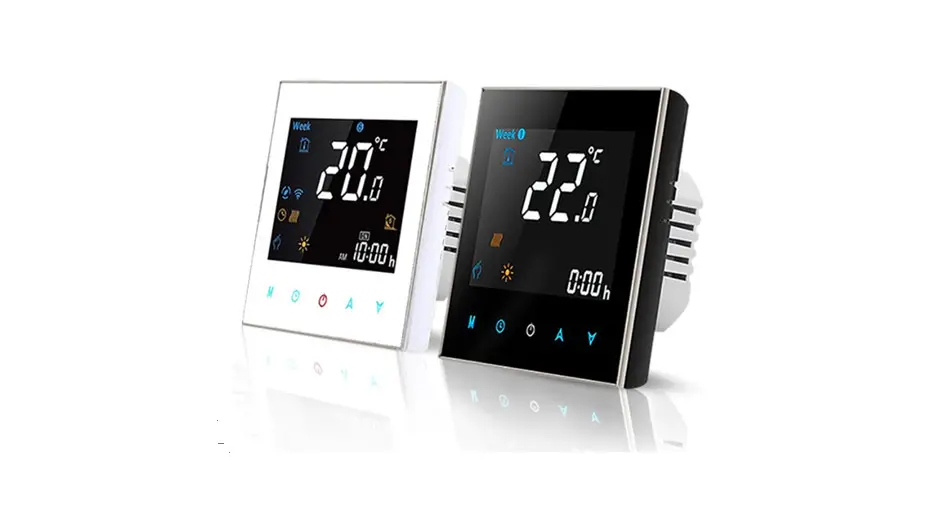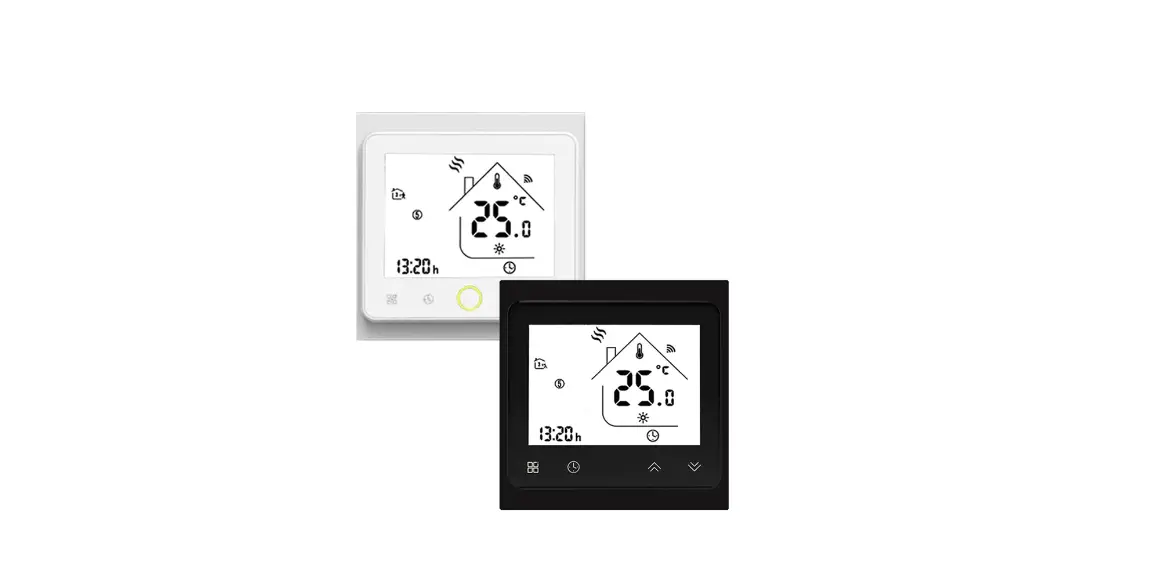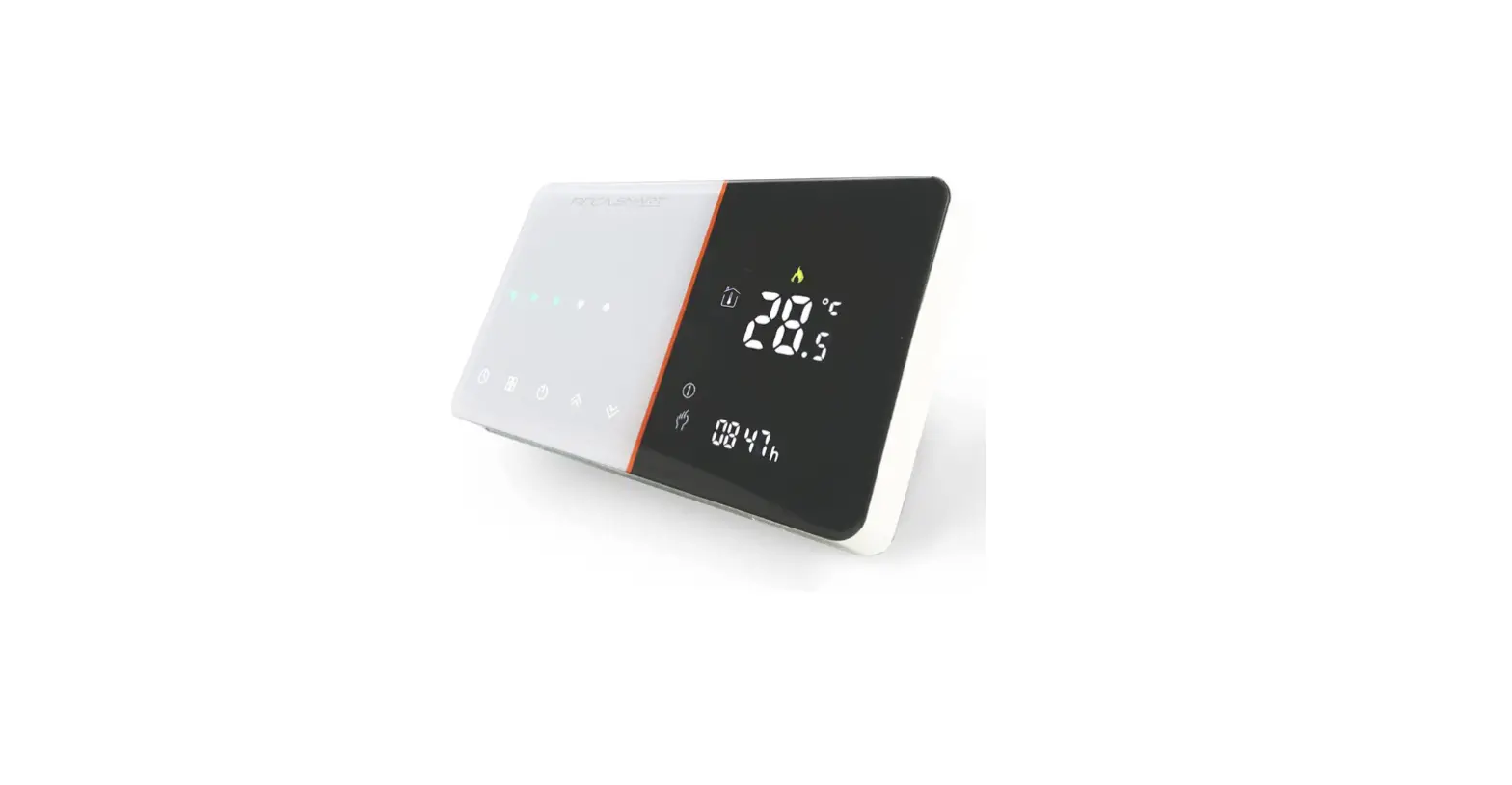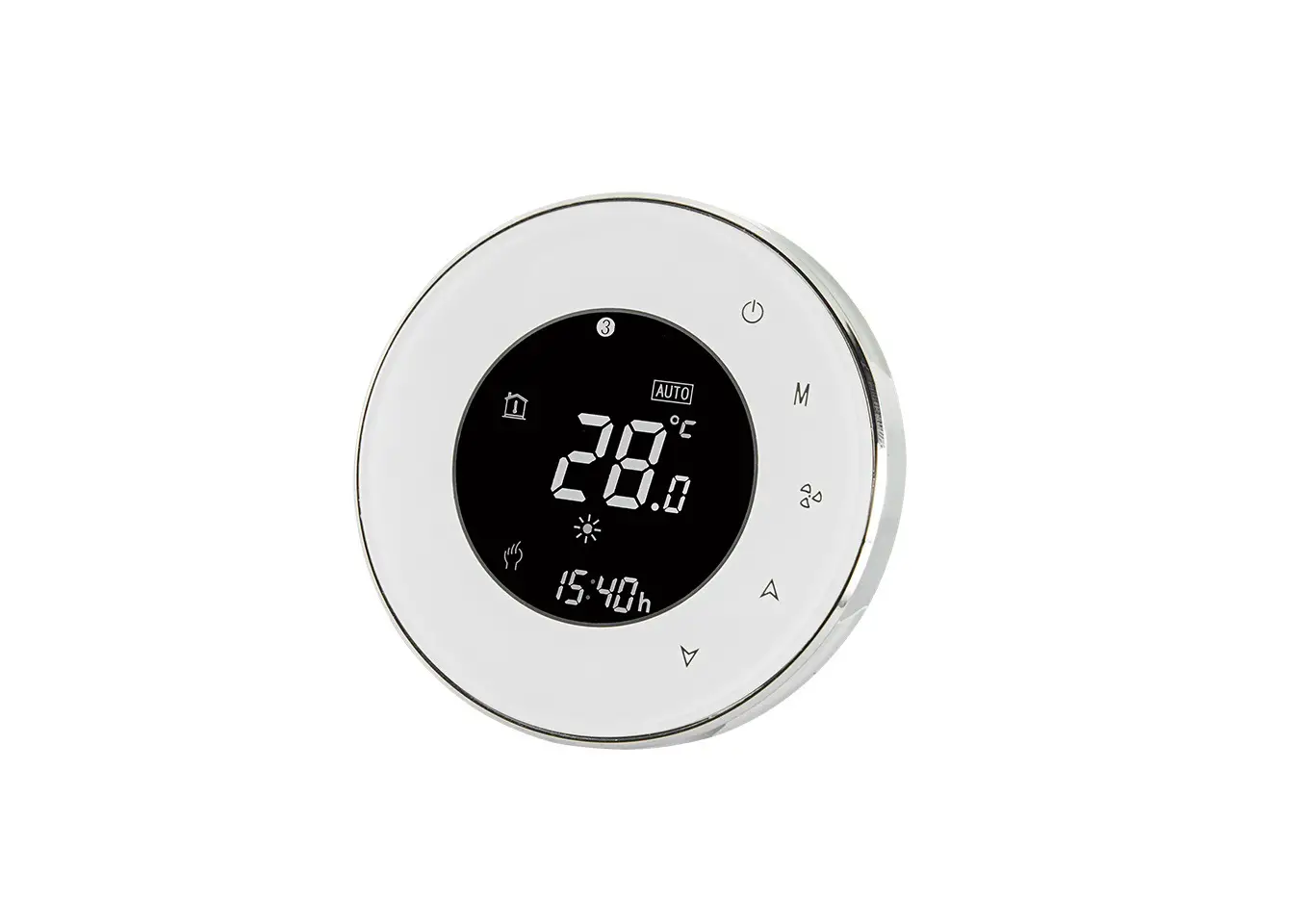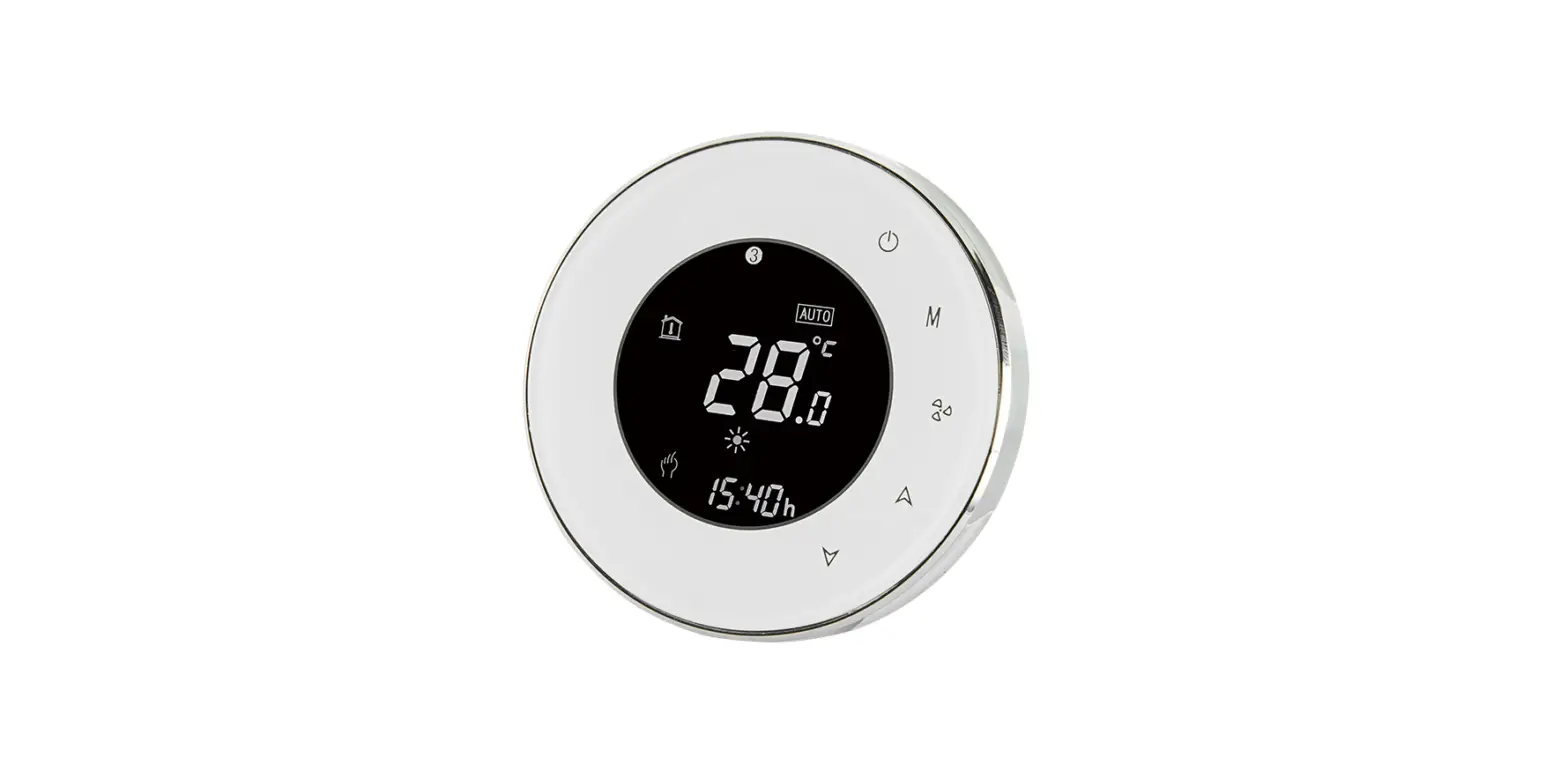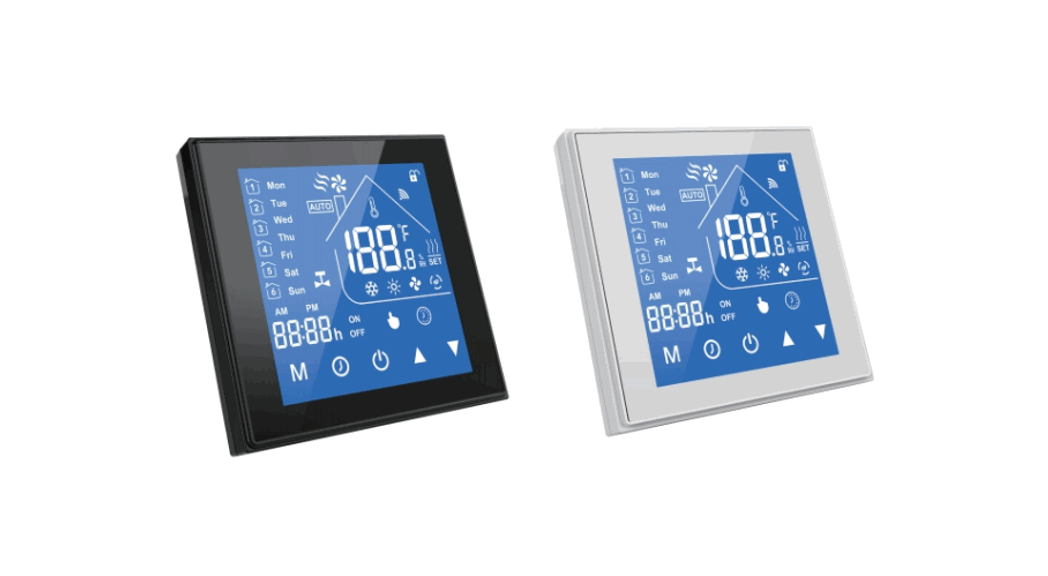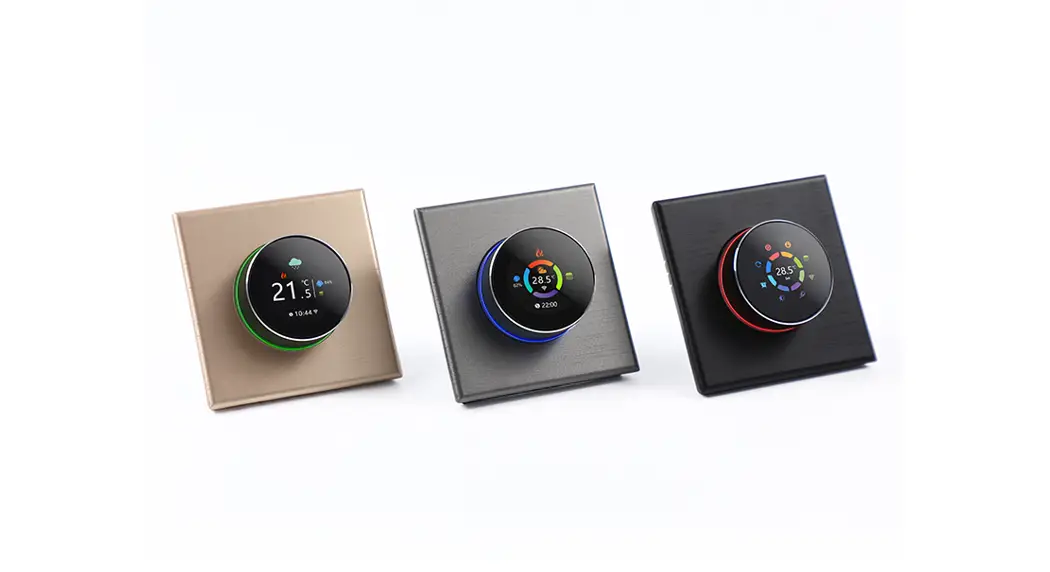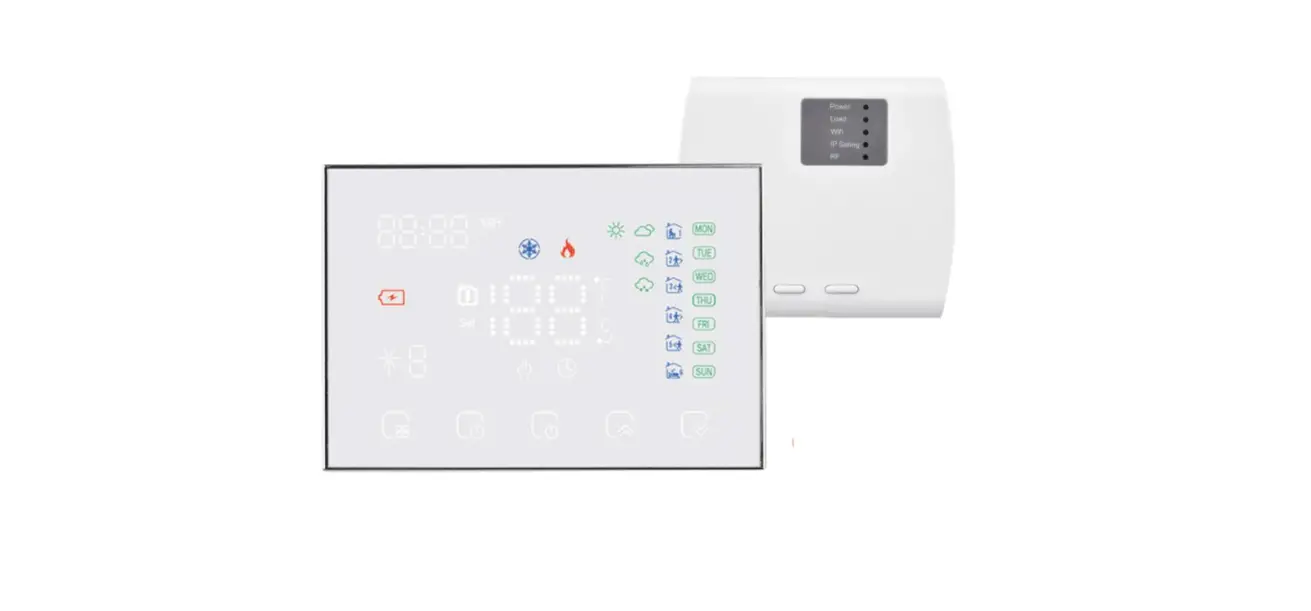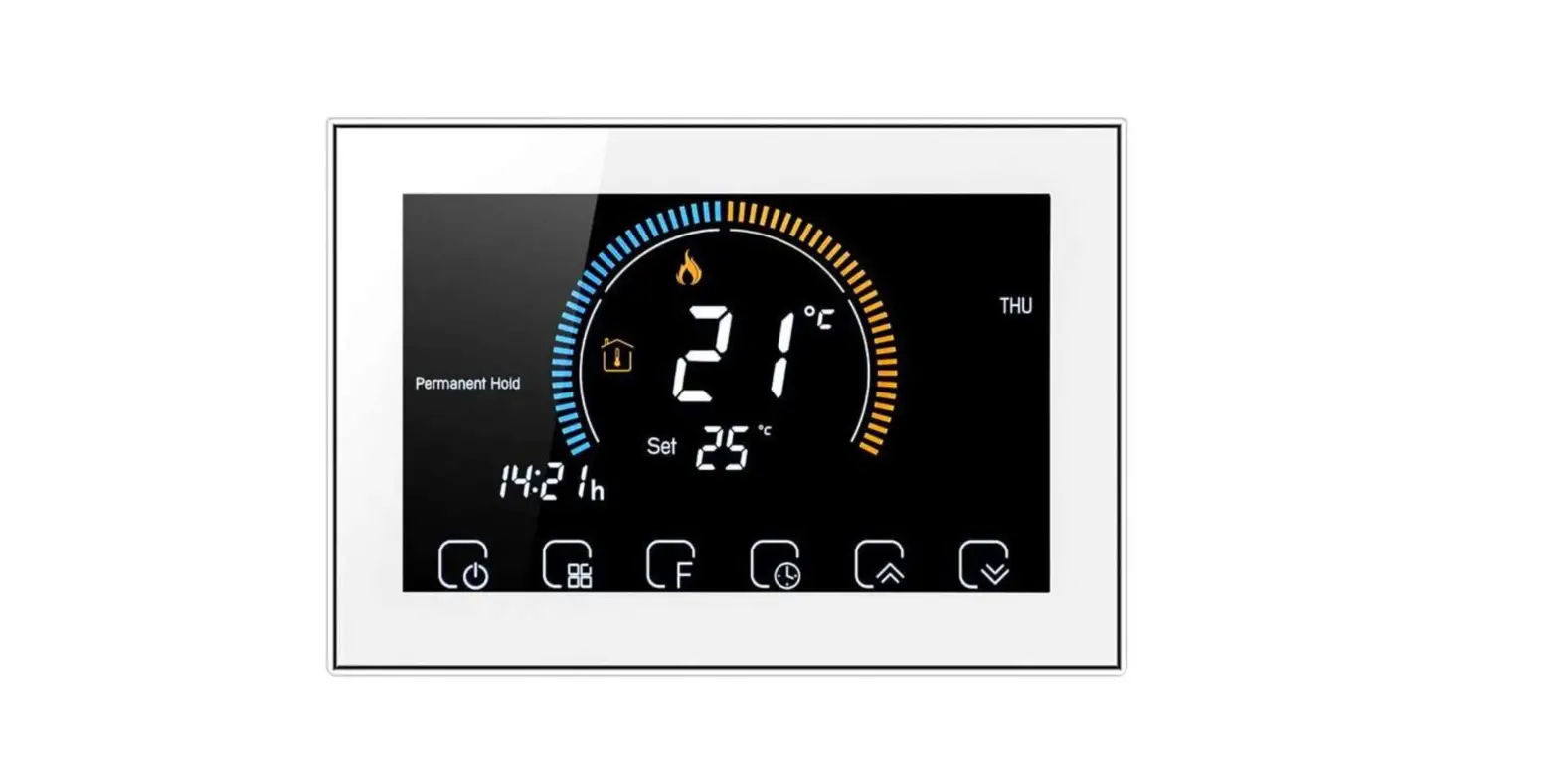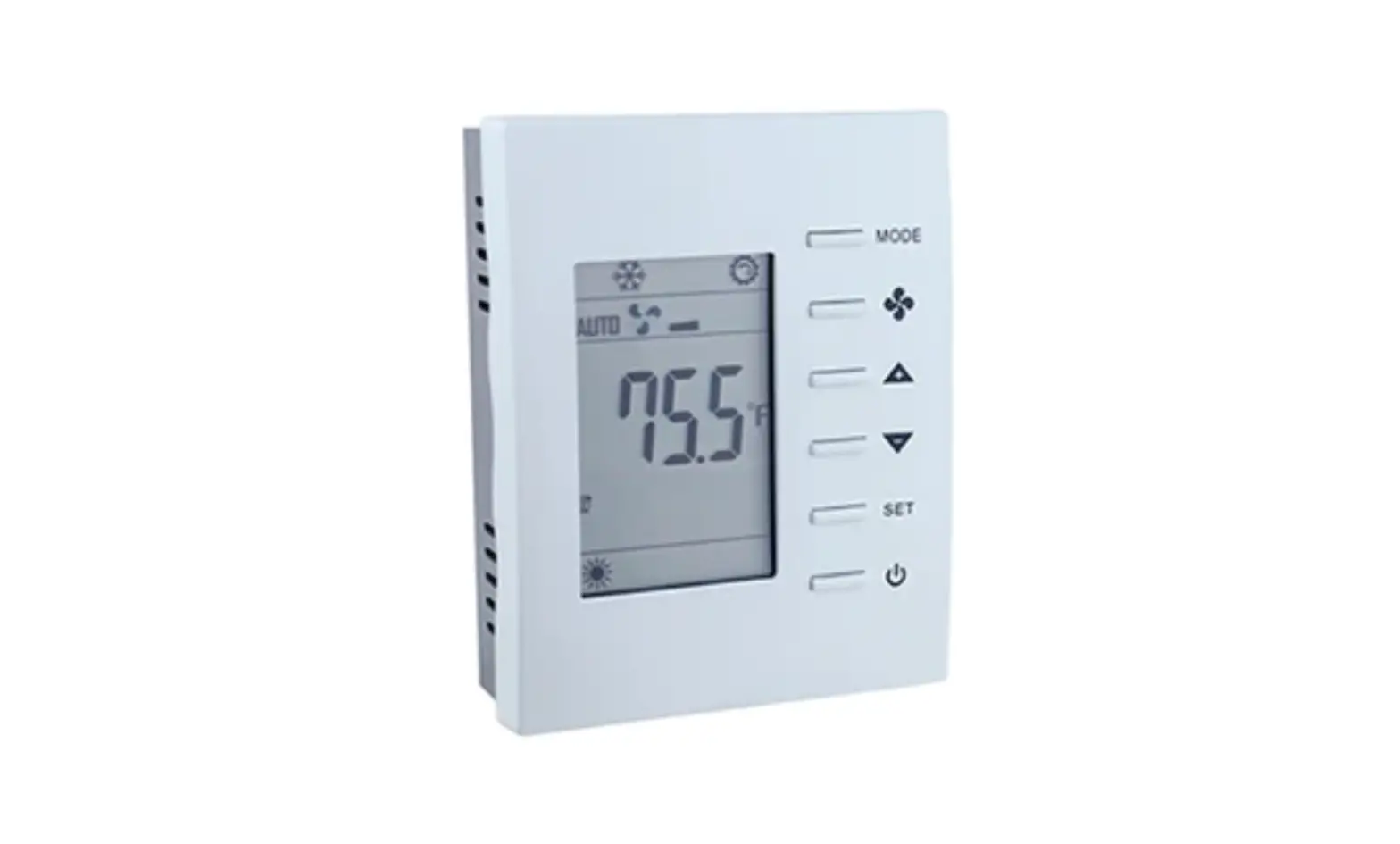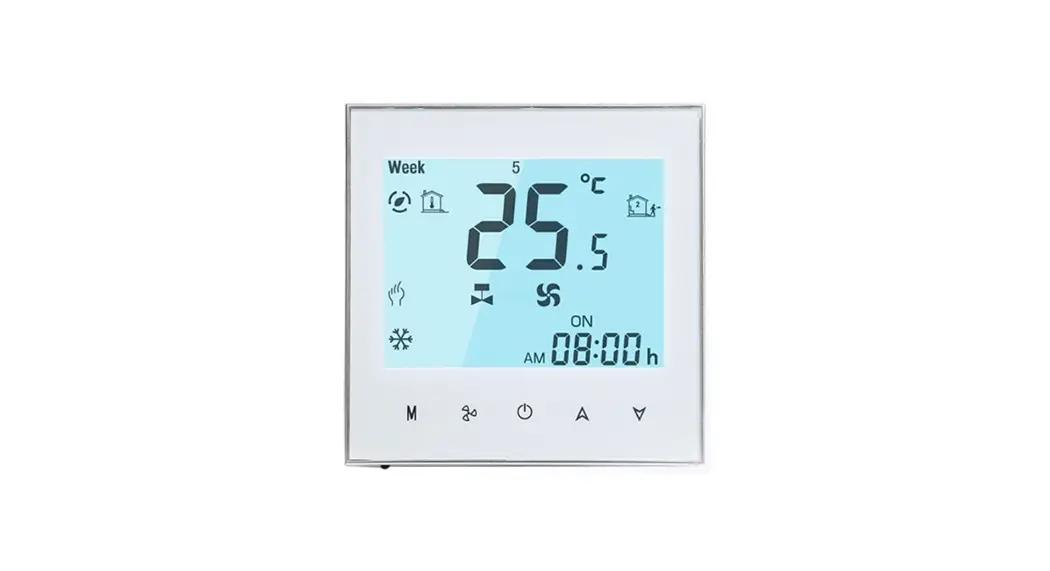
 BAC-1000 Series WiFi Thermostat
User Guide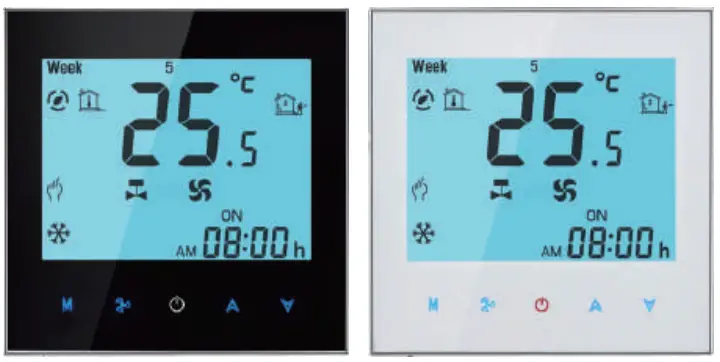
BAC-1000 Series WiFi Thermostat
For Fan Coil Unit
Welcome
Thank you for your purchase.
Your new thermostat will provide uniform and comfortable temperature control throughout every room in your property. We bring together technology, craftsmanship and the highest quality materials to provide you with a safe, reliable product combined with sleek, contemporary design.
Please read this installation/programming manual for comprehensive instructions on installing and operating your thermostat. Please also ensure a suitably qualified person installs your thermostat and complies with all local regulations.
In the box you will find
| Thermostat | 1pc |
| User Guide | 1pc |
| QC Passed | 1pc |
| Screws | 2pc |
| Wall plate | 1pc |
ABOUT YOUR THERMOSTATS
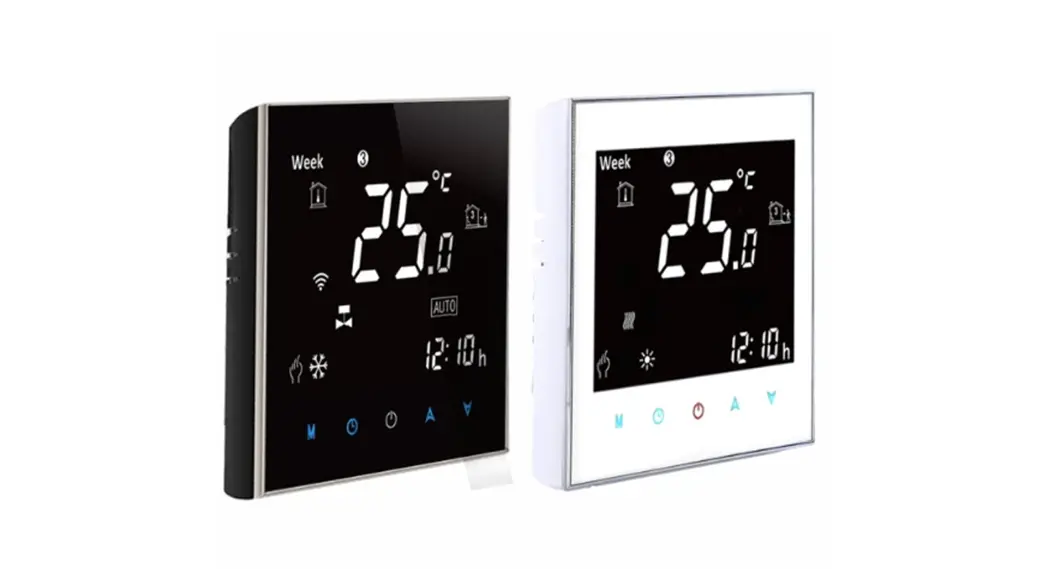
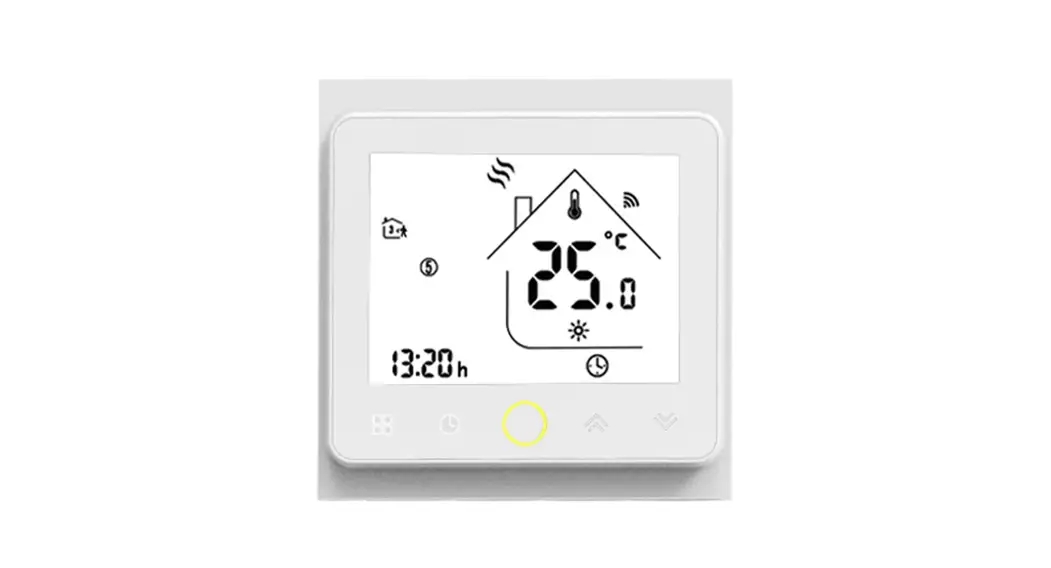
BAC-1000 series Modern Round Touch Screen Room Thermostats are designed to on/off control the fans and valves in air conditioner applications via comparison of the room temperature and setting temp. as reaching the aim of comfort and saving energy.
MODEL DEFINITION
A: Two pipe; Control Fan Coil Unit and Two Wired Motorized Valve
M: Two pipe; Control Fan Coil Unit and 0.10V Motorized Valve
E: Four pipe; Control Fan Coil Unit and Two Wired Heat Valve and Two Wired Cool Valve.
N: Modbus RTU communication
B: BACnet communication W : Wifi connection
K: Key card
T: Clock
W2: Window
P: Programmable
E: External Sensor
For example: BAC-1000ALW
FEATURES
On Appearance
- 86mm hidden box and european 60mm round box is suitable.
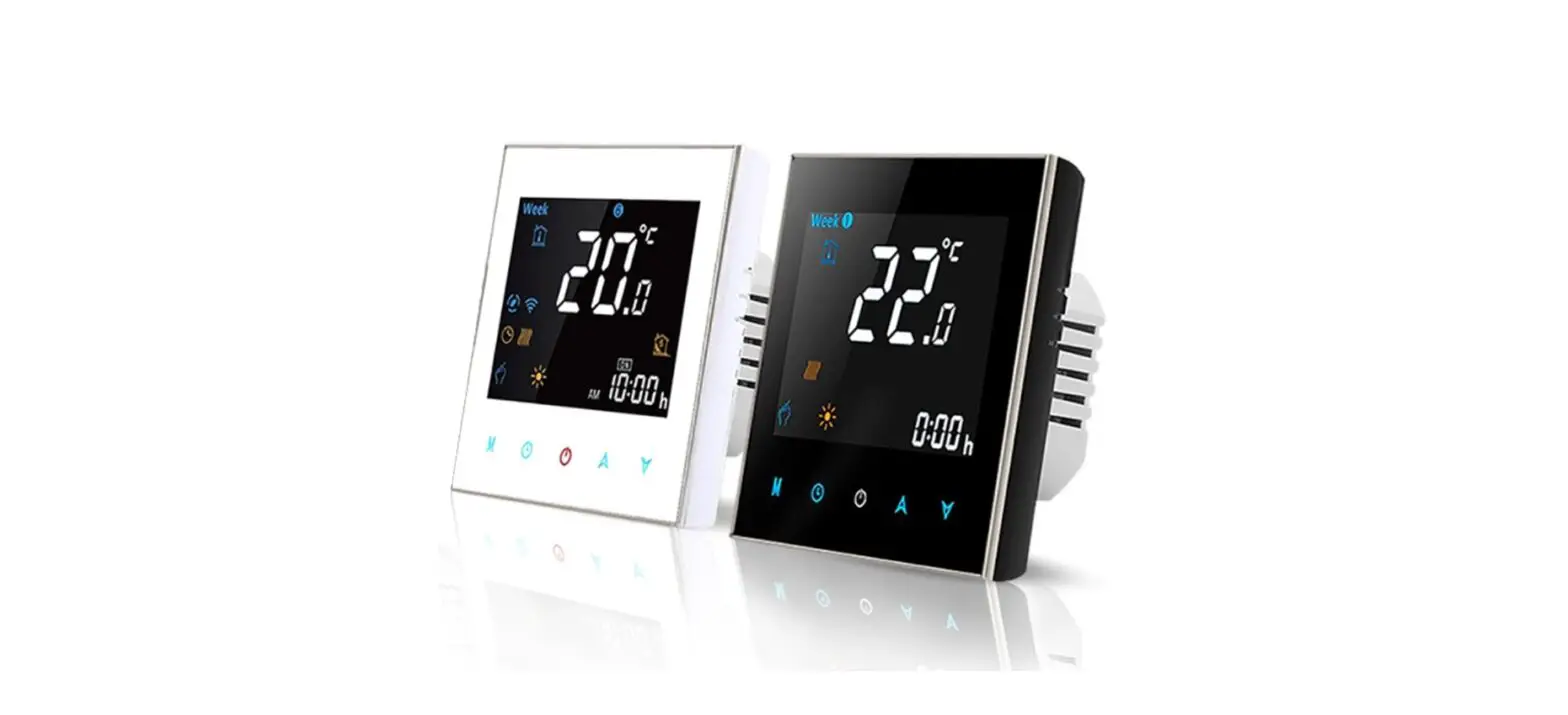
- White, black or gold housing creates your colorful life.
- White backlight protect your eyes
- Touch buttons to make simple operation.
- Amazing Silver Frame opens your modern life.
On Functionality
- Powerful functions are available such as Modbus/WIFI etc,.
- 0.5°C Accuracy keeps temperature within the level you set.
- Data memory when power is off.
- 5+2 six periods programmable maximize comfort and economy.
- Create thermostat group to centrally control.
- Integrated with Amazon Echo. Google Home. Tmall Genie.
- Support Device Sharing.
- All setting languages synchronize your time zone, address and language
- No limit to add room.
- Support Smart Scene.
DIMENSION
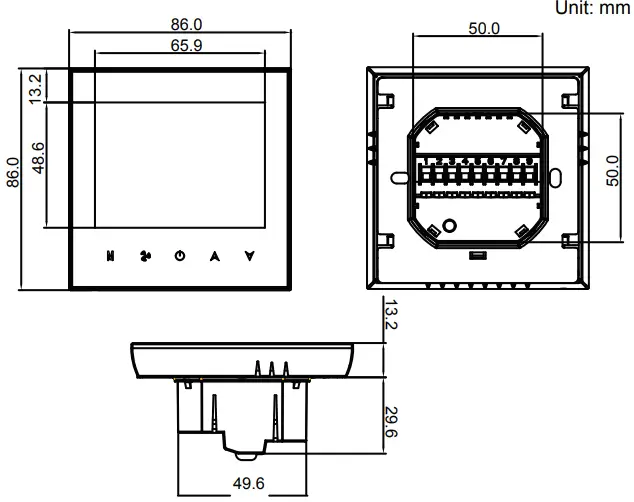
TECHNICAL DATA
Power Supply: 95 – 240 VAC, 50″ 60HZ
Fan Relay Amps Resistance: SA; Inductive: 3A
Valve Relay Amps Resistance: 3A; Inductive: 1A
Sensor: NTC3950, 10K
Accuracy: ±0.5 C
Set Temp. Range: 5 -35°C
Display Temp. Range: 5 – 99°C
Ambient Temp.: 0^45°C
Ambient Humidity: 5 95 % RH (Non Condensing)
Storage Temp.: -5 – 45°C
Power Consumption: <1.5W
Timing Error: < 1%
Shell Material: PC +ABS ( Fireproof)
Installation Box: 86 86mm Square or European 60mm Round Box
Wire Terminals: Wire 2 x 1.5 mm2 or 1 x 2.5 mm2
Protection Class: IP20
Buttons: Cap active Touch Buttons
BEFORE WIRING AND INSTALLING
- Read these instructions carefully. Failure to follow them could damage the product or cause a hazardous condition.
- Check the ratings given in the instructions and on the product to make sure the product is suitable for your application.
- Installer must be a trained, experienced service technician.
- After installation is complete, check out product operation as provided in these instructions.
 CAUTION
Electrical Shock or Equipment Damage Hazard. Can shock individuals or short equipment circuitry.
Disconnect power supply before installation.
WIRING
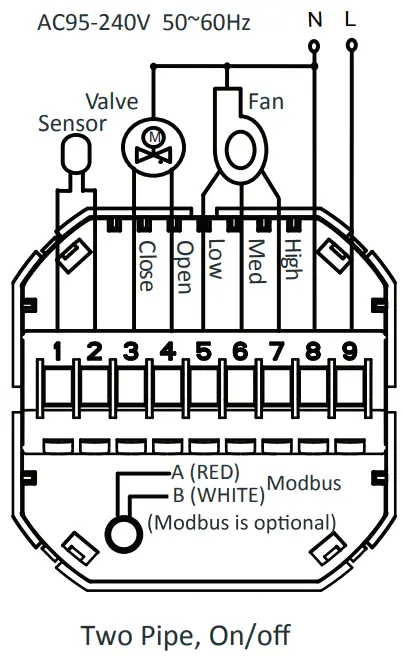
Description:
When the thermostat is not connected to an external temperature sensor, the thermostat uses the built.in temperature sensor to work; when the thermostat Is connected to an external temperature sensor, the thermostat uses an external temperature sensor to work.
INSTALLATION
Your thermostat is suitable for installation within a standard 86mm pat tress box or European 60mm pat tress box.
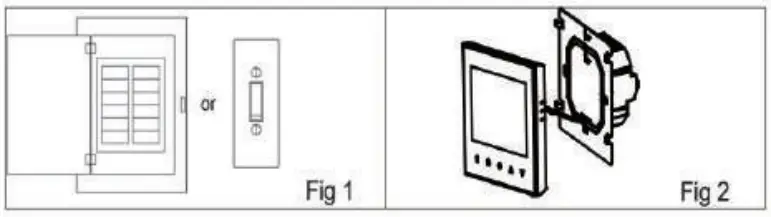
Step 1. Keep the electricity off. See Fig 1.
Step 2. Remove the mounting Plate by rotating the LCD part. See Fig 2.
Step 3. Connect power supply, load into the appropriate terminals. (see “Wiring your thermostat” for details and Fig 3).
Step 4. Fix the mounting plate into the wall with screws in the box. See Fig 4.
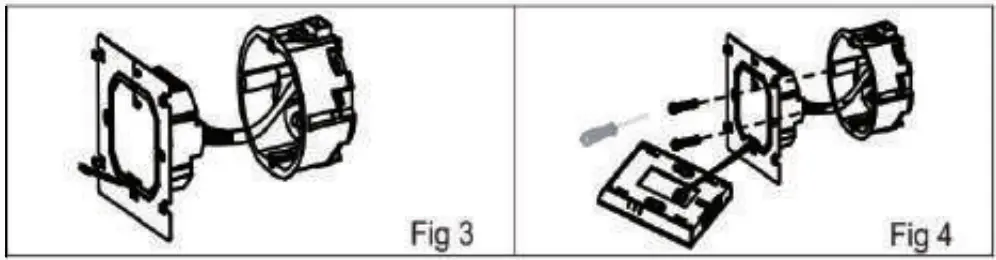
Step 5. Fasten body of thermostat and the mounting plate see Fig 5
Step 6. Installation complete. See Fig 6
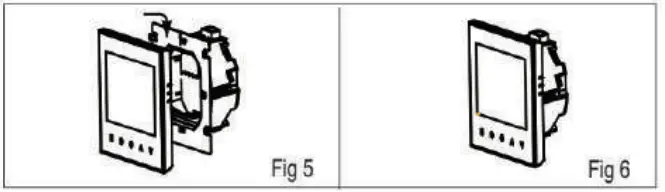
HOME SCREEN QUICK REFERENCE
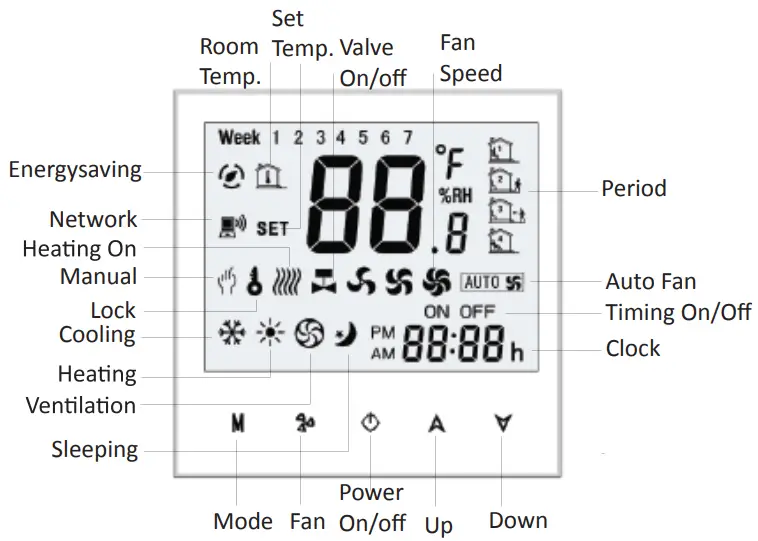
OPERATION
During Power On
- Power On/off: Press
 to turn the thermostat on/off.
 - Manual & Programmable
Press and hold M, will flash. Press
  to select manual and press y to select weekly programmable.
 - Setting Temperature
In the mode of manual, press to set temperature. will display in the left corner of screen.
 - Locking Your Thermostat
Press and hold the for S seconds to lock/unlock your thermostat. In item 3 of high senior options, you can select full lock or half lock. - Selecting System Mode
Press M to change the system mode HEATING, COOLING and VENTILATION. In the mode of VENTILATION, the valve is off but the fan runs. - Setting the Fan Speed
Press to select the fan speed AUTO, HIGH, MED, LOW.
 - Restore Manufacturer Defaults
Press the Restore Manufacturer Defaults ,you can reset thermostat. Steps: Open your app – go into your room – click menu on the top right corner – move to the end – Press Restore Manufacturer Defaults. - Adjusting/Setting the Clock
Press and hold M, will flash.Press M to set minute,hour and weekday (1 = Monday, 2 = Tuesday etc.) by using the arrows,after 3 seconds the value will be confirmed automatically. - Adjusting the Weekly Programmable Press M to do the adjustment of weekly programmable.
Then press M to change the different items. Press or to set the relative values.
Your thermostat provides six scheduled heating and cooling periods each day— three Comfort periods – 1, 3 & 5 (the temperature required when room is occupied) and three Economy periods — 2, 4 & 6 (the temperature required when room is unoccupied).You can set both the time and temperature for each of these six daily periods. Adjusting/setting the schedules can only be carried out when in program mode; Touch M (mode) to change between manual mode – and programme mode. In manual mode, show in the bottom left of the screen.Touch the icon M for four times until the weekday schedule settings appear (1 2 3 4 5 will show along the top of the screen).
Use the and arrows to adjust the time for the 1st (Comfort) period Press the icon M and use the and arrows to set the temp. for the 1st period. Repeat this process for periods 2 — 6. Press the icon M once more to enter the weekend schedule settings (6 & 7 will show along the top of the screen). Repeat the above process to set the weekend schedule..Press M once more to confirm and exit.
 to turn the thermostat on/off.
 will flash. Press
  to select manual and press y to select weekly programmable.
 to set temperature.
 Default settings for program schedule
| Time display | WEEKDAY (MONDAY — FRIDAY) (12 3 4 5 shows on screen) | WEEKEND (SATURDAY) (6 shows on screen) | WEEKEND (SUNDAY) (7 shows on screen) | |||
| TIME | TEMPERATURE | TIME | TEMPERATURE | TIME | TEMPERATURE | |
| Period 1 | 6:00 | 20°C | 6:00 | 20°C | 6:00 | 20°C |
| Period 2 | 8:00 | 15°C | 8:00 | 20°C | 8:00 | 20°C |
| Period 3 | 11:30 | 15°C | 11:30 | 20°C | 11:30 | 20°C |
| Period 4 | 13:30 | 15°C | 13:30 | 20°C | 13:30 | 20°C |
| Period 5 | 17:00 | 22°C | 17:00 | 20°C | 17:00 | 20°C |
| Period 6 | 22:00 | 15°C | 22:00 | 15°C | 22:00 | 15°C |
In the mode of programmable, set temp., time could not be adjusted.
During Power Off
Setting the Functions and Options
When power is off, press and hold M and  at the same time for 5 sec. in order to reach system function.
Then press M to change the different items.
All the settings will confirm automatically when power is on.
| Code | Function | Setting and options | Default |
| 1 | Temperature compensation | -7 to 7°C | -1 |
| 2 | Fan control | 00: When room temp. reaches the set point, the fan will turn off 01: When room temp. reaches the set point, the fan will turn to low speed | 00 |
| 3 | Button Locking | 00: All buttons are locked except power button 01: All buttons are locked. | 01 |
| 4 | Heat/cool | 00: Cool only 01: Heat/Cool | 01 |
| 5 | Min. Set Temp. | 5 to 15°C | 05 |
| 6 | Max. Set Temp. | 5 to 35°C | 35 |
| 7 | 12/24 hours | 00: 12 h 01: 24 h | 1 |
| 8 | Display Mode | 00: Display both set temp. and room temp. 01: Display set temp. only | 00 |
| 9 | Energy saving Mode | 00: Non-energy saving Mode 01: Energy saving Mode,set Temp. keep economy Temp. | 00 |
| A | Heating Economy Temp. | 30° 10 to 30°C | 20 |
| B | Cooling Economy Temp. | 10 to 30°C | 26 |
| C | Dead band Temp. | 1 to 5°C | 1 |
ABOUT WIFI
WI-FI CONNECTION
Before using your Wi-Fi thermostat for the first time,you must configure the Wi-Fi signal and settings through your smartphone or tablet ,This will allow communication between your connected devices
Step 1 Download your APP (Fig1-1)
 |  |  |
| http://app.yimusmart.com/smartlife | http://app.yimusmart.com/smartlife |
Search for “Smart life” in Apple Store or Google Play or use a browser to scan the QR code above (Figure 1-2), and complete account registration and installation according to the guidance of the APP.
Step 2. Connect the thermostat
Check the tutorial below to complete the connection and setup.
Method 1: Scan the QR code to configure the network guide (Fig 2.1-Fig 2.3)
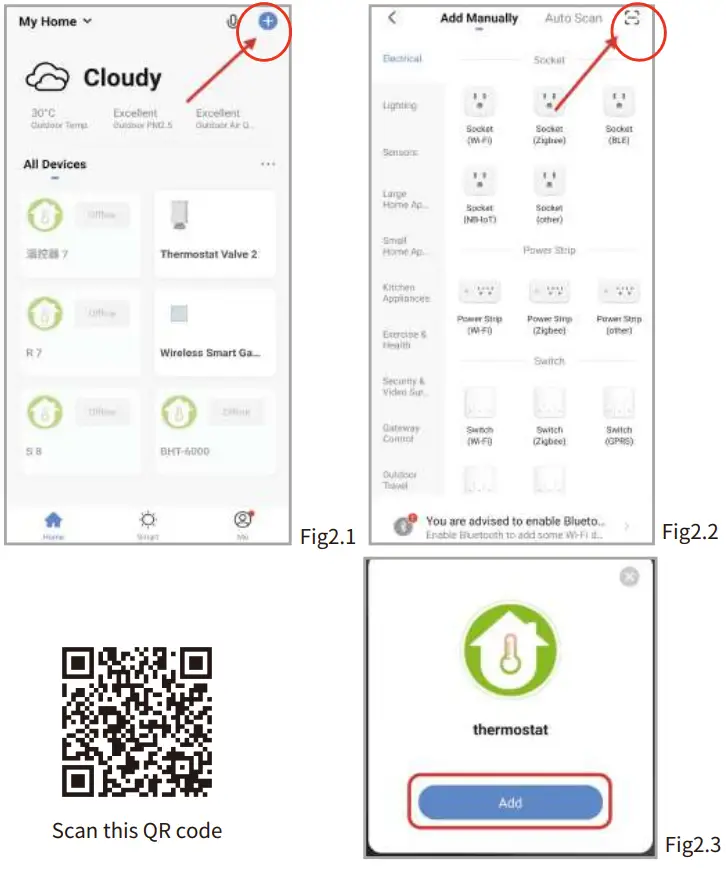 https://smartapp.tuya.com/s/p?p=N8bUqOZ8HBQjU0K0&v=1.0
Method 2: Ordinary distribution network guidance (Fig. 2. 1&Fig. 2.3.1)
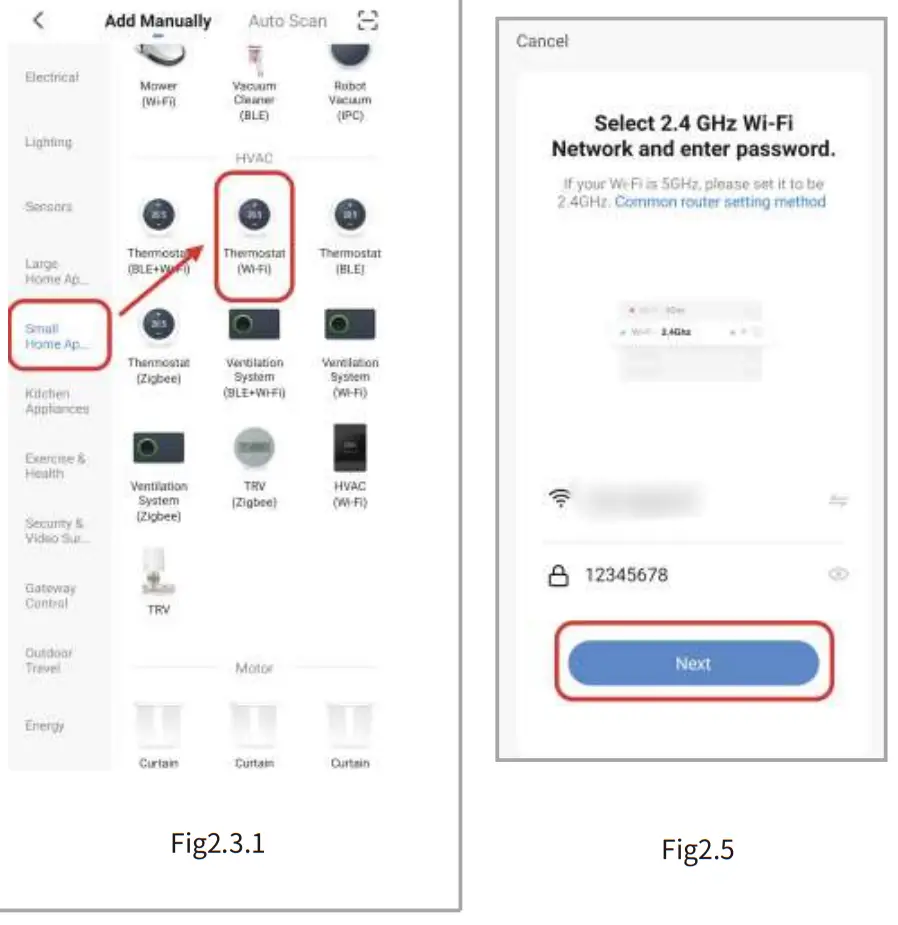
Network distribution mode:
- EZ Mode
When the thermostat is off, press and hold the ” “until the thermostat screen flashes quickly and displays the ”  ” icon, and then operate according to the following figure (Fig 2.4-Fig 2.7).
- AP Mode
When the thermostat is off, press and hold the ” ” until the thermostat screen flashes slowly and the ”  ” icon is displayed (if the ” ” icon appears, continue to press the ” ” until the thermostat screen Flashes slowly and displays the ” ” icon), and then operate according to the following figure (Fig 2.8-Fig 2.14).

 ” icon, and then operate according to the following figure (Fig 2.4-Fig 2.7).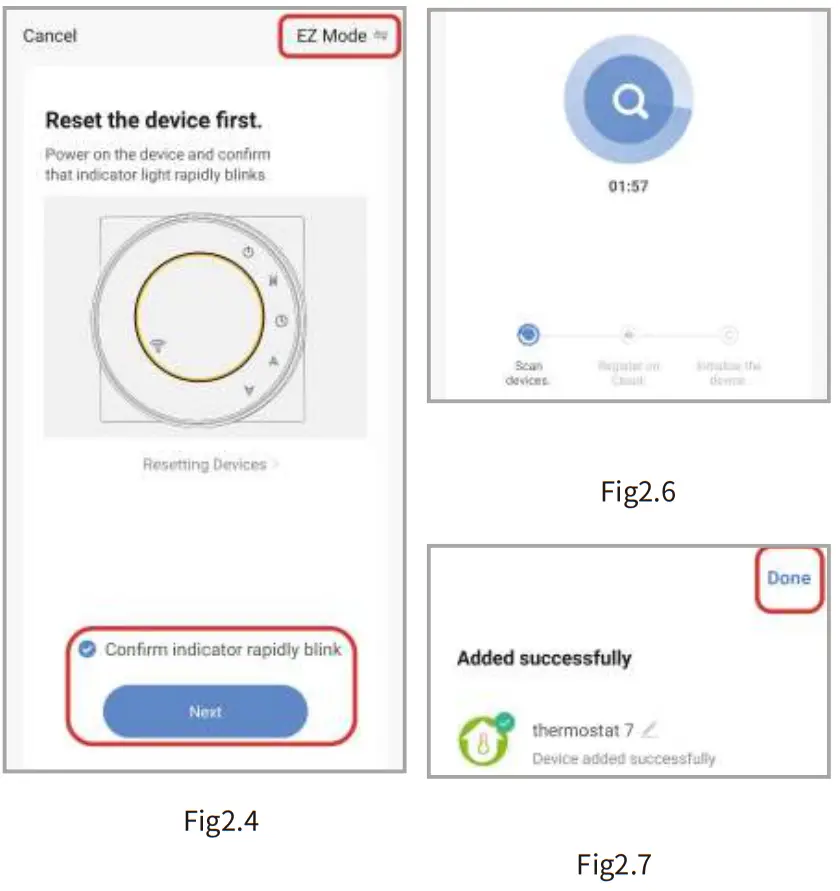
 ” icon is displayed (if the ”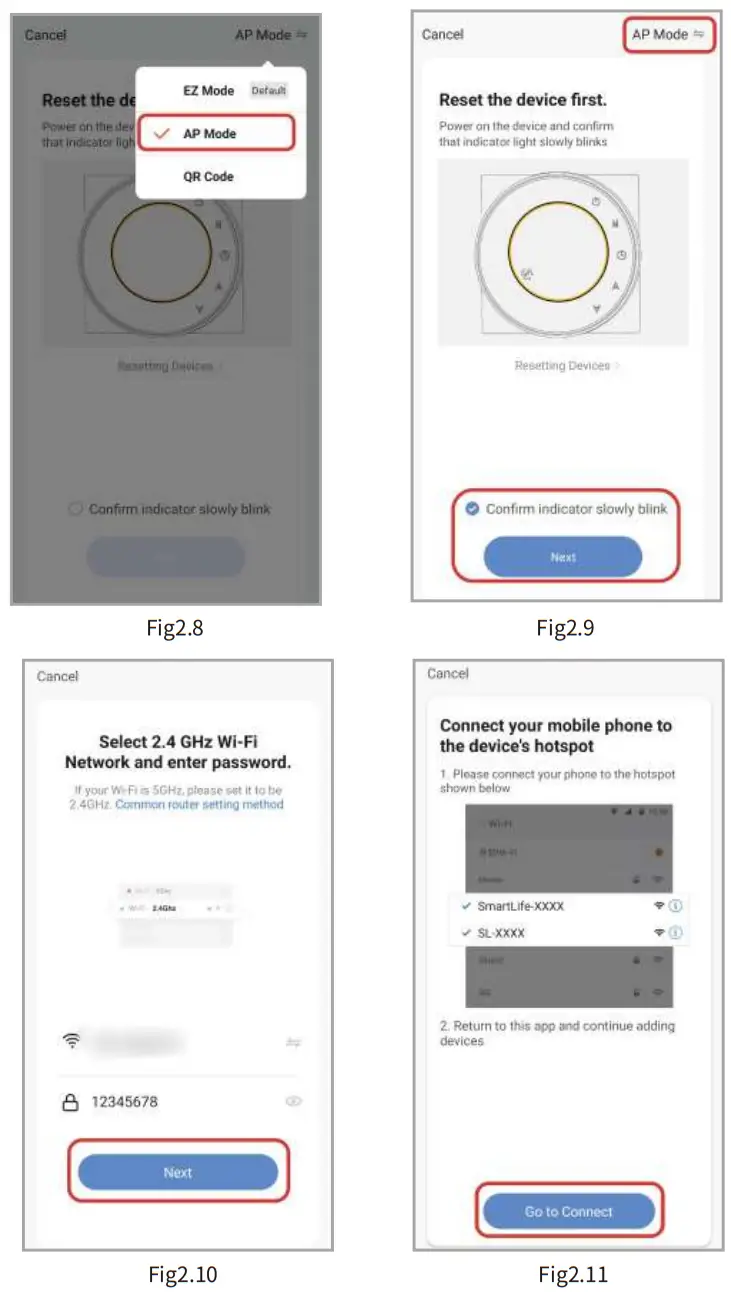
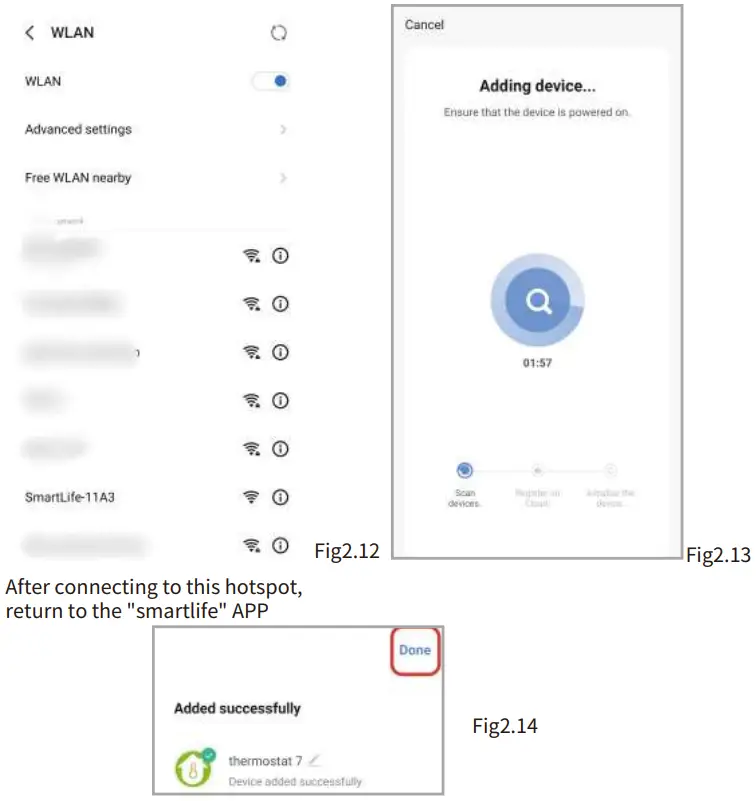
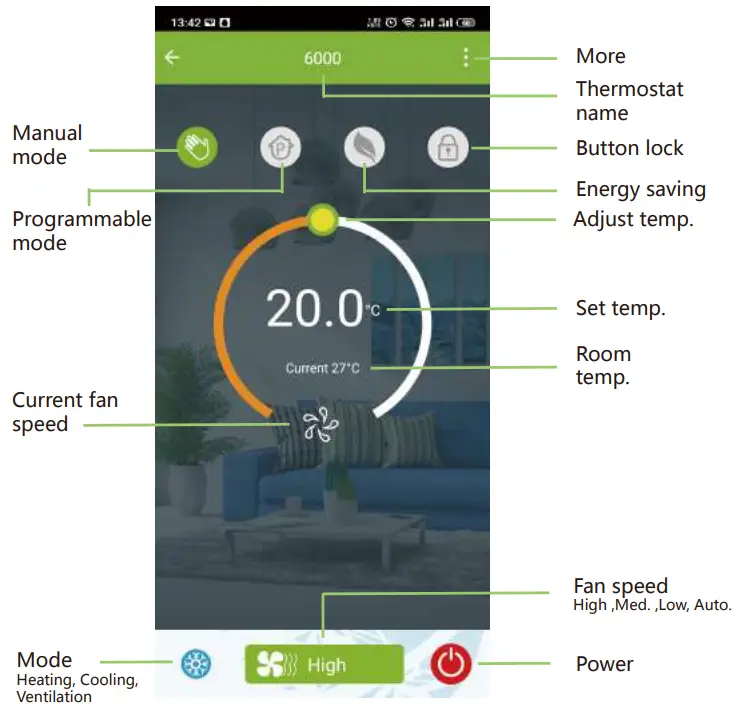
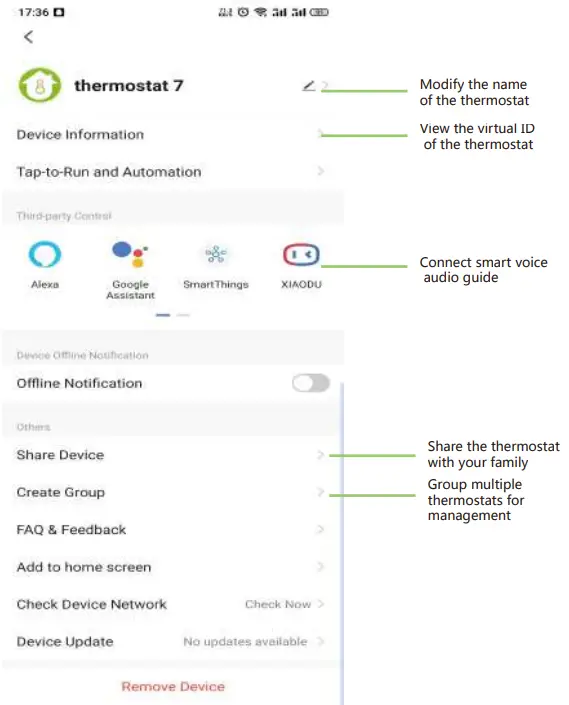
APP operation interface description (FCU thermostat) )
More settings
SIMPLE EXCEPTION HANDLING
| No. | Phenomenons | Handling |
| 1 | Power is on but without display. | * Check if the terminals between LCD panel and Power Unit Box is loosen. |
| 2 | Without output but display works. | * Use a new LCD panel or new Power Unit Box to replace the old one. |
| 3 | Room Temp. Is a little different from the actual. | * Do temperature calibration in item 1 of high senior options |
SERVICE
Your thermostat carries an 24 months warranty from date of purchase. Service outwith the warranty period may incur a charge. More detail please contact with us directly.