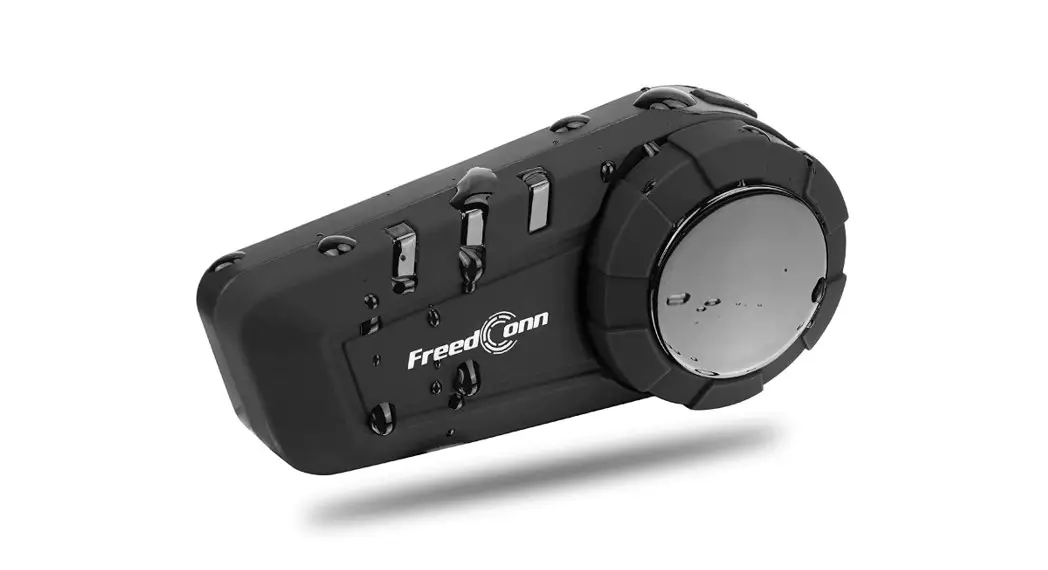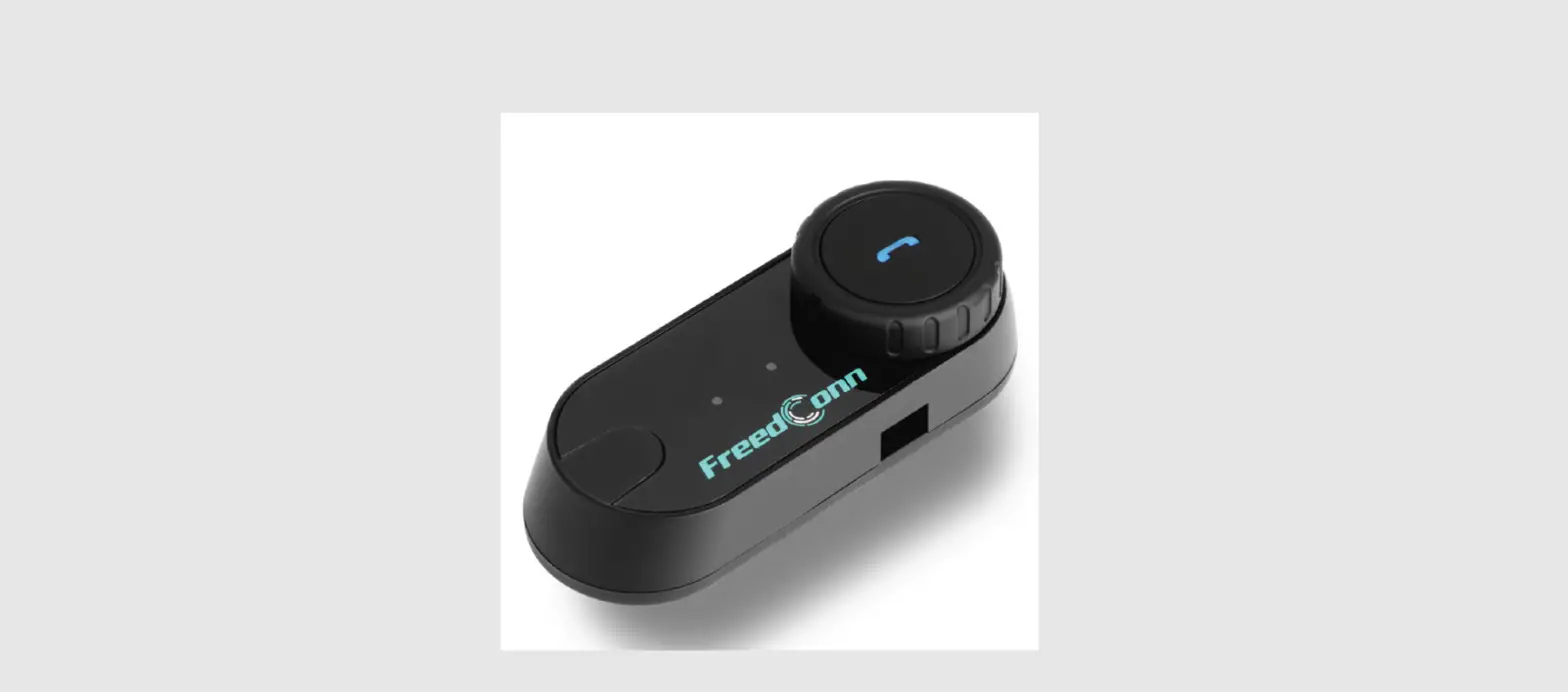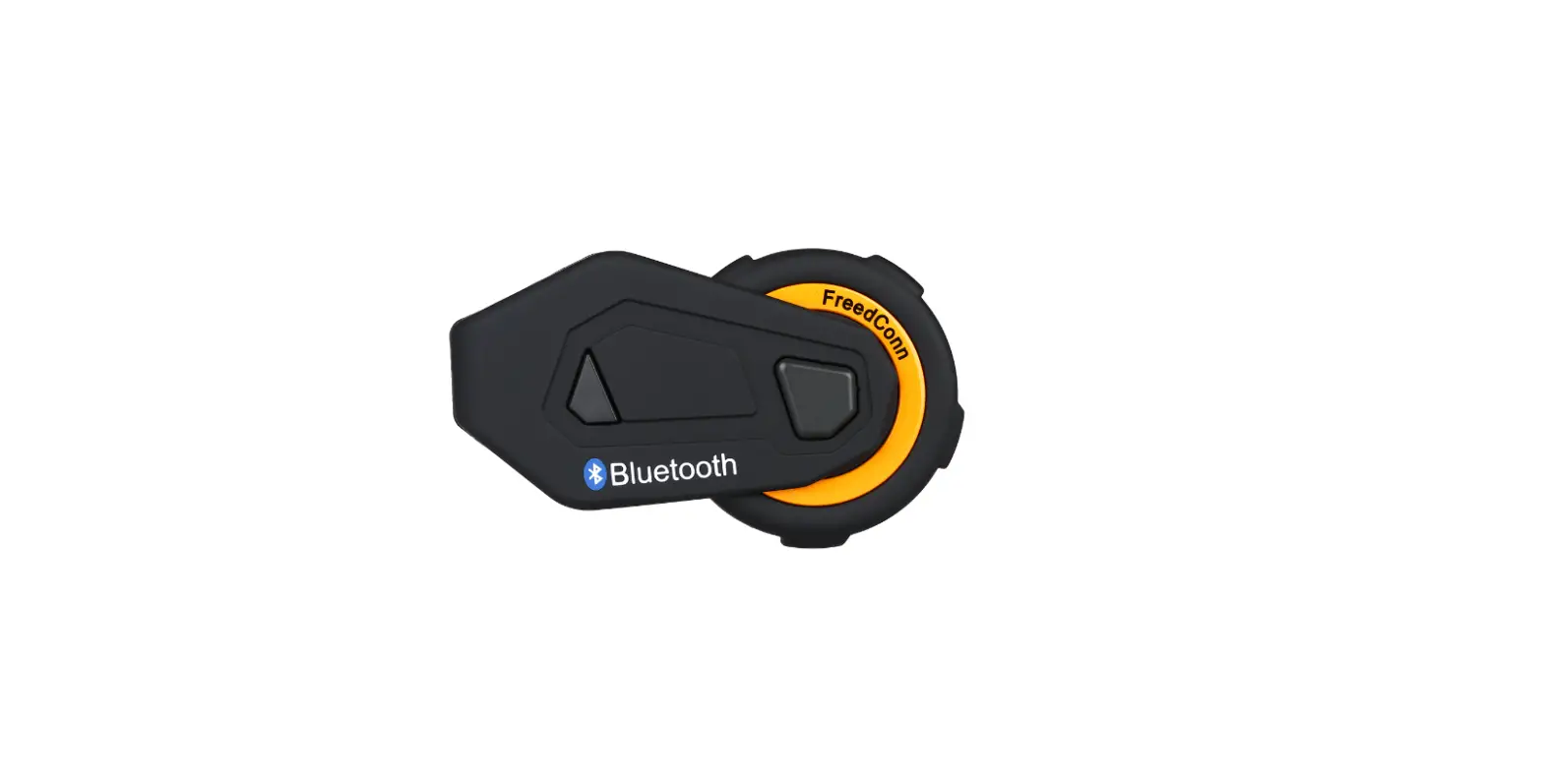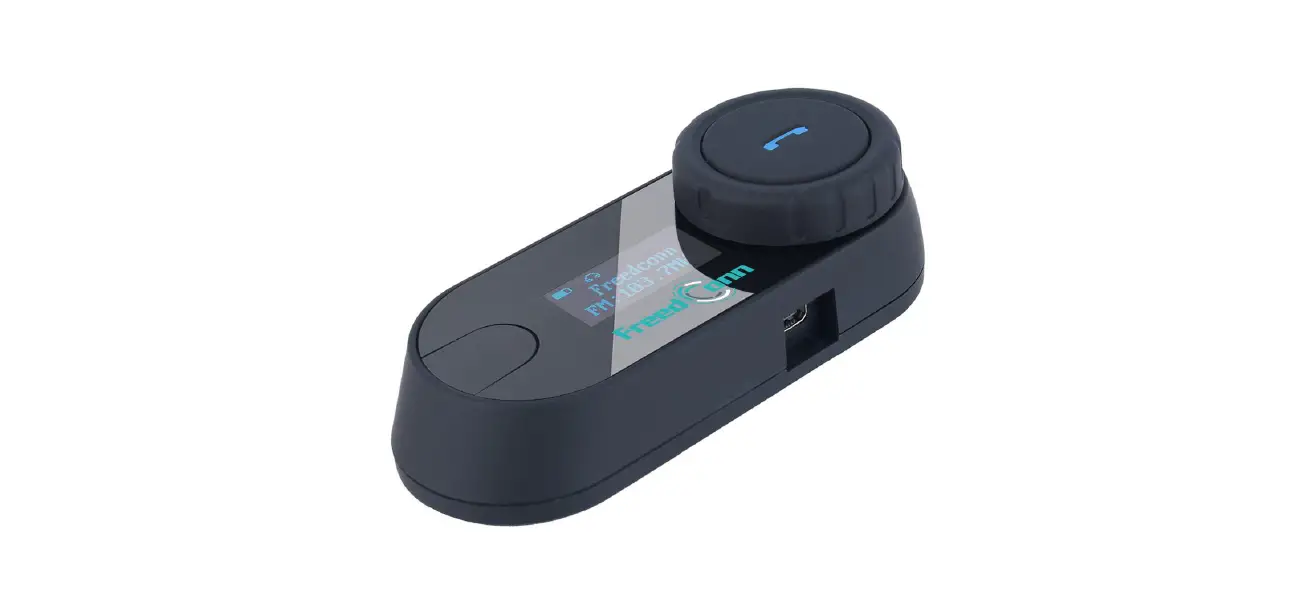

FreedConn TCOM-SC Motorcycle Bluetooth Headset  Welcome
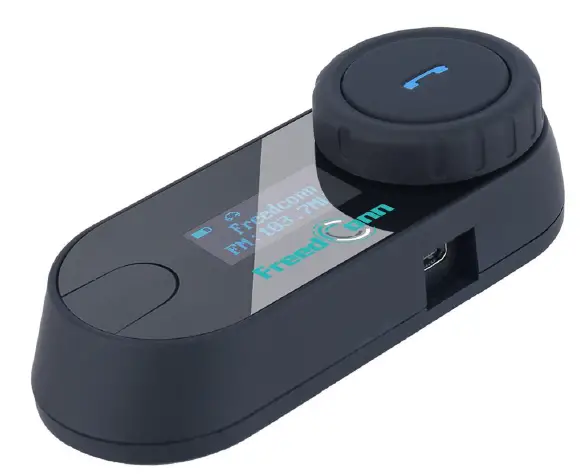 Welcome
Thank you for purchasing our FreedConn TCOM-SC motorcycle Bluetooth headset, hope you will enjoy it.
Packing Slip
- 1 pack package

- 2 pack package

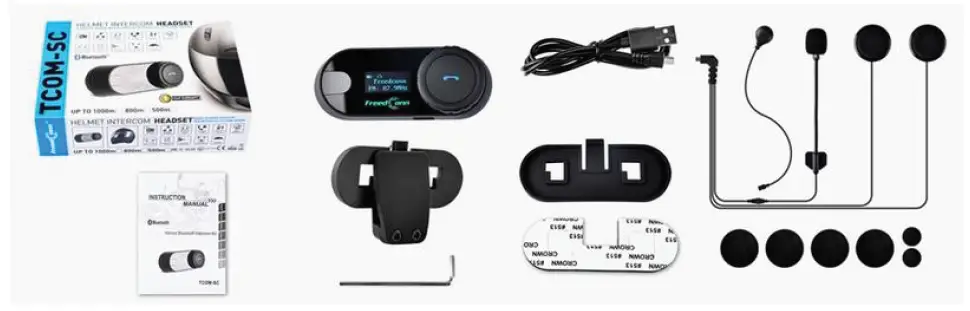
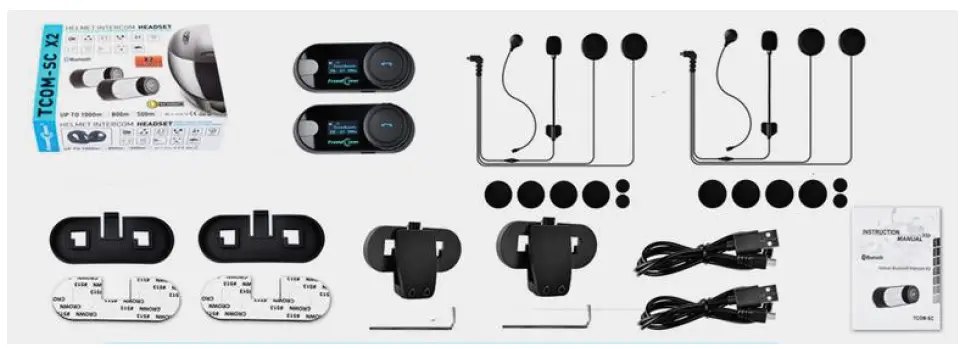
* For any missing parts, please feel free to contact us, we will ship you replacement parts.
Installation Method
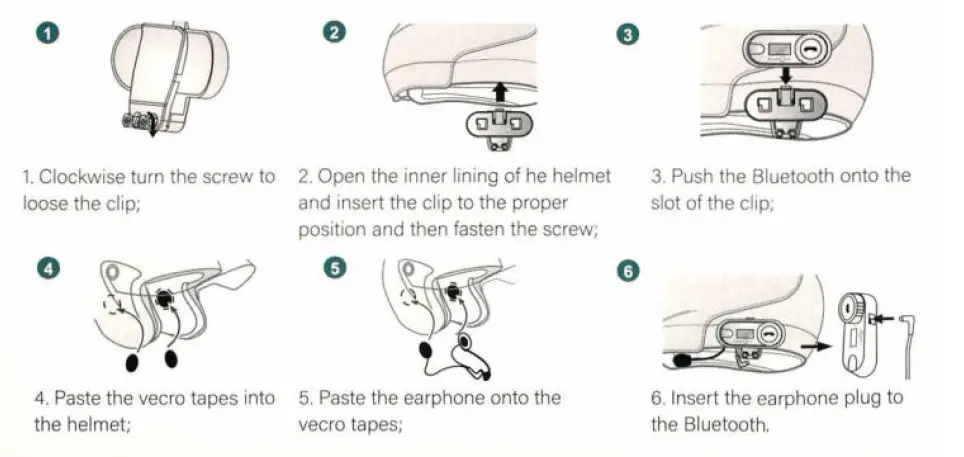
Product details
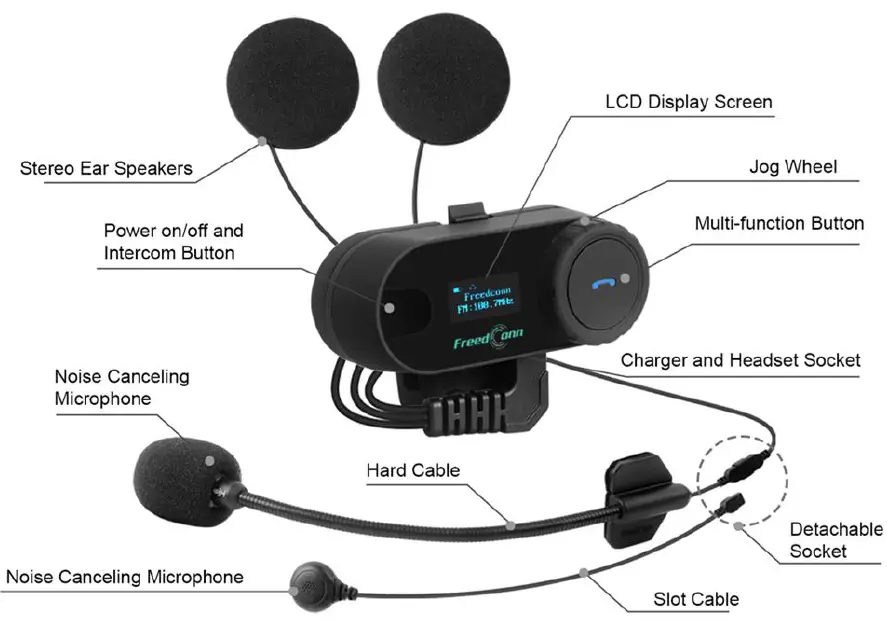
Functions and Operation Instructions
Basic Operation
| Turn on | Press and hold power button for 3 seconds until you hear a beep, LCD screen shows “ FreedConn”. | 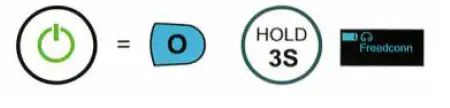 |
| Turn off | Press and hold power button for 5 seconds until you hear a beep, LCD screen shows “ Power off”. | 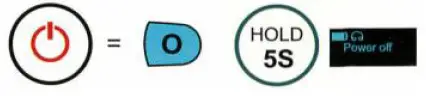 |
| Activate voice command | Press twice on the power button. Screen shows “ Calling”. | 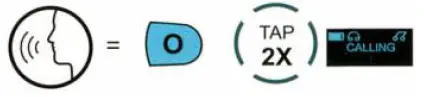 |
| Clear the pairing memory | Under power off status, press and hold power button and turn the jog wheel anti-clockwise meanwhile for 3s. Screen shows “ Clear List”. | 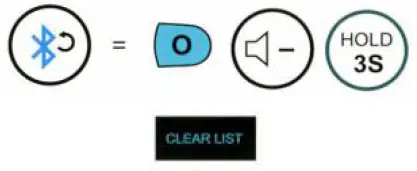 |
| Volume Up | Turn the jog wheel clockwise and hold it, it will beep when reach max volume. | 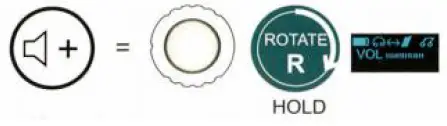 |
| Volume Down | Turn the jog wheel anti-clockwise and hold it, it will beep when reach min volume. | 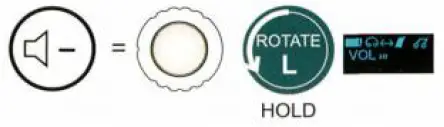 |
Battery Level Checking
| Check on phone | Check the battery level on LCD screen or on phone after connected. | 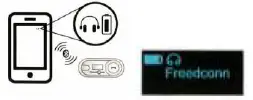 |
| Battery level voice prompt | Hear the battery level voice prompt while turn on the device. | 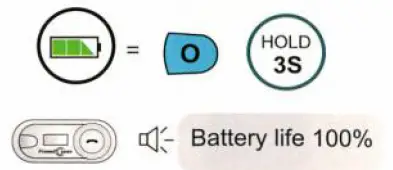 |
Phone/ GPS/ MP3 Connection
| Step 1 | Make sure the device is off status. |  |
| Step 2 | Press and hold the power button for 6 seconds, do not release until screen shows “PARING”, you’ll hear “Pairing” voice prompt. | 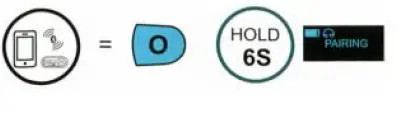 |
| Step 3 | Click “ T-COM” on the Bluetooth setting page of your phone. | 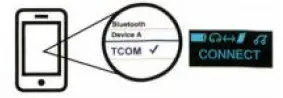 |
| Step 4 | You’ll hear “ Connected” voice prompt, screen shows “ CONNECT”. |  |
Phone Call Operations
| Answer calls | Press the MFB once | 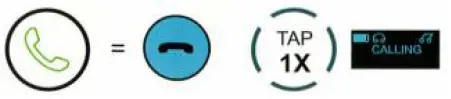 |
| Reject calls | Press and hold the MFB button for 2s | 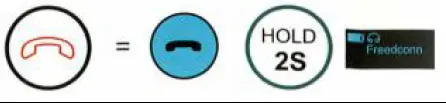 |
| End the calls | Press the MFB once | 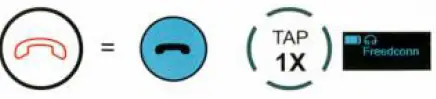 |
| Last number redial | Press and hold the MFB button for 2s | 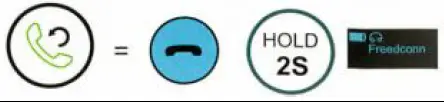 |
| Turn on/ off auto answer calls function | Turn off device first, press and hold power button & MFB button meanwhile for 3s |  |
| Convert the phone call receiver mode | Press and hold the MFB button for 2s | 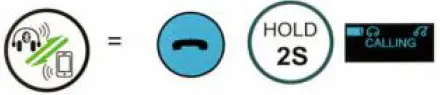 |
Music Control
| Play/ pause music | Press MFB button once | 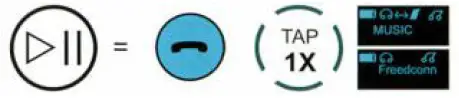 |
| Previous song | Turn the jog wheel anti-clockwise | 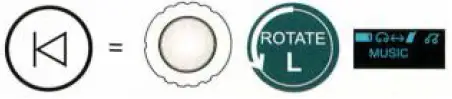 |
| Next song | Turn the jog wheel clockwise | 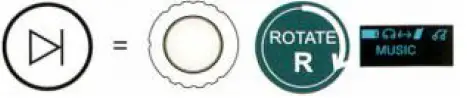 |
| Switch between music and FM radio | Press the MFB button twice | 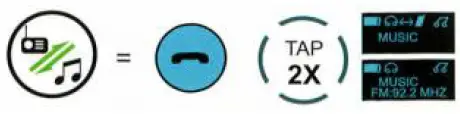 |
FM Radio Function
| Turn on/ off FM radio | Press MFB button twice | 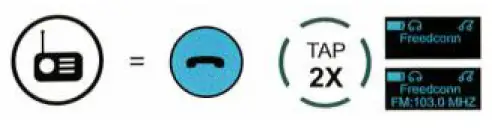 |
| Previous channel | Turn the jog wheel anti-clockwise | 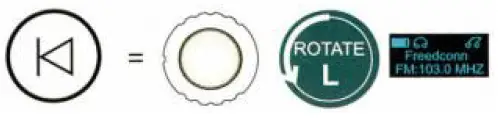 |
| Next channel | Turn the jog wheel clockwise | 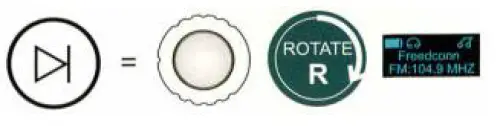 |
| Play/ pause | Press the MFB button once | 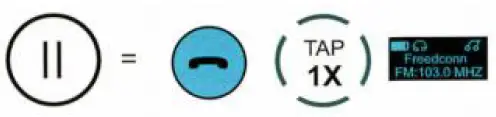 |
Connect 2 TCOM-SC Device
| Step 1 | Make sure 2 device are off status | |
| Step 2 | Press and hold power button for 6s on both device to enter pairing mode, screen shows “ PAIRING”, you will hear “ Pairing” voice prompt | 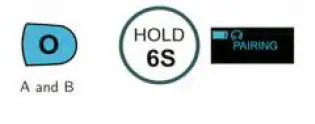 |
| Step 3 | Press power button on either one of the device to search the other one, you will hear “ Search” voice prompt | 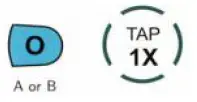 |
| Step 4 | Wait for a few seconds for the 2 device to connect with each other, screen shows “ INTERCOM” after connected, you’ll hear “ Connected” voice prompt |
|
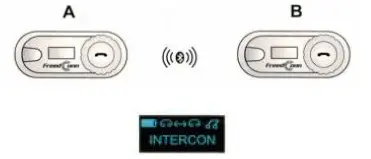
Bluetooth Intercom Operation
| Start Intercom | Follow instruction 5.5 to connect device A and B, you can talk directly after connected | 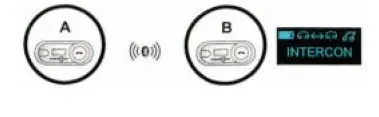 |
| End/ Restart Intercom | Press intercom button once will end intercom, press again to restart intercom | 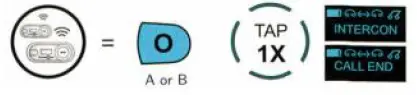 |
Music Sharing Between 2 Bluetooth 5.0 Version TCOM-SC 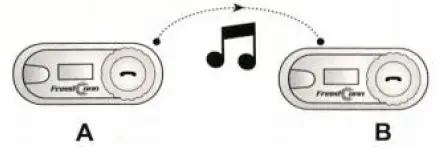
| Step 1 | Connect device A with your phone | 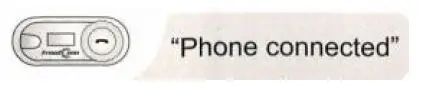 |
| Step 2 | Connect device A and B with each other, and make sure they are not connected with other TCOM-SC | 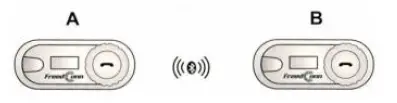 |
| Step 3 | End the intercom between A and B | 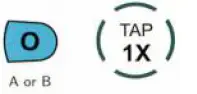 |
| Step 4 | Press and hold intercom and MFB button for 2s meanwhile, you will hear “ Music Sharing” voice prompt | 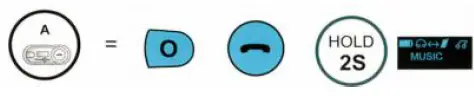 |
| Step 5 | Play music on your phone, device A will share the music to device B | 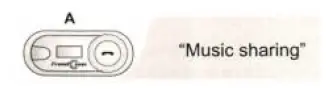 |
| End music sharing | Repeat step 4, you will hear “ End of Sharing” | 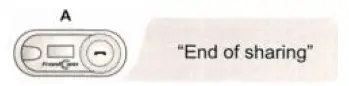 |
Warranty
We provide 1 year warranty for any quality problem. Please contact with us through [email protected] with your purchase receipt.