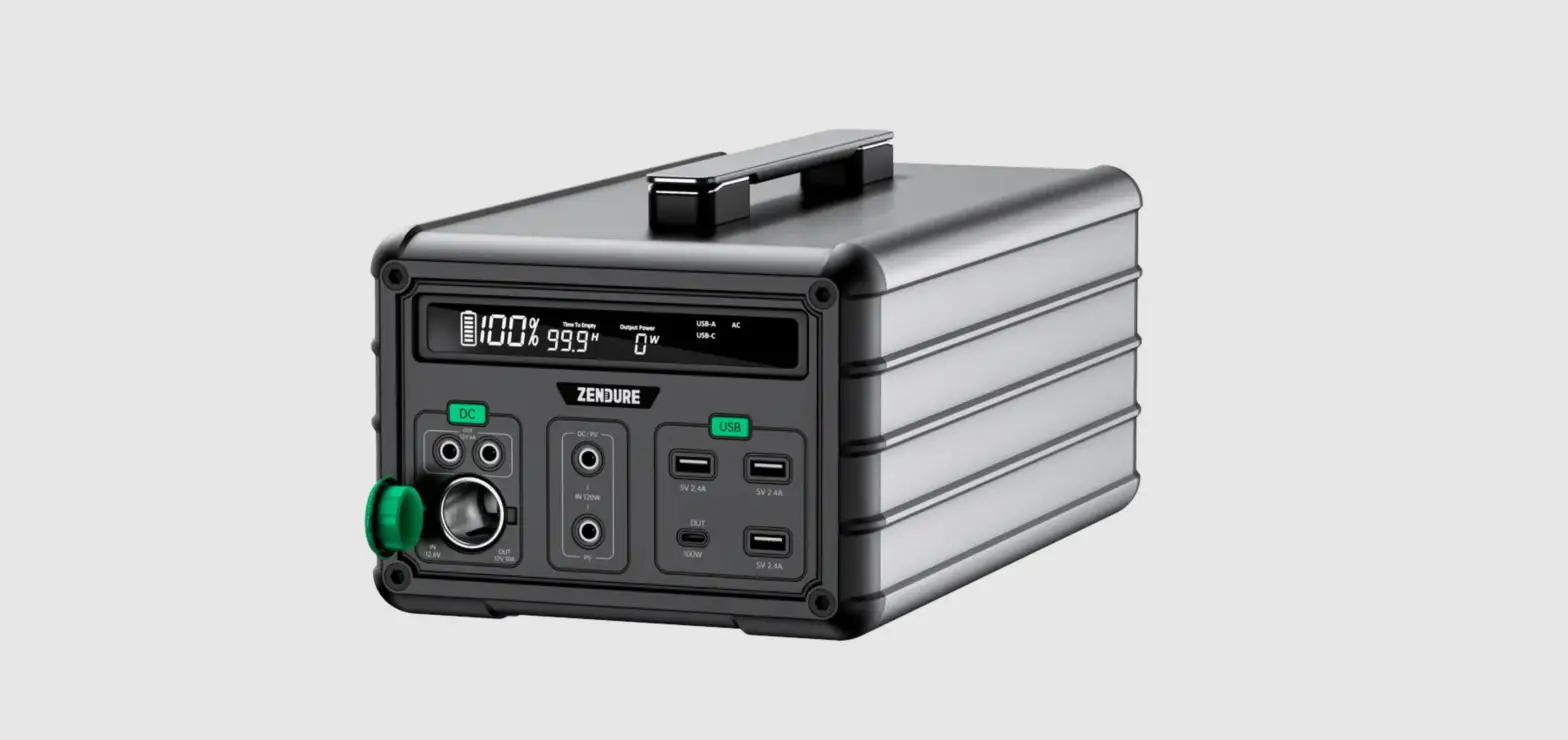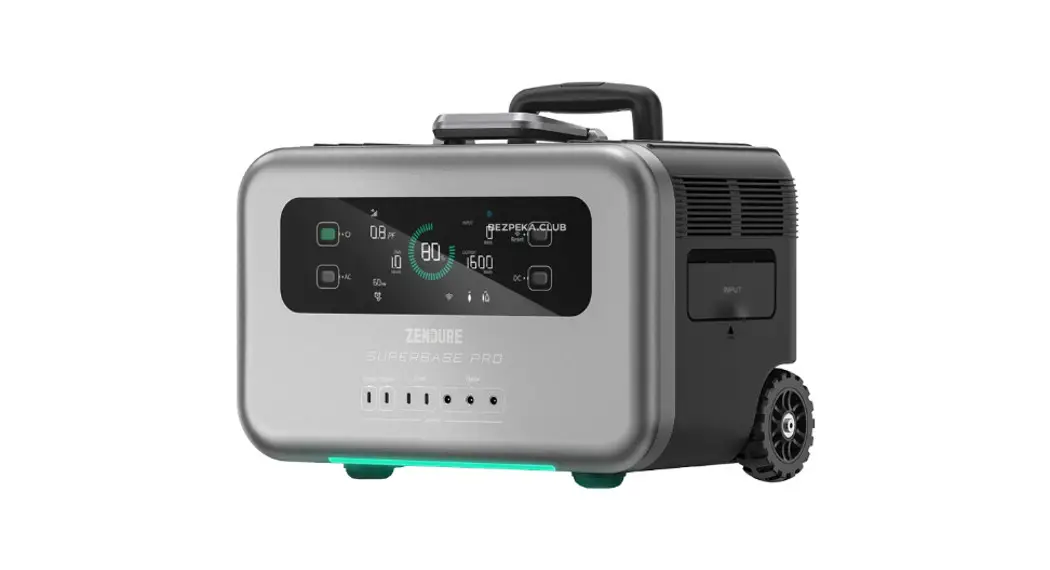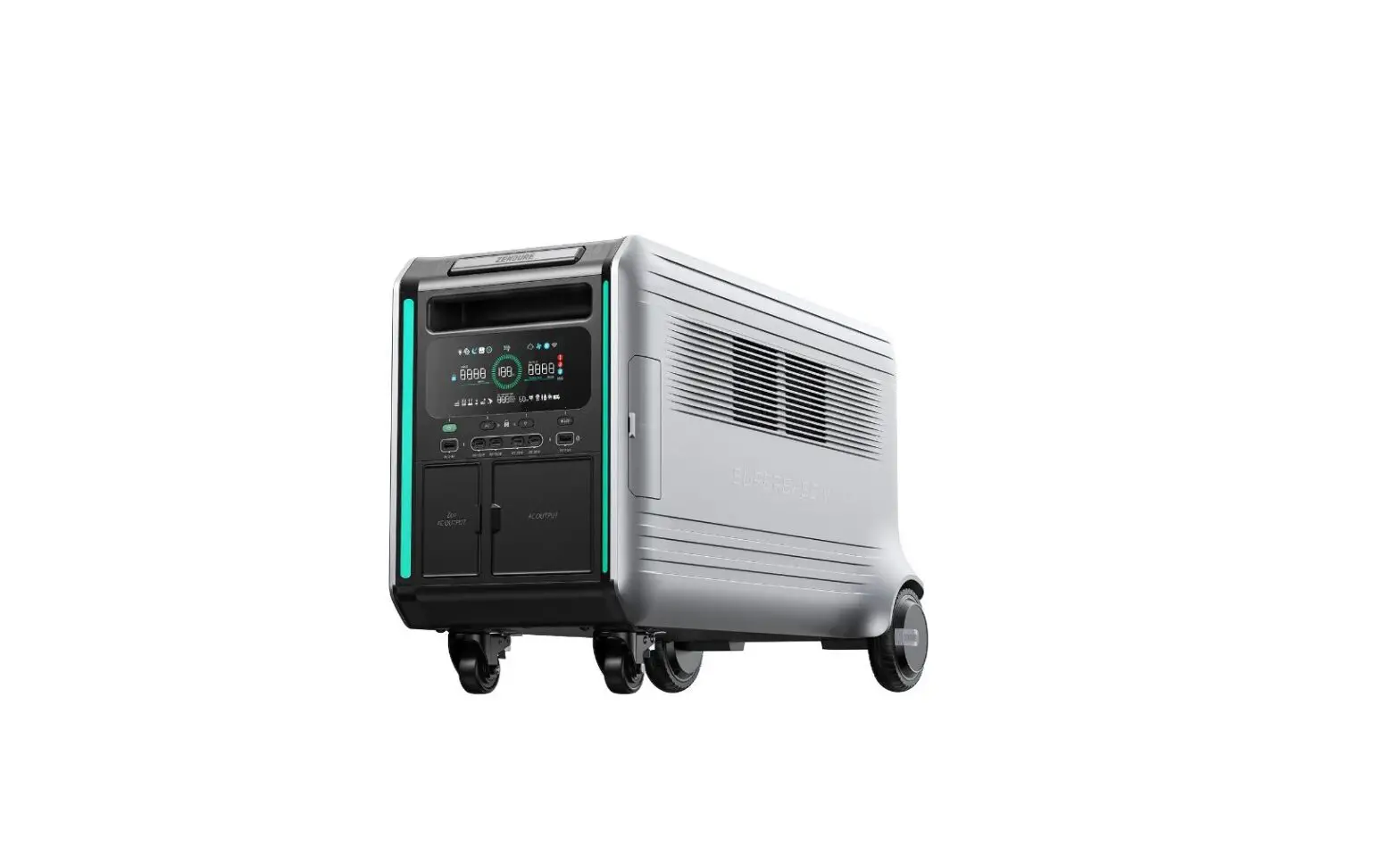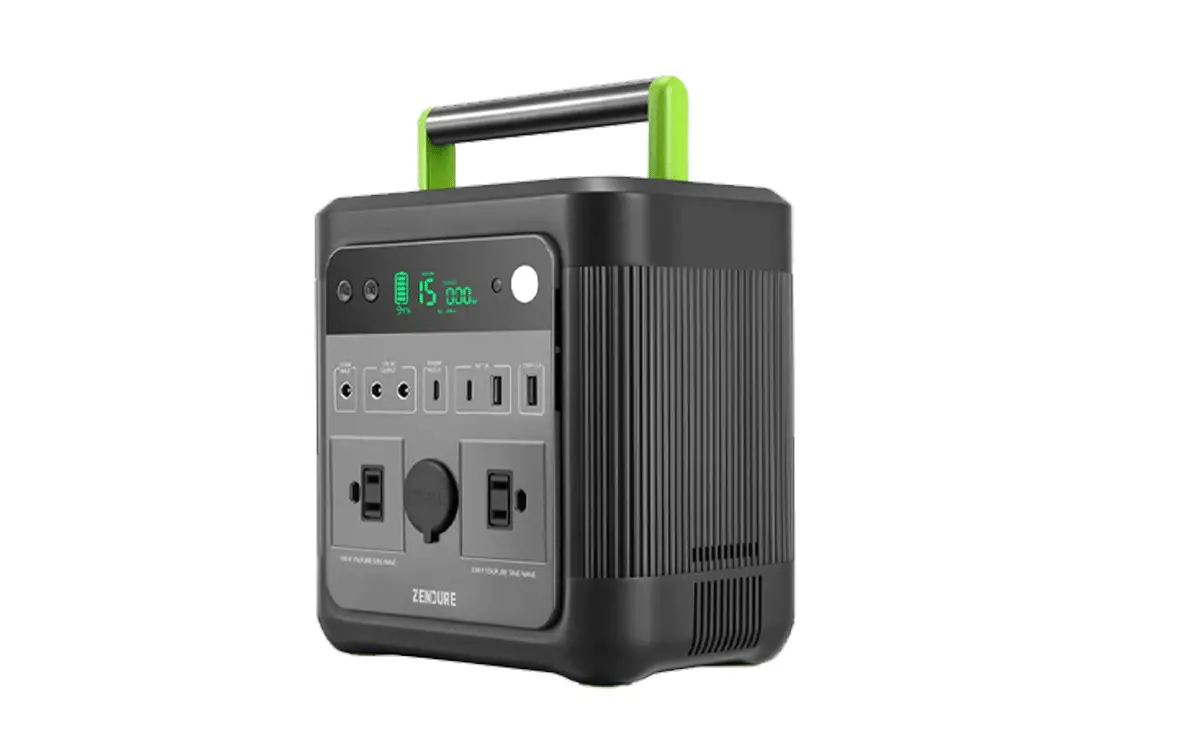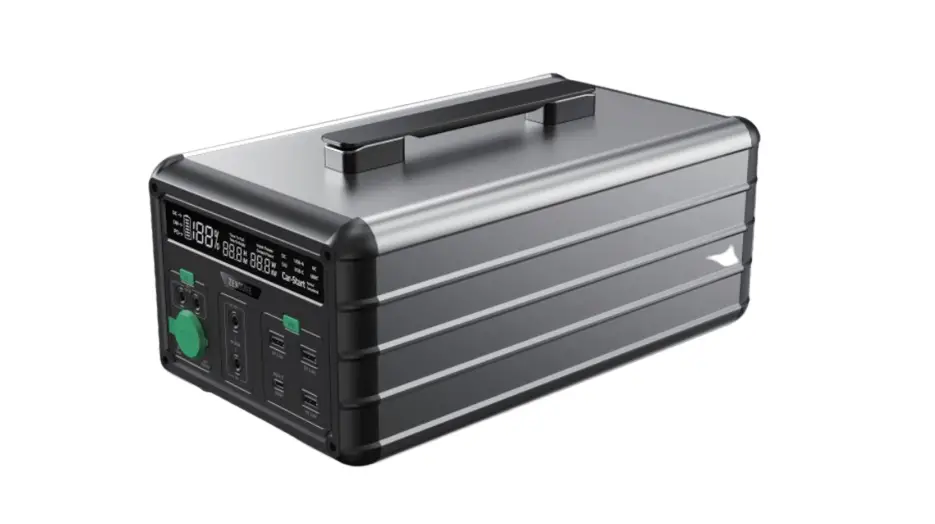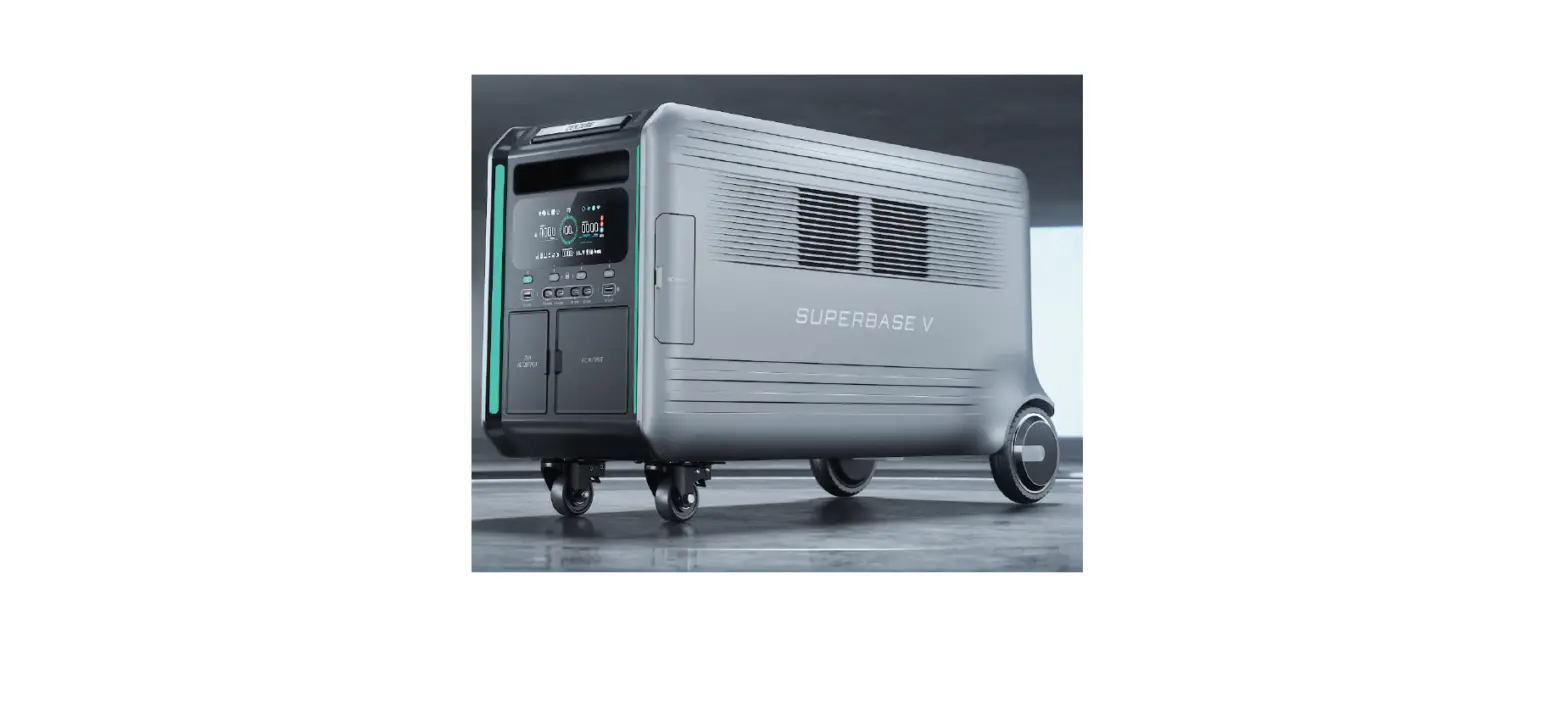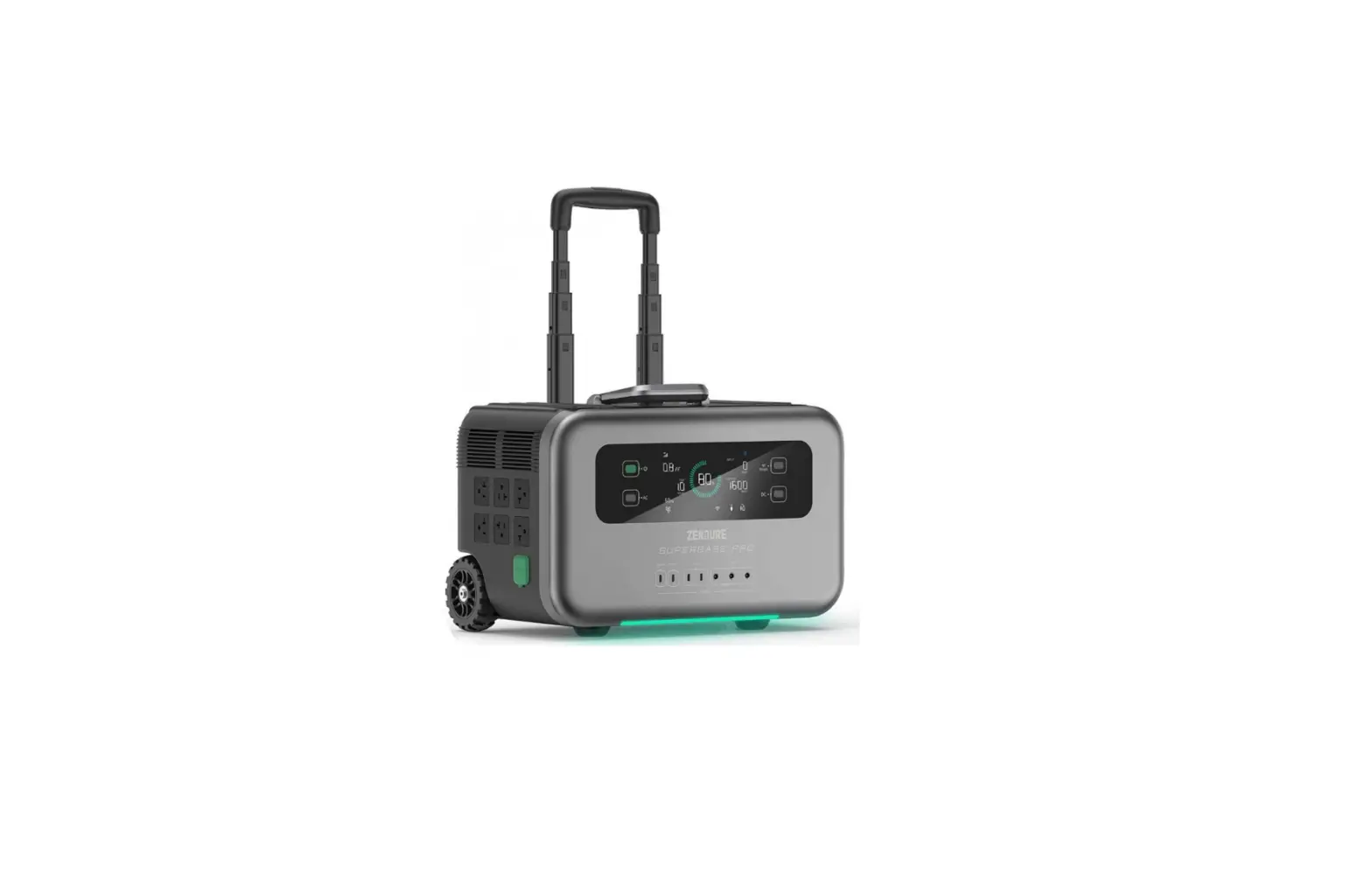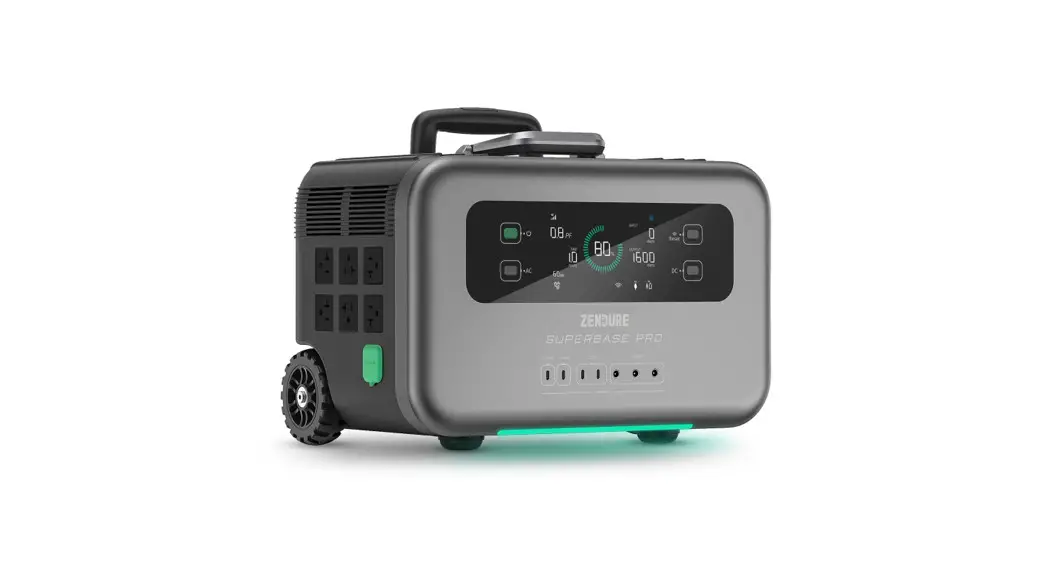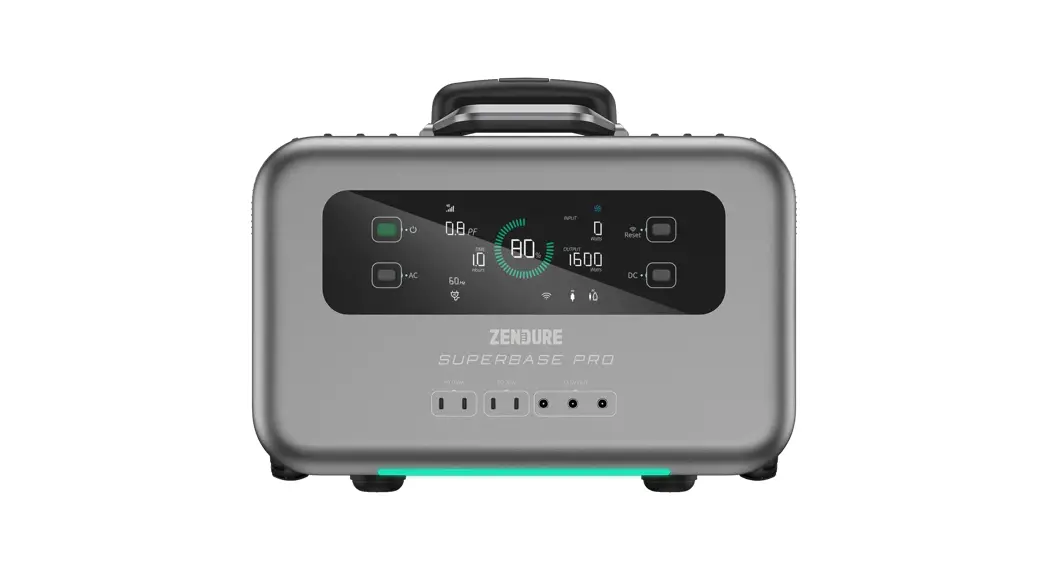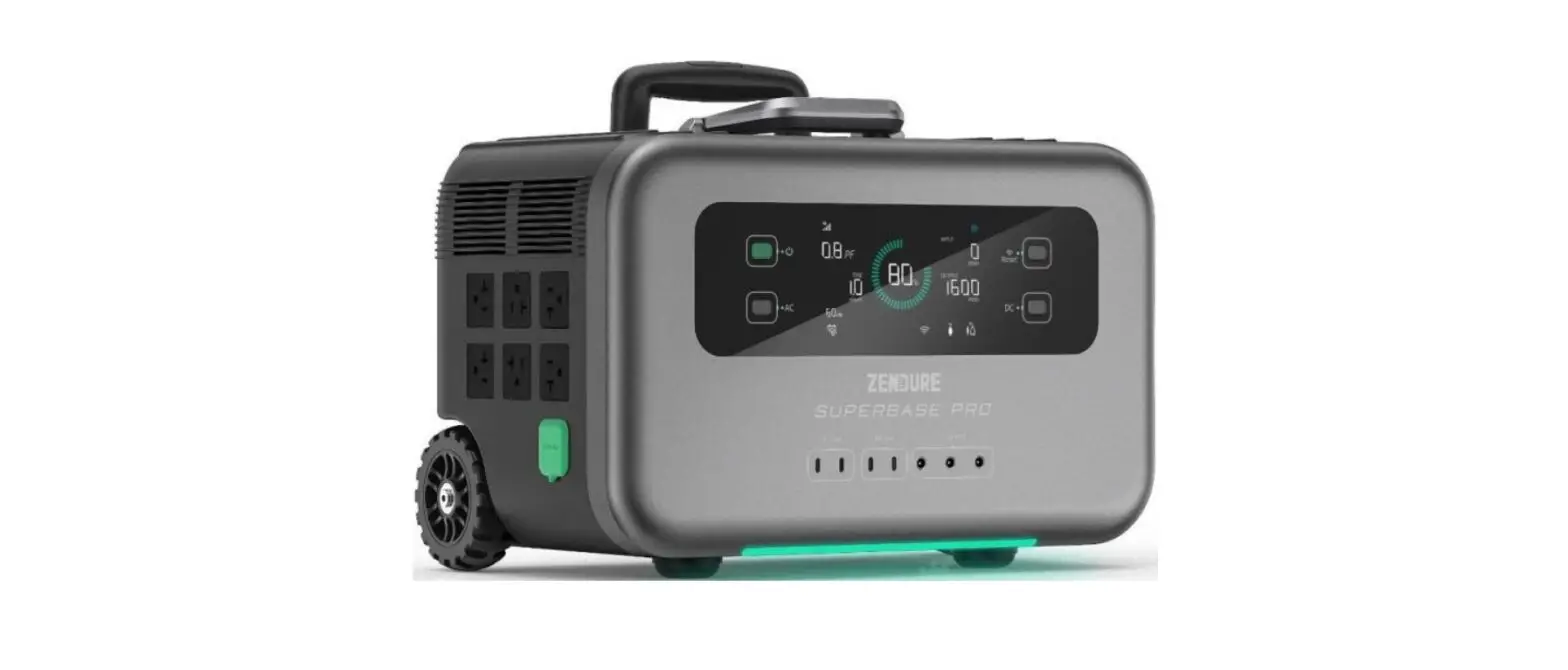

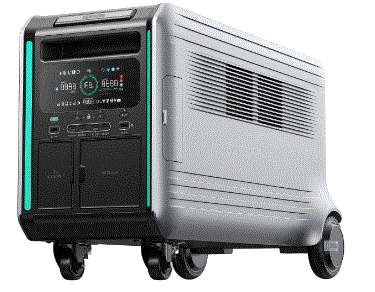
ZENDURE V6400 SuperBase Powerstation
DISCLAIMER
Read all safety guidelines, warnings and other product information in this manual carefully, and read any labels or stickers attached to the product before using. Users take full responsibility for the safe usage and operation of this product. Familiarize yourself with relevant regulations in your area. You are solely responsible for being aware of all relevant regulations and using Zendure products in a way that is compliant. Keep this manual for future reference.
Before You Begin
The information contained herein is subject to change without notice.
For the latest version, please visit https://zendure.com/pages/download-center.
Specifications
| General | SuperBase V6400 | SuperBase V4600 |
| Weight | 59.0kg | 55.0kg |
| Dimensions | 730 x 346 x 442mm | |
| Capacity | 6,438Wh (126Ah/51.1V) | 4,608Wh (90Ah/51.2V) |
| Wireless Type | Bluetooth, Wi-Fi | |
| Outputs | |
| AC Outlet (4) | 230VAC~50Hz, Total 3,800W |
| Zen AC Outlet (2) | 230VAC~50Hz or 115VAC ~60Hz*, Total 3,800W |
| Car Outlet (1) | 12.6V 10A, 126W Max** |
| DC5521 (2) | 12.6V 3A |
| Andersen (1) | 12.6V 30A, 378W Max |
| USB-C1, USB-C2 | 5V 3A, 9V 3A, 12V 3A, 15V 3A, 20V 5A, each port 100W Max, Total 200W*** |
| USB-C3, USB-C4 | 5V 2.4A, 9V 2.22A, 12V 1.67A, each poart 20W, Total 40W (Max) |
| USB-A1, USB-A2 | 5V 2.4A, each port 12W, Total 12W (Max) |
Zen AC Output supports either 230V or 115V output at a time.
** 126W refers to the combined maximum output power of the Car Outlet and the DC5521 ports together.
*** Total USB-C Output 200W Max
| Inputs | SuperBase V6400 | SuperBase V4600 |
| AC Inlet (1) | 230VAC ~50Hz, 12.5A, 2,900W Max | |
| XT90 (1) | 12-150VDC, 25A, 3,000W Max | |
| Total AC and XT90 | 1C charge 5,110W | 1C charge 4,608W |
| Battery | ||
| Cell Chemistry | SBS (Semi-solid State Battery) | LFP |
| Cycle Life | 3,000+ cycles | 6,000+ cycles |
| Temperature* | ||
| Optimal Operating Temperature | 59°F to 95°F (15°C to 30°C) | |
| Discharge Temperature | -4°F to 140°F (-20°C to 45°C) | |
| Charge Temperature | -4°F to 110°F (-20°C to 45°C) | 0℉ to 110℉(0°C to 45℃) |
| Storage Temperature | 14°F to 95°F (-10°C to 35°C) | |
Safety Guidelines
Usage
- Store product in a cool and dry place.
- Do not dispose of the product in heat or fire.
- Do not expose to moisture or submerge it in liquid.
- Do not use around strong static electricity or magnetic fields.
- Do not disassemble the product. Consult official Zendure channels when service or repair is required. Incorrect disassembly or reassembly may result in a risk of fire or injury to persons.
- When using the product, please strictly follow the operating environment temperature range specified in the user manual. If the temperature is too high, it may result in a fire or explosion; if the temperature is too low, the product performance may be severely reduced, or the product may cease to work.
- Do not block or obstruct the fan during use or place the product in an unventilated or dusty area.
- Ensure the product is not hit, dropped, or heavily vibrated. Securely fasten the product when transporting to avoid damage. If severely damaged, turn off the power source immediately and discontinue using the product.
- If you accidentally drop the product into water during use, please place it in a safe open area, and stay away from it until it is completely dry. The dried product should not be used again and should be properly disposed of according to the Disposal Guide section of this manual.
- Only clean the ports with a dry cloth.
- Place on a flat surface to keep the product from falling over. If the product is overturned and severely damaged, turn it off immediately, place the battery in an open area, keep it away from people and combustibles, and dispose of it in accordance with local laws and regulations.
- Keep out of reach of children and pets.
Disposal Guide
- When possible, fully discharge the battery before disposing of it. Consult your local laws on battery recycling and disposal.
- If the battery cannot be fully discharged due to product failure, contact a professional battery recycling company for further processing.
- When disposing of secondary cells or batteries, keep cells or batteries of different electrochemical systems separate from each other.
Important Tips

- It is recommended to use this product in an environment of 15℃~30℃, away from water, fire and other sharp objects.
- For safety reasons, do not store this product in an environment above 35℃ or below -10℃ for a long time.
- For long-term storage, please charge and discharge this product once every 3 months. That is, discharge the product to 30% first, and then recharge it to 60%.
- If the power of this product is lower than 1% after use, please charge it to 60%before storing it. Leaving the battery discharged for long periods of time will cause irreversible damage to the battery and shorten the service life of the product.
- Do not disassemble the product. When service or repair is required, please consult official Zendure channels. Improper disassembly or reassembly mayresult in a risk of fire or personal injury.
Getting Started
What’s in the Box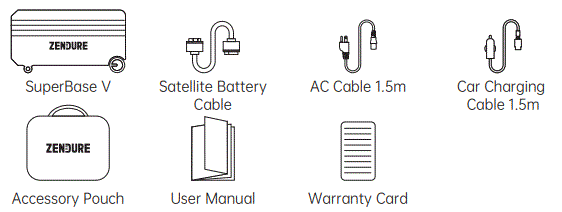
- Satellite Battery Cable: Used for Connecting with Satellite Battery (Section 5.4)
- AC Cable 1.5 m: Used for AC Recharging (Section 5.6)
- Car Charging Cable 1.5 m: Used for Car Recharging (Section 5.6)
Product Overview
Interface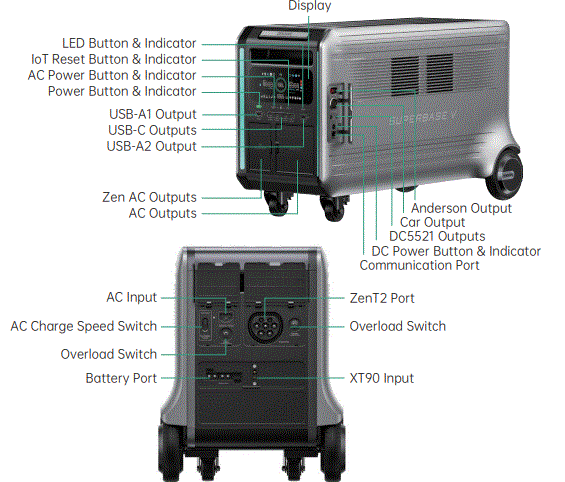 Display
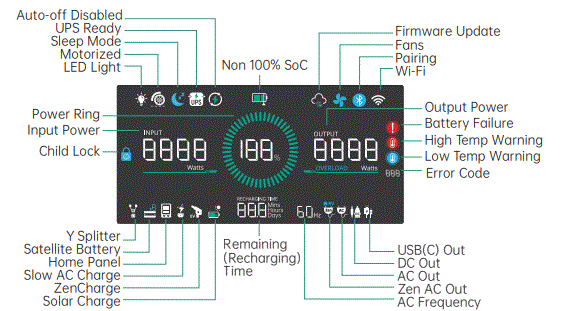 Operation Guidelines
| No. | Item | Action | Indicator | Display |
| 1 | Power ON | Press Power Button for 1 second | Power Indicator on | on |
| 2 | Power OFF | Press and hold Power Button for 3 seconds | Power Indicator off | off |
| 3 | Display off | Briefly press Power Button | Power Indicator on | off |
|
4 | Bluetooth Pairing* | Press and hold IoT Reset Button for 3 seconds | IoT Indicator flashes | Pairing icon flashes |
| Pairing completed | IoT Indicator on | Pairing icon on | ||
| Pairing timeout (3 minutes) | IoT indicator flashes | Paring icon flashes |
| 5 | Wi-Fi status | Online | IoT Indicator on | Wi-Fi icon on |
| Offline | / | Wi-Fi icon flashes | ||
| 6 | AC output on | Briefly Press AC Power Button | AC Power Indicator on | AC Output & Zen AC Output icon on |
| 7 | AC output off | Briefly Press AC Power Button | AC Power Indicator off | AC Output & Zen AC Output icon off |
| 8 | Switch AC output modes | Press AC Power Button for 1 second | / | Zen AC Output or AC Output icon on |
| 9 | DC output on | Briefly press DC Power Button | DC Power Indicator on | DC Out icon on |
| 10 | DC output off | Briefly press DC Power Button | DC Power Indicator off | DC Out icon off |
| 11 | Slow AC Charge | AC Charge Speed Switch toggles to the bottom | / | Slow AC Charge icon on |
| 12 | Turn on LED Light | Briefly press LED Button | LED Indicator on | LED Light icon on |
| 13 | Turn off LED Light | Briefly press LED Button | LED Indicator off | LED Light icon off |
| 14 | Switch LED Light modes | Press LED Button for 1 second (Ambient, Illumination, SOS) | LED Indicator on | LED Light icon on |
| 15 | Child Lock | Press AC Power and IoT Reset Button together for 1 second | / | Child Lock icon on |
Choose one of bluetooth or wifi, WIFI is preferred .
Connect with Satellite Battery
SuperBase V can be connected to a Satellite Battery for capacity expansion. A Satellite Battery Cable* is needed. One SuperBase V can connect with up to 4 Satellite Battery units. Only stack one Satellite Battery on top of the main unit. Refer to the user manual of the Satellite Battery for detailed instructions.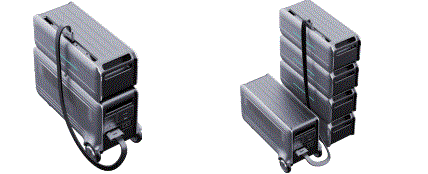
Tips:
- It’s recommended that both SuperBase V and the Satellite Battery are turned off before connection.
- Make sure to tighten the screw on both sides after connecting the battery cable.
- The Satellite Battery icon will show up on the display after connection; then you can start charging or discharging.
- Do not connect SuperBase V to the battery during the charging/discharging process.
- Do not touch the metal pins of the ports with your hands or other objects.Gently clean them with a dry cloth when necessary.
- Tightly connect the Battery Cable to SuperBase V and the Satellite Battery. A bad connection can affect the device’s performance or lead to a fire.
* The connectors at either end of the Satellite Battery Cable are not identical.
Connect with Home Panel
Zendure’s Home Panel with EV Outlets (referred to as Home Panel) is a smart load side transfer switch. It’s also a fast-charging dock for SuperBase V and features two EV outlets. A Home Panel can be connected to one or two SuperBase V units’ ZenT2 Port. Refer to the user manual of the Home Panel for detailed instructions. Press the AC Power Button for 3 seconds to connect with Home Panel. Refer to the latest Zendure App for more information.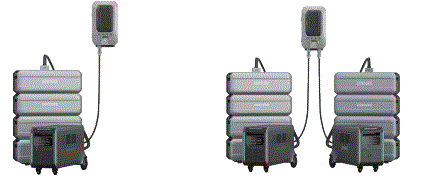
Tips:
- It’s recommended that both SuperBase V(s) and Home Panel are turned off before connection.
- The Home Panel icon will show up on display after connection; then you can start charging or discharging.
- Do not connect them during charging/discharging process.
- Do not touch the metal pins of the ports with your hands or other objects.
Gently clean them with a dry cloth when necessary.
Recharging
AC Recharging
Zendure’s GridFlow 2.0 Real-Time Bidirectional Inverting Technology is specifically for AC recharging, offering 2,900W @230VAC of maximum input power. In case of unusual situations where the AC input current remains higher than 20A, the AC Input port will initiate a self-protection function, and the Overload Switch on the product will automatically pop up. After confirming that there is no product failure, you can press the Overload Switch to resume charging.
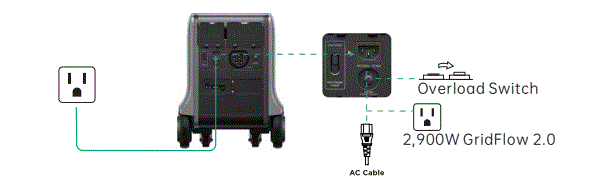 You can control the charging power through the AC Charge Speed Switch. The default Slow AC Charge is 400W, which can be modified in the Zendure app.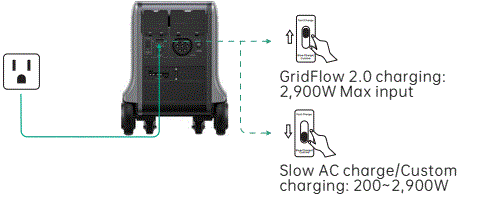
Tips:
- Please use the AC Charging Cable in the box. Plug directly into an AC wall outlet and make sure that the wall outlet and circuit are rated for more than 15A. Otherwise, reduce the unit charging speed via the Zendure App. Zendure assumes no responsibility for any consequences of product misuse, including but not limited to charging with an unsuitable wall outlet, circuit, or power cable
Solar Recharging
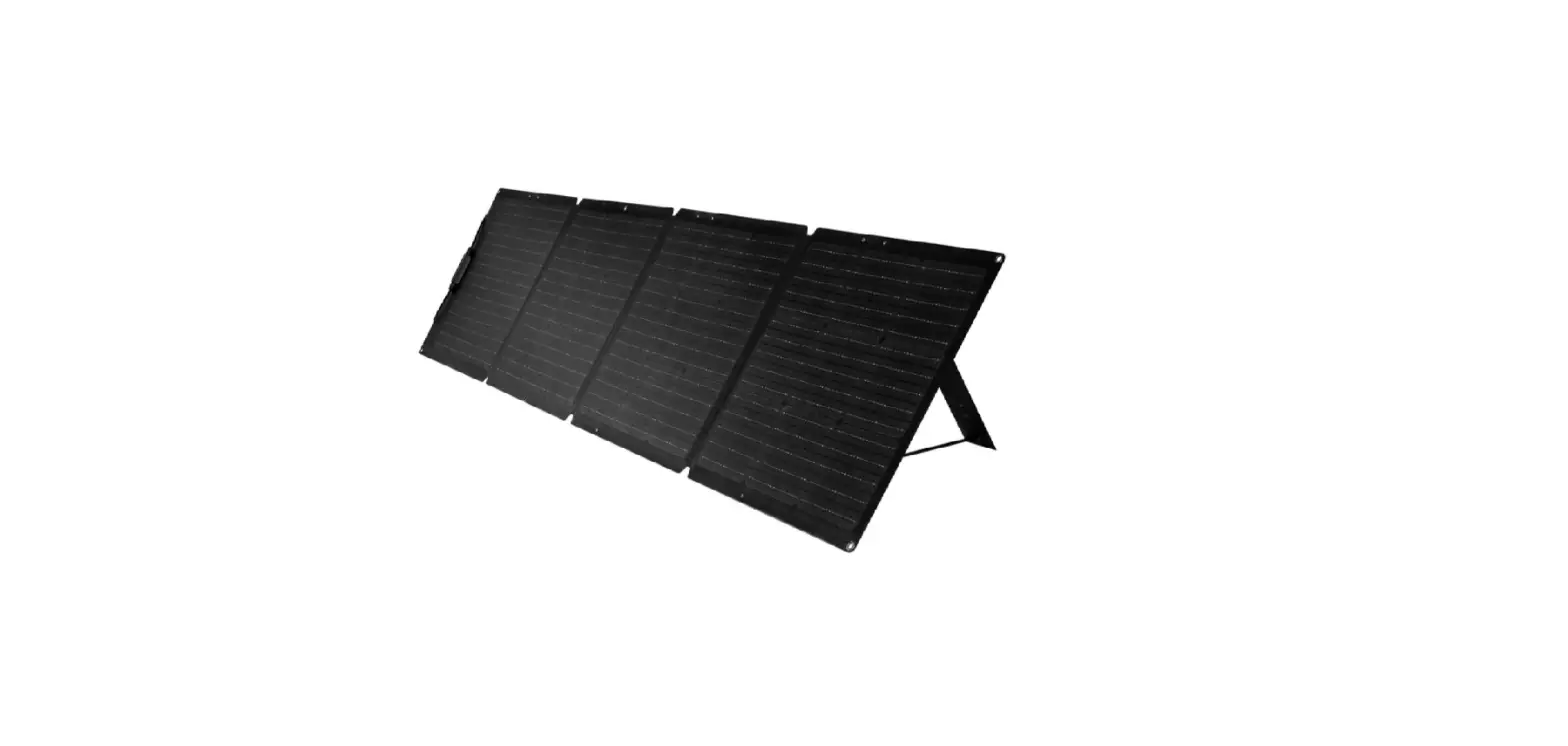
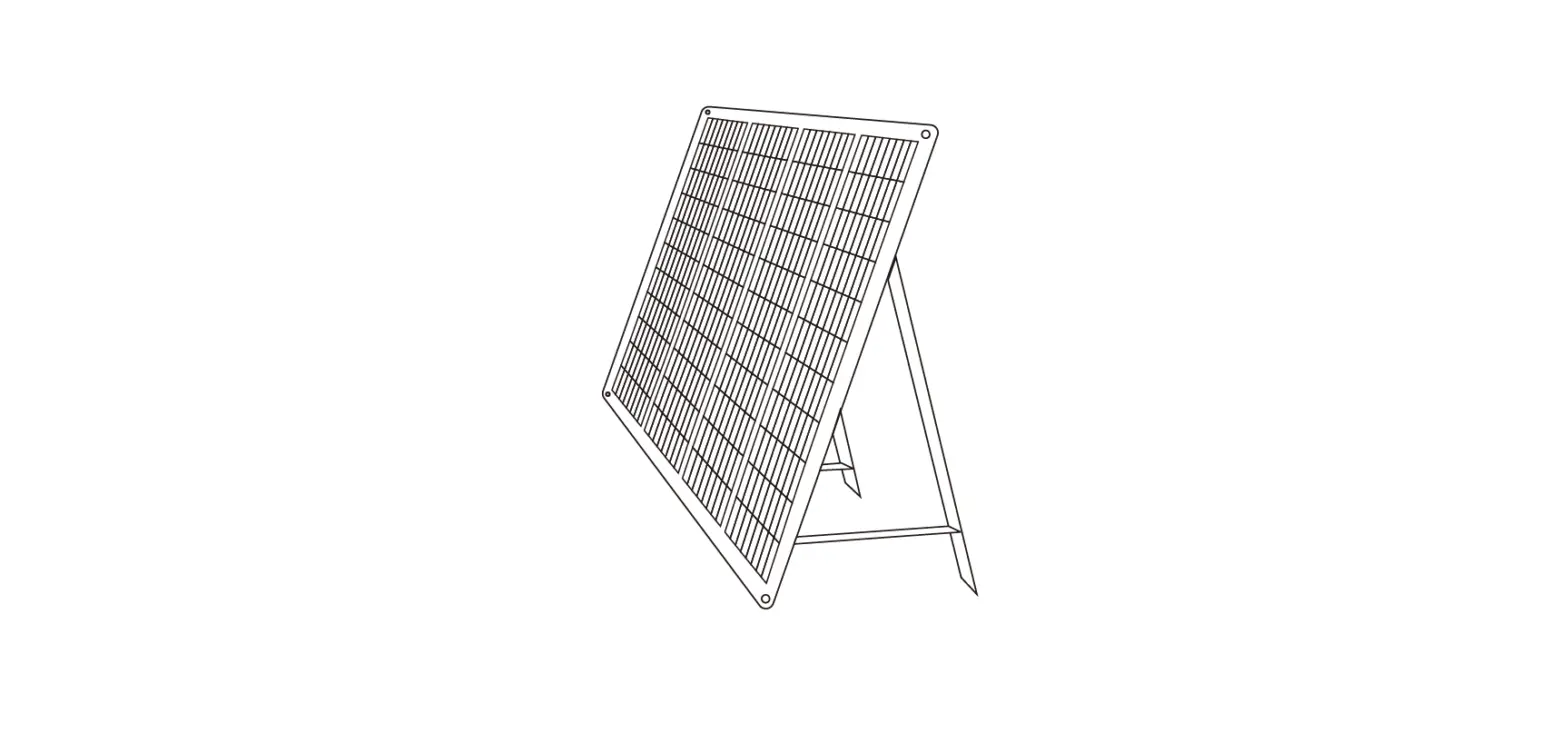
Users can connect solar panels as shown in the figure to recharge the product. The product supports 12-150VDC* input, 25A max current, and 3,000W max charging power.
Wire max 3 solar panels in series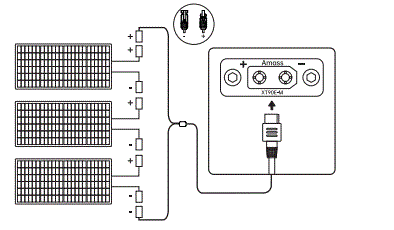 Wire max 3 series group solar panels in parallel**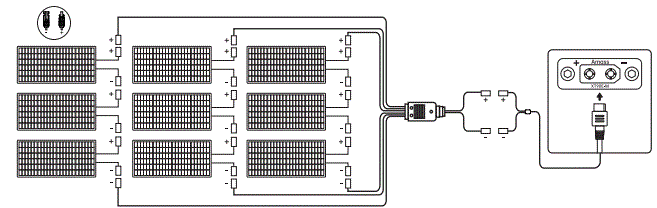
Tips:
- When using Zendure 200W or 400W Solar Panels (sold separately) to charge the product, please follow the instructions that come with the solar panels.
- Before connecting a solar panel, please ensure that the solar panel’s output voltage is not above 150Voc to avoid damaging the product.
* MPPT Voltage Range is 12-120VDC, Open Circuit Voltage is 150VDC.
** MC4 parallel cable is not included.
Car Recharging
Users can recharge the product through the car cigarette lighter socket. This product supports 12V/24V car chargers with a 10A default charging current.
Please recharge using the car charger only while the car’s engine is running, to avoid draining your car’s battery. In addition, please make sure that the cigarette lighter port of the Car Outlet and the CarCharging Cable are in good condition. Zendure assumes no responsibility for any loss, damage, or injuries caused by misuse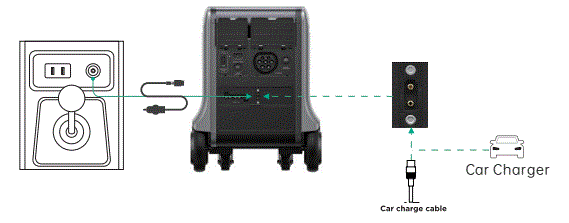
ZenCharge Recharging
Zendure’s ZenCharge Technology is specifically for ZenT2 Port recharging from a level 1 or level 2 EV charging station, offering 3,600W@230V of maximum input power.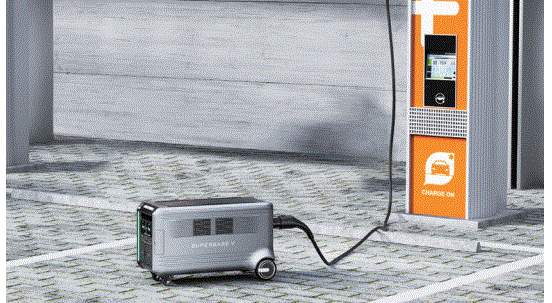
Dual Recharging
Solar recharging or Car recharging can work together with AC recharging or ZenCharge recharging. Combining solar and AC or ZenCharge power,SuperBase V can be recharged up to 5,110W(SBV6400)/4,608W(SBV4600) on its own, or 6,600W when connected to a Satellite Battery.
AmpUp, Seamless UPS, Motorized Wheels
AmpUp
With Zendure AmpUp technology, the product can power a 5,000W max device while the rated output power remains 3,800W, avoiding operation failure due to overload protection.
Tips:
- AmpUp is not available when the AC output is turned on in a recharging state (in bypass mode).
- AmpUp is not applicable for all electrical appliances; it’s incompatible with appliances that have strict voltage requirements and a rated power over 3,800W. Appliances with voltage protection (such as precise instruments)are not supported. AmpUp is more suitable for heating devices. When using AmpUp with an untested device, please monitor its performance for any irregularities.
Seamless UPS
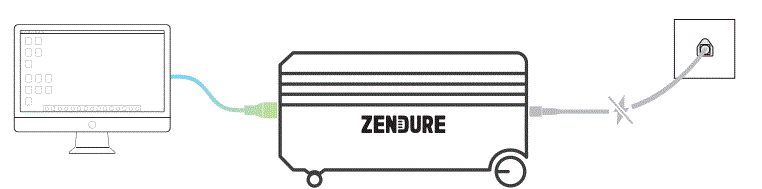
This product supports seamless UPS (Uninterruptible Power Supply). When you connect the grid power to the AC Input Port of the product through an AC cable, you can power electrical devices through the AC Output Ports (AC power will come from the grid and not the power station in this situation). The UPS Ready icon will show up on display after connection. In case of a sudden blackout, the product can automatically switch to the battery-powered supply mode within 13ms, Please test and confirm compatibility before using the product as a UPS. We recommend that you only charge one device at a time and avoid using multiple devices simultaneously to avoid triggering overload protection. Zendure assumes no responsibility for any device failures or data losses caused by misuse of this product.
Moztorized Wheels
SuperBase V’s rear wheels are motorized to help lighten the load. Pull the handle and move it even on inclined surfaces.
- Press and hold DC Power Button for 3 seconds to turn ON (or OFF) Motorized mode.
- To trigger the motorized wheels by pulling to get them rotating for 3 seconds.
- The default speed is 3km/h, which can be modified via Zendure App.
- You can stop the motorized output by blocking it for 3 seconds Once your turn on AC or DC outputs or there is any recharging, it will turn OFF Motorized mode (icon flashes) .
Tips:
- Keep out of reach of children and pets.
- No more than 10 degree slope is recommended. Zendure assumes no responsibility for any accidents by misuse of the motorized wheels.
Firmware Update, Voice Control
Firmware Update
When using it for the first time, please check and update to the latest firmware. Zendure App supports over-the-air (OTA) update.
Voice Control
SuperBase V is easy to integrate with your existing Google or Alexa voice assistant.
Read the Zendure App user guide and access the download link here:
https://zendure.com/pages/download-center
 Privacy Policy
By using Zendure Products, Applications and Services, you consent to the Zendure Terms of Use and Privacy Policy, which you can access via the “About” section of the “User” page in the Zendure App
Tips:
- Do not turn off the device while firmware is updating.
- Please update the firmware when the capacity is more than 20%, in order to have enough power to complete the update
FAQs
Can SuperBase V6400 (or V4600) connect with a Satellite Battery B4600 (or B6400)?
No, it can’t, as they are different battery types.
How many Satellite batteries can be connected to a single SuperBase V?
For each SuperBase V, you can connect up to 4 Satellite Battery units.
Can SuperBase V be charged with solar panels from a different brand?
Yes, SuperBase V can be charged by other solar panels with voltage ranging from 12V to 150V; Zendure’s 200W and 400W Solar Panels have been thoroughly tested and remain our recommendation.
How do I store SuperBase V?
For long-term storage, please charge and discharge this product once every 3 months. That is, discharge the product to 30% first, and then
Troubleshooting
| Icon | Issue | Solution |
| Overload Protection | Normal operation will resume automatically after you remove the overloaded device and restart the product. Electrical appliances should be used within rated power. | |
 | High Temperature Protection | Normal operation will resume automatically after the battery cools down. |
 | Low Temperature Protection | Normal operation will resume automatically after the battery temperature rises above 32°F (0°C). |
 | Battery Failure | Contact Zendure Customer Service for further information. |
 | Error Code | Refer to the Zendure App for add period |
|
/ |
Reset | Press and hold AC Power Button and LED Button at the same time for 3 seconds. Cases that may require a reset: 1. Can’t connect to the internet 2. Failed to pair with other device 3. The display will not turn on even though the indicator lights are on 4. There is no output from the USB(C) ports 5. The display is abnormal 6. The display is frozen 7. The device has crashed |
| / | Inaccurate Battery Level | Calibration: After firmware update, discharge the product to 0% power and then charge it to 100% power until input shows 200W or below. |
 Zendure USA Inc.
Phone: 800-991-6184 (US)
Office Hours: Mon – Fri 9:00 – 17:00 PST
Support / Contact: www.zendure.com/support
Website: www.zendure.com

 Zendure - SuperCharged | Zendure
 Download User Manuals of Zendure Power Stations and Accessories - Zendure