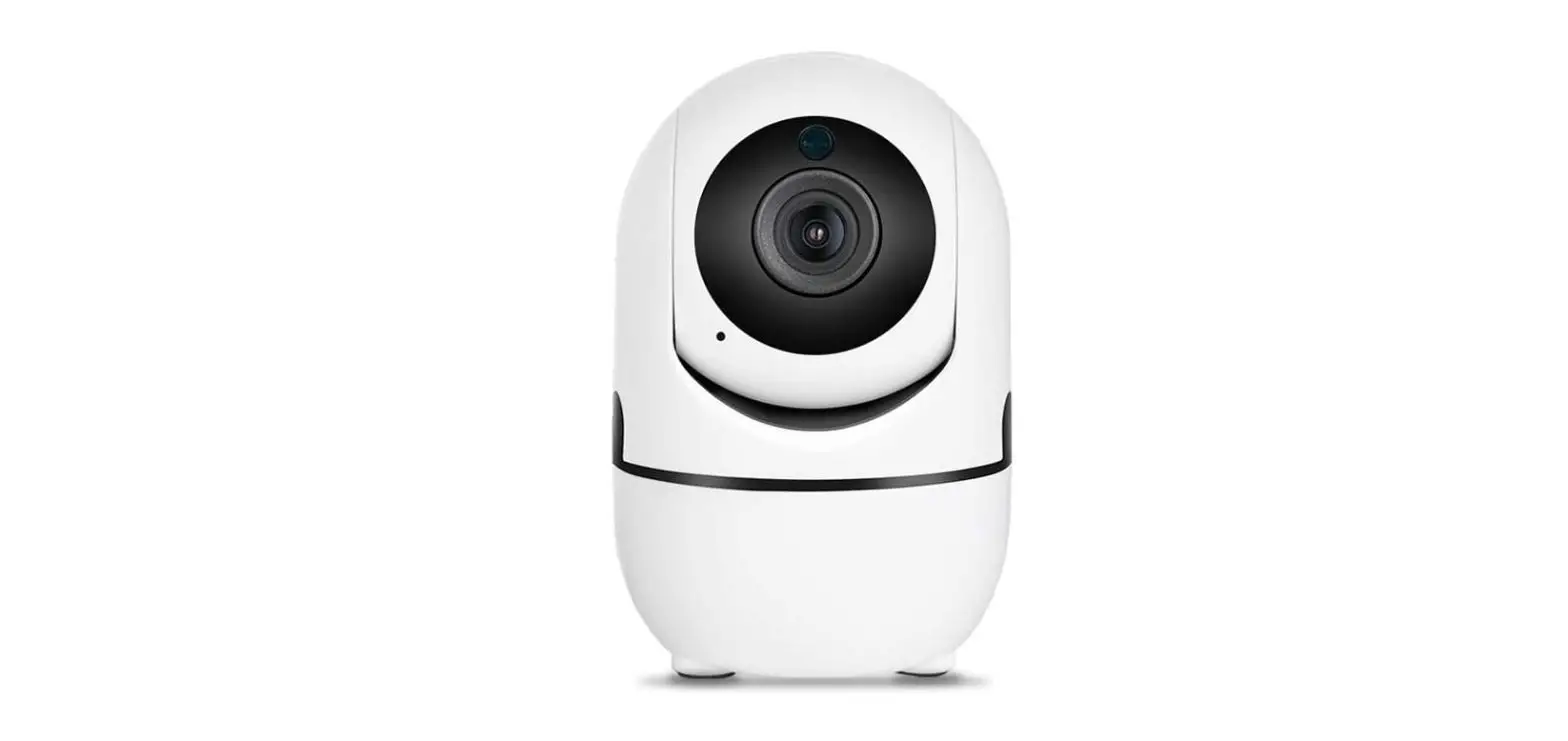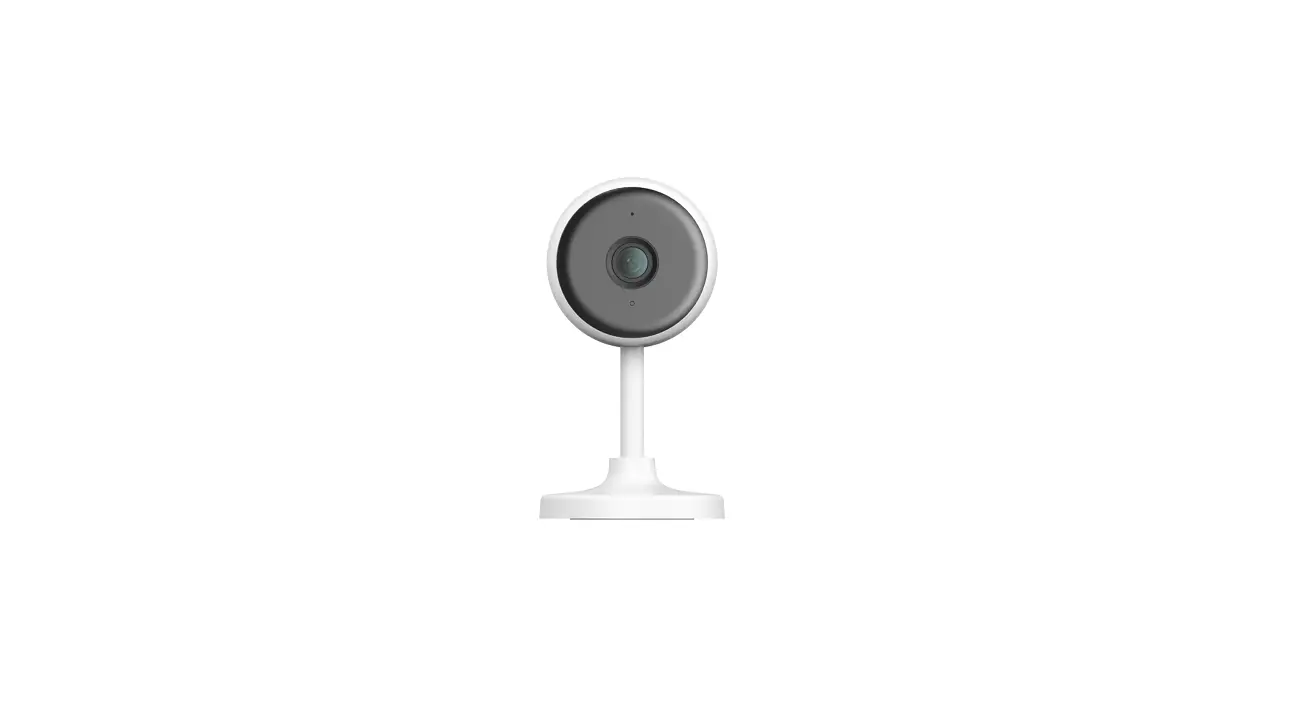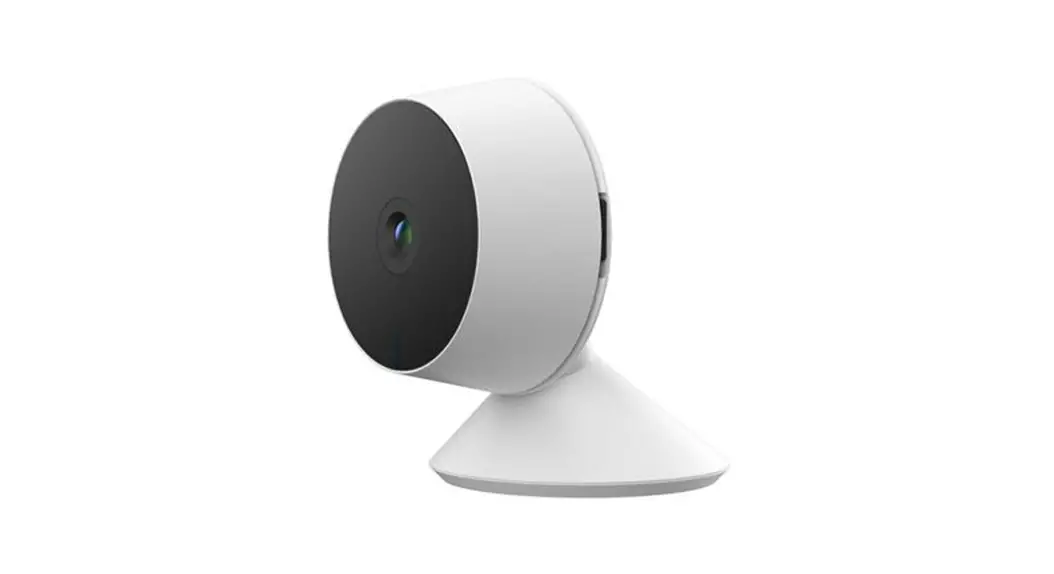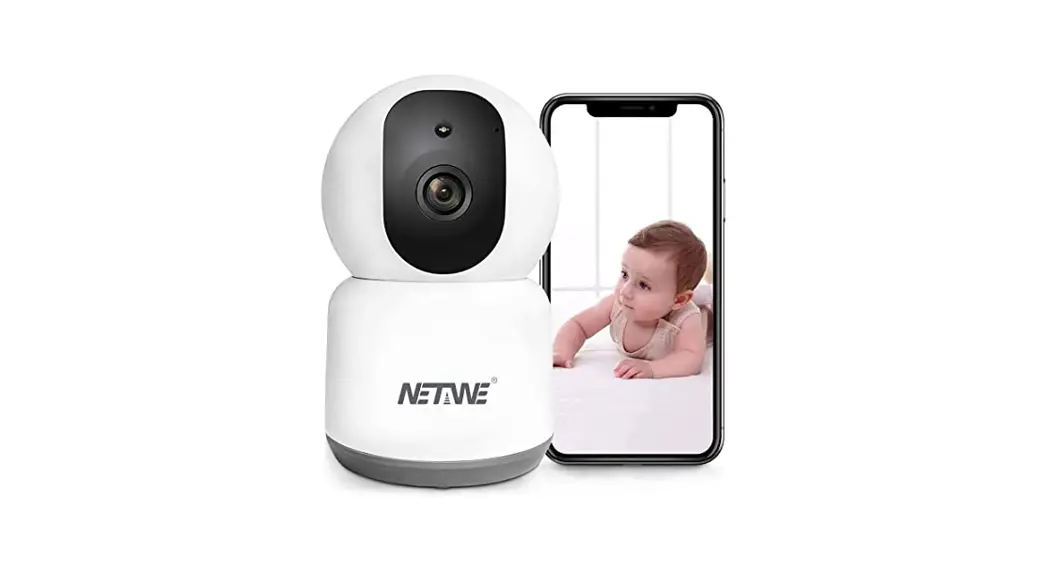
5G WIFI
[ HOME CAMERA]
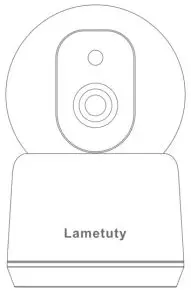
Tips before starting setup
- WIFI Camera default is infrared mode without spotlight On, You can switch the spotlight mode to make night vision in Color or Black and white Setting instruction. please see the details in Lighting settings.
- When power is on or reset, the camera will automatically self-check by rotating a circle, it will make continuous “beep” sounds after 30 seconds.
- The camera default resolution is SD(360P), You can convert to HD mode(l440P) after connecting the camera.
- Please do not make your phone too close to this camera when using two-way audio, otherwise, it will cause screeching sounds then hurt your ears.
- This camera supports Both 5G / 2.4GHz WIFI, Please make sure your mobile phone is connected with 5G WIFI first when you are trying to connect the camera with 5G WIFI Mode.
- Please make sure your router’s DHCP is enabled.
- Please allow obtaining your location when installation the APP, otherwise the WIFI will not be recognized.
- Please make a wireless security camera and your mobile device close to the router when connecting.
- IF connection failed, Pis reset the camera to factory mode and tried again.
- WIFI password must be correct and don’t keep space for the character.
Package includes:
1 x 4MP Security Camera
1 x Power Cable
1 x Power Adapter
2 x Mounting Screws
1 x Wall Mount Accessories
1 x User Manual
Install Srihome Application
Method 1: Search”Srihome” on Google Play or iOS App Store. Method 2: Scan the QR code to download the “Sri home” APP.
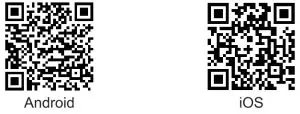
https://play.google.com/store/apps/details?id=com.x.srihome
https://itunes.apple.com/us/app/srihome/id1327653710
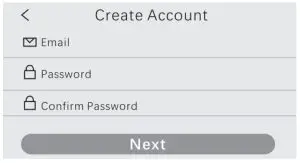
Creat a Srihome account and log in
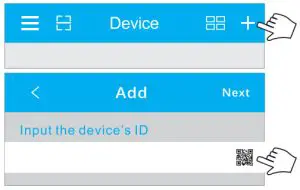
Adding Camera to Sri home APP
WI-FI QR Scan connection
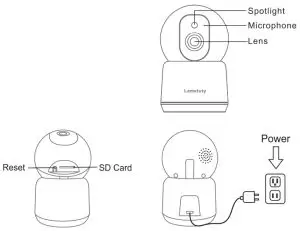
- Connect the camera with Power
The camera will automatically self-check by rotating a circle, it will make continuous “beep” sounds after 30 seconds.
Note: If there is no “beep” sound, keep holding the “RESET” button for 5 seconds until you hear a long “Beep” - Add a camera to the APP
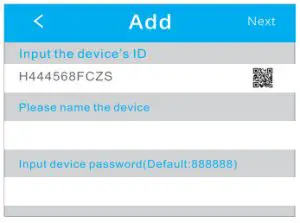
Scan the QR Code on the Camera.
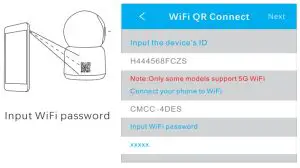
Scan the QR Code on mobile by camera lens ( keep the mobile to camera lens 10-30cm for 5-10 secs) ,it will sound “Bi” if connect with WIFI.
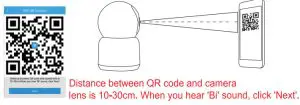
Name the camera and fill in the default password “888888” to enter into the main menu.
Click to watch the video lively.
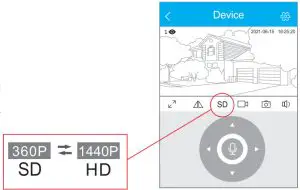
Resolution Switch
The camera default resolution is SD(360P) , You can convert to HD mode(1440P)
WIFI Hotspot Connection
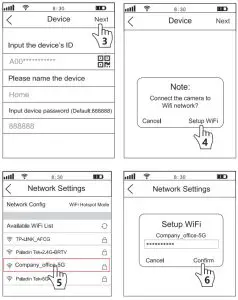
* If you failed connecting by QR scan way, pis set up the camera by WIFI Hotspot.
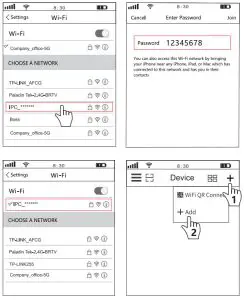
- Turn on the device and wait 30 seconds, the camera will generate a WiFi hotspot:
Camera WiFi SSI D: PC_, WiFi Password: 12345678. - Go to your phone’s WLAN settings and connect your phone to the camera’s WiFi hotspot.
- Open the “Sri Home” App, tap”+”, follow the instructions to add the device.
Functions on Monitoring Interface
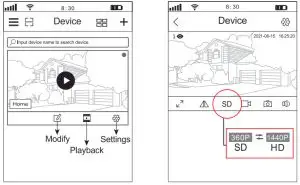
 | App Settings |
 | Scan Code |
 | Split Screen |
| + | Add |
 | Settings |
 | Full Screen |
 | Up&Down |
| SD | Resolution |
 | Local Record |
 | Screenshots |
 | Voice |
 | Microphone |
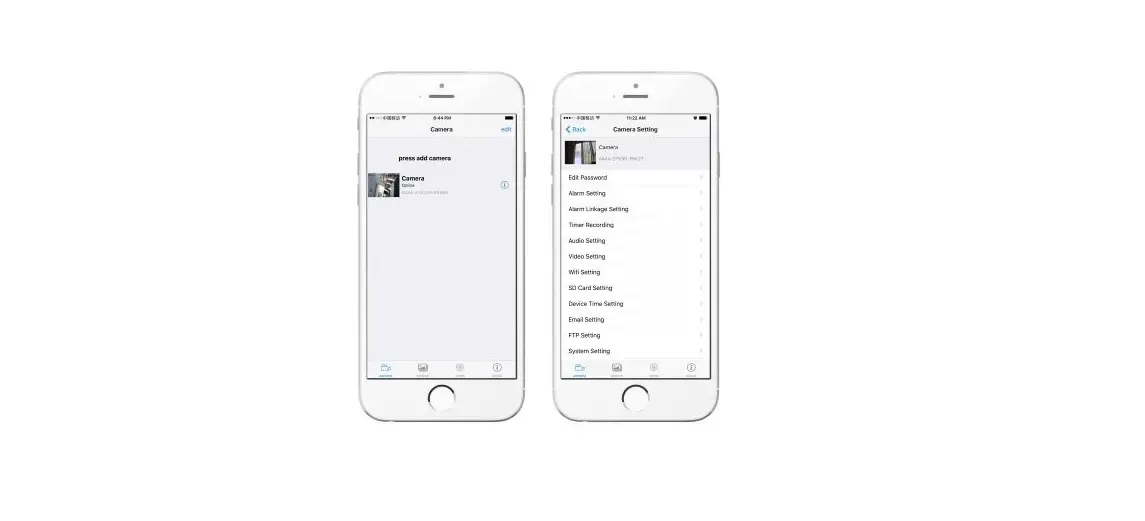
Settings
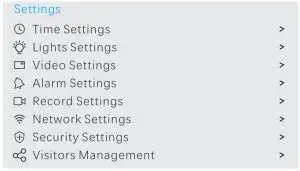
 Time Settings: You can set the time zone.
 Lighting mode: You can choose a light mode and adjust the light brightness to get different night vision.
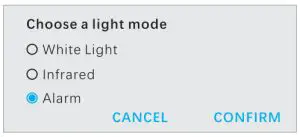
 White Light Spotlight will on/Night image will be colorInfrared Spotlight will off/Night image is black and whiteAlarm Spotlight will on when motion detected
You can also switch lighting modes on the monitoring interface directly like below:
Light brightness can be adjusted via mobile.
Press then will show 3 lighting modes for option
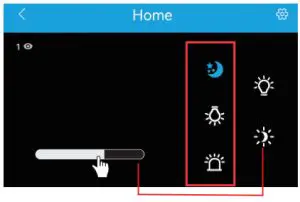
 White Light Spotlight will on/Night image will be color
 Infrared Spotlight will off/Night image is black and white
 Alarm Spotlight will on when motion detected
 Video settings: You can set a Privacy zone to protect some private places, max can set 4 different areas.
 Alarm Settings: You can choose to get or shield the Notifications to your phone when motion is detected.
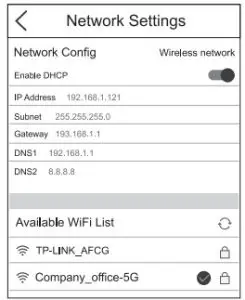
You can open human detection and set the area, the camera will detect humans moving only when the object moving the camera won’t send notifications to your phone.Record-Setting: You can choose the recording time 7/24 recording model or Alarm recording mode. ( only recording 10 seconds when motion detected) Pls, choose recording stream type HD or SD mode. (Default is SD resolution, pls switch to HD mode for highest resolution recording. ) Network Settings: You can switch the WIFI connections to another available one in the WIFI List.
 Security Settings: You can set a new password as you like but please remember it after you modify it, default password is “888888”.
 Share the camera with other users
This home camera support 5 users watching online at the same time.
To protect the user’s privacy, the first user is an administrator by default. Other users accessing the camera need administrator’s permission, or they cannot log in even with ID and password. The way to get permission is as follows:
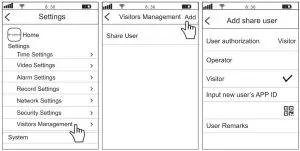
Access the “SriHome” App, tap Settings -> Visitor Management -> Add.
There are 2 types of permissions:
Operator: Live video view, set time, alarm, record, and network.
Visitor: Viewing video only in real-time
Note: You can find the user’s App ID in App Settings
Find a user’s Sri home APP ID as following steps: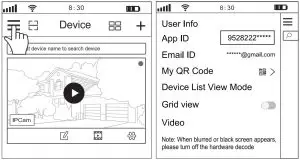 The new visitor adds the camera by filling device ID and password to connect it.
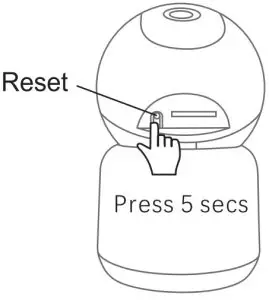
How to reboot Camera to factory mode
A: Reboot camera by Srihome APP
Settings System Device Reboot
B: Reboot camera by the reset button
FAQ
Q1: Can I view a few cameras at once? one for my living room one for the children’s room.
A: Yes, you can connect many cameras in one mobile APP and you can view 4 cameras at the same time and support 5 visitors to watch online at the same time.
Q2: Does this WIFI camera include a memory card?
A: This wifi camera default does not include a memory card, It max support 128G SD Card.
Q3: Can i view my home remotely when I am outside and my phone has no WIFI?
A: Yes, you can view the camera outside with a 4G/5G network as long as your camera is connected to WiFi.
Q4: How to select the recording resolution? I found the recording picture, not in high resolution.
A: Pis find the settings-recording settings-switch recording mode from SD to HD.
Q5: The spotlight is always on after I chose alarm light mode, how to turn it off?
A: You can turn off the light on the mobile APP video interface or turn the spotlight to infrared mode.
Q6: How can I find the recording videos or pictures on my phone? It seems very hard to find them.
A: Please find Multimedia -Local or snapshots, long-press the video or picture,it will show “SAVE INTO THE ALBUM”, then you can find them in your phone easily.
If you have any technical questions,
please contact us freely! [email protected]