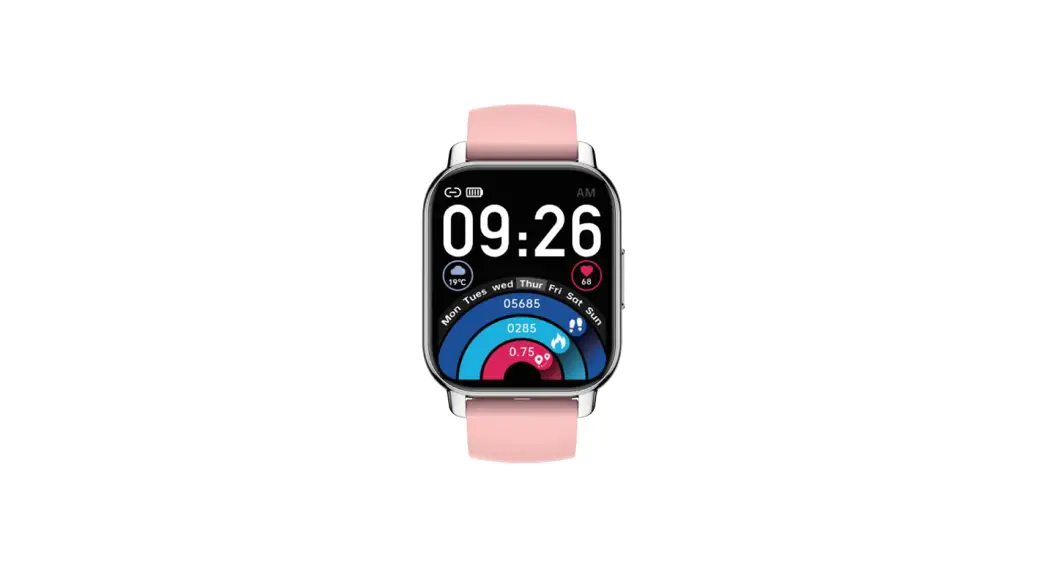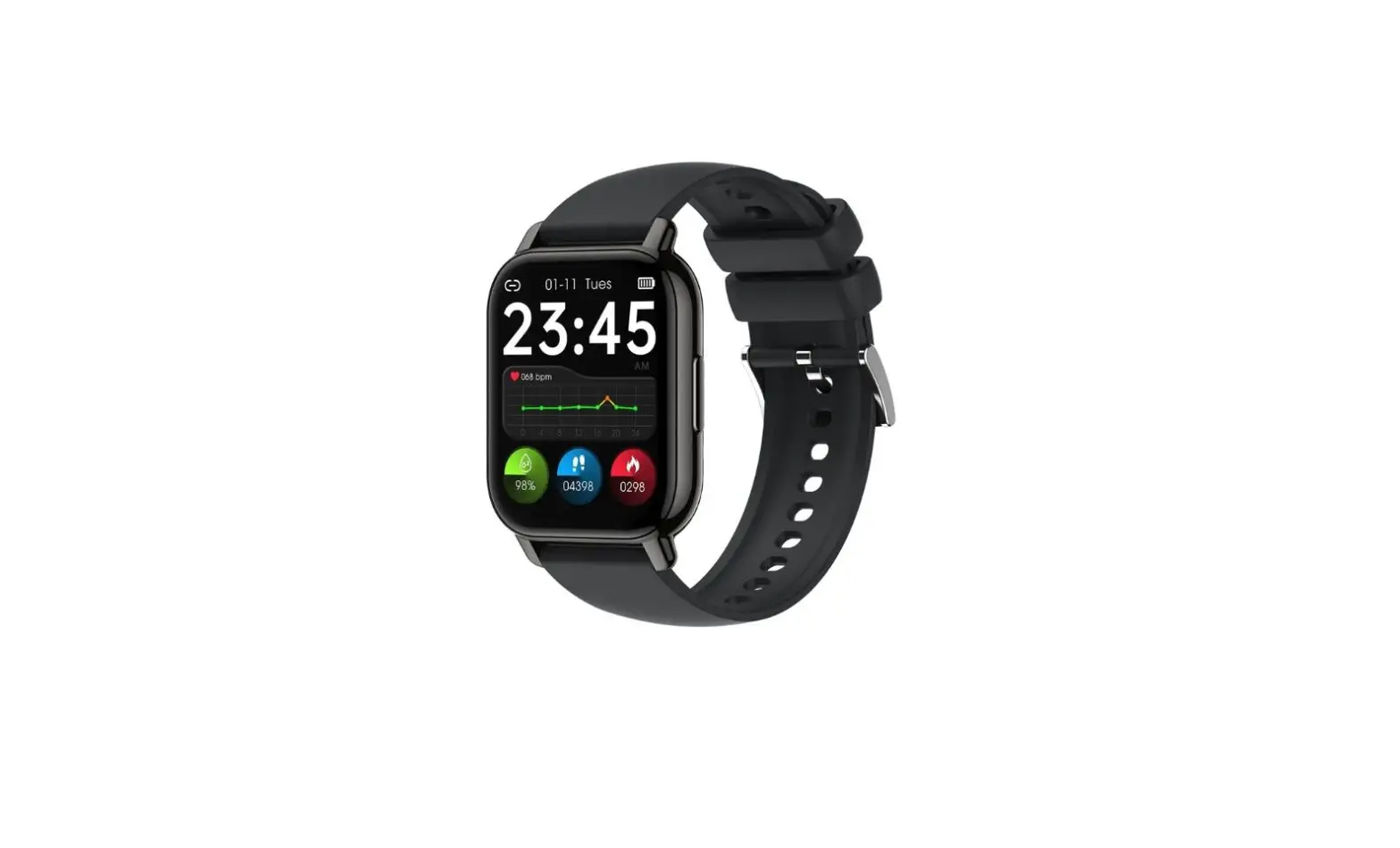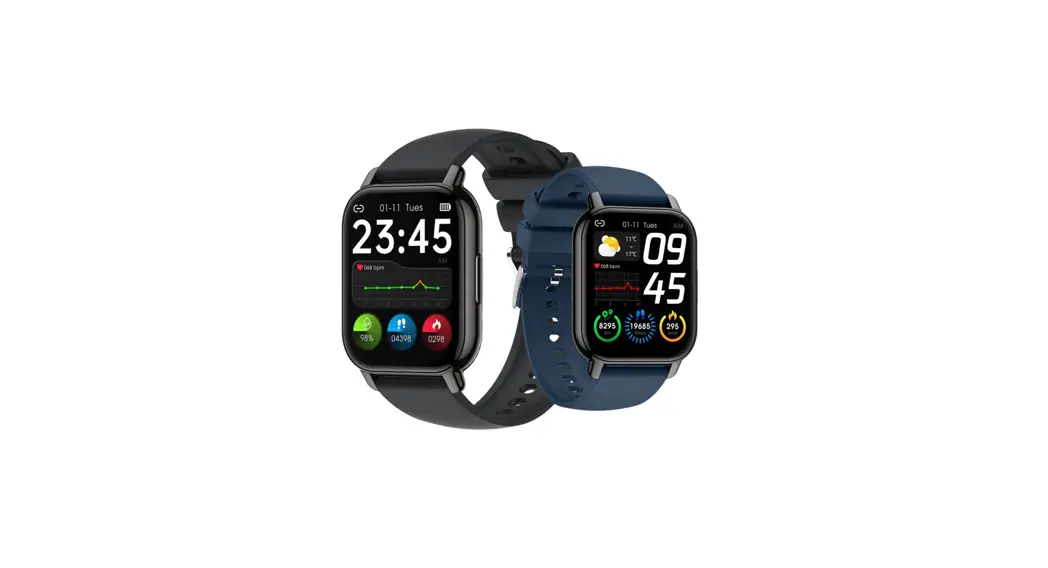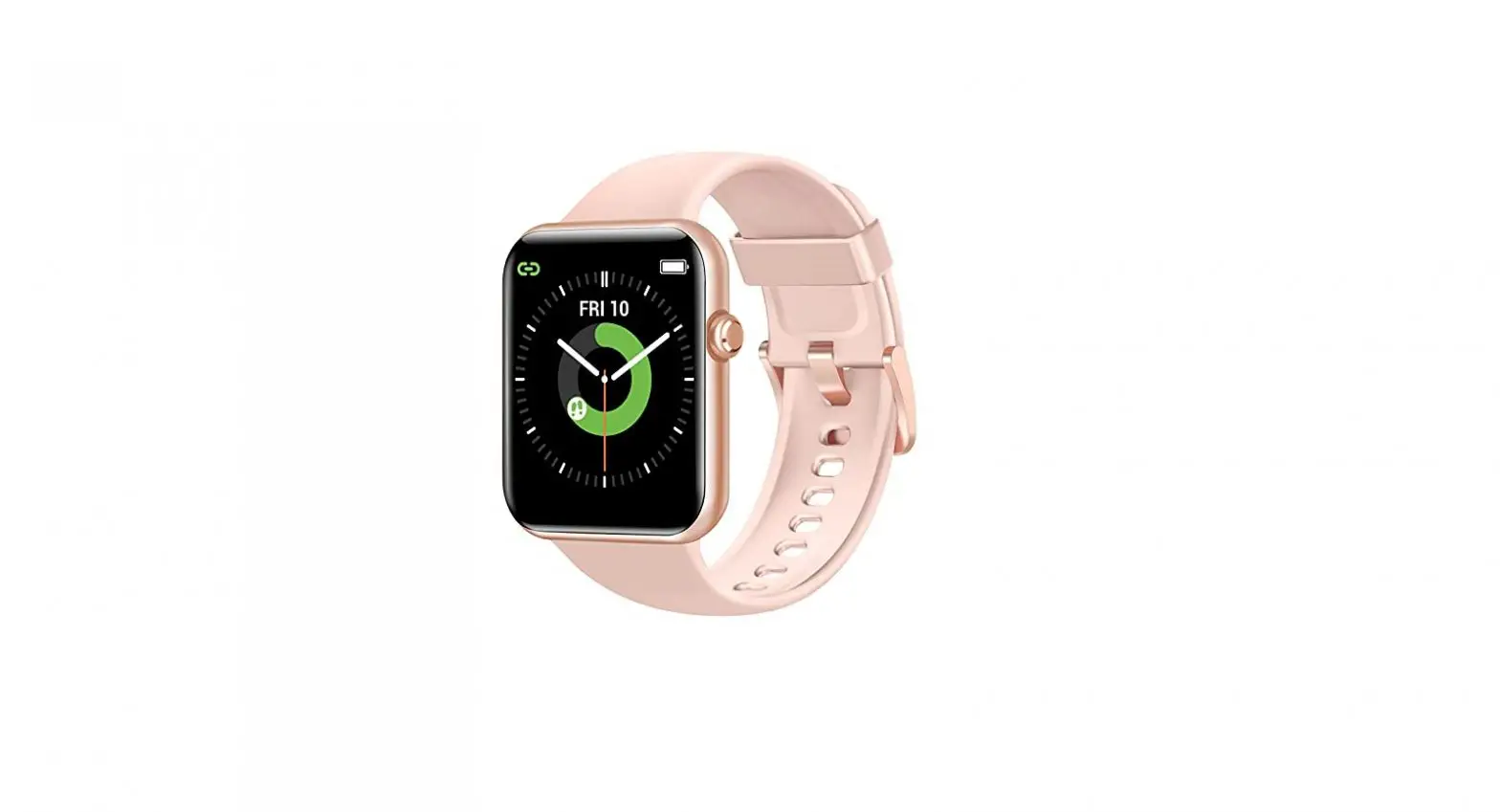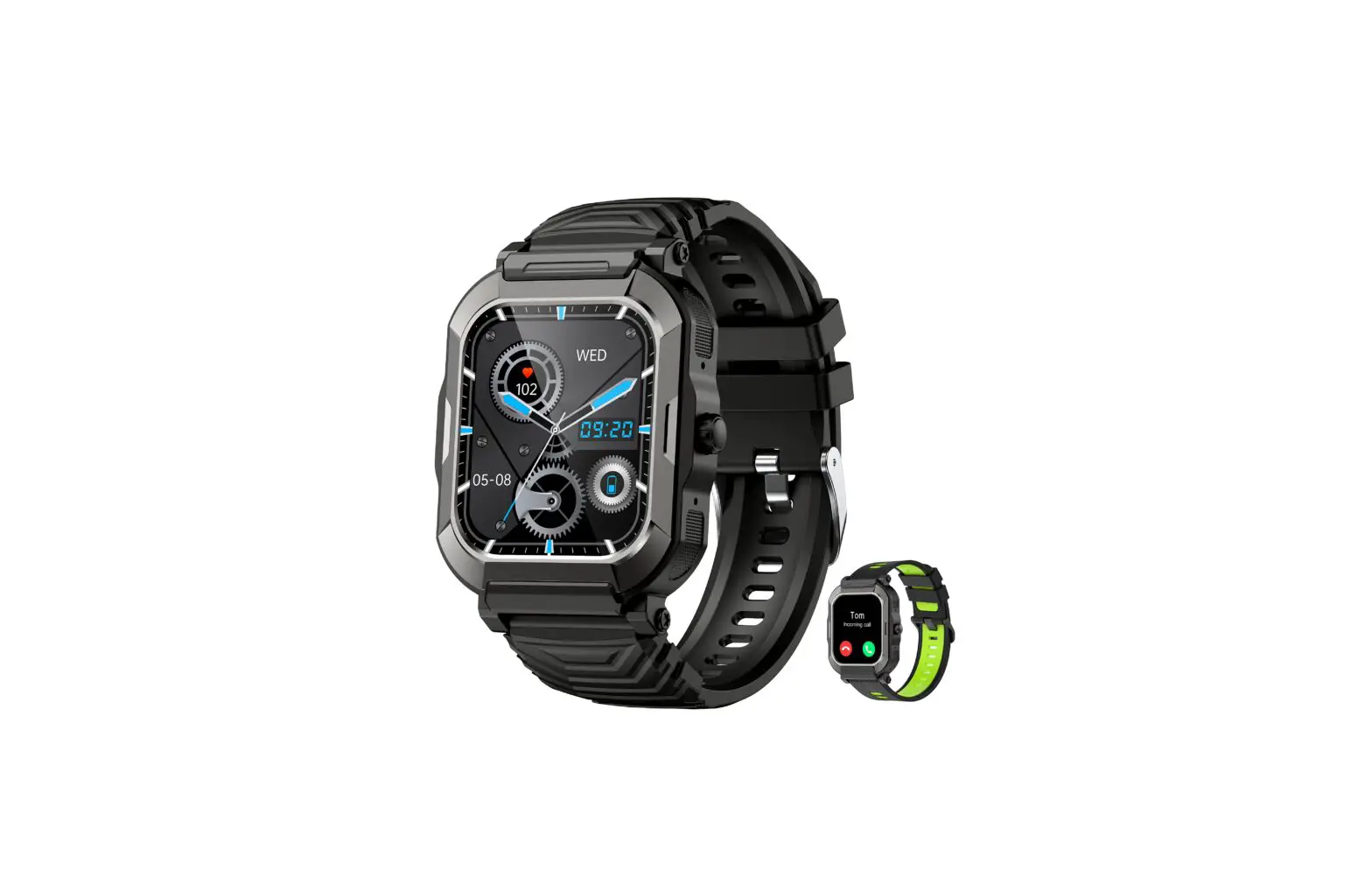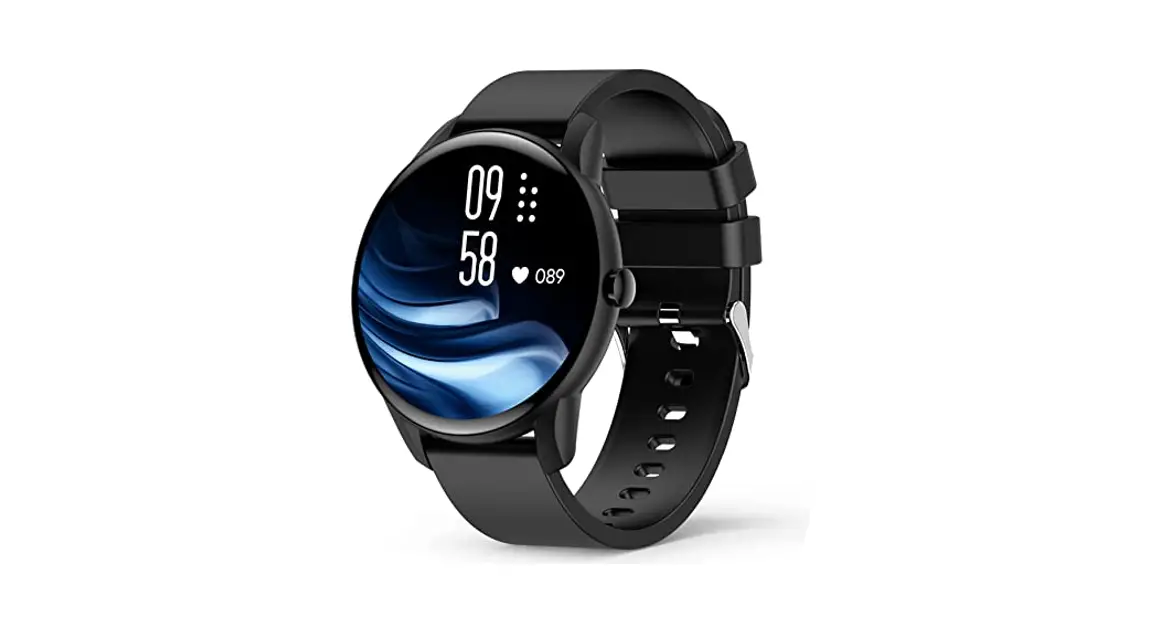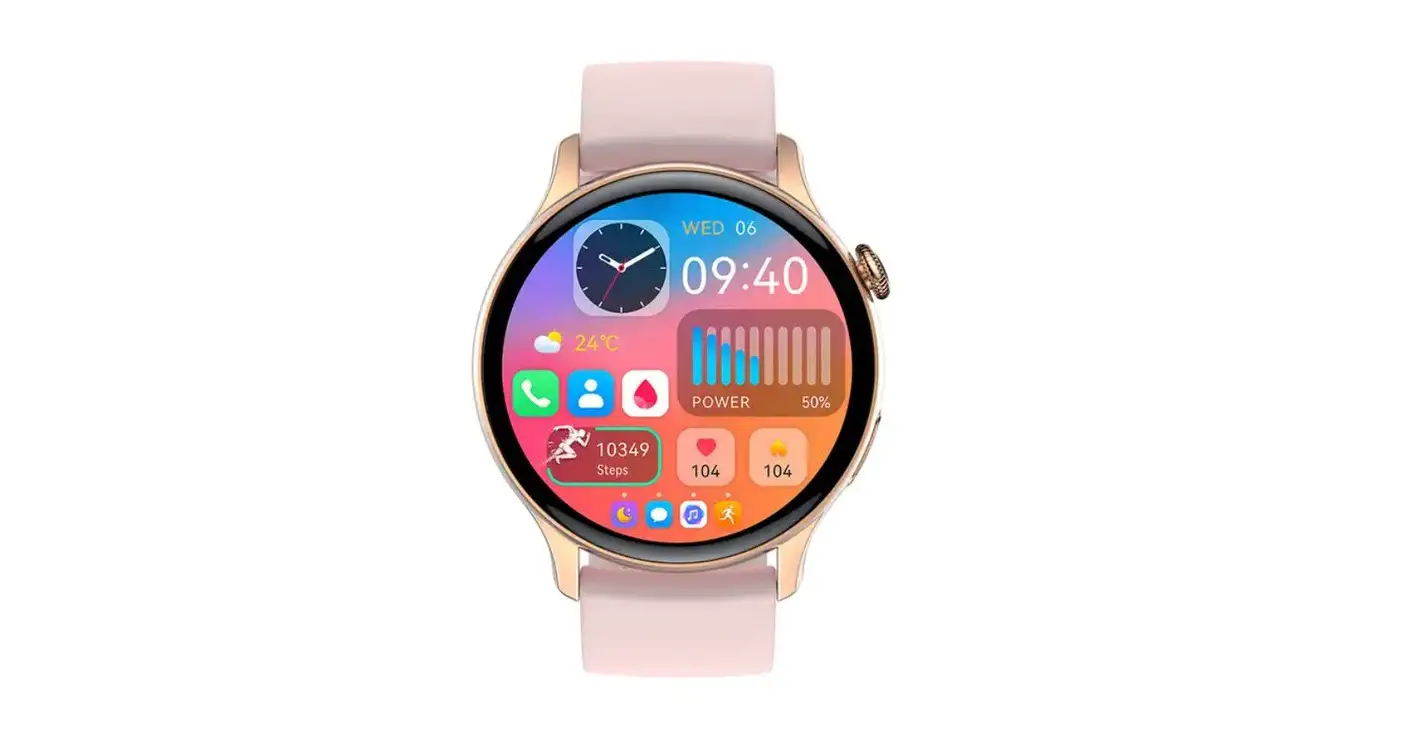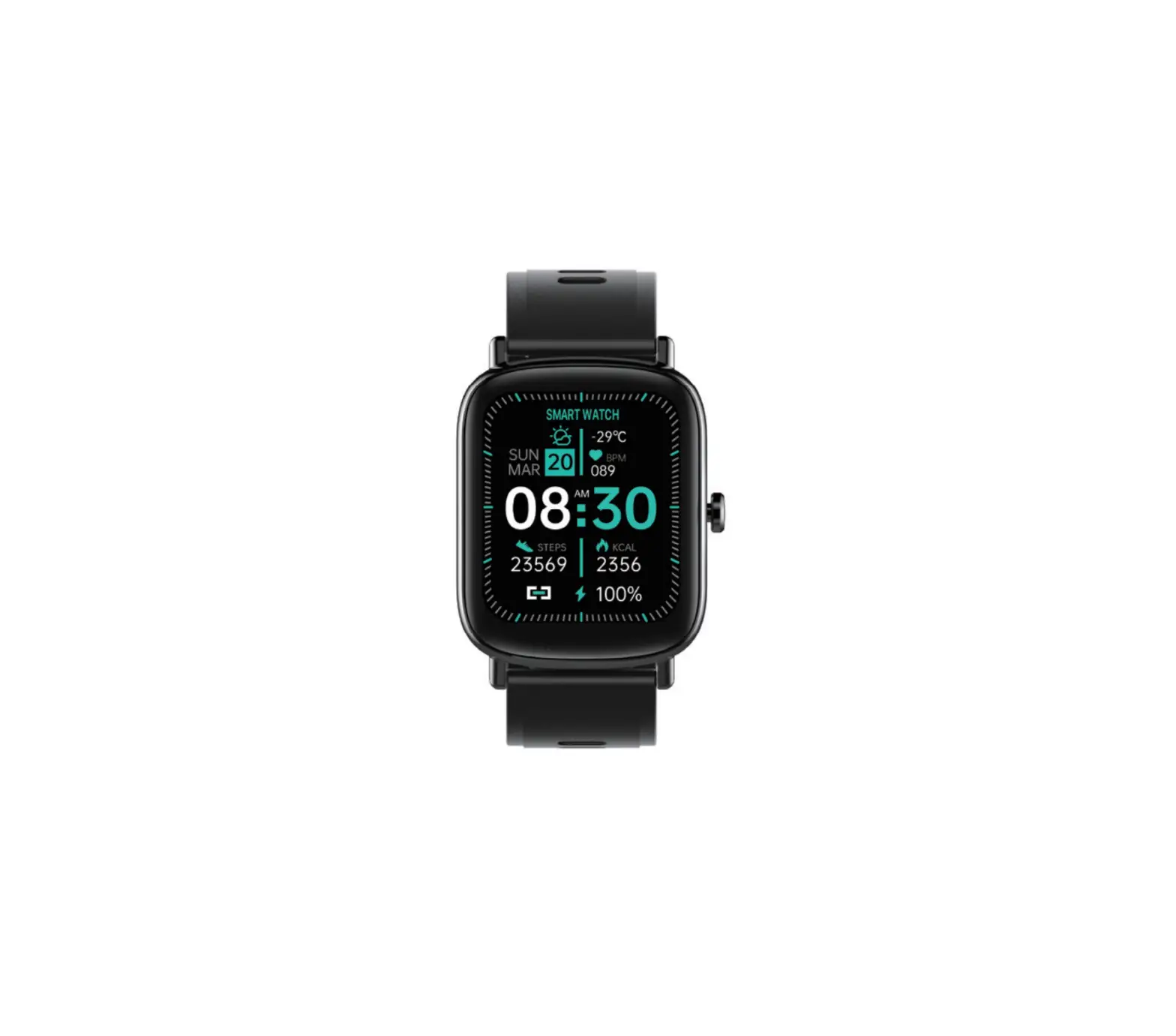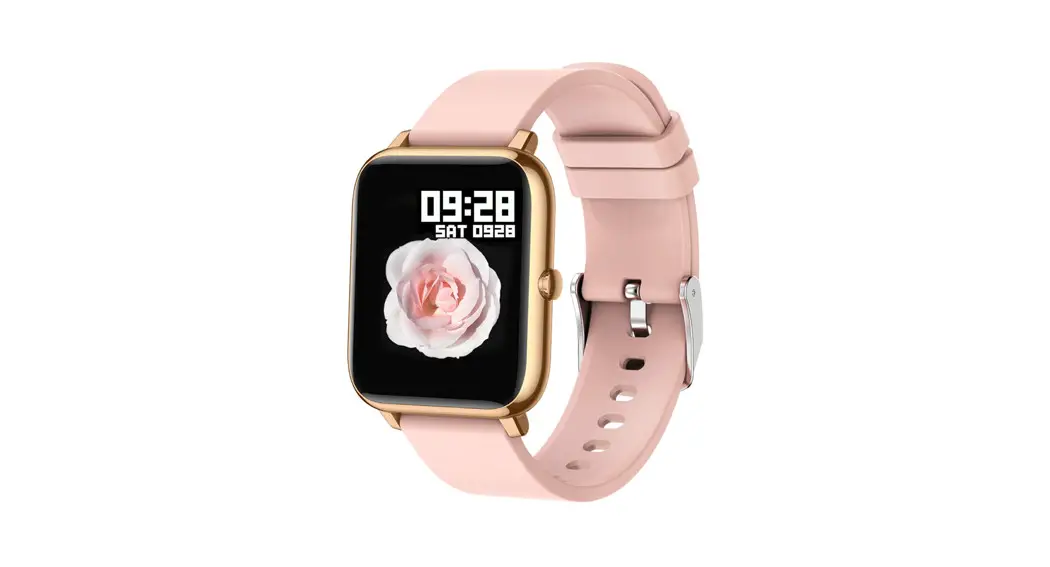
 P66 Smart Watch
User Manual
Popglory P66 Smart Watch FAQs
1. How to connect the watch with your phone?
– Download the app GloryFit from App Store or Google Play, or by scanning the QR code below.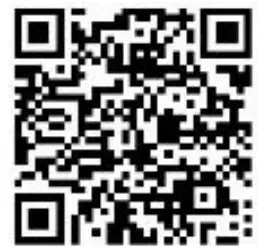 https://app.help-document.com/gloryfit/download/index.html
– Open the app GloryFit, click Device Add a new device Select device P66, allow Bluetooth Pairing Request Allow P66 to Receive Your Phone Notifications.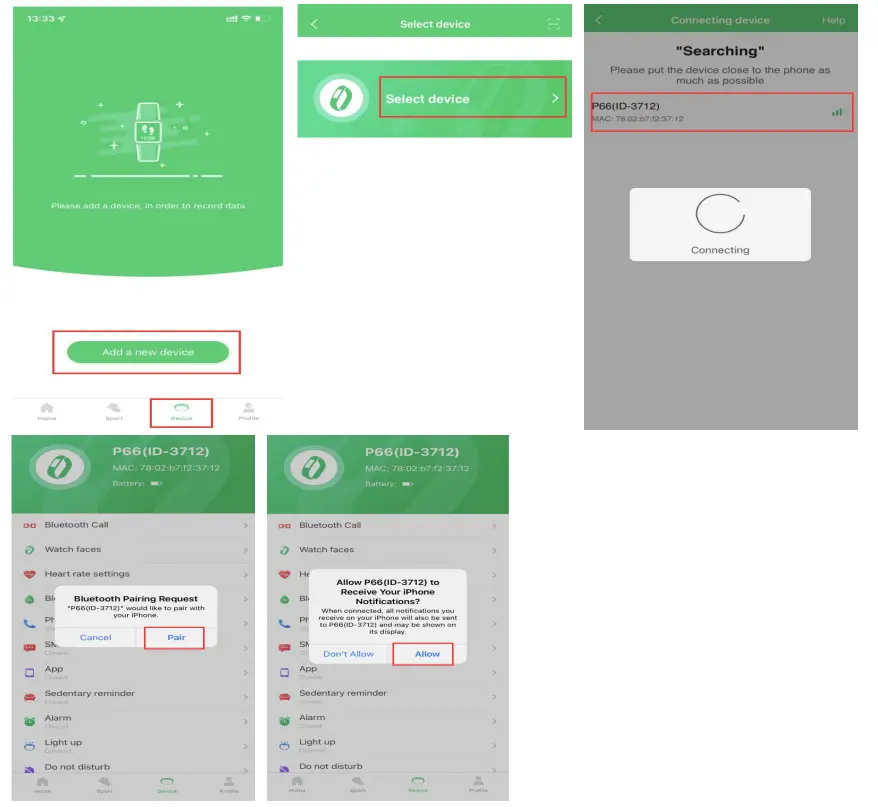 Note: The watch only supports iOS 9.0 and above or Android 5.0 and above smartphones, not the tablets, laptops or personal computers. Do not connect the watch directly in Bluetooth list.
2. How to use Bluetooth calling function?
Keep the watch connected with the app and Bluetooth.
– Swipe right on the homepage of the watch and click the Call function click Switch to turn on/off the Bluetooth call function at any time.
– Click Device Bluetooth Call Sync Contacts Open in the app, you can sync your contacts to your watch.
– You can click Dials directly on the watch, or you can directly tap the Call log or synchronized Contacts on the watch to make calls.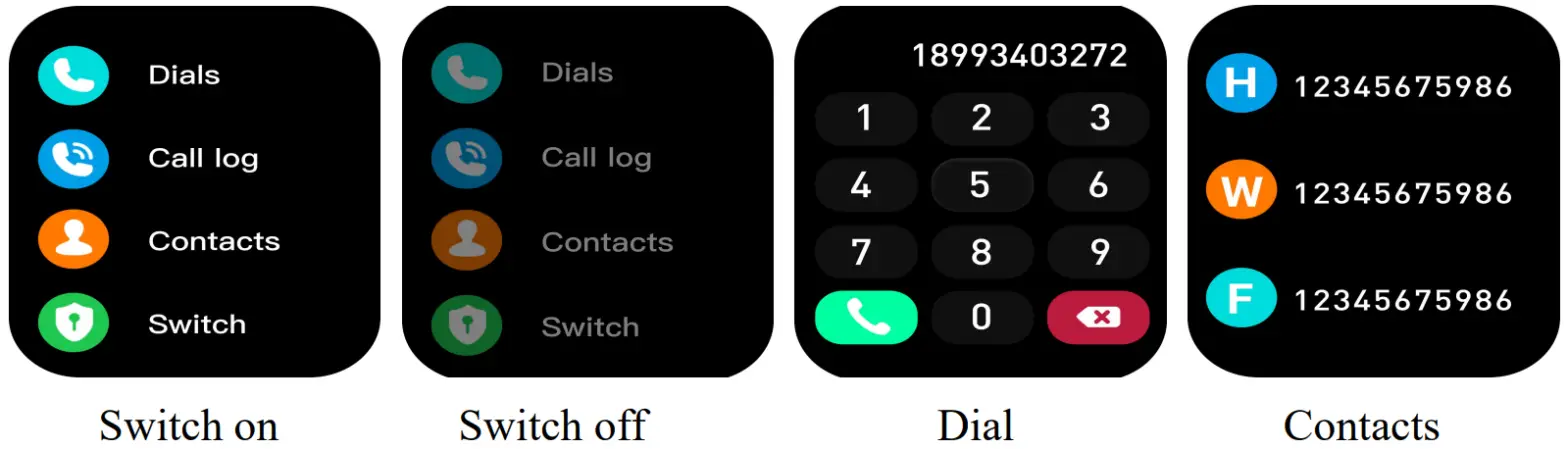
Note: If the Bluetooth call function cannot be used, please confirm the connection status in the app and Bluetooth list.
The watch can still receive the incoming call alerts, but cannot answer them when
Bluetooth call function is forbidden.
3. How to switch the watch face?
Set on the watch:
– Long press the watch’s home screen, swipe right/left to choose the watch face you like.
– Swipe right on the watch’s home screen, click Setting Watch face you can choose the watch face you like.
Set in the app:
– Under connection, open the app GloryFit, click Device Watch faces you can download and set the watch faces you like in Dial center.
– Also, you can click the image in Custom dial to custom your watch face.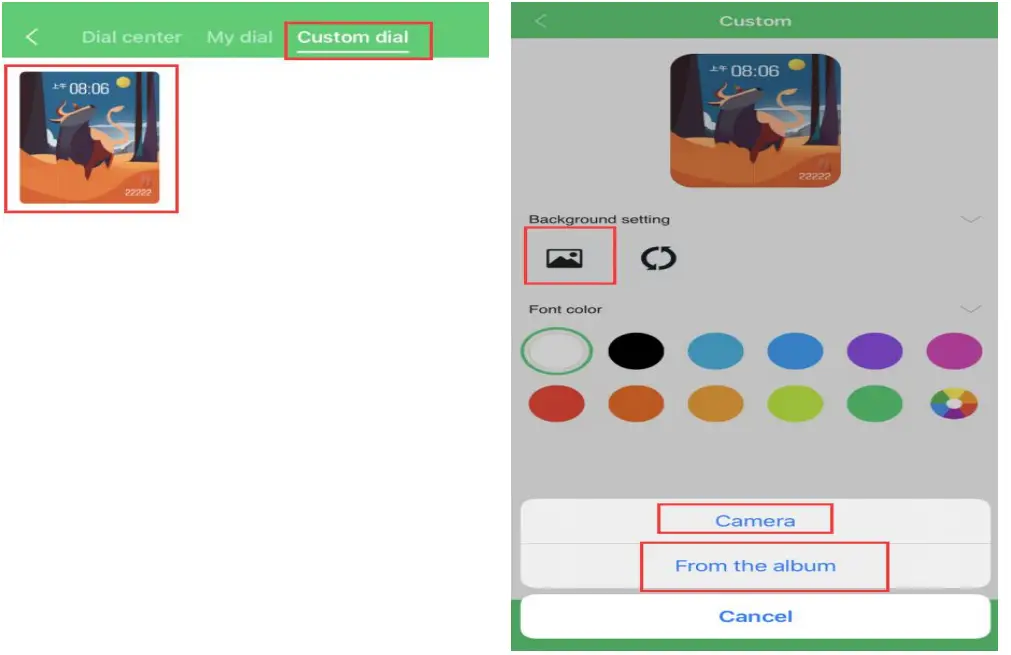 4. How to receive the messages on the watch?
– If you have allowed all permissions when installing the app, please open the app GloryFit Device App Reminder Turn on the app you want to receive notifications. You will receive message notifications.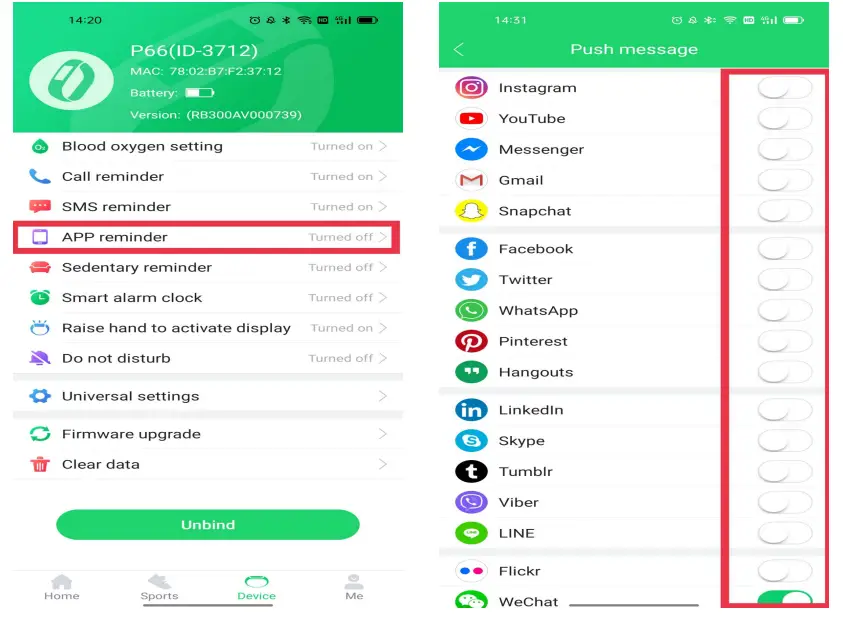 – If you did not allowed all usage permissions when installing the app, there are 2 settings that you can follow to receive the messages:
The 1st way:
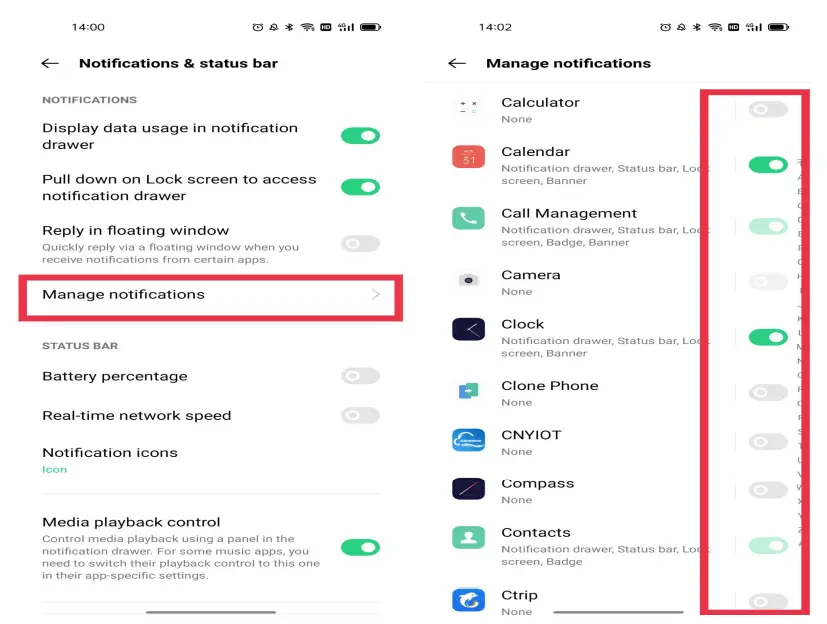
Please uninstall and reinstall the app, and allow all usage permissions, click Device App Reminder Turn on the app you want to receive notifications, and you will receive message notifications. The 2nd way: For Android phone users, you need to allow the app to run in the background firstly, and follow the below steps, then repeat the above steps to ensure that you can receive messages.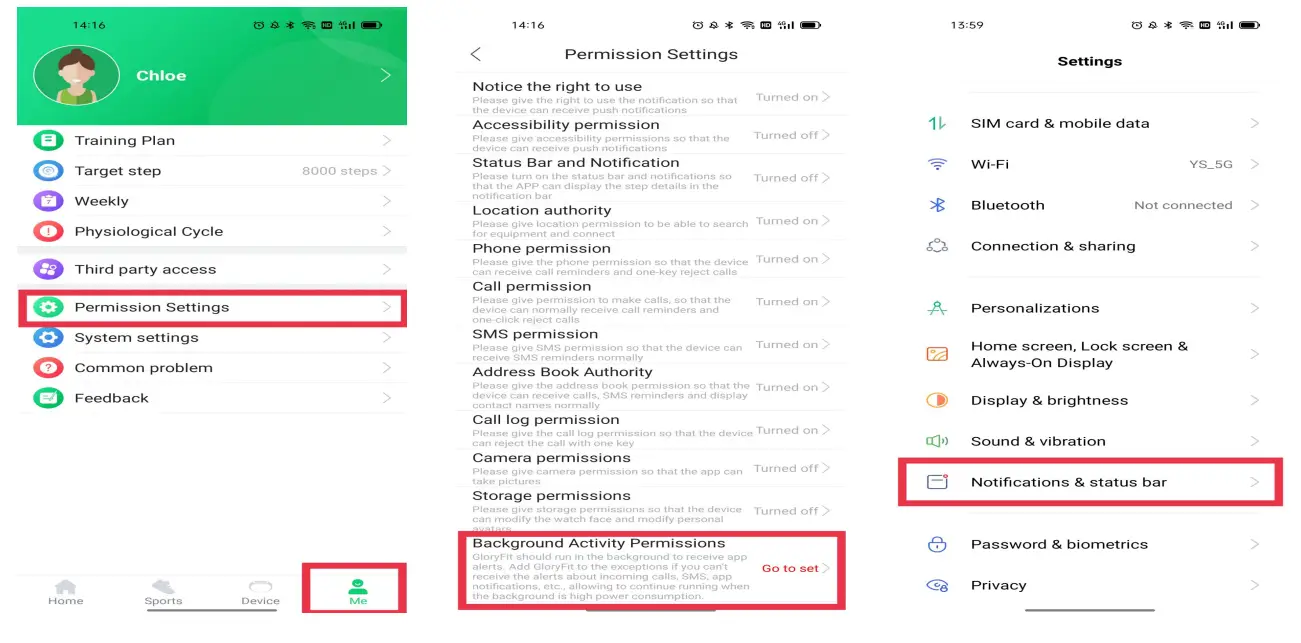
 For iPhones users, you need to turn on Share System Notifications in the iPhone’s Bluetooth, and follow the below steps, then repeat the above steps to ensure that you can receive messages.
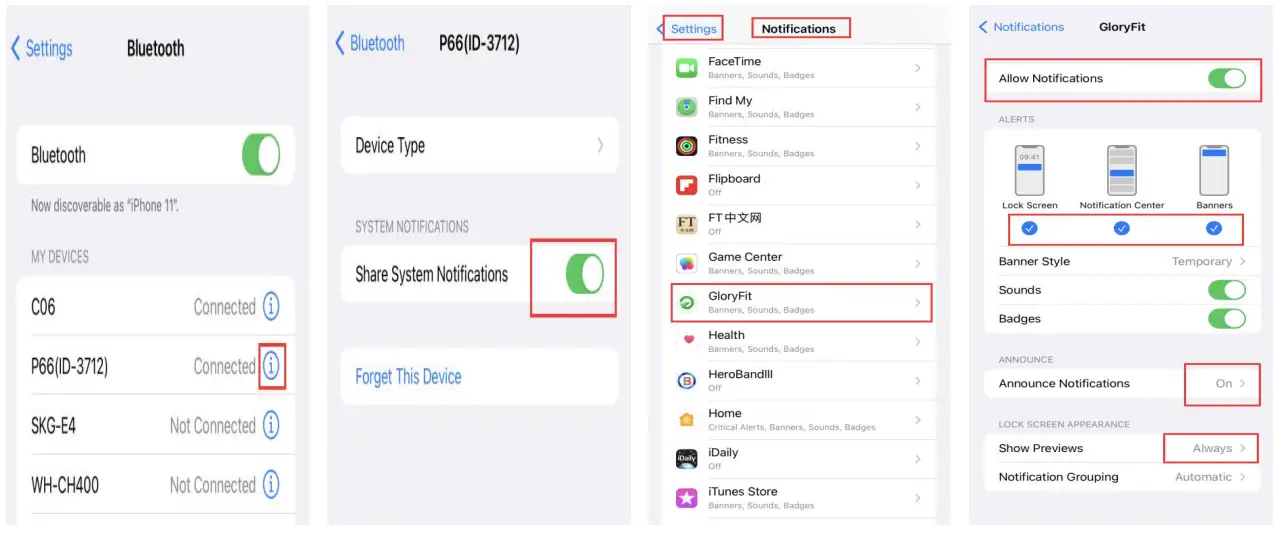 Note: The watch only can display the message content displayed in the mobile phone message notification bar. Please make sure you set the message preview on your phone so that you can view the messages on your phone.
5. How to monitor your heart rate, blood pressure, blood oxygen?
– Fill in the gender, age, height, and weight information in the app.
– Wear the watch two fingers away from the wrist bone.
– Lay the arm flat, relax, keep still, and make sure the watch is close to the skin.
– You can swipe right on the watch’s home screen to enter heart rate, blood pressure, blood oxygen monitoring interface. Also open the automatic detection mode of heart rate and blood oxygen in the app.
Note: The data cannot be intended for medical use, all measurements are for general fitness purposes.
6. How to switch the watch language?
Under connection, open the GloryFit app, click Device More settings Device language select the language you want.
7. How to set alarms?
Under connection, open the GloryFit app, click Device Alarm Tap the time showed you can update the alarms you want, then click Save on the upper right corner.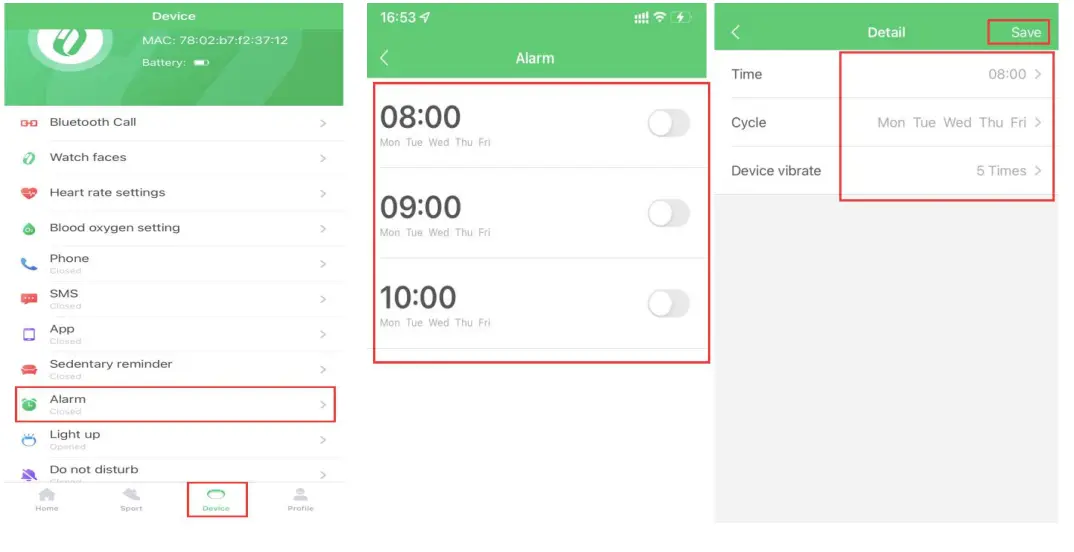 8. How to set the weather display?
How to change weather from Celsius to Fahrenheit?
– Make sure the app GloryFit can access your location.
– Swipe right on the watch’s home screen, click Weather, you can view the weather for the day, then swipe up and you can view the weather for the next six days.
– Also you can follow the below steps to view the weather and change weather from Celsius to Fahrenheit in the app.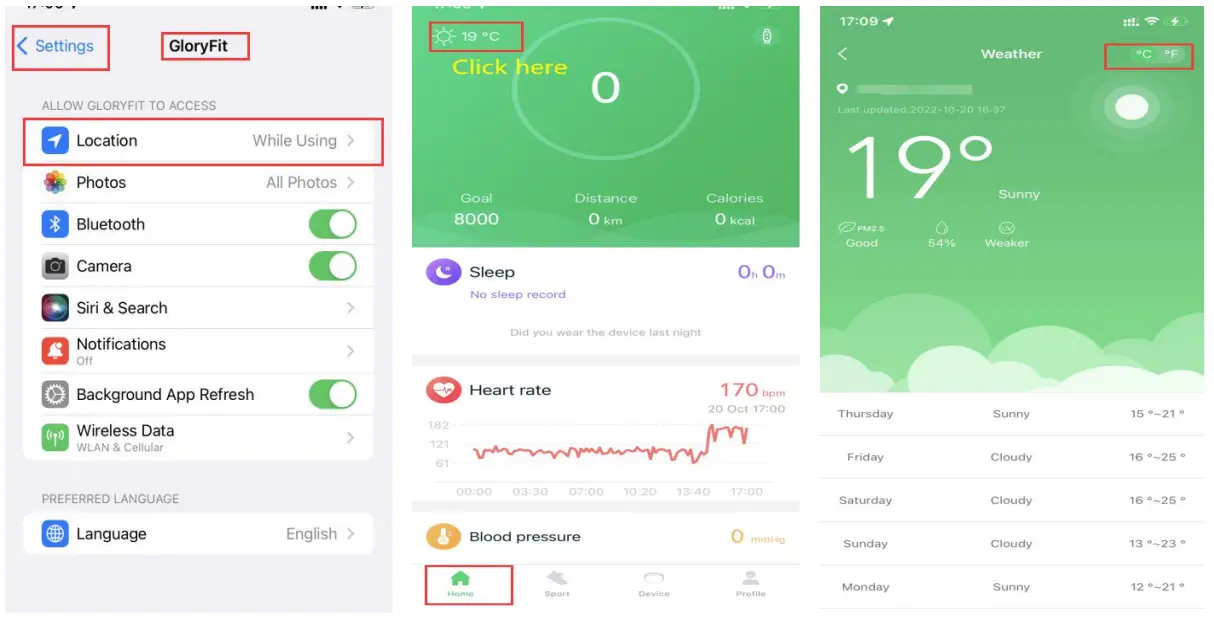 9. How to control music with the watch?
Under connection, swipe right on the watch’s home screen, click Music, you can switch songs and adjust volume directly with the watch when you open the music app firstly on your phone. You can refer to the below steps (Q10) to set the watch as playback device.
10. How to choose or change the playback device?
Android: Click Phone→ Settings→ Bluetooth →P66 →Turn off/on Media audio.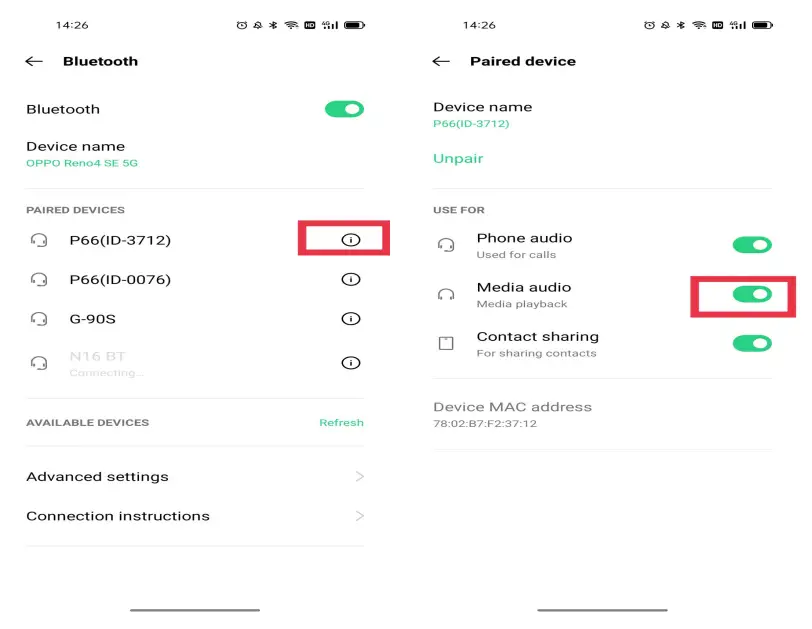
iOS: Swipe down on the homepage on your iPhone, click the Media Audio icon in the upper right corner of the player, and select the iPhone/the watch as the default playback device.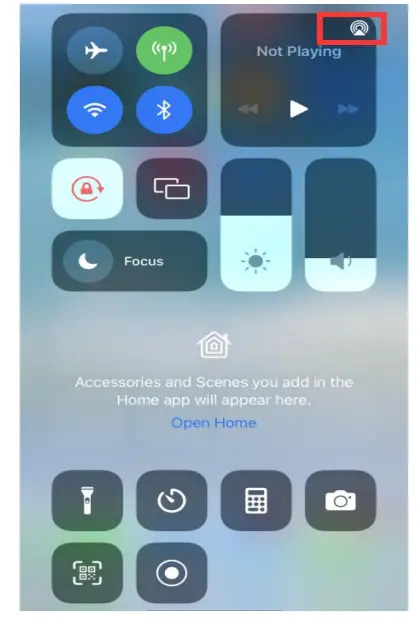 11. How to get physiological cycle?
The function is limited to female users. When you enter gender “female” in the app GloryFit, then click Profile→ Physiological →cycle you can record your period start time, your period cycle.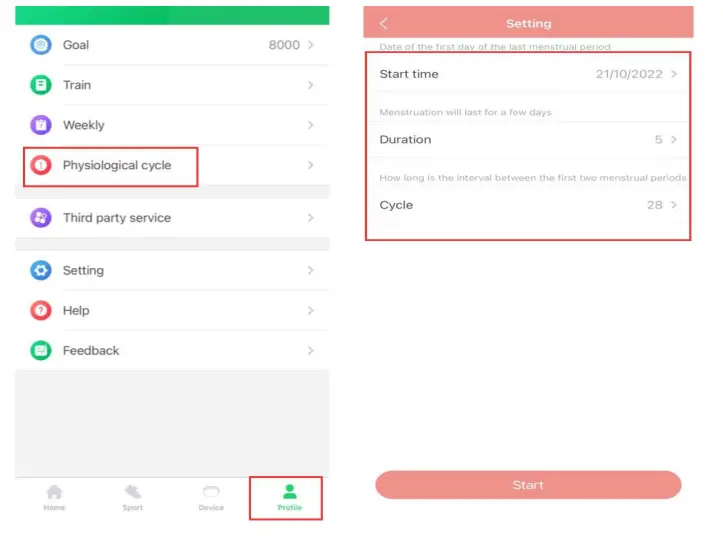 12. How to get the sleep data?
– Fill in the gender, age, height, and weight information in the app.
– Wear the watch two fingers away from the wrist bone when you sleep.
– You can view your deep sleep, light sleep on the watch
– You can click Sleep in the app to view the sleep data of the day, week, month.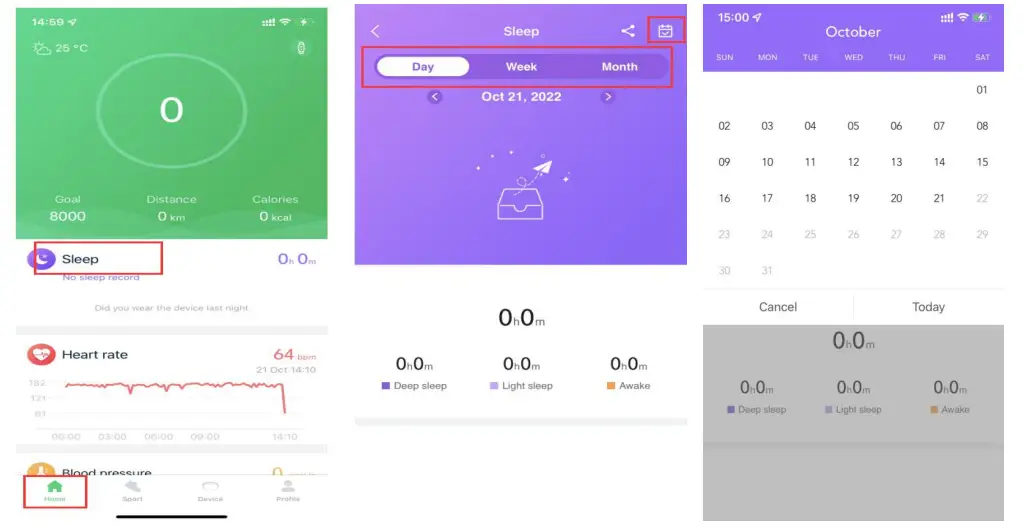 Note:
Note:
– The watch can only record your sleep from 6:00 P.M. to 12:00 noon. The watch does not record data if you sleep in other time periods.
– The arm swings sharply during sleep or gets up during sleep, which may cause the watch not to record data.
– The data may be cleared if the watch is disconnected from Bluetooth or reconnected to your phone.