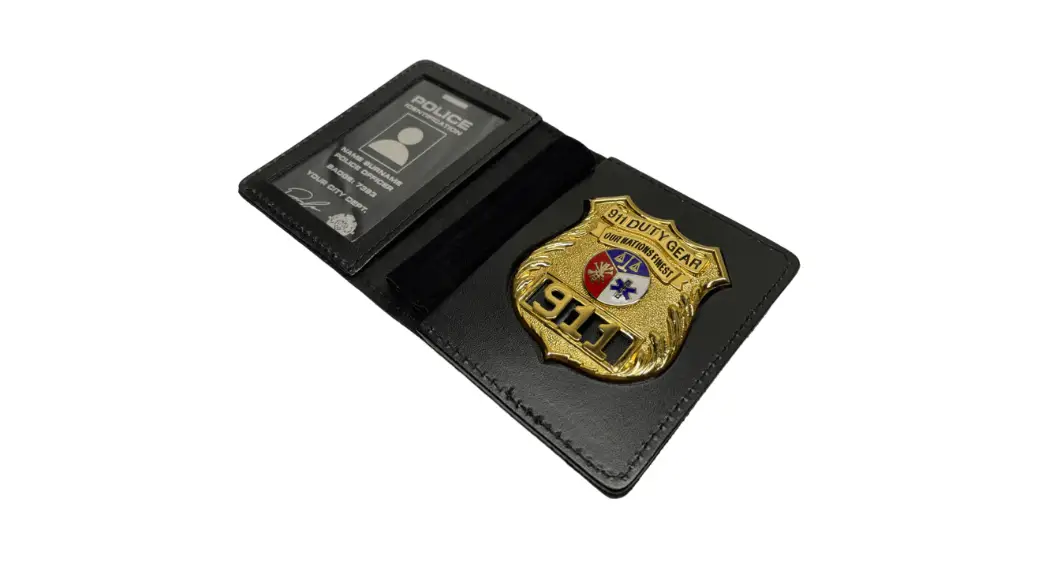
 Custom Badge ID Case
Instructions 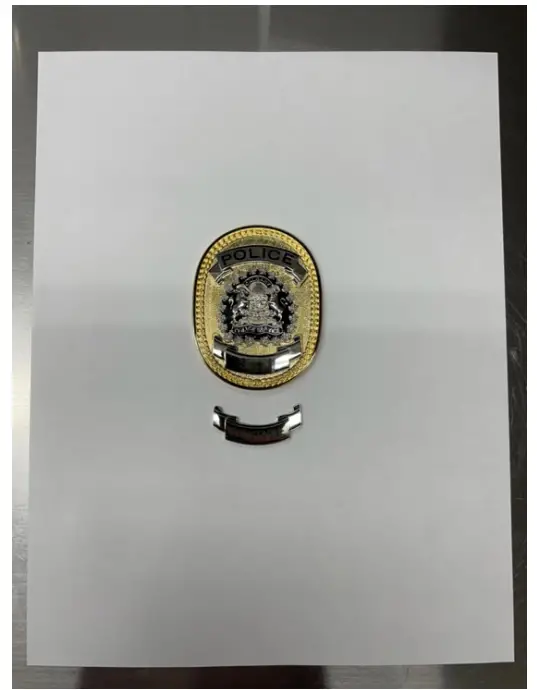
CUSTOM BADGE CUT INSTRUCTIONS
Step 1: Place your badge centered on a blank piece of paper.Step 2: Trace your badge with a pen, avoid moving the badge or making correction lines.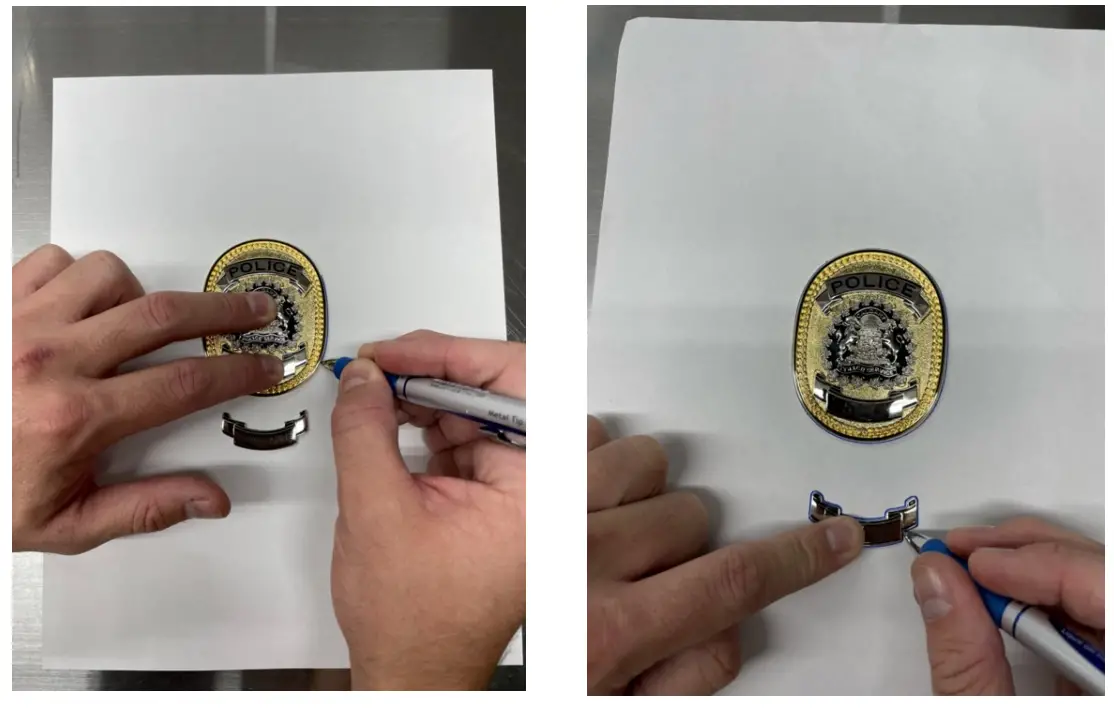 Step 3: After completing the tracing, measure the lowest and highest points to get the total Height. Then measure the widest points of the badge to get the overall Width.
Tip: You can measure the badge itself or measure the outlines on the paper.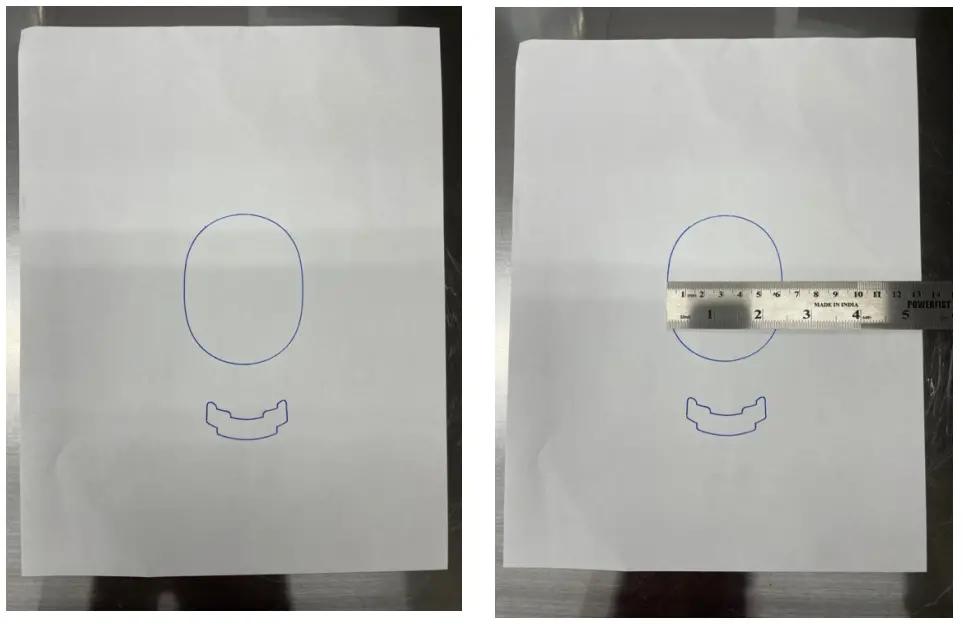 Step 4: Once complete, scan the finished tracing either using a scanner, or scanner app on your phone.
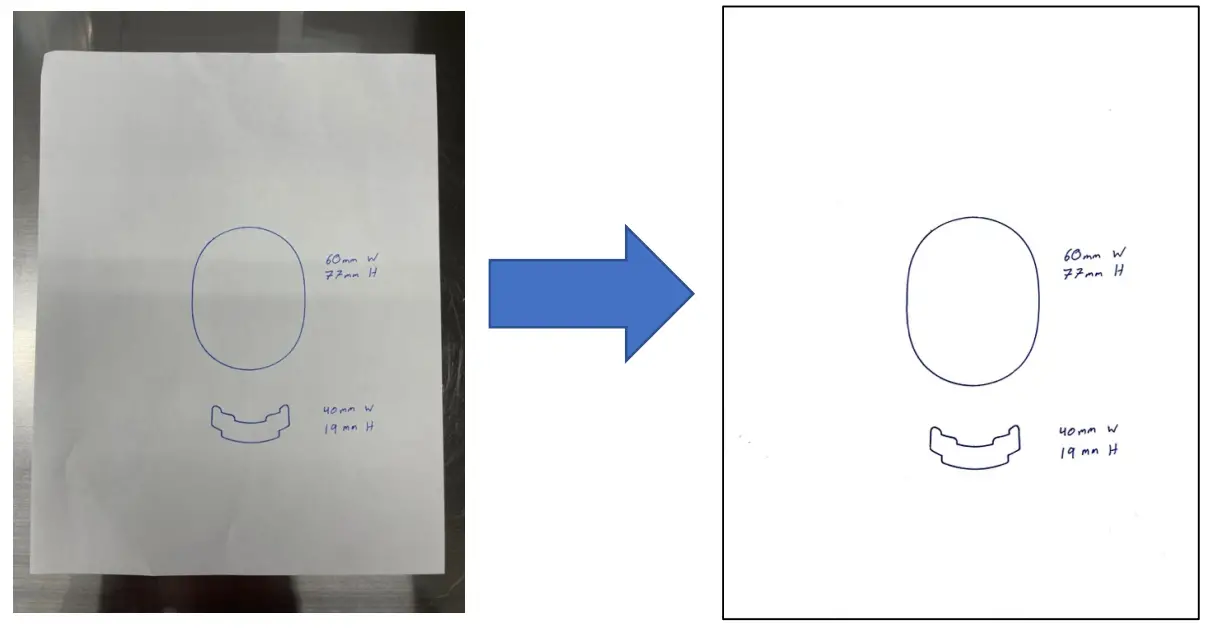 Step 5: Email us the scanned tracing to [email protected]
Don’t have a scanner?
Use iPhone or Android to scan!
| iPhone | Android |
| – iPhone Notes App – Genius Scan App – iScanner App | – Genius Scan App – Adobe Scan |