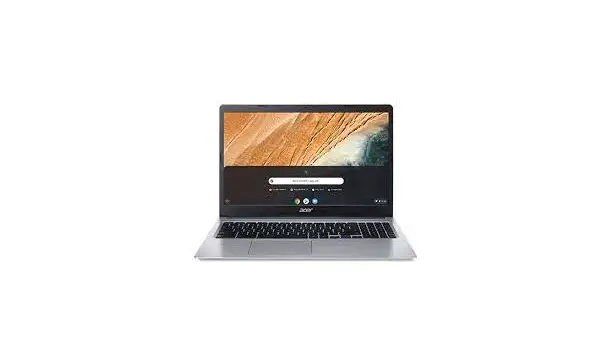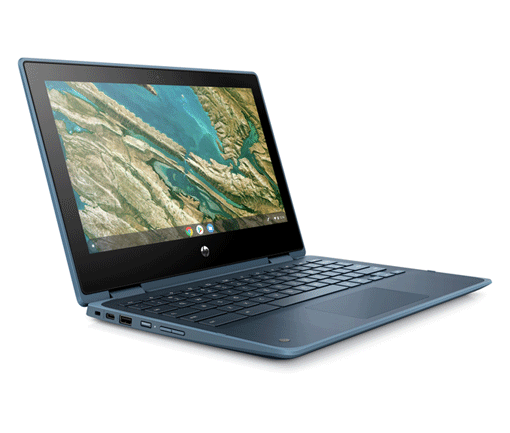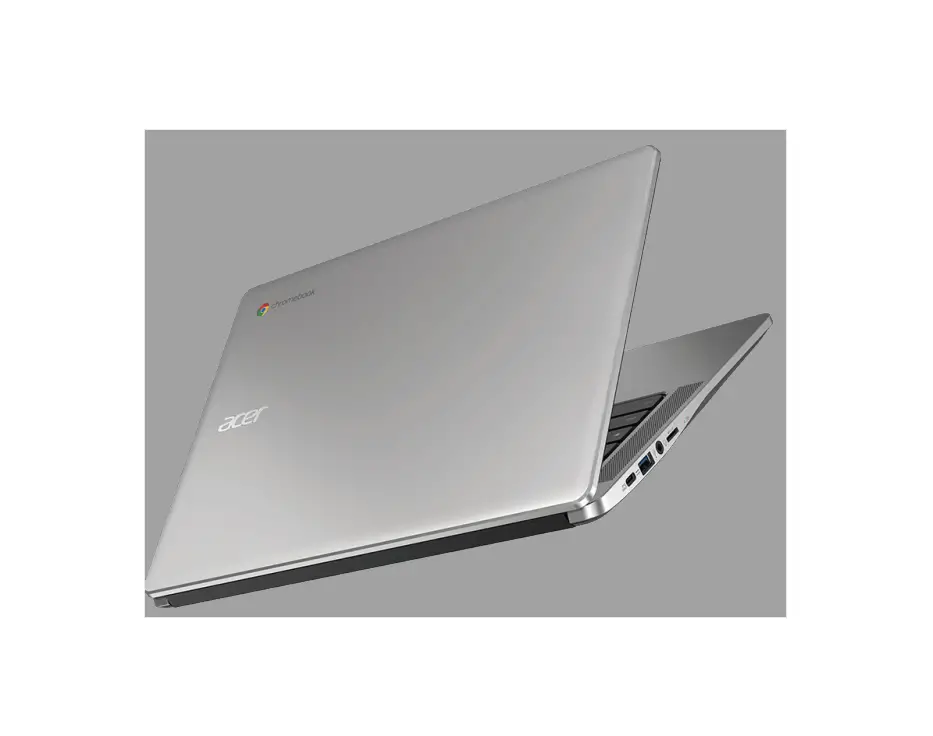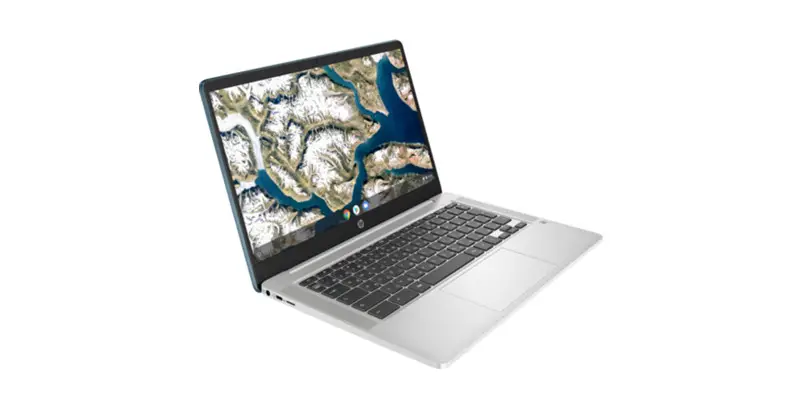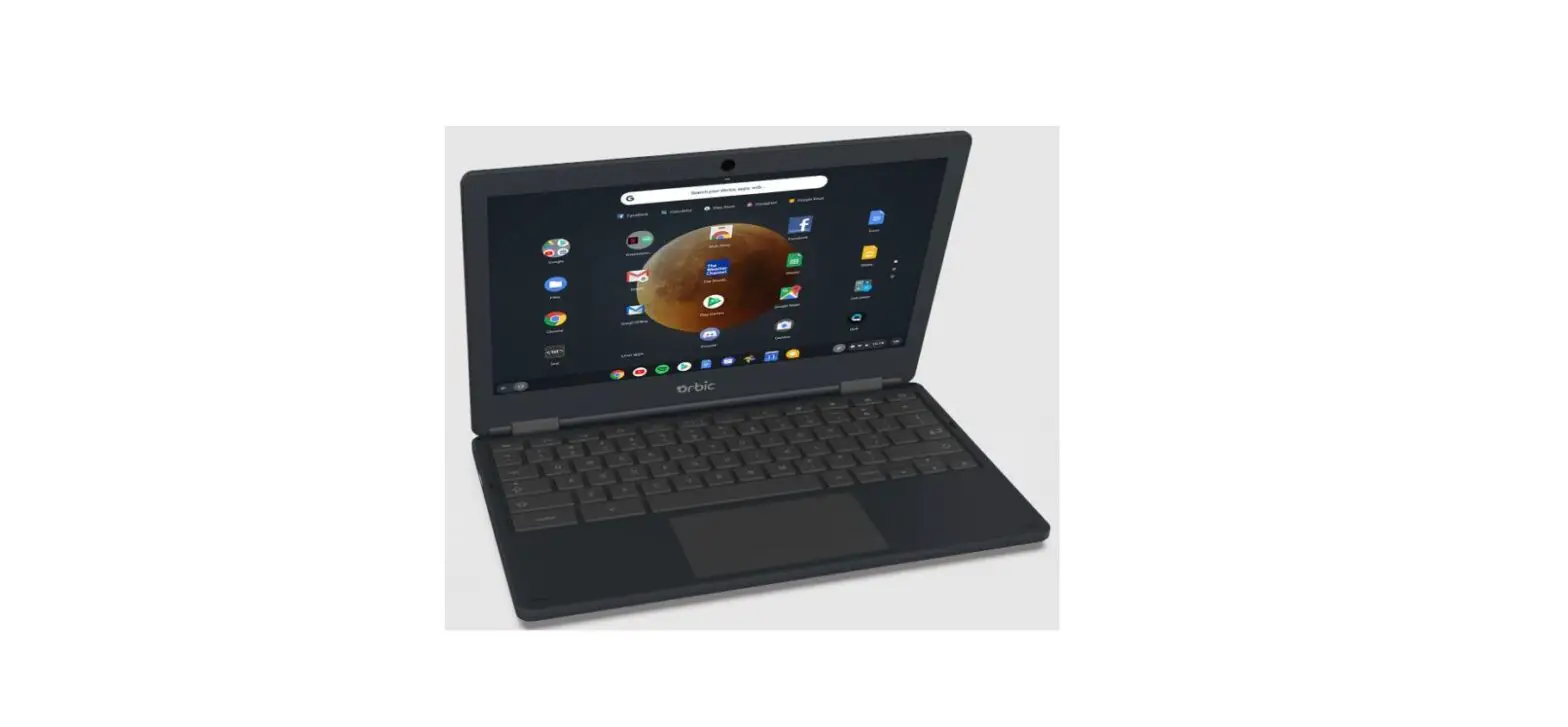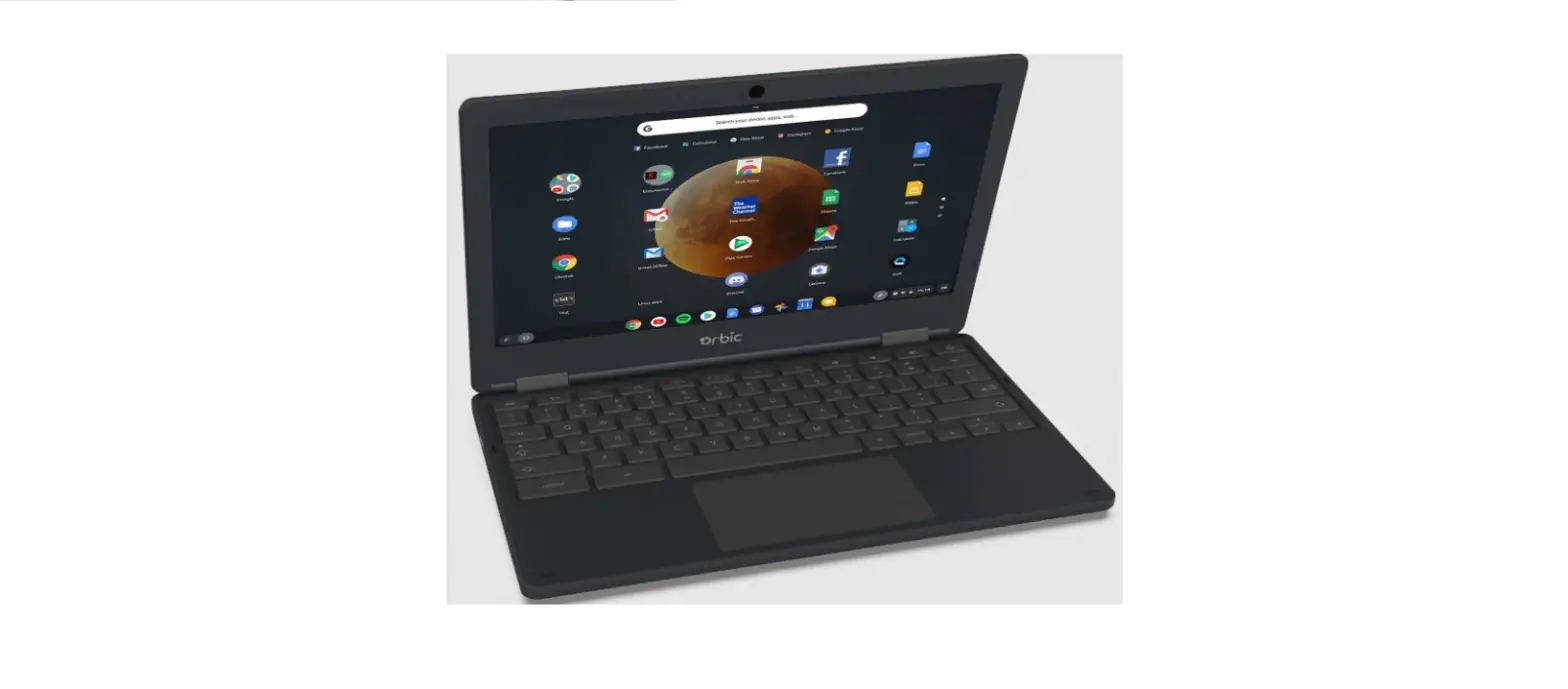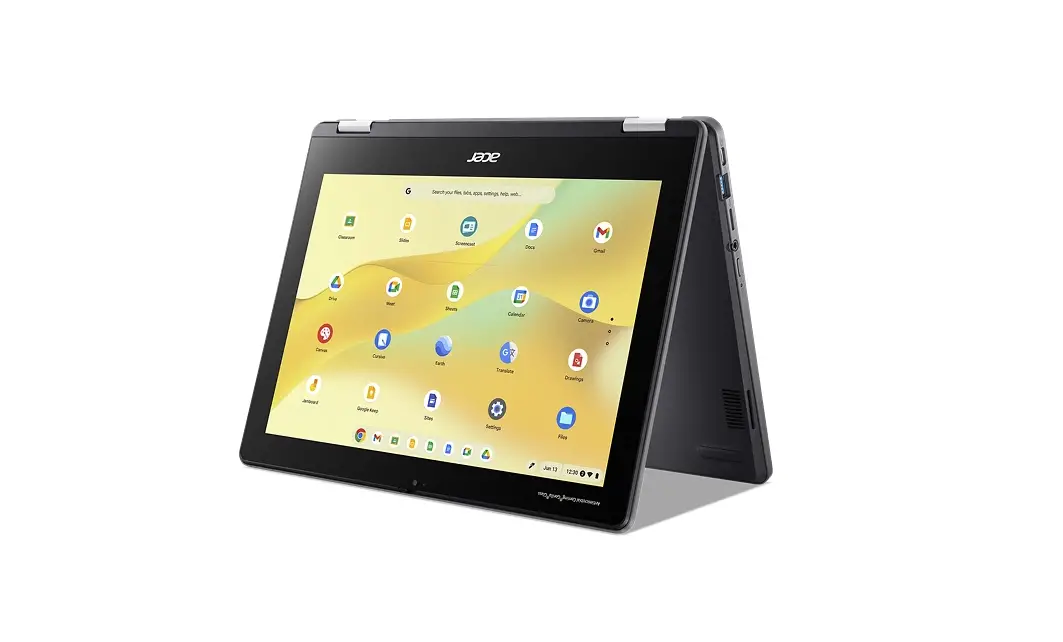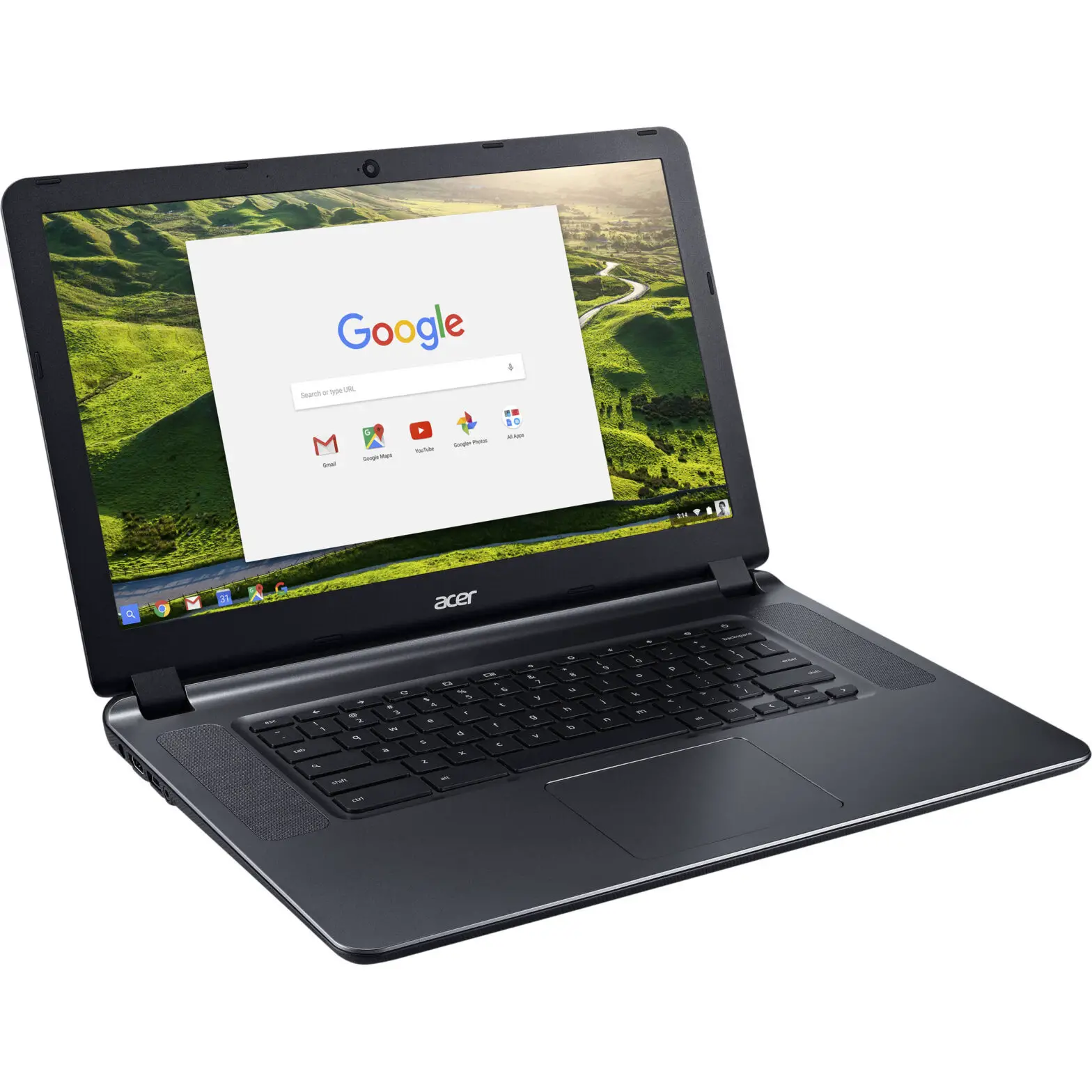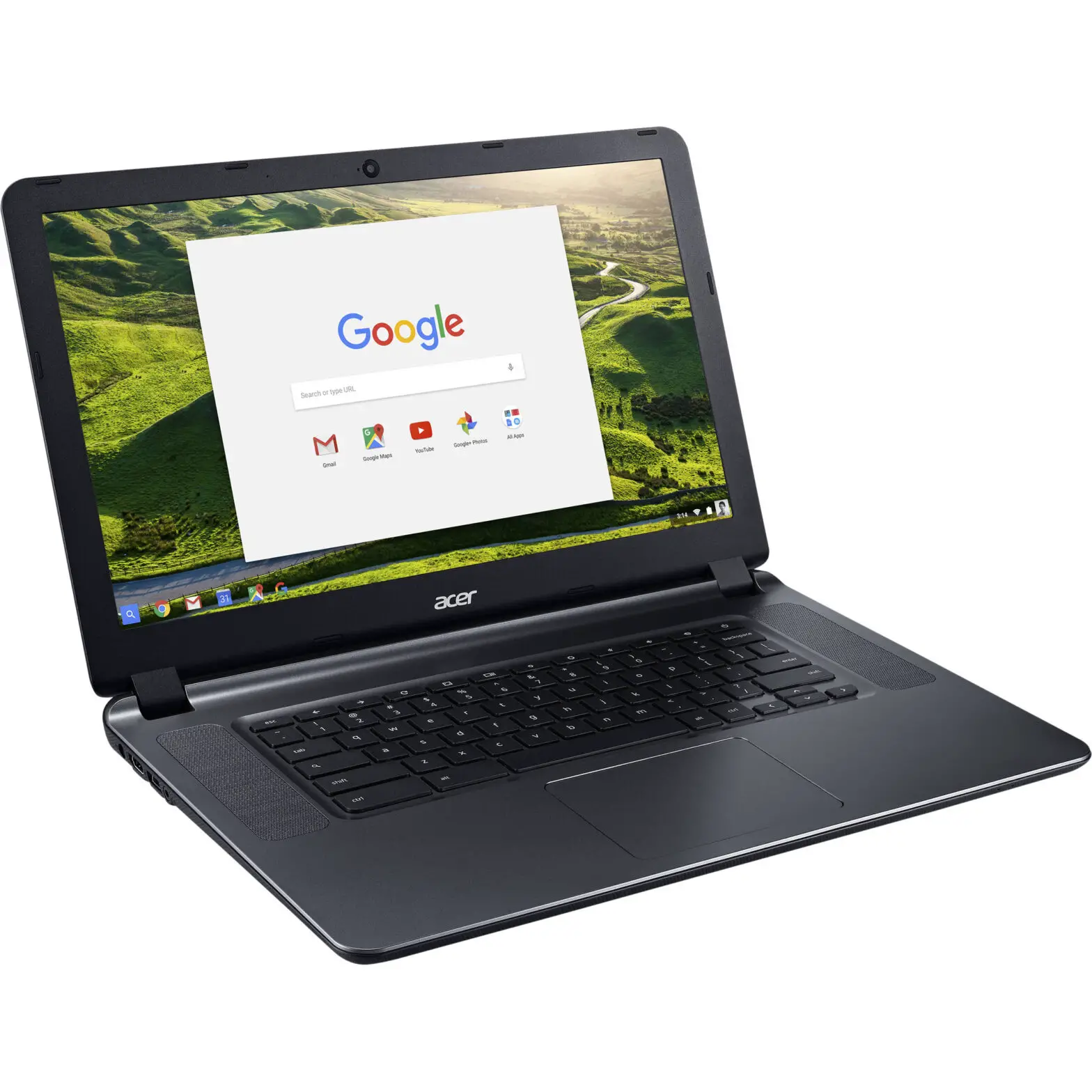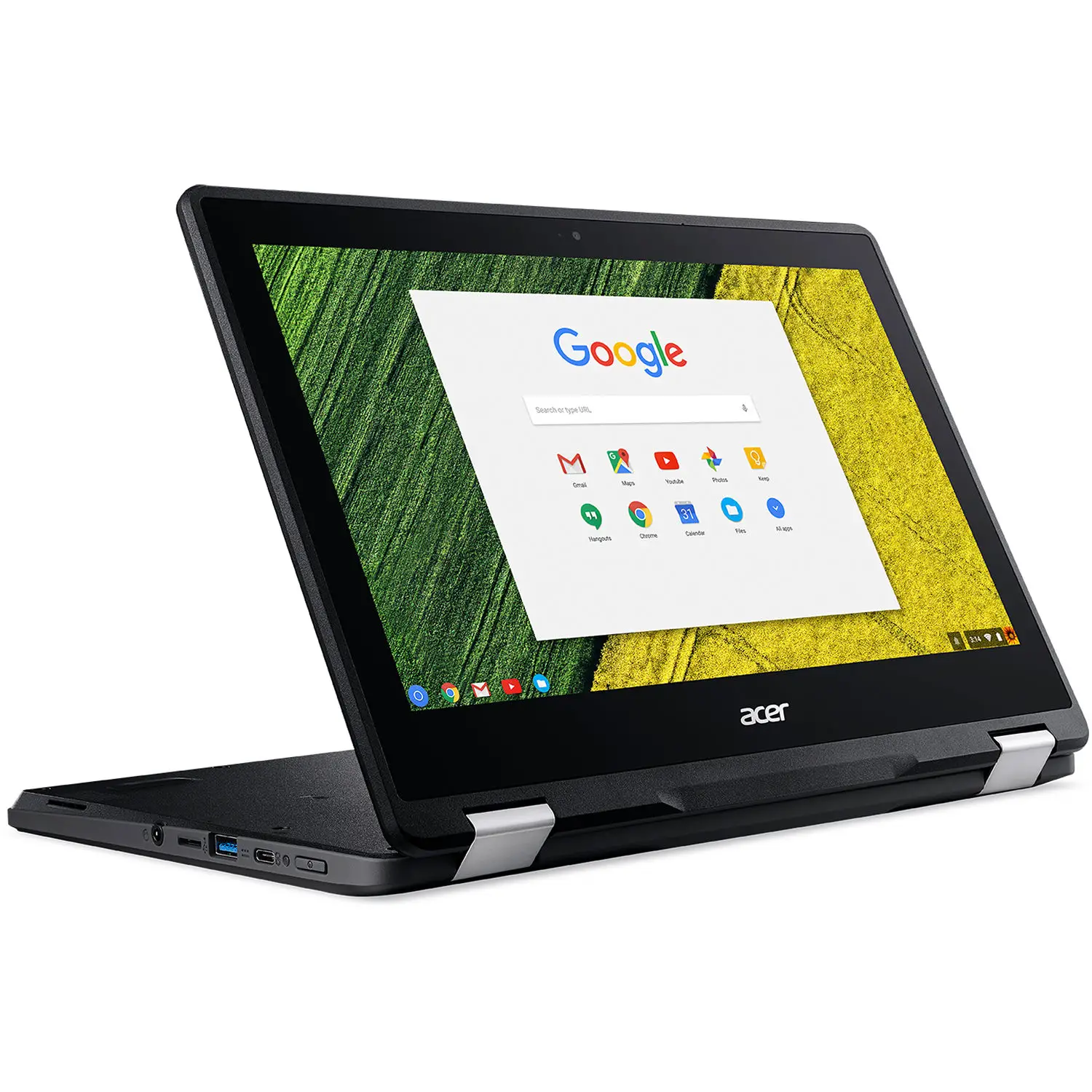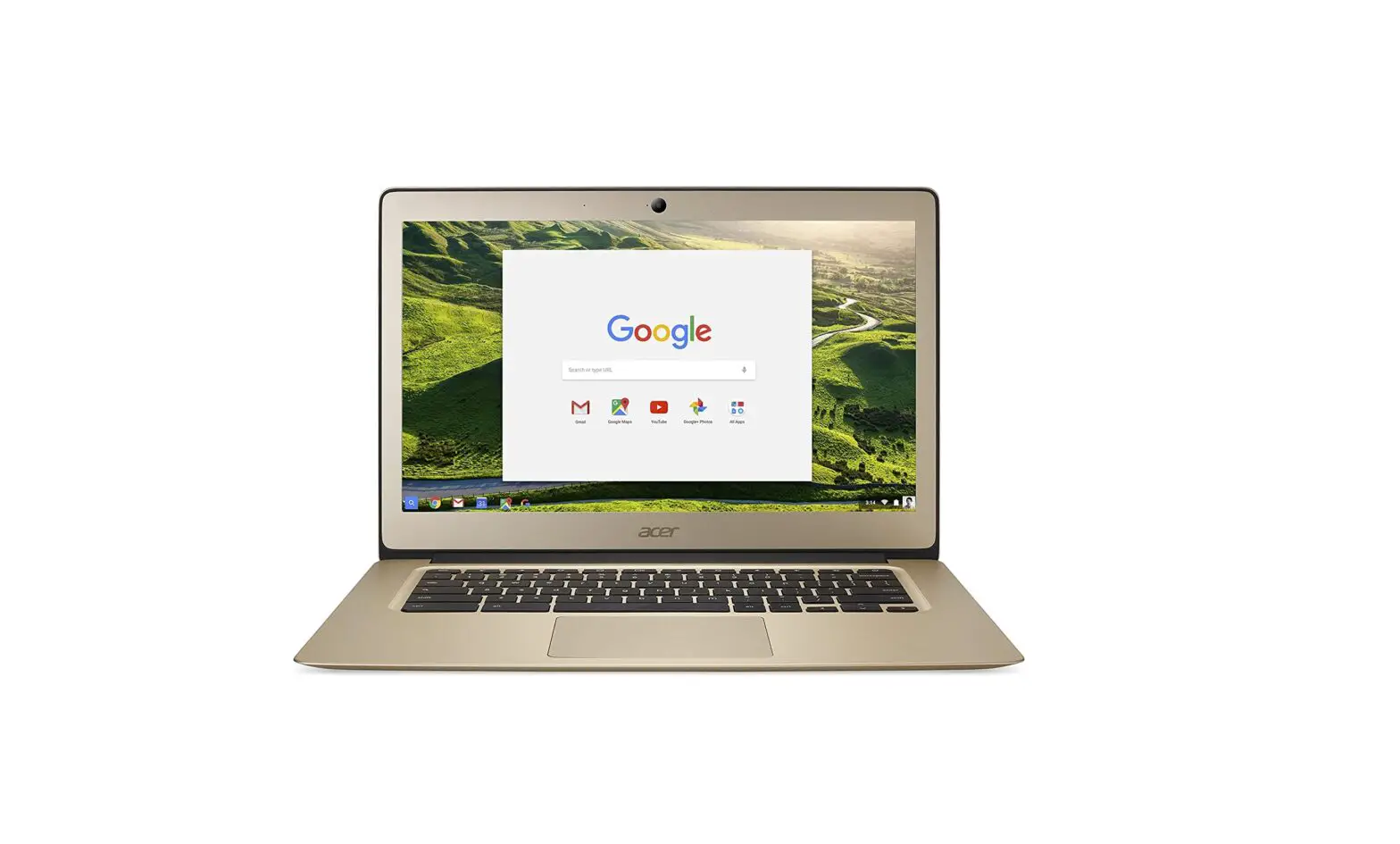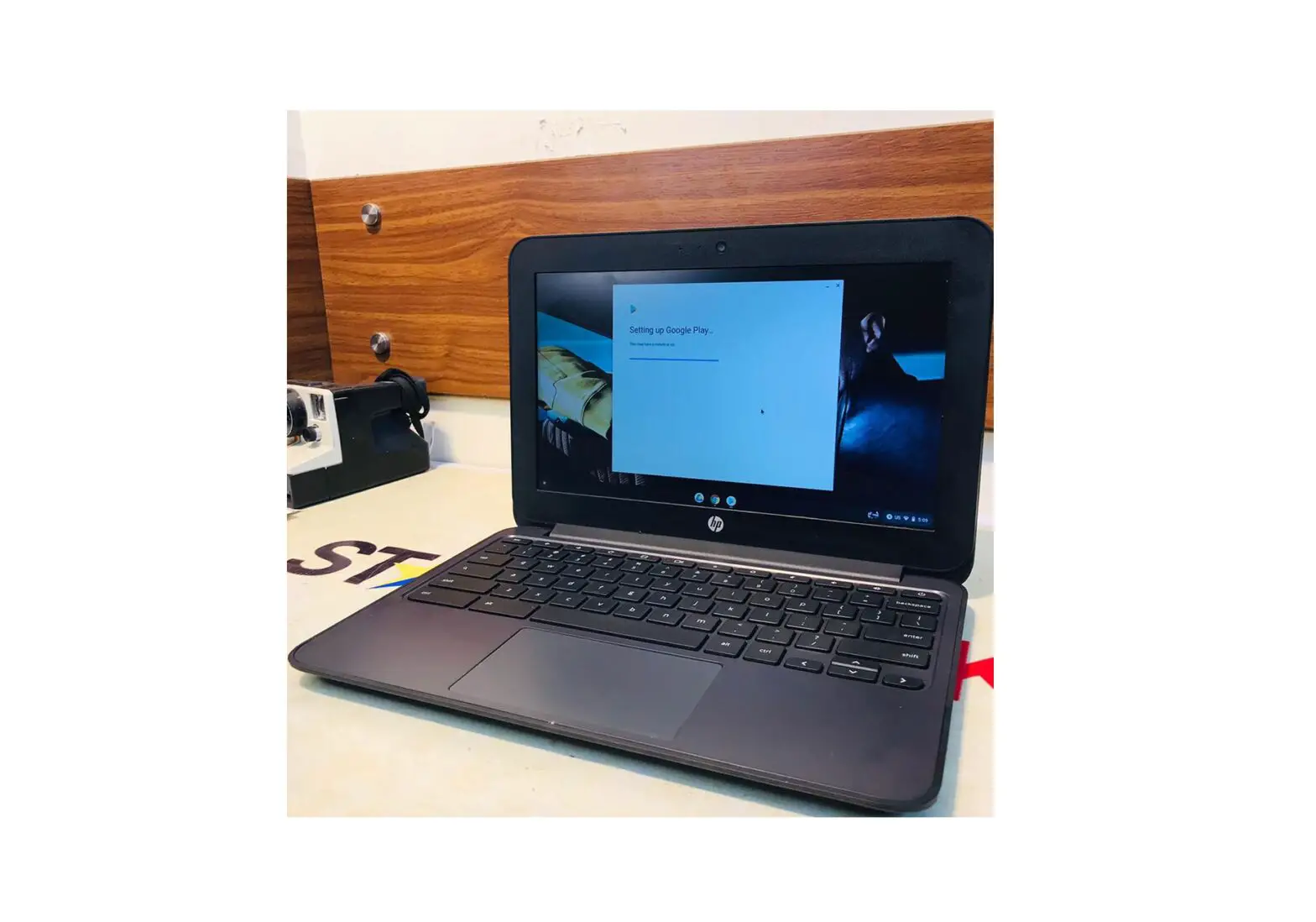

SJAccess HP Chromebook 11 Laptop
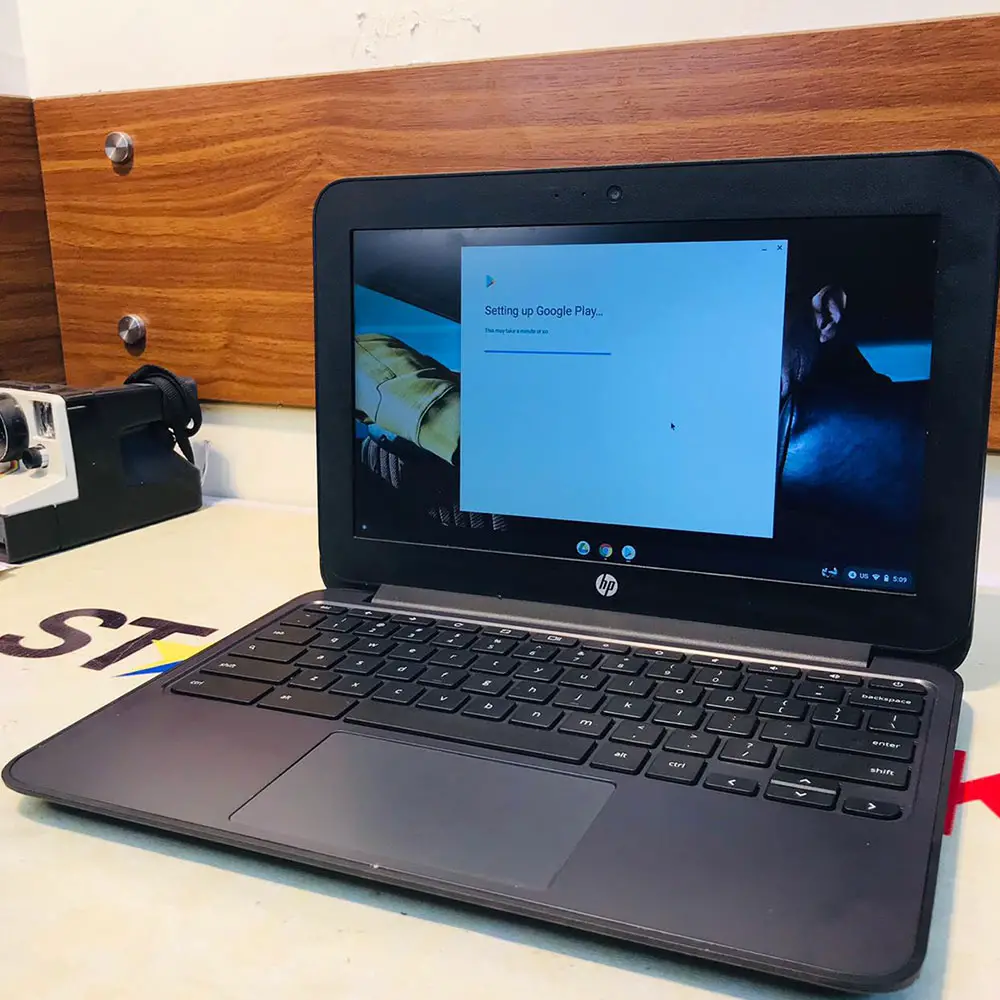
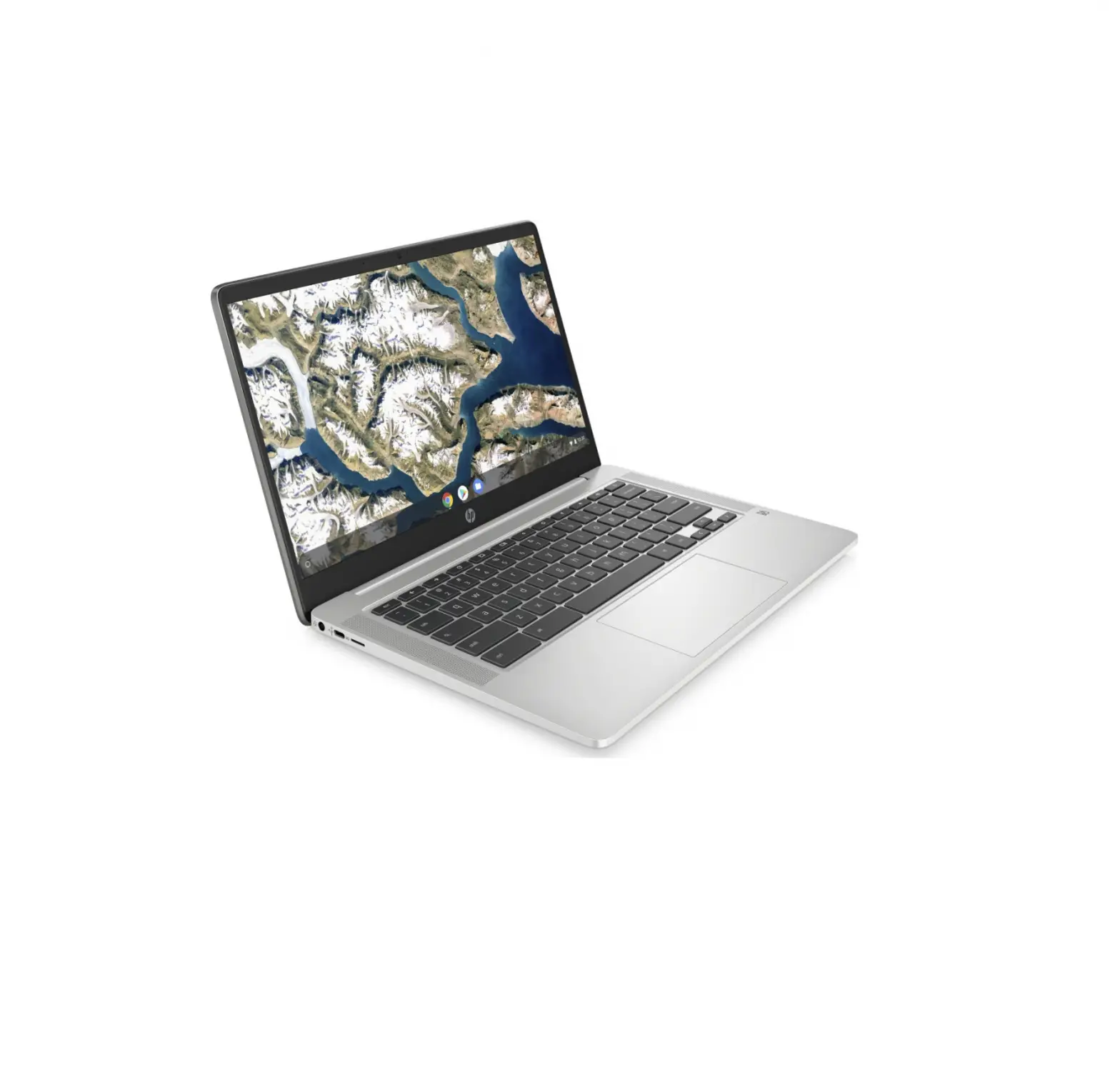
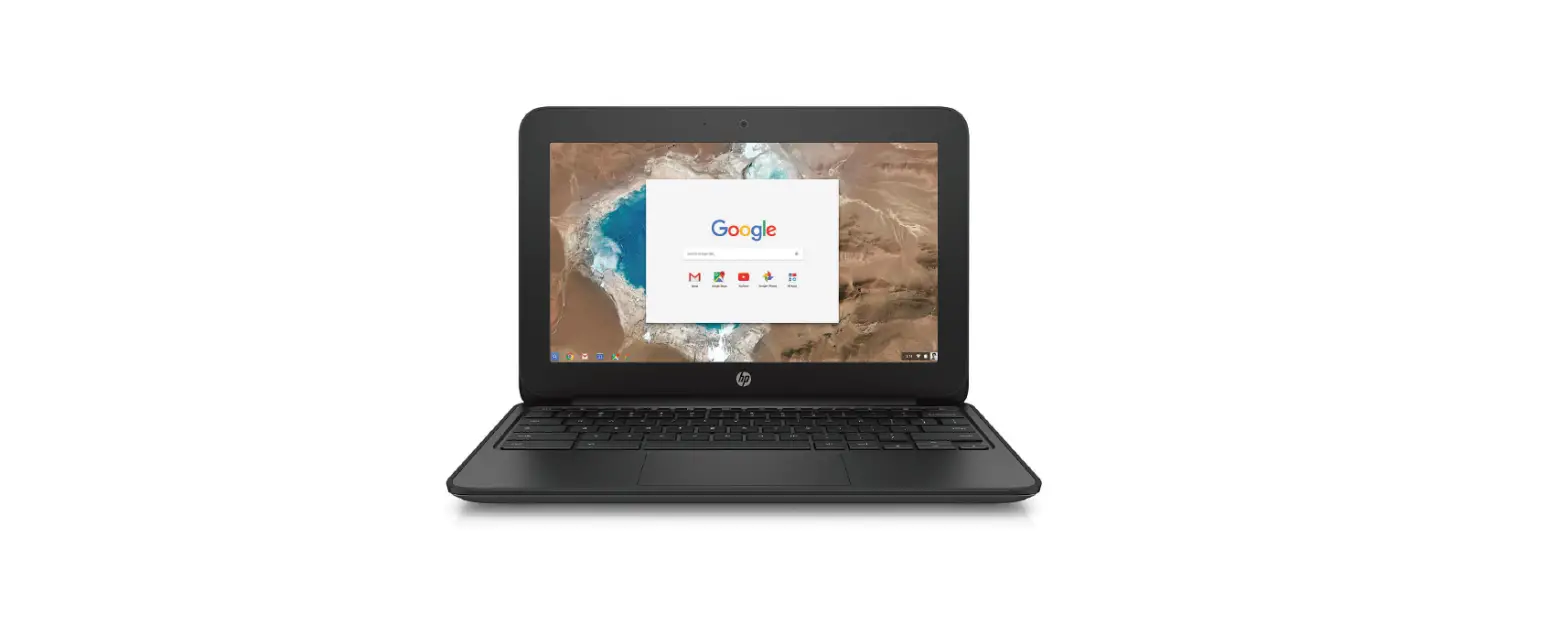
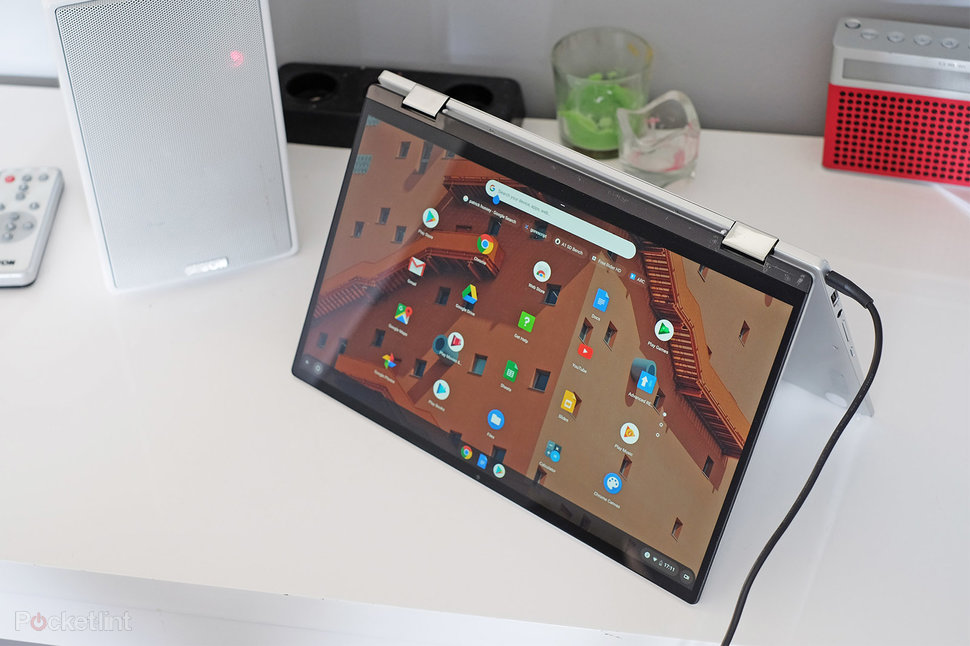
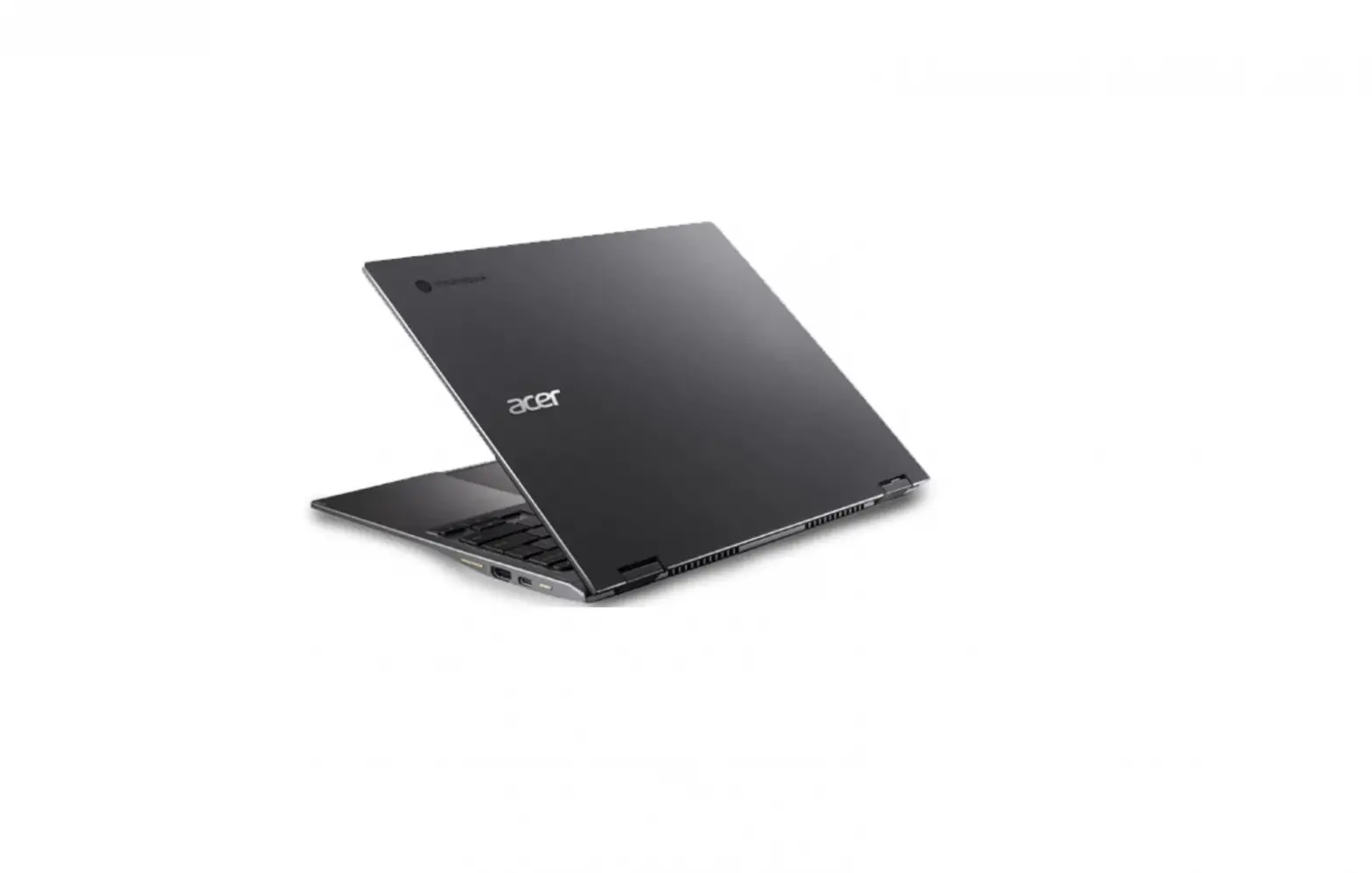
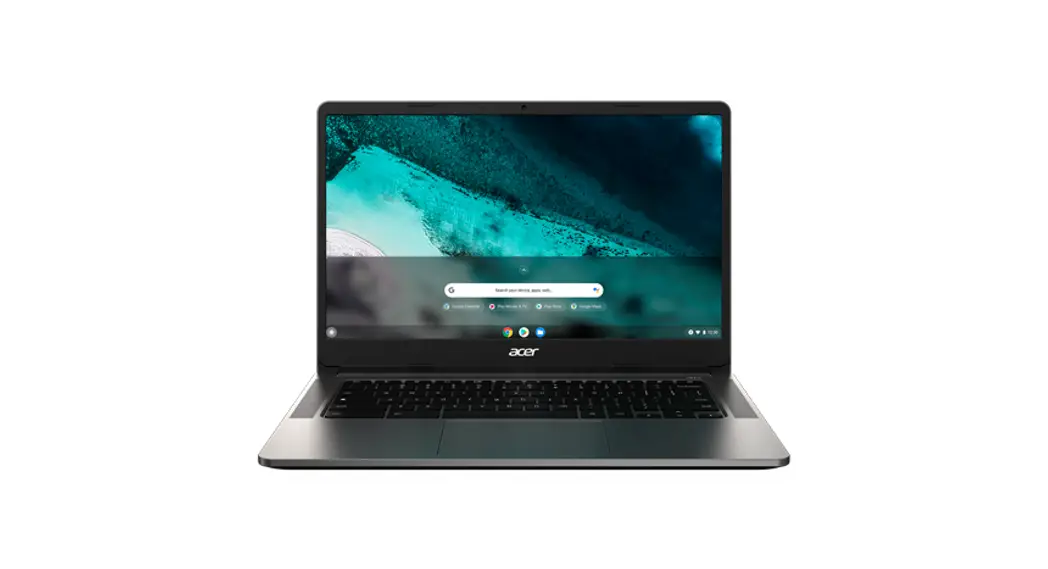
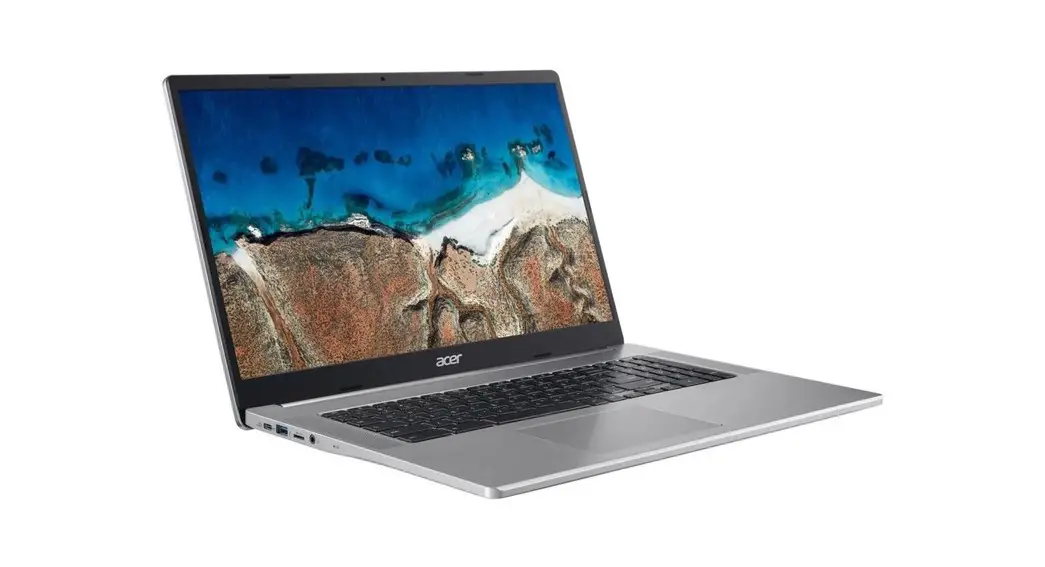
This document is intended to introduce you to the device you’ve checked out from the San Jose Public Library. You will find pictures along with a description.
DISPLAY
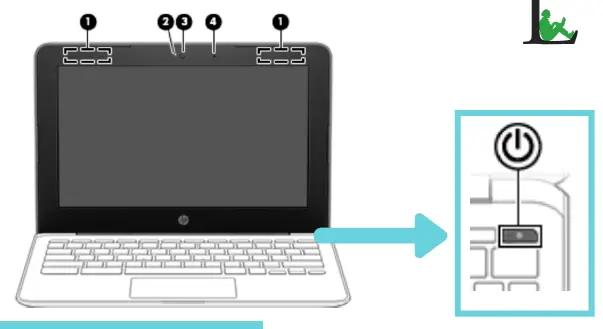
- WLAN antennas (not visible): This area send and receive wireless signals to communicate with wireless local area networks (WLANs)
- Camera light: When light is on, the camera is in use.
- Camera: This allows you. to video chat, record video, and the record still images.
- Internal microphone: Record sound.
Power button
- When the computer is off, press the button to turn on the computer.
- When the computer is in the Sleep state, press the button briefly to exit Sleep.
- When the computer is on and you want to turn it off, press and hold the button to lock the screen, and then continue to press the button until the computer turns off.
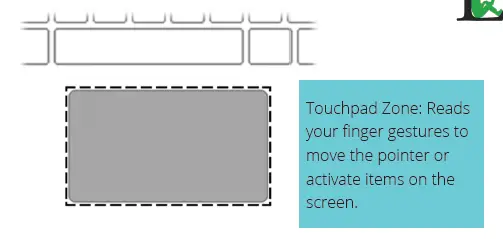
KEYBOARD AREA TOUCHPAD
SPECIAL KEYS
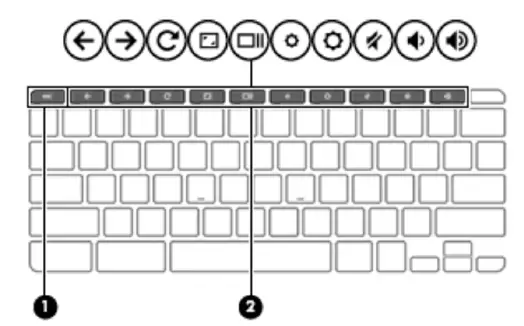
- Esc key: Activates certain computer functions when pressed in combination with other keys, such as tab or shirt.
- Action keys: Execute frequently used system functions.See the next page for Action keys functions.
Action keys
An action key performs the function indicated by the icon on the key. To use an action key, press and hold the desired key.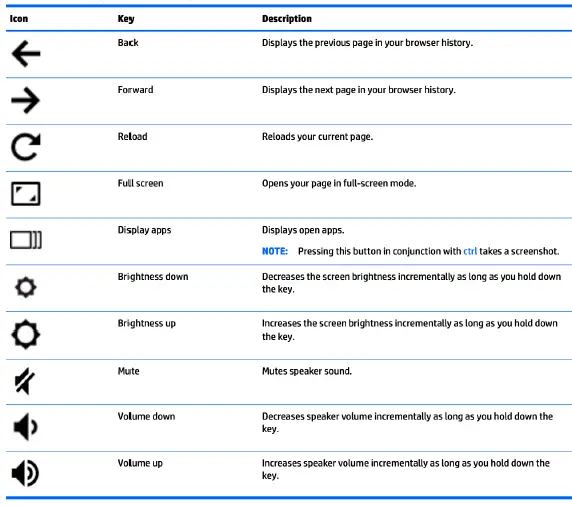
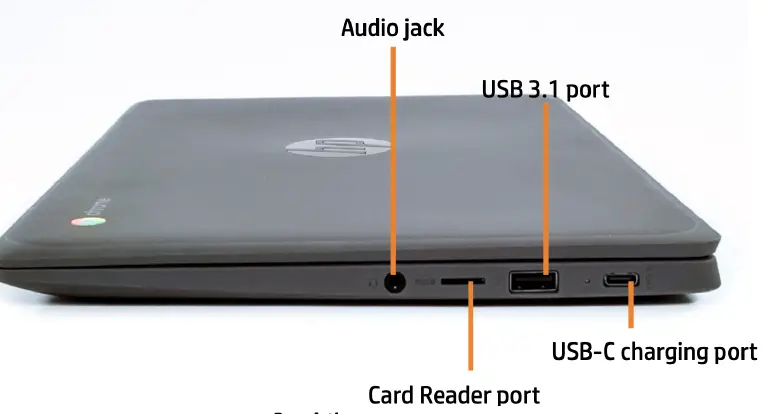
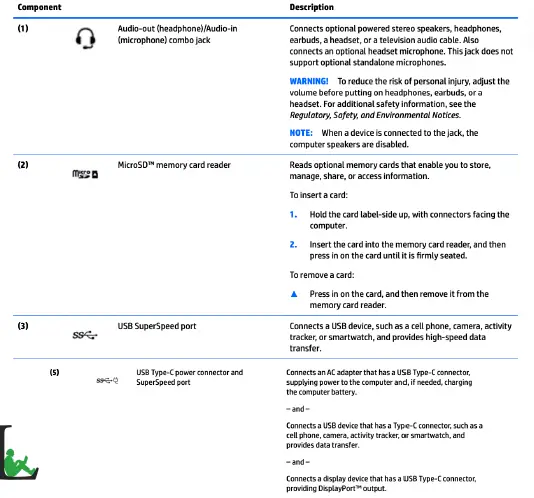
Right Side Components