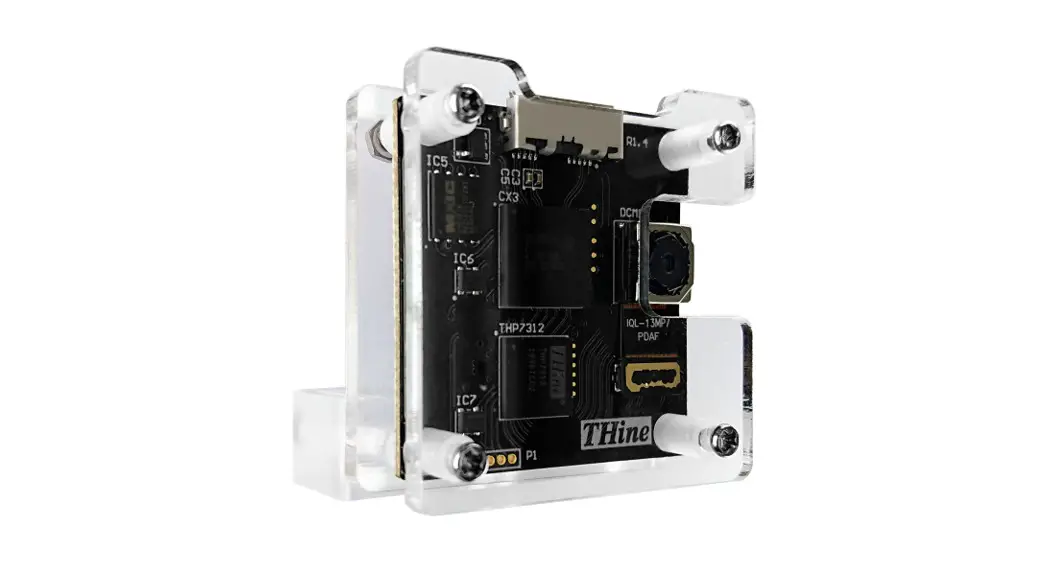

THSCU101
Quick Start Guide
Rev. 1.40
Program the latest firmware binary
Step 1: Preparation
Obtain the following files from the THine Solutions website, https://www.thinesolutions.com/13mp-pdaf-uvc-camera
- THSCU101 firmware binary
- THSCU101 firmware Update User Manual
- Camera Extension Controller (For Windows PC)
- Camera Extension Controller User Manual (For Windows PC)
- Firmware update tool source code (For Mac)
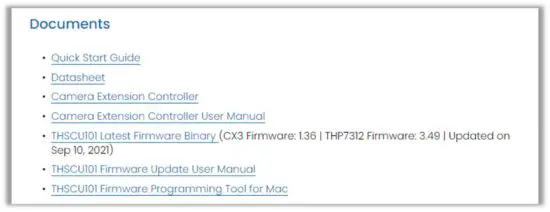
Step 2: Program the latest firmware binary (*)
See THSCU101 firmware Update User Manual.
* Firmware version can only be checked with a Windows PC, not a Mac.
Firmware updates must be done with a PC unless the firmware version is “CX3 Firmware: 1.36 and THP7312 Firmware: 3.49” or later.
Quick start guide with Windows PC
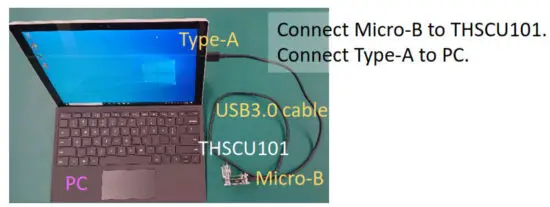
Step 1: Connect THSCU101 to PC
Connect THSCU101 to PC with USB3.0 Type-A to Micro-B cable.
Step 2: View THSCU101 streaming
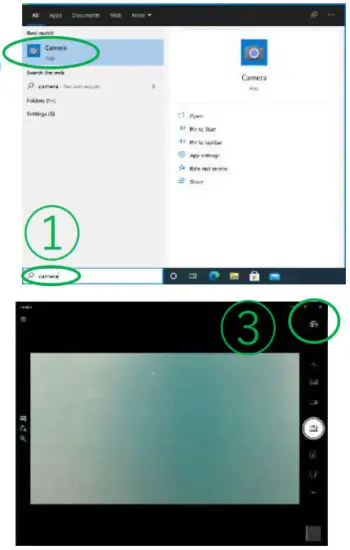
1) Launch Windows Camera App
① Type “camera”
② Click “Camera”
2) Select “CX3 UVC”
③ Click “Change camera”
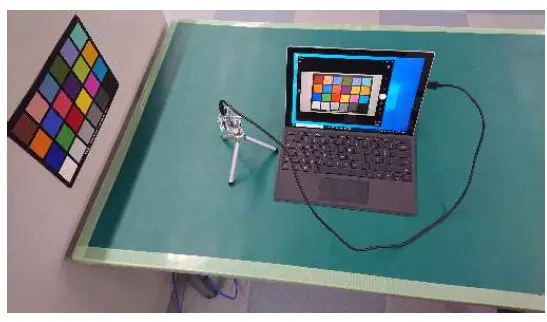
You can see the image streaming in the Camera application.
Quick start guide with Mac
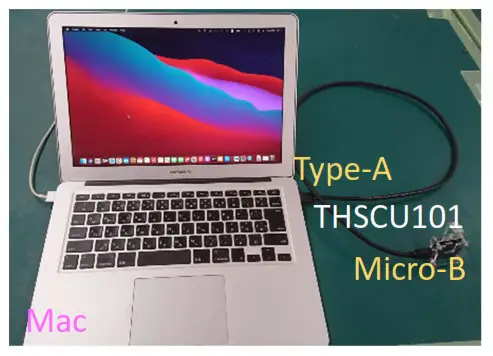
Step 1: Connect THSCU101 to Mac
Connect THSCU101 to Mac with USB3.0 Type-A to Micro-B cable.
Use USB Type-C male to USB Type-A female adapter if the Mac does not have Type A USB
Step 2: View THSCU101 streaming
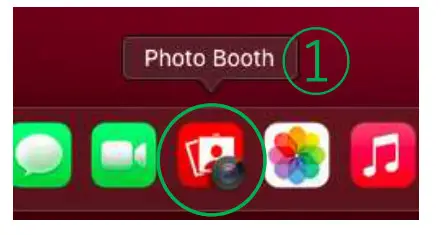
1) Launch Photo Booth
① Click “Photo Booth”
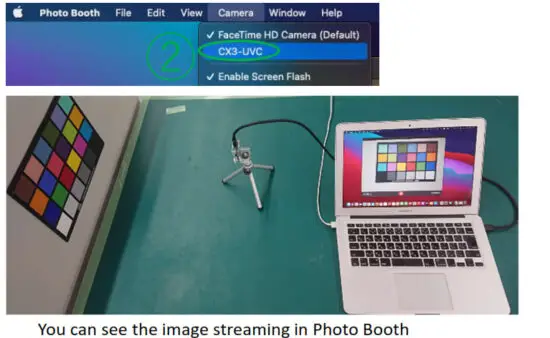
2) Select THSCU101
② Click “Camera”, then click “CX3 UVC”
 THine Solutions