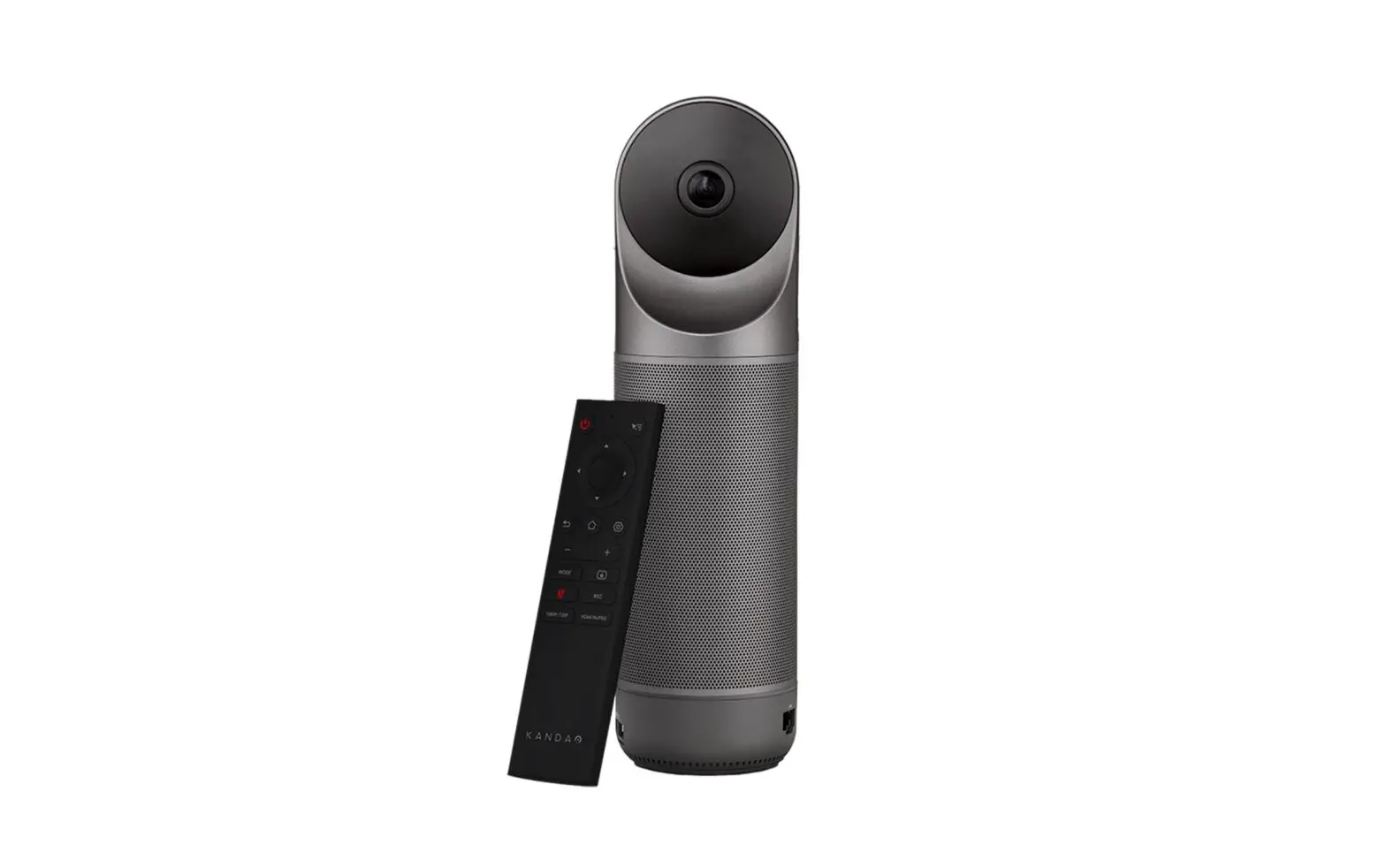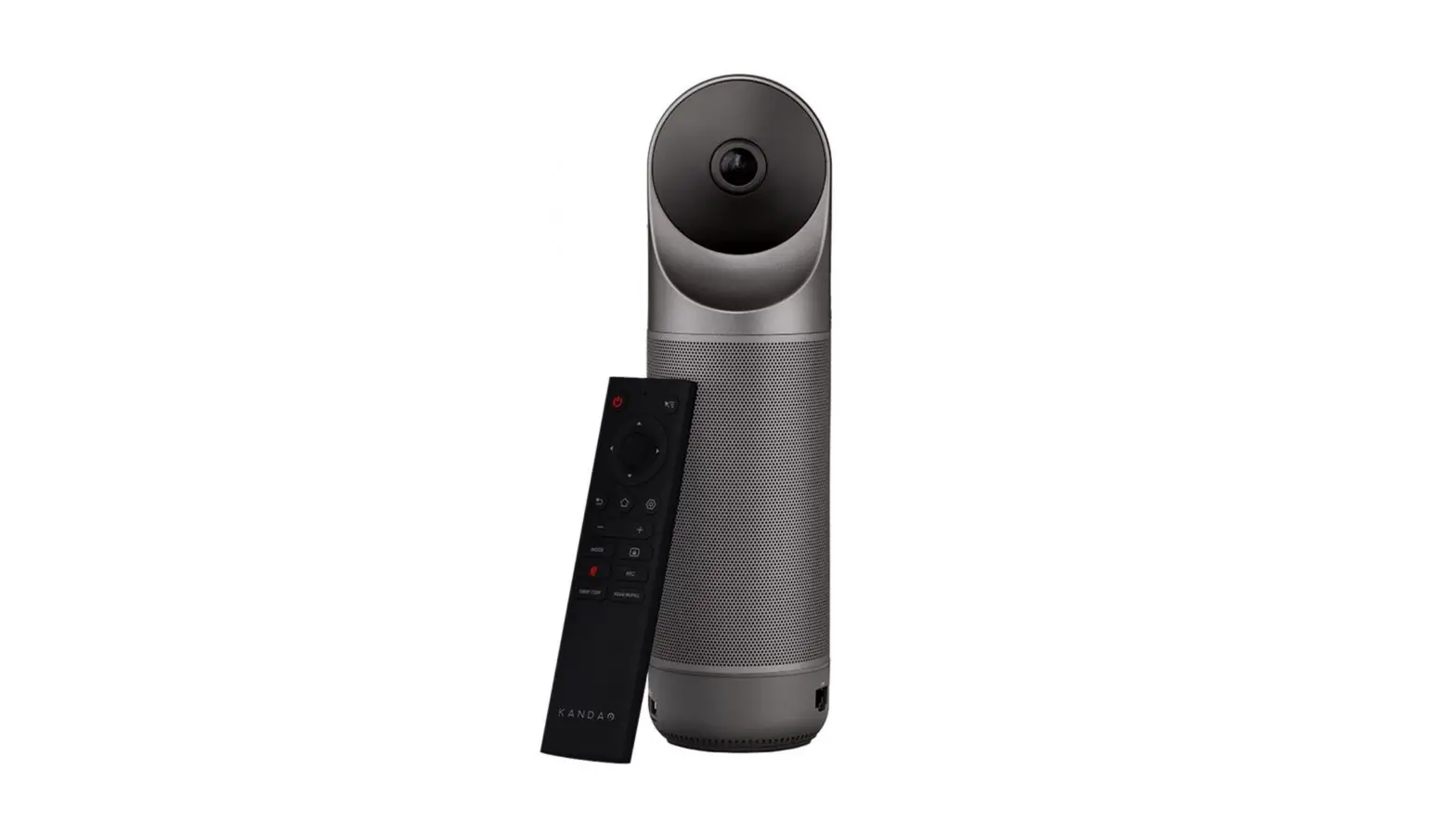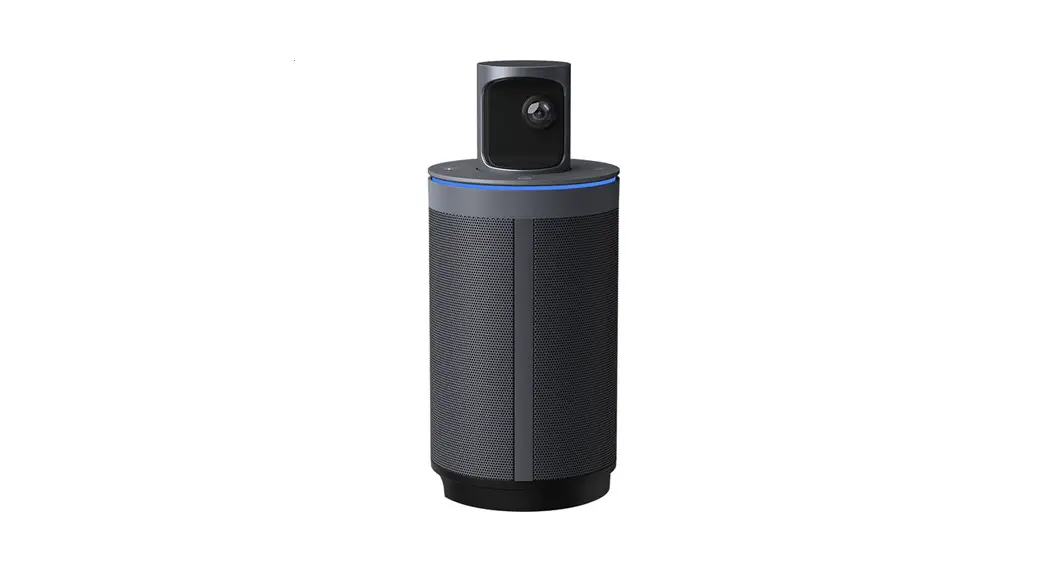

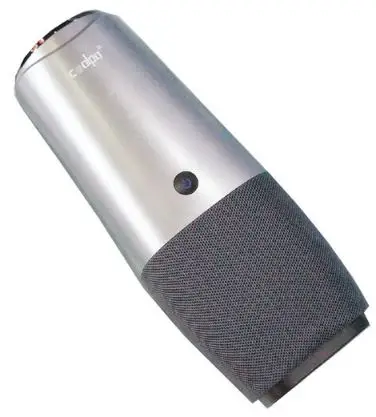
Coolpo CP-P20A 360 All-In-One Conference Solution
Summary
With Coolpo Tools, you will be able to: Customize Interface Layout, change camera settings, determine the whiteboard and block the areas you don’t wish to be seen. It’s compatible with Coolpo PANA 2.0.0 and up.
System Requirement and Install
Windows: win8 or Above
Mac: 10.15.6 or above (does not support M1)
System: i3 CPU, Ram 1GB
Download and install
Go to https://www.coolpolens.com/en/support.html, click and download Cool tool. Find and click on the software to start installing. (You may see a pop-up window like below, click ‘more info’, and then click on
‘Run anyway’)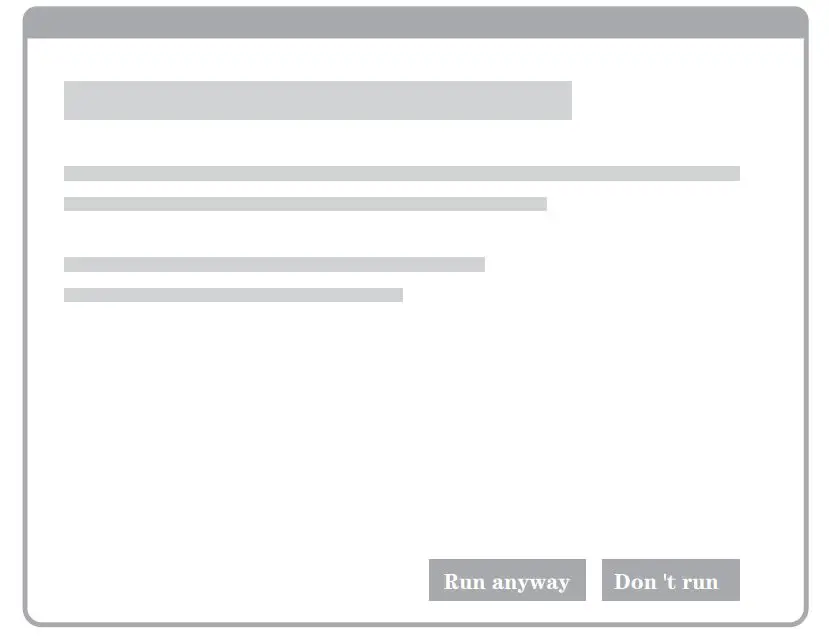
Upgrade
Get Started
Connect the power cable, make sure USB cable is connected with computer, press power button. Double click Coolpo Tools, you will see inteface below: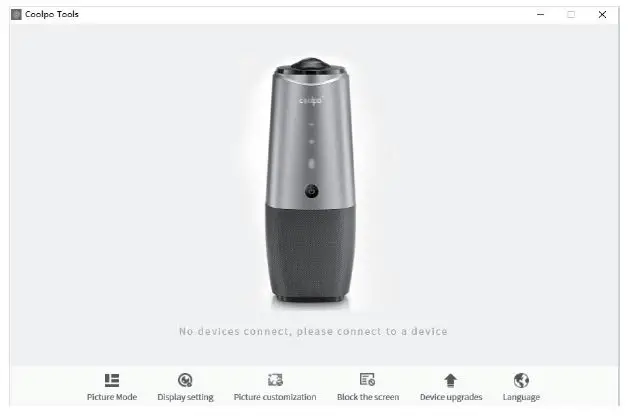
Upgrade
If your device version is 1.0.0, you will need to turn off your device, click on the power button 6 times rapidly, and upgrade.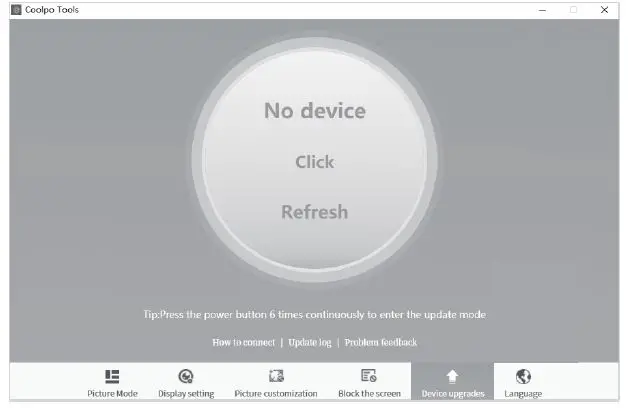
If your device version is 2.0.0. under Software Upgrade, click on ‘Upgrade Now’. After the upgrade, device will reboot automatically.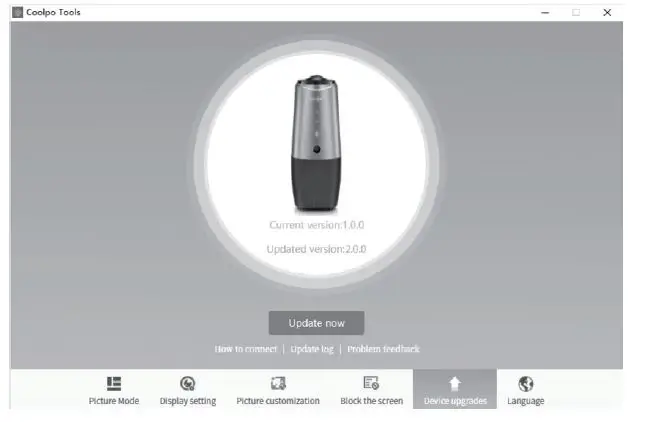
Feature
Picture Mode
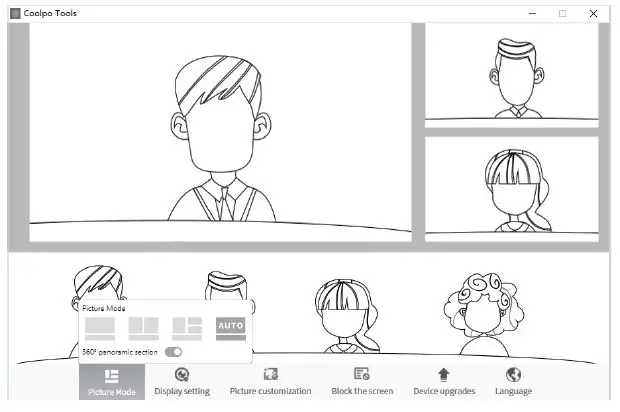
The default mode is on ‘AUTO’, you can choose three different mode as shown below. Panaroma mode is not supported under 4k quality.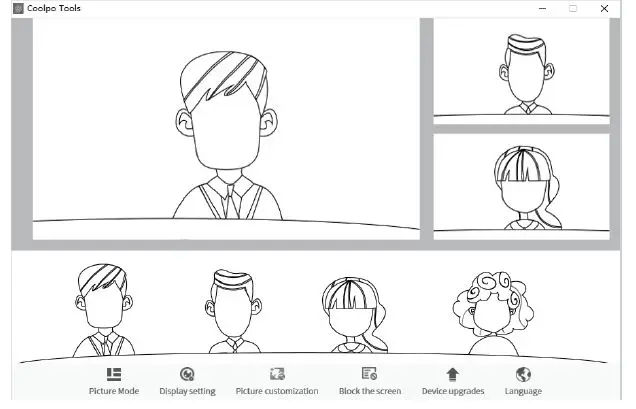
Display Setting
It allows you to adjust camera’s settings: Brightness, Color Banlance, Contrast and Saturation. If you want to adjust explosure time, turn off Auto Explosure first.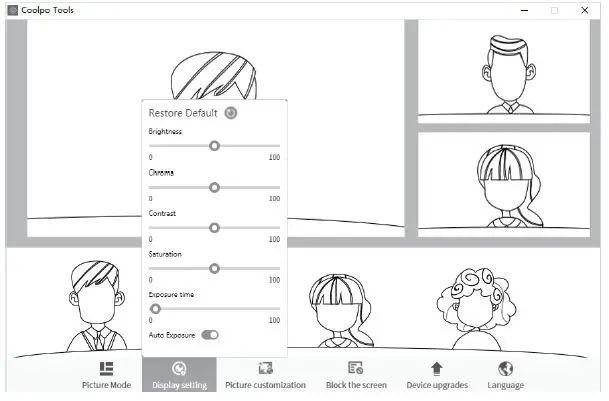
Picture customization
Choose any frame and click the lock on the bottom right corner to lock on current area. In this frame, drag the wheel to move camera around to findyour preferred display area. or you can zoom in and out. Click the lock again to unlock. Once you change the picture mode, it will automatically unlock.* You cannot use Picture customization under AUTO picture mode.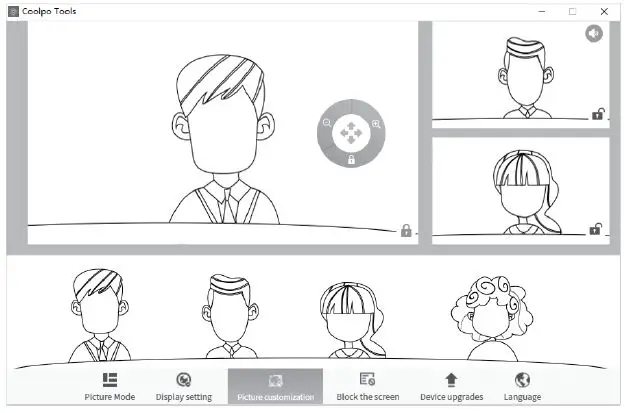
Block Screen
Ctrl+Left clicke, and drag the area you don’t wish to show on screen. We suggest make a bigger area around the object/person you want to block. Click ‘x’ on upper right corner to unblock the area.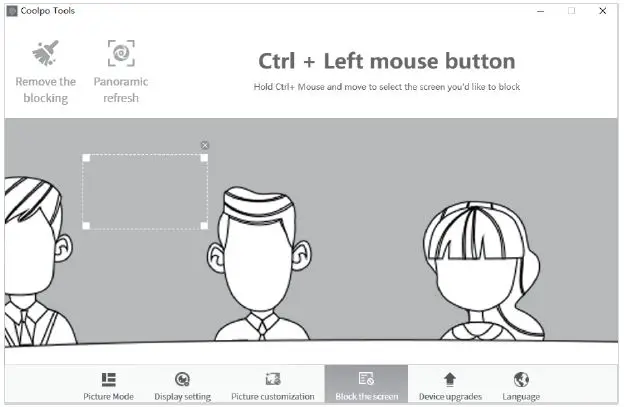
Language
Coolpo Tool support Chinese(Simplified), English, German and Japanese.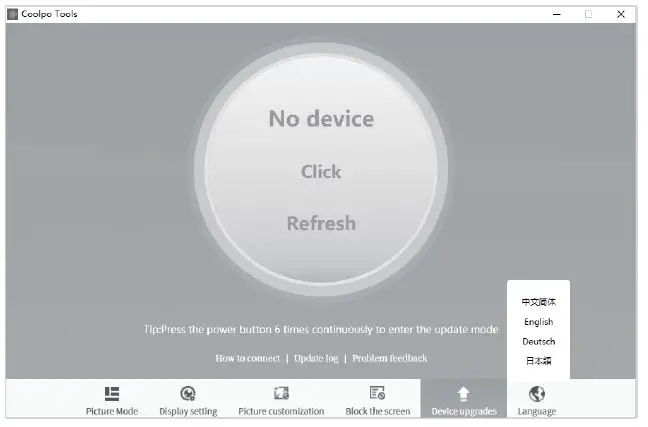
Save and Quit
If you want to return to default setting, click on ‘Default Setting’ and quit, click ‘Save’ and quit.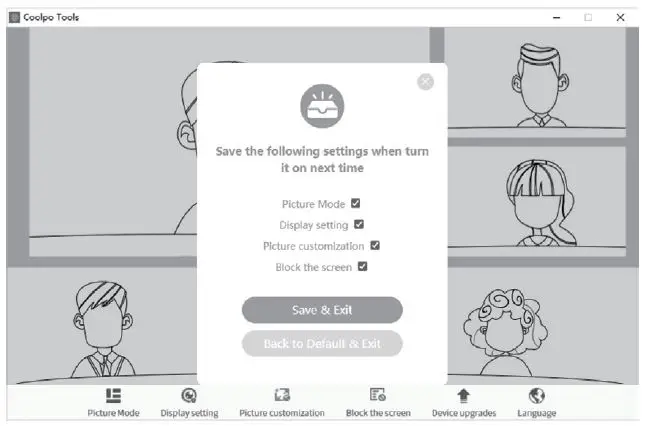
 Demo & Support | Coolpo