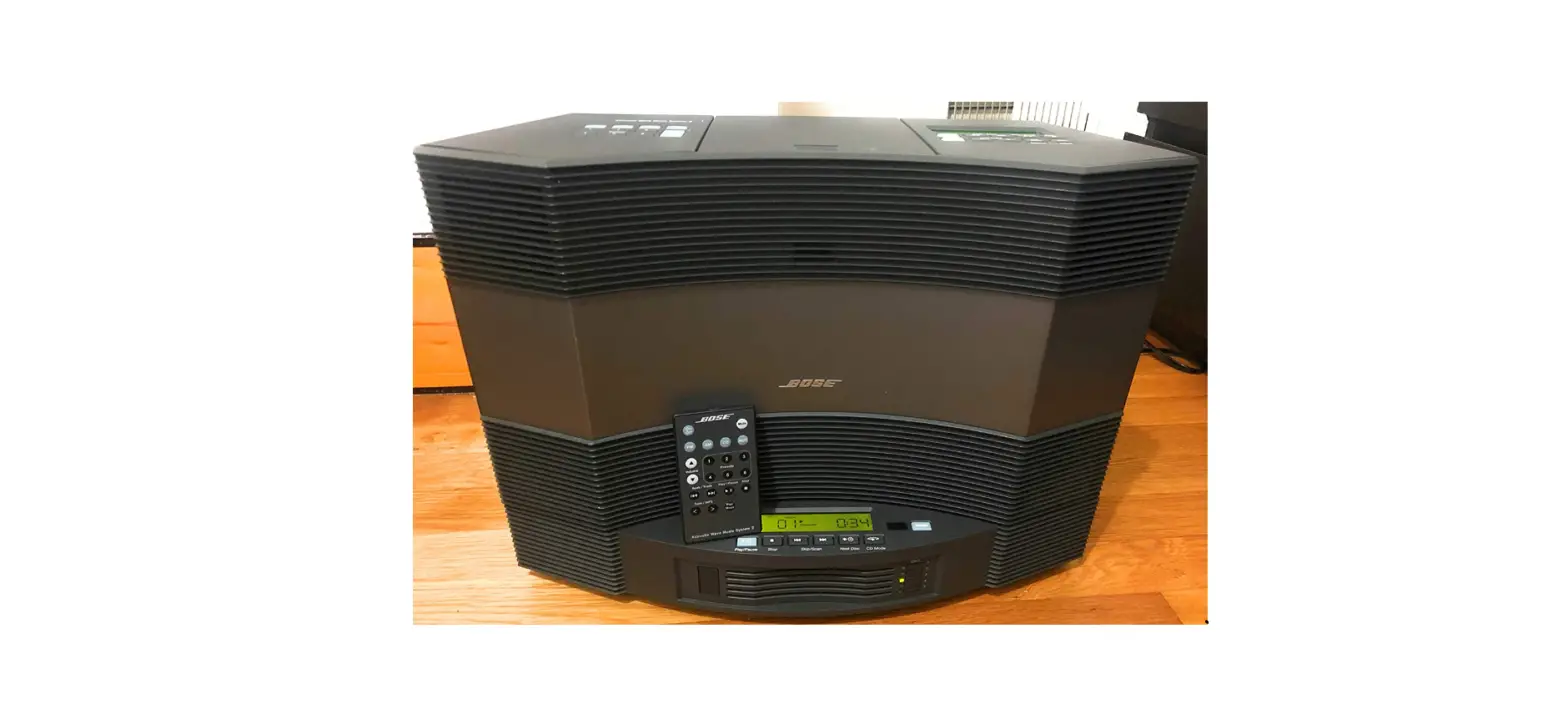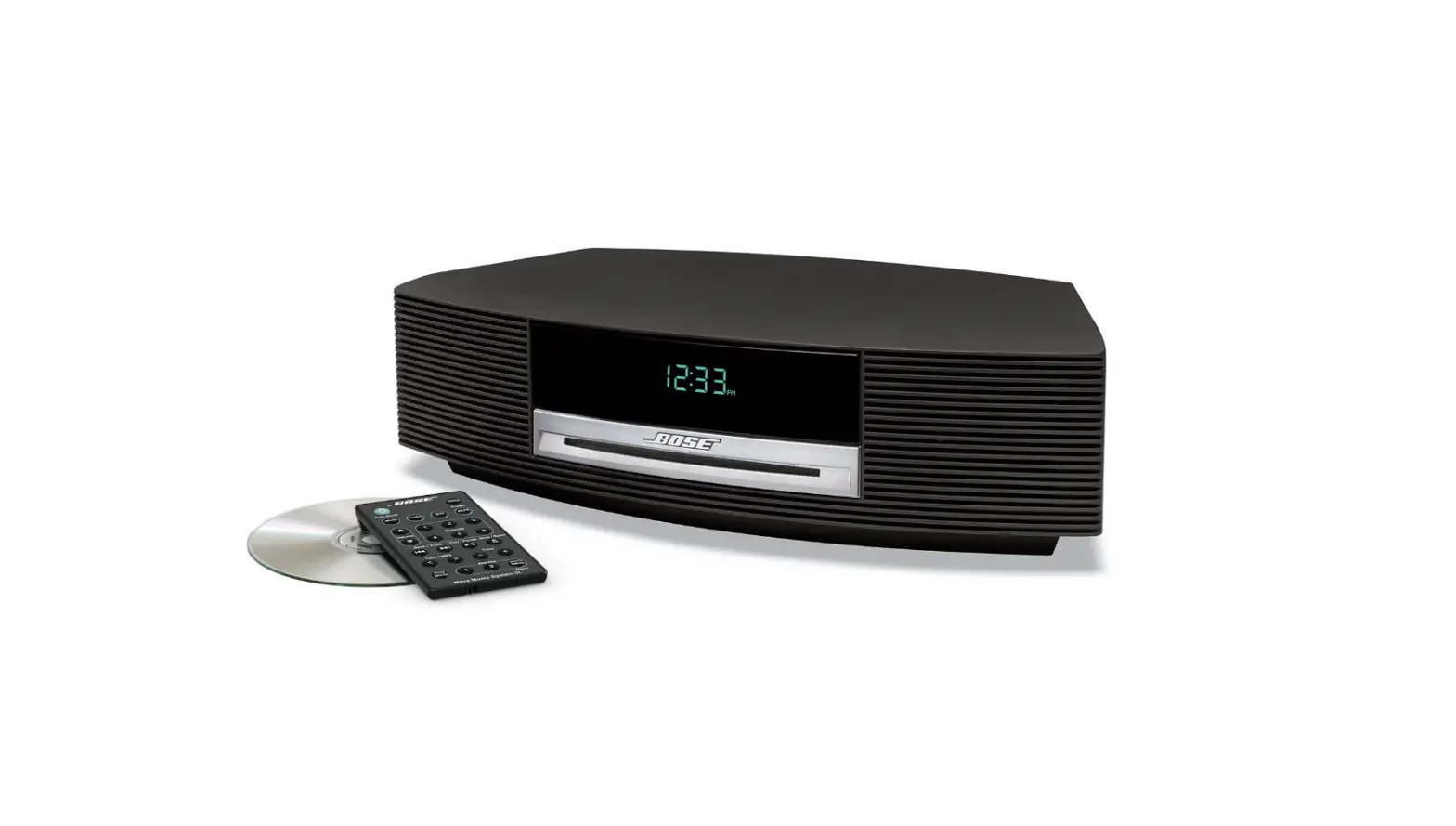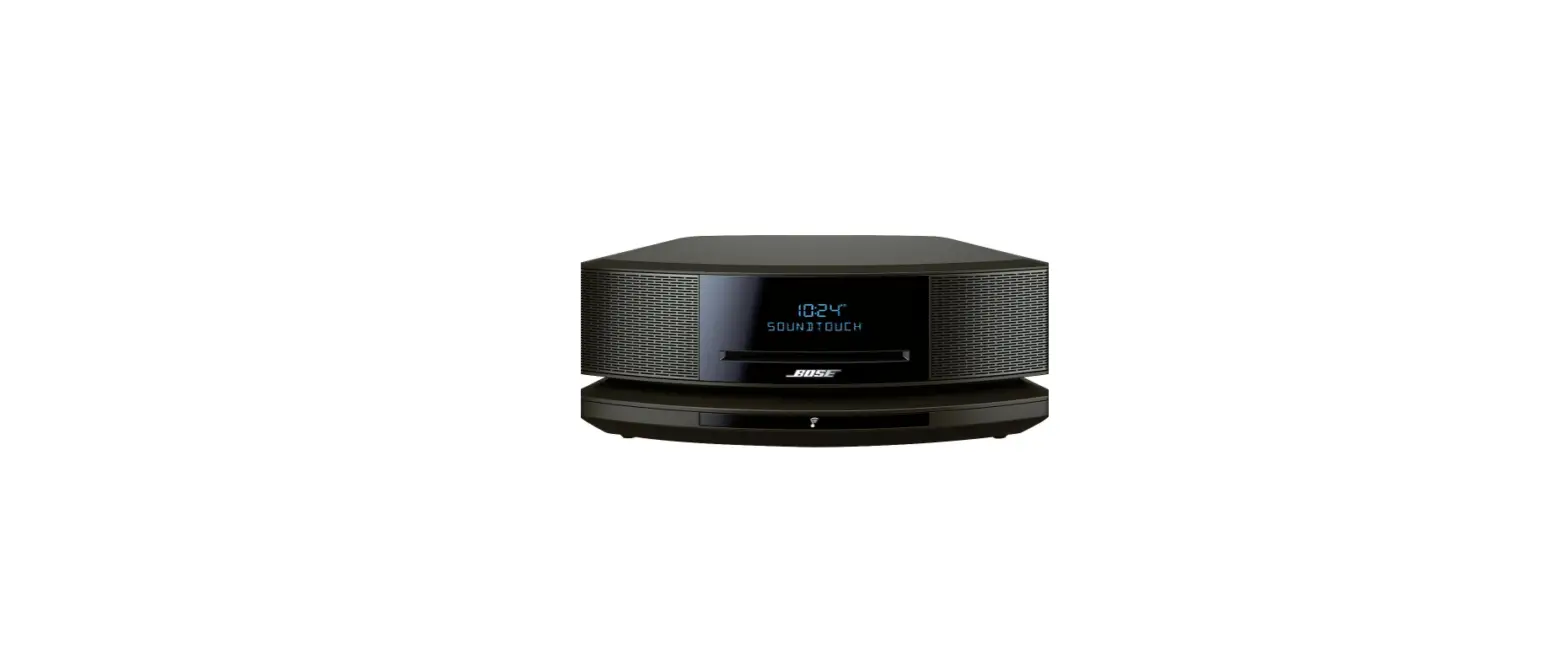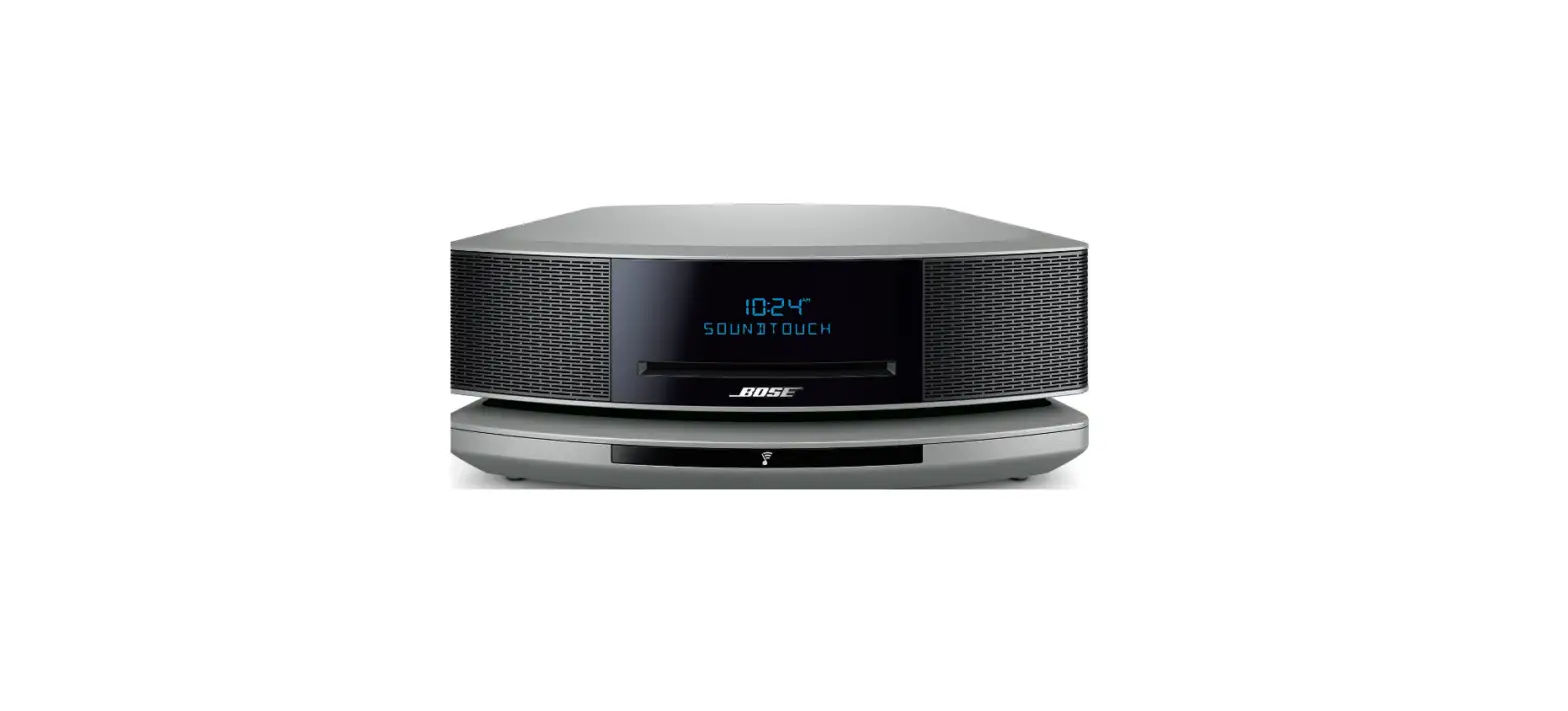

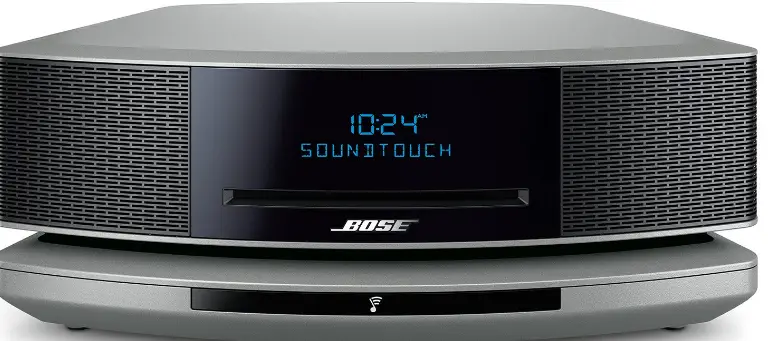
Bose 738031-1310 Music System with Alexa
IMPORTANT SAFETY INSTRUCTIONS
Do not ingest battery, chemical burn hazard. The remote control supplied with this product contains a coin/button cell battery. If the coin/button cell battery is swallowed, it can cause severe internal burns in just in just 2 hours and can lead to death. Keep new and used batteries away from children. If the battery compartment does not close securely, stop using the remote control and keep it away from children. If you think batteries might have been swallowed or placed inside any part of the body, seek immediate medical attention. To avoid risk of explosion, fire or chemical burn, use caution in replacing the battery and replace only with an agency approved (e.g., UL) CR2032 or DL2032 3-volt lithium battery. Properly and promptly dispose of used batteries. Do not recharge, disassemble, heat above 212°F (100°C) or incinerate.
Important Safety Instructions
- Read these instructions.
- Keep these instructions.
- Heed all warnings.
- Follow all instructions.
- Do not use this apparatus near water.
- Clean only with a dry cloth.
- Do not block any ventilation openings. Install in accordance with the manufacturer’s instructions.
- Do not install near any heat sources such as radiators, heat registers, stoves, or other apparatus (including amplifiers) that produce heat.
- Protect the power cord from being walked on or pinched particularly at plugs, convenience receptacles, and the point where they exit from the apparatus.
- Only use attachments/accessories specified by the manufacturer.
- Unplug this apparatus during lightning storms or when unused for long periods of time.
- Refer all servicing to qualified personnel. Servicing is required when the apparatus has been damaged in any way, such as power-supply cord or plug is damaged, liquid has been spilled or objects have fallen into the apparatus, the apparatus has been exposed to rain or moisture, does not operate normally, or has been dropped
WARNINGS/CAUTIONS
- This symbol means there is uninsulated, dangerous voltage within the product enclosure that may constitute a risk of electrical shock.
- This symbol means there are important operating and maintenance instructions in this guide.
- Contains small parts which may be a choking hazard. Not suitable for children under age 3.
- This product contains magnetic material. Consult your physician on whether this might affect your implantable medical device.
- To reduce the risk of fire or electrical shock, do NOT expose this product to rain, liquids or moisture.
- Do NOT expose this product to dripping or splashing, and do not place objects filled with liquids, such as vases, on or near the product.
- Keep the product away from fire and heat sources. Do NOT place naked flame sources, such as lighted candles, on or near the product.
- Do NOT make unauthorized alterations to this product.
- Do NOT use in vehicles or boats.
- Where the mains plug or an appliance coupler is used as the disconnect device, the disconnect device shall remain readily operable.
- To avoid hazardous radiation exposure from the internal laser component, use the product only as specified in the instructions. The compact disc player should not be adjusted or repaired by anyone except properly qualified service personnel.
- To prevent electric shock, match the wide blade of the line cord plug to the wide slot of the AC (mains) receptacle. Insert fully.
- The Wave® SoundTouch® music system (the system and SoundTouch ® pedestal combination, or the SoundTouch ® pedestal itself) is not to be used with the under-cabinet/wall bracket available from Bose.
- Do NOT use the headphones at a high volume for any extended period.
- To avoid hearing damage, use your headphones at a comfortable, moderate volume level.
- Turn the volume down on your device before placing the headphones in/on your ears, then turn the volume up gradually until you reach a comfortable listening level.
- The product label is located on the bottom of the product.
Class 1 laser product
Please dispose of used batteries properly, following local regulations. Do not incinerate. This symbol means the product must not be discarded as household waste, and should be delivered to an appropriate collection facility for recycling. Proper disposal and recycling helps protect natural resources, human health and the environment. For more information on disposal and recycling of this product, contact your local municipality, disposal service, or the shop where you bought this product.
SoundTouch® pedestal: This equipment should be installed and operated with a minimum distance of 8 in. (20 cm) between this device and your body.
China Restriction of Hazardous Substances Table
| Names and Contents of Toxic or Hazardous Substances or Elements | ||||||
| Toxic or Hazardous Substances and Elements | ||||||
|
Part Name |
Lead (Pb) |
Mercury (Hg) |
Cadmium (Cd) |
Hexavalent (CR(VI)) | Polybromi- nated Biphenyl (PBB) | Polybromi- nated diphenylether (PBDE) |
| PCBs | X | O | O | O | O | O |
| Metal Parts | X | O | O | O | O | O |
| Plastic Parts | O | O | O | O | O | O |
| Speakers | X | O | O | O | O | O |
| Cables | X | O | O | O | O | O |
| This table is prepared in accordance with the provisions of SJ/T 11364.
O: Indicates that this toxic or hazardous substance contained in all of the homoge- neous materials for this part is below the limit requirement of GB/T 26572. | ||||||
| X: Indicates that this toxic or hazardous substance contained in at least one of the homogeneous materials used for this part is above the limit requirement of GB/T 26572. | ||||||
| Equipment name: Bose® Wave®, Type designation: 417788-WMS | ||||||
| Restricted substances and its chemical symbols | ||||||
|
Unit | Lead (Pb) | Mercury (Hg) | Cadmium (Cd) | Hexavalent chromium (Cr+6) | Polybrominated biphenyls (PBB) | Polybrominated diphenyl ethers (PBDE) |
| PCBs | – | ○ | ○ | ○ | ○ | ○ |
| Metal Parts | – | ○ | ○ | ○ | ○ | ○ |
| Plastic Parts | ○ | ○ | ○ | ○ | ○ | ○ |
| Speakers | – | ○ | ○ | ○ | ○ | ○ |
| Cables | – | ○ | ○ | ○ | ○ | ○ |
| Note 1: “○” indicates that the percentage content of the restricted substance does not exceed the percentage of reference value
of presence. Note 2: The “−” indicates that the restricted substance corresponds to the exemption. | ||||||
Legal Information
License Disclosures
You can view the license disclosures that apply to the software packages included with your speaker through the SoundTouch® app or by using your product’s IP address.
SoundTouch® app
- From within the app, select Y > Settings > About > Legal.
- Select the applicable license type. IP address
- Obtain your product’s IP address using one of the following methods:
- SoundTouch® app: From within the app, select Y > Settings > About. Select your speaker to view the IP address.
- Wireless router: Refer to your router owner’s guide for more information.
- On a device connected to your wireless network, open a browser window.
- Go to <IP address>/licenses.pdf to view the applicable license disclosures.
Date of Manufacture: The eighth digit in the serial number indicates the year of manufacture; “8” is 2008 or 2018.
China Importer:
Bose Electronics (Shanghai) Company Limited, Part C, Plan 9, No. 353 North Riying Road, China (Shanghai) Pilot Free Trade Zone
EU Importer:
Bose Products B.V., Gorslaan 60, 1441 RG Purmerend, The Netherlands
Taiwan Importer:
Bose Taiwan Branch, 9F-A1, No.10, Section 3, Minsheng East Road, Taipei City 104, Taiwan. Phone Number: +886-2-2514 7676
Mexico Importer:
Bose de México, S. de R.L. de C.V. , Paseo de las Palmas 405-204, Lomas de Chapultepec, 11000 México, D.F. Phone Number: +5255 (5202) 3545 Amazon, Kindle, Fire and all related logos are trademarks of Amazon, Inc. or its affiliates. Apple, the Apple logo, and iTunes are trademarks of Apple Inc., registered in the U.S. and other countries. App Store is a service mark of Apple Inc. Android, Google Play, and the Google Play logo are trademarks of Google LLC. The Bluetooth® word mark and logos are registered trademarks owned by Bluetooth SIG, Inc. and any use of such marks by Bose Corporation is under license. This product contains the iHeartRadio service. iHeartRadio is a registered trademark of iHeartMedia, Inc. This product is protected by the certain intellectual property rights of Microsoft. Use or distribution of such technology outside of this product is prohibited without a license from Microsoft. This product incorporates Spotify software which is subject to 3rd party licenses found here: www.spotify.com/connect/third-party-licenses Spotify is a registered trademark of Spotify AB. SoundTouch and the wireless note design are trademarks of Bose Corporation in the U.S. and other countries. The distinctive design of the Wave music system is a registered trademark of Bose Corporation in the U.S. and other countries. Wi-Fi is a registered trademark of Wi-Fi Alliance®. Windows is a registered trademark of Microsoft Corporation in the United States and other countries. Bose Corporation Headquarters: 1-877-230-5639 © 2018 Bose Corporation. No part of this work may be reproduced, modified, distributed, or otherwise used without prior written permission.
What’s in the carton
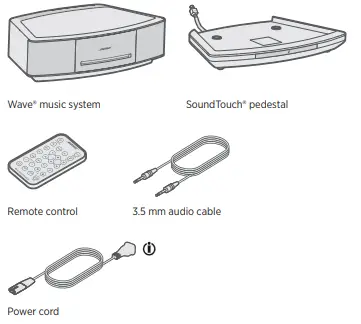
Placement guidelines
To avoid interference, keep other wireless equipment 1 – 3 ft. (0.3 – 0.9 m) away from your system. Place your system outside and away from metal cabinets, and direct heat sources. To enjoy maximum audio performance:
- Place the system across the room from your listening area.
- Place the system within two feet of a wall and avoid placing it directly in a corner.
- Place the system on a stable and level surface.
- Do NOT place your system on top of audio/video equipment (receivers, TVs, etc.), any other object that may generate heat or a metal surface.
- Heat generated by these items may result in poor system performance or interference with AM reception.
- Do NOT use the system in a damp location or any other place where moisture can get inside.
- Do NOT place any objects on top of your system.
- Make sure there is an AC (mains) outlet nearby.
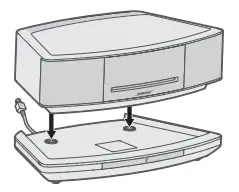
Connect the system to the pedestal
The SoundTouch® pedestal provides the network connection for the Wave® music system.
- Carefully set your Wave® music system on top of the SoundTouch ® pedestal:
- Place the rear feet of the Wave® music system into the recesses on top of the SoundTouch® pedestal.
- Make sure the Wave® music system sits flat and the side edges of both parts are aligned

- Insert the SoundTouch® pedestal’s cable into the Bose link connector.

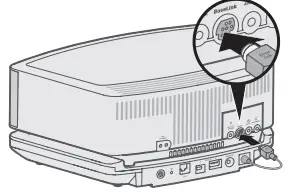
Connect the system to power
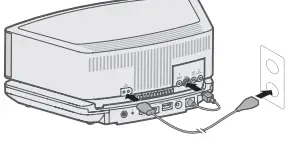
- Before you set up the system on your network, connect the system to power.
- Insert the small end of the AC power cord into the connector.
- Plug the power cord into an AC (mains) power outlet.

Set the clock
- Press and hold either
 for one second.
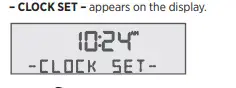
- Release the selected Time button. – CLOCK SET – appears on the display.

- Press
 to adjust the time backward or press
 to adjust the time forward.
 - After five seconds, the system exits the clock setup mode.
 for one second.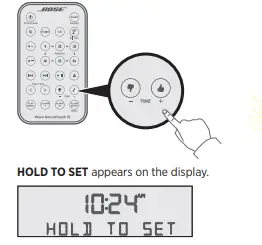
 to adjust the time backward or press
 to adjust the time forward.
Notes:
- The clock cannot be set in the SoundTouch® or Bluetooth® source.
- To change the clock display from 12-hour (AM/PM) time to 24- hour time, see “System Personalization” on page 20.
- If the system loses power due to a power outage or if unplugged, all system settings are permanently retained and the clock time is temporarily stored in backup memory (up to 48 hours).
- The SoundTouch® app lets you set up and control SoundTouch® from your smartphone, tablet or computer.
- Using the app, your smart device acts as a remote for your system.
- From the app, you can manage your SoundTouch® settings, add music services, explore local and global Internet radio stations, set and change presets, and stream music.
- New features are added periodically. Note: If you have already set up SoundTouch® for another system, see”Add the system to an existing account
Download and install the SoundTouch® app
On your smartphone or tablet, download the SoundTouch® app.
SOUND TOUCH APP
- Apple users: download from the App Store
- Android™ users: download on the Google Play™ store
- Amazon Kindle Fire users: download from the Amazon Appstore for Android


Follow the instructions in the app to complete setup, including adding the system to your Wi-Fi network, creating a SoundTouch® account, adding a music library, and using music services. For instructions on using a computer for setup, see page 24.
Tip: Once you set up the system on your home Wi-Fi network, you can control it from any smartphone or tablet on the same network. Download the SoundTouch® app on the smart device. You must use the same SoundTouch account for all devices connected to your system.
Existing SoundTouch® users
If you have already set up SoundTouch® on another speaker, you do not need to download the SoundTouch® app again.
Add the system to an existing account
From within the app, select > Settings > Add or Reconnect Speaker. The app guides you through setup.
Connect the system to a new network
- If your network information changes, add your system to your new network. You can do this by putting your system into setup mode.
- From within the app, select
 > Settings > Speaker Settings and select your system.
 - Select CONNECT SPEAKER.
- The app guides you through setup.
SoundTouch® Owner’s Center
This website provides access to the owner support center, which includes: owner’s manuals, articles, tips, tutorials, a video library, and the owner community where you can post questions and answers.
Personalize your presets
You can personalize six presets to your favorite streaming music services, stations, playlists, artists, albums or songs from your music library. You can access your music, at any time, with a simple touch of a button on the remote control.
Understand your presets
- You can set presets from the app and the remote control.
- If the preset source is your iTunes or Windows Media Player music library, make sure the computer storing your music library is on and connected to the same network as the SoundTouch® system.
- You cannot set presets in Bluetooth mode or AUX mode.
Set a preset
- Stream music to the system using the app.
- While the music is playing, press and hold a preset on the remote control (two seconds).
- The system emits a tone when the preset is set.
Play a preset
- Once you personalize your presets, select a preset using the remote control or the app to play it.
- Using the remote control, press and release
 until SOUNDTOUCH appears on the display.
 - Press a preset

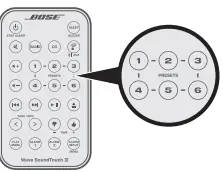
Remote control
Use the remote control to select music sources connected to your system, use playback functions, adjust the system volume and navigate the setup menu (see page 20).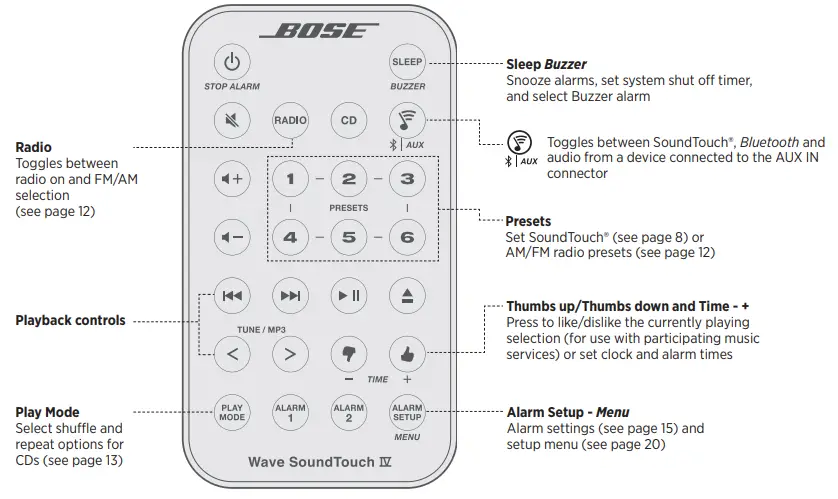
Touch pad
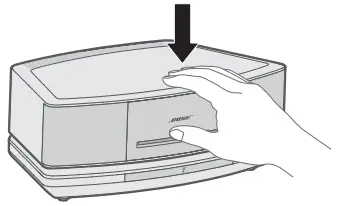
The system has a touch-sensitive control pad on the front, center area of the top panel.
- Gently tapping the touch pad:
- Powers on or off the system.
- Snoozes an alarm (see page 16).
- Resets an alarm for the next day (see page 16).

Power on the system
There are two ways to power on the system:
Remote control
- Press

- Press RADIO CD or power on the system to the selected source.

Note: Selecting does not power on a cabled audio device. Make sure to power on the device first.
Touchpad
Tap the touch pad. The last source you listened to is active.
Standby mode
If the button is not pressed after 24 hours, the system switches to standby (off). If the 18-minute system standby timer is enabled, the system automatically switches to standby if no audio is played and no buttons are pressed for 18 minutes. For more information on the 18-minute system standby timer see “System Personalization” on page 20. If the system is connected to your network when switching to standby, the connection is maintained.
Adjust the volume
On the remote control:
- Press
 to increase the volume.
 - Press
 to decrease the volume.
 - VOLUME – 0 (silent) to 99 (loud) appears on the display to indicate the level.
 to increase the volume.
When the system is off, the volume can only be adjusted between 10 and 75.
Mute the system
Press  to mute or unmute the audio.
Note: While muted, you can press to lower the volume before unmuting the system.
Messages on the display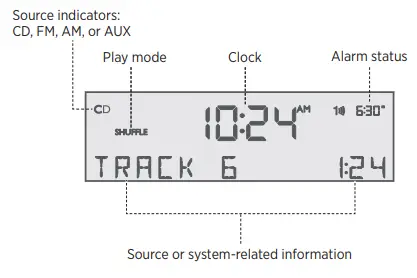
Connect a mobile device
Bluetooth wireless technology enables you to stream music from Bluetooth smartphones, tablets, computers or other audio devices to your SoundTouch® system. Before you can stream music from a mobile device, you must connect the device with system.
- On the remote control, press and release until “Ready to connect” appears on the display.
- On your mobile device, turn on the Bluetooth feature.
- Tip: The Bluetooth feature is usually found in the Settings menu.
- Select your Wave system from the device list
Reconnect mobile device
You can stream audio from a mobile device to the system. If there are multiple paired devices within range, your system connects to the most recent paired device that streamed to it. It may take a minute or two for the paired device to connect. Your system’s display indicates connection status.
Clear the system’s Bluetooth pairing list.
When you connect a mobile device to the system, the connection is stored in the system’s pairing list. You may need to clear the pairing list if you cannot connect to a device. Once you clear the list, you need to connect the device again. On the remote control, press and hold (about 10 seconds) until a pairing list cleared message appears on the display. The system is ready to connect to a device
Listen to AM or FM radio
On the remote control, press to power on the system to the station last selected. Press and release to toggle between FM or AM radio.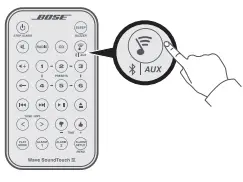
When you select FM radio, Radio Data System (RDS) information for the current station appears. This is controlled by the RADIO TEXT setting in the setup menu. To disable RDS and view only the station frequency, change the RADIO TEXT setting to OFF (see “System Personalization” on page 20).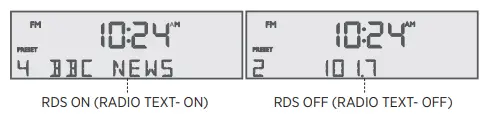
Tune to an AM/FM station
The station frequency appears in the center of the display while you are tuning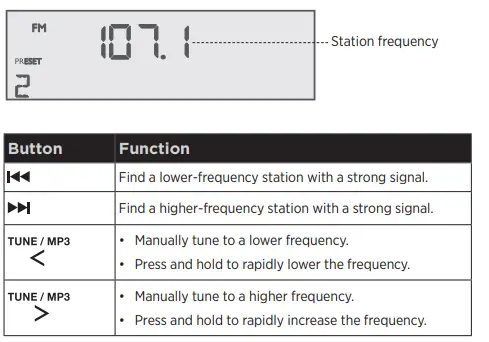
Set AM/FM radio station presets
You can store up to six AM and six FM radio stations for quick recall using the presets. Storing a preset replaces any station previously stored to that preset number.
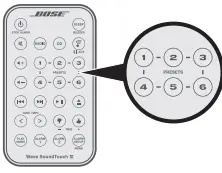
- Tune to the station you want to save as a preset.
- Press and hold a preset until you hear a double tone.

Play an AM/FM radio station preset
Press a preset on the remote control to tune to a previously stored FM or AM station.
Improve FM reception
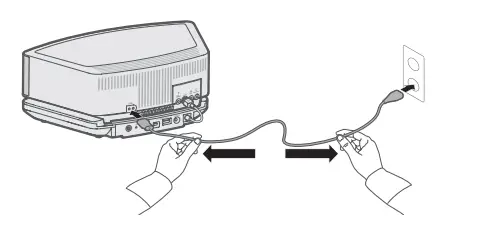
Unwind and straighten the power cord to ensure the best FM radio reception. The power cord is used as an antenna
Play audio CDs
Insert the disc, label side up, into the CD slot below the display. The disc player pulls the disc in and begins playing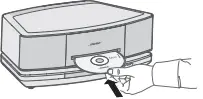
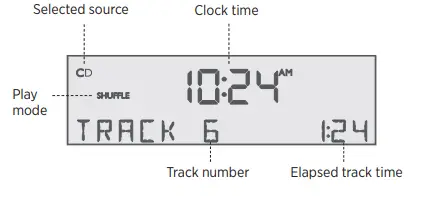
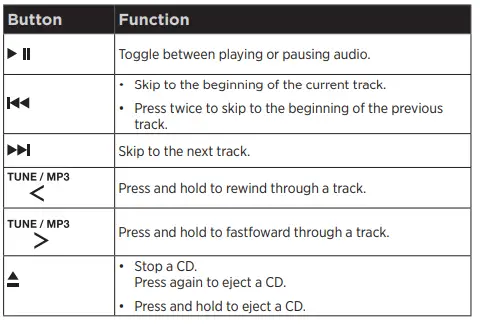
When a CD is playing, CD source information appears on the display:
Play MP3 CDs
The system can play MP3 music files recorded on CD-R and CD-RW discs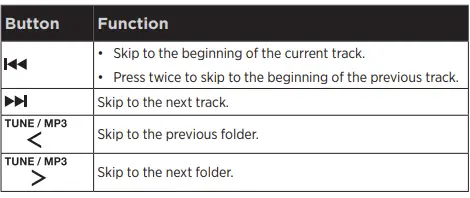
When navigating an MP3 CD, folder number and track number appear on the display: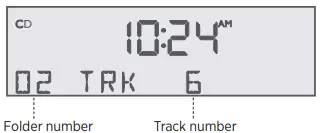
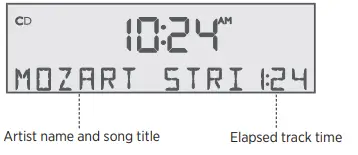
The Root level appears as folder number 00. Once the track begins playing, artist name, song title and elapsed track time appear on the display:
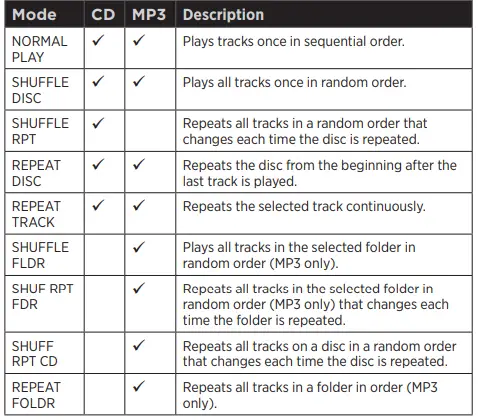
CD Play Modes
Set the alarms
- Press


- The alarm number and time flash (A), then Alarm 1 settings appear on the display (B).

- Press to set the alarm time.
- Select your wake-up source:
- Press
 to choose the buzzer (factory alarm setting).
 - Press RADIO to choose a radio station or radio preset.
- Press CD to choose a track.
- Press to choose a SoundTouch® preset.
- When using SoundTouch®, you can only select a preset as a wake-up source.
- Press to adjust the volume level of a wake-up source.
- Press to enter the Alarm 2 setup mode.
- Repeat Steps 2 – 4 to set up Alarm 2.
- Press again to exit the Alarm Setup mode.

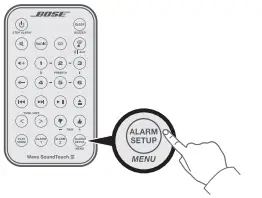
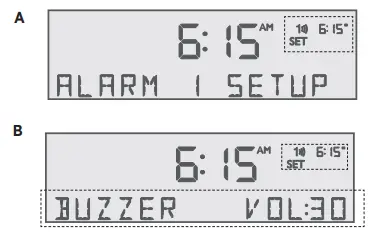
 to choose the buzzer (factory alarm setting).
The alarm time is set and appears on the display: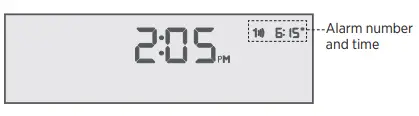
View Alarm 1 and Alarm 2 settings
- Press to activate the Alarm Setup mode and view Alarm 1 settings.
- Press again to view Alarm 2 settings.
- Press again to exit the Alarm Setup mode.
Alarm messages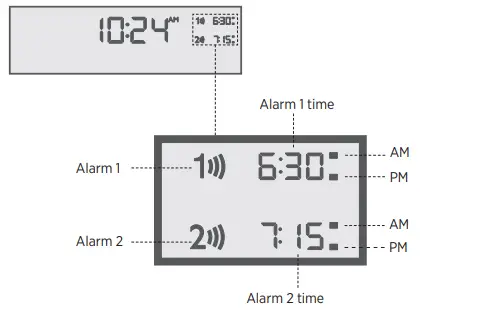
Turn an alarm on or off
Press and to turn the selected alarm on or off. When an alarm is turned on, the alarm number and time appear in the upper right corner of the display.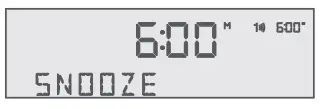
Snooze an alarm
Tap the touch pad or press
SNOOZE appears for the duration of the selected snooze time and then the alarm sounds again. The snooze time is set at the factory to 10 minutes. To change the snooze time, see “System Personalization” on page 20.
Stop and reset a sounding alarm
Press
Reset a snoozed alarm for the next day
After snoozing the alarm, place your hand on the touch pad again and hold it there for at least 2 seconds or press
Set the Sleep timer
- The sleep timer sets the system to power off after a set period of time.

- Press and release
 to set the sleep timer in 10 minute increments (10 – 90 minutes). The default factory setting is 30 minutes.
 - After 10 seconds, the system exits the sleep timer setup mode.
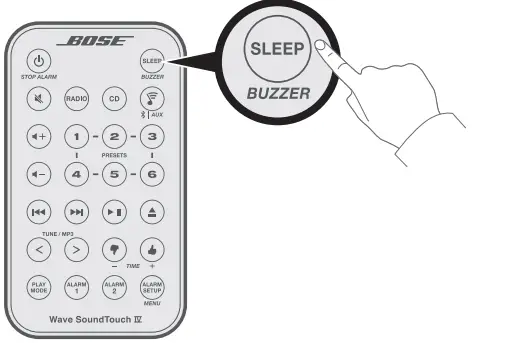
Note: If the system is powered off, pressing enters the sleep timer mode.
View the remaining sleep time
After setting the sleep timer, press to view the remaining sleep time.
Turn off the Sleep timer
Press and release until SLEEP – OFF appears on the display.
System connections
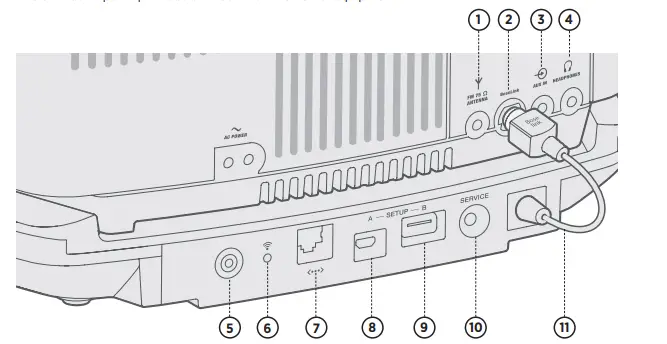
- ANTENNA
- 3.5 mm FM antenna (75 ohm) connector (see page 19).
- BoseLink connector
- Input connector for the SoundTouch® pedestal.
- AUX IN connector
- 3.5 mm stereo input connector for external sources (see page 18).
- HEADPHONES
- 3.5 mm input connector for headphones (see page 18).
- Control button
- Disables Wi-Fi, initiates setup mode or restarts the SoundTouch ® pedestal (see page 21).
- Wi-Fi indicator:
- Blinking white – Searching for Wi-Fi network
- Solid white (dim) – Power-saving mode and connected to Wi-Fi network
- Solid white (bright) – System is on and connected to Wi-Fi network
- Solid amber – System is in setup mode
- Off – Wi-Fi networking disabled or system is connected to Ethernet
- Ethernet connector
- Used for a wired network connection.
- SETUP A
- USB Micro-B connector for network setup using a computer.
- SETUP B*
- USB Standard A connector reserved for future use.
- SERVICE connector
- Used for special service functions. Not for customer use.
- SoundTouch® pedestal Bose link cable
- Plugs into the Bose link connector. It provides power and control signals to the SoundTouch® pedestal.
- The USB connectors are not designed to charge smartphones, tablets or similar devices.
Other Equipment Connections
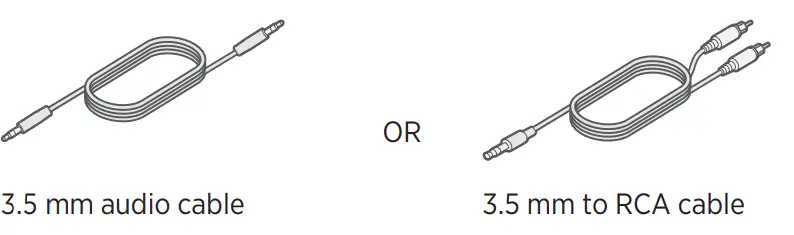
Connect to an audio
When using a TV, DVD player, computer, video game or other audio device, you can enhance your listening experience by playing the audio device through the system. Connecting an audio device to the system requires one of the following cables
- Using a cable, connect your audio device to the AUX IN connector on the system’s connector panel.

- On the remote control, press and release until appears on the display.
- Start playing music on the audio device.
- Press to adjust the volume
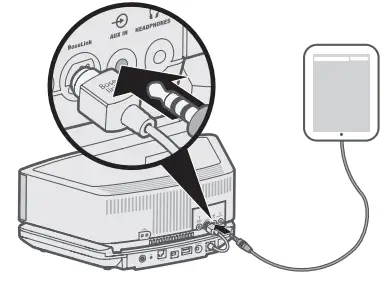
Connect to headphones
For private listening, insert your headphones into the headphone connector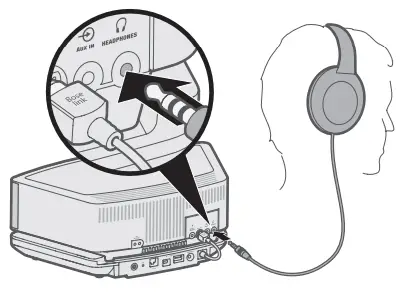
Adjust the headphones’ volume
Press or to adjust the volume of your headphones.
Connect to an external antenna
The system’s power cord is used as an antenna for FM radio. If, after adjusting the position of the power cord, you still experience poor reception, you may need to install an external antenna. An external dipole antenna can be ordered through Bose Customer Service. Visit global.Bose.com/Support/WSTIV for contact information.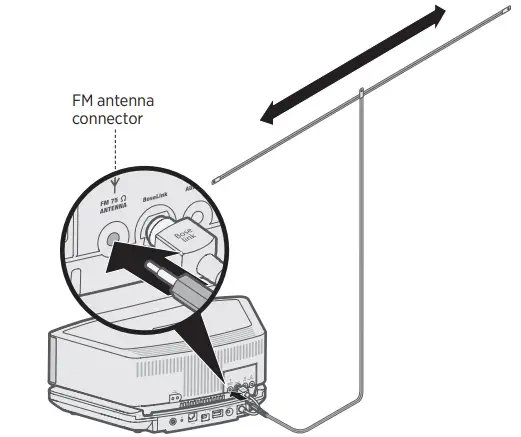
- Insert the 3.5 mm plug of the FM antenna into the FM ANTENNA connector on the rear of the system.
- Extend the ends of the antenna as far from the unit and other external equipment as possible to establish optimum reception
|
System setting |
Menu item | Factory setting |
Choices |
Description |
| Snooze duration | SNOOZE- | 10 MIN | 10 MIN, 20 MIN, 30
MIN, 40 MIN, 50 MIN, 60 MIN | Determines the snooze time duration. |
| Radio Data System (RDS) information | RADIO TEXT- | ON | ON, OFF | Enables (ON) or disables (OFF) the system to display RDS information. |
| Continuous play | CONT PLAY- | NO | NO, AUX, FM, AM | Determines which source plays after a CD ends. |
| Bass level | BASS- | NORMAL | NORMAL, REDUCED | Adjusts the bass level. |
| Clock time format | TIME- | 12 HOUR | 12-HOUR,
24-HOUR | Sets the clock display for 12-hour (AM/PM) or 24-hour time. |
| Display high brightness level | BRIGHT HI- | 10 | 8-15 | Sets the display brightness level when the unit detects high ambient light conditions. |
| Display low brightness level | BRIGHT LO- | 4 | 1-8 | Sets the display brightness level when the unit detects low ambient light conditions. |
| Room code
(Not applicable when using the SoundTouch® pedestal.) | ROOM- | B _ _ _ – | B _ _ _ –, C _ _ – _,
D _ _ – –, E _ – _ _, F _ – _ –, G _ – – _, H _ – – –, I – _ _ _, J – _ _ –, K – _ – _, L – _ – –, M – – _ _, N – – _ –, O – – – _ | Sets the room code for the Wave® SoundTouch® music system when it is connected to a Bose link network.
The dashes following the room letter indicate how the microswitches should be set on a Lifestyle® remote control. |
| Capacitive touch control | TOUCH PAD- | ON | ON, OFF | Enables (ON) or disables (OFF) the touch pad. |
| 18-minute system standby timer | AUTO OFF- | YES | YES, NO | Enables (YES) or disables (NO) the 18-minute system standby timer (see page 10). |
| Factory reset | RESET ALL- | NO | NO, YES | Restores the system to factory settings. |
Change a system setting
- Press and hold until -SETUP MENU- appears on the display.
- Press until the item you want to change appears on the display.
- Press or to change the value or selection.
- Press to exit the setup menu or wait 10 seconds for the setup menu to close
ADVANCED FEATURES
Disable Wi-Fi® capability
- Press and hold the pedestal’s Control button (8 – 10 seconds).
- When the Wi-Fi indicator turns off, release the Control button.
Re-enable Wi-Fi capability
Power on the system using the remote control.
Restart the SoundTouch® pedestal
On the back of the SoundTouch® pedestal, press and hold the Control button for more than 10 seconds and then release it. After several seconds the pedestal should turn on again and reconnect with your network.
Note: Restart does not affect your SoundTouch® presets or your saved network credentials.
Reset the SoundTouch® pedestal
Factory reset clears all source, volume and network settings from the system and returns it to original factory settings. Your SoundTouch® account and presets still exist but are not associated with the system unless you use the same account to set up the system again.
- Make sure that the SoundTouch® pedestal cable is inserted into the Bose link connector.
- Disconnect the system from power.
- Press and hold the Control button on the back of the SoundTouch ® pedestal.
- While pressing and holding the Control button, reconnect power.
- Hold the Control button for five seconds. The system restarts.
- Open the SoundTouch® app and add the system to your network (see page 7).
CARE AND MAINTENANCE
Replace the remote control battery
- Place the remote face down on a flat surface.
- Using your finger, push the tab lock to the side as shown and hold. Slide the battery compartment open.

- Remove the old battery and install the new one with the plus (+) symbol facing up.

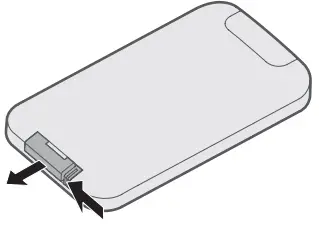

- Gently slide the battery compartment closed. It locks automatically.
Clean the system
- Clean the surface of the system with a soft, dry cloth. You can also lightly vacuum the grille on the system.
- Do not use any sprays near the system. Do not use any solvents, chemicals or cleaning solutions containing alcohol, ammonia or abrasives.
- Do not allow liquids to spill into any openings.
Customer service
For additional help using the system, visit: global.Bose.com/Support/WSTIV
Limited warranty
Your Bose® Wave® SoundTouch® music system is covered by a limited warranty. Visit our website at global.Bose.com/warranty for details of the limited warranty. To register your product, visit global.Bose.com/register for instructions. Failure to register will not affect your limited warranty rights.
Technical information
- AC power rating
- 220V-240V 50/60Hz 60W max.
If you experience problems with your system:
- Connect your system to AC (mains) power.
- Secure all cables.
- Secure the SoundTouch® pedestal to the Bose link connector.
- Tap the touch pad on the top of the system or use the remote to power on the system.
- Move your system and mobile device away from possible interference (wireless routers, cordless phones, televisions, microwaves, etc.).
- Move your system within the recommended range of your wireless router or mobile device for proper operation.
- Reset the system: Unplug the power cord from the AC wall outlet for 10 seconds and then reconnect.
- If you could not resolve your issue, see the table below to identify symptoms and solutions to common problems. If you are unable to resolve your issue, contact Bose customer service
Common solutions
| Problem | What to do |
| Cannot complete network setup | • Select correct network name and enter password.
• Connect the device and SoundTouch® system to the same Wi-Fi network. • Place the system within range of the router. • Enable Wi-Fi on the device (mobile or computer) you are using for setup. • Select correct network name and enter password. • Close other open applications. • If using a computer for setup, check firewall settings to make sure that the SoundTouch® app and SoundTouch® Music Server are allowed programs. • Restart your mobile device, or computer and router. • Uninstall the app, reset the system and restart setup. |
| Cannot connect to network | • If your network information has changed or to connect your system to another network, see page 7.
• Connect to the network using an Ethernet cable. |
| No sound | • Increase the volume.
• Make sure the system is not muted. Press . • Eject and reload the CD. • Press and release while viewing the display. Make sure you are listening to the correct source. • Make sure the SoundTouch® pedestal is connected to your Wi-Fi network. • Turn on the external source and increase the volume. • Disconnect headphones from the system (connecting headphones mutes the speakers). • Stop other audio or video streaming applications. |
| Problem | What to do |
| Cannot play Bluetooth audio | • Set up SoundTouch® first, and perform all system updates.
• Connect a device (see page 11). • Clear your system’s pairing list (see page 11). • Try pairing a different device. On your mobile device: • Disable and re-enable the Bluetooth feature. • Remove the system from the Bluetooth menu. Connect again. • Refer to your mobile device’s documentation. |
| Poor sound quality | If the bass is too heavy or low, adjust the bass level of the system using the setup menu (see page 20). |
| Remote control is inconsistent or does
not work | • Operate the remote control closer to the system.
• Check that the remote control battery is installed with positive (+) polarity facing up. • Replace the remote control battery. • Check for interference from fluorescent room lighting, sunlight,or dust or dirt on lens. • Place the system in a different location. |
| AM reception is weak | • Turn the system slightly clockwise and then counter- clockwise to change the direction of the internal AM antenna.
• Move the system farther from a TV, refrigerator, halogen lamps, dimmer switches or other electronic equipment that generates electrical noise. • If neither suggestion works, you may be in an area of weak AM signal coverage. |
| FM reception is weak | Extend the power cord as much as possible. The power cord acts as an FM antenna (see page 12). |
| CD does not play | • Press . The CD icon appears on the display.
• Load the CD label-side up. • Make sure that the disc surface is clean. If not, try cleaning it. • Try another CD. |
ALTERNATE SETUP
Set up your system using a computer
You can set up your system using a computer rather than a smartphone or tablet.
Before you begin
- Position your system next to your computer.
- Make sure your computer is on your Wi-Fi network.
- Obtain a USB A to USB Micro B cable (not provided).
Notes:
- A USB A to USB Micro B cable is commonly used for charging mobile devices. You can also purchase this part at your local electronics store. If you don’t have this cable, contact Bose customer service to receive this part.
- The USB connector on the back of your system is for computer setup only. The USB connector is not designed to charge smartphones, tablets, similar devices or the system itself.
Computer setup
- During setup, the app prompts you to temporarily connect the USB cable from the computer to your Wave® SoundTouch® music system.
- Do not connect the USB cable until the app instructs you to do so.
- Plug the power cord into an AC (mains) power outlet.
- On your computer, open a browser and go to: global.Bose.com/Support/WSTIV
Tip: Use the computer where your music library is stored.
- Download and run the SoundTouch® app.
- The app guides you through setup.
- After setup is complete, disconnect the USB cable from your computer and system. Move your system to its permanent
location.
FCC
This equipment has been tested and found to comply with the limits for a Class B digital device, pursuant to Part 15 of the FCC Rules. These limits are designed to provide reasonable protection against harmful interference in a residential installation. This equipment generates, uses, and can radiate radio frequency energy and, if not installed and used in accordance with the instructions, may cause harmful interference to radio communications. However, there is no guarantee that interference will not occur in a particular installation. If this equipment does cause harmful interference to radio or television reception, which can be determined by turning the equipment off and on, the user is encouraged to try to correct the interference by one or more of the following measures:
- Reorient or relocate the receiving antenna.
- Increase the separation between the equipment and receiver.
- Connect the equipment into an outlet on a circuit different from that to which the receiver is connected.
- Consult the dealer or an experienced radio/TV technician for help.
Changes or modifications not expressly approved by Bose Corporation could void the user’s authority to operate this equipment. This device complies with part 15 of the FCC Rules and with Industry Canada license-exempt RSS standard(s). Operation is subject to the following two conditions:
- This device may not cause harmful interference, and
- this device must accept any interference received, including interference that may cause undesired operation.
This device complies with FCC and Industry Canada radiation exposure limits set forth for general population. This transmitter must not be co-located or operating in conjunction with any other antenna or transmitter. This device is for indoor use only to reduce the potential for harmful interference to other co-channel systems
FAQS
While the Wave SoundTouch Music System IV does not power other Bluetooth speakers, it can make a Bluetooth connection to a device, such as an iPhone, and stream that audio to other SoundTouch systems in your home.
Can this system receive Sirius through wifi?M. Seltzer and thank you for your question! By pairing the Bose Wave SoundTouch music system IV to a bluetooth device, you will have even more listening options, such as Sirius.
How does this iv system compare to the iii system with pedestal? Costco had the iii with pedestal at 499, but I wonder if the iv is that much better.?There are several benefits to the newest version. The Wave SoundTouch music system IV has improved Wi-Fi performance, works with Bluetooth devices, allows for Bluetooth rebroadcasting to other SoundTouch speakers,
Can this system be played without a remote?the Bose Wave SoundTouch System allows you to control SoundTouch sources without the included remote. You can use a mobile device or computer to select a streaming source and control playback.
Can this connect to smart tv?Your TV would need to have a headphone jack or an audio output connection in order to connect. You would connect the cable from your TV to the auxiliary port on the Wave system
How does the alarm clock work?The alarm time can be set by pressing “Alarm Setup” on the remote. You can adjust the volume, and source to hear. Pressing the “Alarm Setup” again will activate Alarm 2 settings.
I saw No info. Bottom deck of this pair,a multi disc player like the older model?The bottom portion is the sound touch networking part. There is no multi disc changer. The disc changer that is there, isn’t very good.
Can this speaker be used with a microphone, either wired or wireless?I’m glad you asked, we would not recommend connecting a microphone.
Do you need wifi in the house already or does system have its own wifi thanksThe Bose Wave SoundTouch Music System IV requires an in home Wi-Fi network for use, the built in tuner and CD player will operate without setting up the Wi-Fi portion.
Is bluetooth built inYes, this unit does have Bluetooth built-in.
How do you get xm radio on the bose iv via the internet?You can stream XM radio through the app on your tablet or smartphone and connect to the Wave SoundTouch through Bluetooth to enjoy satellite radio through this system.
How do you get xm radio on the bose iv via the internet?You can stream XM radio through the app on your tablet or smartphone and connect to the Wave SoundTouch through Bluetooth to enjoy satellite radio through this system.Is there a way i can stream the music playing on this system (wave iv) to another speaker in another room?
Download the SoundTouch app and you can pair additional speakers to the wave radio. I have the Bose soundtouch 20 III paired with my wave radio
Does this system have standard audio input jacks (red/white) as well? I would like to hook my turntable up to it if possible.The Wave SoundTouch IV music system features a single 3.5 mm AUX input on the back of the system. If your turntable features a pre-amp, you may use a cable adapter that will allow you to connect it to the system.
Will the wave soundtouch system iv power remote soundtouch speakers?The Wave SoundTouch system is not capable of powering remote speakers. Using the SoundTouch app you can play audio through multiple SoundTouch