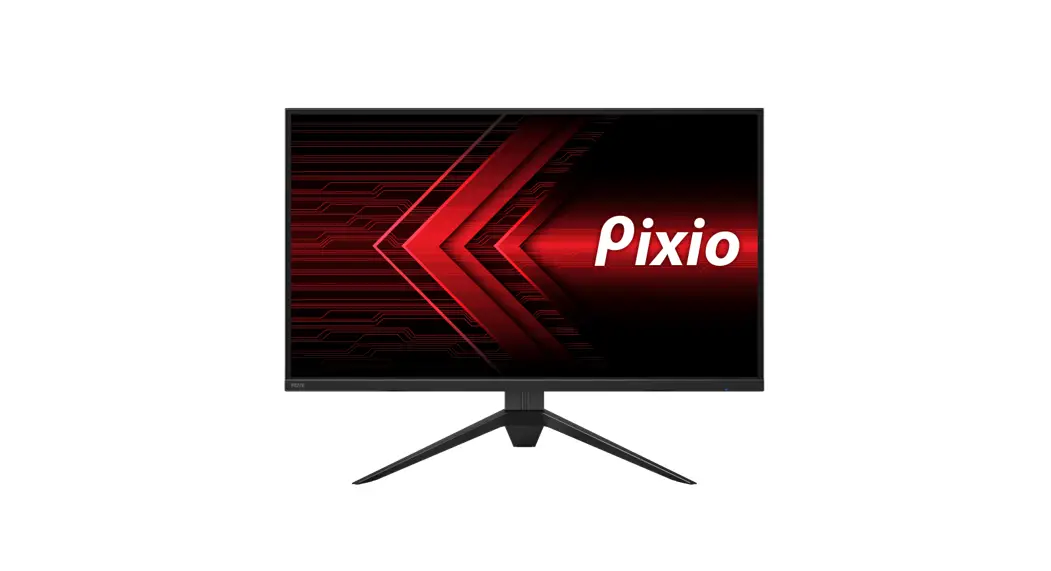
fiodio 24H2G 24 Inch Gaming Monitor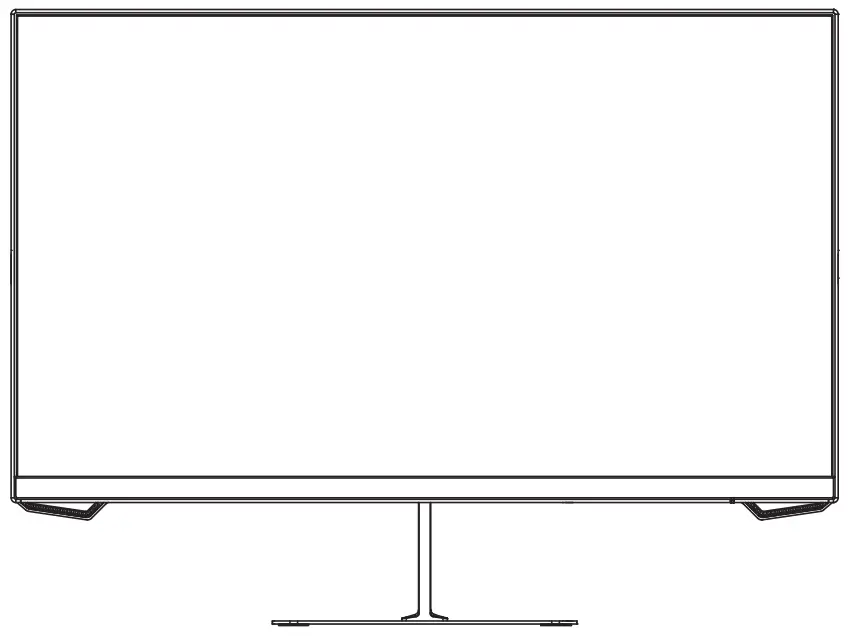
Notices
- Keep the monitor away from water sources or damp places, such as bath rooms, kitchens, basements and swimming pools.
- Make sure the monitor is placed on a flat surface. If the monitor falls down, it may cause human injury or device damage.
- Store and use the monitor in a cool, dry and well ventilated place, and keep it away from emission and heat sources.
- Do not cover or block the vent hole in the rear casing, and do not use the product on a bed, sofa, blanket or similar objects.
- The range of the supply voltage of the monitor is printed on the label on the rear casing. If it is impossible to determine the supply voltage, please consult the distributor or local power company.
- If the monitor will not be used for a long period, please cut off the power supply to avoid electric shock in rainy days and damage due to abnormal supply voltage.
- Please use a reliable earthing socket, do not overload the socket, or it may cause fire or electric shock.
- Do not put foreign matters into the monitor, or it may cause short circuits resulting fire or electric shock.
- Do not disassemble or repair this product by self to avoid electric shock. If faults occur, please contact the after-sales service directly.
- Do not pull or twist the power cable forcedly.
- There is a polarizer layer (not a protective film) on the surface of the screen. Do not peel it off, or the product may be damaged and the warranty will be invalid.
Product introduction
Packing list
- Please check that the package of the monitor contains all parts.
- The color and shape of parts may vary with models. Figures in this User Manual are for reference only.
- Wires supplied may vary with purchased products. Figures in this User Manual are for reference only
- Display screen

- Stand

- Base

- Screws

- DP cable

- Power Adapter

- User Manual

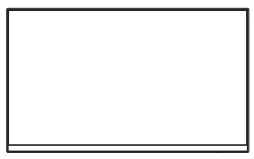
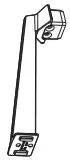
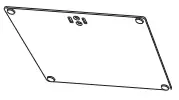
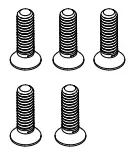
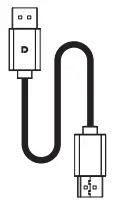
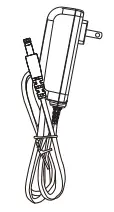
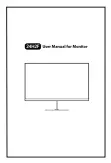
Note: The redundant screws are used as spare screws.
Instructions for use
Description of buttons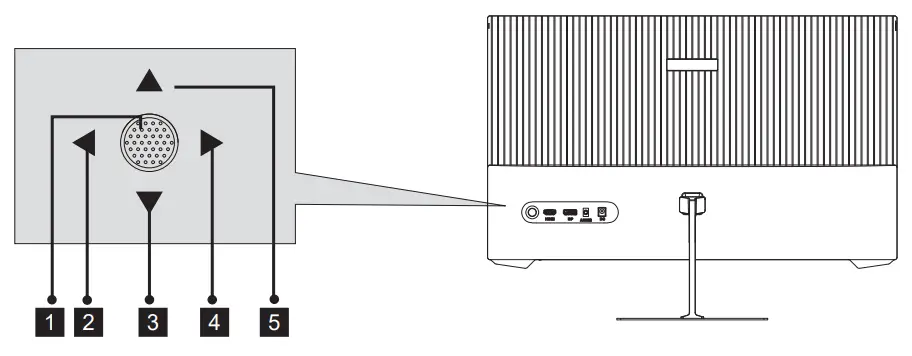
- Power button: Turn on/of the monitor.
- Exit/Left button: Exit or return to the previous menu/quickly switch the Input Signal.
- Down button: Move down in the menu/quickly enter the GamePlus.
- Menu button: Enter sub-menus/quickly enter the main menu.
- Up button: Move up in the menu.
Explanation of indicators
Indicator light:
Steady blue light indicates the power is on and the monitor runs normally.
Red light indicates no horizontal or vertical synchronous signal detected or no video input signal, and that the monitor is in standby status. Please make sure your computer is turned on and operates normally and check that all video cables are fully plugged in and/or connected to the monitor.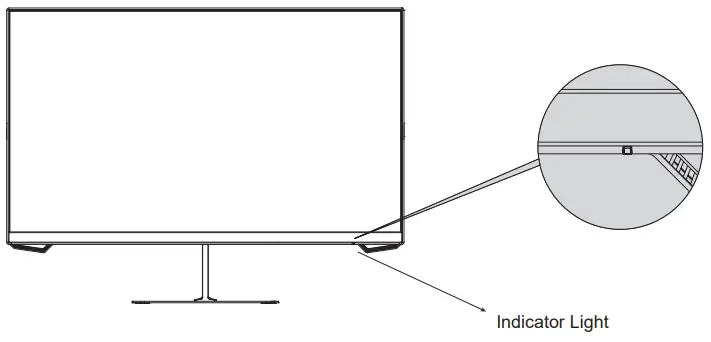
Adjusting the monitor
Tilting angle -5.0°(±2.0°)- +15°(±2.0°)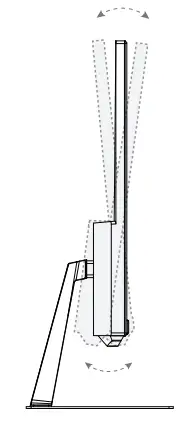
Installation of base
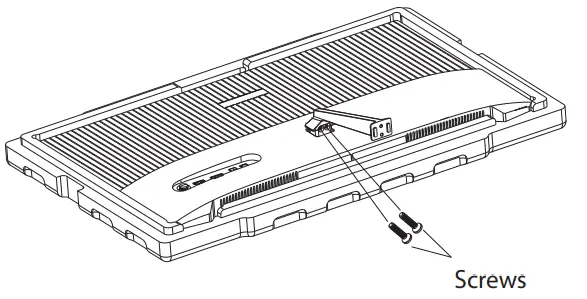
- Unpack the carton, remove the foam, and lay the monitor flat on the table.
Keep the foam under the monitor until you install the stand.
- Take out the bracket and place it on the machine shaft and fix it with two screws.

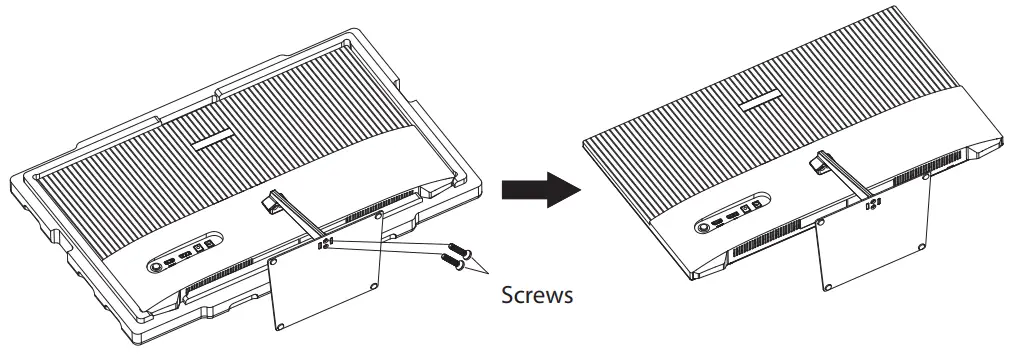
- Take out the base, align it with the bottom of the stand, and fix it with two screws.

- After assembly, simply hold the stand with hand to stand the monitor upright.

 Note: During standing of the whole monitor, do not press the liquid crystal screen with hand to avoid damage to the screen.
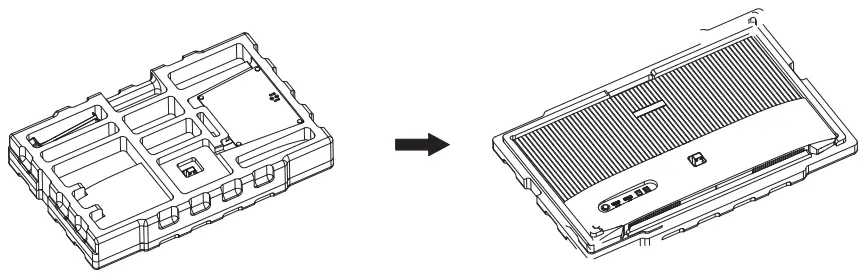
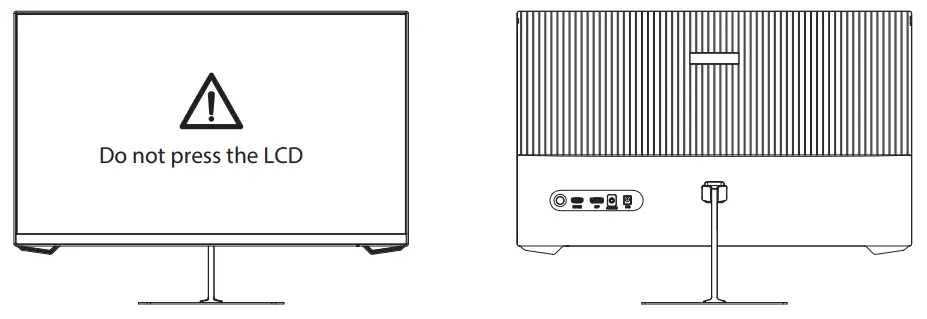
 Note: During standing of the whole monitor, do not press the liquid crystal screen with hand to avoid damage to the screen.
Cable connection
- The bottom interface configuration at the back of the monitor varie with products.
- Note: If the power cable or signal cable is damaged, you must replace it with special soft cables or special components purchased from the manufacture or maintenance department.

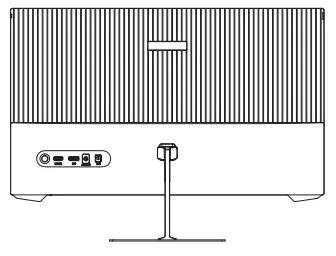
HDMI interface
- Use the HDMI cable to connect the HDMI IN interface of the product to the HDMI OUT interface of a PC.

- Use the HDMI-DVI cable to connect the HDMI IN interface of the product to the DVI OUT interface of a PC.
(In general, PCs do not transfer video signals to the monitor through the DVI OUT interface, and it is necessary to connect a loudspeaker box additionally to play sounds of PCs.)
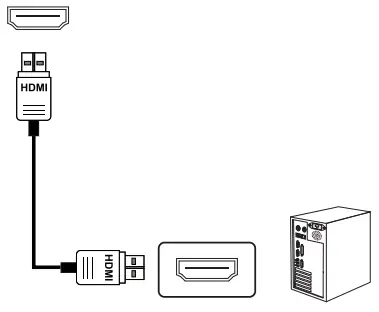
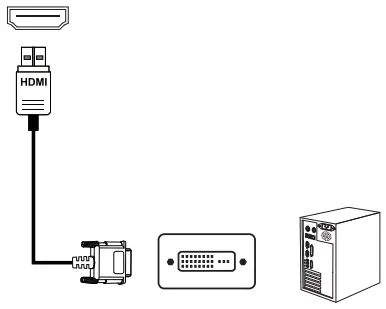
DP interface
Use the DP cable to connect the DP IN interface of the product to the DP OUT interface of a PC.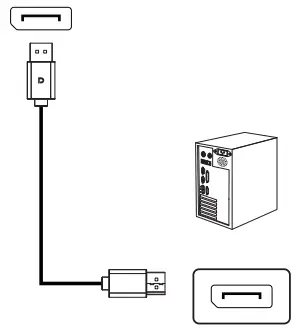
AUDIO OUT
Connect audio outputting devices such as earphones to the AUDIO OUT interface.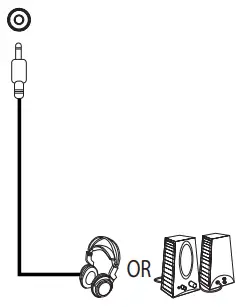
DC IN
Please connect the power adapter plug to the corresponding power port of the monitor, and connect the other end to a properly grounded power outlet.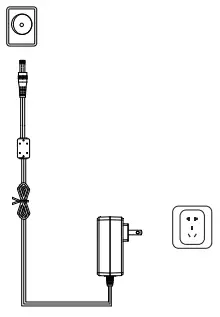
Menu description
- The color and shape of the OSD menu of the actual computer may be slightly different from them shown in the figure.
- Specifications of the OSD menu may change with improvements of functions without prior notice.
The screen display (OSD) menu can be used to adjust settings of the monitor and is shown on the screen after the monitor is powered on and the  button is pressed.
- Press one of the buttons (
 ) to activate the browser screen.
- Press
 or to scroll through the functions.
– Select the desired function, and press to enter the sub-menu.
– Press or to scroll through sub-menus, and press key to select and confirm the desired function.
– Press or to select one option, and press to confirm settings and exit from the current menu. - Press
 to exit from the menu screen.
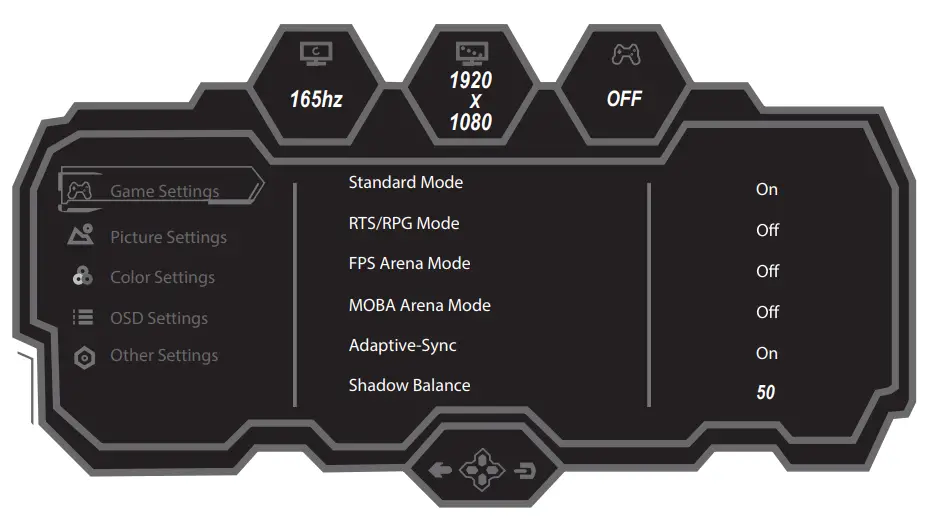
 or
or to scroll through the functions.
 to exit from the menu screen.
Functions of the monitor vary with models, and the functions in this manual are for reference only.
| Game Settings | Standard Mode | Off/On |
| RTS/RPG Mode | Off/On | |
| FPS Arena Mode | Off/On | |
| MOBA Arena Mode | Off/On | |
| Adaptive-Sync | Off/On | |
| Shadow Balance | 0-100 | |
| Response Time | Off/Normal/Fast/Ultrafast | |
| Refresh Rate | Off | |
| On: TopRight/TopLeft/BottomRight /BottomLeft | ||
| Game Crosshair | Off/Crosshair 1/Crosshair 2/Crosshair 3/ Crosshair 4/Crosshair 5/Crosshair 6 | |
| Game Time | Off/15:00/30:00/45:00/60:00 | |
| Position: TopRight/TopLeft/BottomRight /BottomLeft | ||
| Dynamic Brightness | Off/Normal/Expert/Elaboration | |
| MPRT | Off/On | |
| Ambient Lighting | Off/On | |
| Picture Settings | Brightness | 0-100 |
| Contrast | 0-100 | |
| DCR | Off/On | |
| Contextual Model | Off/Movie Mode/Reading Mode/Night Mode /Care Eyes Mode | |
| Low Blue Light | 0-100 | |
| Sharpness | 0-5 | |
| Gamma | 1.8/2.0/2.2/2.4/2.6/ S.curve | |
| Aspect Ratio | Wide Screen/16:9/Auto | |
| Color Settings | Warm | Off/On |
| Cool | Off/On | |
| User1 | Off/On: Red, Green, Blue | |
| User2 | Off/On: Red, Green, Blue | |
| User3 | Off/On: Red, Green, Blue | |
| Hue | Red/Green/Blue/Cyan/Magenta/Yellow: 0-100 | |
| Saturation |
Functions of the monitor vary with models, and the functions in this manual are for reference only.
| OSD Settings | Language | 简体中文/English/한국어/عربى/Portugues Brazil/ Deutsch/Nederland/Suomi/Français/ Ελληνικά/Indonesia/Italiano/日本語/Malaysia/ Polskie/Português/Pyccкnй/Español/ไทย/ Укpaïнcъкa/Tiếng Việt/繁體中文/Türkçe |
| OSD Time Out | 5-60 | |
| OSD H-Position | 0-100 | |
| OSD V-Position | 0-100 | |
| OSD Transparency | 0-5 | |
| Hotkey1 Setting | Brightness/Contrast/Volume/Mute /Shadow Balance/Game Crosshair /Refresh Rate/Game Time/Adaptive-Sync/ Contextual Model/Input Source/Splicing Screen/ Dynamic Brightness/Ambient Lighting | |
| Hotkey2 Setting | ||
| Hotkey3 Setting | ||
| Other Settings | Input Signal | Auto/DP/HDMI |
| Audio | Volume, Mute | |
| Splicing Screen | Off/On | |
| Auto Power | Off/On | |
| Eyeshield Remind | Off/On | |
| Reset | Yes/No | |
| Information | Input Source:/Resolution:/Mode: |
Basic parameters
| Product Name | Liquid Crystal Display | ||
| Product model | 24H2G | ||
| Screen Size | 23.8 inches | ||
| Aspect Ratio | 16:9 | ||
| Viewing Angle | 178°(H) / 178°(V) | ||
| Pixel pitch | 0.2739 (H) x 0.2739 (V) mm | ||
| Contrast ratio | 3000:1(Typ) | ||
| Colors | 16.7M | ||
| Resolution | 1920 x1080 | ||
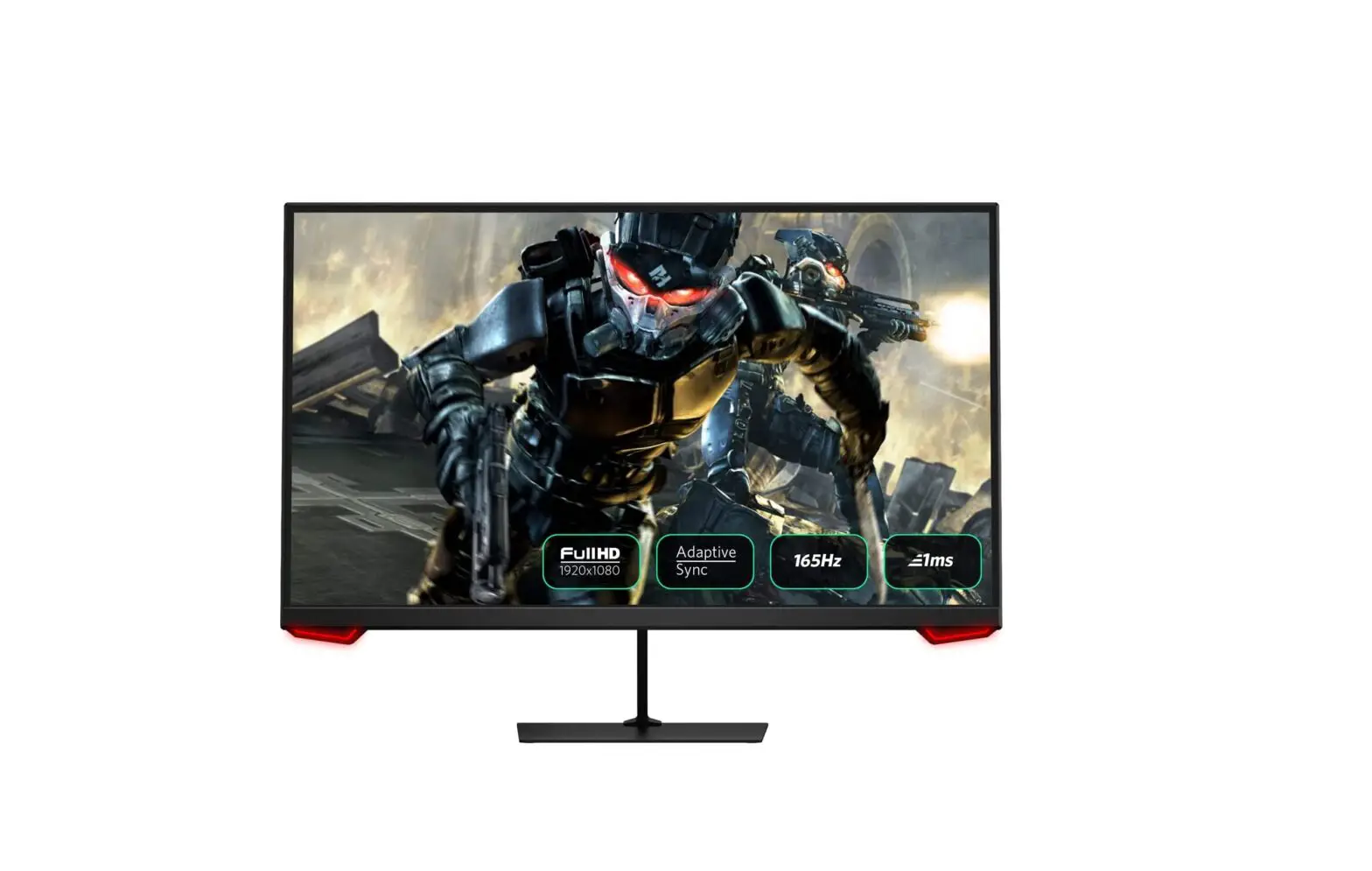
| Maximum refresh rate | 165Hz | ||
| Power specifications | DC 12V 3.0A The standard voltage and current may vary with countries, please refer to the label at the back of the product. | ||
| Product Dimentions Normal base | Without base | 542.4 × 334.5 × 38.5 mm | |
| With base | 542.4 × 403.8 × 160.9 mm | ||
| Net Weight | approx. 3.23kg | ||
| Gross Weight | approx. 4.53 kg | ||
| Tilting angle | Forward titling: -5°±2° ; Backward tilting : 15°±2° | ||
| Rotation angle | NA | ||
| Height angle | NA | ||
| Pivot angle | NA | ||
| Environmental conditions | Action | Temperature: 0°C~ 40°C (32°F ~ 104°F) Humidity: 10%~90% RH (non-condensing) | |
| Storage | Temperature: -20°~ 60° (-4°F ~ 140°F) Humidity: 5%~95% RH (non-condensing) | ||

The terms HDMI and HDMI High-Definition Multimedia Interface, and the HDMI Logo are trademarks or registered trademarks of HDMI Licensing Administrator, Inc. in the United States and other countries.
This device complies with part 15 of the FCC Rules.
Operation is subject to the following two conditions:
- This device may not cause harmful interference,
- this device must accept any interference received,
- including interference that may cause undesired operation.
CAN ICES-3 (B)/NMB-3(B)




![Philips Gaming Monitor [272e1] User Manual](https://static-data1.manualsee.com/1/img/407/16107/2020/12/Philips-Gaming-Monitor-272E1.jpg "Philips Gaming Monitor [272e1] User Manual")