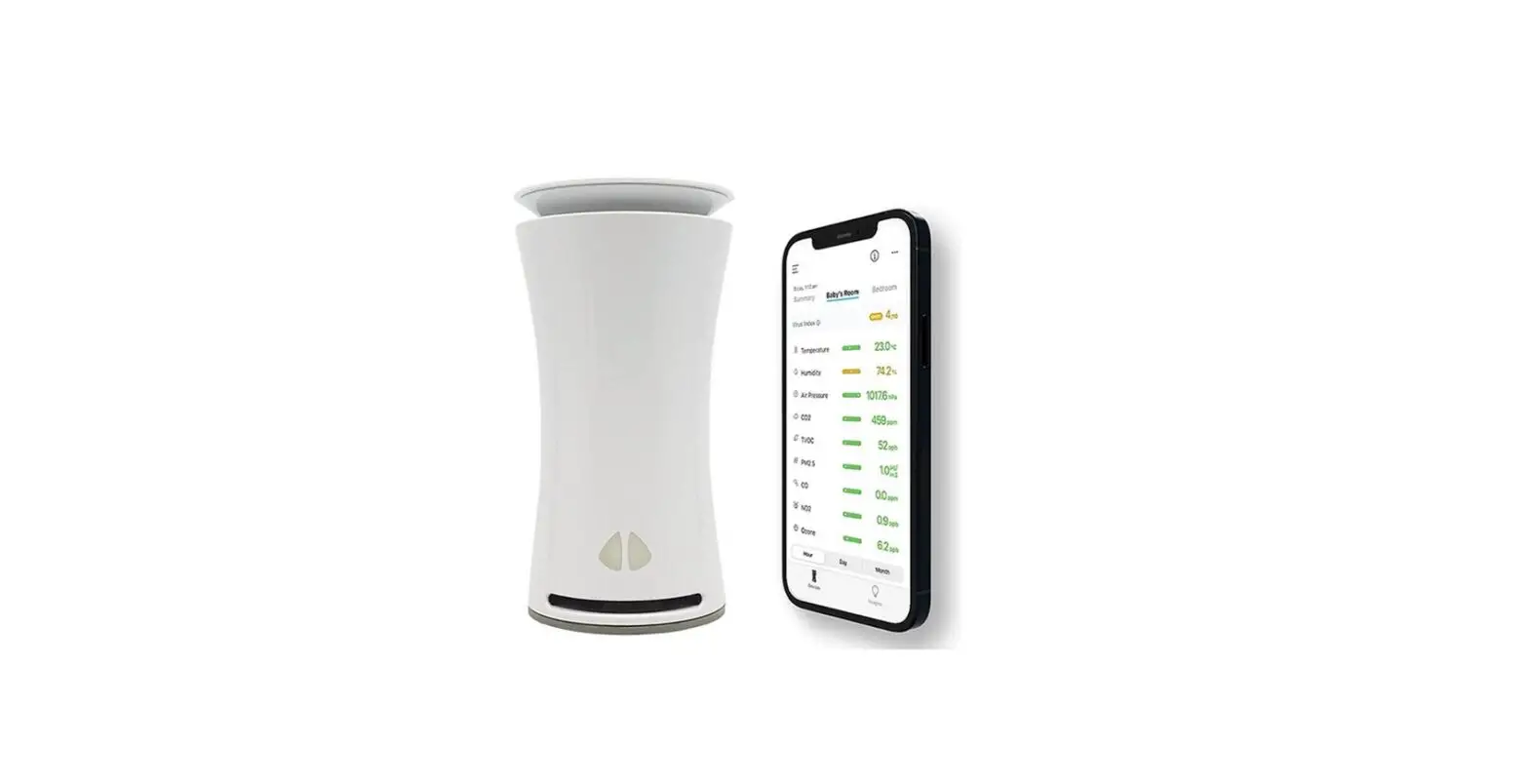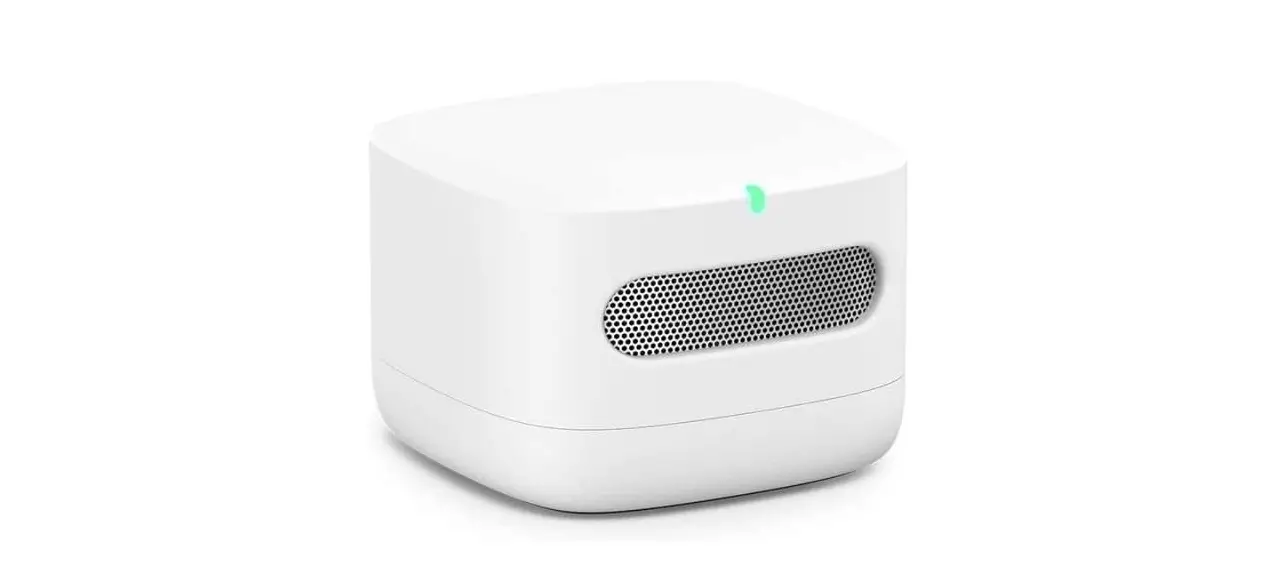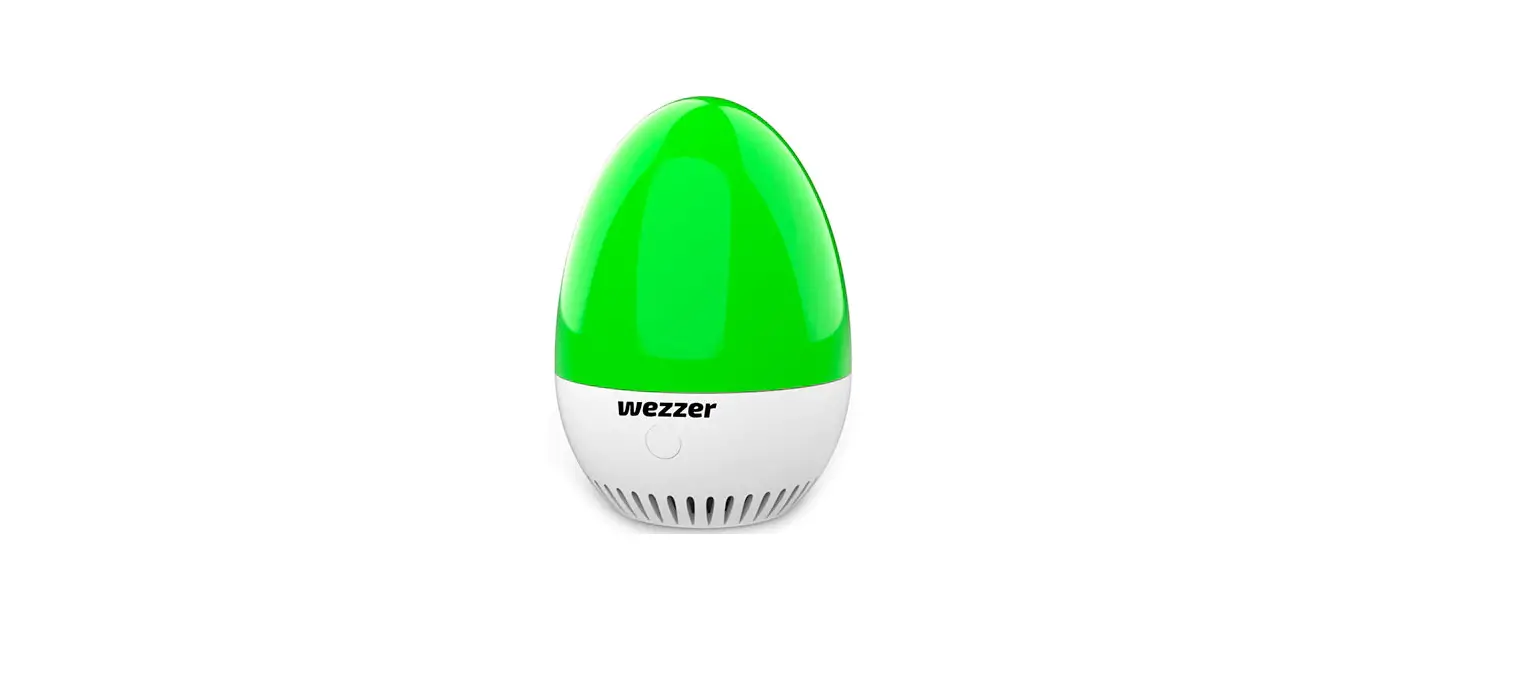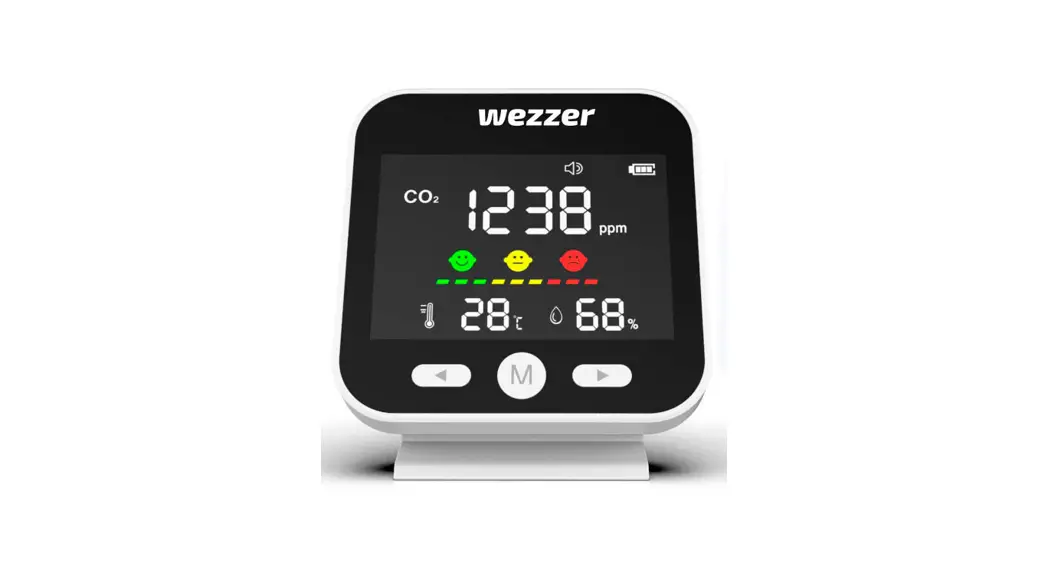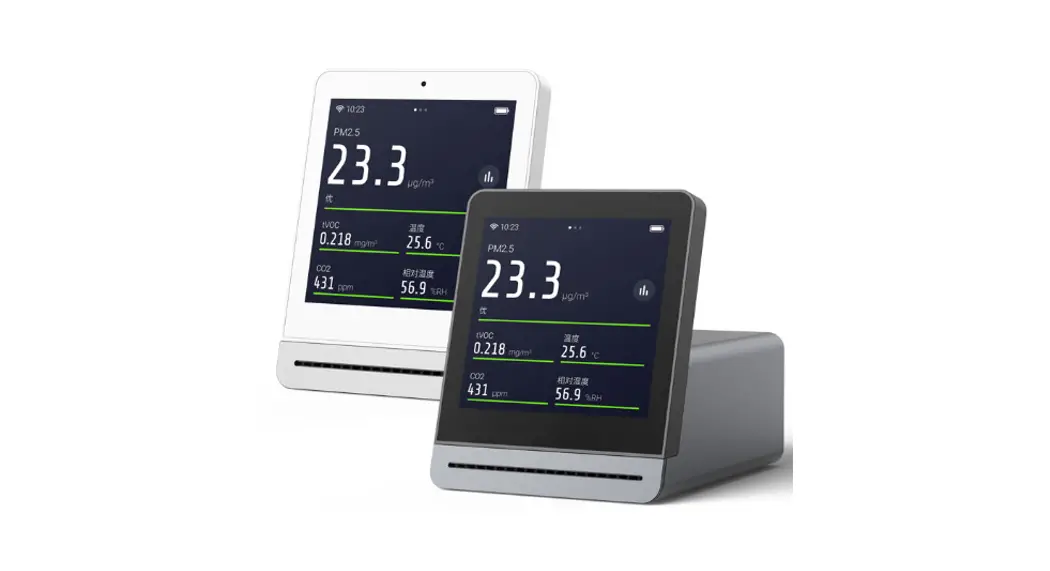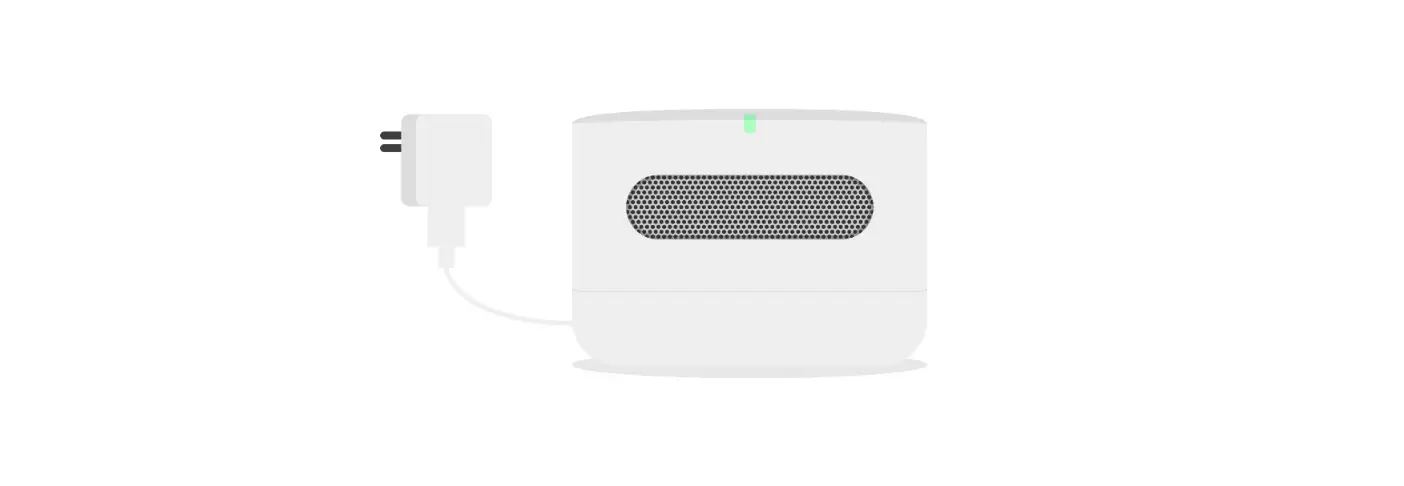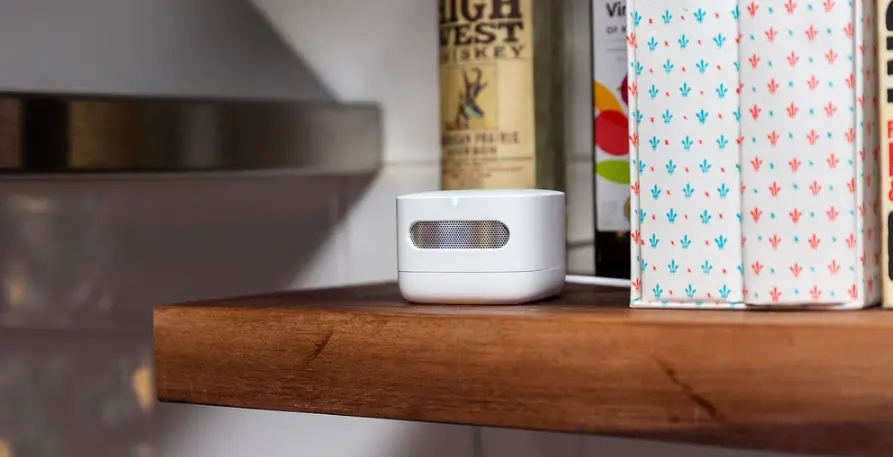

AIRTOALL ATU-S500 Smart Air Quality Monitor
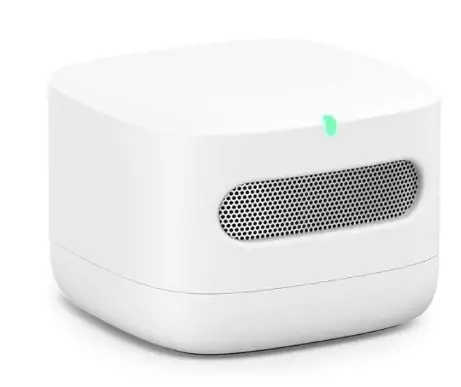
Operation Instruction
- The product is recommended for indoor use. Please do not use in a humid environment such as a bathroom.
- The product can only be used below 2000 meters above sea level.
- To avoid interference, please pay attention to the installation position of the monitor, and it is recommended to avoid shielding.
- After the power supply is switched on, wait for a certain period of time for data to be recorded stably.
- Before use it, please check whether the monitor is damaged, the screw is loose, and the wiring is off. If there is obvious damage, please contact us.
Product Introduction
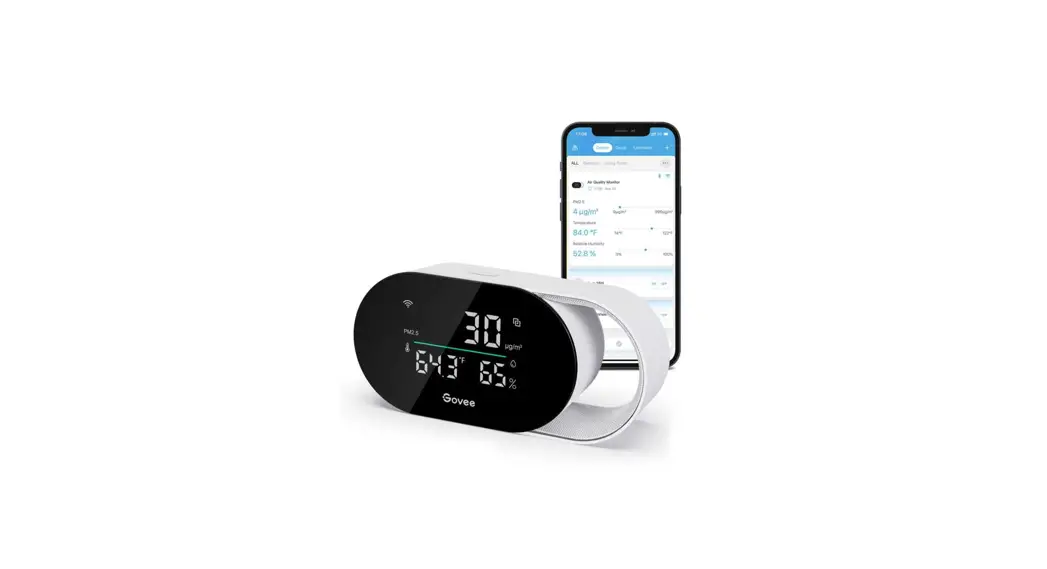
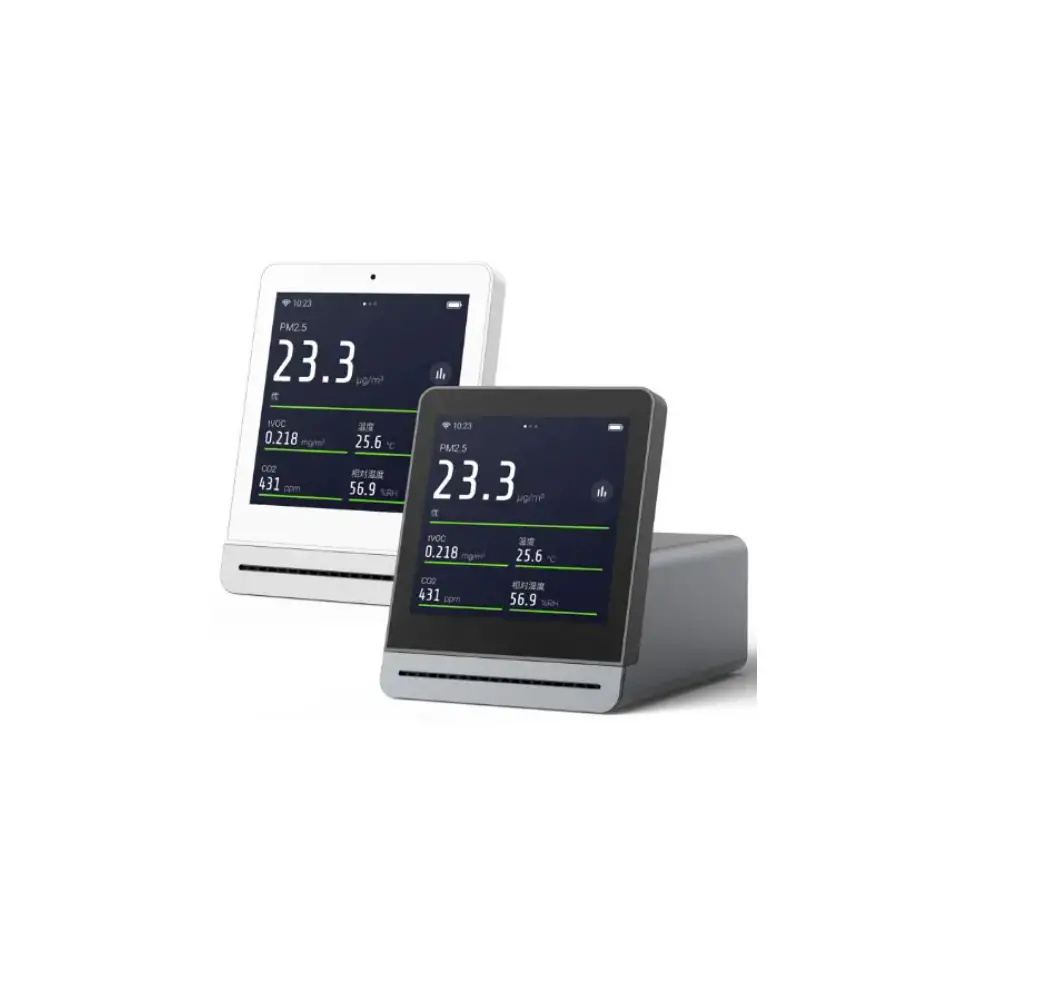
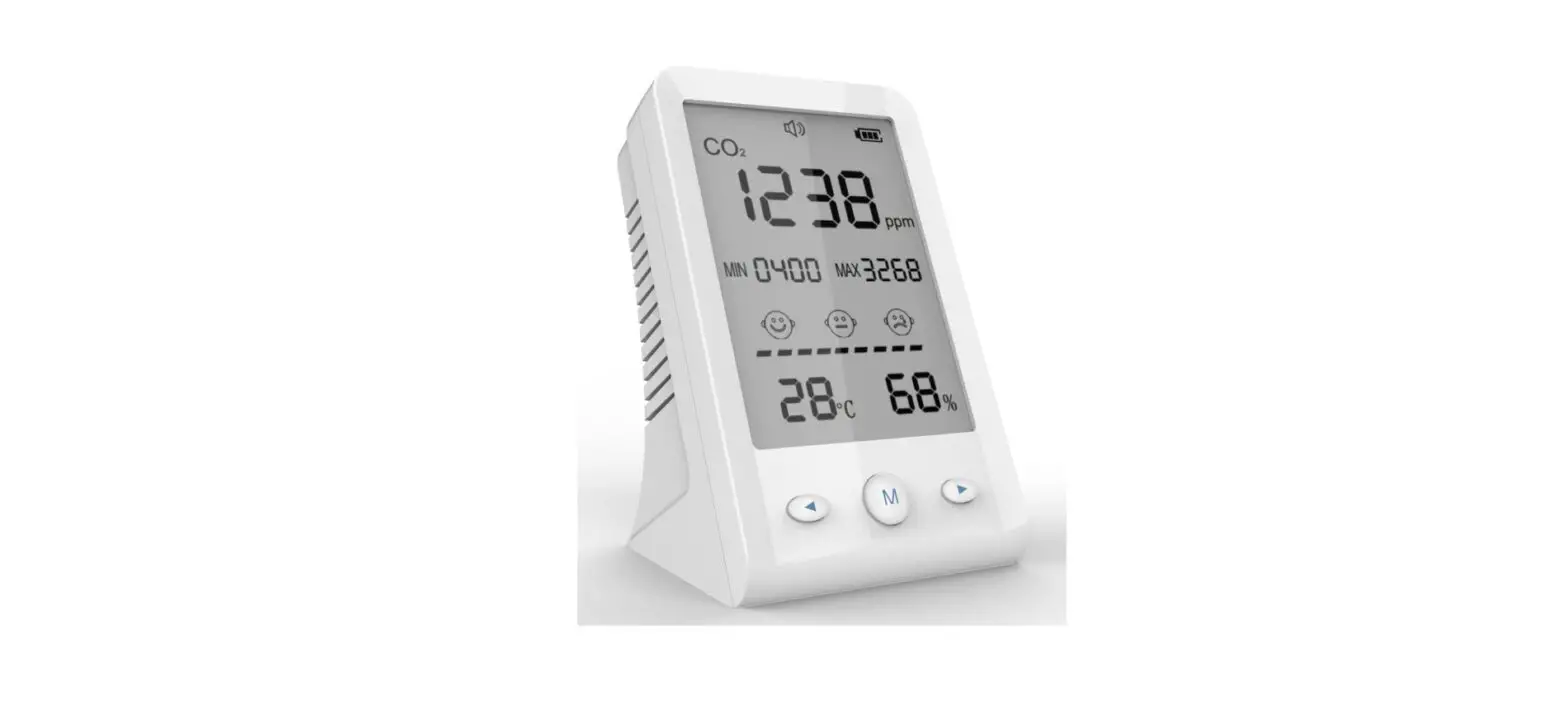
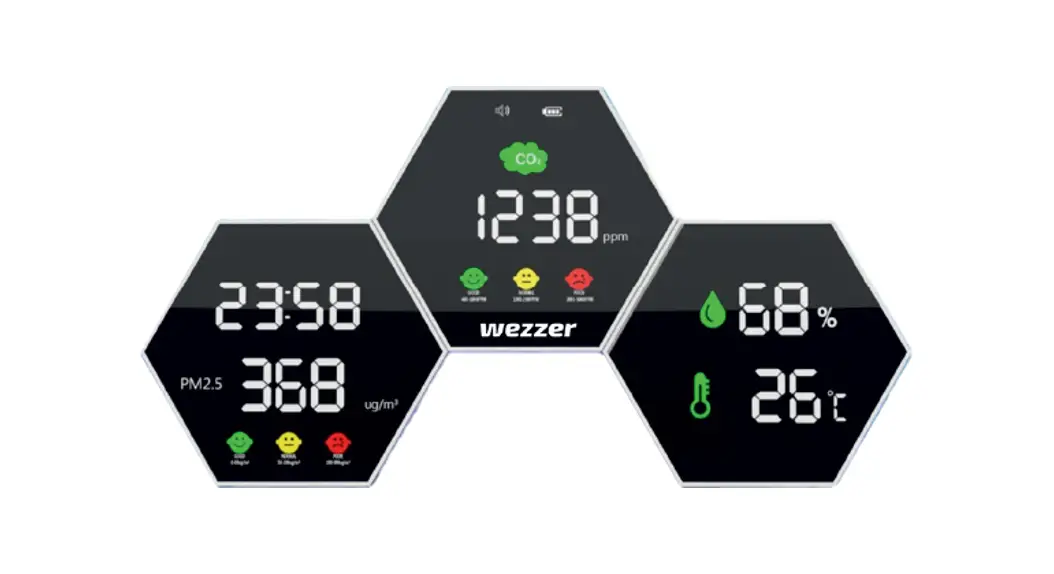
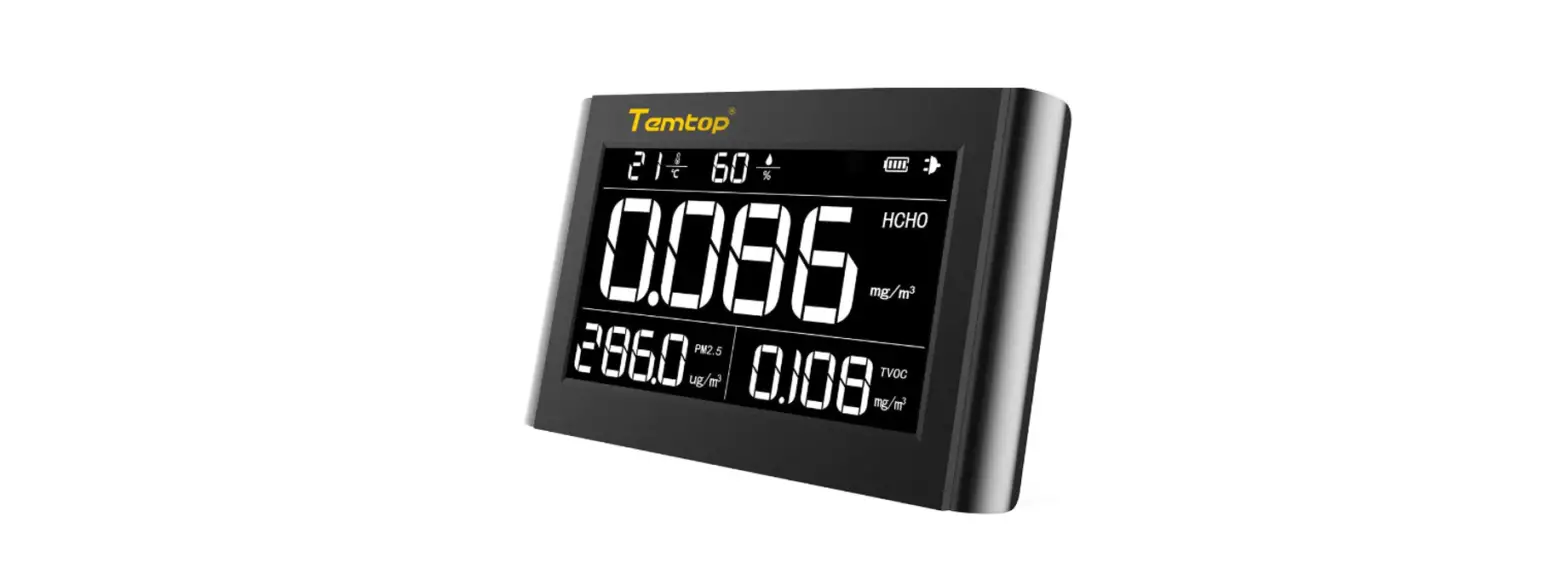
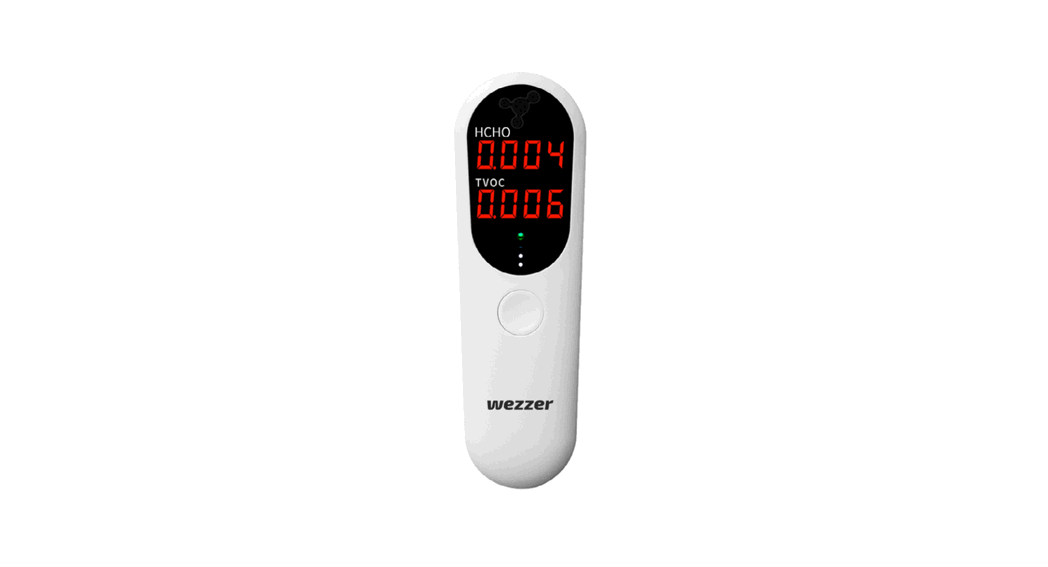
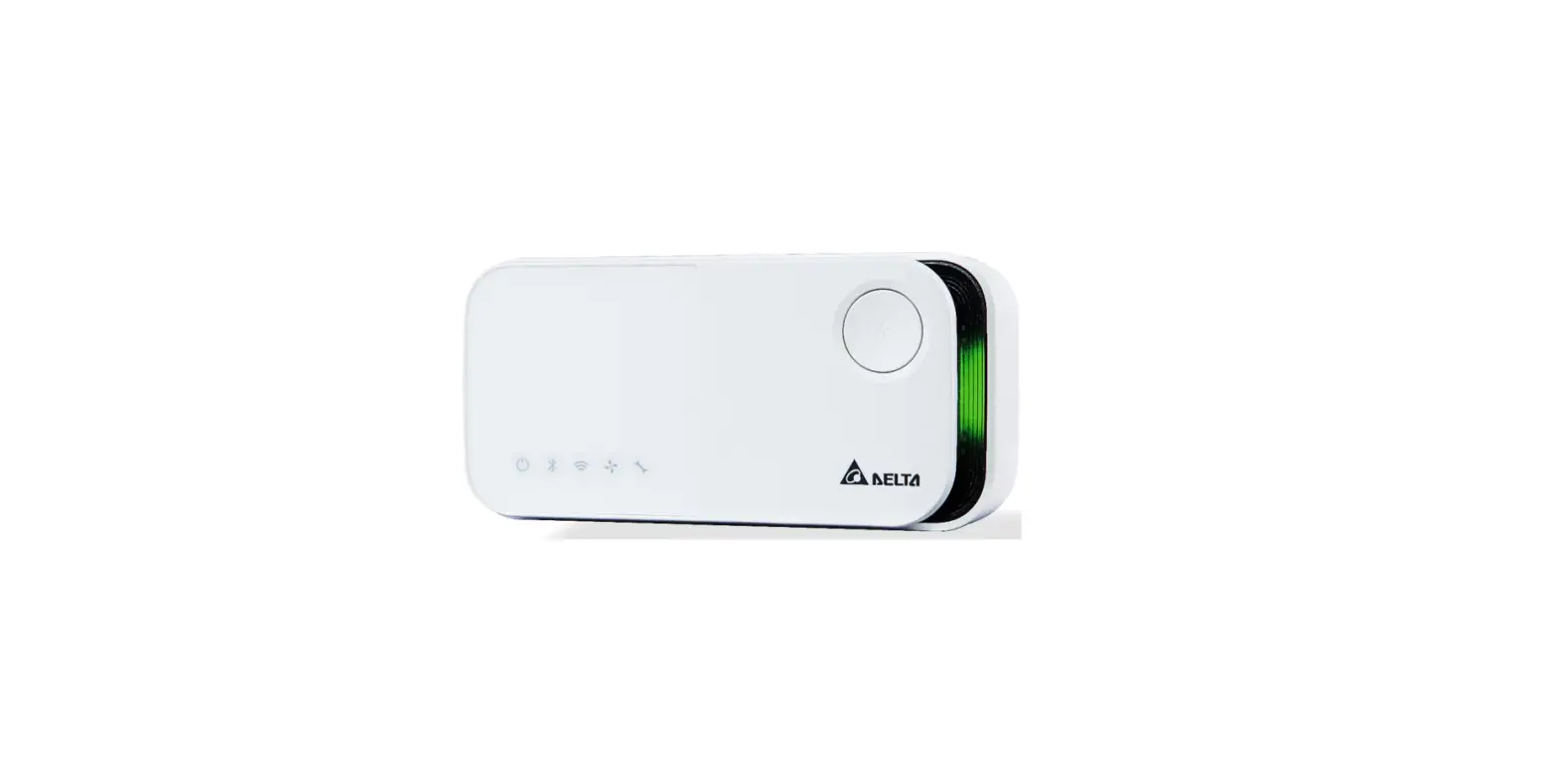
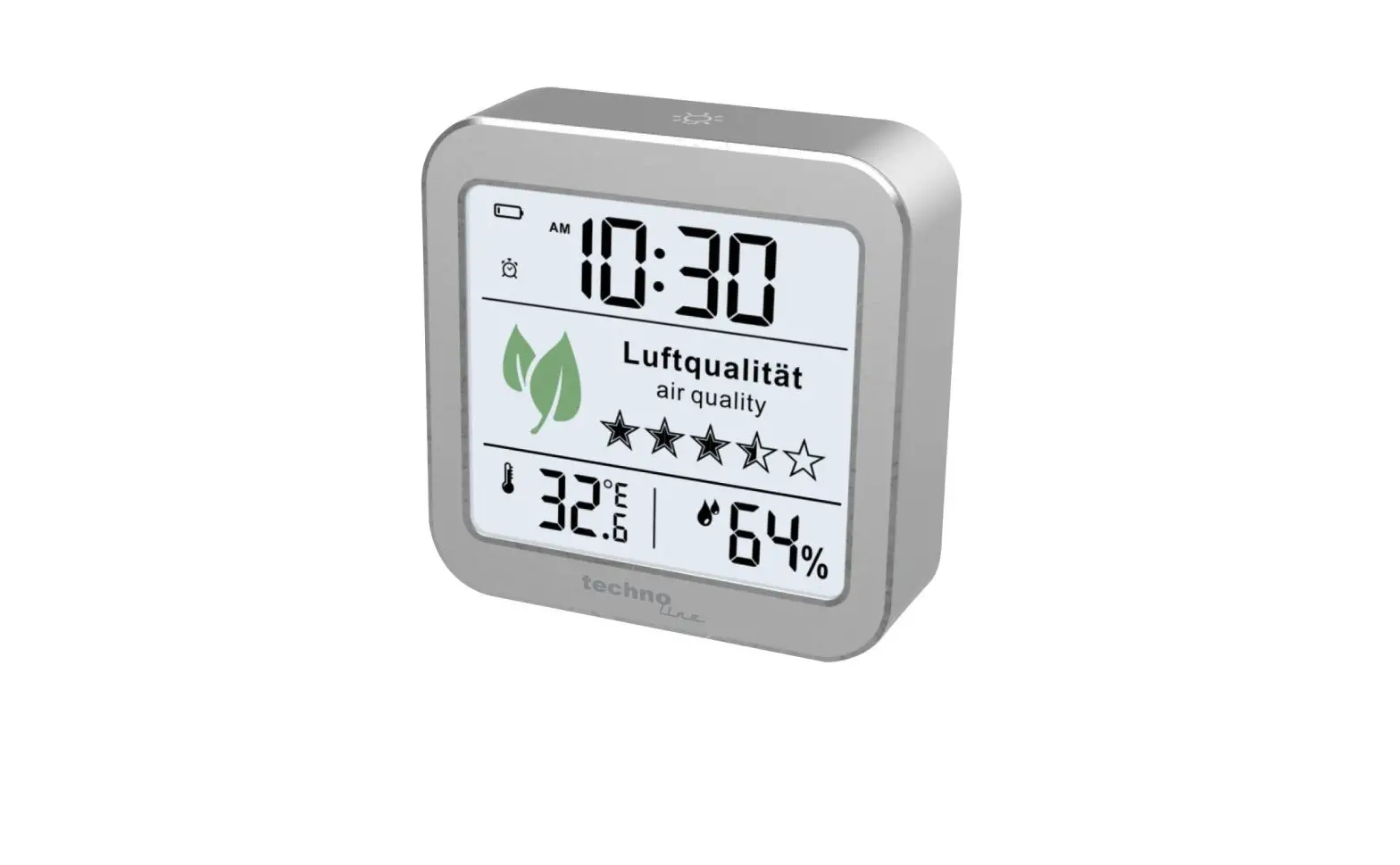
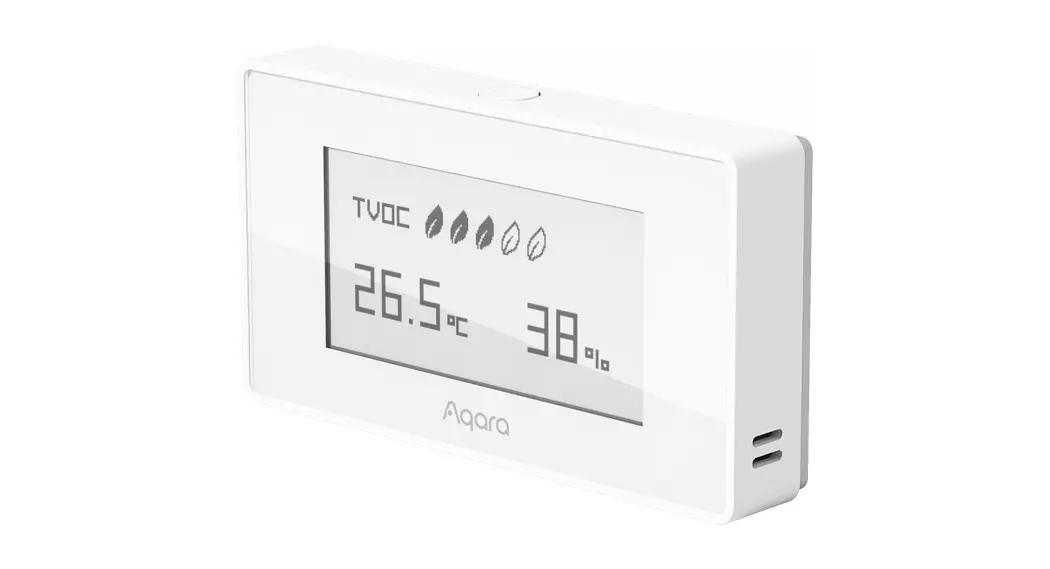
ATU-S500 smart air quality monitor is an indoor environmental monitoring instrument, which can connect into internet via Wi-Fi. It can transmit data to user interface, via Tuya Smart APP to display air quality data, enable convenient checking of the indoor environment status, and real-time monitoring part of the indoor temperature and humidity, PM2.5, TVOC, CO2 .
Typical applications
- Smart automated buildings
- Villas, high-end residential buildings
- Office buildings
- Brand outlets
- Schools, hospitals, airports, public buildings
- Hotels, supermarkets
Basic Parameters
| Monitoring Parameters |
| ||
| Communication | Wi-Fi @2.4GHz 802.11b/g/n | ||
| Wireless Standard | Wi-Fi 2. 4G | ||
| Voltage |
| ||
| Remote Control | Tuya Smart APP (Support • IOS / • Android) | ||
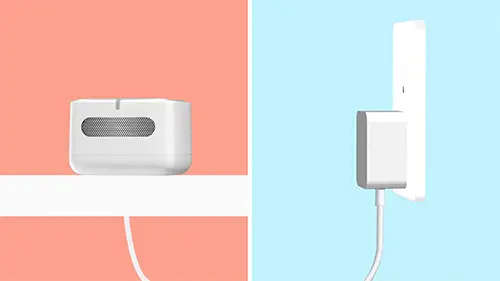
| Installation | Socket installation | ||
| Operation Environment |
| ||
| Storage Temp | -10″C-55″C | Mounting Hole | 60mm (standard) |
| Dimension (mm) | 109*109*27 | Certification | 3C |
| Case material / Protection class | PC/ABS fireproof material IP30 | ||
Range & Accuracy
| Measuring range | Precision | |
| Temperature & Humidity |
|
|
| TVOC |
| |
| PM1 PM2.5 PM10 | 0 ~500 µg/m’ |
|
| CO2 | 400~ 2000ppm | ± 40ppm + ±3% of reading data |
Internet Connection
Please scan this QR code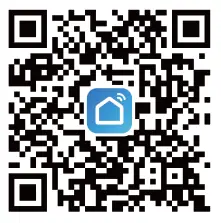
Preparation
- Terminals such as mobile phones are connected to the 2.4G frequency band network.
- Make sure the network of the device is consistent with the network where the terminal is located.
- Scan the QR code on the right via mobile phone, download the App, and enter network configuration interface.
Connection Steps
- Go to the App Store or Android opp stores, search for “Tuya Smart”, download and log in to the App.
- Plug in the device with power supply, wait for its blue light to flash, with long beep on the buzzer, and successfully enter the network distribution mode.
- After the device enters the network distribution mode, use the “Tuya Smart” App to add devices and wait for the network connection to complete.
- If network connection is successful, the buzzer will beep three times firstly and then beep twice. If network connection fails, the buzzer will only beep three times.
- If network connection fails, press middle button for 5 seconds to reset .
Once blue light flashes on the device, press and hold the button again for 5 seconds to switch the App network configuration mode. Select “Reconfigure Network” on Tuyo Smart App and wait for the network configuration to complete.
Reconnect with Internet
- Open the “Tuya Smart” opp and delete the “added” device.
- The monitor will automatically enter the internet connection mode and wait for its “blue light flashing”. At this time, the device can be reconnected with internet via Wifi.
- If the monitor does not automatically enter the internet connection mode, press the middle button of the monitor and wait for its “blue light flashing”, and the buzzer will “sound for a long time”. At this time, the device can be reconnected with internet.
Device Status Description
| Warning Light | Buzzer | |
| Boot Prompt | Green light always on | |
| Wi-Fi Connecting | Blue light flashing | Long beep |
| Wi-Fi Connected | Two short beeps | |
| Wi-Fi Network Connection Failed | Red light flashing | Three short beeps |
| Good Environmental Data | Gradual green light | |
| Moderate Environmental Data | Gradual orange light | |
| Poor Environmental Data | Gradual red light |
Size Indication
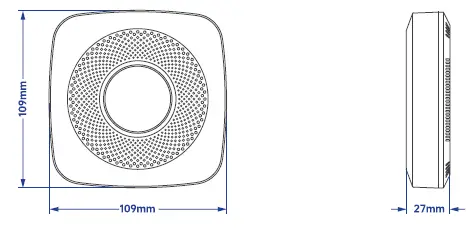
- Length 109 mm
- Height 109 mm
- Width 27 mm
Installation Instructions
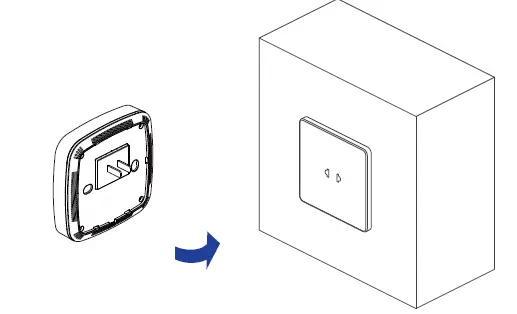
- Socket type
Packing List
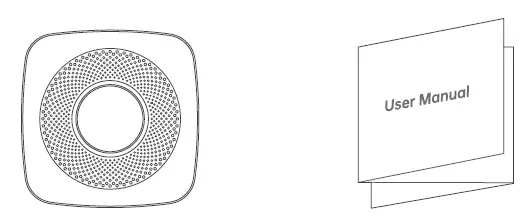
- Smart Air Quality Monitor X 1
- User Manual X 1 ( Includes: Warranty Card X 1 ; Certificate X 1 )
Warranty Card
Thank you for purchasing our company’s products. To ensure the best interests of our users, any user who purchases our products may contact us in case of product issues, with the presence of invoice and warranty card.
Warranty Notice
- In case of product failure under normal use within 6 months from purchase date, our company will provide respective free services or parts replacement under free warranty.
- This warranty card and purchase invoice will be the proof for the company to provide after-sales service. This card must be filled in with the following details. The form is only valid after it has been affixed by the company’s official seal.
- This card is issued together with the product; one card for one machine; in order to ensure that user can fully enjoy the free warranty service provided by the company. Please keep this card properly, it will not be replaced if lost.
|
Product Information | Product Name | Serial Number | |||||
| Product Model | Production Date | ||||||
|
Customer Information | Company Name | Contact Person | |||||
| Address | Contact Number | ||||||
|
Sales Information | Invoice Number | Purchase Date | |||||
| Sales Address | Contact Number | ||||||
| Maintenance Records | Error | Repair Results | Maintenance PIC’s Signature | Date | |||
FCC RULE
This device complies with part 15 of the FCC Rules. Operation is subject to the following two conditions:
- This device may not Couse harmful interference, and
- This device must accept any interference received, Including Interference that may cause undesired operation.
Any Changes or medications not expressly approved by the party responsible for compliance could void the user’s authority to operate the equipment.
Note: This equipment has been tested and found to comply with the limits for a Class B digital device, pursuant to part 15 of the FCC Rules. These lilts are designed to provide reasonable protection against harmful interference In a residential Installation. This equipment generates uses and can radiate radio frequency energy and, f not Installed and used In accordance with the Instructions, may cause harmful Interference to radio communications. However, there Is nonguaranteed that Interference will not occur In a particular Installation. If this equipment does cause harmful Interference to radio or television reception, which can be determined by turning the equipment off and on, the user Is encouraged to try to correct the Interference by one or more of the following measures:
- Reorient or relocate the receiving antenna.
- Increase the separation between the equipment and receiver.
- Connect he equipment Into an outlet on a circuit different form that to which the receiver Is connected.
- Consult the dealer or an experienced radio/TV technicion for help.
This equipment complies with FCC radiation exposure limits set forth for an uncontrolled environment. This equipment should be installed and operated with minimum distance 20cm between the radiator and your body.
Contact Us
AIRTOALL
Airtoall (Suzhou) Technology Co., Ltd.
- Address: Room 1608, Building 3, No. 209, Zhuyuan Road,
- High-tech Zone, Suzhou
- Hotline: 086-0512-6635 6794