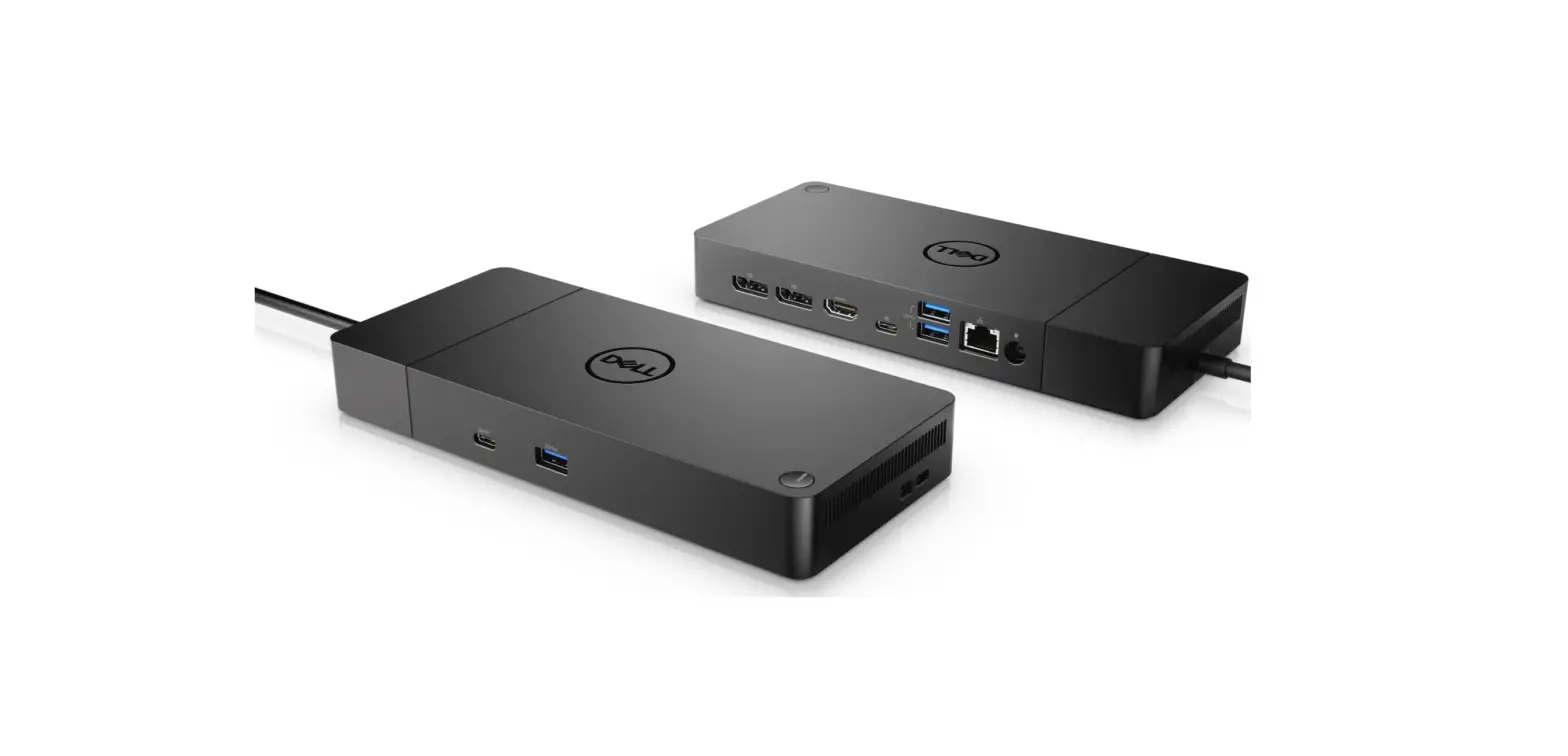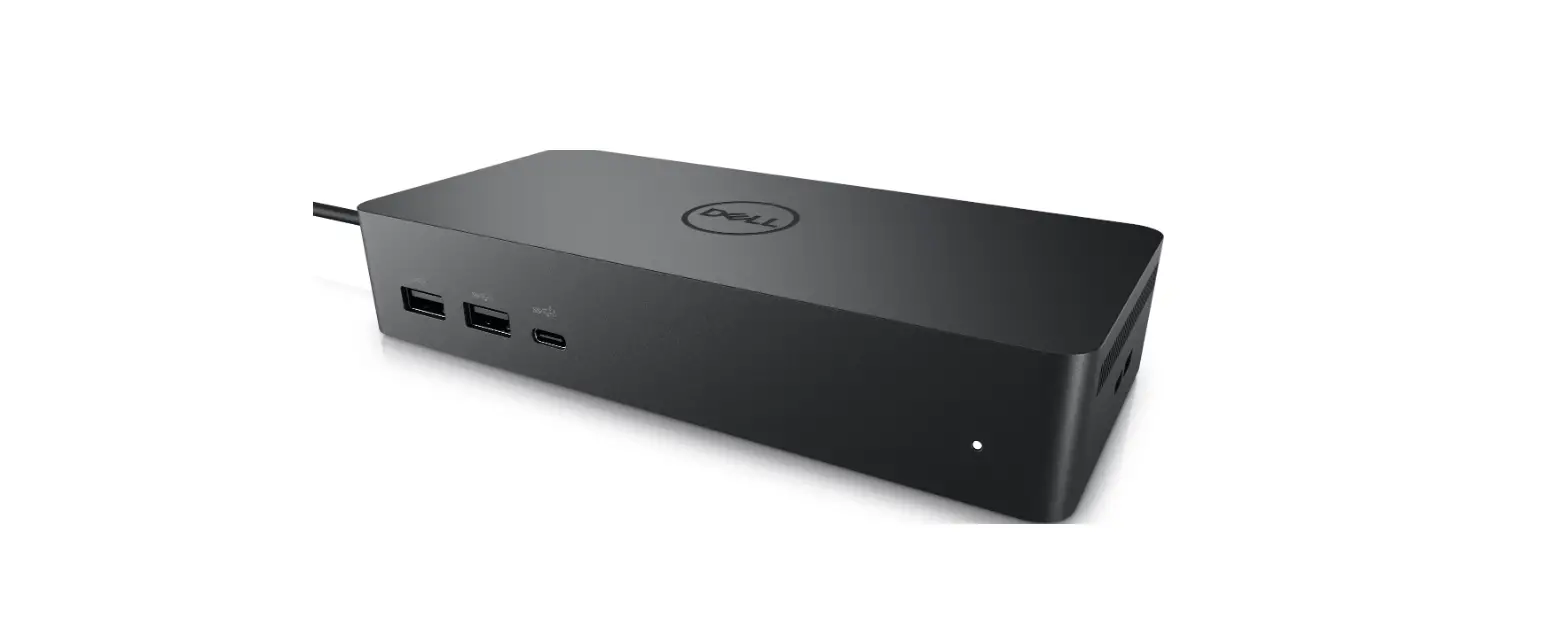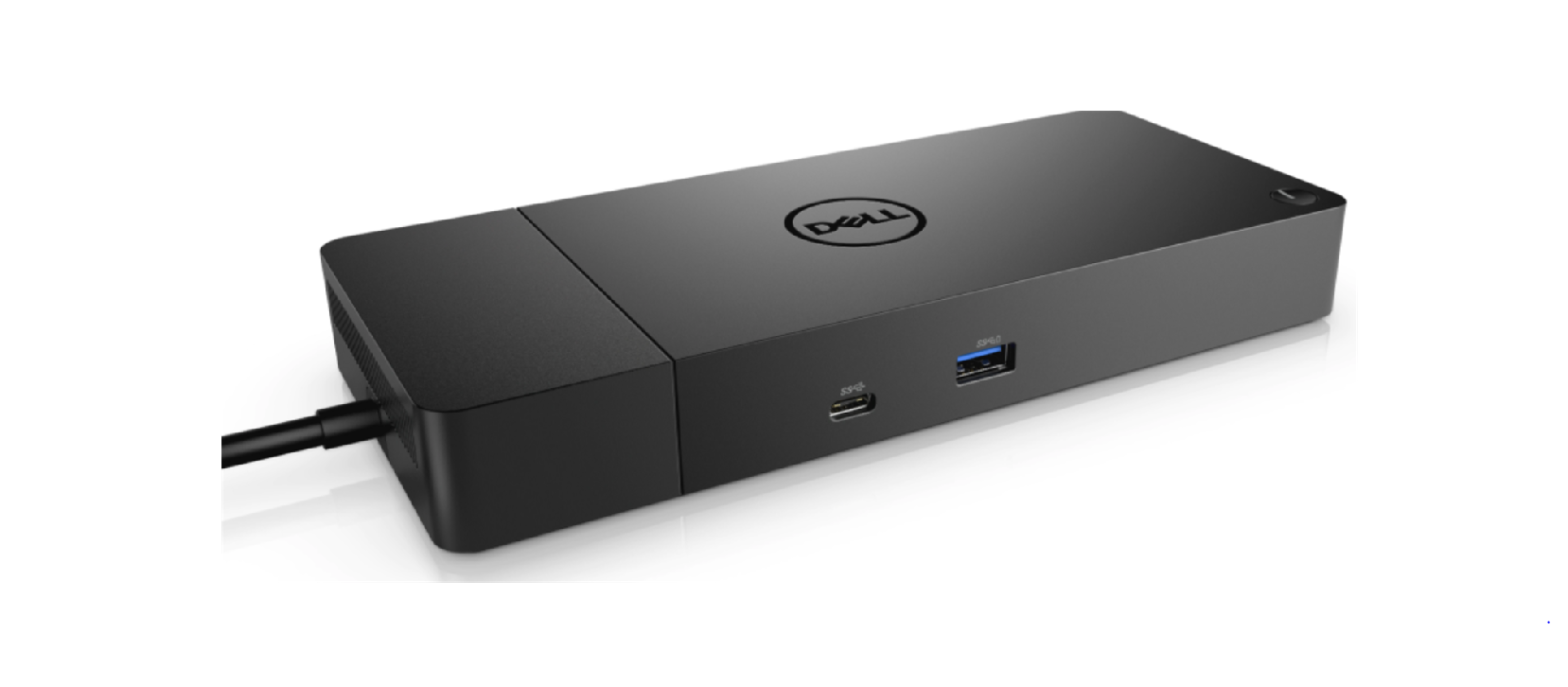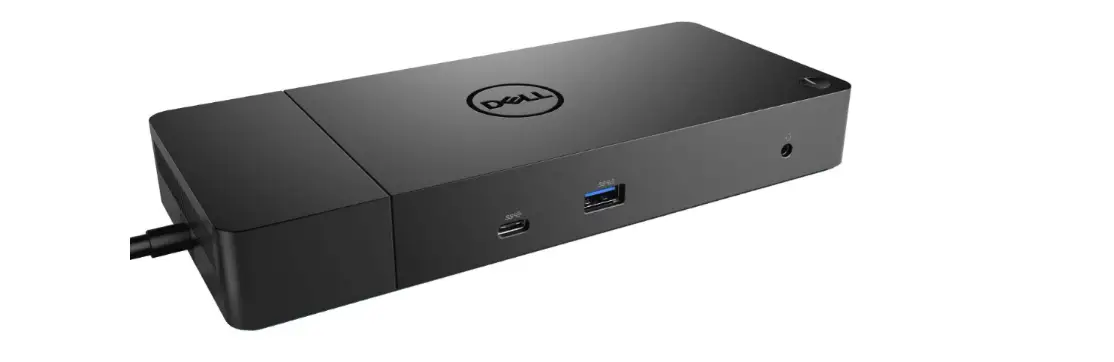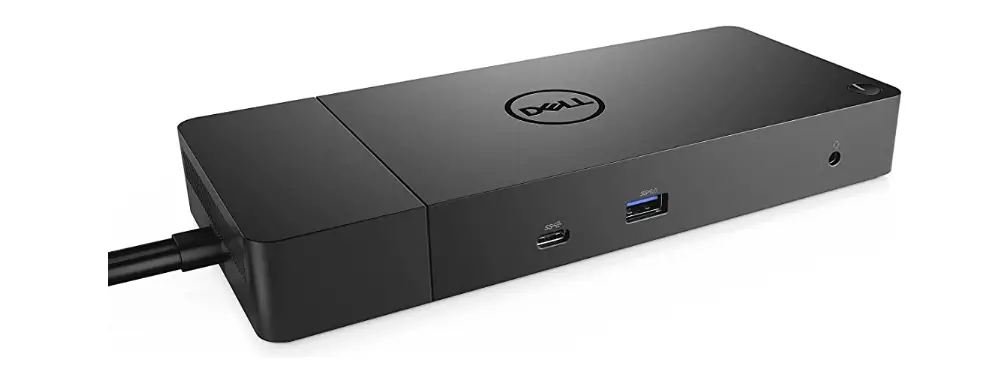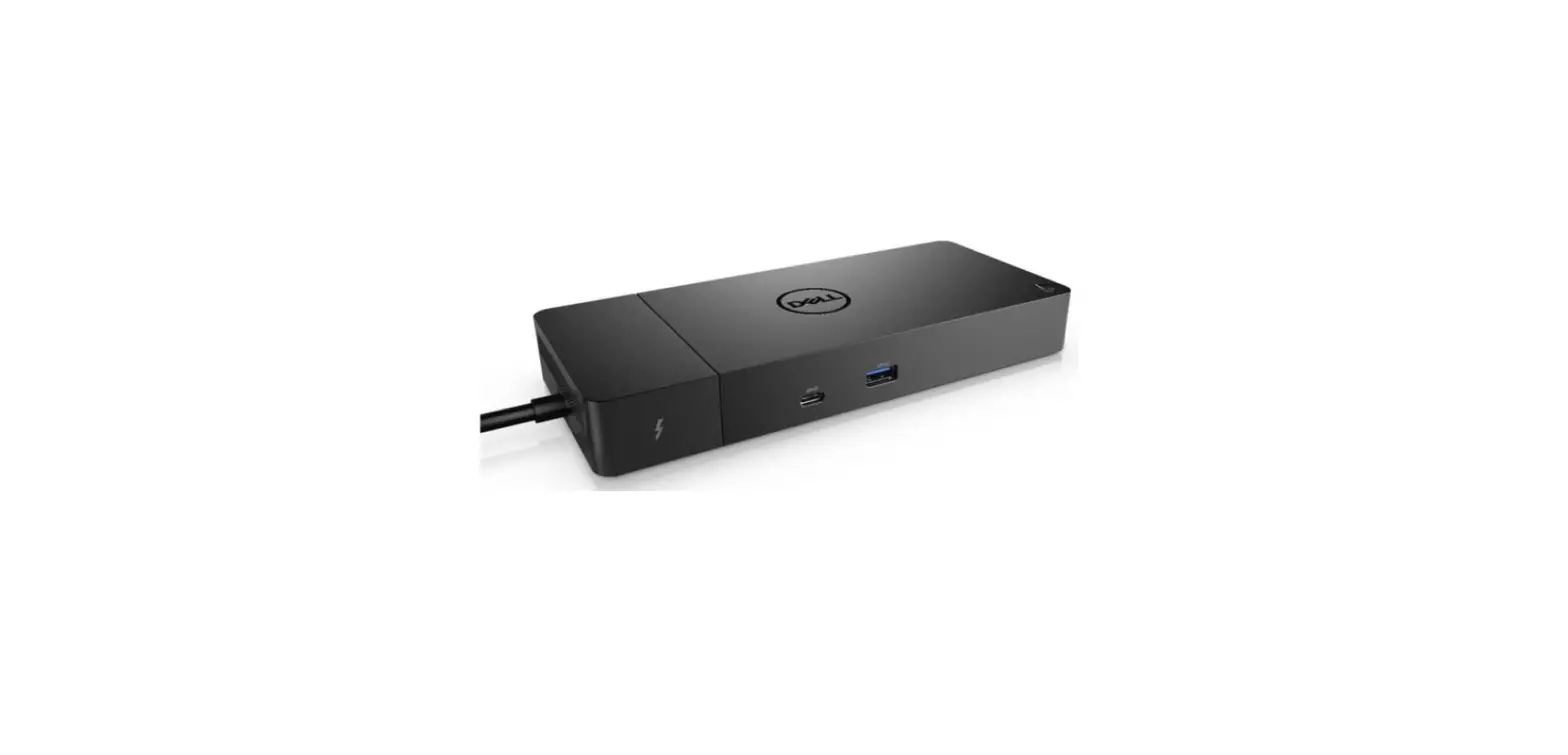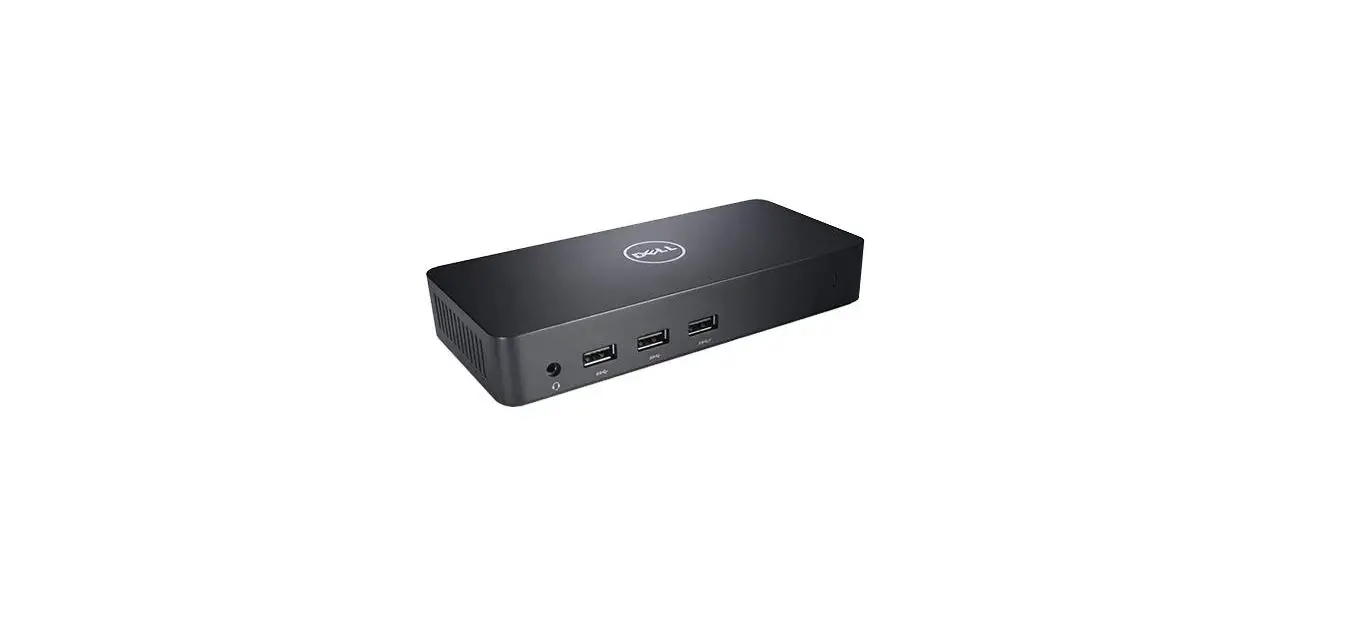

HD22Q Dual Charge Docking Station
User Guide
HD22Q Dual Charge Docking Station
Quick Start
HD22Q
Regulatory Model/Type …………………K21A /K21A A001
Información para NOM, o Norma Oficial Mexicana
Importador:
Dell México, S.A. de C.V
Av. Javier Barros Sierra, no 540, Piso 10, Col. Lomas de Santa Fe
Delegación Álvaro Obregón, Ciudad de México. C.P. 01219
R.F.C: DME9204099R6
País de origen: Hecho en China
MCMC certification mark
Windows
In Windows Search, type System. In the search results, click System.
Ubuntu
On the desktop, click → About This Computer.
Di impor oleh:
PT Dell Indonesia
Menara BCA Lantai 48 Unit 4804
Jalan M.H Thamrin No. 1 Jakarta Pusat,
10310 Indonesia
Connection and use of this communications equipment is permitted by the Nigerian Communications Commission.
http://www.dell.com/learn/tw/zh/twcorp1/envt-info-materials
 Read the safety information that shipped with your computer. For additional safety best practices information, see the Regulatory Compliance Homepage at
Dell.com/regulatory_compliance.
Do not remove the computer cover unless you need to install internal accessories for your computer. For instructions on removing and replacing parts, see the Owner’s or
Service Manual at Dell.com/support. Retain the filler brackets or cards that ship with your computer. Installing filler brackets or filler cards over empty card-slot openings is necessary to maintain FCC certification ofthe computer. The filler brackets and filler cards keep dust and dirt out of your computer and maintain the airflow that cools your computer.
Power Adapter
| Input voltage | 100-240V AC |
| Input current (maximum) | 2.5A |
| Input frequency | 50-60Hz |
| Output current | 9.23A |
| Output voltage | 19.5V DC |
| Maximum operating temperature | 35°C ( °F) |
Connect the power adapter or the power cable to your computer and to the display, if required.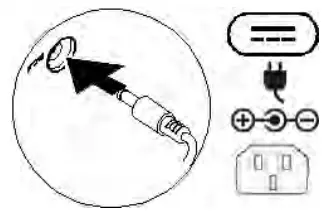 Power on the computer (and the display, if connected).
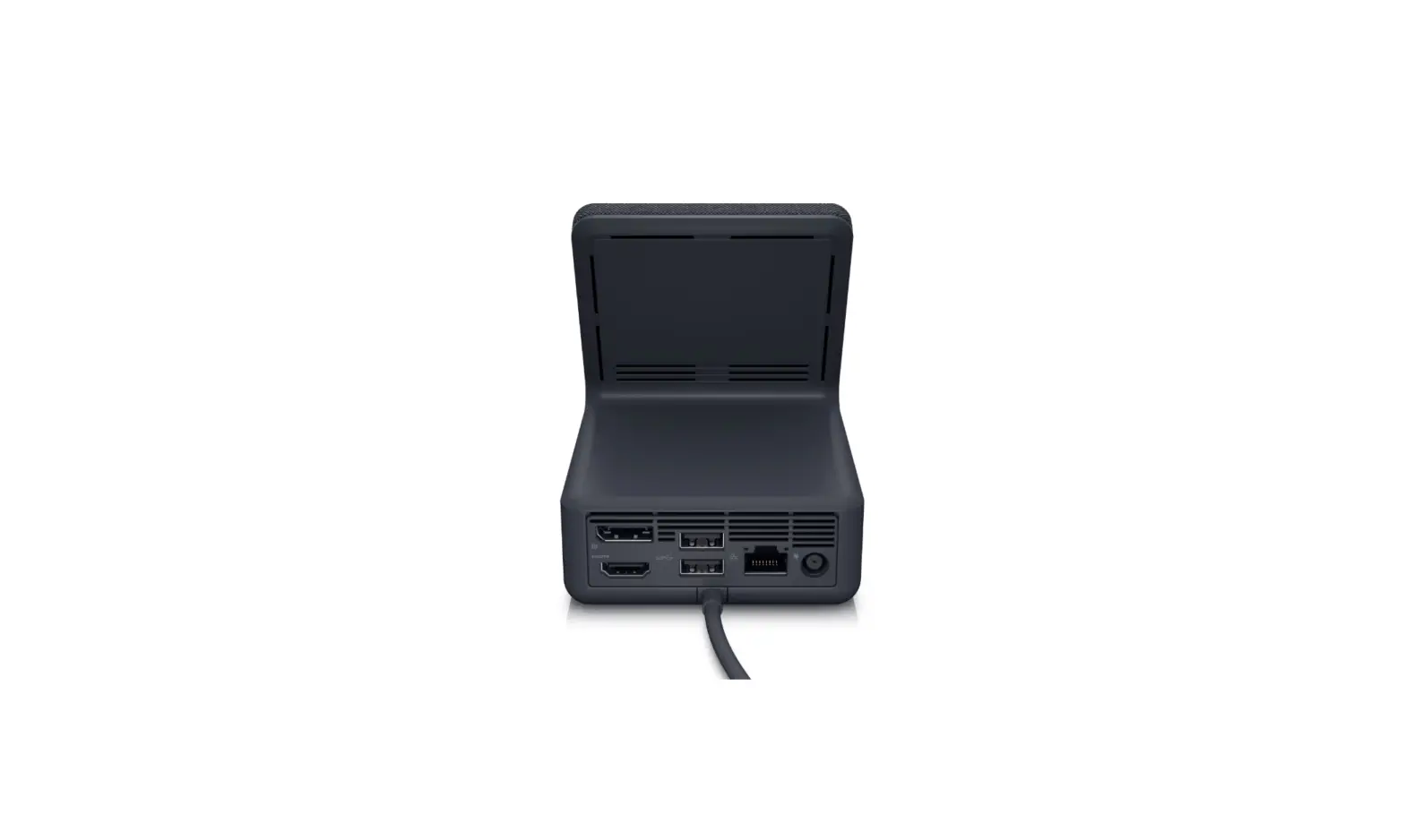
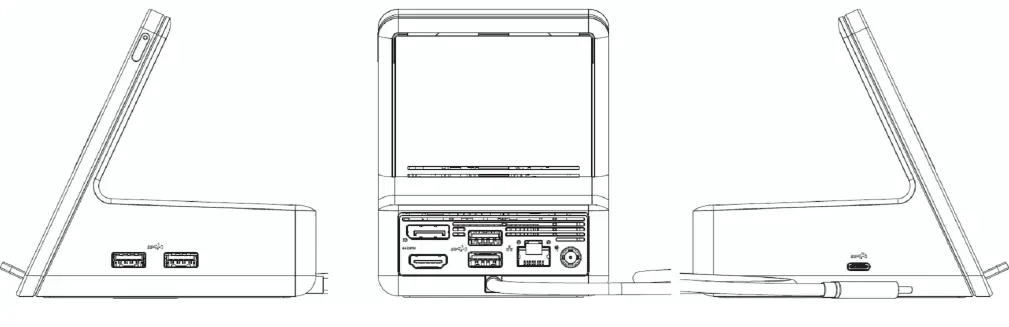
 Depending on your computer configuration, some ports or connectors may not be available.
Icons
Icons | |
Power adapter |  |
USB 2.0 |  |
USB 3.0/USB 3.1 Gen 1 |  |
USB 3.0/USB 3.1 with PowerShare | 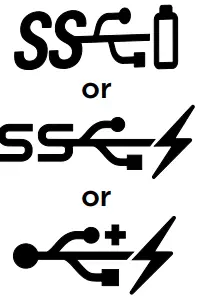 |
USB 3.1 Type-C | 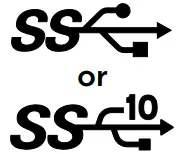 |
eSAT |  |
Thunderbolt | 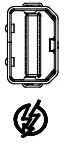 |
Thunderbolt 3 port with Power delivery (USB-C) |  |
Network |  |
VGA |  |
DVI |  |
HDMI |  |
DisplayPort |  |
Mini DisplayPort |  |
TV-in |  |
External Graphics Port |  |
Infrared (IR) emitter |  |
Headphone/Audio-out |  |
Headset |  |
Microphone |  |
Line-in |  |
Line-out/Speakers: front left-right |  |
Speakers: rear left-right | 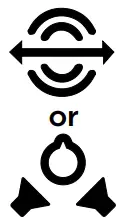 |
Speakers: side left-right | 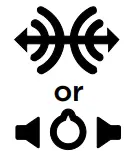 |
Speakers: Audio center/subwoofe | 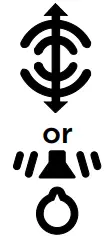 |
S/PDIF | 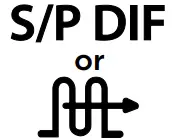 |
Screen-rotation lock |  |
SIM-card slot |  |
ExpressCard slot | EC |
Media-card reader |  |
Security-cable slot |  |
Power/Battery-status light | |
Battery-status light |  |
Hard-drive activity light |  |
Wi-Fi light |  |
Bluetooth light |  |
Views
| Country | Warning |
| FCC | This device complies with part 15 of the FCC Rules. Operation is subject to the following two conditions: (1) This device may not cause harmful interference, and (2) this device must accept any interference received, including interference that may cause undesired operation. This equipment has been tested and found to comply with the limits for a Class B digital device, pursuant to part 15 of the FCC Rules. These limits are designed to provide reasonable protection against harmful interference in a residential installation. This equipment generates, uses and can radiate radio frequency energy and, if not installed and used in accordance with the instructions, may cause harmful interference to radio communications. However, there is no guarantee that interference will not occur in a particular installation. If this equipment does cause harmful interference to radio or television reception, which can be determined by turning the equipment off and on, the user is encouraged to try to correct the |
| IC | This device contains license-exempt transmitter(s)/receiver(s) that comply with Innovation, Science, and Economic Development Canada’s license-exempt RSS(s). Operation is subject to the following two conditions: (1) This device may not cause interference. (2) This device must accept any interference, including interference that may cause undesired operation of the device. |
| CE+UK | Hereby, DELL Inc. declares that the radio equipment type K21A is in compliance with Directive 2014/53/EU. The full text of the EU declaration of conformity is available at the following internet address: www.address.com/EU DoC.pdfHereby, DELL Inc. declares that the radio equipment type K21A is in compliance with the Radio Equipment Regulations 2017 (SI 2017/1206). The full text of the UK declaration of conformity is available at the following internet address: www.address.com/UK DoC.pdf Frequency band and power Frequency: 127 kHz , Max Field strength: 13.41 dBuA/m@10m Caution: Use only the adapter supplied with the device. The adapter shall be installed near the equipment. This device has been tested and meets applicable limits for Radio Frequency (RF) exposure. This equipment should be installed and operated to ensure a minimum of 20 cm spacing to any person at all times. |
| NCC |  Waste Electrical and Electronic Equipment (WEEE) Waste Electrical and Electronic Equipment (WEEE)This symbol means that according to local laws and regulations your product and/or its battery shall be disposed of separately from household waste. When this product reaches its end of life, take it to a collection point designated by local authorities. Proper recycling of your product will protect human health and the environment. |
 Regulatory Compliance | Dell
 Materials – Restricted Material Compliance | Dell 台灣