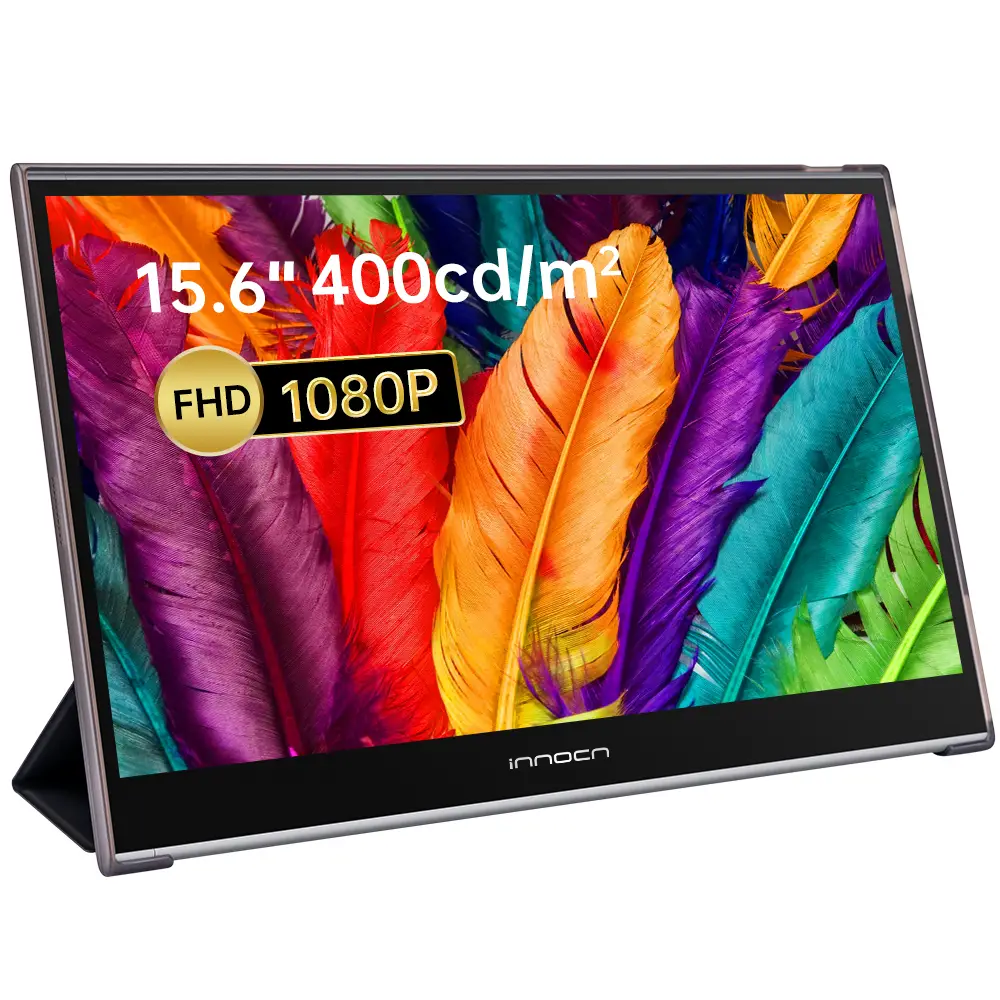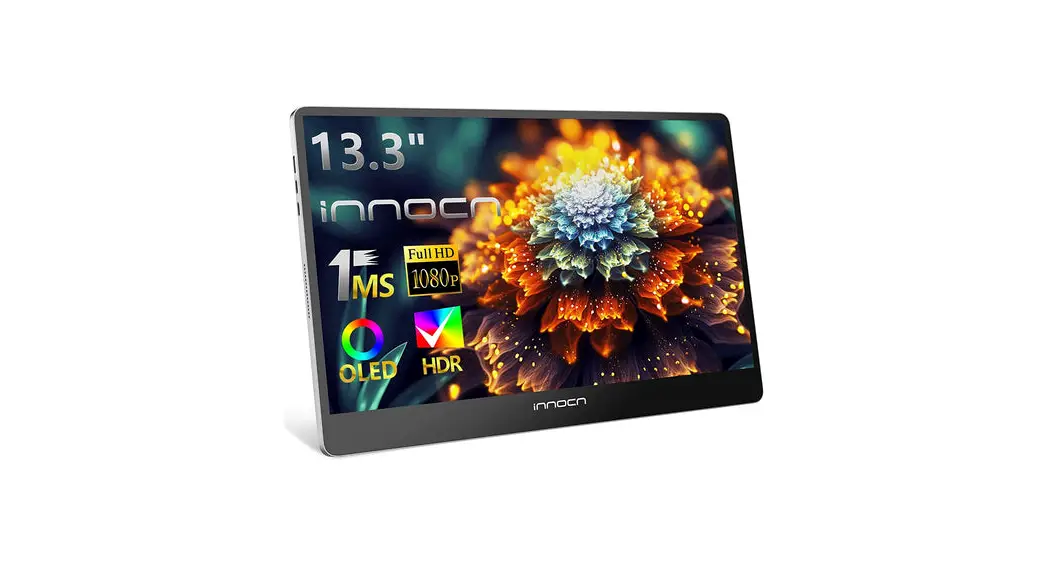

N2F Portable Monitor
User Guide
www.innocn.com
N2F Portable Monitor
Thank you for choosing Innocn®!
We hope the Innocn® product you purchased will serve you well. To ensure safety and trouble-free operation of your device, please read the user guide carefully and keep it for future needs.
Please email us for customer service & technical support at [email protected].
We recommend you go online to our homepage for the most up-to-date guidance for your product.
registering Innocn membership; refering to warranty information. http://www.innocn.com
Safety Precautions
- Read all warnings and follow all instructions. Keep this user guide for later reference.
- Do not use this device near water. To reduce the risk of fire or electric shock, do not expose the device to moisture.
- Do not place the device on an uneven or unstable surface. The device may fall over resulting in an injury or malfunction.
- Avoid exposing the device to direct sunlight or other sources of sustained heat.
- Always use genuine INNOCN components to ensure safety and product performance.
- To avoid the risk of electric shock or component damage, switch off the power before connecting other components to the display.
- Disconnect the power plug from the AC outlet if the device will not be used for a long period of time.
- When connecting to a power outlet, DO NOT remove the grounding prong. Please ensure grounding prongs are NEVER REMOVED.
- Place the device in a well-ventilated area. Do not place anything on the device that prevents heat dissipation.
- The power adaptor must be replaced when using different voltage from that specified in the User Guide. For more information, please contact us.
- Do not overload power strips and extension cords. Overloading can result in fire or electric shock.
- Do not apply pressure to the LCD screen. Excessive pressure may cause permanent damage to the display.
- Plastic bags can be dangerous. Keep plastic bags away from babies and children to avoid danger of suffocation.
- Do not attempt to repair the product by yourself. Opening the back cover may expose you to high voltages, the risk of electric shock, and other hazards. If repair is equired, please contact us anytime. ([email protected])
- If there are visual smoke or sparks, unplug the power cord and contact us ([email protected]). Do not try to repair the product yourself.
- To avoid risk of electric shock, do not touch the power plug and ports with wet hands.
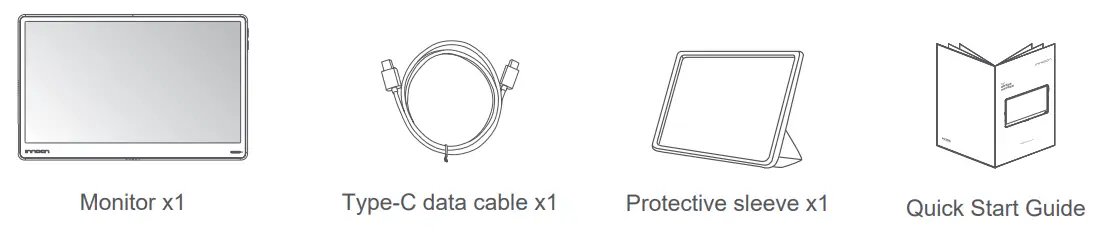
Packaging List
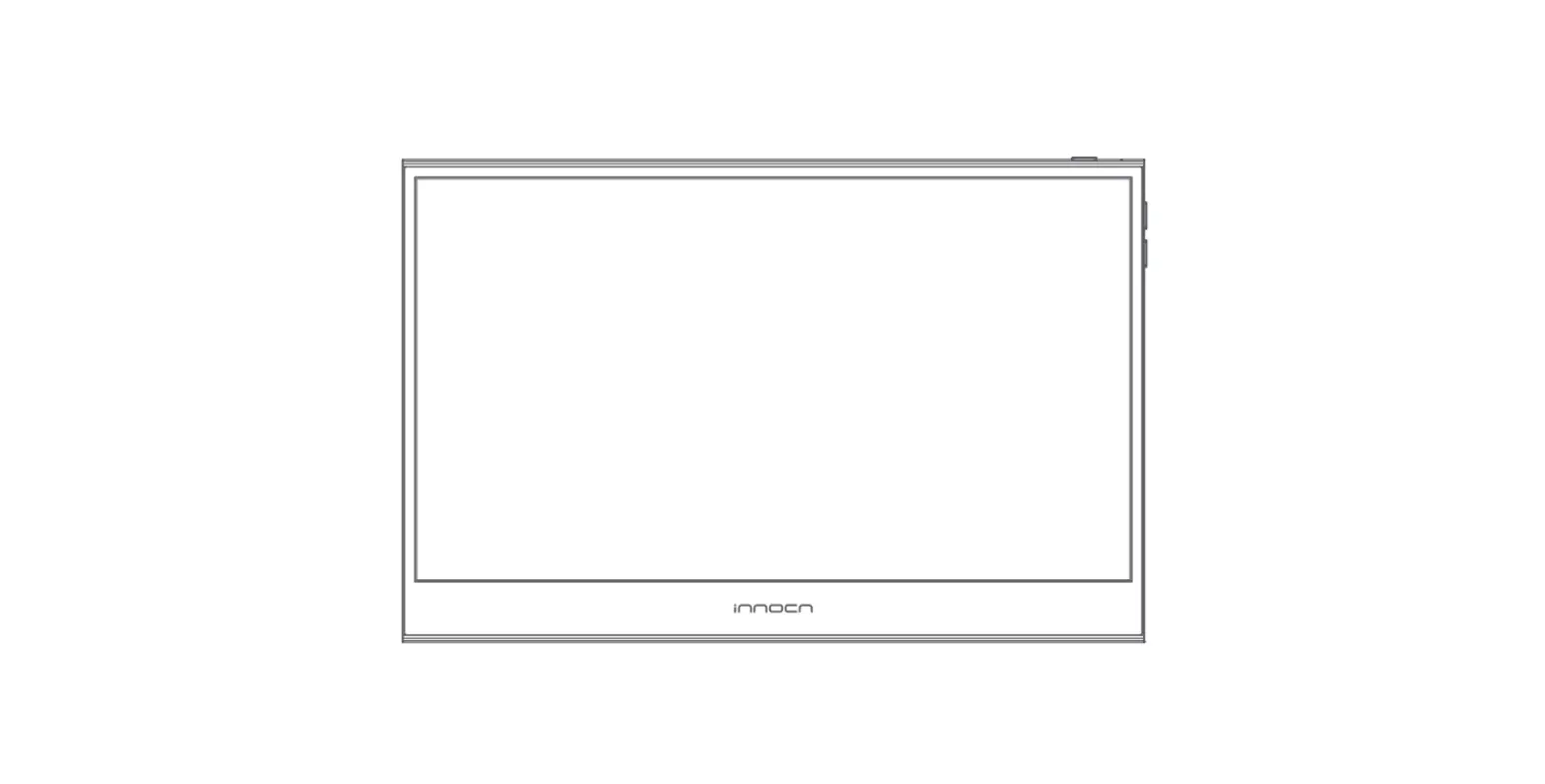
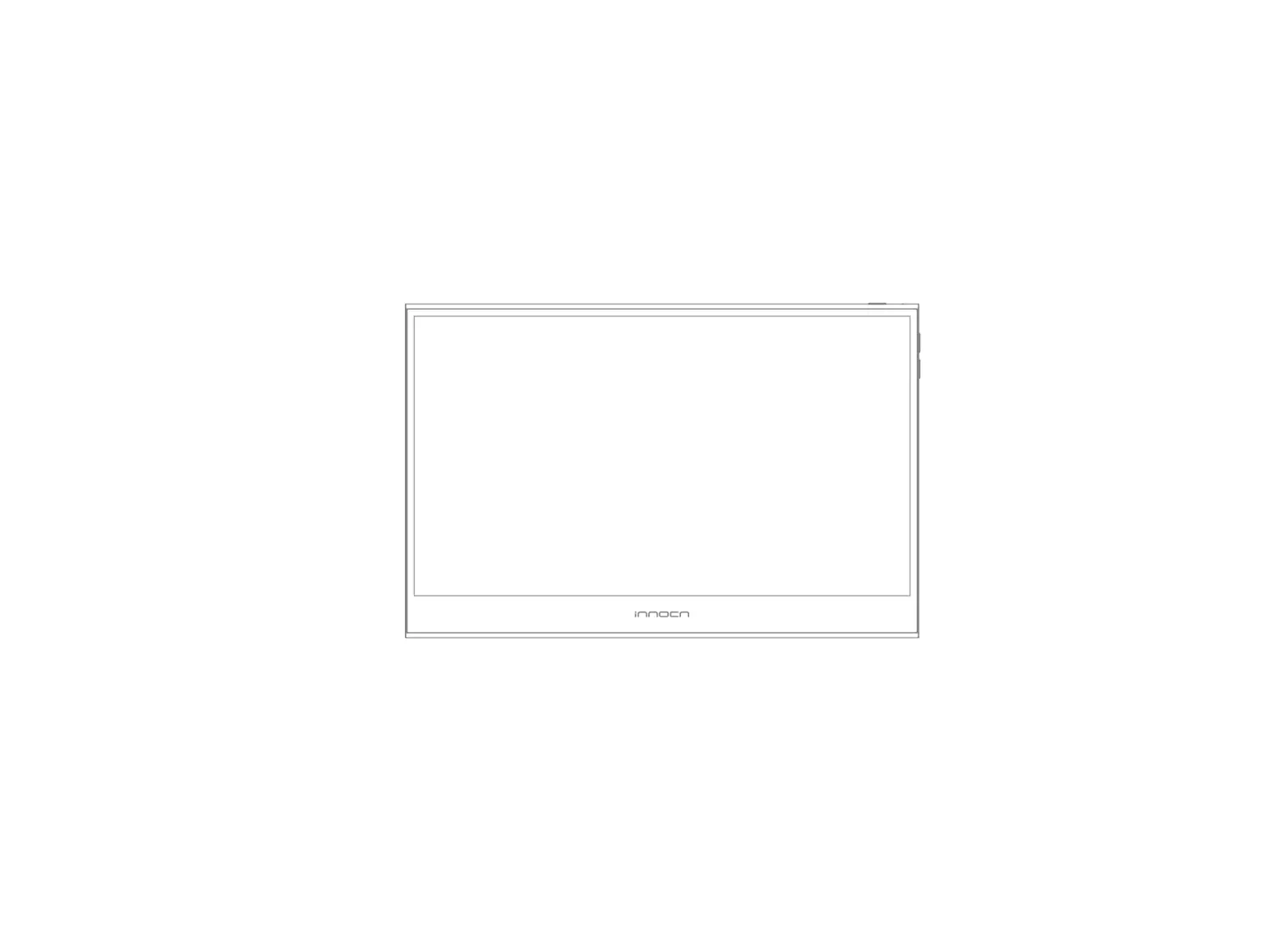
Product Instruction
Key Instruction
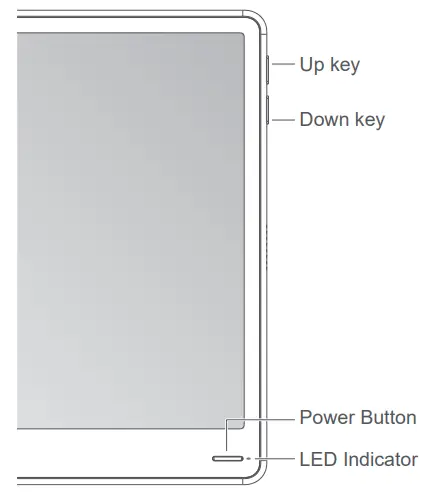
| 1 | Power Button: Press the button for 3 seconds to switch it on or off. Press the up and down keys to show the volume shortcut. Press the Power key to exit. Press the Power key to adjust the menu. |
| 2 | LED Indicator: The blue indicator is on when there is a signal. The red indicator (orange indicator) is on when there is no signal. The indicators are off after shutdown. |
| 3 | Up key: When there is osd, select the function to the left or turn up the progress bar. When there is no osd, display the volume shortcut, then press to turn up the progress bar. |
| 4 | Down key: When there is osd, select the function to the right or turn up the progress bar When there is no osd, display the volume shortcut, and then press to turn down the progress bar. |
Input Connector
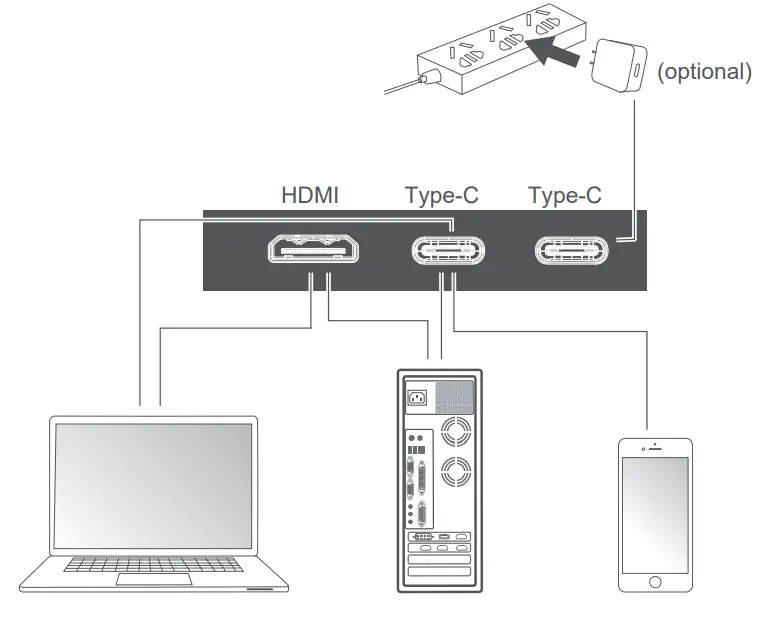 Notes:
- If the machine adapter is not a standard one, you need to buy it separately, or use your own PD adapter with enough power.
- If a faulty or damaged cable is delivered with the machine, please be sure to replace it with the original cable from the dealer or manufacturer.
OSD(On-Screen Display) Menu
Press the menu key in the power-on state. The main menu (OSD) is displayed.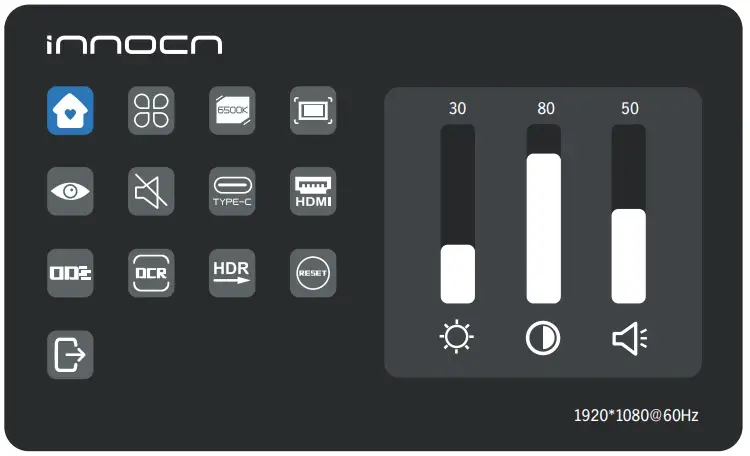
 Home Home | Adjust Brightness,Contrast,Volume |
 Profiles Profiles | 7 Profiles are available |
 Color temperature Color temperature | Under USER mode, the R G B can be adjusted |
 Color Color | Adjust the chrominance color saturation sharpness |
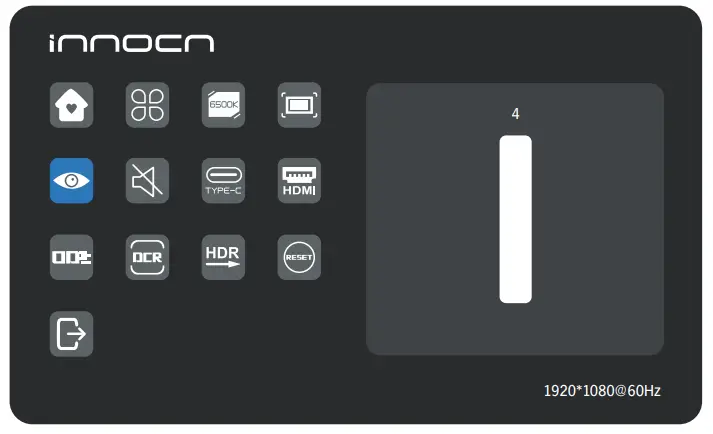
 Eye protection Eye protection | When it is selected, the background color of the eye protection icon turns blue. Select the eye protection level. |
 Mute Mute | When it is selected, the mute function is enabled. |
 TYPE-C TYPE-C | When selected, signal source is Type-C |
 HDMI HDMI | When selected, signal source is HDMI |
 OD OD | When selected, turn on the over drive function |
 DCR DCR | When selected, turn on the DCR function |
 HDR Render HDR Render | When it is selected, the background color of HDR render icon turns blue and HDR render function is enabled. |
 Reset Reset | When selected, restore factory settings |
 EXIT EXIT | When clicked, OSD menu disappears |
Home
Press the up and down keys to adjust brightness, contrast, and sound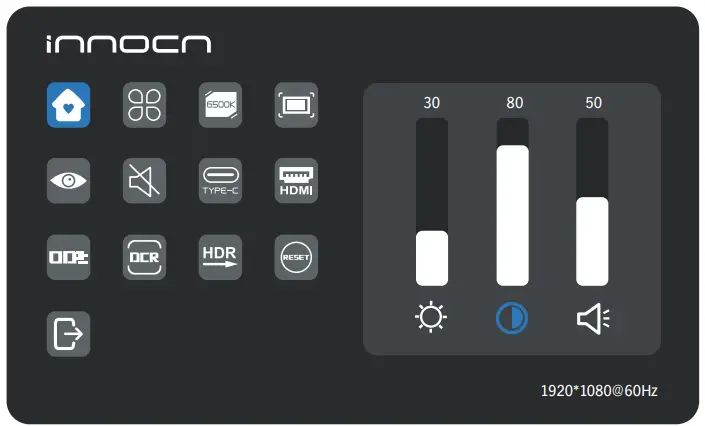
Profiles
Press the up and down keys to select modes: Standard, Text, Movie, Game, RTS, FPS, Natural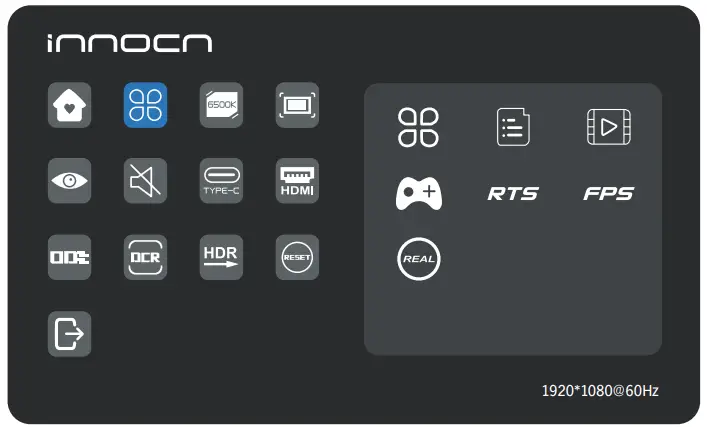 Color temperature
Select the USER mode to adjust RGB value.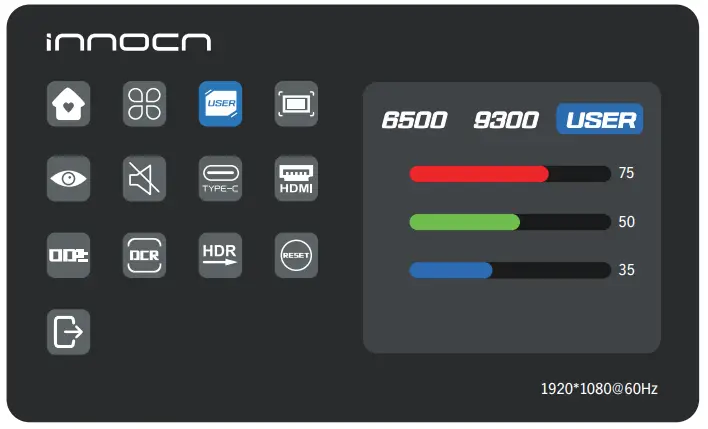 Color
Color
Press the up and down keys to adjust chroma, saturation, sharpness.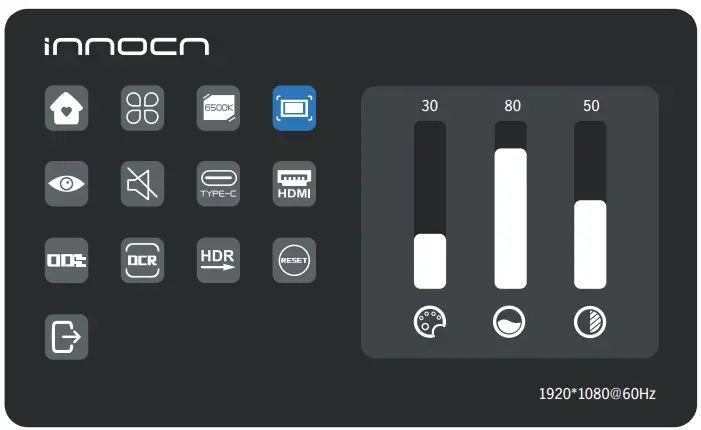 Eye protection level
 Other icons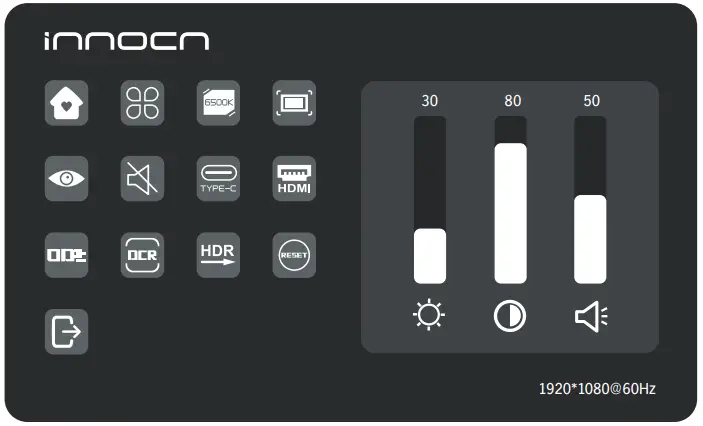
Troubleshooting
The following table contains general information about common monitor problems you might encounter and the possible solutions.
| Common Symptoms | Possible Solutions |
| No display after turning monitor ON (screen is black but power supply lights is ON) | •Ensure that the video cable connecting the monitor and the computer is properly connected and secure. •Make sure if the operating system had entered hibernation, sleep or power-save mode. Press any key (Enter key / Power key) or move the mouse to wake it up. •Check for bent or broken pins in the video cable connector. •Ensure that the correct input source is selected in the Input Source merit •Replace other identical signal cable (HDMI / Type-C) to take cross-test. Attention: Not every computer/phone’s USB Type-C port will support video out signals. Please check your cable and your computer/phone to make sure those will support a video signal. |
| No display after turning monitor ON (not boot, black screen & no power lights) | •Verify that the power outlet is functioning properly using any other electrical equipment. If your device has battery, make sure it’s not out of battery. •Make sure the power button is pressed fully and hold for 5s. |
| Missing Pixels. LCD screen has spots | •Cycle power On-Off. •Pixel that is permanently Off is a natural defect that can occur in LCD technology. •For more information on Innocn Monitor Quality and Pixel Policy, see Innocn warranty information at: http://www.innocn.com. |
| Safety Related Issues (Visible signs of smoke or sparks) | •Do not perform any troubleshooting steps. •Contact Innocn immediately. |
| Image does not fill entire viewing area. | •Check the resolution setting in your PC. |
| The screen appears yellow | •Make sure the device was not set to “Eyes Care mode” •Check here: OSD→  |
| Control panel keys do not work | •Press only one key at a time. •Make sure to have a valid video signal going through the monitor before you can turn on the OSD. |
| I cannot adjust the brightness! contrast ratio/ color saturation through OSD | •Make sure the device was set to “custom mode” •Check here: OSD→ → |
Product Specification
| Product Name | INNOCN 15.8″ portable monitor |
| Product Model | N2F |
| Screen Size | 15.8” |
| Screen Type | IPS |
| Resolution | 1920*1080P |
| Brightness (Typ.) | 220cd/㎡ |
| Touchable | NO |
| Speaker | 2*1W |
| Refresh Rate | 60Hz |
| Color Gamut | 45% NTSC |
| Display Colors | 16.7M(6BIT+FRC) |
| Contrast (Typ.) | 800:01:00 |
| Digital Input | Type-C*1 |
| Phys. Dimension | 373.2*236.8mm |
| Phys. Thickness | 9.4mm |
| Net weight | 990g |
| Voltage Rating | DC 20V 1.5A 1.5A |
| Operating Temp. | 0℃ ∼ 45℃ |
Warranty Information
- What is covered in your warranty?
Item Warranty term Monitor 3 Years Panel 1 Years Battery 1 Years - Contact us
Service Email:[email protected]
Service Website:http://www.innocn.com - Members only
Signing up to become our members, to exchange new one without repair in one year.Register website https://www.innocn.com/user/register QR code 
- This Warranty is not applicable:
1.The product is not purchased from an Authorized Innocn dealer.
2.The product is not used according to instructions given in the instruction manual.
3.Defects caused by improper use as determined by company personnel.
4.Modification or alteration of any nature is made in the electrical circuitry / or physical construction of the set.
5.Installation / repair work is carried out by persons / agency other than authorized by the company.
6.The original serial number is removed, obliterated or altered from the machine or cabinet.
7.Accidents, Acts of God, lightning, water, fire, public disturbances, improper ventilation, voltage fluctuations or any cause beyond the control of Innocn.

 The terms HDMI and HDMI High-Definition Multimedia Interface, and the HDMI Logo are trademarks or registered trademarks of HDMI Licensing Administrator, Inc. in the United States and other countries.
 INNOCN | Portable Monitors & Desktop Monitors, 4K Monitors, Ultrawide
 afterservice.vip