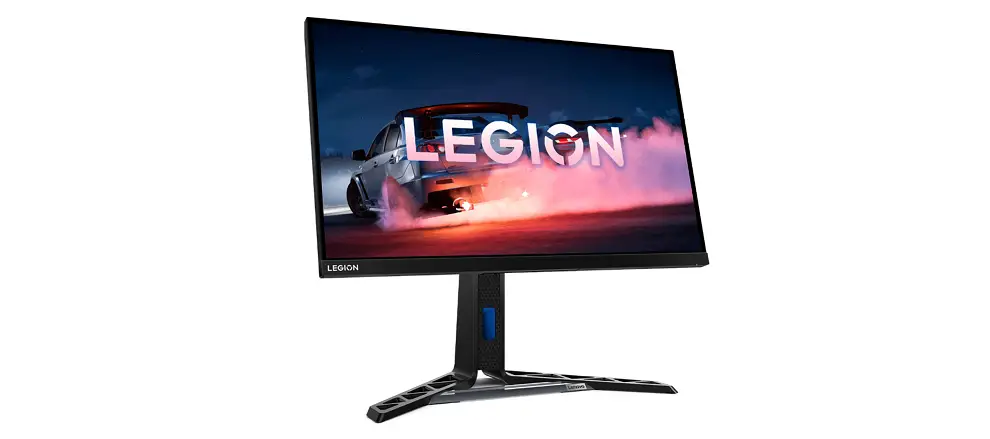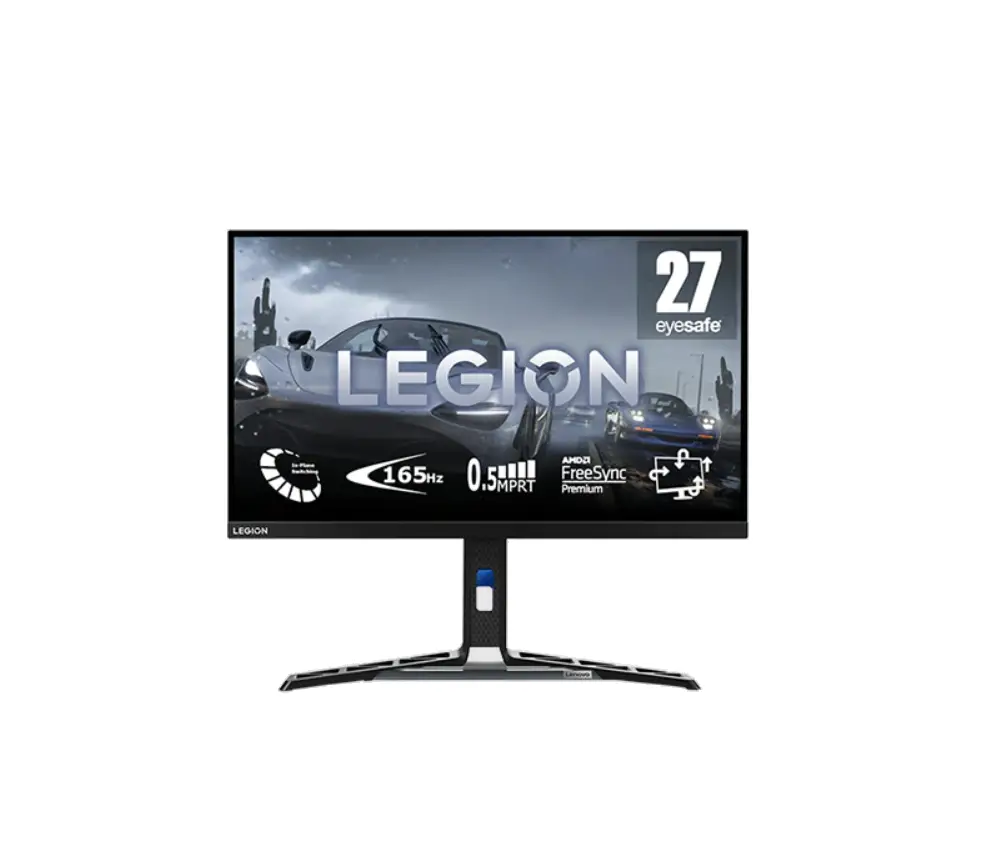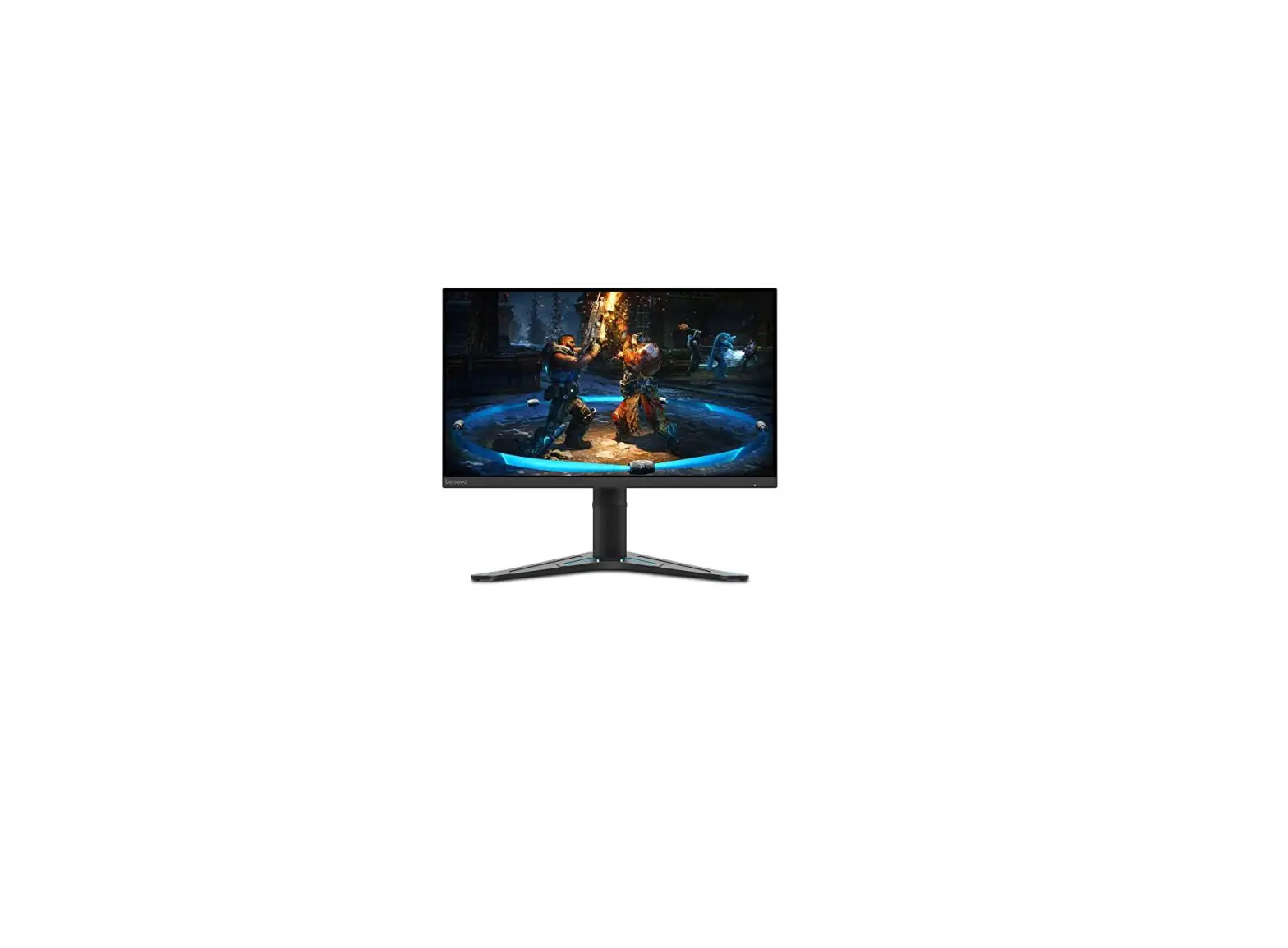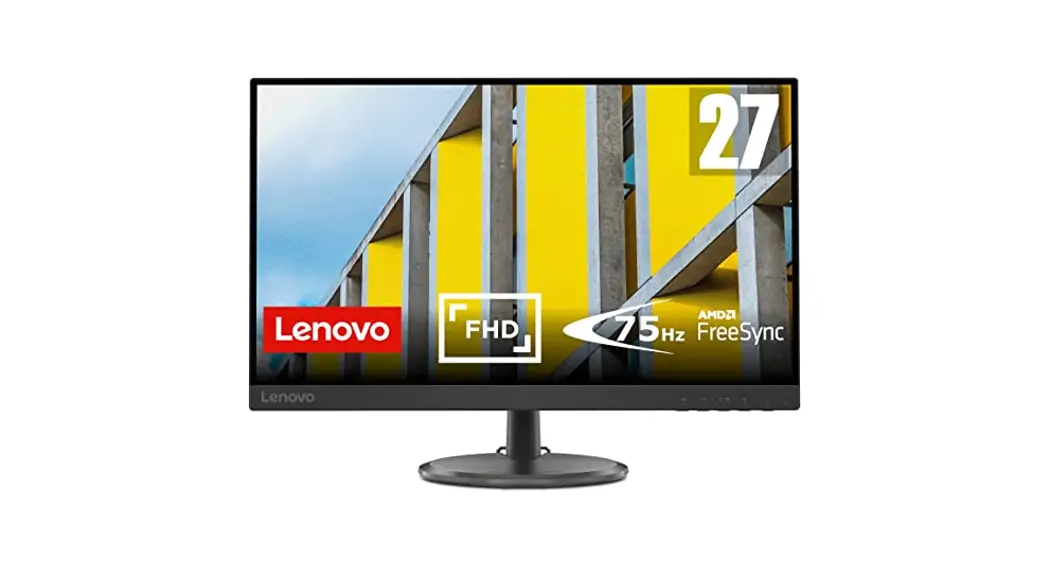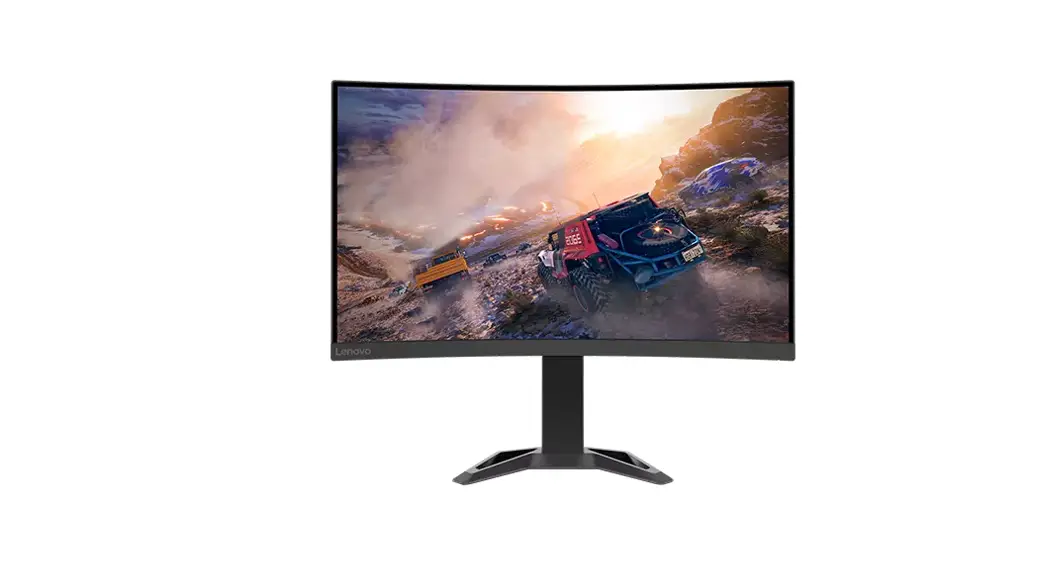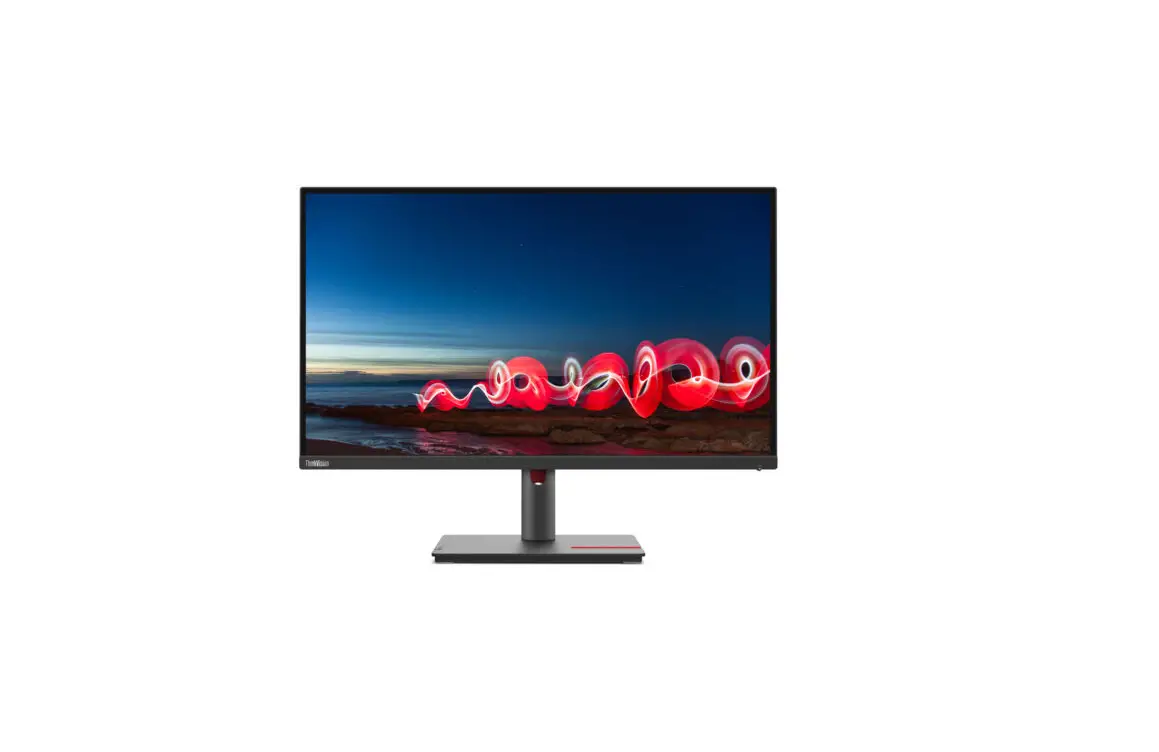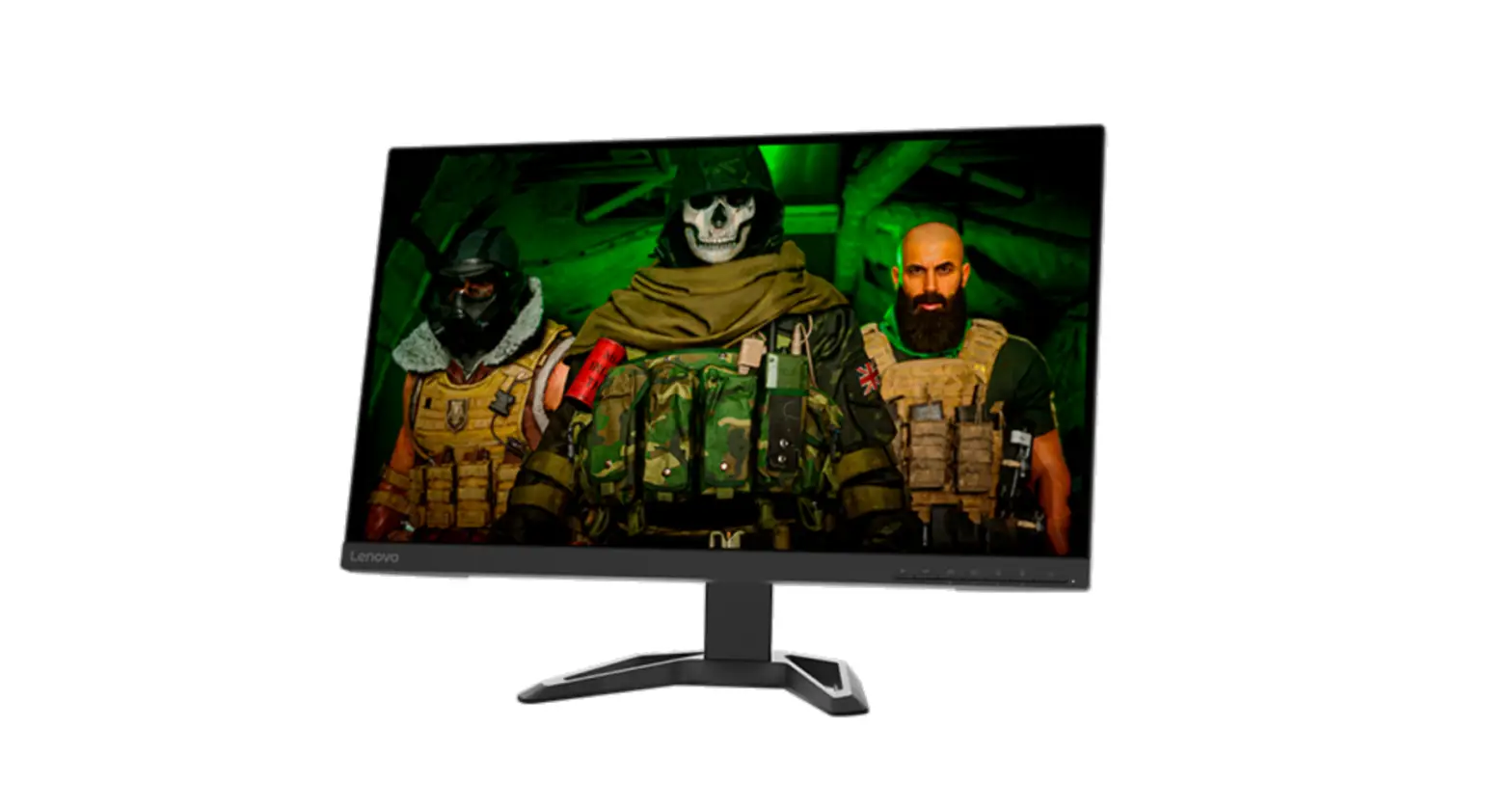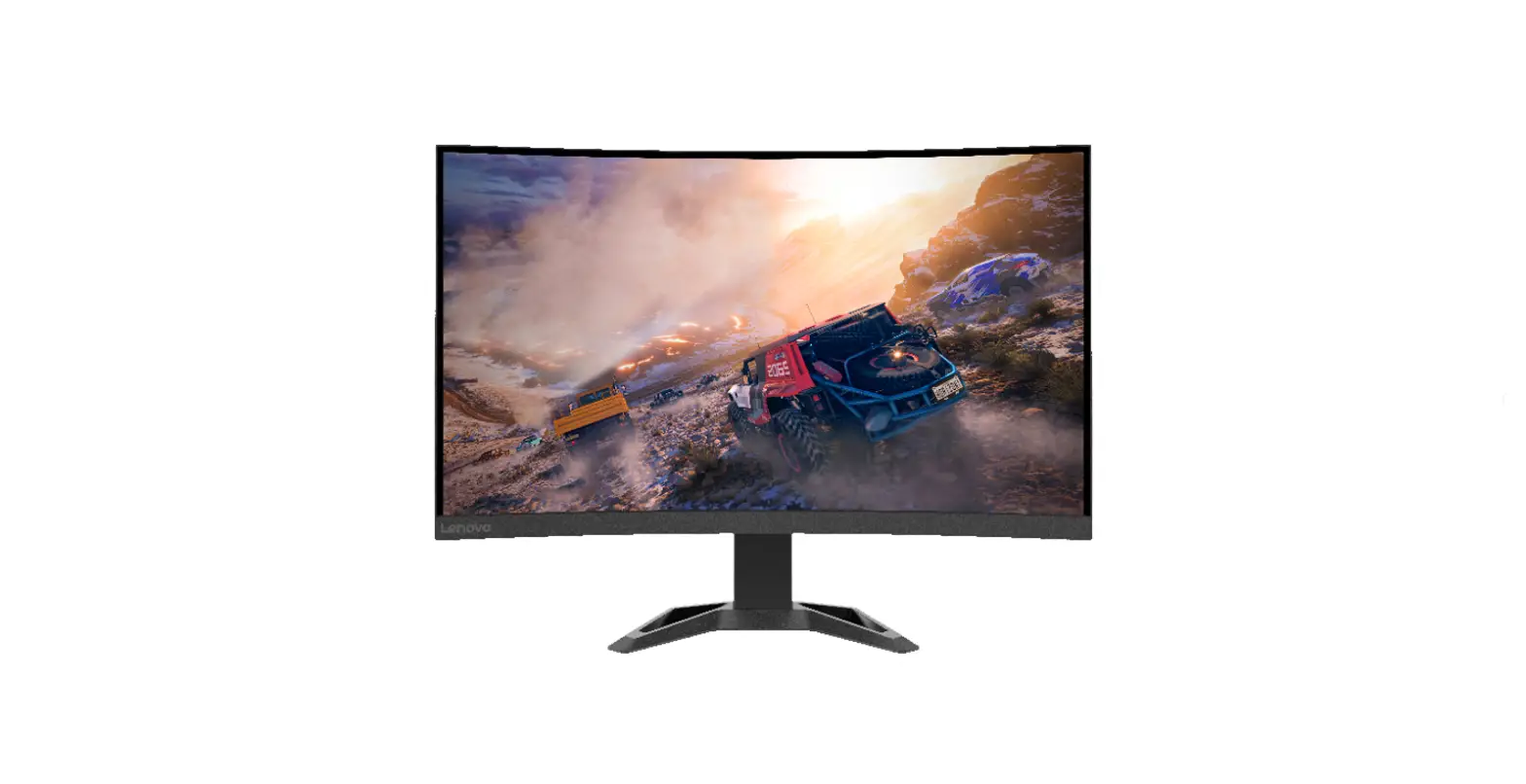

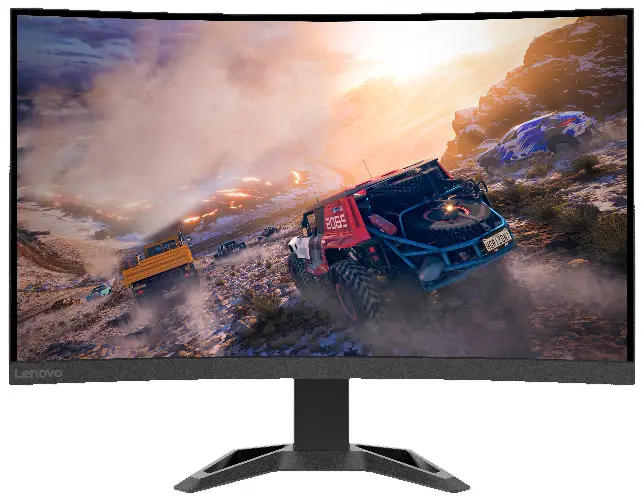
Lenovo G27c-30 27 Inch Monitor
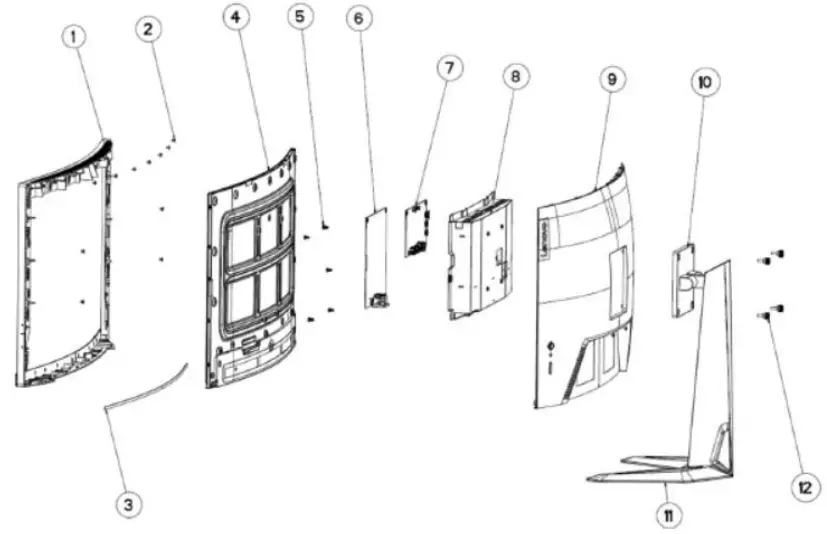
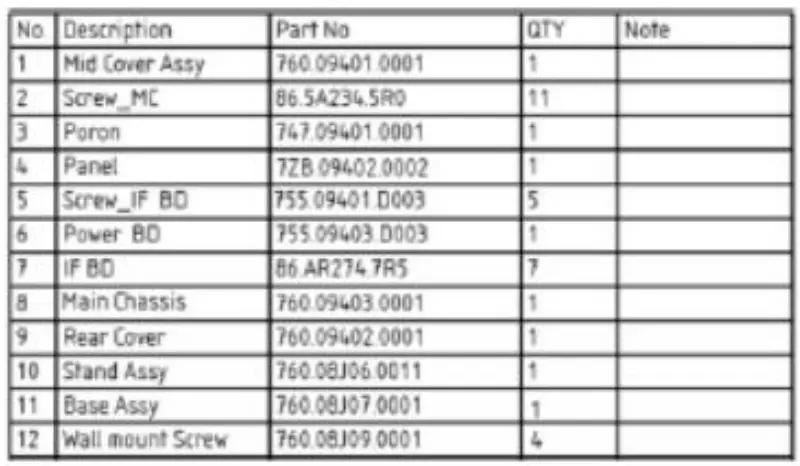
Exploded Diagram
Precaution
Please read the precaution as follows to prevent any damages to the LCD Monitor.
Make sure all power connector is removed. Be sure that the LCD Monitor is in power off status.
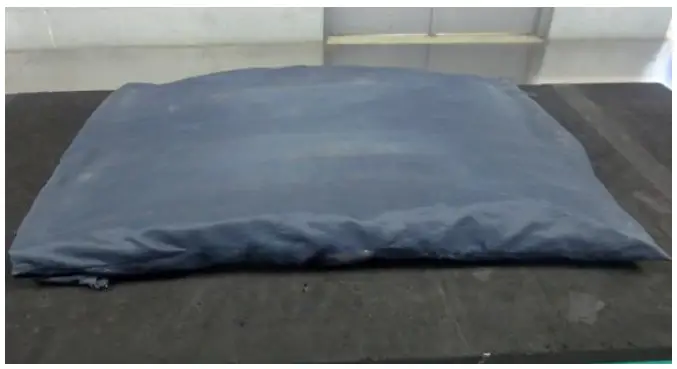
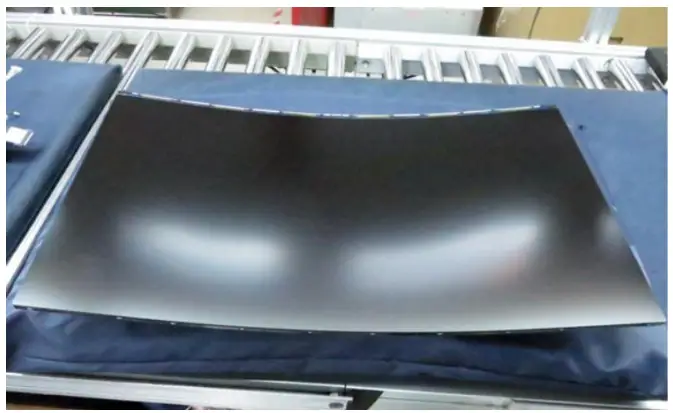
- Prepare soft cloth and sponge as working platform to place LCD monitor horizontally.

- Hold LCD by the side carefully and DON’T touch or press panel directly.

Appropriate tools
Select the Appropriate tools for disassembly and re-assembly.
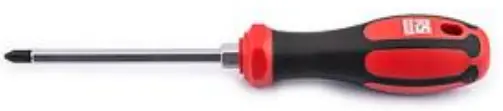
- Phillips screwdriver (#1)

- Phillips screwdriver (#2)

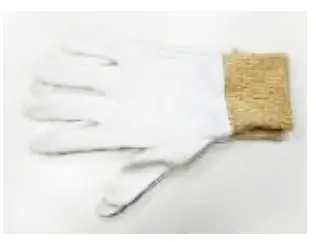
- Gloves or soft cloth


Disassembly SOP
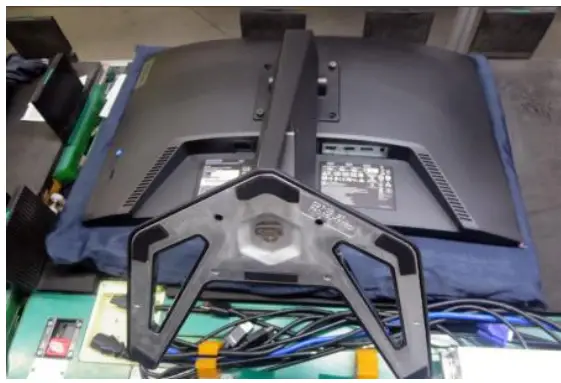
- Put the monitor on a curve surface (Put the EPE on under the monitor)

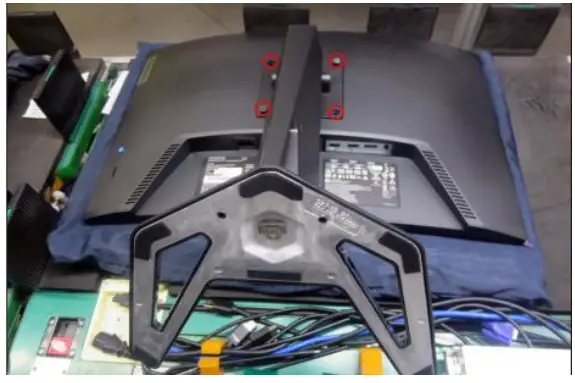
- Remove the screw * 4pcs
Tool : Screwdriver #2
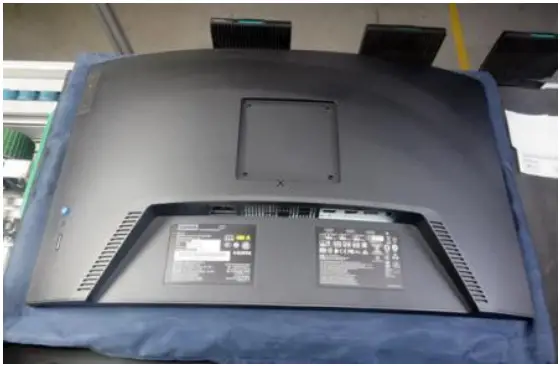
- Remove the stand base

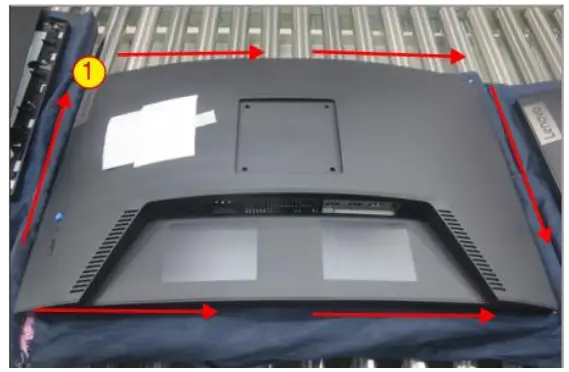
- Wedge your fingers between the rear cover and the middle bezel on the corners of the top side of the monitor to release the rear cover.
Tool : Gloves
- Lift the rear cover up carefully. Disconnect the speakers’ wire and joystick cable and then remove the rear cover

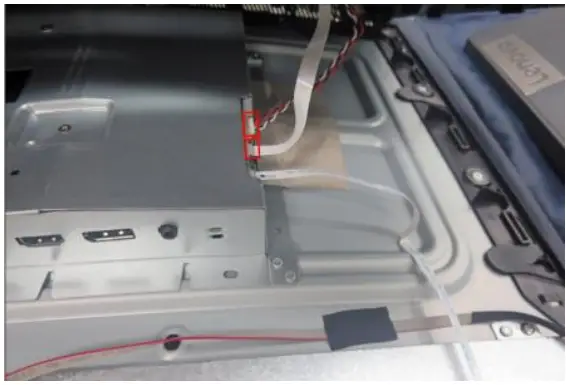
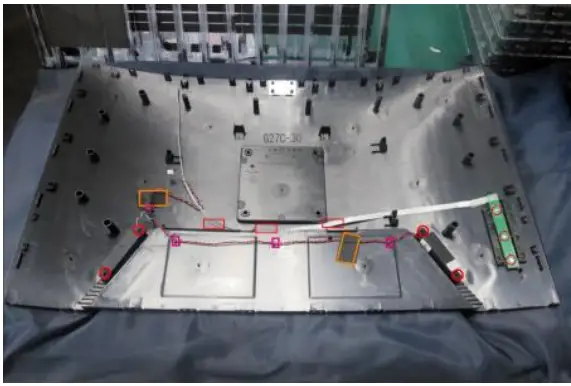
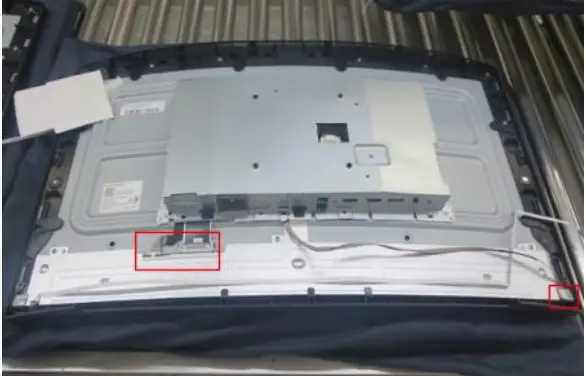
- Tear off 2pcs conductive tape, release the wires and speakers. Remove the screw * 3pcs
Tool : Screwdriver #1
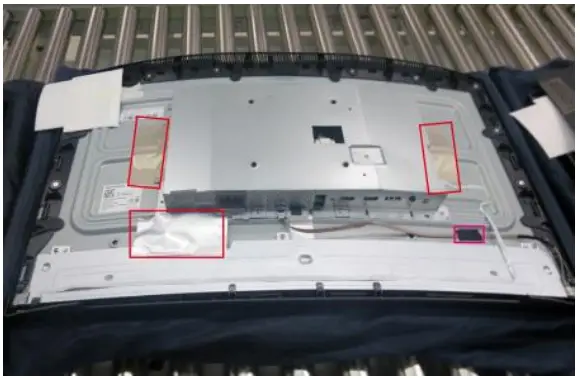
- Remove 1pcs aluminum foil, 2pcs acetate tape and 1pcs conductive tape.

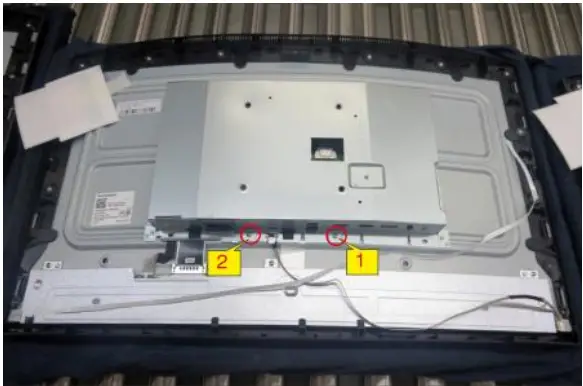
- Remove 2pcs screws
Tool : Screwdriver #2
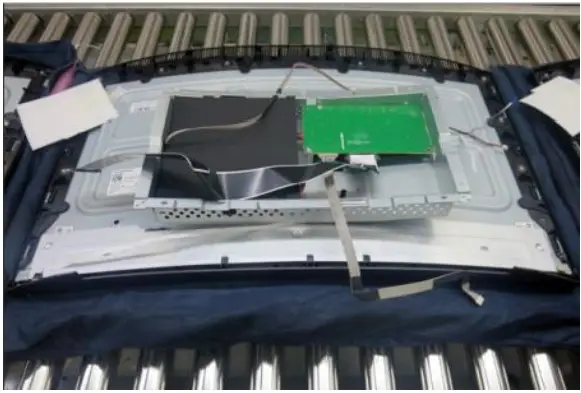
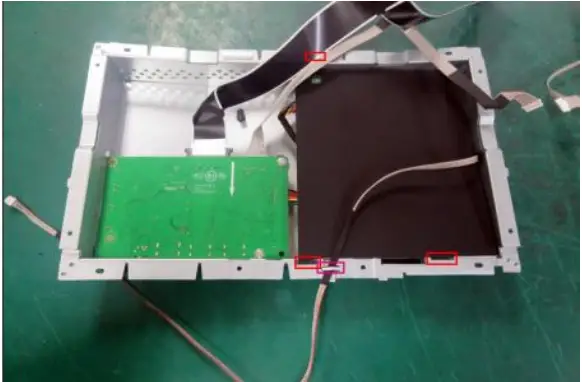
- Unplug light bar line and LVDS line

- Lift up bracket chassis and put it aside.

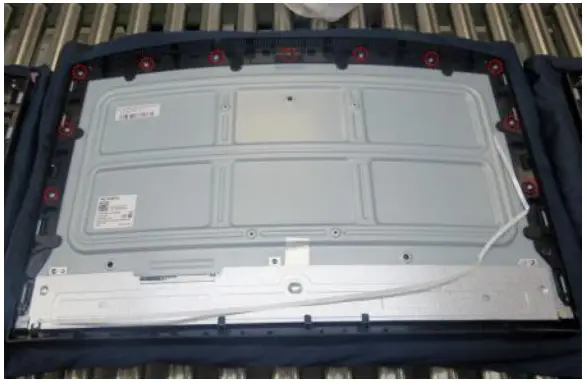
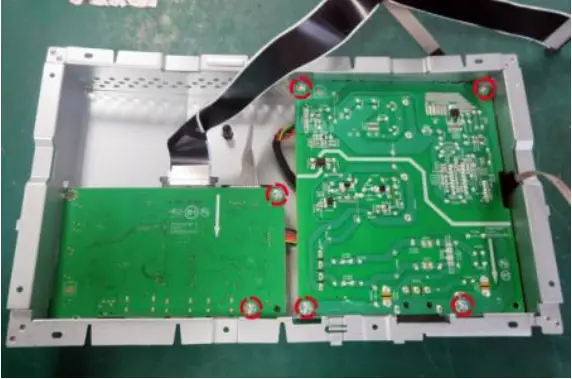
- Remove all screws
Tool : Screwdriver #2
- Release the middle frame from the Panel

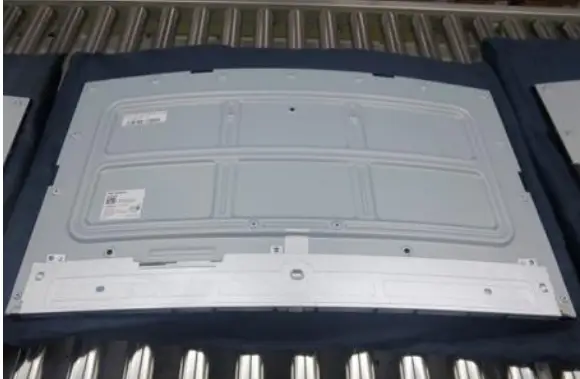
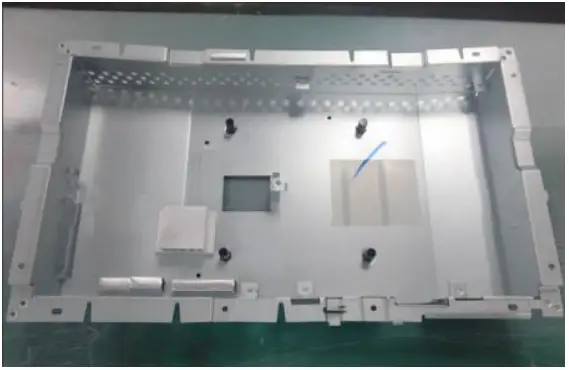
- Release the lamp cable from the hook, then take out the mylar sheet from main chassis

- Remove All screw.
Tool : Screwdriver #2
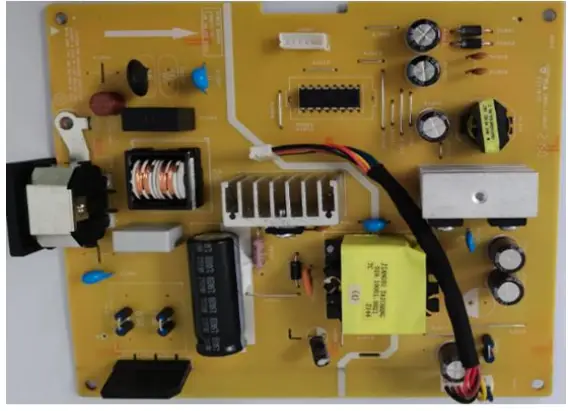
- Take out PCB and Peel off all mylar.

- Take out the Thermal pads from Power PCB