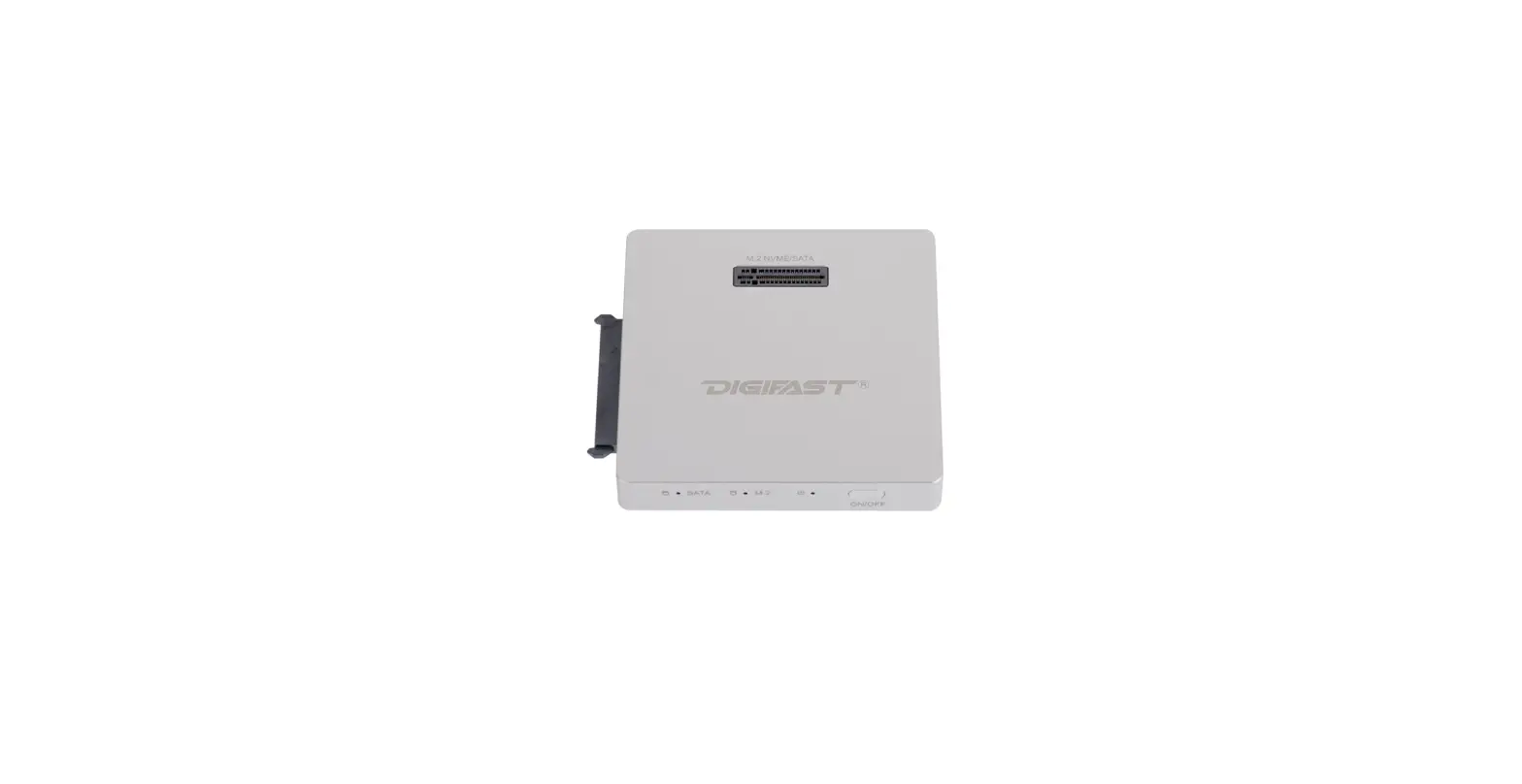
DIGIFAST DX3 M.2 and SATA Docking Station User Manual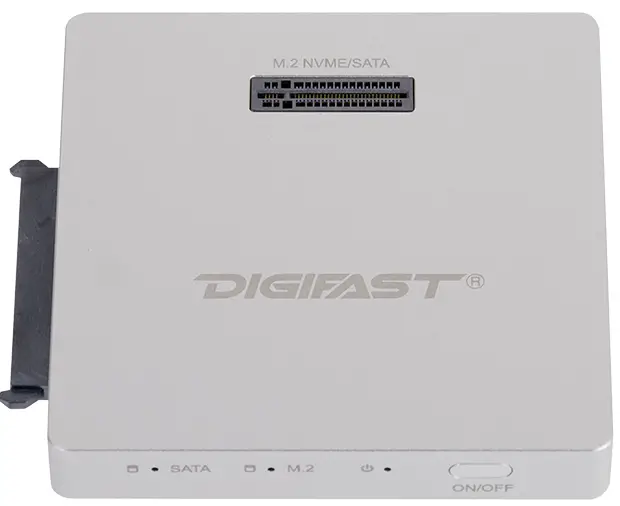
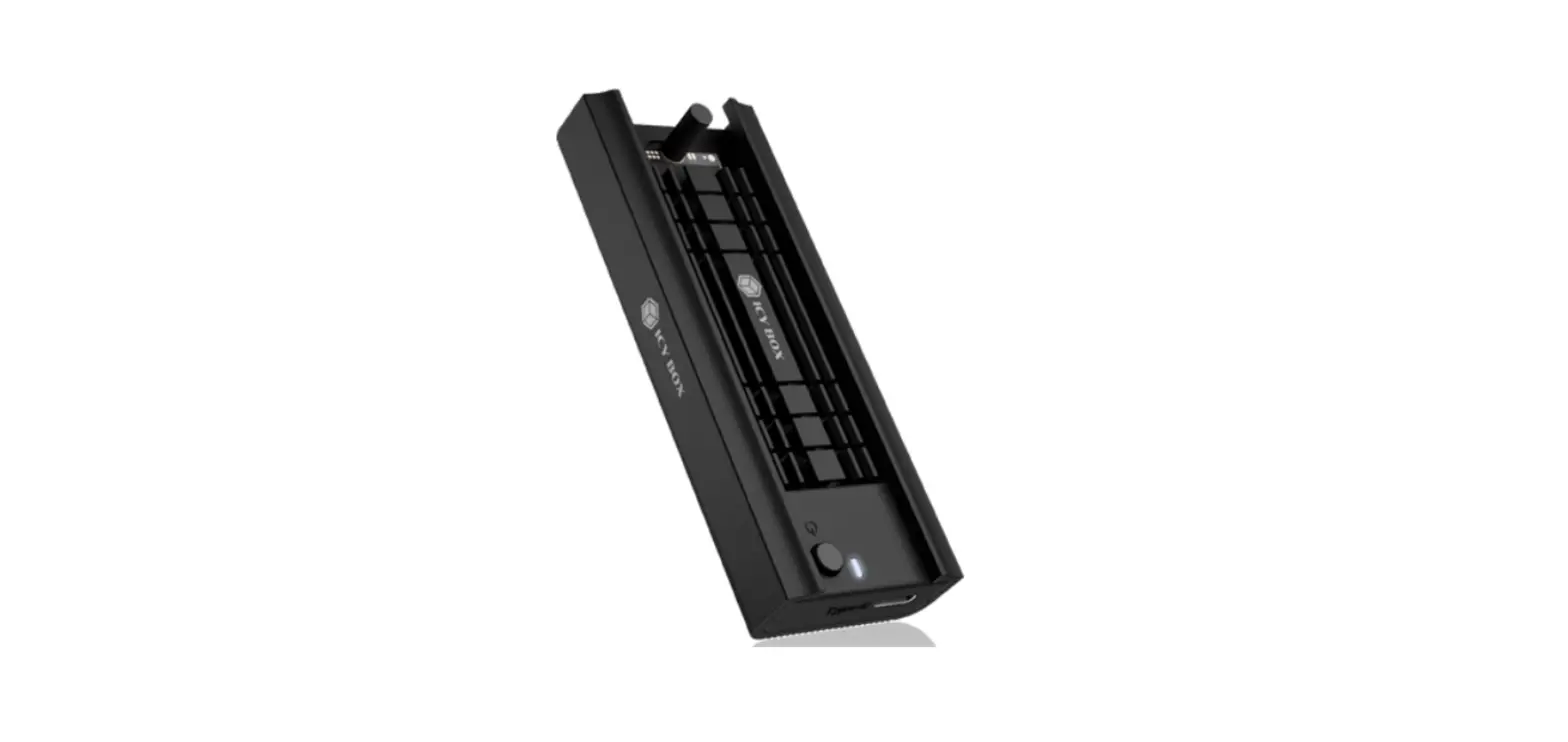
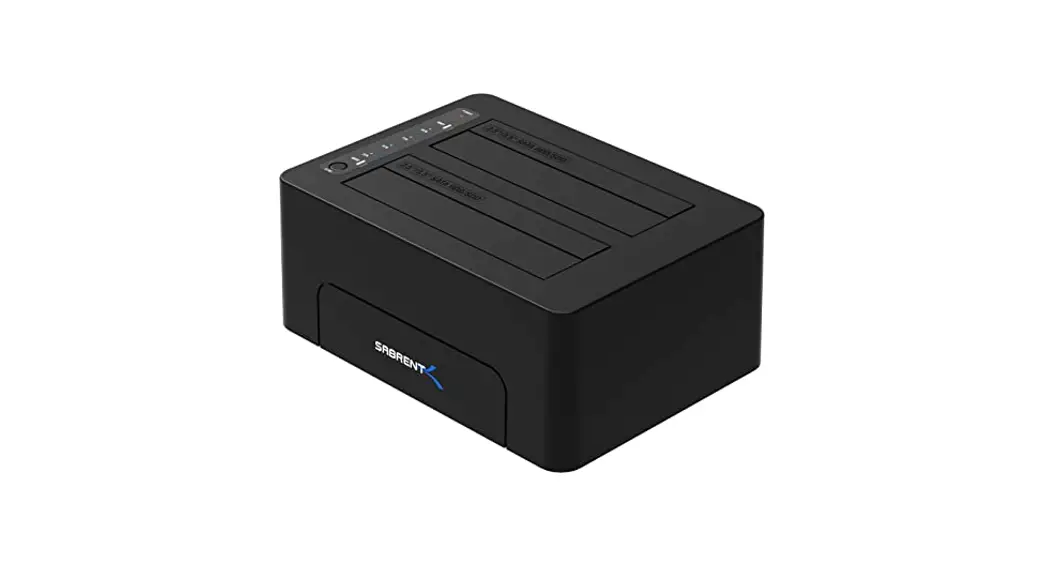
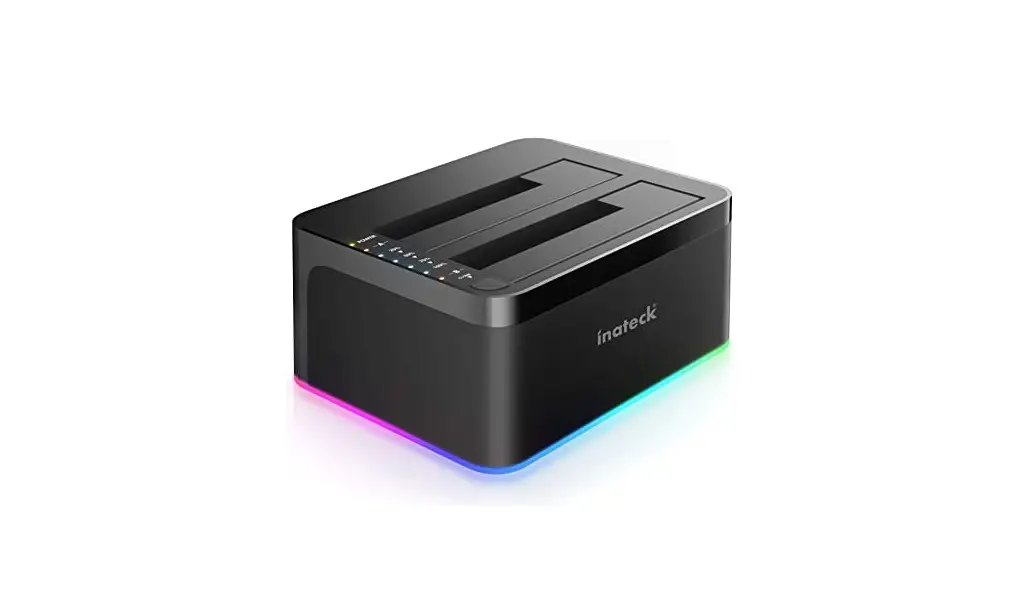
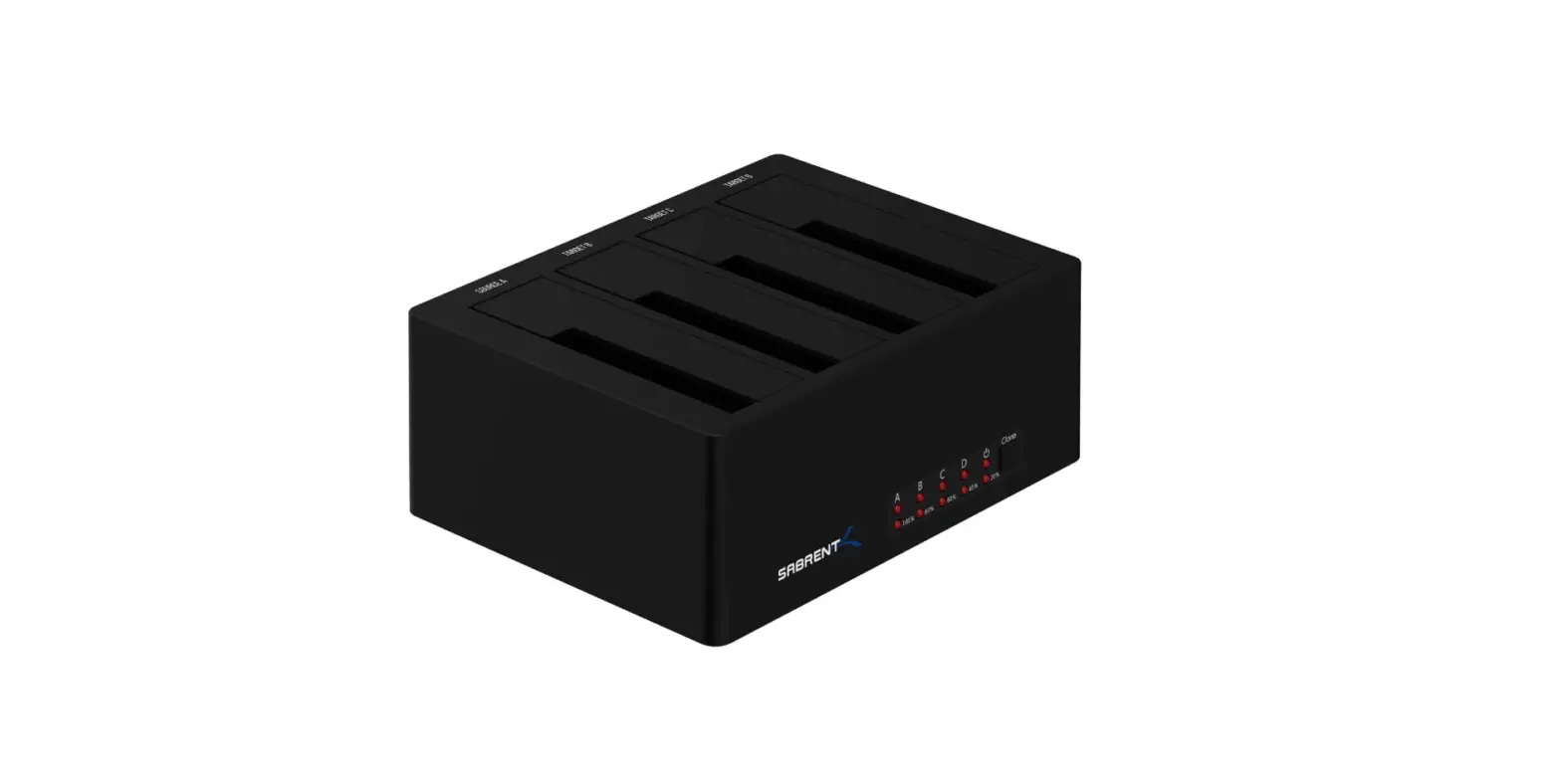
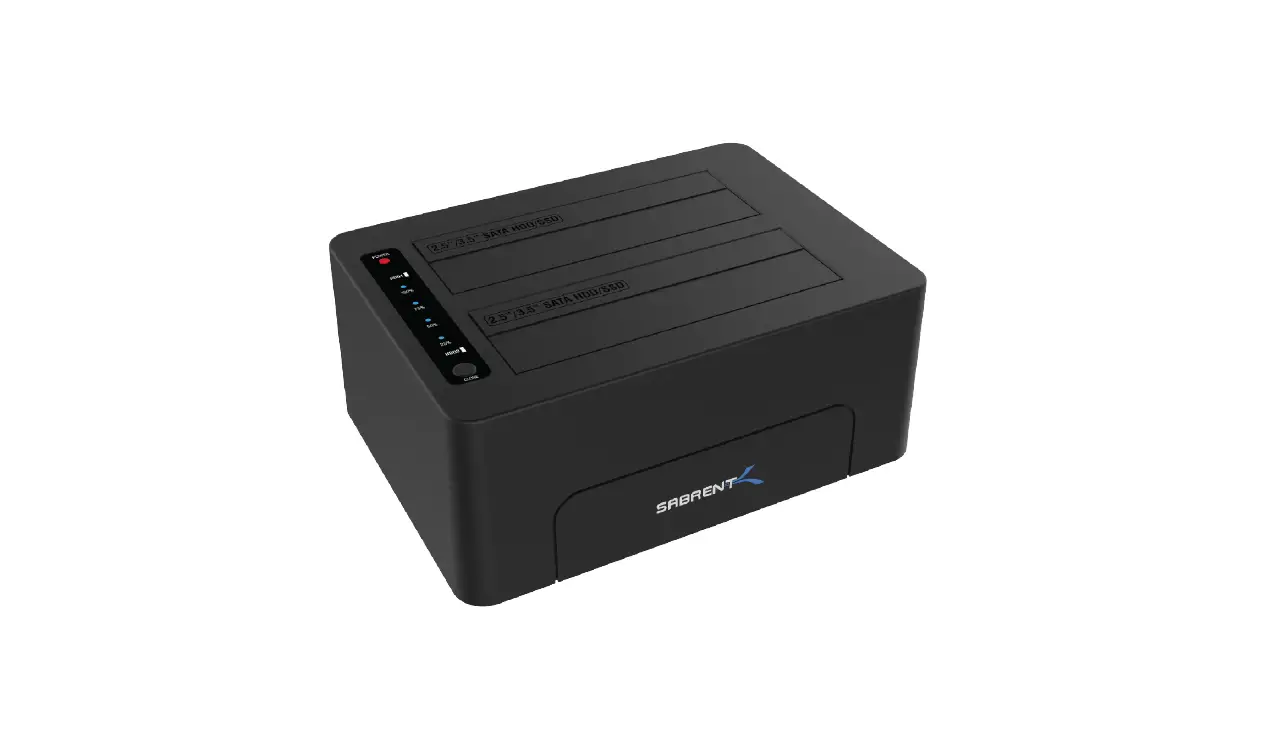
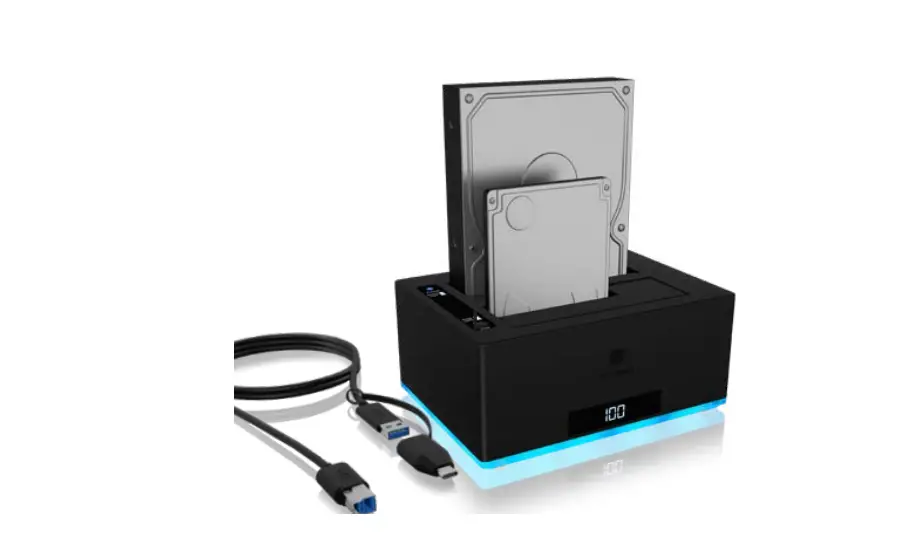
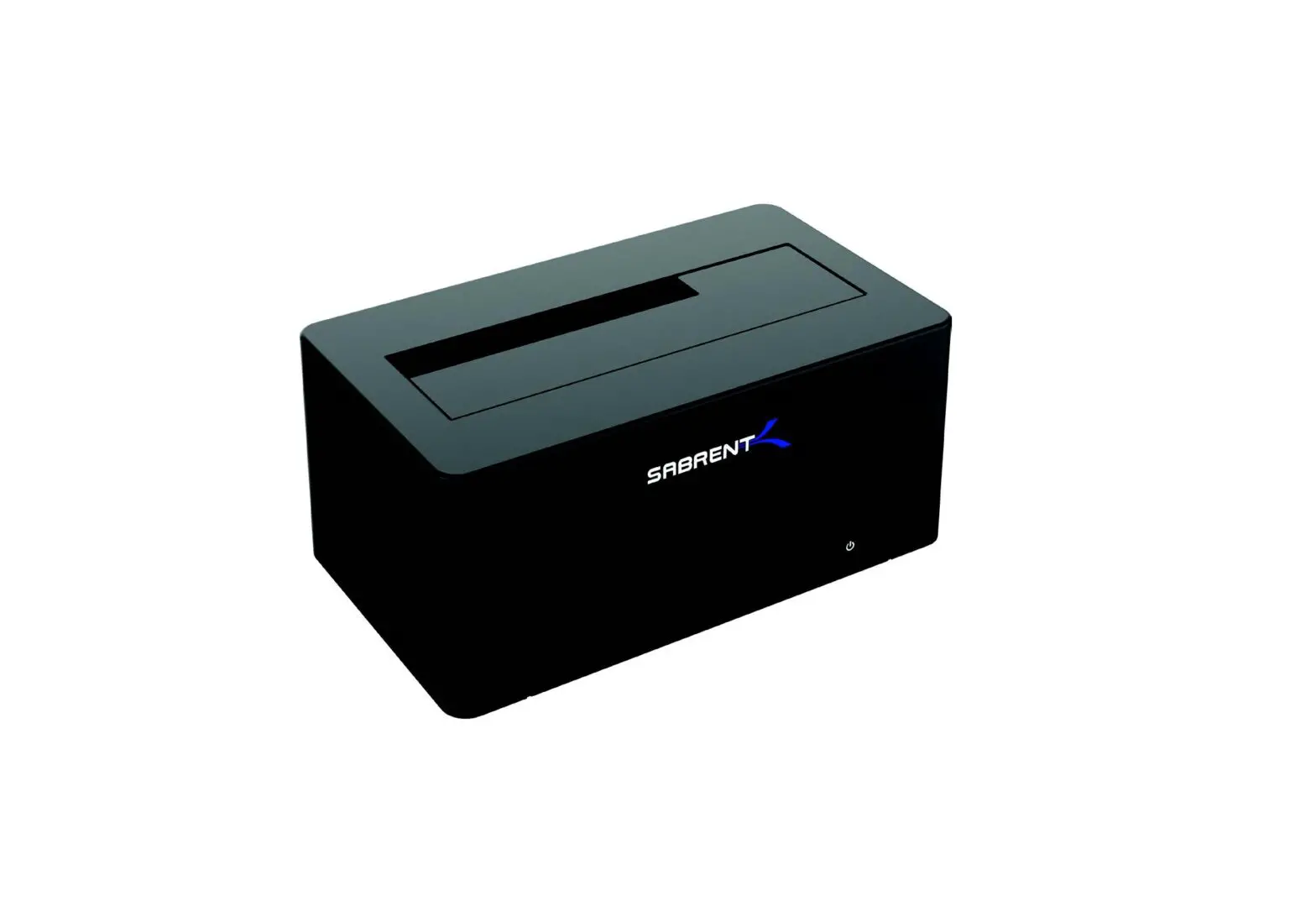
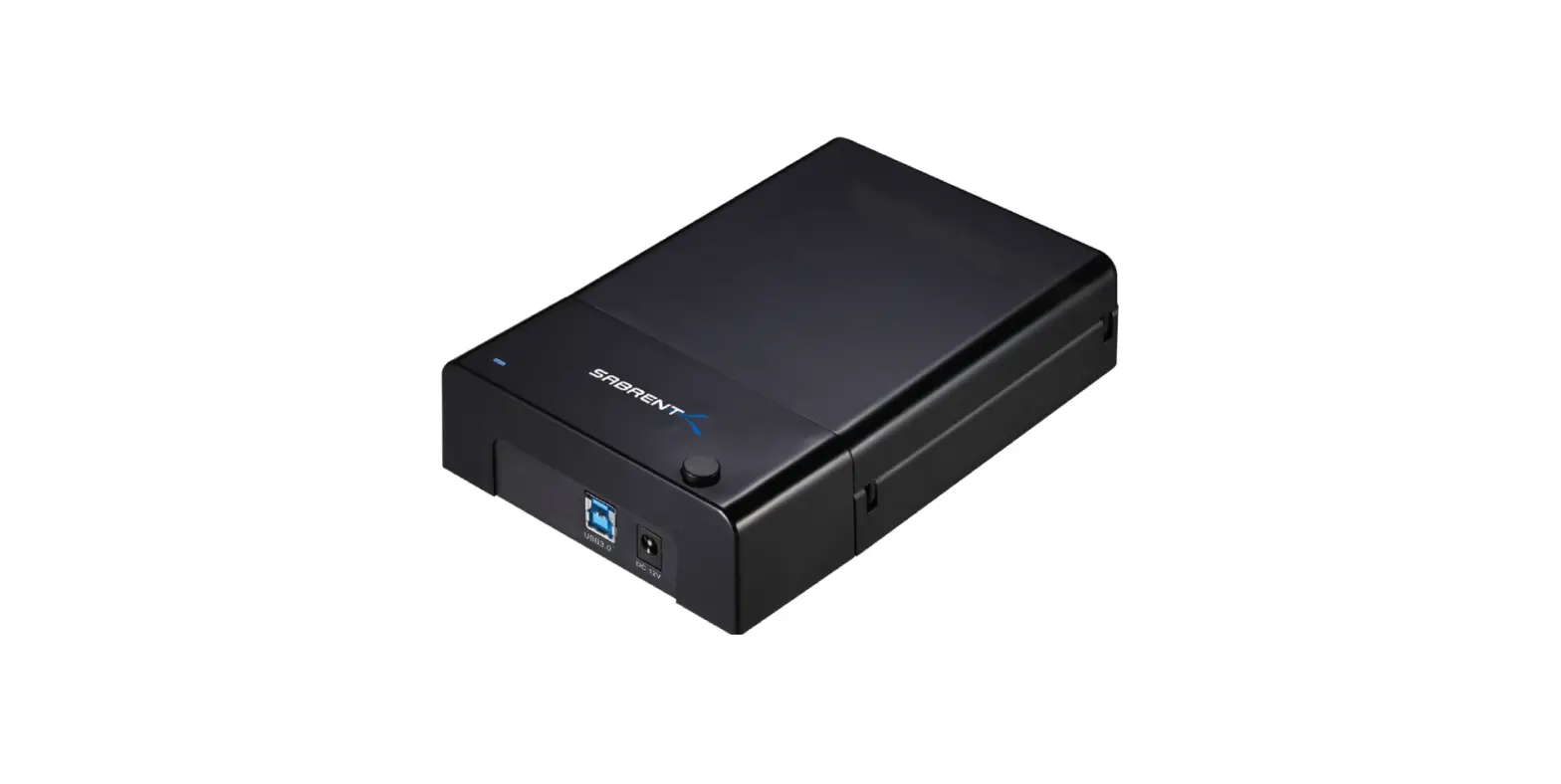
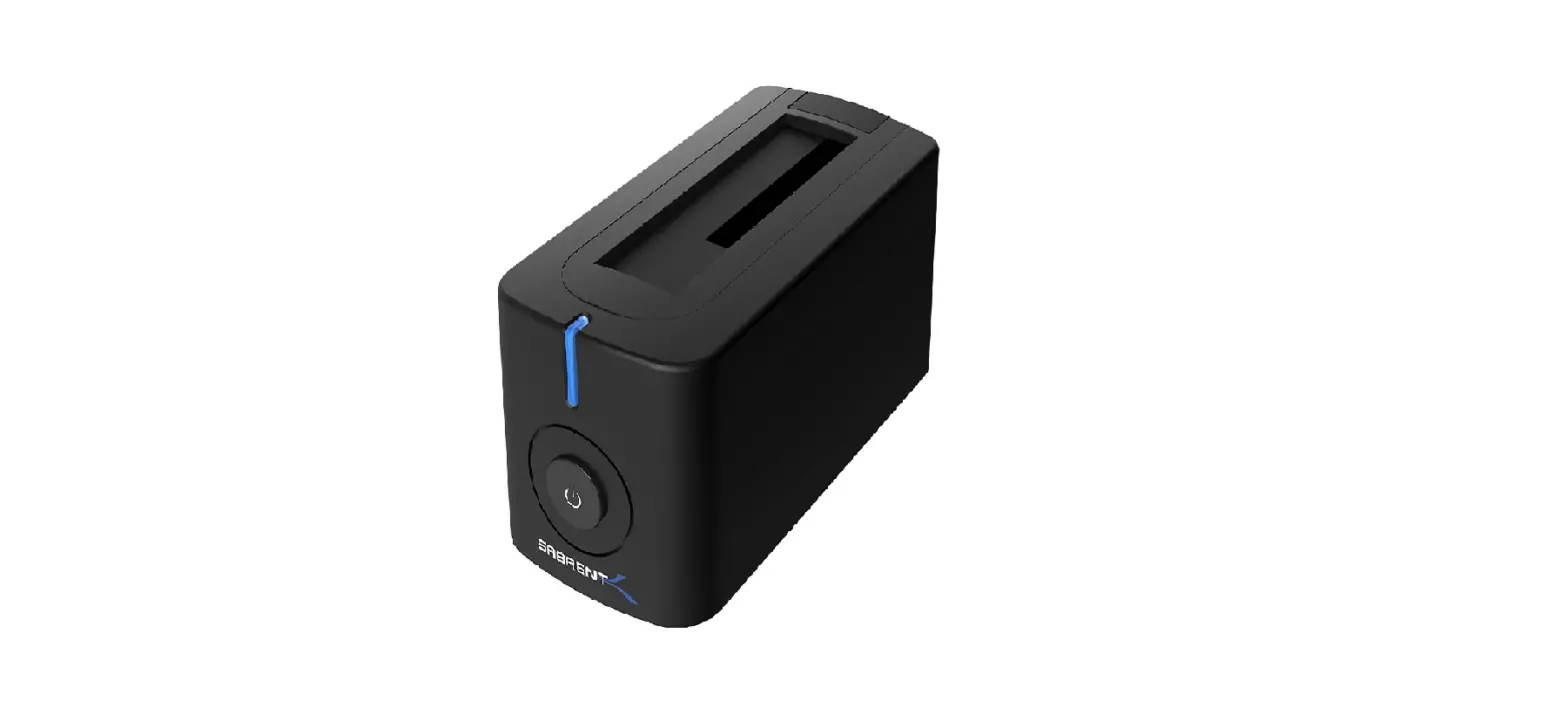
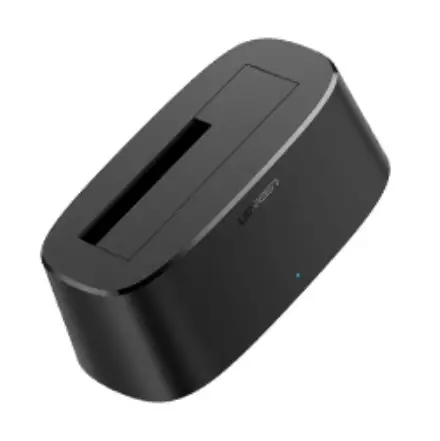
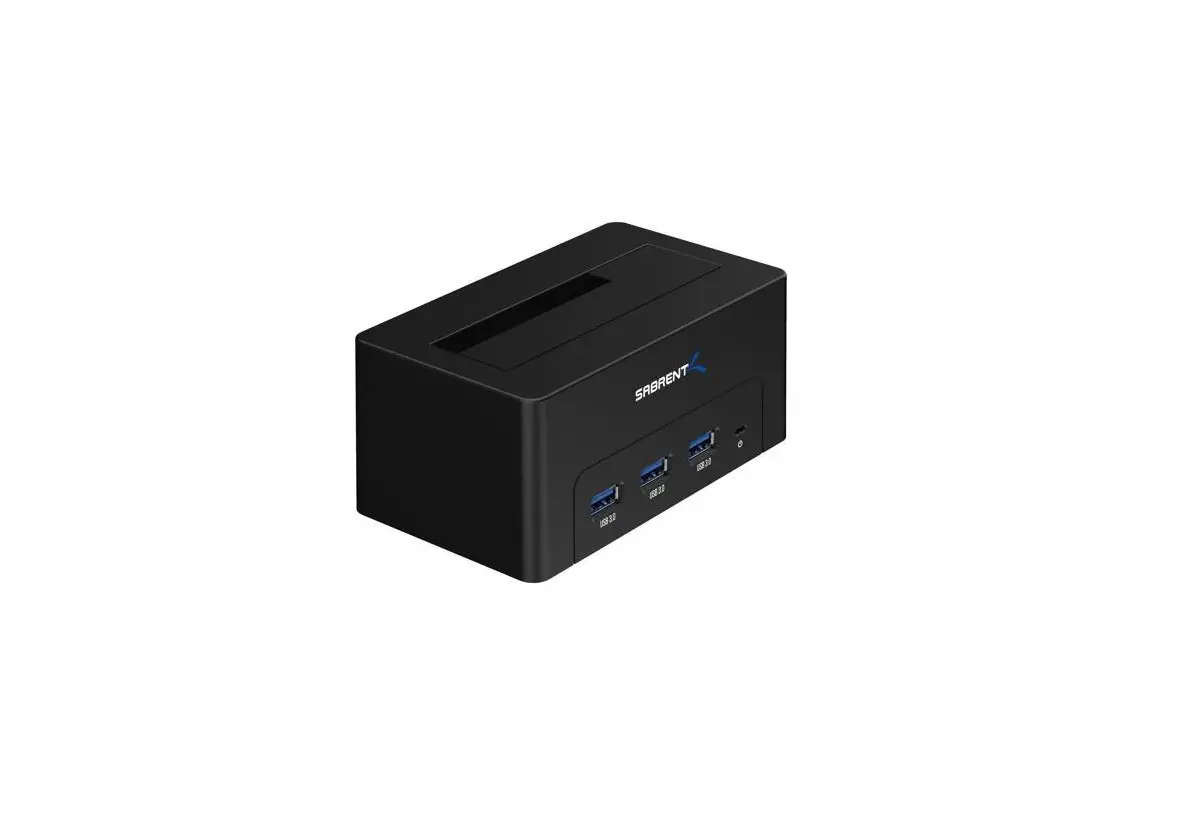
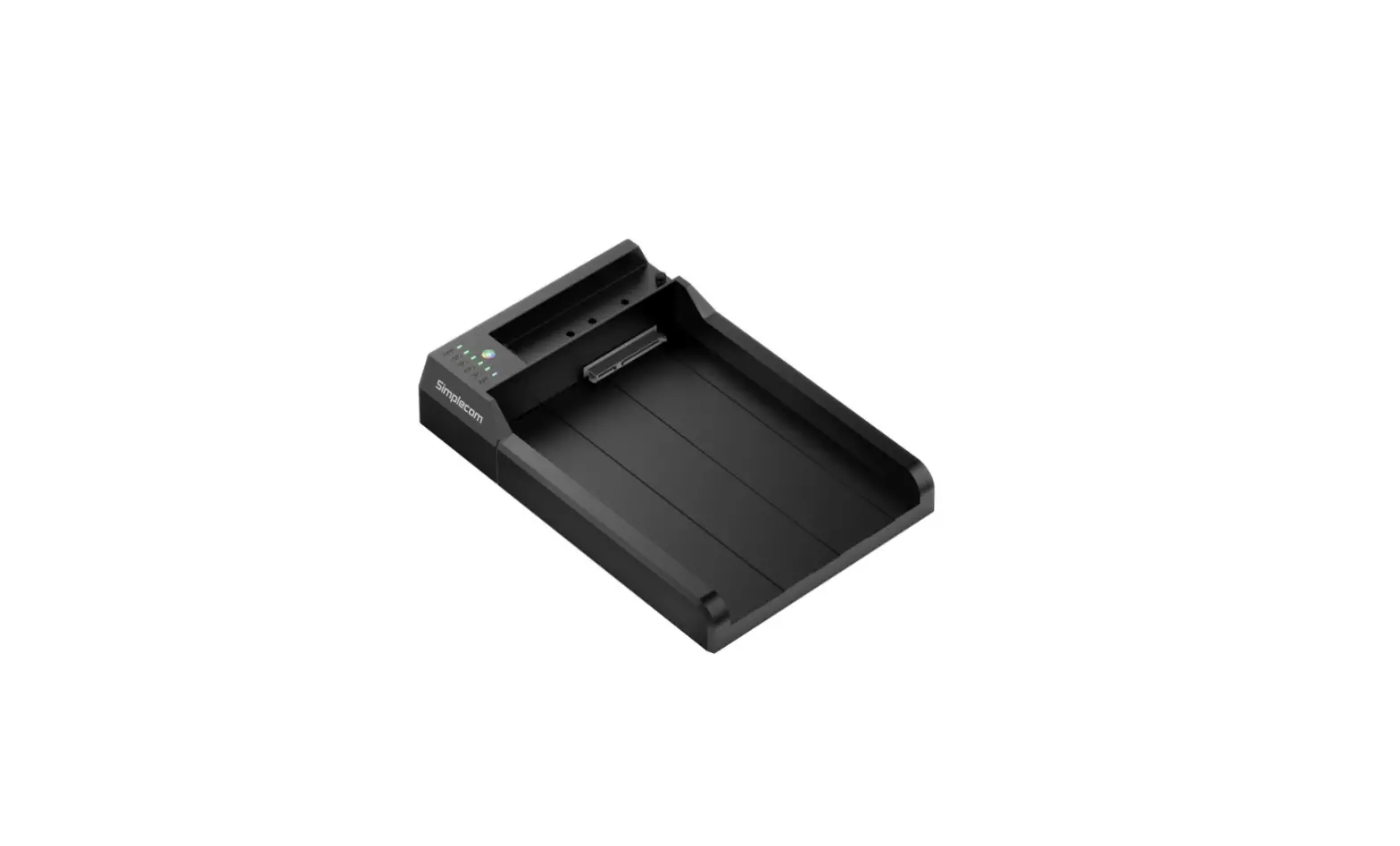
PRODUCT APPEARANCE
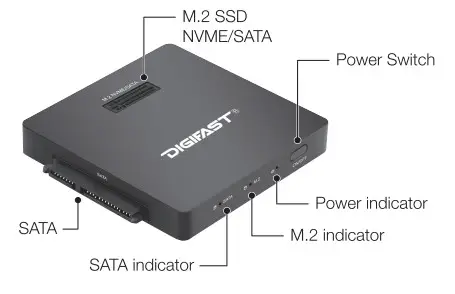
SPECIFICATION
| Model | DX3 |
| Material | Aluminum alloy |
| Transfer Speed | USB 3.2 Gent (10 Gbps) |
| Interface | USB Type-C |
| Device Specification |
|
| System Requirements | PC: Windows XP/Windows 7/8/10/11 Mac: Mac OS 10.12 or higher |
| Environment Requirements | Operating temperature : 5°C – 45°C Operating humidity : 10%RH – 80%RH Storage temperature : -20°C – 65°C Storage humidity : 5%RH – 90%RH |
| Dimensions | 73mm*73mm*11.5mm |
| Weight | 120g |
| Package Contents | lx Docking Base lx USB A-C Data Cable (L=15cm) lx Type-A to Micro B Power Cable (L=50cm) |
DX3 Instructions
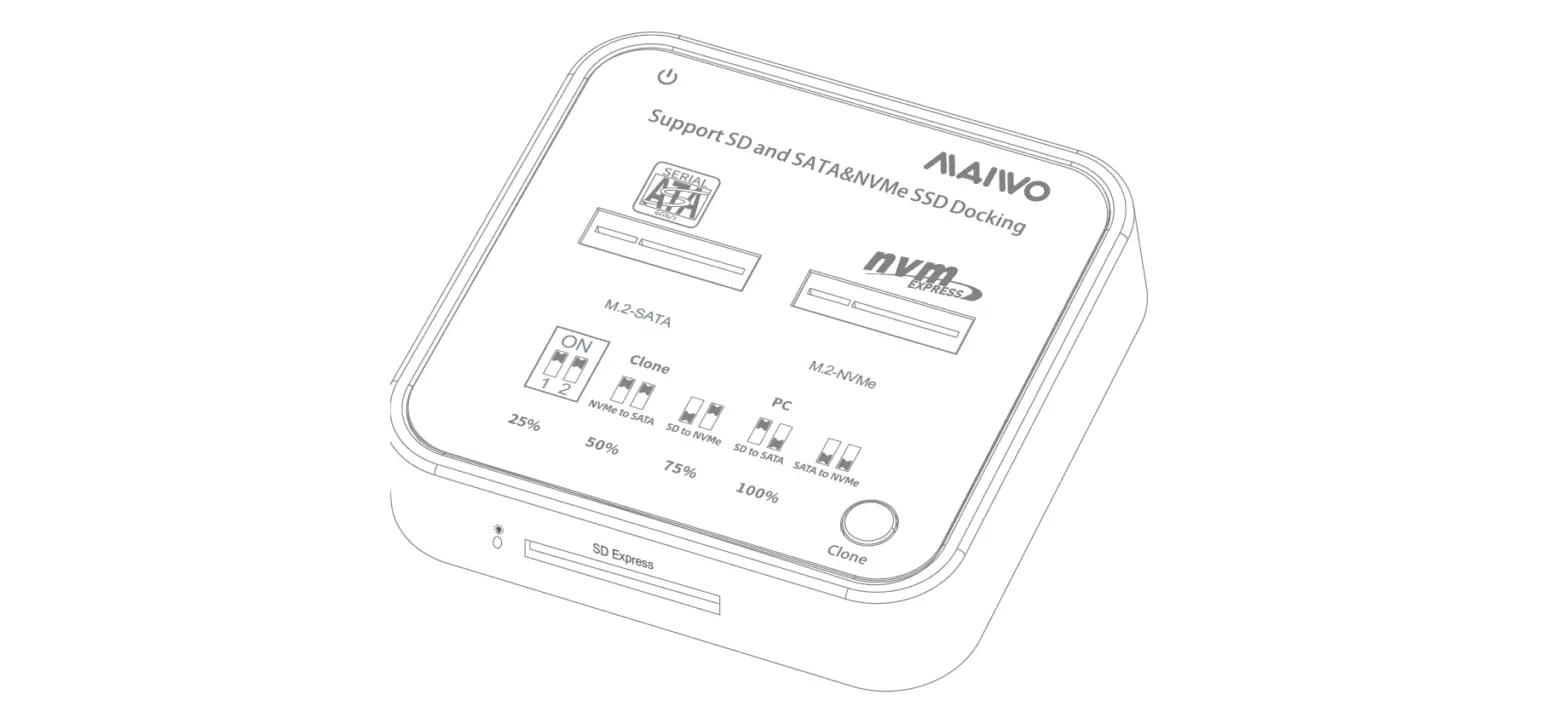
This docking base has both M.2 and SATA interfaces. The M.2 interface supports NVME or SATA M.2 SSDs (dual-protocol), and The SATA interface supports 2.5″ traditional, mechanical HDDs or SSDs. (This docking base does not support 3.5″ hard drives. It does support simultaneous use of both M.2 and SATA interfaces.*
How to use
- Connect an M.2 NVMe or M.2 SATA SSD to the M.2 slot.
- Connect a 2.5″ SATA interface HDD or SSD to the SATA interface.
- press and hold the power switch (0.5 seconds) to turn on the product.
- After the device(s) is identified, enter the system disk management utility to initialize the drive and create a partition(s). The device(s) can be read from and written to normally
- When ready to disconnect, remove the device safely according to your operating system, and press and hold the power switch to turn off the docking base.
* If an M.2 and a SATA device are connected at the same time, please use an additional USB power supply. It is recommended to use a 5V/3A transformer or a USB charger to provide adequate power switch.