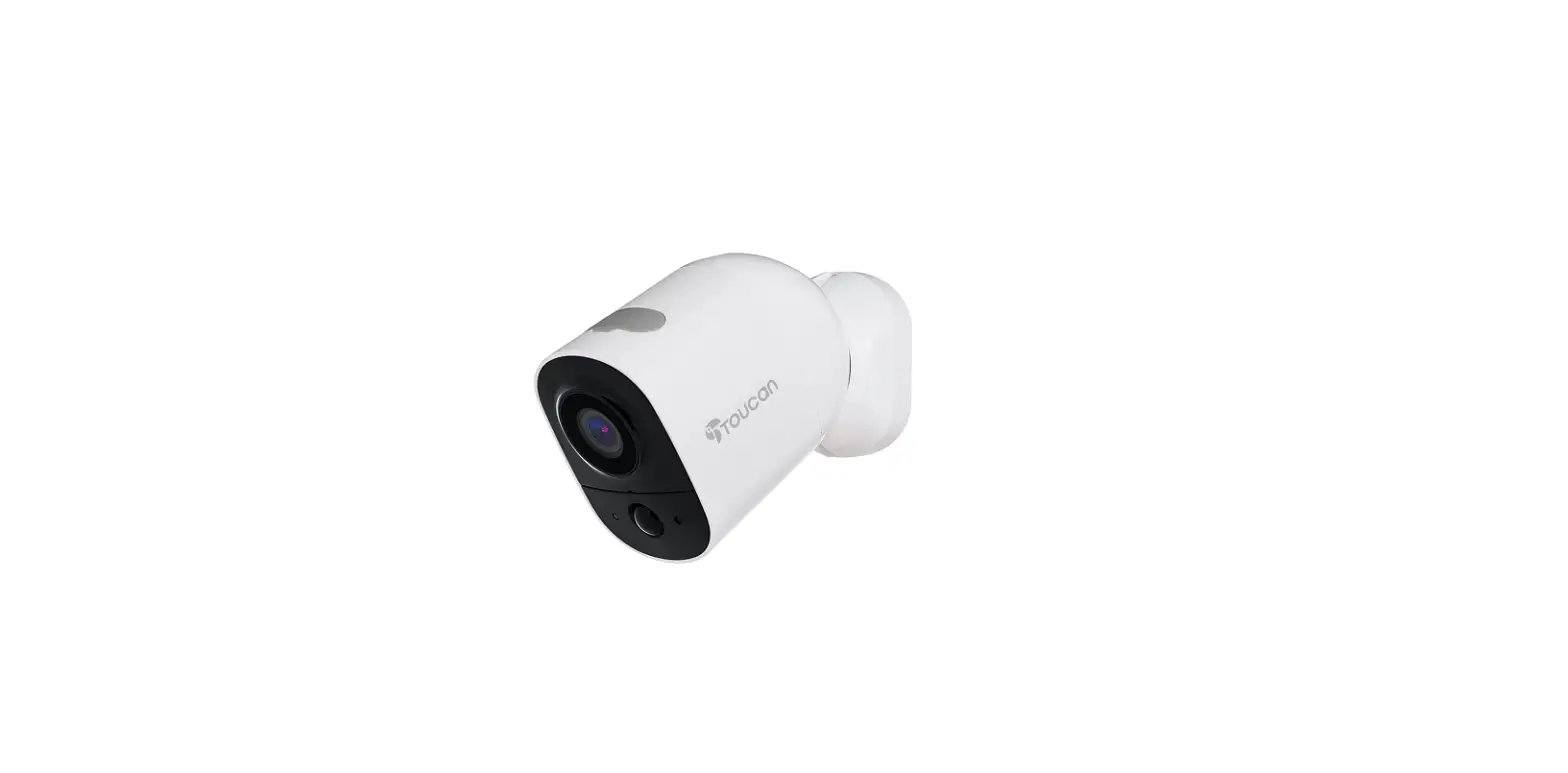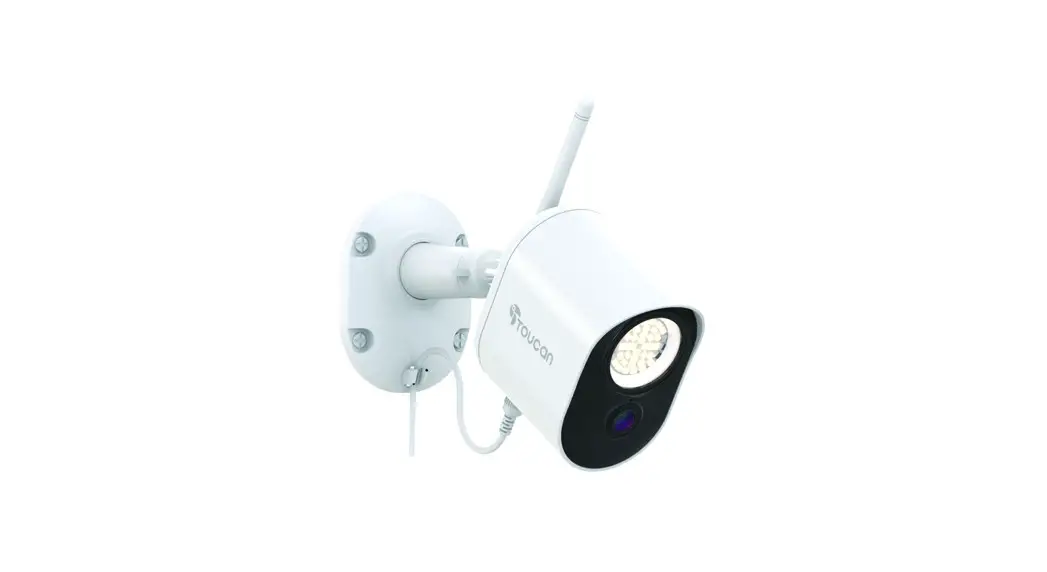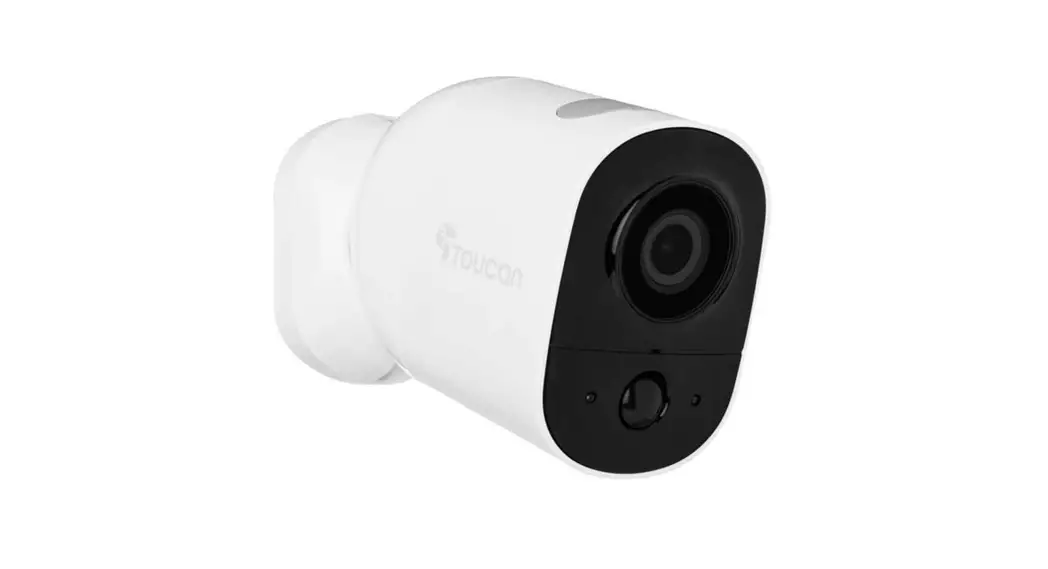

Wireless Security
Camera PRO
USER MANUAL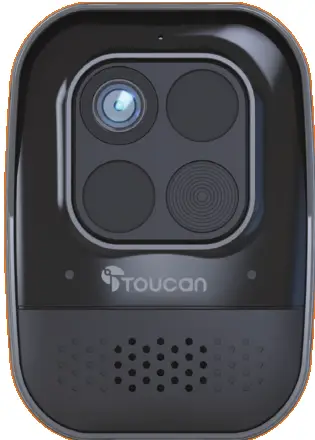 TSCP05GR
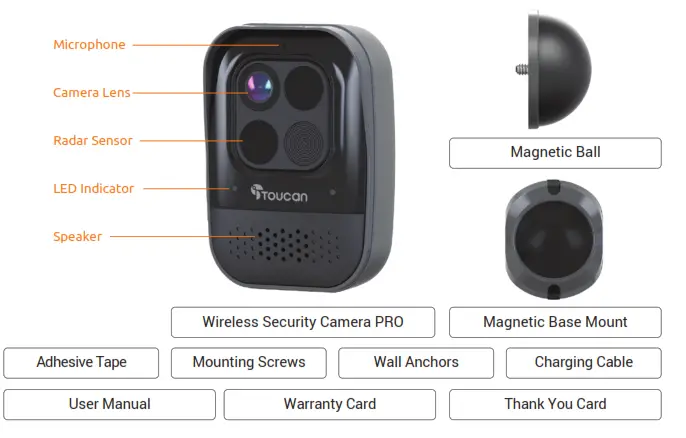
Items included
 Charge your Wireless Security Camera PRO
Open the mirco USB plug cover, plug in the micro USB cable to charge the camera.
Recommend to fully charge the device before 1st use.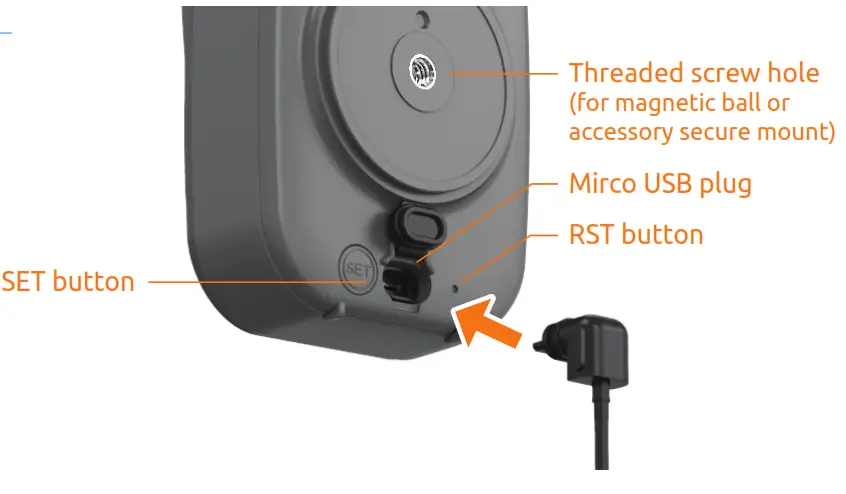 LED Description
| Solid RED | Charging Battery |
| Solid BLUE | Battery Fully Charged |
Setup your Wireless Security Camera PRO
- Download the Toucan App
Scan QR code or visit www.toucansolution.com/pages/toucan-smart-home-app
Available at Apple © App Store © and Google Play™ https://www.toucansolution.com/pages/toucan-smart-home-app
 - Login to the App
Open the app and create a free account.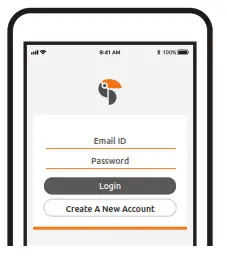
- Add your device
Tap the “+” to add a device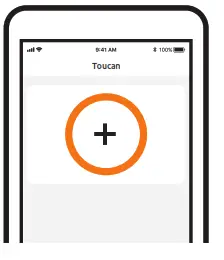
- Connect your device
Press and hold the SET button until LED light on the front blinks blue to enter the setup mode.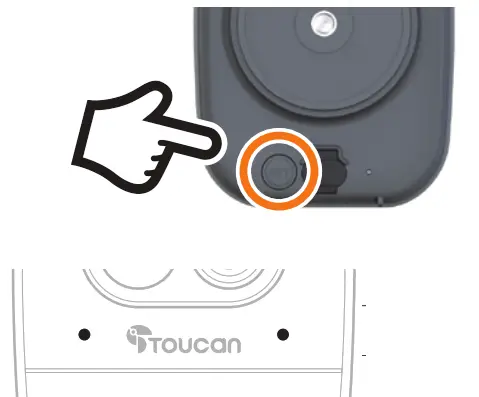 Follow the instructions in the Toucan App to complete the setup
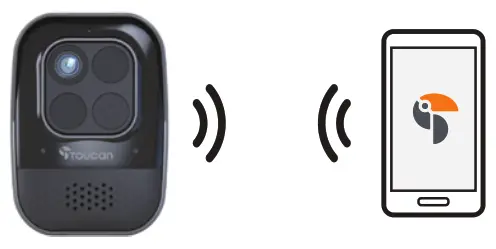
LED Description
| Flashing BLUE | Setup Mode |
| Flashing PURPLE | Connecting to cloud server |
| Flashing RED | Connection Failed |
Install your Wireless Security Camera PRO
- Check WiFi signal at installation area Take the camera to the planned installation area. Tap on the camera in the Toucan App
Dashboard to bring up Live View to make sure there is good WiFi signal at the installation area.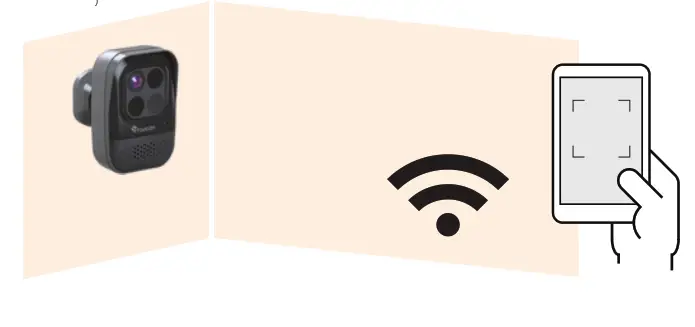
- Attach the magnetic ball
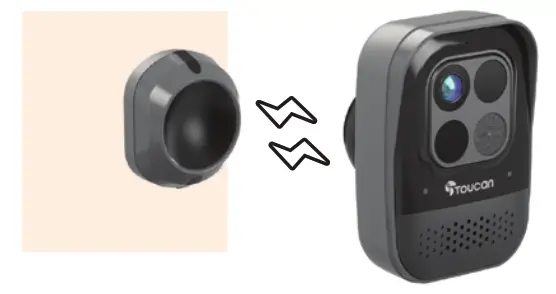
Screw the magnetic ball onto the back of the camera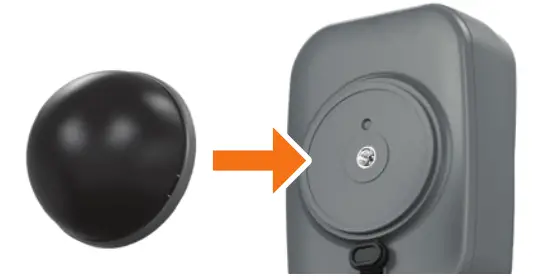
- Mark the Magnetic Mount’s preferred placement
Using the magnetic mount as a template, mark where you want to mount the camera with a pencil.
- Choose how you want to secure the Magnetic Mount
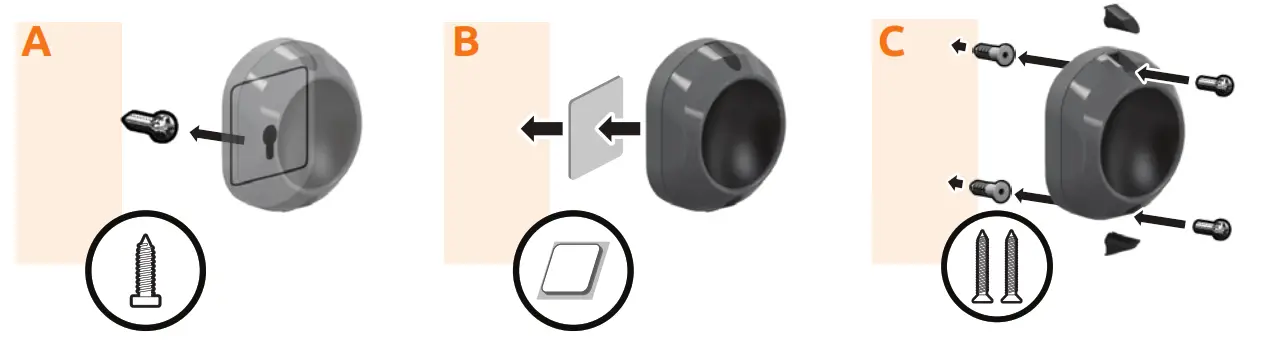 If using 3M Adhesive only (B), allow 24 to 48 hours curing time before placing the camera onto the Magnetic Mount to ensure maximum bonding strength.
When using just the 3M adhesive (B) to install the Magnetic Mount, apply the adhesive on dry surfaces only. It is suitable for UPVC, wooden or smooth surface door frames. (Not suitable for brick or stone) - Place the camera on the Magnetic Mount Place the camera with the ball onto the Magnetic Mount.
It will attach firmly. Adjust camera angle best suited.
- Check WiFi signal at installation area Take the camera to the planned installation area. Tap on the camera in the Toucan App
 https://www.toucansolution.com
For detailed setup procedure, please refer to
the Toucan website (www.toucansolution.com) or scan the QR code.
 Wireless Doorbell Camera | Wireless Outdoor Security Camera | Toucan – Toucan Solutions
 Wireless Doorbell Camera | Wireless Outdoor Security Camera | Toucan – Toucan Solutions