8×8 Work for Desktop COMMUNICATIONS CLOUD User Guide
INSTALL
Download and install 8×8 Work for Desktop.
Log in
Open the application, and log in using the credentials given in your welcome email. If your company uses Single Sign-On (SSO), log in using your standard company credentials.
PLACE YOUR FIRST CALL
- In the navigation bar, click Search
 .
. - Type in any phone number or contact name.
 Try your mobile number!
 - In the search results, hover over the desired number or contact, and click the Call
 option that appears to place a call.
 .
. Try your mobile number!
 option that appears to place a call.
You can also search for contacts in your call history, or dial a number using the dialpad in the Calls list of the app.
Check call history
Under your Calls list in the app, you can view details on call history and voicemails.
Call logs indicate whether a call was missed , incoming
 , or outgoing
  . Select a call log to view call details, duration, and direction.
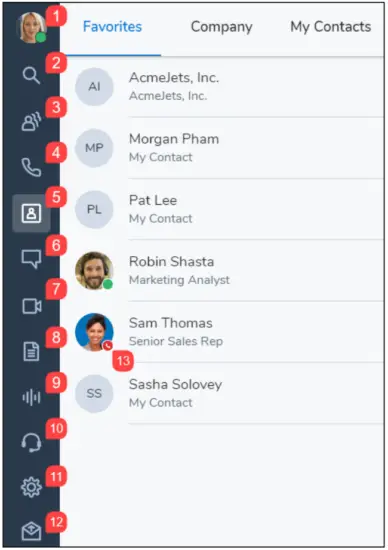
- Change your presence status and view your user details.
- Search: Look up contacts by name, number, and more.
- Call queues: Log in to or out of your assigned call queues.
- Calls: View call logs and voicemail, and place calls.
- Contacts: Access your contact directory.
- Messages: Send and receive messages from your contacts.
- Meetings: Host, join, and manage meetings.
- Fax: Send, receive, and manage your faxes
- Recordings: Review and manage call recordings.
- Call using: Manage calls via your desk phone or app.
- Settings: Configure the features of the application.
- Send Feedback: Send your feedback on the application.
- View whether a contact is available for communication.
View presence status
In the contact directory, you can view whether a contact is available for communication:
 Available: Available for calls and chats
 Do not disturb: Busy, and forwards incoming calls to voicemail
- Busy: Busy, but available for calls and chats
- On a call (status set automatically): Busy on a call or in an 8×8 meeting
- Away: Away from their desk or inactive for some time
- Invisible/Offline: Appears as offline
 Available: Available for calls and chats
 Do not disturb: Busy, and forwards incoming calls to voicemail
 Busy: Busy, but available for calls and chats
 On a call (status set automatically): Busy on a call or in an 8×8 meeting
 Away: Away from their desk or inactive for some time
 Invisible/Offline: Appears as offline
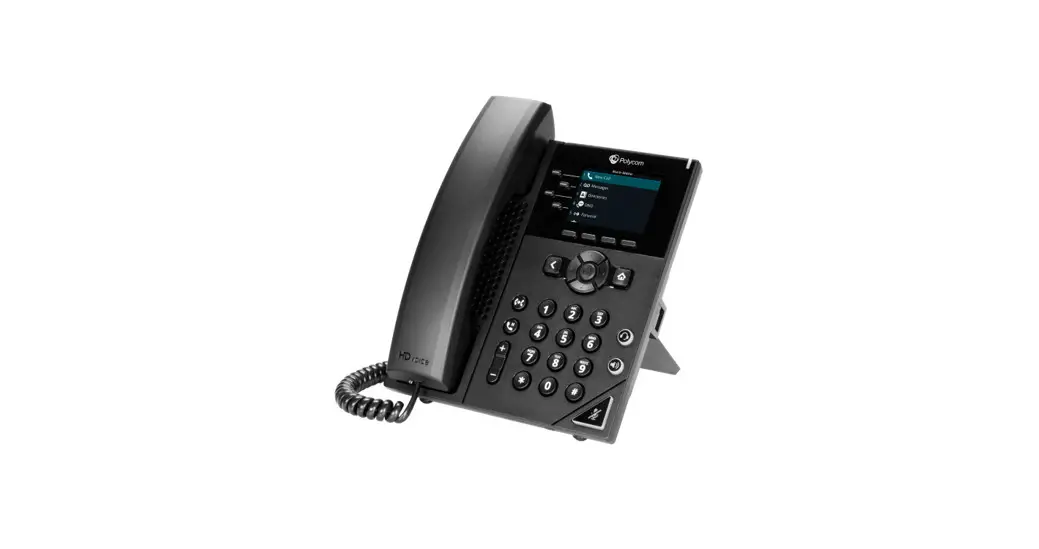
Call using desk phone or app
If you are a user with a desk phone assigned to your extension, you can route calls through the app or through your desk phone. In the navigation bar, click the Call using menu to select whether you want to:
 Place and receive calls using 8×8 Work for Desktop.
- Place and receive calls using your desk phone while taking advantage of advanced call controls in the app.
 Place and receive calls using 8×8 Work for Desktop.
 Place and receive calls using your desk phone while taking advantage of advanced call controls in the app.
USE IM AND SMS
With Team Messaging for 8×8 Work on desktop and mobile, collaborate with your colleagues via chat more effectively than ever before!
Communicate with company and external contacts, or with groups of colleagues in chat rooms for enhanced collaboration.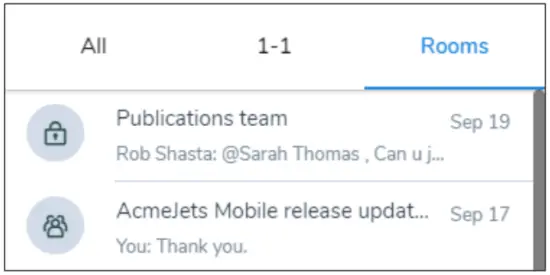
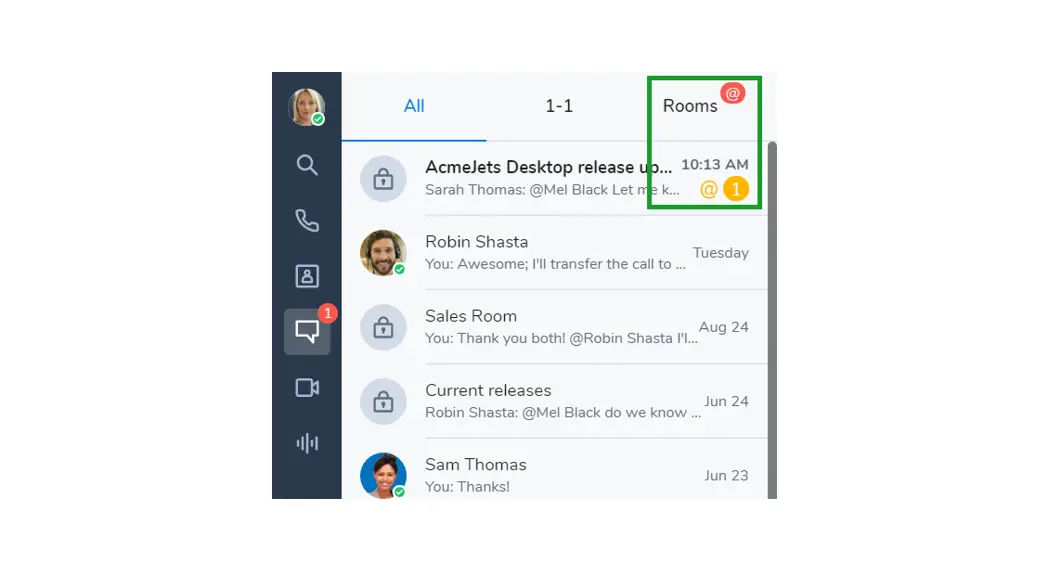
From your list of Messages in the app, create chat rooms on demand, stay up to date on your team’s discussions, bring multiple teams together to collaborate, and more! In the desktop app, you can also view your list of chat rooms independently of your one on-one chats.
For details on team messaging, click here.
ACCESS CONTACTS
From your Contacts list in the app, access company and personal contacts for communication, and mark contacts as favorites for quick access.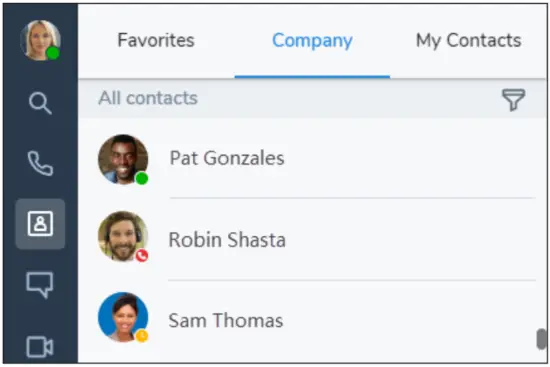
Your contacts are organized under:
- Company: Connect with coworkers on your company’s phone system. You can also sort company contacts by department or location.
- My Contacts: If you communicate often with contacts outside your company, you can create personal contacts visible only to you.
- Favorites: Mark frequently-used contacts for quick access.
Under the Company section of your contact list, click the Sort option to quickly find contacts by department or location, or to view all company contacts in alphabetical order.
Create personal contacts
To easily organize and access phone numbers outside of your company directory, you can create personal contacts that are visible only to you.
To create personal contacts:
- Go to
 > My Contacts.
 - Click the New Contact
 option, and click Add new contact to start creating a new contact.
 - Enter the contact details, and save. The personal contact is listed under > My Contacts.You can also create a personal contact from an external number in a call log or voicemail.
 option, and click Add new contact to start creating a new contact.
ACCESS FAX
Open your Fax list in the app to view and send faxes.
You can view who sent the fax, how many pages were sent, and if there was an error while sending a fax.
COLLABORATE VIA MEETINGS
With 8×8 Meet, host or participate in productive business meetings using 8×8 Work. Record meeting content, share your screen, stream your meeting live, and much more!
For details, see our quick user guide on 8×8 Meet!

 Contact Center. Voice. Video. Chat. Together. | 8x8