Contents hide

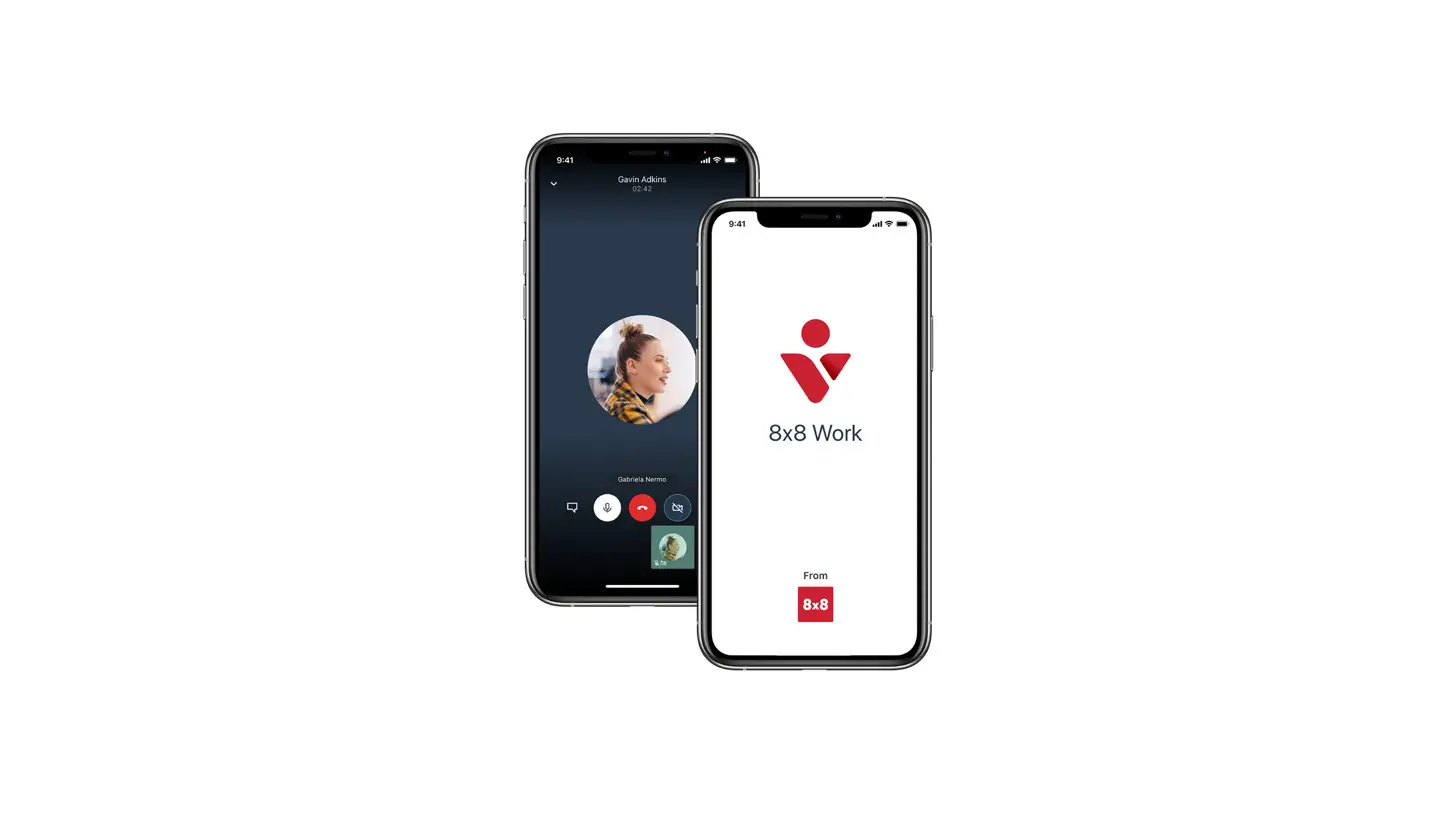
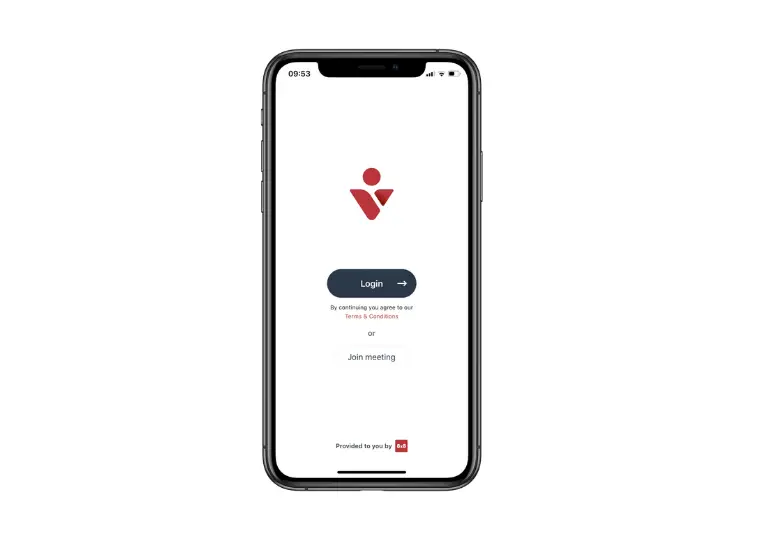
8×8 Work for Mobile Apps
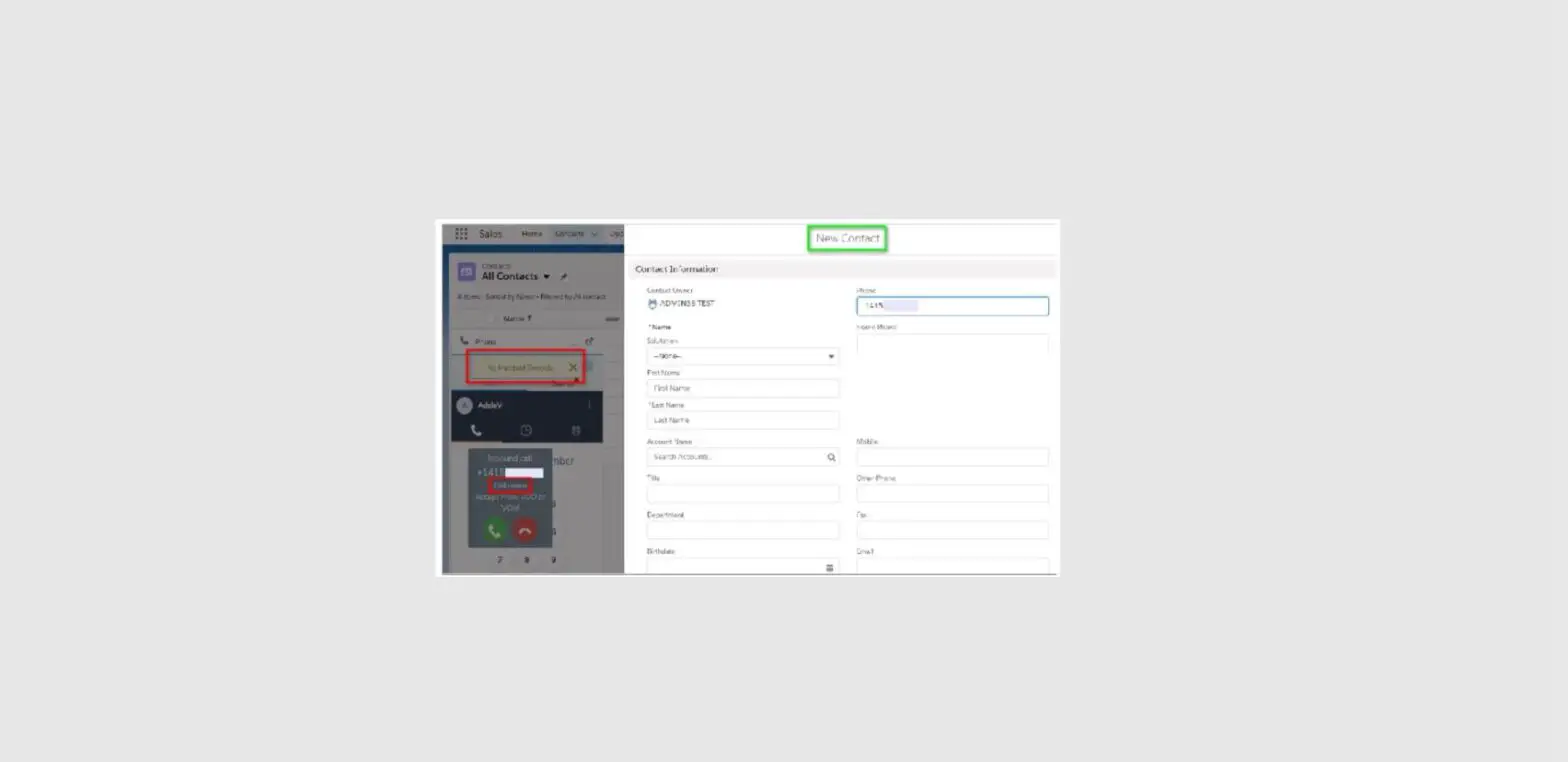
Make a Call
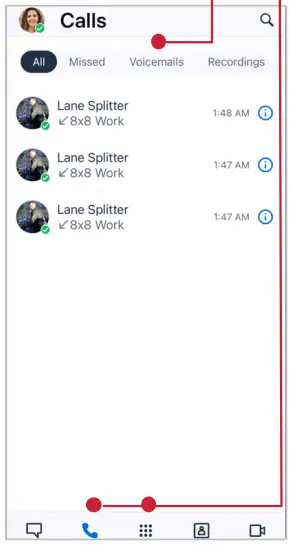
- Select the Phone tab
- Select a Phone icon in the call log, or the Dial pad to type a number
Voicemail
Select the Voicemails tab to access messages
Promote Call to Meeting
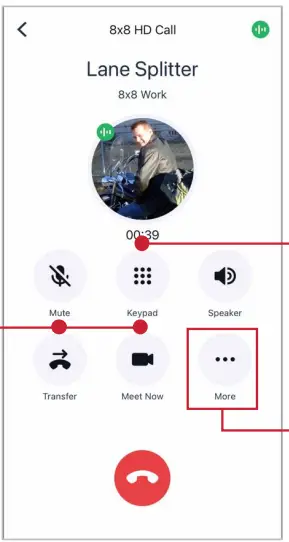
While on a call, select Meet Now
Transfer
Direct transfer, warm transfer, or transfer to Voicemail
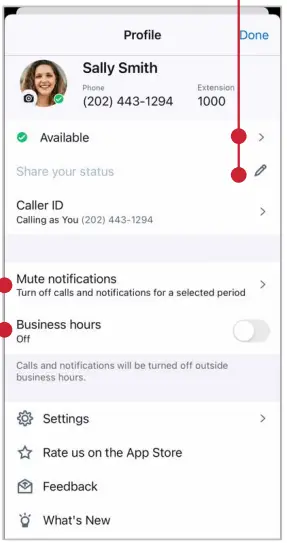
Mute Notifications
Turn off calls and notifications for a selected period
Set Business Hours
Calls and notifications will be off outside business hours
Flip Call
- Select the Dial pad icon
- Dial *88 to swap an active call from another device to this one
In-call controls
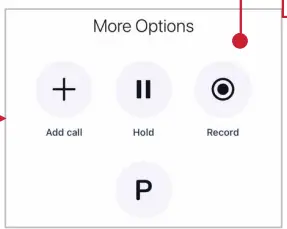
Add another call to a live call, park a call, or record a call through the More icon
Change your status
- Select your profile picture in the header
- Type or select a status on the Profile page

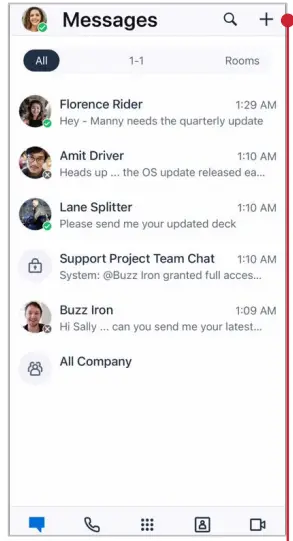
Create a Chat Room
- Select the New icon
- Select Create Room
- Name your room, set Public or Private, and select Create

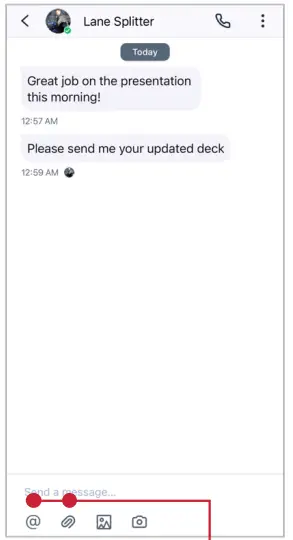
Send a Message
- Select the Messages tab
- Search or select the contact to chat with
- Add a file with the clip icon
- Include a colleague using @mention

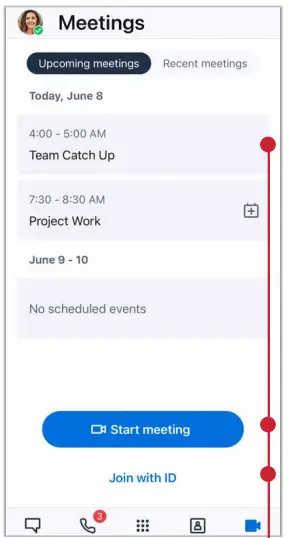
Join or host Meetings
See upcoming meetings, Start a Meeting, or review recent meeting recordings here. If you have the Meeting ID, select Join with ID
In-meeting controls
Turn your video or microphone on/off, send messages, and access more options

SUPPORT CENTER
For more support, visit the 8×8 University Free Online Training website: https://www.8×8.com/university/free-online-training
 8x8 University Course Catalog | 8x8