 Dell Viral™ VD-4000z
Hardware Requirements and Specifications
March 2023
Rev. 2Technologies
Notes, cautions, and warnings NOTE: A NOTE indicates important information that helps you make better use of your product.
 CAUTION: A CAUTION indicates either potential damage to hardware or loss of data and tells you how to avoid the problem.
 WARNING: A WARNING indicates a potential for property damage, personal injury, or death.
© 2023 Dell Inc. or its subsidiaries. All rights reserved. Dell Technologies, Dell, and other trademarks are trademarks of Dell Inc. or its subsidiaries. Other trademarks may be trademarks of their respective owners.
Revision history
| Date | Revision | Description of change |
| March 2023 | 2 | Minor updates. |
| March 2023 | 1 | Initial release. |
Introduction
This document provides an overview about the system, diagnostic tools, and guidelines describing high-level operations.
The target audience for this document includes customers, Dell Technologies field personnel, and partners who operate and manage a VxRail VD-4000z.
This document is designed for people familiar with:
- Dell systems and software
- VMware virtualization products
- Data center appliances and infrastructure
For the most up-to-date list of Viral documentation, see the Dell VxRail Documentation Quick Reference List.
Support resources are available for your Viral.
Use the following resources to obtain support for your Viral:
- In the VMware vSphere Web Client, select Viral. Use the Support functions on the Viral Dashboard.
- Go to Dell Technologies Support.
- Use Solve Online to select available hardware and software on your Viral. Generate customized procedures to replace hardware components and upgrade software components.
Register for a Dell Technologies Support account
Create a Dell Technologies Support account to access support resources.
About this task
For more information about how to access a Dell Technologies Online Support account or to upgrade an existing account, see KB 21768.
After you register, you can:
- Obtain product license files and software updates.
- Download VxRail product documentation.
- Access or download the Solve Desktop application for customized procedures to replace hardware components and upgrade software components.
- Browse the VxRail community and support information.
- Link your support account for access to resources from within VxRail Manager.
Steps
- Go to Dell Technologies Support.
- Click Sign In and select Create an account.
- Enter your first name, last name, email address, and preferred password.
- Click Create an Account.
It may take approximately 48 hours to receive a confirmation of account creation.
Use SolVe Online for VxRail procedures
To avoid potential data loss, always use Solve Online for VxRail to generate procedures before you replace any hardware components or upgrade software. CAUTION: If you do not use Solve Online for VxRail to generate procedures to replace hardware components or perform software upgrades, VxRail may experience potential data loss.
You must have a Dell Technologies Support account to use SolVe Online for VxRail. For more information about Solve for VxRail, see KB 000022572.
Locate your VxRail serial number
If you contact Dell Technologies Support for your VxRail, provide the VxRail serial number, also known as the Product Serial Number Tag (PSNT).
Identify the VxRail serial number in VMware vSphere Web Client or locate the serial number that is printed on the physical VxRail.
Locate your VxRail serial number in VxRail Manager
The PSNT is the VxRail serial number in VxRail Manager.
Steps
- On the VMware vSphere Web Client, click Hosts and Clusters.
- Select VxRail cluster.
- Click Monitor.
- Select VxRail > Appliances.
- Click Open physical view for this cluster.
The VxRail serial number is displayed in the Appliance PSNT box.
Locate your physical VxRail serial number
Locate your VxRail serial number for models based on PowerEdge servers.
Steps
- On the upper right corner of the VxRail chassis, locate the luggage tag.
- Pull out the blue-tabbed luggage tag.
- Locate the serial number label on the pull-out tag.
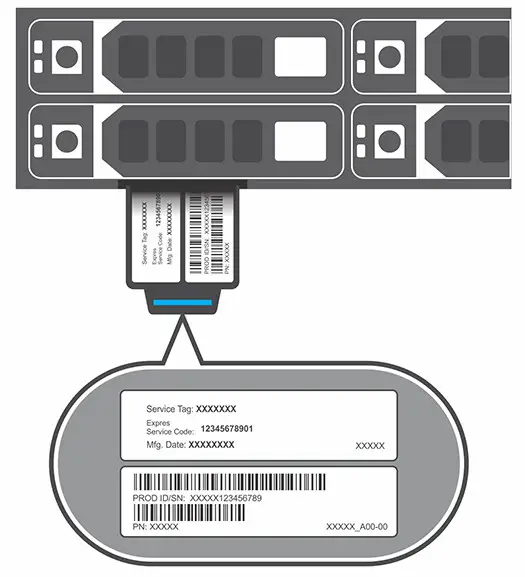
The Product Serial Number Tag (PSNT) is the 14-digit number that is on the front edge of the luggage tag.
Access VxRail content using the QRL
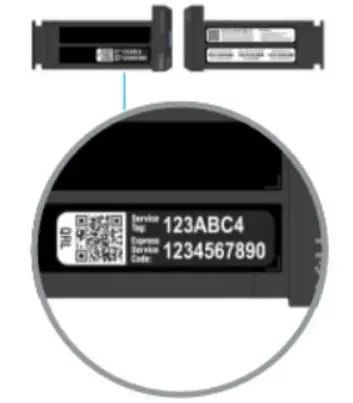
Use the Service Tag or QRL code on the Dell QRL site to access VxRail information for VxRail 15G, and later models.
About this task
If your VxRail has a QRL that is added to the luggage tag, you can use this tag to obtain factory configuration and warrant information. You can also enter the Service Tag to access information.
Steps
- On the VxRail luggage tag, locate the QRL or Service Tag.

- Using the camera on your phone or laptop, use the QRL code on the Service Tag to access information specific to your VxRail. You can also go to qrl.dell.com to enter the Service Tag information.
Configurations and features
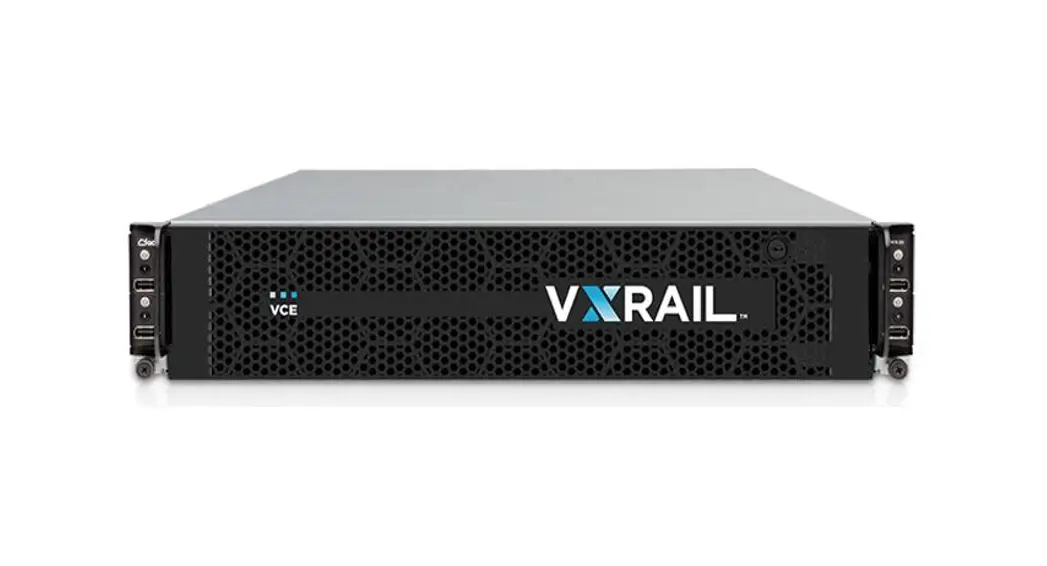
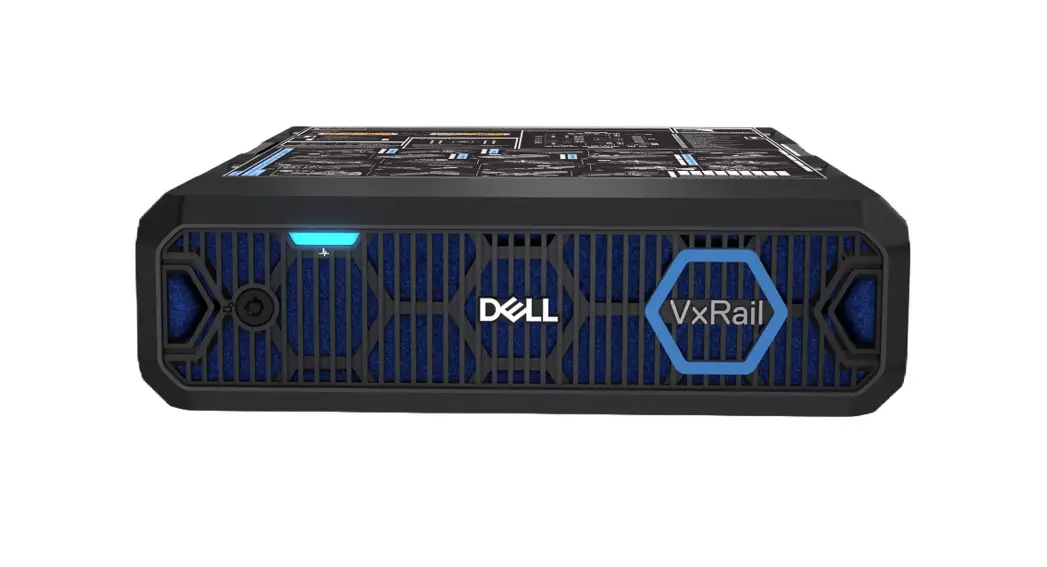
The VxRail VD-4000z is a 2U stackable chassis that supports two compute sled configurations.
The following compute sled configurations are supported:
- Up to two VxRail VD-4510c 1U compute sleds
- One VxRail VD-4520c 2U compute sled
One optional server (witness sled VxRail VD-4000w) is supported. For example, VMware viand.
There are two redundant AC or DC power supply units (PSUs).
The following figure shows the front view of the chassis with two 1U sleds, and one optional witness sled:
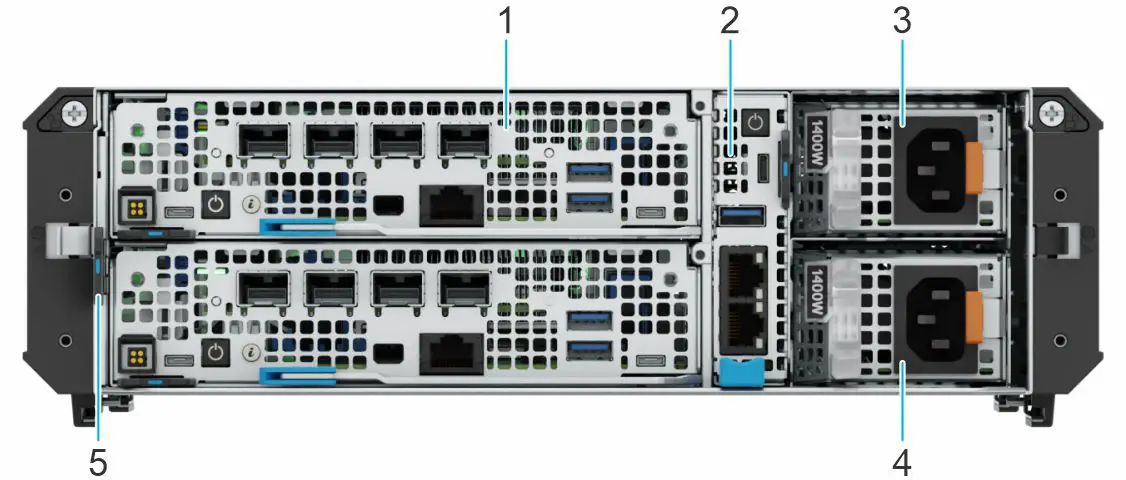
The following table describes the callouts:
| Item | Description |
| 1 | VxRail VD-4510c 1U sled |
| 2 | VxRail VD-4000w witness sled |
| 3 | PSU 1 |
| 4 | PSU 2 |
| 5 | Information tag |
The following figure shows system configurations and features in the front view of the chassis with one 2U sled and one optional witness sled:
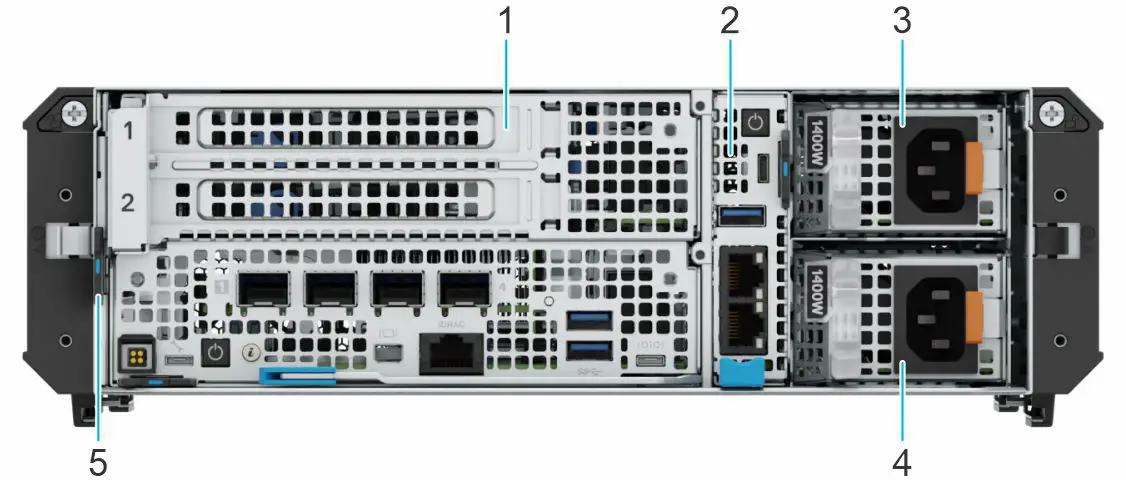
The following table describes the callouts:
| Item | Description |
| 1 | VxRail VD-4520c 2U sled |
| 2 | VxRail VD-4000w witness sled |
| 3 | PSU 1 |
| 4 | PSU 2 |
| 5 | Information tag |
The following figure shows the rear view:
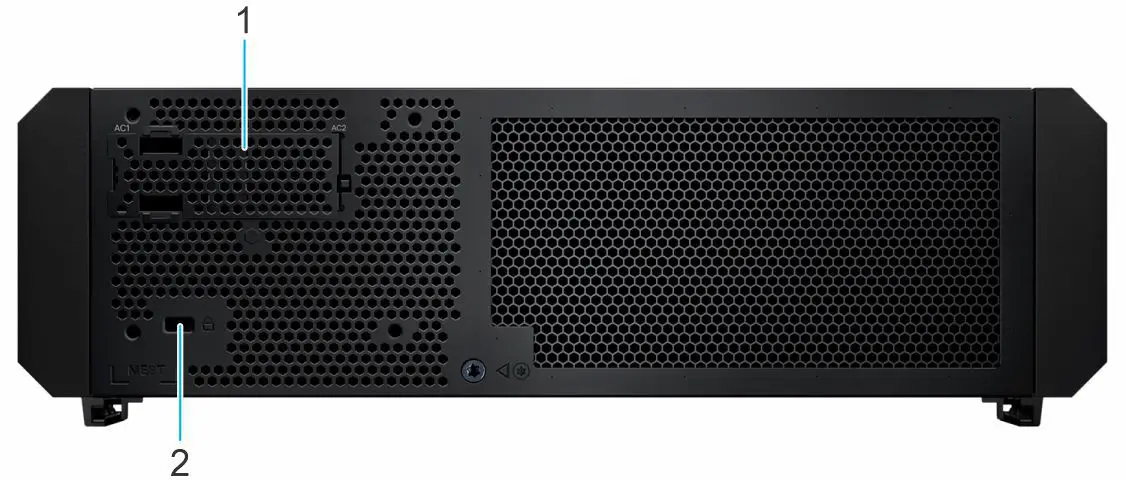
The following table describes the callouts:
| Item | Ports, panels, and slots |
| 1 | Blank filler – AC-socket blank covers the opening when the power supply is connected from the front of the chassis |
| 2 | Kensington lock slot |
PSU indicator codes
The AC and DC PSUs have an illuminated, translucent handle that indicates when power is present, or if a power fault has occurred.
The following figure shows the PSU:
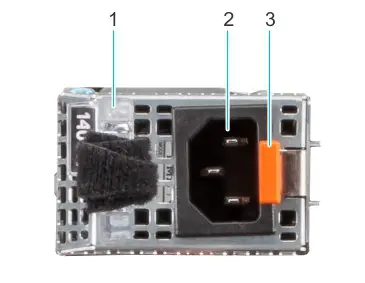
- AC PSU handle
- Socket
- Release latch
The following table describes the indicator codes that are associated with each of the PSU conditions:
| Power indicator codes | Condition |
| Green | Valid power source is connected to the PSU and is operational. |
| Blinking amber | An issue with the PSU has occurred. |
| Not powered on | Power is not connected to the PSU. |
| Blinking green | PSU firmware is being updated. Do not disconnect the power cable or unplug the PSU while updating the firmware.CAUTION: If the power cable is disconnected and the firmware update is interrupted, the PSUs does not function properly. |
| Blinking green and powers off | When hot-plugging a PSU, it blinks green five times at a rate of 4 Hz and powers off. This blink code indicates a PSU mismatch due to efficiency, feature set, health status, or supported voltage. If two PSUs are installed, verify that: ● Both PSUs must have the same type of label. For example, an Extended Power Performance (EPP) label. ● Both PSUs must be the same type and have the same maximum output power. Do not mix PSUs from previous generations of PowerEdge servers, even if the PSUs have the same power rating. CAUTION: If PSUs are mixed from other PowerEdge servers, there may be a PSU mismatch condition that causes a failure to power on the system.When correcting a PSU mismatch, replace the PSU with the blinking indicator. Do not swap the PSU to make a matched pair. CAUTION: When correcting a PSU mismatch, if you swap the PSU to make a matched pair, this can result in an erroneous condition and an unexpected system shutdown.Power off the system before you change from a high output configuration to a low output configuration or conversely. |
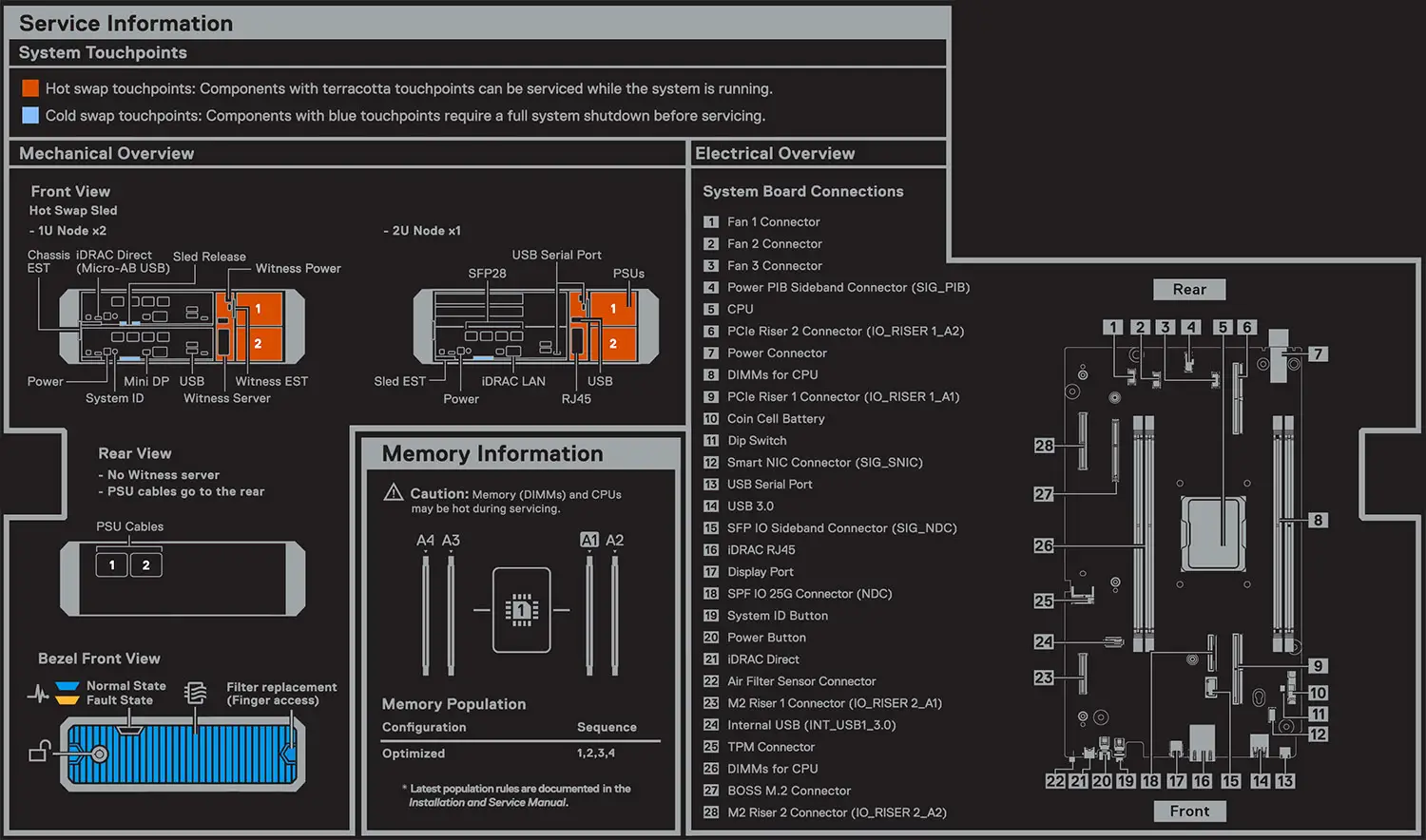
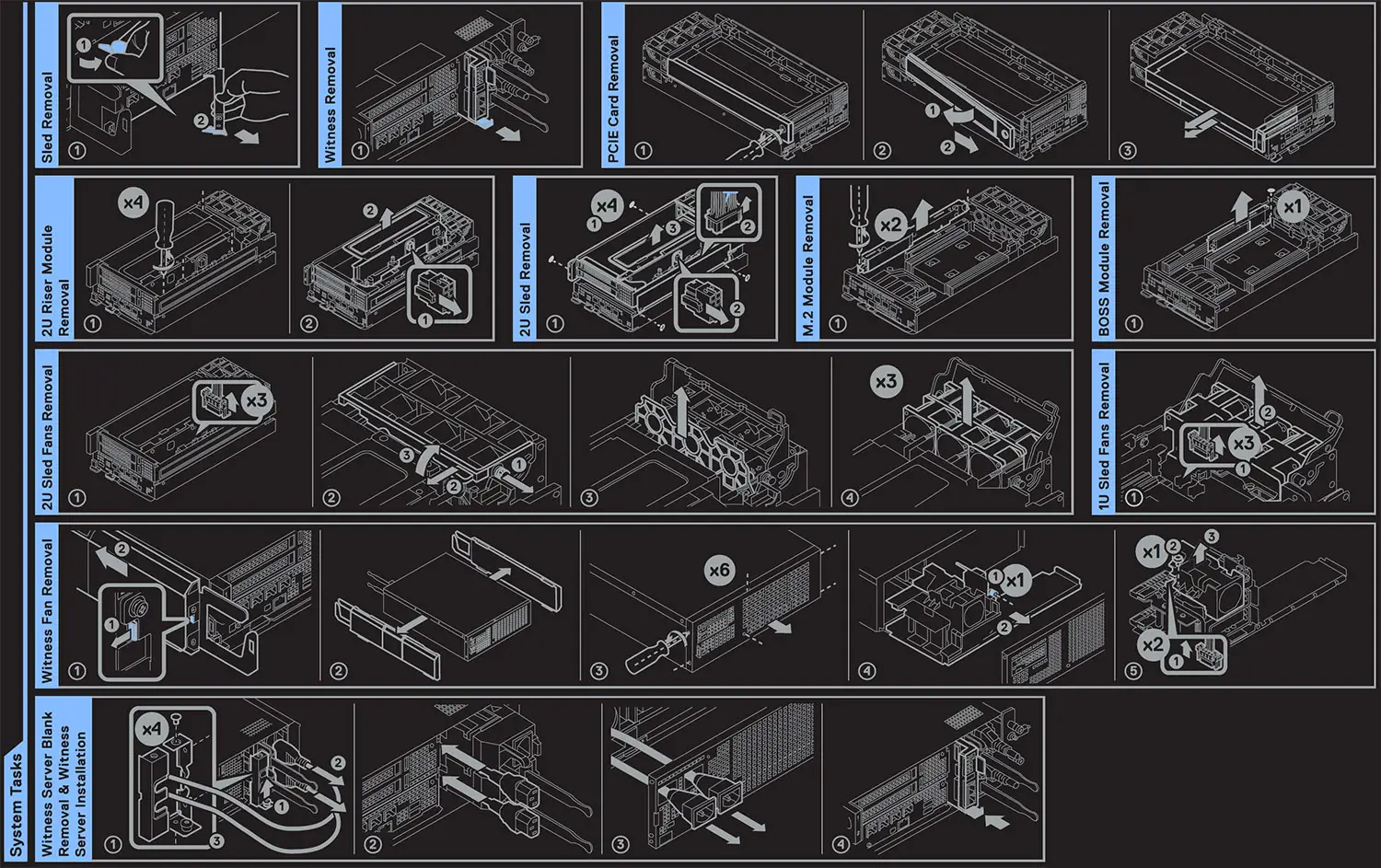
System information label
The system information label is located on back of the system cover.
The following figure shows the Service Information label:
The following figure shows the System Tasks label:
The following figure shows the Bezel Tasks label:

Rail sizing and rack compatibility matrix
Information about compatible rail systems with your VxRail is provided in the Dell Enterprise Systems Rail Sizing and Rack Compatibility Matrix.
In addition, the Dell Enterprise Systems Rail Sizing and Rack Compatibility Matrix provides the following information:
- Specific details about rail types and their functionalities.
- Rail adjustability range for various types of rack mounting flanges.
- Rail depth with and without cable management accessories.
- Types of racks that are supported for various types of rack mounting flanges.
Initial setup and configuration
Deploy and configure your VxRail.
To install and deploy VxRail, you have the following deployment options:
- You can purchase deployment services from Dell Technologies.
- If you are using VxRail deployment services from Dell Technologies, do not rack the VxRail or connect power.
- Contact your Dell Technologies account team or reseller to arrange for deployment by Dell Technologies certified technicians.
- Select the VxRail self-deployment option (no installation services). For self-deployment guidance and preparatory instructions, see KB 187954.
Self deployment
You must have extensive network experience, understanding of VxRail infrastructure planning, and deployment knowledge to perform a VxRail self-deployment. Go to the VxRail Configuration Portal to perform self deployment.
Contact your sales representative for Dell Technologies Services if you are:
- Uncertain you can complete the end-to-end deployment process
- Unable to complete the deployment.
During the VxRail deployment, Dirac creates a vxadmin or Patman account. This account provides hardware information to the VxRail Manager and is required for the VxRail Manager and the cluster to function properly. Do not modify or delete the vxadmin or Taemin account. CAUTION: If the vxadmin or Patman account is modified or deleted, VxRail Manager and the cluster may not function properly.
Technical specifications
This section outlines the technical and environmental specifications of your VxRail.
Chassis dimensions and weight
Dimensions and weight are described for the VxRail VD-4000z chassis.
The following figures shows the VxRail VD-4000z chassis dimensions:
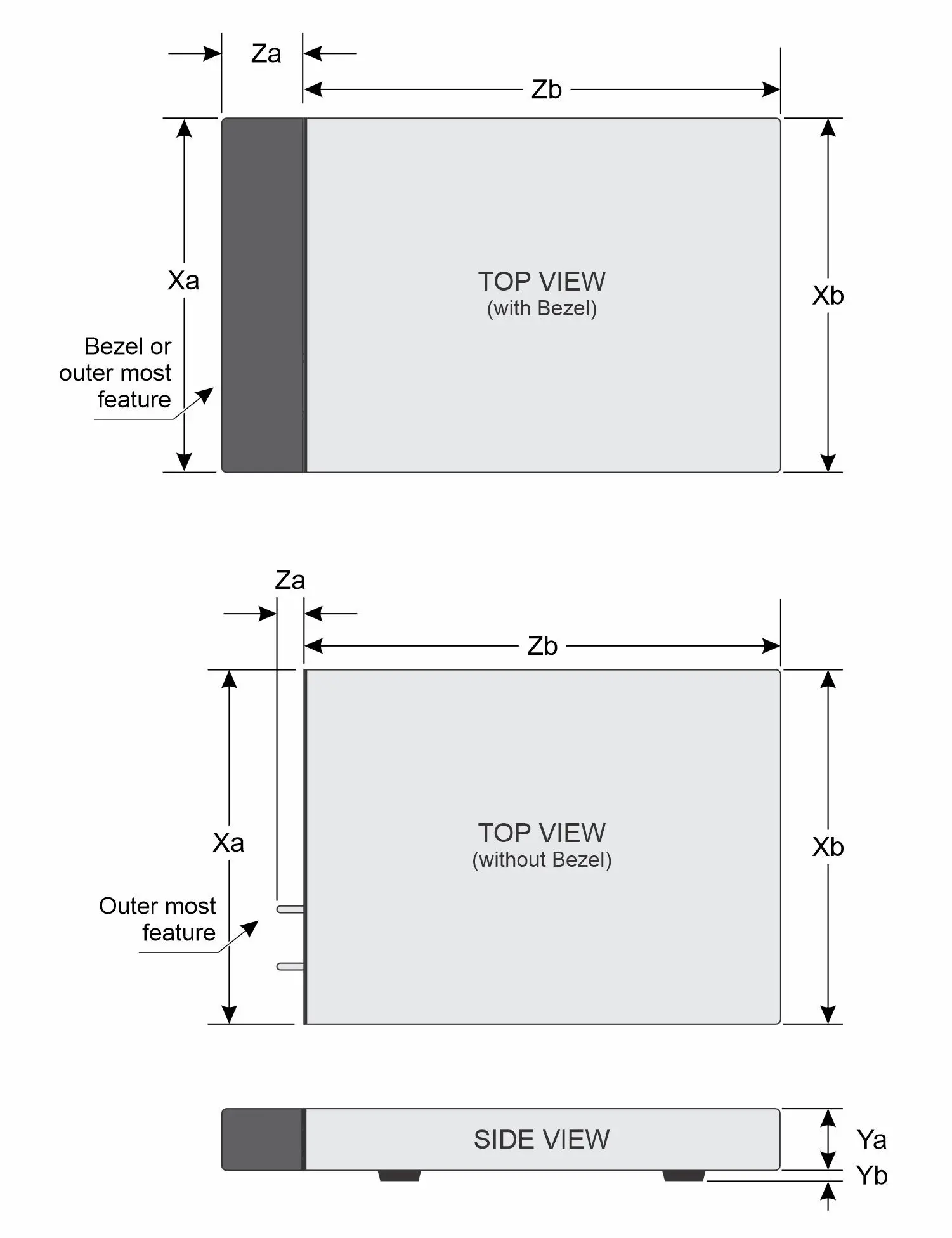
This table provides the chassis dimensions without the side panels and bezel:
| Xa | Xb | Ya | Yb | Za | Zb |
| 266 mm (10.47 in) | 266 mm (10.47 in) | 87.05 mm (3.42 in) | 10 mm (0.39 in) | 20.20 mm (0.79 in) – without bezel | 355 mm (13.97 in) Ear to rear wall |
This table provides the chassis dimensions with the side panels and bezel:
| Xa | Xb | Ya | Yb | Za | Zb |
| 307 mm (12.08 in) | 307 mm (12.08 in) | 87.05 mm (3.42 in) | 10 mm (0.39 in) | 100 mm (3.93 in) – with bezel | 355 mm (13.97 in) Ear to rear wall |
The following table lists the maximum weight of the VxRail VD-4000z:
| System configuration | Maximum weight |
| Weight of chassis without sleds and without bezel and side panels. | 5.59 kg (12.32 lbs) |
| Weight of chassis with sleds and without bezel and side panels. | 10.52 kg (23.19 lbs) |
| Weight of chassis with sleds, bezel, and side panels | 12.16 kg (26.80 lbs) |
The following table provides the handling recommendations of the VxRail VD-4000z:
| Chassis weight | Description |
| 18.14 kg to 31.75 kg (40 lbs–70 lbs) | Requires two people to lift. |
| 31.75 kg to 54.43 kg (70 lbs–120 lbs) | Requires three people to lift. |
| ≥ 54.88 kg (≥ 121 lbs) | Requires use of a server-lift. |
Witness cooling fan specifications
To cool the optional witness sled, the VxRail VD-4000z supports one standard fan with reverse air flow (RAF).
The following table describes the standard fan:
| Fan type | Label color | Label image |
| Standard fan (60 mm cable length) | No label | 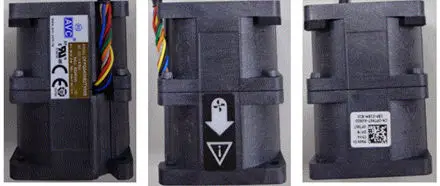 |
PSU specifications
VxRail VD-4000z supports up to two AC or DC PSUs.
The following table describes the PSU specifications:
| PSU | Class | Heat dissipation (maximum ) (BTU/hr) | Frequency (Hz) | Voltage | AC | DC | Current (A) | |
| High line 200-240 V | Low line 100-120 V | |||||||
| 1800 W Mixed Mode | Titanium m | 6750 | 50/60 | 200 VAC-240 VAC | 1800 W | N/A | N/A | 10 |
| 6750 | N/A | 240 VDC | N/A | N/A | 1800 W | 8.2 | ||
| 1400 W Mixed Mode | Platinum m | 5250 | 50/60 | 100 VAC-240 VAC | 1400 W | 1050 W | N/A | 12-8 |
| 5250 | N/A | 240 VDC | N/A | N/A | 1400 W | 6.6 | ||
| 1100 W DC | N/A | 4265 | N/A | -48 -( -60) V | N/A | N/A | 1100 W | 27 |
This system can connect to the IT power systems with a phase-to-phase voltage that is not to exceed 240 V. Heat dissipation is calculated using the PSU wattage rating.
When configuring or upgrading the system configuration, verify the system power consumption with the Enterprise Infrastructure Planning Tool at Dell.com/calc .
Power module assembly
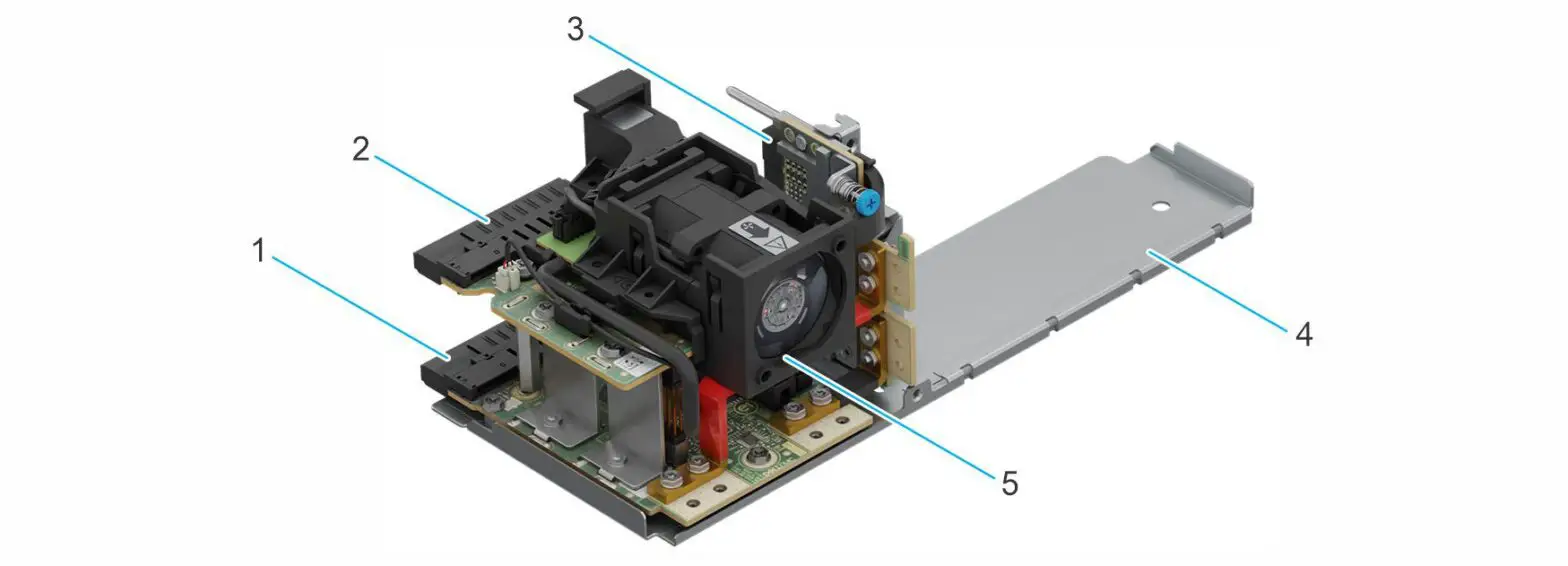
The VxRail VD-4000z contains a power module assembly which consists of two power distribution board (PDBs).
The PDBs connect to each other so that one or both power supplies can power the entire chassis. The PDB at the bottom also has chassis manager board to manage the chassis and the optional witness sled. The witness sled fan module is mounted on the PDB to cool the witness sled. The witness sled has one power interposer board (PIB) which provides power to the sleds.
The following figure and table shows the components of the power module assembly:
| Item | Description |
| 1 | PDB that provides power to the chassis components. The PSU 2 slot is on the PDB 2. The CM is also integrated on this board. |
| 2 | PDB that provides power to the chassis components. The PSU 1 slot is on PDB 1. |
| 3 | PIB provides power to the 1U and 2U sleds. |
| 4 | Power module tray houses the complete power module assembly. |
| 5 | Witness fan installed in the power module assembly of the chassis where the CM controls the operations. |
Ports and connectors of the sleds
This section provides externally accessible ports and connectors of the witness and compute sleds.
The following table provides the externally-accessible ports and connectors for each sled:
| VxRail model | Sled ports and connectors |
| VxRail VD-4510c | ● Two USB 3.0-compliant port on the front of the sled ● One USB 3.0-compliant internal port ● One Micro-AB USB 2.0-compliant port for Dirac Direct on the front of the sled ● One RJ45 with port for Dirac remote management (dedicated port only) ● One Mini-DisplayPort on the front of the sled ● Four NIC ports embedded on the LOM ● One Micro-USB connector for RS232 serial port, which is a 2-pin connector on the front of the sled |
| VxRail VD-4520c | ● Two USB 3.0-compliant port on the front of the sled ● One USB 3.0-compliant internal port ● One micro USB 2.0-compliant port for Dirac Direct on the front of the sled ● One RJ45 with port for Dirac remote management (dedicated port only) on the front of the sled ● One Mini-DisplayPort on the front of the sled ● Four NIC ports embedded on the LOM ● One Micro-USB connector for RS232 serial port, which is a 2-pin connector on the front of the sled |
| VxRail VD-4000w | ● One USB 3.0-compliant port on the front of the sled ● Two Intel I210 NIC ports embedded on the LOM ● One Micro-USB connector for RS232 serial port, which is a 2-pin connector on the front of the sled |
Environmental specifications
For more information about environmental certifications, see the Product Environmental Datasheet on Dell Technologies Support.
The nonoperating temperature range is -40°C to 85°C (-40°F to 365°F).
The following table describes the ambient operating temperature:
| Description | Ambient operating temperature |
| Temperature range for altitudes <= 900 m (<= 2953 ft) | -50C to 550C (230F to 1310F) with no direct sunlight on the equipment |
| Humidity percent range (non-condensing always) | 8% RH with -120C (10.40F) minimum dew point, to 80% RH with 210C (69.80F) maximum dew point |
| Operational altitude derating | Maximum temperature is reduced by 10C/300 m (33.80F/984 ft) above 900 m (2953 ft). |
The VxRail VD-4000z supports edge deployments and meets the standards for thermal, shock, vibration parameters.
The following table provides environmental considerations:
| Industry | Configuration | Description |
| Telco | GR-1089-CORE | Electromagnetic Compatibility and Electrical Satety – Generic Criteria for Network Telecommunications Equipment |
| GR-63-CORE | NEBS Requirements: Physical Protection | |
| GR-3108-CORE (Class 1) | Network Equipment in the Outside Plant (OSP). An exception is made for cold boot at 00C (320F) instead of -50C (230F). | |
| Marine | IEC-60945 | Maritime navigation and radiocommunication equipment and systems – General requirements |
| DNV-GL | Environmental Test Specification for Instrumentation and Automation Equipment | |
| Power Industry | IEEE 1613 | Environmental and testing requirements for communications networking devices in electric power substations |
| IEC – 61850-3 | Communication networks and systems for power utility automation | |
| Safety | N/A | LDV, IEC/EN, CFR, CSA |
| EMC | N/A | EN, CISPR, ES, DTAG, CFR, ICES, VCCI |
| EMV | N/A | RoHS, WEEE, EN, ECE |
Thermal configurations and restrictions
The rear airflow configuration (RAF) for the VxRail VD-4000z chassis is provided.
The following table describes the maximum RAF configurations for each CPU:
| CPU | HSK | Fan | RAF configurations | ||
| Edge 2 (550C or 1310F) | Edge 1 (50*C or 1220F) | ASHRAE A4 (450C or 113°F) | |||
| Intel® Xeon® D – 2776NT. 16C. 117 W | Vapor Chamber (VC) HSK | Standard (STD) fan | Yes | Yes | Yes |
| Intel® Xeon® D – 2733NT. 8C, 80 W | Yes | Yes | Yes | ||
| Intel® Xeon® D – 2712T. C. 65 W | Yes | Yes | Yes | ||
The following table describes the maximum PCI-E card support thermal limitations:
| PCI-E type | RAF configurations | ||
| Edge 2 (550C or 1310F) | Edge 1 (500C or 1220F) | ASHRAE A4 (450C or 1130F) | |
| NVIDIA GPU A2 | N/S | Yes | |
| NVIDIA GPU A30 | Yes | ||
The following table describes the maximum M.2 support thermal limitations:
| M.2 type Micron 480 GB | Riser module | Mancini module | AIC card | M.2 module (witness sled) | ||||||||
| Edge 2 (55°C or 131°F) | Edge 1 (50°C or 122°F ) | ASHRAE A4 (45°C or 113°F) | Edge 2 (55°C or 131°F) | Edge 1 (50°C or 122°F) | ASHRAE A4 (45°C or 113°F) | Edge 2 (55°C or 131°F) | Edge 1 (50°C or 122°F) | ASHRA E A4 (45°C or 113°F) | Edge 2 (55°C or 131°F) | Edge 1 (50°C or 122°F) | ASHRAE A4 (45°C or 113°F) | |
| Yes | Yes | Yes | Yes | Yes | Yes | Yes | Yes | Yes | No | No | No | |
| Micron 800 GB | Yes | Yes | Yes | Yes | Yes | Yes | Yes | Yes | Yes | No | No | No |
| Micron 960 GB | Yes | Yes | Yes | Yes | Yes | Yes | Yes | Yes | Yes | Yes | Yes | Yes |
| Micron 1.92 TB | Throttl ing active | Yes | Yes | No | No | No | Yes | Yes | Yes | No | No | No |
| Micron 3.84 TB | Throttl ing active | Yes | Yes | No | No | No | Yes | Yes | Yes | No | No | No |
| Hynix 480 GB | Yes | Yes | Yes | Yes | Yes | Yes | Yes | Yes | Yes | No | No | No |
| Hynix 800 GB | Yes | Yes | Yes | Yes | Yes | Yes | Yes | Yes | Yes | No | No | No |
| Hynix 960 GB | Yes | Yes | Yes | Yes | Yes | Yes | Yes | Yes | Yes | Yes | Yes | Yes |
| Hynix 1.92 TB | Yes | Yes | Yes | No | No | No | Yes | Yes | Yes | No | No | No |
| Hynix 3.84 TB | Yes | Yes | Yes | No | No | No | Yes | Yes | Yes | No | No | No |
The following table describes the VxRail VD-4000w processor support thermal limitation rear airflow configurations of the VxRail VD-4000z chassis:
| CPU type | HSK type | type | RAF configurations | ||
| Edge 2 (55°C or 131°F) | Edge 1 (50°C or 122°F) | ASHRAE A4 (45°C or 113°F) | |||
| Intel Atom C3508, 4 cores, 11.5 W | Aluminum extrusion | Fan | Yes | Yes | Yes |
Thermal restrictions
The following thermal restrictions apply for ASHRAE A4 support for NAF direction configurations:
- CPU TDP greater than 120 W are not supported within A4.
- NVIDIA A30 card is not supported above 45°C (113°F) environment temperature.
- NVIDIA A2 GPU card is not supported above 45°C (113°F) environment temperature.
- Two PSUs are required.
- Four DIMMs are required.
Minimum configuration to power-on self-test
This section outlines the minimum configuration for your VxRail to run power-on self-test (POST).
The following components are the minimum configuration to POST:
- One VxRail VD-4510c or VxRail VD-4520c compute sled
- Four memory modules (DIMM) in the sled
- Two PSUs
Component replacement guidelines
You can add or replace hardware components on your VxRail such as cooling fans, PSUs, sleds.
The following table contains the not exhaustive list of FRU and CRU components:
| Hardware Components | CRU | FRU |
| Optional front bezel | Yes | No |
| Bezel filter | Yes | No |
| Side panel | Yes | No |
| VxRail VD-4510c compute sled | Yes | No |
| VxRail VD-4520c compute sled | Yes | No |
| VxRail VD-4000w witness sled | Yes | No |
| Rear cover | Yes | No |
| Power module assembly | Yes | No |
| Cooling fans | Yes | No |
| PSU | Yes | No |
Before you proceed with the replacement, go to SolVe and generate the replacement procedure. For more information about how to use SolVe, see Use SolVe Online for VxRail procedures.
Use SolVe Online for VxRail procedures
To avoid potential data loss, always use SolVe Online for VxRail to generate procedures before you replace any hardware components or upgrade software.
CAUTION: If you do not use SolVe Online for VxRail to generate procedures to replace hardware components or perform software upgrades, VxRail may experience potential data loss.
You must have a Dell Technologies Support account to use SolVe Online for VxRail. For more information about SolVe for VxRail, see KB 000022572.