 Quick Installation Guide
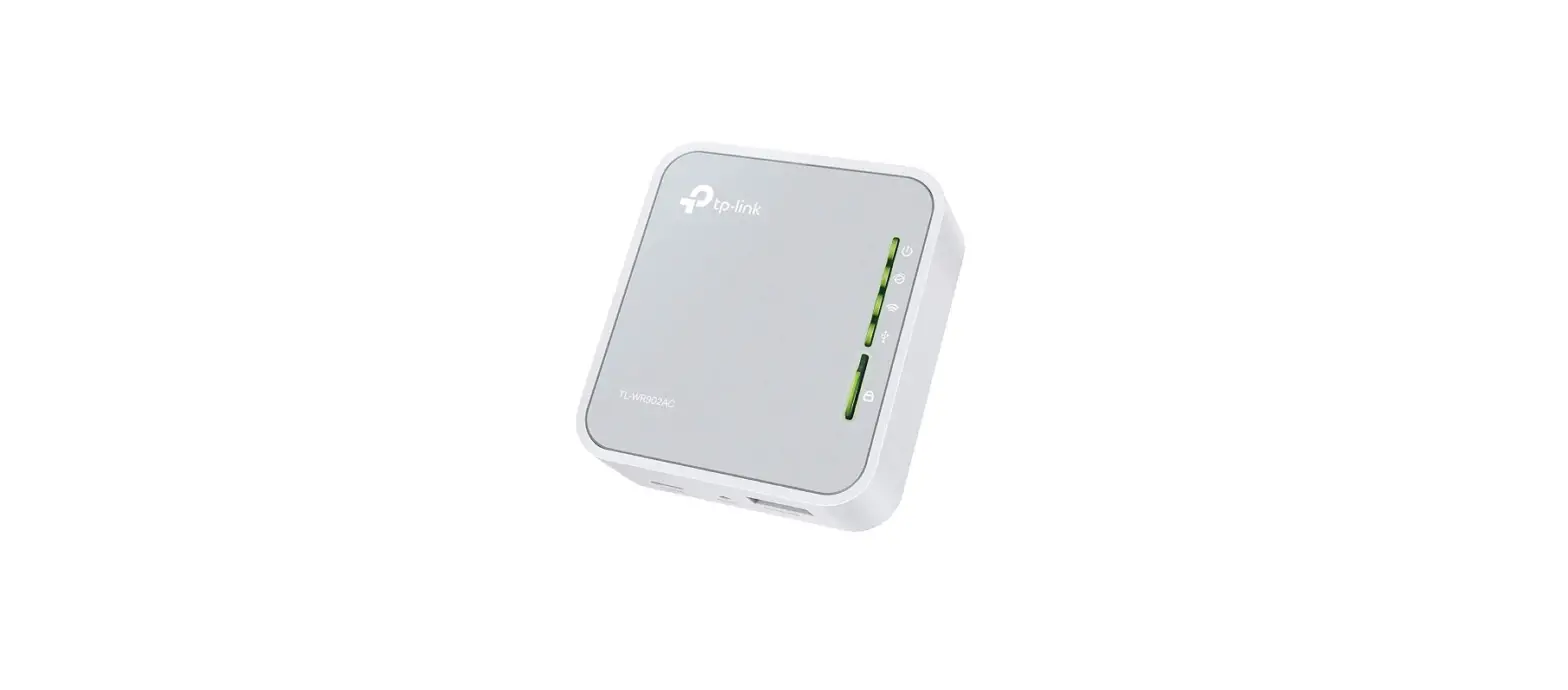
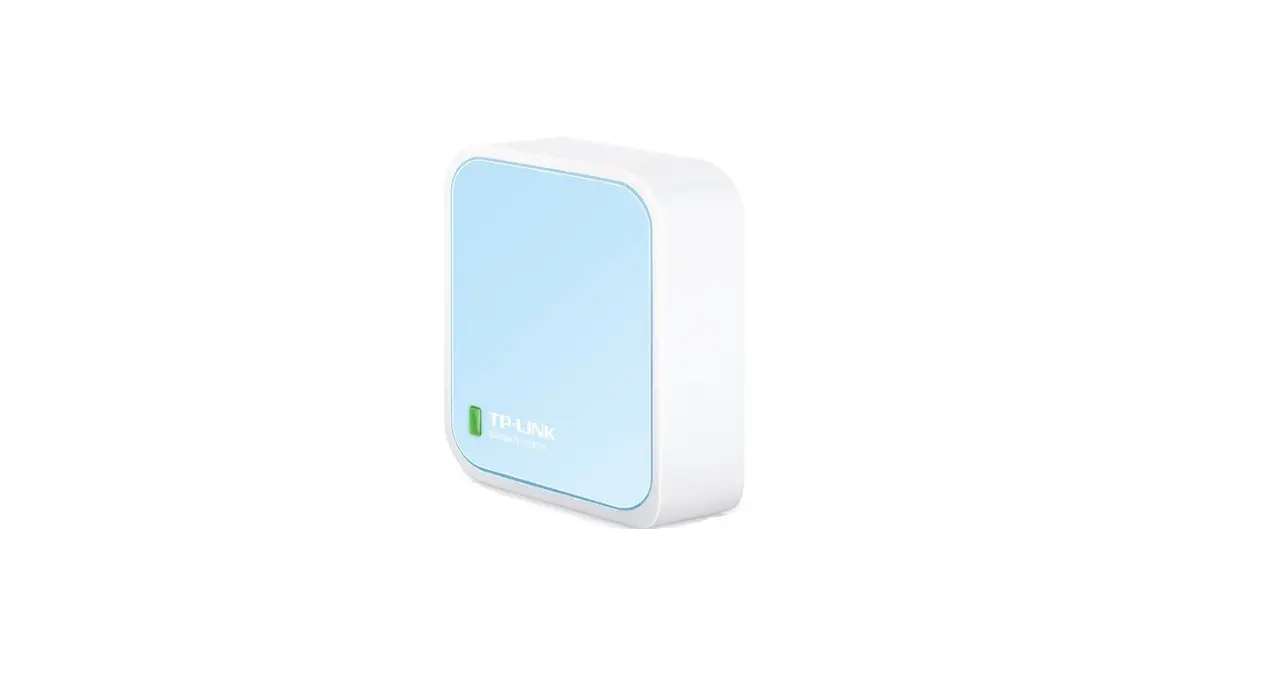
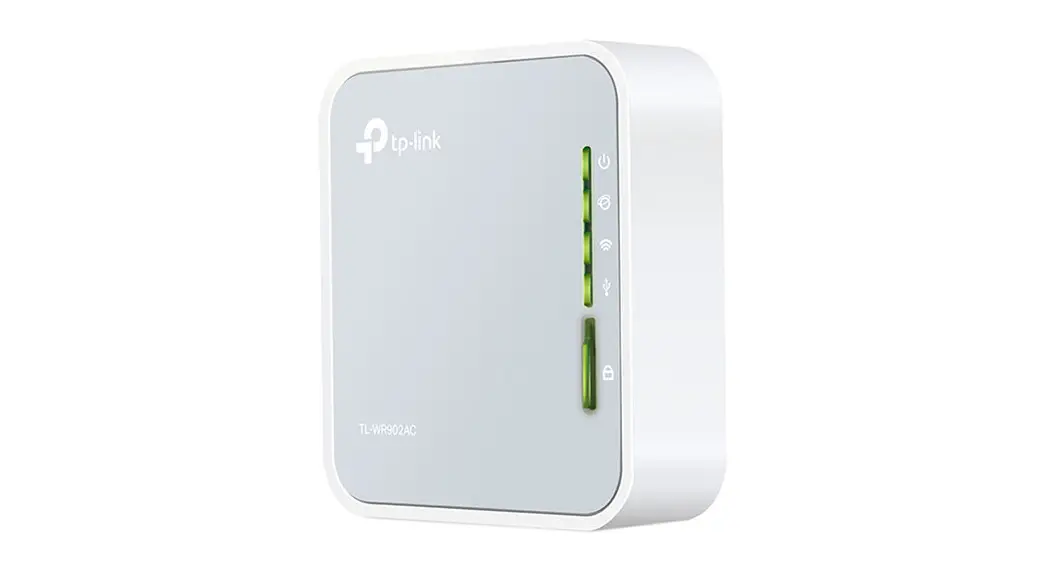
AC750 Wi-Fi Travel Router
TL-WR902AC

Determine Operation Mode
Refer to the following scenarios to determine an appropriate operation mode.
| Mode Switch | Operation Mode | Scenario |
| Share ETH | Router (Default Mode | The wired network is only limited to one device to connect at a time, but I want to share the internet with more wireless devices. |
| Share Hotspot | Hotspot | I want to have internet access from a wireless internet service provider (WISP), and share the internet with local devices. |
| AP/Rng Ext/Client | Access Point | I want to access the internet wirelessly, but only a wired network is available. |
| Range Extender | I am in a Wi-Fi “dead zone” or a place with a weak wireless signal. I want to have a larger range of wireless signal for a better internet connection throughout my home or office. | |
| Client | I have a wired-only device, for example, a smart TV, media player, or game console. I want to connect it to my wireless network. |
During Travel
Router Mode (Default)
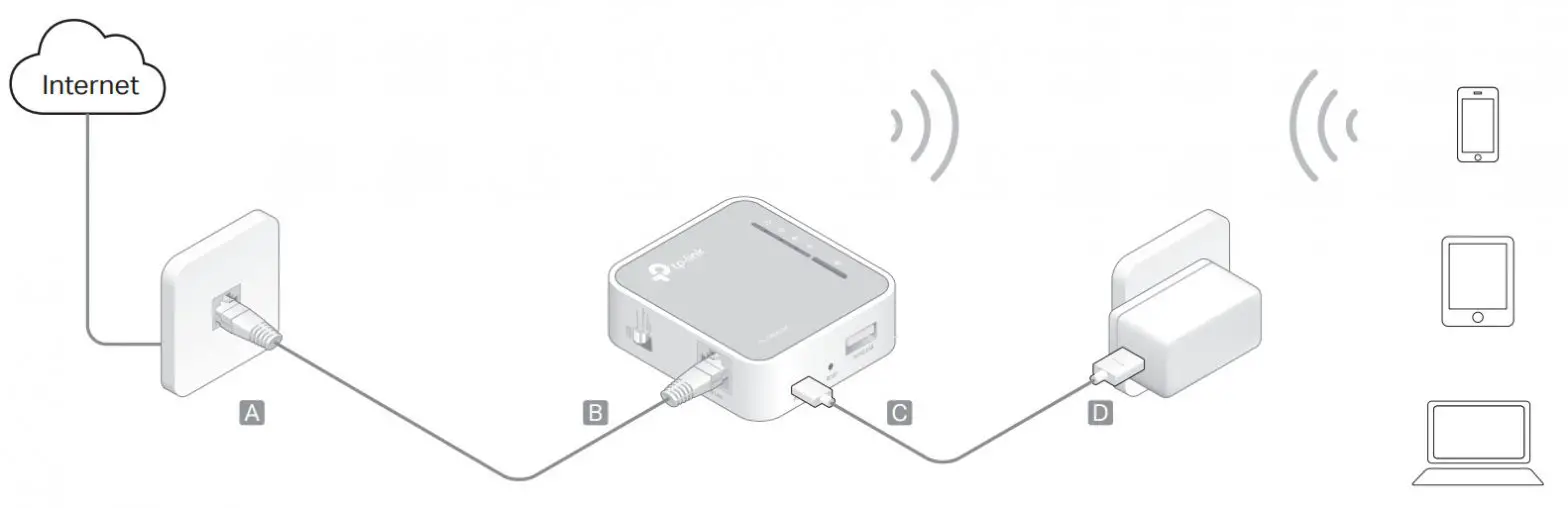
- Switch the operation mode to Share ETH and connect the hardware according to Step A to D in the left diagram.
Tips: Plug a 3G/4G USB modem with a SIM/UIM card into the 3G/4G USB port as needed. - Connect your device to the router wirelessly. The Wi-Fi network names and passwords are on the router’s label.
Check whether you can access the internet.
– If yes, neglect the steps below and enjoy the internet.
– If no, continue with the steps below. - Launch a web browser and enter http://tplinkwifi.net in the address bar. Log in with admin (in lowercase) for both username and password.
- Click Next to start the Quick Setup.
- Select your WAN Connection Type. If you are not sure, click Auto Detect. Then follow the screen instructions to continue.
- Either customize your Wireless Network Name and Password for the 2.4GHz/5GHz wireless network or keep the default ones and then click Next.
- Click Save to apply the settings.
 If you have changed the default Wi-Fi name(s) and password(s), you have to reconnect your wireless devices to the new Wi-Fi network(s).
Hotspot Mode
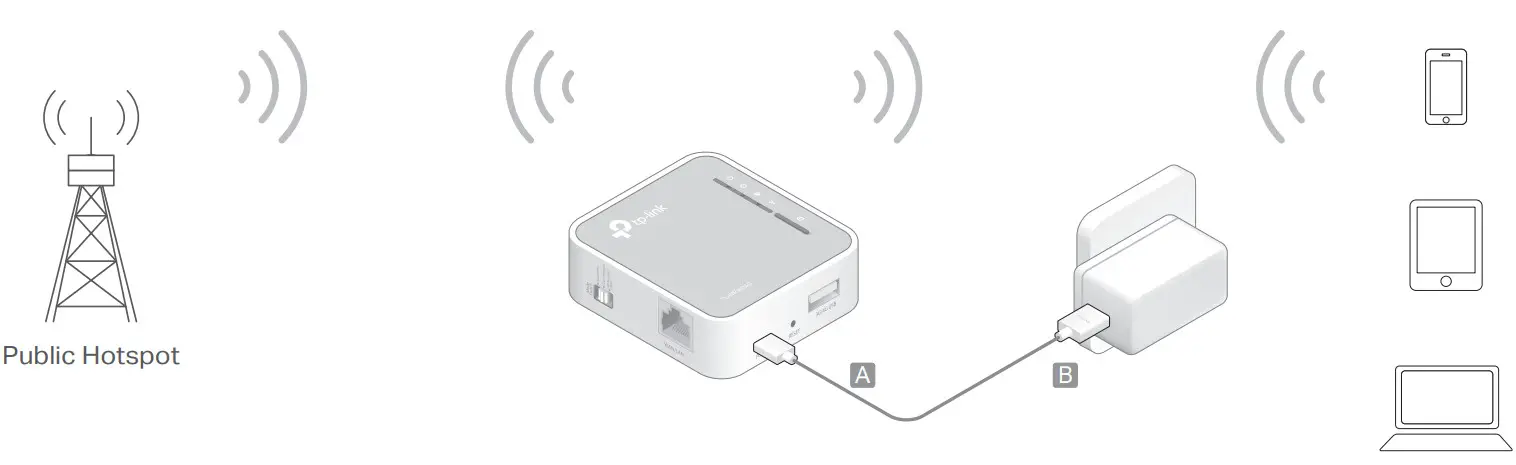
- Switch the operation mode to Share Hotspot and plug the router’s power adapter into an electrical outlet.
- Connect your device to the router wirelessly or via an Ethernet cable. The Wi-Fi network names and passwords are on the router’s label.
- Launch a web browser and enter http://tplinkwifi.net in the address bar. Log in with admin (in lowercase) for both username and password.
- Click Next to start the Quick Setup.
- Select your WAN Connection Type. If you’re not sure, please consult your ISP. Then follow the on-screen instructions to continue.
- Click Connect to the corresponding network of the WISP and enter its password if encrypted.
- Either customize your Local Network SSID and Password for the 2.4GHz/5GHz wireless network or keep the default ones and then click Next.
- Click Finish to apply the settings.
If you have changed the default Wi-Fi name(s) and password(s), you have to reconnect your wireless devices to the new Wi-Fi network(s).
Frequently Asked Questions (FAQ)
Q1. What should I do if there is no internet access?
- If you are using a cable modem, unplug the Ethernet cable and reboot the modem. Wait until its Online LED is on and stable, and then reconnect the cable to the modem.
- If you’re in a hotel room or on a trade show, the internet may be limited and requires that you authenticate for the service or purchase internet access.
- If internet access is still unavailable, contact TP-Link Technical Support.
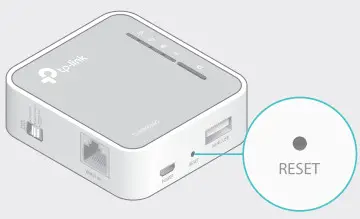
Q2. How do I restore the router to its factory default settings?
- With the router powered on, use a pin to press and hold the RESET button for about five seconds until all the LEDs start flashing. Then release the button.

Q3. What should I do if I forget the router’s web management password?
- Refer to FAQ > Q2 to reset the router, and then use the default admin (all lowercase) for both username and password to log in.
Q4. What should I do if I forget my Wi-Fi password?
- If you have not changed the default wireless password, it can be found on the label of the router.
- If you have changed the default wilreless password, please log in to the router’s web management and go to retrieve Wireless 2.4GHz (or Wireless 5GHz) > Wireless Security to retrieve or reset your password.
Q5. What should I do if my wireless signal is unstable or too weak
It may be caused by too much interference.
- Set your wireless channel to a different one.
- Choose a location with fewer obstacles that may block the signal between the travel router and the host AP. An open corridor or a spacious location is ideal.
- Move the router to a new location away from Bluetooth devices and other household electronics, such as cordless phones, microwaves, and baby monitors, to minimize signal interference.
- When in Range Extender mode, the ideal location to place the router is halfway between your host AP and the Wi-Fi dead zone. If that is not possible, place the router closer to your host AP to ensure stable performance.
At Home
Access Point Mode
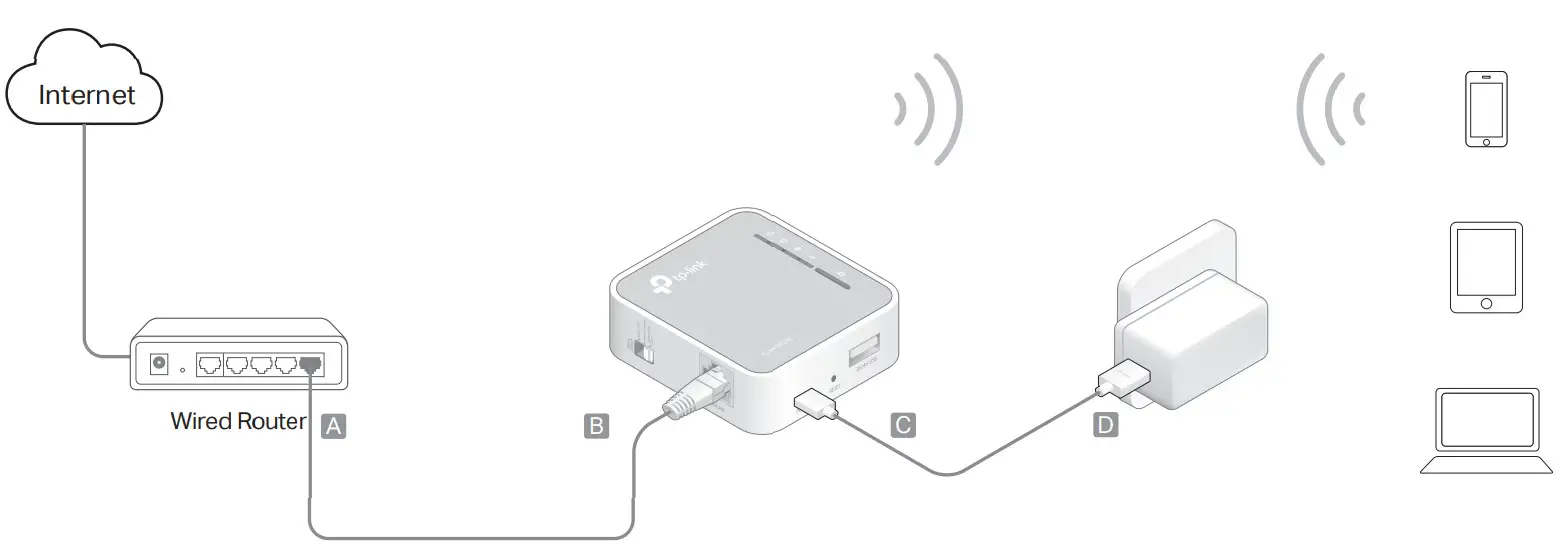
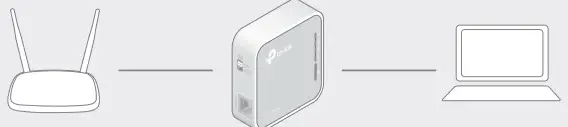
- Switch the operation mode to AP/Rng Ext/Client and connect the hardware according to Step A to D in the left diagram.
- Connect your device to the router wirelessly. The Wi-Fi network names and passwords are on the router’s label.
- Launch a web browser and enter http://tplinkwifi.net in the address bar. Log in with admin (in lowercase) for both username and password.
- Click Next to start the Quick Setup.
- Select Access Point and click Next.
- Either customize your Network Name and Password for the 2.4GHz/5GHz wireless network or keep the default ones and then click Next.
- Select the LAN type of the router (Smart IP in most cases) and Click Next.
- Click Finish to apply the settings.
If you have changed the default Wi-Fi name(s) and password(s), you have to reconnect your wireless devices to the new Wi-Fi network(s).
Range Extender Mode
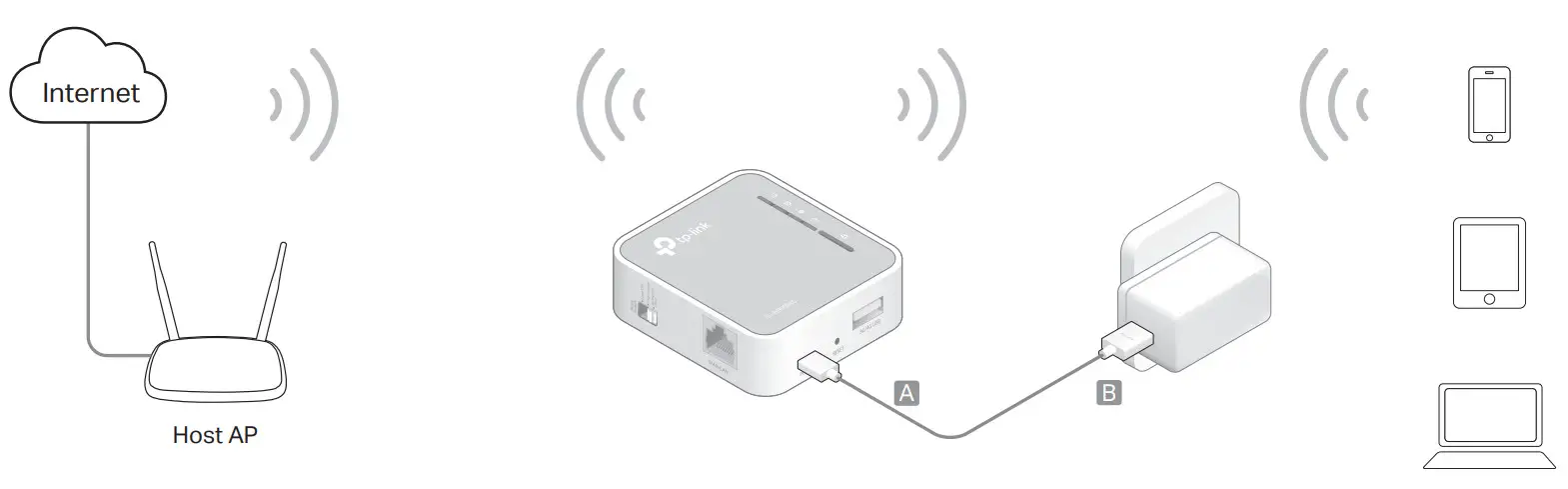
- Switch the operation mode to AP/Rng Ext/Client and plug the router’s adapter into an electrical outlet near your host AP.
- Connect your device to the router wirelessly or via an Ethernet cable. The Wi-Fi network names and passwords are on the router’s label.
- Launch a web browser and enter http://tplinkwifi.net in the address bar. Log in with admin (in lowercase) for both username and password.
- Click Next to start the Quick Setup.
- Select Range Extender and click Next.
- Click Connect to the corresponding host network and enter its password. You can either copy the SSID (network name) of the host network or customize it, and then click Next.
- Select the LAN type of the router (Smart IP in most cases) and click Next.
- Click Finish to apply the settings.
- Relocate the router about halfway between your host AP and the Wi-Fi dead zone.
The extended network shares the same Wi-Fi password as that of your host network, but may have a different wireless network name if you have customized it during the onfiguration.
Client Mode (TV/Game Console Adapter)
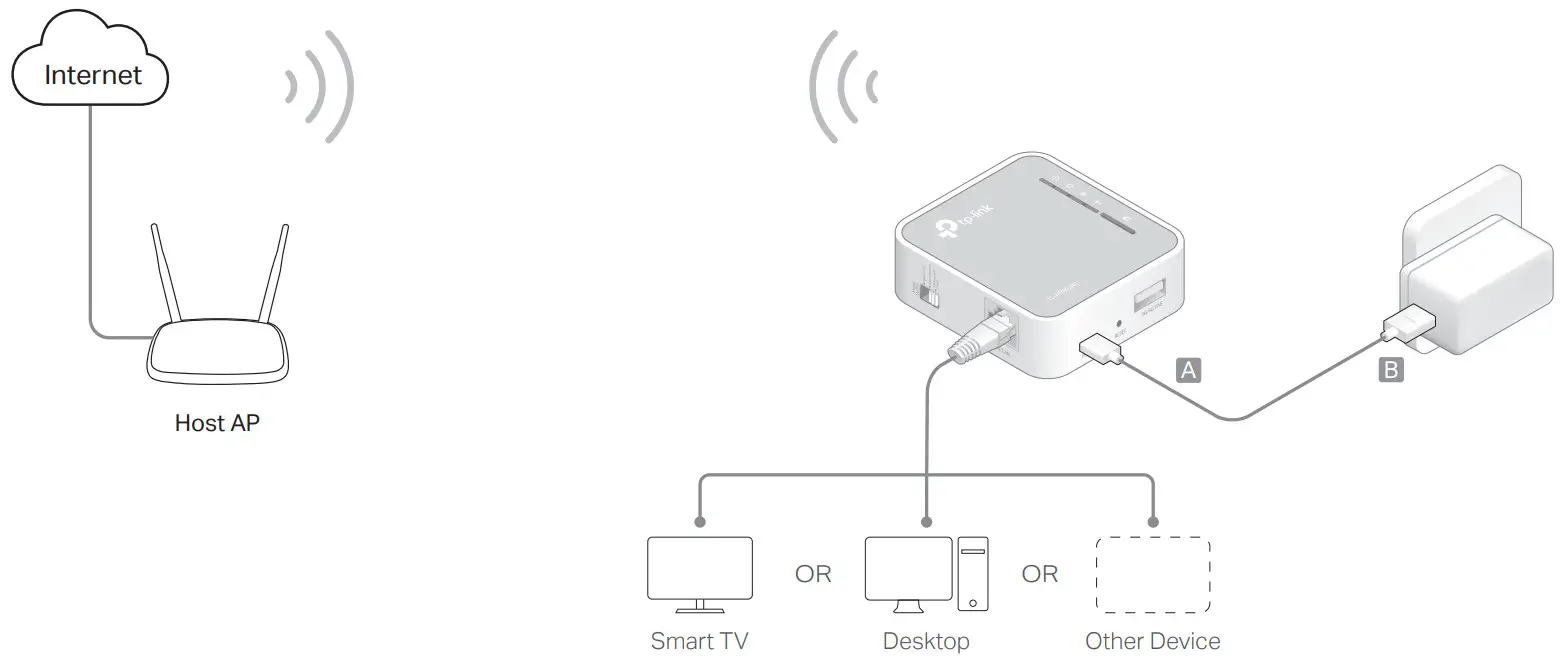
- Switch the operation mode to AP/Rng Ext/Client and plug the router’s adapter into an electrical outlet near your host AP.
- Connect your device to the router wirelessly or via an Ethernet cable. The Wi-Fi network names and passwords are on the router’s label.
- Launch a web browser and enter http://tplinkwifi.net in the address bar. Log in with admin (in lowercase) for both username and password.
- Click Next to start the Quick Setup.
- Select Client and click Next.
- Click Connect to the corresponding host network and enter its password. Then click Next.
- Select the LAN type of the router (Smart IP in most cases) and click Next.
- Click Finish to apply the settings.
- Connect your wired-only device to the router via an Ethernet cable.
Hardware Information
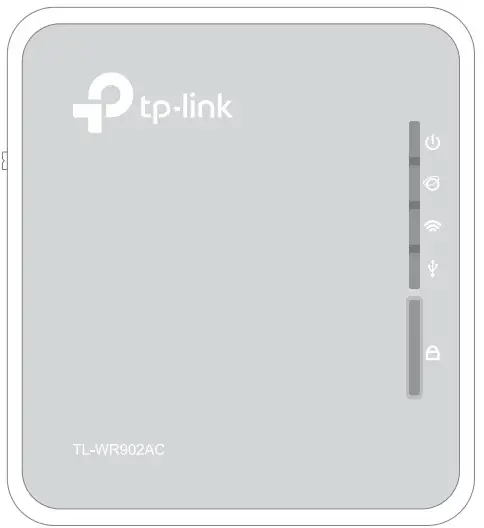
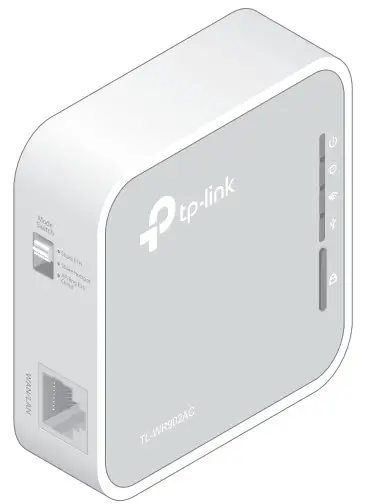
LEDs:
| LED | Status | Indication |
 (Power) (Power) | On | The router is on. |
| Blinking | The router is initializing or being upgraded. | |
 (Internet) (Internet) | On | The internet is available. |
| Off | The internet is unavailable. | |
 (Wireless) (Wireless) | On | The wireless network is enabled. |
| Blinking | The router is connecting to the host network when in Range Extender or Client mode. | |
| Off | The wireless network is disabled. | |
 (USB) (USB) | On | A USB device is connected. |
| Off | No USB device is connected. | |
 (WPS) (WPS) | On | This light stays on for 5 minutes when a WPS connection is established, then goes off. |
| Blinking | WPS connection is in progress. | |
| Off | No WPS connection is established. |
Buttons and Ports:
| Ports | Description |
| Mode Switch | This button is used to switch the operation mode of the router. |
| WAN/LAN | This port functions as the WAN port in Router mode and as the LAN port in Hotspot, Access The point, Range Extender, and Client mode. |
| Power | The port is used to connect the power adapter. |
| RESET | To reset the router, use a pin to press and hold the button for about 5 seconds. |
| 3G/4G USB | This port is used to plug a 3G/4G modem or a USB disk into. |
| 8 (WPS) | To establish a WPS connection, press this button. |
 For technical support and other information, please visit http://www.tp-link.com/support
©2017 TP-Link
 Trying to configure the Router? | TP-Link
 TP-Link Product Support - Wireless Networking Equipment Support