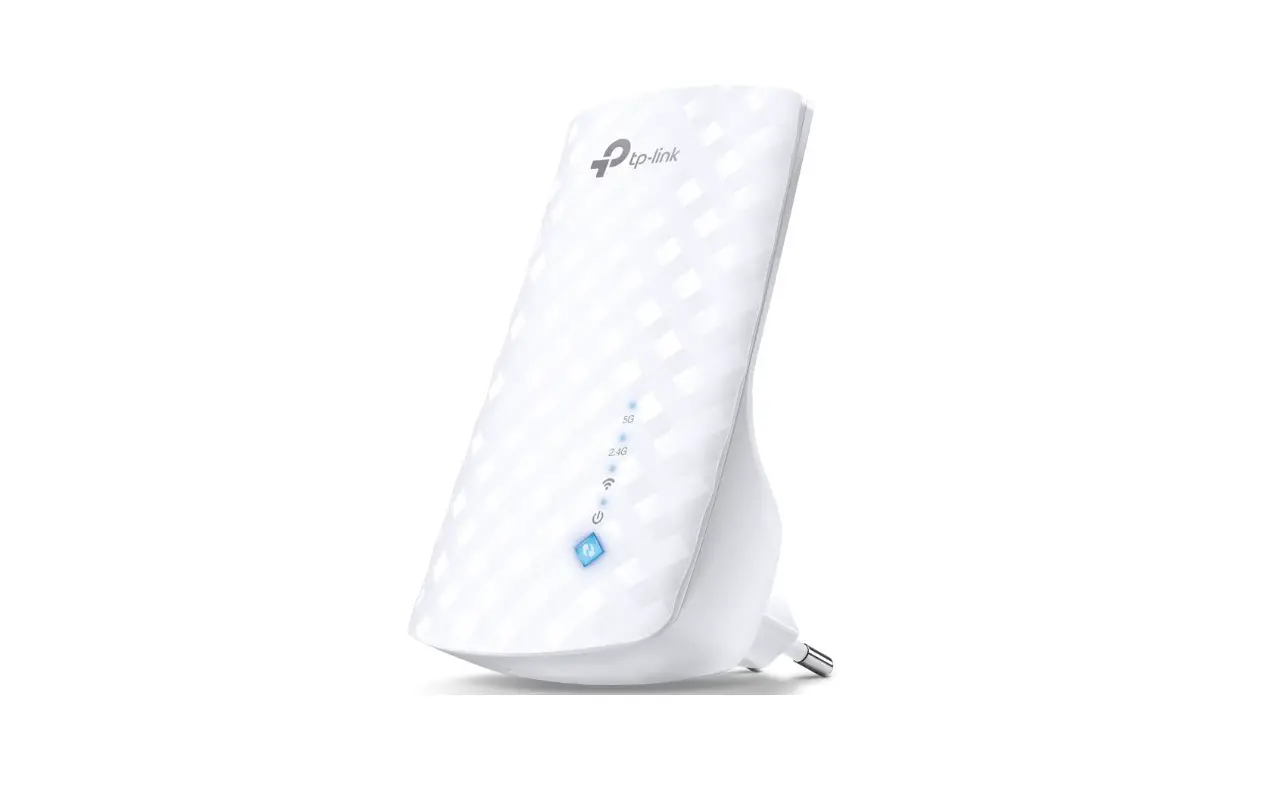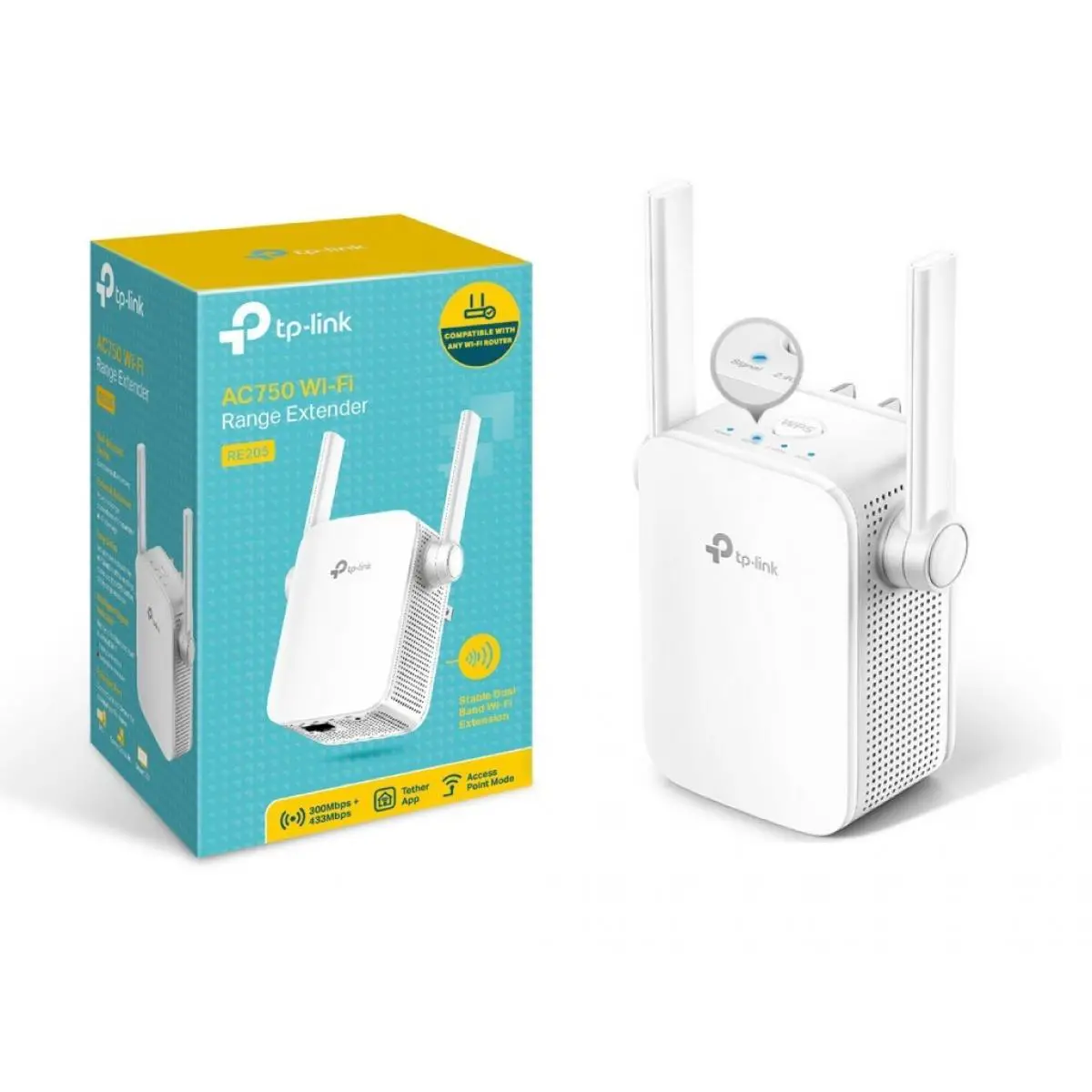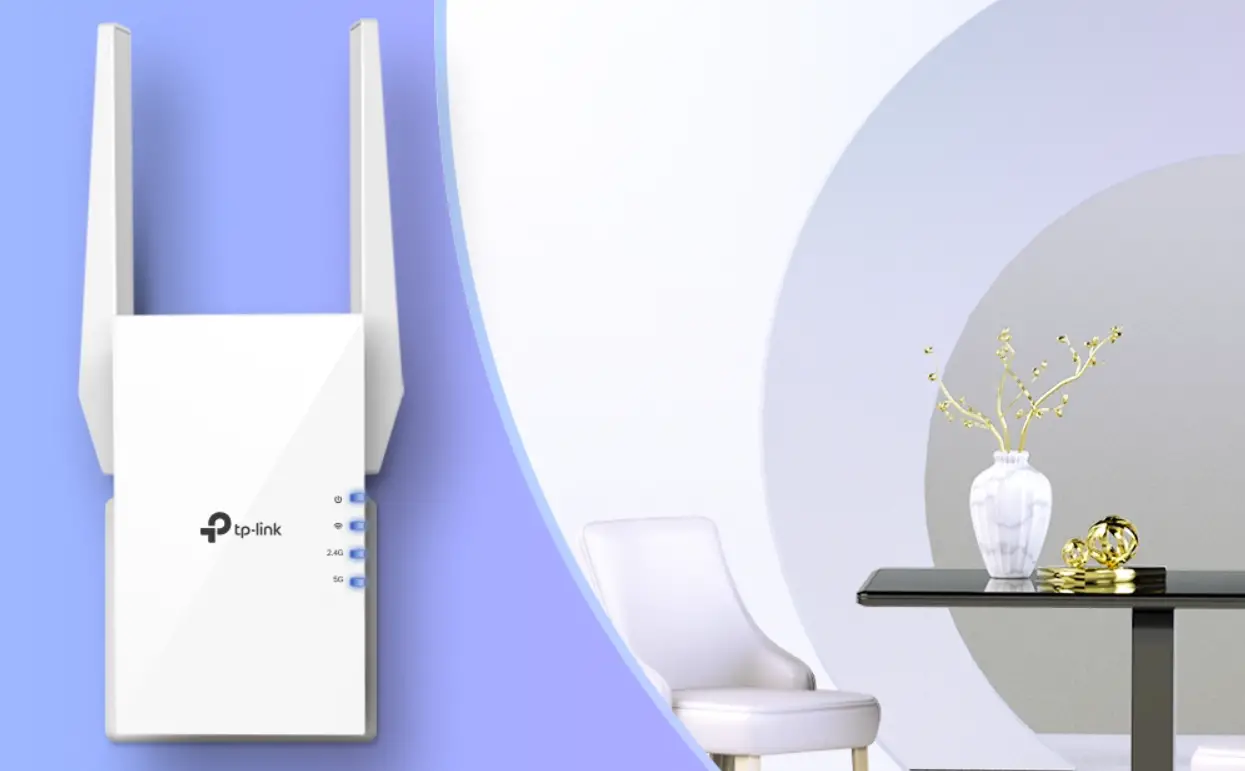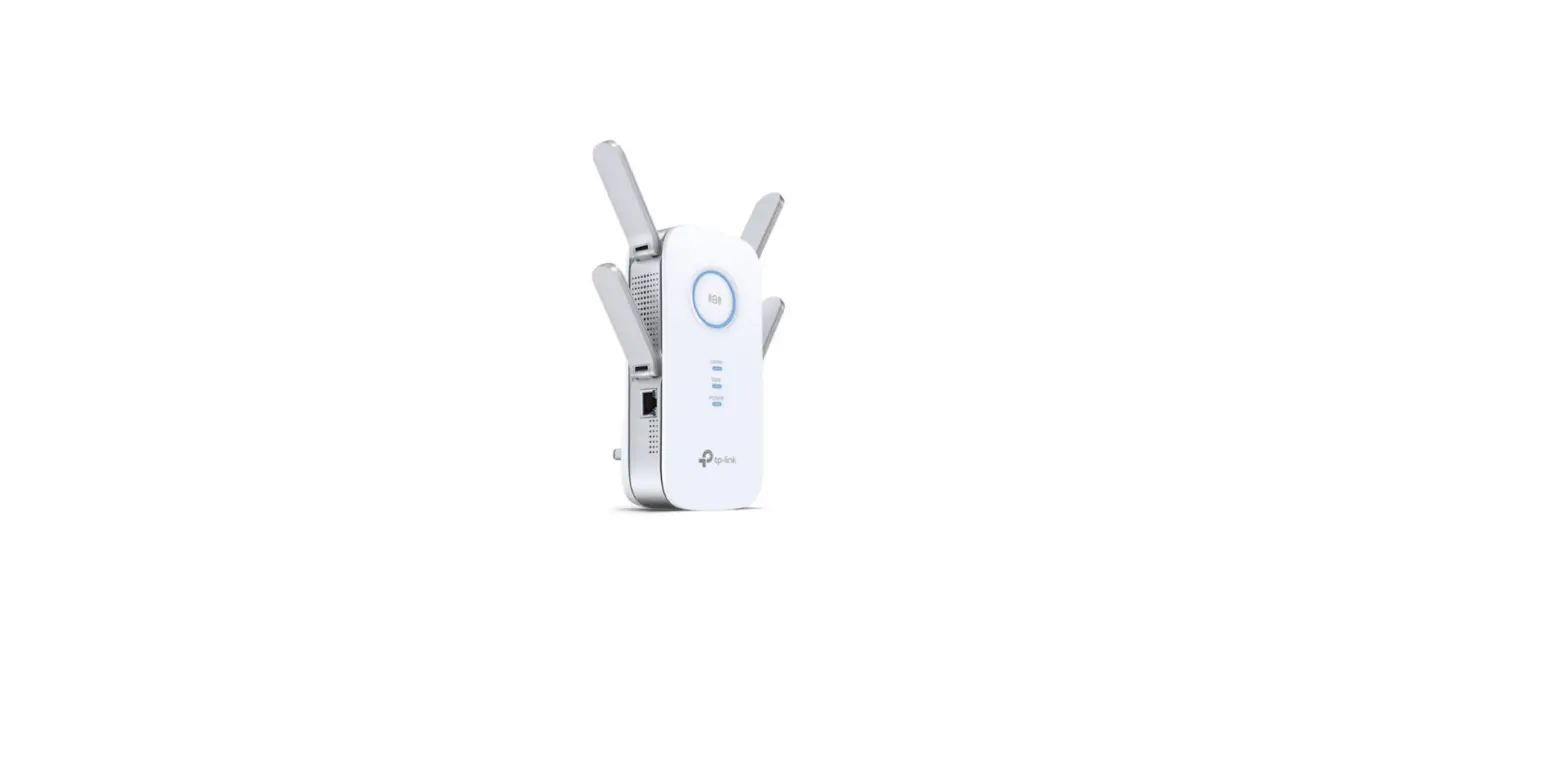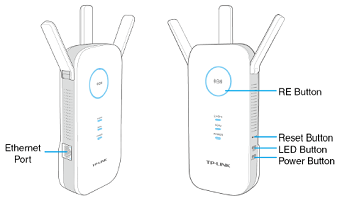
 tp-link AC750 Wi-Fi Range Extender (RE200) Installation Guide
 tp-link AC750 Wi-Fi Range Extender (RE200) Installation Guide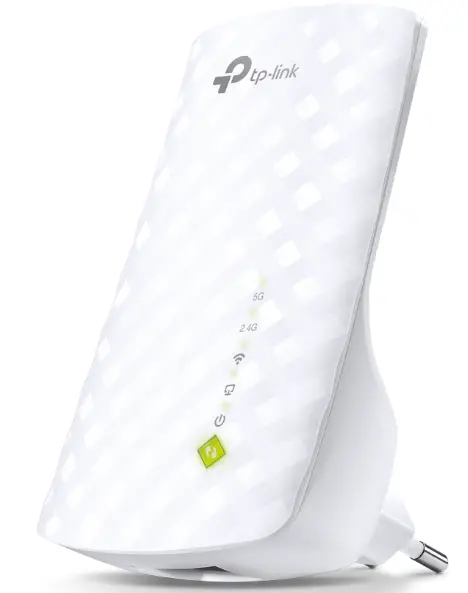
tp-link AC750 Wi-Fi Range Extender (RE200) Installation Guide
 Setup with videos
Scan the QR code, or visit https://www.tp-link.com/support/setup-video/#range-extenders and search for the setup video of your model.
 https://www.tp-link.com/support/setup-video/#range-extenders
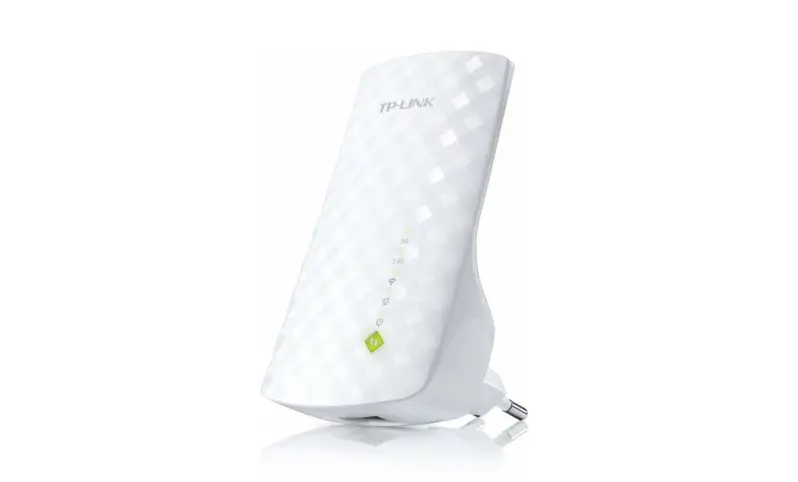
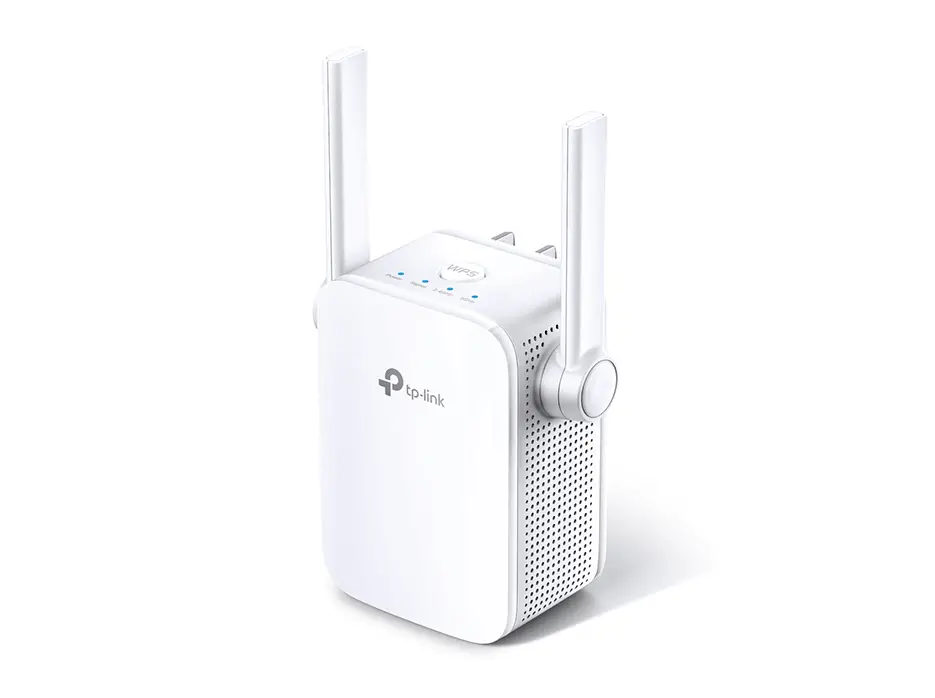
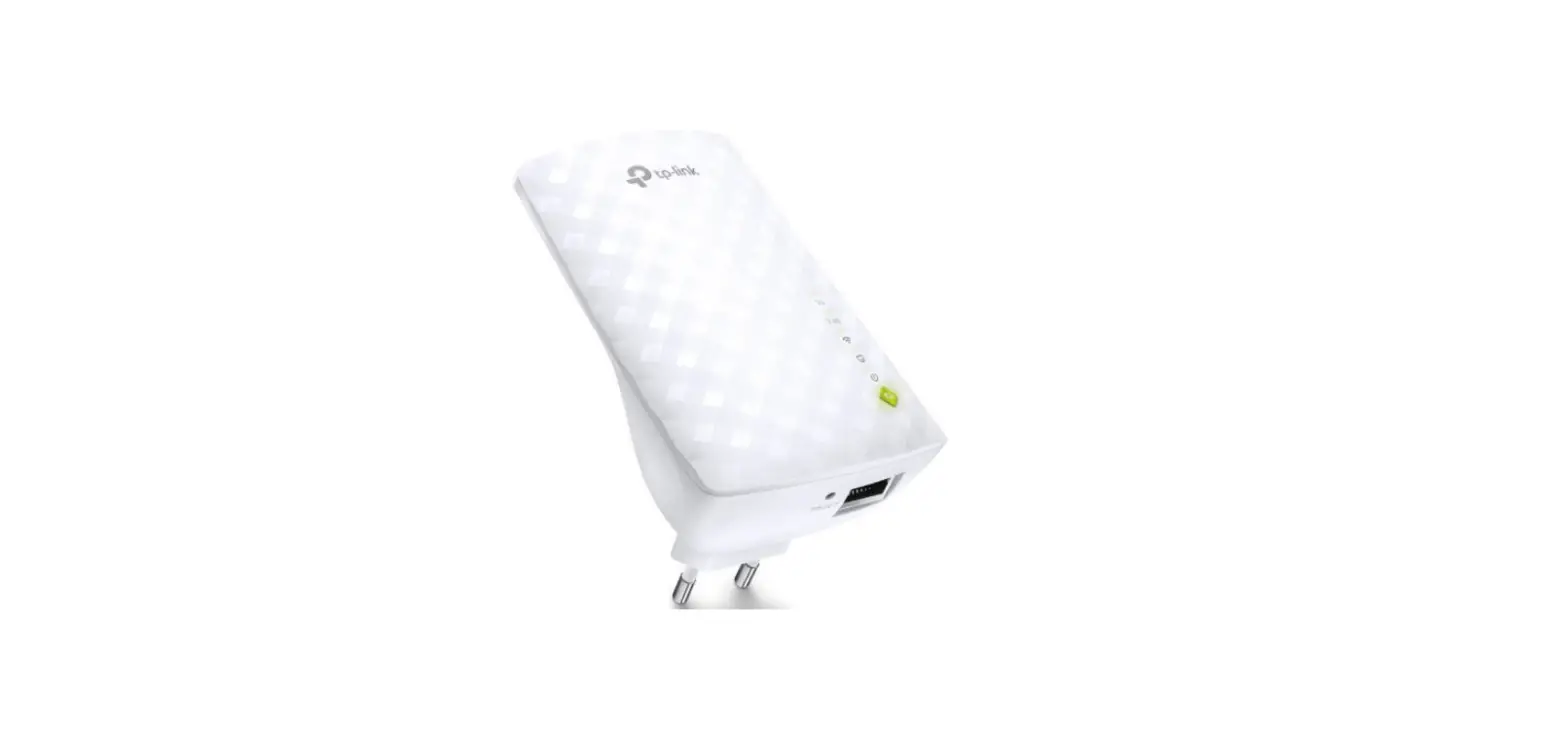
* Images may differ from your actual product.
Power On
Plug the extender into a power outlet next to your router. Wait until its Power LED turns solid on.
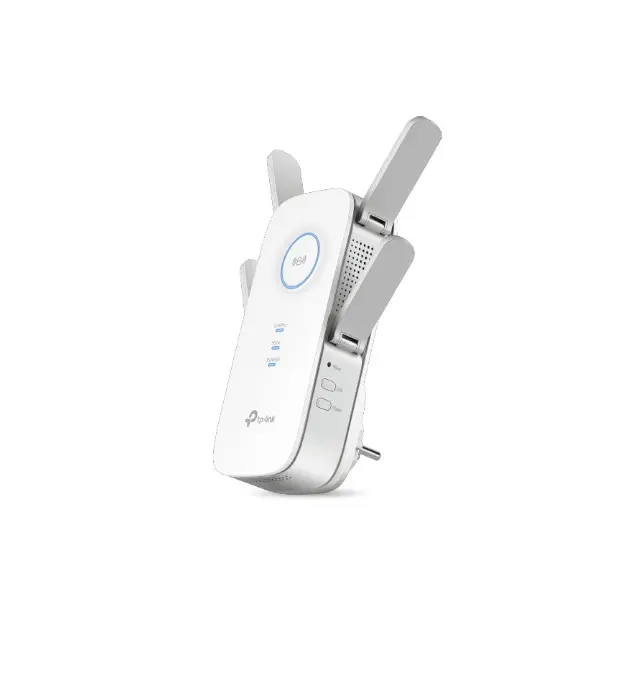
Note: For safety, only plug the extender in the direction is shown below.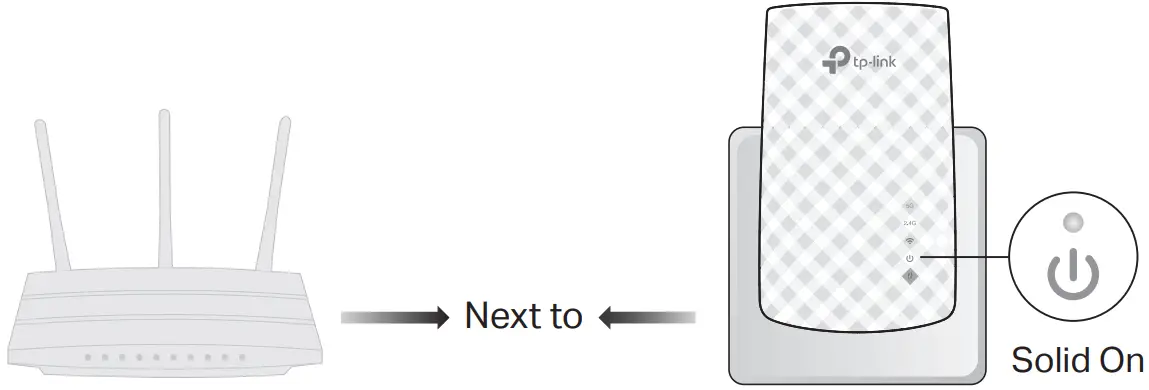
Set-Up
Via the Tether App
- Get the up-to-date Tether app from the Apple App Store or Google Play, or simply scan the QR code
 OR
OR https://www.tp-link.com/app/qrcode/?app=tether
Scan for Tether Tether
 - Launch the Tether app and log in with your TP-Link ID. If you don’t have an account, create one first

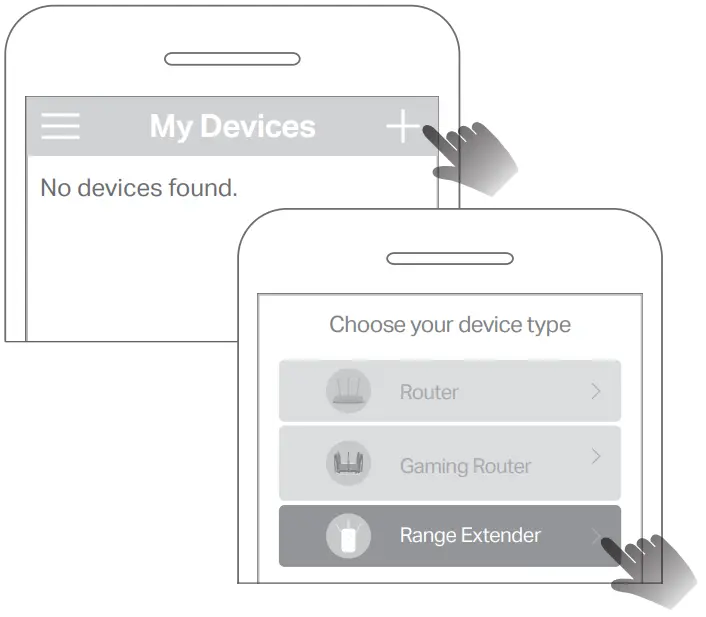
- Tap the + button and select Range Extender.
Note: If you cannot find your device, please refer to FAQ > Q1.
- Follow app instructions to complete the setup.
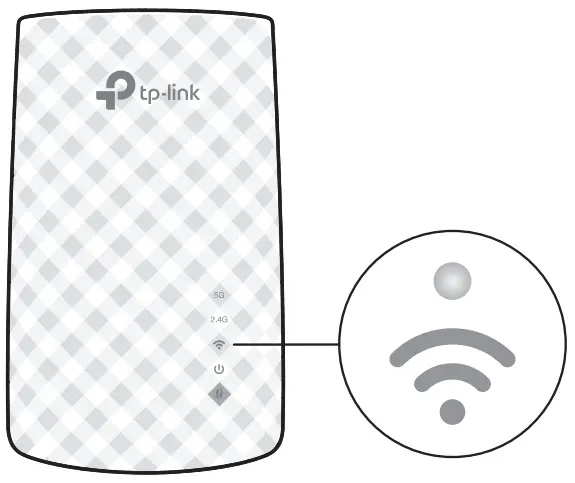
The LED should turn solid on, indicating a successful connection to your router.
Note: If the LED does not turn solid on, please refer to FAQ > Q2.
 OR
OR
 Tether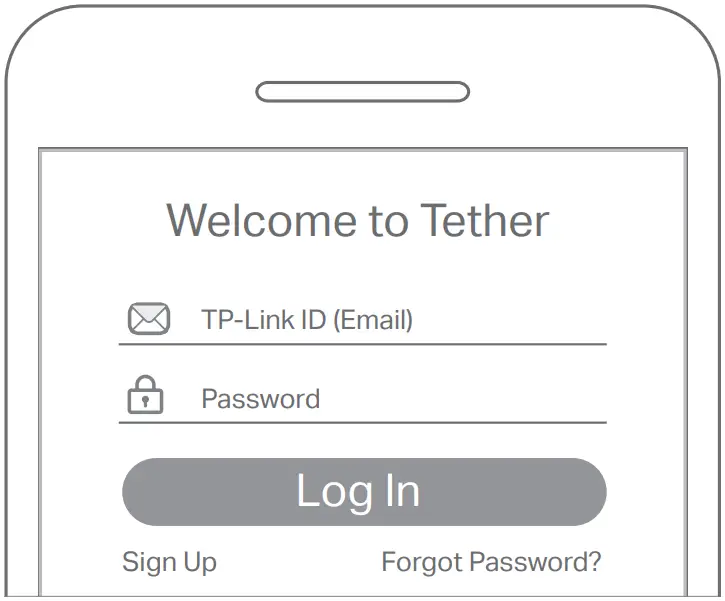
 Solid On
More Setup Methods
Via a Web Browser
- Connect your computer or smartphone to the extender’s network TP-Link_Extender.
- Visit http://tplinkrepeater.net or http://192.168.0.254 in a web browser. Create a password to log in.
- Follow web instructions to complete the setup.
Via the WPS Button
- Press the WPS button on your router.
- If the extender connects to a dual-band router, repeat steps 1 and 2 to connect to the other band.
- Within 2 minutes, press the WPS button on the extender for 1 second. The
 LED should change from blinking to solid, indicating a successful connection.
Extended Network Names: Router’s network name with _EXT at the end or
Same as your OneMesh router (See back for OneMesh details)
Passwords: Same as your router
For more details, please refer to the user guide at https://www.tp-link.com/support/download/.
Relocate
- Plugin the extender about halfway between your router and the Wi-Fi dead zone. The location you choose must be within the range of your router.
- Wait for about 2 minutes until the LED turns solid blue. If it doesn’t, relocate the extender closer to the router to achieve better signal quality.
Tip: To place the extender for optimal Wi-Fi performance, access extender settings via the Tether app and go to Tools > Location Assistant, or simply scan the QR code
to visit https://www.tp-link.com/support/faq/3103/.
 https://www.tp-link.com/support/faq/3103/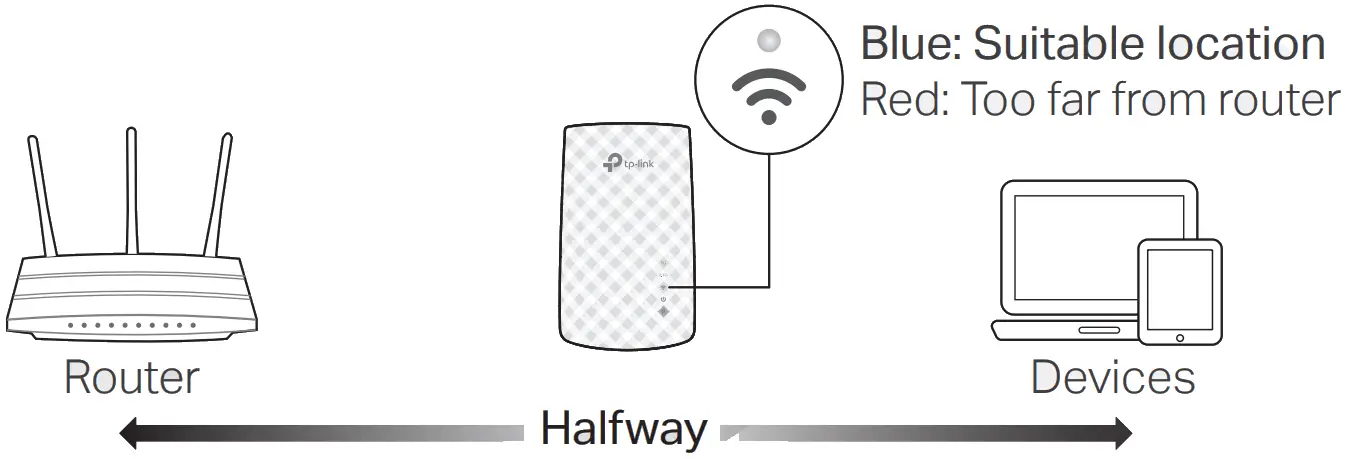
 Enjoy the internet!
Manage the Extender
After setup, you can manage the extender via any of the methods below.
Note: If your extender and router use the same network name, Method 1 is recommended.
Method 1: Via the Tether App
- Connect your smartphone to the extender‘s or router’s network.
- Launch the Tether app, select your extender, and log in.
- Manage the extender as needed.
Method 2: Via a Web Browser
- Connect your computer or smartphone to the extender’s network. If you are using a computer, unplug the Ethernet cable if any.
- Launch a web browser, enter http://tplinkrepeater.net in the address bar, and log in.
- Manage the extender as needed.
 OneMesh™ with Seamless Roaming
TP-Link OneMesh™ router and extenders work together to form one unified Wi-Fi network. Walk through your home and stay connected with the fastest possible speeds thanks to OneMesh’s seamless coverage.
 | Unified Wi-Fi Network Router and extenders share the same wireless settings, including network name, password,access control settings and more. |
 | Seamless Roaming Devices automatically switch between your router and extenders as you move through your home for the fastest possible speeds. |
 | Easy Setup and Management Set up a OneMesh network with a push of WPS buttons. Manage all network devices on the Tether app or at your router’s web management page. |
To check the full list of TP-Link OneMesh devices, scan the QR code, or visit https://www.tp-link.com/One-Mesh/compatibility.

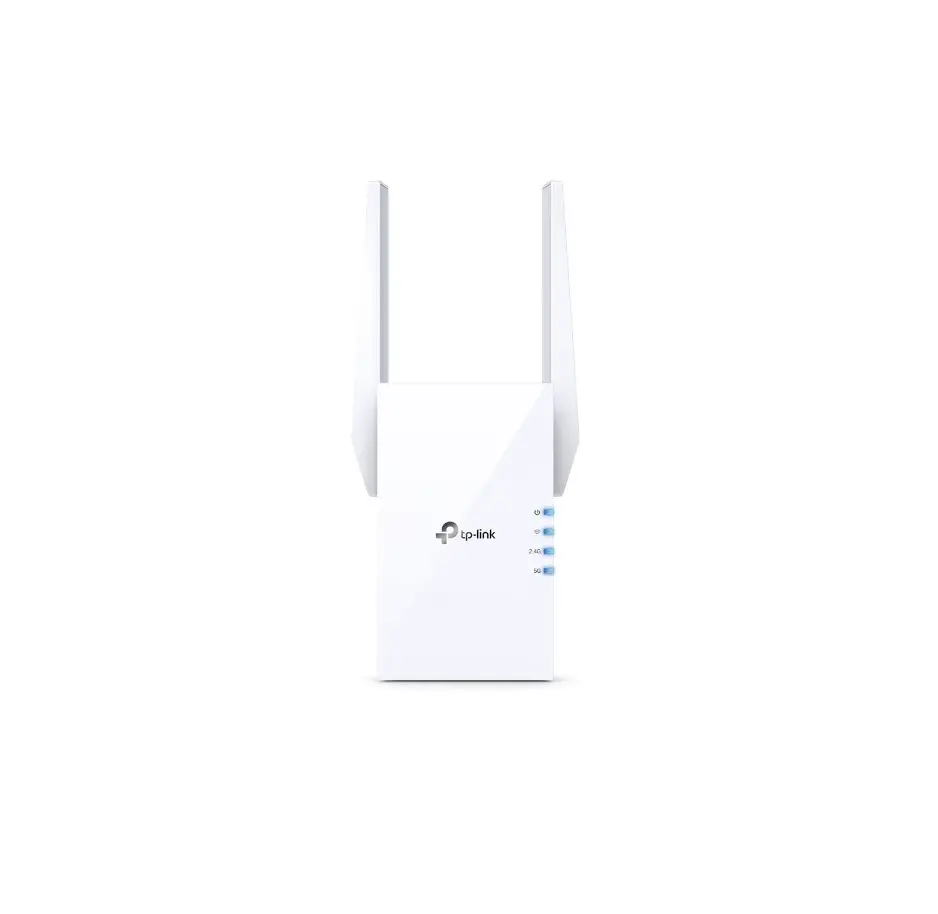
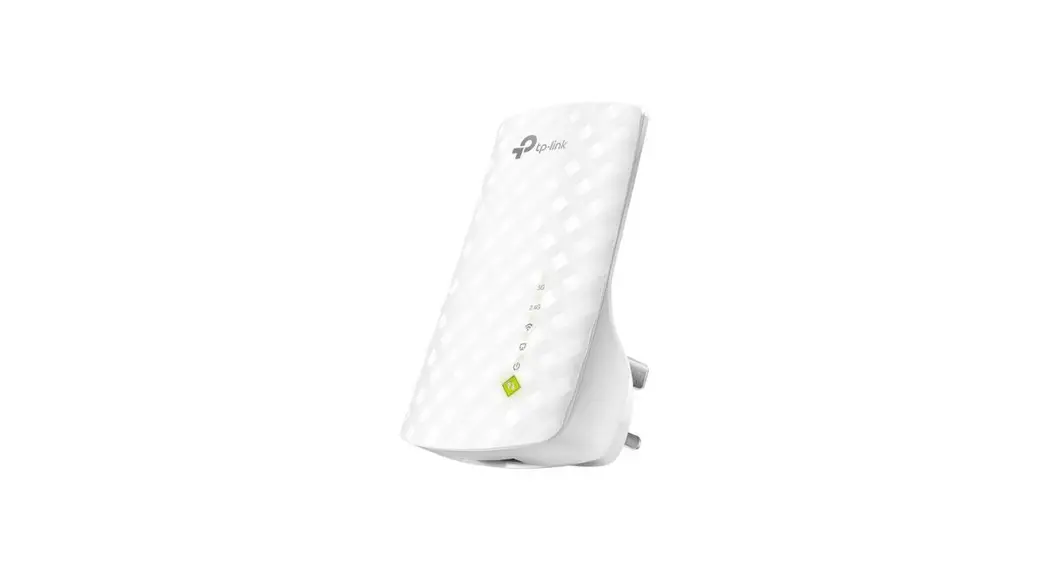
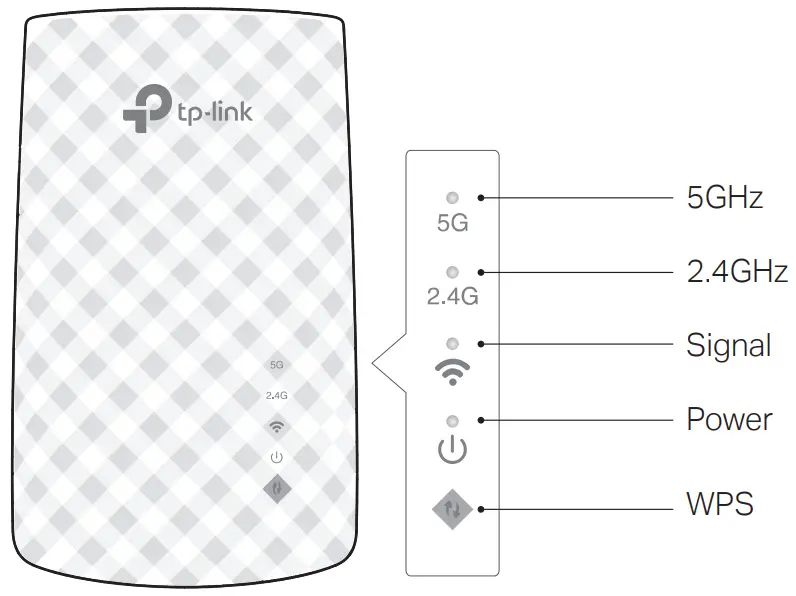
LED Explanation
| Status | Indication | |
| 5GHz | On/Off | The extender is connected or not connected to the 5GHz wireless network of your host router. |
| 2.4GHz | On/Off | The extender is connected or not connected to the 2.4GHz wireless network of your host router. |
(Signal) | Solid blue Solid red Off | The extender is connected to your router’s wireless network and is in a suitable location. The extender is experiencing poor signal strength. Try relocating it closer to your router. No wireless connection is established. |
(Power) | On/Off Blinking | The extender is on or off. The system is starting up or firmware is being upgraded. |
(WPS) | On Blinking Off | WPS connection is established. WPS connection is in progress. WPS connection has been established for more than 5 minutes or WPS connection failed. |
FAQ (Frequently Asked Questions)
Q1. What should I do if the Tether app cannot find my device during setup?
- Try another method by following the steps below:
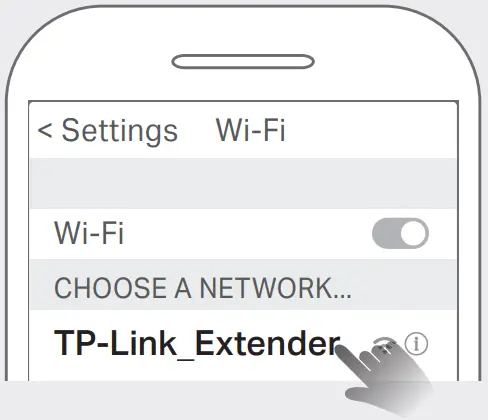
- Connect your smartphone to the extender’s network TP-Link_Extender.

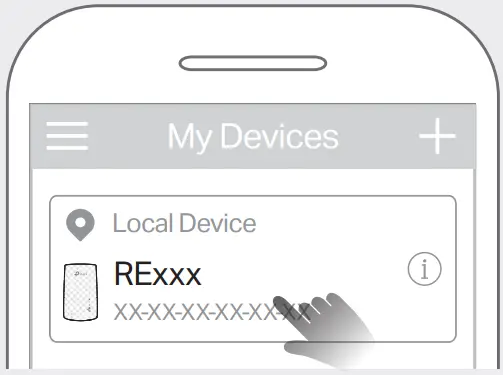
- Launch the Tether app, and select your extender.
Tip: If you have connected to the extender’s Wi-Fi but still cannot find your device, try turning off your cellular data.
- Follow app instructions to complete the setup.
If you are still having problems, contact our technical support.
Q2. What should I do if the LED doesn’t turn solid on after completing the setup via the Tether app or web browser?
- You may have entered an incorrect Wi-Fi password for your host router during the configuration. Check the password and try again.
- Make sure the extender is close to your router, preferably within 16 feet, and away from large electrical appliances.
- If you have enabled wireless MAC filtering, wireless access control, or access control list (ACL) on your router, disable them first, then follow any method on the front page to complete the configuration.
- Try setting it up via the WPS button.
- Reset the extender and go through the configuration again.
If you are still having problems, contact our technical support.
Q3. How do I reset the extender?
- With the extender powered on, use a pin to press the RESET button for 1 second. The extender will reboot.
 If you need more setup help, please visit https://www.tp-link.com/support/faq/3074/, or simply scan the QR code.
Safety Information

- Keep the device away from water, fire, humidity, or hot environments.
- Do not attempt to disassemble, repair, or modify the device. If you need service, please contact us.
- Do not use the device where wireless devices are not allowed.
- The socket outlet shall be installed near the equipment and shall be easily accessible.
Please read and follow the above safety information when operating the device. We cannot guarantee that no accidents or damage will occur due to improper use of the device. Please use this product with care and operate at your own risk.
TP-Link hereby declares that the device is in compliance with the essential requirements and other relevant provisions of directives 2014/53/EU, 2009/125/EC, 2011 /65/EU, and (EU) 2015/863. The original EU Declaration of Conformity may be found at https://www.tp-link.com/en/support/ce
TP-Link hereby declares that the device is in compliance with the essential requirements and other relevant provisions of the Radio Equipment Regulations 2017.
The original UK Declaration of Conformity may be found at https://www.tp-link.com/support/ukca To communicate with TP-Link users or engineers, please join the TP-Link Community at https://community.tp-link.com.
 If you have any suggestions or needs for our product guides, you are welcome to email [email protected].
 For technical support, replacement services, user manuals, and other information, please visit https://www.tp-link.com/support, or simply scan the QR code.
 http://www.tp-link.com/support
AC750 Wi-Fi Range Extender
Model: RE190
FAQS
Yes, it can clone the network name (it will add _EXT on the end of it to let you know it is the WiFi extender). Or, you can name it something completely different. You can also use the same network password as the router for ease of logging on.
you can not.
Most routers.. it will not work with a mesh router. But all others should work.
Yes
Follow simple set up procedure, the fire stick will connect automatically. Mine did
The answer to your question is ITS ALL IN THE SETUP. When you 1st setup, or in your case change modems, you connect Ethernet cable from your desired modem to the wifi extender (located on the bottom). That’s it! The wifi will now look for that modem & nothing else
This is a duel band and works with all current 2.4 and 5.0 GHz routers. Take your time on the setup and enjoy your extended range!
No it does not, may have to look elsewhere or get an adapter.
This should work with any WIFi router.
This is a Wi-Fi booster. There’s nothing in the documentation that would lead you to believe there is usage of the home’s electrical system. You can hook an Ethernet cable directly to this unit.
connects wirelessly to your existing WAP
If there is an internet connection that you can log into available it will amplify that signal. But it cannot make WiFi where no internet signal exists.
First you never want to daisy chain extenders. Each time you do your service speed is cut and you will eventually not have any usable service. Extenders should be placed half way between your router and where you want service. If multiple extenders are being used they should be installed in opposite directions. If one extender does not work for you, you would want to look at AV1000 or higher Powerline adapter kits.
Yes, it will work. It is not limited to any operating system.
Yes. TP-Link Wi-Fi extenders are universally compatible with Wi-Fi routers.
It didn’t work for me at all, muchless on Dish.
Yes you plug it into the wall, and anything that uses wifi or Ethernet will Work with this
Yes, If the campground Router transmits SSID. You will have to set up the device at each new location.
Yes, you can. The plug is not polarized (no fat side blade) so it can go in the outlet either way.
It extends WiFi signal to them.
Yes it is. Having the same SSID makes it easier for connecting, but isn’t the best setup. If it has the same SSID, the signals will conflict, when roaming it will stay connected to the first one it connected to even if weaker, it will auto-connect to the closest in range first, and you won’t be able to easily switch your device to go to the other one instead.
Yes