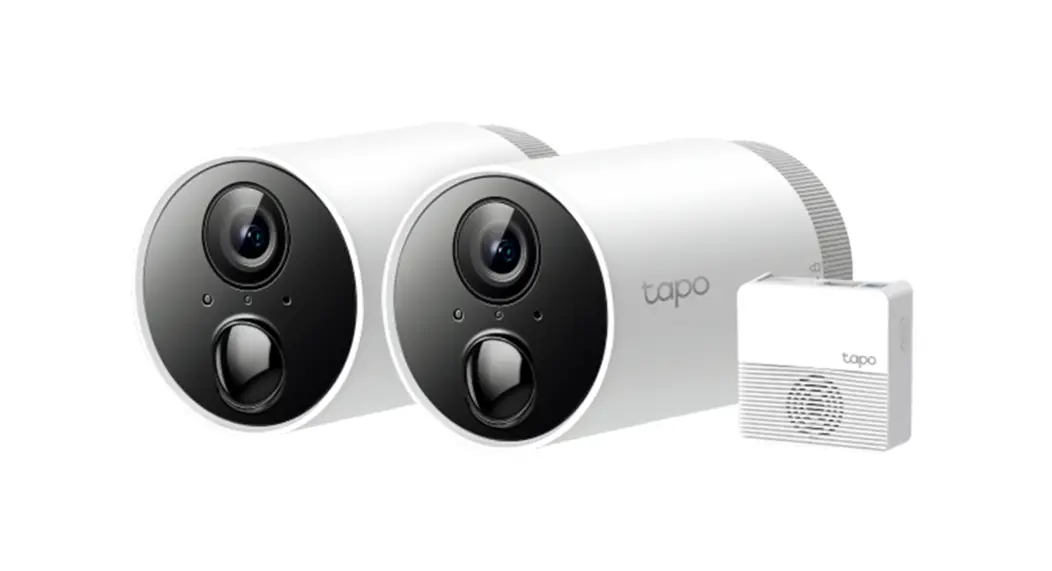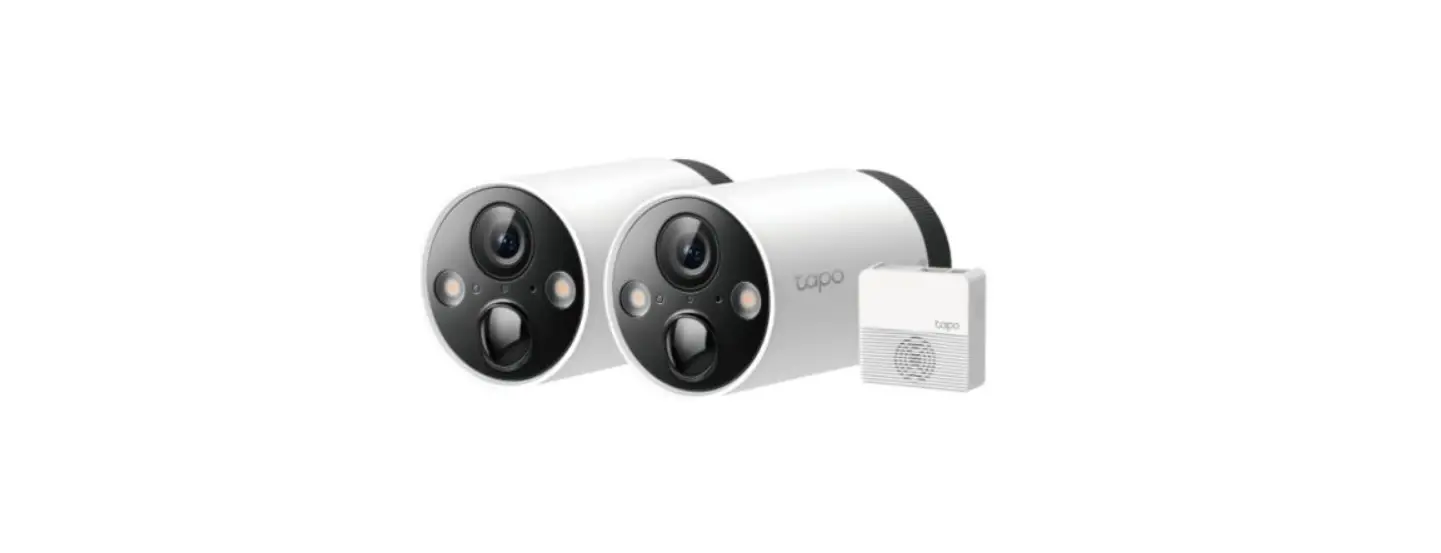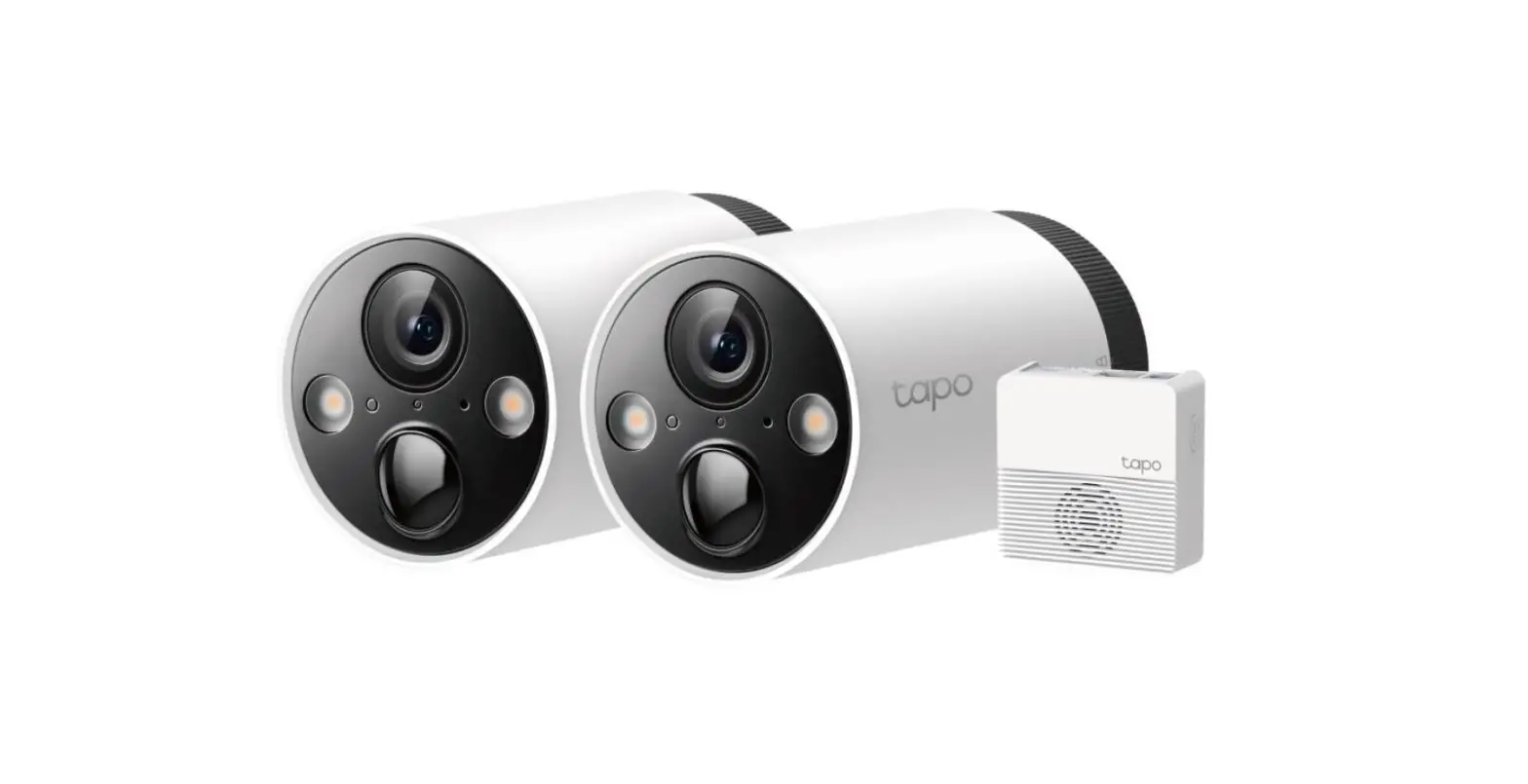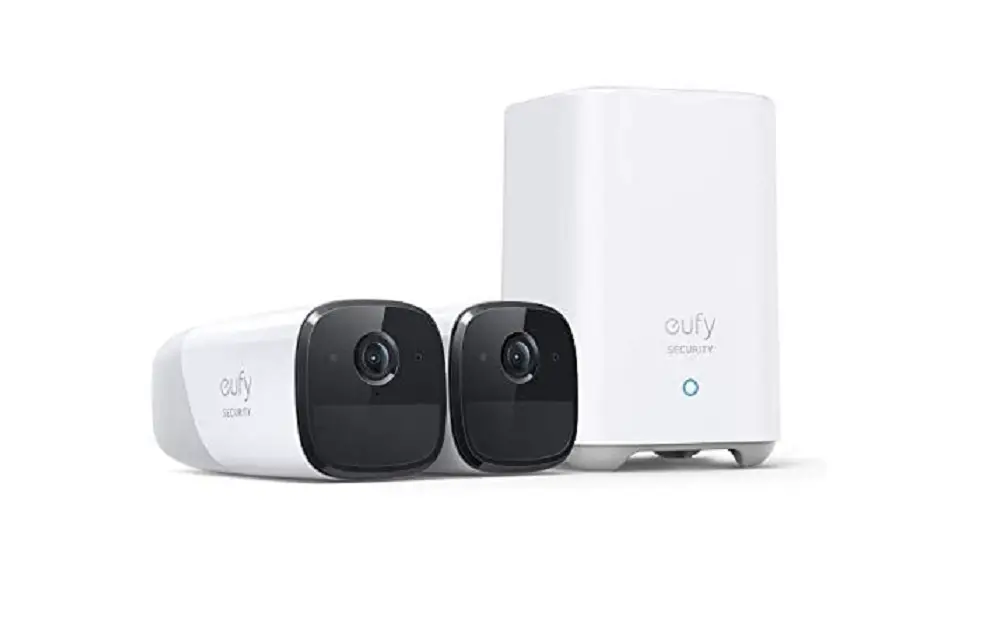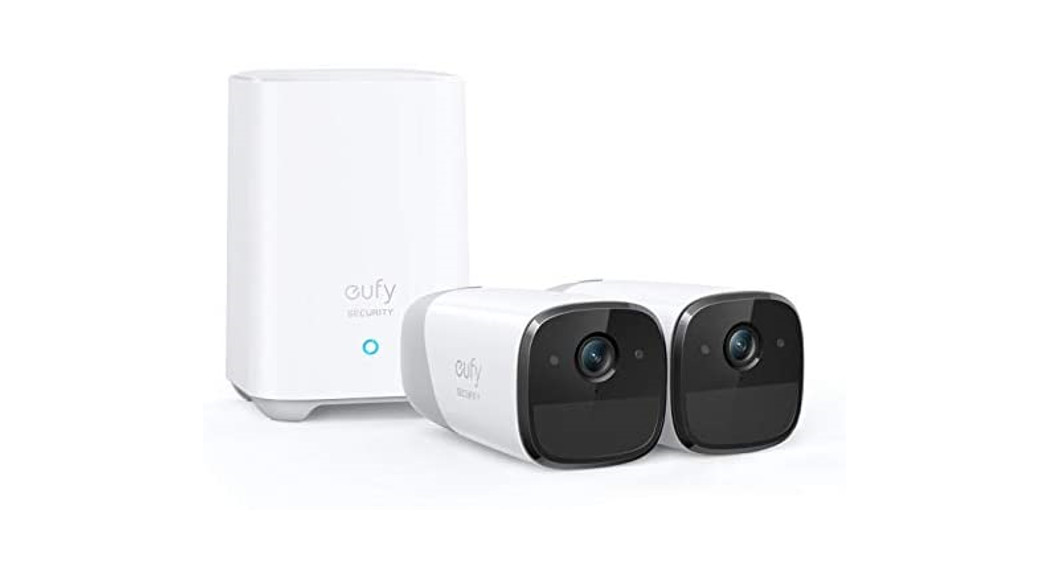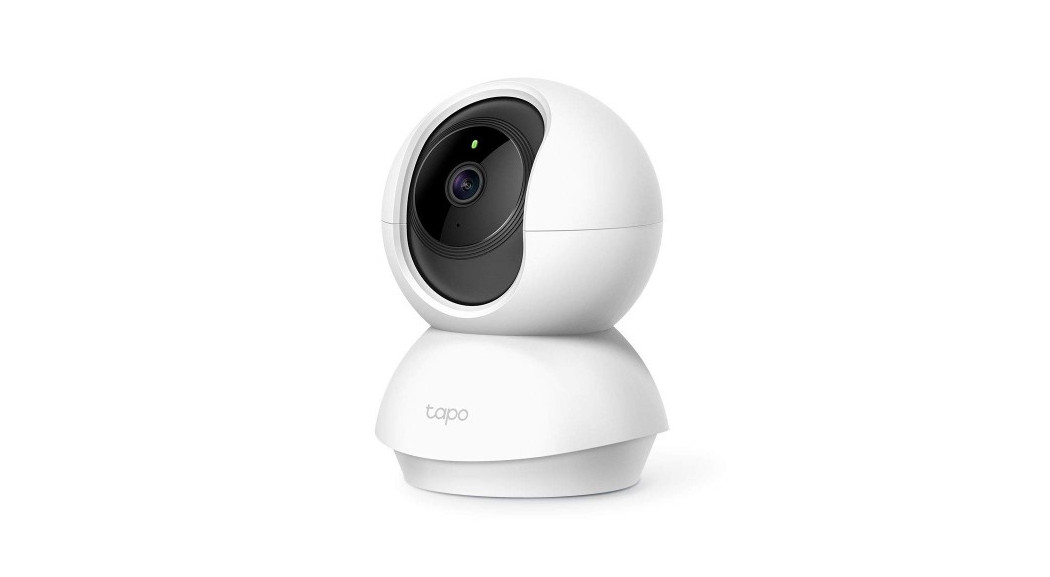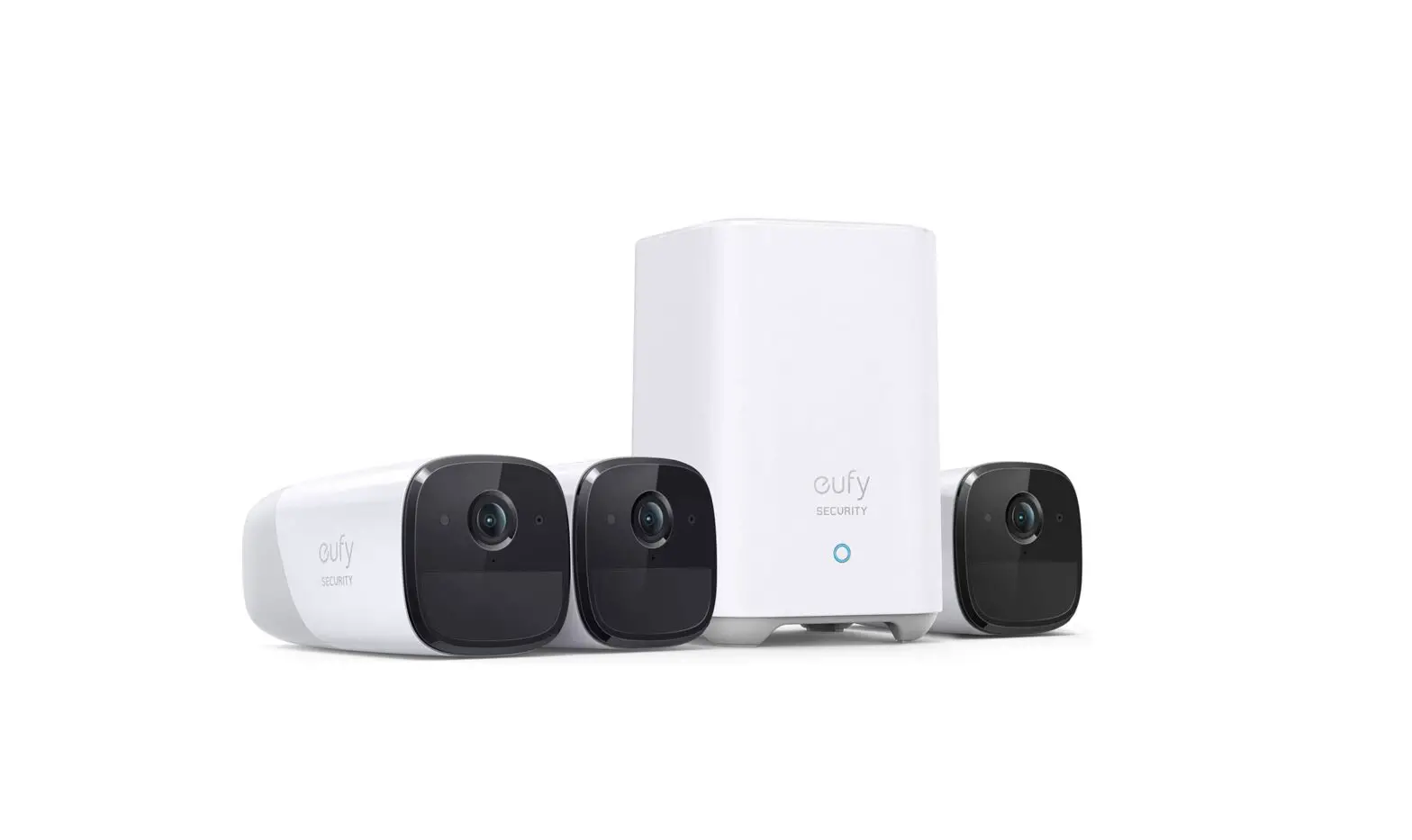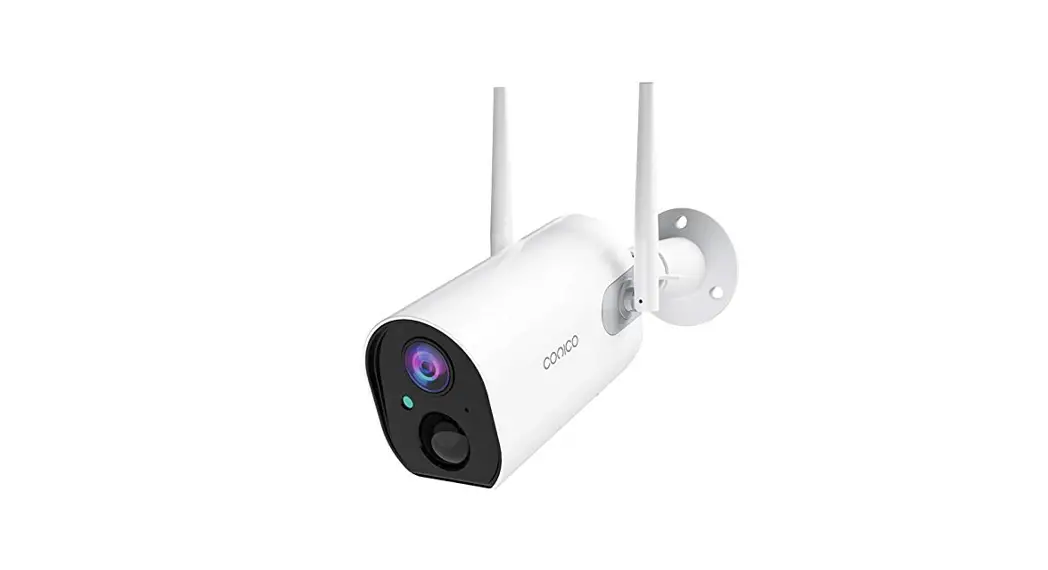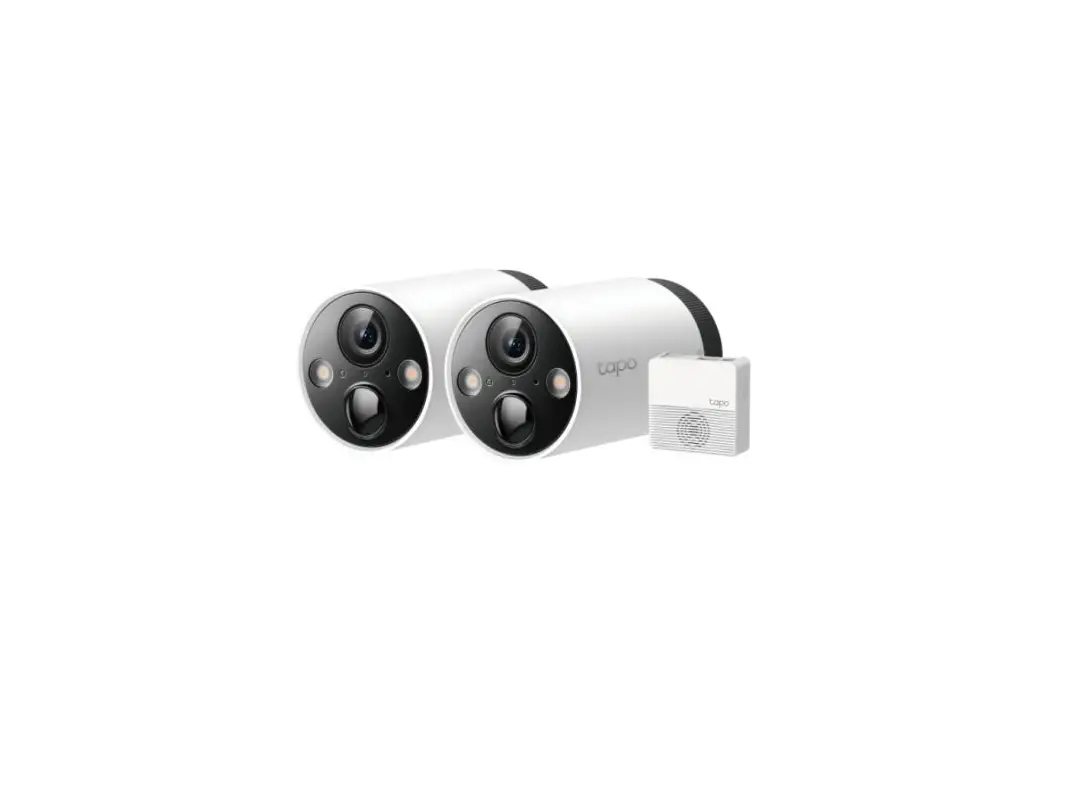

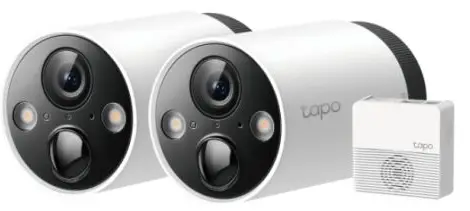
tp-link C400S2 Smart Wire-Free Security Camera System
Charge the Battery
Method 1: Battery
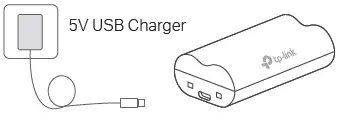
- Charging: Solid amber
- Fully charged:Solid green
Method 2: Battery Inside Camera
Check the battery status in the Tapo app after setup.
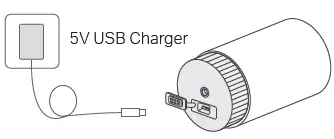
- Charge the battery before use. It will take about 5~6 hours.
- If you want to use the camera while charging the battery, we recommend purchasing another battery for your convenience.
Insert the Battereryt
- Twist anti-clockwise and then pull to remove the cover of the camera. Insert the battery.
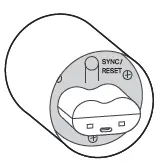
- Align the indicator line on the cover with the arrow icon on the camera body.
Press and rotate clockwise to the lock position to replace the cover.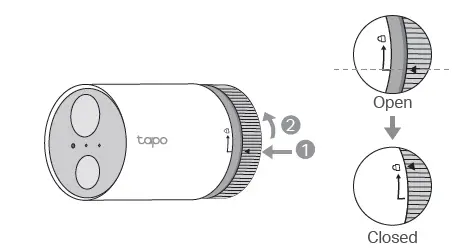
Set Up Hub and Camera
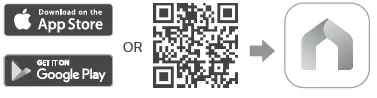
- Get the Tapo app from the App Store or Google Play.
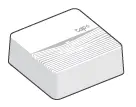
- Follow the instructions in the Tapo app to set up your hub.
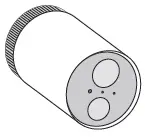
- Follow the instructions in the Tapo app to set up your camera.
Installation Options
Option 1. Set on a Table
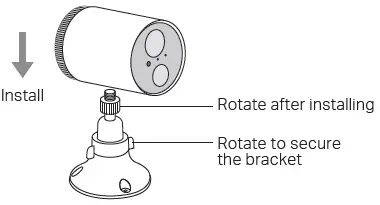
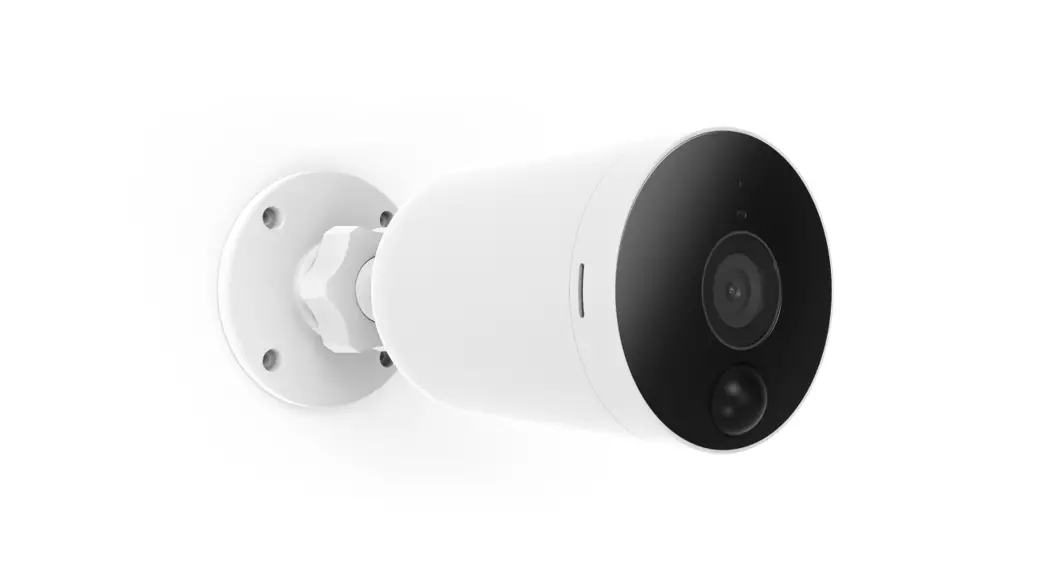
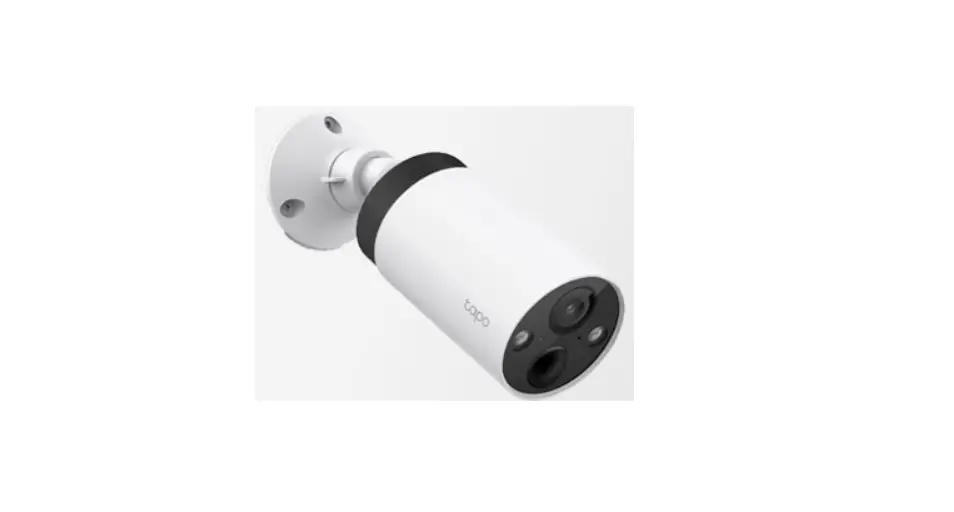
Option 2. Mount to the Wall
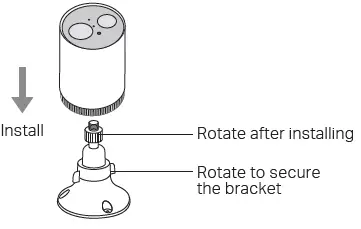
Mount to the Wall
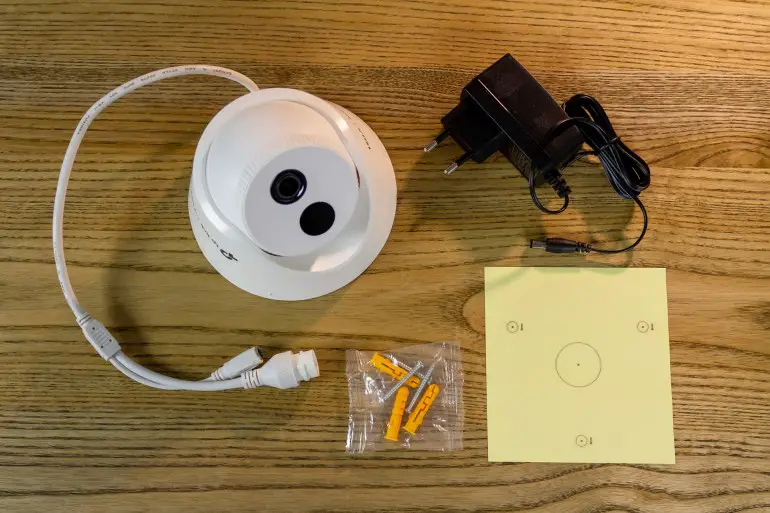
- Drill Holes
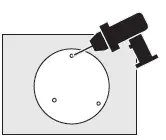
Stick the mounting template to the desired mounting place. Drill 3 holes according to the template. - Install the Bracket
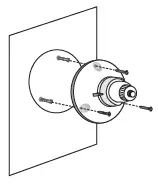
Insert three anchors into the holes and use the screws to affix the bracket over the anchors. - Install the Camera
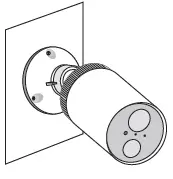
Install the camera on the mounting bracket, and adjust the camera angle.
Camera Appearance
Front
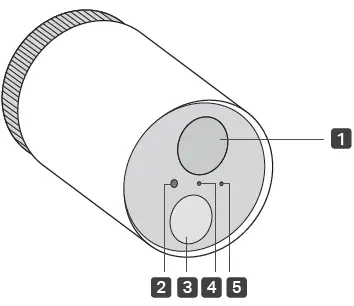
- Lens
- Light Sensor
- Motion Sensor
- Status LED
Indicate the status of your camera. - Microphone
- SYNC/RESET Button
While the camera is powered on:
Press for 1 second: Pair with the hub
Press and hold for about 5 seconds: Reset the camera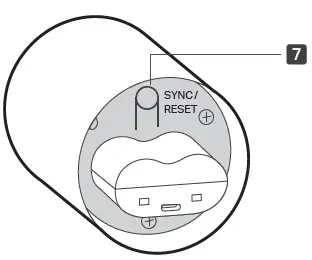
Hub Appearance
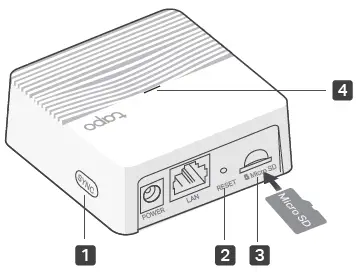
- SYNC Button
Press to pair with the camera, or silence the hub when it rings. - RESET
Use a pin to press and hold for about 5 seconds until the hub LED quickly blinks red to reset the hub. - microSD Card Slot
Insert a microSD card to record camera videos locally. Initialize the microSD card within the Tapo app first.
microSD card not included. - Status LED
Indicate the status of your hub.
Light Indications
Hub Status LED
| Solid red | Starting up |
| Blinking red and green | Ready for setup |
| Solid amber | Connected to router |
| Solid green | Connected to the cloud |
| Blinking green slowly | Pairing |
| Blinking red quickly | Hub resetting |
| Blinking green quickly | Hub updating |
Camera Status LED
| Solid Red | Starting up |
| Blinking red and green | Ready for pairing |
| Blinking green slowly | Pairing |
| Solid amber | Connected to the hub |
| Solid green | Connected to the cloud |
| Blinking red quickly | Camera resetting |
| Blinking green quickly | Camera updating |
| Blinking red once a minute | Low battery |
| Blinking red slowly | Offline |
Safety Information
- Do not use damaged charger or USB cable to charge the device.
- Do not use any other chargers than those recommended.
- Do not use the device where wireless devices are not allowed.
- Adapter shall be easily accessible.
- Use only power supplies which are provided by manufacturer and in the original packing of this product. If you have any questions, please don’t hesitate to contact us.
- Keep the device away from fire or hot environments. DO NOT immerse in water or any other liquid.
- Do not disassemble, repair or modify the product.
- Do not place near automatically controlled devices such as fire alarms. Radio waves emitted from this product may cause such devices to malfunction resulting in an accident.
- Observe restrictions on using wireless products in fuel depots, chemical plants or when blasting operations are in progress.
- Do not use liquid to clean the product. Only use a dry cloth.
- Never put metal objects inside the product. If a metal object enters the product turn off the circuit breaker and contact an authorised electrician.
- This product is not intended to be used when providing medical care.
Consult the manufacturer of any personal medical devices, such as pacemakers or hearing aids to determine if they are adequality shielded from external RF (radio frequency) energy. - Do not use this product in health care facilities. Hospitals or health care facilities may be using equipment that could be sensitive to external RF energy.
Do not place heavy objects on top of the product.
When you leave the product unused for a long time unplug the product from the power outlet. - Product should be kept away from heat sources such as radiators,cookers etc. – it should not be placed in places where the temperature is less than -20 degrees or greater than 45 degrees.
- This product may interfere with other electronic products such as TV, radios, personal computers, phones or other wireless devices.
- Always follow the local waste and recycle laws when you get rid of the used battery.
CAUTION!
Risk of fire or explosion if the battery is replaced by an incorrect type
CAUTION!
Avoid replacement of a battery with an incorrect type that can defeat a safeguard.
Avoid disposal of a battery into fire or a hot oven, or mechanically crushing or cutting of a battery, that can result in an explosion.
Do not leave a battery in an extremely high temperature surrounding environment that can result in an explosion or the leakage of flammable liquid or gas; Do not leave a battery subjected to extremely low air pressure that may result in an explosion or the leakage of flammable liquid or gas.
Camera Operating Temperature: -20 °C ~ 45°C (-4°F ~ 113°F) Camera Operating Humidity: 10%~90%RH, Non-condensing Hub Operating Temperature: 0 °C ~ 40°C (32°F ~ 104°F)
Hub Operating Humidity: 10%~90%RH, Non-condensing Please read and follow the above safety information when operating the device. We cannot guarantee that no accidents or damage will occur due to improper use of the device. Please use this product with care and operate at your own risk.
TP-Link hereby declares that the device is in compliance with the essential requirements and other relevant provisions of directives 2014/53/EU, 2009/125/EC, 2011/65/EU and (EU)2015/863. The original EU declaration of conformity may be found at https://www.tapo.com/support/ce/
TP-Link hereby declares that the device is in compliance with the essential requirements and other relevant provisions of the Radio Equipment Regulations 2017.
The original UK declaration of conformity may be found at https://www.tapo.com/support/ukca/
For technical support, user guides, FAQs, warranty and more, please visit www.tapo.com/support/
©2022 TP-Link 7106509765 REV1.0.0
Images may differ from your actual product.
 Link: Simple, secure one-click payments
 Support | Tapo
 WiFi Networking Equipment for Home & Business | TP-Link