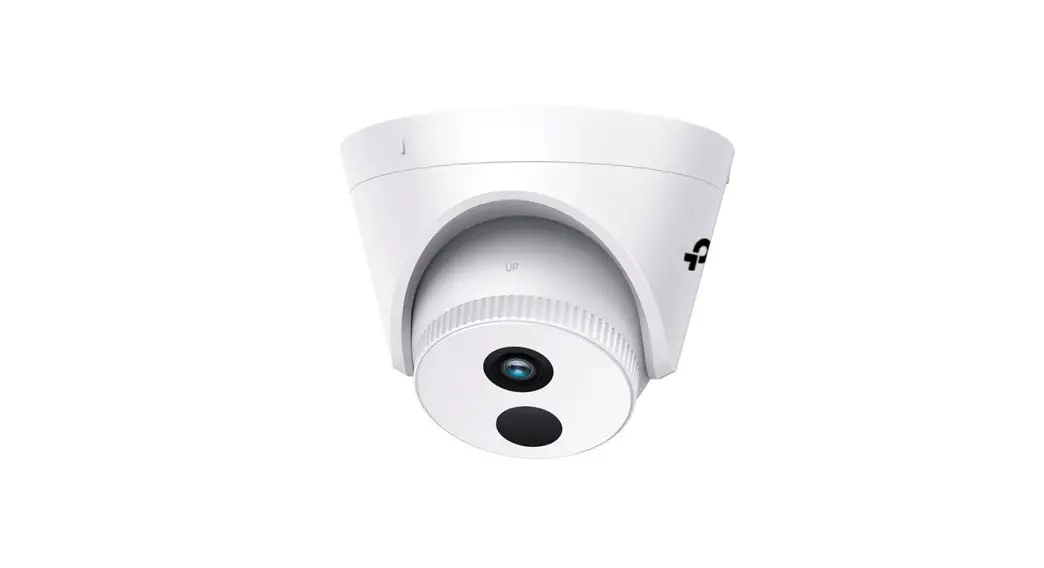
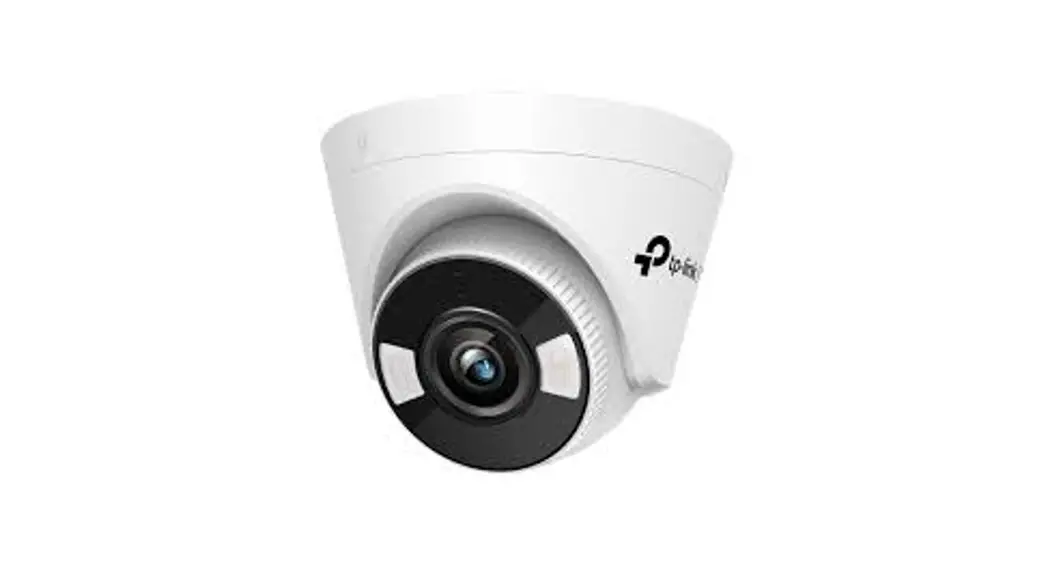
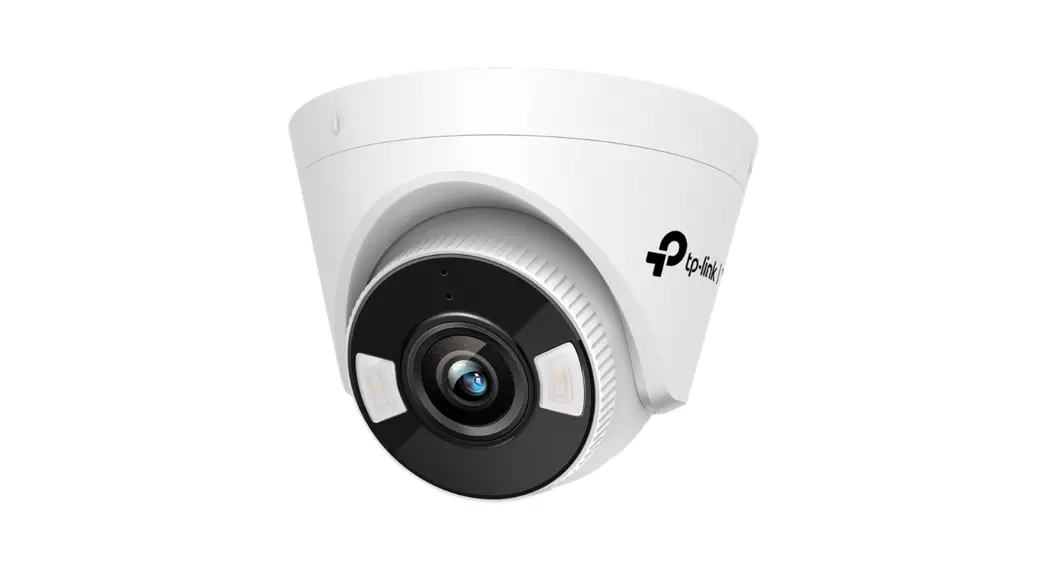
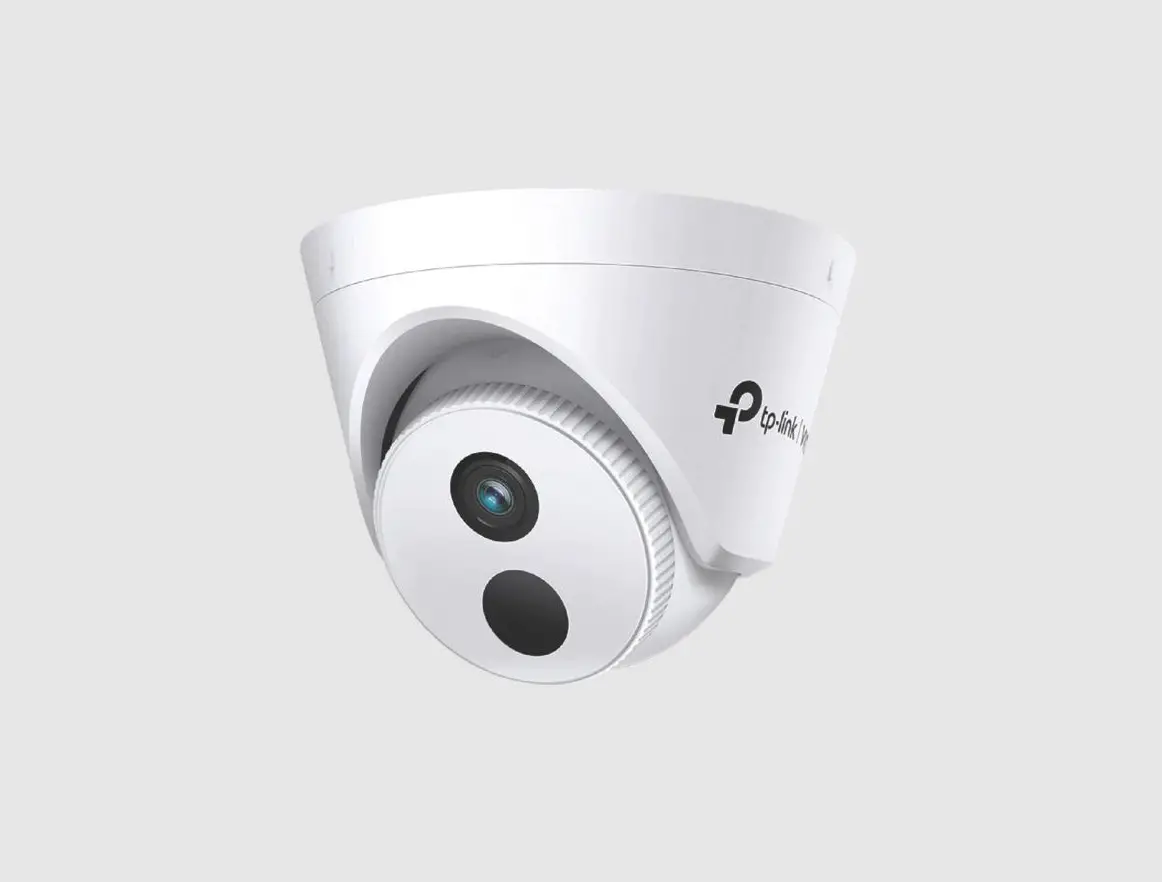
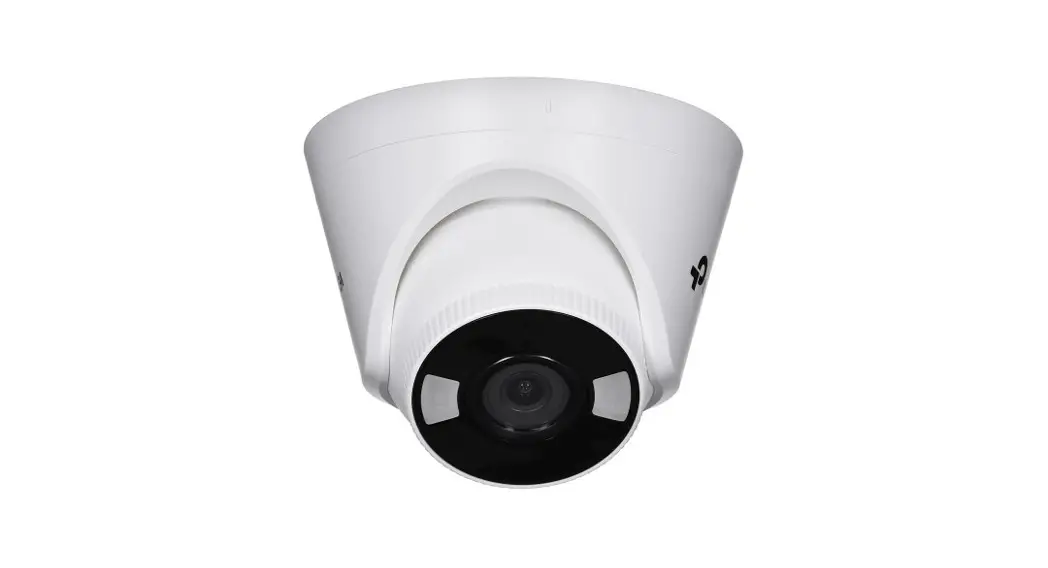
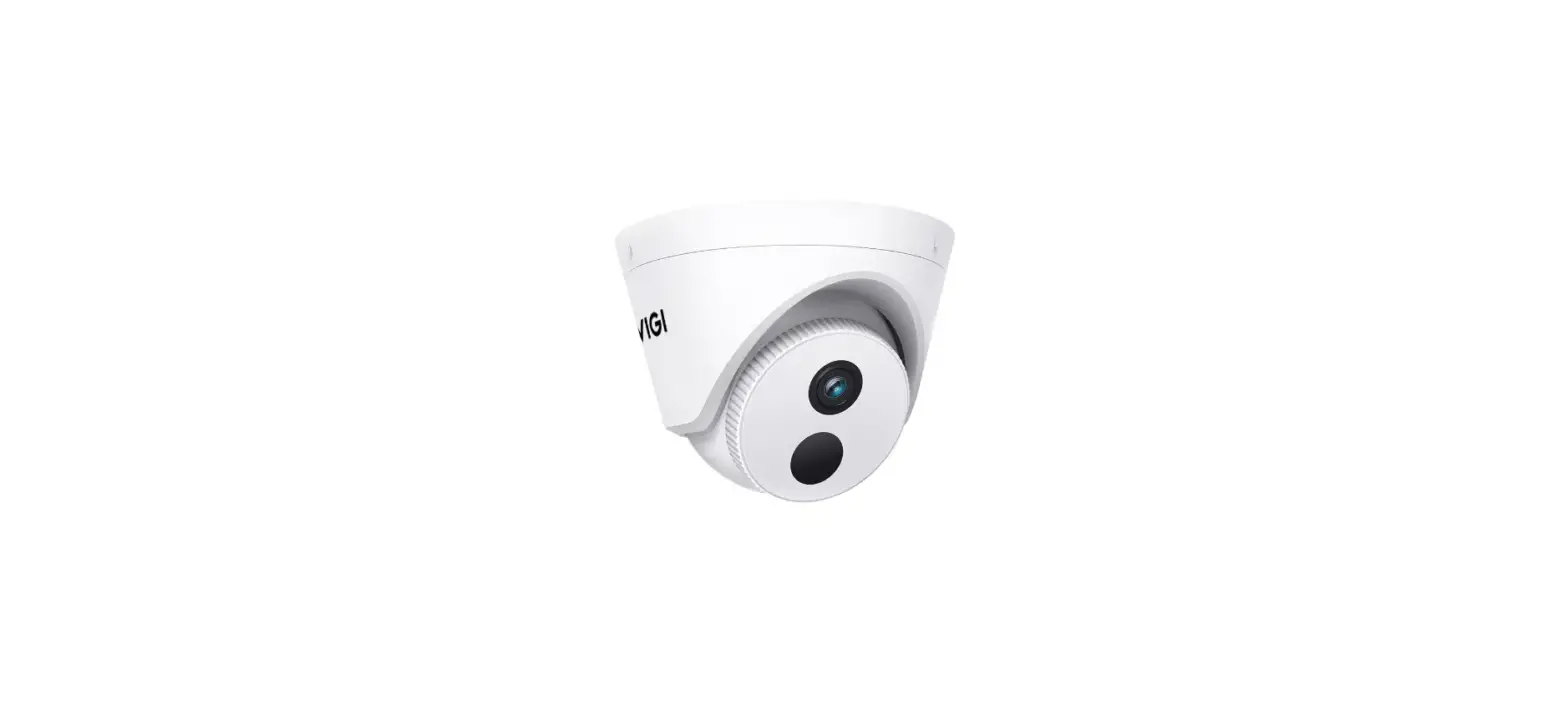
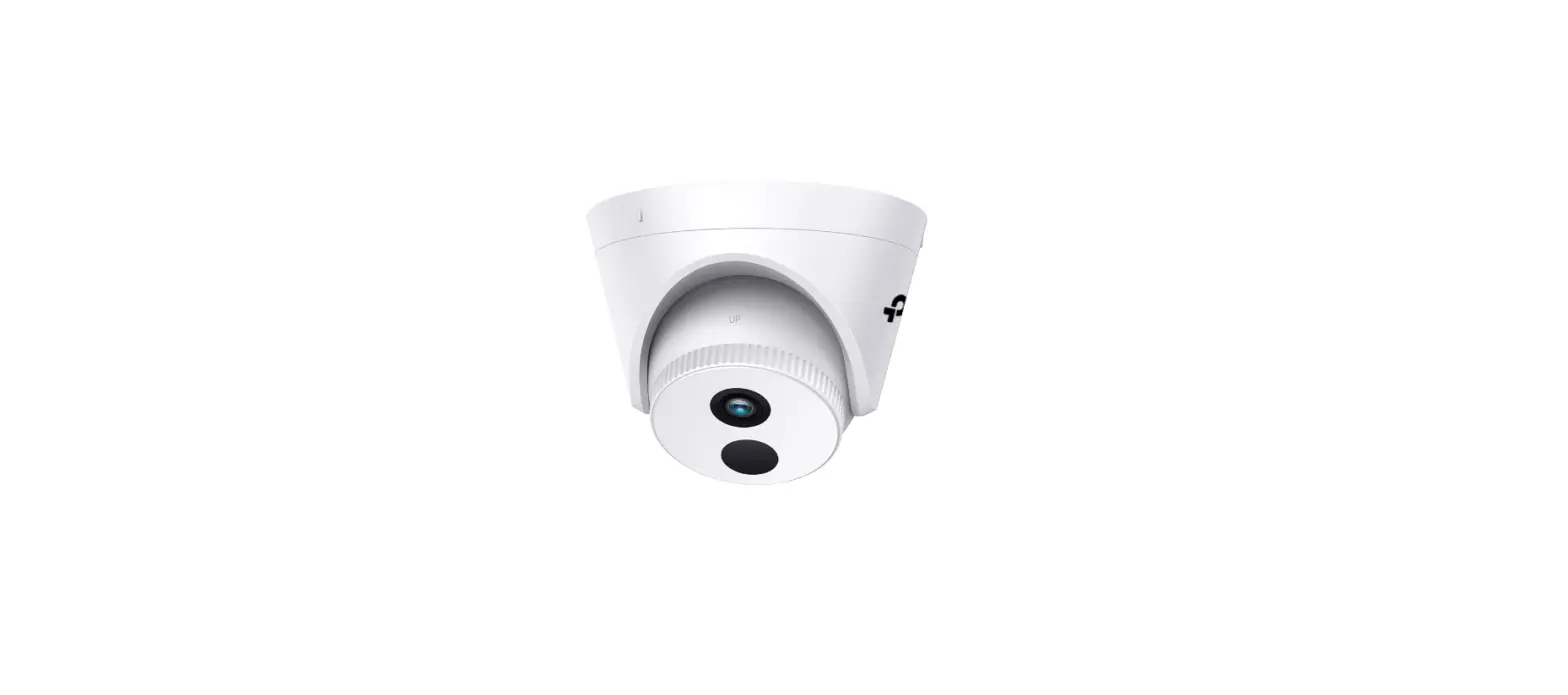
VIGI C450 Full Color Turret Network Camera
Product Information:
The product is a network camera that can be mounted on a wall or
ceiling. It comes with a mounting template and screws for easy
installation. The camera has a built-in microphone, white LED, IR
LED, and speaker for audio and video recording. It also has a micro
SD card slot for local storage and supports PoE (802.3af/at) or 12V
DC power supply.
Product Usage Instructions:
Wall/Ceiling Mounting:
- Choose the desired mounting location and stick the mounting
template to it. - Drill three screw holes and one cable hole according to the
template. - Route the cable through the wall/ceiling or side outlet
(depending on the chosen option). - Insert anchors into the holes and use screws to affix the
camera base to the wall/ceiling. - Attach the camera to the base and adjust the surveillance angle
as needed. Make sure the lens is positioned above the IR LED for
normal viewing.
Using the Camera with an NVR:
- Connect the camera to the same network as the NVR.
- Power on the camera with PoE or an external power supply.
- Add the camera to the NVR by right-clicking on the Live View
screen and selecting Add Camera. Select your camera and click + to
add it directly. - If Plug and Play is disabled on your NVR, create a password or
use a preset password for your camera.
Quick Start Guide
Quick Start Guide
Network Camera Anchors & Screws Mounting Template Quick Start Guide *Images may differ from actual products.
©2023 TP-Link 7106510128 REV1.0.0
1 Wall/Ceiling Mounting
Option 1: Cable through the wall/ceiling
1. Drill Holes Stick the mounting template to the desired mounting place. Drill 3 screw holes and 1 cable hole according to the template.
Appearance
1 Camera Base
2 Reset
1
Press for 5 seconds to reset the
camera to factory settings.
3 Micro SD Card Slot
Insert a micro SD card for local
2
storage. Initialize the SD card via
3
VIGI app before recording videos. 4
4 Built-in Microphone
5
5 White LED
6
6 IR LED 7 Speaker
8 9
7
8 RJ45 Network Interface 9 Power Supply Interface
(supports PoE) *
(12V DC) *
*The camera’s standard power supply is 12V DC or PoE (802.3af/at). The power source should comply with Power Source Class 2 ( PS2) or Limited Power Source(LPS) of IEC 62368-1.
Option 2: Cable through the side outlet
1. Drill Holes Stick the mounting template to the desired mounting place. Drill 3 screw holes according to the template.
Cable Hole (For the cable through wall/ceiling)
Score of bottom case 2. Open the Camera Case
Align the notch of the camera body with any score on the camera base, and use a screwdriver to gently pry open the camera case.
Score of camera base
Score of bottom case 2. Open the Camera Case
Align the notch of the camera body with any score on the camera base, and use a screwdriver to gently pry open the camera case.
Score of camera base
Notch of
Notch of camera body
Notch of
Notch of camera body
3. Secure the Camera
Route the cable through the wall/ceiling. Insert anchors into the holes, use screws to affix the camera base, and attach the camera to it.
3. Secure the Camera
Route the cable through the side outlet. Insert anchors into the holes, use screws to affix the camera base, and attach the camera to it.
Side Outlet
4. Adjust the Surveillance Angle Adjust the surveillance angle as needed. Make sure the lens is positioned above the IR LED for normal viewing.
Pan: 0° to 360°
4. Adjust the Surveillance Angle Adjust the surveillance angle as needed. Make sure the lens is positioned above the IR LED for normal viewing.
Pan: 0° to 360°
Tilt: 0° to 85°
Rotate: 0° to 360°
Tilt: 0° to 85°
Rotate: 0° to 360°
2 Use Your Camera with an NVR
The camera works with an NVR for easier batch access and management. *Here we use a VIGI NVR as an example.
Network Camera
Network Device
(e.g., Switch or Router)
VIGI NVR
Monitor
Network Camera
Step 1. Connect the Hardware
Connect your cameras to the same network as your NVR (as shown above).
Step 2. Power On the Cameras
Power on your cameras with the PoE power supply or an external power supply.
Note: The camera’s standard power supply is 12V DC or PoE (802.3af/at). The power source should comply with Power Source Class 2 ( PS2) or Limited Power Source(LPS) of IEC 62368-1.
Step 3. Add Cameras with the NVR
Before you start, make sure your NVR is working properly. 1. Right click on the Live View screen, and click Add Camera.
2. Select your camera and click + to add your camera directly.
If you have disabled Plug and Play on your NVR, create a password or use a preset password for your camera.
Note: If you can’t find your camera, refer to FAQ-Q1.
Done! You can now view live video and manage cameras.
Using your cameras with other NVR brands:
Step 1: Power on your cameras and connect them to the network. Step 2: Activate the cameras using the VIGI Security Manager or TP-Link VIGI app (refer to the next section). Step 3: Refer to the NVR’s User Manual to add cameras.
More Management Methods
You can also access and manage your cameras via any of the methods below.
Method 1: Via the VIGI Security Manager (Windows only)
View live video and modify camera settings on your computer.
1. Download the VIGI Security Manager on your computer at https://www.tp-link.com/support/download/vigi-s ecurity-manager/.
2. Install the VIGI Security Manager and open it.
3. Cameras on the same network as your computer can be automatically discovered. Go to Settings > Discovered Devices, click + Add to activate your discovered cameras by setting passwords, and follow the instructions to add your cameras.
Method 2: Via the TP-Link VIGI App Remotely view live video, manage cameras, and get instant alerts.
1. Download and install the TP-Link VIGI app.
or
2. Open the TP-Link VIGI app and log in with your TP-Link ID. If you don’t have an account, sign up first.
3. Tap the + button on the top right and follow the app instructions to activate and add your cameras.
Method 3: Via a Web Browser
View live video and modify camera settings via a web browser.
1. Find the camera’s IP address on your router’s client page.
2. On your local computer, open a web browser and enter https://camera’s IP address (https://192.168.0.60 by default).
3. Select your Country/Region and Time Zone.
4. Set a password to activate the camera.
Done. You can view the live video on the Preview page, and go to the Settings page to change camera settings.
Frequently Asked Questions (FAQ)
Q1: What can I do if no cameras are discovered?
· Refresh to discover your camera again. · Make sure the camera is powered on. · Make sure your camera and NVR/computer are in the same subnet. If
not, use the VIGI Security Manager to set camera’s network parameters. · Try to add your camera manually. · For other NVR brands, make sure you have activated the camera by setting a password via the VIGI Security Manager or TP-Link VIGI app.
· Do not use any other chargers than those recommended. · Do not use damaged charger or USB cable to charge the device. · Do not attempt to disassemble, repair, or modify the device. If you need service,
please contact us. · Adapter shall be installed near the equipment and shall be easily accessible. · Keep the device away from water, fire, humidity or hot environments.
TP-Link hereby declares that the device is in compliance with the essential requirements and other relevant provisions of directives 2014/30/EU, 2014/35/EU, 2011/65/EU and (EU)2015/863. The original EU Declaration of Conformity may be found at https://www.tp-link.com/en/support/ce/
Q2: How do I know the camera is powered on?
· The IR LED will turn on for 20 seconds once the camera is powered on. If it’s off, you can cover the lens for several seconds and check if the IR LED turns on.
· Check the Ethernet port LED status of the network device your camera is connected to.
For more questions, please refer to https://www.tp-link.com/support/faq/2850/
TP-Link hereby declares that the device is in compliance with the essential requirements and other relevant provisions of the Electromagnetic Compatibility Regulations 2016 and Electrical Equipment (Safety) Regulations 2016. The original UK Declaration of Conformity may be found at https://www.tp-link.com/support/ukca
For technical support, replacement services, user guides, and more information, please visit https://www.tp-link.com/support, or simply scan the QR code.
 CE Regulatory Compliance | TP-Link